

Page 1

gy
Skylab M&C Technolo
Co., Ltd. SKW71-EVB-User Manual
SKW71 EVB User Manual
1
SKW71-EVB-UM-001,A/1
Page 2

gy
Skylab M&C Technolo
Co., Ltd. SKW71-EVB-User Manual
Introduction
The SKW71 EVB offers a quick and easy way to evaluate the SKW71 module and the
SKW71 is a 802.11n/ b/g AP WiFi module.
The Evaluation Kit is including the following items:
1. One SKW71 module.
2. One SKW71 EVB.
3. One DC adaptor with micro USB connector cable.
4. One WIFI antenna.
5. This Manual.
EVB Details
This section describes the various interfaces and switch settings for the SKW71-EVB
board.
EVB Hardware Installation
2
SKW71-EVB-UM-001,A/1
Page 3
gy
Skylab M&C Technolo
Co., Ltd. SKW71-EVB-User Manual
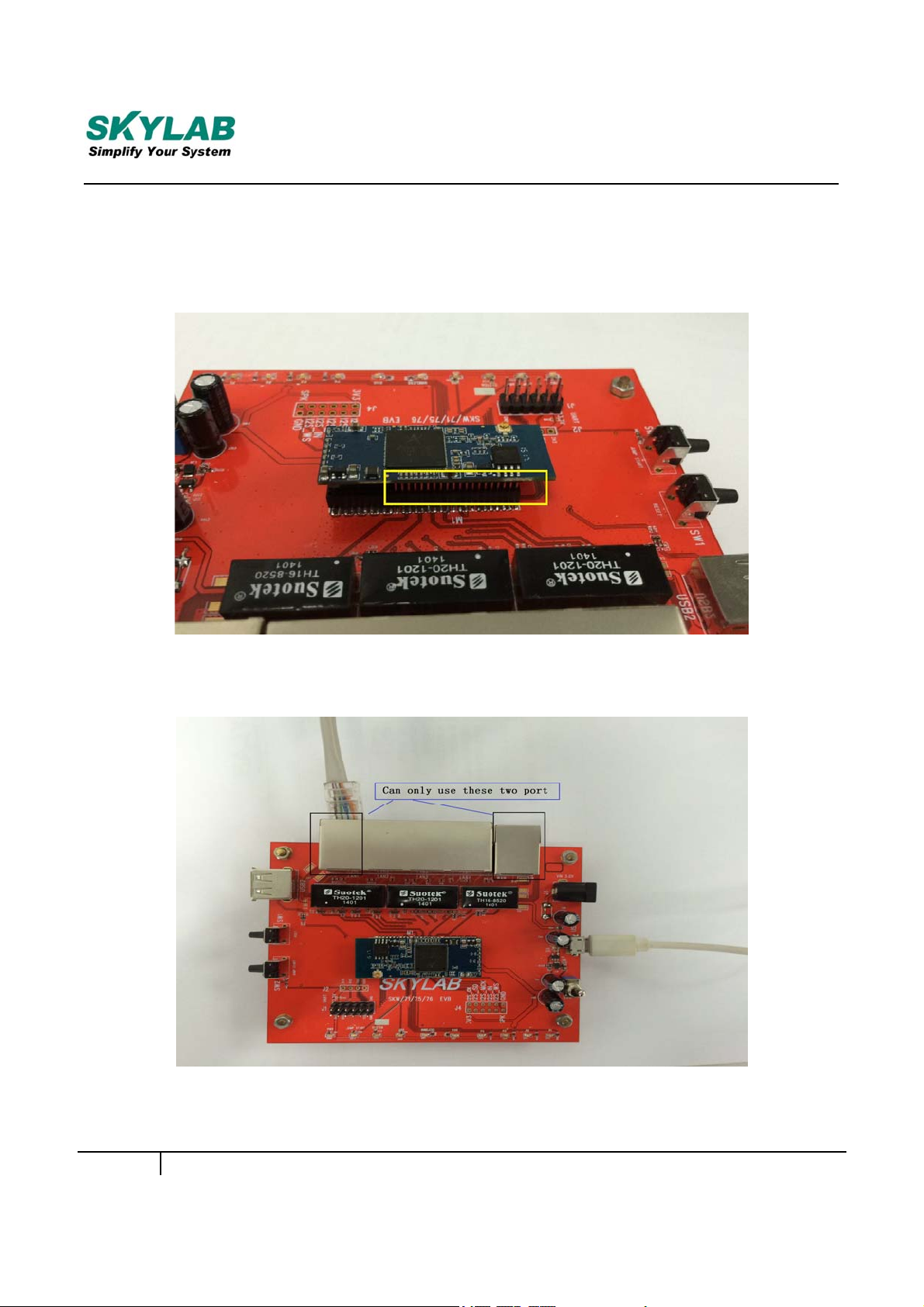
Step 1: Insert the module to the EVK board.
Note : The correct method is shown in the following figure:
Step 2: Insert the DC adaptor into the power-supply connector.
Step 3: Connect the another LAN port into PC`s RJ45 port.
Step 4: Connect the WiFi antenna.
3
SKW71-EVB-UM-001,A/1
Page 4
gy
Skylab M&C Technolo
Co., Ltd. SKW71-EVB-User Manual
1. LoggingintotheModuleWeb
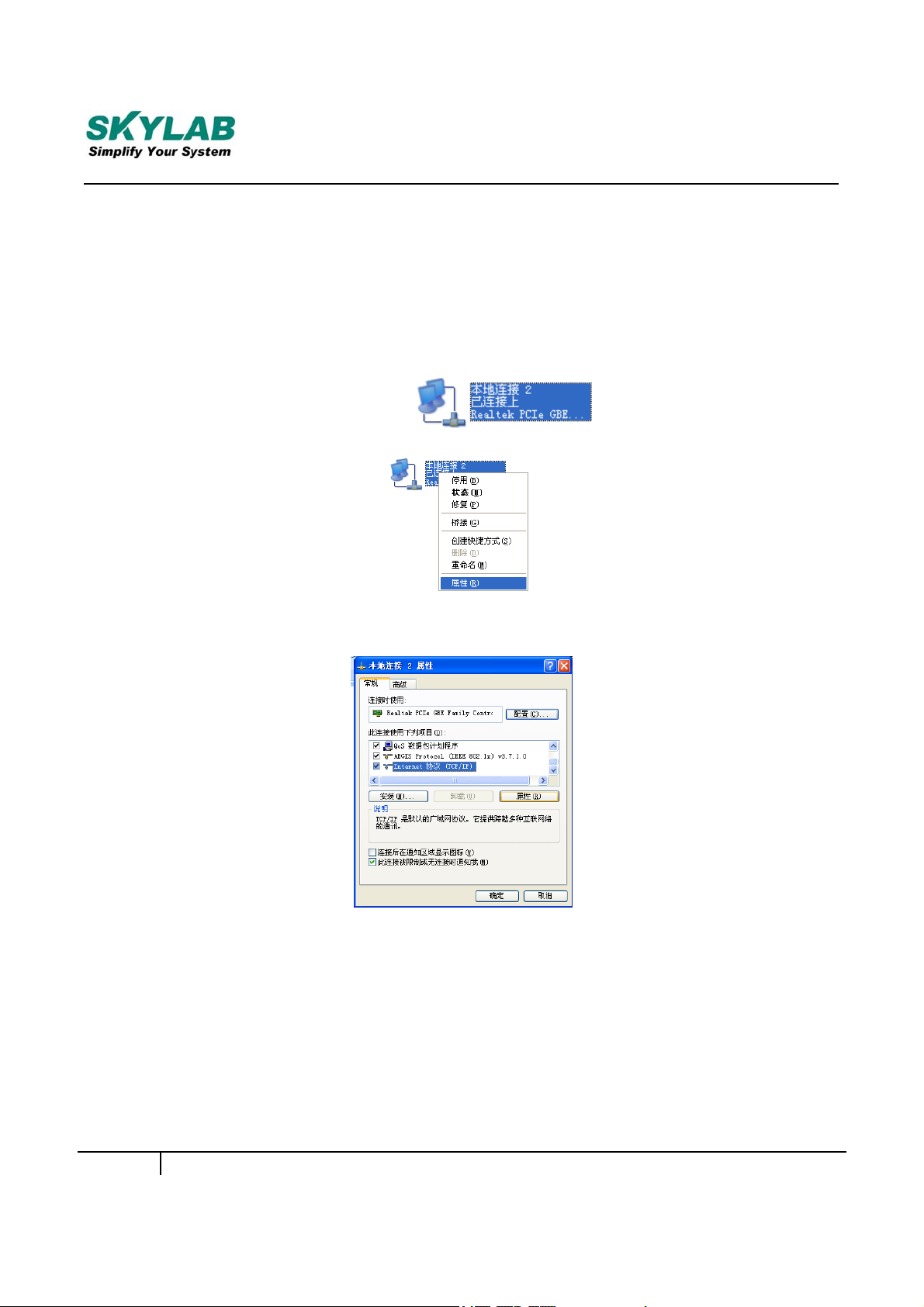
1)Connected SKW71 LAN port and PC`s RJ45 port;
2)Setup IP address:
Step 1: Right-click the “local connection. This pic is chinese version.
Step 2: Click “attribute”
Step 3: Click “internet protocol(TCP/IP)”
Step 4: Set IP address Manually
4
SKW71-EVB-UM-001,A/1
Page 5
gy
Skylab M&C Technolo
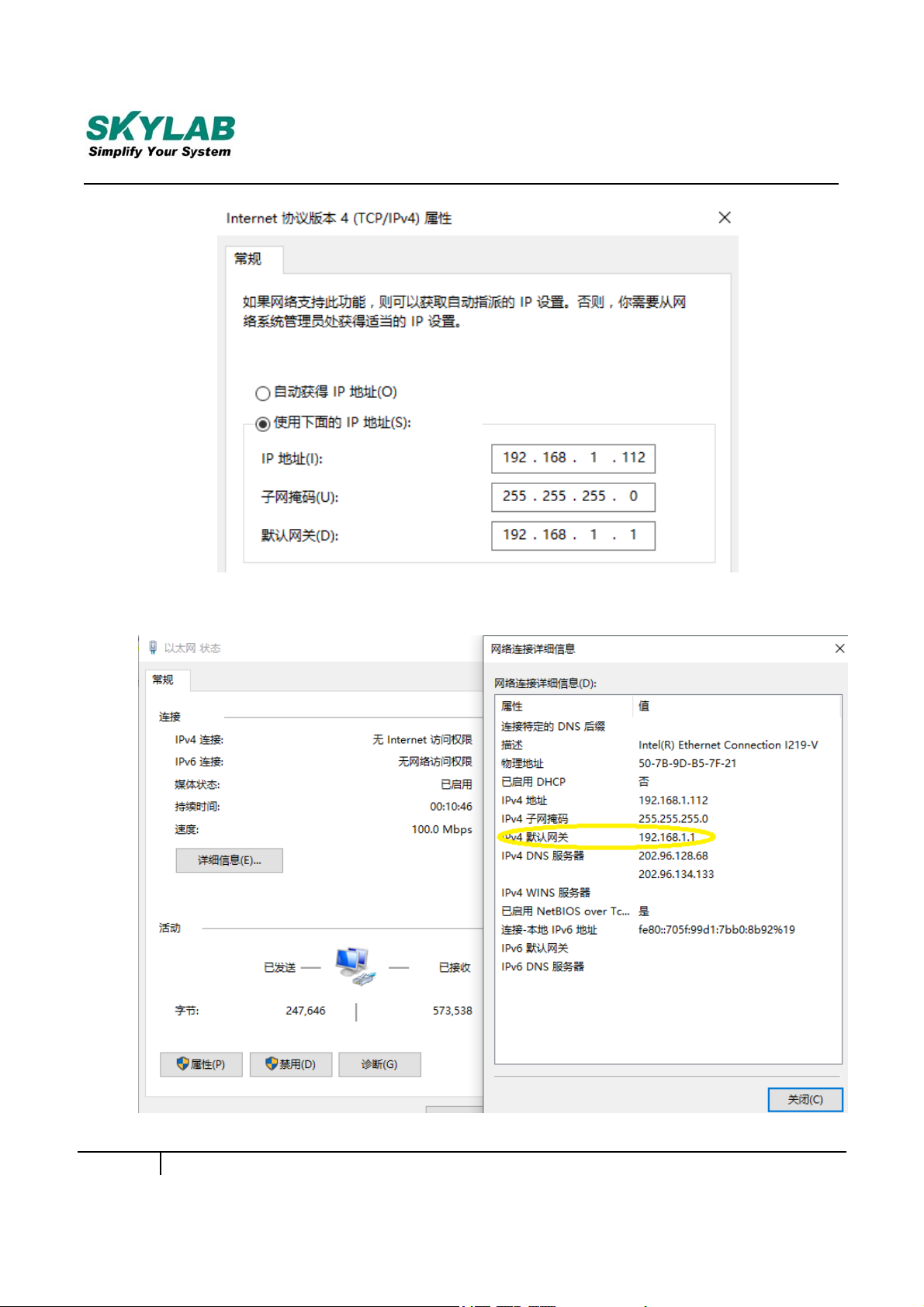
3)Check IP address according to the yellow tag in the pic.
Co., Ltd. SKW71-EVB-User Manual
5
SKW71-EVB-UM-001,A/1
Page 6
gy
Skylab M&C Technolo
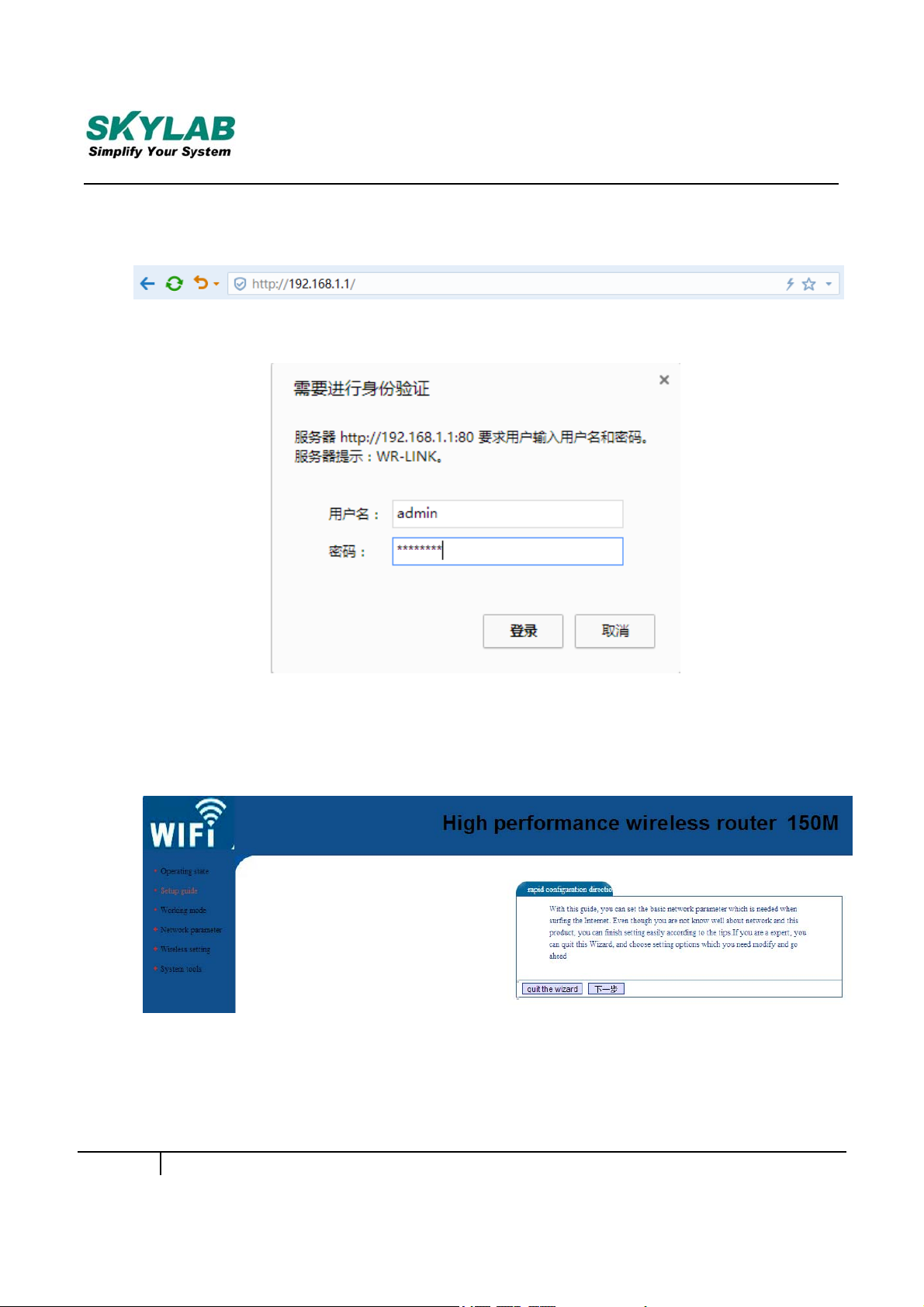
4)Web browser address: “http: //192.168.1.1”
5)User account: admin
Password: password
Co., Ltd. SKW71-EVB-User Manual
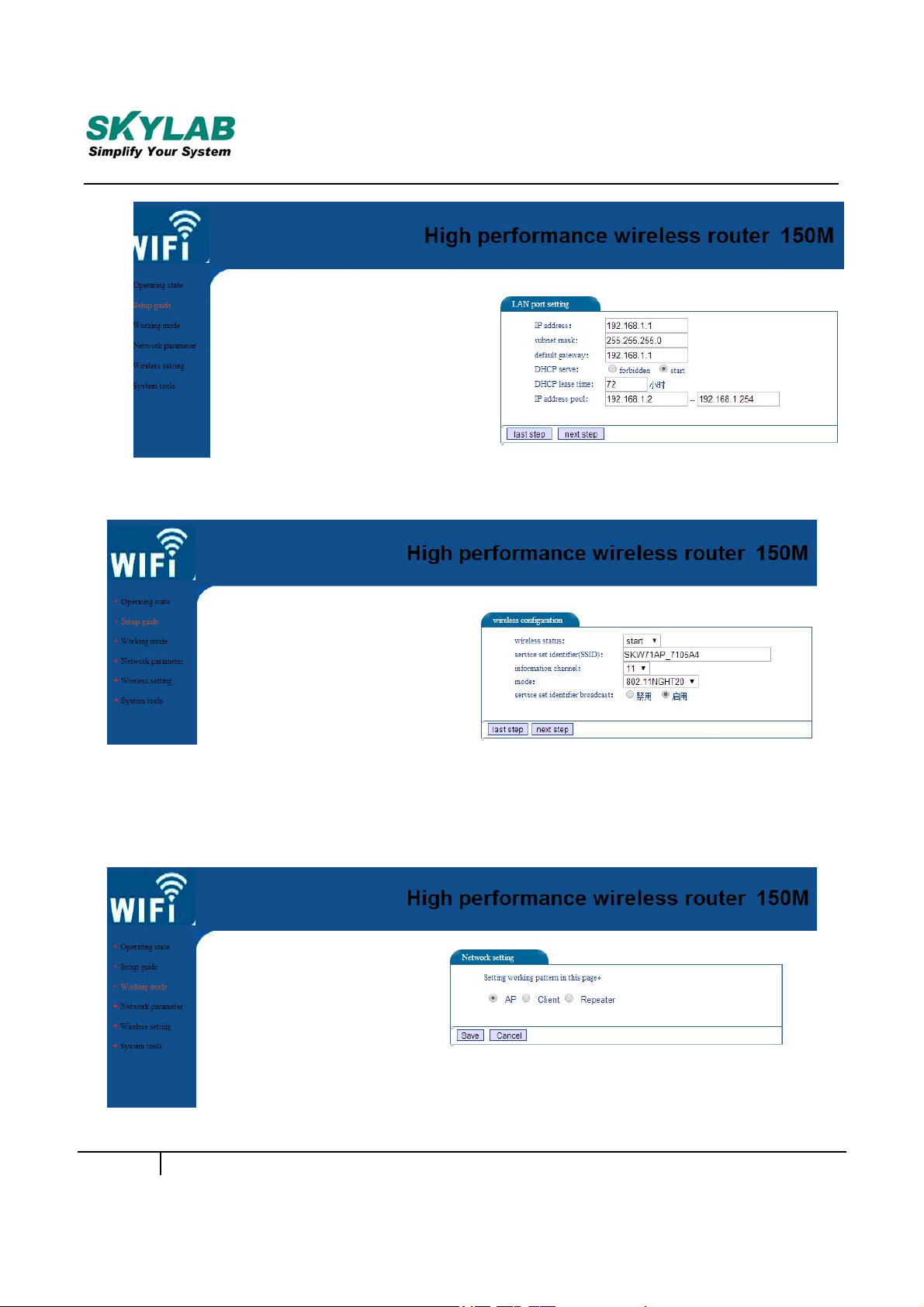
2. Setup“SetupGuide”
a. Click “Setup guide”, to enter configuration:
b. Click “下一步”, and then enter into LAN port setting:
6
SKW71-EVB-UM-001,A/1
Page 7
gy
Skylab M&C Technolo
c. Click “next step”, and then enter into wireless configuration:
Co., Ltd. SKW71-EVB-User Manual
d. Click “next step”, setup finished.
3. Setup“Workingmode”
SKW71-EVB-UM-001,A/1
7
Page 8

gy
Skylab M&C Technolo
1) AP mode
2) Repeater mode
3) Client mode
一. Setup “AP mode”
A. Click “Wireless setting”, enter into the “AP basic setting”:
Co., Ltd. SKW71-EVB-User Manual
B. Then enter into the “Security setting”:
C. Click “Network parameter”, and then enter into LAN port setting:
SKW71-EVB-UM-001,A/1
8
Page 9

gy
Skylab M&C Technolo
Co., Ltd. SKW71-EVB-User Manual
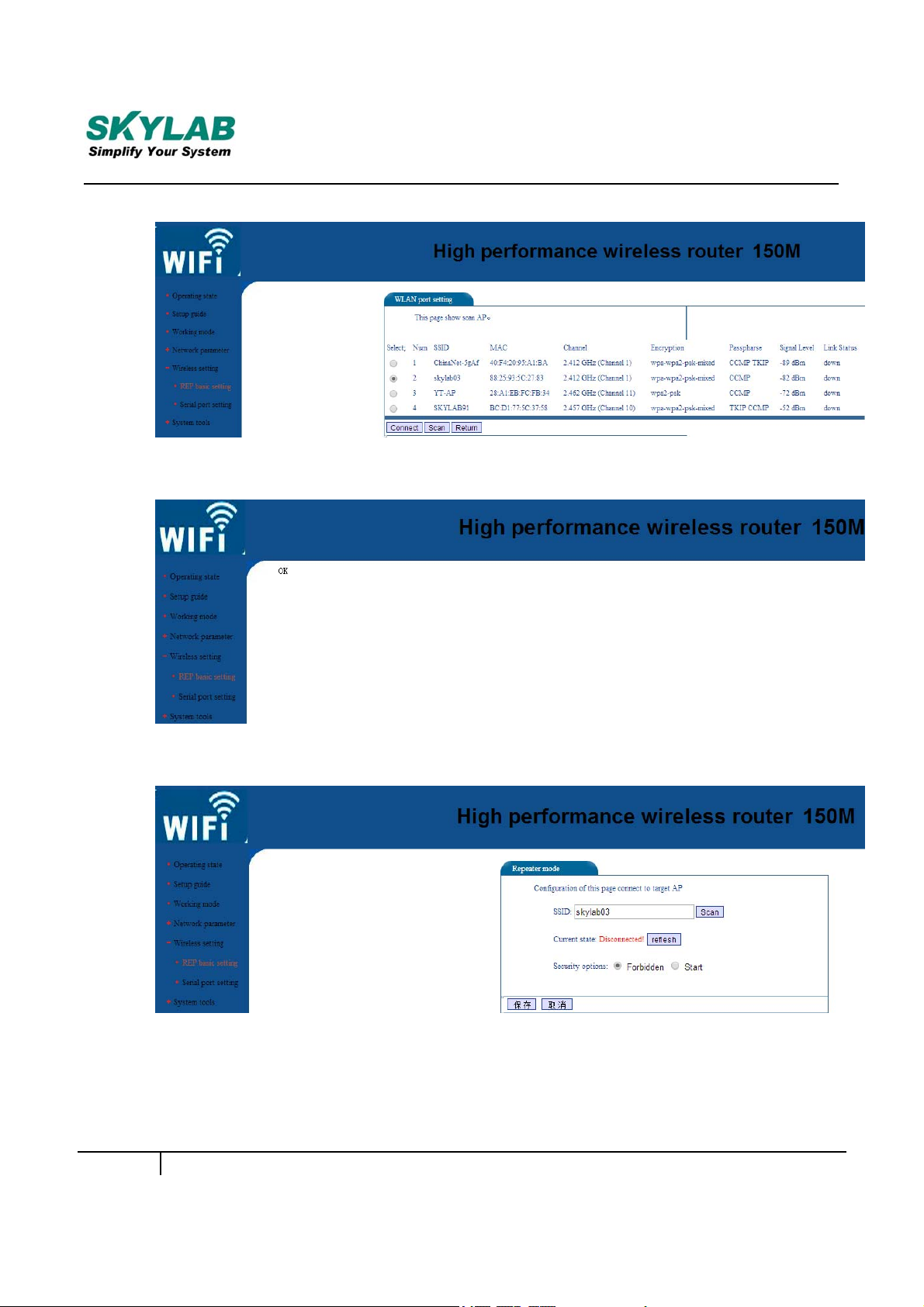
二. Setup “Repeater mode”
A. Click “Wireless setting”, enter into the “repeater mode”:
SKW71-EVB-UM-001,A/1
9
Page 10
gy
Skylab M&C Technolo
B. Click “Scan”, enter into the “WLAN port setting”:
C. Select AP, Click “connect”:
Co., Ltd. SKW71-EVB-User Manual
D. Click “Wireless setting”, enter into “repeater mode”:
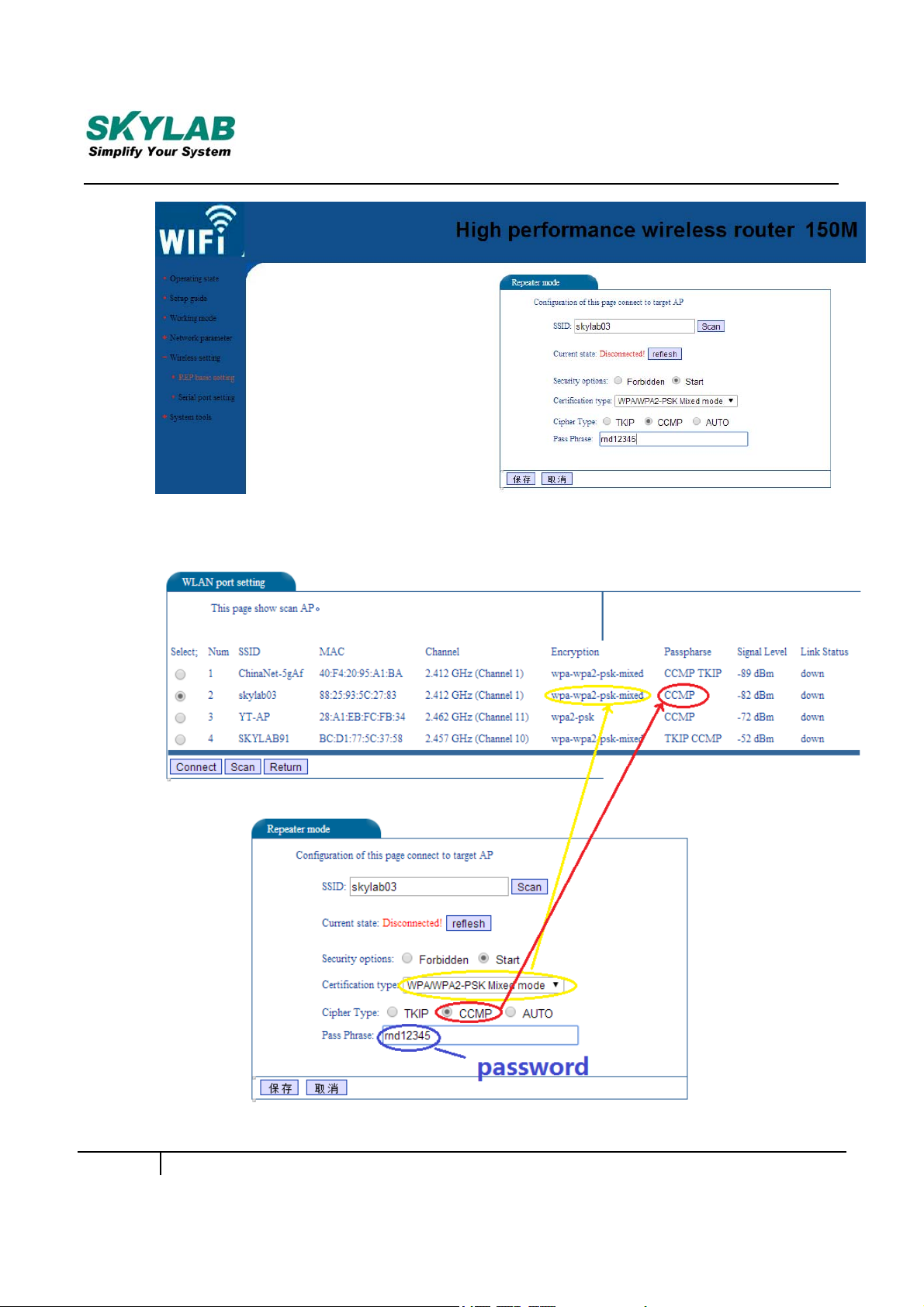
E. Select security options, click “Start”:
SKW71-EVB-UM-001,A/1
10
Page 11
gy
Skylab M&C Technolo
F. Input password:
Co., Ltd. SKW71-EVB-User Manual
11
SKW71-EVB-UM-001,A/1
Page 12
gy
Skylab M&C Technolo
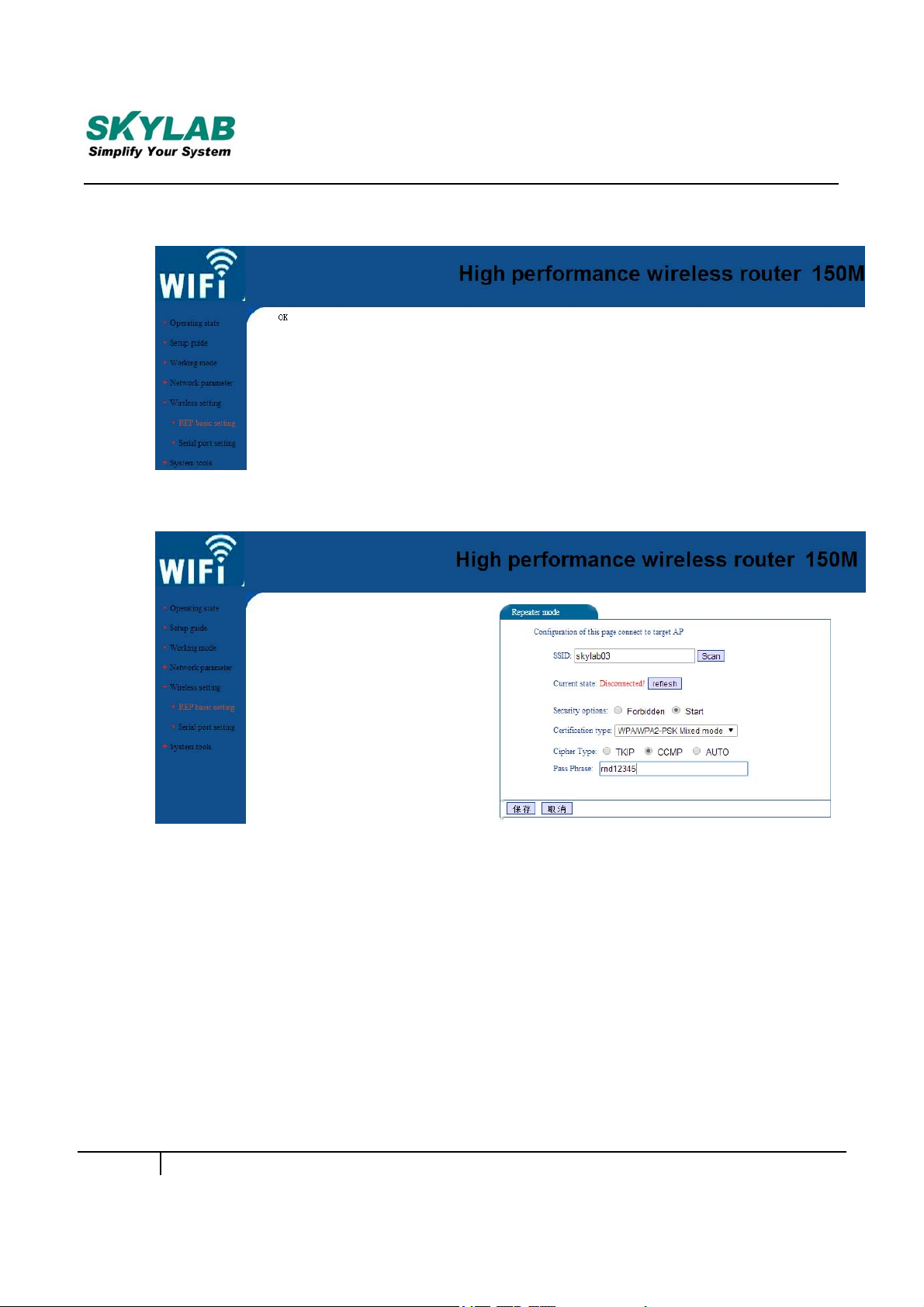
G. Click “保存”:
H. Click “Wireless setting”, enter into “repeater mode”:
Co., Ltd. SKW71-EVB-User Manual
I. Click “reflesh”, the current state: Connected!
12
SKW71-EVB-UM-001,A/1
Page 13

gy
Skylab M&C Technolo
三. Setup “Client mode”
Co., Ltd. SKW71-EVB-User Manual
Note: reference setup “AP mode” and setup “repeater mode”.
13
SKW71-EVB-UM-001,A/1
Page 14

gy
Skylab M&C Technolo
四.Setup“SystemTools”
Co., Ltd. SKW71-EVB-User Manual
14
SKW71-EVB-UM-001,A/1
 Loading...