

Page 1
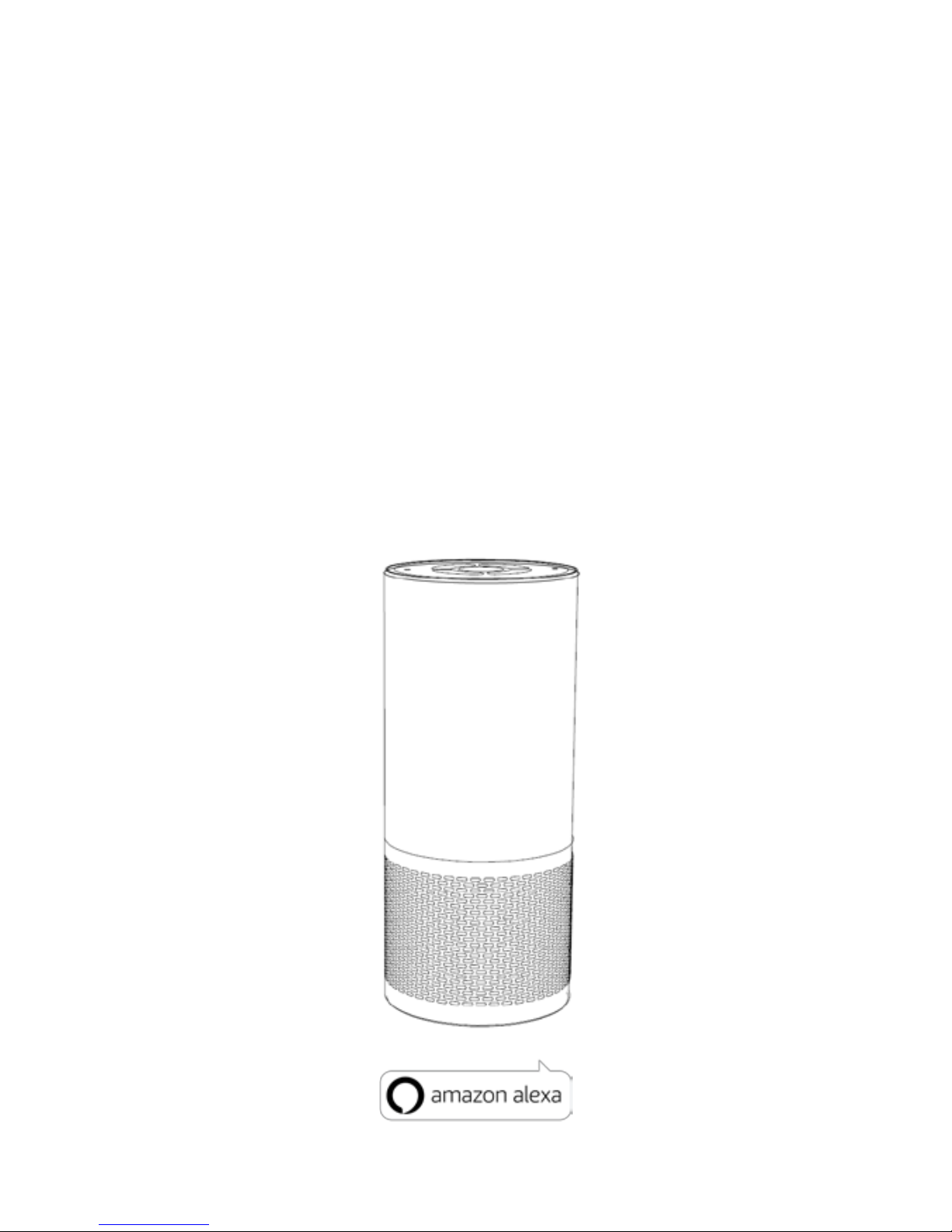
CK315
Smart Speaker With Alexa
User Manual
Page 2
1
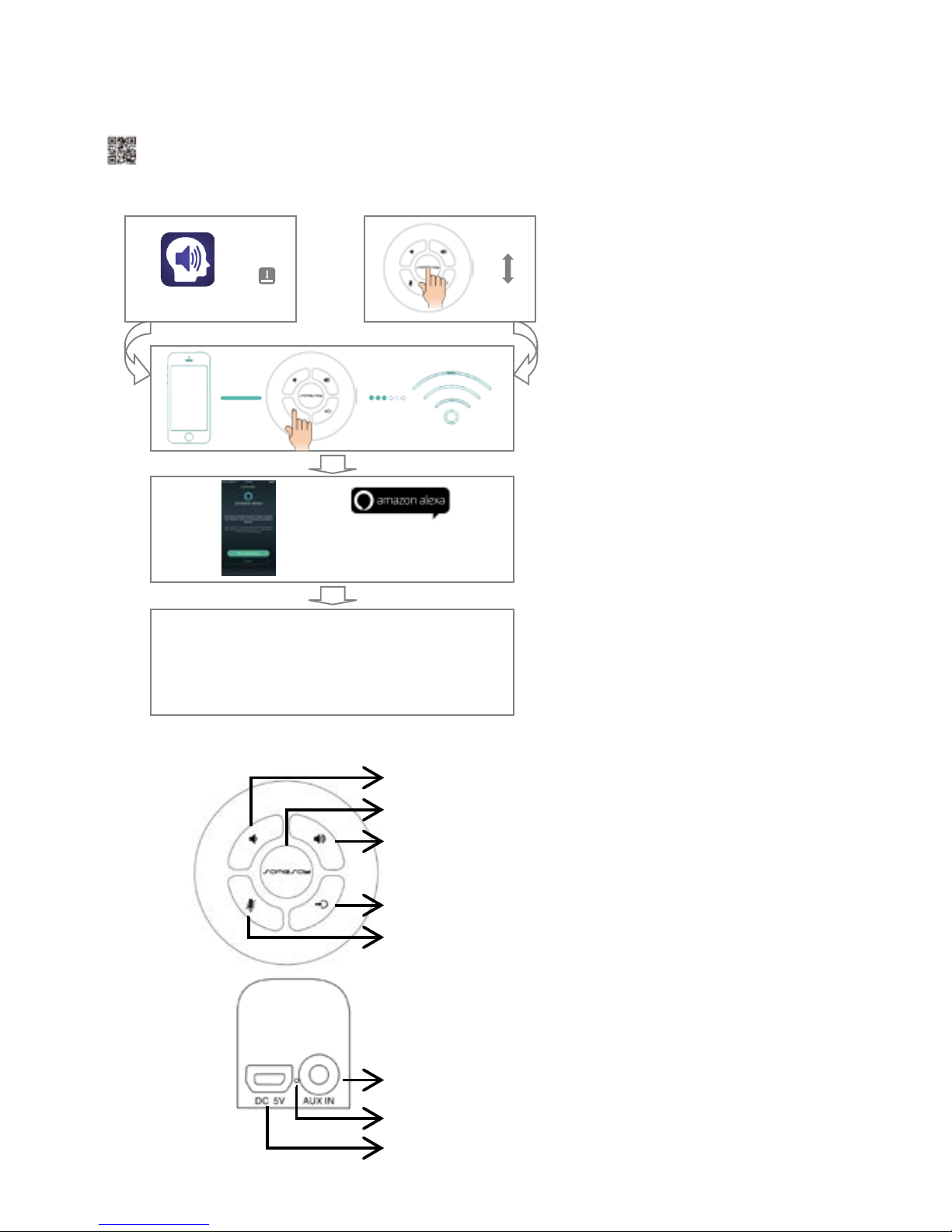
Start wit h CK315
Control Panel & Ba ck Pane l
AUX IN
:external a udio input
microphone mute
/ WPS
play
or pause /mo d e switch
volume
up
power button
/ta p to talk in WiFi mod e
vo
lume dow n
DC Connector L ED
DC 5V charging
SameSay
ON
Sign in wi th A mazon
Enjoy CK315 ……
Page 3
2
Download t he SameSay AP P
Downloa d and i nsta l l the SameS ay APP to your phone. Then the APP will guide you to setup your device to the
network, and you can also get more i nformation from Ama zon A lexa APP.
Both SameSay APP and Amazon Alexa APP can be d ownload e d f rom App Store or Google Play.
Ho w to use CK315
1. Connecting your device to the i nter n et by SameSay APP.
2. Login Amazon account.
3. Select your fa vorite sound source and play Now
4. Multi-room play: add d e vice s to DE VICE LIST i n your APP, then long press and drag slave device up to
main device until they are i n same room to pla y in sync. You ca n both control ma in de vice or slave
devices.
5. Use Al ex a Voice Service: as k a word “Alexa” to wake up and then give it an order, or tap to talk wi th the
power button while in WiFi mod e. I f you want t o get more Al exa skills you can go to the Alexa APP.
Play with Air Play
When CK315 WiFi speaker network connected, IOS u s ers can use Air Play to achiev e wireless musi c!
1. IOS 10 users: Slide up from the bottom of the device to open the Control Center and find the "Play in"
screen in the horizontal direction,click
,then sel e ct you r CK315.
2. IOS 9 & IOS 8 users: Slide up from the bottom of the device to open the Control Center ,Smoothes
along the horizontal to find the "Play" screen,click
,then select your CK315.
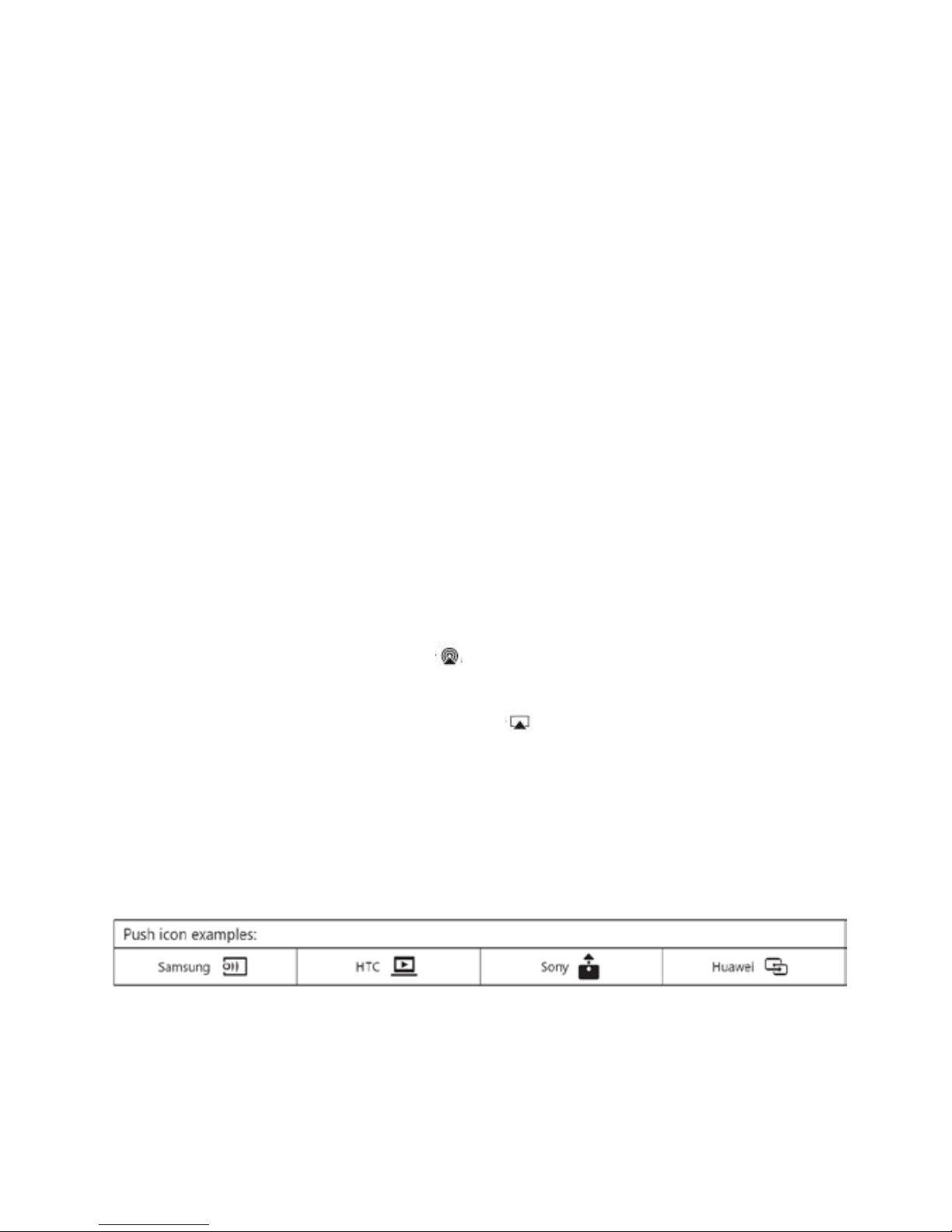
Use Android DLNA to play
When CK315 WiFi speaker network connected, Android users can u se DLNA to play.
1. Open the phone or tablet comes with DLNA function of the music player software, click on the playback
int erfa c e, click th e p ush icon, and t hen select your CK315 device to play mus ic .
Tips:
·Make sure your WiFi is 2.4G Wi-Fi and the CK315 does not support the 5G.
·It is recommended that you use the router do not connect multiple intern et dev ices, so as not to take up too much
bandwidth and affect user’s experience.
Page 4

3
·Do not use in a complex Wi-Fi network environment (eg, office, hotel, multiple routers br idged, too ma ny routers
ar ound, et c .) t o avoi d unr es tric ted conne c tion, play cardon, con nection failure, i nabi lit y to use, etc.
Bluetooth mode
Long press mode switch button“ ” and sel ect Bluetooth mod e,or sel ect Bluet ooth mode o n the Sa m eSa y APP.
Then top LE D will turn into blue and flashing. Pairing CK315’s Bluetooth with your device (Such as: smart
phones, tablet PCs, PC, Mac and so on). If CK315 Bluetooth connected, top LED stop flashing, als o with a
war ning sound, then you c an play content.
AUX IN mode
Long press mode switch button “ ” and se lect AUX mode,also you c an select AUX mode on the SameS ay APP .
While equipments (such as: smart phones, tablet PCs, PC, Mac, etc.) are connected by cable to the AUX, you can
play your content.
Specifications
1.Bluetooth version: V4.0
2.Bluetooth connection distance: connection distance≤10 m
3.Output Power: 5W
4.Bluetooth freque ncy range: 2.402GHz-2.480GHz
5.Wi-Fi generat or fr equenc y range: 2.412GHz–2.462GHz
6.Wi-Fi network co mp atible: IEEE 802.11b/g/n
7.Speaker impedance: 4Ω
Page 5

4
FCC WARNINGS
This equipment has been tested and found to comply with the limits for a Class B digital device,
pursuant to part 15 of the FCC Rules. These limits are designed to provide reasonable protection
against harmful interference in a residential installation. This equipment generates, uses and can
radiate radio frequency energy and, if not installed and used in accordance with the instructions,
may cause harmful interference to radio communications. However, there is no guarantee that
interference will not occur in a particular installation. If this equipment does cause harmful
interference to radio or television reception, which can be determined by turning the equipment
off and on, the user is encouraged to try to correct the interference by one or more of the
following measures:
• Reorient or relocate the receiving antenna.
• Increase the separation between the equipment and receiver.
• Connect the equipment into an outlet on a circuit different from that to which the receiver is
connected.
• Consult the dealer or an experienced radio/TV technician for help.
Caution: Any changes or modifications to this device not explicitly approved by manufacturer
could void your authority to operate this equipment.
This device complies with part 15 of the FCC Rules. Operation is subject to the following two
conditions: (1) This device may not cause harmful interference, and (2) this device must accept
any interference received, including interference that may cause undesired operation.
Radiation Exposure Statement
This equipment complies with FCC radiation exposure limits set forth for an uncontrolled
environment. This equipment should be installed and operated with minimum distance 20cm
between the radiator and your body.
This transmitter must not be co-located or operating in conjunction with any other antenna or
transmitter.
 Loading...