

Page 1

User Manual for Skybee Headphone EP-01
- 1 - Version 1.0.0.0 2005-10-09
Unpacking......................................................................................................................2
Introduction...............................................................................................................3
Overview.................................................................................................................................3
Specifications.......................................................................................................................3
Host System Requirements..........................................................................................3
The Headphone Kit Layout...........................................................................................4
Getting Started.....................................................................................................5
Step 1: Connect the Headphone to PC...................................................................5
Step 2: Install the latest SkypeTM.............................................................................5
Step 3: Install the Driver “Skype@phone”.........................................................5
Earphone Test.........................................................................................................7
Update the Driver.............................................................................................8
Trouble Shooting................................................................................................9
Page 2
User Manual for Skybee Headphone EP-01
- 2 - Version 1.0.0.0 2005-10-09
Unpacking
When you receive your Skybee headphone EP-01, please check to make sure that your
package contains the following items:
One headphone EP-01
One installation CD
(Including User Manual)
Note:
This manual is written for the USB phone driver version 1.0.0.1.
Page 3

User Manual for Skybee Headphone EP-01
- 3 - Version 1.0.0.0 2005-10-09
Introduction
Overview
The Skybee Headphone EP-01 is a delicate headphone specially designed for Skype™.
With the one-push button, you can conveniently make Internet call while enjoying music! And
its built-in ringer ensures no missed calls any more. It is the perfect companion for your
PC/laptop.
Features:
l Built-in Skype hotkeys enable you to receive/end calls without mouse clicking.
l Auto-pause music on an incoming Skype call.
l Built-in buzzer rings loudly enough.
l Adjustable volume for earpiece.
l USB interface PnP. No external power required.
l Patent pending.
Specifications
Weight 80g
USB Port USB B-type
Audio-in/out 3.5mm
Voltage 4~5.25 V
Operating Humidity 5~95% RH
Operating Temperature
0~40℃
Host System Requirements
l Microsoft Windows 2000/XP.
l Pentium 400MHz above processor/128MB RAM/16MB free hard disk capacity.
l PC sound card.
l One USB port available.
l Internet connection (ADSL, Cable Modem, Dial-Up, Wireless LAN).
Page 4
User Manual for Skybee Headphone EP-01
- 4 - Version 1.0.0.0 2005-10-09
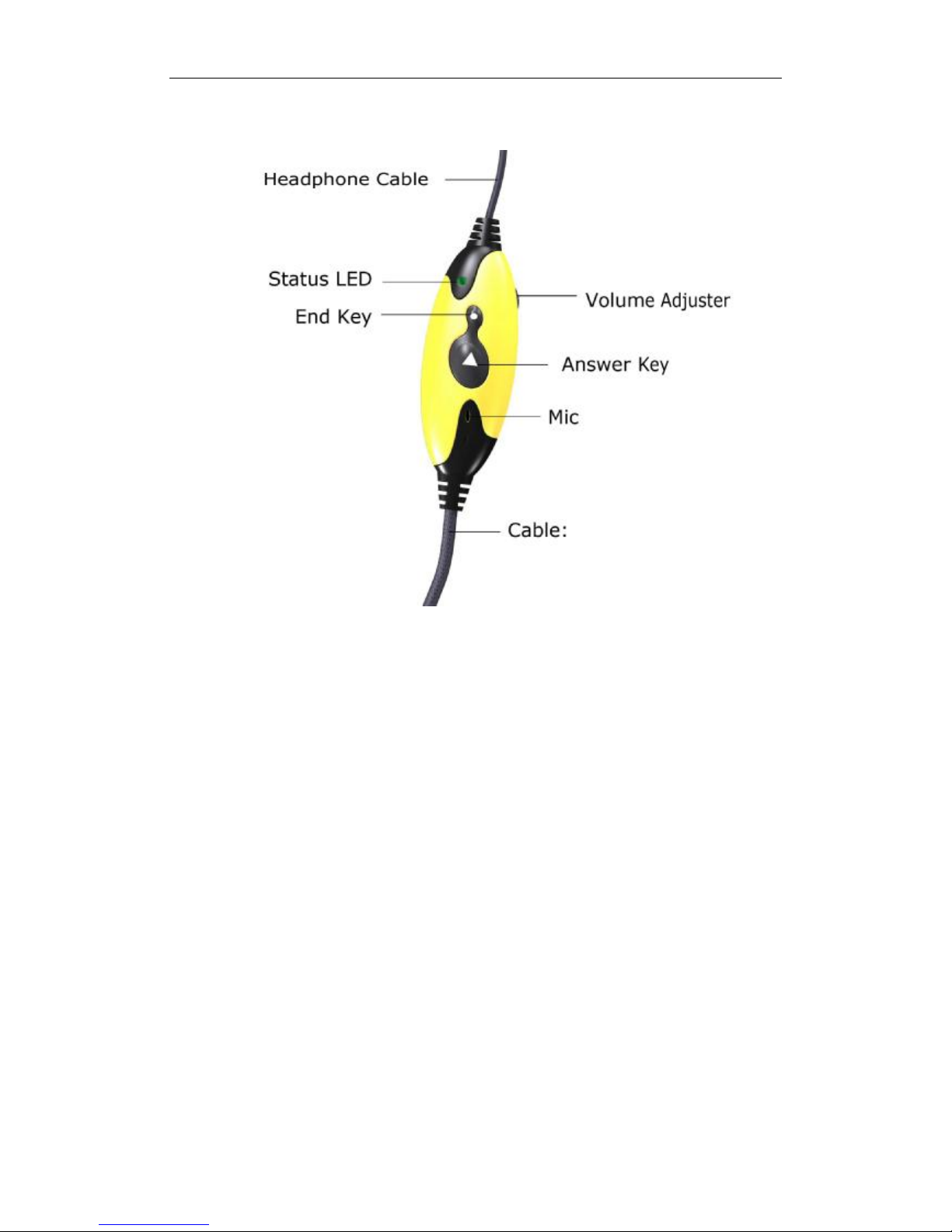
The Headphone Kit Layout
Descriptions:
1. Answer Key:
A) Receive Skype calls when there is an incoming Skype calls.
B) Pop up Skype windows on standby mode when you want to make Skype calls.
2. End Key:
A) End Skype calls during a call.
B) Cancel Skype calls when you are making a call.
C) Hide Skype window on standby mode.
3. Status LED:
When there is an incoming Skype call, the green status LED will flash.
Page 5
User Manual for Skybee Headphone EP-01
- 5 - Version 1.0.0.0 2005-10-09
Getting Started
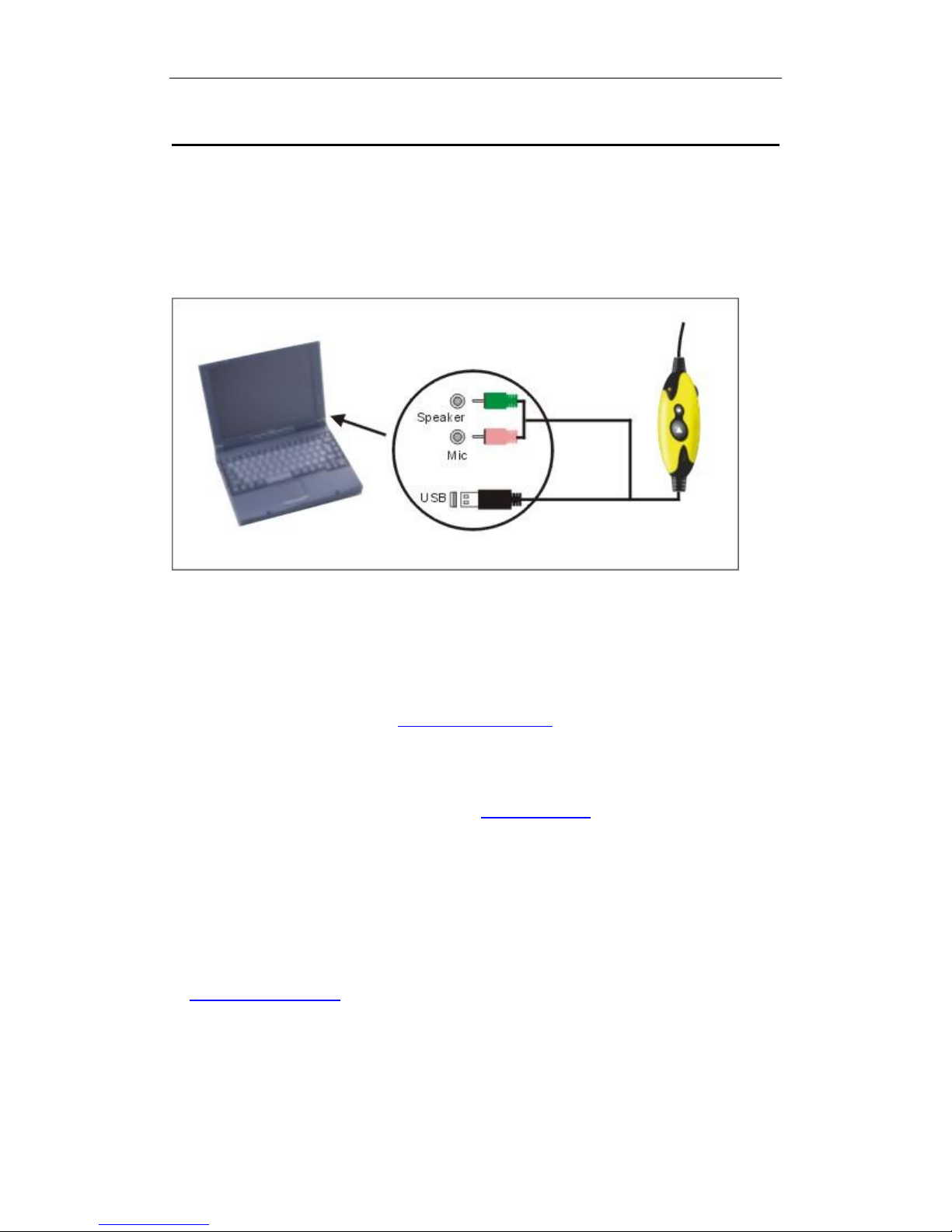
Step 1: Connect the Headphone to PC
Connect the headphone’s cable to the USB port and sound card’s Mic /speaker jack on your
PC.
Step 2: Install the latest SkypeTM
Please go to the official website: (http://www.skype.com) to download the latest version of
SkypeTM (Rev. 1.3.0.66 or above).
However, how to use SkypeTM is not included in this manual. For more detailed information
about SkypeTM, please visit its official website www.skype.com
Step 3: Install the Driver “Skype@phone”.
Please insert the installation CD-ROM and the installation will run automatically, or you can go
to www.phoneskype.com to download the latest version of driver: “Skype@phone”.
After the installation, Please RESTART WINDOWS and launch SkypeTM.
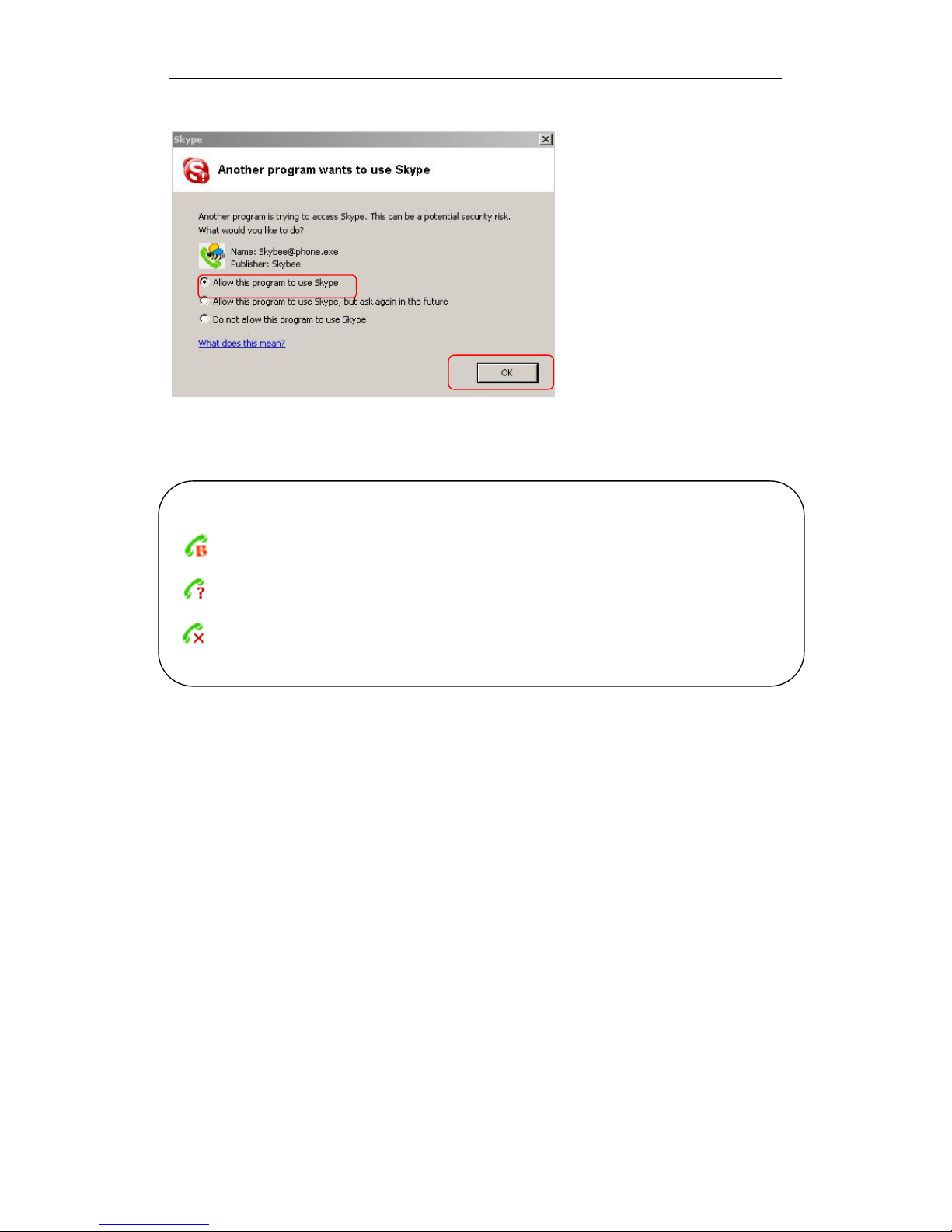
If the Skype@phone is run for the first time, SkypeTM will pop up the window below. Please
choose “Allow this program to use Skype” as the following illustration:
Page 6
User Manual for Skybee Headphone EP-01
- 6 - Version 1.0.0.0 2005-10-09
Now, you are ready to make/receive calls with the Skybee Headphone EP-01.
The indications of tray icon for USB phone driver
The headphone works normally.
The headphone fails to communicate with SkypeTM. (Please refer to “Trouble Shooting” in this
manual.)
The headphone fails to communicate with your computer. (Please refer to “Trouble Shooting” in
this manual.)
Page 7
User Manual for Skybee Headphone EP-01
- 7 - Version 1.0.0.0 2005-10-09
Earphone Test
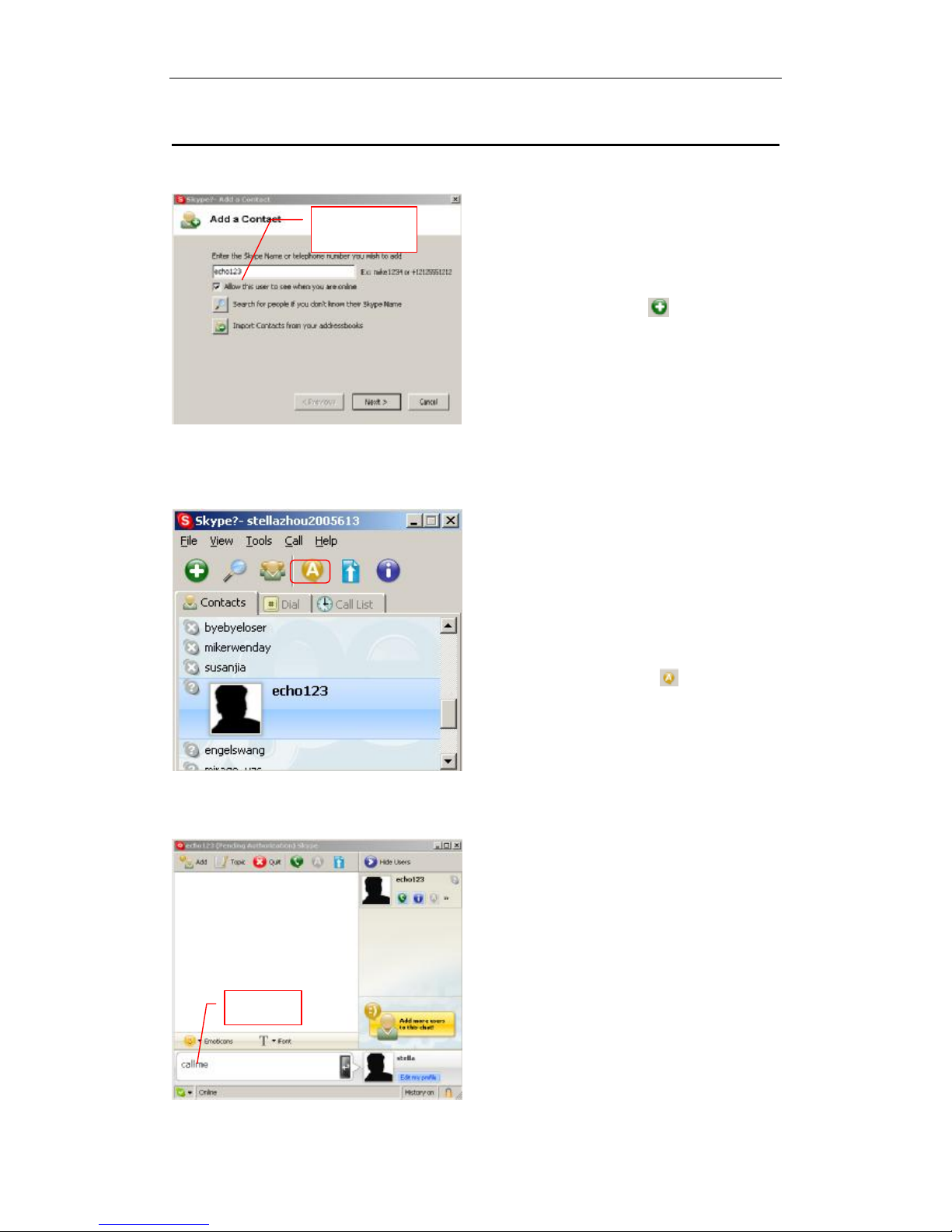
To test your headphone EP-01,
please click the icon to add
echo123 to your Skype Contacts.
After adding Echo123 to your
Skype Contacts, start chat with
him by clicking the icon .
Input “callme” and press “Enter”
on the keyboard.
echo123
callme
Page 8
User Manual for Skybee Headphone EP-01
- 8 - Version 1.0.0.0 2005-10-09
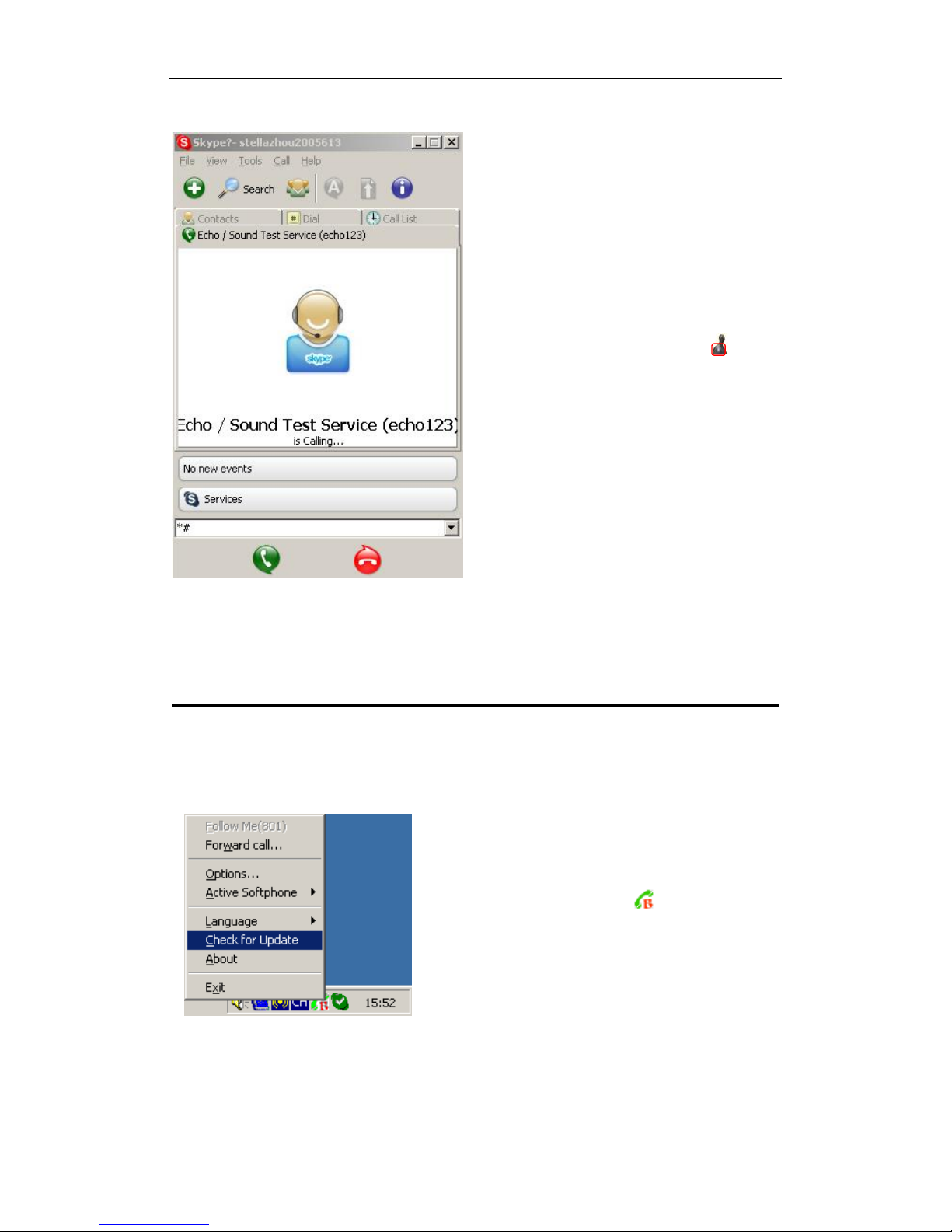
Wait for a moment and the echo123 will
call you soon.
Receive it by pressing the key .
Update the Driver
Please remember to update the USB phone driver regularly. You can follow this guideline
here:
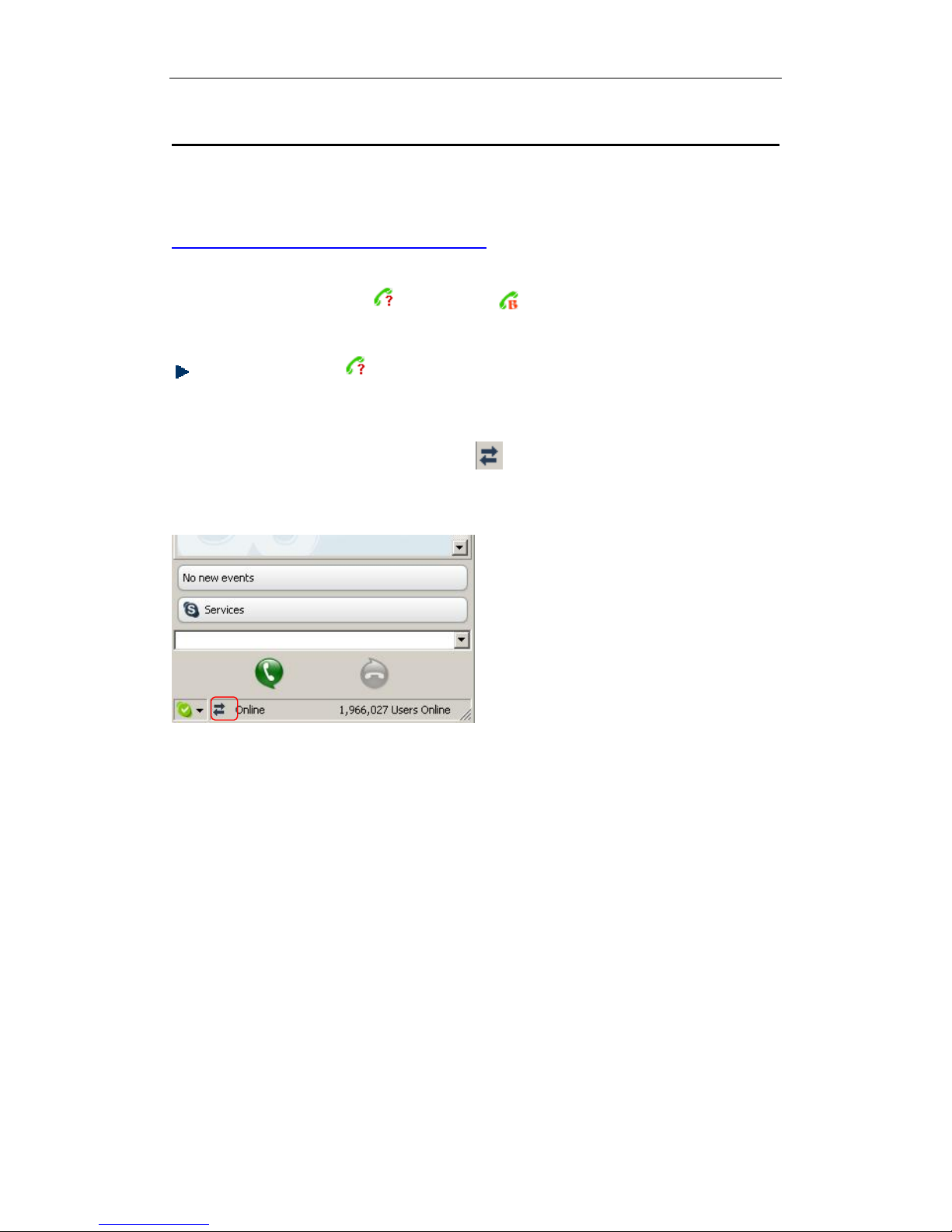
Right click the icon in the taskbar
and choose “Check for Update”.
Page 9
User Manual for Skybee Headphone EP-01
- 9 - Version 1.0.0.0 2005-10-09
Trouble Shooting
For latest information about the Trouble Shooting and the FAQ, please visit
http://www.phoneskype.com/support.htm
Q1: Why did I see the icon rather than in the taskbar? What’s wrong with
the driver software?
If you see the icon ,
1) please check whether SkypeTM is launched at the moment. If not so, please
launch SkypeTM;
2) please check whether there is an icon in the SkypeTM Windows if SkypeTM is
launched.
But if you cannot see this icon, please follow the steps below:
Page 10
User Manual for Skybee Headphone EP-01
- 10 - Version 1.0.0.0 2005-10-09
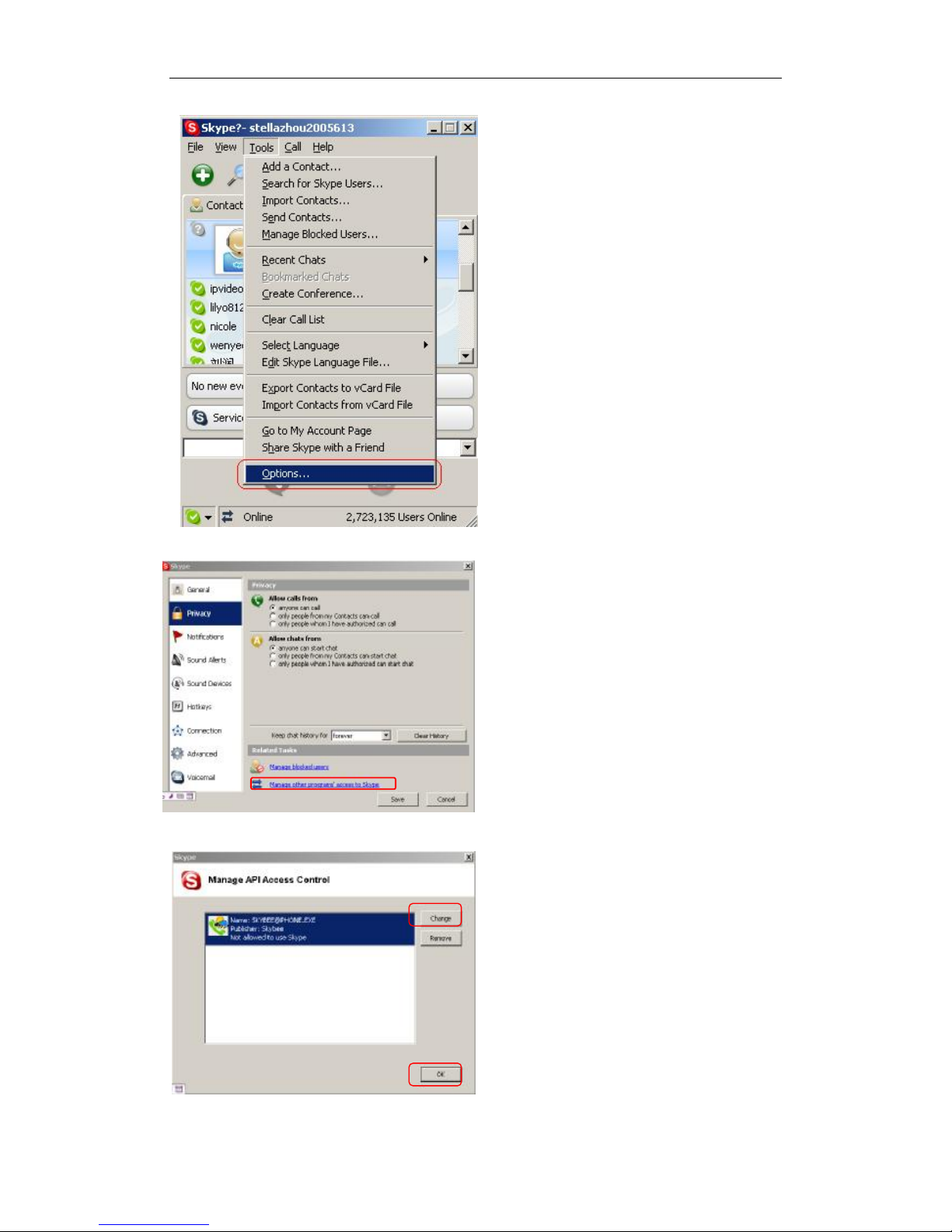
Step1: “Tools” —“Options”.
Step 2:
“Privacy”--“Related Task: Manage
other program’s access to Skype”.
Step 3:
Choose “Change”
Page 11

User Manual for Skybee Headphone EP-01
- 11 - Version 1.0.0.0 2005-10-09
Step 4:
Choose “allow this program to use
Skype”
Q2: After turning on the computer, I see the icon . Why?
There are two probabilities if you see the icon .
1) The headphone fails to communicate with your PC. Please check whether the USB
port is in a normal state.
2) The headphone fails to work normally in Windows. You may need to reinstall the
device driver. Please follow the steps below:
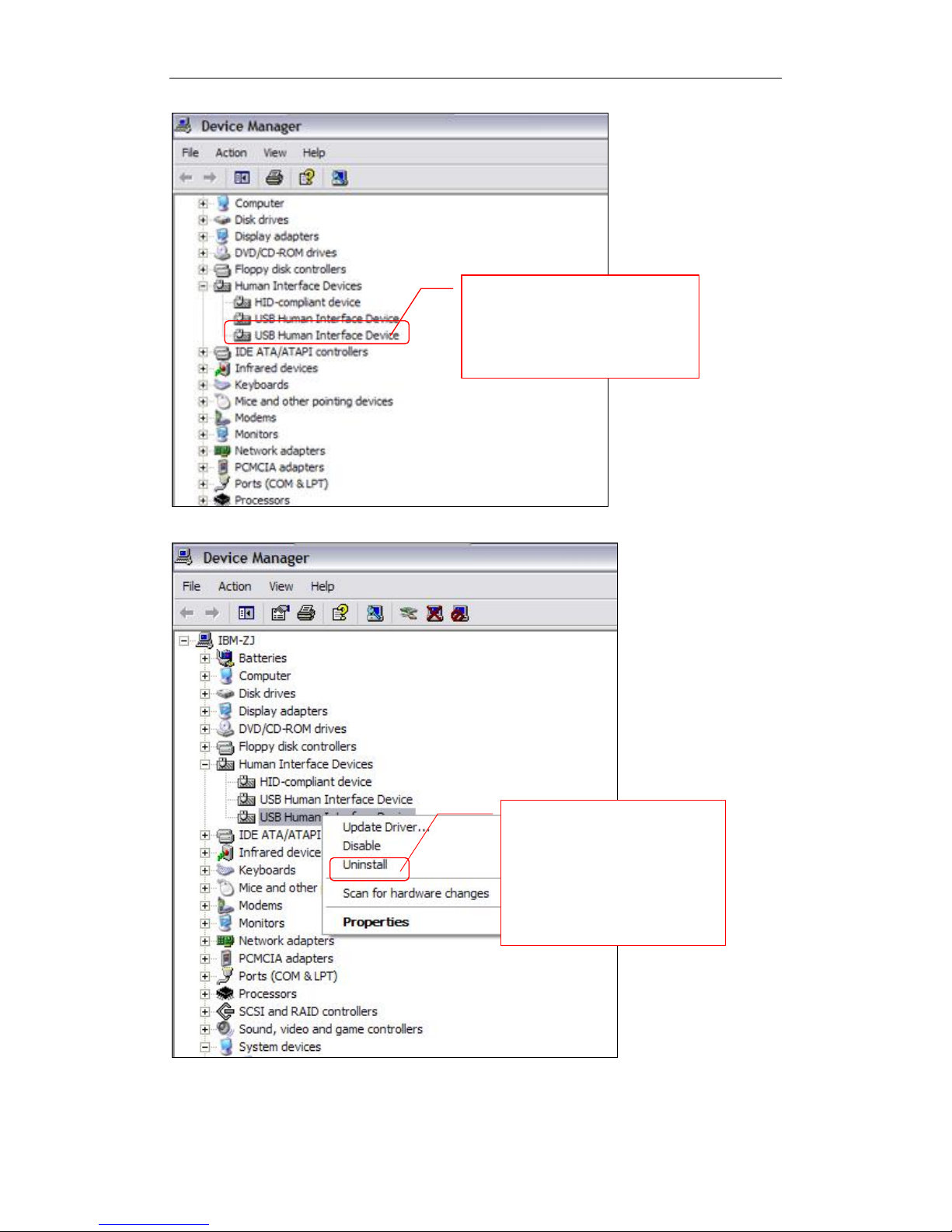
“Start”—“Setting”—“Control Panel” —“System”—“Hardware”—“Device Manager”
Then, you will see the following window. Please check whether “USB Human
Interface Device” is in a normal state.
Page 12
User Manual for Skybee Headphone EP-01
- 12 - Version 1.0.0.0 2005-10-09
If there is
a question mark or
an exclamation mark
with
this device, please follow the
guideline below.
Right click the device and
choose “Uninstall”.
Then
REPLUG THE HEADPHONE
into the USB port. Windows
will reinstall the device
driver.
Page 13
User Manual for Skybee Headphone EP-01
- 13 - Version 1.0.0.0 2005-10-09
Q3: Why did I still hear the music when there was a call?
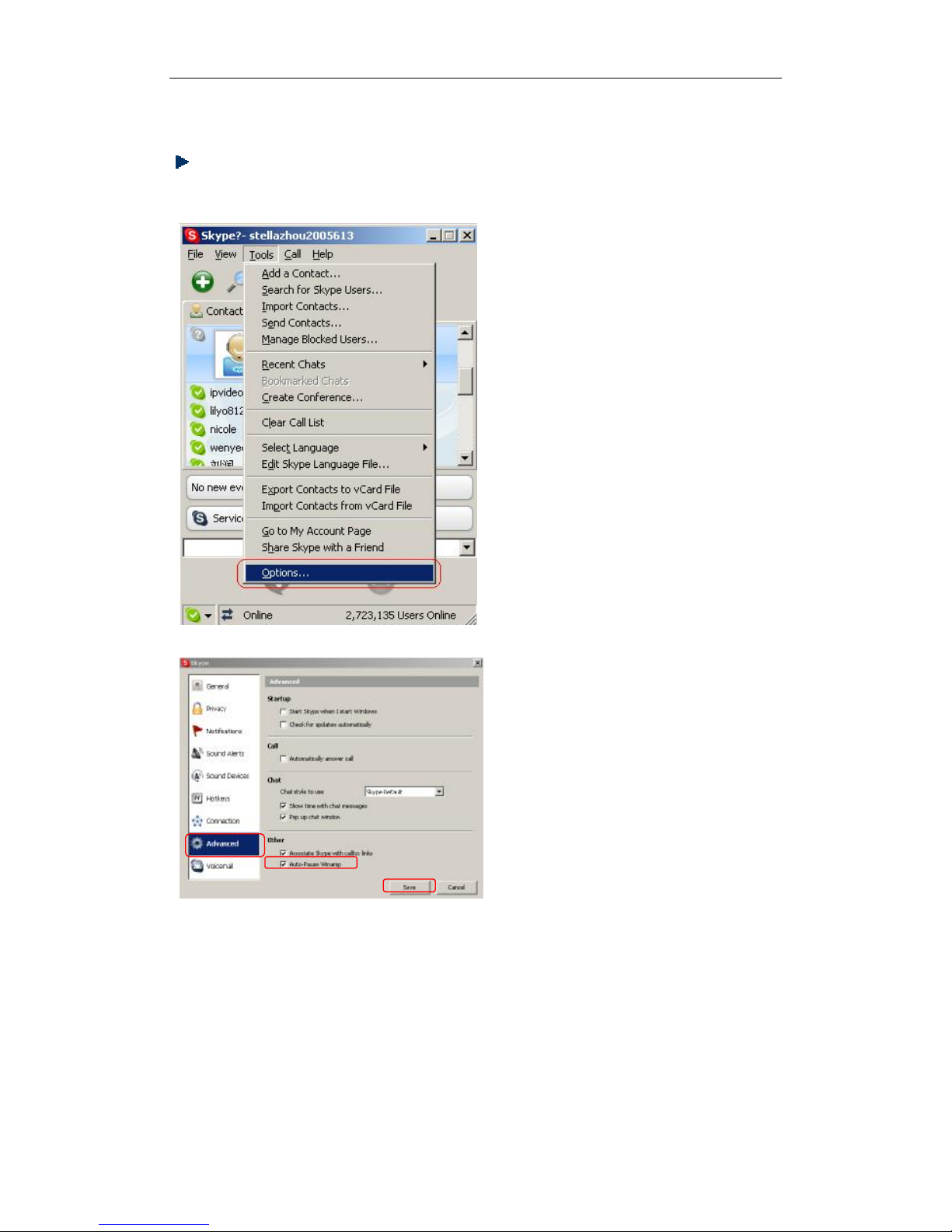
If you still hear the music during a call, you can reset your Skype’s configuration.
Please follow the steps below:
Step 1: “Tools”—“Options”
Step 2: “Advanced” — “Auto-Pause
Winamp”
Note:
If you want to go on enjoying music after receiving a call, you need to restart it in
the Media Player window.
 Loading...