

Sixnet MobilityPro BT-5600 Series, MobilityPro BT-5600, MobilityPro BT-5630 Quick Start Manual
Page 1
OVERVIEW
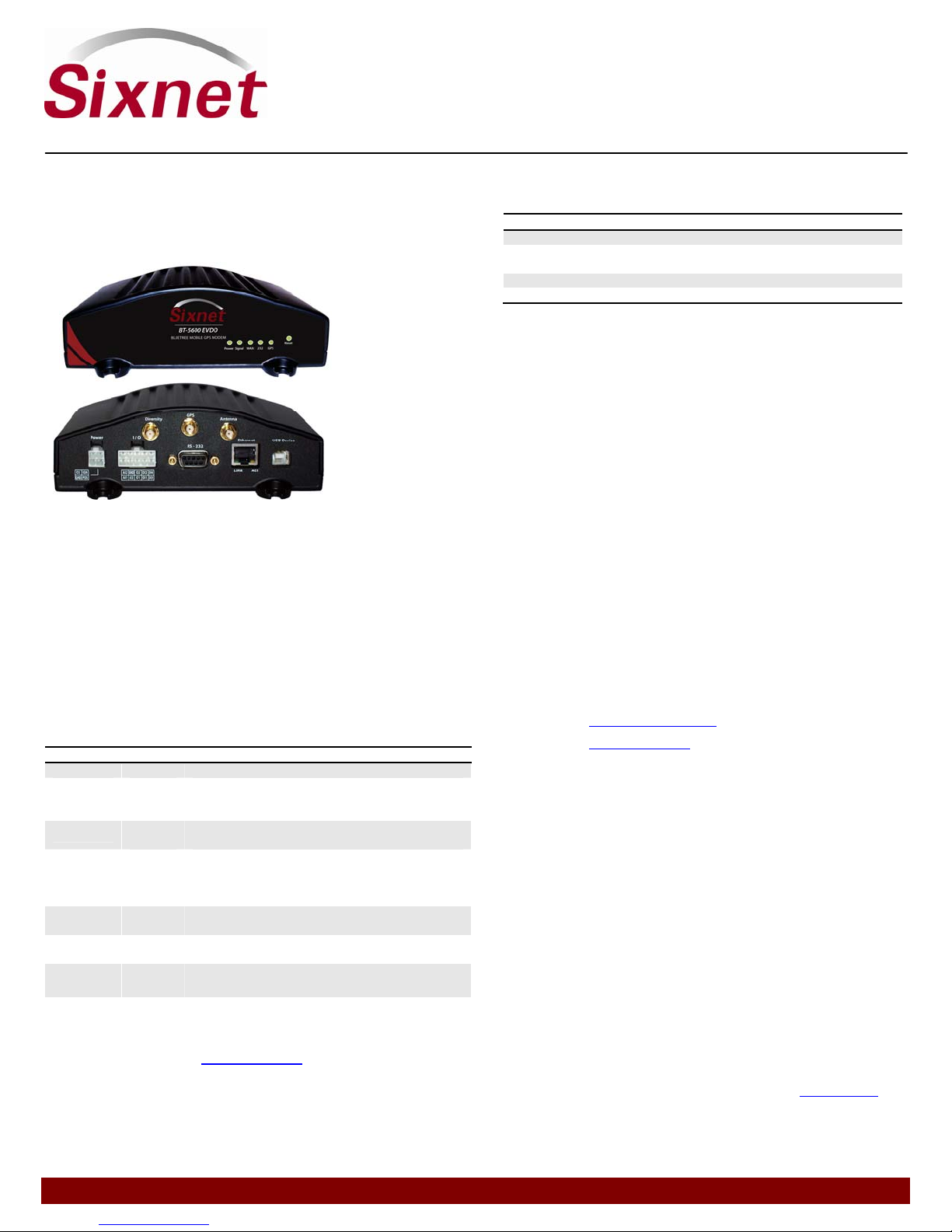
The MobilityPro™ BT-5600 series modems are rugged 3G
wireless modems built to provide simple and reliable
communication over the EVDO Rev. A cellular data network.
This guide covers initial configuration of the following model:
BT-5600
BT-5630
FEATURES
CDMA EVDO Rev. A with fallback to Rev. 0 a, 1XRTT
and IS95
Diversity antenna
Ethernet, Serial, USB, and WiFi (5630 model only)
Reliable Always-on cellular link
Rugged industrial design
Remote diagnostics, configuration and updates
3 Analog inputs, 4 Digital inputs, 3 Digital outputs
IPsec VPN multiple tunnel and 3DES|AES up to 256-bit
encryption
LED INDICATORS
LED State Description
Power ON Power is applied to the modem
Signal
WAN
RS-232
GPS
Ethernet
Link
Ethernet
Activity
ON
FLASH
OFF
ON
FLASH
ON
FLASH
ON
OFF
ON Link established with Ethernet device
FLASH Data transmitted/received with attached Ethernet
Excellent signal strength
Flashes faster as signal is stronger
Very weak or no signal (less than -100 dBm)
Wireless link established, but no data activity
Data transmitted/received on wireless network
Link established with serial device but no data
activity
Data transmitted/received with attached serial
device
Position fix available
No position fix available
device
ADDITIONAL INFORMATION
Visit our support site at www.sixnet.com to access the Modem
User’s Guide for an in-depth overview of the modem’s features
and capabilities, as well as configuration help and
troubleshooting. Also available for download are BlueVue
software updates and modem firmware updates.
QUICK START GUIDE
MobilityPro™ BT-5600 Series
Aeris Wireless Modem
POWER
The modem has a 4-pin Molex connector for power input, and
requires a power source between 8 and 30 VDC:
Label Color Description
GND Black Ground
POS Red Power 8 to 30 VDC
IGN White Ignition sense
O3 Green Digital output
* An AC-DC power adaptor can be purchased as an accessory from your sales contact.
ANTENNA
An antenna with an SMA connector should be connected to the
modem. This antenna should meet the following specifications:
Dual-band 800 & 1900 MHz
Nominal 50 ohm impedance
Voltage Standing Wave Ratio (VSWR) less then 2.5:1
* Antennas can be purchased as accessories from your sales contact.
DATA INTERFACES
Ethernet: 10/100 Mbps Auto-sensing Female RJ45 port
USB: USB 2.0 Type B Female
Serial: RS-232 9 pin DCE Female, with these default settings:
Speed: 115200 bps
Data bits: 8
Parity: None
Stop Bits: 1
Flow Control: Hardware
SUPPORT CONTACT INFO
Toll-free +1 877 422 9110 option 2
Phone +1 514 422 9110 option 2
Hours 8:30am – 5:00pm Eastern Time
Email [email protected]
Website www.sixnet.com
Fax +1 514 422 3338
WARRANTY
Sixnet, LLC wireless products including the BT-5600V2, BT-5800 and the BT-6000
series, Sixnet's obligation under this warranty will be limited to repairing or
replacing, at Sixnet's option, the defective parts within three year of the date of
installation, or within 36 months of the date of shipment from the point of
manufacture, whichever is sooner.
Sixnet further warrants that any software supplied as part of a product sale, except
obsolete products, will be free from non-conformances with Sixnet published
specifications for a period of 90 days from the time of delivery. While Sixnet
endeavors to improve the features and performance of software associated with its
products, no effort on the part of Sixnet to investigate, improve or modify Sixnet
software at the request of a customer will obligate Sixnet in any way.
This limited warranty does not cover losses or damages which occur in shipment to
or from Buyer or due to improper installation, maintenance, misuse, neglect or any
cause other than ordinary commercial or industrial applications. This limited
warranty is in lieu of all other warranties whether oral or written, expressed or
implied. Sixnet's liability shall not exceed the price of the individual units, which are
the basis of the claim. In no event shall Sixnet be liable for any loss of profits, loss
of use of facilities or equipment, or other indirect, incidental or consequential
damages.
For complete and most up-to-date warranty information go to www.sixnet.com.
(500mA@12VDC)
Page 2
1 Setup a data account for the modem
Contact your AERIS dealer and request a data account to be
assigned to the modem’s ESN (electronic serial number). The
ESN is printed on modem’s label.
2 Wiring and power-up
1. Connect the modem to your computer using a standard
Ethernet cable. Alternatively, the RS-232 or USB ports can
be used for setup.
2. Connect the cellular antenna to the Antenna connector.
3. Plug in the power connector to power-up the modem.
3 Start BlueVue Device Manager Software
1. Download and install the latest version of BlueVue Device
Manager from: www.sixnet.com.
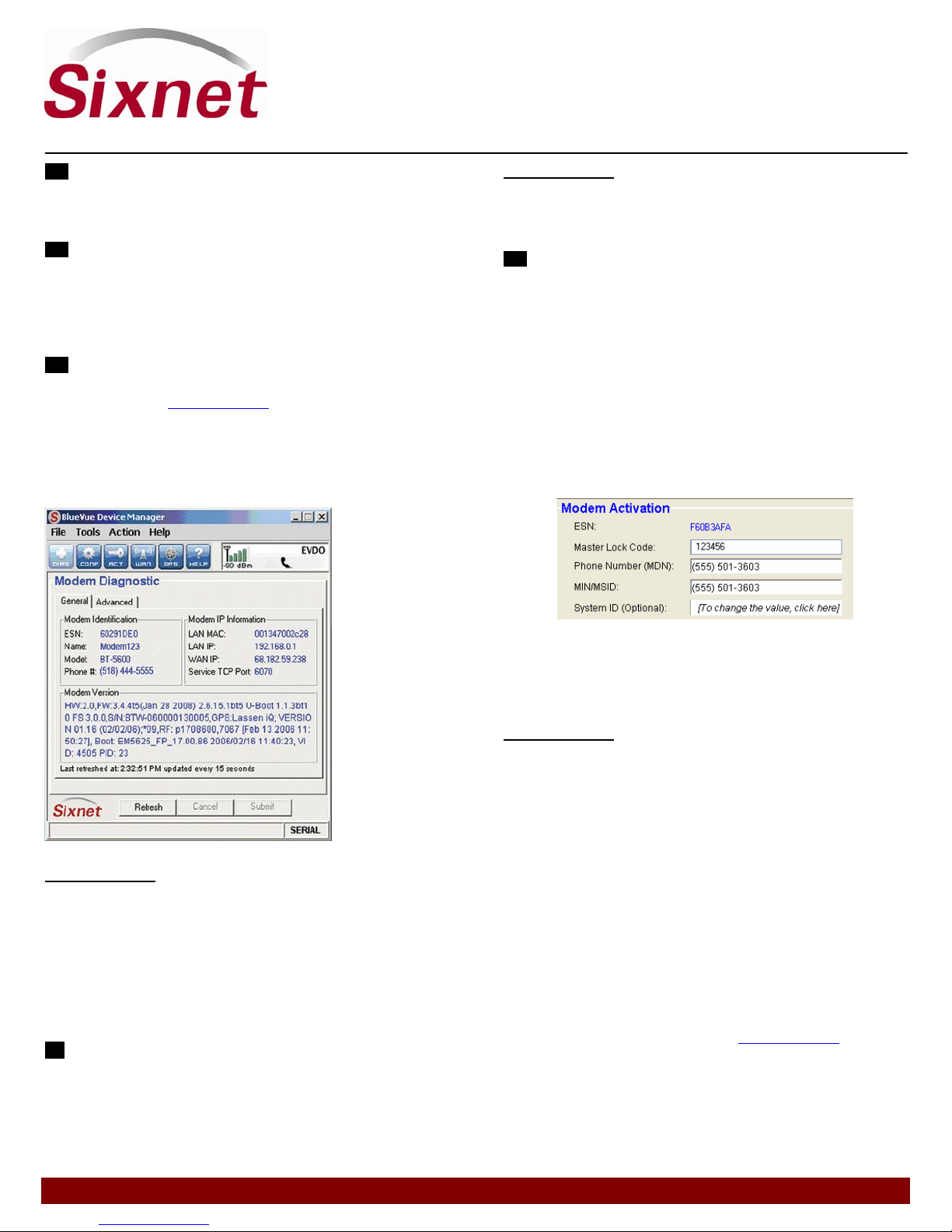
2. When launched, it will attempt to connect to 192.168.0.1 by
default, once connected to the modem the Modem
Diagnostic window will open (Note that 192.168.0.1
connects to the Ethernet cable. To connect to the USB port
use 192.168.111.1):
QUICK START GUIDE
MobilityPro™ BT-5600 Series
Aeris Wireless Modem
Troubleshooting
If the Signal LED is off, then there may be an issue with the
antenna or cellular coverage might be too low in your current
location.
5 Activate the modem
This step programs the phone number and other Aeris specific
settings into the modem so that it may be used on the Aeris
wireless network.
1. Click on the ACT button located at the top and enter the
following information provided by Aeris:
a. Master Lock Code: a 6‐digit number
b. Phone number (MDN): a 10‐digit number
c. MIN/MSID: a 10-digit number. If you were not
provided with an MIN/MSID, enter the MDN
here
d. Click on Submit and wait for activation to
complete
Troubleshooting
If BlueVue displays “Detecting Modem at 192.168.0.1”
indefinitely, then:
Make sure the modem is powered on
Check the Ethernet Link LED on the modem. If it’s off, it
usually means you have a problem with the Ethernet cable or
with your computer’s network card.
Close all other network connections (such as WiFi)
Set your computer to obtain an IP address automatically
4Confirm that the modem is acquiring a cellular signal
The Signal LED should be on or flashing, indicating that the
modem has a signal. BlueVue Device Manager displays signal
information in the top right of its window; a minimum of 1 bar is
required to connect to the carrier with the modem.
2. Click on the DIAG button located at the top left to navigate
to the Modem Diagnostic screen. Click on the Refresh
button at the bottom and check the phone number reported
by the modem under Modem Identification: it should match
the MDN provided by Aeris.
Troubleshooting
If the above does not occur, then the modem most likely has no
account. Contact the wireless service provider who provided you
with the account and ask them to confirm that the phone number
and MIN/MSID assigned correspond to the modem’s ESN
(electronic serial number), and that the account is ready to be
used.
3. Confirm the modem has successfully connected to the
cellular network:
The WAN LED will be on or flashing
In BlueVue, click the DIAG button, the WAN IP should
indicate the IP address assigned to the modem by the
cellular network.
Setup is complete!
The modem should be ready for use as a basic internet access
point. For more advanced modem configuration, consult the
documentation section of our website www.sixnet.com.
 Loading...