

Page 1
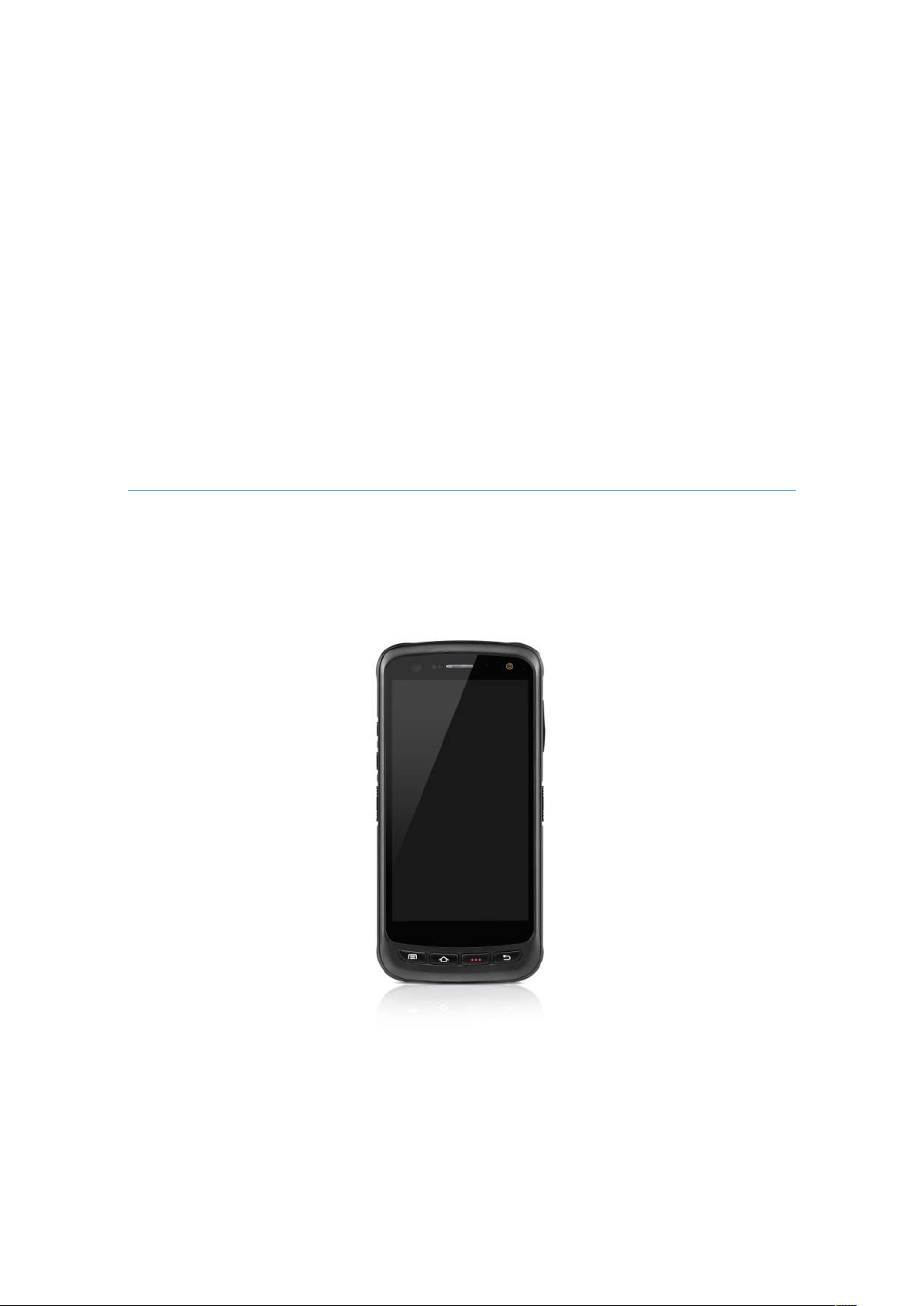
Mobile Data Terminal
FCC ID:2ALPCH70
H70 User Manual
Page 2

Content
Content .......................................................................................... 1
Chapter 1 Product intro ..................................................................... 3
1.1
1.2
1.3
1.4
Intro ..................................................................................... 3
Precaution before using battery ........................................... 4
Charger ............................................................................... 5
Notes ................................................................................... 6
Chapter 2 Installation instructions...................................................... 7
2.1 Appearance ............................................................................. 7
2.2 Install Micro SD and SIM cards ................................................ 8
2.3 Battery charge ......................................................................... 9
2.4 Buttons and function area display .......................................... 10
Chapter 3 Call function .................................................................... 11
3.1 Calling numbers ..................................................................... 11
3.2 Contacts ................................................................................ 11
3.3 SMS and MMS ....................................................................... 11
Chapter 4 Barcode reader-writer ..................................................... 12
Chapter 5 RFID reader .................................................................... 14
5.1 NFC ....................................................................................... 14
Chapter 6 Other functions ............................................................... 15
6.1 PING tool ............................................................................... 15
6.2 Bluetooth ............................................................................... 16
6.3 GPS ....................................................................................... 17
6.4 Volume setup ......................................................................... 18
6.5 Sensor ................................................................................... 19
6.6 Keyboard ............................................................................... 20
1
Page 3

6.7 Network ................................................................................. 21
6.8 Keyboard emulator ................................................................ 22
Chapter 7 Device characteristic ....................................................... 23
2
Page 4

Chapter 1 Product intro
1.1 Intro
H70 device is a smart mobile PDA that integrated with various
features such as wireless communication, data acquisition, wireless
transmission and data processing etc. It is configured with Andriod
6.0 OS and it possesses high reliability and expansibility. With a set
of advanced data acquisition options, H70 can be operated in various
industries to acquire precise and abundant datum automatically.
Meanwhile, the device can match the options with staffs accordingly.
The corporation which deployed H70 will realize the deployment work
is simple and maintenance work will be remarkably decreased.
H70 is highly rugged, compact and durable. With IP67 water and dust
proof capability, the device has met IEC sealing standard. Therefore,
it can be operated by staffs such as railway inspector, road toll
operator, vehicle inspector, delivery postman, power supply inspector,
storage administrator, financial & insurance, police officers, security
tracing etc. Wherever your staff’ locations are, H70 can remain its
connectivity with the system to make sure business inhigh-effective
operating.
H70 smart mobile terminal adopted 4G LTE technology to realize
multipath communication and calling function for field work, data
exchange efficiency has been enhanced simultaneously. Therefore,
H70 will bring the largest investment return for enterprises.
3
Page 5

1.2 Precaution before using battery
Do not leave battery unused for long time, no matter it is in
device or inventory. If battery has been used for 6 months
already, it should be check for charging function or it should be
disposed correctly.
The lifespan of Li-ion battery is around 2 to 3 years, it can be
circularly charged for 300 to 500 times. (One full battery charge
period means completely charged and completely discharged.)
When Li-ion battery is not in used, it will continue discharge
slowly. Therefore, battery charging status should be checked
frequently and take reference of the related battery charging
information on the manuals.
Observe and record the information of a new unused and non-
fully charged battery. On the basis of operating time of new
battery and compare with a battery that has been used for long
time. According to product configuration and application
program, the operating time of battery would be different.
Check battery charging status at regular intervals.
When battery operating time drops below about 80%, charging
time will be increased remarkably.
If a battery is stored or otherwise unused for an extended
period, be sure to follow the storage instructions in this
document. If you do not follow the instructions, and the battery
has no charge remaining when you check it, consider it to be
damaged. Do not attempt to recharge it or to use it. Replace it
with a new battery.
Store the battery at temperatures between 5 °C and 20 °C
(41 °F and 68 °F).
4
Page 6

1.3 Charger
Thecharger type is GME10D-050200FGu,output voltage/current is 5V
DC/2A. The plug considered as disconnect device of adapter.
5
Page 7
1.4 Notes
Note:
Note:
Note:
Note:
Note:
Using the incorrect type battery has danger of explosion.
Please dispose the used battery according to instructions.
Due to the used enclosure material, the product shall only be
connected to a USBInterface of version 2.0 or higher. The
connection to so called power USB is prohibited.
The adapter shall be installed near the equipment and shall be
easily accessible.
The suitable temperature for the product and accessories is 0 10℃ to 50℃.
CAUTION RISK OF EXPLOSION IF BATTERY IS REPLACED
BY AN INCORRECT TYPE. DISPOSE OF USED BATTERIES
ACCORDING TO THE INSTRUCTIONS.
6
Page 8
Chapter 2 Installation instructions
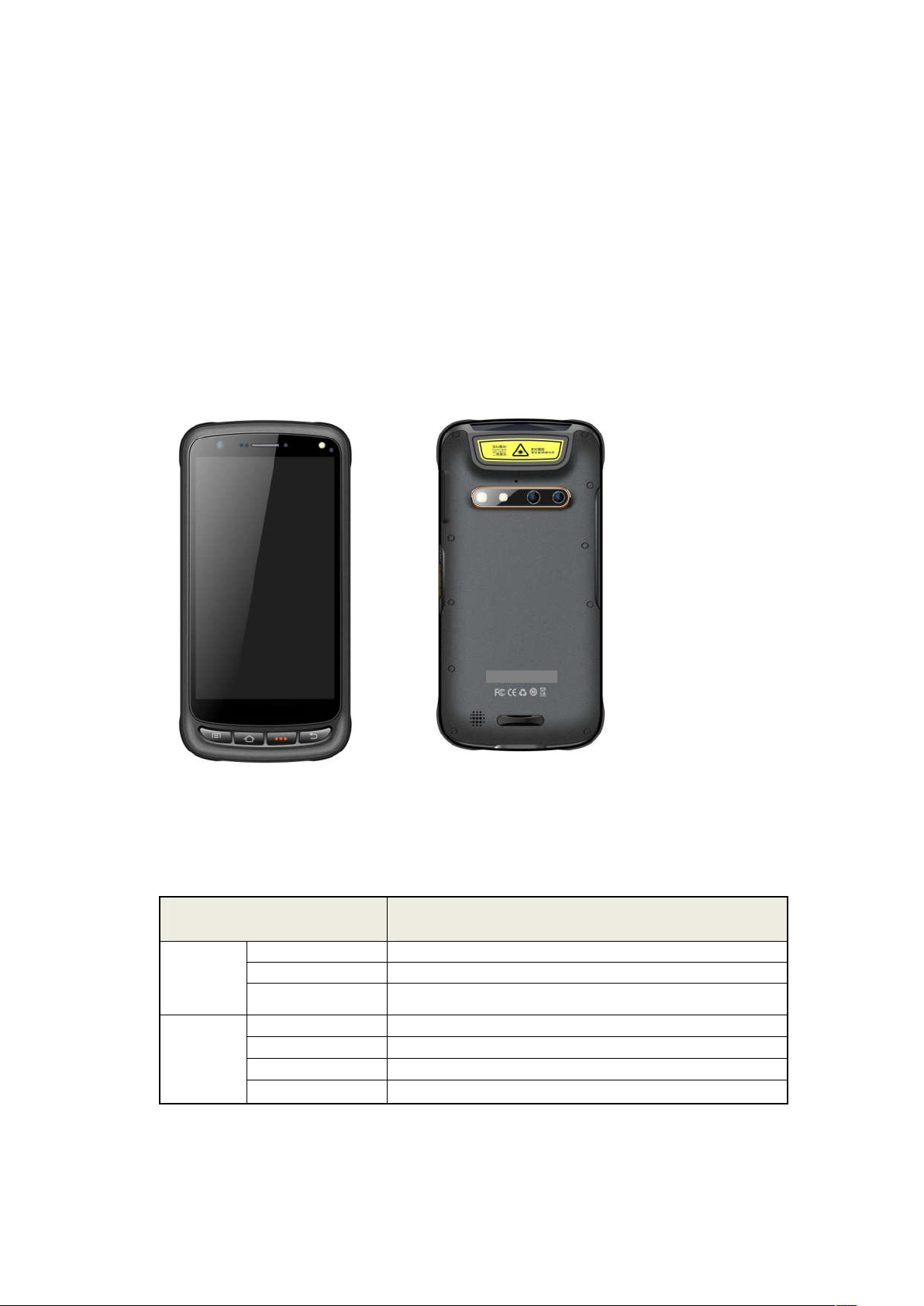
2.1 Appearance
H70 back and front appearances are showing as follows:
Buttons instruction
Button Description
1.Power Located on left side, press to ON/OFF device.
Side
button
Main
button
2.Function key
3.SCAN
4.Menu
5.Home
6.Enter
7.Backspace
Located on left side, its function can be defined by software.
Scanning button located on both sides. There are two scanning
buttons.
Display main menu.
Touch it back to main screen.
Press to confirm current selection.
Return to last step to setup.
7
Page 9
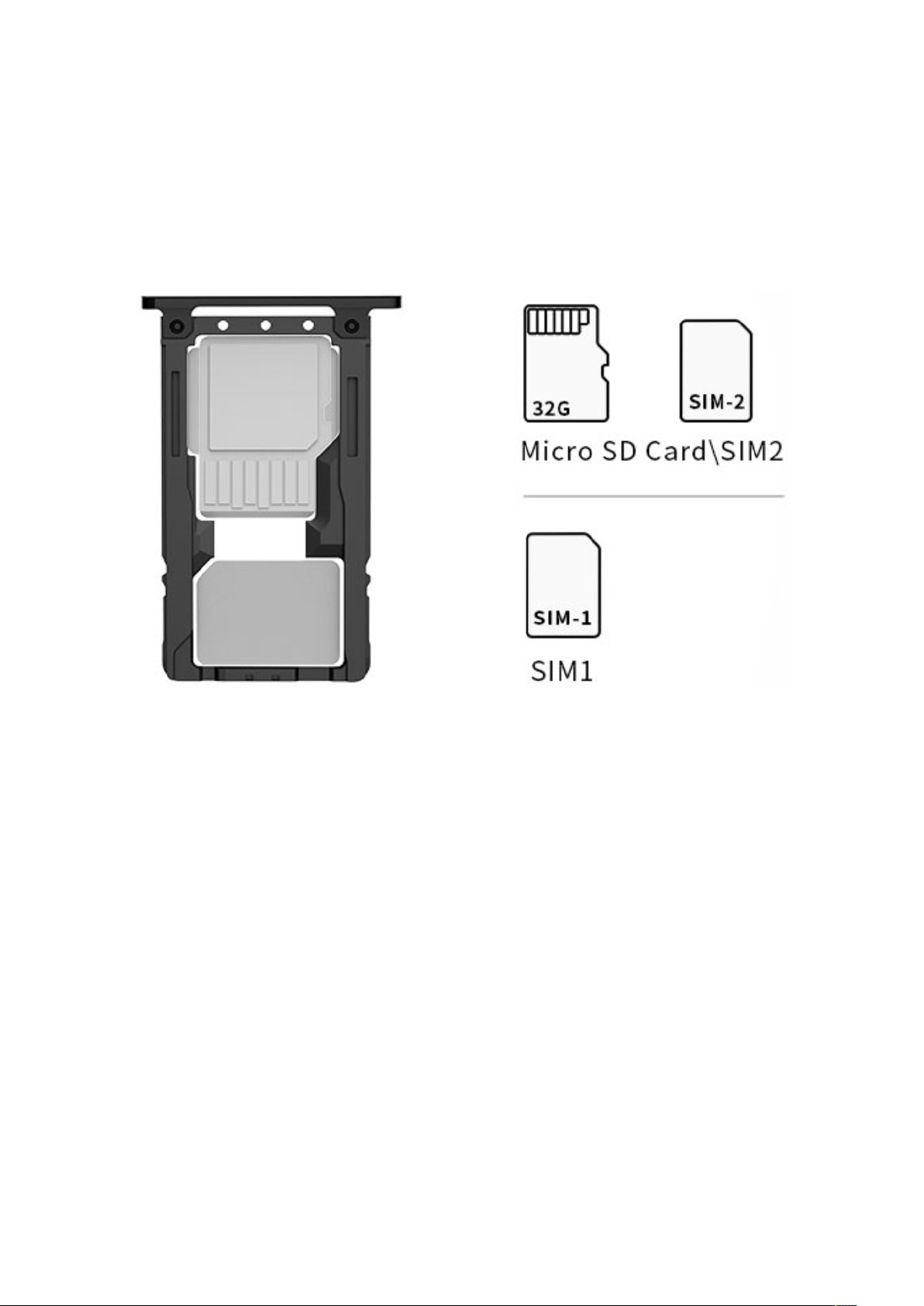
2.2 Install Micro SD and SIM cards
The cards sockets are showing as follows:
8
Page 10

2.3 Battery charge
By using USB Type-C contact, the original adaptor should be used for
charging the device. Make sure not to use other adaptors to charge
the device.
9
Page 11
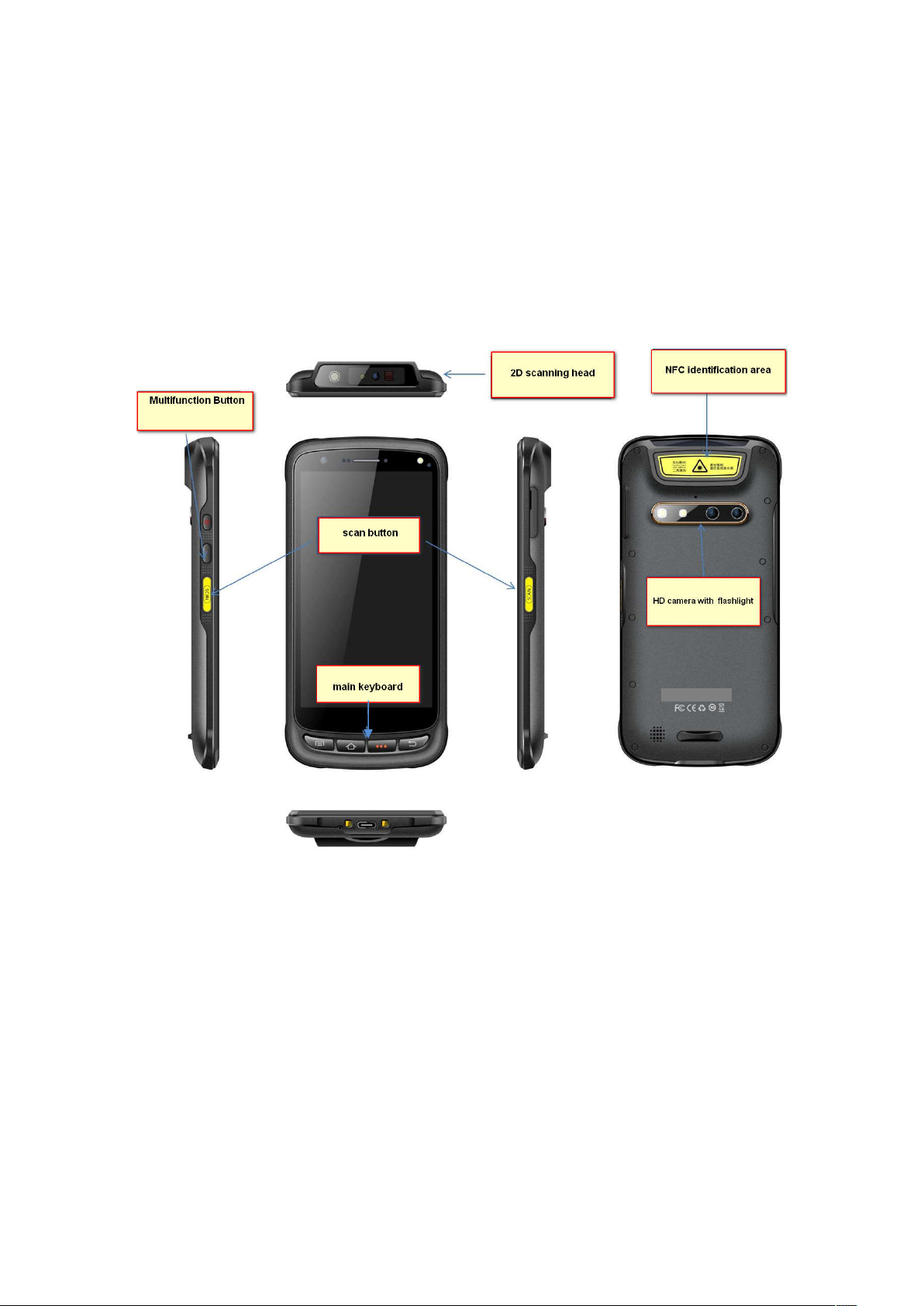
2.4 Buttons and function area display
H70 has 4 side buttons and 4 main buttons, NFC identification area
and 2D scanning head locate at front. HD camera and flashlight
locate at rear.
10
Page 12
Chapter 3 Call function
3.1 Calling numbers
1. Click icon .
2. Click number key to input phone numbers.
3. Click icon to call.
4. Click icon to end call.
3.2 Contacts
1. Click contacts to open contacts list.
2. Click icon to add new contacts.
3. Click icon to import/export contacts.
3.3 SMS and MMS
1. Click to open message window.
2. Click to input message receiver and contents.
3. Click to send out messages.
4. Click to add attachment pictures and videos.
11
Page 13
Chapter 4 Barcode reader-writer
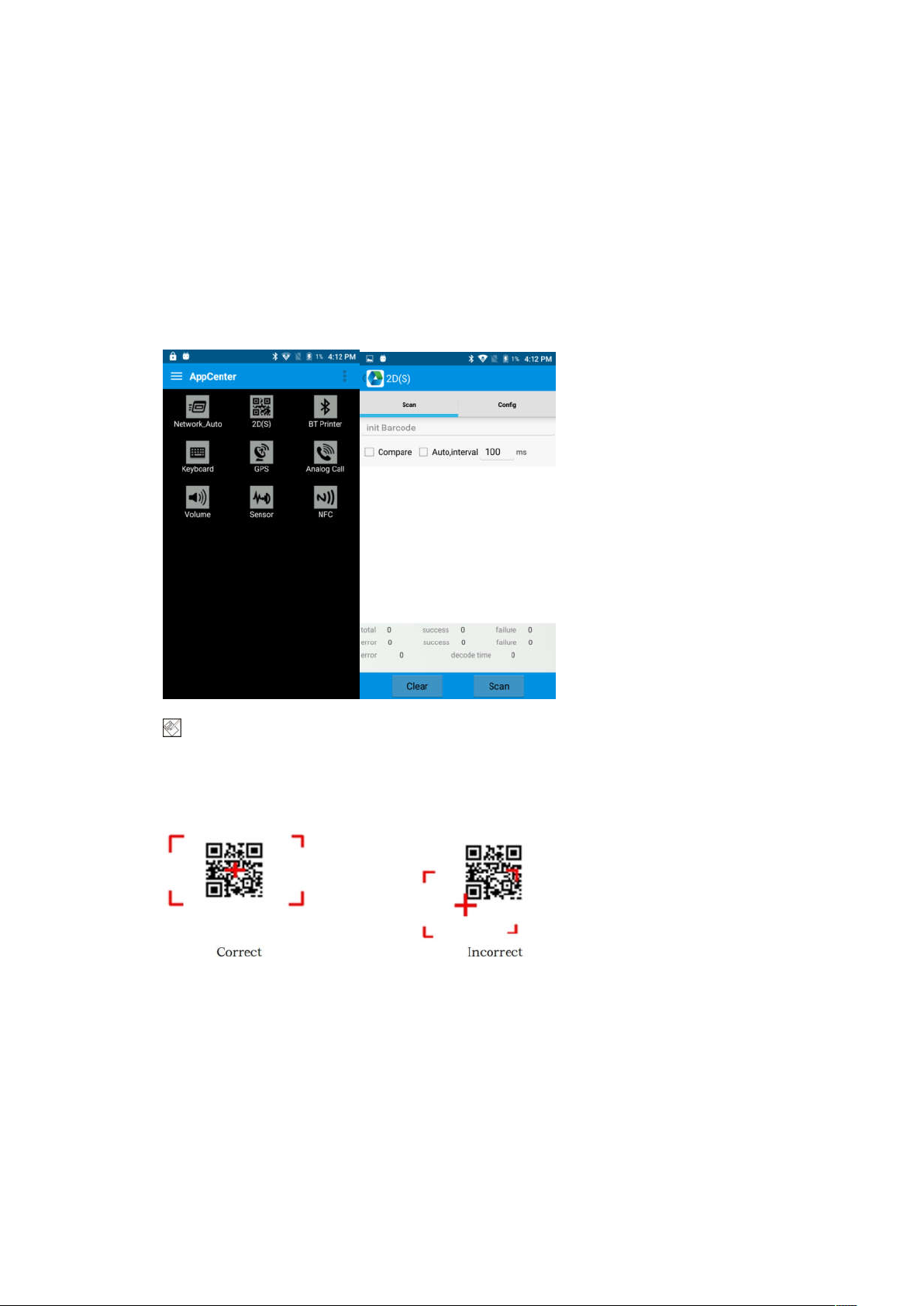
1. In App Center, to open 2D barcode scan test.
2. Press “SCAN” button or click scan key to start scanning, the
parameter “Auto interval” can be adjusted.
Caution: Please scan codes in correct way otherwise the
scanning will be failed.
2D code:
12
Page 14
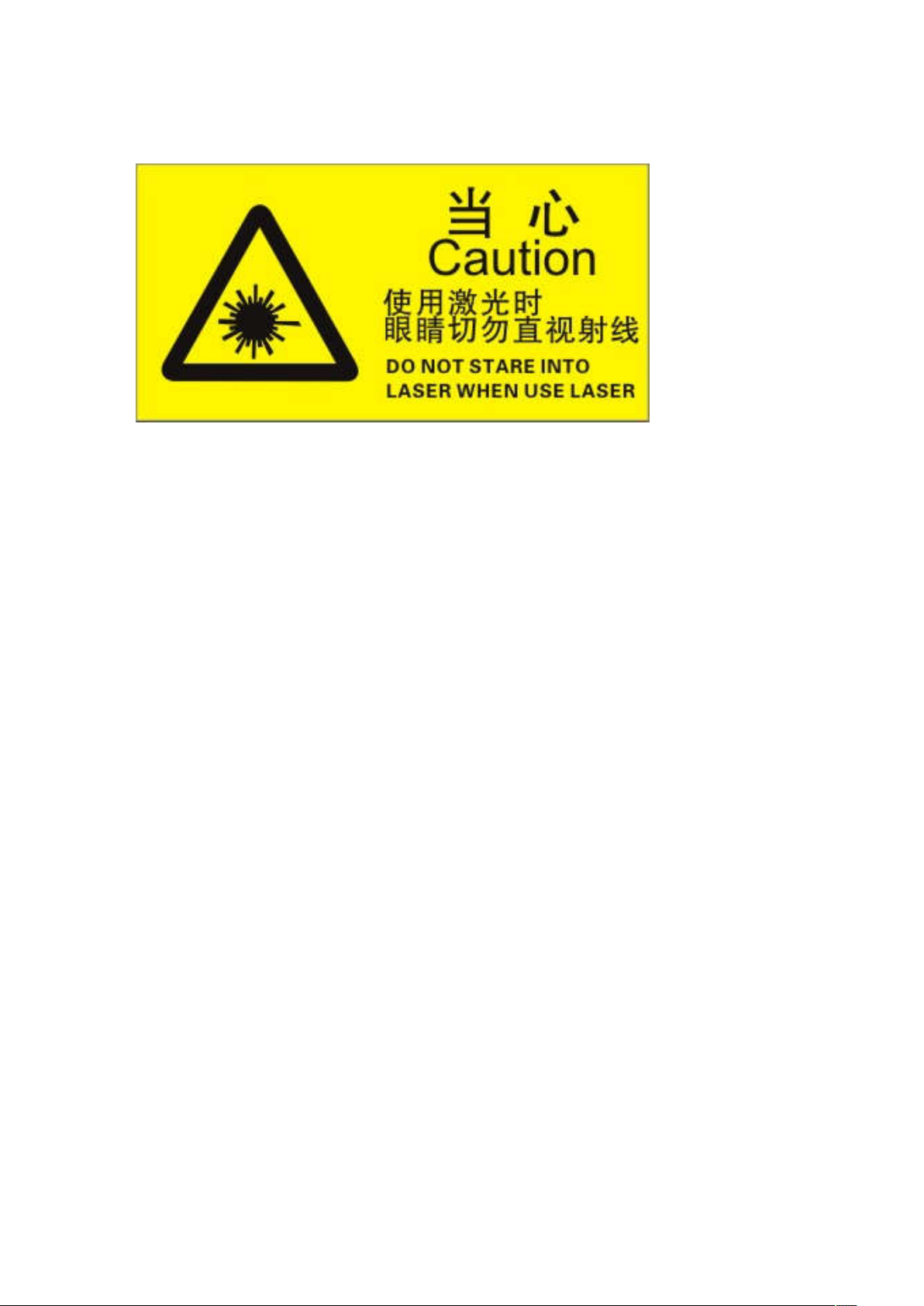
Max. radiant power: 0.6mW
Wave length: 655nM
IEC 60825-1 (Ed.2.0).
21CFR 1040.10 and 1040.11 standard.
13
Page 15
Chapter 5 RFID reader
5.1 NFC
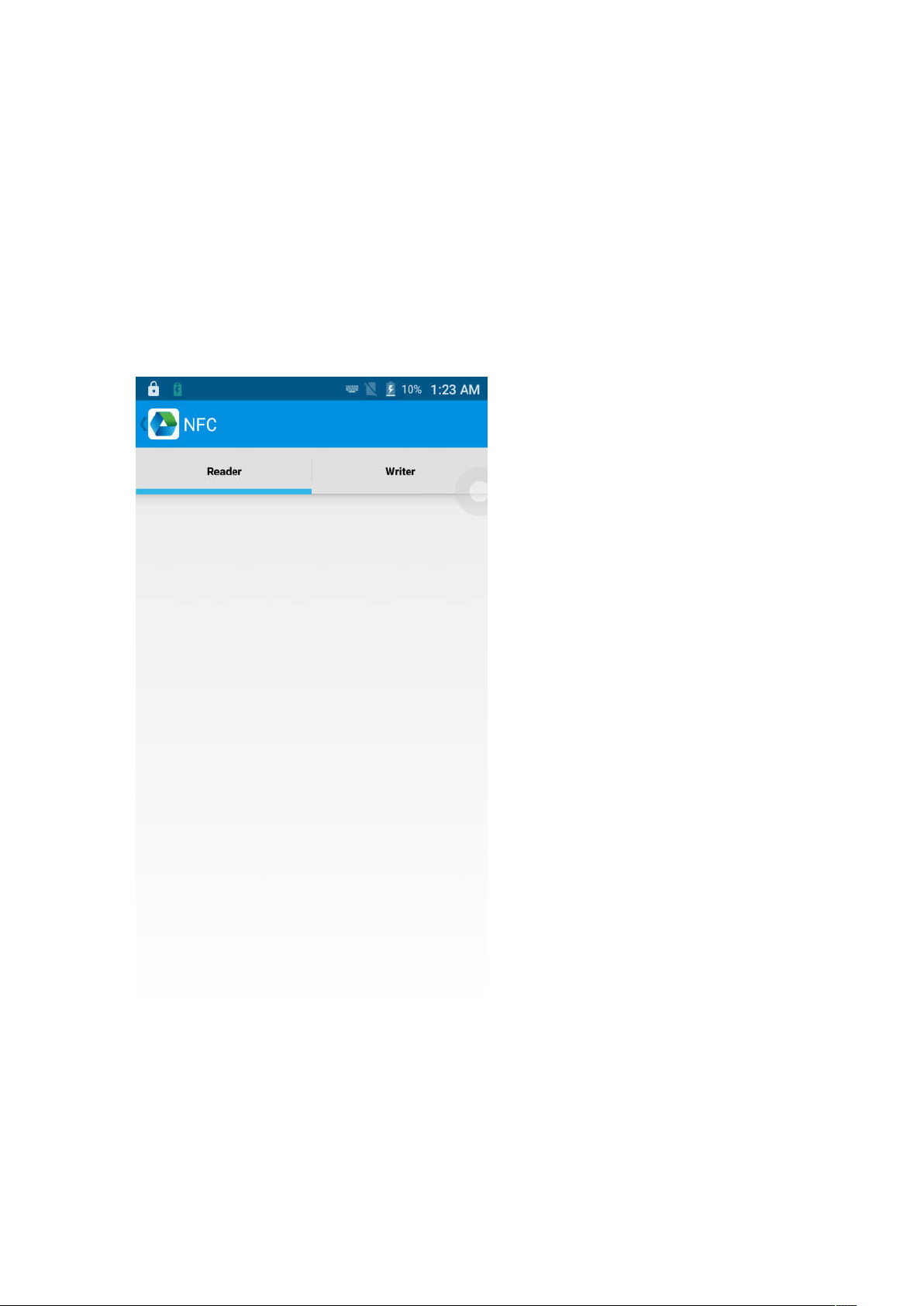
Click App Center, open “NFC” to read and write tag information.
14
Page 16
Chapter 6 Other functions
6.1 PING tool
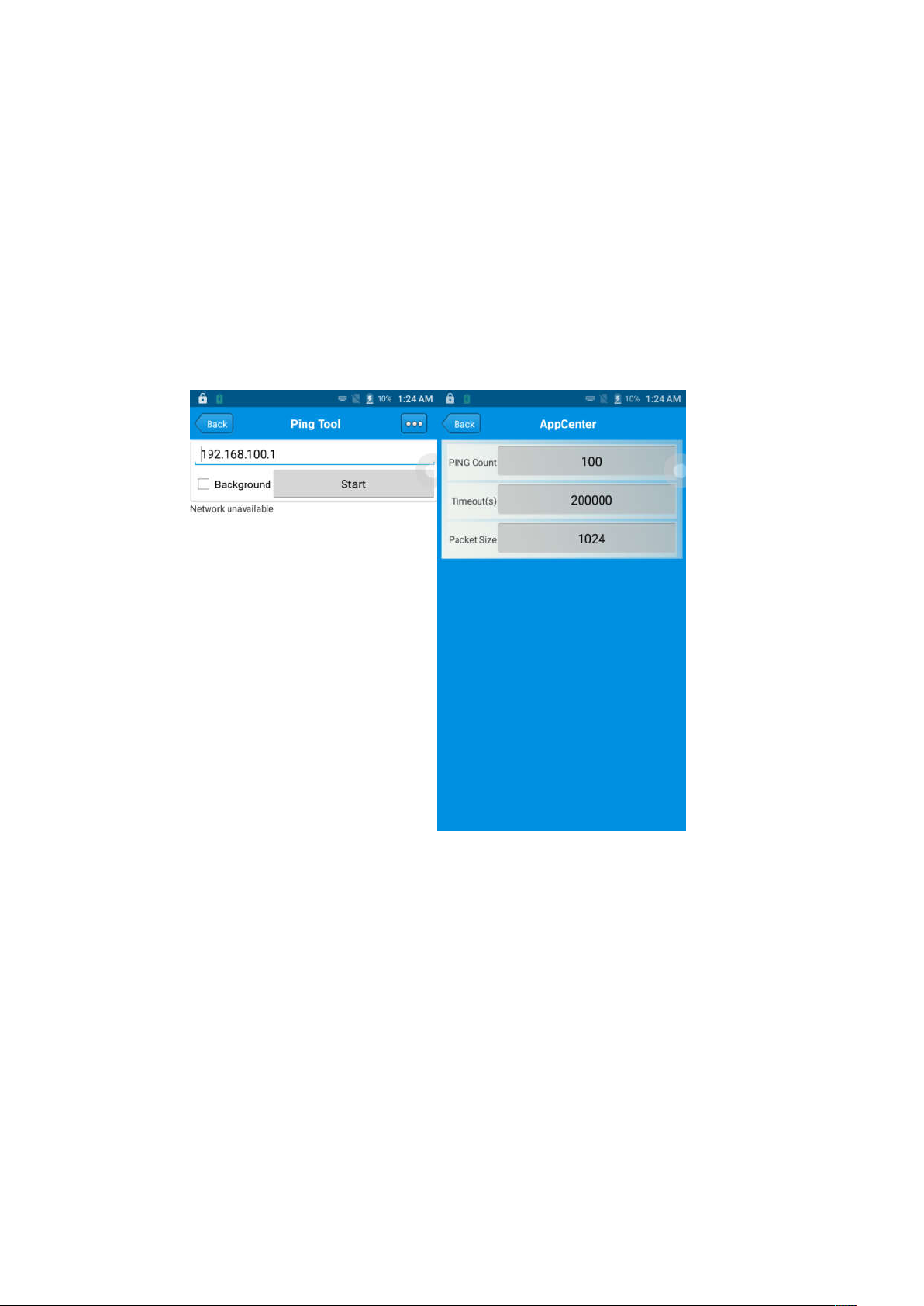
1. Open “PING” in App Center.
2. Setup PING parameter and select external/internal address.
15
Page 17
6.2 Bluetooth
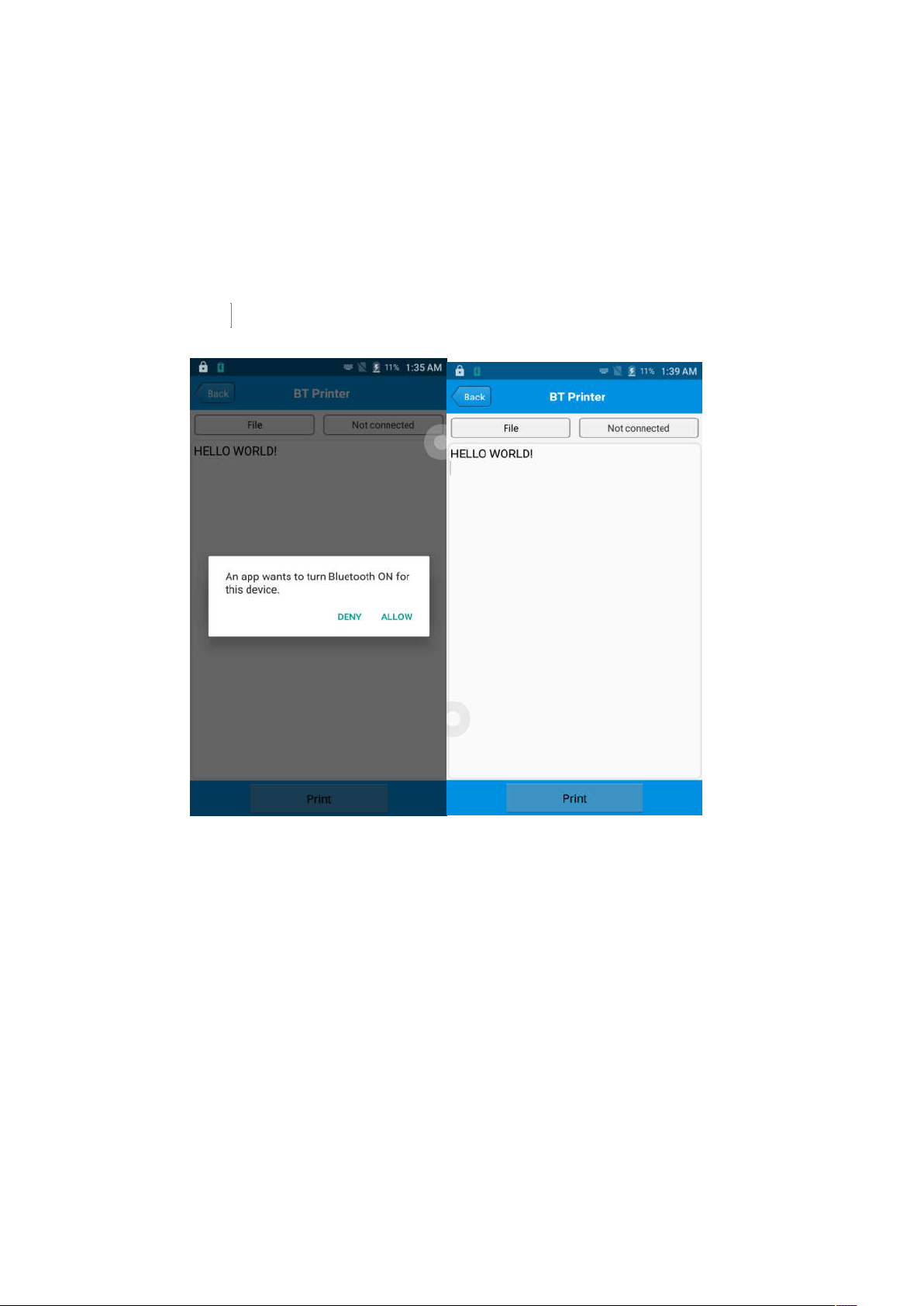
1. Open “BT Printer” in App Center.
2. In the list of detected devices, click the device that you want to
pair.
3. Select printer and click “Print” to start printing contents.
16
Page 18
6.3 GPS
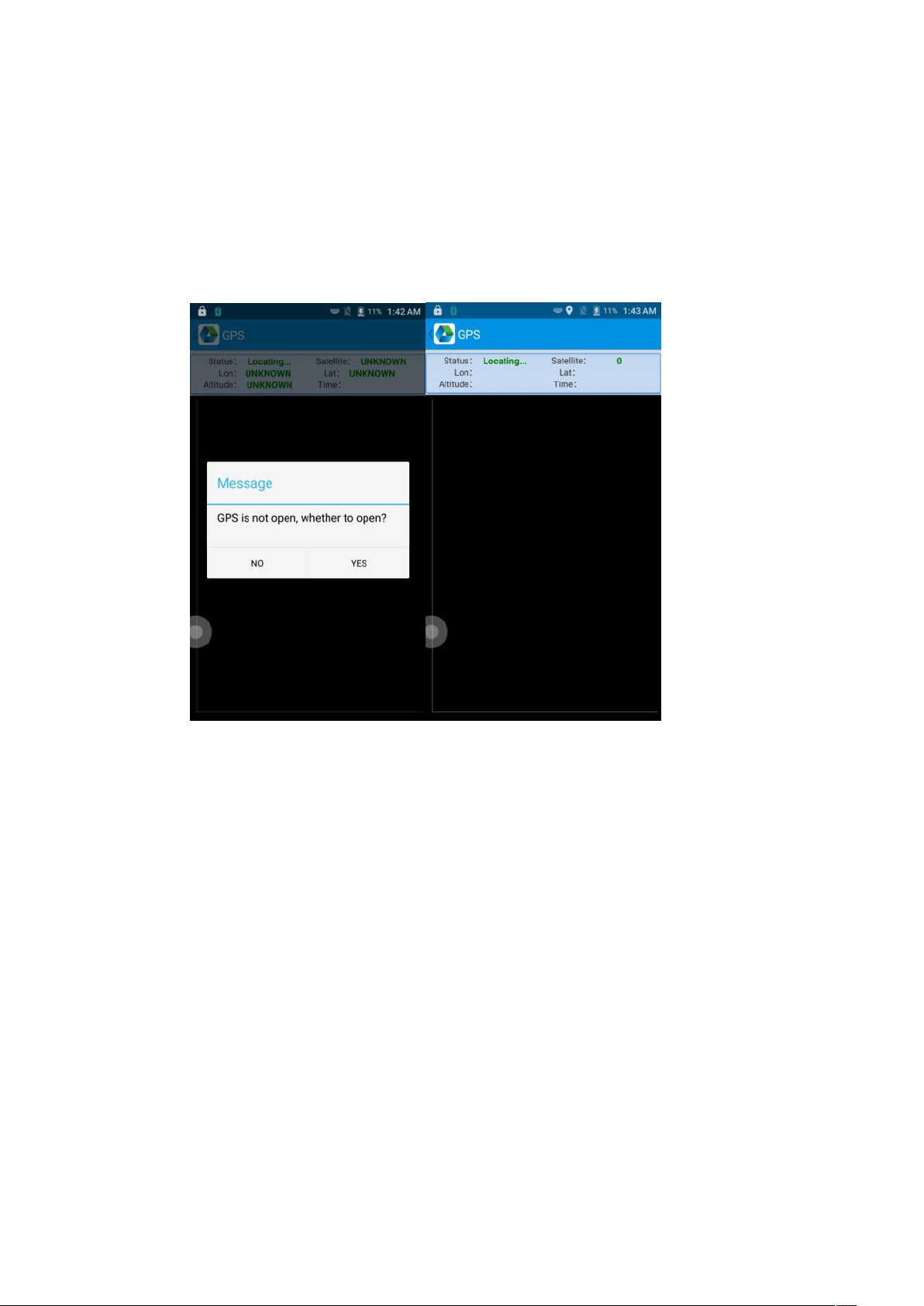
1. Click “GPS” in App Center to open GPS test.
2. Setup GPS parameters to access GPS information.
17
Page 19
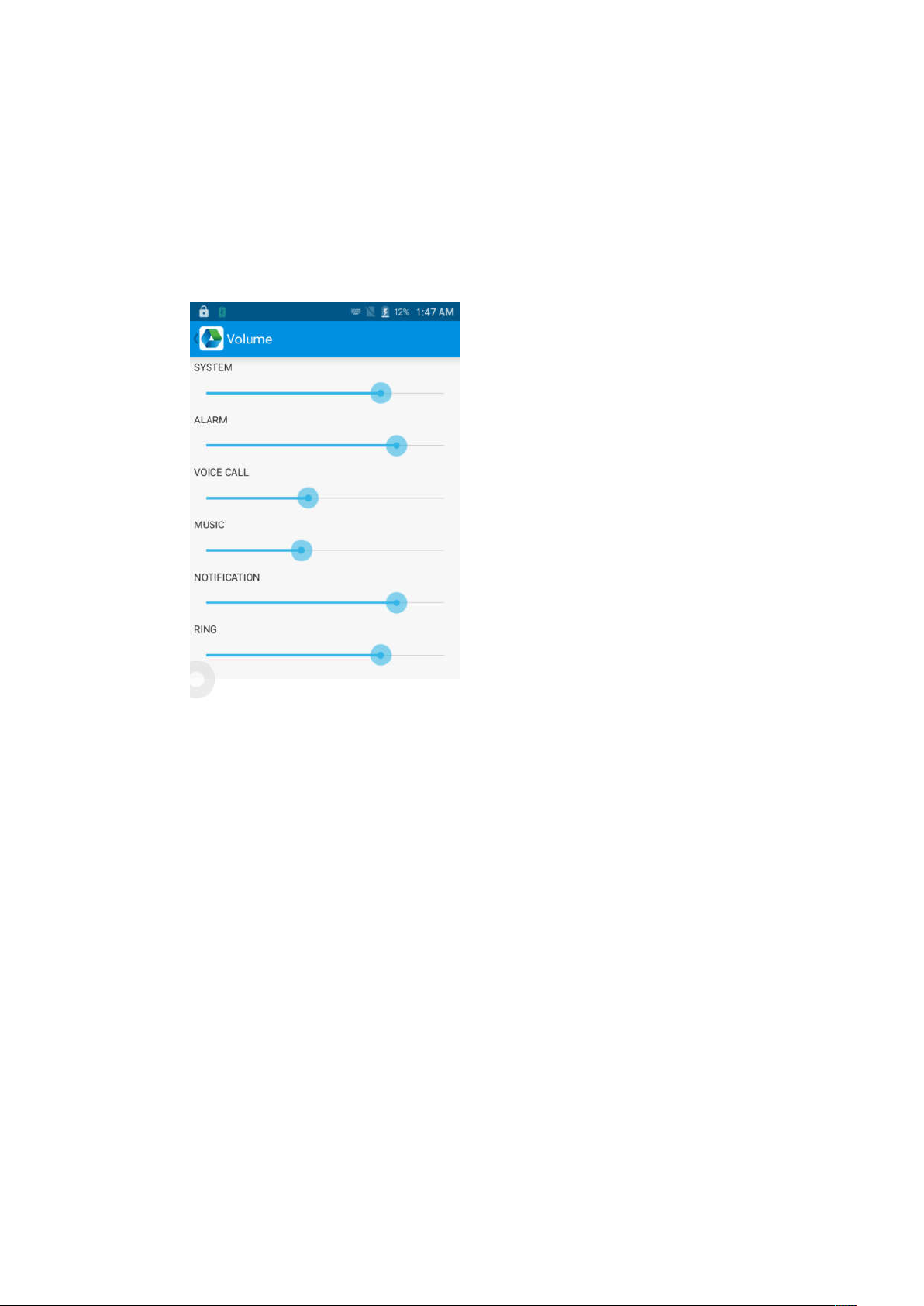
6.4 Volume setup
1. Click “Volume” in App Center.
2. Setup volume by requirements.
18
Page 20
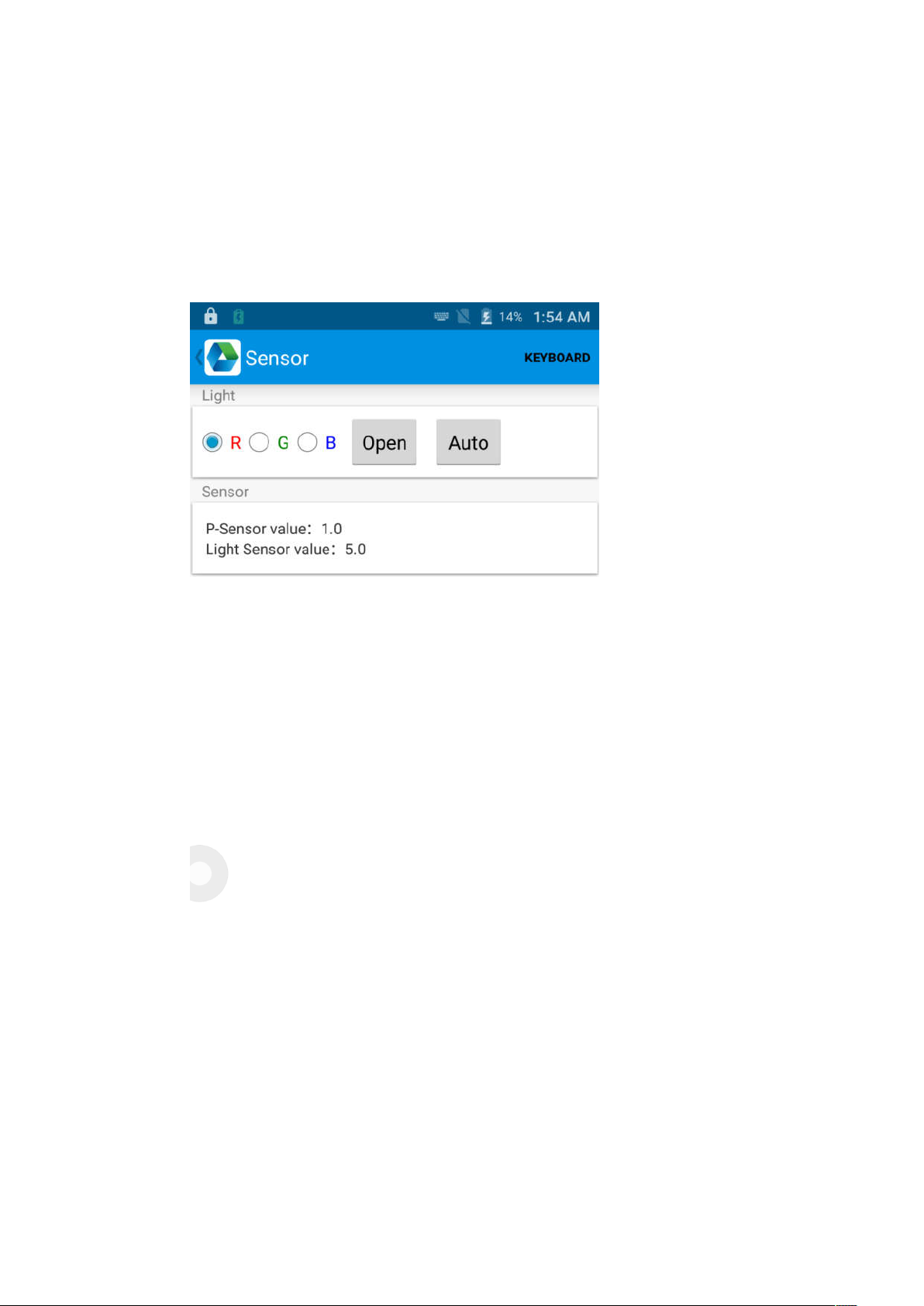
6.5 Sensor
1. Click “Sensor” in App Center.
2. Setup the sensor by requirements.
19
Page 21
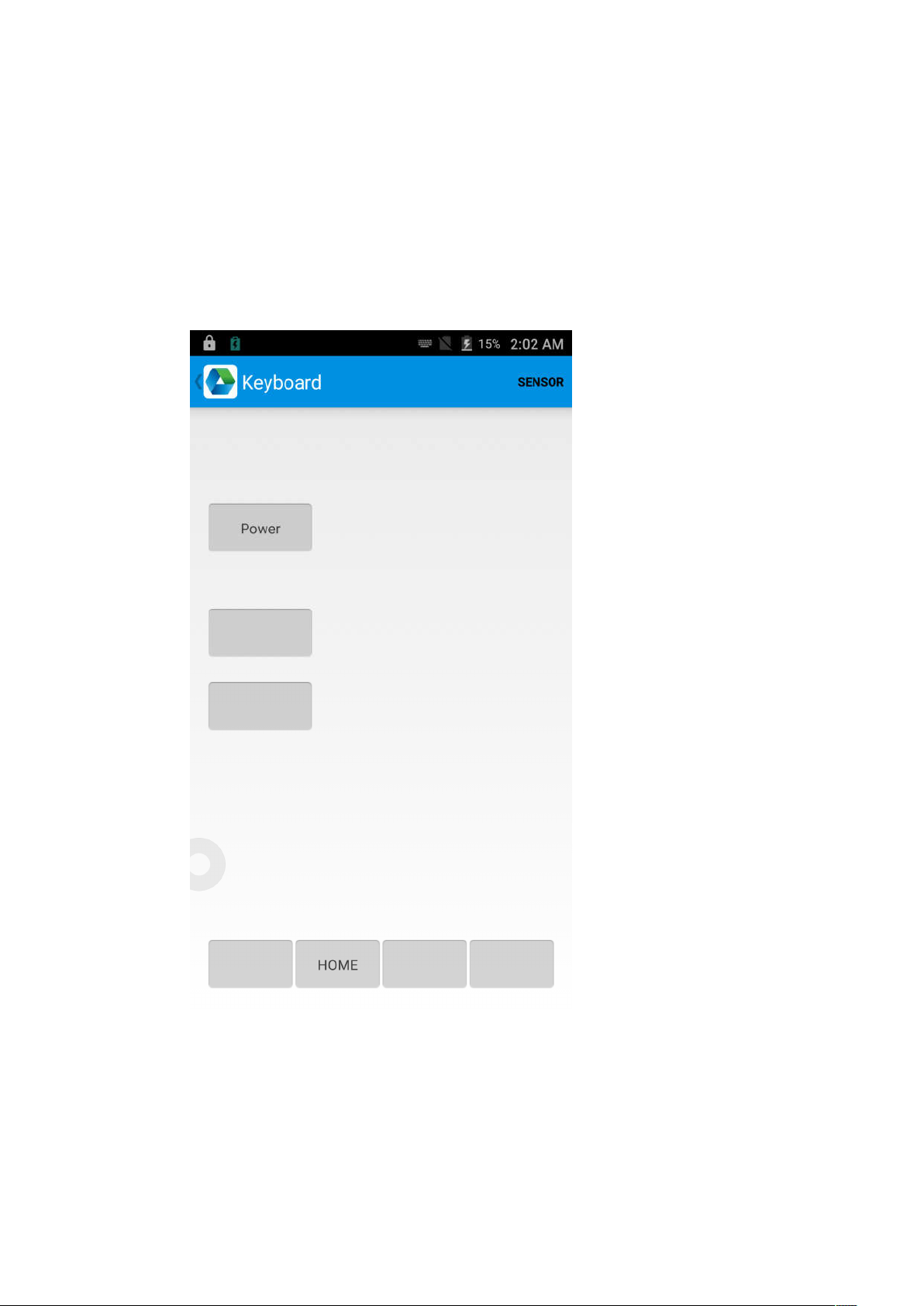
6.6 Keyboard
1. Click “Keyboard” in App Center.
2. Setup and test the main value of the device.
20
Page 22
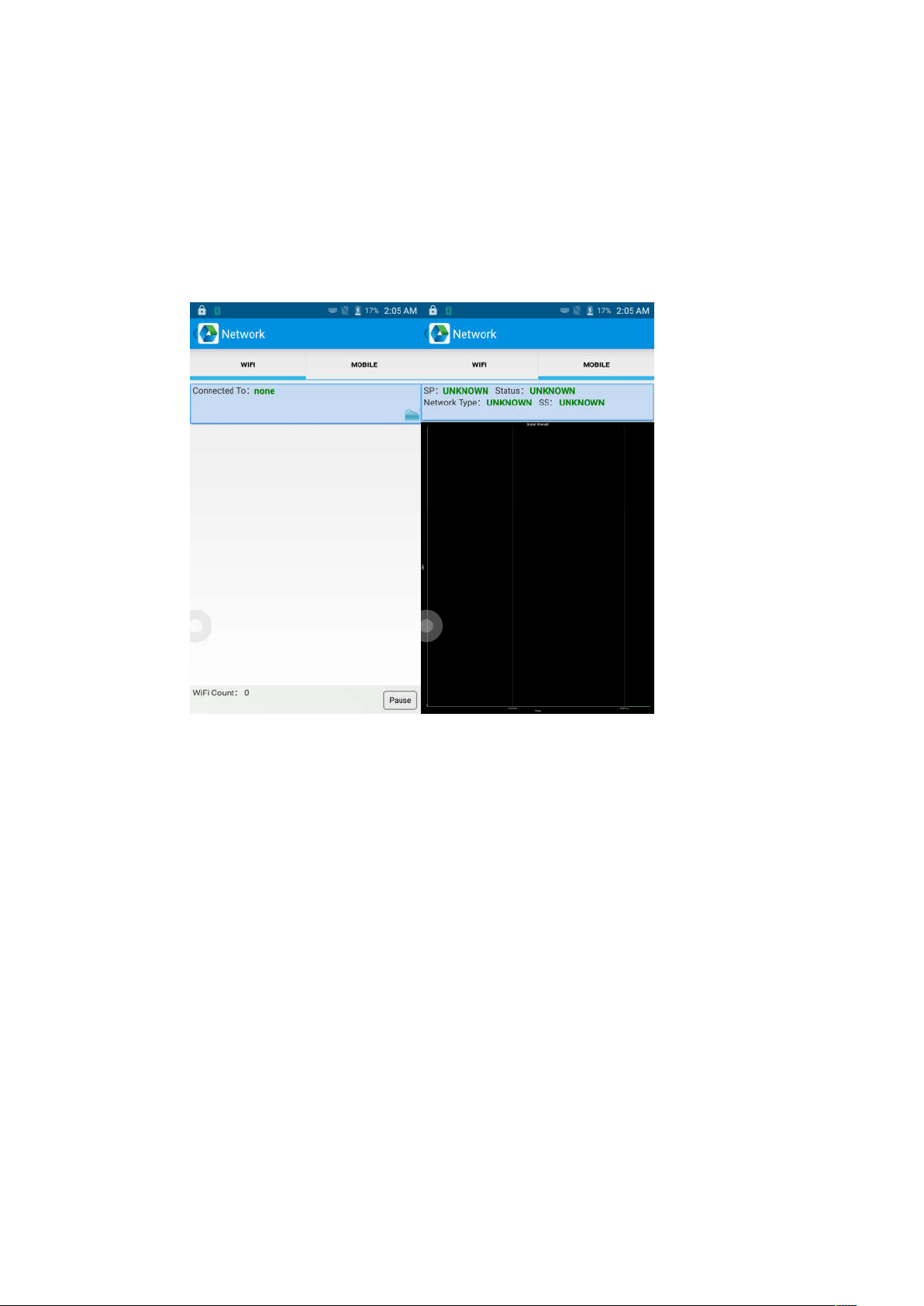
6.7 Network
1. Click “Network” in App Center.
2. Test WIFI/Mobile signal by requirements.
21
Page 23
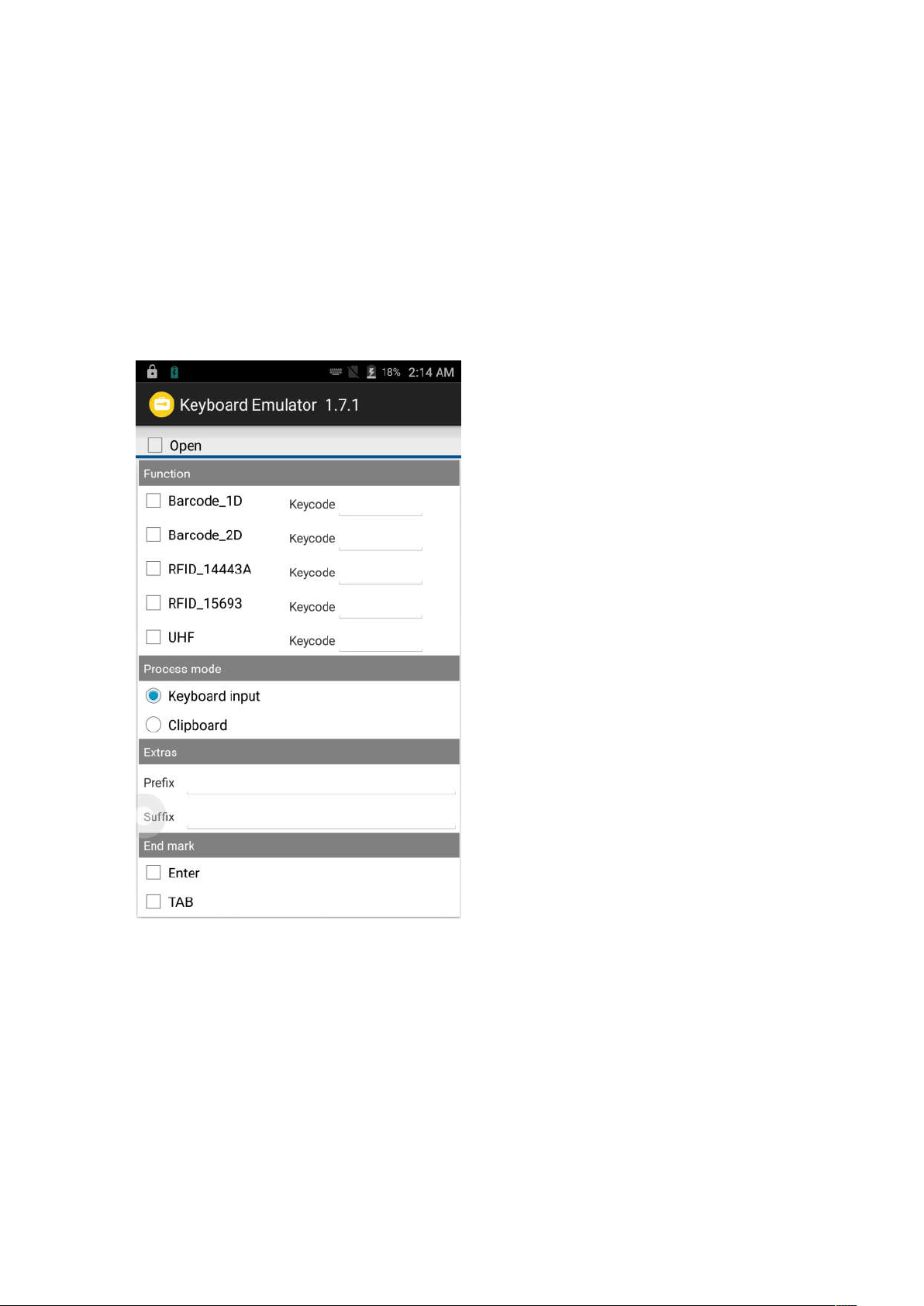
6.8 Keyboard emulator
The keyboard emulator can be used in multiple operating background
and output formats directly. And it includes Prefix/Suffix/Enter/TAB.
Please check Keyboard emulator manual for more details.
22
Page 24
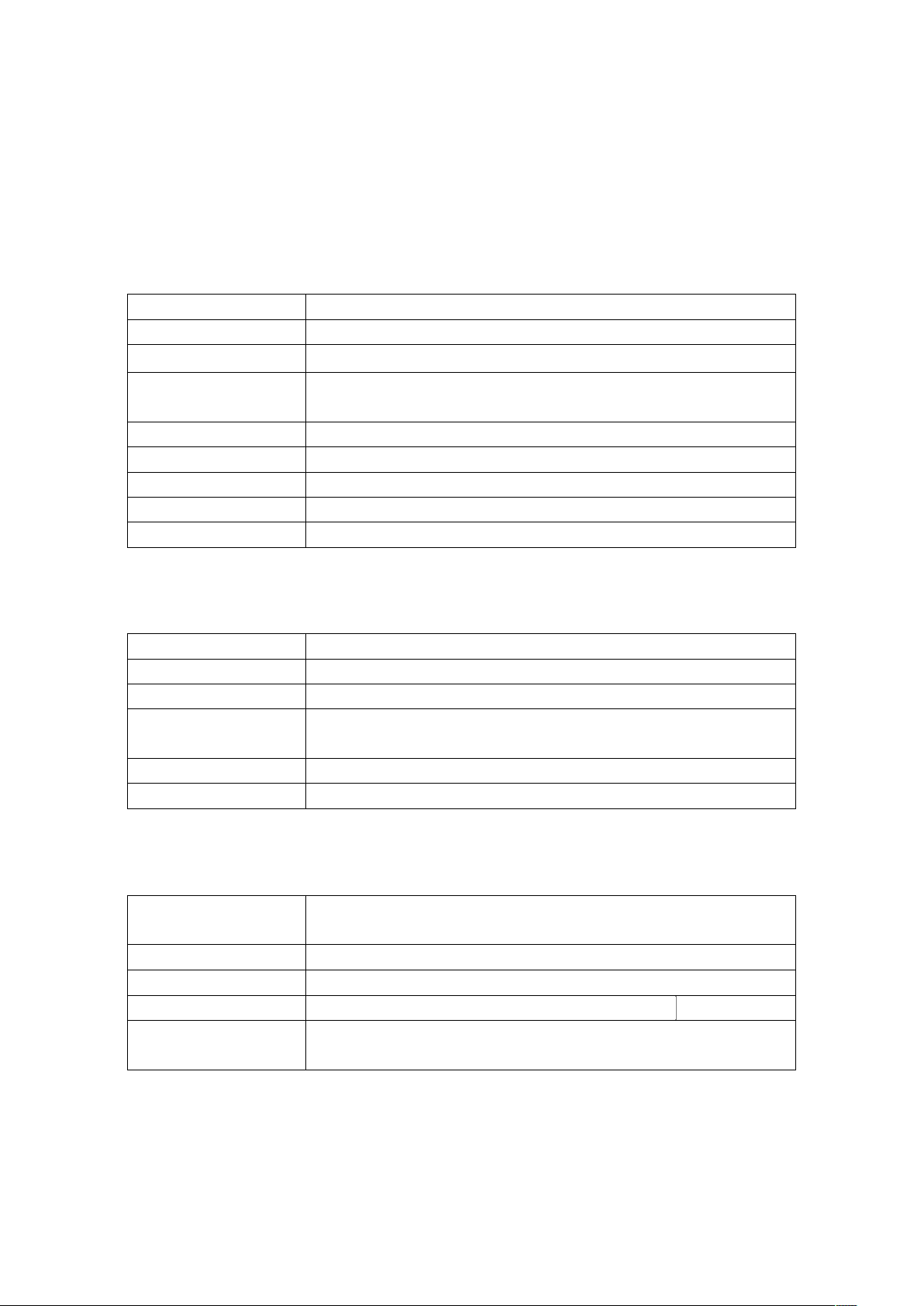
Chapter 7 Device characteristic
Size
Weight
Display
Touch panel
Battery
Expansion
Expansion Slot
Audio
Camera
CPU
OS
RAM
Communication
ROM
Max.expansion
Operating
Storage Temp.
Humidity
Sealing
Drop
Physical characteristics
164.2mm*78.8mm*17mm
<260g(battery included)
5.2 inch,IPS FHD 1920*1080P
4 main keyboards, 1 power button, 2 scan buttons,
1 multi-function button
Li-ion, rechargeable, 5000mAh
Supports up to 32 GB Micro SD card
1 slot for SIM card, 1 slot for SIM or TF card
speaker, 2 microphones
13MP autofocus camera with flashlight
Performance
Interface
temp.
specification
Cortex-A53 1.3GHz Quadcore
Andriod 6.0
2GB RAM
USB2.0,Type-C,OTG
16GB
Supports up to 32 GB Micro SD card
User environment
-10℃ to 50℃
20℃ to 70℃
-
5%RH - 95%RH non condensing
IP67, IEC sealing standard
Multiple 1.8m/5.9ft drops to the concrete
23
Page 25
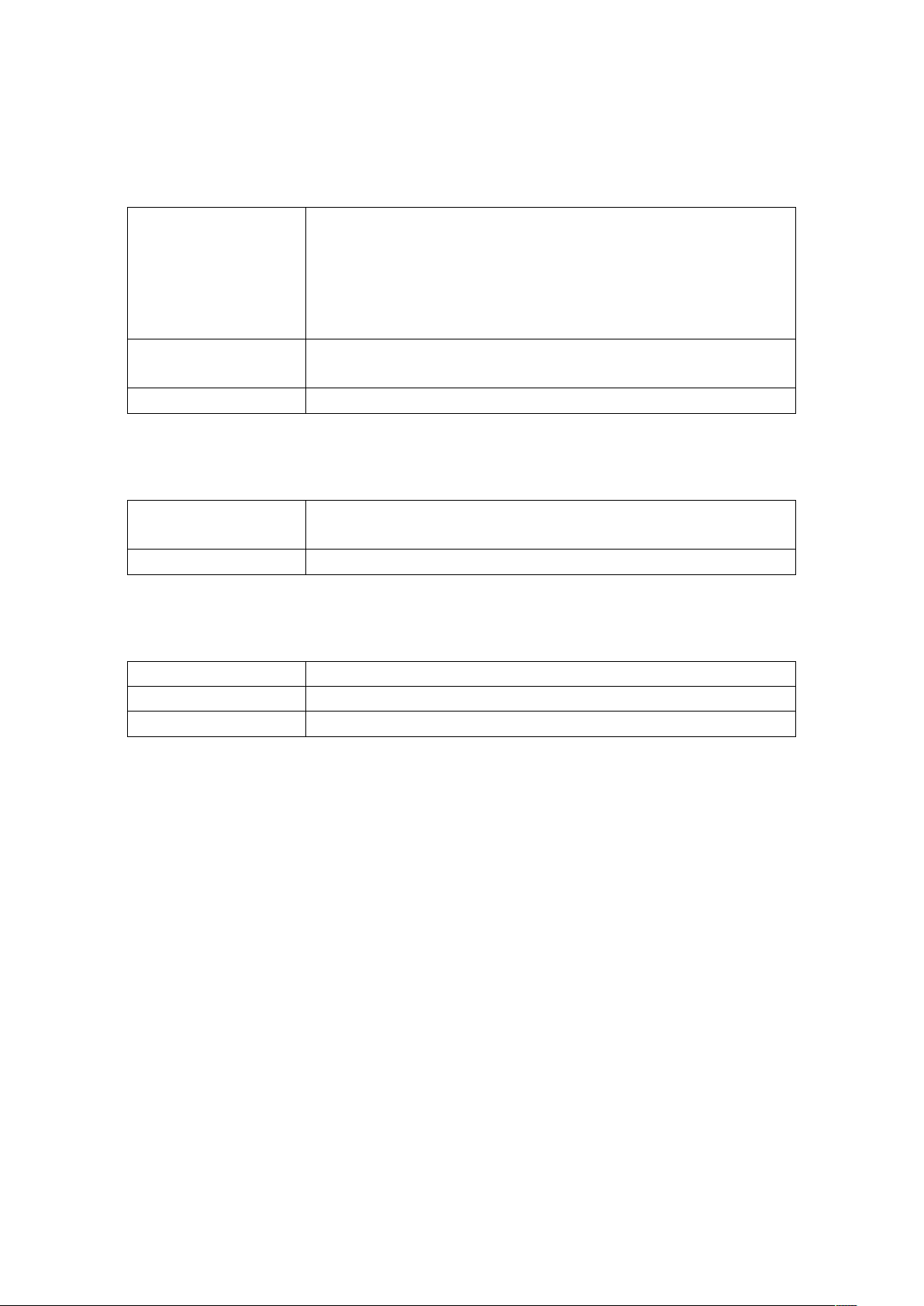
WAN
WLAN
WPAN
Barcode
RFID
SDK
Language
Develop
scanning
Communication
2G: B2,B3,B5,B8
3G: WCDMA B1/B2/B5/B8
TD-SCDMA B34/39
4G: FDD-LTE B1/B2/B3/B4/B5/B7/B17/B20
TDD-LTE B38/B39/B40/B41
IEEE802.11a/b/g/n, embedded antenna, 5 Gigabit
WIFI max. power 14.79dBm.
Bluetooth 4.0
Data collection
2D CMOS scanning engine(Honeywell
N6603/Zebra SE4710)
NFC 13.56Mhz
Developing Environment
softeware develop kit
Java
Eclipse/Android Studio
24
 Loading...