

Page 1
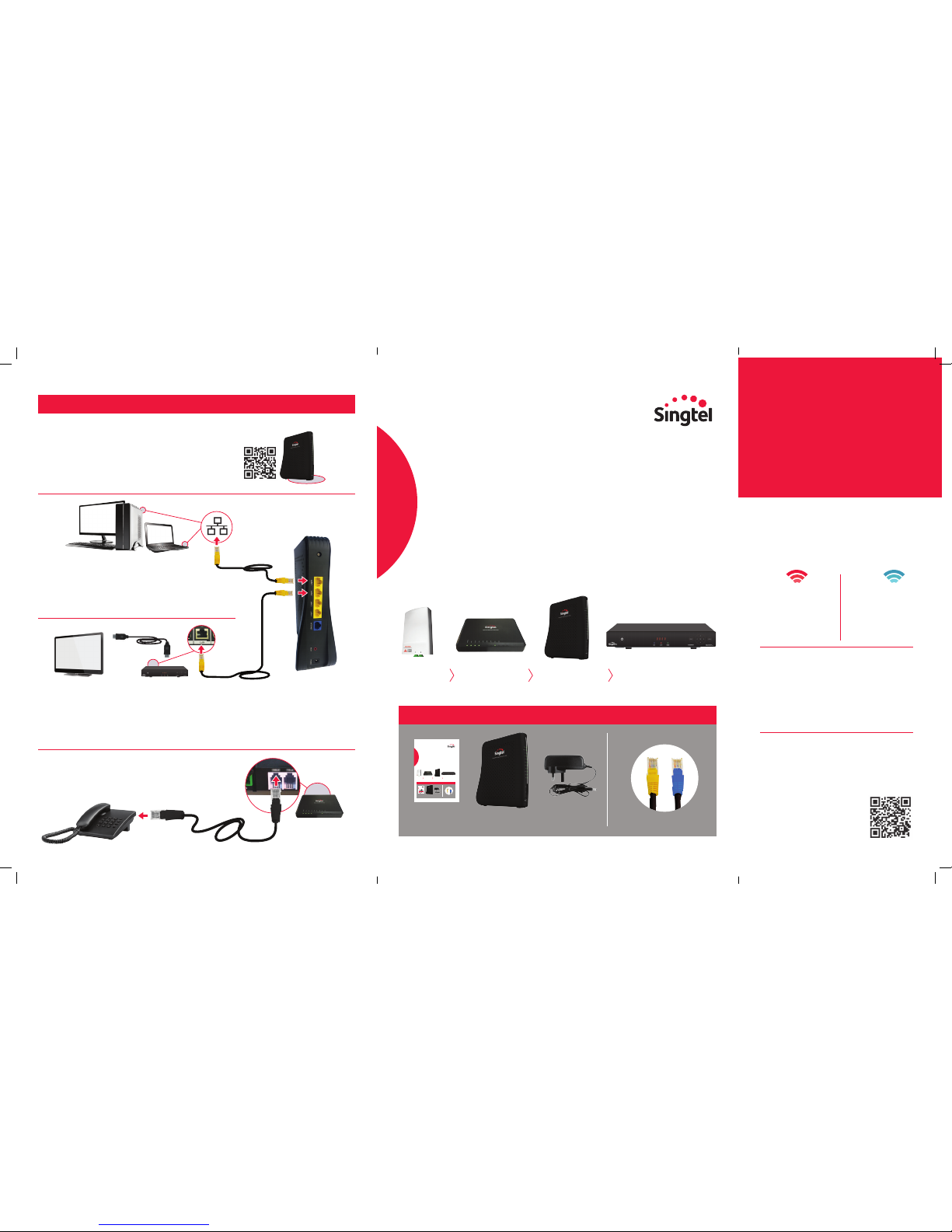
Setting up your WiFi Connection
You can nd the WiFi network name (SSID) and password
on the base of your Wireless Router.
To get help on connecting to WiFi on different operating
systems and devices, go to: bit.ly/connwireless or scan
the QR code on the right.
Connecting a Home Digital Line
Connect your home phone to “TEL 1” port in the ONT
using a Telephone cable (RJ11). Wait for the TEL 1 light
to turn solid green.
Connecting to Singtel TV Set-Top box
Use the RJ45 Ethernet cable to connect your Singtel TV set-top box to any yellow LAN port
on the Wireless Router.
Note: HDMI cable is recommended for connecting your Singtel TV set-top box to your TV
set for high-denition viewing. Turn on the set-top box and select the correct input source
(eg HDMI 1, HDMI 2) on your TV set (refer to your TV manual if needed) to watch Singtel TV.
Connecting to your devices
For faster and more consistent speed, connect your PC
or laptop to any yellow LAN port on the Wireless Router
using an RJ45 Ethernet Cable (minimum Category 5e,
available at most eletronic shops).
Optical Network
Terminal (ONT)
Wireless
Router
Quick
Installation
Guide for AC1900
Your quick and easy step-by-step guide to installing
the following Fibre Broadband devices at home.
Why do I only see one network
name (SSID)?
Only one network name is listed, so you
don’t have to worry about which band to
connect to. The Wireless Router intelligently
steers your devices to the optimal band,
according to signal quality and your devices’
WiFi capability.
How can I check which WiFi band
my device is connected to?
First, connect to the Wireless Router.
Then, scan the QR code or visit
bit.ly/whichwiband
The connected WiFi band
is shown with your device
name. You can nd the
name of your device in
your device’s general
settings menu.
5GHz
Less congestion
with 5GHz supported
devices. Works best
at close range.
(For 5GHz-supported
devices only).
2.4GHz
Wider coverage,
but prone to
interference and
congestion from
other nearby
WiFi networks.
What is a dual-band router?
Your Wireless Router transmits 2.4GHz
and 5GHz WiFi signal bands simultaneously,
allowing devices to switch between bands
for optimal speed and connectivity.
Learn more at
Singtel.com/dualbandrouter
.
FAQs
Singtel TV Set-Top Box
Fibre
Termination
Point
Optical Network
Terminal (ONT)
Wireless Router
1 x
Installation
Guide
1 x
Wireless
Router
1 x
Power
Adapter
For new installations only
2 x
RJ45 Ethernet
Cables
Quick
Installation
Guide for AC1900
Your quick and easy step-by-step guide to installing
the following Fibre Broadband devices at home.
Singtel TV Set-Top Box
Fibre
Termination
Point
Optical Network
Terminal (ONT)
Wireless Router
1 x
Installation
Guide
1 x
Wireless
Router
1 x
Power
Adapter
For new installations only
2 x
RJ45 Ethernet
Cables
Quick
Installation
Guide for AC1900
Your quick and easy step-by-step guide to installing
the following Fibre Broadband devices at home.
Fibre
Termination
Point
Optical Network
Terminal (ONT)
Wireless RouterSingtel TV Set-Top Box
1 x
Installation
Guide
1 x
Wireless
Router
1 x
Power
Adapter
For new installations only
2 x
RJ45 Ethernet
Cables
AC1900
Quick
Installation
Guide
Your quick and easy step-by-step guide to installing
the following Fibre Broadband devices at home.
Fibre
Termination
Point
Optical Network
Terminal (ONT)
Wireless RouterSingtel TV Set-Top Box
1 x
Installation
Guide
1 x
Wireless
Router
1 x
Power
Adapter
For new installations only
2 x
RJ45 Ethernet
Cables
What’s in the box
What’s in the box
What’s in the box
Quick
Installation
Guide for AC1900
Your quick and easy step-by-step guide to installing
the following Fibre Broadband devices at home.
Fibre
Termination
Point
Optical Network
Terminal (ONT)
Wireless RouterSingtel TV Set-Top Box
1 x
Installation
Guide
1 x
Wireless
Router
1 x
Power
Adapter
For new installations only
2 x
RJ45 Ethernet
Cables
Quick
Installation
Guide
What’s in the box
What’s in the box
Connecting Home Digital Line, Singtel TV and other devices
xx March 2016
Quick
Installation
Guide for AC1900
Your quick and easy step-by-step guide to installing
the following Fibre Broadband devices at home.
Fibre
Termination
Point
Optical Network
Terminal (ONT)
Wireless Router
Singtel TV Set-Top Box
1 x
Installation
Guide
1 x
Wireless
Router
1 x
Power
Adapter
For new installations only
2 x
RJ45 Ethernet
Cables
AC1900
Quick
Installation
Guide
Your quick and easy step-by-step guide to installing
the following Fibre Broadband
devices at home.
Fibre
Termination
Point
Optical Network
Terminal (ONT)
Wireless RouterSingtel TV Set-Top Box
1 x
Installation
Guide
1 x
Wireless
Router
1 x
Power
Adapter
For new installations only
2 x
RJ45 Ethernet
Cables
What’s in the box
What’s in the box
Page 2
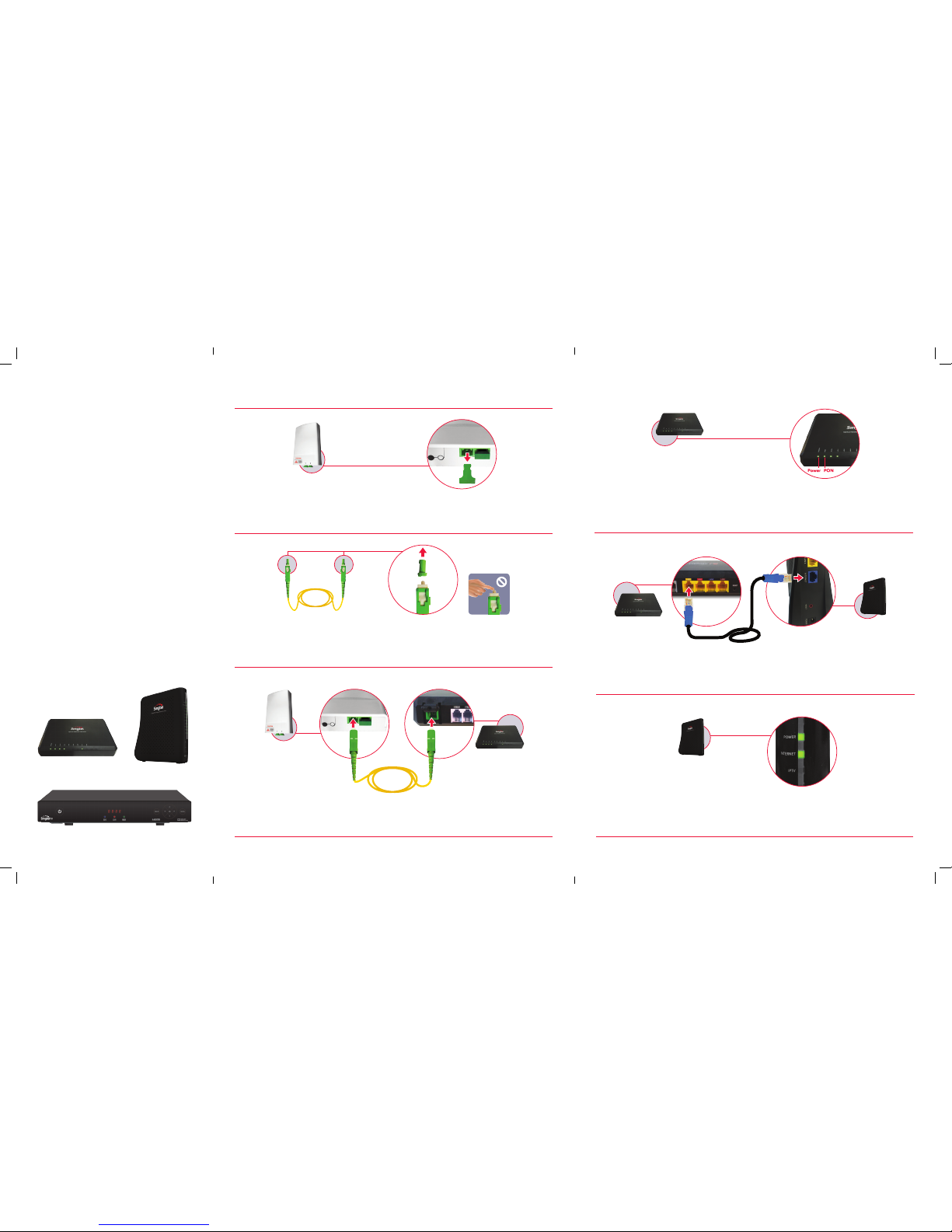
Use RJ45 Ethernet cable to connect LAN 1 port on the ONT to the blue Internet port of the
Wireless Router.
Remove both green caps from the bre optic cable. Do not touch the tip of the cable as dust
and ngerprints may cause interference with the connection and affect your internet speed.
Note: A bre optic cable is made up of glass – do not stretch, tie or bend sharply.
Unplug the green plastic cover from port 1 on the Fibre Termination Point (FTP).
Note: FTP can be commonly found near your household distribution board (DB box)
or near your TV point.
Port 1 Port 2
1
2
Port 1 Port 2
Fibre Termination
Point (FTP)
3
Connect the bre optic cable from port 1 of the FTP to the Passive Optical Network (PON)
port located at the back of the Optical Network Terminal (ONT).
Fibre optic
cable
Optical Network
Terminal (ONT)
Fibre Termination
Point (FTP)
Connect ONT to power and switch on. Wait for the Power and PON lights to turn green.
Note: If PON light continues to icker/blink after 2 minutes, switch off ONT and repeat steps 1
– 3 using FTP port 2 instead. Replace cover on FTP port 1 to avoid dust from accumulating.
Optical Network
Terminal (ONT)
Optical Network
Terminal (ONT)
Wireless
Router
How do I boost my WiFi connection?
1. Place your Wireless Router in a
non-obstructed, elevated and central
location such as a table or shelf. WiFi
signals weaken when passing through
walls, furniture, mirrors, coated glass,
or from enclosed spaces.
2. Place your Wireless Router away from other
electronic devices that interfere with its
2.4GHz signal, including cordless phones,
microwave ovens or Bluetooth devices.
3. Ensure your device supports WiFi standards
of 802.11g and above.
4.
Consider installing extra access points to
increase coverage area. Learn more at
Singtel.com/brebroadbandtips
Troubleshooting
If you encounter connectivity issues, please
check the following:
√ All devices are powered on with the
switches at the back of the devices also
turned on.
√ Check wires are connected to the
correct ports.
√ Unplug and reconnect all wires to ensure
they are securely connected.
√ Turn off and on the devices below and wait
for 2 minutes for process to complete.
Device visual guide
Singtel TV Set-Top (If used)
Optical Network
Terminal (ONT)
Wireless Router
4
5
6
Connect Wireless Router to power and switch on. Wait for Power and Internet lights to turn green.
Note: If Internet light continues to icker/blink after 2 minutes, switch off Wireless
Router and repeat step 5 using LAN 2 port of the ONT.
Wireless
Router
For Router replacement, please start from Step 5
 Loading...