

Page 1

I
CONTENT
1. WARNINGS ............................................................... - 1 -
2. GETTING STARTED ................................................ - 4 -
2.1 APPEARANCE ........................................................ - 4 -
2.2 KEYPAD DEFINITION ........................................... - 5 -
2.3 BATTERY INSTALLATION ................................... - 6 -
2.4 SIM CARD/MICRO SD CARD INSTALLATION .. - 6 -
2.5 CHARGING THE BATTERY .................................. - 7 -
2.6 SECURITY SETTINGS ........................................... - 7 -
2.7 MICRO SD CARD ................................................... - 7 -
2.8 USB CABLE ............................................................ - 8 -
3. BASIC FUNCTIONS ................................................. - 8 -
3.1 MAKING A CALL ................................................... - 8 -
3.2 EMERGENCY SERVICE ........................................ - 8 -
3.3 ANSWERING A CALL............................................ - 8 -
3.4 REJECTING A CALL .............................................. - 8 -
4. GUIDE TO MENU OPERATIONS ............................ - 8 -
Page 2

II
4.1 CALL CENTER ....................................................... - 8 -
4.1.1 CALL HISTORY ................................................... - 8 -
4.1.2 CALL SETTINGS ................................................. - 9 -
4.2 PHONEBOOK ......................................................... - 9 -
4.3 SERVICES ............................................................. - 10 -
4.3.1 INTERNET SERVICE ........................................ - 10 -
4.4 MULTIMEDIA....................................................... - 10 -
4.4.1 MOBILE TV ....................................................... - 10 -
4.4.2 AUDIO PLAYER ................................................ - 10 -
4.4.3 VIDEO PLAYER................................................. - 10 -
4.4.4 VIDEO RECORDER........................................... - 10 -
4.4.5 FM RADIO ......................................................... - 11 -
4.4.6 SOUND RECORDER ......................................... - 11 -
4.5 MESSAGING......................................................... - 11 -
4.6 FUN & GAMES ..................................................... - 13 -
4.6.1 TORCH ............................................................... - 13 -
4.6.2 STK ..................................................................... - 13 -
Page 3

III
4.6.3 GAMES ............................................................... - 13 -
4.7 CAMERA............................................................... - 13 -
4.8 IMAGE VIEWER .................................................. - 13 -
4.9 ORGANIZER ......................................................... - 13 -
4.9.1 CALENDAR ....................................................... - 13 -
4.9.2 ALARM............................................................... - 14 -
4.9.3 CALCULATOR ................................................... - 14 -
4.10 FILE MANAGER ................................................ - 14 -
4.11 USER PROFILES................................................. - 14 -
4.12 SETTINGS ........................................................... - 14 -
4.12.1 DUAL SIM SETTINGS .................................... - 14 -
4.12.2 PHONE SETTINGS .......................................... - 14 -
4.12.3 NETWORK SETTINGS.................................... - 15 -
4.12.4 SECURITY SETTINGS .................................... - 15 -
4.12.5 CONNECTIVITY ............................................. - 16 -
4.12.6 RESTORE FACTORY SETTINGS ................... - 16 -
5. ENTRY MODE ........................................................ - 16 -
Page 4

IV
5.1 LETTER ENTRY MODE ....................................... - 16 -
5.2 NUMBER ENTRY MODE..................................... - 16 -
6. CARE AND MAINTENANCE ................................ - 16 -
7. TECHNICAL INFORMATION ............................... - 18 -
Page 5

- 1 -
1. Warnings
Please read this User’s Manual before operating your SINGTECH Onyx
SGT-M90.
SINGTECH reserves the rights to modify the design of this mobile phone
and the content of this User’s Manual without prior notice.
Due to different software and mobile service providers, the display on your
phone may vary, please refer to your phone for details.
ROAD SAFETY COMES FIRST
Do not use your phone when driving. For your own safety as well as that of
other road users, stop and park safely before making a call. You must
comply with any current legislation.
SWITCH OFF IN AIRCRAFT
When travelling by plane, you will need to switch your phone off when so
instructed by the cabin crew or the warning signs. Using a mobile phone
may be dangerous to the operation of the aircraft and may disrupt the
communication network. If used illegally, you could be prosecuted or
banned from using cellular networks in the future if you do not abide by
these regulations.
SWITCH OFF BEFORE ENTERING HAZARDOUS AREAS
Strictly observe the relevant laws, codes, and regulations on the use of
mobile phones in hazardous areas. Switch off your mobile phone before
entering a place susceptible to explosion, such as an oil station, oil tank,
chemical plant or a place where a blasting process is under way.
OBSERVE ALL SPECIAL REGULATIONS
Follow any special regulations in forced in any area such as hospitals and
always switch off your phone whenever it is forbidden to use it or, when it
may cause interference or hazards. Use your mobile phone with care when
near any medical devices, such as pacemakers, hearing aids and any
Page 6

- 2 -
electronic medical devices, as it may cause interference to such device.
INTERFERENCE
The voice quality of any mobile phone may be affected by radio interference. An antenna is built inside the mobile phone, located below the
microphone. Do not touch the antenna area during a conversation as it may
cause the voice quality to deteriorate.
QUALIFIED SERVICE
Only authorised and/or qualified service personnel may install or repair
any phone equipment. Installing or repairing the mobile phone on your
own may result in serious hazards and void the warranty.
ACCESSORIES AND BATTERIES
Use only original SINGTECH accessories and batteries.
USE SENSIBLY
Use only in a normal and proper manner.
EMERGENCY CALLS
Ensure the phone is switched on and in service, enter the emergency
number, e.g. 999, then press the Dial key. Give your location and state your
situation briefly. Do not end the call until told to do so.
Note: Just like all other mobile phones, this mobile phone does not necessarily support all the features described in this manual due to network or
radio transmission problems. Some networks even do not support the
emergency call service. Therefore, do not rely solely on the mobile phone
for critical communications such as first aid. Please consult your mobile
service provider for more information.
SERVICING
Only qualified personnel may install or repair this product.
WATER-RESISTANCE
Your phone is not water-resistant. Keep it dry.
Page 7

- 3 -
BACKUP COPIES
Remember to make back-up copies or keep a written record of all important information stored in your phone.
CONNECTING TO OTHER DEVICES
When connecting to any external device, read its user guide for detailed
safety instructions. Do not connect with incompatible products.
Page 8
- 4 -
2. Getting Started
2.1 Appearance
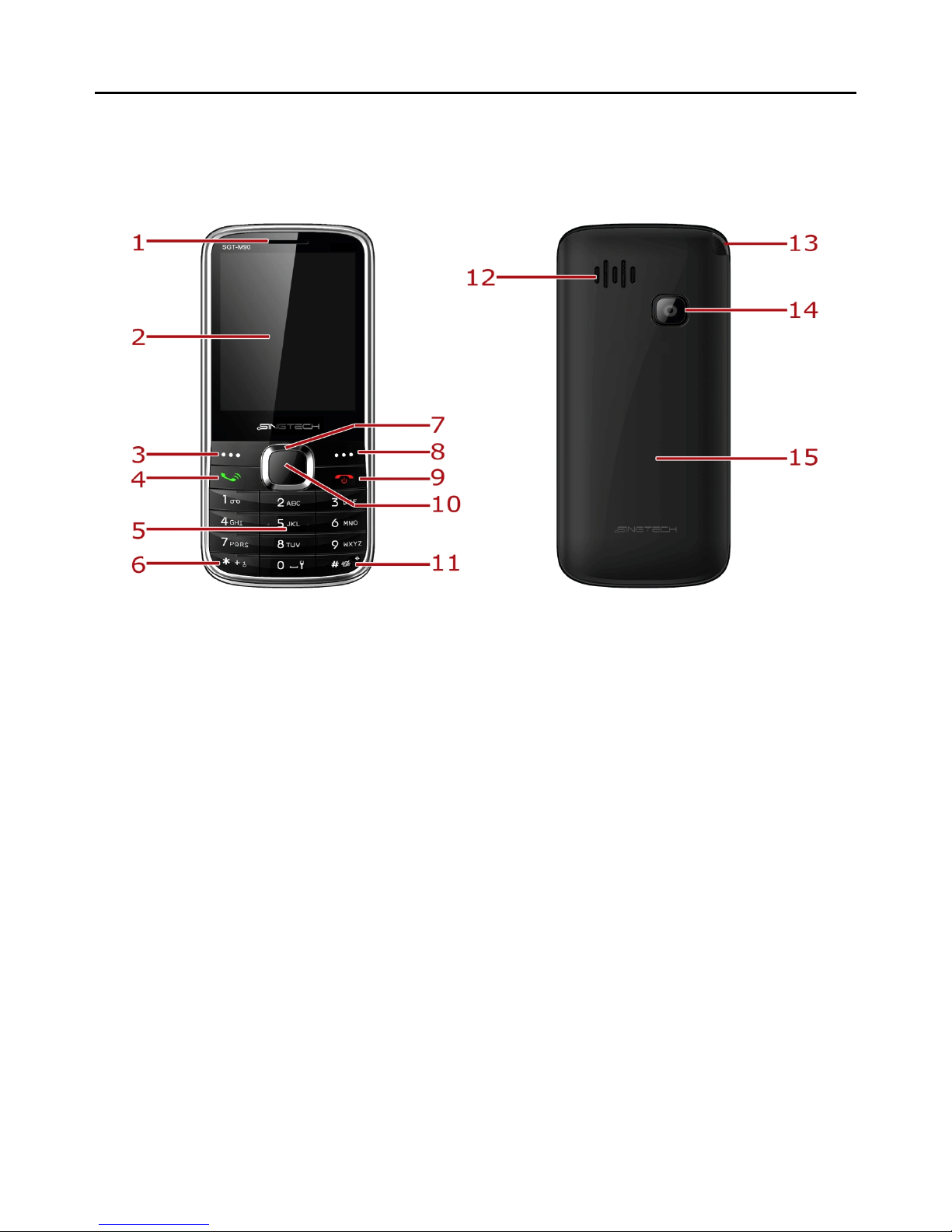
The Symbols above indicate:
1. Receiver 2. Display Screen
3. Left Soft Key 4. Dial Key
5. Number Keys 6. * Key
7. Navigation Keys 8. Right Soft Key
9. End Key/Power Key 10. OK Key
11. # Key 12. Speaker
13. Antenna 14. Camera
15. Battery Cover
Page 9
- 5 -
2.2 Keypad Definition
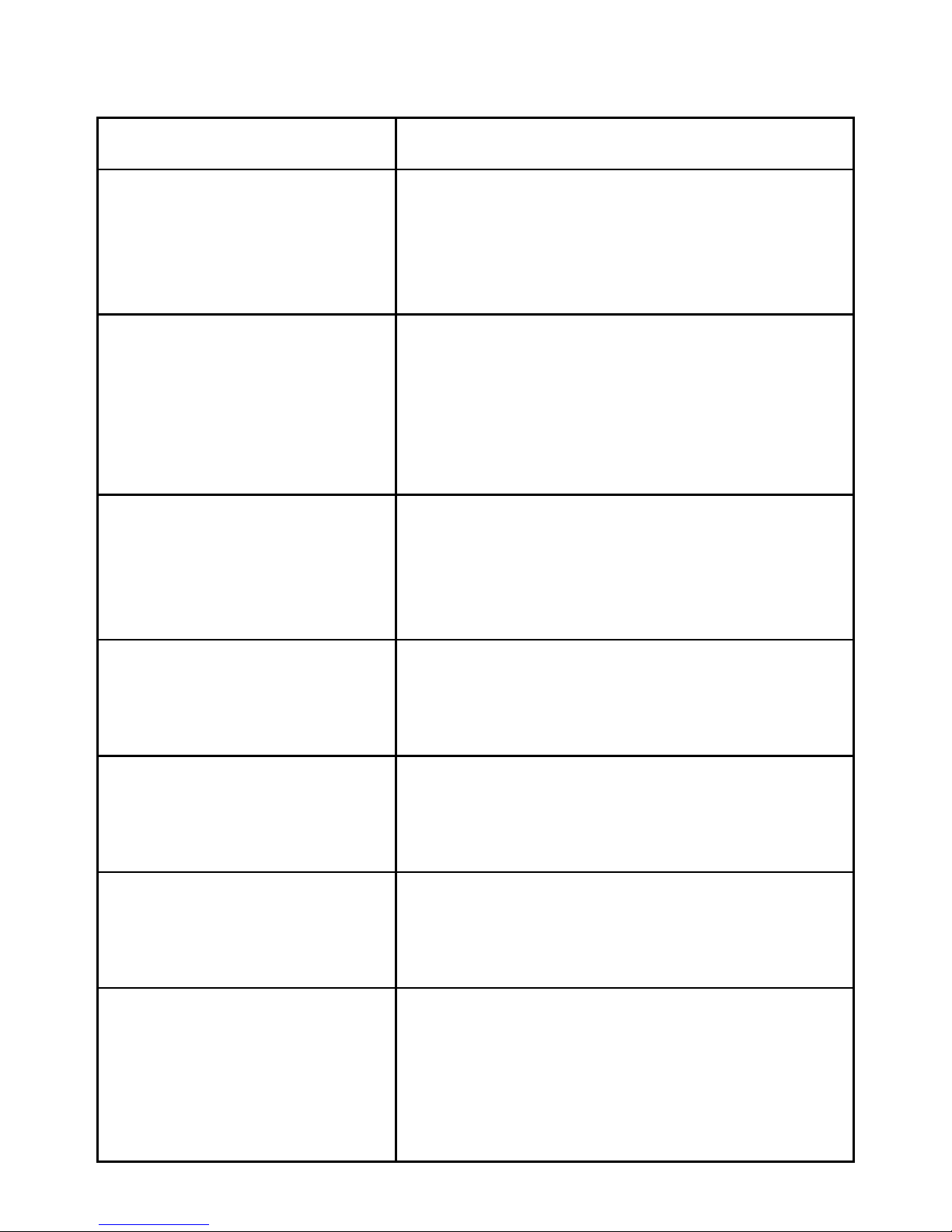
Key
Definitions
Left Soft key/
Right Soft key
1. Execute functions shown on
the
lower
left/right corner of the display screen.
2. In the standby mode, press left soft
key to access Menu, press right soft key
to access Names.
Navigation Keys
1. In other modes, it is used as the
navigation/direction key except for some
special functions.
2. In standby mode, press up/down
navigation keys to adjust incoming call
ringtone volume.
OK Key
1. In standby mode, press the key to
enter menu.
2. In dial panel, after inputting numbers,
press this key to select SIM1/2 voice
call.
End Key/ Power Key
1. Mainly used as power on/off.
2. Press to return to standby screen in
any interface.
3. End calls or reject incoming calls.
Dial Key
1. Press this key to dial or receive an
incoming call.
2. In standby mode, press this key to
access All calls.
Number Keys
1. Use these keys to input numbers or
letters.
2. In standby mode, long press the 0 key
to turn on/off torch.
* Key
1. After inputting phone number, quick
press * key thrice, then the symbol “P”
appears and input the extension number.
You can make an extension call.
2. In standby mode, press left soft key
and * key to lock keypad and off the
Page 10
- 6 -
screen. Press left soft key and * key to
unlock keypad.
# Key
1. In text editing interface, press # key to
switch the text input method.
2. Press and hold # key to transfer the
profile of current mode and Meeting
mode.
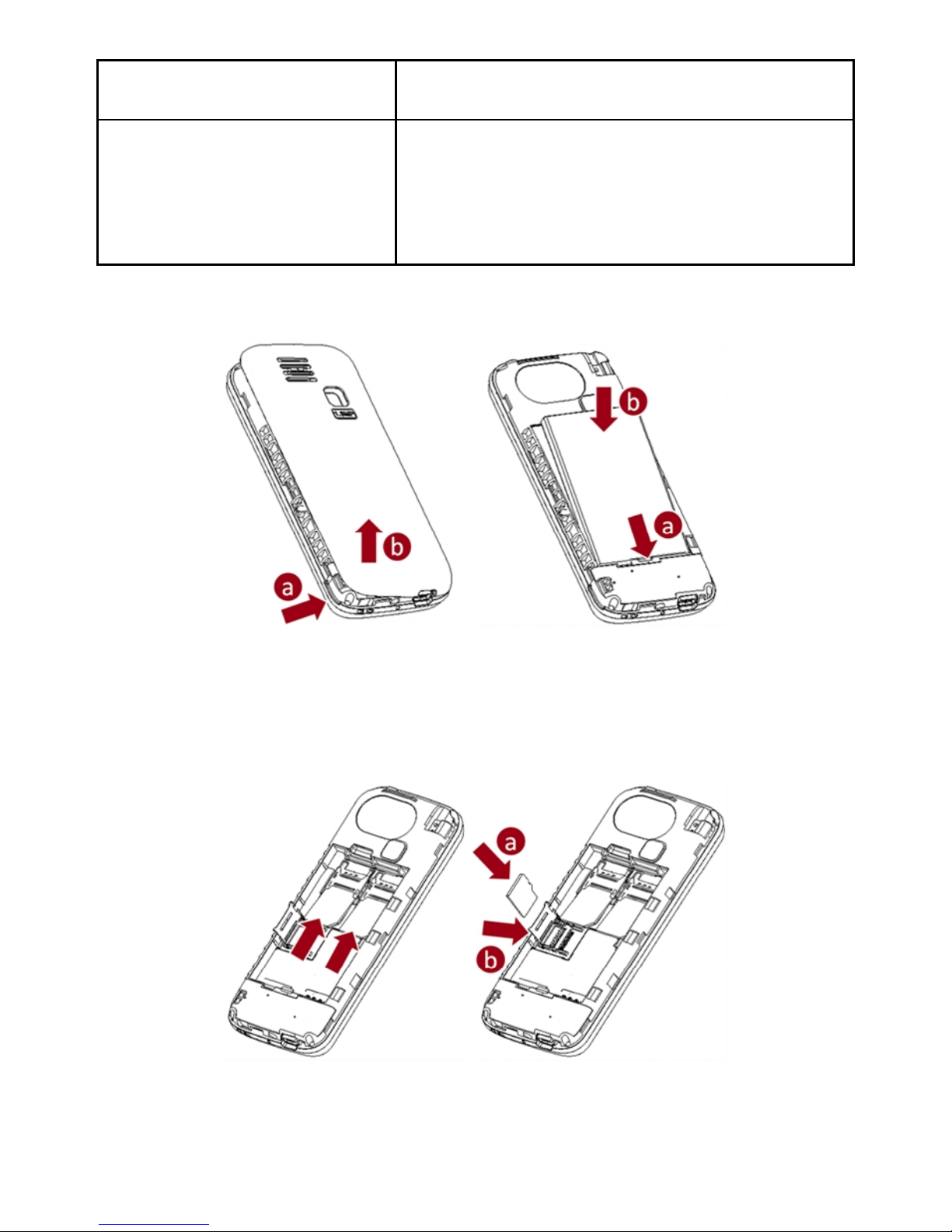
2.3 Battery Installation
Caution: Install according to the pictorial illustration above to avoid
damaging the battery connectors.
2.4 SIM Card/micro SD Card Installation
Caution: Do not bend or scratch your SIM card and T-Flash card. Avoid
exposing your SIM card and T-Flash card to static electricity, water, or dirt.
Page 11

- 7 -
Tips:Face the gold color contact point of SIM card towards the cell phone
and push the SIM card into the slot. With the metal contacts facing down,
gently slide the micro SD card into the slot. Press and pull the cover up to
lock it.
2.5 Charging the Battery
Insert the charger into USB interface of the phone; the flash symbol on the
charger plug must face upwards.
Connect the charger to a standard wall outlet and the battery power icon in
the top-right corner of the screen will start scrolling. When the battery bar
stops scrolling, the battery charging is complete. Press the two sides of the
charger plug and disconnect the charger from the phone.
When the battery is low, a “low battery” message will display across the
screen and the battery icon will look empty. If the battery level is insufficient, the phone will turn off automatically. Do not use your phone under
low battery state for an extended period of time or it may cause battery
damage.
2.6 Security Settings
― PIN code
PIN code (Personal Identity Number) prevents unauthorized use of your
phone. The PIN code is provided by your mobile service provider with the
SIM card.
If you enter the wrong code three times in a row, the PIN code will be
blocked. To unblock the PIN code, you need to enter your PUK. Your
PUK is provided by your mobile service provider.
― Phone Lock
Activate/Modify/Deactivate power on password (the length of the password is 4-8 digital numbers). If you activate the “Phone lock”, you need to
enter the password each time you turn on the phone. If you want to modify
the Startup password or deactivate power on password, enter Change
password to set.
2.7 Micro SD Card
Insert the micro SD card into handset and this will expand the Flash
memory of the phone.
Page 12

- 8 -
2.8 USB Cable
You can transfer and store files, such as MP3, MP4 and pictures from PC,
through USB cable, to the mass storage in phone or identified SD card that
is inserted.
3. Basic Functions
3.1 Making a Call
In standby mode, press numerical keys to input phone number to dial. If
you're making a long distance call, add the area code preceding the telephone number. After inputting phone number, quickly press * key thrice
until the symbol “P” appears, then input the extra number. Press left soft
key to access options. During a call, press the up/down navigation keys to
adjust the volume.
3.2 Emergency Service
You can dial an emergency call without the SIM card. Contact your service
provider to get the emergency call number.
3.3 Answering a Call
When you receive a call, the phone will ring or vibrate and will display an
incoming call indicator. Press dial key or left soft key to answer. During
the calling, you can press left soft key to access options: Hold, End single
call, Phonebook, Call History, Messaging, Sound recorder, Mute, and
Volume.
3.4 Rejecting a Call
You can press end key or right soft key to reject a call.
4. Guide to Menu Operations
4.1 Call Center
4.1.1 Call History
In the call history menu, you can check dialled calls, received calls, missed
calls, etc.
― Missed Calls: Display the latest missed calls list.
― Dialled Calls: Display the latest dialled calls list.
― Received Calls: Display the latest received calls list.
― Delete call logs: Delete all records.
Page 13

- 9 -
4.1.2 Call Settings
-SIM1/2 Call Settings
Call Waiting
Set the mode of call waiting, this function need to be activated.
Call Divert
When the call divert is activated, incoming calls will be diverted to voice
mail or other phone numbers according to the call divert settings.
Call Barring
When the call barring is activated, some of the calls will be barred according to the call barring setting condition. Contact your service provider to
sign up for call barring.
― Advanced Settings
Blacklist
Select whether to reject number into blacklist and edit Blacklist numbers.
Auto Redial
Set: On/ Off.
Call Time Reminder
Set: Off/ Single/ Periodic.
Answer Mode
Set: Any key
4.2 Phonebook
In the phonebook, you can store contacts' personal information and numbers while also search for previously stored contacts.
― Select Add new contact:
You can save new contact To SIM1/2 or To Phone. When save the contact
to phone, you can edit caller ringtone.
― Select one contact and press left soft key to access options:
View: Check the detailed information of the contact
Send text message: Edit text message and select SIM1/2 to send message
Call: Select SIM1/2 voice call to call the number
Edit: Edit the contact
Delete: Confirm whether to delete the contact
Copy: Copy the contact To Phone, To SIM1, or To SIM2
Add to Blacklist: Add the contact to Blacklist
Mark several: Select to mark one or more contacts
Phonebook backup: select Phonebook Export and Phonebook Import to
Page 14

- 10 -
backup phonebook
Phonebook settings: Set Preferred storage, Speed dial, Extra numbers,
etc
4.3 Services
4.3.1 Internet Service
― Homepage: Enter the homepage; it will connect with the default page
automatically.
― Bookmarks: Add new bookmark or manage stored bookmarks.
― Search or input URL: Enter the website to connect with this WAP page.
― Recent pages: Save the browsed WAP page. Use up/down navigation
keys to select page and press the left soft key to do options
― Settings: You can set Homepage, Select profile, Data account, Browser
options, and Preferences.
4.4 Multimedia
4.4.1 Mobile TV
You can use your phone to watch Mobile TV. Enter the menu and select
location, the phone will search channels. Press up/down navigation keys to
select channels, press OK key to enter. In full screen mode, press up/down
navigation keys to adjust volume.
4.4.2 Audio Player
This function menu is used to store and play the audio files. Press the left
soft key or OK key to enter and then use the left/right navigation keys and
OK key to operate audio player. Press up/down navigation keys, * key and
# key to adjust volume. Press left soft key you can access List.
4.4.3 Video Player
Preview the videos. Press * key and # key to adjust volume. Press navigation keys and OK key to operate the video player. Press left soft key to
access Options.
4.4.4 Video Recorder
After enter video recorder, press OK key to shoot, press left soft key to
access Options, press right soft key to back.
Page 15

- 11 -
4.4.5 FM Radio
Enter FM radio. Press OK key to turn on/off the radio. Press left/right
navigation keys to change channels, press up/down navigation keys to
change frequency manually, press * key and # key to adjust volume. Press
the left soft key to access Options.
4.4.6 Sound Recorder
You can take a recorder in this function. Press OK key or left soft key to
enter and select New record to record. After record, press left soft key to
access Options. After entering the record file list, select one file, press left
soft key to access Options.
4.5 Messaging
4.5.1 Write Message
This function can begin a new message. After completing the message:
― Press OK key:
Enter number: Input number
Add from Phonebook: Select contact from phonebook
― Press left soft key:
Send to: Enter number or Add from Phonebook to send message
Input method: Select input method
Advanced: Insert number, name, or bookmark
Save to Drafts: Save the message to drafts
4.5.2 Inbox
After entering the Inbox, press up/down navigation key to select messages.
Press OK key to check the details of message, or press left soft key to
access Options:
― View: Check the message
― Reply: Reply message to the sender
― Reply with original text: Reply message to the sender with original text
― Call sender: Select SIM1/2 voice call to call the sender
― Forward: Send the message to others
― Delete: Confirm whether to delete the message
― Delete all: Confirm whether to delete all messages
― Save to Phonebook: Save the sender’s number to phonebook
― Filter by: Select SIM1, SIM2, or All messages
Page 16

- 12 -
4.5.3 Drafts
You can save unsent and edit incomplete messages in draft box. Press left
soft key to access to Options:
― View: Check the message
― Send: Enter number or Add from Phonebook and select SIM1/2 to send
the message
― Edit: Edit the message
― Delete: Confirm whether to delete the message
― Delete all: Confirm whether to delete all messages
4.5.4 Outbox
Checks the information of unsuccessfully sent message in outbox. Press
left soft key to access to Options:
― View: Check the message
― Resend: Send the message once more
― Edit: Edit the message
― Delete: Confirm whether to delete the message
― Delete all: Confirm whether to delete all messages
4.5.5 Sent Messages
Check the message in sent box. Select one message to open, or press left
soft key to access Options:
― View: Check the message
― Forward: Send the message to others
― Delete: Confirm whether to delete the message
― Delete all: Confirm whether to delete all messages
4.5.6 Voicemail Server
This function needs a network supply. Please contact with your service
provider for more information. Select SIM1 or SIM2 to enter and set.
4.5.7 Service Messages
Enter Service messages to check inbox or select Service message settings
to set.
4.5.8 SMS Settings
Page 17

- 13 -
― SIM1/SIM2: Set SMSC address, Validity period, Message type, Deli-
very report, and Reply path
― Memory status: Check the message memory of SIM cards and phone
― Save Sent Message
― Preferred storage: Select SIM or Phone as preferred storage
― SMS backup: Backup all messages
― SMS Blacklist: Check the Mode and edit Blacklist numbers
― Signature: Set Signature Mode and edit Signature Text
4.6 Fun & Games
4.6.1 Torch
Press left soft key or OK key to turn on/off torch.
4.6.2 STK
If your SIM card supports STK function, the phone can display different
first level menu according to different STK card. This function needs the
network provider support. If user finds STK function can't operate normally, please contact the network provider. If the network provider does not
support this function, we do not claim any responsibility whatsoever.
4.6.3 Games
This phone supplies built-in game and you can select Games settings to set.
4.7 Camera
Press left soft key or OK key to enter. The photo can be previewed from
the screen; press OK key to shoot and right soft key to back, left soft key to
access Options.
4.8 Image Viewer
Enter image viewer, you can choose photos to view or return. Press left
soft key to access to Options: View, Image information, Browse style, Use
as, Rename, Delete, and Sort by.
4.9 Organizer
4.9.1 Calendar
You can use this feature to view the year, date and term easily. Use navigation keys to navigate other date. Press left soft key, you can enter to
submenu to do options.
Page 18

- 14 -
4.9.2 Alarm
The alarm clock feature sounds an alert or makes a vibration alert at a time
you specify. There are 5 alarm clocks can be edit and set.
4.9.3 Calculator
This feature can use your phone as a calculator for simple calculations.
Press number keys to enter the numbers. Use following keys to calculate:
Navigation keys: +, -, ×, ÷
OK key: Show the calculation result.
* Key: Input double 0
# Key: Decimal point
4.10 File Manager
Enter this menu; you can check the files store on memory card. Select one
file and press left soft key, you can do options.
4.11 User Profiles
This phone provides several profiles, by pressing left soft key or OK key,
you can enter options to set (expect Silent): Activate, Customize, and
Reset.
4.12 Settings
4.12.1 Dual SIM Settings
Select: Dual SIM open, Only SIM 1 open, or Only SIM 2 open
4.12.2 Phone Settings
― Time and Date
You can select Set home city, Set time/date, Set format, and Update with
time zone.
― Language
You can choose between English and Myanmar (Burmese) languages
under this function.
― Pref. Input Method
Select one input method as preferred input method.
― Display
Wallpaper
You can set wallpaper under this function.
Power on Display
Page 19

- 15 -
Select System or User defined animation as power on display.
Power off Display
Select System or User defined animation as power off display.
Show network Name
Select On or Off.
― Flight Mode
Select between Normal mode or Flight mode
― UART Settings
Select between SIM1 or SIM2
― Misc. Settings
Select LCD backlight to set
4.12.3 Network Settings
― SIM1/SIM2
Network Selection
This function can let you select the network manually or automatically.
― GPRS Transfer Pref.
Select Data prefer or Call prefer
4.12.4 Security Settings
― SIM 1/SIM 2 Security
PIN Lock
PIN number setting can avoid unauthorized usage of SIM card. If PIN
number has been wrongly inputted for 3 times, the SIM card will be locked.
PUK number is needed to unlock the SIM card. Please contact the network
provider if you don’t know the PUK number.
Change PIN
Input old SIM1/2 PIN, and then input new PIN, input the PIN code again
to confirm. Before change PIN, you need to turn on PIN lock.
Change PIN2
Input old SIM1/2 PIN, and then input new PIN, input the PIN code again
to confirm.
― Phone Security
Phone Lock
Input phone password to turn on/off phone lock. The default password is
1122.
Change Password
Input old password, and then input new password, input the new password
Page 20

- 16 -
again to confirm.
― Auto Keypad Lock
You can set the time to lock the keypad automatically.
― Mobile Tracker
You can activate or deactivate the mobile tracker function, or modify
password. Input phone password to enter the menu and set.
4.12.5 Connectivity
― Data Account
You can select network account or press left soft key to do options.
4.12.6 Restore Factory Settings
Input default password 1122 to restore factory settings.
5. Entry Mode
You can use several methods for entering text and numbers. By selecting a
Text Entry Mode, the phone provides a few Text Entry Mode for new
adding, editing contact records, finding contacts, editing SMS and writing
memos.
Select Text Entry Mode:
5.1 Letter entry mode
Press a key once to insert the first letter on the key, twice for the second
letter, etc. If you pause briefly, the last letter in the display is accepted and
the text awaits the next entry.
For example, press the "2" key continuously, it will appear "a"、"b"、"c"、
"2"one by one.
5.2 Number entry mode
Number Entry Mode can input the number in the text, such as telephone
number. Tap the proper number and input it.
6. Care and Maintenance
Battery care
• Your device is powered by a rechargeable battery. When the power is
weak, please charge the battery. In order to extend the lifespan of the
battery, use up its power before recharging.
• Unplug the charger from the electrical plug and the device when not in
Page 21

- 17 -
use. Do not leave the battery connected to a charger for more than a week.
Overcharging may shorten its lifespan.
• Extreme temperatures can affect the ability of your battery to charge.
Battery needs the fit temperature. If the surrounding temperature is over
40°C, the battery cannot be charged.
• Use the battery only for its intended purpose. Never use any charger or
battery that is damaged.
Do not short-circuit the battery. Accidental short-circuiting can occur when
a metallic object such as a coin, clip, or pen causes direct connection of the
positive (+) and negative (-) terminals of the battery. (These look like metal
strips on the battery.) Short-circuiting the terminals may damage the
battery or the connecting object.
• Leaving the battery in hot or cold places, such as in a closed car in
summer or a freezer in winter conditions, will reduce the capacity and
lifetime of the battery. Always try to keep the battery between 59°F and
77°F (15°C and 25°C). A hot or cold battery may not function temporarily,
even when the battery is fully charged.
• Battery performance is particularly limited in sub-zero temperatures.
• Do not dispose the battery into a fire! Dispose off the battery according to
the local regulations. Please recycle whenever possible. Cell phones are not
considered household waste.
• Caution: This phone has dual batteries. There is a switch near main
battery inside the phone. Push this switch; you can shift it into dual batteries or single battery.
Mobile phone maintenance
• Keep the device dry. Precipitation, humidity, and all types of liquids or
moisture can contain minerals that will corrode electronic circuits. If your
device does get wet, remove the battery and allow the device to dry completely before replacing it.
• Do not use or store the device in dusty or contaminated areas. Its moving
parts and electronic components can be damaged.
• Do not store the device in hot areas. High temperatures can shorten the
life of electronic devices, damage batteries, and warp or melt certain
plastics.
• Do not store the device in cold areas. When the device returns to its
normal temperature, moisture can form inside the device and damage
electronic circuit boards.
• Do not attempt to open the device other than as instructed in this guide.
Page 22

- 18 -
• Do not drop, knock, or shake the device. Rough handling can break
internal circuit boards and fine mechanics.
• Do not use harsh chemicals, cleaning solvents, or strong detergents to
clean the device.
• Do not paint the device Paint can clog the moving parts and prevent
proper operation.
• Use only the supplied or an approved replacement antenna. Unauthorized
antennas, modifications, or attachments could damage the device and may
violate regulations governing radio devices.
All of the above suggestions apply to your device, battery, charger, or any
enhancement. If any device is not working properly, take it to the nearest
authorized service facility for service.
7. Technical Information
Weight: 100g (with battery)
Size: 117 ×49.6 ×13mm
Battery: 1000mAh
Networks: GSM
Battery work times refer to the list below (Will not announce if the capacity is changed):
The operation time of the battery depends on conditions such as:
• Transmitting power level
• Signal (distance between the phone and the base station)
• Network parameters defined by the operator
• Phone use (WAP, games, SMS)
• Charging procedure used
Exclusions:
Subject to the exclusions contained below:
1. Damage due to the improper use.
2. User does not follow the manual.
Explanation:
The company has the final right of the explanation for this document.
Software upgrades will not be announced.
All the configurations mentioned in this user manual is only for reference; please refer to the actual phone.
 Loading...