

Page 1
Page 2

INDEX
ENGLISH
1 - 12
Page 3
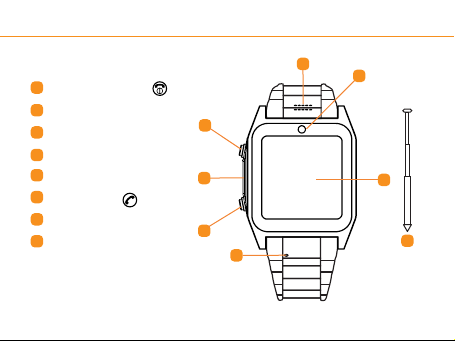
Keys and parts
A
On / off / end key
Loudspeaker
B
Camera
C
Touch screen
D
E
Microphone
F
OK / dial key
G
Micro USB port
H
Stylus
Your watchphone
B
A
G
F
E
C
D
H
1
Page 4
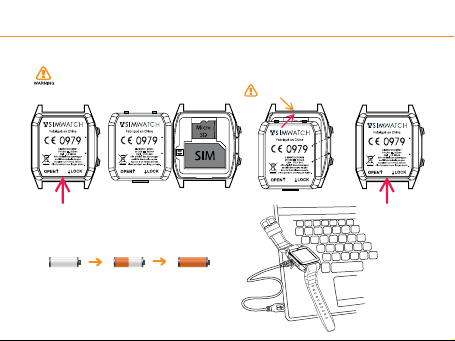
1. Insert sim card
Switch off the watchphone before taking out the battery!
Put it in the top rst!
Press the lock to remove the battery
2. Charge the battery
First time use
0%
50%
100%
2
Page 5
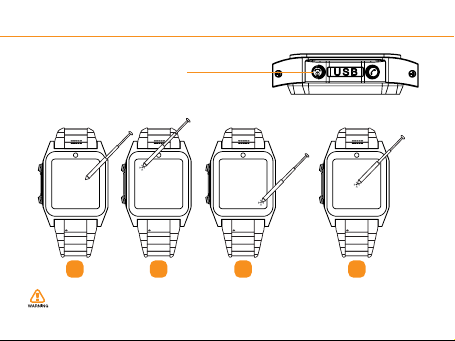
First time use
3. Switch on
Long press the On / Off key
4. Pen calibration
Enter on the menu and select the option "Pen calibration"
Click anywhere on the
screen with your
stylus to start
calibration.
Click on the top-left
point
Click on the bottom-
right point
4.1 4.2 4.3 4.4
For better performance, please calibrate the pen every two weeks!
Please note that using pen for calibration is required. Using nger will lead
to less preformance of the screen.
Click on the center
point
3
Page 6
10.09.2013
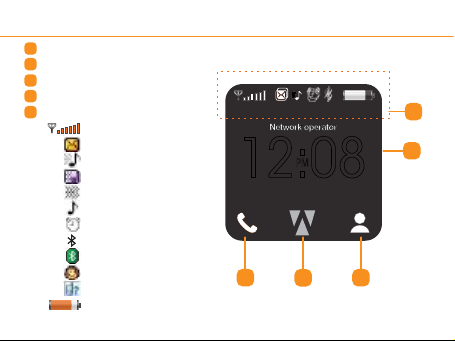
Telephone
A
Enter menu
B
Enter the Contacts
C
Current date and time
D
E
Signal indicators
Signal strength
New SMS
Vibrate and ring
Vibrate then ring
Vibrate only
Ring
Alarm ON
Bluetooth ON
Bluetooth connected
Headset inserted
Missed call
4
Battery strength
Watch screen
PM
12:08
A
B
E
D
C
Page 7
Multimedia
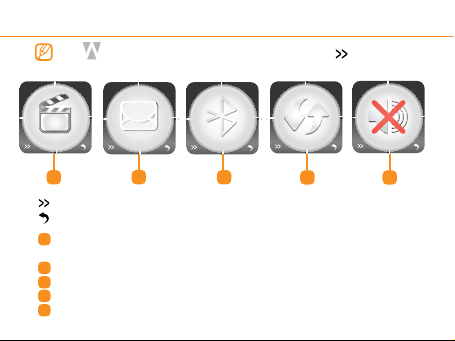
Menu features
Tap in home page to enter the menu then tap .
SMS Bluetooth
A
Next page
Return
Multimedia Camera, Audio player, Image viewer,
A
Sound recorder.
SMS Create, send and manage SMS messages.
B
Bluetooth Manage Bluetooth connections.
C
Two-way com Manage Two-way communication settings.
D
Silent Enable and disable silent mode.
E
B
C
Two-way com Silent
D E
5
Page 8
Menu features
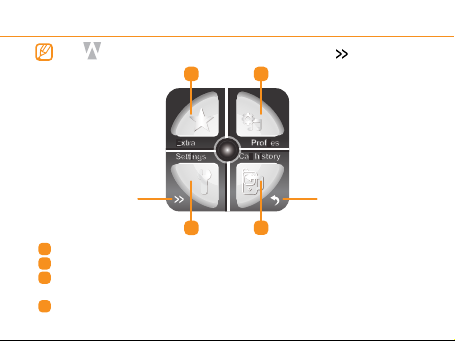
Tap in home page to enter the menu then tap .
A B
Next page Return
A
C
Extra Calendar, Calculator, Files, Alarm clock, Tasks.
Proles Customize or Activate the User proles.
B
Settings Pen calibration, Phone/Network/Safety/Call
C
setting, Restore factory settings.
Call history Access missed, received and dialled calls.
D
6
D
Page 9
Menu features
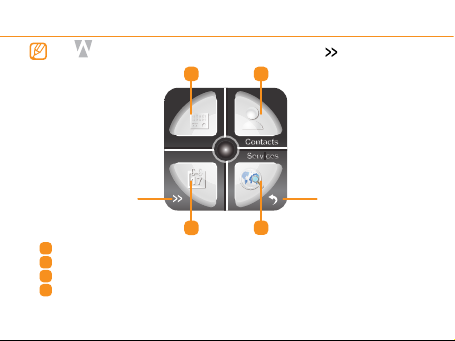
Tap in home page to enter the menu then tap .
A B
FM radio
Calendar
Next page Return
FM radio Access and control FM radio.
C
A
Contacts Save names and phone numbers.
B
Calendar Access the calender.
C
Services Access the internet(WAP).
D
D
7
Page 10
Basic functions
To call
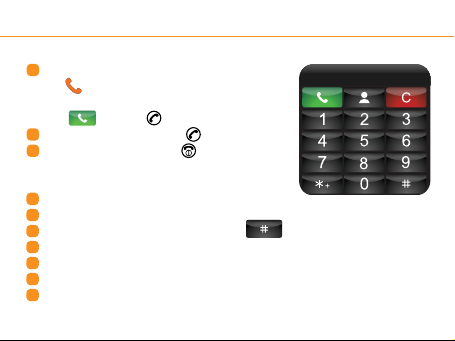
To make a call
1
Tap in standby mode
Tap the number by using the numeric key pad
Tap or press key to dial
To answer a call press the key twice
2
To reject a call, press the key
3
To send a message
Enter the SMS
1
Tap Write Message
2
Select your input method by tapping
3
Start writing your message with the key pad
4
Send the message by tapping: Options → Send to
5
Add the receivers by chosing Enter number or Add from Phonebook
6
Tap Options → Send
7
8
Page 11
Basic functions
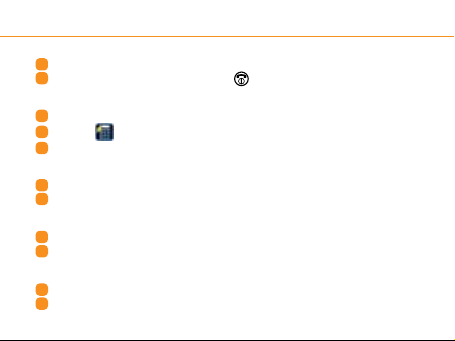
To switch on/off the screen
The screen will switch off automically when no operation on the phone.
1
2
To switch on the screen press the key.
To search for a contact
1
Enter the Contacts
2
Tap the for the keyboard
3
Input the name to search for a contact
To save contacts to the contacts list
Enter the Contacts
1
Tap Add new contact to create a new contact
2
To set up a speed dial number
Enter the Speed dial
1
Tap the number to select a contact for the speed dial function
2
Set the time and date
Enter the Settings
1
Tap Phone settings
2
9
Page 12

Basic functions
Tap Time and date →Set time/date
3
4
Input the time by tapping the number keypad
(To correct the number by tapping the number then input again)
5
Tap DD/MM/YYYY to input the date
6
Conrm the setting by tapping “OK”
Connect your Bluetooth headset
Make sure your Bluetooth headset is turned on and ready to be paired.
1
(For instructions see your Bluetooth headset manual.)
Enter the Bluetooth
2
3
Power Bluetooth ON (Tap Power)
4
Pair device by tapping, My device → Search new device →
5
Tap on the bluetooth headset you want to pair
Enter security code of your device (if required) conrm by tapping
6
the “OK”
7
Connect device by tapping the name of the headset → connect
8
Your Bluetooth headset is now connected and ready to be used.
10
Page 13

Basic functions
Set up Two-way communication
Enter the Two-way com.
1
Switch Bluetooth Companion Power and Visibility ON
2
3
Switch Bluetooth ON on your smartphone
Search for new devices on your smartphone
4
5
Select Burg2Way and choose ‘pair’
Set up Two-way communication for messages
To make Two-way communcication suitable for texts,
you need to install the APK application on your smartphone.
Extract the .rar le to your computer
1
2
Connect your smartphone to the computer through USB
3
Copy the extracted .apk le to your smartphone
4
Deconnect the smartphone and the computer
5
Install the APK app on your smartphone
6
The application is called Reacher and will run in the background
11
Page 14

Discover more
Discover more about your Smartwatch by
downloading the full manual from:
WWW.SIM-WATCH.COM
12
Page 15
For more information about your Smartwatch download the complete
Product and safety information
manual from our website
Warning and Disclaimer
Do not use or place the Watch Phone under water. Avoid dropping it or stepping on it.
Switch your watch phone off in aircraft, near medical equipment, fuel, blasting areas, or
chemicals. Your watch phone and its accessories are not toys. Keep it out of the reach
of small children and pets! Please stop the car before making or answering phone
calls.Do not attempt to repair the watch phone yourself in case of damage or
malfunction, as this will void the warranty.
FCC DECLARATION
This device has been tested and found to comply with the standards for a Class B digital
device, pursuant to article 15 of the FCC Rules.
DECLARATION OF CONFORMITY
"Hereby, Burg China Connection declares that this product is in compliance with the
essential requirements and other relevant provisions of Directive 1999/5/EC.
For the electrostatic discharge (ESD) test of EN55024, it was found that manual operation (by switching power ON/OFF switch) is needed to
resume normal operation as intended after the test.
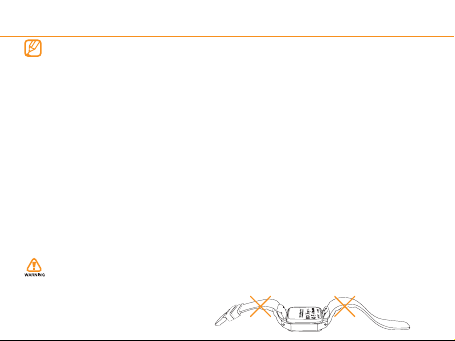
Watch band damage caused by excessive bending is not covered by the
limited hardware warranty!
Page 16

 Loading...