

Page 1
L7.GSM.ASIAEMEA.UG.07272005.fm Page -1 Friday, November 25, 2005 3:27 PM
motorola SLVR L7
GSM 850/900/1800/1900 MHz
USER MANUAL
Page 2
L7.GSM.ASIAEMEA.UG.07272005.fm Page 0 Friday, November 25, 2005 3:27 PM
Page 3
L7.GSM.ASIAEMEA.UG.07272005.fm Page 1 Friday, November 25, 2005 3:27 PM
WELCOME
Introducing your new motorola
SLVR L7
GSM wireless
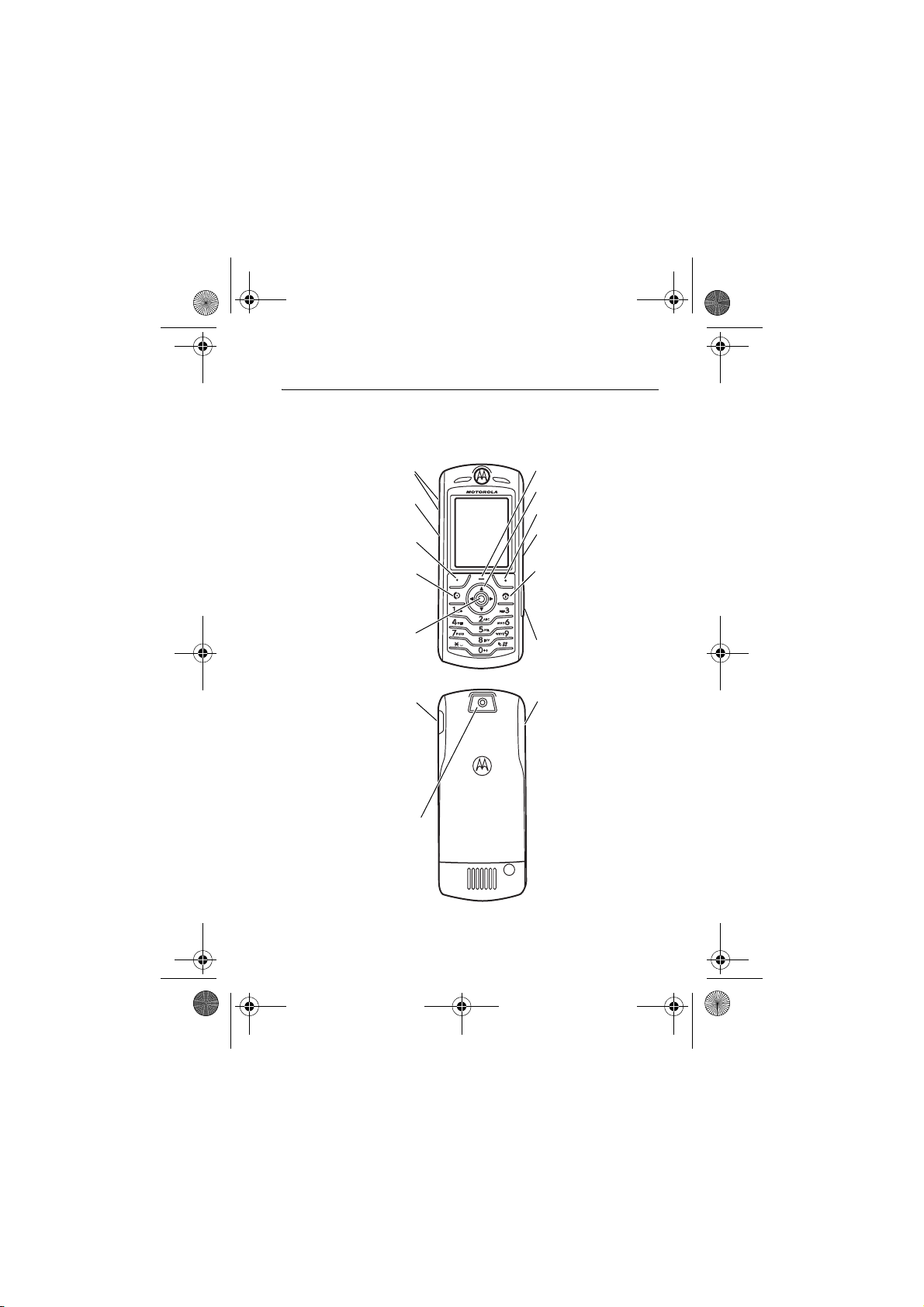
phone. Here’s a quick anatomy lesson.
Volume Keys
PTT*/Smart Key
Open menus.
Navigate menus.
Right Soft Key
Left Soft Key
Send Key
Make & answer
calls.
5-Way Navigation Key
Select menu
items.
Charge up and
Carrier Key
Power and End Key
Turn on & off,
hang up, exit
menus.
Insert memory
card.
Volume Keys
connect phone
accessories
Note:
The above
illustration is for reference
only. There may be slight
differences between the
Camera
appearances of handset
and keys and contents of
display used in this
manual and those of your
handset. Please refer to
your handset for actuality.
* Push-to-Talk is a network or subscription- dependent
feature. For more details, please refer to page 61.
1
Page 4
L7.GSM.ASIAEMEA.UG.07272005.fm Page 2 Friday, November 25, 2005 3:27 PM
Mobile Devices Business
(852)2506-3888 (Hong Kong)
www.motorola.com.hk (Hong Kong)
MOTOROLA and the Stylized M Logo are registered in the US Patent &
Trademark Office. The Bluetooth trademarks are owned by their proprietor
and used by Motorola, Inc. under license. Java and all other Java-based
marks are trademarks or registered trademarks of Sun Microsystems, Inc.
in the U.S. and other countries. All other product or service names are the
property of their respective owners.
© Motorola, Inc. 2005.
Software Copyright Notice
The Motorola products described in this manual may include copyrighted
Motorola and third-party software stored in semiconductor memories or
other media. Laws in the United States and other countries preserve for
Motorola and third-party software providers certain exclusive rights for
copyrighted software, such as the exclusive rights to distribute or
reproduce the copyrighted software. Accordingly, any copyrighted software
contained in the Motorola products may not be modified,
reverse-engineered, distributed, or reproduced in any manner to the extent
allowed by law. Furthermore, the purchase of the Motorola products shall
not be deemed to grant either directly or by implication, estoppel, or
otherwise, any license under the copyrights, patents, or patent applications
of Motorola or any third-party software provider, except for the normal,
non-exclusive, royalty-free license to use that arises by operation of law in
the sale of a product.
While Products specifications and features may be subject to change
without notice, we are making every possible effort to ensure that user
manuals are updated on a regular basis to reflect product functionality
revisions. However, in the unlikely event that your manual version does not
fully reflect the core functionality of your product, please let us know. You
may also be able to access up-to-date versions of our manuals from our
Motorola web site, at http://www.motorola.com.hk.
2
Page 5
L7.GSM.ASIAEMEA.UG.07272005.fm Page 3 Friday, November 25, 2005 3:27 PM
Certain mobile phone features are dependent on the capabilities and
settings of your service providerís network. Additionally, certain features
may not be activated by your service provider, and/or the provider's
network settings may limit the featureís functionality. Always contact your
service provider about feature availability and functionality. All features,
functionality, and other product specifications, as well as the information
contained in this user's guide are based upon the latest available
information and are believed to be accurate at the time of printing.
Motorola reserves the right to change or modify any information or
specifications without notice or obligation.
Manual Number: 6887370Z31
3
Page 6
L7.GSM.ASIAEMEA.UG.07272005.fm Page 4 Friday, November 25, 2005 3:27 PM
Contents
Feature Locator . . . . . . . 6
Safety Information . . . . 8
EU Conformance. . . . . 15
Recycling Information. 16
Essentials. . . . . . . . . . . 17
About This Guide. . . . 17
SIM Card . . . . . . . . . . 17
Battery. . . . . . . . . . . . 19
Turn It On & Off. . . . . 21
Make a Call . . . . . . . . 21
Answer a Call . . . . . . 22
Your Phone Number . 22
Main Attractions. . . . . 23
Take & Send a Photo. 23
Record Video. . . . . . . 25
Audio Player . . . . . . . 26
Digital Audio Player . . 28
Cable Connections . . 30
Memory Card . . . . . . 30
Bluetooth
Basics. . . . . . . . . . . . . . 38
Display. . . . . . . . . . . . 38
Menus . . . . . . . . . . . . 42
Create SMS. . . . . . . . 44
Volume . . . . . . . . . . . 48
Navigation Key. . . . . . 49
Hands-free Speaker. . 49
®
Wireless . 33
Codes & Passwords . 49
Lock & Unlock Phone 50
Customize . . . . . . . . . . 51
Ring Style . . . . . . . . . 51
Time & Date . . . . . . . 52
Wallpaper . . . . . . . . . 52
Screen Saver. . . . . . . 53
Display Appearance . 53
Answer Options . . . . 54
Calls . . . . . . . . . . . . . . . 55
Turn Off a Call Alert. . 55
Recent Calls . . . . . . . 55
Redial . . . . . . . . . . . . 56
Return a Call . . . . . . . 57
Notepad . . . . . . . . . . 57
Hold or Mute a Call . . 57
Call Waiting. . . . . . . . 58
Caller ID . . . . . . . . . . 58
Emergency Calls . . . . 58
International Calls . . . 59
1-Touch Dial. . . . . . . . 59
Voicemail. . . . . . . . . . 60
Push-to-Talk (PTT) . . . 61
Other Features . . . . . . 66
Advanced Calling. . . . 66
Phonebook . . . . . . . . 68
Messages . . . . . . . . . 72
4
Contents
Page 7
L7.GSM.ASIAEMEA.UG.07272005.fm Page 5 Friday, November 25, 2005 3:27 PM
Personalising. . . . . . . . 75
Call Times & Costs . . . 77
Handsfree . . . . . . . . . . 78
Data & Fax Calls . . . . . 80
Network . . . . . . . . . . . 81
Personal Organizer . . . 81
Security. . . . . . . . . . . . 82
Fun & Games . . . . . . . 83
MyMobileSoft.com . . . 86
SAR Data. . . . . . . . . . . . 88
Index . . . . . . . . . . . . . . . 90
The functions
Note:
available on this handset
may vary in different regions
and nations. Please contact
your local customer service
centres, agencies or
retailers if you have any
question about the handset
functions. Motorola
reserves all rights to revise
and change this user's
manual without obligation
to notify any person of such
revisions or changes.
Contents
5
Page 8
L7.GSM.ASIAEMEA.UG.07272005.fm Page 6 Friday, November 25, 2005 3:27 PM
Feature Locator
Main Menu
n
Phonebook
s
Recent Calls
• Received Calls
• Dialled Calls
• Notepad
•Call Times
•Call Cost*
• Data Times *
• Data Volumes *
e
Messages
• New Message
• Message Inbox
• Outbox
•Drafts
• MMS Templates
•Quick Notes
•Browser Msgs*
• Info Services *
•Voicemail*
• Email Msgs *
É
Tools
• SIM Applications *
• Calculator
• Datebook
•Shortcuts
•Alarm Clock
• Dialling services
Q
Games & Apps
• Fixed Dial
•Quick Dial
•Voice Dial
á
WebAccess
•Browser
• Web Shortcuts
• Stored Pages
•History
•Go To URL
•Browser Setup
•Web Sessions
h
Multimedia
•Pictures
• Sounds
•Camera
• Videos
• Video Camera
E
Bluetooth Link
• Hands-free
• Device history
•Setup
w
Settings
• (see next page)
* Indicates network or
subscription-dependent
features
The above gives an example
of typical structure of main
menu. Please refer to your
handset for the actual
structure. You can reorder
the main menu according to
your needs.
Feature Locator
6
Page 9
L7.GSM.ASIAEMEA.UG.07272005.fm Page 7 Friday, November 25, 2005 3:27 PM
Settings Menu
l
Personalise
• Home screen
• Main Menu
•Skin
•Greeting
• Wallpaper
• Screen Saver
t
Ring Styles
•Style
• Style Detail
L
Connectivity
• Bluetooth Link
•Sync
• USB Settings
H
Call Divert *
•Voice Calls
•Fax Calls
•Data Calls
•Cancel All
• Divert Status
U
In-Call Setup
• In-Call Timer
• My Caller ID
• Answer Options
• Call Waiting
• Call Cost *
Z
Initial Setup
• Time and Date
• 1-Touch Dial
• Display Timeout
• Backlight
•Scroll
• Language
• Brightness
•DTMF
• Master Reset
• Master Clear
m
Phone Status
•My Tel. Numbers
• Active Line *
•Battery Meter
• Storage devices
• Software Update *
S
Headset
• Auto Answer
• Voice Dial
J
Car Settings
• Auto Answer
• Auto Handsfree
• Power-off Delay
• Charger Time
j
Network
•New Network
•Network Setup
•Available Networks
• My Network List *
•Service Tone
• Call Drop Tone
u
Security
• Phone Lock
• Lock Keypad
• Lock Application
•Fixed Dial
• Call Barring *
•SIM PIN
•New Passwords
• Certificate Mgmt *
PTT Settings
•PTT Service
c
Java Settings
• Java App Loader
• Java System
• Delete All Apps
• App Vibration
•App Volume
• App Backlight
* Indicates network or
subscription-dependent
feature
Feature Locator
7
Page 10
L7.GSM.ASIAEMEA.UG.07272005.fm Page 8 Friday, November 25, 2005 3:27 PM
Safety and General Information
Safety Information
IMPORTANT INFORMATION ON SAFE AND EFFICIENT OPERATION. READ
THIS INFORMATION BEFORE USING YOUR PHONE.
Exposure To Radio Frequency (RF) Energy
Your phone contains a transmitter and a receiver. When it is ON, it receives
and transmits RF energy. When you communicate with your phone, the
system handling your call controls the power level at which your phone
transmits.
Your Motorola phone is designed to comply with local regulatory
requirements in your country concerning exposure of human beings to RF
energy.
Operational Precautions
To assure optimal phone performance and make sure human exposure to
RF energy is within the guidelines set forth in the relevant standards,
always adhere to the following instructions.
External Antenna Care
If your phone has an external antenna, use only the supplied or
Motorola-approved replacement antenna. Unauthorized antennas,
modifications, or attachments could damage the phone and/or may result
in non-compliance with local regulatory requirements in your country.
Do NOT hold the external antenna when the phone is IN USE. Holding the
external antenna affects call quality and may cause the phone to operate
at a higher power level than needed.
Phone Operation
When placing or receiving a phone call, hold your phone as you would a
wireline phone.
1
Safety Information
8
Page 11
L7.GSM.ASIAEMEA.UG.07272005.fm Page 9 Friday, November 25, 2005 3:27 PM
Body-Worn Operation: Voice Communication
To maintain compliance with RF energy exposure guidelines, if you wear a
phone on your body when transmitting voice communications, always
place the phone in a Motorola-supplied or approved clip, holder, holster,
case, or body harness for this phone, if available. Use of accessories not
approved by Motorola may exceed RF energy exposure guidelines.
If you do not use one of the body-worn accessories approved or supplied by
Motorola, and are not using the phone held in the normal use position,
ensure the phone and its antenna are at least 2.5 centimeters (1 inch) from
your body when transmitting.
Data Operation
When using any data feature of the phone, with or without an accessory
cable, position the phone and its antenna at least 2.5 centimeters (1 inch)
from your body.
Approved Accessories
Use of accessories not approved by Motorola, including but not limited to
batteries, antennas, and convertible covers, may cause your phone to
exceed RF energy exposure guidelines. For a list of approved Motorola
accessories, visit our website at www.motorola.com.
RF Energy Interference/Compatibility
Note:
Nearly every electronic device is susceptible to RF energy
interference from external sources if inadequately shielded, designed, or
otherwise configured for RF energy compatibility. In some circumstances
your phone may cause interference.
Note:
This device complies with Part 15 of the FCC Rules. Operation is
subject to the following two conditions: (1) this device may not cause
harmful interference, and (2) this device must accept any interference
received, including interference that may cause undesired operation.
Safety Information
9
Page 12
L7.GSM.ASIAEMEA.UG.07272005.fm Page 10 Friday, November 25, 2005 3:27 PM
Facilities
Turn off your phone in any facility where posted notices instruct you to do
so. These facilities may include hospitals or health care facilities that may
be using equipment that is sensitive to external RF energy.
Aircraft
Turn off your wireless device whenever instructed to do so by airline staff.
If your device offers a flight mode or similar feature, consult airline staff
about use in flight. If your device offers a feature that automatically turns
on the phone, then turn off this feature before boarding an airplane or
entering an area where the use of wireless devices is restricted.
Medical Devices
Pacemakers
Pacemaker manufacturers recommend that a minimum separation of
15 centimeters (6 inches) be maintained between a handheld wireless
phone and a pacemaker.
Persons with pacemakers should:
•
ALWAYS keep the phone more than 15 centimeters (6 inches) from
your pacemaker when the phone is turned ON.
•
NOT carry the phone in the breast pocket.
•
Use the ear opposite the pacemaker to minimize the potential for
interference.
•
Turn OFF the phone immediately if you have any reason to suspect
that interference is taking place.
Hearing Aids
Some digital wireless phones may interfere with some hearing aids. In the
event of such interference, you may want to consult your hearing aid
manufacturer to discuss alternatives.
Safety Information
10
Page 13
L7.GSM.ASIAEMEA.UG.07272005.fm Page 11 Friday, November 25, 2005 3:27 PM
Other Medical Devices
If you use any other personal medical device, consult the manufacturer of
your device to determine if it is adequately shielded from RF energy. Your
physician may be able to assist you in obtaining this information.
Use While Driving
Check the laws and regulations on the use of phones in the area where you
drive. Always obey them.
When using your phone while driving, please:
•
Give full attention to driving and to the road. Using a phone may be
distracting in certain circumstances. Discontinue a call if you can’t
concentrate on driving.
•
Use handsfree operation, if available.
•
Pull off the road and park before making or answering a call if
driving conditions so require.
Responsible driving best practices can be found in the “Wireless Phone
Safety Tips” at the end of this guide and/or at the Motorola website:
www.motorola.com/callsmart.
Operational Warnings
For Vehicles With an Air Bag
Do not place a phone in the area over an air bag or in the air bag
deployment area. Air bags inflate with great force. If a phone is placed in
the air bag deployment area and the air bag inflates, the phone may be
propelled with great force and cause serious injury to occupants of the
vehicle.
Gas or Petrol Stations
Obey all posted signs with respect to the use of radio equipment in gas or
petrol stations. Turn off your wireless device if instructed by authorized
staff.
Safety Information
11
Page 14
L7.GSM.ASIAEMEA.UG.07272005.fm Page 12 Friday, November 25, 2005 3:27 PM
Potentially Explosive Atmospheres
Turn off your phone prior to entering any area with a potentially explosive
atmosphere. Do not remove, install, or charge batteries in such areas.
Sparks in a potentially explosive atmosphere can cause an explosion or fire
resulting in bodily injury or even death.
Note:
The areas with potentially explosive atmospheres referred to above
include fueling areas such as below decks on boats, fuel or chemical
transfer or storage facilities, areas where the air contains chemicals or
particles, such as grain, dust, or metal powders. Areas with potentially
explosive atmospheres are often but not always posted.
Blasting Caps and Areas
To avoid possible interference with blasting operations, turn OFF your
phone when you are near electrical blasting caps, in a blasting area, or in
areas posted “Turn off electronic devices.” Obey all signs and instructions.
Damaged Products
If your phone or battery has been submerged in water, punctured, or
subjected to a severe fall, do not use it until you take it to a Motorola
Authorized Service centre to determine if it has been damaged. Do not
attempt to dry it with an external heat source, such as a microwave oven.
Batteries and Chargers
Batteries can cause property damage and/or bodily injury such as burns if a
conductive material such as jewelry, keys, or beaded chains touch exposed
terminals. The conductive material may complete an electrical circuit (short
circuit) and become hot. Take care when handling a charged battery,
particularly when placing it inside a pocket, purse, or other container with
metal objects.
Caution:
fire.
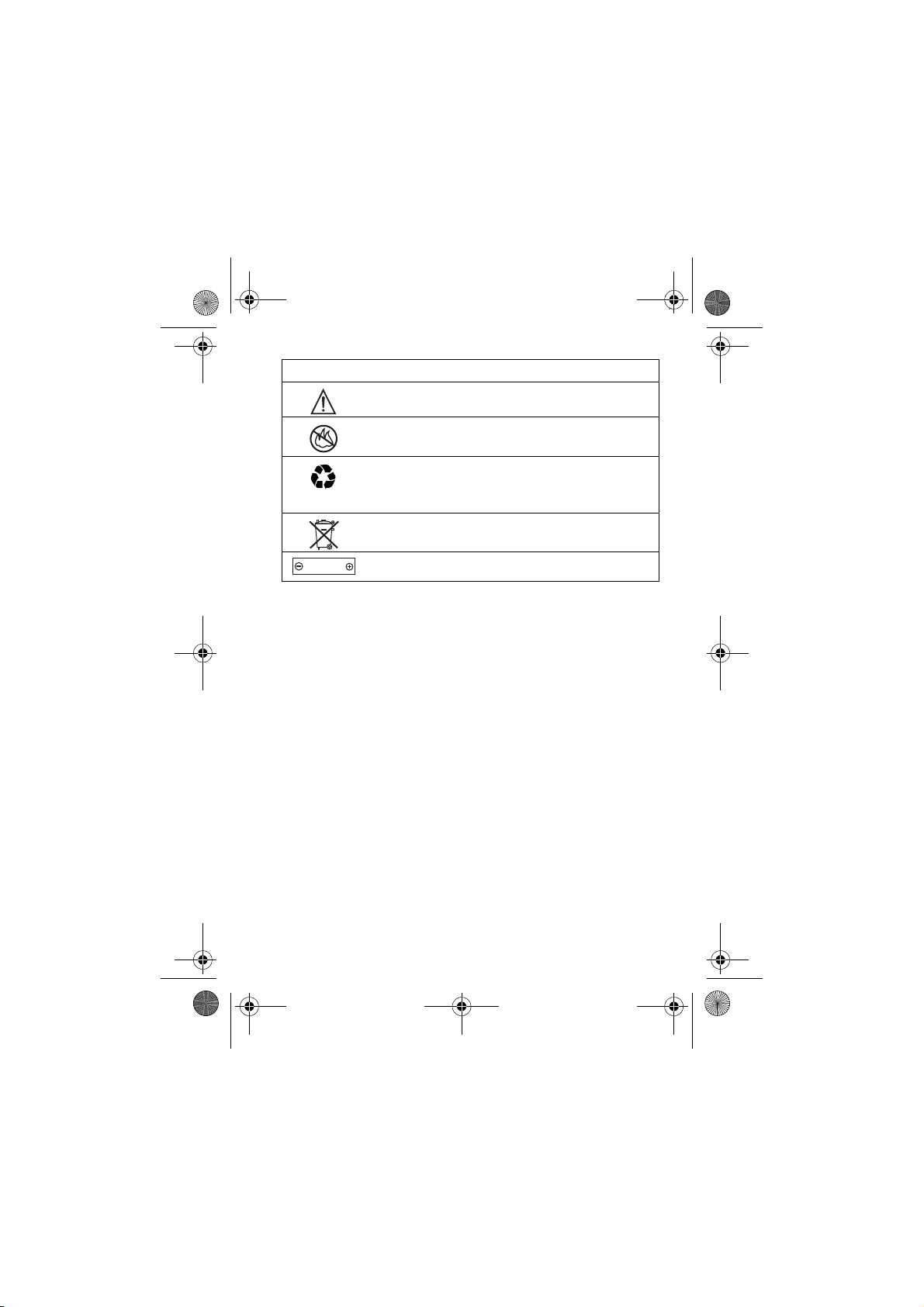
Your battery, charger, or phone may contain symbols, defined as follows:
Use only Motorola Original™ batteries and chargers.
To avoid risk of personal injury, do not dispose of your battery in a
Safety Information
12
Page 15
L7.GSM.ASIAEMEA.UG.07272005.fm Page 13 Friday, November 25, 2005 3:27 PM
Symbol Definition
032374o
Important safety information will follow.
032376o
032375o
Your battery or phone should not be disposed of in a
fire.
Your battery or phone may require recycling in
accordance with local laws. Contact your local
regulatory authorities for more information.
032377o
Li Ion BATT
032378o
Your battery or phone should not be thrown in the trash.
Your phone contains an internal lithium ion battery.
Choking Hazards
Your phone or its accessories may include detachable parts, which may
present a choking hazard to small children. Keep your phone and its
accessories away from small children.
Seizures/Blackouts
Some people may be susceptible to epileptic seizures or blackouts when
exposed to flashing lights, such as when watching television or playing
video games. These seizures or blackouts may occur even if a person never
had a previous seizure or blackout.
If you have experienced seizures or blackouts, or if you have a family
history of such occurrences, please consult with your doctor before playing
video games on your phone or enabling a flashing-lights feature on your
phone. (The flashing-light feature is not available on all products.)
Parents should monitor their children's use of video game or other features
that incorporate flashing lights on the phones. All persons should
discontinue use and consult a doctor if any of the following symptoms
Safety Information
13
Page 16
L7.GSM.ASIAEMEA.UG.07272005.fm Page 14 Friday, November 25, 2005 3:27 PM
occur: convulsion, eye or muscle twitching, loss of awareness, involuntary
movements, or disorientation.
To limit the likelihood of such symptoms, please take the following safety
precautions:
•
Do not play or use a flashing-lights feature if you are tired or need
sleep.
•
Take a minimum of a 15-minute break hourly.
•
Play in a room in which all lights are on.
•
Play at the farthest distance possible from the screen.
Repetitive Motion Injuries
When you repetitively perform actions such as pressing keys or entering
finger-written characters, you may experience occasional discomfort in
your hands, arms, shoulders, neck, or other parts of your body. Follow these
instructions to avoid problems such as tendonitis, carpal tunnel syndrome,
or other musculoskeletal disorders:
•
Take a minimum 15-minute break every hour of game playing.
•
If your hands, wrists, or arms become tired or sore while playing,
stop and rest for several hours before playing again.
•
If you continue to have sore hands, wrists, or arms during or after
play, stop playing and see a doctor.
1. The information provided in this document supersedes the general safety
information in user’s guides published prior to January 28, 2005.
Safety Information
14
Page 17
L7.GSM.ASIAEMEA.UG.07272005.fm Page 15 Friday, November 25, 2005 3:27 PM
European Union Directives
Conformance Statement
EU Conformance
Hereby, Motorola declares that this product is in compliance
with
•
The essential requirements and other relevant
provisions of Directive 1999/5/EC
•
All other relevant EU Directives
IMEI: 350034/40/394721/9
0168
Type: MC2-41H14
The above gives an example of a typical Product Approval
Number.
You can view your product's Declaration of Conformity (DoC)
to Directive 1999/5/EC (the R&TTE Directive) at
www.motorola.com/rtte - to find your DoC, enter the product
Approval Number from your product's label in the "Search"
bar on the Web site
Product
Approval Number
EU Conformance
15
Page 18
L7.GSM.ASIAEMEA.UG.07272005.fm Page 16 Friday, November 25, 2005 3:27 PM
Recycling Information
Caring for the Environment by
Recycling
When you see this symbol on a Motorola product, do not dispose
the product with household waste.
Recycling Mobile Phones and
Accessories
Do not dispose of mobile phones or electrical accessories, such as chargers
or headsets, with your household waste. In some countries or regions,
collection systems are set up to handle electrical and electronic waste
items. Contact your regional authorities for more details. If collection
systems aren’t available, return unwanted mobile phones or electrical
accessories to any Motorola Approved Service Centre in your region.
Recycling Information
16
Page 19
L7.GSM.ASIAEMEA.UG.07272005.fm Page 17 Friday, November 25, 2005 3:27 PM
Essentials
About This Guide
This guide shows how to locate a menu feature as follows:
Find it:
This example shows that, from the home screen, you press
highlight and select
Press
centre key
Press >
to open the menu, highlight and select
S
to scroll to and highlight a menu feature. Press the
s
Symbols
This means a feature is network/subscription
dependent and may not be available in all areas.
Contact your service provider for more
information.
This means a feature requires an optional
accessory.
Recent Calls >Dialled Calls
Dialled Calls
to select the highlighted menu feature.
.
s Recent Calls
, then
SIM Card
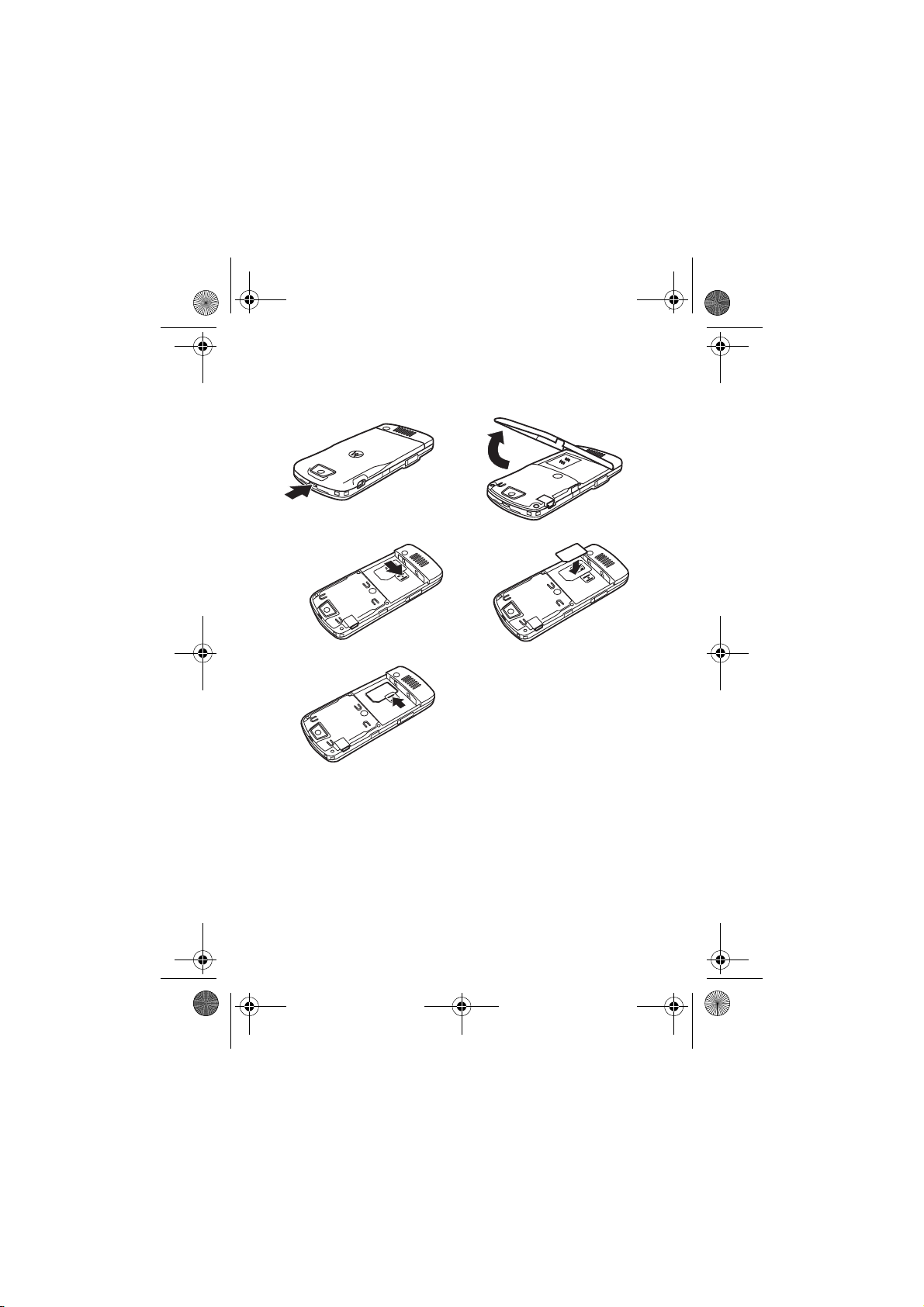
Yo u r Subscriber Identity Module (SIM) card contains personal
information like your phone number and phonebook entries.
To insert and use a memory card, see page 30.
Essentials
17
Page 20
L7.GSM.ASIAEMEA.UG.07272005.fm Page 18 Friday, November 25, 2005 3:27 PM
Caution:
Don’t bend or scratch your SIM card. Keep it away
from static electricity, water, and dirt.
12
34
5
18
Essentials
Page 21
L7.GSM.ASIAEMEA.UG.07272005.fm Page 19 Friday, November 25, 2005 3:27 PM
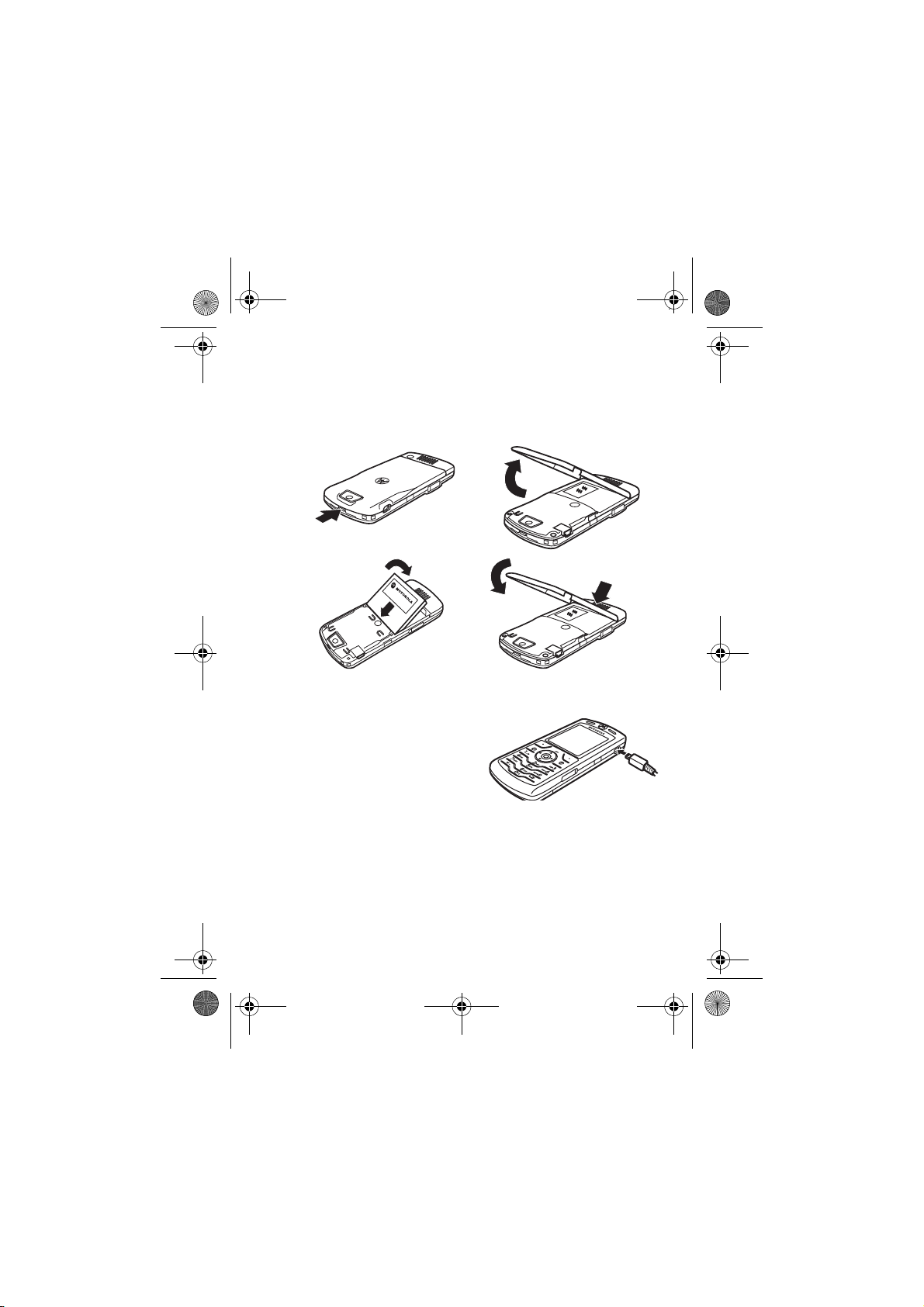
Battery
Battery Installation
12
34
Battery Charging
New batteries are not fully
charged. Plug the travel charger
into your phone and an
electrical outlet. Your phone
display shows
when finished.
Charge Complete
Tip:
Relax, you can’t overcharge your phone battery. It will
perform best after you fully charge and discharge it a few
times.
Essentials
19
Page 22
L7.GSM.ASIAEMEA.UG.07272005.fm Page 20 Friday, November 25, 2005 3:27 PM
You can charge your phone battery by connecting a
cable from your phone's mini-USB port to a USB
port on a computer. Both your phone and the
computer must be turned on, and your computer
must have the correct software drivers installed. Cables and
software drivers are available in Motorola Original data kits,
sold separately.
If your phone battery is completely drained, a PC USB
charger will not charge it. Use the travel charger.
Battery Tips
Battery life depends on the network, signal strength,
temperature, features, and accessories you use.
•
Always use Motorola Original batteries and
chargers. The warranty does not cover
damage caused by non-Motorola batteries
and/or chargers.
•
New batteries or batteries stored for a long time may
take more time to charge.
•
When charging your battery, keep it near room
temperature.
•
When storing your battery, keep it uncharged in a cool,
dark, dry place, such as a refrigerator.
•
Never expose batteries to temperatures below -10°C
(14°F) or above 45°C (113°F). Always take your phone
with you when you leave your vehicle.
•
It is normal for batteries to gradually wear down and
require longer charging times. If you notice a change in
Essentials
20
Page 23
L7.GSM.ASIAEMEA.UG.07272005.fm Page 21 Friday, November 25, 2005 3:27 PM
your battery life, it is probably time to purchase a new
battery.
Contact your local recycling centre for proper battery
032375o
disposal.
Warning:
Never dispose batteries in a fire because they may
explode.
Before using your phone, read the battery safety information
in the “Safety and General Information” section included in
this guide.
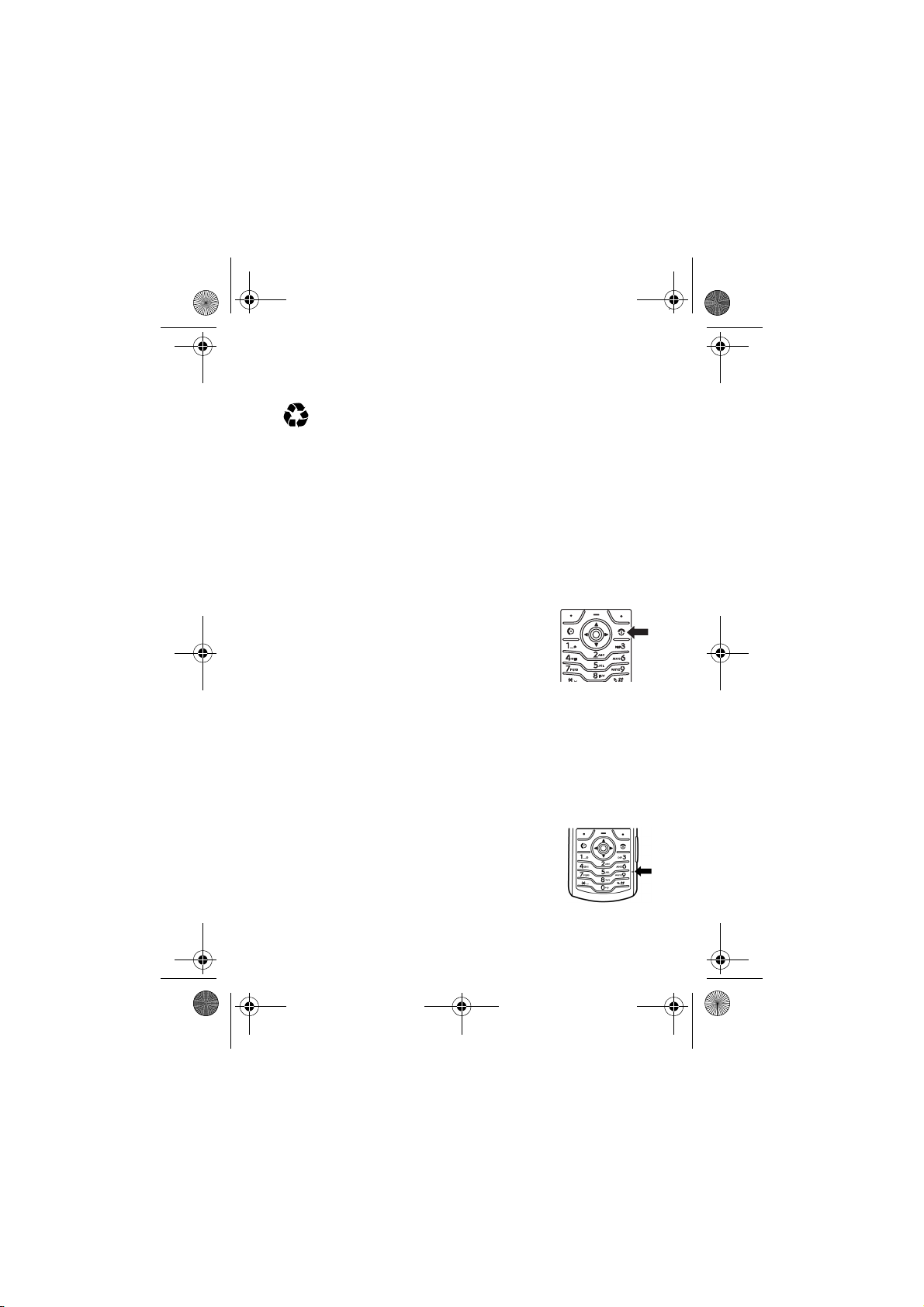
Turn It On & Off
To turn on your phone, press and hold P
for a few seconds or until the display turns
on. If prompted, enter your 4-digit unlock
code.
Caution:
code 3 times in a row, your SIM card is disabled and your
display shows
To turn off your phone, press and hold
If you enter an incorrect PIN
SIM Blocked
. Contact your service provider.
P
for 2 seconds.
Make a Call
Enter a phone number and press N to
make a call.
To “hang up,” press
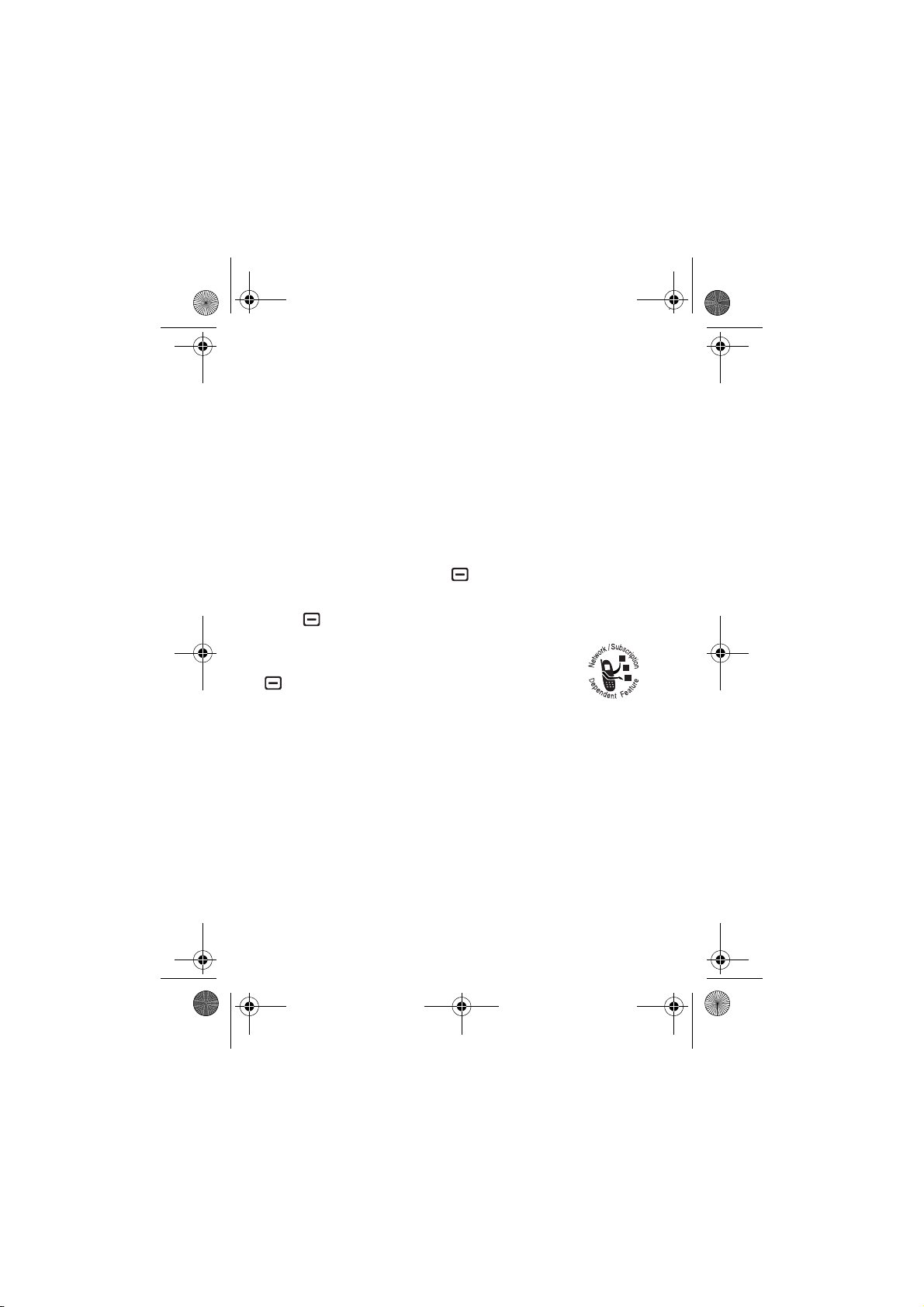
To maintain high audio quality during calls,
please note the location of the phone's
P
.
Essentials
21
Page 24
L7.GSM.ASIAEMEA.UG.07272005.fm Page 22 Friday, November 25, 2005 3:27 PM
microphone (as indicated by the arrow) and keep this area
free of obstruction while in use.
Answer a Call
When your phone rings and/or vibrates, just press N to
answer.
To “hang up,” press
P
.
Your Phone Number
From the home screen, press
Tip:
Want to see your phone number while you’re on a call?
Press >
You can edit the name and phone number stored
on your SIM card. From the home screen, press
#
don’t know your phone number, contact your
service provider.
22
My Tel. Numbers
, select an entry, and press
Essentials
.
#
to see your number.
View>Edit
. If you
Page 25
L7.GSM.ASIAEMEA.UG.07272005.fm Page 23 Friday, November 25, 2005 3:27 PM
Main Attractions
You can do much more with your phone than make and
receive calls!
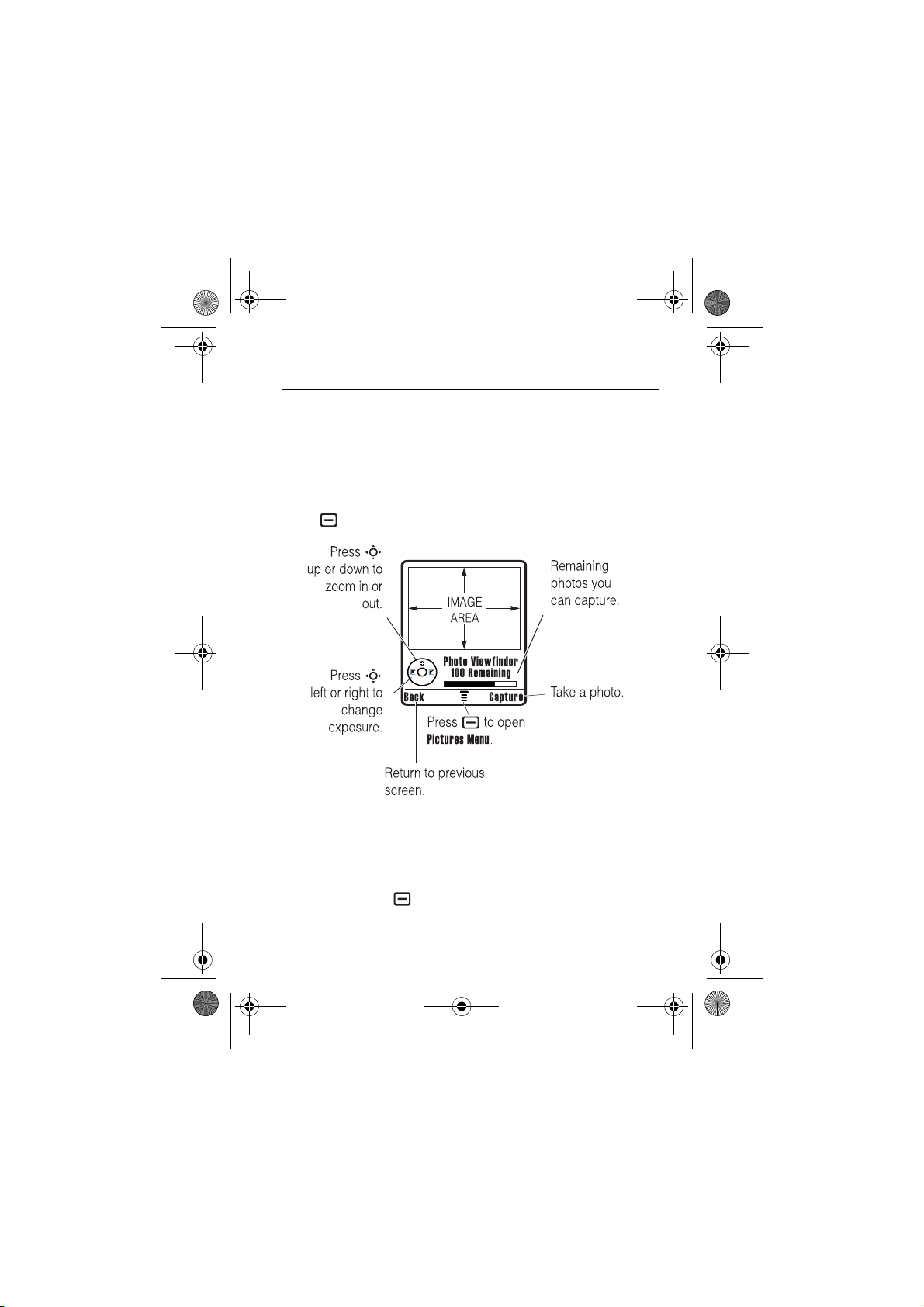
Take & Send a Photo
Press >
Note:
1
Point the camera lens at the photo subject.
You can press to open the
after this procedure.
Multimedia >Camera
The number of pictures remaning is only an estimate.
to see the camera viewfinder:
Pictures Menu
Main Attractions
. See the table
23
Page 26
L7.GSM.ASIAEMEA.UG.07272005.fm Page 24 Friday, November 25, 2005 3:27 PM
2
Press the centre keys or
•
To delete the photo and return to the active photo
viewfinder, press the
•
To store or send the photo, press the
Discard
Capture
key to take a photo.
key.
Store
key.
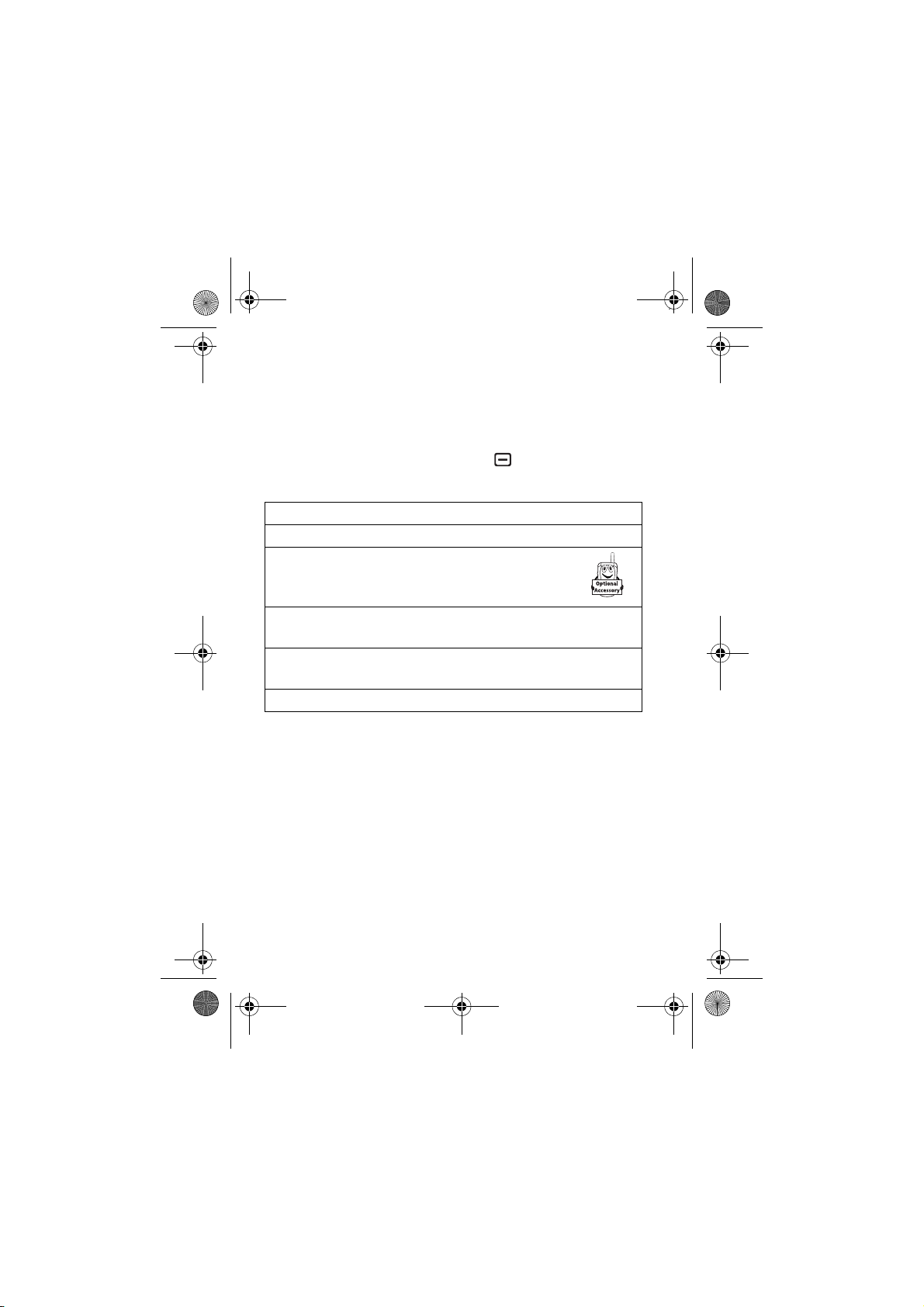
When the viewfinder is active, press to open the
Pictures Menu
:
Options
Go to Pictures
Phone Memory/
Memory Card
See stored pictures and photos.
Choose to store and see
pictures on your phone or
memory card.
Auto-Timed capture
Set a timer for the camera to take a
photo.
Pictures Setup
Open the setup menu to adjust photo
settings.
View free space
See how much memory remains.
Main Attractions
24
Page 27
L7.GSM.ASIAEMEA.UG.07272005.fm Page 25 Friday, November 25, 2005 3:27 PM
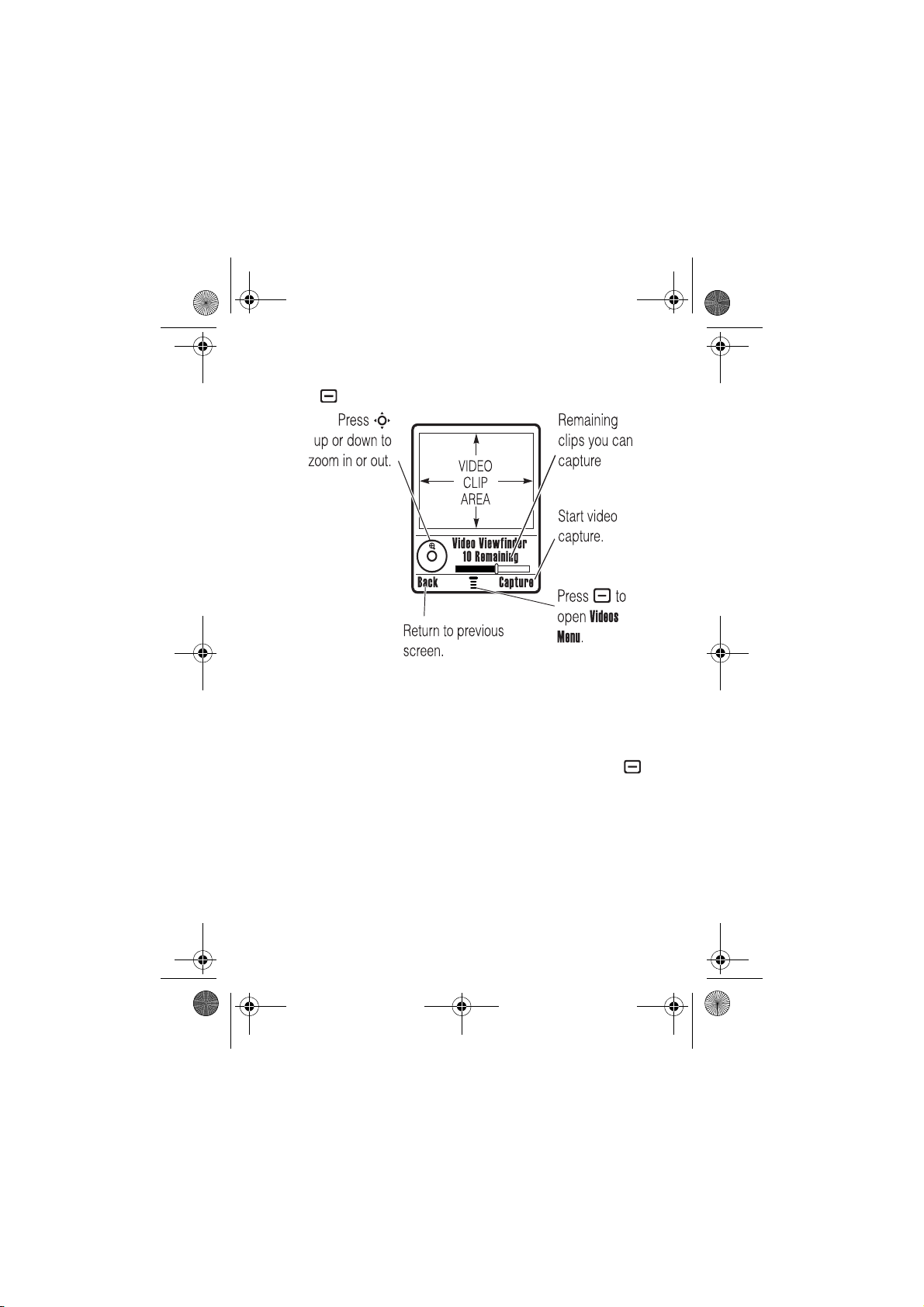
Record Video
Press >
Note:
Multimedia >Video Camera
to see the video viewfinder.
The number of video clips remaining is only an
estimate.
Note:
You can zoom only before you start recording.
If you want to send your video in an MMS message, the
video length must be set to MMS. To set length, press
>
Videos setup >Video length
.
To record, point the camera lens at the video subject, then:
1
Press the centre keys or
2
Press the
3
Press
Stop
key to stop the video.
Store> Store Only
to save the video.
Capture
key to start the video.
or
Main Attractions
25
Page 28
L7.GSM.ASIAEMEA.UG.07272005.fm Page 26 Friday, November 25, 2005 3:27 PM
Press
Store> Send in Message
or
Press
Discard
to delete the video and return to the active
video viewfinder.
to send the video in MMS.
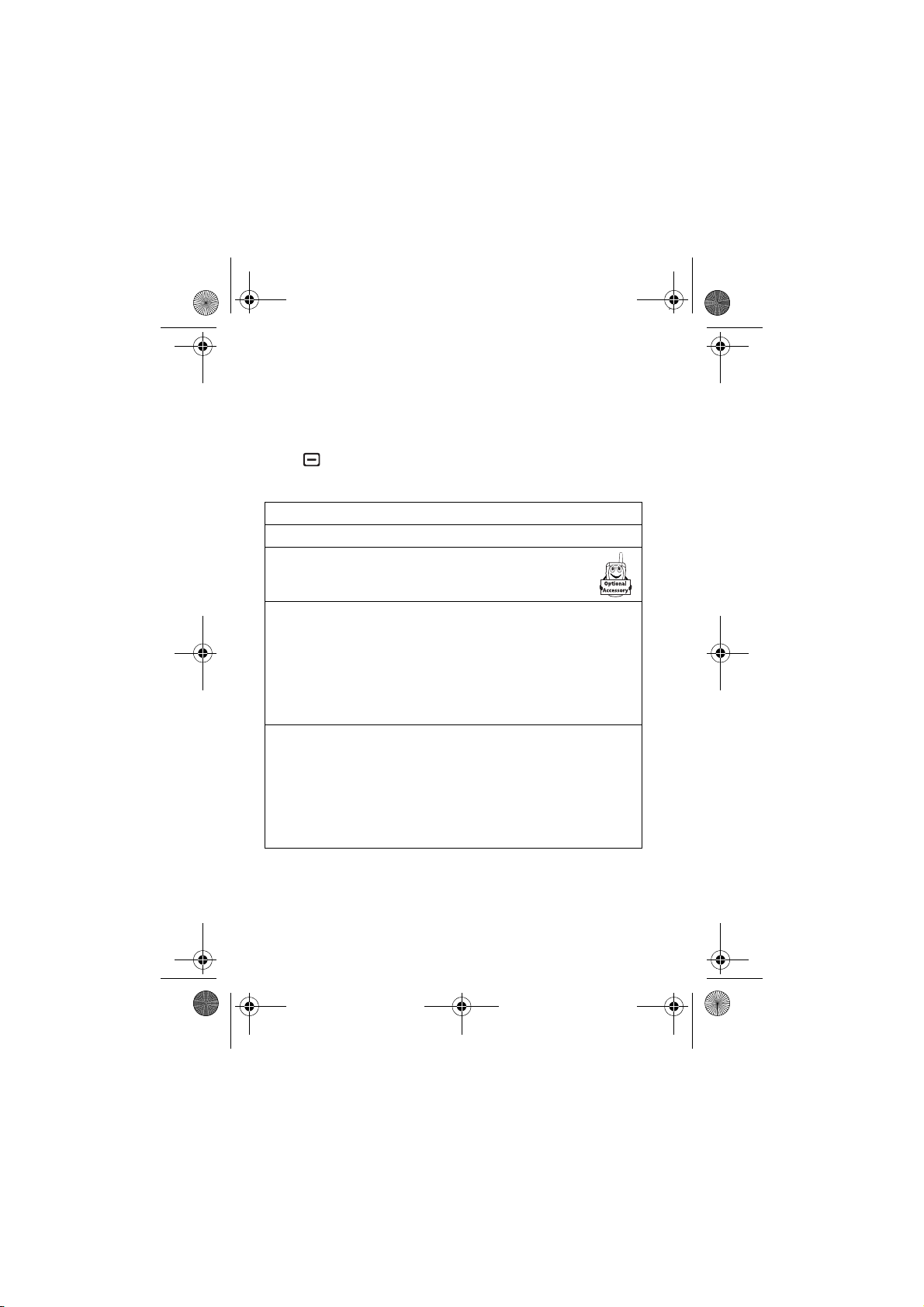
Press to open the
active. The menu can include the following options:
Options
Go To Videos
Phone Memory/
Memory Card
Videos setup
View free space
Videos Menu
Watch videos stored on your phone.
Choose to see videos on your
phone or memory card.
Open the setup menu to adjust video
settings.
Note:
send your video in an MMS message.
Set
Video length
clips you can store on your phone.
See how much memory remains.
Note:
that you add, like ring tones or games, in
user memory. Your service provider may
store some content in user memory
before you receive the phone.
when the viewfinder is
Set
Video length
Your phone stores any content
to
to
MMS
Maximum
to record longer
if you want to
Audio Player
Your phone has an audio player in
Multimedia
Main Attractions
26
Page 29
L7.GSM.ASIAEMEA.UG.07272005.fm Page 27 Friday, November 25, 2005 3:27 PM
Find it:
Press >
Multimedia >Sounds
Press S up or down to highlight a sound or song then press
Play
.
To continue playing sounds and hide the audio player, press
Hide
>
Back
>
Exit
. In the idle audio player screen, press S left
or right to play the previous or next song. To stop the audio
player press
P
. .
Create and Play a Playlist
To create a playlist:
1
In the
Sounds
2
Highlight
3
Use the keypad to enter a name for your playlist and
press
Ok
4
Highlight
displays with all the sounds available on your phone.
5
Press S up or down to navigate to a song you want to
add to the playlist.
To select a song press
check mark appears
menu, press >
Name
and press
.
Audio Files
and press
New > Playlist
Change
.
Change
. The
Audio
Check
or the centre select key s. A
%
when a song is selected.
.
screen
6
When all sounds and songs are added to your playlist ,
press
Done
. The playlist is stored to the sounds list with
the name you specified.
Press
S
up or down to highlight the playlist name and press
Play
.
Main Attractions
27
Page 30
L7.GSM.ASIAEMEA.UG.07272005.fm Page 28 Friday, November 25, 2005 3:27 PM
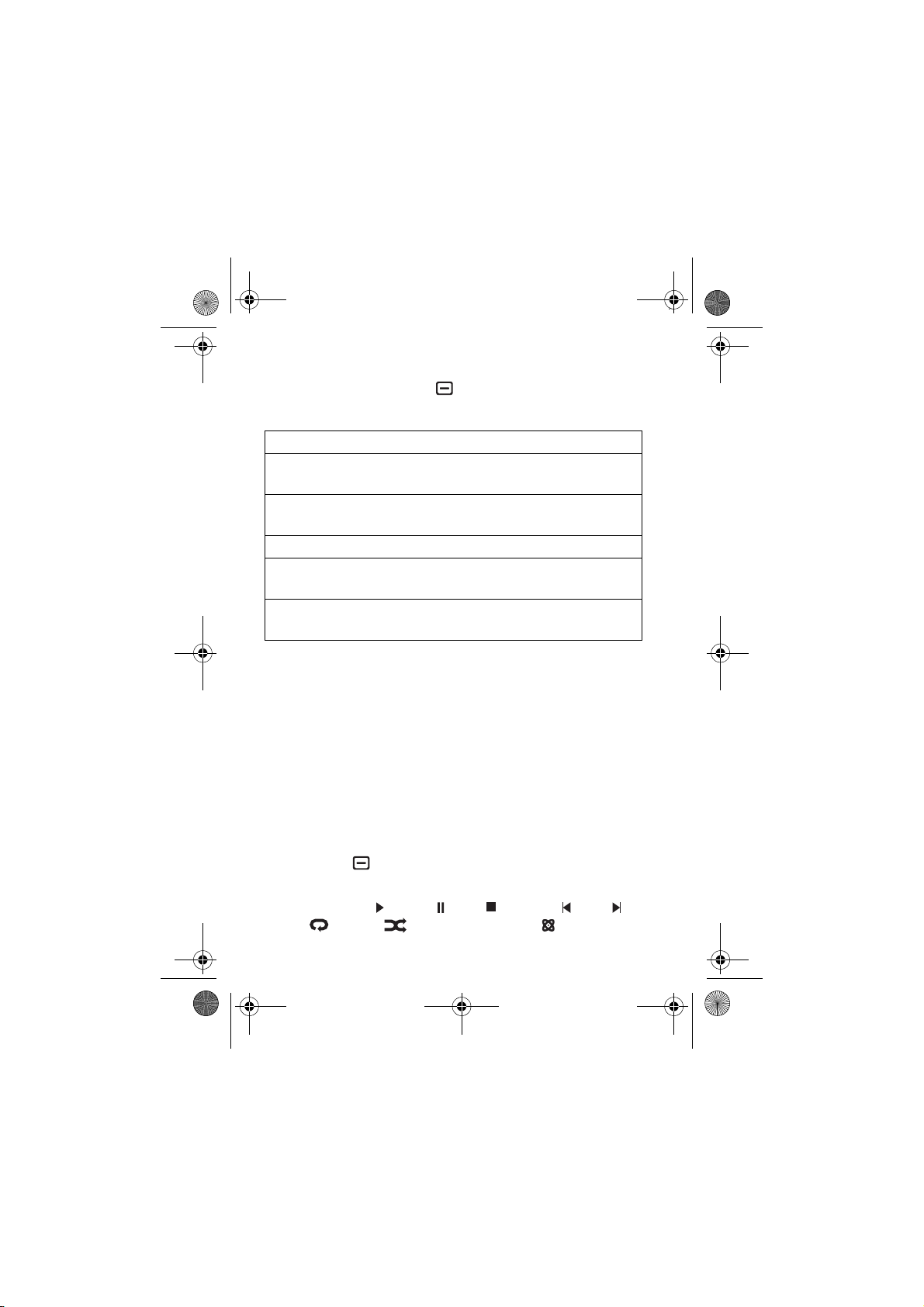
Sound Options
In the Sounds menu, press to view sound options, and
scroll to a song. Press
Options
Phone Memory/
Memory Card
New
Categories
Sounds Setup
View free space
To download songs to your phone, see page 85. To copy files
between your phone and a computer, see page 31.
Note:
Your phone cannot play MP3 files that have a bit rate
higher than 192 kbps. If you try to download or play one of
these files, your phone might show you an error or ask you to
delete the file.
Choose to see songs on your phone or
memory card.
Create a new
information about
Create and store sounds in sound categories.
Set your phone to play sounds on auto
repeat.
View space information for your phone or
memory card.
S
up or down to highlight an option:
Playlist
or
iMelody
. for more
iMelody
, see page 85.
Digital Audio Player
Your phone has an audio player in its
Find it:
Press S left or right to highlight a button at the top of the
audio player: play , pause , stop , previous , next ,
repeat , shuffle , and visualizer on/off
28
Press >
Main Attractions
Games & Apps >Digital Audio Player
Games & Apps
:
Page 31
L7.GSM.ASIAEMEA.UG.07272005.fm Page 29 Friday, November 25, 2005 3:27 PM
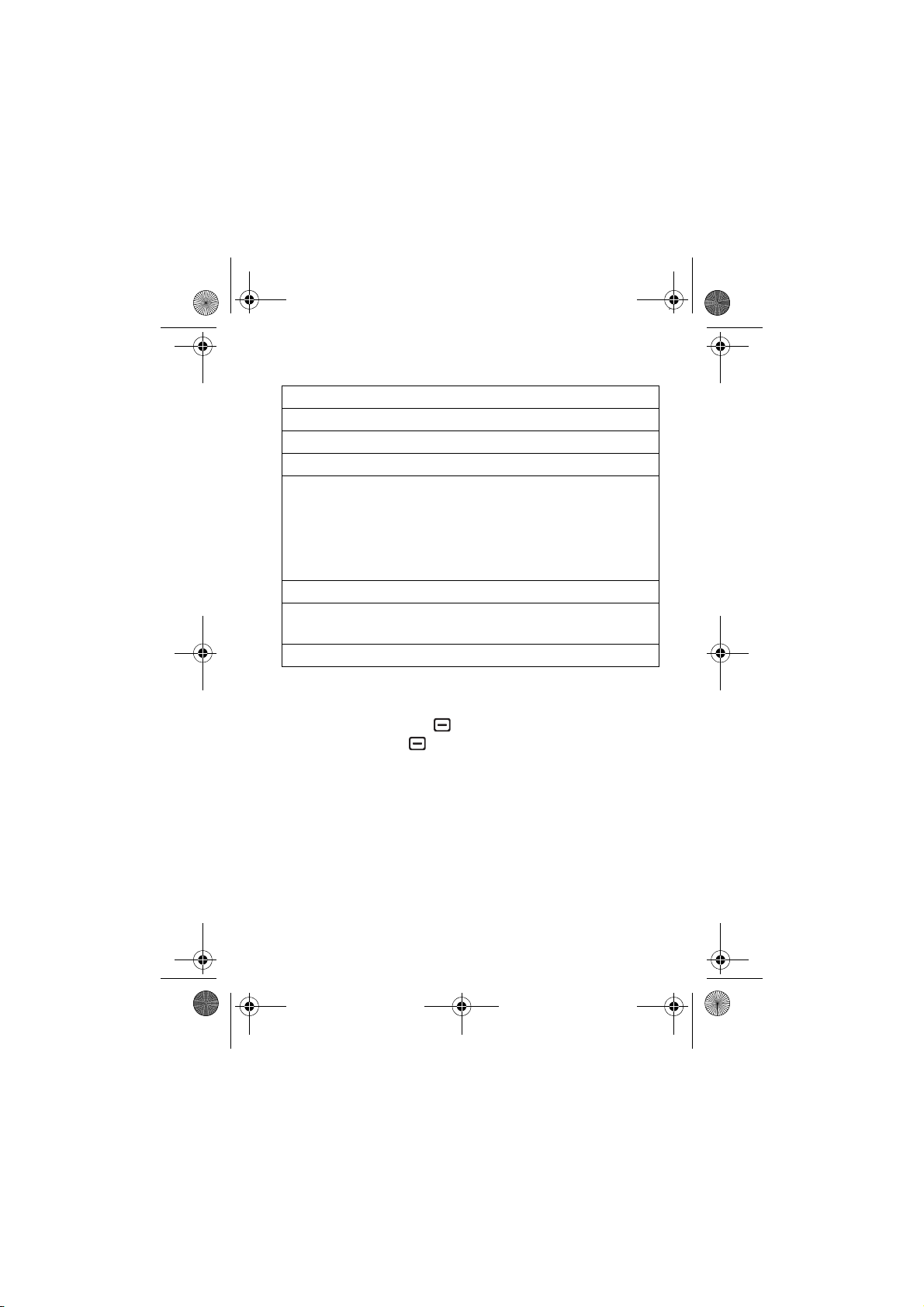
Press S up or down to highlight an option:
Options
Playlists
Artists
Albums
Songs
Create or play a playlist of songs.
Select an artist to show or play their songs.
Select an album to show or play its songs.
Show and play individual songs.
Note:
All of your phone’s songs appear in the
Songs
list. Some songs do not have any
Album
, or
Genre
information stored, so they don’t
Artist
,
appear in those lists.
Genres
Help
Select a type of music to show or play songs.
Show instructions on how to use the audio
player
About
Tip:
If you want music in a hurry, you can create a shortcut to
the audio player. Highlight
Show audio player version information
Digital Audio Player
in the
Games & Apps
list, then press and hold . To use the shortcut from the
home screen, press and the shortcut key number.
To download songs to your phone, see page 85. To copy files
between your phone and a computer, see page 31.
Note:
Your phone cannot play MP3 files that have a bit rate
higher than 192 kbps. If you try to download or play one of
these files, your phone might show you an error or ask you to
delete the file.
Main Attractions
29
Page 32
L7.GSM.ASIAEMEA.UG.07272005.fm Page 30 Friday, November 25, 2005 3:27 PM
Cable Connections
Note:
Motorola Original USB data cable and
supporting software may be sold together with the
phone or separately. Check your computer or
hand-held device to determine the type of cable
you need. To
computer, you must install the software included with the
Motorola Original data kit. See the data kit user’s guide for
more information. To make
connected computer, see page 81.
transfer data
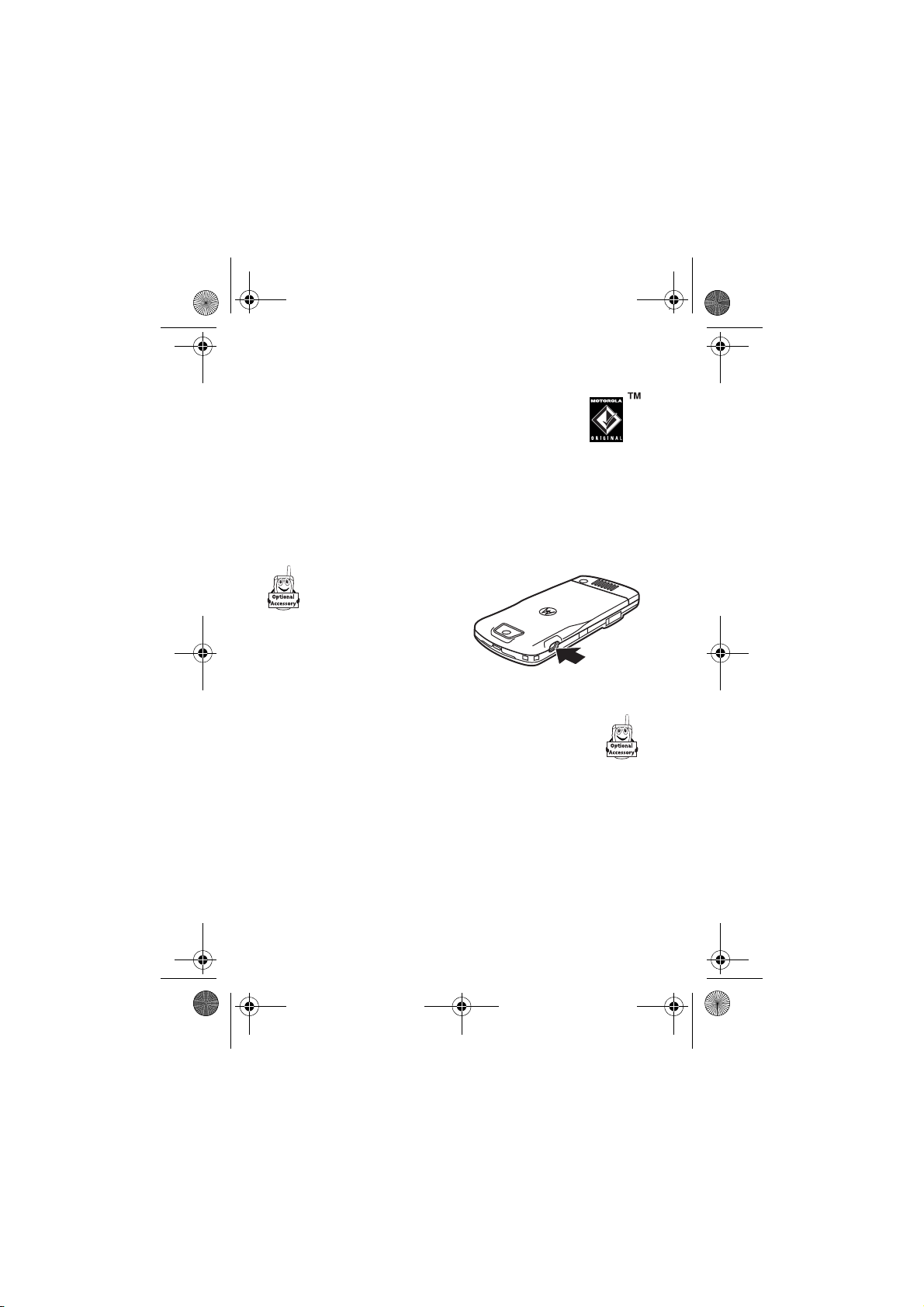
Your phone has a
mini-USB port so you
can connect it to a
computer to transfer
data.
between your phone and
data and fax calls
through a
Memory Card
You can use a removable memory card with your
phone to store and retrieve multimedia objects (such
as photos and sounds).
Note:
If you download a copyrighted file and store it on your
memory card, you can use the file only while your memory
card is inserted in your phone. You cannot send, copy, or
change copyrighted files.
Main Attractions
30
Page 33
L7.GSM.ASIAEMEA.UG.07272005.fm Page 31 Friday, November 25, 2005 3:27 PM
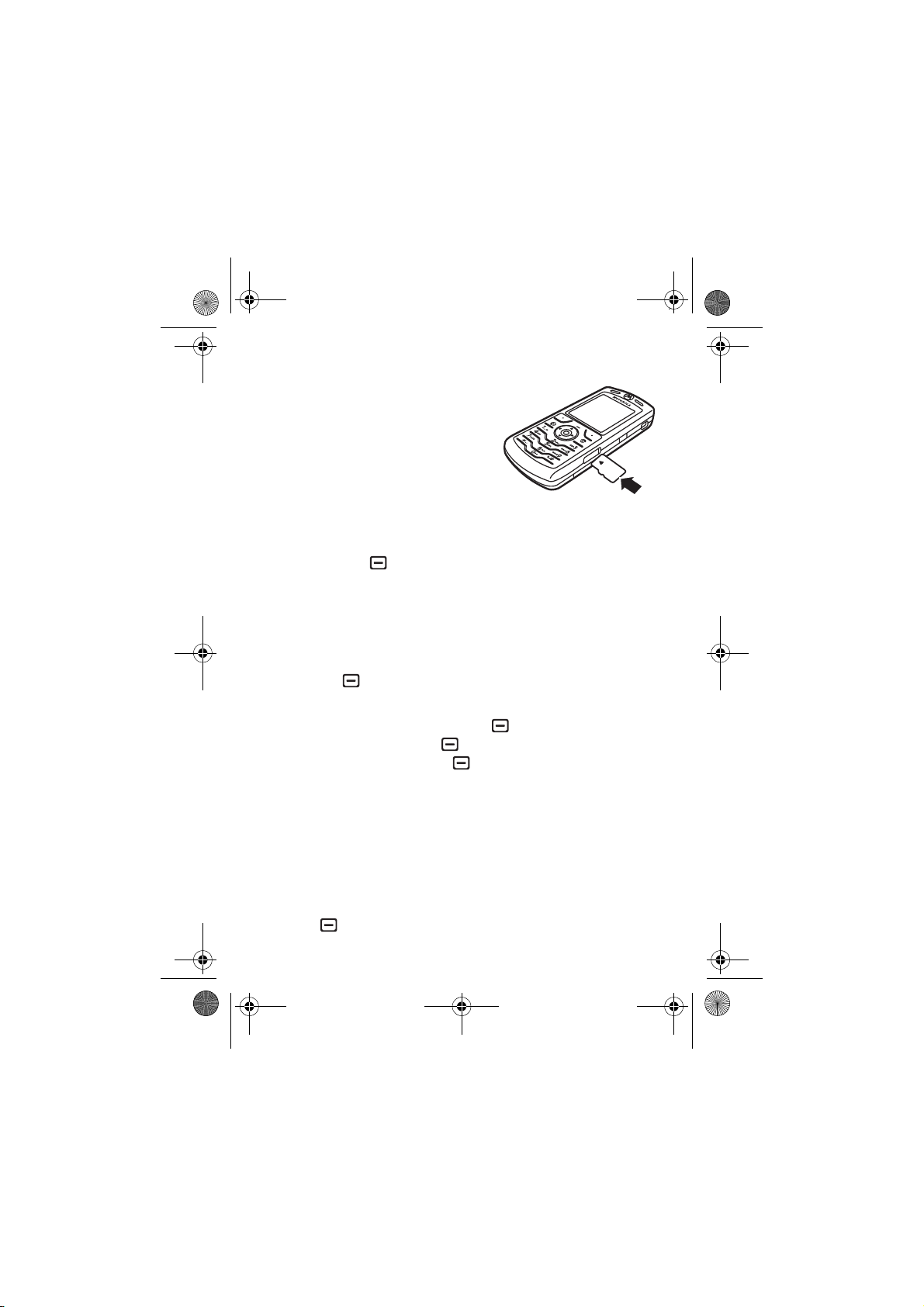
Install a Memory Card
Push the card in until it clicks
into place.
Do not remove your memory
card while your phone is using it
or writing files on it.
See and Change
Memory Card Information
Find it:
1
2
Press >
Settings >Phone Status >Storage devices
Press S to highlight the memory card.
Press the
Details
key to see the memory card information
or
Press to see the
or
Format
the memory card.
To see memory card files
>
Pictures/Sounds
, then press >
on your phone again, press >
Storage Dev. Menu
, press >
Memory Card
Phone Memory
, which lets you
Multimedia
. To see files stored
.
Rename
Connect the Memory Card to a Computer
You can access your phone’s memory card with a PC.
Note:
When your phone is connected to a computer, you can
only access the memory card through the computer.
On your phone:
Press >
Settings >Connectivity >USB Settings >Memory Card
Main Attractions
.
31
Page 34
L7.GSM.ASIAEMEA.UG.07272005.fm Page 32 Friday, November 25, 2005 3:27 PM
This directs the USB connection to your memory
card. Attach the Motorola Original USB cable to the
accessory port on your phone and to an available
USB port on your computer. Then follow these
steps:
On your computer:
1
Open your "My Computer" window, where your phone’s
memory card shows as a “Removable Disk” icon.
2
Click on the “Removable Disk” icon to access the files on
your phone’s memory card.
3
To store the desired files onto the memory card, drag and
drop them as follows:
MP3 files:
Screensavers:
Wallpapers:
Video Clips:
Note:
4
When you finish, remove the device by selecting the
mobile > audio
mobile > picture
mobile > picture
mobile > video
MP3 files can be with bit-rate up to 192 kbps.
“Safely Remove Hardware” icon in the system tray at the
bottom of your computer screen. Then select “USB Mass
Storage Devices” and “Stop”.
5
Select “USB Mass Storage Device” then “OK”.
On your phone:
To return to
>
32
Data Fax
as your USB default connection, press
Settings >Connectivity >USB Settings >Data/Fax Connection
Main Attractions
.
Page 35
L7.GSM.ASIAEMEA.UG.07272005.fm Page 33 Friday, November 25, 2005 3:27 PM
Bluetooth® Wireless
Your phone supports Bluetooth wireless pairing (also called
linking or bonding). You can pair your phone with a Bluetooth
headset or car kit, or pair your phone with a computer to
exchange and synchronize files.
Note:
The use of wireless devices and their accessories may
be prohibited or restricted in certain areas. Always obey the
laws and regulations on the use of these products.
Turn Bluetooth Power On or Off
Find it:
If Bluetooth
the handsfree device you have used before. Just turn on the
device or move it near the phone.
Note:
Bluetooth
with devices until you set Bluetooth
your phone with the devices again.
Press >
Power
To extend battery life, use the above procedure and set
Power
Bluetooth Link >Setup >Power >On
is On, your phone can automatically pair with
to
Off
when not in use. Your phone will not pair
Power
back to On and pair
Pair with a Headset or Handsfree Device
Before you try to pair your phone with a device
sure your phone’s Bluetooth power is
and
ready
in pairing or bonding mode (see the user’s guide
for the device). You can pair your phone with only one device
at a time.
Find it:
>
Press >
[Look for devices]
Bluetooth Link >Hands-free
on
and the device is on
Main Attractions
, make
33
Page 36
L7.GSM.ASIAEMEA.UG.07272005.fm Page 34 Friday, November 25, 2005 3:27 PM
Your phone lists the devices it finds within range.
1
Highlight a device in the list and press the
2
If necessary, enter the device passkey (such as 0000) and
press the
Ok
key.
When your phone is paired, the Bluetooth indicator
Select
key.
à
shows
in the home screen.
Tip:
For information about your headset or handsfree device,
refer to the instructions that came with it.
Copy Objects to Another Device
You can use Bluetooth pairing to copy a media
object, phonebook entry, datebook event, or
bookmark from your phone to a computer or other
device.
Note:
Preloaded multimedia objects cannot be copied.
1
Highlight the object on your phone that you want to copy
to the other device.
2
To copy media objects, press >
objects) and then press >
events, choose the date by pressing
Send
. To copy Phonebook entries, select the entry, then
press >
Share Phonebook Entry
Mark
Copy marked files
s
.
(or press 0 to mark
. For datebook
, then press >
3
Choose a recognized device name, or
[Look for devices]
search for the device where you want to copy the object
to.
Main Attractions
34
to
Page 37
L7.GSM.ASIAEMEA.UG.07272005.fm Page 35 Friday, November 25, 2005 3:27 PM
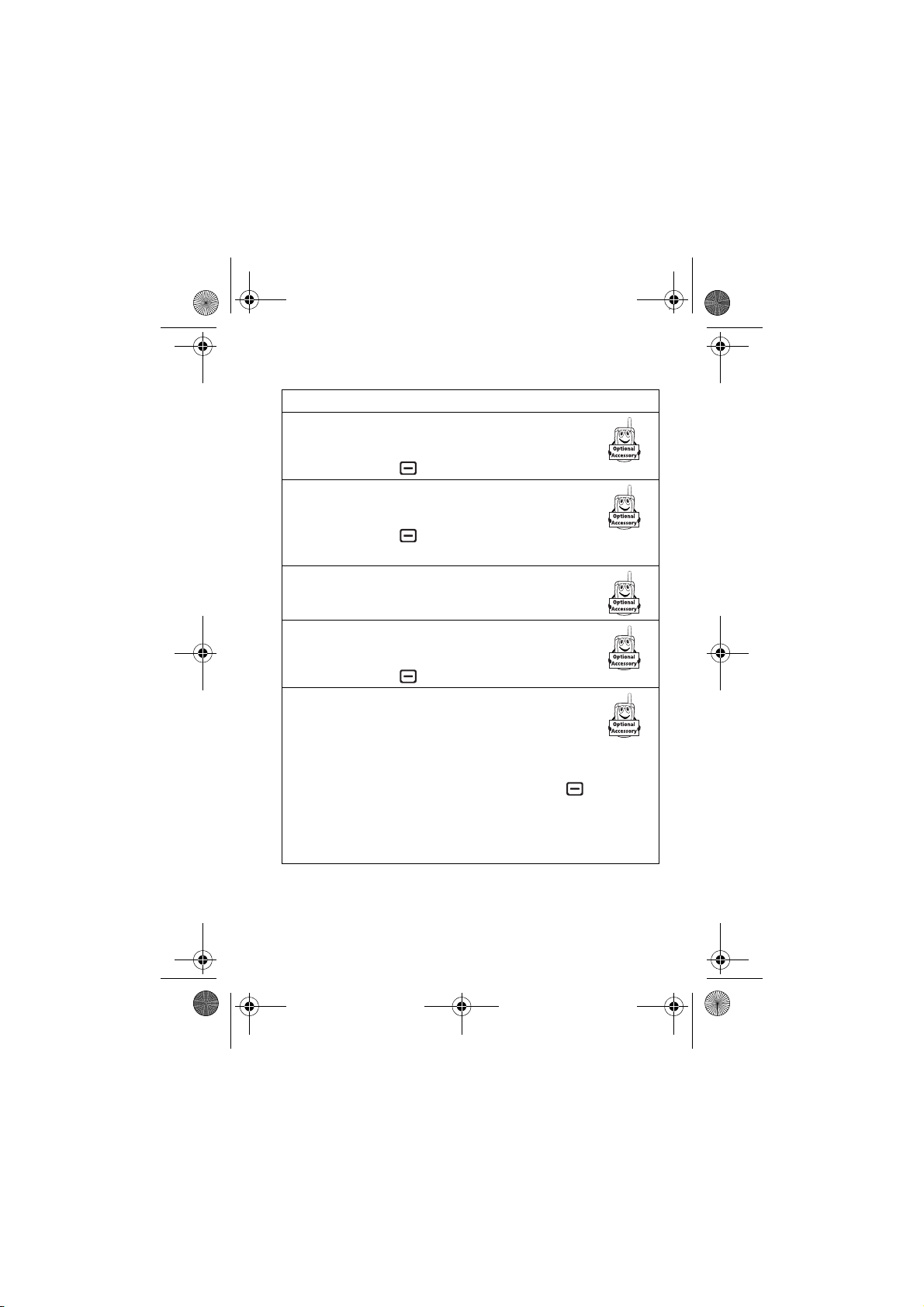
Advanced Bluetooth Features
Features
Make Phone
Visible to
Other Device
Pair with
Recognized
Device
Drop Pairing
with Device
Allow a Bluetooth device to
discover your phone:
>
Bluetooth Link >Setup >Find Me
Pair your phone with a
recognized handsfree device:
>
Bluetooth Link >Hands-free
>
[Look for devices]
Highlight the device name and
press the
Drop
key.
Switch to
Device During
Call
Move
Multimedia
Object to
Device
Switch to a headset or car kit
during a call:
>
Use Bluetooth
Move a multimedia object to
another device:
Note:
Preloaded multimedia
objects cannot be moved.
Highlight the object, press >
select the device name.
Caution:
Moving an object
deletes
original object from your phone.
Main Attractions
Move
,
the
35
Page 38
L7.GSM.ASIAEMEA.UG.07272005.fm Page 36 Friday, November 25, 2005 3:27 PM
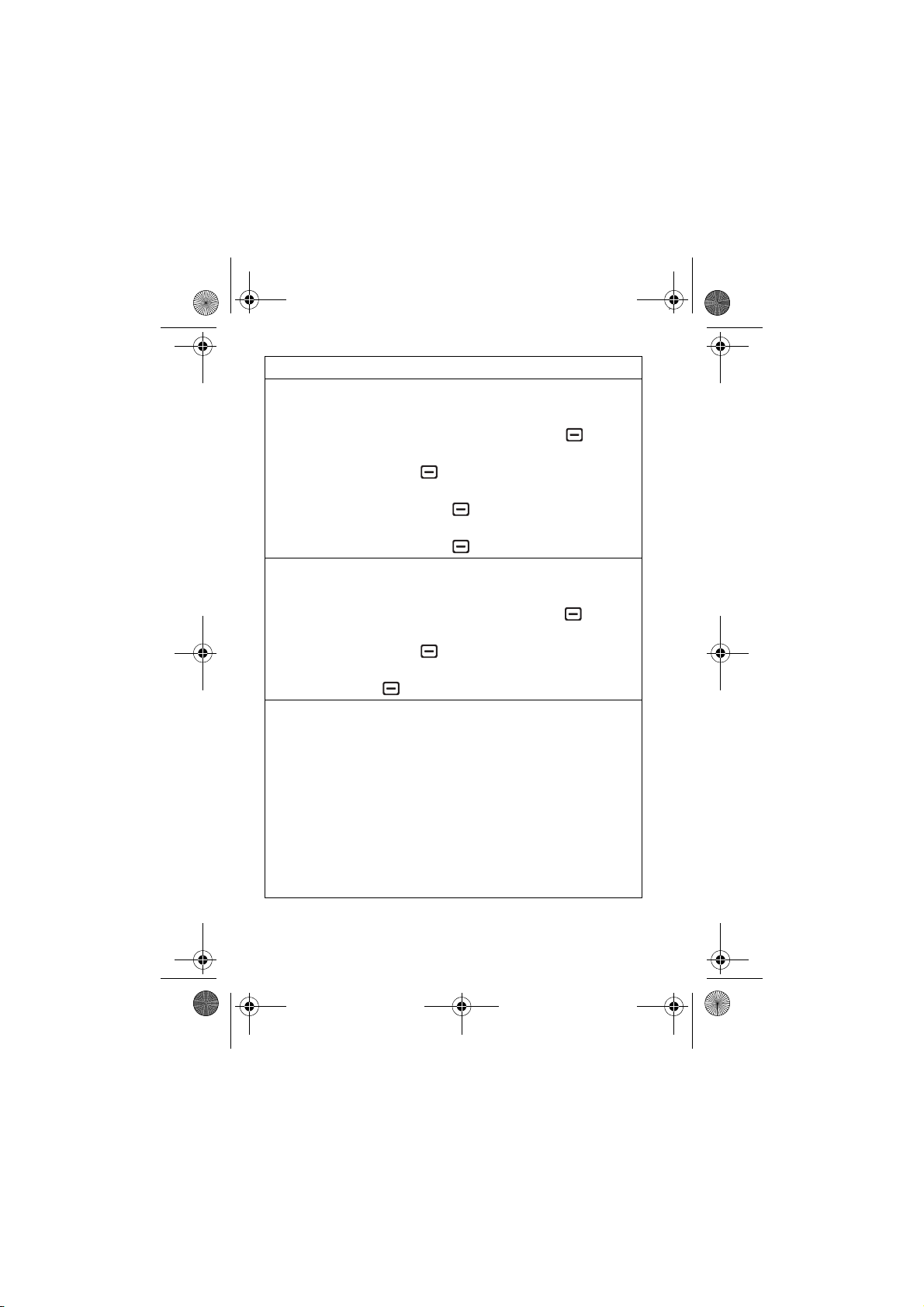
Features
Copy Media
Objects,
Datebook
Events, and
Phonebook
Entries
Highlight the object you want to copy to
another location.
To copy media objects, press >
(or press
press >
0
to mark objects) and then
Copy marked files
. For datebook
events, choose the date by pressing
then press >
Send
. To copy
Mark
s
,
Phonebook entries, select the entry,
Print Media
Objects,
Datebook
Events, and
Phonebook
Entries
Select Print
Te m p l a t e s
then press >
Highlight the object you want to print to
a printer.
To print media objects, press >
(or press
press >
events and phonebook entries, press
>
Print
.
You can select desired print templates in
the
Print Options
selected
Template
Print Marked files
>
Change
Share Phonebook Entry
0
to mark objects) and then
Print Marked Files
. For datebook
.
screen. After you have
or
Print
, select
>
View
(press navigation
Mark
key up or down to view different
templates) >
Note:
select
Files
. Preloaded pictures cannot be
Select > [Print]
For Border Free picture printing,
Copy marked files
instead of
Print Marked
printed.
Main Attractions
36
Page 39
L7.GSM.ASIAEMEA.UG.07272005.fm Page 37 Friday, November 25, 2005 3:27 PM
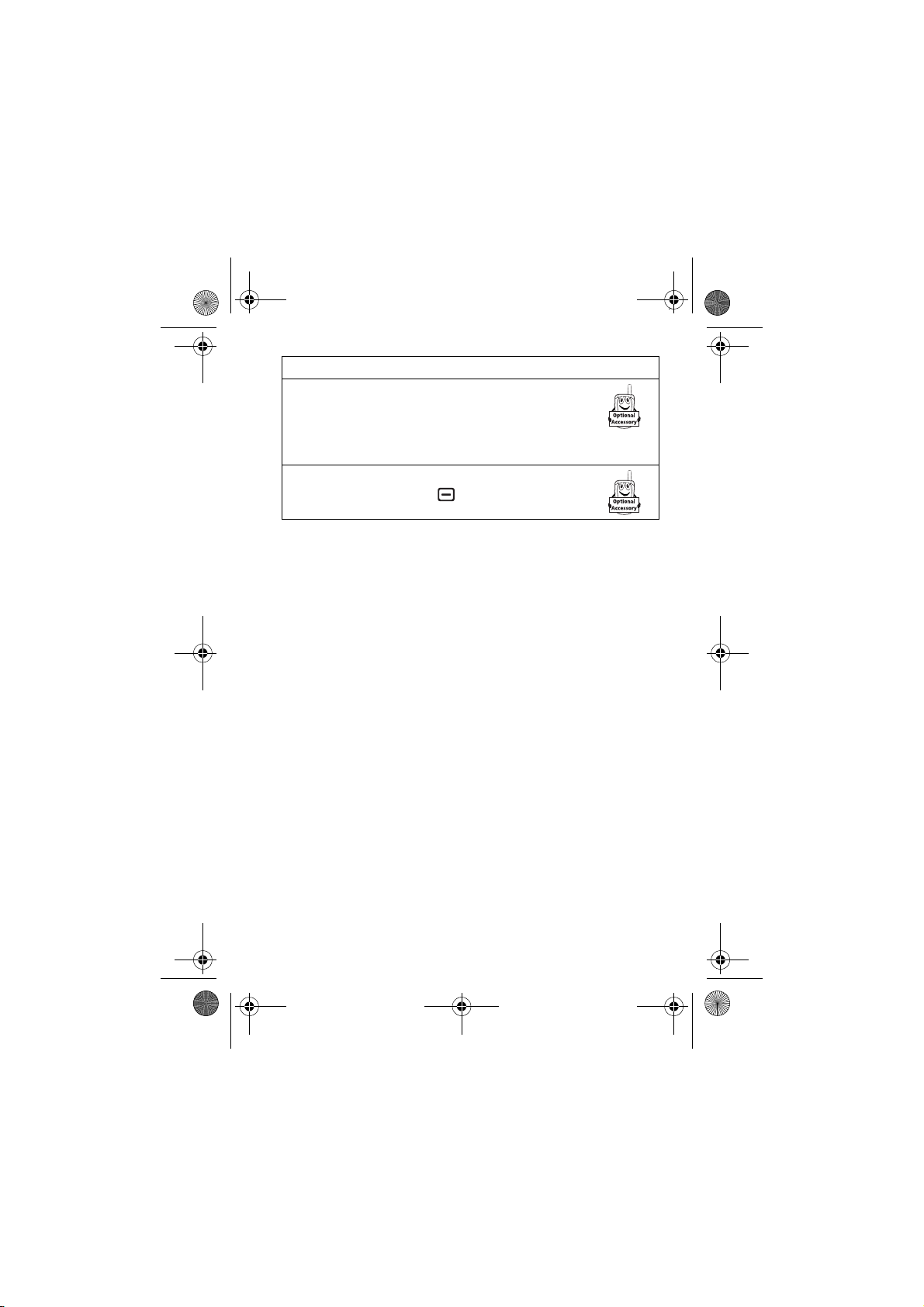
Features
Edit Device
Properties
Edit the properties of a
recognized device:
Highlight the device name,
Set Bluetooth
Options
press the
Highlight the device name,
press >
Edit
key.
Bluetooth Link >Setup
Main Attractions
37
Page 40
L7.GSM.ASIAEMEA.UG.07272005.fm Page 38 Friday, November 25, 2005 3:27 PM
Basics
See page 1 for a basic phone diagram.
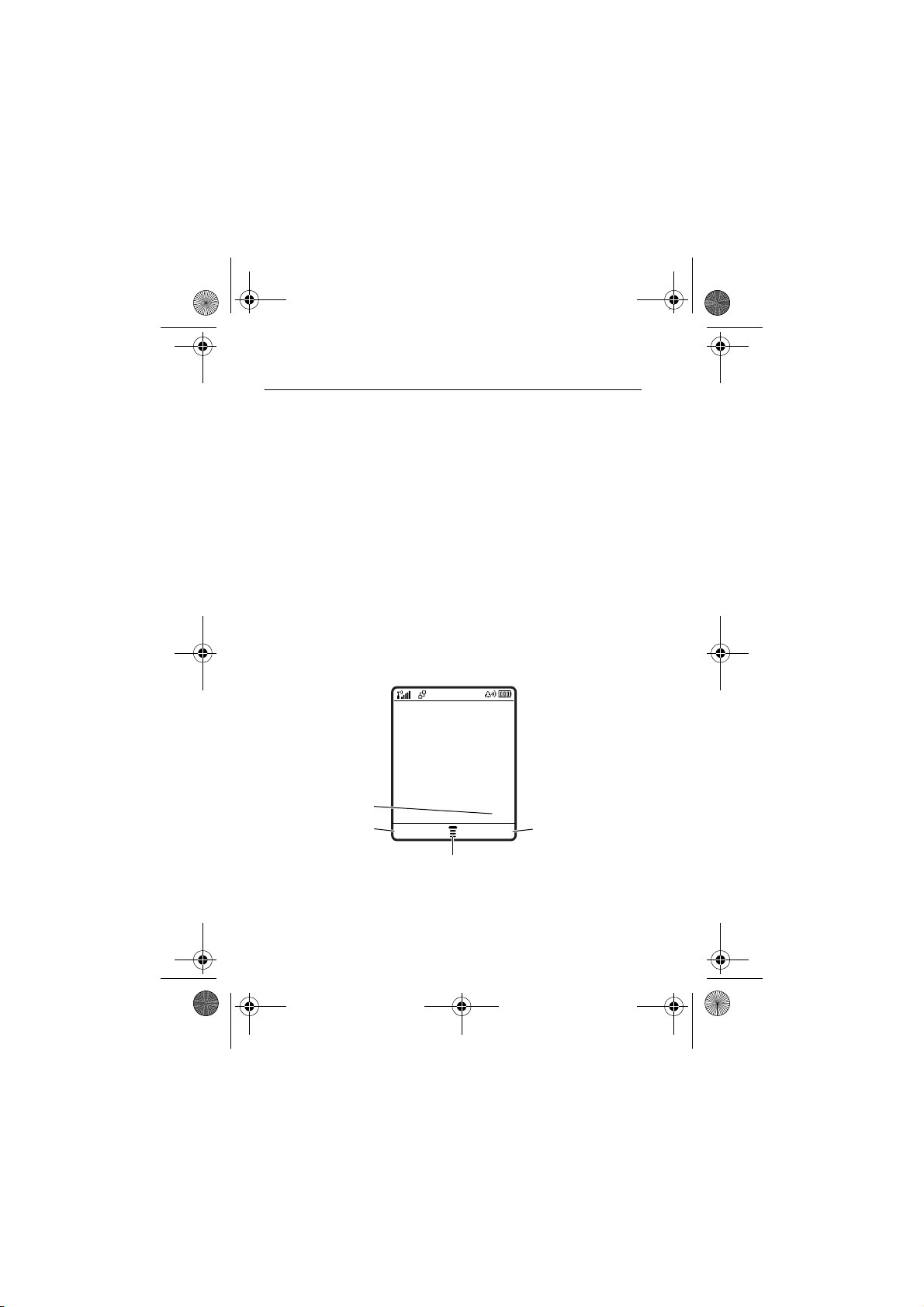
Display
The home screen shows when you turn on the phone. To dial
a number from the home screen, press number keys and
Note:
Your home screen may look different from the one
below, depending on your service provider.
Note:
The menu feature icons, their names, and functions
indicated by soft key labels shown in the above illustration
give an example of typical home screen. You can change
menu feature icons and functions on soft key labels
according to your needs.
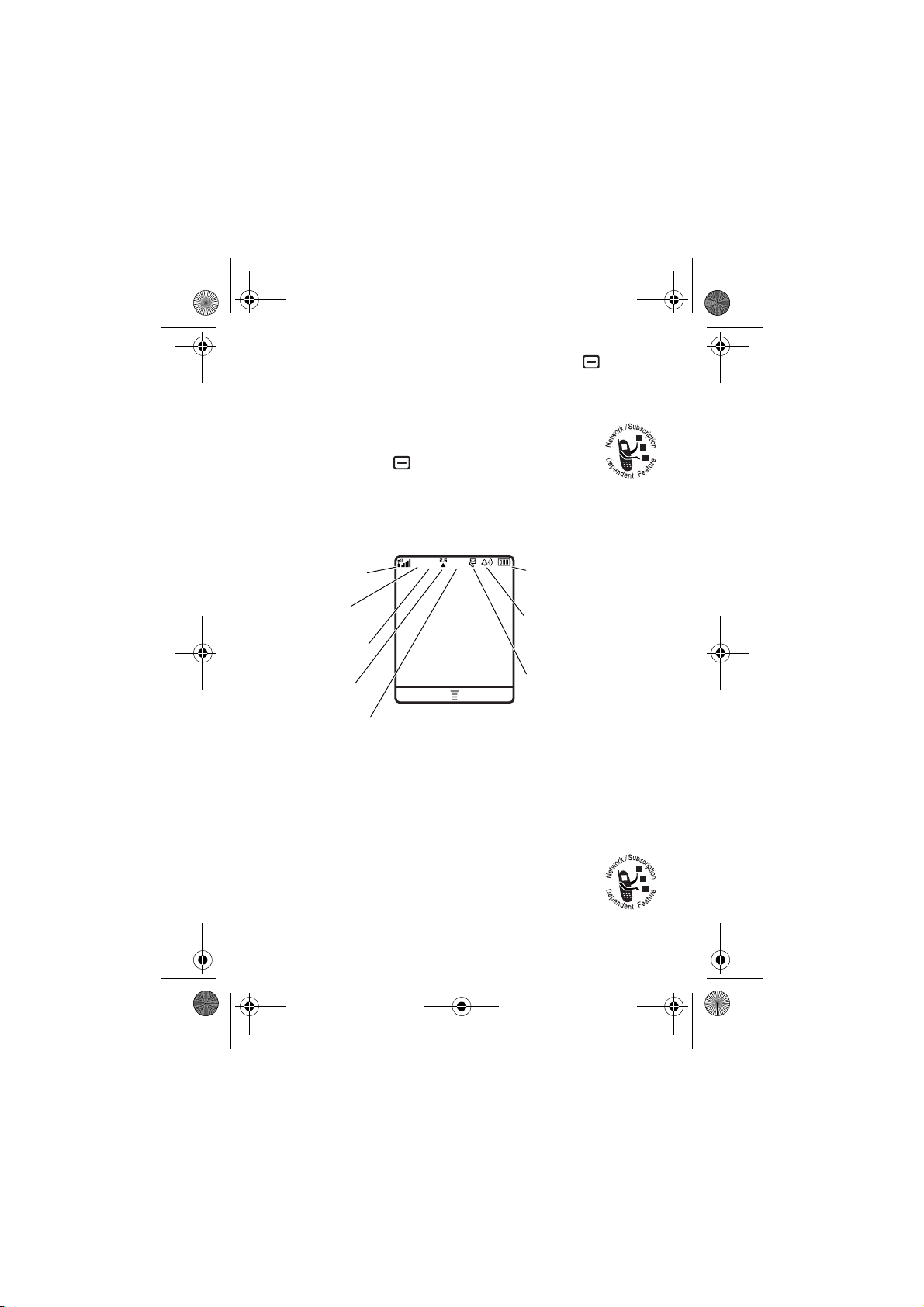
Service Provider
N
.
38
Clock
Left Soft
Key Label
Basics
12:00
Message Styles
Menu Indicator
Right Soft
Key Label
Page 41
L7.GSM.ASIAEMEA.UG.07272005.fm Page 39 Friday, November 25, 2005 3:27 PM
The Menu IndicatorH shows that you can press to open
the menu. Soft Key Labels show the current soft key
functions. For soft key locations, see page 1.
Your home screen might show news from your
service provider at the bottom. To change this
news view, press >
>
Home screen >Headlines >Off
Settings >Personalise
.
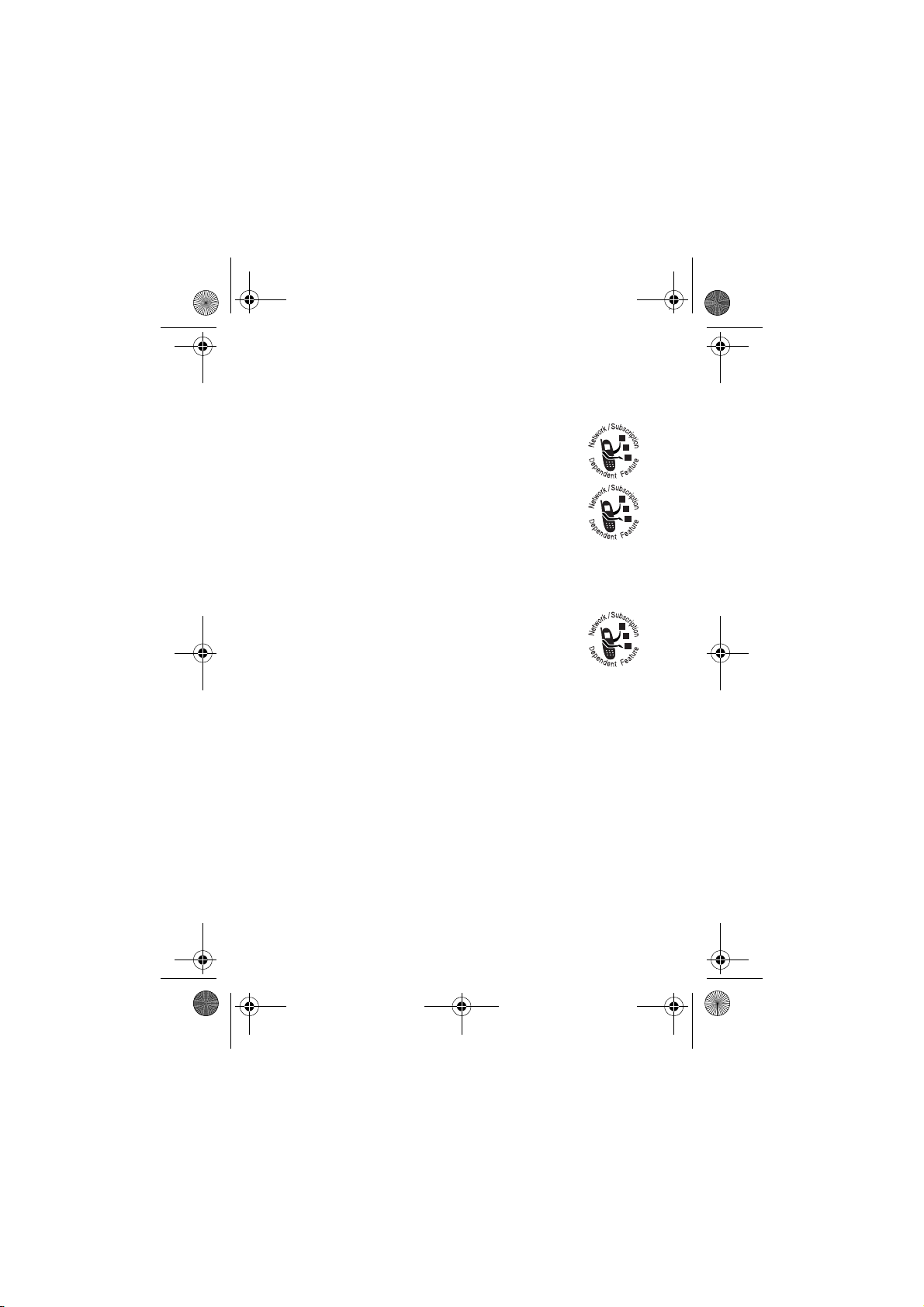
Status indicators may be shown at the top of the home
screen:
1.
Signal
Strength
2.
GPRS
3.
Bluetooth
4.
Roam
5.
PTT */Active Line
Service Provider
Message Styles
+
E
040079b
U
8.
Battery
Level
7.
Ring Style
12:00
6.
Message
* Indicates network or subscription- dependent feature
1 Signal Strength Indicator –
Vertical bars show the
strength of the network connection. You can’t make or
receive calls when
2GPRS Indicator –
!
or ) shows.
Shows when your phone is
using a General Packet Radio Service (GPRS)
network connection. Indicators can include:
Basics
39
Page 42
L7.GSM.ASIAEMEA.UG.07272005.fm Page 40 Friday, November 25, 2005 3:27 PM
*
= GPRS PDP context active
+
= GPRS packet data available
3 Bluetooth Indicator –
Bluetooth
®
connection is active (à).
4 Roam Indicator –
Shows when a
Shows when your phone is
seeking or using a network outside your home
network. Indicators can include:
:
= 2G home
8
= 2.5G home
;
= 2G roam
9
= 2.5G roam
5PTT* /Active Line Indicator
PTT Indicator – Shows when you can make
and receive PTT calls (
U
). Other indicators
can include:
4
= secure packet data
transfer
3
= secure application
connection
2
= secure Circuit Switch
7
= unsecure packet data
transfer
6
= unsecure application
connection
5
= unsecure CSD call
Data (CSD) call
* Indicates network or subscription-dependent feature
?
Active Line Indicator – Shows
or
>
to indicate when call diverting is on. Indicators for
to indicate an active call,
dual-line-enabled SIM cards can include:
40
Basics
Page 43
L7.GSM.ASIAEMEA.UG.07272005.fm Page 41 Friday, November 25, 2005 3:27 PM
@
= line 1 active
B
= line 2 active
Note:
The icon of Active Line Indicator will be changed to
U
when you make PTT calls.
A
= line 1 active, call divert on
C
= line 2 active, call divert on
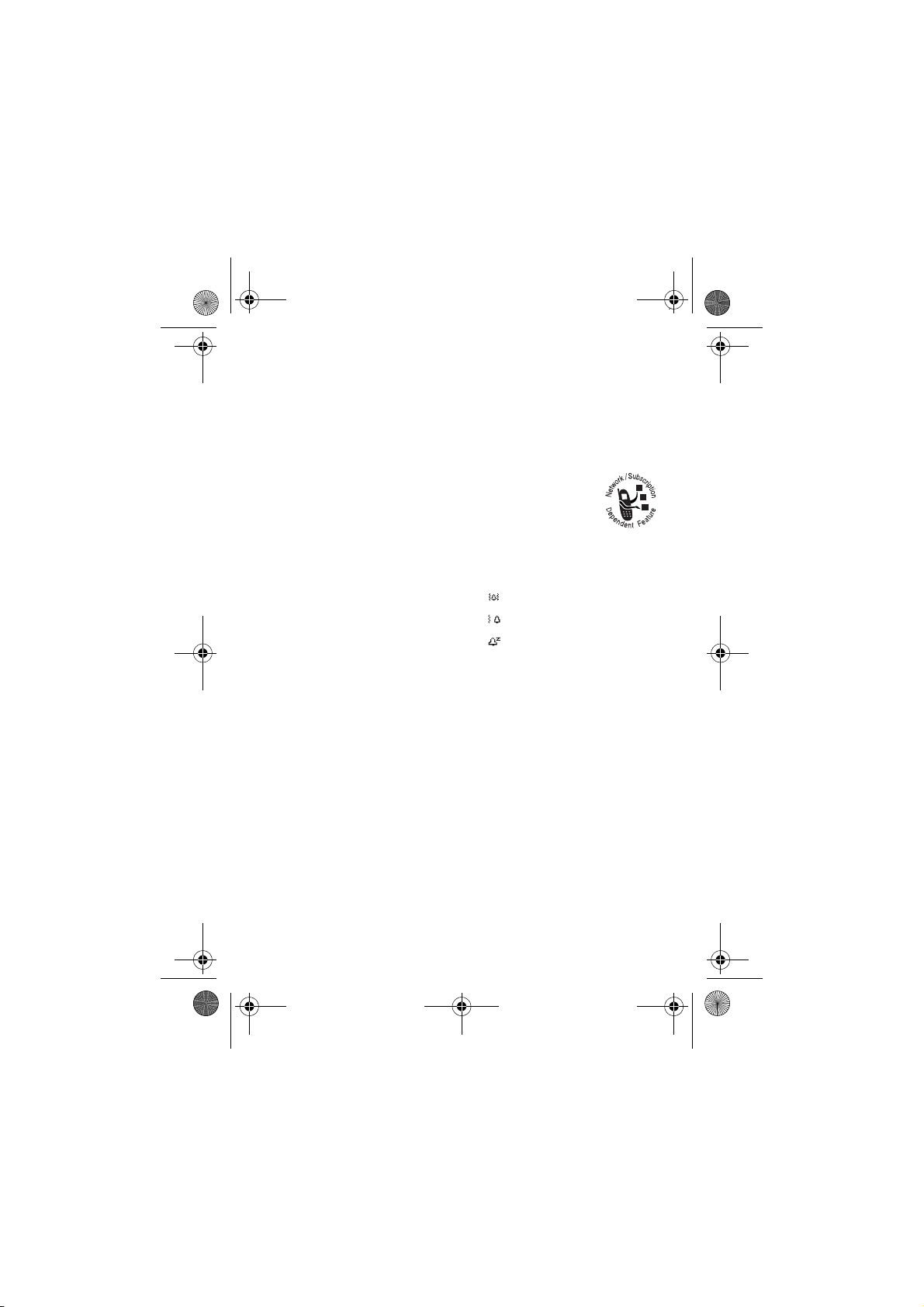
6Message Indicator –
Shows when you receive
a new message.
r
= text message
7 Ring Style Indicator –
y
= loud ring = vibrate & ring
z
= soft ring = vibrate then ring
|
= vibrate = silent
8 Battery Level Indicator –
Shows the ring style setting.
Vertical bars show the battery
charge level. Recharge the battery when your phone
shows
Low Battery
.
Basics
41
Page 44
L7.GSM.ASIAEMEA.UG.07272005.fm Page 42 Friday, November 25, 2005 3:27 PM
Menus
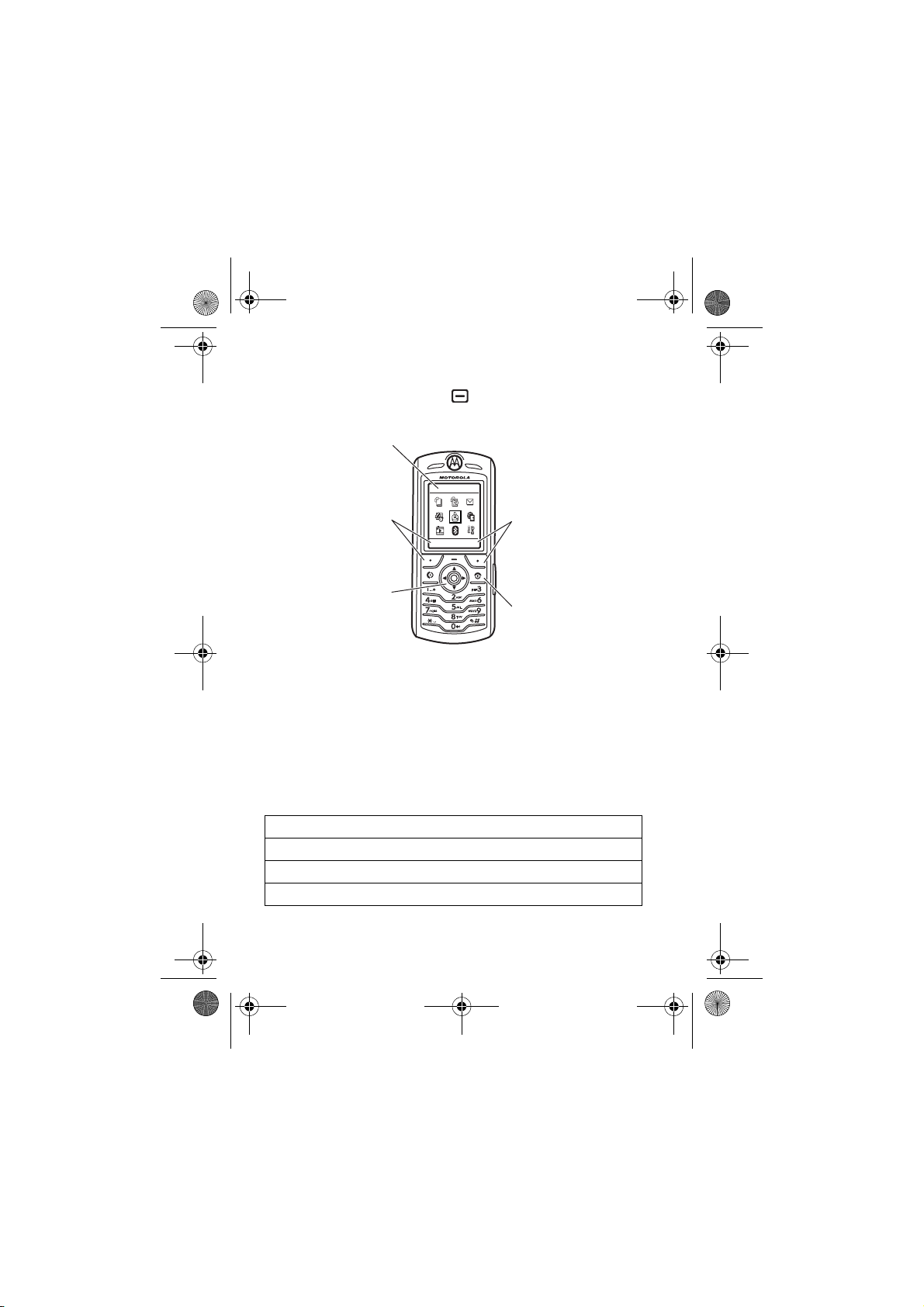
From the home screen, press to enter the main menu.
Name of
Highlighted
Menu Feature
Exit the main
Scroll up, down,
Press centre to
menu feature.
* Please refer to your handset for actual display of
menu feature icons.
Icon
menu.
left, or right.
select
highlighted
Games & Apps
Exit
Select
Select
highlighted menu
feature.
Exit menu without
making changes.
The following menu icons may be available, depending on
your service provider and service subscription options.
Menu Features
n Phonebook á WebAccess
s Recent Calls h Multimedia
e Messages E Bluetooth Link
Basics
42
Page 45
L7.GSM.ASIAEMEA.UG.07272005.fm Page 43 Friday, November 25, 2005 3:27 PM
Menu Features
É Tools w Settings
Q Games & Apps
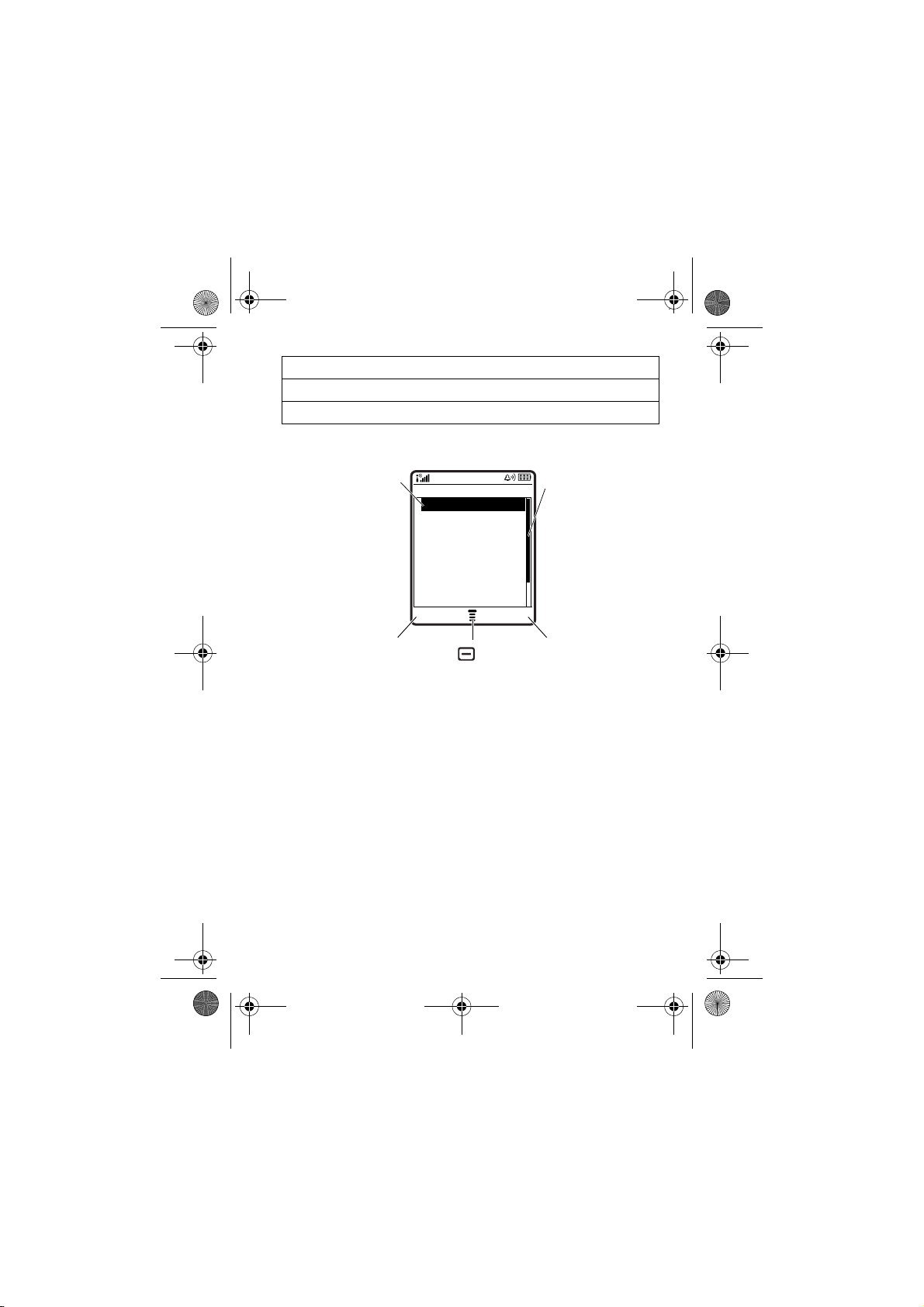
Some features require you to select an option from a list:
Highlighted
Option
Press Back key
to go back to
previous
screen.
Dialled Calls
10) John Smith
9) Lisa Owens
8) Adda Thomas
7) Jack Bradshaw
6) Mary Smith
5) Carlos Emrys
4) Dave Thompson
3) Lisa Owens
Back View
S
Press
to scroll down
to other
options.
Press View key
to view details
of highlighted
option.
Press to open
sub-menu
•
Scroll up or down to highlight the option you want.
•
In a numbered list, press a number key to highlight an
option.
•
In an alphabetized list, press a key repeatedly to cycle
through its letters and highlight the closest matching
list option.
•
When an option has a list of possible settings, scroll
left or right to select the setting.
•
When an option has a list of possible numeric values,
press a number key to set the value.
Basics
43
Page 46
L7.GSM.ASIAEMEA.UG.07272005.fm Page 44 Friday, November 25, 2005 3:27 PM
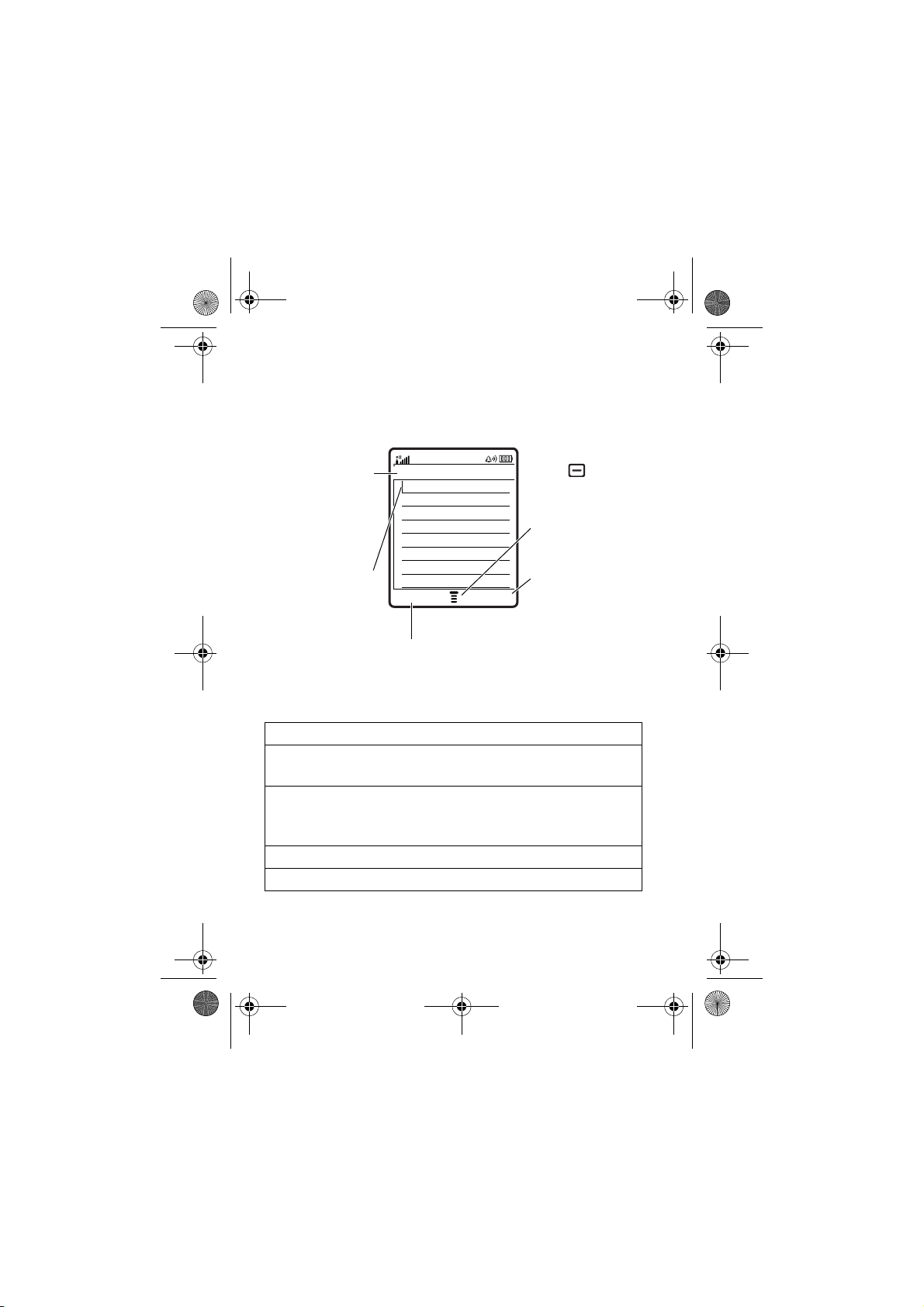
Create SMS
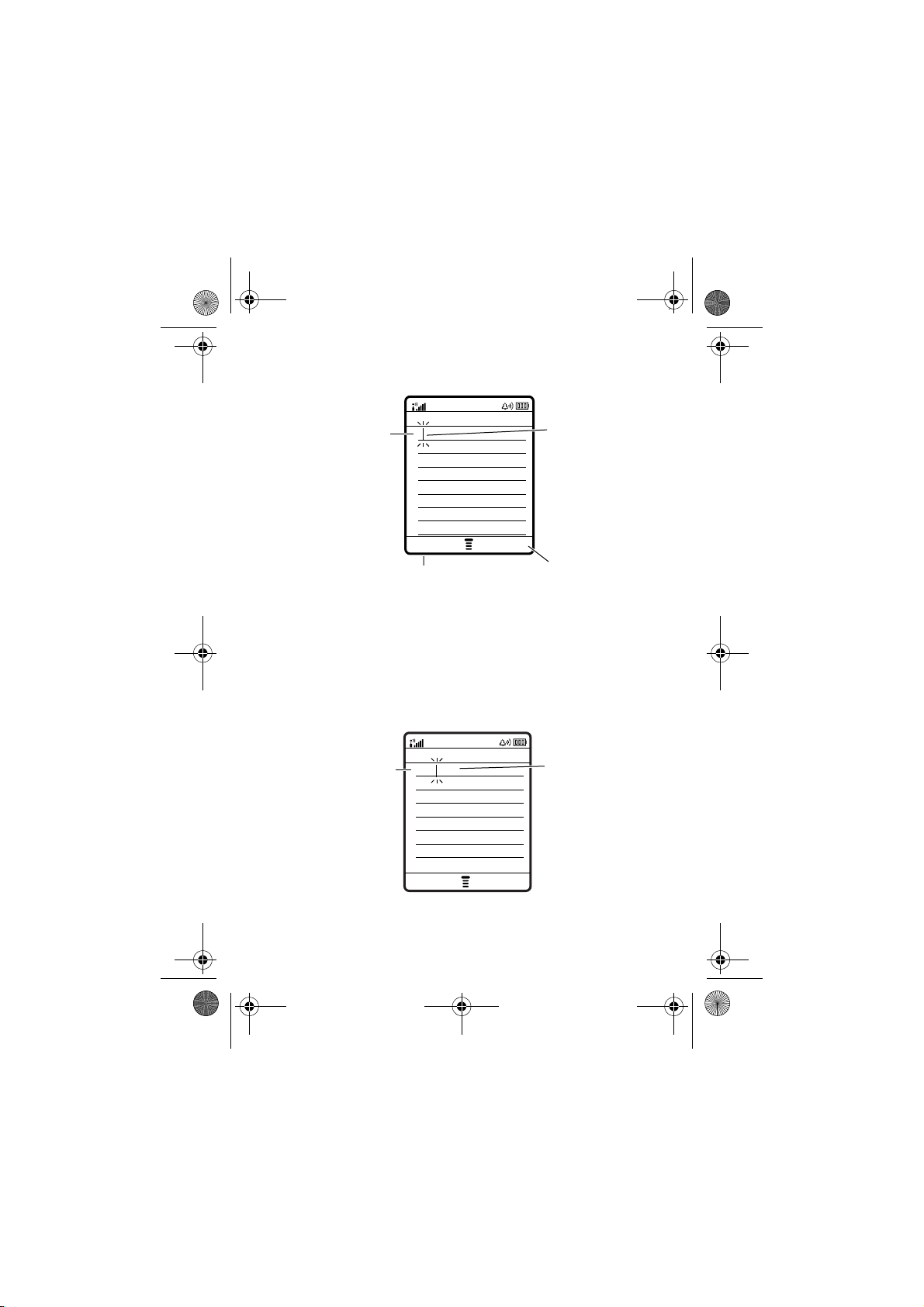
To create a new message, enter text.
For indicator
descriptions,
see following
section.
Flashing
cursor
indicates
insertion point.
Press
#
in a text entry view to select an entry mode:
Entry Modes
j
or gYo u r
iTAP™
p
or mYo u r
iTAP
want a secondary entry mode.
W Numeric
[ Symbol
Vh
Msg 450
Press to
open submenu.
After you enter
text, press the
Cancel Send To
Send To key to
enter
recipients.
Press the Cancel
key to
exit
without making changes.
Primary
text entry mode can be set to any
j
or tapg mode.
Secondary
text entry mode can be set to any
p
or tapm mode, or set to
None
mode enters numbers only.
mode enters symbols only.
if you don’t
44
Basics
Page 47
L7.GSM.ASIAEMEA.UG.07272005.fm Page 45 Friday, November 25, 2005 3:27 PM
To set your primary and secondary text entry modes, press
>
Entry Setup
Secondary Setup
Tip:
WANT TO BE LOUD IN YOUR MESSAGE? Press 0 in a
text entry view to change text case to all capital letters (
next letter capital (
in a text entry view and select
.
V
), or no capitals (U).
Primary Setup
or
T
),
iTAP™ Mode
Press # in a text entry view to switch to iTAP mode. If you
don’t see
your primary or secondary text entry mode.
iTAP mode lets you enter words using one key press per
letter. The iTAP software combines your key presses into
common words, and predicts each word as you enter it.
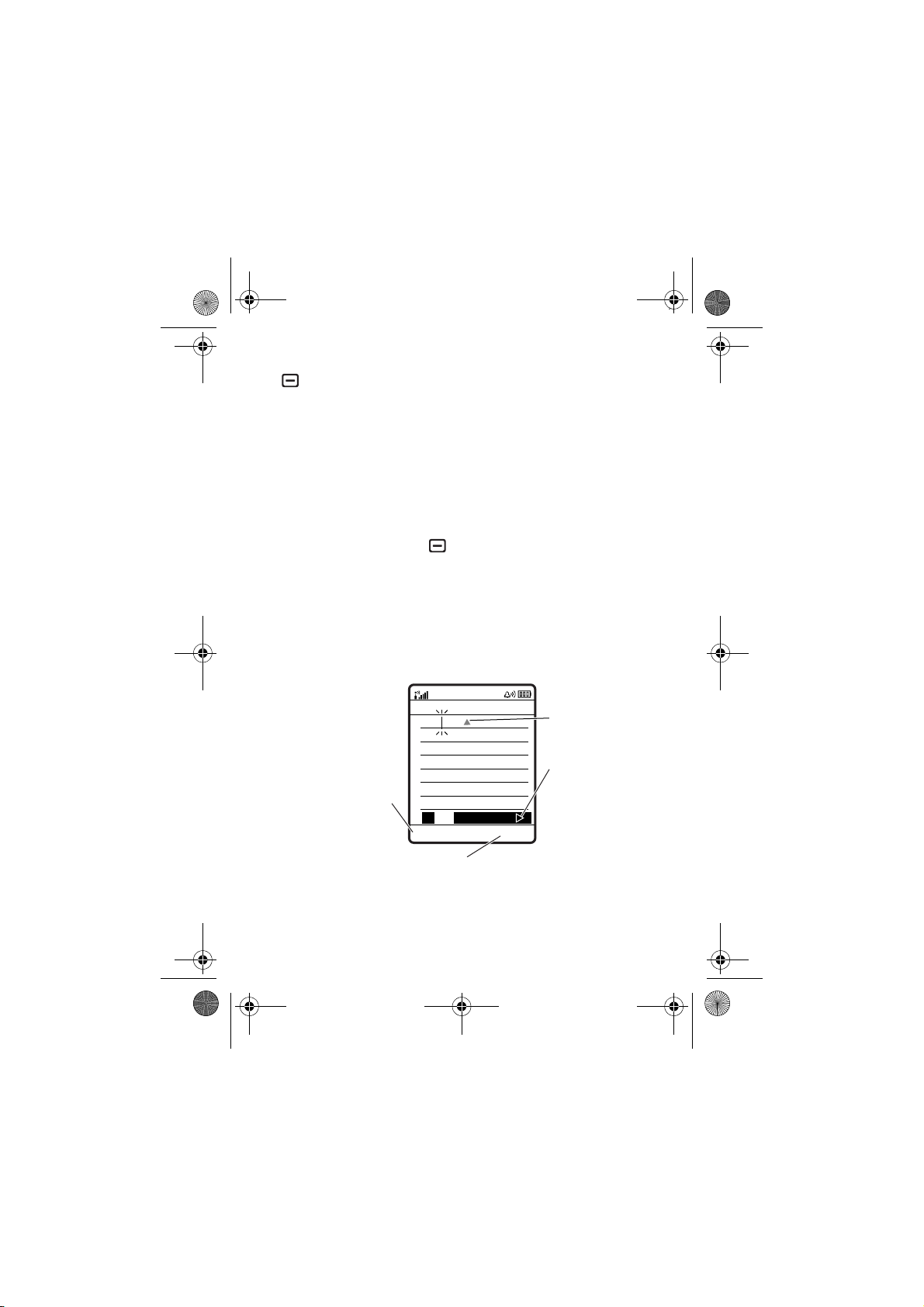
For example, if you press
j
or p, press >
Vj
Prog ram
Entry Setup
to set iTAP mode as
7764
Msg 443
, your display shows:
S
Press
up to accept
Program.
Press Delete key
to delete last
letter.
Press
to highlight
another
ProgProhSpoiProi
Delete
Press Select key to lock
highlighted combination.
Select
combination.
Press * to
enter Prog and
a space.
S
Basics
right
45
Page 48
L7.GSM.ASIAEMEA.UG.07272005.fm Page 46 Friday, November 25, 2005 3:27 PM
•
If you want a different word (such as
pressing keypad keys to enter the remaining letters.
•
To enter numbers quickly, press and hold a number key
to temporarily switch to numeric mode. Press the
number keys to enter the numbers you want. Enter a
space to change back to iTAP mode.
•
Press 1 to enter punctuation or other characters.
Progress
), continue
Tap Mode
Press # in a text entry view to switch to tap mode. If you
don’t see
your primary or secondary text entry mode.
To enter text in tap mode, press a keypad key repeatedly to
cycle through the letters and number on the key. Repeat this
step to enter each letter.
Vg
or Vm, press >
Entry Setup
to set tap mode as
46
Basics
Page 49
L7.GSM.ASIAEMEA.UG.07272005.fm Page 47 Friday, November 25, 2005 3:27 PM
For example, if you press 8 one time, your display shows:
After
2 seconds,
character is
accepted and
cursor moves
Character
displays at
insertion point.
Ug
Msg 449
T
to next
position.
Delete Send To
Press the Delete
key to
delete
character to left of insertion
point.
After you enter
text, press the
Send To key to
enter
recipients.
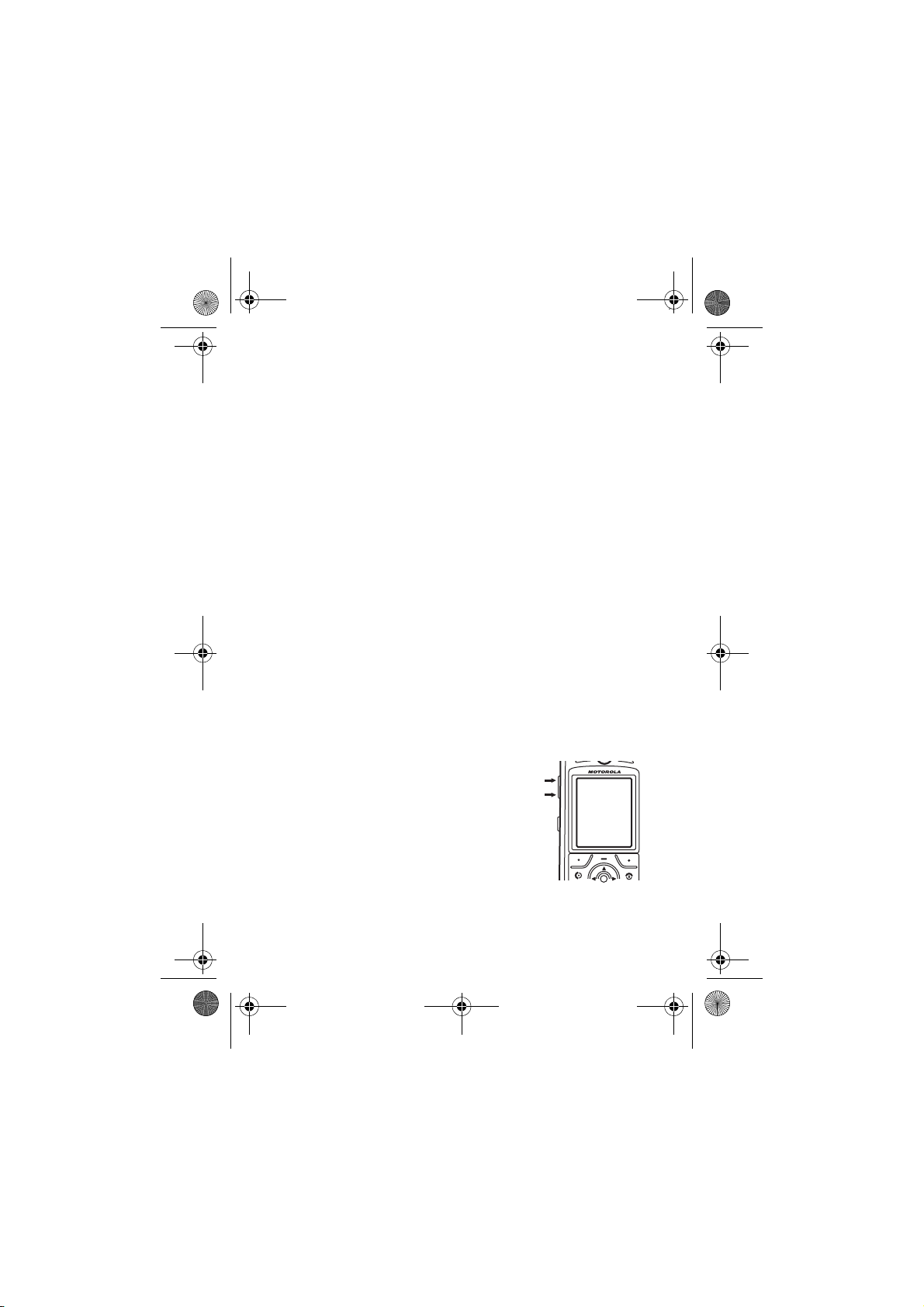
When you enter three or more characters in a row, your
phone may guess the rest of the word. For example, if you
enter
prog
your display might show:
Character
displays at
insertion point.
U1
Msg 443
Prog ram
S
Press
right to accept
Program, or
press *
to reject it and
enter a space
after Prog.
Delete
Send To
Basics
47
Page 50
L7.GSM.ASIAEMEA.UG.07272005.fm Page 48 Friday, November 25, 2005 3:27 PM
•
The first character of every sentence is capitalized. If
necessary, press
lowercase before the cursor moves to the next
position.
•
Press S to move the flashing cursor to enter or edit
message text.
•
If you don’t want to save your text or text edits, press
P
>
Abort Message
S
down to change the character to
to exit without saving.
Numeric Mode
Press # in a text entry view until you see W. Press the
number keys to enter the numbers you want.
Symbol Mode
Press # in a text entry view until you see [. Press a keypad
key to show its symbols at the bottom of the display.
Highlight the symbol you want, then press the
Select
key.
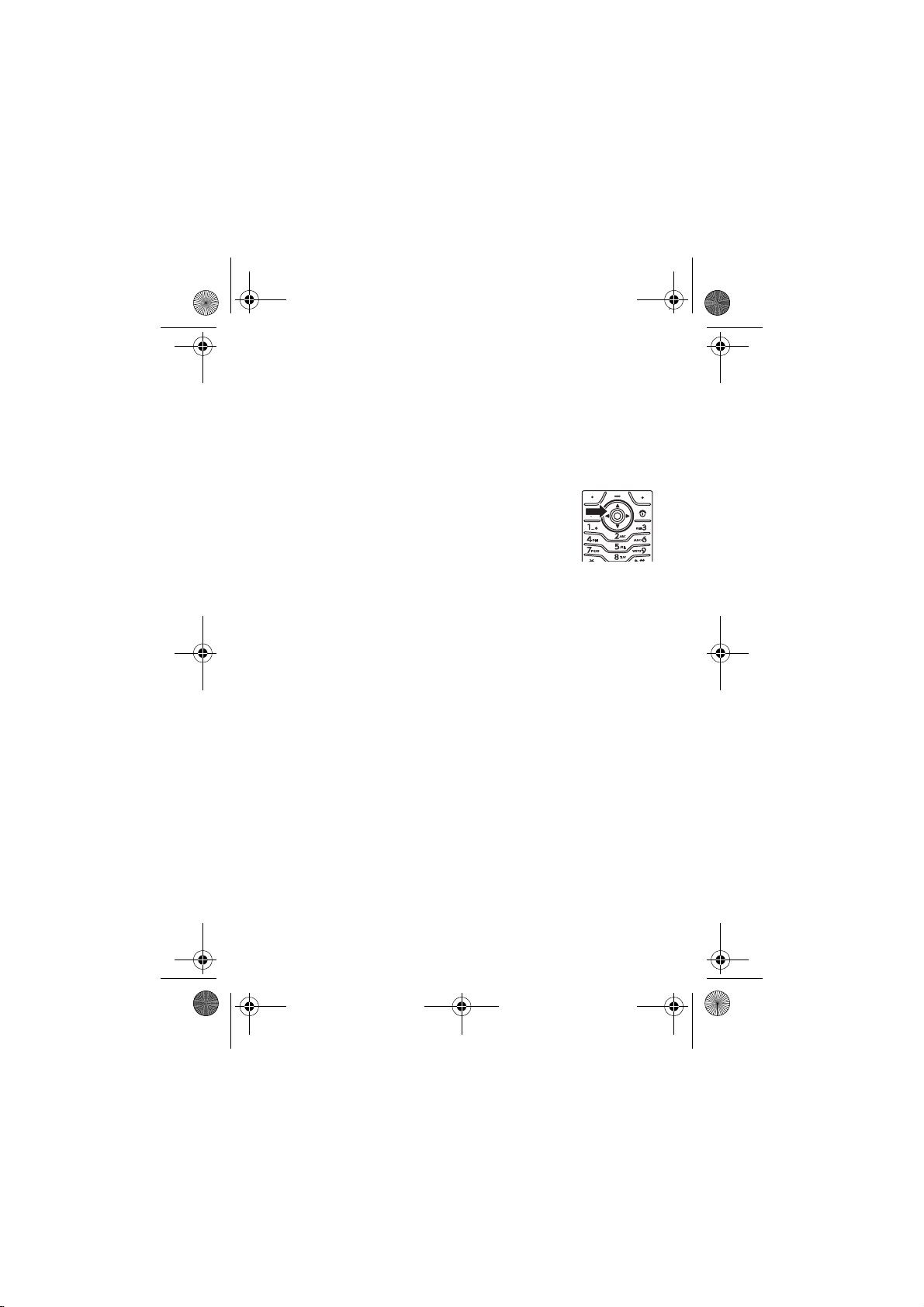
Volume
Press the volume keys to:
•
turn off an incoming call alert
(press the down volume key)
•
change the earpiece volume
during calls
•
change the ringer volume
from the home screen
Basics
48
Volume
Keys
Page 51
L7.GSM.ASIAEMEA.UG.07272005.fm Page 49 Friday, November 25, 2005 3:27 PM
Tip:
Sometimes silence really is golden. That’s why
you can quickly set your ringer to
pressing and holding the down volume key or press
the
0
key to set the ringer Vibrate.
Vibrate
or
Silent
by
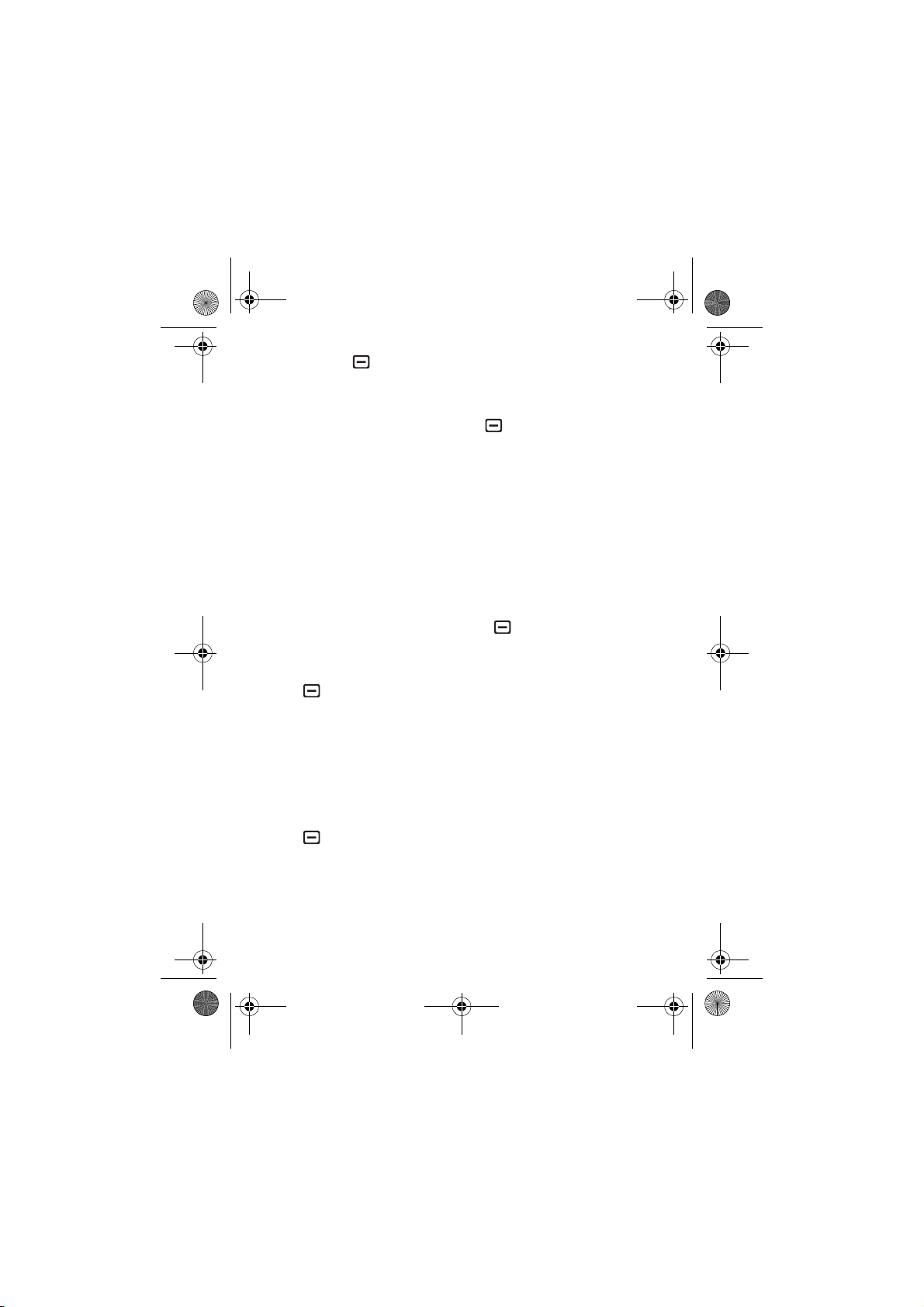
Navigation Key
Press the navigation keyS up, down,
left, or right to scroll and highlight items in
the display. When you highlight
something, press the centre key
select it. The centre key usually performs
the same function as the right soft key.
s
to
Hands-free Speaker
You can use your phone’s handsfree speaker to make calls
without holding the phone to your ear.
During a call, press the
speaker on. Your display shows
or end the call.
Note:
The handsfree speaker won’t work when your phone is
connected to a handsfree car kit or headset.
Speaker
key to turn the handsfree
Spkrphone On
until you turn it off
Codes & Passwords
Your phone’s 4-digit
The 6-digit
service provider didn’t change these codes, you should
change them:
security code
unlock code
is originally set to
is originally set to
000000
Basics
1234
. If your
.
49
Page 52
L7.GSM.ASIAEMEA.UG.07272005.fm Page 50 Friday, November 25, 2005 3:27 PM
Find it:
If you forget your unlock code:
try entering 1234 or the last four digits of your phone
number. If that doesn’t work, press and enter your 6-digit
security code instead.
If you forget other codes:
SIM PIN code, PIN2 code, or call barring password, contact
your service provider.
Press >
Settings >Security >New Passwords
At the
Enter Unlock Code
If you forget your security code,
prompt,
Lock & Unlock Phone
You can lock your phone to keep others from using it. To lock
or unlock your phone, you need the 4-digit unlock code.
To
manually lock
>
Phone Lock >Lock Now
To
automatically lock
Press >
Note:
You can make emergency calls on a locked phone (see
page 58). A locked phone still rings or vibrates for incoming
calls or messages,
Lock & Unlock Keypad
your phone: Press >
.
your phone whenever you turn it off:
Settings >Security >Phone Lock >Automatic Lock >On
but you need to unlock it to answer
Settings>Security
.
.
You can lock your keypad to prevent accidental key presses.
Press
50
*
to lock or unlock the keypad.
Basics
Page 53
L7.GSM.ASIAEMEA.UG.07272005.fm Page 51 Friday, November 25, 2005 3:27 PM
Customize
Ring Style
Each ring style profile uses a different set of sounds or
vibrations for incoming calls and other events. Here are the
profiles you can choose:
y Loud | Vibrate } Vibe then Ring
z Soft Vibe & Ring { Silent
The ring style profile’s indicator shows at the top of your
home screen. To choose your profile:
Find it:
Change Alerts in a Ring Style
You can change the alerts for incoming calls and other
events. Your changes are saved in the current ring style
profile.
Find it:
Press >
Press >
Settings >Ring Styles >Style:
Settings >Ring Styles
> Style
style name
Detail
Note:
Style represents the current ring style. You can’t set an
alert for the
1
Highlight
press the
2
Highlight the alert you want, then press the
3
Press the
Silent
ring style setting.
Calls
(or
Line 1
or
Line 2
for dual-line phones), then
Change
key to change it.
Back
key to save the alert setting.
Customize
Select
key.
51
Page 54
L7.GSM.ASIAEMEA.UG.07272005.fm Page 52 Friday, November 25, 2005 3:27 PM
Time & Date
Your phone needs the time and date for the datebook.
To synchronize the time and date with the
network*: Press >
>
Time and Date
To set the time and date: Press >
>
Initial Setup >Time and Date
Note:
information from your service provider*, you must
turn off the news view to see a clock. Press
>
* Indicates network or subscription-dependent feature
>
Autoupdate >On
If your home screen shows news
Settings >Personalise >Home screen >Headlines >Off
Settings >Initial Setup
> time or date.
Settings
.
Wallpaper
Set a photo, picture, or animation as a wallpaper (background)
image in your home screen.
Find it:
Press >
Settings >Personalise >Wallpaper
Options
Picture
Layout
52
Select an image for your wallpaper, or
wallpaper.
Select
Centre
to centre the image in the display,
to repeat the image across the display, or
Fit-to-screen
Customize
to stretch the image across the display.
None
for no
Tile
Page 55
L7.GSM.ASIAEMEA.UG.07272005.fm Page 53 Friday, November 25, 2005 3:27 PM
Screen Saver
Set a photo, picture, or animation as a screen saver. The
screen saver shows when no activity is detected for a
specified time.
Tip:
This feature helps save your screen, but not your battery.
To extend battery life, turn off the screen saver.
Find it:
Options
Picture
Delay
Press >
Select an image for your screen saver, or
no screen saver.
Select the length of inactivity before the screen
saver shows.
Settings >Personalise >Screen Saver
None
for
Display Appearance
To choose a phone
phone’s display: Press >
To set your display
>
Brightness
.
To save battery life, your
using your phone. The backlight turns back on when you
press a key. To set how long your phone waits before the
backlight turns off:
Press >
To save battery life, the
using your phone. The display turns back on when you press
Settings >Initial Setup >Backlight
skin
that sets the look and feel of your
Settings >Personalise >Skin
brightness
: Press >
backlight
display
Settings >Initial Setup
turns off when you’re not
.
can turn off when you’re not
Customize
.
53
Page 56
L7.GSM.ASIAEMEA.UG.07272005.fm Page 54 Friday, November 25, 2005 3:27 PM
a key. To set how long your phone waits before the display
turns off:
Press >
Settings >Initial Setup >Display Timeout
.
Answer Options
You can use additional, alternative methods to answer an
incoming call. To activate or deactivate an answer option:
Find it:
>
On
or
Press >
Off
Settings >In-Call Setup >Answer Options
>
Multi-key
54
Customize
Page 57
L7.GSM.ASIAEMEA.UG.07272005.fm Page 55 Friday, November 25, 2005 3:27 PM
Calls
To make and answer calls, see page 21.
Turn Off a Call Alert
You can press the volume keys to turn off a call alert before
answering the call.
Recent Calls
Your phone keeps lists of incoming and outgoing calls, even
for calls that didn’t connect. The most recent calls are listed
first. The oldest calls are deleted as new calls are added.
Shortcut:
calls list.
Find it:
1
2
Press N from the home screen to see the dialled
Press >
Highlight
Highlight a call. A % next to a call means the call
connected.
Recent Calls
Received Calls
or
Dialled Calls
, then press the
Select
key.
•
To call the number, press N.
•
To see call details (like time and date), press the
View
key.
•
To see the
include:
Last Calls Menu
, press . This menu can
Calls
55
Page 58
L7.GSM.ASIAEMEA.UG.07272005.fm Page 56 Friday, November 25, 2005 3:27 PM
Options
Store
Create a phonebook entry with the
number in the
No.
field.
Store
does not
appear if the number is already stored.
Delete
Delete All
Hide ID/Show ID
Delete the entry.
Delete all entries in the list.
Hide or show your caller ID for the next
call.
Send Message
Add Digits
Attach Number
Open a new text message with the
number in the
To
field.
Add digits after the number.
Attach a number from the phonebook or
recent calls lists.
Redial
1
Press N from the home screen to see the dialled calls
list.
2
Highlight the entry you want to call, then press N.
If you hear a
can press
When the call goes through, your phone rings or
vibrates one time, shows
connects the call.
busy signal
N
or the
and you see
Retry
key to redial the number.
Redial Successful
Call Failed
, and
, you
56
Calls
Page 59
L7.GSM.ASIAEMEA.UG.07272005.fm Page 57 Friday, November 25, 2005 3:27 PM
Return a Call
Your phone keeps a record of your unanswered calls, and
shows
X Missed Calls
1
Press the
2
Highlight the call you want to return, then press N.
, where X is the number of missed calls.
View
key to see the received calls list.
Notepad
The last set of digits entered on the keypad are stored in
notepad memory. This can be the last phone number you
called, or a number that you “jot down” during a call for later
use. To see the number stored in the notepad:
Find it:
Press >
•
To call the number, press N.
•
To create a phonebook entry with the number in the
field, press the
•
To open the
special character, press .
Recent Calls >Notepad
Store
key.
Dialling Menu
to attach a number or insert a
Hold or Mute a Call
Press >
Press the
calls on mute.
Hold
to put all active calls on hold.
Mute
key (if available) or >
Mute
to put all active
Calls
No.
57
Page 60
L7.GSM.ASIAEMEA.UG.07272005.fm Page 58 Friday, November 25, 2005 3:27 PM
Call Waiting
When you’re on a call, you’ll hear an alert if you
receive a second call.
Press
N
to answer the new call.
•
To switch between calls, press the
•
To connect the two calls, press the
•
To end the call on hold, press >
To turn the call waiting feature on or off:
Find it:
Press >
Settings >In-Call Setup >Call Waiting
Switch
key.
Link
key.
End Call on Hold
.
Caller ID
Calling line identification (caller ID) shows the
phone number for an incoming call in your display.
Your phone shows the caller’s name and picture
when they’re stored in your phonebook, or
Anonymous Call
You can set your phone to play a different ringer ID for an
entry stored in your phonebook (see page 69).
To show or hide
you call, enter the phone number and press
>
when caller ID information isn’t available.
Hide ID/Show ID
your phone number
.
from the next person
Emergency Calls
Your service provider programs one or more emergency
phone numbers, such as 999 or 112, that you can call under
Calls
58
Page 61
L7.GSM.ASIAEMEA.UG.07272005.fm Page 59 Friday, November 25, 2005 3:27 PM
any circumstances, even when your phone is locked or the
SIM card is not inserted.
Note:
Emergency numbers vary by country. Your phone’s
preprogrammed emergency number(s) may not work in all
locations, and sometimes an emergency call cannot be
placed due to network, environmental, or interference
issues.
1
Press the keypad keys to dial the emergency number.
2
Press N to call the emergency number.
International Calls
If your phone service includes international
dialling, press and hold
international access code (indicated by
0
to insert your local
+
). Then,
press the keypad keys to dial the country code and
phone number.
1-Touch Dial
To call phonebook entries 1 through 9, press and hold the
single-digit speed dial number for one second.
You can set 1-touch dial to call the entries in your phone’s
memory phonebook, your SIM card’s phonebook, or your
Fixed Dial list:
Find it:
>
Press >
Phone,SIM
,or
Settings >Initial Setup >1-Touch Dial
Fixed Dial
Calls
59
Page 62
L7.GSM.ASIAEMEA.UG.07272005.fm Page 60 Friday, November 25, 2005 3:27 PM
To add a new phonebook entry, see page 68. To edit the
Speed No.
for a phonebook entry, press >
the entry, and press >
Edit
.
Phonebook
, highlight
Voicemail
Your network stores the voicemail messages you
receive. To listen to your messages, call your
voicemail number.
Note:
Your service provider may include additional
information about using this feature.
When you
phone shows the message indicator
New Message
To
check
Find it:
Your phone may prompt you to store your voicemail phone
number. If you don’t know your voicemail number, contact
your service provider.
receive
.
voicemail messages:
Press >
a voicemail message, your
Messages >Voicemail
s
and
Note:
You can’t store a p (pause), w (wait), or n (number)
character in this number. If you want to store a voicemail
number with these characters, create a phonebook entry for
it. Then, you can use the entry to call your voicemail.
Calls
60
Page 63
L7.GSM.ASIAEMEA.UG.07272005.fm Page 61 Friday, November 25, 2005 3:27 PM
Push-to-Talk (PTT)*
Push-to-Talk (PTT) lets you talk walkie-talkie style with other
PTT subscribers. You can talk to one person or a group.
PTT and the other related features indicated are
network and subscription dependent features, and
are only available in PTT supported network areas.
PTT connectivity requires PTT-compatible phones.
Note:
To lock your PTT Key or turn PTT on or off, see
page 64.
* Indicates network or subscription-dependent feature
Make a PTT Call
When U shows at the top of your home screen after you
have pressed the PTT Key, you can make and receive PTT
calls. To make a PTT call:
1
Enter a PTT subscriber’s phone number in your home
screen, or select a contact or group from a list and press
the PTT Key:
•
PTT Contacts
Note:
does not open the contacts list (see page 65).
(press the PTT Key to open the list)
If you change your
Open To
setting, your PTT Key
•
PTT Quick Group
>
PTT Quick Group
(press the PTT Key >
contact for the call.
•
PTT Groups
(press the PTT Key >
PTT Menu
) This lets you select more than one
PTT Menu >PTT Groups
)
Calls
61
Page 64
L7.GSM.ASIAEMEA.UG.07272005.fm Page 62 Friday, November 25, 2005 3:27 PM
2
After the PTT call has been connected, hold the PTT Key
and speak after you hear the tone. Release the PTT Key
to let others speak.
To speak during a PTT call
, hold your PTT Key and speak
after the tone. Only one person can speak at a time.
To end the call
, press P. If nobody speaks for 20
seconds, the call ends.
To send a PTT alert
a PTT contact in
instead of a standard PTT call, highlight
PTT Contacts
and press the
Alert
key. The
contact’s phone rings or vibrates, and the contact can speak
first. If the contact does not respond, the call ends. You can
send alerts to groups after getting no response from a
contact.
Answer a PTT Call
When you receive a PTT call
followed by conversation from the caller.
•To speak
when the caller stops speaking, hold your
PTT Key and speak after the tone. Only one person can
speak at a time.
• To end the call
If you change your
, press P.
My Answer Mode
automatically answer as described (see page 65).
When you receive a PTT alert
after the tone. You can also press the
call.
Calls
62
, you hear a tone or alert
setting, your phone does not
, press the PTT Key and speak
Ignore
key to cancel the
Page 65
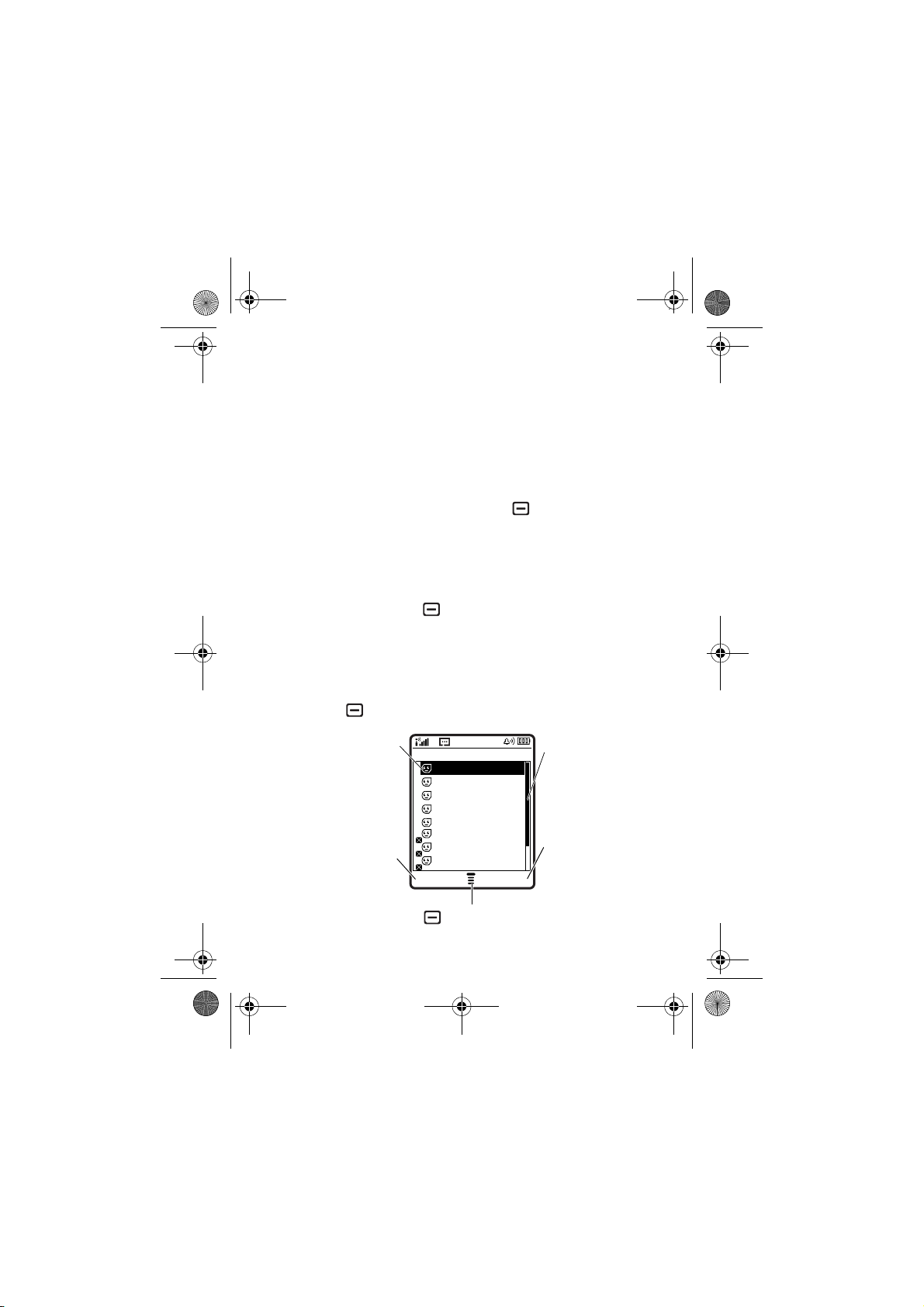
L7.GSM.ASIAEMEA.UG.07272005.fm Page 63 Friday, November 25, 2005 3:27 PM
Your phone shows
not show
you set
Missed Call
My Answer Mode
Missed Call
if you miss a PTT alert. It does
when you miss a standard PTT call unless
to
Manual
(see page 65).
PTT Contacts and Groups
You can store
store
PTT Groups
To store a contact
Enter the contact’s
the
Done
returns to the
To create a group of contacts
time, press PTT Key > >
the group’s
key. Your network stores the group and your phone returns to
the
PTT Groups
To see PTT contacts
and press to
View PTT Menu
PTT Contacts
to make one-to-one calls, or you can
to make group calls.
, press PTT Key > >
Name
and phone number (
Add New Contact
No.
), then press
.
key. Your network stores the contact and your phone
PTT Contacts
list with the new contact shown.
that you can call at the same
Name
and select the
Go To Groups>[Add New Group]
Members
, then press the
. Enter
Done
list with the new group shown.
, press the PTT Key. Scroll to a contact
View, Edit
, or
Delete
it.
Highlighted
Contact
options.
PTT Contacts
John Smith
Lisa Owens
Adda Thomas
Jack Bradshaw
Mary Smith
Carlos Emrys
Dave Thompson
Lisa Owens
PTT Menu Alert
S
Press
to scroll down
to other
options.
Send a PTT
alert to the
highlighted
contact.
Press to open sub-menu
Calls
63
Page 66
L7.GSM.ASIAEMEA.UG.07272005.fm Page 64 Friday, November 25, 2005 3:27 PM
To see PTT groups
Scroll to a group and press to
, press the PTT Key > >
View
or
Delete
it. You cannot
Go To Groups
.
edit a group, but you can delete it and create a new one with
the members you want.
Icons in the PTT contact and group lists indicate if someone
is online (
contact is blocked
To set an
online, highlight the contact and press >
You can turn online alert tones on or off in your
C, D
) or offline (B,A). They also tell you if a
j
(highlight the contact and press
>
Edit
>
Block Mode > On or Off
).
online alerto to tell you when a contact comes
Enable Online Alert
PTT Setup
.
menu
(see page 64).
To refresh the contact or group list from your network, press
>
Refresh List
.
To see only your frequently used contacts or groups, press
>
Frequently Used
.
PTT Settings
To
turn PTT on or off
>
Settings >PTT Settings >PTT Service >On/Off
You can change your PTT menu and call preferences.
Note:
Once PTT service is activated, the right side key will
be changed from Browser Key to Smart Key.
from your home screen, press
.
Find it:
64
Press PTT Key >
Calls
PTT Menu >PTT Setup
>
Personalise
Page 67
L7.GSM.ASIAEMEA.UG.07272005.fm Page 65 Friday, November 25, 2005 3:27 PM
Options
Open to
From the home screen, the PTT Key
can open the PTT menu (
PTT Menu
), or
your contacts list sorted by name
(
Contacts
Sort by
My Answer Mode
), or most recent call (
Called
).
Sort your contacts and groups by
online
Status
, or call
Frequency
Set the mode for incoming PTT calls to
Manual
(press the PTT Key to answer),
Auto-Accept
all calls), or
(standard mode that accepts
Do Not Disturb
Last Contact
.
(accepts no
Name
,
calls).
Tone Volume
Set the volume for the tone you hear
when it is your turn to speak.
PTT Speaker
Turn the speakerphone On or
Off
for PTT
calls.
Set Online Alert Tone
You can set an online alert to tell you
when a contact or group comes online
(highlight the entry in your
PTT Groups
and press
>
Enable Online Alert
).
PTT Contacts
or
This setting tells your phone whether
to play these alert tones (
On
) or not (
Calls
Off
).
65
Page 68
L7.GSM.ASIAEMEA.UG.07272005.fm Page 66 Friday, November 25, 2005 3:27 PM
Other Features
Advanced Calling
Features
Conference
Call
Transfer a Call
Attach a
Phone
Number
Speed Dial
During a call:
Dial next number, press
press the
During a call:
number, press
Dial an area code or prefix for
a phonebook number, then:
Speed dial a phonebook entry:
Enter the speed dial number,
press
To add a phonebook entry, see page 68.
Link
>
Transfer
>
Attach Number
#
, then press N.
key.
, dial transfer
N
N
,
Call Diverting
Other Features
66
Tip:
If you forget Aunt Mildred’s speed
dial number, press >
highlight her entry, and press the
View
key.
Set up or cancel call diverting:
>
Settings >Call Divert
Phonebook
,
Page 69
L7.GSM.ASIAEMEA.UG.07272005.fm Page 67 Friday, November 25, 2005 3:27 PM
Features
Call Barring
Restrict outgoing or incoming
calls:
>
Settings >Security >Call Barring
Change Phone
Line
If you have a dual-line-enabled
SIM card, you can change
your line to make and receive
calls from your other phone
number.
>
Settings >Phone Status >Active Line
The active line indicator shows the active
phone line (see page 40).
Fixed Dial
When you turn on fixed
dialling, you can call only
numbers stored in the fixed
dial list.
Turn fixed dialling on or off:
>
Settings >Security >Fixed Dial
DTMF Tones
Use the fixed dial list:
>
Tools >Dialling services >Fixed Dial
Activate DTMF tones:
>
Settings >Initial Setup >DTMF
To send DTMF tones during a call, just
press number keys or highlight a number
in the phonebook or recent calls lists and
press >
Send Tones
.
Other Features
67
Page 70
L7.GSM.ASIAEMEA.UG.07272005.fm Page 68 Friday, November 25, 2005 3:27 PM
Phonebook
Features
Add New
Entry
Dial Number
>
Phonebook
Email Address
Shortcut:
home screen, then press the
create an entry for that number.
Tip:
One phone isn’t enough for some
people. When creating a phonebook
entry, select
number for the same
Call a number stored in the phonebook:
>
Phonebook
entry, press
>>
Enter a phone number in the
MORE
, highlight the phonebook
N
New>Phone Number
Store
to store another
Name
.
or
key to
Record a
Voic e Nam e
Other Features
68
Shortcut:
keypad keys to enter the first letters of
an entry name, then press the
to jump to the entry.
When creating a phonebook entry,
highlight
Record
name (within 2 seconds). When
prompted, press
name.
Note:
in entries stored on the SIM card.
In the phonebook, press
Voice Name
key. Press
The
and press the
Record
Record
Voice Name
and say the entry’s
and repeat the
option isn’t available
Search
key
Page 71
L7.GSM.ASIAEMEA.UG.07272005.fm Page 69 Friday, November 25, 2005 3:27 PM
Features
Voic e Di a l
Number
Set Ringer ID
for Entry
Voice dial a number stored in the
phonebook:
>
Tools >Dialling services>Voice Dial
Assign a ring alert (ringer ID) to an entry:
>
>
Note:
Phonebook
Edit>Ringer ID
The
> entry >
> ringer name
Ringer ID
option isn’t available in
entries stored on the SIM card.
Activate ringer IDs:
>
Set Picture ID
for Entry
Settings >Ring Styles
>
Ringer IDs
Assign a photo or picture to show when
you receive a call from an entry:
>
Phonebook
Note:
> entry >>
The
Picture
> style
Detail
Edit>Picture
option isn’t available in
entries stored on the SIM card.
Set Picture ID
View
Set Category
for Entry
Show entries as a text list, or with
picture caller ID photos:
>
Phonebook
>
Setup>View by
>
Phonebook
>
> Picture
> entry >>
Edit>Category
> category name
Note:
The
Category
option isn’t available in
entries stored on the SIM card.
Other Features
69
Page 72
L7.GSM.ASIAEMEA.UG.07272005.fm Page 70 Friday, November 25, 2005 3:27 PM
Features
Set Category
View
>
Phonebook
>
Categories
You can show
>
> category view
All
entries, entries in a
predefined category (
General, VIPs
), or entries in a category you
Business, Personal
,
create.
Set Primary
Number or
Address
Set the primary number for an entry with
multiple numbers:
>
>
Note:
Phonebook
Set Primary
, highlight the entry, press
> number or address
The
Set Primary
option isn’t available
in entries stored on the SIM card.
Tip:
In
Primary
number view mode, you
can still peek at other numbers stored for
the same name. Highlight the name and
press
S
left or right to see the other
numbers.
Create Group
Mailing List
You can put several phonebook entries in
a group mailing list, then send a
multimedia message to the list. To
create a list:
70
You can select the list name as an
address for multimedia messages.
Note: A Mailing List
stored on the SIM card.
Other Features
>
Phonebook
>>
New>Mailing List
cannot include entries
Page 73
L7.GSM.ASIAEMEA.UG.07272005.fm Page 71 Friday, November 25, 2005 3:27 PM
Features
Sort
Phonebook
List
Copy
Phonebook
Entry
Send
Phonebook
Entry in a Text
Message
Send
Phonebook
Entry in a
Multimedia
Message
Set the order in which entries are listed:
>
Phonebook
>
Setup>Sort by
You can sort the phonebook list by
Speed No., Voice Name
by name, you can see
the
Primary
>
> sort order
, or
Email
. When sorting
All
numbers or just
number for each name.
Name
,
Copy an entry from the phone to the
SIM card, or from the SIM card to the
phone:
>
Phonebook
>
Copy >Entries >To
, highlight the entry, press
Send a phonebook entry in a text or
email message:
>
Messages >New Message >New Short Msg
> >
Insert
>
Contact Info
>
Phonebook
(highlight phonebook entries), press
>
Done
Add
Send a phonebook entry in a multimedia
message:
>
Phonebook
>
Share Phonebook Entry >Multimedia Msg
, highlight the entry, press
Other Features
71
Page 74
L7.GSM.ASIAEMEA.UG.07272005.fm Page 72 Friday, November 25, 2005 3:27 PM
Features
Send
Phonebook
Entry over
Bluetooth
®
Connection
Send a phonebook entry to another
phone, computer, or device:
>
Phonebook
>
Share Phonebook Entry >Bluetooth
>
[Look for devices]
, highlight the entry, press
Messages
Features
Send Text
Message
Send
Multimedia
Message
>
Messages >New Message
>
New Short Msg
>
Send To
> enter text
> press centre key s
to select recipient(s) >
>
Messages >New Message
>
New Multimedia Msg
Send
Send Email
Other Features
72
>
Messages >New Message
>
New Email
Page 75
L7.GSM.ASIAEMEA.UG.07272005.fm Page 73 Friday, November 25, 2005 3:27 PM
Features
Send Voice
Message
>
Messages >New Message
>
New Voice Msg
To record the voice message,
press the
then press the
Record
key, speak,
Stop
key. Your phone
inserts the voice recording into a
message and lets you enter email
addresses or phone numbers to send
the message.
Use a
Multimedia
Te m p l a t e
Read
Messages
Open a multimedia message
with preloaded animations:
>
Messages >New Message
>
MMS Templates
>
Messages >Message Inbox
Icons next to each message
indicate if it is read
unread
<
. Icons can also
>
or
indicate if the message is urgent
locked
9
or has an attachment=.
To see message options like
Lock
!
or
,
Delete
,
highlight a message and press .
Read Old
Email
>
Messages >Email Msgs
Press to perform various
operations on a message.
Other Features
73
Page 76
L7.GSM.ASIAEMEA.UG.07272005.fm Page 74 Friday, November 25, 2005 3:27 PM
Features
Store Message
Objects
Store Text
Messages on
Your SIM Card
Browser
Messages
Info Services*
Go to a multimedia message
press:
>
Store
To store incoming text
messages on your SIM card,
press:
>
Messages
>
Messages Setup >Text Msg Setup> Store To
>
SIM
>
Read messages received by
your micro-browser:
>
Messages >Browser Msgs
Read subscription-based
information services
messages:
>
Messages >Info Services
* Indicates network or subscription-dependent feature
74
Other Features
Page 77
L7.GSM.ASIAEMEA.UG.07272005.fm Page 75 Friday, November 25, 2005 3:27 PM
Features
Set Up More
Email
Accounts
Change
Message
Service centre
Number
You can set up, edit, and use
more than one email account
on your phone. Each account
stores protocol, host, port,
and other information.
>
Messages >Email Msgs >Setup
>
Account Settings
To create a new account, select
Note:
Your display shows a folder for
each email account under >
>
Email Msgs
You can change the message
service centre number.
>
Messages
>
>
Message Setup >Text Msg Setup
>
Service Centre No.
[New Entry]
Messages
.
Personalising
Features
Language
Scroll
Set menu language:
>
Settings >Initial Setup >Language
Set the highlight bar to stop or wrap
around in menu lists:
>
Settings >Initial Setup >Scroll
Other Features
75
Page 78
L7.GSM.ASIAEMEA.UG.07272005.fm Page 76 Friday, November 25, 2005 3:27 PM
Features
Activate
Ringer IDs
Ring Volume
Keypad
Volu me
Reminders
Activate ringer IDs assigned to
phonebook entries and categories:
>
Settings >Ring Styles
>
Ringer IDs
>
Settings >Ring Styles
>
Ring Volume
>
Settings >Ring Styles
>
Key Volume
> style
> style
> style
Detail
Detail
Detail
Set reminder alerts for messages that
you receive:
>
News View*
Settings >Ring Styles
>
Reminders
If your service provider
> style
Detail
broadcasts news information
that always appears in your
home screen, you can turn the
news view on or off:
>
Menu View
Settings >Personalise >Home screen
>
Headlines >On
or
Off
Show the main menu as graphic icons or
as a text-based list:
>
Settings >Personalise >Main Menu >View
Main Menu
Reorder your phone’s main menu:
>
Settings >Personalise >Main Menu >Reorder
* Indicates network or subscription-dependent feature
76
Other Features
Page 79
L7.GSM.ASIAEMEA.UG.07272005.fm Page 77 Friday, November 25, 2005 3:27 PM
Features
Show/Hide
Menu Icons
Shortcuts
Show or hide menu feature icons in the
home screen:
>
Settings >Personalise >Home screen
>
Home Keys >Icons
Create a shortcut to a menu item:
Highlight the menu item, then press and
hold .
Use a shortcut in the home screen:
Press , then press the shortcut
number.
Master Reset
Reset the phone to the default settings:
>
Settings >Initial Setup >Master Reset
This phone will be reset to default
settings.
Other Features
77
Page 80
L7.GSM.ASIAEMEA.UG.07272005.fm Page 78 Friday, November 25, 2005 3:27 PM
Features
Master Clear
Erase all downloaded files and clear all
settings and entries you made
SIM card information, unlock code,
security code, and lifetime timer:
>
Settings >Initial Setup >Master Clear
Caution:
information you have entered
(including phonebook and datebook
entries)
downloaded
sounds) stored in your phone’s memory.
After you erase the information, you
can’t recover it.
Master clear
and content you have
(including photos and
erases all
except
Call Times & Costs*
Network connection time
moment you connect to your service provider's network to
the moment you end the call by pressing
includes busy signals and ringing.
The amount of network connection time you track on
your resettable timer may not equal the amount of time
for which you are billed by your service provider. For
billing information, contact your service provider.
Other Features
78
is the elapsed time from the
P
. This time
Page 81
L7.GSM.ASIAEMEA.UG.07272005.fm Page 79 Friday, November 25, 2005 3:27 PM
Features
Call Times
Show call timers:
>
Recent Calls >Call Times
In-Call Timer
Call Cost *
* Indicates network or subscription-dependent feature
Show time or cost information
during a call:
>
Settings >In-Call Setup
>
In-Call Timer
Show call cost trackers:
>
Recent Calls >Call Cost
Handsfree
Note:
The use of wireless devices and their accessories may
be prohibited or restricted in certain areas. Always obey the
laws and regulations on the use of these products.
Features
Speakerphone
Activate the speakerphone during a call:
Press the
>
Spkrphone On
Speaker
key (if available, or
).
Other Features
79
Page 82
L7.GSM.ASIAEMEA.UG.07272005.fm Page 80 Friday, November 25, 2005 3:27 PM
Features
Auto Answer
(Car Kit or
Headset)
Voice Dial
(Headset)
Auto
Handsfree
(Car Kit)
Power-off
Delay
(Car Kit)
Automatically answer calls
when connected to a car kit or
headset:
>
Settings >Car Settings
>
Auto Answer
Enable voice dial with headset
or
Headset
send/end key:
>
Settings >Headset >Voice Dial
Automatically route calls to a
car kit when connected:
>
Settings >Car Settings
>
Auto Handsfree
Set the phone to stay on for a
specified time after the
ignition is switched off:
>
Settings >Car Settings >Power-off Delay
Charger Time
(Car Kit)
Charge the phone for a
specified time after the
ignition is switched off:
>
Settings >Car Settings >Charger Time
80
Other Features
Page 83
L7.GSM.ASIAEMEA.UG.07272005.fm Page 81 Friday, November 25, 2005 3:27 PM
Data & Fax Calls*
To connect your phone with a USB cable, see page 30.
Features
Send Data or
Fax
Receive Data
or Fax
Using Sync
Connect your phone to the
device, then place the call
through the device
application.
Connect your phone to the
device, then answer the call
through the device
application.
You can call an Internet server
and synchronize your
phonebook and datebook
entries with the server.*
To
set up
an Internet sync partner, press
>
Settings >Connectivity >Sync >[New Entry]
Enter the server details, including
(you can omit
folder below the URL where your data is
stored).
To
synchronize files
set up, select the partner from the list in
>
Settings >Connectivity >Sync
http://
) and
Data paths
with a partner you
URL
(the
.
* Indicates network or subscription-dependent feature
Other Features
81
Page 84
L7.GSM.ASIAEMEA.UG.07272005.fm Page 82 Friday, November 25, 2005 3:27 PM
Network
Features
Network
Settings
See network information and
adjust network settings:
>
Settings >Network
Personal Organizer
Features
Set Alarm
Tu rn o f f A l a r m
Add New
Datebook
Event
See Datebook
Event
Event
Reminder
>
Tools >Alarm Clock
When an alarm happens:
To turn off the alarm, press the
To set an 8 minute delay, press the
Snooze
key.
>
Tools >Datebook
press
s
, press >
See or edit event details:
>
Tools >Datebook
press
s
, press the
When an event reminder happens:
To see reminder details, press the
View
key. To close the reminder, press the
Exit
key.
, highlight the day,
New
, highlight the day,
View
Disable
key
key.
82
Other Features
Page 85
L7.GSM.ASIAEMEA.UG.07272005.fm Page 83 Friday, November 25, 2005 3:27 PM
Features
Send
Datebook
Event to
Another
Device
Calculator
Currency
Converter
Send a datebook event to another
phone, computer, or device:
>
Tools >Datebook
press
s
, highlight the event, press
>
Send
>
Tools >Calculator
>
Tools >Calculator
Enter exchange rate, press the Okkey,
enter amount, and press
>
Convert Currency
, highlight the day,
>>
.
Exchange Rate
Security
Features
SIM PIN
Lock Feature
Lock or unlock the SIM card:
>
Settings >Security >SIM PIN
Caution:
code 3 times in a row, your SIM card is
disabled and your display shows
SIM Blocked
If you enter an incorrect PIN
.
>
Settings >Security >Lock Application
Other Features
83
Page 86
L7.GSM.ASIAEMEA.UG.07272005.fm Page 84 Friday, November 25, 2005 3:27 PM
Features
Manage
Certificates*
* Indicates network and subscription-dependent feature
Enable or disable Internet
access certificates stored on
your phone:
>
Settings >Security
>
Certificate Mgmt
Certificates are used to verify the
identity and security of Web sites when
you download files or share information.
Fun & Games
For basic information on the camera, see page 23.
Features
Manage
Pictures
Manage Video
Clips
Manage
Sounds
Manage photos, pictures, and
animations:
>
Multimedia >Pictures
>
Multimedia >Videos
Manage ring tones and music that you
have downloaded or composed:
>
Multimedia >Sounds
84
Other Features
Page 87
L7.GSM.ASIAEMEA.UG.07272005.fm Page 85 Friday, November 25, 2005 3:27 PM
Features
Create Ring
To n e s
Start
Create ring tones that you can use with
your phone:
>
Multimedia >Sounds >[New iMelody]
Note:
If a memory card is installed in the
phone, change to
create ring tones with
Press >
>
Phone Memory >[New iMelody]
>
WebAccess >Browser
Phone Memory
New iMelody
Multimedia >Sounds
to
.
>
.
Micro-browser
Download
Objects from
Web Page
Web Sessions
Download a picture, sound, or
other object from a Web page:
>
WebAccess >Browser
, go to
the page that links to the file,
highlight the link, and select it.
Note:
Normal airtime and/or carrier
usage charges apply.
Select or create a Web
session:
>
WebAccess >Web Sessions
Other Features
85
Page 88
L7.GSM.ASIAEMEA.UG.07272005.fm Page 86 Friday, November 25, 2005 3:27 PM
Features
Download
Game or
Application
You can download a Java™
game or application the same
way you download pictures or
other objects:
>
WebAccess >Browser
, go to the page
that links to the file, highlight the link,
and select it.
Note:
Normal airtime and/or carrier
usage charges apply.
Start Game or
Application
Start a Java™ game or
application:
>
Games & Apps
, highlight the
game or application, press the
Select
key
Note:
To install and run games stored on
your memory card, press
>
Games & Apps >[Install New]
.
86
Other Features
Page 89
L7.GSM.ASIAEMEA.UG.07272005.fm Page 87 Friday, November 25, 2005 3:27 PM
MyMobileSoft.com
Introduction
MyMobileSoft.com1 provides download of both free and paid
software for your Motorola handset. Depends on each
model, you may download games, ring tones, screen savers,
wall papers, e-books, financial and others software from
MyMobileSoft.com.
1. All software and applications contained on
MyMobileSoft.com are third party products and provided as
is. Motorola or its subsidiaries make no representations or
warranties, expressly or impliedly. By way of example but not
of limitation, Motorola or its subsidiaries make no
representations or warranties of merchantability or fitness for
a particular purpose, or that the use of the software and
applications will not infringe any intellectual property rights.
Motorola or its subsidiaries shall not be liable for any
damages of any kind arising out of or relating to the use or
inability to use the software and applications and services
thereof. Amendment and availability of these software and
applications are subject to change without any prior notice.
For more information, please visit the internet website:
www.mymobilesoft.com
Other Features
87
Page 90
L7.GSM.ASIAEMEA.UG.07272005.fm Page 88 Friday, November 25, 2005 3:27 PM
Access to MyMobileSoft.com2
Find the Feature
> Tools
> Shortcuts > 9
> Go To
OR
> 9
This link guides you to the service of MyMobileSoft.com,
which provides software and applications for your newly
bought Motorola Mobile Phone.
2. You need to subscribe WAP service from your local
operators, please make sure that you set up your handset
correctly with appropriate parameters provided by your local
operators.
www.mymobilesoft.com
Unlimited suprises waiting for
you to download
88
Other Features
Page 91
L7.GSM.ASIAEMEA.UG.07272005.fm Page 89 Friday, November 25, 2005 3:27 PM
Specific Absorption Rate Data
SAR Data
This model meets international guidelines for exposure to
radio waves.
Your mobile device is a radio transmitter and receiver. It is designed not to
exceed the limits for exposure to radio waves recommended by
international guidelines. These guidelines were developed by the
independent scientific organization ICNIRP and include safety margins
designed to assure the protection of all persons, regardless of age and
health.
The guidelines use a unit of measurement known as the Specific
Absorption Rate, or SAR. The ICNIRP SAR limit for mobiles devices used by
the general public is 2 W/kg and the highest SAR value for this device
when tested at the ear was 0.95 W/kg.
functions, they can be used in other positions, such as on the body as
described in this user guide.
0.49 W/kg.
1
2
In this case, the highest tested SAR value is
As SAR is measured utilizing the device’s highest transmitting power, the
actual SAR of this device while operating is typically below that indicated
above. This is due to automatic changes to the power level of the device to
ensure it only uses the minimum level required to reach the network.While
there may be differences between the SAR levels of various phones and at
various positions, they all meet the governmental requirements for safe
exposure. Please note that improvements to this product model could
cause differences in the SAR value for later products; in all cases, products
are designed to be within the guidelines.
The World Health Organization has stated that present scientific
information does not indicate the need for any special precautions for the
use of mobile devices. They note that if you want to reduce your exposure
1
As mobile devices offer a range of
SAR Data
89
Page 92
L7.GSM.ASIAEMEA.UG.07272005.fm Page 90 Friday, November 25, 2005 3:27 PM
then you can do so by limiting the length of calls or using a “hands-free”
device to keep the mobile phone away from the head and body.
Additional Information can be found on the websites of the World Health
Organization ( http://www.who.int/emf) or Motorola, Inc.
(http://www.motorola.com/rfhealth).
1 The tests are carried out in accordance with international guidelines for
testing. The limit incorporates a substantial margin for safety to give additional
protection for the public and to account for any variations in measurements.
Additional related information includes the Motorola testing protocol,
assessment procedure, and measurement uncertainty range for this product.
2 Please see the Safety and General Information section about body worn
operation.
90
SAR Data
Page 93
L7.GSM.ASIAEMEA.UG.07272005.fm Page 91 Friday, November 25, 2005 3:27 PM
Index
A
accessories 17, 78
accessory connector port 1
active line indicator 40
active line, changing 67
alarm clock 81
alert
set 49, 51
turn off 48, 49, 55
animation 83
answer a call 22, 54
attach a number 56, 66
audio player 27, 29
auto repeat 28
B
backlight 53
battery 19
battery indicator 41
battery life, extending 20,
33, 53, 54
Bluetooth
indicator 40
Bluetooth connection 33,
35, 71, 82
brightness 53
browser messages 73
browser. See micro-browser
C
cables 30
calculator 82
call
answer 22, 54
end 21, 22
make 21, 68
call barring 67
call divert indicator 40
call diverting 66
call timers 78
call waiting 58
caller ID 56, 58, 69
camera 23
car kit 78
centre key 1, 49
certificate management 83
clock 52
codes 49, 50
conference call 66
copy files 34
costs, tracking 78
D
data call 80
Index
91
Page 94
L7.GSM.ASIAEMEA.UG.07272005.fm Page 92 Friday, November 25, 2005 3:27 PM
data indicator 40
date, setting 52
datebook 81
dial a phone number 21, 67,
68
dialled calls 55
digital audio 27, 29
display 38, 53, 75
divert calls 66
download media objects
73, 84
DTMF tones 67
E
earpiece volume 48
email 72, 73, 74
email address 68
emergency number 58
end a call 21, 22
end key 1, 21, 22
Enter Unlock Code
message 50
F
fax call 80
fixed dial 67
G
games 85
GPRS indicator 39
group mailing list 70
H
handsfree speaker 49
headset 78
headset jack 1
hold a call 57
home screen 38, 75, 76
I
in-call indicator 40
Incoming Call message 58
information services 74
international access code
59
iTAP text entry mode 45
J
Java applications 85
K
keypad 50, 75
L
language 75
linking. See Bluetooth
connection
lock
application 82
keypad 50
phone 50
SIM card 82
92
Index
Page 95
L7.GSM.ASIAEMEA.UG.07272005.fm Page 93 Friday, November 25, 2005 3:27 PM
Low Battery message 41
M
make a call 21, 68
master clear 77
master reset 76
memory card 31
menu 42, 75, 76
menu icons 42, 76
menu indicator 39
menu key 1, 17
message 72, 73
message indicator 41
message reminders 75
micro-browser 73, 84, 85
Missed Calls message 57
MP3 sound files 27, 28, 29,
30
multimedia message 72, 73
music 83
mute a call 57
N
navigation key 1, 17, 49
network settings 81
news 39, 75
notepad 57
number. See phone number
numeric entry mode 48
O
object exchange 34
1-touch dial 59
optional accessory 17
optional feature 17
P
pairing. See Bluetooth
connection
passwords. See codes
personalise 75
phone number 22, 67, 68
phonebook 56, 59, 66, 68
photo 23, 83
picture 83
picture ID 58, 69
PIN code 21, 82
power key 1, 21
PTT 61
calls, answering 62
calls, making 61
contacts and groups 63
icons 64
indicator 40
Quick Groups 61
settings 64
turning on or off 64
Push-to-Talk. See PTT
Index
93
Page 96
L7.GSM.ASIAEMEA.UG.07272005.fm Page 94 Friday, November 25, 2005 3:27 PM
R
received calls 55
recent calls 55
redial 56
reminders 75
return a call 57
ring style indicator 41
ring style, setting 49, 51
ring tone 83, 84
ringer ID 58, 69, 75
ringer volume 48, 75
roam indicator 40
S
screen saver 53
security code 49
send key 1, 21, 22
shortcuts 76
signal strength indicator 39
SIM 73
SIM Blocked message 21,
82
SIM card 17, 21, 82
skin 53
soft keys 1, 39
song
auto repeat 28
sound
auto repeat 28
speakerphone 78
speed dial 66
store your number 22
symbol entry mode 48
synchronizing 80
T
tap text entry mode 46
telephone number. See
phone number
text entry 44
text message 72, 73
time, setting 52
timers 78
transfer a call 66
turn on/off 21
U
unlock
application 82
keypad 50
phone 21, 50
SIM card 82
unlock code 49, 50
USB cables 30
V
video clip 83
videos 25
voice dial 69, 79
voice message 72
voice name, recording 68
voicemail 60
94
Index
Page 97
L7.GSM.ASIAEMEA.UG.07272005.fm Page 95 Friday, November 25, 2005 3:27 PM
volume 48, 75
W
wallpaper 52
Web pages 84
Web sessions 84
wireless connection. See
Bluetooth connection
Y
your phone number 22
Index
95
Page 98
L7.GSM.ASIAEMEA.UG.07272005.fm Page 96 Friday, November 25, 2005 3:27 PM
 Loading...