

Page 1

90-day Limited Warranty
Sima Products Corporation warrants this product against
defects in materials and workmanship for a period of 90 days
from the date of purchase. During the warranty period, the
product will be repaired or replaced at Sima’s option. Mail the
enclosed product registration card within ten days of the
original purchase.
TV Anywhere ATSC Tuner
Model DTU-100 Quickstart Guide
Conditions
Ship your unit, freight pre-paid, including a copy of your sales
receipt and a description of problem to:
Sima Products Corporation
Attn: Customer Service
140 Pennsylvania Ave.
Bldg. #5
Oakmont, PA 15139
This warranty is void if any defects are caused by abuse, misuse, negligence or
unauthorized repairs. All liability for incidental or consequential damages is specifically
excluded. Some states do not allow for the exclusion or limitation of incidental or
consequential damages, so the above limitation or exclusion may not apply to you. This
warranty gives you specific legal rights and you may have other rights, which vary from
state to state.
Sima Products Corporation
Please register online at
140 Pennsylvania Ave Bldg #5 Oakmont, PA 15139
www.simaproducts.com
www.simacorp.com
PN 21754
© 2007 Sima Products Corporation
Page 24
Page 2

Page 2 Page 23
Notes
Page 3

Page 22
Page 3
16. Can TotalMedia create 16:9 DVD-video discs from
captured 16:9 TV shows or video files?
Yes.
TROUBLE SHOOTING
1. Cannot watch TV
Make sure if you have installed your TV tuner driver properly.
You can check if your TV tuner driver is available within
Windows from "Control Panel -> Sounds and Audio Device." If
not, verify that your hardware is installed properly with the
hardware vendor documentation.
2. TV is not smooth
Verify that your system meets the minimum requirements and
is configured properly-see question 1 in the FAQ section for
configuration assistance. Also, make sure there are no other
applications running in the background.
3. No Audio
Some TV tuners have audio output, but you usually need to
plug the audio output into your PC audio line-in to enable your
audio. If this is not the case, when you select the audio device
from TV Settings, you can try selecting different audio inputs.
Package Contents...........................................................................................4
Introduction .....................................................................................................6
Features..........................................................................................................7
System Requirements.....................................................................................8
Connecting the Hardware ...............................................................................9
Software Installation......................................................................................11
ArcSoft TotalMedia........................................................................................12
Video Playback Module.................................................................................15
Video Capture Module ..................................................................................17
FCC Information:
This equipment generates and uses radio frequency energy and if not installed and used
properly, that is, in strict acceptance with the manufacturer’s instructions, may cause
interference to radio and television reception. It has been type tested and found to comply with
the limits for a Class B computing device in accordance with the specifications in Subpart J of
Part 15 of FCC Rules, which are designed to provide reasonable protection against such
interference in a residential installation. However, there is no guarantee that interference will
not occur in a particular installation. If this equipment does cause interference to radio and
television reception, which can be determined by turning the equipment off and on, the user is
encouraged to try to correct the interference by one or more of the following measures:
* Re-orient the receiving antenna
* Relocate this equipment with respect to the receiver
* Move this equipment away from the receiver.
* Plug this equipment into a different outlet so that this equipment and receiver are on
different branch circuits.
If necessary, the user should consult the dealer or an experienced radio/television
technician for additional suggestions. The user may find “How to Identify and resolve
Radio/Television Interference Problems” prepared by the FCC helpful. The booklet is available
from the U.S. Government Printing Office, Washington, DC 20402, Stock No. 004-000-00345-4
Page 4

Page 21
Yes. You can create DVD movies from your recorded TV
shows and videos. You can even select custom menu
backgrounds for your DVD movie discs.
Package Contents
TV Anywhere ATSC Tuner
Video / Audio Input Adaptor
ArcSoft
TotalMedia /
Converter
Amplified
Antenna
11. Can I transfer my DV tape video to my computer and
burn to DVD disc with TotalMedia?
Yes.
12. Can I record my TV shows to an external hard disk?
Yes, you may set up a different drive for recording storage
from Setup -> General -> Video Recording Storage.
13. How can I view TV in a small window? And mute audio
quickly?
If TotalMedia is in a normal window, i.e, not in maximized
window, you can click the "Full Screen" button to fill the
window with the TV screen. At that point the window may be
resized to a smaller size by dragging the right-bottom corner of
the window. To mute audio, press F8.
14. Can I watch one channel TV and record another
channel?
Yes, if you have two TV tuners installed or one tuner that
supports analog + digital signals simultaneously.
15. Does TotalMedia support HDTV Tuner cards?
Yes.
Page 4
Page 5

Page 20
Page 5
Yes, Apple iPod and Sony PSP are supported in TotalMedia
To Go. TotalMedia To Go is optional. If you do not have it,
please visit the ArcSoft website.
6. Can I play back a video recorded by my mobile phone
on my computer?
Yes, TotalMedia typically includes the required codecs for
playing videos created on mobile phones. (Some bundled
versions may not include this feature. If your version doesn't
have it, you can purchase it directly from ArcSoft.)
7. Can I playback Microsoft MCE recorded video file in
TotalMedia?
Yes.
8. Can I record digital audio from a radio (audio only)
channel of a DTV signal?
Yes.
9. What is the Share module used for?
Share is an optional module in TotalMedia that enables you to
share the multimedia files on your computer with your
streaming devices, such as mobile phones, networked DVD
players or digital media adapters.
10. Can I burn my recorded TV show to a DVD-video disc?
DTU-100 at a Glance
• USB 2.0 connection
• Amplified antenna (20dB)
• Composite and S-video input cable
• Software included
• Record Direct to HDD & DVD
• Recording compression Mpeg 2 & AVI
• Time Slip Capability
• Built-in Analog (NTSC) tuner supporting
480I
• Built- in Digital (ATSC) tuner supporting
• 480P, 720P, 1080I
Page 6

Page 6
Page 19
Introduction
TV Anywhere ATSC Tuner is a hardware compression,
plug-n-play real-time Audio / Video capture device with
USB 2.0 interface to your laptop or PC. You can
preview, record, or playback audio/video from a VCR,
camcorder, or DVD on your PC. The A/V input can be
captured in MPEG 2 or MPEG 4 format, which
subsequently can be edited, added titles and burned
onto a disc to create your own VCD, SVCD or DVD
titles. Video can be directly sent to iPod, PSP, or other
portable media players. You can also snapshot a video
to create a still image in BMP/JPG format.
USB2.0 interface provides a high-speed transmission
rate so you can watch video programs at high resolution
up to DVD quality. It offers a simple and easy way to get
all of your old VHS tapes or movies on to VCD or DVD
so you can preserve your family treasures for a lifetime.
2). If your CPU speed is below a Pentium 4, 2.4GHz and less
than 512Mbyte RAM, we recommend disabling the timeshifting feature by from Setup -> TV -> TV Settings -> Time
Shifting.
3). Hard Disk DMA should be enabled from the device
properties for your hard drive. (The method for setting this
varies in different operating systems.)
2. How do I enable/disable time shifting PVR functionality?
You can enable/disable time shifting feature by turn off Setup > TV -> TV Settings -> Time Shifting.
3. What kind of video file formats can TotalMedia play?
MPEG1/2, MPEG4, ASF, WMV, MP4, 3GPP, 3G 2, MOV,
DVR-MS, DV-AVI, AVI
4. How can I schedule recording a TV show and then
automatically transfer it to my mobile phone?
First, you need to go to TV -> Schedule Recording to select the
time and channel of the desired show. Then click on the To Go
module and use Schedule Sync to set up synchronization on
the folder the file will be saved in at a time after the show is
recorded. The end result will have your TV show available on
your mobile device without further action by you.
5. Can I transfer my recorded TV show to my Apple iPod
and Sony PSP?
Page 7
Page 18
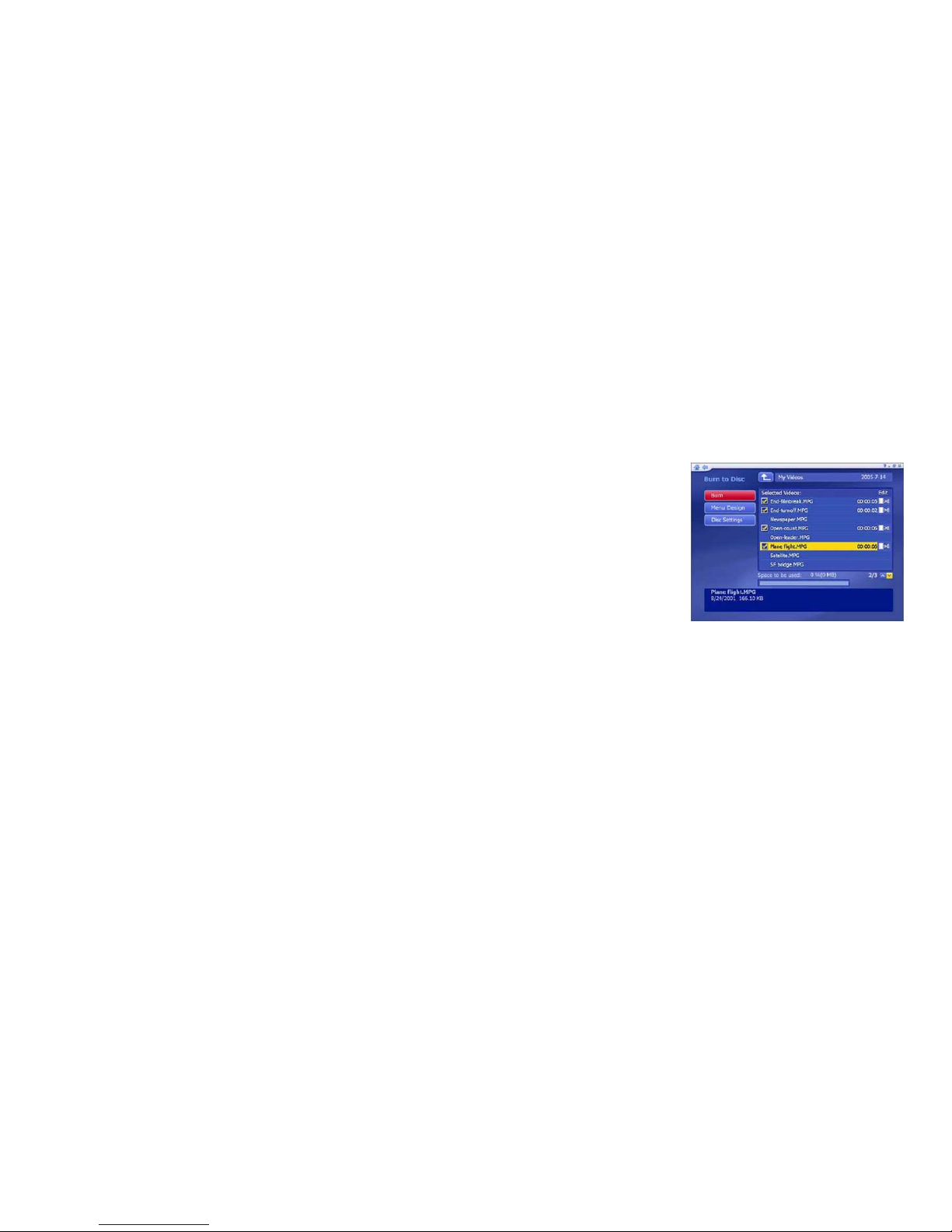
Note: If you’re capturing video from a DV camcorder,
you will be prompted to choose a recording format (DVAVI or MPEG-2). Depending on your choice, various
options will be available. You can also capture a single
frame as a still image by clicking "Capture Frame."
TOTALMEDIA FAQ
1. What are the best settings to watch TV on my system?
1). If your graphics display adapter meets the following
requirements:
• ATI Radeon 7200 or above
• nVidia Geforce MX 440 or above
• Intel 82865 or above
Then you can turn on DX-VA under Setup -> General ->
Display Settings ->
Hardware Acceleration.
If your graphics display
adapter does not meet
the above requirements,
disable DX-VA and 3D
transitions. To watch
HDTV on your computer
requires a high
performance CPU
(Pentium 4, 2.4GHz with
512Mbyte RAM).
Page 7
Features
• Hardware compression ensures best picture and sound
quality during recording and playback.
• Hardware compression ensures perfect synchronization
between video and audio during playback of an hour-long
prerecorded program.
• Since all compression work is done by the ATSC Tuner, it
relieves your PC from hefty mathematic operations that
afflicts most other software compression boxes, and
therefore ensures a glitch-free recording/playback even if
your PC does not have a latest-generation CPU inside.
• External USB 2.0 plug-n-play video/audio capture box, no
power adapter needed.
• Composite Video or S-Video input; supports NTSC, PAL
• and SECAM input system. Stereo audio input.
• Bundled with capture and playback software ArcSoft
TotalMedia™
• High video resolution up to DVD quality.
• Support resolution up to 720x480(NTSC)/720x576(PAL) at
30 and 25 frame/sec. respectively.
• Full screen Preview and adjustable window size
Page 8
Page 8
Page 17
System Requirements
• Windows 2000/XP
• Pentium 4, 1.2 GHz or equivalent
• 150 MB free hard drive space for program
installation
• 256 MB RAM (512 MB DDR RAM recommended)
• 16-bit color display at 800x600 (32 MB video
memory with DirectX 3D support recommended)
• DirectX 9 or above
Note:
1. For time-shifting and MPEG-2 capturing, a
Pentium IV 2.0 GHz processor (or higher) or
equivalent is required.
2. To support High definition TV, the minimum
requirement is one of the following video cards
with DX-VA (video card hardware acceleration)
enabled:
• ATI Radeon 7200 or above
• nVidia Geforce MX 440 or above
• Intel 82865 or above
Video Capture Module
Capture video from
your camcorder,
VCR, or other
supported device.
Follow the onscreen
prompts to get your
video ready for
recording. When
you're ready, click
"Next."
Before you begin to capture video, you may wish to
verify your capture settings. Click the Settings. Enter a
file name for the video you are about to capture (click the
“A_” button to access a virtual keyboard).
• Set the capture duration.
• To automatically burn your video to disc after it
has been captured, check the "Automatically
create a disc..." box.
• When you're ready to begin capturing video,
click "Capture."
Page 9
Page 16
Page 9
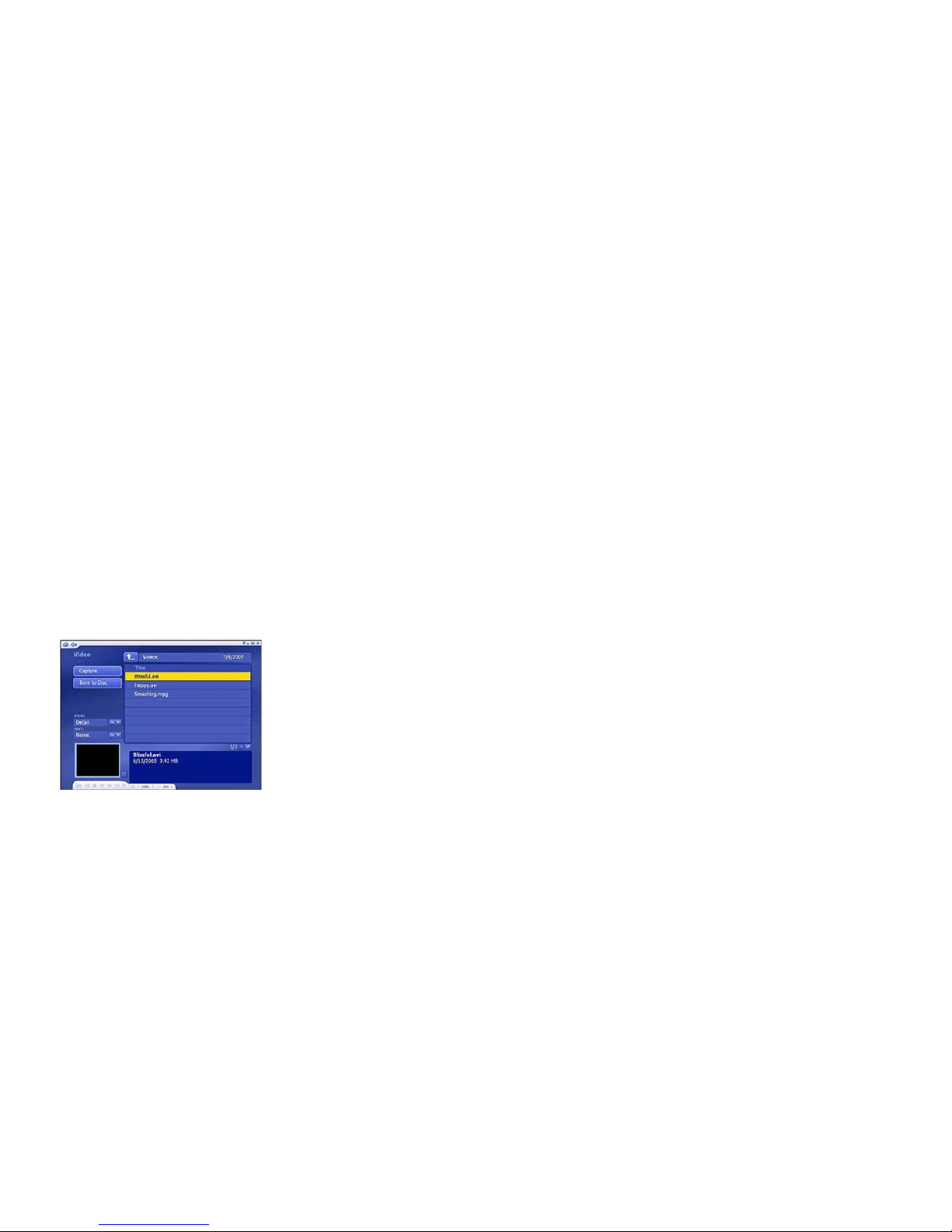
• From "View" you can choose either "Detail" or
"Thumbnail". "Detail" view includes file names,
dates and other information. "Thumbnail" view
shows the file thumbnail. You can set a different
frame in the video as the thumbnail in the Edit
Video section.
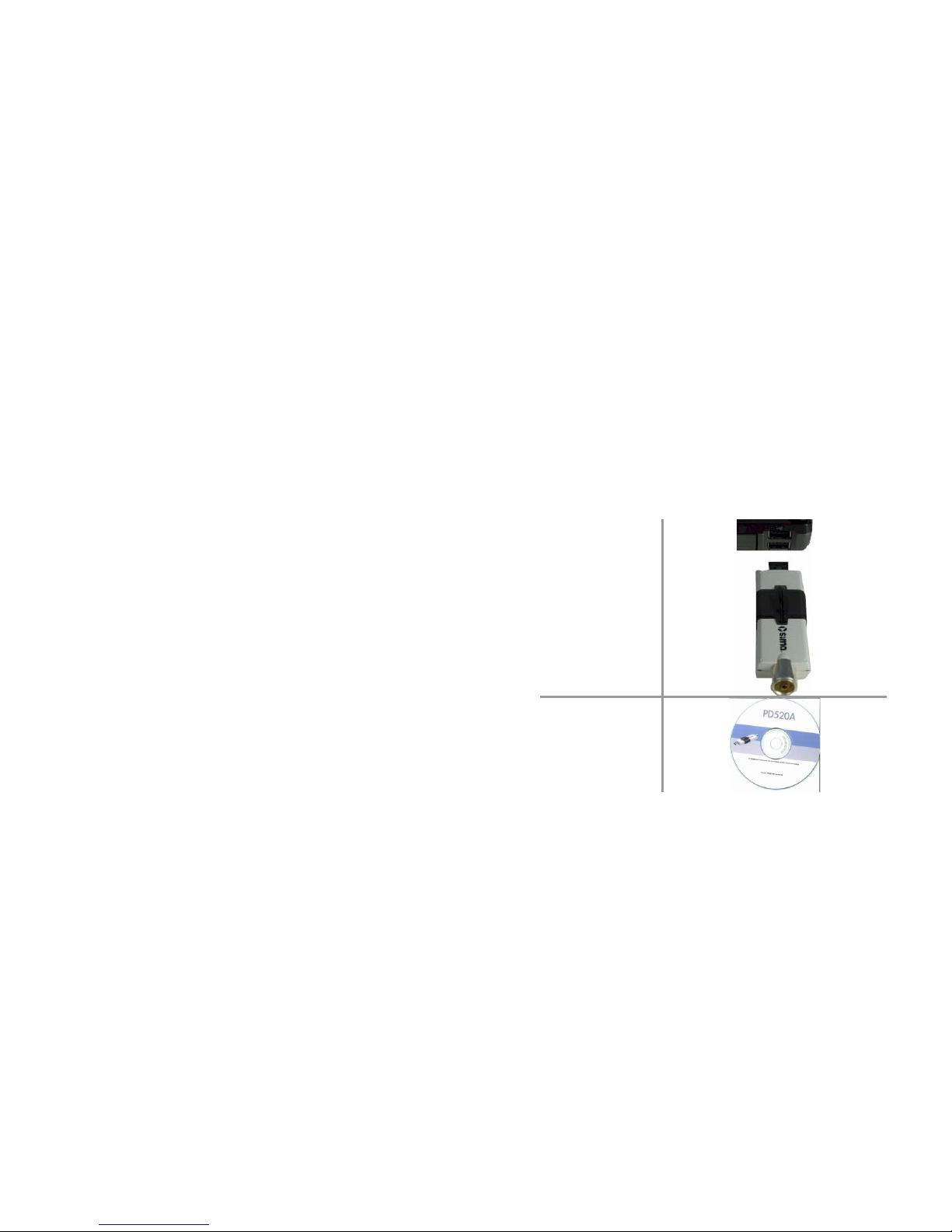
Connecting the Hardware
This guide is meant to get you set up and watching your
video and audio content in minutes.
• Use the "Sort" feature to present your video files
in order by file name, file size or date.
1. Connect the
ATSC Tuner
to your
computer.
2. Insert the CD
in your CD-ROM
drive, and install
the TV Tuner
Driver.
Additional options include:
Capture - Allows you to capture video from supported
capture devices.
Burn To Disc - Allows you to create a VCD or DVD from
your video files.
Page 10
Page 15
Video Playback Module
3. Select "Install from a list or specific location
[Advanced ] then Click [Next].
4. Select CD-ROM Drive, and Click [Next]. Finish the
installation.
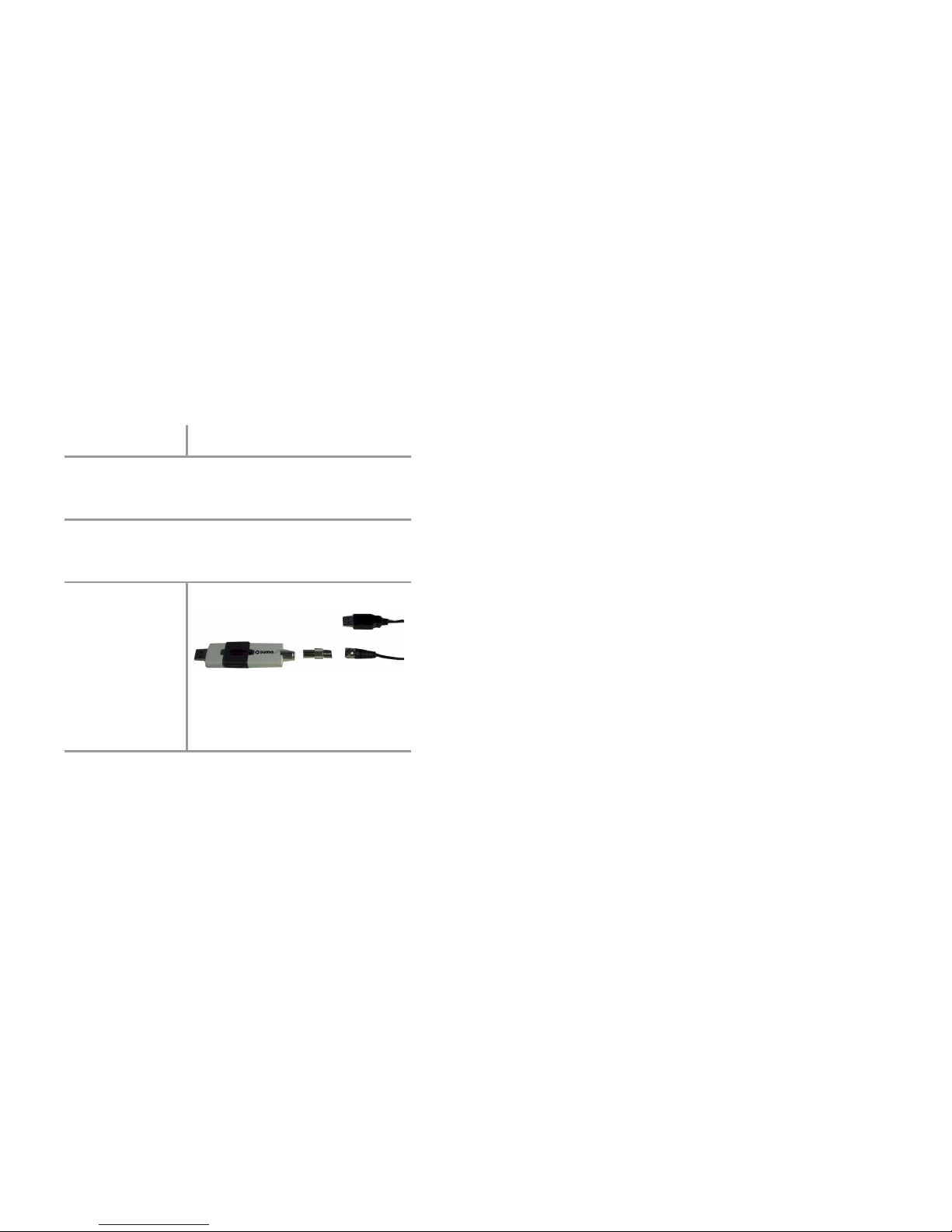
5. To watch
ATSC or Analog
TV stations,
connect the
antenna to the
ATSC Tuner
using the adaptor.
An additional USB
port is required for
the amplified
antenna.
6. To record video and audio directly into your
computer, connect the A/V cable to the ATSC Tuner.
This area enables you to play video files stored on your
computer, capture video and burn your video files to
disc.
• The video files shown here belong to the folder
listed at the top of the page. Click the "Up One
Level" button to go up one folder level in the
directory.
• Click to check the video file you want.
• Select any video file to play it and use the
buttons on floating toolbar to control playback.
There is a preview window at the bottom left
corner of the screen. You can click the button
next to it to switch to full screen mode. Press
"Esc" to exit full screen.
• To trim the video, click the scissors icon to the
right of your selection.
• To rename the video file, click the "A_" icon to
access a virtual keyboard.
• Click the Delete (trash can) icon to delete the
file.
Page 10
Page 11

Page 14
After configuration is complete, you can use your remote
control to change channels, or use the channel controls
(+/- button) in the floating toolbar at the bottom of the
screen.
You may pause and rewind TV (while you’re watching)
using both the remote control and the toolbar.
Full Screen -
Displays the
video over the
entire program
display areatypically the entire
screen. You can
click the
Full Screen
button to switch
into full screen
mode. Press
"Esc" or double-click the mouse to go back to a normal
window.
Page 11
Software Installation
1. Insert the ATSC CD into the computer if it is not
already, and navigate to your CD-ROM Drive.
Double Click on the Setup.exe file
2. Follow the Instructions for choosing a language.
3. Choose Complete Installation, and continue
through the installation process.
4. You may need to install DirectX on your
computer if it is not installed already.
5. Continue to click Yes or Next to complete the
remaining steps for ArcSoft TotalMedia
Installation.
Page 12

Page 12
Page 13
ArcSoft TotalMedia
ArcSoft TotalMedia is an all-in-one multimedia
application that allows you to access and work with
digital photos, home videos, recorded TV programs,
home movies, radio and your digital music library right
from your TV or home computer.
TotalMedia is divided into several sections or modules.
In this Quickstart Guide we will cover the most relevant
sections which pertain to the Sima ATSC Tuner.
The Complete TotalMedia Manual is included in PDF
Format on the Installation CDROM.
TV Module
This section lets you view and edit the settings for TV
recording. When you watch TV for the first time, the
application will prompt you to configure the TV signal.
The settings is divided into four steps:
1. Select your region.
2. Select video device.
3. Click "Start" to scan for
available channels.
4. Set up two tuners. After
setting up one tuner, if
there is another tuner in
your PC, you can repeat
the steps for the second
tuner.
Choose the options you want from the various pull-down
lists. The program also provides "Previous" and "Next"
buttons to switch between setup pages.
When you're ready, click "Finish".
 Loading...