

Page 1
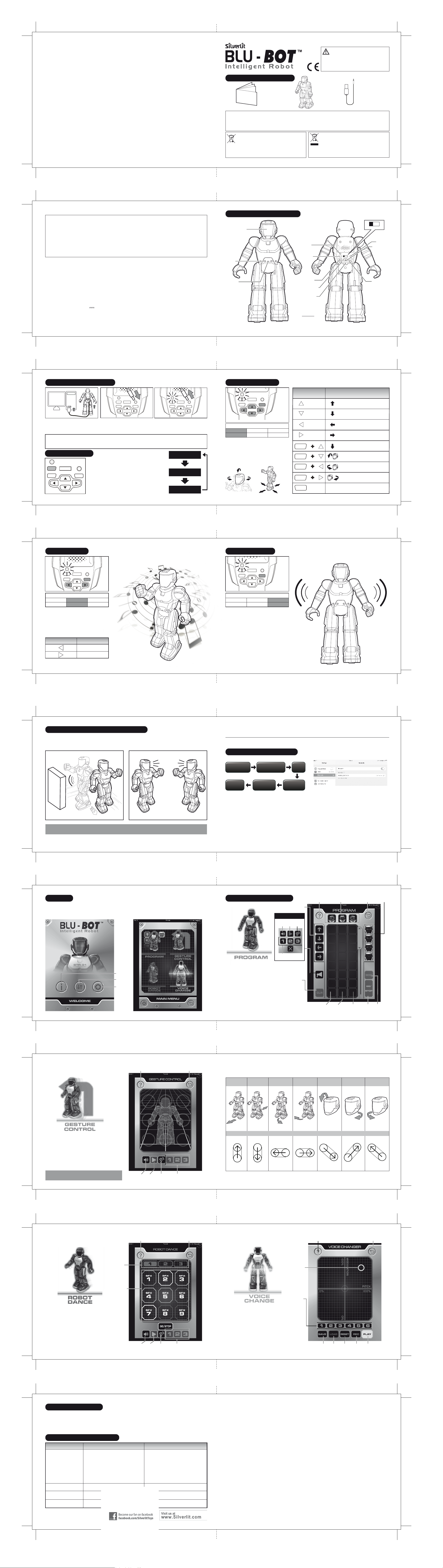
1. Lista de componentes
Para 5+ años
ESPAÑOL
EI-5336
¡Advertencia!
Peligro de asfixia: No recomendado para
niños menores de 3 años por contener
piezas pequeñas que pueden ser ingeridas
por el niño y produPara 3+ añoscir asfixia.
Este producto cumple los requisitos esenciales y otras provisiones
pertinentes de la Directiva 1999/5/CE .
Manual de instrucciones
Precauciones de Seguridad
- Advertencia para los adultos: Le rogamos que lea detenidamente las instrucciones de funcionamiento junto con el niño antes de utilizar por primera vez el aparato.
- Para el Blu-Bot usando el transmisor antes de cogerlo
- Mantenga las manos, las prendas holgadas y el pelo alejados de las piezas móviles (p.ej. manos y pies) cuando el juguete está e ncendido.
- No use el robot controlado por radiocontrol en la calle. Evite golpear personas, animales o muebles.
Advertencia: Los cambios o modificaciones que se realicen a esta unidad que no estén expresamente aprobados por la parte responsable de su cumplimiento,
Reglas FCC
Esta máquina cumple la parte 15 de las normas FCC. El funcionamiento está sujeto a las dos condiciones siguientes:
1) Esta máquina no puede causar interferencias dañinas, y
2) Esta máquina debe aceptar las interferencias recibidas, incluyendo las interferencias que pueda causar un funcionamiento indeseado.
NOTA: Este equipo ha sido testado y se ha encontrado que cumple con los límites para la clase B de máquinas digitales,
consiguientes a la parte 15 de las reglas FCC. Estos límites están diseñados para proveer una protección razonable contra las
interferencias dañinas en una instalación residencial. Este equipo genera,usa y puede radiar energía de radio frecuencia y si no está
instalado y es usado de acuerdo con las instrucciones, puede causar interferencias dañinas a las comunicaciones de radio.
Sin embargo, no hay garantía de que la interferencia no ocurra en una instalación particular. Si este equipo causa interferencias
dañinas al receptor de radio o televisión, que pueden ser determinadas desconectando y conectando el equipo, el usuario puede
intentar corregir las interferencias con las siguiente medidas:
- Reoriente o recoloque la antena receptora.
- Aumente la separación entre el equipo y el receptor.
- Conecte el equipo a un enchufe de pared en un circuito diferente del que necesita el receptor.
- Consulte a un técnico experto en radio/TV para que le ayude.
Cuidado y mantenimiento:
- Envuelva con cuidado el juguete con un paño limpio.
- Mantenga el juguete alejado del calor directo.
- No sumerja el juguete en agua, ya que puede dañar los componentes
electrónicos.
Avisos:
- Conserve las instrucciones para poder consultarlas en otra ocasión.
- Los usuarios deberán actuar de acuerdo con el estricto cumplimiento del
manual de instrucciones.
- En un entorno con descarga electrostática, la muestra puede funcionar mal y
requerir que se vuelva a configurar.
Requisitos de pilas (Blu-Bot):
Fuente de alimentación :
Características : 3,7 V CC , 3,5 W
Cantidad y tipo :
Capacidad : 500 mAh
66 67
1 pack de baterías recargables
Li-Po de 3,7 V (incluido)
Este juguete incluye una batería Li-Po recargable.
Preste atención a las siguientes advertencias sobre
la seguridad en el uso:
- No arrojes las baterías al fuego u otra fuente de calor.
- No uses ni deje las baterías cerca de una fuente de calor como
un fuego o un calentador.
- No arrojes las baterías contra una superficie dura.
- No sumerjas las baterías en agua, manténgalas en un ambiente
seco y fresco.
- Al recargar las baterías, usa solamente el cargador de batería
indicado específicamente para ese propósito.
- No sobrecargues las baterías.
- No conectes las baterías a un dispositivo eléctrico.
- No sueldes directamente las baterías ni las perfore con las uñas
u otros objetos cortantes.
- No transporte ni guarde las baterías junto con objetos metálicos
como collares, hebillas para el cabello, etc.
- No desarmes ni modifique las baterías.
- Carga las baterías cada 6 meses.
- La batería del interior del juguete no es reemplazable.
2. Identificación de las partes
Pantalla de
expresión facial
Sensor
Micrófono
pueden invalidar la autorización del usuario para operar este equipo.
El símbolo del cubo de basura tachado indica que las pilas, pilas
recargables, pilas de botón, paquetes de pilas, etc. no deben
desecharse junto con la basura doméstica. Las pilas son perjudiciales
para la salud y el medio ambiente. Proteja el medio ambiente contra
riesgos para la salud. Al final de la vida útil del juguete, use una
herramienta casera para desmontar el producto y sacar la pila
integrada, o abra el compartimiento de las pilas para retirarlas. Deseche
las pilas de acuerdo a la regulación local sobre su desecho selectivo o
reciclaje.
Blu-Bot Cable USB
Directiva sobre Residuos de Aparatos Eléctricos
y Electrónicos (RAEE)
WEEE
Cuando este aparato se encuentre fuera de uso, extraiga las baterías
y guárdelas de forma separada. Lleve los componentes eléctricos a
los puntos de recolección local de residuos de equipos eléctricos y
electrónicos. Los demás componentes pueden eliminarse junto con los
desechos domésticos.
Indicador
LED
Botón de
modo
PROGRAM DANCE GUARD
POWER
DC IN
MODE
OFF ON
SHIFT
GO
Botón de
cambio
Botón de giro
a izquierda
Botón de
retroceso
BLU-BOT
Botón de encendido
OFF ON
Toma de
carga
Botón de
avance
Botón de giro
a derecha
65
3. Cómo recargar el Blu-Bot 5. Modo Programado
LED azul
1. Conecta el cable USB a la toma de
carga y a tu ordenador.
Nota: 1. Recarga las pilas cuando el indicador LED del Blu-Bot empiece a parpadear.
2. Las pilas pueden recargarse con el Blu-Bot encendido o apagado.
3. El Blu-Bot tiene una autonomía de 60 minutos tras cargarlo unos 60 a 80 minutos.
4. Espera a que se enfríe unos 10-15 minutos antes de recargar las pilas.
2. Conecta el cable de carga a la toma de
carga del Blu-Bot.
4. Modo de empleo
Iniciar el juguete
POWER
MODE
SHIFT
68
OFF ON
DC IN
- Enciende tu Blu-Bot.
- Pulsa el botón de modo para cambiar a uno de los 3 modos.
El indicador LED emite un color en función del modo
GO
(ilustración de la derecha).
- 3 modos de selección.
• Modo Programado (predeterminado)
• Modo Baile
• Modo Guardia
- Blu-Bot se moverá aleatoriamente si no pulsas ningún botón.
- Blu-Bot se irá al modo de espera después de 10 minutos sin
pulsar ningún botón.
3. El proceso de carga comenzará
automáticamente y el indicador LED
parpadeará con un color púrpura. Desconecta
el cable de carga cuando haya terminado de
recargarse y el indicador LED se apague.
Modo Programado
(Luz azul)
Modo Baile
(Luz púrpura)
Modo Guardia
(Luz roja)
El modo seleccionado se indica por la luz LED
Azul
Modo Programado
- Por defecto, el Blu-Bot se enciende en el modo
Programado (indicador LED de color azul).
- Sigue los pasos enumerados en la ilustración
derecha para programar las acciones del Blu-Bot.
Púrpura
Modo Baile
- Pulsa el botón "Go" para iniciar la acción.
- Una vez introducidos los pasos, deberás pulsar el
botón "Go" en los 30 segundos siguientes para activar
la acción, de lo contrario volverá al estado anterior.
Rojo
Modo Guardia
SHIFT
SHIFT
SHIFT
SHIFT
GO
MovimientoBotón de acción
Avanzar
Retroceder
Girar a la izquierda
Girar a la derecha
Retroceder con rapidez
Asentir con la cabeza
Girar la cabeza hacia la izquierda
Girar la cabeza hacia la derecha
Activar todas las acciones introducidas
69
LED púrpura
El modo seleccionado se indica por la luz LED
Azul
Modo Programado
Púrpura
Modo Baile
Rojo
Modo Guardia
- Pulsa el botón "Mode" para seleccionar el modo
Baile (indicador LED de color púrpura).
- Pulsa la flecha a izquierda o derecha para seleccionar
uno de los 3 bailes. Escucharás una introducción
breve de las músicas de baile.
- Pulsa el botón "Go" para iniciar el baile.
- Pulsa cualquier botón para abandonar el baile.
MovimientoBotón de acción
Último baile
Siguiente baile
70
7. Modo Guardia6. Modo Baile
LED rojo
El modo seleccionado se indica por la luz LED
Azul
Modo Programado
Púrpura
Modo Baile
- Pulsa el botón "Mode" para seleccionar el modo
Guardia (indicador LED de color rojo).
- Pulsa el botón "Go" para iniciar la guardia.
- Los intrusos serán detectados cuando estén a menos
de 1 metro del robot, que activará entonces la alarma.
Blu-Bot emitirá un sonido de alarma y se moverá de un
lado para otro.
- Pulsa cualquier botón para detener la alarma.
- Pulse el botón "Go" para reanudar la guardia.
Rojo
Modo Guardia
71
8. Detección de compañero y obstáculos
- Cuando el Blu-Bot está parado, andando o bailando, detectará
los obstáculos frontales y se girará automáticamente en otra
dirección para evitarlos.
Nota: La detección de objetos puede variar en función de los colores o el reflejo de los materiales. El sensor funcionará
mejor con materiales de color blanco.
72
- Cuando el Blu-Bot, estando parado o andando, se encuentra
con otro robot compañero, ambos se saludarán con un mensaje.
APP
9. Cómo conectar el Blu-Bot
Ir a App Store /
Ir a Google Play Store
Listo para
jugar
Búsqueda, descarga e
instalación de "Blu-Bot App"
Abre la
aplicación
IOS
- Busca y descarga de la aplicación Blu-Bot en App Store.
- Enciende el Blu-Bot.
- Enciende tu dispositivo móvil.
- Accede al menú de configuración, activa la función Bluetooth,
busca el dispositivo "Robot_Silverlit" y conéctalo.
- A continuación, inicia la aplicación Blu-Bot para jugar con el
Blu-Bot controlándolo mediante la señal Bluetooth.
Enciende
el Blu-Bot
Conéctalo mediante
la señal Bluetooth
* La ilustración muestra la versión iOS.
Android
- Busca y descarga de la aplicación Blu-Bot en Google
Play Store.
- Enciende el Blu-Bot.
-
Enciende tu dispositivo móvil.
- Accede al menú de configuración, activa la función Bluetooth,
busca el dispositivo "Robot_Silverlit" y conéctalo.
- A continuación, inicia la aplicación Blu-Bot para jugar con el
Blu-Bot controlándolo mediante la señal Bluetooth.
73
10. Inicio
- Tras iniciar la aplicación Blu-Bot, verás 3 iconos en la pantalla.
• Enlace: Pulsa para acceder al menú principal.
• Info: Pulsa para acceder a la página de información.
• Ajustes: Para ajustes opcionales.
74
Info
Enlace
Ajustes
- Pulsa el botón "Enlace".
- La pantalla mostrará el menú principal con los 4 modos
siguientes a seleccionar:
• Modo Programa
• Modo Control de gestos
• Modo Baile robot
• Modo Cambio de voz
11. Cuatro Modos de Juego
11.1. App - Modo Programa
Botón Reproducción de voz
Botón de
Botón de
Hablar
Reproducción
Mensajes grabados
- Arrastra y suelta el icono "Paso" en la columna A.
- Arrastra y suelta el icono "Mover la cabeza"
en la columna B.
- Arrastra y suelta el icono "Expresión" en la
columna C.
- Pulsa "Enviar" para enviar los comandos a tu
Blu-Bot o pulsa el botón "Borrar" para empezar
de nuevo.
- Pulsa el botón "Ir/Detener" para que el Blu-Bot
empiece a llevar a cabo las acciones programadas.
- Pulsa el botón "Reproducción de voz" para acceder
al menú de reproducción de voces. (Consulte a otros
modos para el control)
Botón de
borrar
Paso
Botón de
Escuchar
Ayuda ExpresiónRetroceder
Mover la cabeza
EnviarIr/DetenerColumna A Columna B Columna C
75
11.2. App - Modo Control de Gestos
- Sigue los gestos de la ilustración en la página siguiente
y pasa tu dedo por la pantalla para controlar los
movimientos del Blu-Bot.
- Pulsa el botón "Hablar" para grabar tu voz y pulsa el
botón "Reproducir" para emitir tu mensaje de voz por
el altavoz del Blu-Bot.
Pulsa el botón "Escuchar" para grabar el sonido a través
del micrófono del Blu-Bot y pulsa "Reproducir" para
escucharlo en tu smartphone.
- Pulsa uno de los tres mensajes grabados para escucharlos
en el modo de cambio de voz por el altavoz del Blu-Bot.
Consejos: Coloca el Blu-Bot de espaldas al usuario
76
cuando introduzcas los comandos.
Ayuda Retroceder
Botón de
hablar
Botón de
reproducción
Botón de
escuchar
Mensajes
grabados
11.2. App - Modo Control de Gestos
Avanzar
Retroceder
Girar a
izquierda
Comando de control
Girar a
derecha
Asentir con
la cabeza
Zarandear la
cabeza Derecha
Zarandear la
cabeza Izquierda
77
11.3. App - Modo Baile Robot
Música
de baile
Tambores
- Pulsa el botón "Música de baile" para seleccionar
una de las tres canciones de baile.
- Pulsa "Ir" para iniciar el baile y púlsalo otra vez para
detenerlo.
- Pulsa los botones del 1 al 9 de la "Tambores - SFX" para
realizar efectos sonoros durante el baile del Blu-Bot.
- Pulsa el botón "Hablar" para grabar tu voz y pulsa el botón
"Reproducir" para emitir tu mensaje de voz por el altavoz
del Blu-Bot.
- Pulsa el botón "Escuchar" para grabar el sonido a través
del micrófono del Blu-Bot y pulsa "Reproducir" para
escucharlo en tu smartphone.
- Puedes grabar hasta 3 mensajes y emitirlos en el modo de
cambio de voz por el altavoz del Blue-Bot.
78
Ayuda Retroceder Ayuda Retroceder
11.4. App - Modo Cambio de Voz
Cursor de
cambio
de voz
Voces
predeterminadas
- Pulsa el botón "Grabar" para grabar un mensaje.
- Mueve el cursor del cambio de voz a la posición
que desees y pulsa el botón "Voz predeterminada"
para predeterminar este efecto.
- Pulsa el botón "Reproducir" para escuchar el mensaje
de voz cambiado.
- Pulsa el botón "Voz predeterminada" o utiliza el cursor
de cambio de voz para cambiar la voz grabada.
- Pulsa el botón "Guardar" para guardar los mensajes
Botón de
hablar
Botón de
reproducción
Botón de
escuchar
Mensajes
grabados
cambiados. Se pueden guardar hasta 3 mensajes.
- Pulsa el botón "Cargar" para cargar 3 de los mensajes
guardados.
Guardar
Cargar
Botón de
reposición
Grabar Reproducir
79
12. Consejos de uso:
1. Utiliza el Blu-Bot solo en superficies planas, lisas (no resbaladiza) y secas, o en alfombras poco tupidas. El cabello, las
alfombras y las suciedad pueden afectar el funcionamiento del Blu-Bot.
2. No hagas andar el robot por la arena, el agua o la nieve. Si tu Blu-Bot se moja, pásale una toalla y espera a que seque por
completo.
3. No lo operes cerca de paredes de hormigón, dado que pueden perturbar la transmisión Bluetooth.
13. Resolución de Problemas
Síntoma Causa Solución
Blu-Bot no reacciona, o
reacciona mal al dispositivo
móvil.
Pérdida de control.
Blu-Bot se mueve despacio, de
manera errática o no se mueve.
Fallo de conexión Bluetooth.
Blu-Bot
80
- Cerca de las líneas de alto voltaje, transformadores
y determinados edificios se producen interferencias
de frecuencias altas.
- La batería del iPod Touch, iPhone o iPad está baja
de energía.
- Las pilas del robot están bajas de energía.
- Es posible que el robot no esté conectado
mediante Bluetooth.
- El juguete está apagado.
- La señal Bluetooth de tu dispositivo móvil ha sido
obstruida.
- El botón de encendido no está en la posición "ON".
- Las pilas están casi agotadas.
- Hay otro dispositivo Bluetooth conectado.
TM
- Evítelos a ser posible o elija otro lugar donde operar
el robot.
- Apaga el juguete y enciéndelo de nuevo.
- Recarga el iPod Touch, iPhone o iPad.
- Cambia todas las pilas del robot por otras pilas
alcalinas nuevas.
- Vuelve a comprobar la conexión Bluetooth de tu
robot con tu iPod Touch, iPhone o iPad.
- Juega en un espacio más abierto.
- Enciende la unidad.
- Recarga las pilas.
- Desconecta el otro dispositivo Bluetooth e inténtalo
otra vez.
Page 2
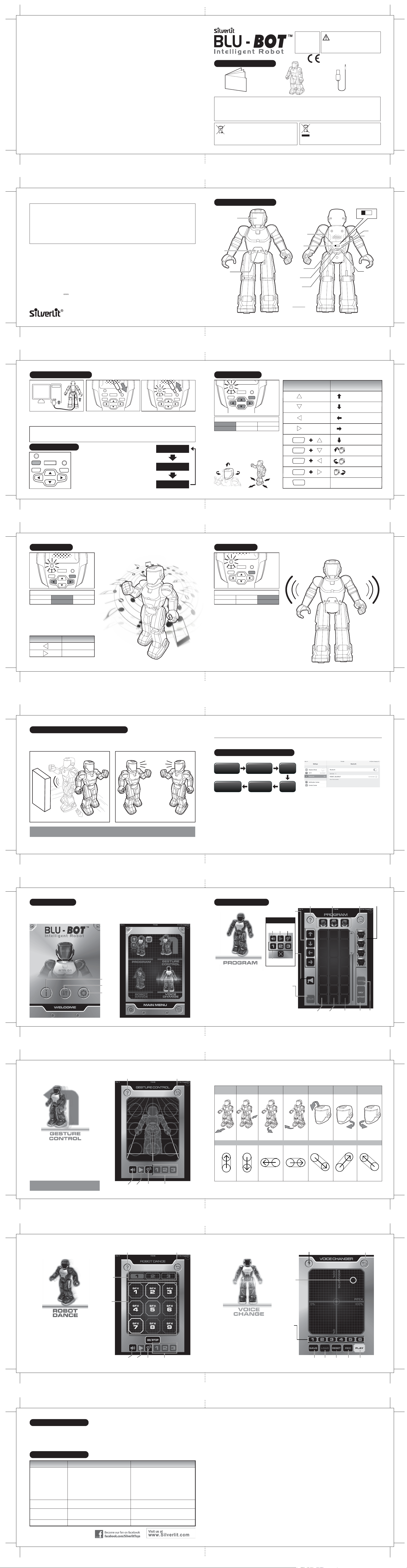
1. Delivery contents
For Ages 5+
Ab 5 Jahre
Pour 5 ans et plus
Voor leeftijd 5+
Para 5+ años
Dai 5 anni in su
ENGLISH
EI-5336
WARNING:
CHOKING HAZARD - Small Parts. Not for
children under 3 years.
This product is in compliance with the essential requirements
and other relevant provisions of Directive 1999/5/EC.
Instruction Manual
Blu-Bot Recharging Cable
Safety precautions
- Parents: Please read the operating instructions carefully with your children prior to the first use.
- Stop the Blu-Bot through the transmitter before picking it up.
- Keep hands, hair and loose clothing away from the moving parts, e.g. hand and foot, when toy is switched on.
- Do not operate the remote controlled Blu-Bot on streets. Avoid hitting people, pets or home furnishings.
Warning: Conversion or modifications to this product not expressly approved by the party responsible for compliance could void the user's authority to operate the
product.
The crossed-out dustbin symbol indicates that batteries, rechargeable batteries,
button cells, battery packs, etc. must not be put in the household waste.
Batteries are harmful to health and the environment. Please help to protect the
environment from health risks. If the toy is out of use, please use common
household tool to break the product for built-in rechargeable battery operated
toy or unscrew the battery door for replaceable battery operated toy, then take
the battery out from the toy. Dispose of battery in accordance with your local
battery recycling or disposal laws.
FCC Statements
This device complies with part 15 of the FCC rules. Operation is subject to the following two conditions:
1)This device may not cause harmful interference, and
2)This device must accept any interference received, including interference that may cause undesired operation.
NOTE: This equipment has been tested and found to comply with the limits for a Class B digital device, pursuant to Part 15 of the FCC Rules.
These limits are designed to provide reasonable protection against harmful interference in a residential installation. This equipment generates,
uses and can radiate radio frequency energy and, if not installed and used in accordance with the instructions, may cause harmful interference to
radio communications.
However, there is no guarantee that interference will not occur in a particular installation. If this equipment does cause harmful interference to radio or
television reception, which can be determined by turning the equipment off and on, the user is encouraged to try to correct the interference by one
or more of the following measures:
- Reorient or relocate the receiving antenna.
- Increase the separation between the equipment and receiver.
- Connect the equipment into an outlet on a circuit different from that to which the receiver is connected.
- Consult the dealer or an experienced radio/TV technician for help.
Care and Maintenance:
- Wipe the toy gently with a clean cloth.
- Keep the toy away from direct heat.
- Do not submerge the toy into water that can damage the electronic
assemblies.
Notes:
- Keep this instruction manual for future reference.
- Users should keep strict accordance with the instruction manual while operation
the product.
- Under the environment with electrostatic discharge, the toy may malfunction
and require user to reset the toy.
Battery requirement for Blu-Bot:
Power Supply :
Rating : DC 3.7 V , 3.5 W
Batteries :
Capacity : 500 mAh
2 3
1 x 3.7 V LiPo Rechargeable Battery Pack (included)
Silverlit SAS, Espace Green Parc, Route de Villepecle, 91280 Saint Pierre du Perray / France.
©
2014 Silverlit. All rights reserved.
This toy is equipped with a LiPo rechargeable
battery, please pay attention to the following
cautions for safety use:
- Do not dispose the battery in fire or heat.
- Do not use or leave the battery near a heat source such as fire
or heater.
- Do not strike or throw the battery against hard surface.
- Do not immerse the battery in water, and keep the battery in a
cool dry environment.
- When recharging, only use the battery charger specifically for
that purpose.
- Do not over-discharge the battery.
- Do not connect the battery to an electrical outlet.
- Do not directly solder the battery and pierce the battery with a
nail or other sharp object.
- Do not transport or store the battery together with metal objects
such as necklaces, hairpins etc.
- Do not disassemble or alter the battery.
- Charge the battery every 6 months.
- Battery inside the toy is not replaceable
2. Part Identification
Facial Expression
Display
Sensor
Microphone
LED
Indicator
Mode
Button
Shift
Button
Action button
left
Action button
back
BLU-BOT
Waste Electrical and Electronic Equipment
(WEEE)
When this appliance is out of use, please remove all batteries and
dispose of them separately. Bring electrical appliances to the local
collecting points for waste electrical and electronic equipment. Other
components can be disposed of in domestic refuse.
Power switch
OFF ON
Charging
socket
Action button
PROGRAM DANCE GUARD
POWER
DC IN
MODE
OFF ON
SHIFT
GO
front
Action button
right
1
3. Charging the Blu-Bot 5. Program Mode
Blue LED
1. Connect the USB cable from charging
socket to computer.
2. Insert the charging plug into the
charging socket on the Blu-Bot.
Note: 1. When the LED indicator on the Blu-Bot starts blinking, recharge the batteries.
2. It can recharge batteries either the Blu-Bot is power on or off.
3. The Blu-Bot can operate for about 60 minutes per every 60 - 80 minutes charging when power off.
4. Before recharging the battery, wait 10 - 15 minutes for it to cool down.
4. Operation Steps
Start to play
POWER
MODE
SHIFT
4
OFF ON
DC IN
- Switch on your Blu-Bot.
- Press the Mode button to switch between 3 different modes.
GO
The LED indicator shown as the right diagram.
- 3 Modes for selection.
• Program mode (default)
• Dance mode
• Guard mode
- Blu-Bot will randomly moves if there is no input.
- Blu-Bot will go to Sleep mode after no input for 10 mins.
3. The charging process will begin automatically
and the LED indicator will flash in purple color.
Unplug the charging plug after the charging
completed and LED indicator turns off.
Program mode
(Blue light)
Dance mode
(Purple light)
Guard mode
(Red light)
Mode status shown through LED light
Blue
Program mode
- The Blu-Bot default in the “Program mode” and LED
indicator is in blue color.
- Input steps by follow the actions listed in the right
diagram to program the Blu-Bot’s actions.
Dance mode
- Press “Go button” to start the action.
- After input the steps, “Go” button must be pressed to
activate the action within 30 seconds, otherwise it will
return to previous status.
Purple
Red
Guard mode
SHIFT
SHIFT
SHIFT
SHIFT
GO
MovementAction Button
Forward
Backward
Forward left
Forward right
Fast backward
Head nodding
Head turn left
Head turn right
Activate all actions being input
5
Purple LED
Mode status shown through LED light
Blue
Program mode
Purple
Dance mode
Red
Guard mode
- Press the “Mode” button to select “Dance” mode
(LED indicator is in purple color).
- Press “Left” or “Right” button for toggle selection of
3 dances. You will hear a short music introduction of
the dance music.
- Press “Go Button” to start the dance.
- Press any button to abandon the dance.
MovementAction Button
Last dance
Next dance
6
7. Guard Mode6. Dance Mode
Red LED
Mode status shown through LED light
Blue
Program mode
- Press the “Mode” button to select the “Guard” mode
(LED indicator is in red color).
- Press “Go button” to start guarding.
- When an intruder within 1 meter range is detected,
the alarm will be activated. Blu-Bot will generate
alarm sound and move around.
- Press any button to stop the alarm.
- Press “Go button” to restart guarding.
Purple
Dance mode
Red
Guard mode
7
8. Obstacle and Companion Detection
- During idling, walking or dancing, Blu-Bot will detect the obstacle
in front and automically turns to different directions to avoid the
obstacle.
Note: Object detection may vary from different colors and material reflection. The sensor would have has best performance
in white color material.
8
- When Blu-Bot meets a robot companion during walking or idling,
they will greet to each other with a robot “Greeting” message.
APP PLAY
9. How to Connect the Blu-Bot
Go to App Store /
Go to Gogole Store
Ready to
Play
Search “Blu-Bot App”
download & install
Open the App
IOS
- Search and download the Blu-Bot App in App store.
- Turn on the Blu-Bot.
- Turn on your mobile device.
- Go to “Setting” menu, turn on bluetooth function, search
and connect with the device “Robot_Silverlit”.
- Then launch the Blu-Bot app to play with the Blu-Bot via
bluetooth control.
Turn on
the Blu-Bot
Connect
Bluetooth
* The diagram is showing the IOS version.
Android
- Search and download the Blu-Bot App in Google play store.
- Turn on the Blu-Bot.
- Turn on your mobile device.
- Go to “Setting” menu, turn on bluetooth function, search
and connect with the device “Robot_Silverlit”.
- Then launch the Blu-Bot app to play with the Blu-Bot via
bluetooth control.
9
10. Start the App
- Start up Blu-Bot app and there are 3 icons in the main page.
• Link : Press to enter into main menu page.
• Info : Press to enter information page.
• Setting : For option setting.
10
Info
Link
Setting
- Press the “Link” button.
- The screen will show main menu with following 4 play
mode selections:
• Program mode
• Gesture Control mode
• Robot Dance mode
• Voice Change mode
11. Four Play Modes
11.1. App - Program mode
Voice Play Button
Talk
Play
Button
Button
Pre-recorded
messages
- Drag and drop the “Walking step” icons to
Column A.
- Drag and drop the “Head movement” icons to
Column B.
- Drag and drop the “Facial Expression” icons to
Column C.
- Press “Send” button to send commands to your
Blu-Bot or press “Clear” button to reset.
- Press “Go/Stop” button and Blu-Bot will start the
programed actions.
- Press “Voice play” button to enter to voice play
menu. (Control refer to other modes)
Walking
Step
Listen
Button
Clear
Button
Help
Head movement
Back
Facial
Expression
SendGo/StopColumn A Column B Column C
11
11.2. App - Gesture Control mode
- Follow the gesture diagram on next page and wipe
your finger on screen to control Blu-Bot’s movement.
- Press “Talk” button to record your voice, then press
“Play” button to broadcast it via Blu-Bot’s speaker.
- Press “Listen” button to pick up the sound via BluBot’s microphone, press the “Play” button to
playback in smartphone.
- Press one of the three pre-recorded messages
button to broadcast the pre-record messages in
voice changer mode via Blu-Bot’s speaker.
Tips: Place the Blu-Bot’s back facing to user
12
when operating all commands.
Help Back
Talk
Button
Play
Button
Listen
Button
Pre-recorded
messages
11.2. App - Gesture Control mode
Forward
Backward
Forward
Left
Forward
Right
Control Command
Nod
Head shake
Right
Head shake
Left
13
11.3. App - Robot Dance mode
- Press “Dance Music” button to select one of the
three dance music.
- Press “Go” to start dance, press it again to stop.
- Press “Drum pads - SFX 1 to 9 button” to jam
sound effect during Blu-Bot’s dance.
- Press “Talk” button to record your voice, then press
“Play” button to boardcast it via Blu-Bot’s speaker.
- Press “Listen” button to pick up the sound via Blu-
microphone, press the “Play” button to playback in
Bot’s
smartphone.
- You can pre-record up to 3 messages and boardcast
it in voice changer mode via Blu-Bot’s speaker.
14
Dance
music
Drum
pads
Help Back
Talk
Button
Play
Button
Listen
Button
Pre-recorded
messages
11.4. App - Voice Change mode
- Press “Record button” to record a message.
- Move the voice change cursor to the position
you want or press ‘Preset Voice” button for
preset effect.
- Press “Play button” to listen voice changed
message.
- Press “Preset Voice” button or “Voice Change
Cursor” to change the recorded voice.
- Press “Save button” to save the voice changed
messages. It can save up to 3 messages.
- Press “Load button” to load 3 of the saved
messages.
Voice
Change
Cursor
Preset
Voices
Help
Save
button
Load
button
Reset
button
Record
button
Play
button
Back
15
12. Operating Tips:
1. Only operate the Blu-Bot on flat, smooth (but not slippery) and dry surfaces or low pile carpets. Hair, carpet or dirt can affect
the operation of the Blu-Bot.
2. Do not operate the robot on sand or through water or snow. If your Blu-Bot gets wet, wipe it with a towel and allow it to dry
completely.
3. Do not operate near concrete walls which may disturb bluetooth transmission.
13. Troubleshooting
Symptom Cause Solution
Blu-Bot does not react, or react
poorly to the mobile device.
Blu-Bot runs slowly,
erratically or does not run.
Bluetooth connection unsuccessful. - Other bluetooth device connected. - Disconnect other bluetooth device and try again.
Blu-Bot
16
- High-frequency interference occurred near to
high-voltage lines, transformers and some types of
building.
- iPod touch, iPhone or iPad batteries are weak.
- Robot batteries are weak.
- Bluetooth may not be in connection with your robot.
- The toy is in stand-by mode.
- Power switch is not in “ON” position.
- Weak batteries.
TM
- Avoid these if possible, or choose another place to
operate the vehicle.
- Switch off the toy and turn it on again.
- Recharge iPod touch, iPhone or iPad.
- Change all batteries in vehicle with new alkaine
batteries.
- Recheck if your iPod touch, iPhone or iPad connects
with your vehicle in Bluetooth.
- Play in a more open place.- Bluetooth signal of mobile device was obstructed.Loss of control.
- Switch on the power.
- Recharge the batteries.
Page 3
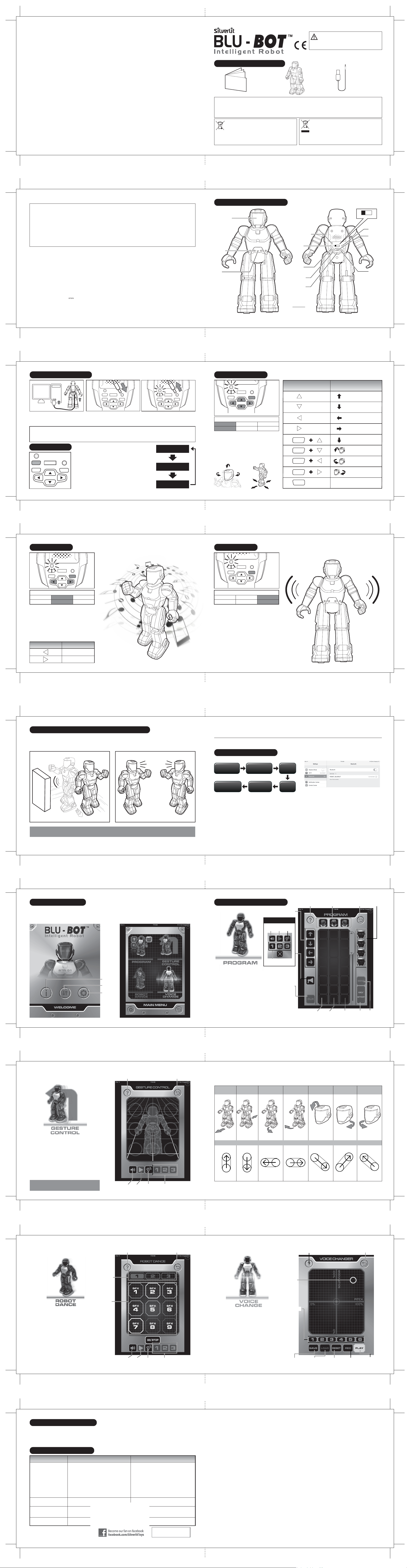
1. Contenu de l’emballage
Pour 5 ans et plus
FRANÇAIS
EI-5336
ATTENTION :
Risque d'étouffement : Petites pièces.
Déconseillé aux enfants de moins de 3 ans.
Par la présente Silverlit Toys Manufactory Ltd. déclare que l'appareil - Enzo
Ferrari #86067 est conforme aux exigences essentielles et aux autres
dispositions pertinentes de la directive 1999/5/CE. La déclaration de conformité
peut être consultée dans le mode d’emploi situé à l’intérieur de la boîte.
Mode d'emploi
Précautions de sécurité :
- Parents: Veuillez lire les instructions d’emploi avec vos enfants avant la première utilisation.
- Arrêtez le Blu-Bot via l’émetteur avant de le saisir.
- Maintenez vos mains, cheveux et vêtements amples éloignés des pièces mobiles (par exemple les bras et les jambes) quand le jouet est allumé.
- Ne pas utiliser le véhicule radiocommandé dans la rue. Ne pas heurter les personnes, les animaux et le mobilier de maison.
Avertissement : Toute transformation ou modification effectuée sur ce produit, non expressément approuvée par la partie responsable de la conformité, pourrait
Assertions FCC
L'appareil est en conformité avec les directives prévues par § 15 de la FCC. Le fonctionnement est soumis aux deux conditions suivantes :
1) L'appareil ne peut pas entraîner des interférences brouillantes.
2) L'appareil doit accepter toute interférence captée même les interférences qui peuvent causer une opération involontaire.
NOTE : L'appareil a été testé et répond aux directives da la catégorie digitale B conformément au § 15 des régles de la FCC. Ces
directives ont été conçues afin de pourvoir une protection accéptable contre les interférences gênantes dans un environnement. Cet
appareil génère, se sert d'ondes radio et peut occasioner des interférences brouillantes aux communications radio.
Toutefois il n'y a aucune garantie pour interférence causée par une installation quelconque. Quand l'appareil provoque une
interférence brouillante lors de la réception des programmes de la radio ou de la télévision, ce que peut être constaté en tournant
l'interrupteur de l'appareil en OFF et ON, il est recommandé à l'utilisateur de tester une ou plusieurs dispositions indiquées ci-dessous
afin de réprimer l'interférence.
- Réorienter ou au besoin déplacer l'antenne réceptrice.
- Agrandir la distance entre l'appareil et le récepteur.
- Raccorder l'appareil et le récepteur à un circuit séparé.
- A la rigueur consulter le distributeur ou un technicien radio / télévision expérimenté.
Soin et Entretien:
- Essuyez le jouet délicatement avec un chiffon propre.
- Gardez le jouet à l'écart de toute source directe de chaleur.
- Ne pas immerger le jouet dans l'eau au risque d'endommager les
composants électroniques.
Remarques:
- Conservez les instructions pour toute consultation future.
- Faites fonctionner le produit en vous conformant strictement aux manuel
d'instructions.
- Dans un environnement propice aux décharges électrostatiques, l'article peut
fonctionner anormalement et nécessiter une réinitialisation.
Piles nécessaires (Blu-Bot):
Alimentation :
Capacité de charge : DC 3,7 V , 3,5 W
Quantité et type :
Li-po mère 1 V ( incluse )
Capacité : 500 mAh
34 35
3,7 batterie rechargeable
Ce jouet est équipé d’un batterie LiPo, veuillez
prendre note des précautions suivantes
concernant la sécurité :
- Ne pas jeter la batterie dans le feu ou sur une source de
chaleur.
- Ne pas utiliser ou laisser la batterie à proximité d'une source de
chaleur telle qu'un feu ou appareil de chauffage.
- Ne pas heurter ou jeter la batterie contre une surface dure.
- Ne pas immerger la batterie dans l'eau ; stockez-la dans un
environnement frais et sec.
- Pour recharger la batterie, utilisez uniquement le chargeur
dédié.
- Ne pas décharger la pile de façon excessive.
- Ne pas connecter la batterie à une prise de courant.
- Ne pas souder directement la batterie et ne pas le percer avec
un clou ou autre objet pointu.
- Ne pas souder directement la batterie et ne pas le percer avec
un clou ou autre objet pointu.
- Ne pas démonter ou modifier la batterie.
- Chargez la batterie tous les 6 mois.
- Pile non remplaçable
2. Éléments d'identification
Écran
d’expression
faciale
Capteur
Micro
entraîner l'annulation de l'autorisation d'utilisation concédée à l'utilisateur.
Le symbole de la poubelle barrée indique que les piles, les piles rechargeables,
les piles cellulaires, les batteries, etc. ne doivent pas être jetées avec les
ordures ménagères. Les piles sont nocives pour la santé et l'environnement.
Veuillez aider à protéger l'environnement contre les risques pour la santé. Si le
jouet est hors d'usage, veuillez utiliser un ustensile domestique pour casser le
jouet s'il inclut une pile rechargeable intégrée ou dévissez le couvercle du
compartiment des piles remplaçables pour retirer les piles du jouet. Jetez les
piles conformément aux règles locales pour le recyclage ou l'élimination des
piles.
Blu-Bot Câble USB
Déchets électriques et électroniques (DEEE)
Lorsque cet appareil est en fin de vie, veuillez retirer toutes les piles et
les jeter séparément. Rapportez les appareils électriques à un centre
de collecte des appareils électroniques et électroménagers. Les autres
composants peuvent être jetés avec les ordures ménagères.
Voyant LED
PROGRAM DANCE GUARD
POWER
DC IN
Touche
Mode
MODE
OFF ON
SHIFT
GO
Touche
Schift
Touche
d’action
gauche
Touche
d’action
arrière
BLU-BOT
Interrupteur marche/arrêt
OFF ON
Prise de
recharge
Touche
d’action
avant
Touche
d’action
droite
33
3,7 batterie rechargeable
Li-po mère 1 V ( incluse )
3. Rechargez le Blu-Bot 5. Mode Programme
LED bleue
1. Branchez le câble USB dans un port
USB de recharge d’un ordinateur.
2. Branchez la fiche du câble de recharge
dans la prise de recharge du Blu-Bot.
Remarque: 1. Quand le voyant LED du Blu-Bot se met à clignoter, rechargez la batterie.
2. Vous pouvez recharger la batterie que le Blu-Bot soit allumé ou éteint.
3. Le Blu-Bot a une autonomie de 60 minutes environ après une recharge de 60~80 minutes robot éteint.
4. Avant de recharger la batterie, attendez 10 à 15 minutes qu’elle refroidisse.
4. Utilisation
POWER
MODE
SHIFT
36
OFF ON
DC IN
Commencer à jouer
- Allumez votre Blu-Bot.
- Appuyez sur la touche Mode pour sélectionner l’un des 3
différents modes. Le voyant LED indique le mode
sélectionné (diagramme à droite).
- 3 modes sélectionnables.
GO
• Mode Programme (par défaut)
• Mode Danse
• Mode Garde
- Le Blu-Bot se déplace de manière aléatoire quand il n’y a
pas de commande.
- Le Blu-Bot se met en veille après 10 minutes sans
commande.
3. La recharge commence automatiquement et le
voyant LED clignote en violet. Quand le voyant
LED s’éteint, la recharge est terminée,
débranchez la fiche du câble de recharge.
Mode Programme@
(Voyant bleu)
Mode Danse@
(Voyant violet)
Mode Garde@
(Voyant rouge)
Le mode est indiqué par le voyant LED
Bleu
Mode Programme
- Par défaut, le Blu-Bot est dans le mode Programme
et le voyant LED est allumé en bleu.
- Pour programmer les actions du Blu-Bot, utilisez
les commandes listées dans le tableau ci-contre.
Violet
Mode Danse
- Appuyez sur la touche « Go » pour démarrer l’action.
- Après avoir programmé des actions, vous devez
appuyer sur la touche « Go » dans les 30
secondes pour activer le programme, sinon le
robot retourne dans le statut précédent.
Rouge
Mode Garde
SHIFT
SHIFT
SHIFT
SHIFT
GO
MouvementTouche d’action
Avancer
Reculer
Avancer à gauche
Avancer à droite
Reculer vite
Baisser la tête
Tourner la tête à
gauche
Tourner la tête à
droite
Activer toutes les actions
saisies
37
LED violette
Le mode est indiqué par le voyant LED
Bleu
Mode Programme
Violet
Mode Danse
Rouge
Mode Garde
- Appuyez sur la touche « Mode » pour sélectionner
le mode Danse (le voyant LED est allumé en violet).
- Appuyez sur la touche « Gauche » ou « Droite »
pour sélectionner l’une des 3 danses. Vous
entendez une brève mélodie d’introduction de la
musique de danse
- Appuyez sur la touche « Go » pour démarrer la
danse.
- Appuyez sur n’importe quelle touche pour arrêter
la danse.
MouvementTouche d’action
Danse précédente
38
Danse suivante
7. Guard Mode6. Mode Danse
LED rouge
Le mode est indiqué par le voyant LED
Bleu
Mode Programme
Violet
Mode Danse
- Appuyez sur la touche « Mode » pour sélectionner
le mode Garde (le voyant LED est allumé en rouge).
- Appuyez sur la touche « Go » pour démarrer la
garde.
- Quand un intrus est détecté à moins de 1 m,
l’alarme est déclenchée. Le Blu-Bot sonne une
alarme et se déplace.
- Appuyez sur n’importe quelle touche pour
éteindre l’alarme.
- Appuyez sur la touche « Go » pour redémarrer la
garde.
Rouge
Mode Garde
39
8. Détection des obstacles et des compagnons
- Quand le Blu-Bot est immobile, marche ou danse, il détecte les
obstacles devant lui et change automatiquement de direction
pour les éviter.
Remarque: La détection des objets peut varier en fonction des couleurs et de la réflexion des matériaux. Les performances du
capteur sont optimales pour les matériaux de couleur blanche.
40
- Quand le Blu-Bot marche ou est immobile et rencontre un robot
compagnon, ils se saluent avec le message robot « Greetings ».
APP
9. Connecter le Blu-Bot
Allez sur l’App
Store /
@Allez sur le
Google Store
Prêt à jouer
IOS
- Recherchez et téléchargez l’application Blu-Bot sur l’App Store.
- Allumez le Blu-Bot.
- Allumez votre appareil portable.
- Allez dans le menu « Paramètres », allumez le Bluetooth,
recherchez et connectez l’appareil à « Robot_Silverlit ».
- Puis lancez l’application Blu-Bot pour jouer avec le Blu-Bot en
le contrôlant via la connexion Bluetooth.
Recherchez l’application
« Blu-Bot App »,
téléchargez-la et
installez-la
Lancez
l’application
Allumez le
Blu-Bot
Connectez
le
Bluetooth
* L’image correspond à la version iOS.
Android
- Recherchez et téléchargez l’application Blu-Bot sur le Google
Play Store.
- Allumez le Blu-Bot.
- Allumez votre appareil mobile.
- Allez dans le menu « Paramètres », allumez le Bluetooth,
recherchez et connectez l’appareil à « Robot_Silverlit ».
- Puis lancez l’application Blu-Bot pour jouer avec le Blu-Bot en
le contrôlant via la connexion Bluetooth.
41
10. Pour commencer
-
Lancez l’application Blu-Bot, sa page principale comporte
3 icônes.
• Lien : Afficher le menu principal.
• Infos : Afficher la page des informations.
• Paramètres : Régler les paramètres.
42
Infos
Lien
Paramètres
- Appuyez sur le bouton « Lien ».
- Le menu principal s’affiche avec les 4 modes de jeu
sélectionnables suivants :
• Mode Programme
• Mode Contrôle gestuel
• Mode Dance robotique
• Mode Modifier la voix
11. Les quatre modes de jeu
11.1. App - Mode Programme
Bouton Jeu vocal
Bouton
Touche
Parler
Lire
Messages
préenregistrés
- Glissez-déposez les icônes des « Pas de
marche » dans la colonne A.
- Glissez-déposez les icônes des « Mouvements
de la tête » dans la colonne B.
- Glissez-déposez les icônes des « Expressions
faciales » dans la colonne C.
Appuyez sur le bouton « Envoyer » pour envoyer
les commandes à votre Blu-Bot ou appuyez sur
le bouton « Effacer » pour réinitialiser.
- Appuyez sur le bouton « Go/Stop » pour que le
Blu-Bot commence les actions programmées.
- Appuyez sur le bouton « Jeu vocal » pour
afficher le menu de jeu vocal. (pour les
commandes, consultez les autres modes)
Pas de
marche
Bouton
Écouter
Bouton
Effacer
Mouvements
de la tête
Mouvements
de la tête
Retour
Expressions
faciales
EnvoyerGo/StopColonne A Colonne B Colonne C
43
11.2. App - Mode de Contrôle gestuel
- En vous aidant du tableau des gestes de la page
suivante, faites glisser un doigt sur l’écran pour
contrôler les mouvements du Blu-Bot.
- Appuyez sur le bouton « Parler » pour enregistrer
votre voix, puis appuyez sur le bouton « Lire » pour
la diffuser via le haut-parleur du Blu-Bot.
- Appuyez sur le bouton « Écouter » pour enregistrer
des sons avec le micro du Blu-Bot, appuyez sur le
bouton « Lire » pour les écouter avec le smartphone.
- Appuyez sur le bouton de l’un des trois messages
préenregistrés pour le diffuser dans le mode
modifier la voix via le haut-parleur du Blu-Bot.
Conseils: Placez le dos du Blu-Bot face à
l’utilisateur pendant l’utilisation de
44
toutes les commandes.
Mouvements
de la tête Retour
Bouton
Parler
Touche
Lire
Bouton
Écouter
Messages
préenregistrés
11.2. App - Mode de Contrôle gestuel
Avancer
Reculer
Avancer à
gauche
Avancer à
droite
Touche d’action
Baisser la tête
Tourner la
tête à droite
Tourner la
tête à gauche
45
11.3. App - Mode Dance robotique
- Appuyez sur l’un des boutons de Musique de
danse pour sélectionner l’une des trois musiques.
- Appuyez sur « Go » pour commencer la danse.
Appuyez à nouveau arrêter la danse.
- Appuyez sur les « Pads de batterie – SFX 1 à 9 »
pour créer des effets sonores pendant la danse
du Blu-Bot.
- Appuyez sur le bouton « Parler » pour enregistrer
votre voix, puis appuyez sur le bouton « Lire »
pour la diffuser via le haut-parleur du Blu-Bot.
Appuyez sur le bouton « Écouter » pour enregistrer
des sons avec le micro du Blu-Bot, appuyez sur le
bouton « Lire » pour les écouter avec le smartphone.
- Vous pouvez enregistrer jusqu’à 3 messages et les
diffuser dans le mode Modifier la voix via le hautparleur du Blu-Bot.
46
Musique
de danse
Pads de
batterie
Mouvements
de la tête Retour
Bouton
Parler
Touche
Lire
Bouton
Écouter
Messages
préenregistrés
11.4. App - Mode Modifier la voix
- Appuyez sur le bouton « Enregistrer » pour
enregistrer un message.
- Déplacez le curseur de modification de la voix
sur la position désirée ou appuyez sur l’un des
boutons de « Voix préréglées » pour utiliser
l’un des effets préréglés.
- Appuyez sur le bouton « Lire » pour écouter le
message avec la voix modifiée.
- Appuyez sur l’un des boutons de « Voix
préenregistrées » ou sur le « Curseur de
modification de la voix » pour modifier la voix
enregistrée.
- Appuyez sur le bouton « Sauvegarder » pour
sauvegarder le message avec la voix modifiée.
Vous pouvez sauvegarder jusqu’à 3 messages.
- Appuyez sur le bouton « Charger » pour
charger les 3 messages sauvegardés.
Curseur de
modification
de la voix
Voix
préenregistrées
bouton
« Sauvegarder »
Mouvements
de la tête Retour
bouton
« Charger »
bouton
«Réinitialiser»
bouton
« Enregistrer »
bouton
« Lire »
47
12. Conseils d’utilisation:
1. Utilisez exclusivement le Blu-Bot sur des surfaces sèches, planes et lisses (mais non glissantes) ou sur des moquettes/tapis à
poils ras. Les cheveux, les saletés et les autres types de moquettes/tapis peuvent impacter l’utilisation du Blu-Bot.
2. N’utilisez pas le robot sur du sable, de la neige ou de l’eau. Si votre Blu-Blot est mouillé, essuyez-le avec un chiffon et
laissez-le sécher complètement.
3. Ne l’utilisez pas près de murs en béton, car cela peut perturber la transmission Bluetooth.
13. Guide de dépannage
Symptôme Cause Correction
Le Blu-Bot ne réagit pas ou
réagit mal aux commandes de
l’appareil portable.
Perte de contrôle.
Le Blu-Bot fonctionne lentement,
de manière erratique ou ne
fonctionne plus.
La connexion Bluetooth n’a pas été
établie.
Blu-Bot
48
- Les interférences haute fréquence se produisent
près des lignes haute tension, des transformateurs
et de certains types de bâtiment.
- La batterie de l’iPod touch, iPhone ou iPad est
déchargée.
- Les piles du robot sont faibles.
- Votre robot n’est pas connecté via le Bluetooth.
- Le jouet est en veille.
- Le signal Bluetooth de l’appareil portable est bloqué par
un obstacle.
- Son interrupteur marche/arrêt n’est pas sur la position
« ON » (sous tension).
- La batterie est déchargée.
- Un autre appareil Bluetooth est connecté. - Déconnectez l’autre appareil Bluetooth, puis réessayez.
TM
- Évitez autant que possible ce type de situation, ou
utilisez le jouet dans un autre endroit.
- Éteignez le jouet, puis rallumez-le.
- Rechargez l’iPod touch, l’iPhone ou l’iPad.
- Changez toutes les piles du jouet par des piles
alcalines neuves.
- Vérifiez que votre iPod touch, iPhone ou iPad est
connecté à votre jouet via le Bluetooth.
- Jouez dans un espace ouvert où il y a moins d’obstacle.
- Allumez l'appareil.
- Rechargez la batterie.
Retrouve-nous sur
www.Silverlit.fr
Page 4
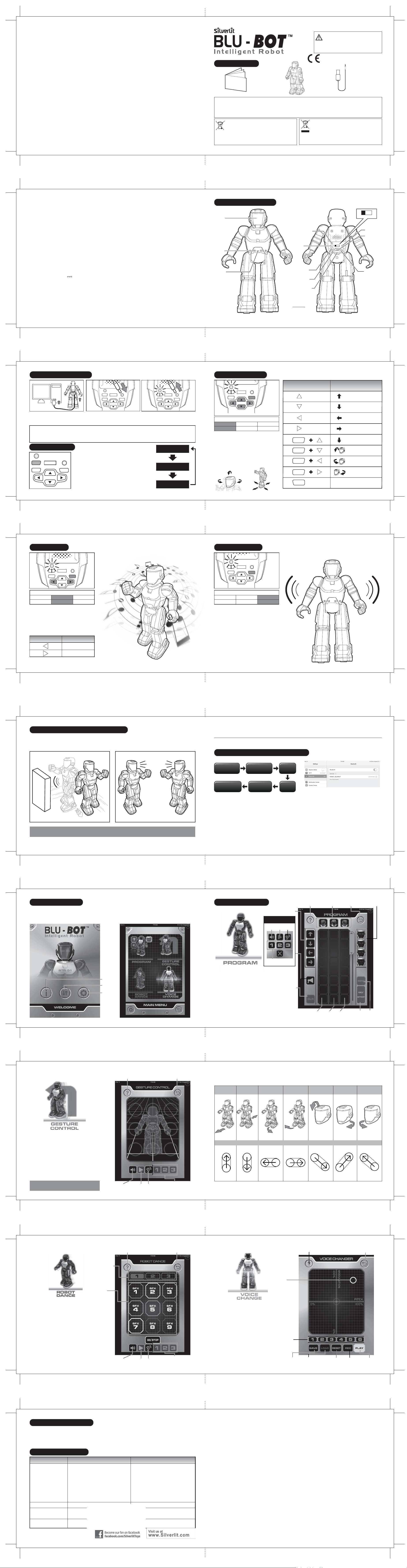
1. Lieferumfang
Ab 5 Jahre
DEUTSCH
EI-5336
Achtung!
Erstickungsgefahr: Enthält kleine Teile.
Nicht für Kinder unter 3 Jahren geeignet.
Dieses Gerät 88022 entspricht den Anforderungen der
Richtinie 1999/5/EG. Als Gerät der Klasse I sind Vertrieb und
Betrieb in allen EU Ländern erlaubt.
Pflege und Wartung:
- Reinige das Spielzeug bei Bedarf mit einem feuchten Tuch.
- Schütze das Spielzeug vor starker Wärmeeinwirkung und
Sonneneinstrahlung.
- Tauche das Spielzeug niemals unter Wasser, da dadurch die Elektronik
beschädigt werden kann.
Bemerkungen:
- Bedienungsanleitung zum späteren Nachschlagen aufbewahren.
- Die Benutzer sollen beim Einsatz dieses Spielzeugs die Hinweise der
Bedienungsanleitung genauestens beachten und befolgen.
- In einer Umgebung elektrostatischer Entladung kann es zu bei dem Spielzeug
zu Störungen kommen, so dass der Benutzer das Spielzeug rücksetzen muss.
Batterieanforderung (Blu-Bot):
Stromversorgung :
Nennwert : DC 3,7 V , 3,5 W
Benötigt werden :
Akku-Kapazität : 500 mAh
1 x 3.7 V LiPo-Akku (mitgeliefert)
Das Spielzeug ist mit einem LiPo Akku ausgestattet.
Beachte bitte die folgenden Sicherheits-Hinweise:
- Wirft Akku niemals ins Feuer, bewahre sie nicht an heißen Orten
auf.
- Batterie nicht in der Nähe einer Hitzequelle wie Feuer oder
Heizung benutzen oder aufbewahren.
- Batterie nicht gegen eine harte Oberfläche schlagen oder
werfen.
- Batterie nicht in Wasser eintauchen. Batterie an einem kühlen
und trockenen Ort aufbewahren.
- Verwende zum Aufladen des Akkus nur die mitgelieferte
Fernsteuerung.
- Batterie nicht zu tief entladen.
- Batterie nicht an einen Stromanschluss anschließen.
- Batterie nicht direkt löten und mit einem Nagel oder anderen
spitzen Objekt durchbohren.
- Batterie nicht mit Metallobjekten wie Ketten, Haarklammern etc.
transportieren oder aufbewahren. Kurzschlussgefahr!
- Batterie nicht auseinandernehmen oder verändern.
- WICHTIG: Lade den Hubschrauber LiPo Akku mindestens alle 6
Monate auf.
- Die Batterie im Spielzeug ist nicht austauschbar.
Bedienungsanleitung
Sicherheitsvorkehrungen
- Eltern: Bitte lesen Sie vor der ersten Benutzung zusammen mit Ihren Kindern sorgfältig die Anleitung durch.
- Halte den Blu-Bot mithilfe des Sendegerätes an, bevor du ihn hoch hebst.
- Haare, Hände und weite Kleidung von den sich bewegenden Teilen fernhalten, z. B. den Händen und Füßen, wenn das Spielzeug eingeschaltet ist.
- Fahre das Fahrzeug nicht auf öffentlichen Straßen. Stoße mit ihm nicht an Menschen, Tiere oder Möbel.
Warnung: Umbauten oder Modifikationen an diesem Produkt, die nicht ausdrücklich von der für die Ordnungsmäßigkeit verantwortlichen Partei genehmigt sind,
können die Berechtigung des Benutzers, das Produkt zu bedienen, rückgängig machen.
Das Symbol der durchgestrichenen Mülltonne weist daraufhin, dass Batterien,
Akkus, Knopfzellen, Akkupacks usw. nicht in den Hausmüll geworfen werden
dürfen. Batterien sind für die Gesundheit und die Umwelt schädlich. Bitte helfen
Sie, die Umwelt vor Gesundheitsrisiken zu schützen. Wenn das Spielzeug nicht
mehr benutzt wird, brechen Sie es bitte mit einem gewöhnlichen Werkzeug aus
dem Haushalt auf, wenn das Spielzeug über einen eingebauten Akku verfügt,
oder schrauben Sie die Batteriefachabdeckung auf, um die Batterie aus dem
Spielzeug zu nehmen. Entsorgen Sie die Batterie gemäß der an Ihrem Wohnort
geltenden Gesetze zum Recycling oder zur Entsorgung von Batterien.
Blu-Bot USB-Kabel
WEEE-Richtlinie über Elektro- und
Elektronik-Altgeräte
Elektroschrottgesetz
Nach Gebrauchsende eine Bitte: Entnimm alle Batterien und entsorge
sie separat. Gib alte elektrisch betriebene Geräte bei den
Sammelstellen der Gemeinden für Elektroschrott ab. Die übrigen Teile
gehören in den Hausmüll.
Danke für Deine Mithilfe!
2. Gerätebeschreibung
Ein-/Ausschalter
GesichtsausdruckDisplay
Sensor
Mikrofon
LED-Anzeige
ModusTaste
Shift-Taste
BewegungsTaste links
BewegungsTaste zurück
PROGRAM DANCE GUARD
POWER
DC IN
MODE
OFF ON
SHIFT
GO
OFF ON
Ladebuchse
BewegungsTaste vorn
BewegungsTaste rechts
17
BLU-BOT
18 19
3. Aufladen des Blu-Bot 5. Programmmodus
BewegungBewegungs-Taste
Vorwärts
Rückwärts
Vorwärts links
Vorwärts rechts
Schnell rückwärts
Mit dem Kopf nicken
Kopf nach links
drehen
Kopf nach rechts
drehen
1. Verbinde das USB-Kabel mit der
Ladebuchse und dem Computer.
Anmerkung: 1. Wenn die LED-Anzeige am Blu-Bot zu blinken beginnt, lade die Batterien auf.
2. Die Batterien können aufgeladen werden, wenn der Blu-Bot ein- oder ausgeschaltet ist.
3. 60 bis 80 Minuten Ladevorgang im ausgeschalteten Zustand generieren etwa 60 Minuten Betriebsdauer für
den Blu-Bot.
4. Bevor du die Batterie auflädst, lasse das Gerät 10 bis 15 Minuten lang abkühlen.
2. Stecke den Ladestecker in die
Ladebuchse am Blu-Bot.
4. Bedienschritte
Spielen
POWER
MODE
SHIFT
20
OFF ON
DC IN
- Schalte deinen Blu-Bot ein.
- Drücke die Modus-Taste, um zwischen drei verschiedenen
Modi umzuschalten. Das Schaubild rechts erklärt dir die
GO
LED-Anzeige.
- 3 Modi zur Auswahl
• Programmmodus (voreingestellt)
• Tanzmodus
• Wächtermodus
- Blu-Bot bewegt sich willkürlich, wenn keine Eingabe erfolgt.
- Blu-Bot geht in den Stand-by-Modus, wenn 10 Minuten lang
keine Taste gedrückt wurde.
3. Der Ladevorgang beginnt automatisch und die
LED-Anzeige blinkt lila. Ziehe den Ladestecker
heraus, nachdem der Ladevorgang abgeschlossen
ist. Die LED-Anzeige schaltet sich aus.
Programmmodus
(Blaues Licht)
Tanzmodus
(Lila Licht)
Wächtermodus
(Rotes Licht)
Blaue LED
Modusstatus wird durch das LED-Licht angezeigt
Blau
Programmmodus
- Der Blu-Bot ist standardmäßig im „Programmmodus“
und die LED-Anzeige leuchtet blau.
- Gib die Schritte ein, indem du den
Bewegungseinstellungen folgst, die im rechten
Schaubild aufgeführt sind, um Blu-Bots Bewegungen
zu programmieren.
- Drücke die „Start-Taste“, um den Bewegungsablauf zu
starten.
- Nach Eingabe der Schritte muss die „Start“-Taste
gedrückt werden, um den Bewegungsablauf innerhalb
von 30 Sekunden zu aktivieren, sonst kehrt der Roboter
in den vorherigen Status zurück.
Lila
Tanzmodus
Rot
Wächtermodus
SHIFT
SHIFT
SHIFT
SHIFT
GO
Aktivieren aller eingegebenen
Bewegungen
21
Lila LED
Modusstatus wird durch das LED-Licht angezeigt
Blau
Programmmodus
Lila
Tanzmodus
Rot
Wächtermodus
- Drücke die „Modus“-Taste, um den „Tanz“-Modus
auszuwählen (LED-Anzeige leuchtet lila).
- Drücke die „Links“- oder „Rechts“- Taste, um zwischen
drei Tänzen auszuwählen. Du hörst ein kurzes Intro
der Tanzmusik.
- Drücke die „Start“-Taste, um den Tanz zu starten.
- Drücke eine beliebige Taste, um den Tanz abzubrechen.
Bewegungs-Taste
Bewegung
Letzter Tanz
Nächster Tanz
22
7. Wächtermodus6. Tanzmodus
Red LED
Modusstatus wird durch das LED-Licht angezeigt
Blau
Programmmodus
Lila
Tanzmodus
- Drücke die „Modus“-Taste, um den „Wächter“-Modus
auszuwählen (LED-Anzeige leuchtet rot).
- Drücke die „Start“-Taste, um die Bewachung zu
aktivieren.
- Nimmt der Roboter in einem Umkreis von einem
Meter einen Eindringling wahr, wird der Alarm
ausgelöst. Blu-Bot erzeugt ein Alarmgeräusch und
bewegt sind umher.
- Drücke eine beliebige Taste, um den Alarm
abzubrechen.
- Drücke die „Start“-Taste, um die Bewachung erneut
zu aktivieren.
Rot
Wächtermodus
23
8. Hindernis- und Gefährten-Erkennung
- Wenn Blu-Bot inaktiv ist, geht oder tanzt, erkennt er Hindernisse,
die sich vor ihm befinden, und bewegt sich automatisch in eine
andere Richtung, um dem Hindernis auszuweichen.
Anmerkung: Die Erkennung von Objekten kann je nach Farbe und Materialspiegelung variieren. Die beste Leistung erzielt der
Sensor bei weißen Materialien.
24
- Wenn Blu-Bot einen Robotergefährten trifft, während er sich
bewegt oder inaktiv ist, begrüßen sich die Roboter mit einer
„Begrüßungsnachricht“.
APP
9. Verbindung zum Blu-Bot herstellen
Gehe zum App Store/
Gehe zum Google
Store
Spielbereit
IOS
- Suche die Blu-Bot App im App Store und lade sie herunter.
- Schalte den Blu-Bot ein.
- Schalte dein Mobilgerät ein.
- Öffne das „Einstellungen“-Menü, aktiviere die BluetoothFunktion, suche und stelle die Verbindung zu dem Gerät „
Robot_Silverlit“ her.
- Starte dann die Blu-Bot App, um über Bluetooth-Steuerung
mit dem Blu-Bot zu spielen.
Suche die „Blu-Bot
App“, lade sie herunter
und installiere sie.
Öffne die App
Schalte den
Blu-Bot ein
Stelle
Bluetooth-
Verbindung her
* Das Schaubild zeigt die IOS-Version.
Android
-
Suche und lade die Blu-Bot App vom Google play Store herunter.
- Schalte den Blu-Bot ein.
- Schalte dein Mobilgerät ein.
- Öffne das „Einstellungen“-Menü, aktiviere die BluetoothFunktion, suche und stelle die Verbindung zu dem Gerät „
Robot_Silverlit“ her.
- Starte dann die Blu-Bot App, um über Bluetooth-Steuerung mit
dem Blu-Bot zu spielen.
25
5. So fängst du an
10. So fängst du an
- Starte die Blu-Bot App. Du siehst drei Symbole auf der
Hauptseite.
• Link : drücken, um die Hauptmenüseite zu öffnen.
• Info : drücken, um die Informationsseite zu öffnen.
• Einstellung: zum Einstellen von Optionen.
26
Info
Link
Einstellung
- Drücke die „Link“-Schaltfläche.
- Der Bildschirm zeigt das Hauptmenü mit den folgenden
vier Spielmodi zur Auswahl:
• Programmmodus
•
Gestensteuerungsmodus
• Roboter-Tanzmodus
•
Stimmenänderungsmodus
11. Vier Spielmodi
11.1. App - Programmmodus
SprechenSchaltfläche
Im Voraus aufgenommene
- Ziehe die „Gehschritte“-Symbole und lege sie in
Spalte A ab.
- Ziehe die „Kopfbewegung“-Symbole und lege sie in
Spalte B ab.
- Ziehe die „Gesichtsausdruck“-Symbole und lege sie
in Spalte C ab.
- Drücke die „Senden“-Schaltfläche, um Befehle an
deinen Blu-Bot zu senden, oder drücke die
„Löschen“-Schaltfläche, um ihn zurückzusetzen.
-
Drücke die „Start/Stopp“-Schaltfläche. Blu-Bot beginnt,
die programmierten Bewegungen auszuführen.
- Drücke die „Stimme abspielen“-Schaltfläche, um das
Stimmen-Menü zu öffnen. (Bedienelement bezieht
sich auf andere Modi)
Nachrichten
Gehschritt
Stimme abspielenSchaltfläche
AbspielenSchaltfläche
LöschenSchaltfläche
HörenSchaltfläche
KopfbewegungHilfe GesichtsausdruckZurück
SendenStart/StoppSpalte A Spalte B Spalte C
27
11.2. App - Gestensteuerungsmodus
- Folge dem Gesten-Schaubild auf der nächsten
Seite und gleite mit deinem Finger über den
Bildschirm, um Blu-Bots Bewegungen zu steuern.
- Drücke die „Sprechen“-Schaltfläche, um deine
Stimme aufzunehmen; drücke dann die
„Abspielen“- Schaltfläche, um sie über Blu-Bots
Lautsprecher abzuspielen.
- Drücke die „Hören“-Schaltfläche, um den Ton
über Blu-Bots Mikrofon aufzunehmen; drücke die „
Abspielen“-Schaltfläche, um den Ton im
Smartphone wiederzugeben.
- Drücke eine der drei im Voraus aufgenommenen
Nachrichten, um die aufgenommene Nachricht
im Stimmänderungsmodus über Blu-Bots
Lautsprecher abzuspielen.
Tipps: Blu-Bots Rücken sollte dem Benutzer
zugewandt sein, wenn alle Befehle gegeben
28
werden
SprechenSchaltfläche
Hilfe Zurück
AbspielenSchaltfläche
HörenSchaltfläche
Im Voraus
aufgenommene
Nachrichten
11.2. App - Gestensteuerungsmodus
Vorwärts
Rückwärts
Vorwärts
links
Vorwärts
rechts
Steuerbefehl
Nicken
Kopfbewegung
rechts
Kopfbewegung
links
29
11.3. App - Roboter-Tanzmodus
- Drücke die „Tanzmusik“-Schaltfläche, um eine der
drei Tanzmelodien auszuwählen.
- Drücke „Start“, um den Tanz zu starten; drücke
die Schaltfläche erneut, um den Tanz abzubrechen.
- Drücke die „Schlagzeugpads - SFX 1 bis 9“
Schaltfläche, um Geräuscheffekte zu Blu-Bots
Tanz zu erzeugen.
- Drücke die „Sprechen“-Schaltfläche, um deine
Stimme aufzunehmen; drücke dann die „Abspielen“Schaltfläche, um sie über Blu-Bots Lautsprecher
abzuspielen.
- Drücke die „Hören“-Schaltfläche, um den Ton
über Blu-Bots Mikrofon aufzunehmen, drücke die
„Abspielen“-Schaltfläche, um den aufgenommenen
Ton im Smartphone abzuspielen.
- Du kannst bis zu drei Nachrichten im Voraus
aufnehmen und sie im Stimmänderungsmodus
30
über Blu-Bots Lautsprecher senden.
Tanzmusik
SchlagzeugPads
SprechenSchaltfläche
Hilfe Zurück
AbspielenSchaltfläche
HörenSchaltfläche
Im Voraus
aufgenommene
Nachrichten
11.4. App - Stimmänderungsmodus
StimmenänderungsCursor
- Drücke die „Aufnehmen“-Schaltfläche, um eine
Nachricht aufzunehmen.
- Bewege den Stimmänderungs-Cursor auf die
gewünschte Position oder drücke die „
Voreingestellte Stimme“-Schaltfläche, um einen
voreingestellten Effekt zu nutzen.
- Drücke die „Abspielen“-Schaltfläche, um die
Nachricht mit der abgeänderten Stimme zu hören.
- Drücke die „Voreingestellte Stimme“-Schaltfläche
oder den „Stimmänderungs“-Cursor, um die
aufgenommene Stimme zu ändern.
- Drücke die „Speichern“-Schaltfläche, um die
Nachrichten mit der abgeänderten Stimme zu
speichern. Du kannst bis zu drei Nachrichten
speichern.
- Drücke die „Laden“-Schaltfläche, um die drei
gespeicherten Nachrichten zu laden.
Voreingestellte
Stimmen
SpeichernSchaltfläche
Hilfe
LadenSchaltfläche
ZurückzusetzenSchaltfläche.
AufnehmenSchaltfläche
Zurück
AbspielenSchaltfläche
31
12. Tipps zur Bedienung:
1. Spiele mit dem Blu-Bot nur auf ebenen, glatten (aber nicht rutschigen) und trockenen Oberflächen oder Teppichen mit
niedriger Florhöhe. Haare, Teppich oder Schmutz können die Bedienung von Blu-Bot beeinträchtigen.
2. Benutze den Roboter nicht auf Sand, in Wasser oder Schnee. Falls dein Blu-Bot nass wird, wische ihn mit einem Handtuch ab
und lasse ihn komplett trocknen.
3. Benutze Blu-Bot nicht in der Nähe von Betonwänden, die die Bluetooth-Übertragung stören können.
13. Troubleshooting
Symptom Cause Solution
Blu-Bot reagiert nicht oder
reagiert nur schlecht auf die
Befehle des Mobilgerätes.
Blu-Bot funktioniert langsam,
ungleichmäßig oder überhaupt
nicht.
Bluetooth-Verbindungsaufbau war
nicht erfolgreich.
Blu-Bot
32
- In der Nähe von Hochspannungsleitungen,
Transformatoren und einigen Gebäudearten können
Hochfrequenzstörungen auftreten.
- Die Batterien des Pod touch, iPhone oder iPad sind
schwach.
- Die Batterien des Roboters sind schwach.
- Eventuell besteht keine Bluetooth-Verbindung zu
deinem Roboter.
- Das Spielzeug ist im Stand-by-Modus.
- Ein-/Ausschalter steht nicht auf „EIN“.
- Schwache Batterien.
- Ein anderes Bluetooth-Gerät ist verbunden. - Trenne die Verbindung zu dem anderen Bluetooth-Gerät
TM
- Vermeide diese, sofern möglich, oder suche dir einen
anderen Ort zum Spielen mit deinem Gerät aus.
- Schalte das Spielzeug aus und wieder ein.
- Lade iPod touch, iPhone oder iPad auf.
- Wechsle alle Batterien im Spielzeug mit neuen
Alkali-Batterien aus.
- Überprüfe, ob eine Bluetooth-Verbindung zwischen
deinem iPod touch, iPhone oder iPad und deinem
Spielzeug besteht.
- Spiele an einem offenerem Ort.- Das Bluetooth-Signal des Mobilgerätes wurde blockiert.Kontrollverlust.
- Schalte das Gerät ein.
- Lade die Batterien auf.
und versuche es erneut.
Page 5
1. Elenco delle parti
Dai 5 anni in su
ITALIANO
EI-5336
Attenzione!
Pericolo di soffocamento: parti di
piccole dimensioni. Prodotto non adatto
ai bambini di età inferiore a 3 anni.
Questo prodotto è conforme ai requisiti essenziali e alle altre
disposizioni rilevanti della Direttiva R&TTE 1999/5/CE. La
dichiarazione di conformità è disponibile presso la nostra sede.
Cura e manutenzione:
- Pulire il giocattolo delicatamente con un panno pulito.
- Tenere il giocattolo lontano dalla luce del sole e/o da sorgenti di calore.
- Non immergere il giocattolo in acqua per evitare il rischio di
danneggiamento delle parti elettroniche.
Note:
- Leggere e conservare il foglio di avvertenze per riferimenti futuri.
- Attenersi strettamente alle indicazioni del manuale di istruzioni durante
l’utilizzo del prodotto.
- In un ambiente con scariche elettrostatiche, il campione potrebbe presentare
malfunzionamenti e dover essere riprogrammato.
Requisiti delle batterie (Blu-Bot):
Alimentazione :
Categoria : 3,7 V CC , 3,5 W
Quantità e tipo :
Capacità : 500 mAh
1 x 3,7 V Batteria ricaricabile Li-Po (incluse)
Questo giocattolo equipaggiato con una batteria
ricaricabile LiPo. Per un uso sicuro della batteria,
seguire queste precauzioni:
- Non smaltire la batteria nel fuoco e non esporla al calore.
- Non utilizzare o lasciare la batteria vicino a fonti di calore, come
ad esempio fiamme vive o caloriferi.
- Non gettare o sbattere la batteria contro superfici dure.
- Non immergere la batteria nell'acqua e conservarla in un
ambiente fresco e asciutto.
- Durante la ricarica, utilizzare solo il caricabatteria apposito.
- Non caricare eccessivamente la batteria.
- Non collegare la batteria a una presa elettrica.
- Non saldare direttamente la batteria e non forarla con chiodi o
altri oggetti affilati.
- Non trasportare o stoccare la batteria insieme ad oggetti
metallici quali collane, spille per capelli, ecc.
- Non smontare né alterare la batteria.
- Caricare la batteria ogni 6 mesi.
- La batteria all'interno del giocattolo non è sostituibile.
Manuale di istruzioni
Precauzioni di sicurezza
- Per assicurarsi che il gioco dei bambini sia divertente e sicuro, raccomandiamo ai genitori di leggere le istruzioni insieme a loro.
- Fermare il Blu-Bot tramite il trasmettitore prima di sollevarlo.
- Tenere mani, capelli e indumenti ampi lontano dalle parti in movimento del giocattolo, ad esempio gambe e braccia, quando è acceso.
- Non giocare con il veicolo per strada per evitare di urtare persone o animali.
Attenzione: Cambiamenti o modifiche apportate al prodotto e non espressamente approvate dalla società responsabile possono annullare il diritto dell’utente ad
utilizzare questa apparecchiatura.
Il simbolo del bidone barrato indica che le batterie, le batterie ricaricabili, le
batterie a bottone, i gruppi batterie, ecc. non devono essere smaltiti insieme ai
rifiuti domestici. Le batterie sono dannose per l’ambiente e per la salute.
Aiutateci a proteggere l’ambiente dai rischi per la salute. Se un giocattolo è fuori
uso, nel caso si tratti di un giocattolo azionato da batteria ricaricabile
incorporata, usare gli attrezzi di casa per romperlo oppure, se si tratta di un
giocattolo azionato da batteria sostituibile, svitare lo sportello del vano batteria
ed estrarre la batteria dal giocattolo. Smaltire la batteria conformemente alle
norme locali per lo smaltimento ed il riciclo delle batterie.
Blu-Bot Cavo USB
Direttiva sullo Smaltimento di Apparecchiature
Elettriche ed Elettroniche (RAEE)
Quando il giocattolo non viene più utilizzato rimuovere le batterie e
gettarle separatamente. I componenti elettrici ed elettronici devono
essere consegnati presso gli appositi centri adibiti al riciclaggio ed allo
smaltimento dei rifiuti. Gli altri componenti possono essere smaltiti
come rifiuto domestico.
2. Identificazione delle parti
Interruttore di accensione
Display espressione
facciale
Spia LED
PROGRAM DANCE GUARD
POWER
DC IN
MODE
OFF ON
SHIFT
GO
Sensore
Microfono
Pulsante
Mode
Pulsante
Shift
Pulsante Sinistra
Pulsante Indietro
OFF ON
Presa di
ricarica
Pulsante Avanti
Pulsante Destra
81
BLU-BOT
82 83
3. Ricarica del Blu-Bot 5. Modalità programmazione
MovimentoPulsante
Avanti
Indietro
Avanti a sinistra
Avanti a destra
Indietro veloce
Cenno di assenso
Testa rivolta a sinistra
Testa rivolta a destra
1. Collega un'estremità del cavo USB al
computer.
2. Collega l'altra estremità alla presa di
carica sul Blu-Bot.
Note: 1. Quando la spia sul Blu-Bot inizia a lampeggiare, ricarica la batteria.
2. È possibile ricaricare la batteria quando il Blu-Bot è acceso o spento.
3. Il Blu-Bot ha un'autonomia di circa 60 minuti ogni 60-80 minuti di ricarica.
4. Prima di ricaricare la batteria, attendi 10-15 minuti affinché si raffreddi.
4. Modalità di funzionamento
Inizio del gioco
POWER
MODE
SHIFT
84
OFF ON
DC IN
- Accendi il Blu-Bot.
- Premi il pulsante Mode per selezionare una delle 3 modalità
GO
di funzionamento. Il colore della spia cambia a seconda della
modalità, come illustrato nello schema a destra.
- 3 modalità di funzionamento:
• Modalità programmazione (predefinita)
• Modalità discoteca
• Modalità sorveglianza
- Blu-Bot si muoverà casualmente se non selezioni una modalità.
- Blu-Bot entrerà in modalità di stand-by dopo 10 minuti di inattività.
3. Il processo di ricarica inizierà automaticamente e la
spia di ricarica diventerà viola. Quando il giocattolo è
completamente carico, scollega il cavo di
alimentazione. La spia di ricarica si spegnerà.
Modalità programmazione
(spia blu)
Modalità discoteca
(spia viola)
Modalità sorveglianza
(spia rossa)
Spia blu
Il tipo di modalità è indicato dal colore della spia
Blu
Modalità
programmazione
- Blu-Bot entrerà automaticamente in modalità
programmazione e la spia diventerà di blu.
- Nello schema a destra sono elencati i pulsanti per
programmare i movimenti del Blu-Bot.
Viola
Modalità discoteca
- Premi il pulsante Go per avviare le azioni.
- Dopo aver programmato i movimenti, premere il
pulsante Go entro 30 secondi, altrimenti la
programmazione verrà cancellata.
Rosso
Modalità sorveglianza
SHIFT
SHIFT
SHIFT
SHIFT
GO
Attiva tutti i movimenti inseriti
85
Spia viola
Il tipo di modalità è indicato dal colore della spia
Blu Viola
Modalità
programmazione
Modalità discoteca
Rosso
Modalità sorveglianza
- Premi il pulsante Mode per selezionare la modalità
discoteca (la spia diventa viola).
- Premi il pulsante Sinistra o Destra per selezionare
una delle tre melodie disponibili. Verrà riprodotto un
breve estratto della melodia.
- Premi il pulsante Go per avviare il ballo.
- Premi qualsiasi pulsante per terminare il ballo.
MovimentoPulsante
Melodia precedente
Melodia successiva
86
7. Modalità sorveglianza6. Modalità discoteca
Spia rossa
Il tipo di modalità è indicato dal colore della spia
Blu
Modalità
programmazione
Viola
Modalità discoteca
- Premi il pulsante Mode per selezionare la modalità
sorveglianza (la spia diventa rossa).
- Premi il pulsante Go per avviare la sorveglianza.
- Quando Blu-Bot rileva un movimento entro un metro di
distanza, attiverà l'allarme. Blu-Bot riprodurrà un suono
di allarme e si muoverà.
- Premi qualsiasi pulsante per spegnere l'allarme.
- Premi il pulsante Go per riavviare la sorveglianza.
Rosso
Modalità sorveglianza
87
8. Rilevamento di ostacoli e altri robot
- Quando è in movimento, Blu-Bot rileva eventuali ostacoli
davanti a sé e cambia direzione per evitarli.
Note: Il rilevamento degli oggetti può variare a seconda del colore e del riflesso dei materiali. Il sensore è più efficiente con
materiali di colore bianco.
88
- Se Blu-Bot incontra un altro robot, si saluteranno e si
scambieranno un messaggio.
9. Come collegare Blu-Bot
Vai su App Store /
Google Play
Sei pronto per
giocare
Cerca "Blu-Bot App",
scarica e installa l'app.
Apri l'app
IOS
- Cerca e scarica "Blu-Bot App" nell'App Store.
- Accendi Blu-Bot.
- Accendi il tuo dispositivo portatile.
- Vai nel menu Impostazioni, attiva la funzione Bluetooth,
cerca e collega il dispositivo "Robot_Silverlit".
- Quindi avvia l'app Blu-Bot per giocare con Blu-Bot tramite
connessione Bluetooth.
Accendi
Blu-Bot
Attiva il
bluetooth
APP
* L'illustrazione mostra la versione IOS.
Android
- Cerca e scarica "Blu-Bot App" da Google Play.
- Accendi Blu-Bot.
- Accendi il tuo dispositivo portatile.
- Vai nel menu Impostazioni, attiva la funzione Bluetooth,
cerca e collega il dispositivo "Robot_Silverlit".
- Quindi avvia l'app Blu-Bot per giocare con Blu-Bot
tramite connessione Bluetooth.
89
5. Funzionamento
10. Funzionamento
- Avvia l'app Blu-Bot. Sulla schermata principale sono presenti 3 icone.
• Connessione: per accedere al menu principale
• Info: per ulteriori informazioni
• Impostazioni: per configurare le impostazioni
Info
Connessione
Impostazioni
90
- Premi il pulsante Connessione.
- Sullo schermo apparirà il menu principale, in cui è
possibile selezionare le seguenti 4 modalità di gioco:
• Modalità programmazione
• Modalità controllo azioni
• Modalità discoteca
• Modalità distorsore vocale
11. Quattro modalità di gioco
11.1. App - Modalità programmazione
Pulsante riproduzione vocale
Pulsante
Parla
Messaggi
preregistrati
- Seleziona e trascina le icone Passi nella
colonna A.
- Seleziona e trascina le icone Movimento
testa nella colonna B.
- Seleziona e trascina le icone Espressione
facciale nella colonna C.
- Premi il pulsante Send per inviare i comandi
al Blu-Bot o premi il pulsante Clr per annullare.
- Premi il pulsante Go/Stop e il Blu-Bot eseguirà
le azioni programmate.
- Premi il pulsante Messaggio vocale per accedere
al relativo menu (fai riferimento alle modalità successiva).
Pulsante
Riproduci
Pulsante
Annulla
Passi
Pulsante
Ascolta
Movimento testaAiuto
Indietro
Espressione
facciale
InviaVai/StopColonna A Colonna B Colonna C
91
11.2. App - Modalità controllo azioni
- Segui lo schema sulla prossima pagina e fai scorrere il
dito sullo schermo per controllare i movimenti di Blu-Bot.
- Premi il pulsante Parla per registrare la tua voce, quindi premi il
pulsante Riproduci per trasmetterlo tramite l'altoparlante del Blu-Bot.
- Premi il pulsante Ascolta per registrare l'audio tramite il
microfono del Blu-Bot, quindi premi il pulsante Riproduci
per riprodurlo sul tuo dispositivo.
- Premi uno dei tre pulsanti Messaggi preregistrati per
trasmettere i messaggi preregistrati nella modalità distorsore
vocale tramite l'altoparlante del Blu-Bot.
Suggerimento: durante l'impostazione dei comandi, tieni la
parte posteriore del Blu-Bot rivolta verso di te.
92
Aiuto Indietro
Pulsante
Parla
Pulsante
Riproduci
Pulsante
Ascolta
Messaggi
preregistrati
11.2. App - Modalità controllo azioni
Avanti
Avanti a
sinistra
Avanti a destraIndietro
Comando
Assenso
Testa rivolta
a destra
Testa rivolta
a sinistra
93
11.3. App - Modalità discoteca
Melodia
Effetti
speciali
- Premi il pulsante Modalità discoteca per selezionare
una delle tre melodie disponibili.
- Premi il pulsante Go per iniziare il ballo e premilo
nuovamente per interromperlo.
- Premi i pulsanti "Effetti speciali" da SFX 1 a SFX
9 per inserire un effetto sonoro durante la melodia.
- Premi il pulsante Parla per registrare la tua voce, quindi premi
il pulsante Riproduci per trasmetterlo tramite l'altoparlante del Blu-Bot.
- Premi il pulsante Ascolta per registrare l'audio tramite
il microfono del Blu-Bot, quindi premi il pulsante
Riproduci per riprodurlo sul tuo dispositivo.
- È possibile preregistrare fino a 3 messaggi e trasmetterli in
modalità distorsore vocale tramite l'altoparlante del Blu-Bot.
94
Aiuto Indietro
Pulsante
Parla
Pulsante
Riproduci
Pulsante
Ascolta
Messaggi
preregistrati
11.4. App - Modalità distorsore vocale
Cursore
distorsore
vocale
- Premi il pulsante Rec per registrare un
messaggio.
- Sposta il cursore del distorsore vocale o
premi il pulsante Voce preimpostata.
- Premi il pulsante Play per ascoltare il messaggio
con la voce distorta.
- Sposta il cursore del distorsore vocale o premi il
pulsante Voce preimpostata per modificare la voce
registrata.
- Premi il pulsante Save per salvare il messaggio con
la voce distorta. È possibile salvare fino a 3 messaggi.
Voci
preimpostate
- Premi il pulsante Load per caricare 3 dei messaggi salvati.
Aiuto
Pulsante
Save
Pulsante
Load
Pulsante
Reset
Pulsante
Rec
Indietro
Pulsante
Riproduci
95
12. Suggerimenti
1. Utilizza Blu-Bot su una superficie piana, liscia (ma non scivolosa) e asciutta o su moquette di basso spessore. Capelli, tappeti
o sporcizia possono causare il malfunzionamento del Blu-Bot.
2. Non utilizzare il robot su sabbia, acqua o neve. Se il Blu-Bot si bagna, puliscilo con un panno e fallo asciugare completamente.
3. Non utilizzare il robot in prossimità di muri di cemento perché potrebbero interferire con la trasmissione Bluetooth.
13. Risoluzione dei problemi
Sintomo Causa Rimedio
Blu-Bot non funziona o non
risponde correttamente ai
comandi del dispositivo.
Blu-Bot si muove lentamente, a
intermittenza o non funziona.
Collegamento Bluetooth non riuscito. - Un altro dispositivo Bluetooth è collegato. - Scollegare l'altro dispositivo Bluetooth e riprovare.
Blu-Bot
96
- Interferenze ad alta frequenza in prossimità di linee
ad alto voltaggio, trasformatori e alcuni tipi di
edificio.
- La batteria del dispositivo è scarica.
- La batteria del robot è scarica.
- Il Bluetooth non è connesso al robot.
- Il giocattolo è in modalità di standby.
- L’interruttore di accensione non è in posizione ON.
- Le batterie sono scariche.
TM
- Evitare tali interferenze o selezionare un'altra
posizione di gioco.
- Spegnere il giocattolo e riaccenderlo.
- Ricaricare il dispositivo.
- Sostituire tutte le batterie del robot con nuove
batterie alcaline.
- Controllare se il dispositivo è collegato al robot via
Bluetooth.
- Giocare in uno spazio aperto.- Il segnale Bluetooth del dispositivo è stato ostruito.Perdita di controllo
- Accendere il robot.
- Ricaricare le batterie.
Page 6
Blu-Bot
TM
1. Delivery contents
Safety precautions
- Parents: Please read the operating instructions carefully with your children prior to the first use.
- Stop the Blu-Bot through the transmitter before picking it up.
- Keep hands, hair and loose clothing away from the moving parts, e.g. hand and foot, when toy is switched on.
- Do not operate the remote controlled Blu-Bot on streets. Avoid hitting people, pets or home furnishings.
NOTE: This equipment has been tested and found to comply with the limits for a Class B digital device, pursuant to Part 15 of the FCC Rules.
These limits are designed to provide reasonable protection against harmful interference in a residential installation. This equipment generates,
uses and can radiate radio frequency energy and, if not installed and used in accordance with the instructions, may cause harmful interference to
radio communications.
However, there is no guarantee that interference will not occur in a particular installation. If this equipment does cause harmful interference to radio or
television reception, which can be determined by turning the equipment off and on, the user is encouraged to try to correct the interference by one
or more of the following measures:
- Reorient or relocate the receiving antenna.
- Increase the separation between the equipment and receiver.
- Connect the equipment into an outlet on a circuit different from that to which the receiver is connected.
- Consult the dealer or an experienced radio/TV technician for help.
This device complies with part 15 of the FCC rules. Operation is subject to the following two conditions:
1)This device may not cause harmful interference, and
2)This device must accept any interference received, including interference that may cause undesired operation.
FCC Statements
Battery requirement for Blu-Bot:
Power Supply :
Rating : DC 3.7 V , 3.5 W
Batteries :
1 x 3.7 V LiPo Rechargeable Battery Pack (included)
Capacity : 500 mAh
Notes:
- Keep this instruction manual for future reference.
- Users should keep strict accordance with the instruction manual while operation
the product.
- Under the environment with electrostatic discharge, the toy may malfunction
and require user to reset the toy.
Care and Maintenance:
- Wipe the toy gently with a clean cloth.
- Keep the toy away from direct heat.
- Do not submerge the toy into water that can damage the electronic
assemblies.
Warning: Conversion or modifications to this product not expressly approved by the party responsible for compliance could void the user's authority to operate the
product.
Waste Electrical and Electronic Equipment
(WEEE)
When this appliance is out of use, please remove all batteries and
dispose of them separately. Bring electrical appliances to the local
collecting points for waste electrical and electronic equipment. Other
components can be disposed of in domestic refuse.
WARNING:
CHOKING HAZARD - Small Parts. Not for
children under 3 years.
BLU-BOT
Sensor
Facial Expression
Display
Instruction Manual
The crossed-out dustbin symbol indicates that batteries, rechargeable batteries,
button cells, battery packs, etc. must not be put in the household waste.
Batteries are harmful to health and the environment. Please help to protect the
environment from health risks. If the toy is out of use, please use common
household tool to break the product for built-in rechargeable battery operated
toy or unscrew the battery door for replaceable battery operated toy, then take
the battery out from the toy. Dispose of battery in accordance with your local
battery recycling or disposal laws.
Power switch
Charging
socket
Action button
right
Action button
front
Action button
back
4. Operation Steps
Start to play
- Press the Mode button to switch between 3 different modes.
The LED indicator shown as the right diagram.
- Switch on your Blu-Bot.
- Blu-Bot will randomly moves if there is no input.
- 3 Modes for selection.
• Program mode (default)
• Dance mode
• Guard mode
- Blu-Bot will go to Sleep mode after no input for 10 mins.
2. Part Identification
3. Charging the Blu-Bot 5. Program Mode
7. Guard Mode6. Dance Mode
Blu-Bot Recharging Cable
1
2 3
4
6
7
10
11
13
15
12
This product is in compliance with the essential requirements
and other relevant provisions of Directive 1999/5/EC.
5
ENGLISH
EI-5336
For Ages 5+
Ab 5 Jahre
Pour 5 ans et plus
Voor leeftijd 5+
Para 5+ años
Dai 5 anni in su
SHIFT
MODE
POWER
DC IN
GO
OFF ON
1. Connect the USB cable from charging
socket to computer.
3. The charging process will begin automatically
and the LED indicator will flash in purple color.
Unplug the charging plug after the charging
completed and LED indicator turns off.
2. Insert the charging plug into the
charging socket on the Blu-Bot.
- The Blu-Bot default in the “Program mode” and LED
indicator is in blue color.
- Input steps by follow the actions listed in the right
diagram to program the Blu-Bot’s actions.
- Press “Go button” to start the action.
- After input the steps, “Go” button must be pressed to
activate the action within 30 seconds, otherwise it will
return to previous status.
Blue LED
Forward
Forward left
Forward right
Backward
Fast backward
Head nodding
Head turn left
Head turn right
Activate all actions being input
MovementAction Button
SHIFT
SHIFT
SHIFT
SHIFT
GO
Last dance
Next dance
MovementAction Button
- Press the “Mode” button to select “Dance” mode
(LED indicator is in purple color).
Mode status shown through LED light
Blue
Program mode
Purple
Dance mode
Red
Guard mode
- Press “Left” or “Right” button for toggle selection of
3 dances. You will hear a short music introduction of
the dance music.
- Press “Go Button” to start the dance.
- Press any button to abandon the dance.
Purple LED
- Press “Go button” to start guarding.
- When an intruder within 1 meter range is detected,
the alarm will be activated. Blu-Bot will generate
alarm sound and move around.
- Press any button to stop the alarm.
- Press “Go button” to restart guarding.
Red LED
- Press the “Mode” button to select the “Guard” mode
(LED indicator is in red color).
Mode status shown through LED light
Blue
Program mode
Purple
Dance mode
Red
Guard mode
This toy is equipped with a LiPo rechargeable
battery, please pay attention to the following
cautions for safety use:
- Do not dispose the battery in fire or heat.
- Do not use or leave the battery near a heat source such as fire
or heater.
- Do not strike or throw the battery against hard surface.
- Do not immerse the battery in water, and keep the battery in a
cool dry environment.
- When recharging, only use the battery charger specifically for
that purpose.
- Do not over-discharge the battery.
- Do not connect the battery to an electrical outlet.
- Do not directly solder the battery and pierce the battery with a
nail or other sharp object.
- Do not transport or store the battery together with metal objects
such as necklaces, hairpins etc.
- Do not disassemble or alter the battery.
- Charge the battery every 6 months.
- Battery inside the toy is not replaceable
Note: 1. When the LED indicator on the Blu-Bot starts blinking, recharge the batteries.
2. It can recharge batteries either the Blu-Bot is power on or off.
3. The Blu-Bot can operate for about 60 minutes per every 60 - 80 minutes charging when power off.
4. Before recharging the battery, wait 10 - 15 minutes for it to cool down.
Microphone
12. Operating Tips:
1. Only operate the Blu-Bot on flat, smooth (but not slippery) and dry surfaces or low pile carpets. Hair, carpet or dirt can affect
the operation of the Blu-Bot.
2. Do not operate the robot on sand or through water or snow. If your Blu-Bot gets wet, wipe it with a towel and allow it to dry
completely.
3. Do not operate near concrete walls which may disturb bluetooth transmission.
13. Troubleshooting
Symptom Cause Solution
- Avoid these if possible, or choose another place to
operate the vehicle.
- Switch off the toy and turn it on again.
- Recharge iPod touch, iPhone or iPad.
- Change all batteries in vehicle with new alkaine
batteries.
- Recheck if your iPod touch, iPhone or iPad connects
with your vehicle in Bluetooth.
- Power switch is not in “ON” position.
- Weak batteries.
- High-frequency interference occurred near to
high-voltage lines, transformers and some types of
building.
- iPod touch, iPhone or iPad batteries are weak.
- Robot batteries are weak.
- Bluetooth may not be in connection with your robot.
- The toy is in stand-by mode.
- Switch on the power.
- Recharge the batteries.
Blu-Bot runs slowly,
erratically or does not run.
Bluetooth connection unsuccessful. - Other bluetooth device connected. - Disconnect other bluetooth device and try again.
Blu-Bot does not react, or react
poorly to the mobile device.
- Play in a more open place.- Bluetooth signal of mobile device was obstructed.Loss of control.
Program mode
(Blue light)
Dance mode
(Purple light)
Guard mode
(Red light)
16
8. Obstacle and Companion Detection
8
9
- During idling, walking or dancing, Blu-Bot will detect the obstacle
in front and automically turns to different directions to avoid the
obstacle.
- When Blu-Bot meets a robot companion during walking or idling,
they will greet to each other with a robot “Greeting” message.
11. Four Play Modes
11.1. App - Program mode
- Drag and drop the “Walking step” icons to
Column A.
- Drag and drop the “Head movement” icons to
Column B.
- Drag and drop the “Facial Expression” icons to
Column C.
- Press “Send” button to send commands to your
Blu-Bot or press “Clear” button to reset.
- Press “Go/Stop” button and Blu-Bot will start the
programed actions.
- Press “Voice play” button to enter to voice play
menu. (Control refer to other modes)
Walking
Step
Clear
Button
Head movement
Help
Facial
Expression
Back
SendGo/StopColumn A Column B Column C
Note: Object detection may vary from different colors and material reflection. The sensor would have has best performance
in white color material.
Tips: Place the Blu-Bot’s back facing to user
when operating all commands.
- Follow the gesture diagram on next page and wipe
your finger on screen to control Blu-Bot’s movement.
- Press “Talk” button to record your voice, then press
“Play” button to broadcast it via Blu-Bot’s speaker.
- Press “Listen” button to pick up the sound via Blu-
Bot’s microphone, press the “Play” button to
playback in smartphone.
- Press one of the three pre-recorded messages
button to broadcast the pre-record messages in
voice changer mode via Blu-Bot’s speaker.
11.2. App - Gesture Control mode
Talk
Button
Listen
Button
Play
Button
Pre-recorded
messages
Talk
Button
Listen
Button
Play
Button
Pre-recorded
messages
Help Back
- Press “Record button” to record a message.
- Press “Play button” to listen voice changed
message.
- Move the voice change cursor to the position
you want or press ‘Preset Voice” button for
preset effect.
- Press “Preset Voice” button or “Voice Change
Cursor” to change the recorded voice.
- Press “Save button” to save the voice changed
messages. It can save up to 3 messages.
- Press “Load button” to load 3 of the saved
messages.
11.4. App - Voice Change mode
Save
button
Preset
Voices
Load
button
Reset
button
Record
button
Play
button
Help
Back
Voice
Change
Cursor
SHIFT
MODE
POWER
DC IN
GO
OFF ON
PROGRAM DANCE GUARD
LED
Indicator
Shift
Button
Action button
left
Mode
Button
9. How to Connect the Blu-Bot
APP PLAY
- Turn on the Blu-Bot.
- Search and download the Blu-Bot App in App store.
IOS
- Turn on your mobile device.
- Go to “Setting” menu, turn on bluetooth function, search
and connect with the device “Robot_Silverlit”.
- Then launch the Blu-Bot app to play with the Blu-Bot via
bluetooth control.
- Turn on the Blu-Bot.
- Search and download the Blu-Bot App in Google play store.
Android
- Turn on your mobile device.
- Go to “Setting” menu, turn on bluetooth function, search
and connect with the device “Robot_Silverlit”.
- Then launch the Blu-Bot app to play with the Blu-Bot via
bluetooth control.
* The diagram is showing the IOS version.
Go to App Store /
Go to Gogole Store
Search “Blu-Bot App”
download & install
Connect
Bluetooth
Turn on
the Blu-Bot
Open the App
Ready to
Play
OFF ON
11.3. App - Robot Dance mode
- Press “Dance Music” button to select one of the
three dance music.
- Press “Go” to start dance, press it again to stop.
- Press “Drum pads - SFX 1 to 9 button” to jam
sound effect during Blu-Bot’s dance.
- Press “Talk” button to record your voice, then press
“Play” button to boardcast it via Blu-Bot’s speaker.
- Press “Listen” button to pick up the sound via Blu-
Bot’s
microphone, press the “Play” button to playback in
smartphone.
- You can pre-record up to 3 messages and boardcast
it in voice changer mode via Blu-Bot’s speaker.
Dance
music
Drum
pads
Talk
Button
Listen
Button
Pre-recorded
messages
Play
Button
Help Back
10. Start the App
- Start up Blu-Bot app and there are 3 icons in the main page.
• Link : Press to enter into main menu page.
• Info : Press to enter information page.
• Setting : For option setting.
Info
Setting
Link
- The screen will show main menu with following 4 play
mode selections:
• Program mode
• Gesture Control mode
• Robot Dance mode
• Voice Change mode
- Press the “Link” button.
14
Control Command
Forward
Forward
Left
Forward
Right
Backward
Head shake
Right
Head shake
Left
Nod
11.2. App - Gesture Control mode
Mode status shown through LED light
Blue
Program mode
Purple
Dance mode
Red
Guard mode
Voice Play Button
Silverlit SAS, Espace Green Parc, Route de Villepecle, 91280 Saint Pierre du Perray / France.
©
2014 Silverlit. All rights reserved.
Возраст
5+
Предупреждение!
Русский
ПРОГРАММИРУЕМЫЙ РОБОТ С ДИСТАНЦИОННЫМ УПРАВЛЕНИЕМ
1. КОМПЛЕКТАЦИЯ
Опасность удушья - мелкие
детали. Не для детей в
возрасте до 3 лет.
инструкция
Меры предосторожности:
- Родители: пожалуйста, прочитайте внимательно инструкция по эксплуатации со своими детьми до первого использования.
- Остановите робота через передатчик, прежде чем поднять его.
- Держите руки, волосы и свободную одежду подальше от движущихся частей, например, рук и ног, когда игрушка включена.
- Не пользуйтесь дистанционным управлением и роботом на улицах. Во избежание поражения людей, животных или иных предметов.
Предупреждение: преобразования или модификации данного устройства, не одобренные стороной ответственной за производство,
могут лишить пользователя права на эксплуатацию продукта.
Перечеркнутый контейнер для мусора означает, что символ
батарейки, аккумуляторы, кнопки, батареи и др. нельзя
выбрасывать в бытовые отходы.
Батарейки вредны для здоровья и окружающей среды.
Пожалуйста, помогите защитить
окружающую среду. Если игрушка не использовалась
длительное время, пожалуйста, используйте инструмент для
извлечения батареи, затем вставьте новые для корректной
работы игрушки. Утилизируйте в соответствии с местными
законами об утилизации батареи.
Заявления ФКС
Данное устройство соответствует требованиям части 15 правил ФКС. Эксплуатация допускается при соблюдении следующих двух условий:
1) данное устройство не должно создавать вредных помех
2) данное устройство должно принимать любые помехи, включая помехи, которые могут вызывать сбои в работе.
Примечание: данное оборудование было протестировано и признано соответствующим ограничениям для цифровых устройств класса B,
согласно части 15 правил ФКС.
Эти ограничения предназначены для обеспечения разумной защиты против вредных помех при установке в жилых помещениях. Данное
оборудование генерирует-использует и может излучать радиочастотную энергию и, если установлено и используется в соответствии с
инструкциями, может создавать помехи для радиосвязи.
Однако, нет никакой гарантии, что помехи не возникнут в отдельных случаях установки. Если данное оборудование вызывает вредные
помехи радио или телевизионному приему, что можно определить путем включения и выключения оборудования, пользователю
рекомендуется попытаться устранить помехи одним или более из следующих мер:
- Переориентировать или переместить приемную антенну.
- Увеличить расстояние между оборудованием и приемником.
- Подключить оборудование к розетке в цепи, отличной от той, к которой подключен приемник.
- Проконсультироваться с дилером или опытным радио/ТВ техником.
Уход и обслуживание:
- Протрите игрушку аккуратно чистой тряпочкой.
- Держите игрушку подальше от прямых источников тепла.
- Не погружайте игрушку в воду, что может привести к повреждению
электронных компонентов.
Примечания:
- Храните это руководство для дальнейшего использования.
- Пользователи должны держаться строго в соответствии с
инструкцией по эксплуатации во время игры.
- Аккуратнее с электростатическим разрядом, игрушка может выйти из
строя и требовать от пользователя сброса.
Аккумулятор для робота:
Электропитание :
Оценка : 3,7 В постоянного тока , 3.5 Вт
Батареи : 1 х 3.7 V литий-полимерный аккумулятор (в комплекте)
Емкость : 500 мАч
Эта игрушка оснащена литий-полимерной перезаряжаемой
батареей, пожалуйста, обратите внимание на следующее
предостережения для безопасного использования:
- Не бросайте аккумулятор в огонь.
- Не используйте и не оставляйте батарею вблизи источников тепла,
таких как огонь
или обогреватель.
- Не ударяйте и не бросайте батарею о твердую поверхность.
- Не погружайте батареи в воду, и храните аккумулятор в сухом
прохладном месте.
- При перезаряжайте, используйте только зарядное устройство
специальное для этой цели.
- Не подключайте батарею к электрической розетке.
- Не протыкайте аккумулятор острым предметом, таким как гвоздь
или нож.
- Не переносите и не храните батарею вместе с металлическими предметами
такие как ожерелье, заколки для волос и др.
- Не разбирайте и не изменяйте батарею.
- Заряжайте батарею каждые 6 месяцев.
- Батарея внутри игрушки не заменимая
2. ОПИСАНИЕ
Лицевой
дисплей
СЕНСОР
МИКРОФОН
робот
Светодиодный
инликатор
Кнопка
режима
Кнопа
переключения
Кнопка
влево
Кнопка
вниз
зарядное устройство
Отходы электрического и электронного оборудования
(ОЭЭО)
Когда данный прибор не используется, пожалуйста, извлеките
все батареи и
утилизируйте их отдельно. Принести электроприборы в местный
пункт сбора отходов электрического и электронного
оборудования. Другие
компоненты могут быть утилизированы с бытовым мусором.
Выключатель питания
ВЫКЛ / ВКЛ
Отверстие
для зарядки
Кнопа
вверх
Кнопка
вправо
3. ЗАРЯДКА РОБОТА
3. Процесс зарядки начнется автоматически
1. Подключите USB-кабель от зарядки
в отверстие на компьютере.
Примечание:
1. Когда светодиодный индикатор на роботе начинает мигать, перезарядите батарею.
2. Робот может заряжаться как во выключенном, так и во включённом режиме
3. Робот может работать около 60 минут на каждые 60 - 80 минут зарядки при отключении питания.
4. Перед зарядкой батареи, подождите 10 - 15 минут, пока она остынет.
4. РЕЖИМЫ ДЕЙСТВИЙ
режим
переключение
питание
выкл/вкл
разъем
зарядки
пуск
ПЕР
2. Вставьте разъем зарядного устройства в
разъем зарядки на роботе
Начать играть
- Нажмите кнопку РЕЖИМ для переключения между тремя
различными режимами.
Светодиодный индикатор как показано на правой схеме.
- Включите вашего робота.
- Робот будет двигаться в случайном порядке если им не управлять.
- 3 режима для выбора.
• Программный режим (по умолчанию)
• Режим танца
• Режим охраны
- Робот впадает в спящий режим после 10 минут простоя
а светодиодный индикатор будет мигать в
фиолетовом цвете.
.
Режим программирования
(Синий свет)
Режим танца
(Фиолетовый свет)
Режим охраны
(Красный свет)
5. РЕЖИМ ПРОГРАММИРОВАНИЯ
синий
свет
Состояние режима показано светом
синий
программирование
- Робот по умолчанию в режиме “программирование” и
свет индикатора в синий.
- Выполните действия, перечисленные в правой схеме
для программы действий на роботе.
- Нажать кнопку “ПУСК”, чтобы начать действие.
- После ввода в действия, кнопка “ПУСК”должна быть
нажата, чтобы активировать действие в течение 30
секунд, в противном случае будет возврат в
предыдущее состояние.
фиолетовый
режим танца
красный
режим охраны
кнопки действий
ПЕР
ПЕР
ПЕР
ПЕР
пуск
движение
ВПЕРЕД
НАЗАД
НАЛЕВО
НАПРАВО
БЫСТРО НАЗАД
НАКЛОН
ГОЛОВЫ
ГОЛОВА
НАЛЕВО
ГОЛОВА
НАПРАВО
АКТИВИРОВАТЬ
ДЕЙСТВИЯ
6. РЕЖИМ ТАНЦА
фиолетовый
свет
Состояние режима показано светом
синий
- Нажать кнопку “режим” для выбора режима “танец”
(Светодиодный индикатор в фиолетовый цвет).
- Нажмите клавишу “влево” или кнопку “вправо” для выбора
нескольких файлов из
3 танцев. Вы услышите один короткий звуковой сигнал танцевальная музыка.
- Нажать кнопку “ПУСК”, чтобы начать танец.
- Нажмите любую кнопку, чтобы отменить танец.
фиолетовый
режим танца
кнопки действий
последний танец
следующий танец
красный
движение
7.РЕЖИМ ОХРАНЫ
красный
свет
Состояние режима показано светом
синий
программированиепрограммирование
- Нажмите кнопку “режим”, чтобы выбрать режим “охрана”
(Светодиодный индикатор в красный цвет).
- Нажать кнопку “ПУСК”, чтобы начать охрану.
- При обнаружении нарушителя в радиусе 1 метра,
сигнал тревоги будет активирован. Робот будет генерировать
звуковой сигнал и передвигаться.
- Нажмите любую кнопку для остановки звукового сигнала.
- Нажать кнопку “ПУСК”, чтобы перезапустить
режим охраны.
фиолетовый
режим танца
красный
режим охраны
8. ОБНАРУЖЕНИЕ ПОМЕХ (ПРЕПЯТСТВИЙ)
- Во время холостого хода, ходьбы или танца,
Робот обнаружив препятствие поворачивает в
разные стороны, чтобы избежать
препятствие.
Примечание: обнаружение объекта может варьироваться от различных цветов и материалов для
распознавания. Датчик лучше всего распознает материалы белого цвета.
- Когда Робот встречает робота-компаньона при
ходьбе или на холостом ходу, они будут
поздравлять друг друга приветственным
сообщением.
ПРИЛОЖЕНИЕ ДЛЯ ИГРЫ
9. Как подключить робота
Перейти в App Store
Перейти в Gogole
Store
Робот готов к
игре
IOS
- Найдите и скачайте приложение «Blu-бот» в
APP STORE.
- Включите ваше мобильное устройство.
- Перейдите в меню “Настройка”, включите
функцию Bluetooth, поиск
и соединитесь с устройством “Robot_Silverlit”.
- Запустите приложение Blu-бот, чтобы играть
с роботом управляя через Bluetooth.
Поиск “ Blu-Bot Приложение”
скачать и установить
Включите
приложение
включите
Робота
Подключить
Bluetooth
Android
- Найдите и скачайте приложение «Blu-бот» в
Google play store.
- Включите ваше мобильное устройство.
- Перейдите в меню “Настройка”, включите
функцию Bluetooth, поиск
и соединитесь с устройством “Robot_Silverlit”.
- Запустите приложение Blu-бот, чтобы играть
с роботом управляя через Bluetooth.
11. ЗАПУСК ПРИЛОЖЕНИЯ
- Запустите приложение Blu-бот , появятся 3 иконки на
главной странице.
• Ссылка: Нажмите для входа в основное меню.
• Информация: Нажмите для входа в меню информации
• Установка : Нажмите для входа в меню действий.
- Нажмите кнопку “основное меню” .
- Появится меню с 4 игровыми режимами
• Режим программирования "PROGRAM"
• Режим управления жестами "GESTURE CONTROL"
• Режим танца робот "ROBOT DANCE"
• Режим изменения голоса "VOICE CHANGE"
ИНФОРМАЦИЯ
ОСНОСНОВНОЕ
МЕНЮ
МЕНЮ
ДЕЙСТВИЙ
11. РЕЖИМЫ ИГРЫ
11.1 Режим программирования "PROGRAM"
голосовой режим
кнопка
кнопка
говорить
игры
предварительно
записанные сообщения
- Нажмите кнопку «ШАГИ»”, чтобы записать
действие в СТОЛБЕЦ А
- Нажмите кнопку «ДВИЖЕНИЕ ГОЛОВОЙ»”,
чтобы записать действие в СТОЛБЕЦ В
- Нажмите кнопку «ВЫРАЖЕНИЕ ЛИЦА»”, чтобы
записать действие в СТОЛБЕЦ С
- Нажмите кнопку «ОТПРАВИТЬ», чтобы
отправить команды робота или нажмите кнопку
«очистить», чтобы сбросить.
- Нажмите кнопку «ВПЕРЕД/СТОП» и Робот
начнет выполнять программируемые действия.
- Нажмите кнопку “ГОЛОСОВОЙ РЕЖИМ”, чтобы
войти в меню голосового режима игры.
(Откроется дополнительное окно)
КНОПКА
ОЧИСТКИ
ШАГИ
кнопка
слушать
КНОПКА
ПОМОЩИ
СТОЛБЕЦ АСТОЛБЕЦ В
ДВИЖЕНИЯ
ГОЛОВОЙ
СТОЛБЕЦ СВПЕРЕД/СТОП
возврат в
предыдущее
меню
ВЫРАЖЕНИЕ
ЛИЦА
ОТПРАВИТЬ
11.1 Режим управления жестами "GESTURE CONTROL"
- Следуйте схеме жестов на следующей странице и касайтесь
вашим палацем экрана, чтобы контролировать движение робота.
- Нажмите кнопку “ГОВОРИТЬ”, чтобы записать свой голос, а
затем нажмите
Кнопку “ИГРАТЬ”, чтобы транслировать его через робота.
- Нажать кнопку “СЛУШАТЬ”, чтобы звуки через микрофон робота,
нажмите на кнопку “ИГРАТЬ”, чтобы воспроизведение через
мобильное устройство.
- Нажмите на одну из трех предварительно записанных сообщений
для трансляции предварительно записанного сообщения в
режим смены голоса через робота.
Советы:
Расположите робота спиной к пользователю
при выполнении всех команд.
кнопка
говорить
возврат в
КНОПКА
ПОМОЩИ
кнопка
игры
кнопка
слушать
предыдущее
меню
предварительно
записанные сообщения
11.2 Режим управления жестами "GESTURE CONTROL"
ВПЕРЕД
НАЗАД
ПОВОРОТ
НА ЛЕВО
КОМАНДЫ УПРАВЛЕНИЯ
ПОВОРОТ
НА ПРАВО
НАКЛОН
ГОЛОВЫ
ГОЛОВА
НА ПРАВО
ГОЛОВА
НА ЛЕВО
11.3 Режим танца робот "ROBOT DANCE"
Музыка для
танца
Барабанные
колодки
- Нажмите кнопку “МУЗЫКА ДЛЯ ТАНЦА”, чтобы выбрать одну из
трех мелодий.
- Нажмите кнопку “ИГРАТЬ”, чтобы начать танец, нажмите ее снова,
чтобы остановить.
- Нажмите “БАРАБАННЫЕ КОЛОДКИ“ - кнопка загрузить из SFX
архива от 1 до 9 звукового эффекта в танец робота..
- Нажмите кнопку “ГОВОРИТЬ”, чтобы записать свой голос, а затем нажмите
Кнопку “ИГРАТЬ”, чтобы воспроизвести через робота.
- Нажать кнопку “СЛУШАТЬ”, чтобы записать звук через микрофон
робота, нажмите кнопку “ИГРАТЬ” для воспроизведения через
мобильное устройство.
- Вы можете предварительно записать до 3 сообщений в архив
голосового режима и далее воспроизводить через робота.
КНОПКА
ПОМОЩИ
кнопка
говорить
кнопка
игры
кнопка
слушать
предварительно
записанные сообщения
возврат в
предыдущее
меню
11.4 Режим изменения голоса "VOICE CHANGE"
курсор
измиинения
голоса
предустановленные
голоса
- Нажмите кнопу “ЗАПИСЬ“, чтобы записать сообщение.
- Перемещайте “КУРСОР ИЗМЕНЕНИЯ ГОЛОСА“ в
различные положения или нажмите кнопку
“ПРЕДУСТАНОВЛЕННЫЕ ГОЛОСА” для
воспроизведения готовых вариантов.
- Нажмите кнопку “ИГРАТЬ”, чтобы слушать голосовое сообщение.
- Нажмите кнопку “ ПРЕДУСТАНОВЛЕННЫЕ ГОЛОСА
” и перемещайте “ КУРСОР ИЗМЕНЕНИЯ ГОЛОСА ”
для изменения записанного голоса.
- Нажмите кнопку “СОХРАНИТЬ”, чтобы сохранить
измененные голоса. Вы можете сохранить до 3 сообщений.
- Нажмите кнопку “ЗАГРУЗИТЬ” , чтобы загрузить 3
сохраненных сообщения.
КНОПКА
ПОМОЩИ
кнопка
сохранить
кнопка
загрузить
кнопка
сброса
кнопка
записи
возврат в
предыдущее
меню
кнопка
играть
12. Советы по эксплуатации:
1. Играйте на плоской, гладкой (но не скользкой) и сухой поверхности, на ковре с низким
ворсом. Волосы, ковер или грязь могут повлиять на работу с робота.
2. Не используйте робота на песке или на воде, или снегу. Если ваш робот намок, протрите
его полотенцем и дайте ему полностью высохнуть.
3. Не работать вблизи бетонных стен, могут мешать передаче данных через Bluetooth.
13. Устранение неполадок
ПРОБЛЕМА
Робот никак не
реагирует, или
реагирует плохо
на мобильное
устройство.
Потеря контроля
Робот работает
медленно, нестабильно
или не работает.
НЕ удается подключить
Bluetooth.
ВОЗМОЖНАЯ ПРИЧИНА РЕШЕНИЕ
- Произошли высокочастотные помехи рядом
с высоковольтными линиями,
трансформаторами и некоторыми видами домов.
- iPod, iPhone или iPad села батарея.
- Робот, сели батарейки.
- Bluetooth не подключен.
- Игрушка находится в режиме ожидания.
- Bluetooth сигнал от мобильного
устройства пропал.
- Выключатель питания находится НЕ в
положении “ВКЛ”.
- Слабые аккумуляторы.
- Подключены другие Bluetooth-устройства.
- Избегайте, если это возможно, подобных мест
или выберете другое место для управления роботом.
- Выключить игрушку и включить ее снова.
- Зарядите устройство iPod, iPhone или iPad.
- Поменять все батареи в игрушке.
Перепроверьте, Ваш iPod, iPhone или iPad
подключен ли он через Bluetooth.
- Играйте в более открытом месте.
- Включите питание.
- Перезарядите батареи.
- Отключите другие устройства Bluetooth и
повторите попытку.
Page 7
1. Leveringsomvang
Voor leeftijd 5+
NEDERLANDS
EI-5336
Waarschuwing!
Verstikkingsgevaar: Kleine onderdelen.
Niet geschikt voor kinderen onder de 3 jaar.
Este producto cumple con los requisitos esenciales y cualesquiera otras
disposiciones aplicables o exigibles de la Directiva 1999/5/CE.
Zorg en onderhoud:
- Veeg het speelgoed met een schone doek voorzichtig af.
- Houd het speelgoed weg van directe hitte.
- Beschadig de elektronische onderdelen niet door het speelgoed in water
te dompelen.
Opmerkingen:
- Bewaar de instructies voor het geval u ze later nog eens nodig hebt.
- Gebruik dit product precies volgens de handleiding.
- Ten gevolge van elektrostatische ontlading kunnen er defecten in het product
optreden. In dit geval dient het product opnieuw ingesteld te worden.
Batterijvereisten (Blu-Bot):
Voeding :
Batterij waarden : DC 3,7 V , 3,5 W
Hoeveelheid en type :
(inbegrepen)
Capaciteit :
1 x 3.7 V LiPo oplaadbaar batterijpak
500 mAh
Dit speelgoed is uitgerust met een LiPo
heroplaadbare batterij, Gelieve ook aandacht te
besteden aan onderstaande voorzorgsmaatregelen
voor veilig gebruik:
- Probeer niet om de batterij te verbranden.
- Gebruik of bewaar de batterij niet bij een warmtebron.
- Gooi of stoot de batterij niet tegen een hard oppervlak.
- Dompel de batterij niet in water, en bewaar hem op een droge,
koele plaats.
- Gebruik het speciaal bijgeleverde laadapparaat om de batterij
op te laden.
- Laat de batterij niet geheel leeg worden.
- Sluit de batterij niet aan op een stopcontact.
- Probeer niet om de batterij te solderen of met een spijker of
ander scherp voorwerp te doorboren.
- Bewaar de batterij niet samen met metalen voorwerpen zoals
kettingen, haarspelden, enz.
- Probeer niet om de batterij uit elkaar te nemen of te veranderen.
- Laad de batterij elke 6 maanden op.
- De batterij binnenin het speelgoed is niet vervangbaar.
Handleiding
Veiligheidsmaatregelen
- Ouders: Gelieve de gebruikershandleiding grondig door te nemen met uw kinderen alvorens het speelgoed de eerste keer te gebruiken.
- Stop de Blu-Bot via de zender alvorens hem op te pakken.
Houd handen, haar en losse kleding uit de buurt van de bewegende onderdelen, bijv. hand en voet, als het speelgoed ingeschakeld is.
- Gebruikt het voertuig niet op de openbare weg. Voorkom botsingen met mensen, dieren en meubelstukken.
Waarschuwing: Wijzigingen of aanpassingen aan dit product zonder uitdrukkelijke goedkeuring van de partij verantwoordelijk voor de naleving kan het recht van de
gebruiker om het product te bedienen teniet doen.
Het symbool van de doorstreepte vuilnisbak geeft aan dat batterijen, oplaadbare
batterijen, knoopcelbatterijen, batterijpacks, enz. niet met het huishoudelijk afval
weggegooid mogen worden. Batterijen zijn schadelijk voor de gezondheid en
het milieu. Bescherm het milieu tegen gezondheidsrisico’s. Na afdanking van
het speelgoed, breek het speelgoed met een gewoon huishoudelijk
gereedschap om de batterij uit een artikel met een ingebouwde oplaadbare
batterij uit te halen of schroef het batterijdeksel los om de batterij(en) uit een
artikel met vervangbare batterijen te halen. Gooi de batterijen vervolgens weg
volgens de geldende voorschriften van uw gemeente.
2. Beschrijving apparaat
Display voor
gezichtsuitdrukkingen
Blu-Bot USB-kabel
Afgedankte elektrische en elektronische
apparatuur (AEEA)
WEEE
Als dit apparaat in onbruik is geraakt, verwijder dan alle batterijen en
gooi ze afzonderlijk weg. Breng elektrische apparaten naar de lokale
verzamelpunten voor elektrische en elektronische apparatuur. Andere
componenten kunnen worden weggegooid bij het huishoudafval.
Aan/uit-schakelaar
OFF ON
Oplaadaansluiting
LED-controlelampje
Mode
knop
PROGRAM DANCE GUARD
POWER
DC IN
MODE
OFF ON
SHIFT
GO
Actieknop
vooraan
Sensor
Shift
Microfoon
knop
Actieknop
links
Actieknop
achteraan
Actieknop
rechts
49
BLU-BOT
50 51
3. De Blu-Bot opladen 5. Programmamodus
BewegingActieknop
Vooruit
Achteruit
Links vooruit
Rechts vooruit
Snel achteruit
Hoofd knikken
Hoofd naar links draaien
Hoofd naar rechts draaien
1. Sluit de USB-kabel vanaf de
oplaadaansluiting op de computer aan.
2. Steek de oplaadstekker in de
oplaadaansluiting op de Blu-Bot.
3. Het oplaadproces start automatisch en het
LED-controlelampje knippert paars. Ontkoppel
de oplaadstekker eenmaal volledig opgeladen
en het LED-controlelampje dooft.
Opmerking: 1. Laad de batterijen op als het LED-controlelampje op de Blu-Bot knippert.
2. De batterijen kunnen worden opgeladen wanneer de Blu-Bot zowel in- als uitgeschakeld is.
3. De Blu-Bot werkt circa 60 minuten na een oplaadbeurt van 60-80 minuten, wanneer uitgeschakeld.
4. Alvorens de batterij opnieuw te laden, wacht 10 – 15 minuten om het te laten afkoelen.
4. Werking
MODE
SHIFT
52
POWER
OFF ON
DC IN
GO
Spelen
- Schakel je Blu-Bot in.
- Druk op de Mode knop om de 3 verschillende modi te
doorlopen. Het LED-controlelampje brandt zoals in de
afbeelding rechts is aangegeven.
- Keuze uit 3 modi.
• Programmamodus (standaard)
• Dansmodus
• Bewakingsmodus
Blu-Bot maakt willekeurige bewegingen wanneer er geen invoer is.
-
- Blu-Bot opent de slaapmodus na 10 minuten van inactiviteit.
Programmamodus
(Blauw licht)
Dansmodus
(Paars licht)
Bewakingsmodus
(Rood licht)
Blauwe LED
Modusstatus wordt door LED-lampje aangegeven
Blauw
Programmamodus
- De Blu-Bot is standaard in de “Programmamodus”
ingesteld en het LED-controlelampje brandt blauw.
Volg de handelingen die in de rechter tabel zijn vermeld
om de bewegingen van de Blu-Bot te programmeren.
Paars
Dansmodus
- Druk op de “Go” knop om de actie te starten.
-
Na het programmeren van de handelingen, druk binnen
de 30 seconden op de “Go” knop om de bewegingen te
starten, anders keert de robot terug naar de vorige status.
Rood
Bewakingsmodus
SHIFT
SHIFT
SHIFT
SHIFT
GO
Alle ingevoerde handelingen activeren
53
Paarse LED
Modusstatus wordt door LED-lampje aangegeven
Blauw
Programmamodus
Paars
Dansmodus
Rood
Bewakingsmodus
- Druk op de “Mode” knop om de Dansmodus te
selecteren (LED-controlelampje brandt paars).
- Druk op de “Links” of "Rechts” knop om de 3
verschillende dansen te doorlopen. U hoort
een korte intro van de dansmuziek.
- Druk op de “Go” knop om de dans te starten.
- Druk op een willekeurige knop om de dans te stoppen.
BewegingActieknop
Laatste dans
Volgende dans
54
7. Guard Mode6. Dansmodus
Rode LED
Modusstatus wordt door LED-lampje aangegeven
Blauw
Programmamodus
Paars
Dansmodus
- Druk op de “Mode” knop om de Bewakingsmodus te
selecteren (LED-controlelampje brandt rood).
- Druk op de “Go” knop om het bewaken te starten.
Het alarm wordt geactiveerd als er binnen een bereik
van 1 meter een indringer wordt gedetecteerd. Blu-Bot
genereert een alarmgeluid en beweegt in het rond.
- Druk op een willekeurige knop om het alarm te stoppen.
- Druk op de “Go” knop om het bewaken opnieuw te starten.
Rood
Bewakingsmodus
55
8. Obstakels en gezelschap detecteren
- Blu-Bot kan tijdens het nietsdoen, stappen of dansen obstakels
voor hem detecteren en automatisch naar een andere richting
draaien om de obstakels te ontwijken.
Opmerking:
56
Het detecteren van obstakels kan verschillen naar gelang de kleur en weerspiegeling van bepaalde materialen.
De sensor werkt het best bij materialen in een witte kleur.
- Als Blu-Bot tijdens het stappen of nietsdoen een metgezel
ontmoet, begroeten ze elkaar met een groetbericht.
APP
9. Hoe de Blue-Bot verbinden
Ga naar App Store /
Ga naar Google Store
Klaar om
te spelen
IOS
- Zoek naar de Blu-Bot App in App store en download.
- Schakel de Blu-Bot in
- Schakel je mobiel apparaat in.
- Ga naar het instelmenu, schakel de Bluetoothfunctie in, zoek
naar het apparaat “Robot_Silverlit” en maak een verbinding.
- Start vervolgens de Blu-Bot app om via Bluetooth met de
Blu-Bot te spelen.
Zoek naar “Blu-Bot App”,
download & installeer
Open de app
Schakel de
Blu-Bot in
Verbind
Bluetooth
* In de afbeelding wordt de IOS-versie weergegeven.
Android
- Zoek naar de Blu-Bot App in Google play store en download.
- Schakel de Blu-Bot in
- Schakel je mobiel apparaat in.
- Ga naar het instelmenu, schakel de Bluetoothfunctie in, zoek
naar het apparaat “Robot_Silverlit” en maak een verbinding.
- Start vervolgens de Blu-Bot app om via Bluetooth met de
Blu-Bot te spelen.
57
10. Aan de slag
-
Start de Blu-Bot app en er verschijnen 3 pictogrammen in de hoofdpagina.
• Link : Druk om de hoofdmenupagina te openen.
• Info : Druk om de informatiepagina te openen.
• Instellingen: Voor de mogelijke instellingen.
Info
Link
Instellingen
58
- Druk op de “Link” knop.
- Het scherm geeft het volgend hoofdmenu met de 4
mogelijke speelmodi weer:
• Programmamodus
• Bewegingsregeling-modus
• Robotdans-modus
• Stemvervorming-modus
11. Vier speelmodi
11.1. App - Programmamodus
Stem afspelen knop
Spreken
knop
Vooraf opgenomen
berichten
- Sleep de "Wandelstappen" pictogrammen naar
kolom A.
- Sleep de "Hoofdbeweging" pictogrammen naar
kolom B.
- Sleep de "Gezichtsuitdrukking" pictogrammen
naar kolom C.
-
Druk op de “Send” knop om opdrachten naar je Blu-Bot
te sturen of druk op de “Clear” knop om te resetten.
- Druk op de “Go/Stop" knop en Blu-Bot voert de
geprogrammeerde handelingen uit.
-
Druk op de “Voice play” knop om het stem afspeelmenu
te openen. (Voor bediening, zie de andere modi)
Wandelstap
Afspelen
knop
Afluisteren
knop
Wissen
knop
Hulp
Hoofdbeweging
Terug
Gezichtsuitdrukking
VerzendenStart/StopKolom A Kolom B Kolom C
59
11.2. App - Bewegingsregeling-modus
-
Volg het bewegingsschema op de volgende pagina en
veeg je vinger over het scherm om Blu-Bot te besturen.
-
Druk op de “Talk” knop om je stem op te nemen, druk
vervolgens op de "Play" knop om je bericht via de
luidspreker van Blu-Bot af te spelen.
-
Druk op de “Listen” knop om het geluid via de microfoon
van Blu-Bot op te nemen, druk op de “Play” knop om het
bericht op je smartphone af te spelen.
-
Druk op een van de drie vooraf opgenomen berichten knoppen
om het vooraf opgenomen bericht in de stemvervorming-modus
via de luidspreker van Blu-Bot af te spelen.
Tips:
Plaats de Blu-Bot met zijn rug naar de gebruiker gericht
60
wanneer de opdrachten worden uitgevoerd.
Hulp Terug
Spreken
knop
Afspelen
knop
Afluisteren
knop
Vooraf opgenomen
berichten
11.2. App - Bewegingsregeling-modus
Vooruit
Achteruit
Links
vooruit
Rechts
vooruit
Bedieningsopdracht
Knikken
Hoofd naar
rechts schudden
Hoofd naar
links schudden
61
11.3. App - Robotdans-modus
Dansmuziek
Drumkussens
- Druk op de “Dance Music” knop om een van de
drie soorten dansmuziek te selecteren.
Druk op “Go" om de dans te starten. Druk nogmaals om te stoppen.
-
-
Druk op de “Drumkussens - SFX 1 tot 9” knoppen om
tijdens Blu-Bot's dans geluidseffecten toe te voegen.
-
Druk op de “Talk” knop om je stem op te nemen, druk
vervolgens op de "Play" knop om je bericht via de luidspreker
van Blu-Bot af te spelen.
-
Druk op de “Listen” knop om het geluid via de microfoon van
Blu-Bot op te nemen, druk op de “Play” knop om het bericht
op je smartphone af te spelen.
-
Je kan tot 3 berichten opnemen en in de stemvervorming-modus
via de luidspreker van Blu-Bot afspelen.
62
Hulp Terug
Spreken
knop
Afspelen
knop
Afluisteren
knop
Vooraf opgenomen
berichten
11.4. App - Stemvervorming-modus
Stemvervorming-cursor
-
Druk op de “Record” knop om een bericht op te nemen.
-
Breng de stemvervorming-cursor naar de gewenste positie
Vooraf ingestelde stemmen
of druk op de “Vooraf ingestelde stemmen” knoppen voor
een vooraf ingesteld stemeffect.
-
Druk op de “Play” knop om naar het bericht met vervormde
stem te luisteren.
-
Druk op de “Vooraf ingestelde stem” knop of gebruik de
stemvervorming-cursor om de opgenomen stem te vervormen.
-
Druk op de “Save” knop om de berichten met vervormde
stem op te slaan. Je kan tot 3 berichten opslaan.
-
Druk op de “Load” knop om de 3 opgeslagen
berichten te laden.
Hulp
“Save”
knop
“Load”
knop
“ Resetten”
knop
“Record”
knop
Terug
“Play”
knop
63
12. Gebruikstips:
1. Gebruik de Blu-Bot alleen op vlakke, gladde (maar geen glibberige) en droge oppervlakken of vast tapijt. Haar, tapijt of vuil kan
de besturing van de Blu-Bot beïnvloeden.
2. Gebruik de robot niet op zand of door water of sneeuw. Als je Blu-Bot nat wordt, veeg deze af met een doek en laat volledig
drogen.
3. Gebruik de robot niet in de buurt van betonnen muren, deze kunnen de bluetoothverbinding verstoren.
13. Probleemoplossen
Symptoom Oorzaak Oplossing
Blu-Bot reageert niet of zwak
op het mobiel apparaat.
Blu-Bot beweegt langzaam,
foutief of helemaal niet.
Bluetoothverbinding niet succesvol. - Ander bluetoothapparaat verbonden.
Blu-Bot
64
- Een storing van hoge frequentie deed zich voor
door hoogspanningsleidingen, transformators en
sommige types van gebouwen die zich in de buurt
bevinden.
- Batterijen van je iPod touch, iPhone of iPad zijn
leeg.
- Batterijen van robot zijn leeg .
- Bluetooth is niet verbonden met je robot.
- Het speelgoed staat in de stand-bymodus.
- Aan/uit-schakelaar is niet op de positie “ON” ingesteld.
- Uitgeputte batterijen.
TM
- Voorkom dit indien mogelijk, of kies een andere
ruimte om je robot te bedienen.
- Schakel het speelgoed uit en dan opnieuw in.
- Laad je iPod touch, iPhone of iPad op.
- Vervang alle batterijen in de robot door nieuwe
alkaline batterijen.
- Controleer of je iPod touch, iPhone of iPad een
Bluetooth-verbinding met je robot voertuig maakt.
- Speel in een meer open ruimte.- Bluetoothsignaal van mobiel apparaat is belemmerd.Controleverlies.
- Schakel de stroom in.
- Laad de batterijen op.
- Ontkoppel het ander bluetoothapparaat en probeer opnieuw.
 Loading...