

Page 1

Installing an AGP CardintheSiliconGraphics®230,
330, and 550 Visual Workstations
This guide describes how to install an AGP (accelerated graphics port) card.
Pre-installation Instructions
Prepare the system for installation of an AGP card, as follows:
1. Turn off the system before opening the side panel.
2. Unplug the AC power cable from the wall socket and from the power supply.
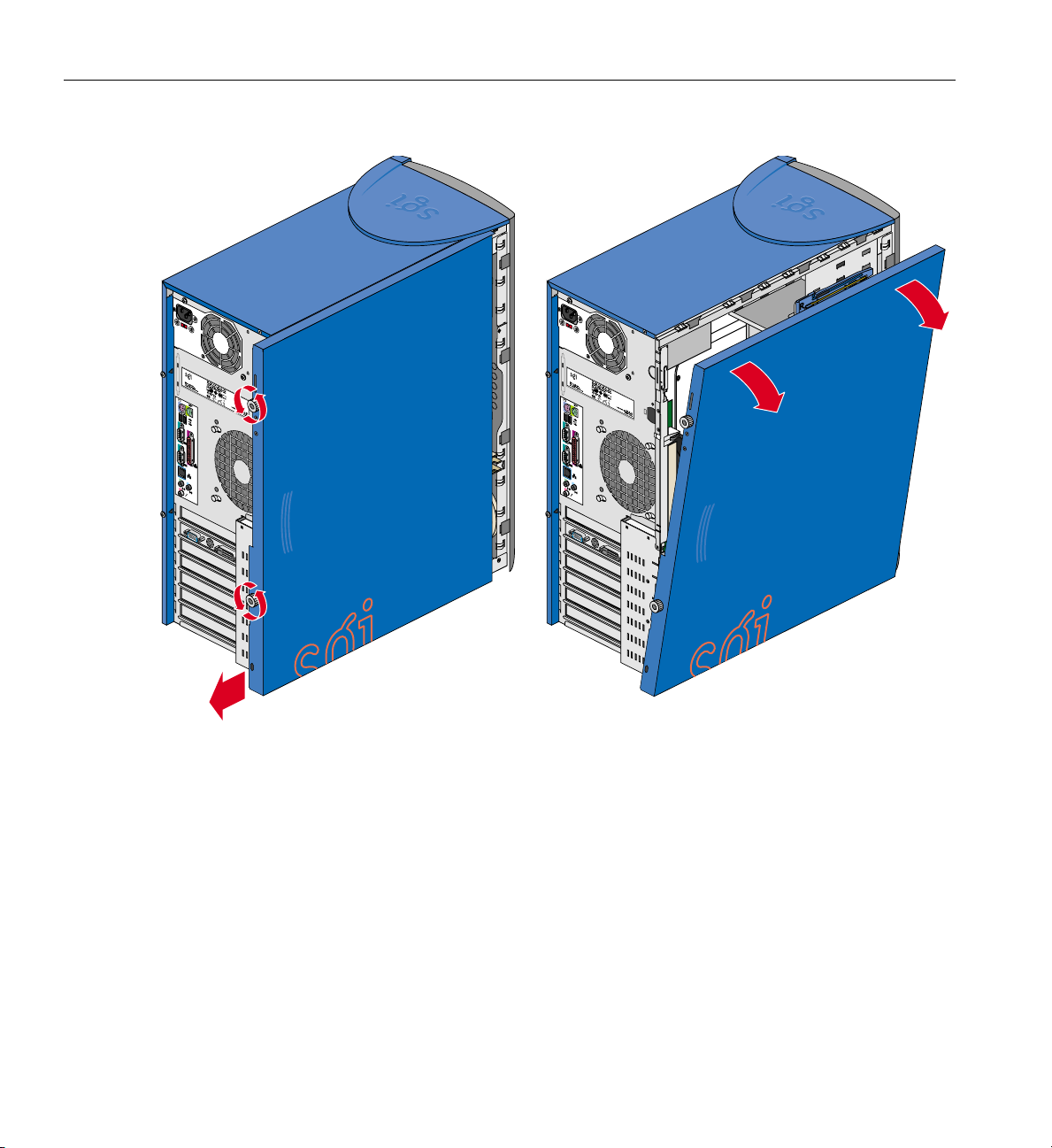
3. Follow these instructions to remove the side panel, as shown in Figure 1.
a. Unscrew the two thumbscrews on the back of the case.
b. Slide the panel toward the rear of the chassis.
c. Lift the panel up and away from the chassis.
007-4299-001 46.AB995.003 1
Page 2
Installing an AGP Card in the Silicon Graphics® 230, 330, and 550 Visual Workstations
1
2
2
1
Figure 1 Removing Side Panel
AGP Card Installation
This section describes how to install an AGP card on the Silicon Graphics 230, 330, and
550. See “System Board Layout” in your visual workstation user’s guide for the location
of the AGP card slots.
1
2
2
1
Follow electrostatic discharge (ESD) precautions. Electronic equipment can be
irreparably damaged by ESD. Always follow these preventative measures when
handling a system component:
• Remove a component from its antistatic bag only when you are ready to install it.
2 007-4299-001 46.AB995.003
Page 3
Installing an AGP Card in the Silicon Graphics® 230, 330, and 550 Visual Workstations
• If you have to handle a component before installation, do not place it on surfaces
that produce ESD (carpeting, for example), or near devices that create static
electricity.
• Attach a static wrist strap to a grounded connection on your system when installing
or removing a component.
To install the AGP card, follow these steps:
1. Remove the side panel as described in “Pre-installation Instructions” on page 1, if
not already done.
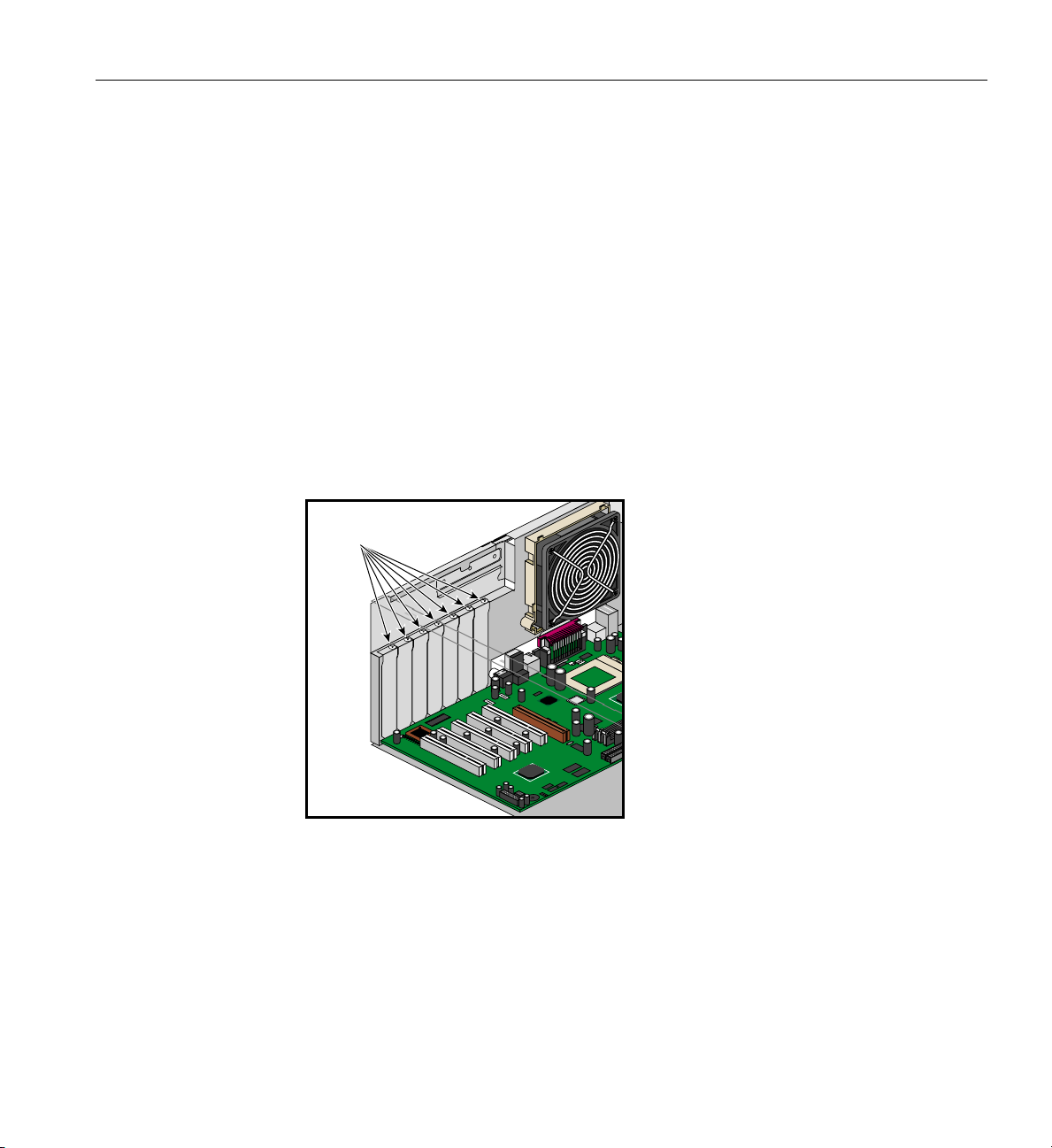
2. If a filler plate covers the slot opening selected for installation, follow these
instructions to remove it:
• Remove the retaining screw shown in Figure 2.
• Remove the filler plate from the chassis.
Filler plate
retaining screws
Figure 2 Location of the Retaining Screw
for the Expansion Slot Filler Plate
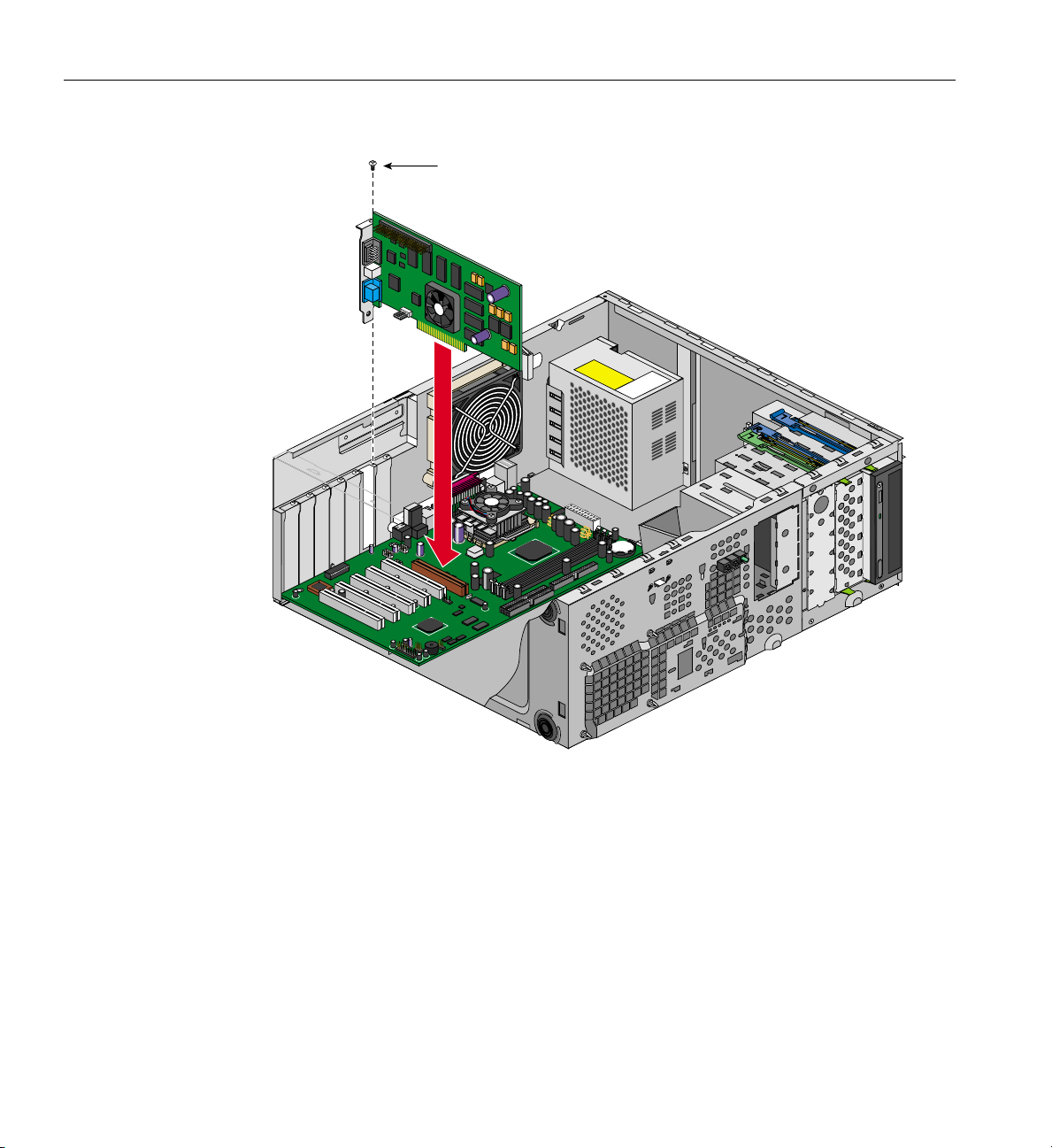
3. Insert the AGP card into the AGP slot by pushing the card into the connector until it
is properly seated. Figure 3 illustrates the procedure.
4. Tighten the retaining screw, as shown in Figure 3.
007-4299-001 46.AB995.003 3
Page 4
Installing an AGP Card in the Silicon Graphics® 230, 330, and 550 Visual Workstations
Retaining screw
Figure 3 Installing AGP Card
5. Replace the side panel as described in “Post-installation Instructions”.
Post-installation Instructions
After completing the installation of the AGP card, follow these steps:
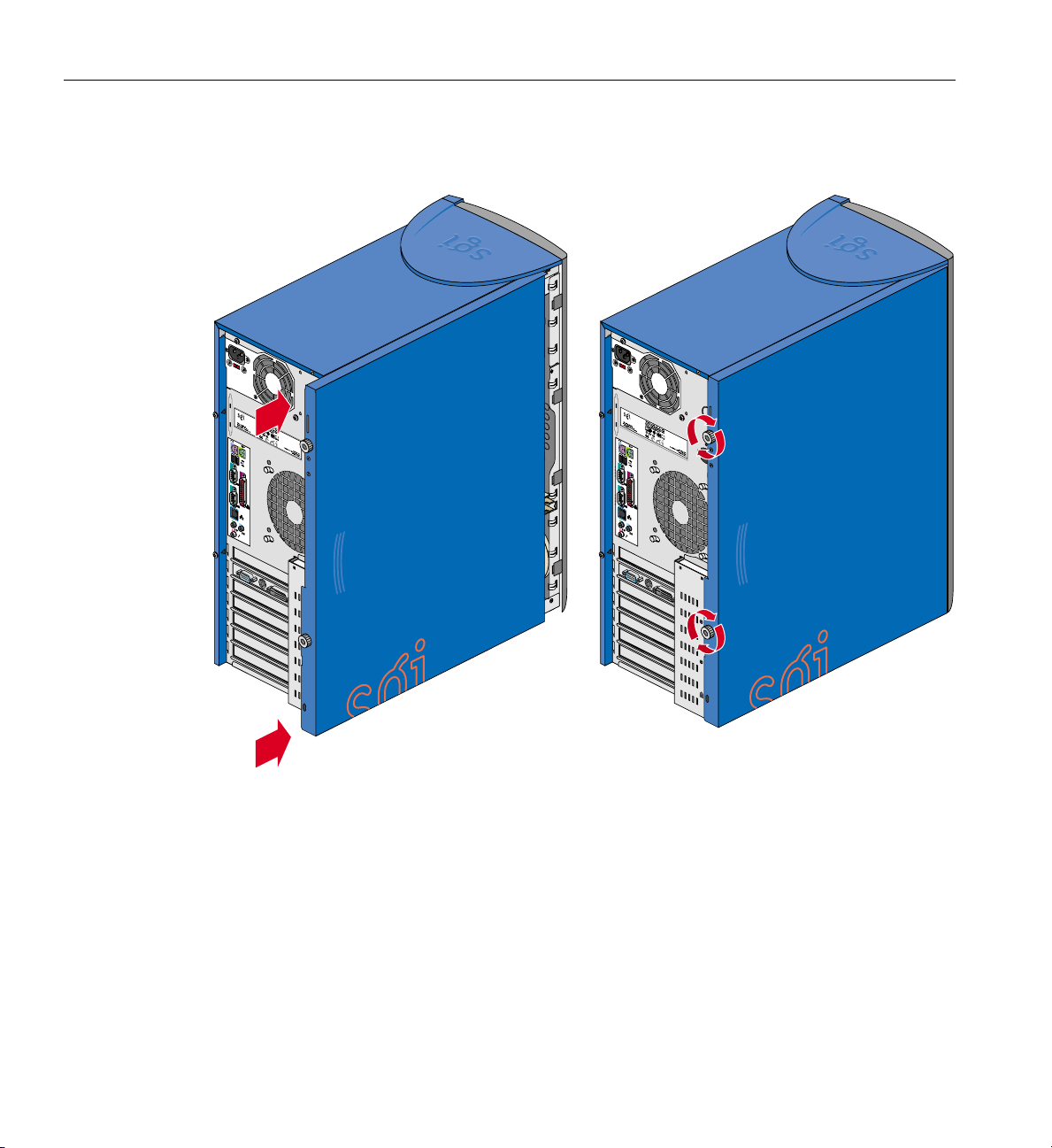
1. Follow these steps to replace the side panel:
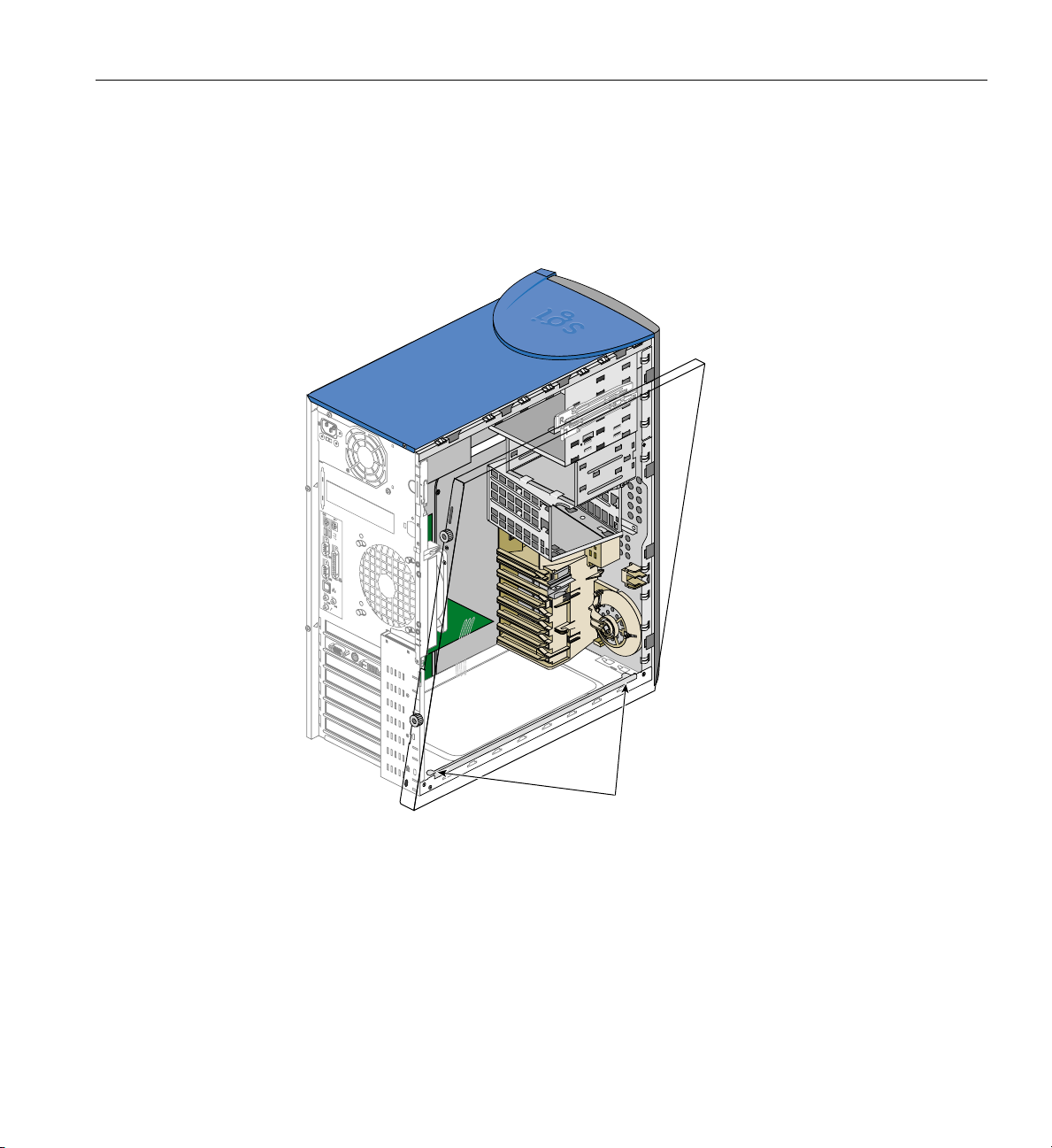
• Locate the two tabs on the lower side of the side panel.
4 007-4299-001 46.AB995.003
Page 5
Installing an AGP Card in the Silicon Graphics® 230, 330, and 550 Visual Workstations
• Place the two tabs onto the lower chassis rail.
• Slide the side panel toward the rear of the system, until the rear tab hits the rear
of the chassis and the side panel cannot be moved any farther. Figure 4
illustrates the procedure.
1
2
2
1
Side panel tabs
Figure 4 Placing Side Panel onto Lower Chassis Rail
• Push the upper side of the side panel toward the chassis.
• Gently lift the side panel and push it against the chassis.
• Slide the side panel towards the front of the chassis until it fits into place. The
procedure is illustrated in Figure 5.
007-4299-001 46.AB995.003 5
Page 6
Installing an AGP Card in the Silicon Graphics® 230, 330, and 550 Visual Workstations
• Tighten the two thumbscrews on the back of the case.
1
2
2
1
1
2
2
1
Figure 5 Sliding Side Panel into Place
2. To connect your system to external devices, refer to “Connecting External Devices”
in your user manual.
3. To turn on the system, press the power button on the front panel. Refer to your user
manual for the location of the power button.
6 007-4299-001 46.AB995.003
Page 7

Installing an AGP Card in the Silicon Graphics® 230, 330, and 550 Visual Workstations
Graphics Driver Installation
For Silicon Graphics 230, 330, and 550 visual workstations installed with Windows NT or
Windows 2000, install the SGI graphicsdriver for the appropriate product as found inthe
“Driver’s” folder in the Windows Resource CD (provided in the Graphics Upgrade
Option Kit). For workstations installed with Linux, use the SGI ProPack 1.3 for Linux Visual Workstation Edition CD that was included with the workstation to install the
appropriate graphics driver.
007-4299-001 46.AB995.003 7
Page 8

© 2001, Silicon Graphics, Inc. All rights reserved.
Silicon Graphics is a registered trademark, and SGI, the SGI logo, and SGI ProPack for Linux are trademarks, of Silicon Graphics, Inc. Linux is
a registered trademark of Linus Torvalds, used with permission by Silicon Graphics, Inc. Windows and Windows NT are registered trademarks
of Microsoft Corporation.
007-4299-001 46.AB995.003
 Loading...