

Page 1

Installation Instructions
Installation Instructions
Installation Instructions Installation Instructions
User Manual
User Manual
User ManualUser Manual
&
&
&&
V1
V1
V1V1
Page 2

SW08WL | SW10WL | W12WL
Contents
ContentsContents
Contents
1.
2.
3.
3.1.
3.2.
3.3.
3.4.
3.5.
3.6.
3.7.
4.
5.
6.
6.1.
6.2.
6.3.
6.4.
7.
7.1.
7.2.
8.
8.1.
8.2.
9.
9.1.
9.2.
9.3.
9.4.
9.5.
9.6.
9.7.
10.
10.1.
10.2.
11.
11.1.
11.2.
12.
13.
14.
15.
Safety instructions
First steps / scope of delivery
Installation
Connection of antenna electronics
Installation of antenna
Installation of antenna cable
Closing of housing
Installation of sealing ring
Installation of cap
Options of fixing systems
Function of the device
Positioning of the antenna
Wiring instructions
Wiring of antenna and router
Power supply of router
Use of antenna without router
Connection of additional devices
Initial operation / startup
Wireless per WLAN
Wired per LAN
Configuration of software
User interface
Opening of user interface
WLAN connection to distant hotspot
Registration
Status overview
Establishing connection with distant hotspot
Selection of WLAN-hotspot
Security of WLAN
Saving adjustments
Information about connection
Transmission and radiation power
Regulations
Adjusting transmission power
WLAN-Router SWR3022
Registration of router
Selection of WLAN encryption of router
Firmware update
Technical data
Glossary
Liability exclusion
4
5,6
7
7
7
8
8
9
10
11
12
13
14
14
15
16
17
18
18
18
19
19
19
20
20
20
21
22
23
24
24
25
25
26
27
27
28
29
30
33
37
Symbols
This symbol indicates useful advices and tips.
This symbol indicates important recommendations that
should be observed in any case to avoid malfunctions.
www.silentwindgenerator.com/en/antennas | [email protected]
2
Page 3
SW08WL | SW10WL | W12WL
Communication with green energy...
Communication with green energy...Communication with green energy...
Communication with green energy...
Nowadays it is essential for most people to be online, well informed
and up-to date at any time and on any occasion. No matter how you
spend your weekends and holidays -sailing or camping- you will
appreciate easy access to the net without limitations or
complications.
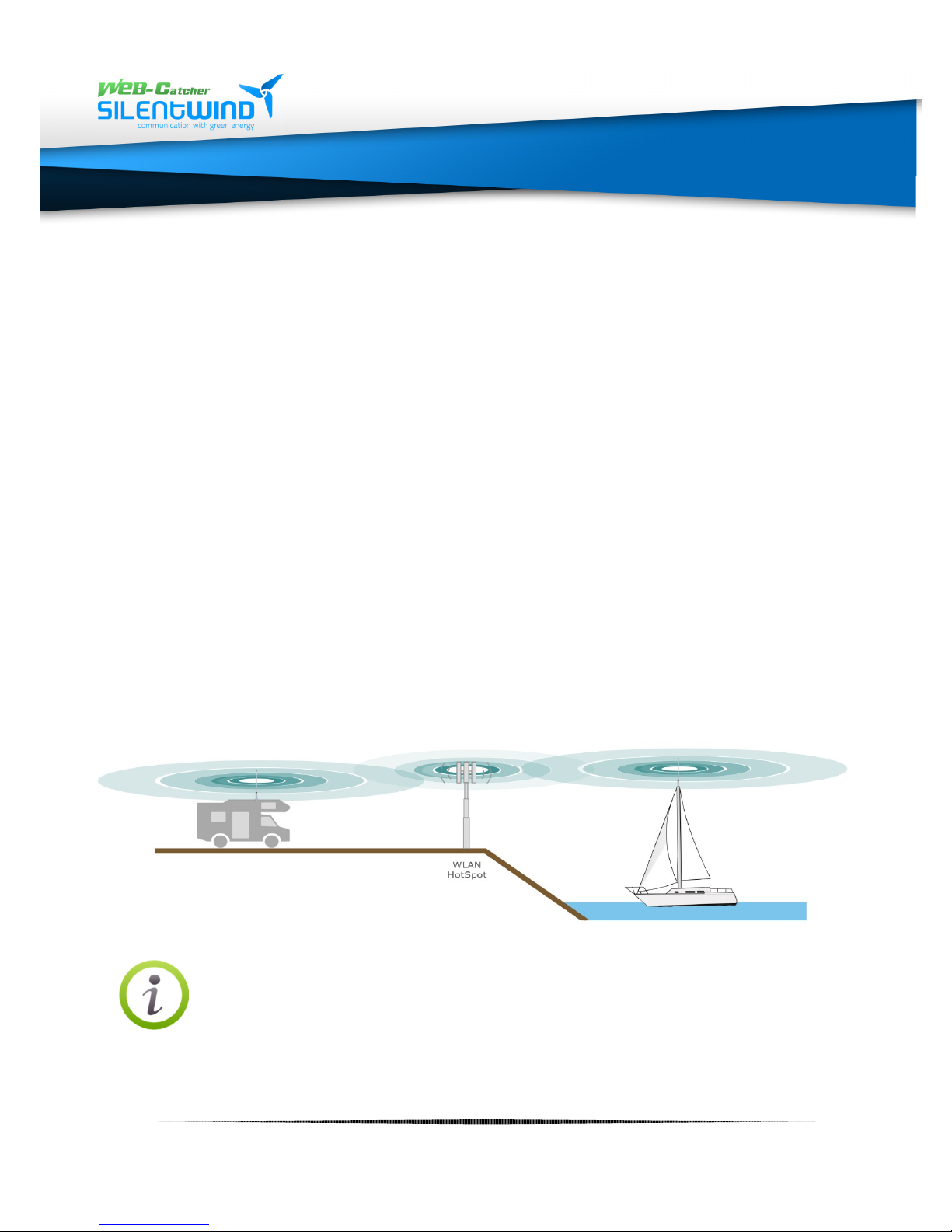
Most marinas, and ports, campsites or hotels offer WLAN service,
either free of charge or on subscription. In order to make use of this
service, also inside a boat under deck or inside a camper the WEBCatcher of SILENTWIND is the perfect solution to establish a fast
and reliable WLAN connection. The web catcher antenna set enables
you to receive even distant signals of WLAN hotspots
simultaneously for your notebook, tablet or smartphone on board or
anywhere else without any cable connection.
Thank you for choosing our Web-Catcher. Enjoy stable internet
connection with our Wi-Fi antennas!
Please carefully study the manual before you install the
items and follow the instructions.
3
www.silentwindgenerator.com/en/antennas | [email protected]
Page 4

SW08WL | SW10WL | W12WL
Use inside a car
Installation instructions
Please follow the instructions given for each step of the installation of
the items to ensure the optimal function of the devices.
Legal regulations and legal limits
Please note that legal regulations -especially the maximum legal
radiation of a WLAN device- depend on national laws varying in
European countries and the US.
In case you use the device inside the car, don't forget: safety first!
Both hands must control the wheel and you should use the device
only when the engine is switched off.
Hospitals and medical equipment
Please observe the applicable laws and regulations. Please switch off
the device in vicinity of medical equipment.
Temperature and humidity
Please note that the recommended operating temperature must not
be under -15° or above 45°C, humidity should be between 0 and
99%, IP66.
Rain, humidity and Thunderstorms.
The WEB-Catcher is weatherproof and suitable for outdoor use. But
the full submersion of the device in water must be avoided..
Servicing and maintenance
This unit has no parts that require maintenance.
www.silentwindgenerator.com/en/antennas | [email protected]
4
Page 5
SW08WL | SW10WL | W12WL
2. First steps
2. First steps2. First steps
2. First steps
Congratulations to your decision for a WEB-Catcher, the active
Omni antenna from SILENTWIND. Our WEB-Catcher is an efficient
WLAN active Omni antenna generating outstanding WLAN
connections, even at a long distance and in unfavorable conditions.
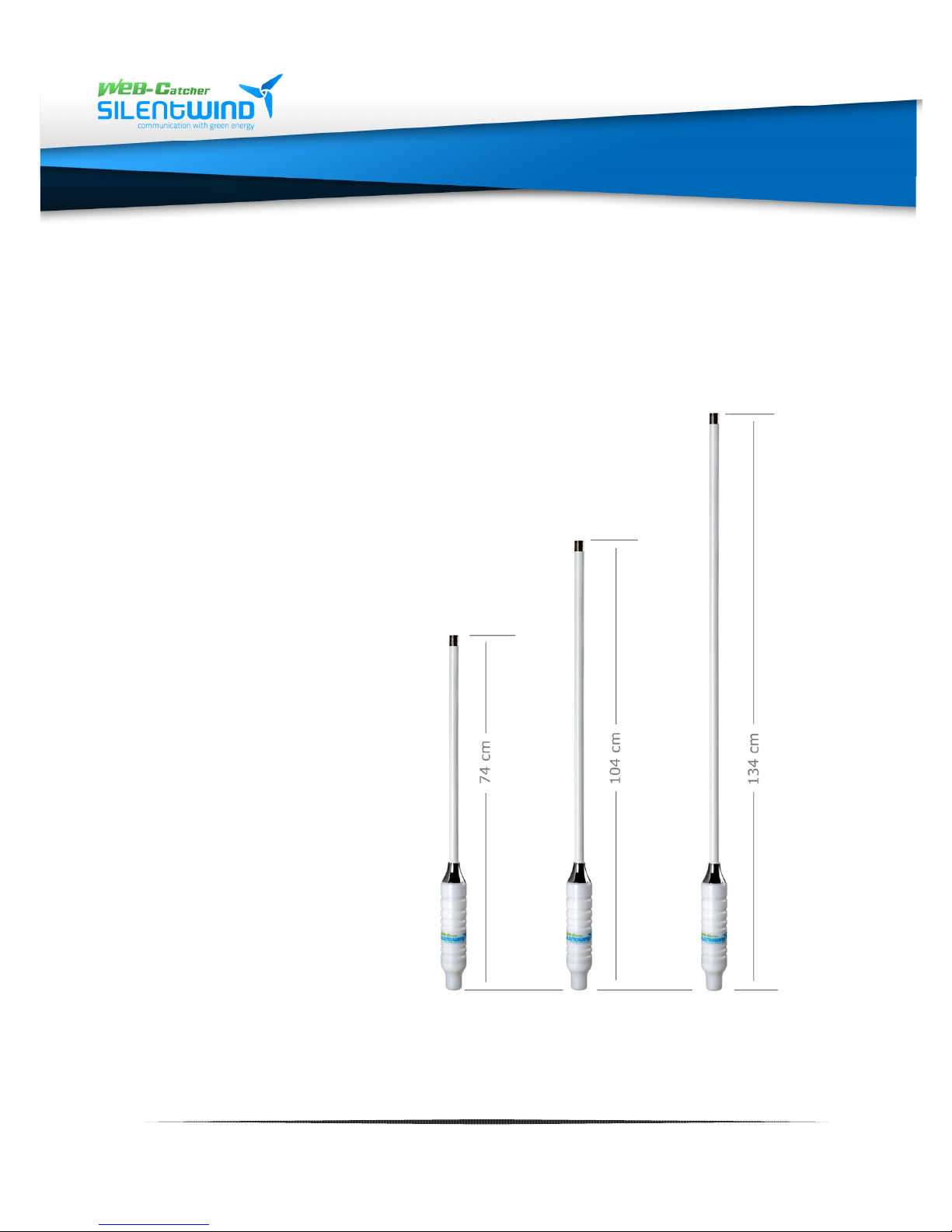
The WLAN set includes the following items:
• 2,4Ghz WLAN-active antenna with waterproof frame
• for the following ranges:
o 8,5dBi
o 10dBi
o 12,5dBi
www.silentwindgenerator.com/en/antennas | [email protected]
5
Page 6
SW08WL | SW10WL | W12WL
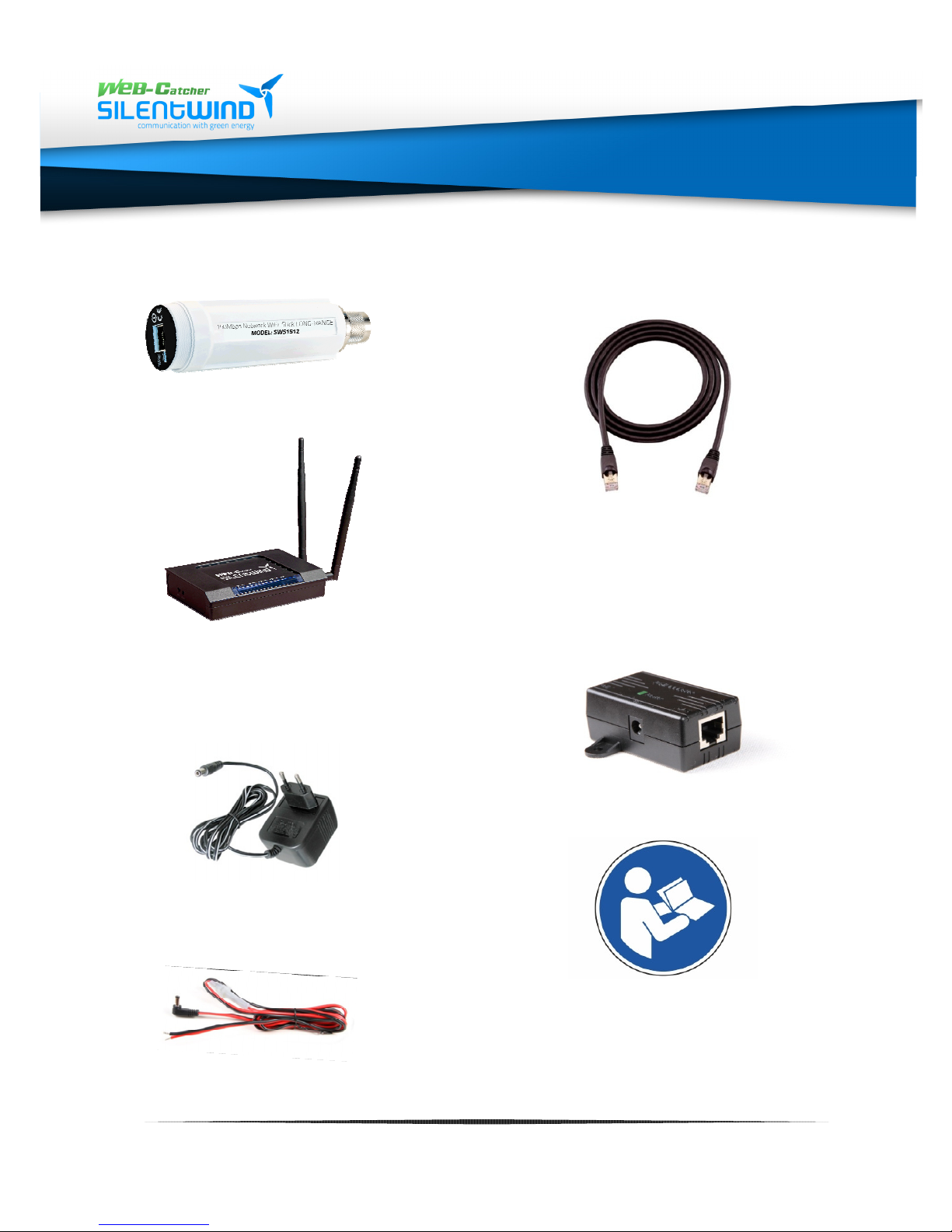
Scope of delivery
:
• WLAN-antenna electronics
Type: SWS1512
• WLAN-long-range-router
300Mbps Type: SWR3022
• Power adaptor AC: 100V -
240V | DC 12V 1A
• 12/24V connecting cable
• LAN-cable with RJ45
adaptors.
Available lengths:
10m | 20m | 30m | on
request
• PoE adaptor
• User manual and
installation instructions
www.silentwindgenerator.com/en/antennas | [email protected]
6
Page 7
SW08WL | SW10WL | W12WL
3. Installation
3. Installation
3. Installation3. Installation
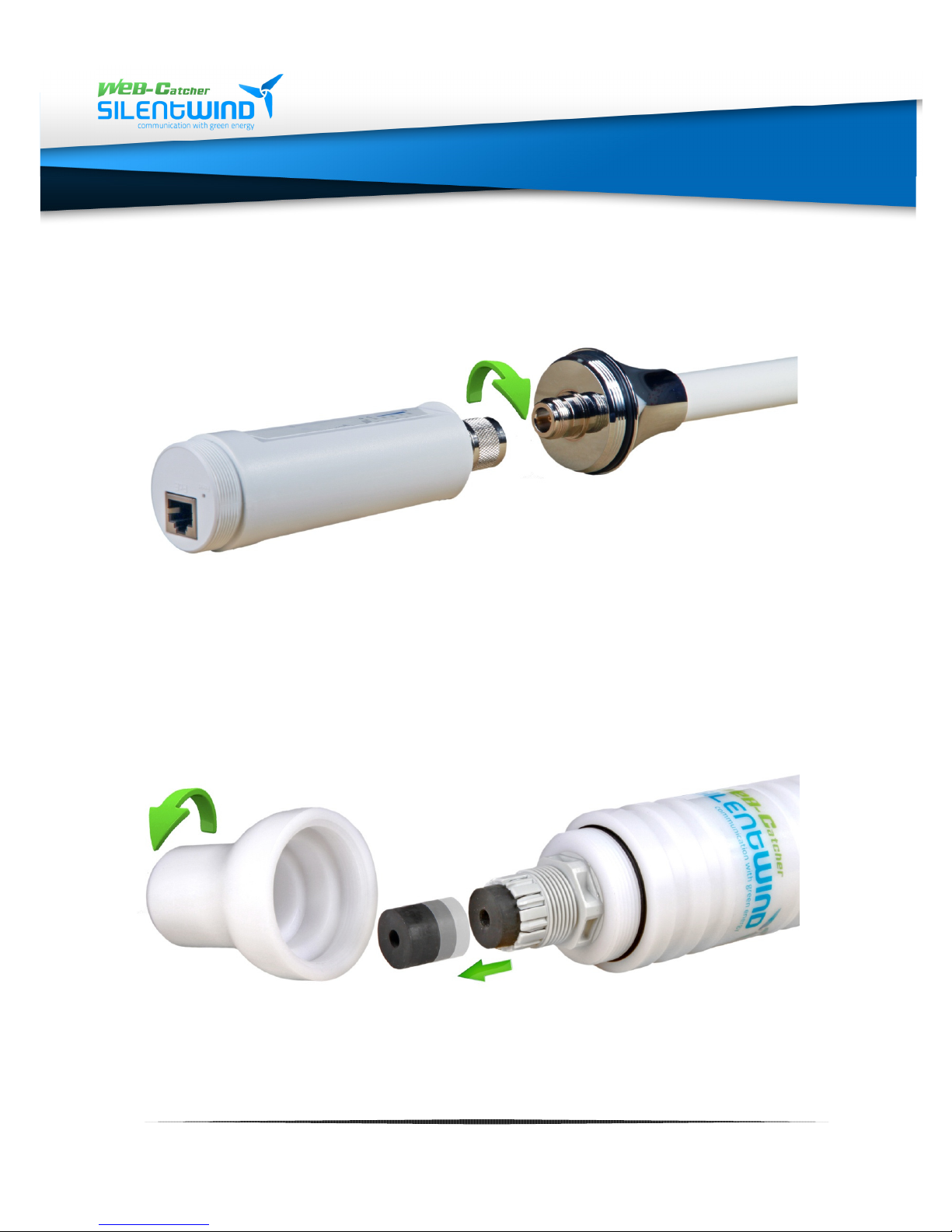
3.1 Connection of antenna electronics with antenna
Connect the antenna with the item containing the electronics.
Fix the screw connection with a pipe wrench to get a reliable
connection.
3.2 Installation of antenna
Unscrew the sealing cap of the cable inlet and pull out the sealing
Unscrew the sealing cap of the cable inlet and pull out the sealing
ring from the housing.
www.silentwindgenerator.com/en/antennas | [email protected]
7
Page 8
SW08WL | SW10WL | W12WL
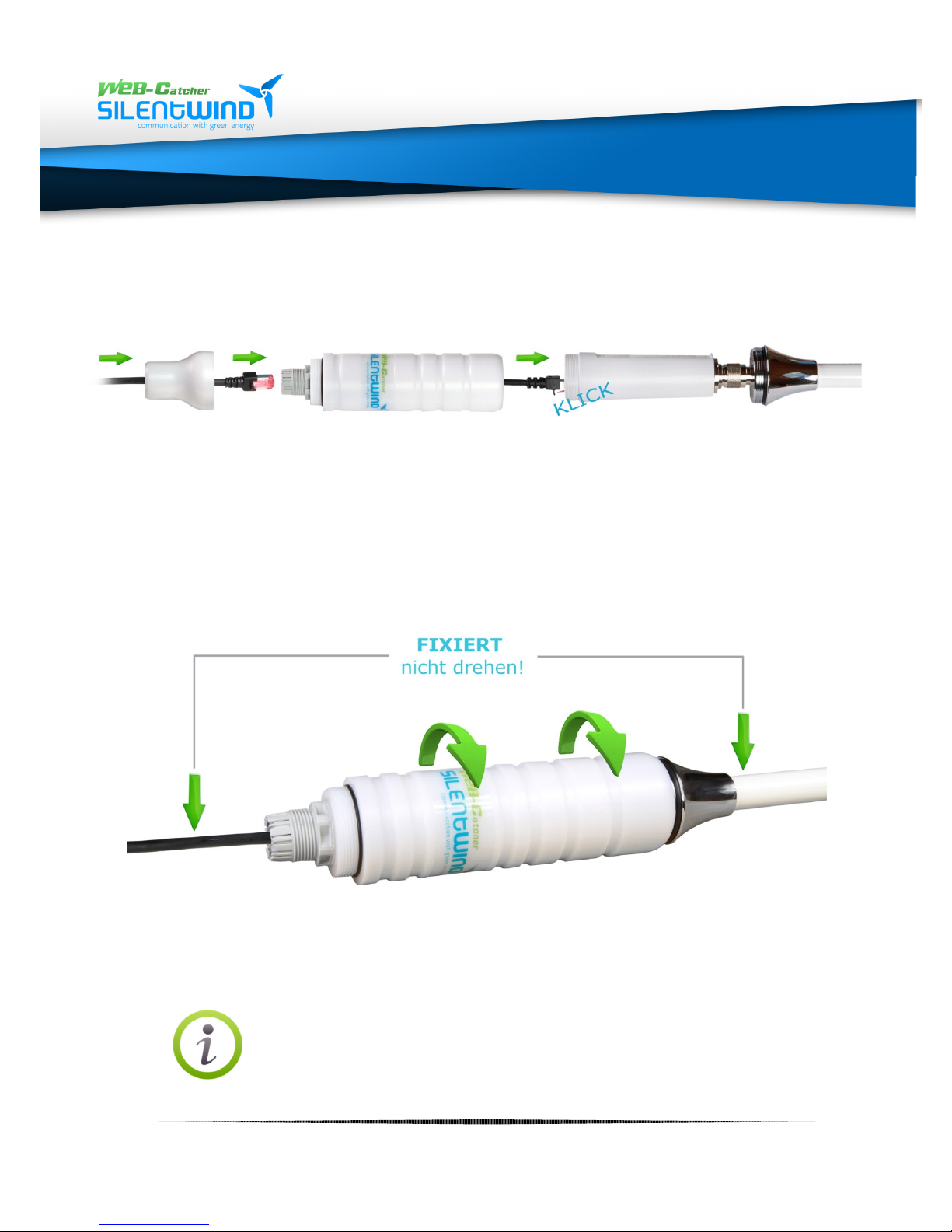
3.3 Installation of antenna cable
Put the Lan network cable through the end cap and the
antenna housing. Connect the cable adaptor with the WLAN
antenna electronics item.
3.4 Closing of housing
Screw the housing to the antenna.
Do not turn the antenna or the cable, they are FIXED!
www.silentwindgenerator.com/en/antennas | [email protected]
8
Page 9
SW08WL | SW10WL | W12WL
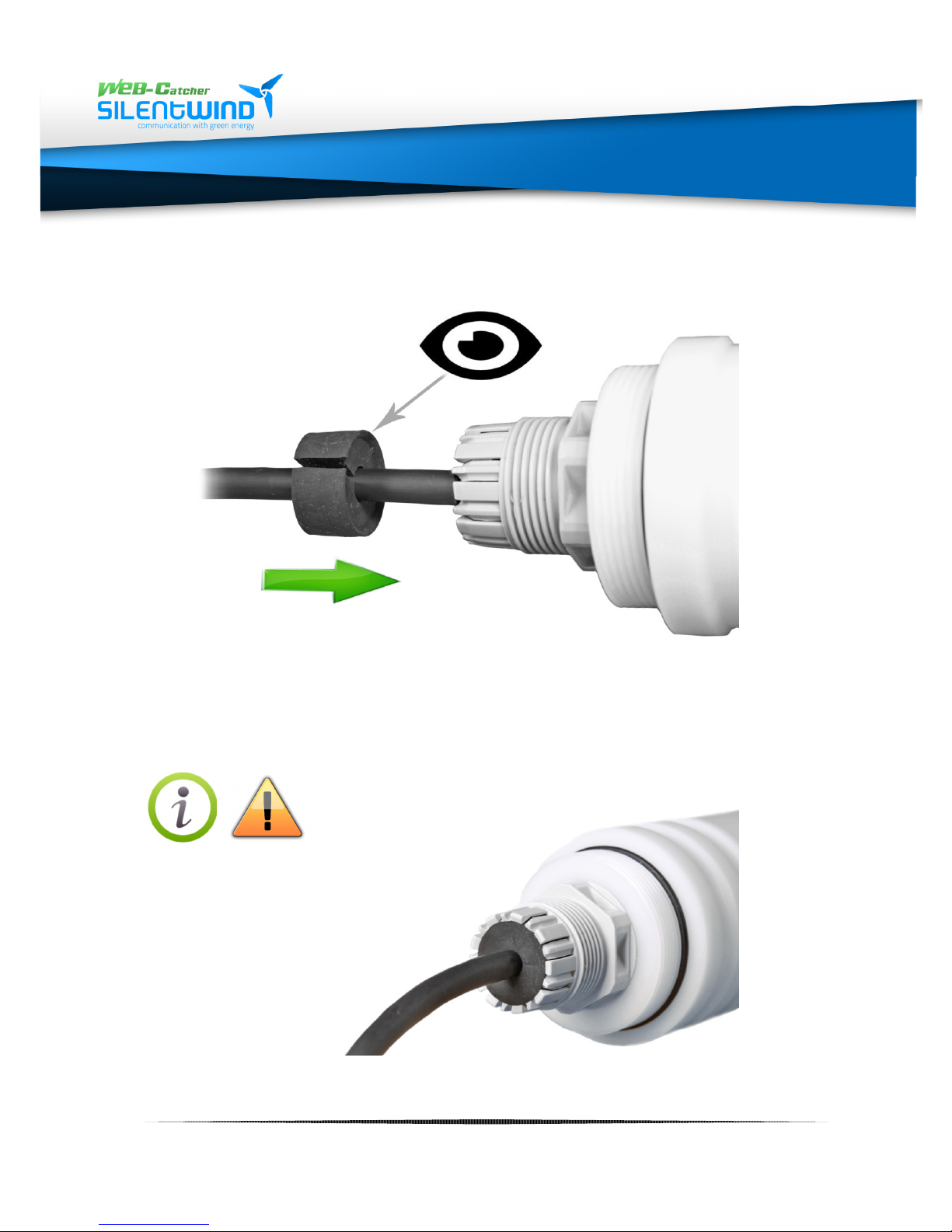
3.5 Installation of sealing ring
Now push the sealing ring over the cable and slide the
sealing ring into the bottom of the housing.
Make sure that the rubber lip at the sealing
ring must be pushed inside the housing!
www.silentwindgenerator.com/en/antennas | [email protected]
9
Page 10
SW08WL | SW10WL | W12WL
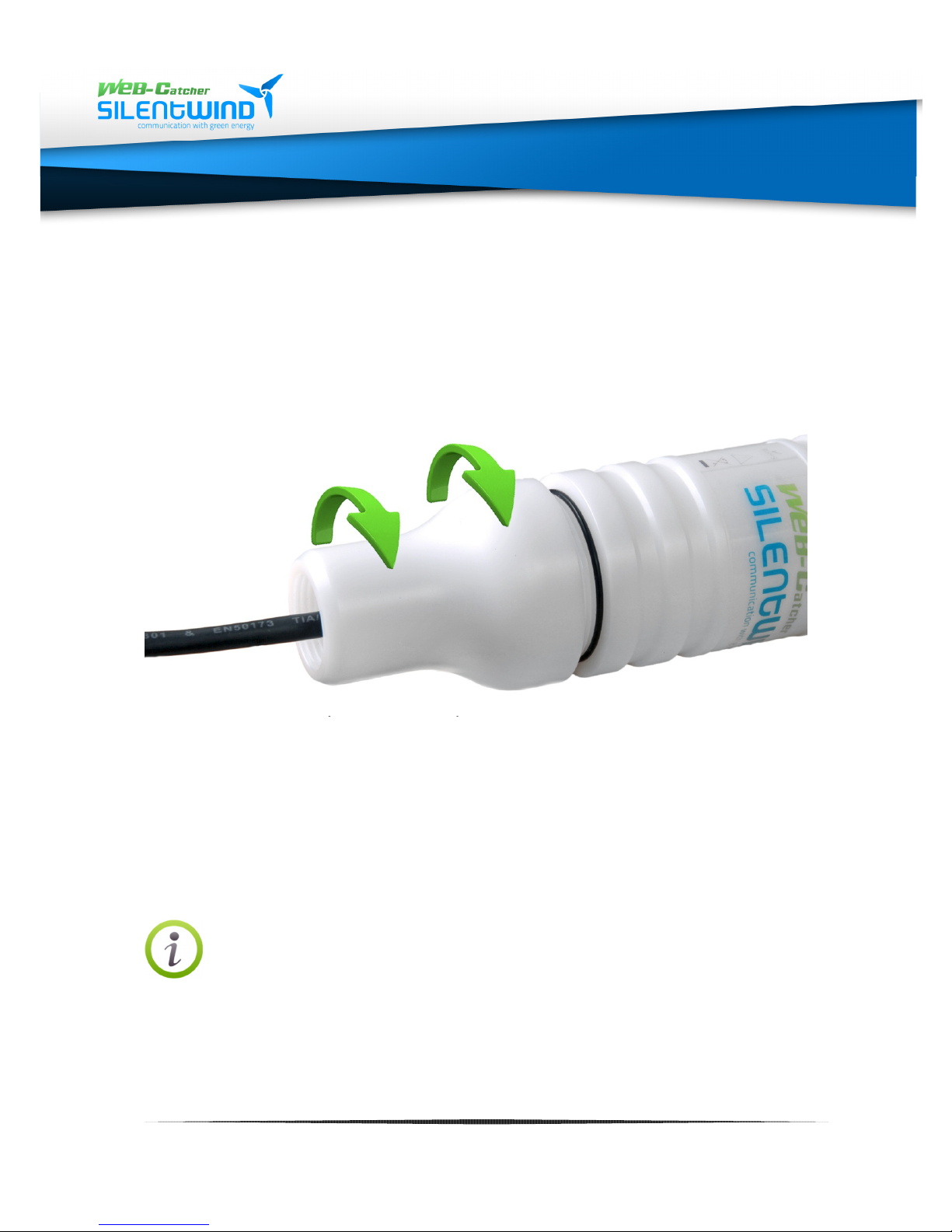
3.6 Installation of cap
At last firmly twist the cap to the frame.
Now your WLAN active antenna is ready for installation.
The 1"UNF x14 internal thread offers a variety of fixing
options.
The following fixing options are available:
www.silentwindgenerator.com/en/antennas | [email protected]
10
Page 11
SW08WL | SW10WL | W12WL
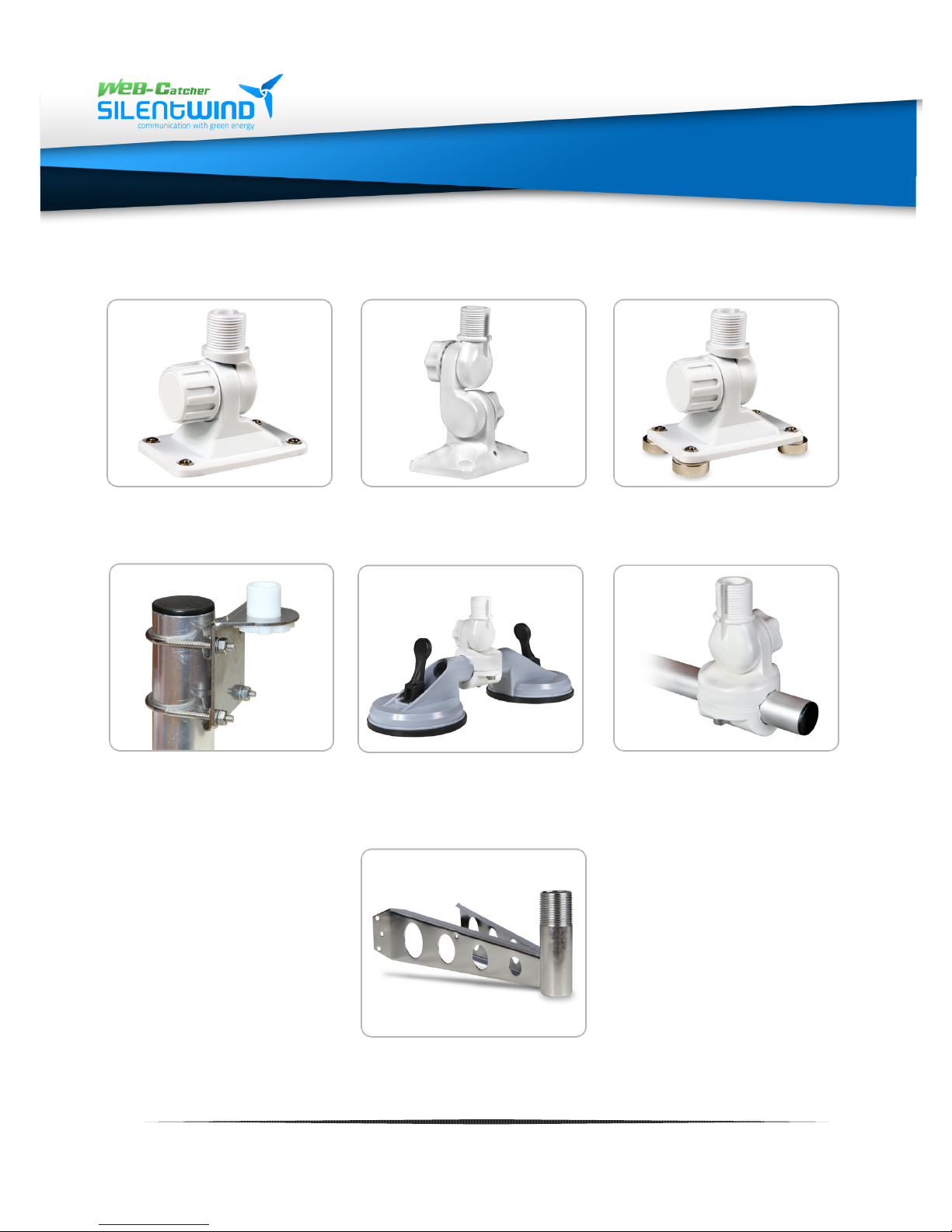
3.7 Options of fixing systems 1" UNF x14 threads (optional)
2-dimensional
screwable tilting
bracket
3-dimensional
screwable tilting
bracket
2-dimensional
magnetic tilting
bracket
mastmounting bracket
/ horizontal&vertical
double suction cup
mount/ with 2D tilt
link
2-dimensional railing
bracket for diameters of
25-30mm
www.silentwindgenerator.com/en/antennas | [email protected]
11
Page 12
SW08WL | SW10WL | W12WL
4.
4. 4.
4.
Functioning of the device
Functioning of the deviceFunctioning of the device
Functioning of the device
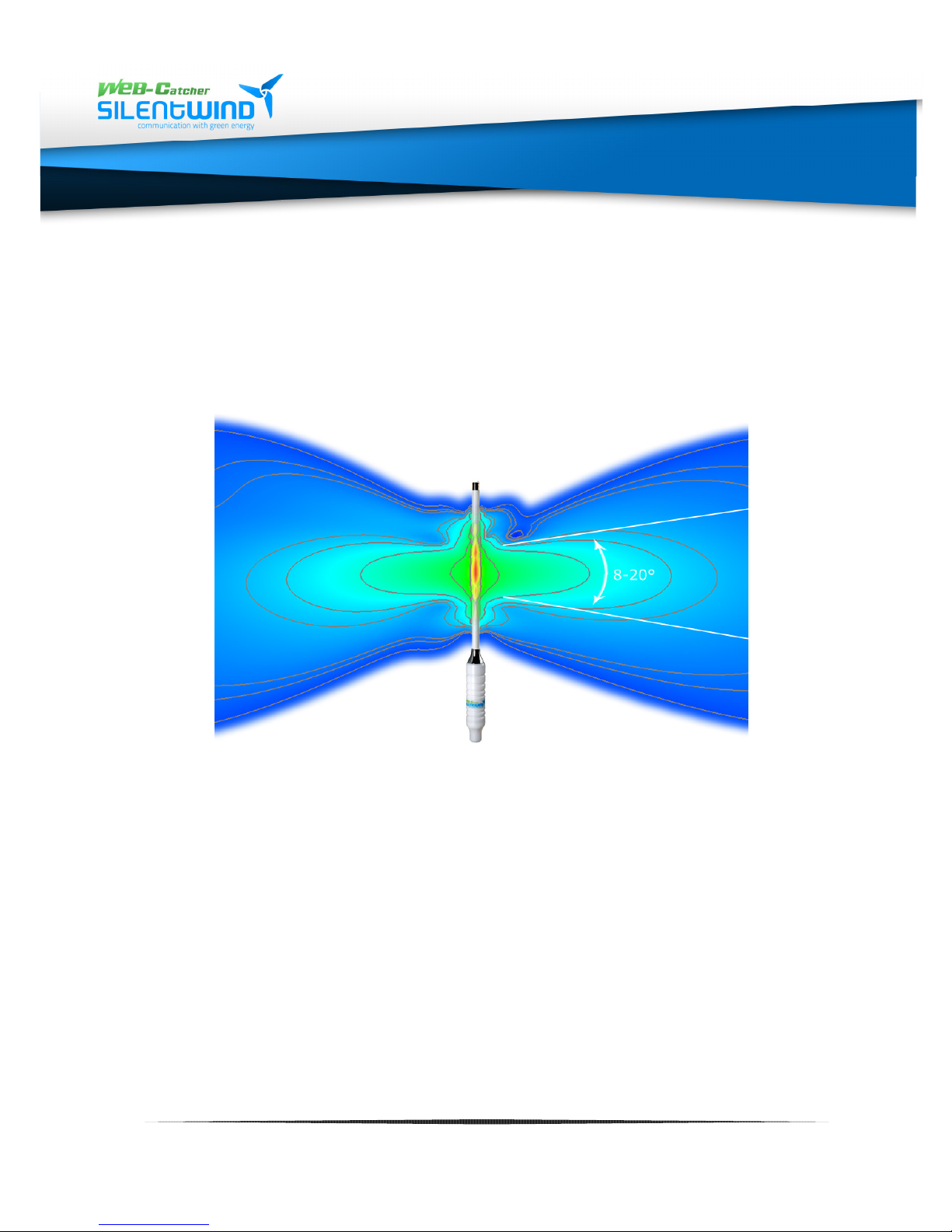
The WEB-Catcher transmits and receives the WIFI signals in a flat, circular cone
(donut) in an angle of 8-20° depending on the type of the antenna. This specific
characteristic considerably increases the range of communication (transmission and
reception power).
You do not need a long HF antenna cable due to the direct connection of antenna
and WLAN electronics. Thus there is no loss of the maximum possible transmission
and reception power. Therefore the range of communication can be 50 times higher
than that of the integrated systems in notebooks. The radiation power of the
antenna can be adjusted in the router set up:
• Type: SW08WL up to 35,5dBm (3548,13mW)
• Type: SW10WL up to 37dBm (5110mW)
• Type: SW12WL up to 39,5dBm (8912,50mW)
www.silentwindgenerator.com/en/antennas | [email protected]
12
Page 13
SW08WL | SW10WL | W12WL
5. Positioning of antenna
5. Positioning of antenna5. Positioning of antenna
5. Positioning of antenna
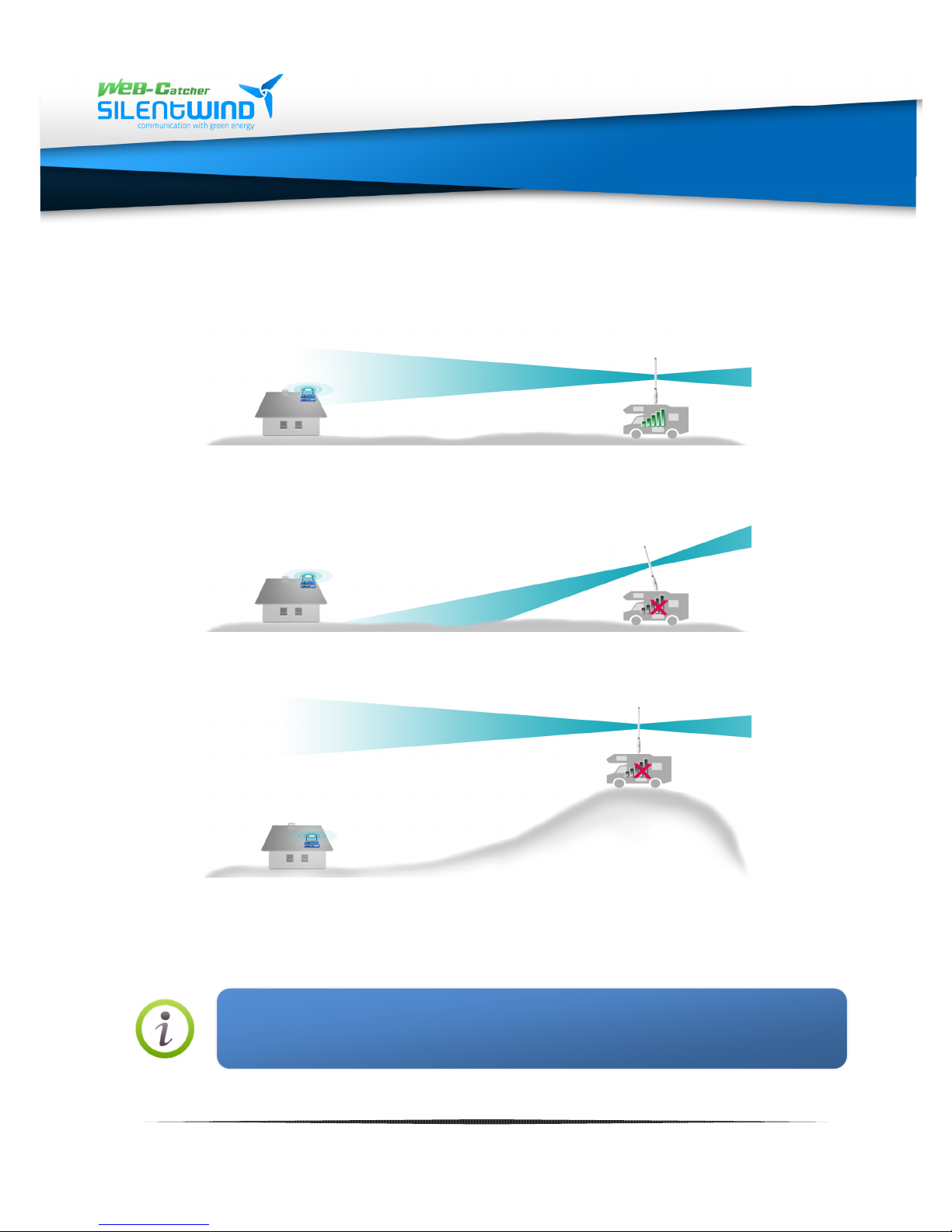
If you install the antenna in vertical position in unobstructed sight of the
WLAN hotspot, you will get the best horizontal communication range.
A wrong installation of the antenna will substantially reduce the maximum possible
communication range.
Please also note that a high difference in altitude between hotspot and antenna may
cause a bad connection or a total loss of the connection.
Any obstruction between antenna and hotspot weakens the WLAN waves by
reflection or deviation. Therefore an optimal position of the antenna is essential for a
good WLAN connection.
Paper, cardboard, textiles, glass, wood, thin plastics and dry leaves are relatively
permeable to WLAN waves whereas metal, roof tiles, soundproof windows and
thermo glass and especially ferroconcrete are hardly permeable.
www.silentwindgenerator.com/en/antennas | [email protected]
13
Page 14
SW08WL | SW10WL | W12WL
6. Wiring instructions
6. Wiring instructions6. Wiring instructions
6. Wiring instructions
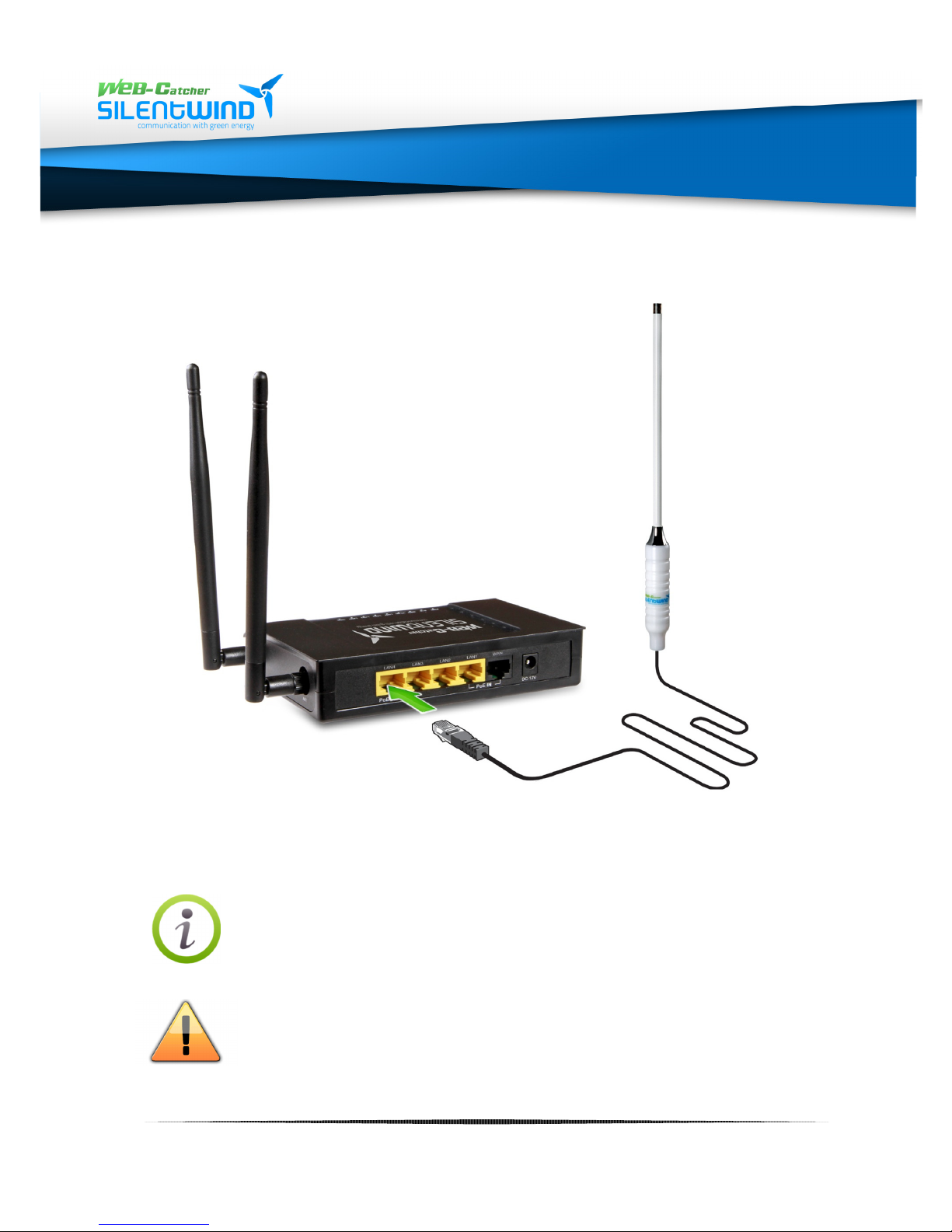
Connect the connection cable of the antenna plugging it into the left
6.1 Wiring of antenna and router
port LAN4 at the back of the WLAN router.
The power supply for the electronics of the antenna is
provided via PoE (power over Ethernet). An additional
power supply is not necessary. The maximum cable length
should not exceed 80m. We recommend using Lan cable
CAT6SFTP.
Make sure that you do not use any other port than LAN4 to
connect the antenna.
14
www.silentwindgenerator.com/en/antennas | [email protected]
Page 15
SW08WL | SW10WL | W12WL
6.2 Power supply of the router
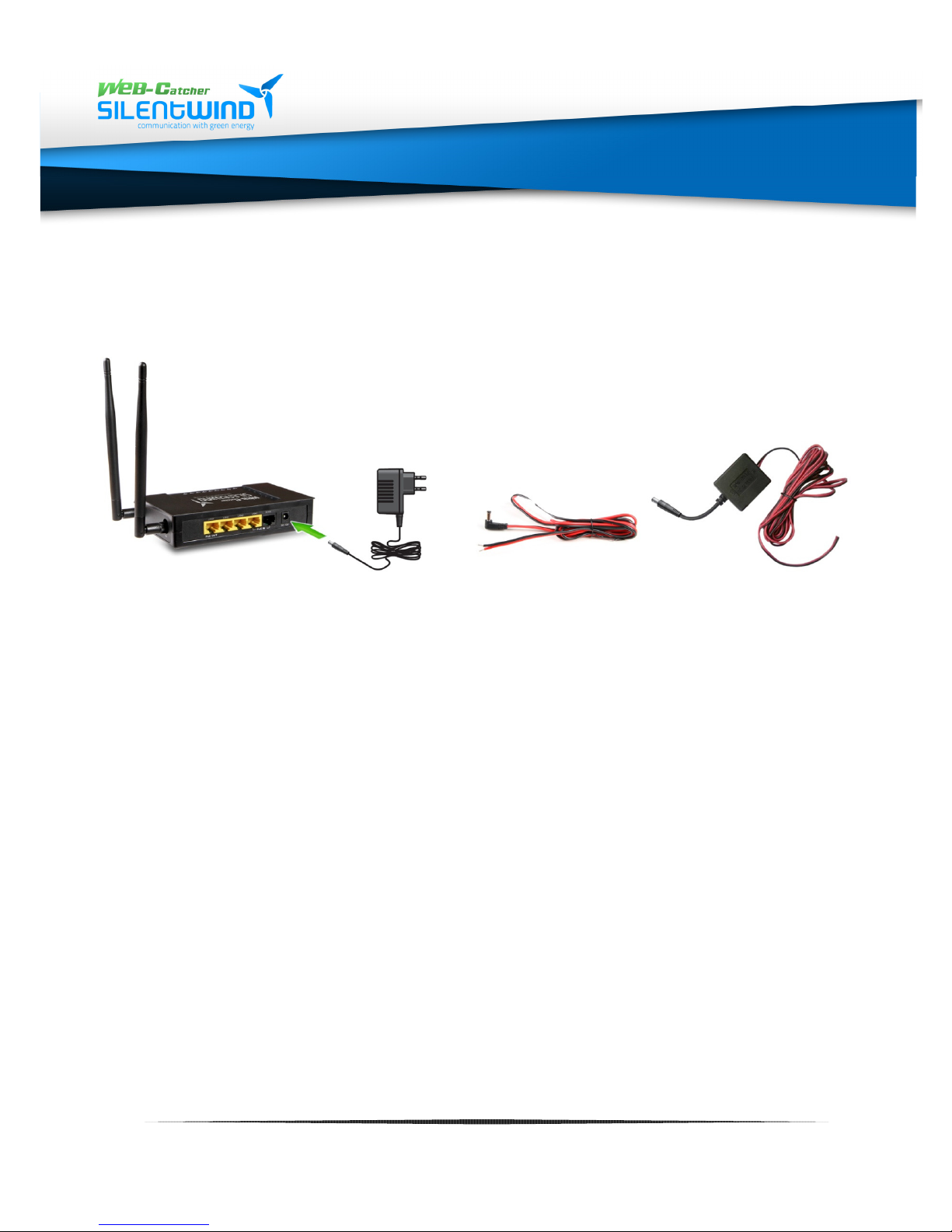
Connect the power supply unit (PSU) to the power supply plug of the
110V - 240V AC
power supply unit
12V - 18V DC
connecting cable *
19V - 35V DC
connecting cable *
* Set depending on
requested connection
router and plug the PSU into a socket of 110-240V AC of the power source.
Connect 12V cable to the power supply socket of the router if you want to
use a 12-18V DC power source.
Connect the 24V cable to the power supply socket of the router if you want
to use a 19V-35V DC power source.
15
www.silentwindgenerator.com/en/antennas | [email protected]
Page 16
SW08WL | SW10WL | W12WL
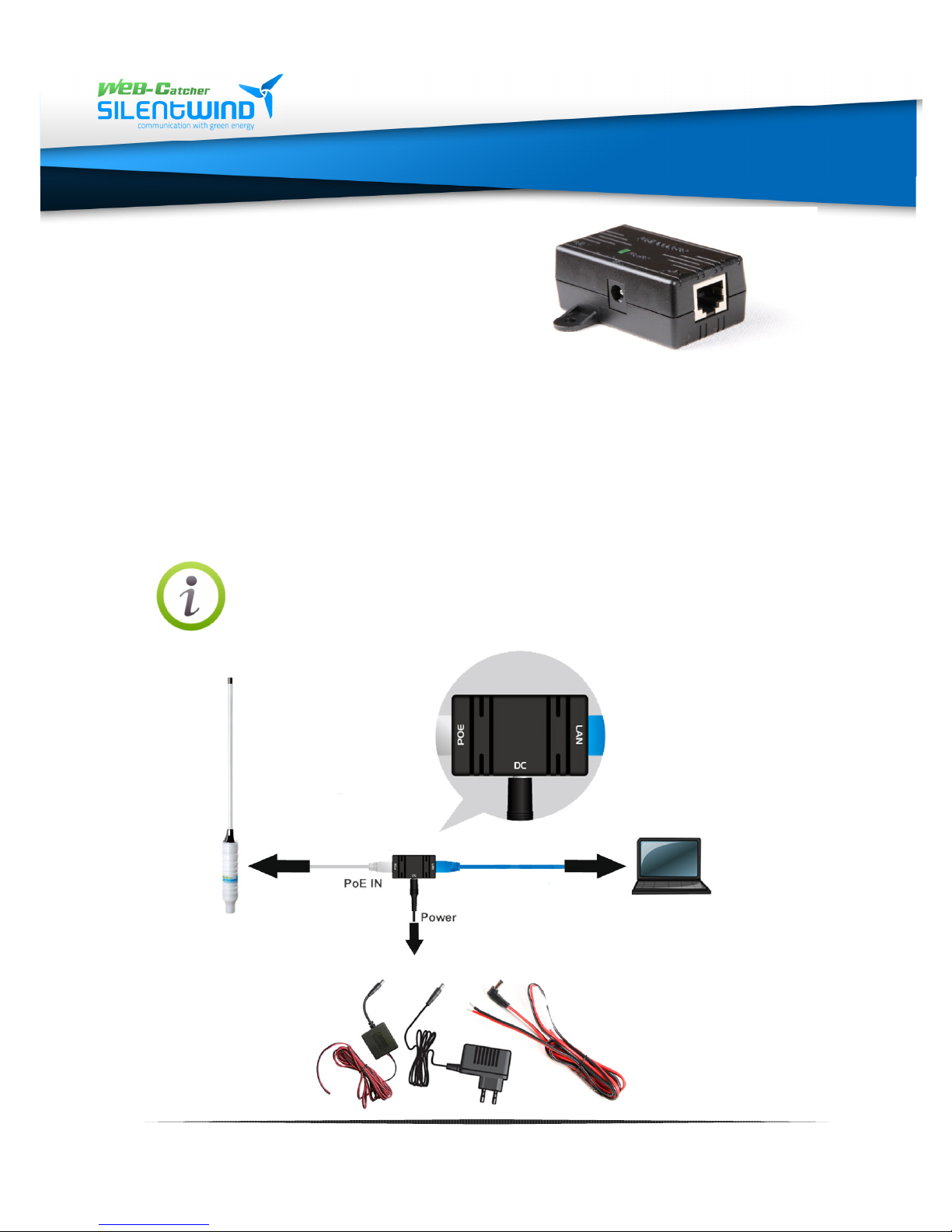
6.3 Use of antenna without router or
different brand router
You can connect the antenna directly to the
PC/notebook:
Connect the LAN cable of the antenna with the PoE to the PoE port.
Then connect your PC/notebook and the LAN port of the PoE adaptor with the
patch cable (scope of delivery). At the PoE adaptor (on the side) connect the
12V low voltage power plug with the socket "DC-IN". The power LED now
shines green.
Instead of the PC a different brand router can be connected.
In this case mind the correct
setting/configuration of the router.
www.silentwindgenerator.com/en/antennas | [email protected]
16
Page 17
SW08WL | SW10WL | W12WL
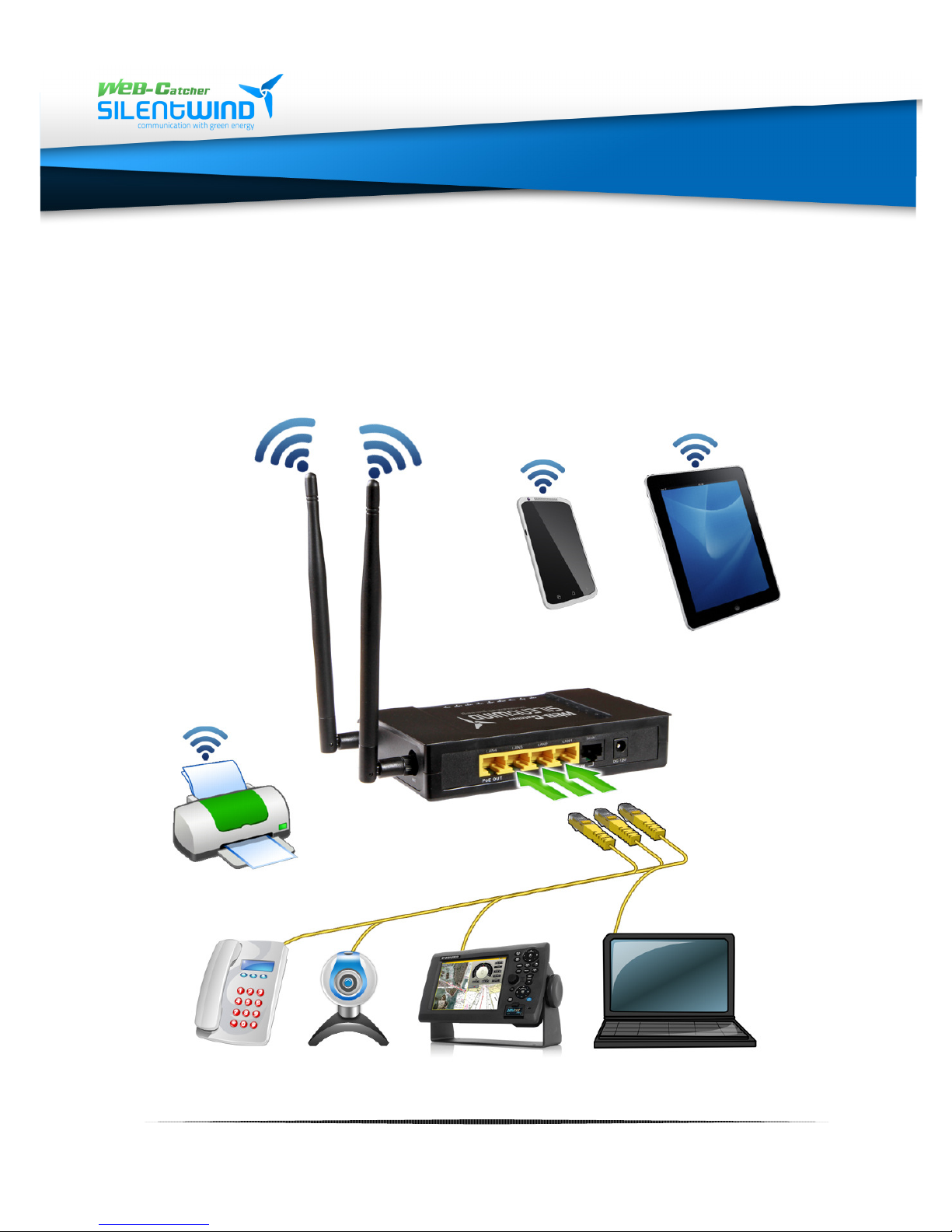
6.4 Connection of additional devices with the router
All devices that can be connected to WLAN, e.g. notebook, smartphone,
tablet, printer, IP phone or IP camera) can be connected with the WLAN
router SWR3022.
The 3 LAN (LAN1, LAN2 and LAN3) ports enable the connection of wired
devices via Ethernet.
17
www.silentwindgenerator.com/en/antennas | [email protected]
Page 18
SW08WL | SW10WL | W12WL
7. Initial operation / startup
7. Initial operation / startup7. Initial operation / startup
7. Initial operation / startup
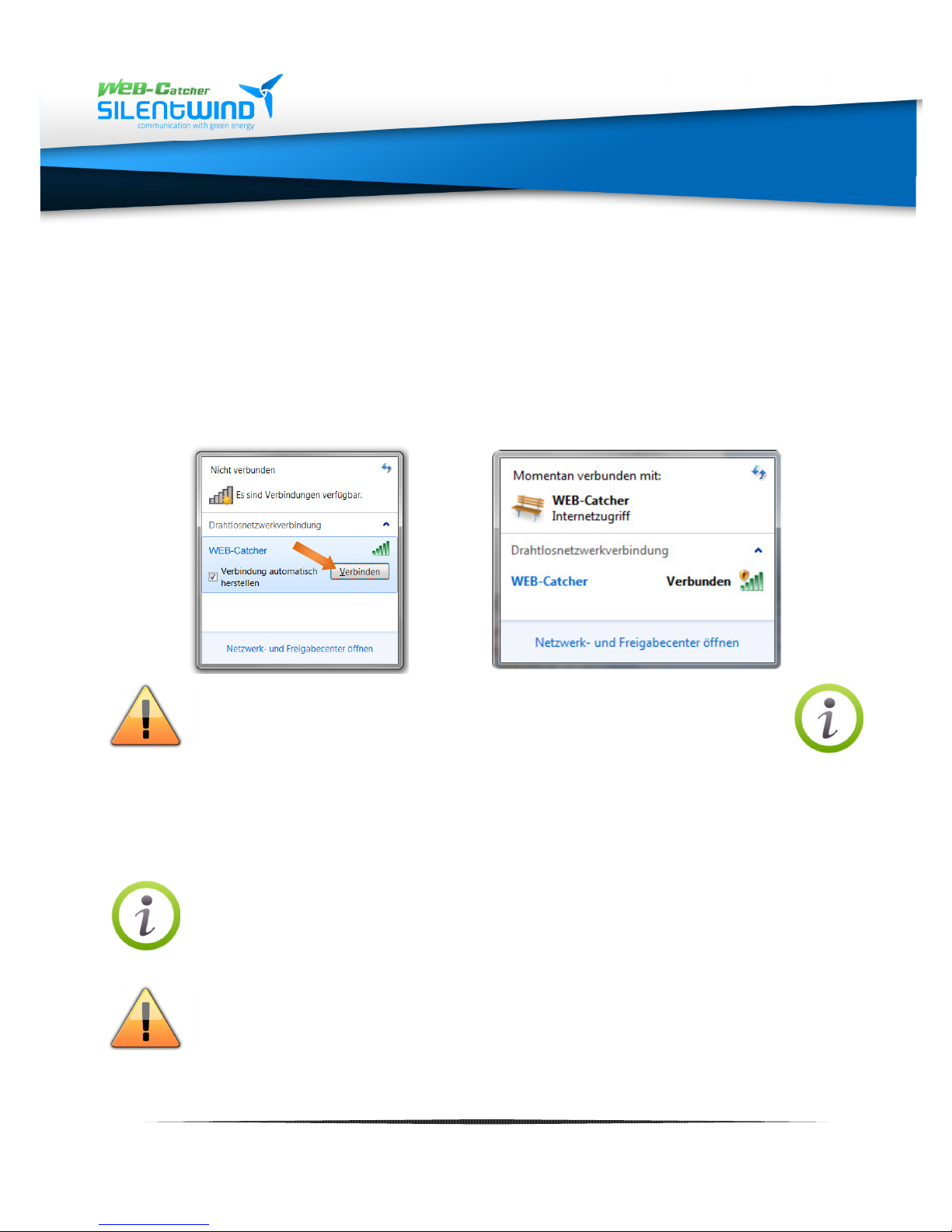
7.1 Wireless per WLAN
After switching on the router it takes about 40 seconds before a new
wireless network called WEB-Catcher pops up in the list of available
WLAN networks on your PC/notebook/tablet/smartphone. Click "connect"
to initiate the connection. ..........
On delivery the WLAN network is open. We strongly advise to
activate the network key. See page 28: network encryption.
7.2 Wired LAN
Connect LAN port 1,2 or 3 of the router with your PC/notebook with a
LAN (patch) cable.
Set your network card on DHCP-Client. The required IP address
will be generated automatically..
A correct connection via WLAN or LAN can only be established if
the antenna is installed EXACTLY in line with these instructions
and is connected with the router in port 4!
18
www.silentwindgenerator.com/en/antennas | [email protected]
Page 19
SW08WL | SW10WL | W12WL
8. Configuration of software
8. Configuration of software8. Configuration of software
8. Configuration of software
Interface router:
8.1 User interface
The router has a user interface that you can open with a
PC/tablet/smartphone in an internet browser.
You set up the antenna and the WLAN router as shown on the interface.
You switch on/off functions and also get information about your antenna
and the quality of the connection.
8.2 Opening of user interface
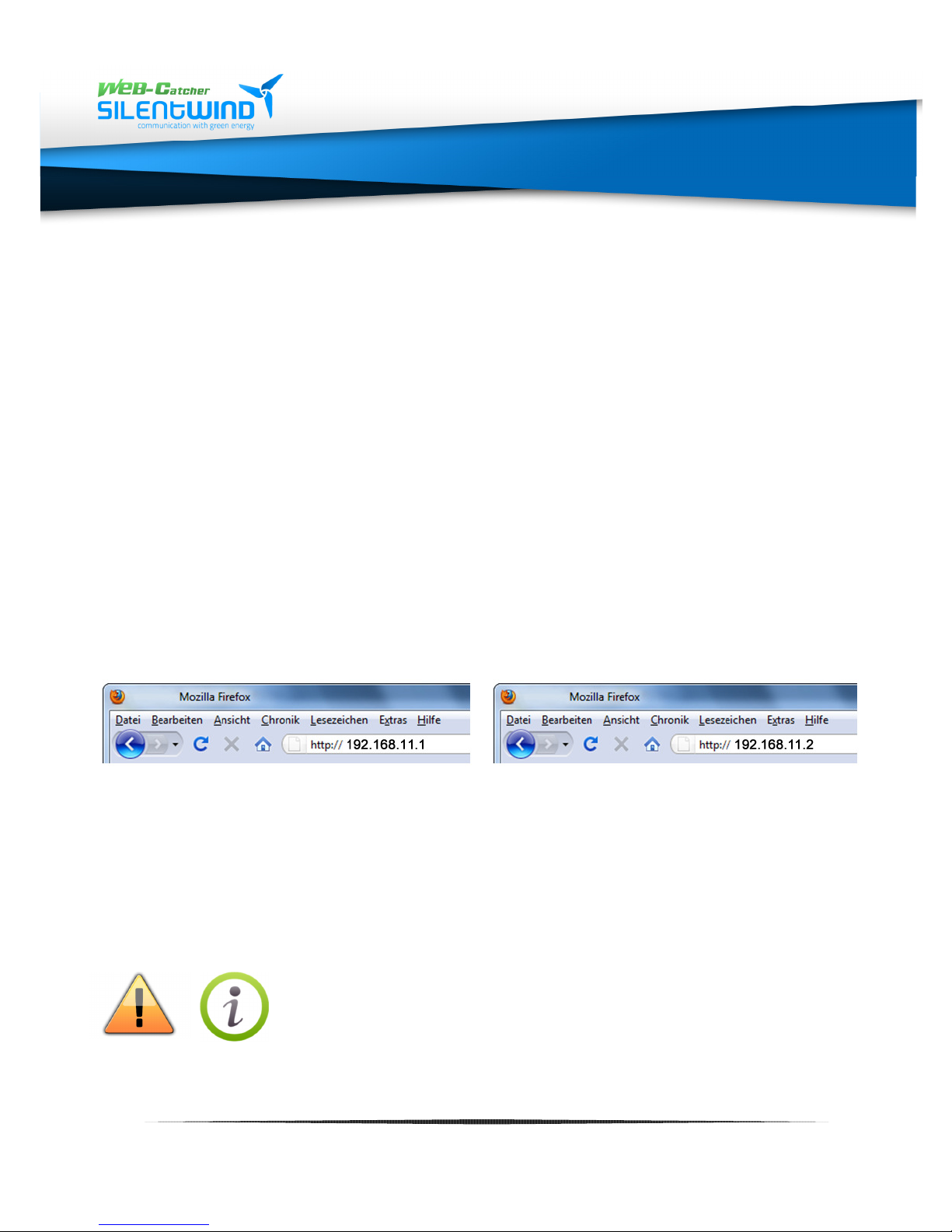
The user interface can be opened at any computer that is connected with
the router.
1. Open an internet browser on your computer.
2. Enter the numbers and dots given below into the input field of the
browser.
Interface of antenna:
192.168.11.1
The interface is opened.
The internet browser "Safari" of Apple is not
fully supported. When using a device with IOS
operating system (I-Pad, I-Phone) for the
software configuration, the browser "Google
Chrome" must be used. You can find the
application in the App Store for download.
www.silentwindgenerator.com/en/antennas | [email protected]
192.168.11.2
19
Page 20
SW08WL | SW10WL | W12WL
9. WLAN connection with distant hotspot
9. WLAN connection with distant hotspot9. WLAN connection with distant hotspot
9. WLAN connection with distant hotspot
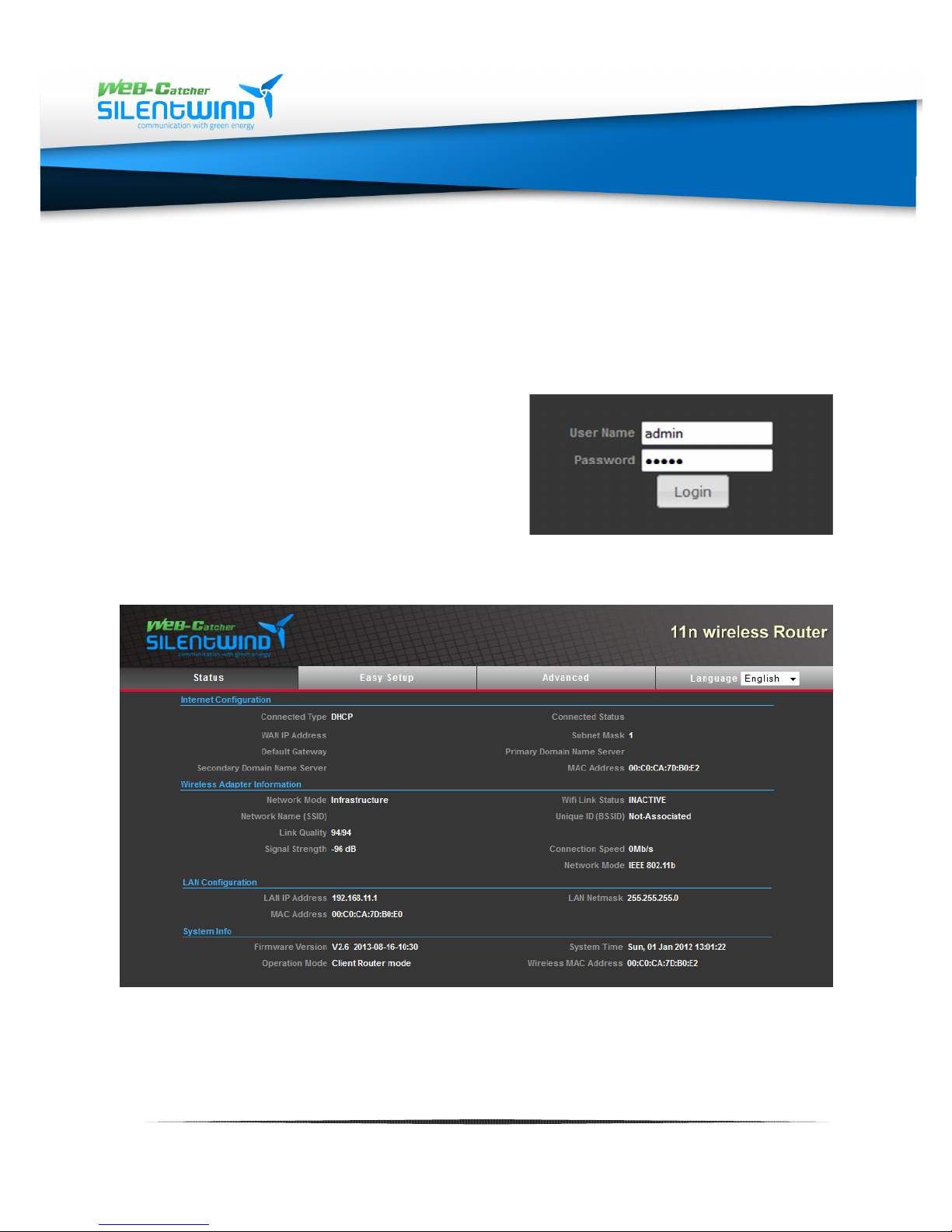
9.1 Registration of antenna 192.168.11.1
In order to open the user interface
of the antenna enter admin both
into the windows "user name" and
"Password". Then click on "log-in".
9.2 Status overview
20
www.silentwindgenerator.com/en/antennas | [email protected]
Page 21
SW08WL | SW10WL | W12WL
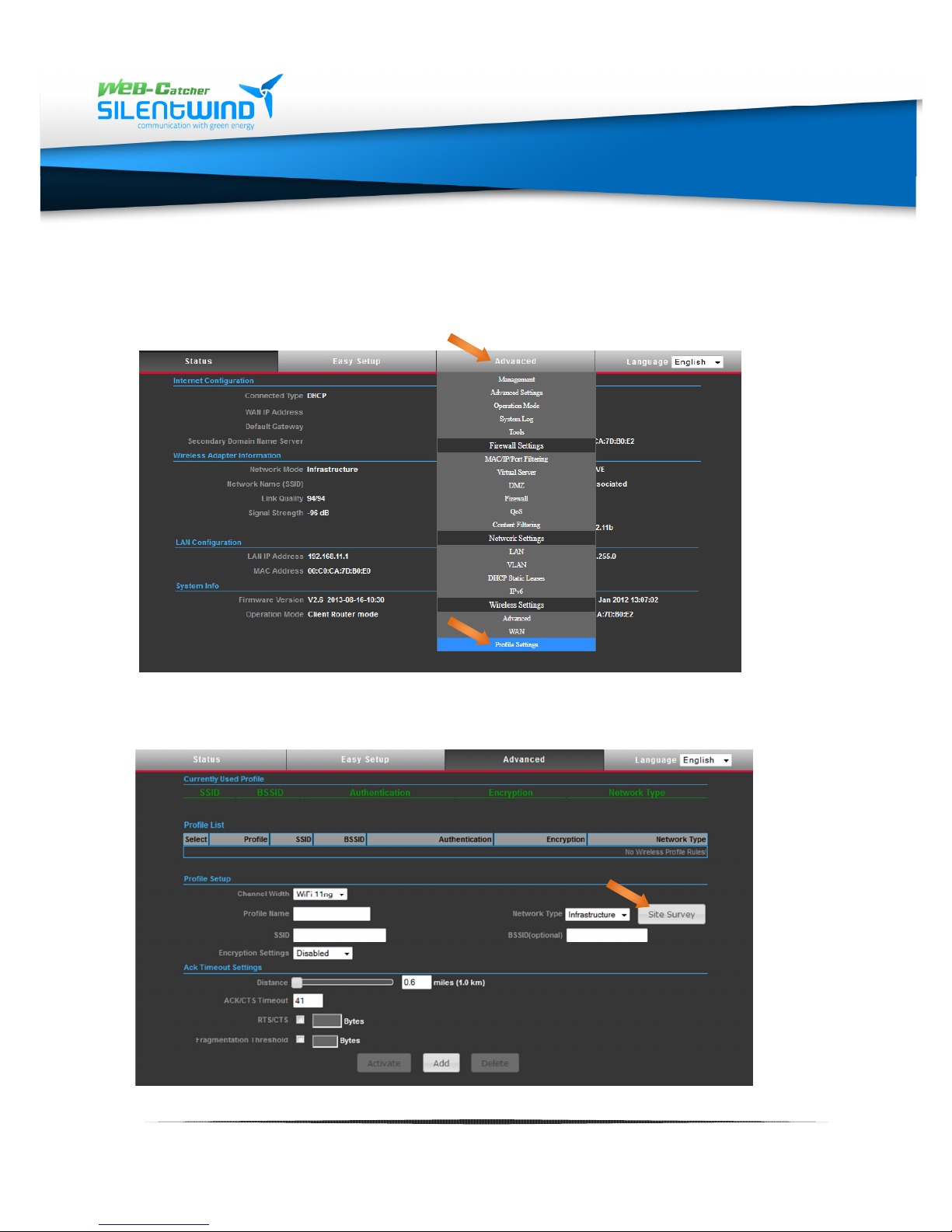
9.3 Establishing connection with distant WLAN hotspot
Click on the tab “Advanced" and then further down the list on the button
"Profile settings"
After that click on the button "Site Survey". A new window will open
showing available hotspots.
21
www.silentwindgenerator.com/en/antennas | [email protected]
Page 22
SW08WL | SW10WL | W12WL
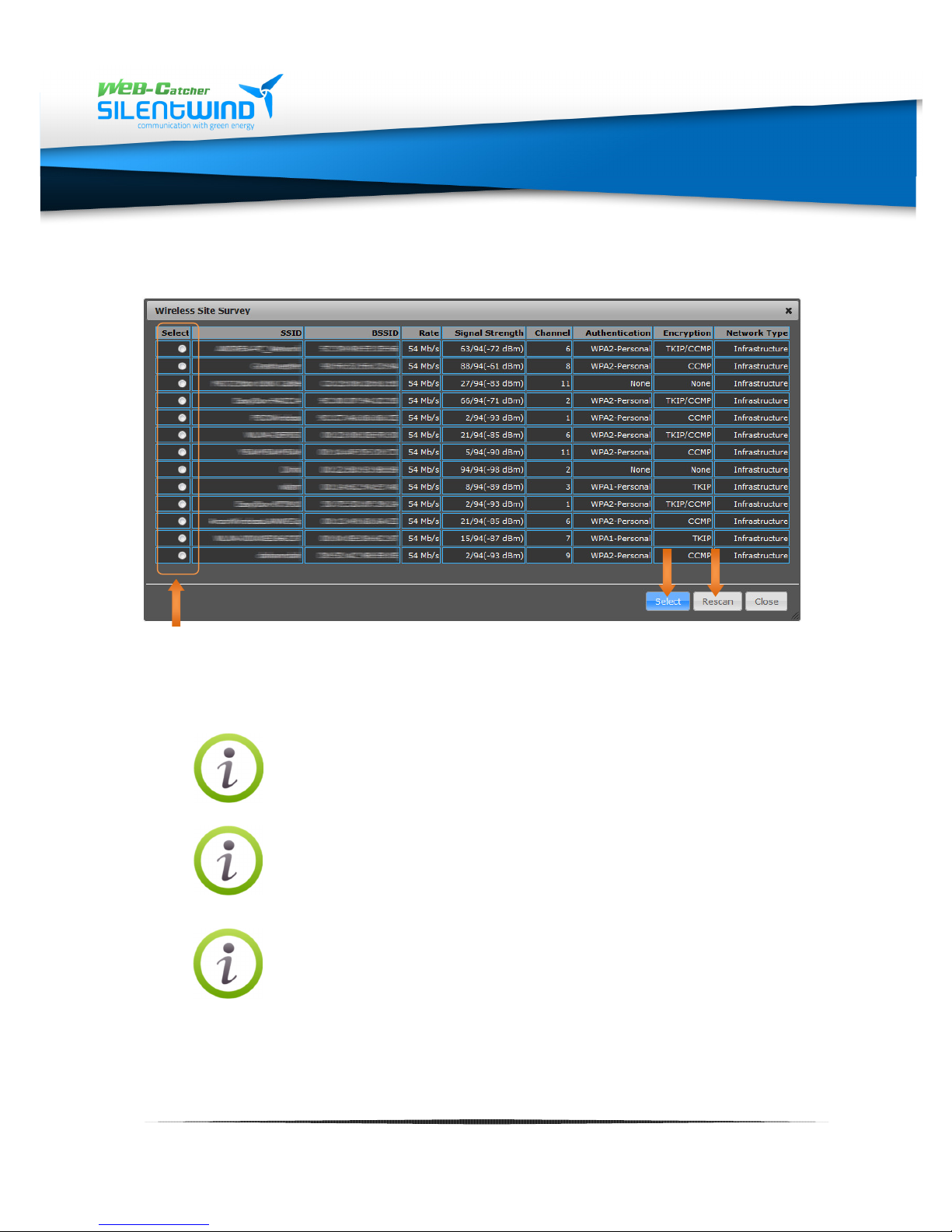
9.4 Selection of WLAN hotspot
Click on the hotspot that you want to be connected with. After that you
click on the button "Select". The parameters will be applied.
"Authentication and encryption" show you the encryption
status.
Under the tabs SSID and BSSID the name of the network
and the MAC address are shown.
If you click the button "Rescan" repeatedly, further
hotspots that were not given the first time will be shown.
www.silentwindgenerator.com/en/antennas | [email protected]
22
Page 23
SW08WL | SW10WL | W12WL
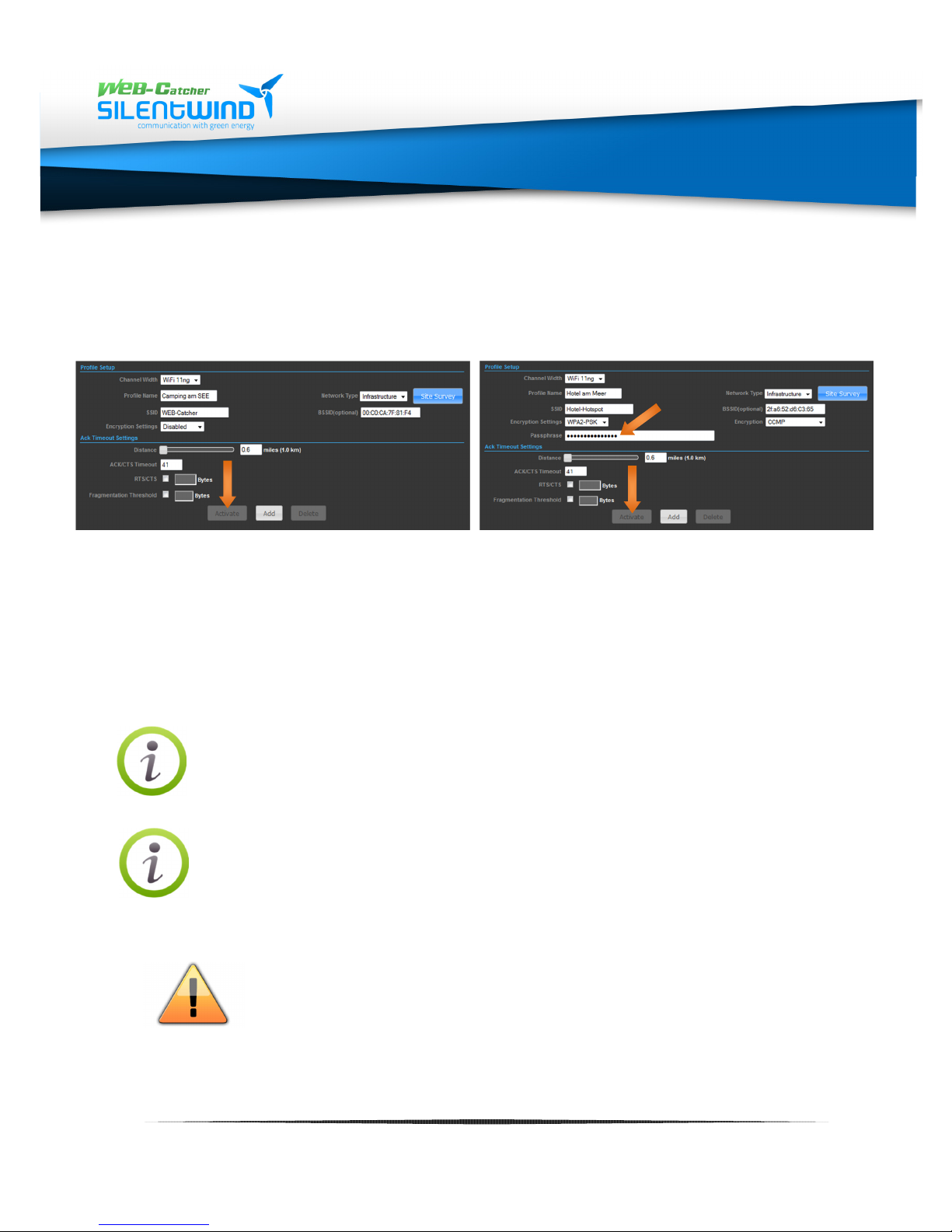
9.5 Security of WLAN hotspot
WLAN
-
Station ver
schlüsselt
WLAN
-
Station unverschlüsselt
Enter the WLAN code of the owner's hotspot into the field "passphrase",
then click the button "Activate" to establish the connection.
If the WLAN hotspot is unencrypted, you only click the button "Activate".
to establish the connection.
You can enter any desired name into the input window
"Profile Name"
If you know the distance to the hotspot, you can enter the
exact distance to the input window "Distance". The correct
adjustment increases the reliability of the connection.
You should not change any other adjustments to achieve
an optimal operation of your device.
www.silentwindgenerator.com/en/antennas | [email protected]
23
Page 24
SW08WL | SW10WL | W12WL
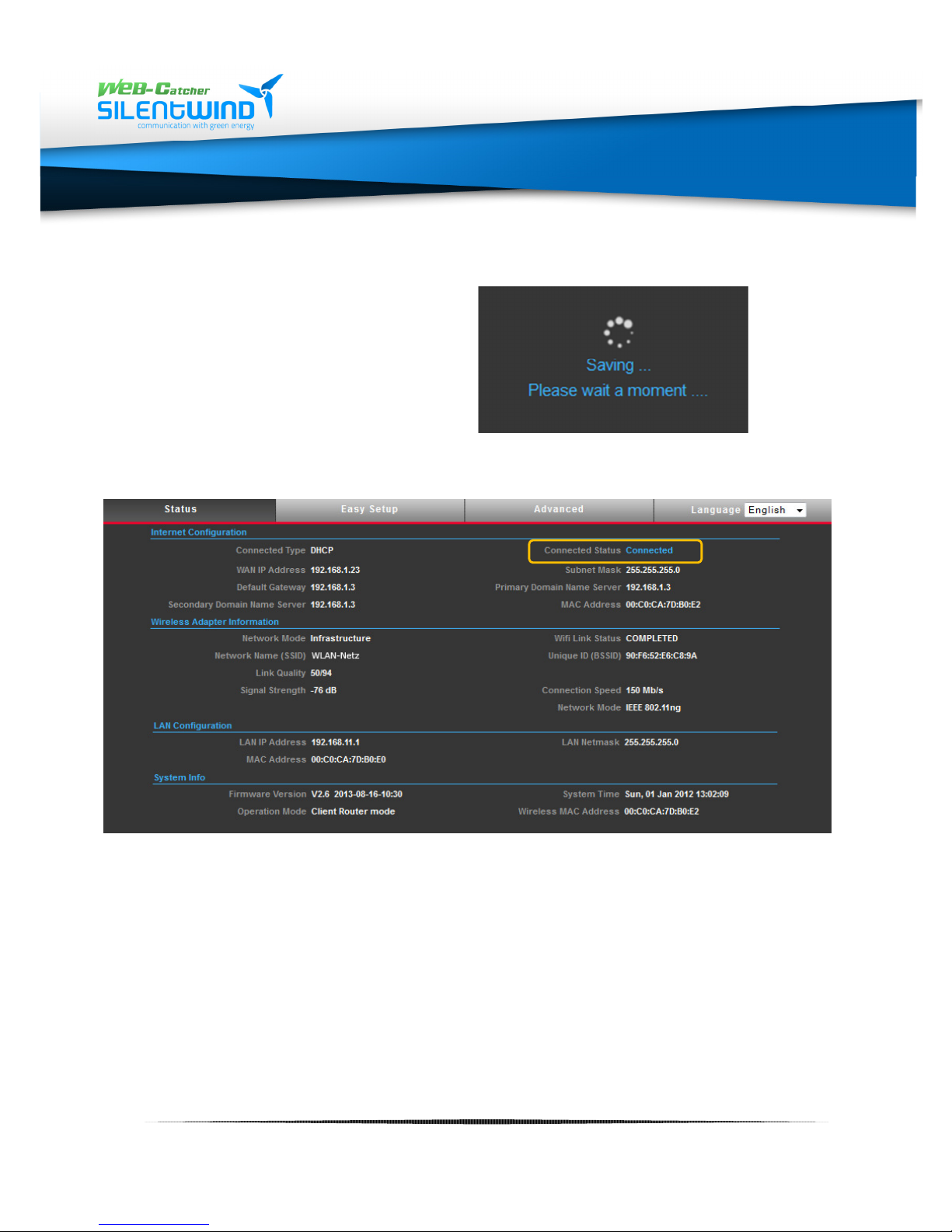
9.6 Saving adjustments
9.7 Information about connection
Saving all data takes about
40 seconds
In the status overview the field "connected status" will change to
"connected" within 10 seconds. The WLAN connection between the
distant hotspot and the active antenna is established.
If you want WLAN connections with other hotspots, you must repeat
all steps starting with 9.1.
www.silentwindgenerator.com/en/antennas | [email protected]
24
Page 25
SW08WL | SW10WL | W12WL
10.
10. 10.
10.
Transmission and radiation power
Transmission and radiation powerTransmission and radiation power
Transmission and radiation power
10.1 Regulations concerning the maximum transmission power
According to regulations in the EU and many other
countries (EU: RTTE regulation) the radiation power
(EIRP - Equivalent Isotopic Radiation Power) of a
WLAN device must not exceed 20 dBm / 100mW.
The radiation power of a WLAN device is the sum of
the transmission power of the router and the
antenna gain. In order to calculate the radiation
power of the WLAN device all power and
attenuation levels in dBm must be known. See
calculation example below.
If you use your device outside the EU, observe the
national regulations of the country in question. In
the US, for example, EIRP is 1000mW / 30dBm.
In case the legal radiation power is exceeded, the
producer refuses any liability obligations!
Example:
+ 10,0 dbm (transmission power WLAN-device)
+ 10,0 dbi (antenna gain)
= 20 dbm radiation power EIRP
Converting dBm to mW / mW to dBm
mW in dBm = 10Log10(Watt) + 30
dBm in mW = 10(dBm/10)
25
www.silentwindgenerator.com/en/antennas | [email protected]
Page 26
SW08WL | SW10WL | W12WL
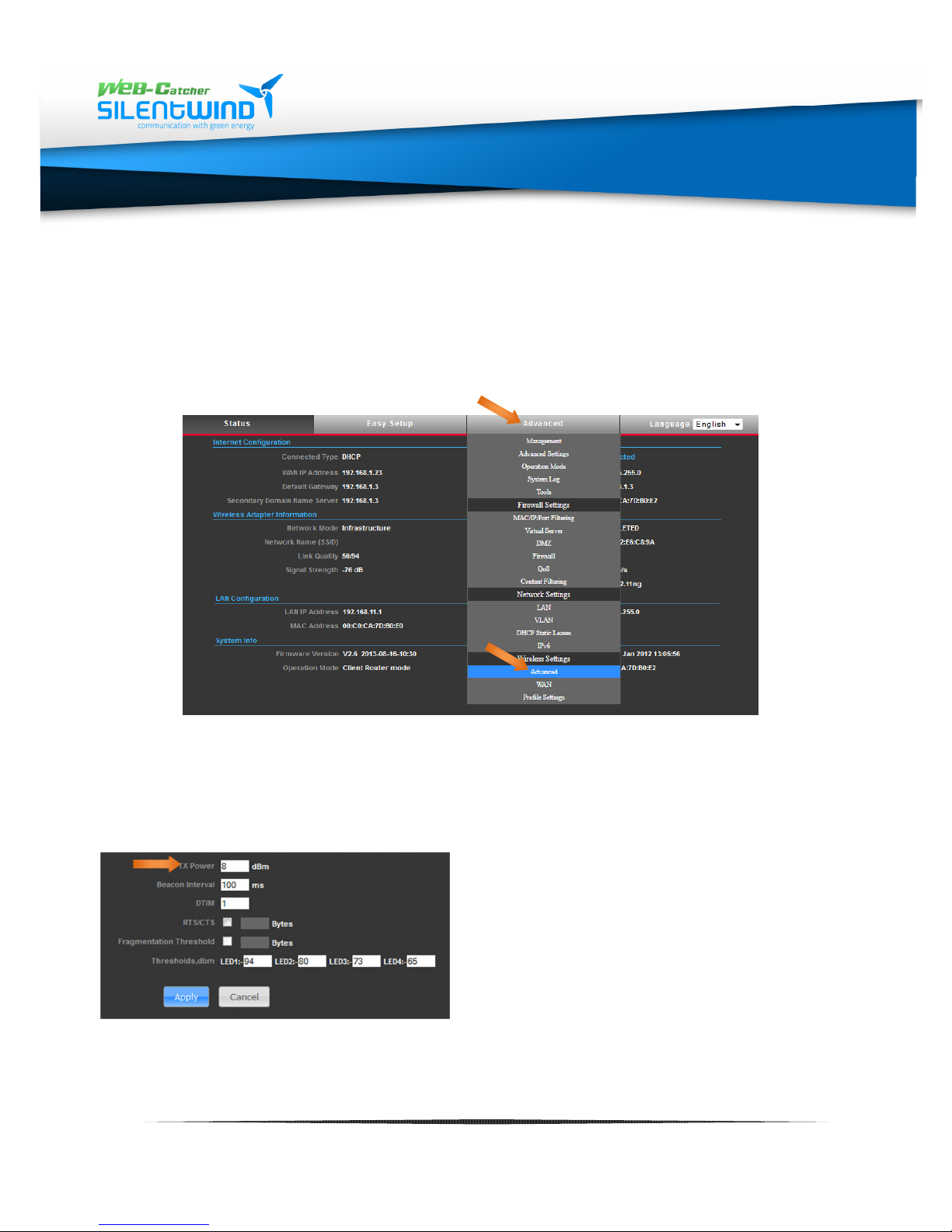
10.2 Adjusting WLAN transmission power
In order to adjust the transmission and radiation power of your WEBcatcher antenna you must click on the tab "Advanced" and further down
under the menu item "wireless settings" on the button "Advanced".
In the input window "TX Power" the transmission power of the WLAN
electronics can be set from 3 to 27dBm. .
On delivery the transmission power is set on 8dBm to keep the legal
radiation power limit of 20dBm (for type SW12WL).
SW12WL: 8dBm + 12dBi = 20dBm
After input of the transmission
power click on "Apply".
For the antennas 8dBi and 10dBi the transmission power can be set 10 or
12 dBm to receive the permitted 20dBm.
www.silentwindgenerator.com/en/antennas | [email protected]
26
Page 27
SW08WL | SW10WL | W12WL
11. WLAN
11. WLAN11. WLAN
11. WLAN
----
Router SWR3022
Router SWR3022Router SWR3022
Router SWR3022
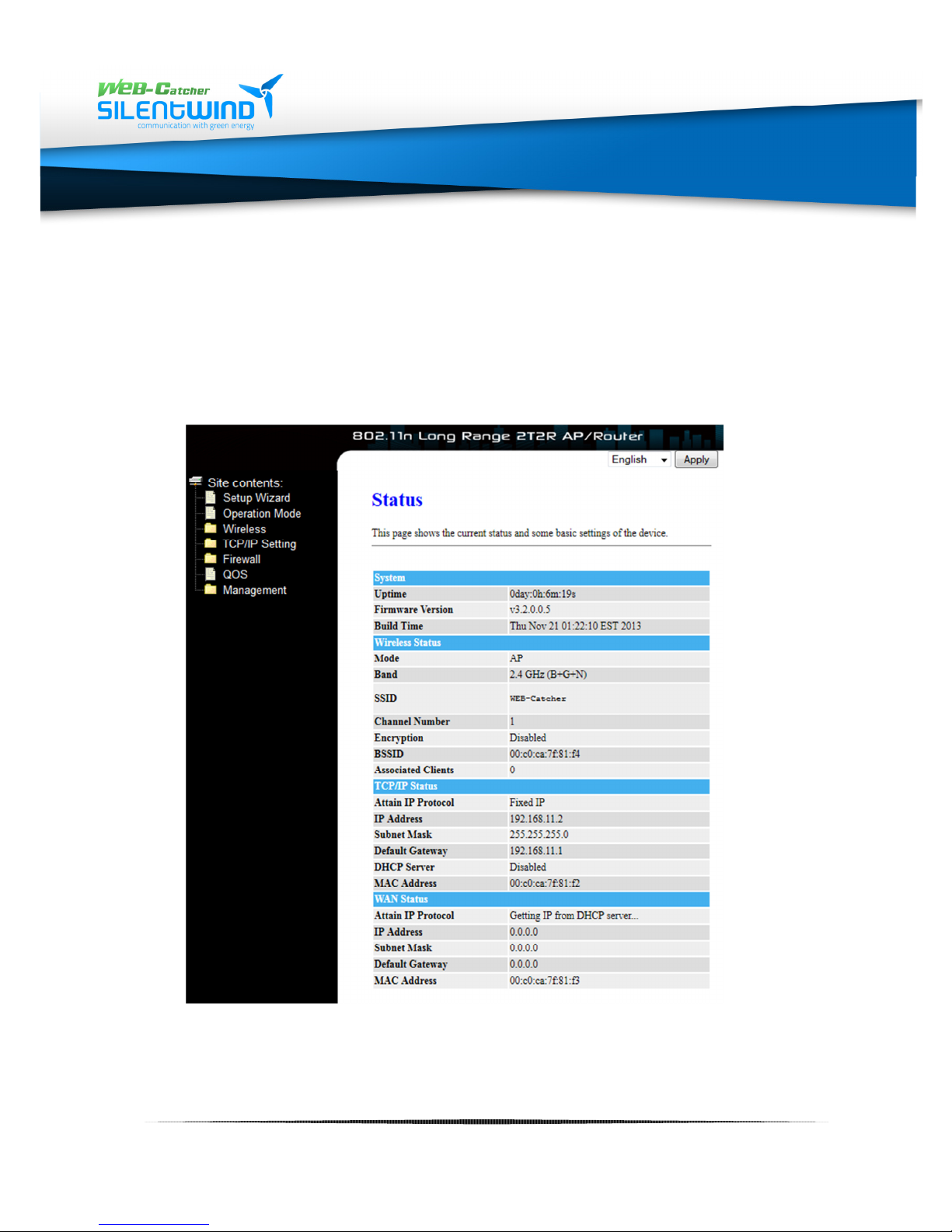
11.1 Registration of router 192.168.11.2
Open the user interface of the router as explained on page 19 / 8.2.
After successful registration you will get the status information of the
router.
www.silentwindgenerator.com/en/antennas | [email protected]
27
Page 28
SW08WL | SW10WL | W12WL
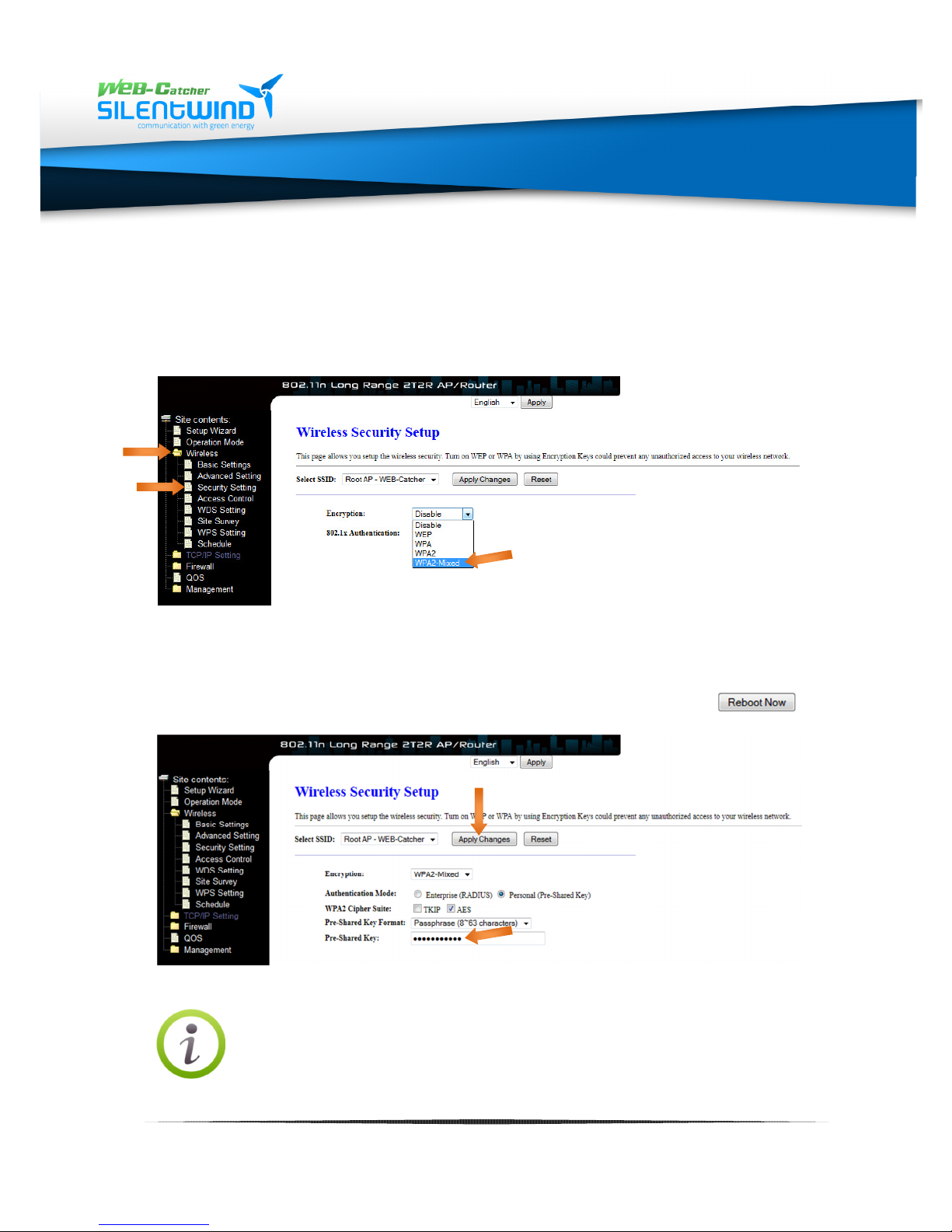
11.2 Selection of WLAN encryption of the router
Click in the menu on the left on "Wireless" and then on "Security
setting". In the dropdown menu you select "WPA2-Mixed" under
encryption.
Enter any desired code made up of 8 characters including letters and
numbers into the input window "Pre-Shared Key".
Save the entry by clicking on "Apply Changes". Confirm a restart by
clicking on the button "Reboot Now."
Please note that the WLAN connection is encrypted after
restarting the router. The connection between router and
your device must be reactivated with the new WLAN code.
See 7.1, page 18
28
www.silentwindgenerator.com/en/antennas | [email protected]
Page 29
SW08WL | SW10WL | W12WL
12. Firmware
12. Firmware 12. Firmware
12. Firmware
update
updateupdate
update
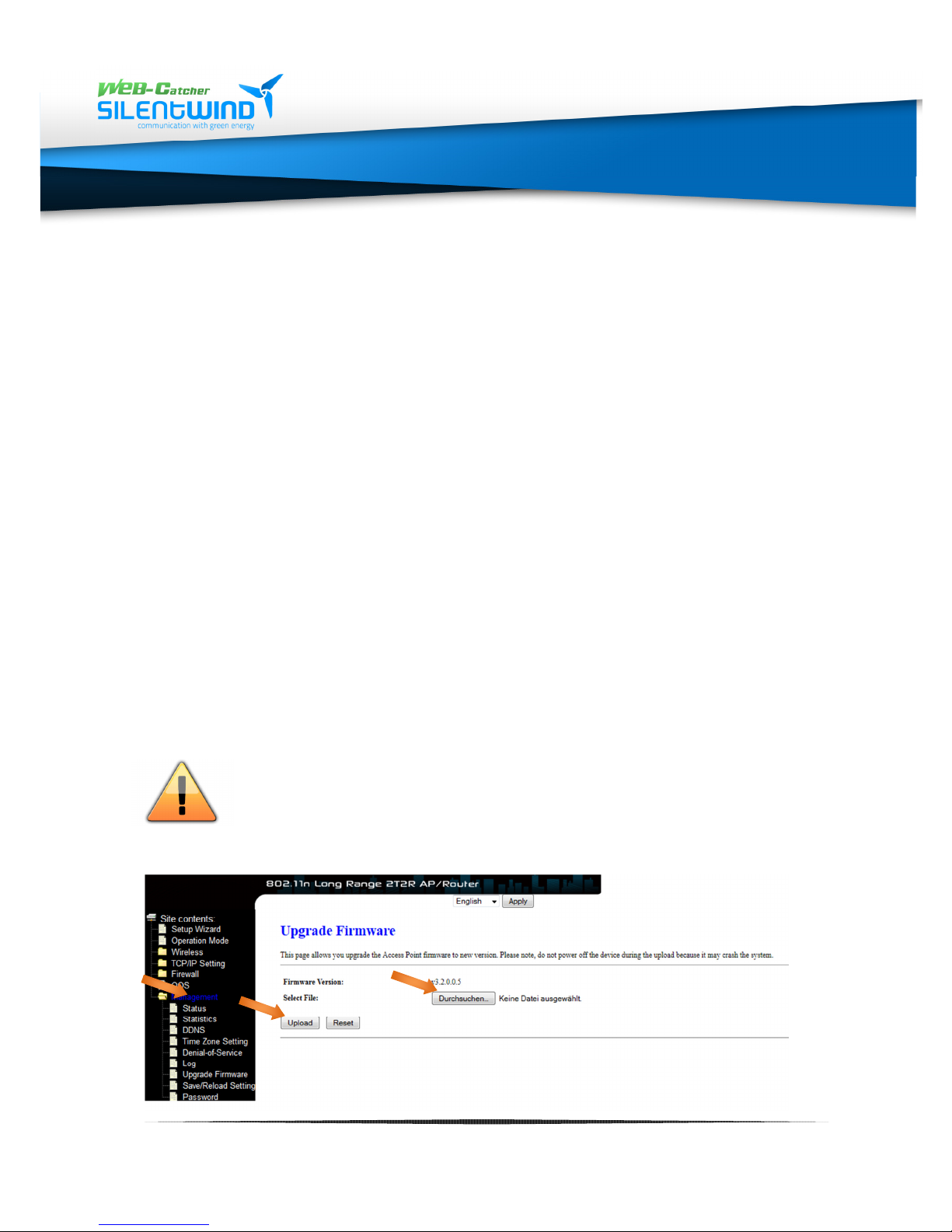
12.1 Firmware of router 192.168.11.2
You open the user interface as explained on page 19 /8.2.
You will find the data file on our website:
www.silentwindgenerator.com/de/downloads
Save the file „fw-aip-w525hv2…“ on your computer in the required
folder.
Click in the menu on the left on "Management" and then on
"Upgrade Firmware".
Click on the button "Durchsuchen" and select the downloaded
firmware file in your folder. With a click on "Upload" you will start
the upgrading process.
Attention! Do not switch off neither PC nor router during
the update.
www.silentwindgenerator.com/en/antennas | [email protected]
29
Page 30
SW08WL | SW10WL | W12WL
12.2 Loading the WEB
-
catcher configuration into router
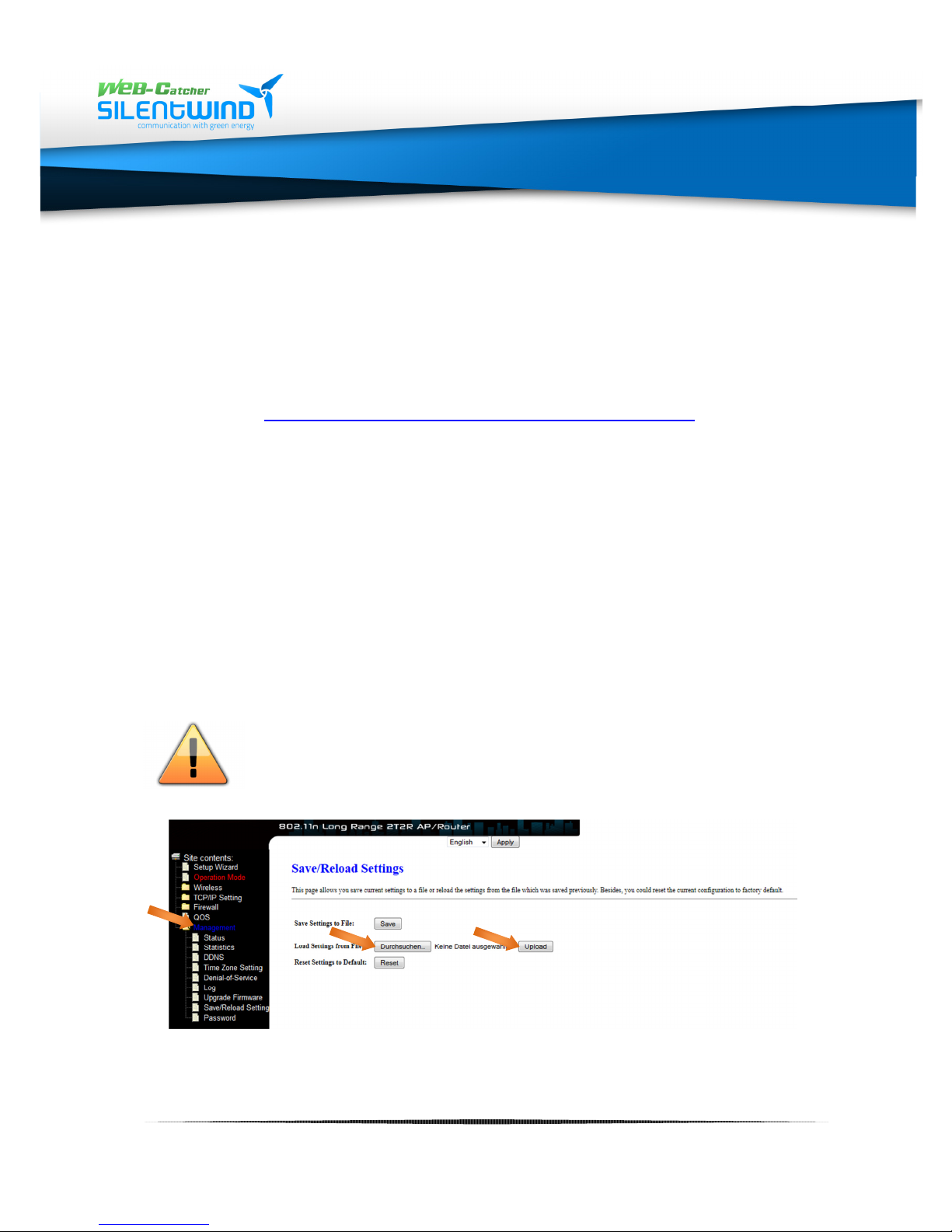
If you have reset the router by mistake, it is possible to manually activate
the original presetting with a config file.
You find the config-file on our website:
www.silentwindgenerator.com/de/downloads
Save the file"fw-aip-w525hv2…“on your computer in the
requested folder.
On the left menu click on "Management" and then on
"Save/Reload Setting".
Click on the button "Durchsuchen" and select the downloaded
config-file in your folder. With a click on "Upload" you will start the
process.
Do not switch off neither your PC nor router during
update.
www.silentwindgenerator.com/en/antennas | [email protected]
30
Page 31

SW08WL | SW10WL | W12WL
13. Technical data
13. Technical data13. Technical data
13. Technical data
model name
SW08WL
SW10WL
SW12WL
frequency range
2400 ~ 2500 MHz
2400 ~ 2500 MHz
2400 ~ 2500 MHz
opening gauge horizontal
20° 17° 8°
opening gauge vertic
al: 360° 360° 360°
temperature range
-20°C ~ +
5
5°C -
20°C ~
+55°C -
20°C ~ +
5
5°C
protection class
IP 66 IP 66 IP 66
connection
N-
Type N-Type N-Type
impedance
50 Ω
50 Ω
50 Ω
casing colour
White White W
hite
material
AlCr | GFK | PA6
AlCr | GFK | PA6
AlCr | GFK | PA6
weight without cable
690 gr 720 gr 790 gr
model name
SWS1512
frequency range
2.4GHz ISM Band
standards
IEEE 802.11n, IEEE 802.11bg(mixed mode)
chipset
Atheros AR9331
data rate
802.11bg: bis zu 54Mbps
temperature range
-20°C ~ +
5
5°C
receiving sensivity
impedance
50 Ω
power PoE 11
- 24V DC |
1,04 W
att ±5%
casing colour
White
weight
250 gr
13.1 Antennas
antenna gain 8,5 dBi 10 dBi 12,5 dBi
dimension L | Ø1 | Ø2 mm: 740 | 20 | 55 1040 | 20 | 55 1340 | 20 | 55
VSWR: < 1,6 < 1,6 < 1,7
13.2 WLAN-antenna electronics
connections one 10/100 BASE-T RJ-45 Ethernet connector
security Wired Equivalent Privacy (WEP) data encryption
dimension L | Ø mm: 136 | 38
HF-transmitting power 3 - 27dBm | 2 - 500mW
802.11n: bis zu 150Mbps
N-Type-male antenna connection
Dynamic WEP key exchange
WEP64/128, WPA, WPA2 802.1x
www.silentwindgenerator.com/en/antennas | [email protected]
31
Page 32

SW08WL | SW10WL | W12WL
model name
SWR3022
frequency range
2.4GHz ISM Band
standards
IEEE 802.11b/g/n
data rate
802.11b: 11, 5.5, 2, 1Mbps
chipset
RTL8196C
connections
RP-
SMA antenna connection x 2
security
Wired Equivalent Privacy (WEP) data encryption
functions
AP
antennas
2x 5dBi removable
temperature range
-20
°C ~ +60°C
dimension L B H mm:
147 |
98 | 32
HF-transmitting power
20dBm EIRP
power 11 -
24V DC |
1,52 Watt ±5%
| Passive PoE
G
casing colour
Black
weight
480 gr
model name
SW08WL (8,5dBi)
SW10WL
(10dBi)
SW12WL (12,5dBi)
power consumtion
11 -
24V DC |
2,66 Watt ±5%
11 -
24V DC |
2,66 Watt ±5%
11 -
24V DC |
2,66 Watt ±5%
radiation power
3dBm = 11,5 dBm / 14,12mW
3dBm = 1
3 dBm /
19,95mW
3dBm = 1
5
,5 dBm /
35,48mW
13.3 WLAN-router
impedance 50 Ω
13.4 WLAN-Set
EIRP in dB / mW
4dBm = 12,5 dBm / 17,78mW
5dBm = 13,5 dBm / 22,38mW
6dBm = 14,5 dBm / 28,18mW
7dBm = 15,5 dBm / 35,48mW
8dBm = 16,5 dBm / 44,66mW
9dBm = 17,5 dBm / 56,23mW
10dBm = 18,5 dBm / 70,79mW
11dBm = 19,5 dBm / 89,12mW
12dBm = 20,5 dBm / 112,20mW
13dBm = 21,5 dBm / 141,20mW
14dBm = 22,5 dBm / 177,80mW
15dBm = 23,5 dBm / 223,80mW
16dBm = 24,5 dBm / 281,80mW
17dBm = 25,5 dBm / 354,80mW
18dBm = 26,5 dBm / 446,60mW
19dBm = 27,5 dBm / 562,30mW
20dBm = 28,5 dBm / 707,90mW
21dBm = 29,5 dBm / 891,30mW
22dBm = 30,5 dBm / 1122,01mW
23dBm = 31,5 dBm / 1412,53mW
24dBm = 32,5 dBm / 1778,27mW
25dBm = 33,5 dBm / 2238,72mW
26dBm = 34,5 dBm / 2818,38mW
27dBm = 35,5 dBm / 3548,13mW
802.11g: 54, 48, 36, 24, 18, 12, 9 & 6Mbps
802.11n(20MHz): up to 144Mbps
802.11n(40MHz): up to 300Mbps
RJ-45 WAN port x 1
RJ-45 LAN ports x 4
Dynamic WEP key exchange
WEP64/128, WPA, WPA2 802.1x
Client
WDS
AP+WDS
4dBm = 14 dBm / 25,11mW
5dBm = 15 dBm / 31,62mW
6dBm = 16 dBm /39,81 mW
7dBm = 17 dBm /50,11 mW
8dBm = 18 dBm / 63,09mW
9dBm = 19 dBm / 79,43mW
10dBm = 20 dBm / 100,00mW
11dBm = 21 dBm / 125,89mW
12dBm = 22 dBm / 158,48mW
13dBm = 23 dBm / 199,52mW
14dBm = 24 dBm / 251,18mW
15dBm = 25 dBm / 316,22mW
16dBm = 26 dBm / 398,10mW
17dBm = 27 dBm / 501,18mW
18dBm = 28 dBm / 630,95mW
19dBm = 29 dBm / 794,32mW
20dBm = 30 dBm / 1000mW
21dBm = 31 dBm / 1258,92mW
22dBm = 32 dBm / 1584,89mW
23dBm = 33 dBm / 1995,26mW
24dBm = 34 dBm / 2511,88mW
25dBm = 35 dBm /3162,27 mW
26dBm = 36 dBm / 3981,07mW
27dBm = 37 dBm / 5011,87mW
4dBm = 16,5 dBm / 44,66mW
5dBm = 17,5 dBm / 56,23mW
6dBm = 18,5 dBm / 70,79mW
7dBm = 19,5 dBm / 89,12mW
8dBm = 20,5 dBm / 112,20mW
9dBm = 21,5 dBm / 141,20mW
10dBm = 22,5 dBm / 177,80mW
11dBm = 23,5 dBm / 223,80mW
12dBm = 24,5 dBm / 281,80mW
13dBm = 25,5 dBm / 354,80mW
14dBm = 26,5 dBm / 446,60mW
15dBm = 27,5 dBm / 562,30mW
16dBm = 28,5 dBm / 707,90mW
17dBm = 29,5 dBm / 891,30mW
18dBm = 30,5 dBm / 1122,01mW
19dBm = 31,5 dBm / 1412,53mW
20dBm = 32,5 dBm / 1778,27mW
21dBm = 33,5 dBm / 2238,72mW
22dBm = 34,5 dBm / 2818,38mW
23dBm = 35,5 dBm / 3548,13mW
24dBm = 36,5 dBm / 4466,83mW
25dBm = 37,5 dBm / 5623,41mW
26dBm = 38,5 dBm / 7079,45mW
27dBm = 39,5 dBm / 8912,50mW
www.silentwindgenerator.com/en/antennas | [email protected]
32
Page 33

SW08WL | SW10WL | W12WL
14. Glossary
14. Glossary
14. Glossary14. Glossary
In the following we will explain the most important technical terms used in our manual. If
you want more detailed information, we recommend electronic technical literature.
IEEE 802.11 Standard
802.11 refers to an industrial standard that clearly regulates and harmonizes regulations
for transmitting network devices.
Categories like 802.11b or 802.11g determine a fixed frequency range for radio
transmission and its speed etc.. Currently the most common standard used is IEEE
802.11g with a speed of up to 54 MBit/s.
The standards are edited by the Institute of Electrical and Electronics Engineers (IEEE).
Access Point
is a network device that establishes a permanent connection between wired and wireless
networks. In most cases an access point connects the connected computers with the
internet -to say it quite simplified.
Ad Hoc
An Ad-Hoc wireless LAN is a group of computers equipped with WLAN adaptors that are
connected to an independent wireless LAN. Unlike an infrastructure network, this makes
a direct connection between computers without access to the internet possible
DHCP
Dynamic Host Configuration Protocol is a mode by which the server automatically
allocates IP addresses to network users. DHCP is used to automatically allocate IP
addresses. It requires a DHCP server in the network assigned with this task.
Direct Sequence Spread Spectrum
This method uses wireless adaptors to transmit data via the frequency spectrum. An
alternative method is frequency switching. With the direct sequence method data are
spread by one channel whereas frequency switching means that channels on a narrow
frequency band are switched several times per second.
ESSID
is an infrastructure configuration that can also support roaming for mobile staff. If there
are at least two BSS (broadband switching system), they can be configured as Extended
Service Set (ESS). Users within the can communicate with each other while the
connection to the stations of the wireless network is maintained.
Access Points within the ESS must be configured by the same BSS and channel.
33
www.silentwindgenerator.com/en/antennas | [email protected]
Page 34

SW08WL | SW10WL | W12WL
Ethernet
is a 10/100-Mbps-network that is used for private home or office LAN cable connections.
Users must always be connected to the network to have access to this net.
Gateway
is a device two different systems with each other, e.g. a LAN and a computer. The
internet terminology defines a router as gateway. A gateway normally functions as a kind
of funneling system for all internet contacts.
Infrastructure
Integrated wireless and wired LANs are called infrastructure configurations. In a lot of
companies this infrastructure is used to provide wireless access to the central database
and the wireless connection of the mobile staff.
ISM-Frequenzband
Die FCC and related organizations outside the US have reserved a frequency range that
may be used (without any license fee) for industrial, scientific and medical purpose for
which the spectrum used worldwide is about 2.4 GHZ. This provides users all over the
world with high speed, wireless access to the internet..
Local Area Network (LAN)
A LAN consists of several computers which are all equipped with a suitable network. They
are connected either via cable or wireless enabling them to use applications, data and
peripheral devices together. Connections are made by cable or wireless devices, no
telephone lines are used. A LAN is useful to connect WLAN devices on premises,
university campuses, railway stations etc.
Network
is a system of connected computers. This network can transmit data, files and news.
Networks can be established locally or for wider areas (WAN).
Protocol
is a standardized set of rules that determines how data are transmitted, including the
format, chronological sequence, sequencing and/or check of errors.
Roaming
In an infrastructure network roaming refers to the process when a wireless connected
notebook switches from the first access point to another access point establishing a new
connection.
In a network environment in which access points are used PCs can always be connected
regardless of their position or provider.
www.silentwindgenerator.com/en/antennas | [email protected]
34
Page 35

SW08WL | SW10WL | W12WL
SSID
is a network identification that is unique for every network. Only clients and access points
sharing the same SSID can communicate with each other. Mind upper and lower case in
the characters.
Simple Network Management Protocol (SNMP)
is the network management protocol of TCP/IP. In the SNMP hard- or software agents
monitor the activities of various devices in the network and report them to the networkconsole-workstation. Control information about any device is administrated in a structure
called management-information block.
Static IP addressing
is a process to allocate network IP addresses to clients. In networks with static IP
addressing the network administrator allocates an IP address to every computer. Having
allocated a static IP address the computer uses the same address every time it is started
and registered unless the address has been manually altered.
Temporal Key Integrity Protocol (TKIP)
The Temporal Key Integrity Protocol is part of the IEEE 802.11i encryption standards for
wireless LAN. TKIP is the generation following the WAP (Wired Equivalency Protocol)
which is used for the security of wireless 802.11-LAN. TKIP provides a data encryption
changing after any data packet and offers a message integrity check and a rekeying
mechanism that remedies the security vulnerability of the WEP. .
Transmission Control Protocol / Internet Protocol (TCP/IP)
is a pile of protocols that were developed by the Advanced Research Projects Agency
(ARPA). It is often used for company intranets as it is very well suited for WLAN. TCP
determines how packets are sequenced for transmission in the network. The term TCP/IP
is often used to refer to the complete pile of related protocols.
Transmission/Reception
refers to the throughput of a wireless connection in bytes per second. It is always
calculated for the period of two seconds.
Wi-Fi Alliance
is a non-profit international association that was established in 1999 to certify the
interoperability of wireless LAN products on the basis of IEEE 802.11 . The target of the
association is to improve the interoperability of products for the users. Previously the
organization was called WECA.
www.silentwindgenerator.com/en/antennas | [email protected]
35
Page 36

SW08WL | SW10WL | W12WL
Wi-Fi Protected Access (WPA)
The Wi-Fi Alliance developed WPA as a method of encrypting data for wireless 802.11LAN. WPA is an industry led, not yet standardized version of 802.11i that uses the TKIP
which (among other features) remedies the security vulnerability of the WEP by the use
of dynamic keys.
Wide Area Network (WAN)
A WAN consists of several LANs that are connected by telephone lines and/or glass fiber
optic cable. WAN may cover the area of a town, a state, a country or of even the whole
planet.
Wired Equivalent Privacy (WEP)
Meanwhile it is generally accepted that WEP, a method to encrypt data protecting the
transmission between 802.11 clients and APs is insufficient. It used the same key for all
communication devices. The problems of WEP are well-known, among others there is an
insufficient length of keys as well as the lack of an automatic method to allocate the
keys. WEP can easily be decrypted with standard tools within a few hours..
Wireless LAN (WLAN)
A wireless LAN doesn't use cables but radio waves or infrared technology to transmit
data. High frequency and infrared connections are the most used modes of wireless
connections. Most wireless LANs use spread spectrum technology. This technique offers a
limited spectrum (usually less than 11Mbps) that is used by users with other devices in
the spectrum. Users can operate a device with spread spectrum technology without
having a license of the FCC.
www.silentwindgenerator.com/en/antennas | [email protected]
36
Page 37

SW08WL | SW10WL | W12WL
15. Liability exclusion
15. Liability exclusion
15. Liability exclusion15. Liability exclusion
•
Although the information given in this manual has been carefully checekd as to
accuracy and completeness we exclude liability for any mistake or omission.
•
SILENTWIND reserves the right to alter any of the product features without further
notice.
•
This manual must not be copied, passed on, saved in electronic media, multiplied or
translated into other languages -neither in total nor in parts- without the
authorisation of SILENTWIND.
•
SILENTWIND is not liable for damages by loss of data resulting from wrong operation
or malfunctioning of the WLANset or other connected WLAN devices.
•
Please acquaint yourself of nationally applicable laws and regulations for the use of
WLAN devices. SILENTWIND cannot be held liable if legal limits for radiation limits are
exceeded.
www.silentwindgenerator.com/en/antennas | [email protected]
37
Page 38

SW08WL | SW10WL | W12WL
Notes:
Notes:
Notes:Notes:
www.silentwindgenerator.com/en/antennas | [email protected]
38
Page 39

SW08WL | SW10WL | W12WL
Impressum:
RULIS ELÉCTRICA, LDA.
Loteamento Industrial de Linhares, Lote 19
PT-4805-486 Santo Estevão de Briteiros / Guimarães
Portugal
Google Maps: http://goo.gl/maps/dEUvw
VAT/Contribuinte / EORI-Nr. PT 502 995 530
Tel. 00351-253-572763
Fax 00351-253-572764
Tm/Handy 00351 96 790 79 33
E-mail: [email protected]
Site: www.silentwindgenerator.com
Skype: silentwindgenerator
www.silentwindgenerator.com/en/antennas | [email protected]
SILENTWIND 2014 – alle Rechte vorbehalten
39
Page 40

 Loading...