

Page 1
1
USB 2.0 Multi Card Reader
Quick Installation Guide
Introducing the USB 2.0 Multi Card Reader
The USB 2.0 Multi Card Reader is the perfect choice for
computer users looking for a flash memory card reader/
writer that's easy to carry and supports multi-format flash
memory cards.
Features and Benefits
• Compliant with USB 2.0 specification and USB Device
Class Definition for Mass Storage, Bulk-Transport
V1.0
• Supports CF, xD, Memory Stick, SD, MMC, M2 and
T-Flash memory cards
• Ultra-slim all-in-one compact design
• Powered by USB port - no power adapter required
System Requirements
• PC or Mac® computer with an available USB 2.0 port
• Windows
®
7 (32-/64-bit) / Vista (32-/64-bit) / XP
(32-/64-bit) / Server 2003 & 2008 (32-/64-bit) / 2000
SP4
• Mac OS
®
X v10.4.0 or later
04-0571B
Page 2
2
Package Contents
• USB 2.0 Multi Card Reader
• USB cable (Type A to mini-USB)
• Quick installation guide
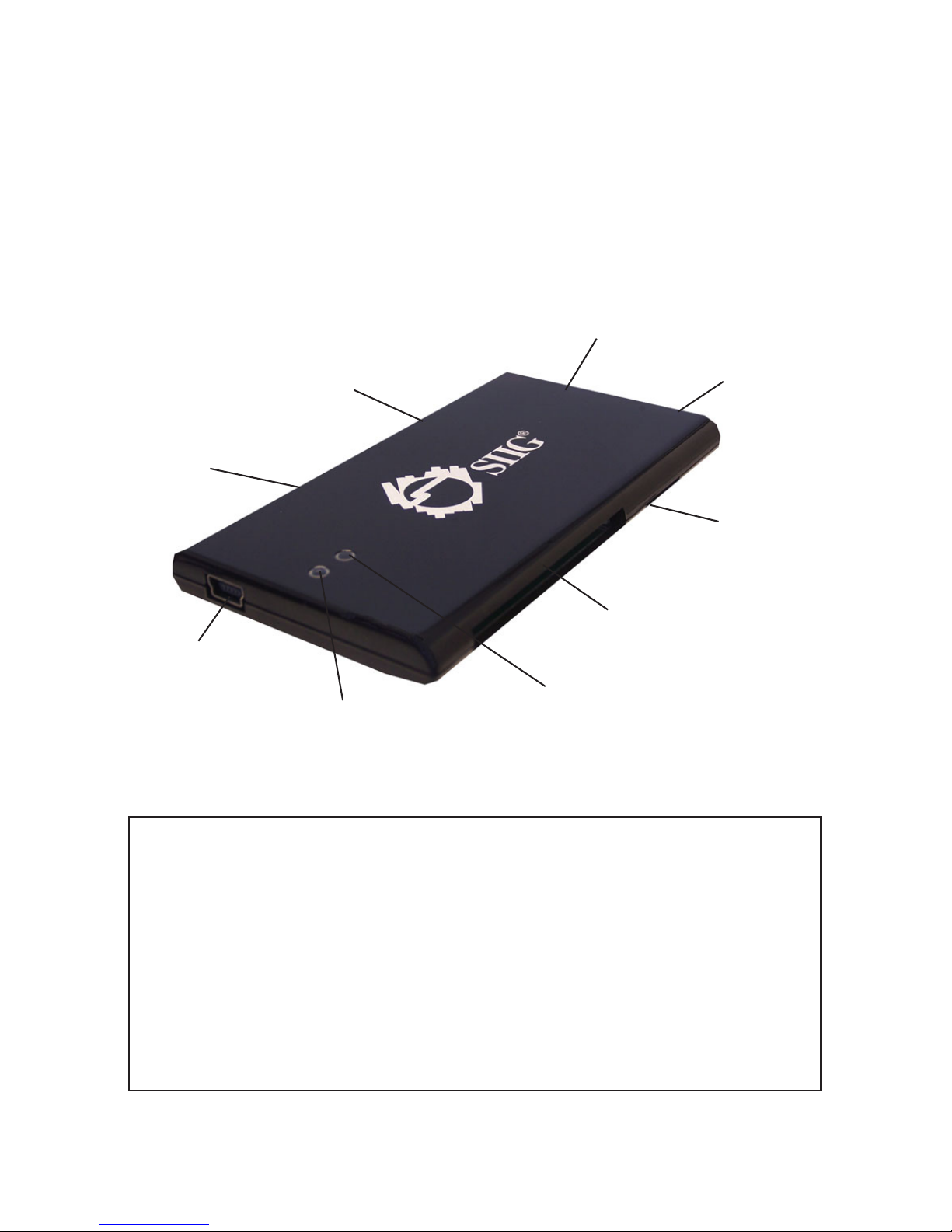
Layout
Figure 1. Layout
Note: 1The Memory Stick slot & M2 slot share
resources and can not be used at the same time. Do
not insert a memory card into both slots at the
same time.
2
The SD slot & T-Flash slot share
resources and can not be used at the same time. Do
not insert a memory card into both slots at the
same time.
Memory Stick
1
CF
SD/Mini SD/MMC
2
Activity LED (blue)
xD
Power LED (red)
Micro SD/T-Flash
2
M2
1
USB cable
connector
Page 3

3
Installation
Hardware Installation
1. Connect one end of the USB cable to the reader/
writer.
2. Connect the other end to a USB port of the computer.
Software Installation
Windows and Mac OS X automatically detects and installs
the correct drivers for this reader/writer when connected.
No driver installation is needed.
Inserting Memory Cards
Insert all memory cards with the top label facing up and
the gold pins facing down.
Important: The Memory Stick slot & M2 slot share
resources and can not be used at the same time. Do not
insert memory cards into both slots at the same time. The
same is true for the SD slot & Micro SD/T-Flash slot.
Accessing Memory Cards
Windows
When the USB 2.0 Multi Card Reader is successfully installed,
four Removable Disk icons appear in Computer or My
Computer. To access any one drive, double click the icon
that corresponds to the memory card. The memory card
slots appear in the following order: SD/T-Flash (shared),
CF, xD, Memory Stick/M2 (shared) respectively.
Page 4

4
Mac
After a memory card is inserted into the
reader/writer, a disk icon will appear on the desktop. To
access the memory card(s), double click the appropriate
disk icon. A disk icon will appear for each occupied
memory slot.
Removing Memory Cards
Windows
Memory cards can be removed at any time. However, to
prevent data loss, data corruption or memory card failure,
DO NOT remove memory cards while the Activity LED
is flashing.
Mac
Drag the memory card's drive icon into the Trashcan. Wait
for the icon to disappear from the desktop before removing
the memory card from the reader/writer.
Unplugging the Reader/Writer
Please follow the steps below to safely remove the USB 2.0
Multi Card Reader from the computer.
Windows 7 / Vista / XP / Server 2003 & 2008
1. Click the Safely Remove Hardware icon located in
the taskbar by the system clock.
2. Click Safely Remove USB Mass Storage Device....
3. When the Safe To Remove Hardware box pops up,
the reader/writer can be removed.
Page 5

5
Windows 2000
1. Click the Unplug or Eject Hardware icon located in
the taskbar by the system clock.
2. Click Stop USB Mass Storage Device....
3. At the Safe To Remove Hardware box, click OK.
The reader/writer can now be removed.
Mac OS X
1. Drag the memory card's drive icon into the Trashcan.
Wait for the icon to disappear from the desktop.
2. The reader/writer can now be removed.
Page 6

6
Blank Page
Page 7

Technical Support and Warranty
QUESTIONS? SIIG’s Online Support has answers! Simply visit our web
site at www.siig.com and click Support. Our online support database is
updated daily with new drivers and solutions. Answers to your questions
could be just a few clicks away. You can also submit questions online and a
technical support analysts will promptly respond.
SIIG offers a 2-year manufacturer warranty with this product. Please see our
web site for more warranty details. If you encounter any problems with this
product, please follow the procedures below.
If it is within the store's return policy period, please return the product to the
store where you purchased from. If your purchase has passed the store's
return policy period, please follow these steps to have the product repaired or
replaced.
Step 1: Submit your RMA request.
Go to www.siig.com, click Support, then RMA to submit a
request to
SIIG RMA. If the product is determined to be
defective, an RMA number will be issued.
Step 2: After obtaining an RMA number, ship the product.
• Properly pack the product for shipping. All accessories that came
with the original package must be included.
• Clearly write your RMA number on the top of the returned package.
SIIG will refuse to accept any shipping package, and will not be
responsible for a product returned without an RMA number posted
on the outside of the shipping carton.
• You are responsible for the cost of shipping. Ship the product to the
following address:
SIIG, Inc.
6078 Stewart Avenue
Fremont, CA 94538-3152, USA
RMA #:
• SIIG will ship the repaired or replaced product via Ground
in the U.S. and International Economy outside of the U.S. at
no cost to the customer.
Page 8

About SIIG, Inc.
Founded in 1985, SIIG, Inc. is a leading computer upgrade manufacturer of I/O
connectivity products, including PCI & ISA serial and parallel ports, USB, Serial
ATA & UltraATA controllers, FireWire (1394a/b), networking, sound cards,
and other accessories. SIIG is the premier one-stop source of upgrades.
SIIG products offer comprehensive user manuals, many user-friendly features,
and are backed by an extensive manufacturer warranty. High-quality control
standards are evident by the overall ease of installation and compatibility of
our products, as well as one of the lowest defective return rates in the industry.
SIIG products can be found in computer retail stores, mail order catalogs,
through major distributors, system integrators, and VARs in the Americas and
the UK, and through e-commerce sites.
USB 2.0 Multi Card Reader is a trademark of SIIG, Inc. SIIG and the SIIG logo are registered
trademarks of SIIG, Inc. Microsoft, Windows and Windows Vista are either registered
trademarks or trademarks of Microsoft Corporation in the United States and/or other
countries. Mac and Mac OS are trademarks of Apple, Inc. Other names used in this
publication are for identification only and may be trademarks of their respective companies.
September, 2009 Copyright © 2009 by SIIG, Inc. All rights reserved.
PRODUCT NAME
USB 2.0 Multi Card Reader
FCC RULES: TESTED TO COMPLY WITH FCC PART 15, CLASS B
OPERATING ENVIRONMENT: FOR HOME OR OFFICE USE
FCC COMPLIANCE STATEMENT:
This device complies with part 15 of the FCC Rules. Operation is subject
to the following two conditions: (1) This device may not cause harmful
interference, and (2) this device must accept any interference received,
including interference that may cause undesired operation.
THE PARTY RESPONSIBLE FOR PRODUCT COMPLIANCE
SIIG, Inc.
6078 Stewart Avenue
Fremont, CA 94538-3152, USA
Phone: 510-657-8688
 Loading...