

Page 1

1
MobileCam/Light Pro
Quick Installation Guide
System Requirements
• Pentium-class notebook or desktop computer
with an available USB port
• Windows 98SE/ME/2000/XP/Server 2003
Package Contents
• MobileCam/Light Pro
• USB extension cable (3ft.)
• Driver/Utility CD
• This quick installation guide
Serial # Sticker
For future product return or exchange, this serial # is
required. Please keep it for your reference.
04-0305B
Page 2
2
Layout
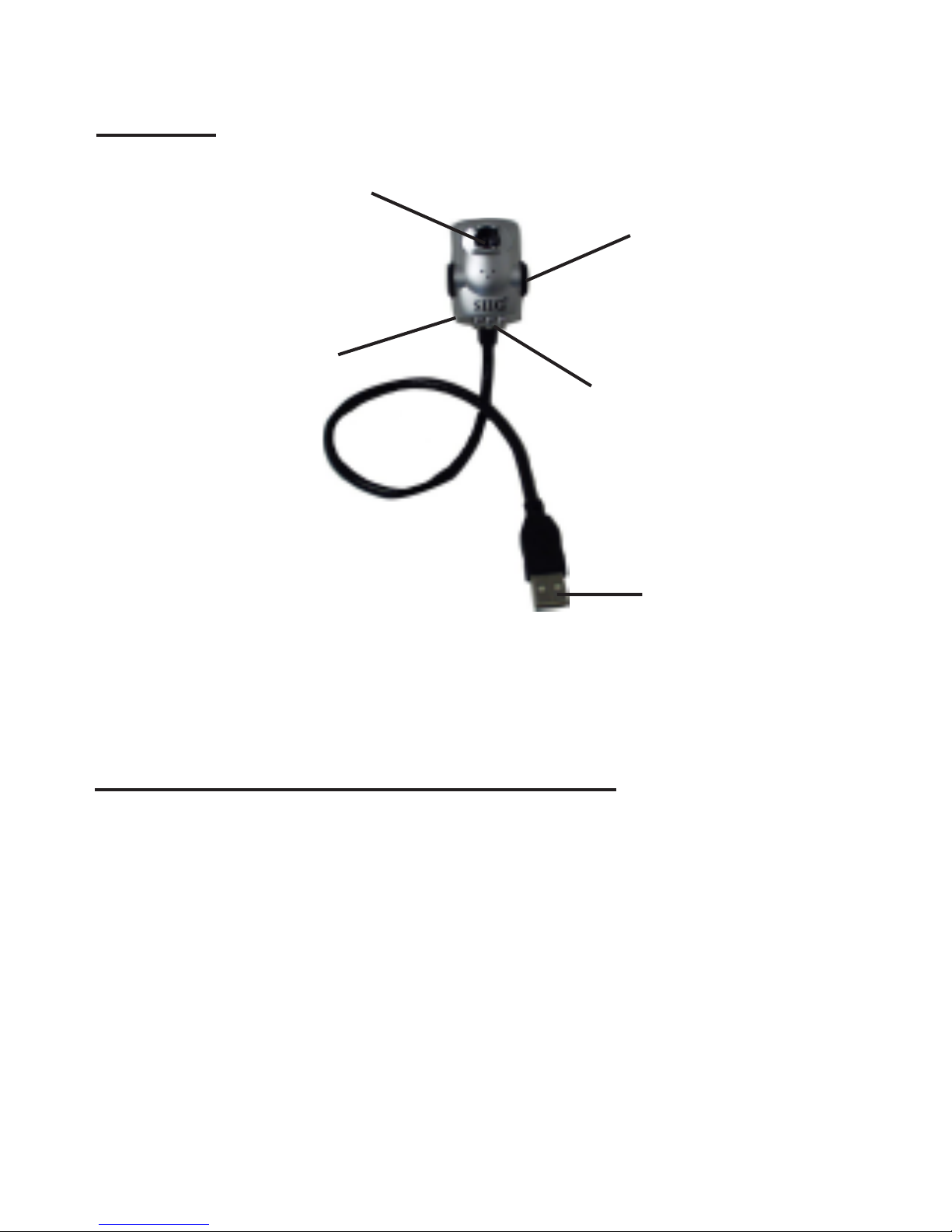
Figure 1. MobileCam/Light Pro Layout
MobileCam/Light Pro Buttons
• On/Off Light Button: Press the button on the
back of the MobileCam/Light Pro to activate/
deactivate the light.
• Snapshot Button: Press the button on the side
of the MobileCam/Light Pro to take a snapshot.
Snapshot
Button
On/Off Light
Button
(on the back)
Light
Lens
(turn to focus)
To USB
Port
Page 3

3
Software Installation
Important: Make sure the driver is installed before
connecting the MobileCam/Light Pro to the USB port.
Driver Installation
1. Boot up to Windows and insert the driver CD.
2. Click Start, Run. Type D:\Setup.exe, click OK.
(Change D: to match your CD-ROM drive letter)
For Windows 98SE/ME/2000: At the USB PC
Camera window, click Next, select Complete,
click Next, then click Finish.
For Windows XP/Server 2003: At the USB PC
Camera window, click Next, click Next again,
select Complete, then click Next. Click Continue
Anyway, then click Finish. Our driver has been
thoroughly tested in Windows for stability.
3. Restart Windows to complete the driver
installation.
Connecting the MobileCam/Light Pro
Important: Make sure the driver is installed before
connecting the MobileCam/Light Pro to your system.
Note: After the MobileCam/Light Pro has been
connected, turn the lens to improve focus if needed.
Page 4

4
Windows 98SE
1. Plug the MobileCam/Light Pro into an available
USB port.
2. If prompted, click Yes to keep the newer files.
3. Restart Windows to complete the installation.
Windows ME
1. Plug the MobileCam/Light Pro into an available
USB port.
2. Click OK to reboot Windows.
3. When ME resumes, at the Add New Hardware
Wizard, select Automatic search for a better
driver (Recommended), click Next, then click
Finish.
4. Restart Windows to complete the installation.
Windows 2000
Windows 2000 will automatically detect and install
the correct driver for the MobileCam/Light Pro. Restart
Windows if prompted.
Page 5

5
Windows XP/Server 2003
1. Plug the MobileCam/Light Pro into an available
USB port.
2. At the Found New Hardware Wizard.
For XP: Select Install the software automatically
(Recommended), then click Next.
For XP wSP1 or later/Server 2003: Select No,not
this time, then click Next. Select Install the
software automatically (Recommended), then
click Next.
3. If prompted, at the Hardware Installation
window, click Continue Anyway, then click
Finish. Our driver has been thoroughly tested in
Windows for stability.
4. Click Yes to restart Windows.
To verify successful installation
1. Check Device Manager to verify successful
installation.
Windows 98SE/ME: From the main desktop,
right click My Computer, then click Properties.
Click Device Manager tab.
Page 6

6
Windows 2000/XP/Server 2003: Right click My
Computer, then click Manage. Click Device
Manager.
2. Double click Imaging Device(s) option and
USB PC Camera with Mic... should be
displayed.
Sound
The MobileCam/Light Pro comes with a built-in
microphone. If you need this function, use the
directions in this section to configure the microphone's
recording level.
Windows 98SE
1. In Control Panel, double click Multimedia, then
click Audio tab.
2. In Recording, select USB Audio (Microphone)
as the preferred device.
3. Click the microphone icon, move the slider bar
up to increase the recording level.
4. Close the open windows when finished.
Windows ME/2000
1. In Control Panel, double click Sounds and
Multimedia, then click Audio tab.
Page 7

7
2. In Sound Recording, select USB Audio Device
as the preferred device.
3. Click Volume, move the slider bar up to increase
the recording level.
4. Close the open windows when finished.
Windows XP/Server 2003
1. In Control Panel, double click Sounds and
Audio Devices, then click Audio tab.
2. In Sound recording, select PC Camera as the
preferred device.
3. Click Volume, move the slider bar up to increase
the recording level.
4. Close the open windows when finished.
AMCAP
Use this utility to easily capture video and snapshots.
Video capture
Windows 98SE/ME/2000
1. Click Start, Programs, USB PC Camera Plus,
then AMCAP.
Page 8

8
Important: On your very first time capturing
video, click File, select Set capture file...,
type in a file name with .avi extension, click
Open, then click OK. An example for this
file name is test.avi. You only have to do this
once.
2. Click Devices.
For 98SE: Check USB Audio (Microphone).
For ME/2000: Check USB Audio Device.
3. Wait for an image to appear, click Capture, then
Start Capture. In the drop down box, make sure
Capture Audio is checked.
4. Click OK.
5. To end capture, click Capture, then Stop Capture
or simply press the ESC key.
6. To save the captured video, click File, Save
Captured Video As..., type in a name, then click
Open.
Page 9

9
Windows XP/Server 2003
1. Click the Snapshot button to start AMCAP.
Important: On your very first time capturing
video, click File, select Set capture file...,
type in a file name with .avi extension, click
Open, then click OK. An example for this
file name is test.avi. You only have to do this
once.
2. Click Devices, check USB Camera.
3. Wait for an image to appear, click Capture, then
Start Capture. In the drop down box, make sure
Capture Audio is checked.
4. Click OK.
5. To end capture, click Capture, then Stop Capture
or simply press the ESC key.
6. To save the captured video, click File, Save
Captured Video As..., type in a name, then click
Open.
Page 10

10
Snapshot capture
Windows 98SE/ME/2000
1. Click Start, Programs, USB PC Camera Plus,
then AMCAP.
2. Wait for an image to appear then click the
Snapshot button.
3. In the USB PC Camera with Mic window, click
File, Save As, type in a name, then click Save.
Windows XP/Server 2003
1. Click the Snapshot button to start AMCAP.
2. Wait for an image to appear, then click the
Snapshot button.
3. In the USB PC Camera window, click File, Save
As, type in a name, then click Save.
1280x960 snapshot capture (AMCAP)
1. From the main AMCAP window, click Options,
then click Video Capture Filter.
2. In the VGA box, move the slider to SXGA, then
click OK.
3. Click Options, then click Video Capture Pin.
Page 11

11
4. Click the down arrow next to the Output Size
box, and select 640 X 480, click OK.
Ulead Photo Explorer 7.0 SE Platinum
Ulead Photo Explorer combines easy to use tools for
acquiring, viewing, organizing, adjusting, and
sharing digital images. For more detail about Ulead
Photo Explorer, please refer to the PDF manual located
in CD-ROM:\Ulead Photo Explorer7.0SE Platinum
\Document\Manual folder of the software CD.
Please note that this utility is optional and not needed
for the MobileCam/Light Pro to operate.
1. Boot up to Windows and insert the driver CD.
2. Click Start, Run. Type in D:\Ulead\setup.exe,
then click OK. (Change D: to match your
CD-ROM drive letter)
3. Follow the on-screen instructions to install the
software.
4. When prompted, enter the Ulead serial number
found on the driver CD sleeve to complete the
installation.
Page 12

Technical Support
QUESTIONS? SIIG’s Online Support has the answers!
Simply visit our web site at www.siig.com and click on
Support. Our online support database is updated daily
with new drivers and solutions. The answers to your
problems could be just a few clicks away.
PRODUCT NAME
MobileCam/Light Pro
FCC RULES: TESTED TO COMPLY WITH FCC PART
15, CLASS B OPERATING ENVIRONMENT: FOR
HOME OR OFFICE USE
FCC COMPLIANCE STATEMENT:
This device complies with part 15 of the FCC Rules.
Operation is subject to the following two conditions: (1) This
device may not cause harmful interference, and (2) this device
must accept any interference received, including interference
that may cause undesired operation.
THE PARTY RESPONSIBLE FOR
PRODUCT COMPLIANCE
SIIG, Inc.
6078 Stewart Ave.
Fremont, CA 94538-3152
MobileCam/Light Pro is a trademark of SIIG, Inc. All other names
used in this publication are for identification only and may be
trademarks of their respective companies.
June, 2006 Copyright ©2006 by SIIG, Inc.
 Loading...