

Page 1
1
USB 2.0+FireWire+10/100
Quick Installation Guide
04-0279B
Introducing the USB 2.0+Firewire+10/100
The USB 2.0+Firewire+10/100 Combo design adds USB 2.0,
FireWire (1394a), and 10/100 (RJ45) Ethernet interfaces to
your system.
Features and Benefits
USB 2.0 interface:
• Adds two external and one internal USB 2.0 ports
• Compliant with USB specification rev. 2.0
• Supports high-speed (480 Mbps), full-speed (12
Mbps), and low-speed (1.5 Mbps) data transfer
modes for simultaneous operation of multiple USB
2.0/1.1 devices
• Hot-swapping feature allows you to connect/
disconnect devices without powering down your
system
• Works with a various type of USB devices including
hubs, removable drives, digital cameras, scanners,
CD-RWs, DVD-ROMs, PC video cameras, printers,
CF/SM/MMC/SD/Memory Stick memory card
readers, and more...
Note: USB 1.1 devices are limited to USB 1.1 speeds
even when they are connected to USB 2.0 host adapter
or USB 2.0 hubs.
FireWire (1394a) interface:
• Adds one external and one internal FireWire (1394a)
ports
Page 2

2
• Compliant with IEEE 1394-1995, P1394a-2000 and
OHCI 1.1 standards
• Supports serial bus data transfer rates of 100, 200
and 400 Mbps
• Hot-swapping feature allows you to connect/
disconnect devices without powering down your
system
• Works with various types of 1394 devices including
DV camcorders/cameras, hard disk drives,
CD-RWs, DVD-ROMs, removable drives, scanners,
and other audio/video devices
10/100 Ethernet (RJ45) interface:
• Adds a 10/100 Ethernet interface
• Compliant to PC99 and PC2001 standards
• Half/Full duplex capability
• Supports Full Duplex Flow Control (IEEE 802.3x)
• Supports 10 Mb/s and 100 Mb/s operation and
N-way Auto-negotiation operation
• Contains two large (2Kbyte) independent receive
and transmit FIFO's
System Requirements
• Pentium or equivalent computer with an available
PCI slot
• Windows 98SE/ME/2000/XP/Server 2003
Package Contents
• (1) USB 2.0+Firewire+10/100 Combo adapter
• (1) Driver CD
• This quick installation guide
Page 3
3
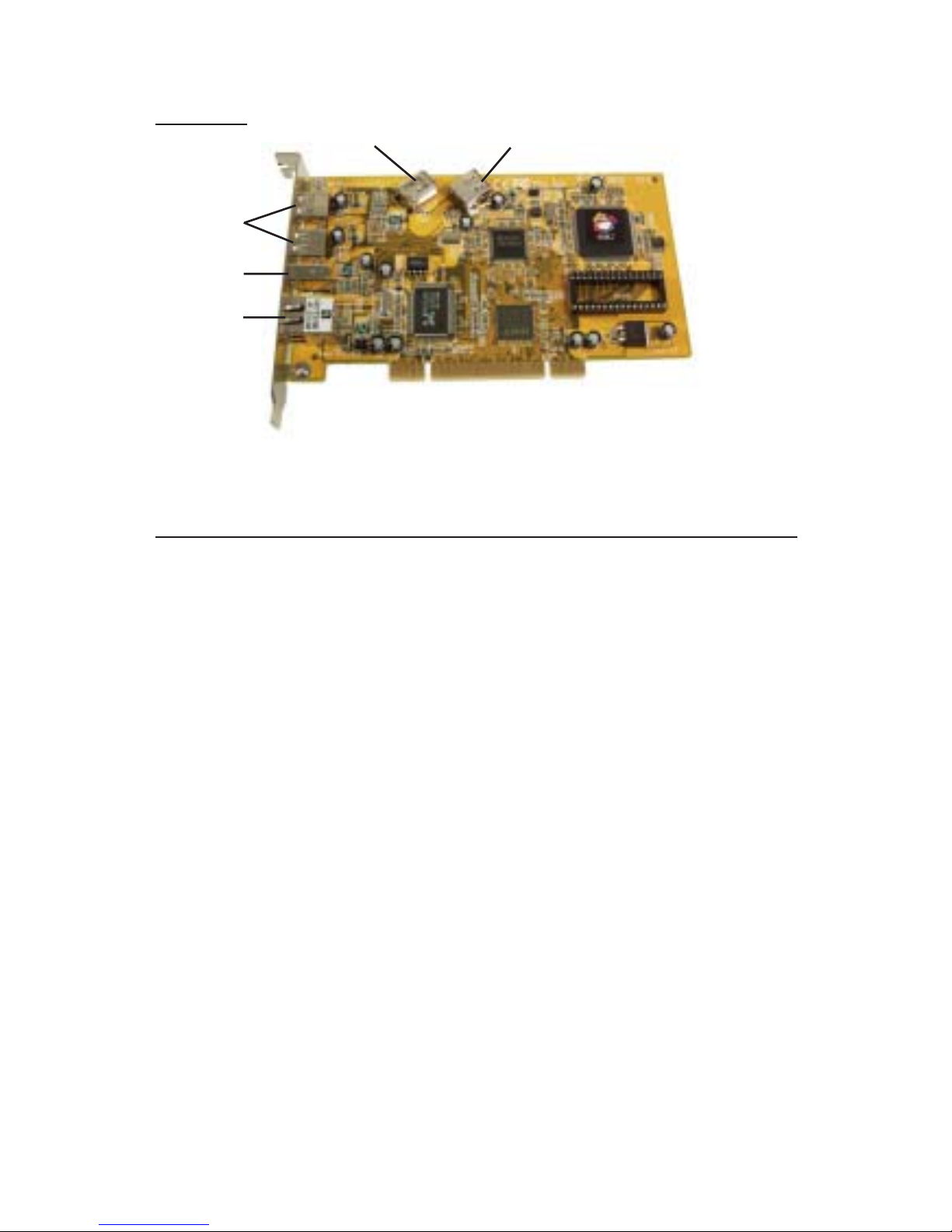
Layout
Figure 1. Layout
Hardware Installation
General instructions for installing the card are provided
below. Since the design of computer cases and
motherboards vary, refer to your computer’s reference
manual for further information, if needed.
Static Electricity Discharge may permanently damage
your system. Discharge any static electricity build up in
your body by touching your computer’s case for a few
seconds. Avoid any contact with internal parts and
handle cards only by their external edges.
1. Turn OFF the power to your computer and any
other connected peripheral devices.
2. Unplug the power cord from the back of the
computer.
3. Remove your computer’s cover.
4. Remove the slot bracket from an available PCI slot.
5. To install the card, carefully align the card's bus
connector with the selected PCI slot, push the board
down firmly, but gently, until it is well seated.
10/100
Ethernet
FireWire
USB 2.0
FireWire
USB 2.0
Page 4

4
6. Replace the slot bracket's holding screw to secure
the card.
7. Replace the computer cover and reconnect the power
cord.
Driver Installation
This sections provides information on how to install the
USB 2.0+Firewire+10/100 drivers
Windows 98SE
1. Boot up Windows. At the Add New Hardware
Wizard, click Cancel.
2. Insert the driver CD, click Start, Run, type in
X:\USB2\setup206.exe, then click OK. (Change X:
to match the drive letter of your CD-ROM)
3. Select Yes, I want to restart my computer now, then
click Close.
4. When Windows resumes, at the Add New Hardware
Wizard, click Next.
5. Insert the driver CD, choose Search for the best
driver..., then click Next.
6. Uncheck all boxes and click Next.
7. Click Next and Finish.
8. The PCI Ethernet Controller is now detected. At the
Add New Hardware Wizard, click Next.
9. Select Search for the best driver... and click Next.
10. Select Specify a location, type in X:\Lan\win98,
then click Next. (Change X: to match the drive letter
of your CD-ROM)
Page 5

5
11. Click Next and Finish.
12. Click No when asked to restart.
13. At the Add New Hardware Wizard, click Next.
14. Select Search for the best driver... and click Next.
15. Uncheck all boxes and click Next.
16. Select The Updated Driver (Recommended) and
click Next.
17. Click Next and Finish.
18. Repeat steps 13-17 two more times.
19. Click Yes to restart to complete the driver installation.
Windows ME
1. Boot up Windows. At the Add New Hardware
Wizard, click Cancel.
2. Insert the driver CD, click Start, Run, type in
X:\USB2\setup206.exe, then click OK. (Change X:
to match the drive letter of your CD-ROM)
3. Select Yes, I want to restart my computer now, and
click Close.
4. When Windows resumes, the Add New Hardware
Wizard detects PCI standard PCI to PCI bridge,
select Automatic Search for a better driver, click
Next, then click Finish.
5. When the Add New Hardware Wizard detects a
1394 Host Controller, select Automatic Search for a
better driver, click Next, then click Finish.
6. Click Yes to restart to complete the driver installation.
Page 6

6
Windows 2000
If you have Windows 2000 with Service Pack 4 (SP4) or
later, the drivers will be installed automatically by the
operating system. No additional driver installation is
needed. Otherwise, follow the instructions in the order in
which they appear.
1. Boot up Windows. At the Found New Hardware
Wizard, click Cancel.
2. Insert the driver CD, click Start, Run, type in
X:\USB2\setup206.exe, then click OK. (Change X:
to match the drive letter of your CD-ROM)
3. Select Yes, I want to restart my computer now, and
click Close.
4. When Windows resumes, the drivers will install
automatically.
Windows XP
If you have Windows XP with Service Pack 1 (SP1) or
later, the drivers will be installed automatically by the
operating system. No additional driver installation is
needed. Otherwise, follow the instructions in the order in
which they appear.
1. Boot up Windows. At the Found New Hardware
Wizard, click Cancel.
2. Insert the driver CD, click Start, Run, type in
X:\USB2\setup206.exe, then click OK. (Change X:
to match the drive letter of your CD-ROM)
3. Click Continue Anyway. Our driver has been
thoroughly tested in Windows for stability.
4. Select Yes, I want to restart my computer now and
click Close.
Page 7

7
5. When Windows resumes, at the Found New
Hardware Wizard, select Install the software
automatically (Recommended), then click Next.
6. Click Continue Anyway and Finish.
7. Repeat steps 5-6 one more time to complete the
installation.
Windows Server 2003
Windows Server 2003 automatically detects and installs
the correct drivers for the USB 2.0+FireWire+10/100. No
additional driver installation is needed.
To Verify Successful Driver Installation
1. Check Device Manager to verify successful driver
installation.
Windows 98SE/ME: Right click My Computer, click
Properties, then click Device Manager.
Windows 2000/XP/Server 2003: Right click My
Computer, click Manage, then click Device
Manager.
2. Double click Universal Serial Bus controllers.
- NEC PCI to USB Enhanced Host Controller...
- NEC PCI to USB Open Host Controller...
- NEC PCI to USB Open Host Controller...
- USB 2.0 Root Hub Device (USB Root Hub for
Server 2003)
- USB Root Hub
- USB Root Hub
Page 8

8
3. Double click 1394 Bus Controller or IEEE 1394 Bus
host controllers option and an OHCI Compliant
IEEE 1394 Host Controller should be displayed.
4. Double click Network Adapters and a Realtek...Fast
Ethernet should be displayed.
Page 9

9
Technical Support and Warranty
QUESTIONS? SIIG’s Online Support has answers!
Simply visit our website at www.siig.com and click on Support.
Our online support database is updated daily with new drivers
and solutions. Answers to your questions could be just a few clicks
away. You can also submit questions online and one of our technical
support analysts will promptly respond.
A lifetime manufacturer warranty supplied with this product is
offered by SIIG, Inc. Please see SIIG website for more warranty
details. If you should happen to encounter any problems with this
product, please follow the procedures below.
If it is within the store's return policy period, please return the
product to the store where you purchased from.
If your purchase has passed the store's return policy period, please
follow these steps to have the product repaired or replaced.
Step 1: Submit your RMA request.
Go to www.siig.com, click Support, then RMA to submit a
request to SIIG RMA. If the product is determined to be
defective, an RMA number will be issued. SIIG RMA department
can also be reached at (510)413-5333.
Step 2: After obtaining an RMA number, ship the product.
• Properly pack the product for shipping. All software, cable(s)
and any other accessories that came with the original package
must be included.
• Clearly write your RMA number on the top of the returned
package. SIIG will refuse to accept any shipping package, and
will not be responsible for a product returned without an
RMA number posted on the outside of the shipping carton.
• You are responsible for the cost of shipping the product to
SIIG at the following address:
SIIG, Inc.
6078 Stewart Avenue
Fremont, CA 94538
RMA #:
• SIIG will ship the repaired or replaced product via Ground
in the U.S and International Economy outside of the U.S at
no cost to the customer.
Page 10

USB 2.0+FireWire+10/100 Combo is a trademark of SIIG, Inc.
SIIG and SIIG logo are registered trademarks of SIIG, Inc. Microsoft and Windows are
registered trademarks of Microsoft Corporation. Pentium is a registered trademark of Intel
Corporation. Other names used in publication are for identification only and may be trademarks
of their respective companies.
March, 2005 Copyright ©2005 by SIIG, Inc. All rights reserved.
About SIIG, Inc.
Founded in 1985, SIIG, Inc. is a leading computer upgrade
manufacturer of I/O connectivity products, including PCI & ISA
serial and parallel ports, USB, Serial ATA & UltraATA controllers,
FireWire (1394a/b), Networking, Sound Cards, and other accessories.
SIIG is the premier one-stop source of upgrades.
SIIG products offer comprehensive user manuals, many user-friendly
features, and are backed by an extensive manufacturer warranty.
High-quality control standards are evident by the overall ease of
installation and compatibility of our products, as well as one of the
lowest defective return rates in the industry. SIIG products can be
found in computer retail stores, mail order catalogs, and e-commerce
sites in the Americas and the UK, as well as through major
distributors, system integrators, and VARs.
PRODUCT NAME
USB 2.0+FireWire+10/100 Combo
FCC RULES: TESTED TO COMPLY WITH FCC PART 15, CLASS B
OPERATING ENVIRONMENT: FOR HOME OR OFFICE USE
FCC COMPLIANCE STATEMENT:
This device complies with part 15 of the FCC Rules. Operation is subject
to the following two conditions: (1) This device may not cause harmful
interference, and (2) this device must accept any interference received,
including interference that may cause undesired operation.
THE PARTY RESPONSIBLE FOR PRODUCT COMPLIANCE
SIIG, Inc.
6078 Stewart Ave.
Fremont, CA 94538-3152
 Loading...