

Page 1
MORPHEUS GEFORCE3
User’s Manual
Version 1.0
Notice
This device has been approved by EMI for home. It can
be used in all areas including residential area.
Page 2

FCC NOTICE
THIS DEVICE COMPLIES WITH PART 15 OF THE FCC RULES.
OPERATION IS SUBJECT TO THE FOLLOWING TWO CONDITION:
(1) THIS DEVICE MAY NOT CAUSE HARMFUL INTERFERENCE, AND
(2) THIS DEVICE MUST ACCEPT ANY INTERFERENCE RECEIVED,
INCLUDING INTERFERENCE THAT MAY CAUSE UNDERSIRED
OPERATION.
This equipment has been tested and found to comply with the limits for a Class
B digital device, pursuant to part 15 of the FCC Rules. These limits are designed
to provide reasonable protection against harmful interference in a residential
installation. This equipment generates, uses and can radiate radio frequency
energy and, if not installed and used in accordance with the instructions, may
cause harmful interference to radio communication. However, there is no
guarantee that interference will not occur in a particular installation. If this
equipment does cause harmful interference to radio or television reception,
which can be determined by turning the equipment off and on, the user is
encouraged to try to correct the interference by one or more of the following
measures :
- Reorient or relocate the receiving antenna.
- Increase the separation between the equipment and receiver.
- Connect the equipment into an outlet on a circuit difference from that to which
the receiver is connected.
- Consult the dealer of an experienced radio/TV technician for help.
NOTE : The manufacturer is not responsible for any radio or TV interference
caused by unauthorized modifications to this equipment. Such modifications
could void the user’s authority to operate the equipment.
2
Page 3

Table of Contents
Chapter 1 Introduction
• Features of MORPHEUS GEFORCE3
• System Configuration and Each Part Description
Chapter 2 Installation
• Installation of display drivers
Windows 98
Windows ME
Windows 2000
Windows NT
• Installation of application programs
Chapter 3 How to use programs
• Using MORPHEUS GEFORCE3’s utilities
• Watching VIDEO CD
• Listening to MP3 audio
Addendum
• Q & A
3
Page 4

Chapter 1. Introduction
Contents of the package
Thank you for purchasing the MORPHEUS GEFORCE3.
Please make sure that you have a full content of the MORPHEUS GEFORCE3 after
removing the package.
MORPHEUS GEFORCE3 Board
It is equipped in AGP slot of system main board.
Installation CD
It is an installation CD that contains drivers and programs.
User’s manual
It describes the installation and use of application programs.
4
Page 5

Features of MORPHEUS GEFORCE3
* Powered by nVIDIA’s GeForce 3
* Two new Hypertexel pipelines
* Up to 20million triangles per second at peak rates
* Full scene anti-aliasing and Per-Pixel Shading
* Maximum resolution up to 2048x1536 at 75 Hz
* 32MB Video Memory support
* Integrated 350MHz RAMDAC
* AGP 4X/2X with Fast Writes and Execute Mode
* DirectX 7.0/OpenGL support
* DVD acceleration
* 100% hardware triangle setup engine
* Transform and Lighting (T&L) Engine
* Sigma MP3 Player
* Flash ROM BIOS for BIOS update
* GigaTexel Shading processing two texture per pixel
* Optimized drivers for Windows9x, NT40 and Windows2000
5
Page 6

System Configuration and Each Part Description
!
! System Configuration
!!
To use the MORPHEUS GEFORCE3 effectively, you need the following configuration.
CPU & Main board
IBM-PC compatible main board in compliance with AGP 2.0
(More than Intel 440BX or VIA Apollo pro)
Intel Pentium II/III CPU or compatible
O/S
Windows98
Windows98SE
WindowsNT4.0 (more than service pack 3)
Windows 2000
Windows Me
(Sigma VCD /MP3 are for Windows 98(SE).)
Software
Microsoft DirectX6.1
System memory
32MB or more
Peripherals
50MB free hard disk space
CD-ROM drive
MS Compatible mouse
Sound blaster compatible sound card (recommended)
3.5” Floppy Drive
Multi-scan monitor
6
Page 7

!
! Part Description
!!
1. Monitor connector
is connected to the monitor and outputs video signals.
2. Feature connector
is a connection jumper for connection with other multimedia products.
To use the function, you need to refer to the manual provided by its manufacturer.
3. ROM BIOS
is the location of the memory containing basic program code to control the VGA in your system.
4. Video memory
is a storage place to ha ve the contents to be displayed on t he screen. It is called as Fram e
buffer or Video buffer. 64MB high speed SDRAM or DDR SGRAM are provided as standard,
which is the maximum amount of memory supported by the MORPHEUS GEFORCE 3.
7
Page 8
Chapter
2 Installation
Installation of display drivers
Windows 98 SE
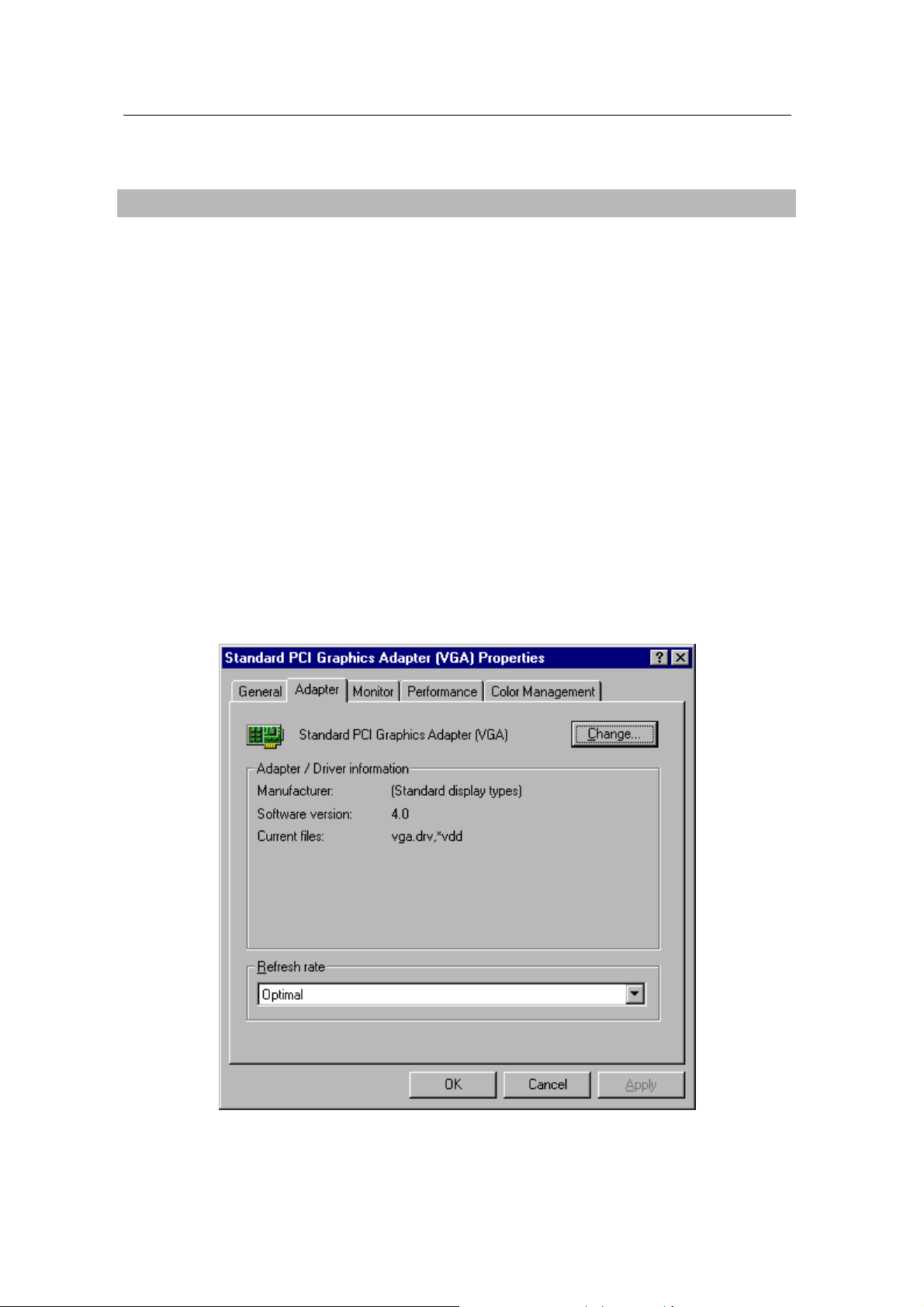
In case of installing the MORPHEUS GEFORCE 3 with Windows 98 SE
If you have installe d W indows 98 newly, your system recognizes the video ca rd as “Standard
PCI Graphics Adapter [ VGA]”. If it has not been set correct ly, switch displa y to “Standard PCI
Graphics Adapter [VGA]” and processed the following procedures.
1. Insert the installation CD into the CD-ROM Drive.
2. Click the right m ouse button on the Windows scr een and select “Properties ” on the dialog
box.
3. Select “Settings” in “Display properties”.
4. Click “Advanced”, “Adapter” then click “Change…”.
5. “Update Device Driver Wizard” appears then click “Next”.
6. Select “S earch for a better driver than the o ne your device is using now. [Recommended]”.
Click “Next” again.
8
Page 9
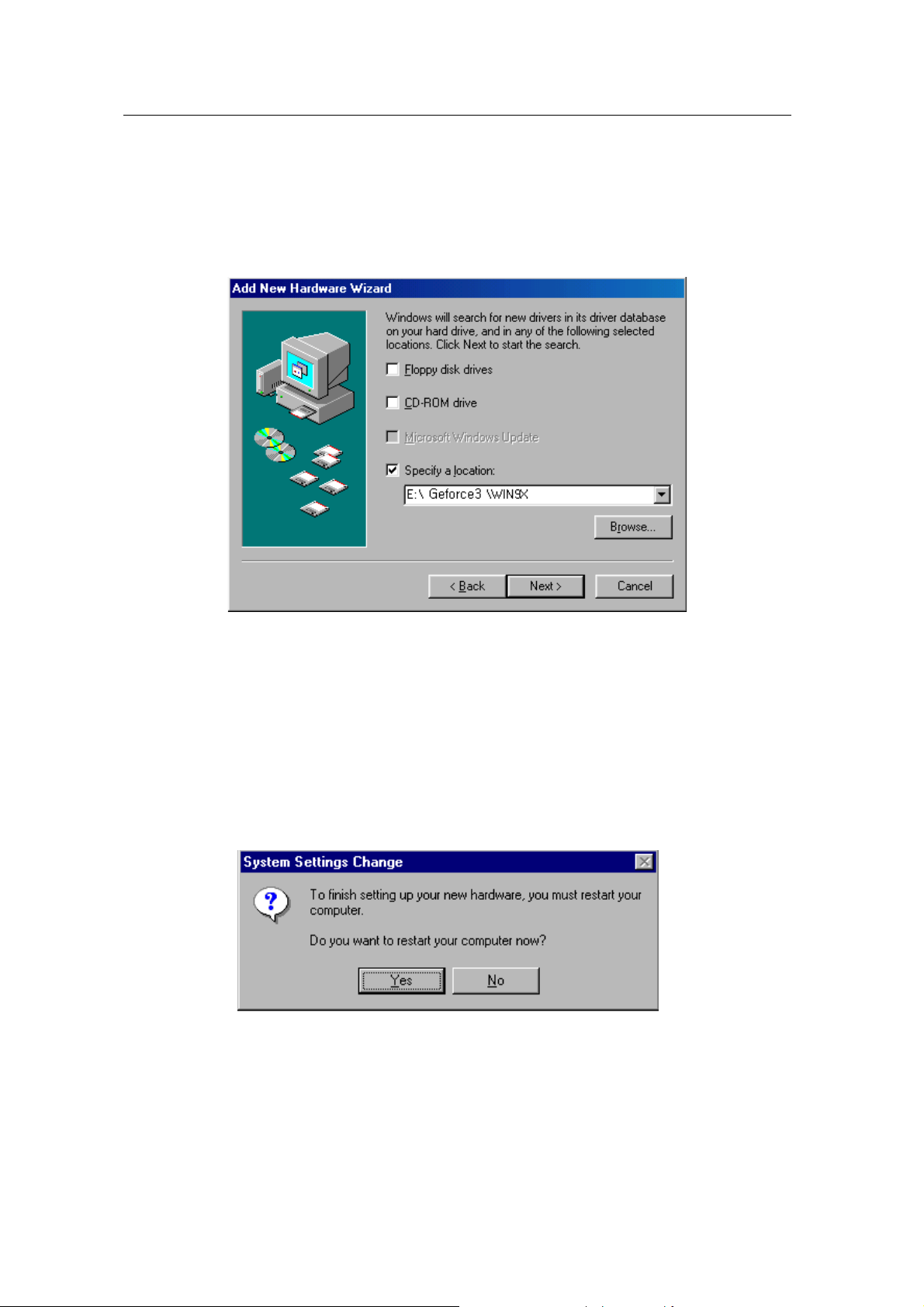
7. Select “Specify a location”. ( Do not select other items.)
8. Select “WIN9X” folder on “GEFORCE3” f older of CD-ROM drive b y using “Bro wse…” button
then click “Next”.
9. If it recognizes “NVIDIA GEFORCE 3”, click “ Next” again.
10. The appropriate drivers will be copied and the system will be configured automatically.
11. Click “F inish”.
12. If a dialog box appears asking if you want to restart your system, select “Yes”.
9
Page 10
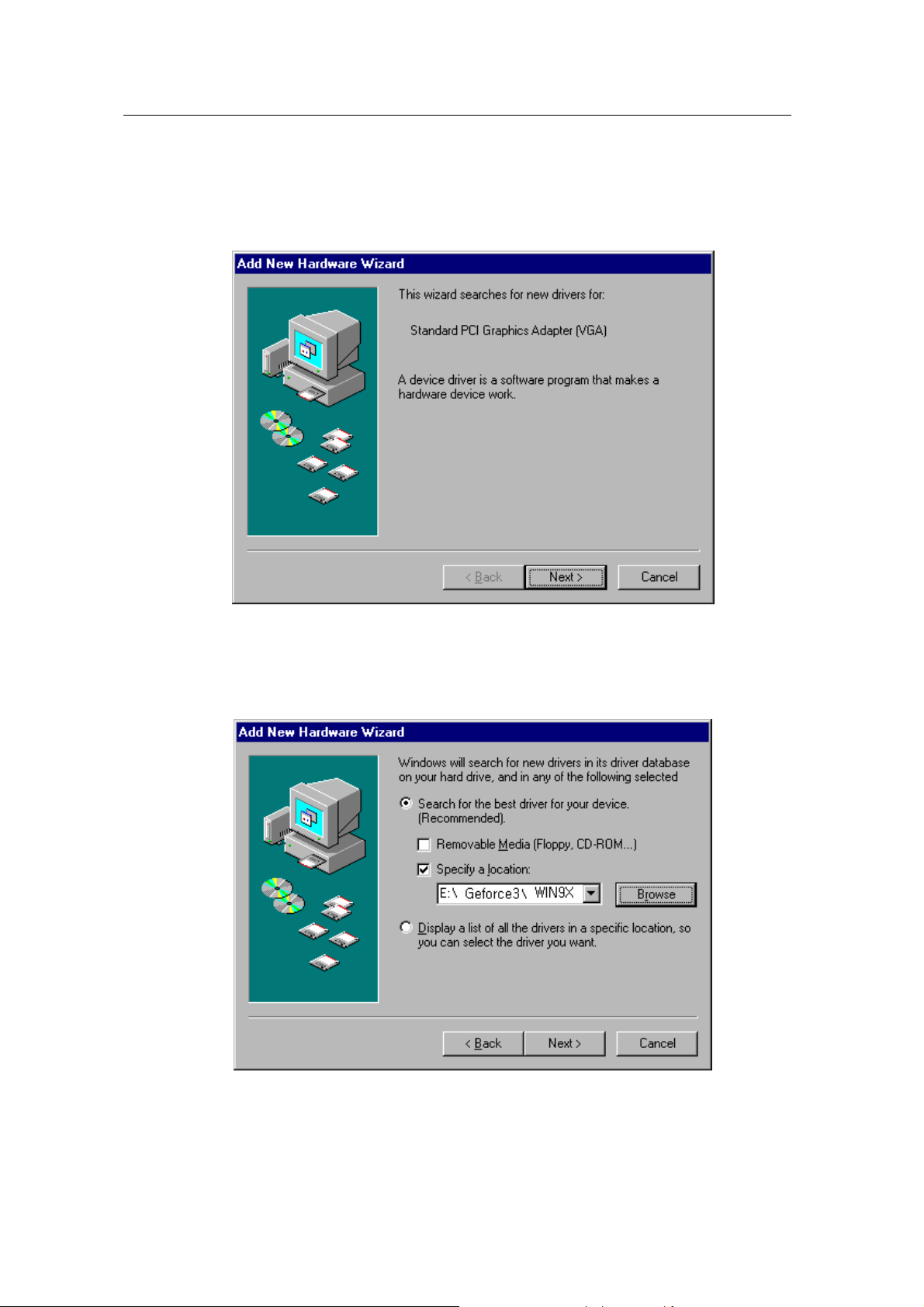
In case of exchanging the VGA card to the MORPHEUS GEFORCE 3 in Windows 98 SE
1. When Windows 98 SE begins, the “Add n ew hardware wizard” dialog box will appear
then click “Next”.
2. Select “Search for the best driver for your device. [Recommended]” and click “Next”.
3. Select “Specify a location” and “WIN9X” folder on “GEFORCE3” folder of CD-ROM
drive by using “Browse…” button then click “Next”.
4. If it recognizes “NVIDIA GeForce3”, click “Next” again.
5. The appropriate drivers will be copied and the system will be configured automatically.
6. Click “Finish”.
10
Page 11
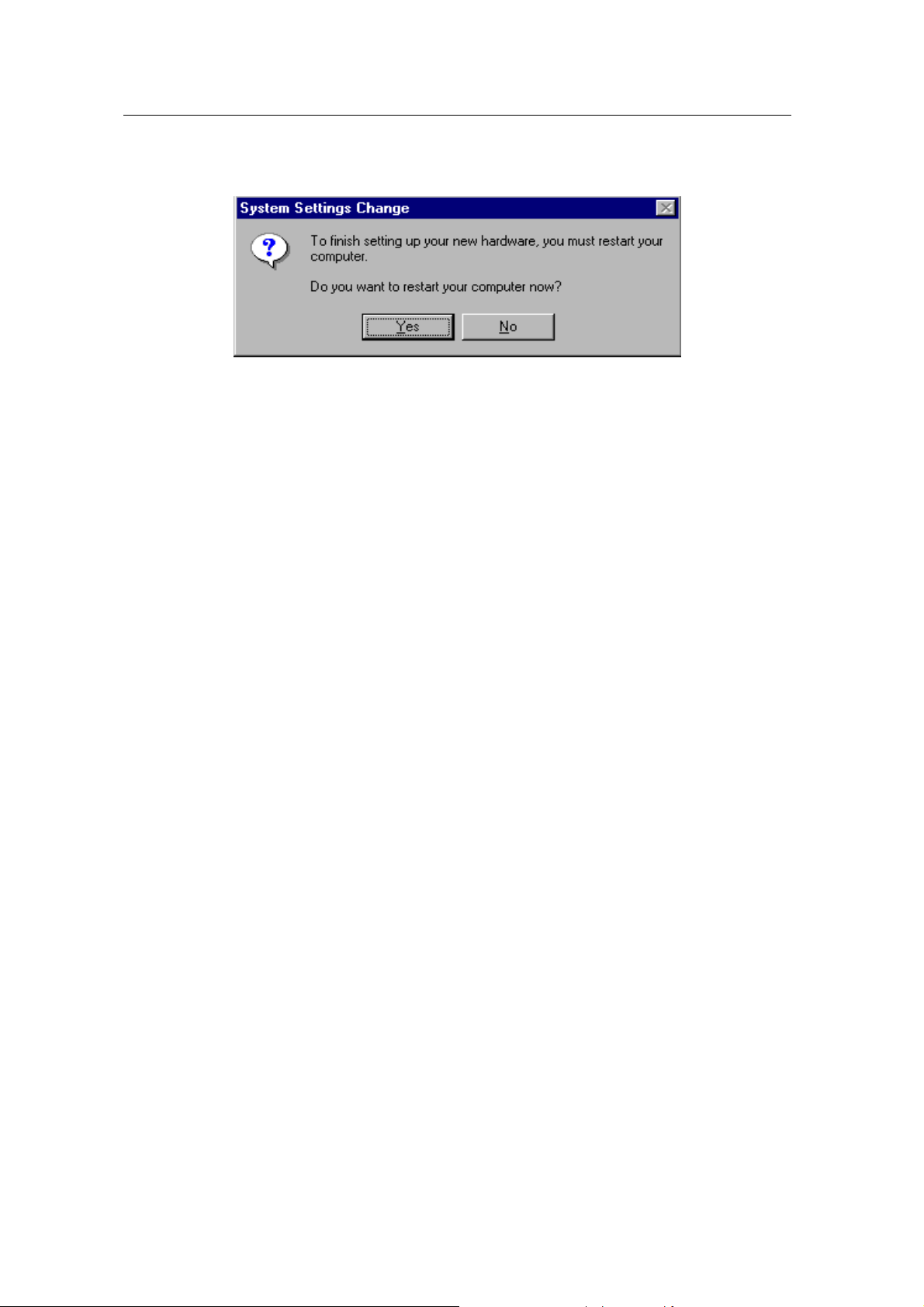
7. If a dialog box appears asking if you want to restart your system, select “Yes”.
11
Page 12
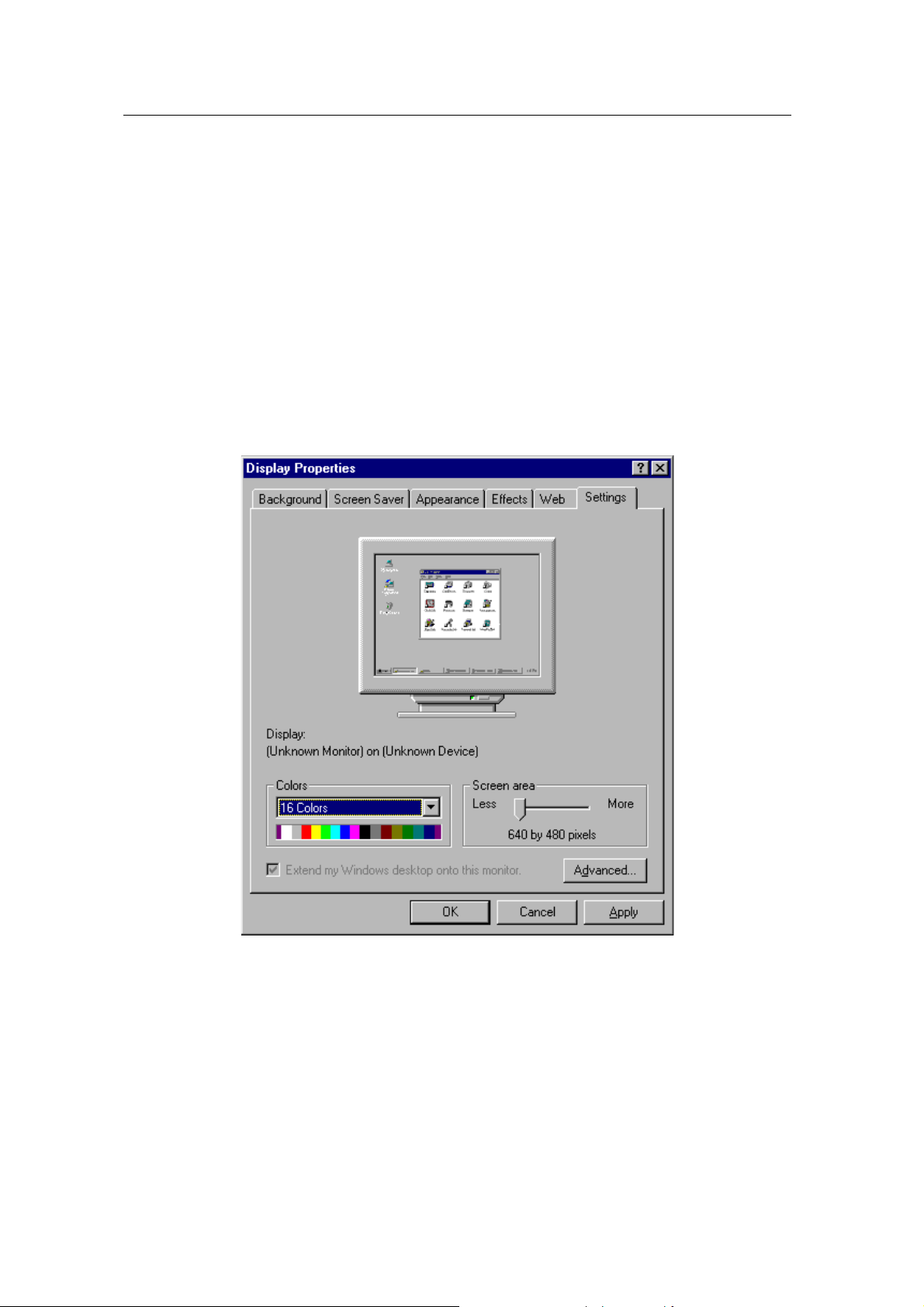
Windows ME
In case of installing Windows ME in your system that has the MORPHEUS GEFORCE3.
When you install Windows ME in condition that the MORPHEUS GEFORCE3 has been
installed, Adapter type is set to “Standard PCI Gr aphics Adapter[VGA]”. You can find Video
controller (VGA compatible) in “Other device” in ‘Device manager’
1. Insert the installation CD into CD-ROM drive when Windows Me starts.
2. Click the right mouse button on the b ackground and s elect “Properties” when Pop-up menu
appears.
3. Select “Settings” in “Display Properties”.
4. Click “Advanced” and “Adapter” then “Change”.
5. “Update Device Driver Wizard” appears. Select “Specify the location of the driver
(Advanced)” and click “Next”.
6. Select “Search for a better driver th an the one your device is using now (Recom mended)
and “Specify a location” and “Browse…”. Do not select “Removable Media”.
12
Page 13
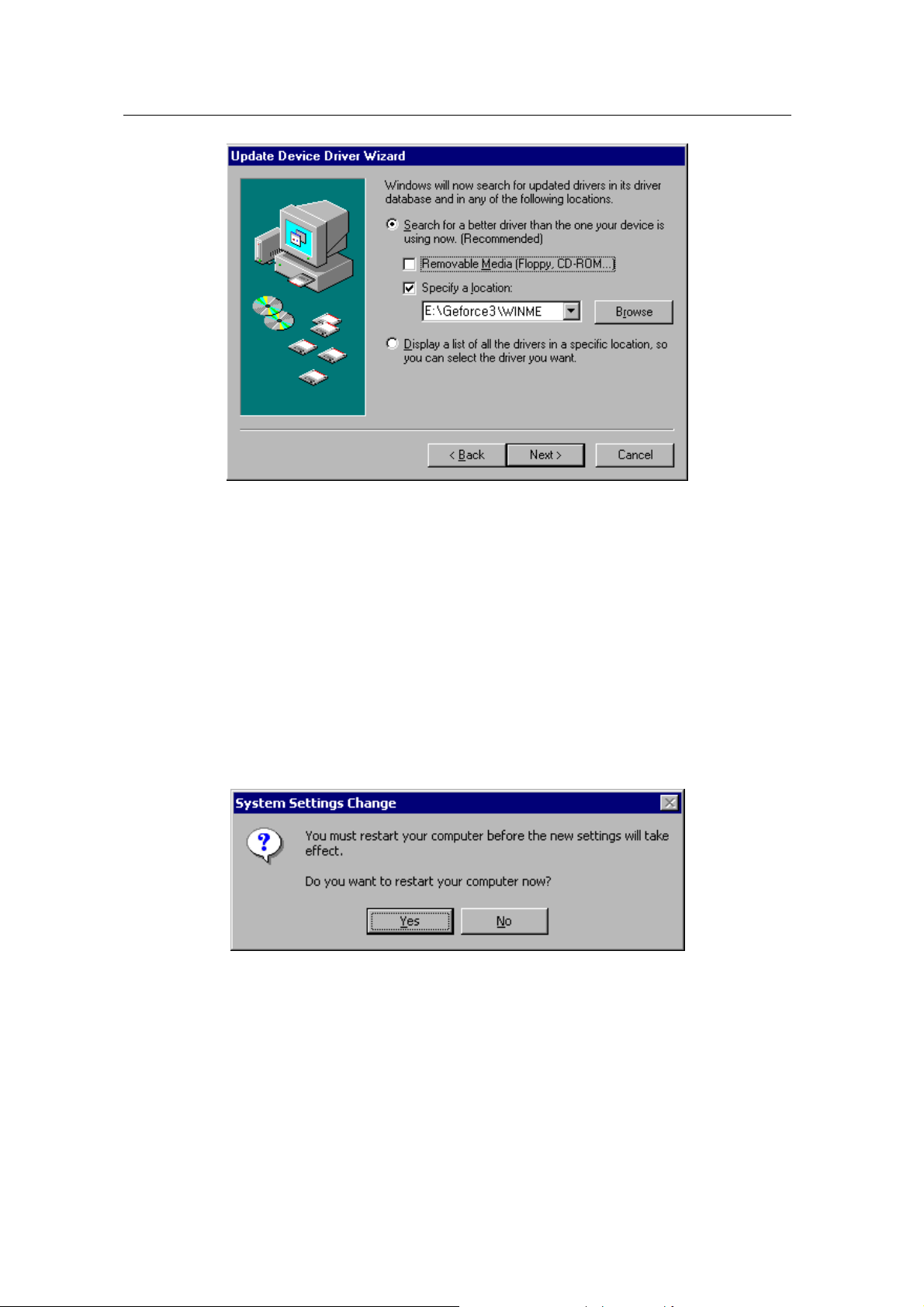
7. Select “WINME” f older on “GEFORCE3” folder of CD-ROM drive by using “Bro wse” button
then click “OK”.
8. When it turns back to the “Update Device Driver Wizard”, then click “Next”.
9. “NVIDIA GeForce3” in “Update Device Driver Wizard” is displayed, then click “Next”.
10. The appropriate drivers will be copied and the system will be configured automatically.
11. Click “Next” then “Finish”.
If a dialog box appears asking if you want to restart your system, select “Yes”.
13
Page 14
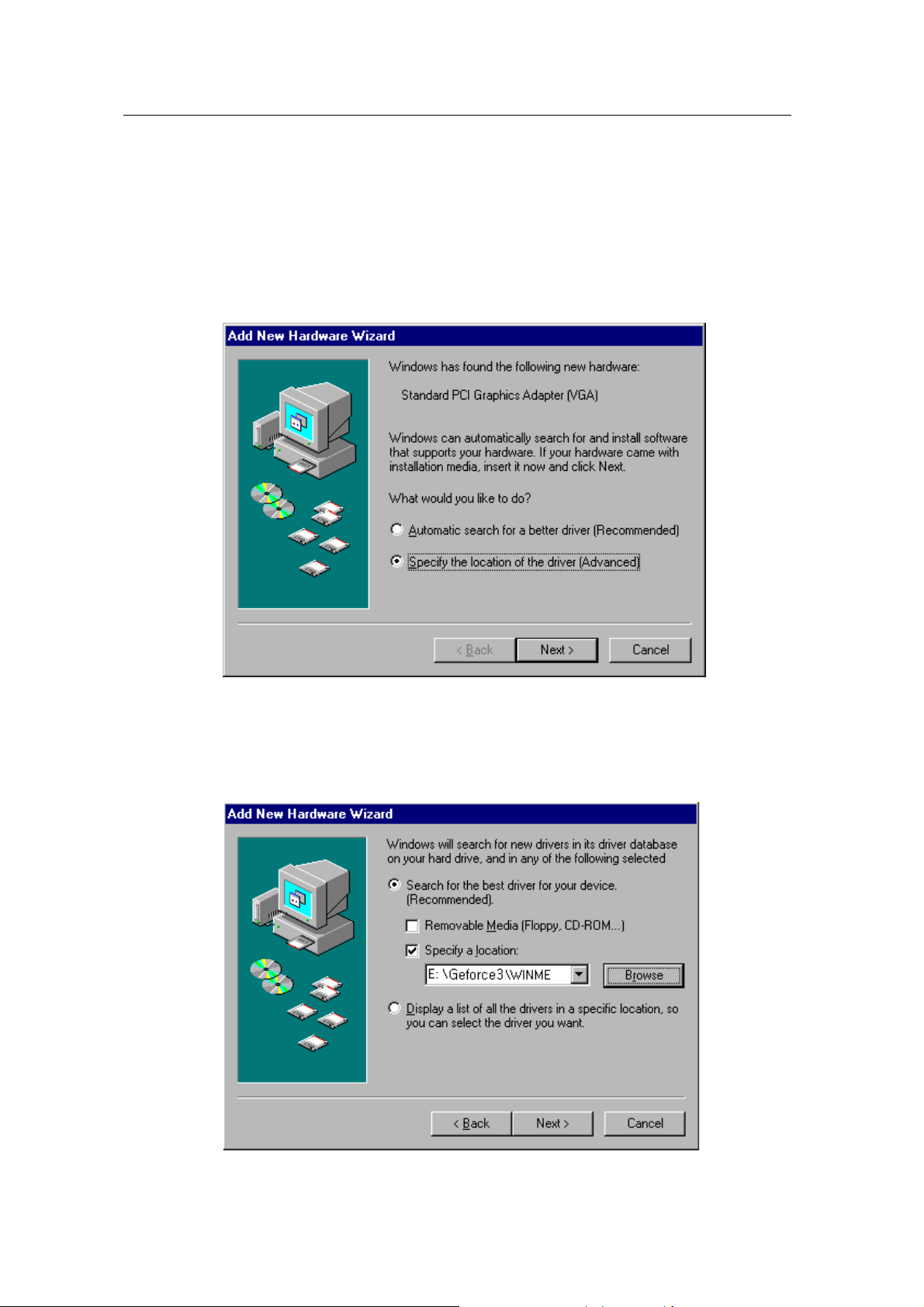
In case of exchanging the VGA card to the MORPHEUS GEFORCE3
When you remove the ex istin g VGA card from your system and newl y install th e MORPHEU S
GEFORCE3, “New Hardware Found” dialog box appears and “Add New Hardware Wizard”
starts automatically.
1. Select “Specify the location of the driver[Advanced]”and click “Next”.
2.
Insert the installation CD into your CD-ROM Drive.
3. Select “Search for the best driver for your device. [Recommended] and “Specify a
location” then “Browse…”. Do not select “Removable Media”.
4. Selec t “W INME” folder on “GEFO RCE3” folder of CD-ROM dr ive by using “Br owse” button
then click “Next”.
14
Page 15
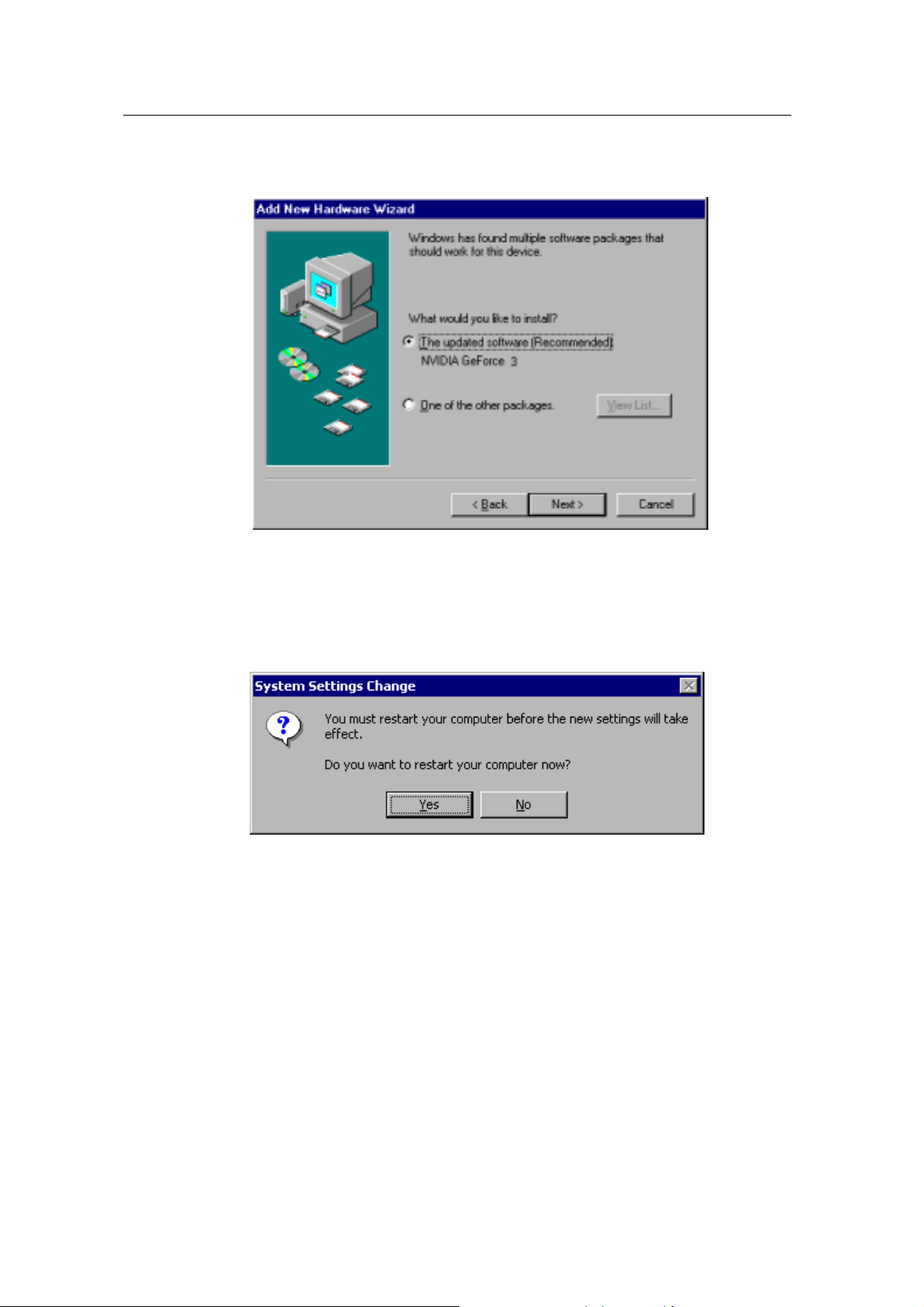
5. Select “The updated software [Recommended]”.
6. Click “Next”. The appropriate drivers will be copied and the system will be configured
automatically.
7. A message that the driver has been installed successfully appears. Then click “Finish”.
It will prompt you to restart your computer, click “Yes” to restart your computer to complete
the installation.
15
Page 16
Windows 2000
In case of installing Windows 2000 in your system that has the MORPHEUS GEFORCE3.
When you install Windows 2000 in condition that the MORPHEUS GEFORCE3 has been
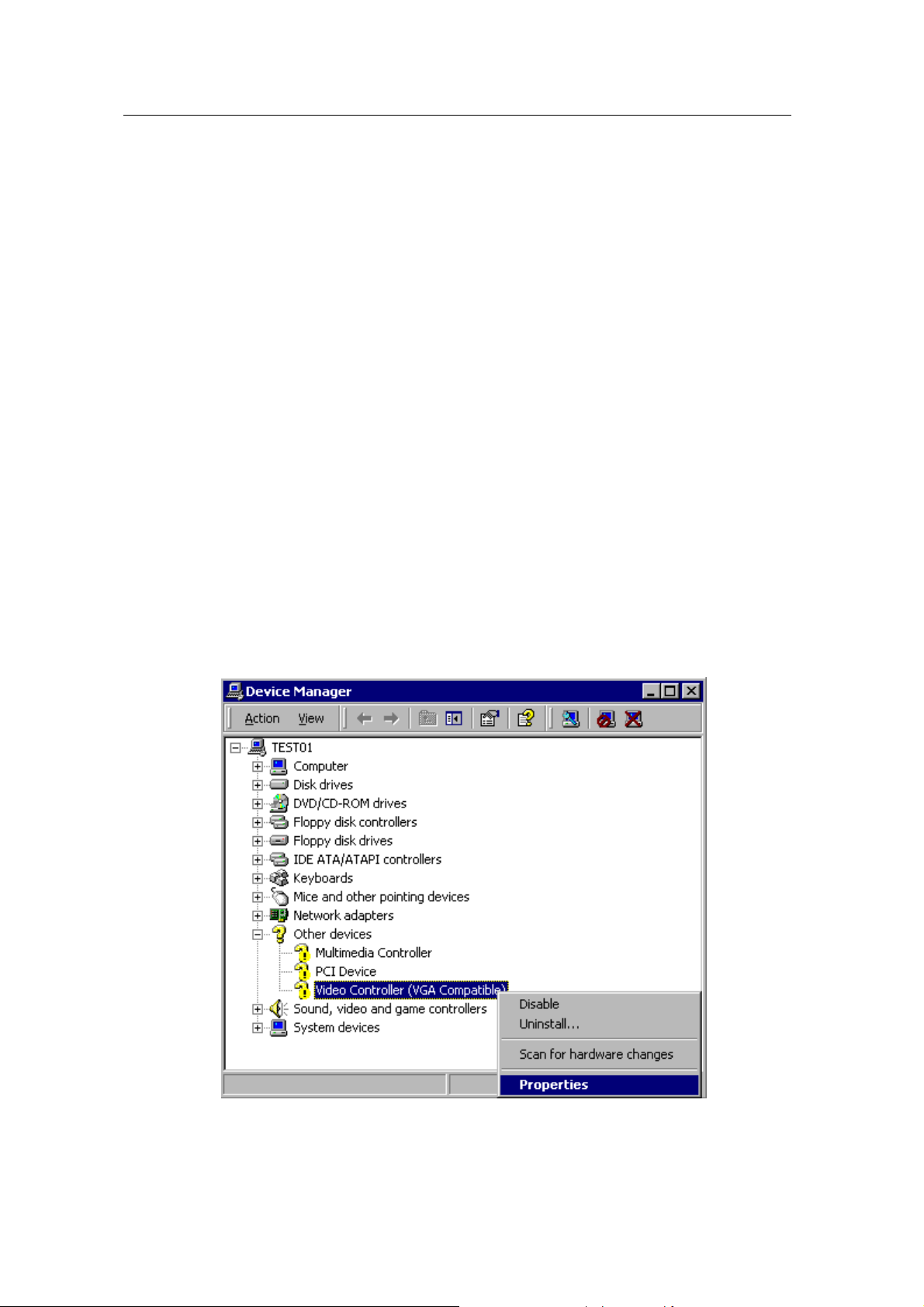
installed, Adapter type is set to “VGA”. You can find Video controller (VGA compatible) in
“Other device” in ‘Device manager’
1. Insert the installation CD into your CD-ROM Drive.
2. Click the right mouse button on the “My Computer” and select “Properties”.
3. Select “Hardware” and click “Device Manager” the n the dev ice manager dialog b ox and
Video controller (VGA compatible) in “Other devices” appear.
4. Click “Video controller (VGA compatible)” using the right mouse button and select
“Properties”.
5. Select “Reinstall Driver” then “Upgrade Device Driver Wizard” window appears.
6. “Driver Upgrade Wizard” or ‘New Hardware Search Wizard” appears. Then click “Next”.
7. Select “Search for the best driver for your device [recommended]” and click “Next”.
16
Page 17
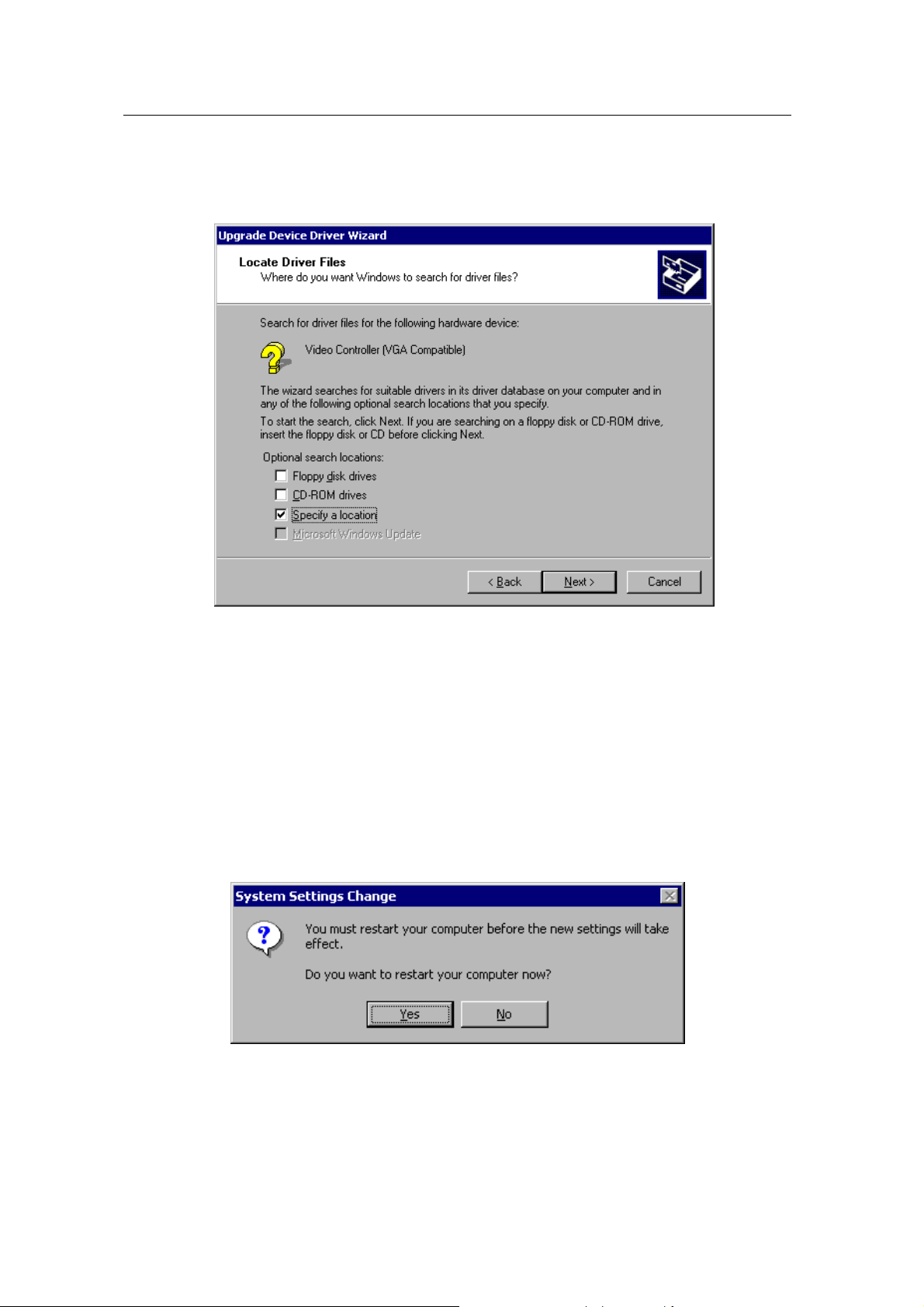
8. Select “Specify location”, click “Next” and “Browse”. Select “\GEFORCE3\WIN2000”
folder on the Installation CD when the browse dialog box appears and click “Open”.
9. When you click “O.K”, the location of the INF file appears. Click “Next”.
10. If the driver has not been certified by WHQL, “C an not find the digital signature” dial og
box appears. Click “Yes” to continue.
11. A message that the driver has been installed successfully appears. Then click “Finish”.
It will prompt you to restart your computer, click “Yes” to restart your computer to
complete the installation.
17
Page 18
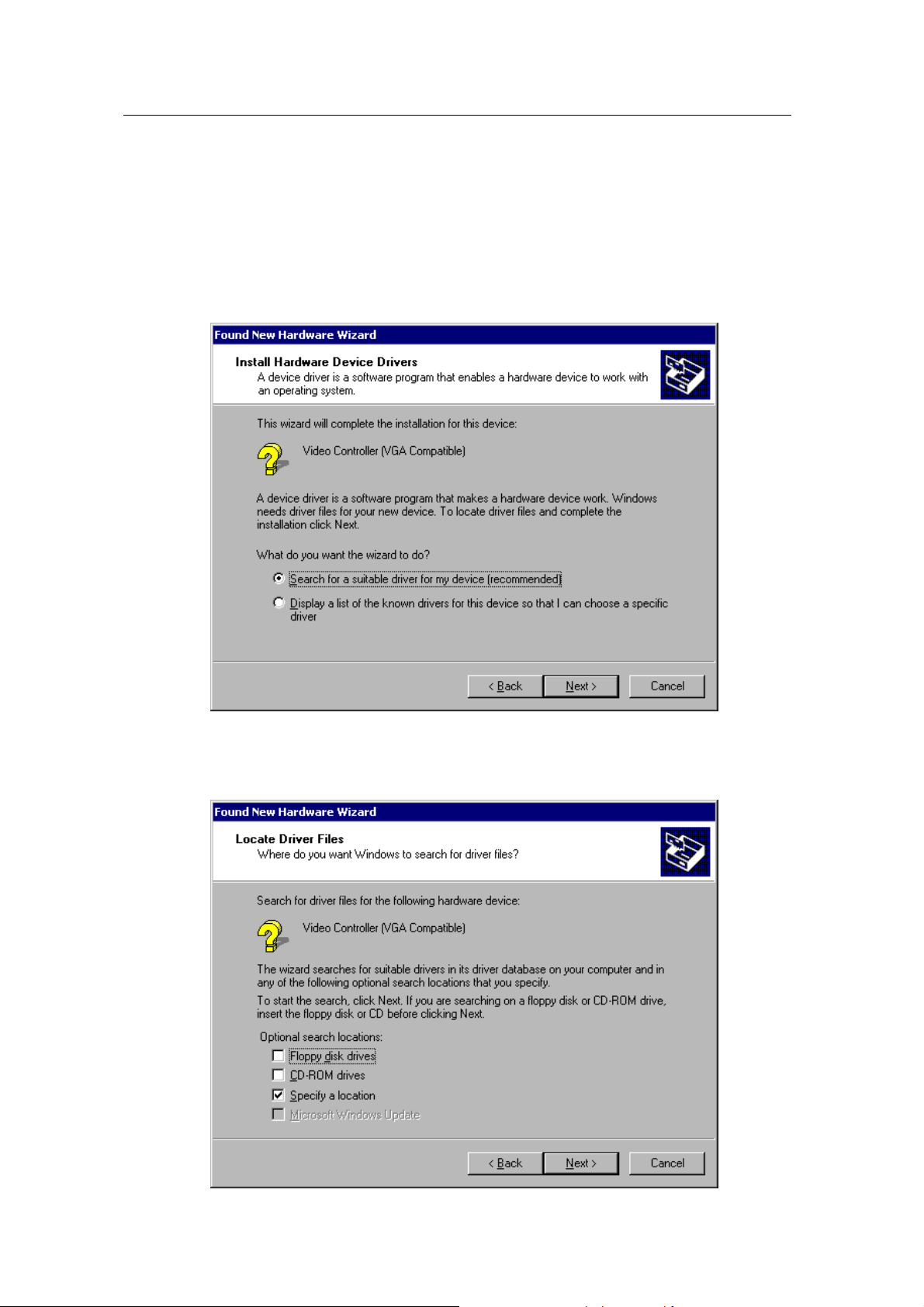
In case of exchanging the VGA card to the MORPHEUS GEFORCE3 in Windows 2000.
When you remove the ex istin g VGA card from your system and newl y install th e MORPHEU S
GEFORCE3 “New hardware found” dialog box appears and “add new hardware wizard” is
started automatically.
1. Click “Next”.
2. Select ‘Search for the best driver for your device(recommended)’and click “Next”.
Insert the installation CD into your CD-ROM Drive.
3.
4. Select “Specify a location” and click “Next”,
18
Page 19
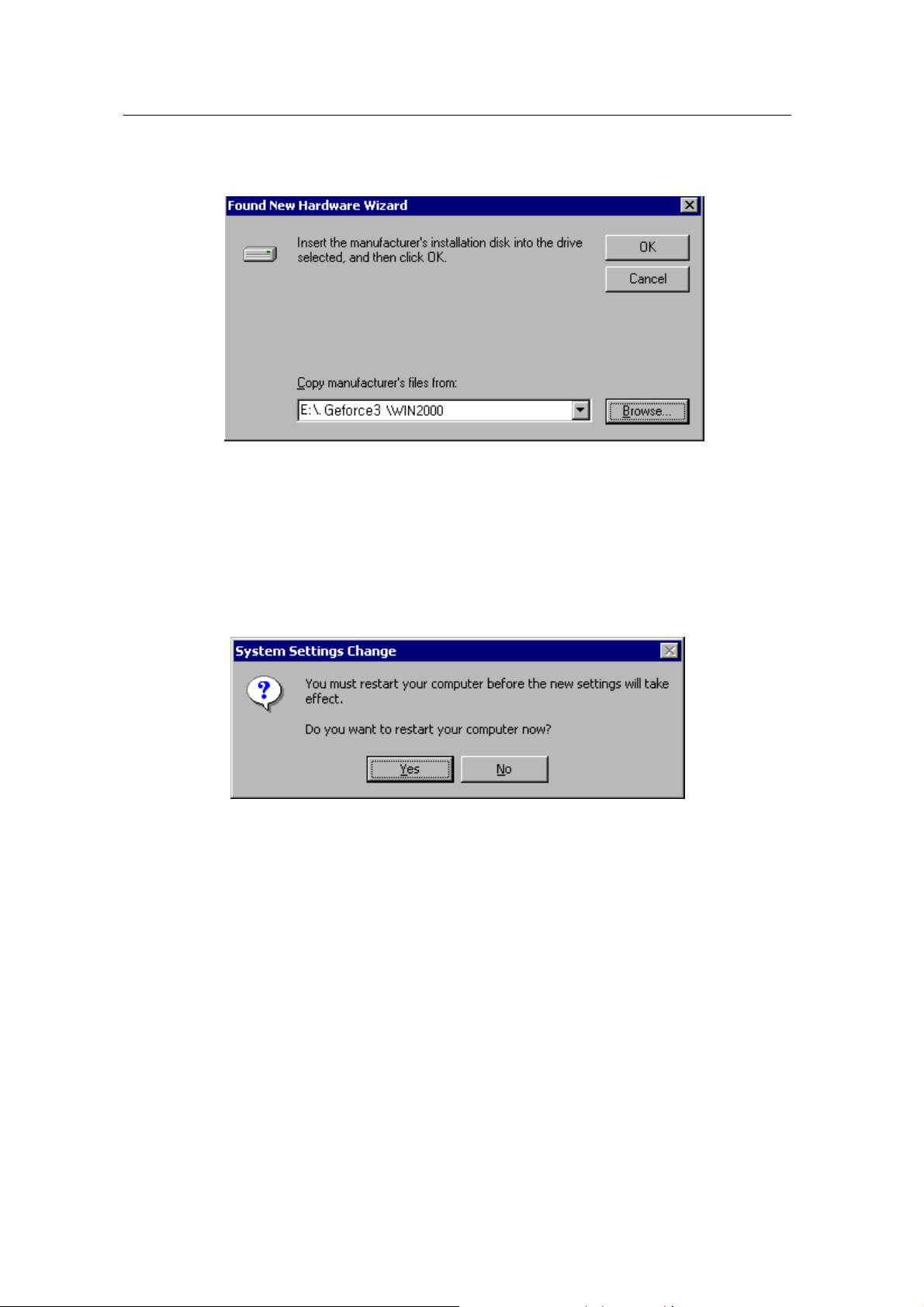
5. Select “WIN2000” folder on “\GEFORCE3” folder of CD-ROM drive by using “Browse”
button. Click “Next”.
6. If the driver has not been certif ied b y WH QL, “Can n ot find t he dig ital s ignat ure” dialo g box
appears. Click “Yes” to continue.
7. A message that the driver has been installed successfully appears. Then click “Finish”.
It will prompt you to restart your computer, click “Yes” to restart your computer to complete
the installation.
19
Page 20
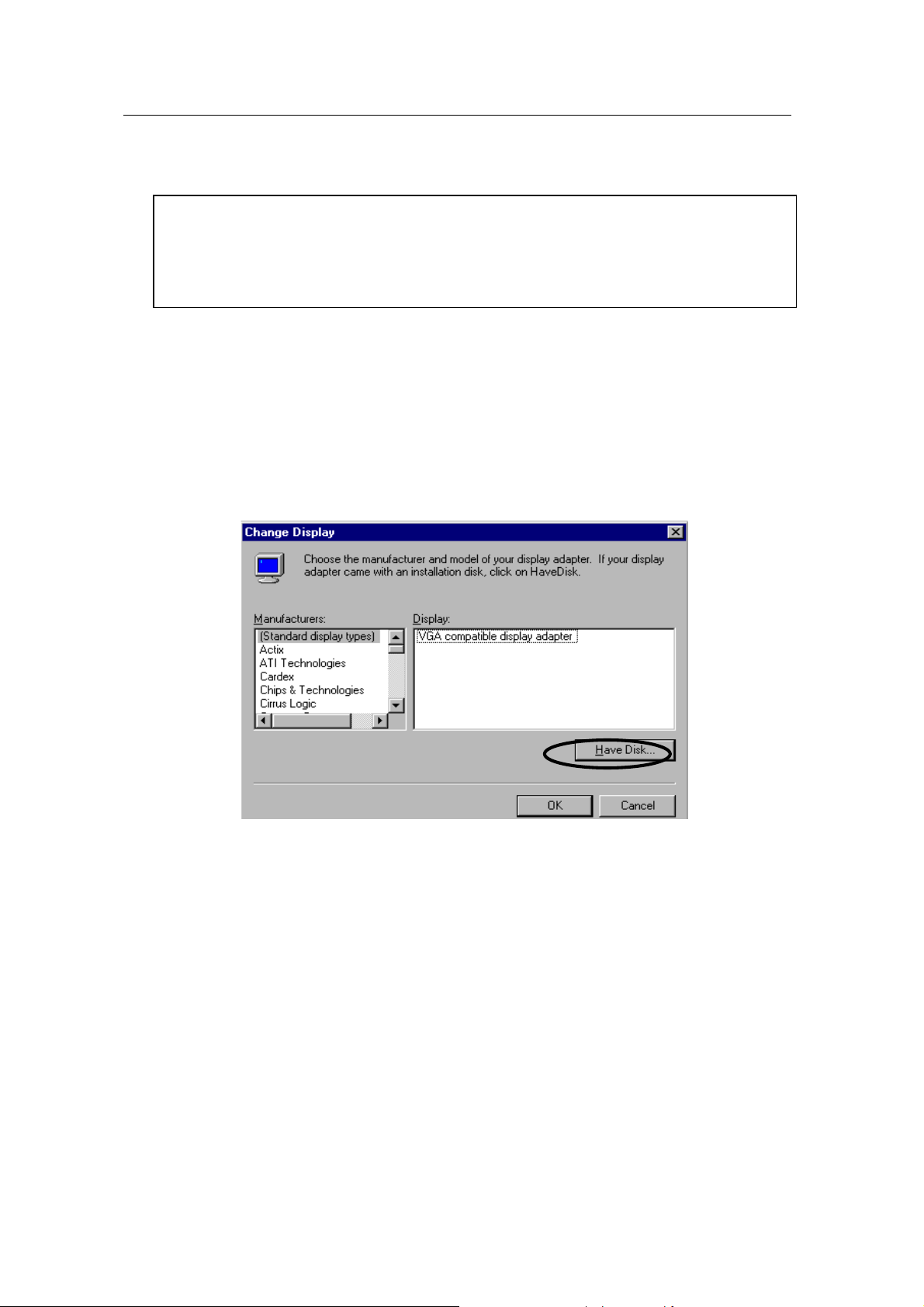
Windows NT4.0
Note
" To insta ll the MORPHEUS GeFor ce 3 in Windows NT 4.0, you should hav e Service
pack 3 or higher.
1. Start Windows NT4.0.
2. Insert the installation CD into your CD-ROM Drive.
3. Click the right mouse butto n on the W indows displa y and select “ properties” on the dialog
box.
4. The “Display Properties” dialog box appears. Click “Display Type” on “Settings”.
5. Select “Change” in the “A dopter Type”. “Change Displ ay” dialog box appe ars. Then click
“Have Disk”.
6. Click “Browse” to s elec t th e path of the dis p lay driver for Windows NT. Select ‘nv4_disp’ of
‘NT 40’ in ‘GEFORCE3’ folder and ‘Open’.
7. Confirm the path is entered and click “OK”.
8. If it recognizes “NVIDIA GeForce 3 (vX.XX)”, click “OK”.
9. Select “Yes” if a dialog box that asks to install a third party drivers.
10. All appropr iate files are the n copi ed to t he har d disk . When all files are copied, g o back to
the Display Properties box by clicking Close.
11. Click “Yes” to restart your system.
20
Page 21
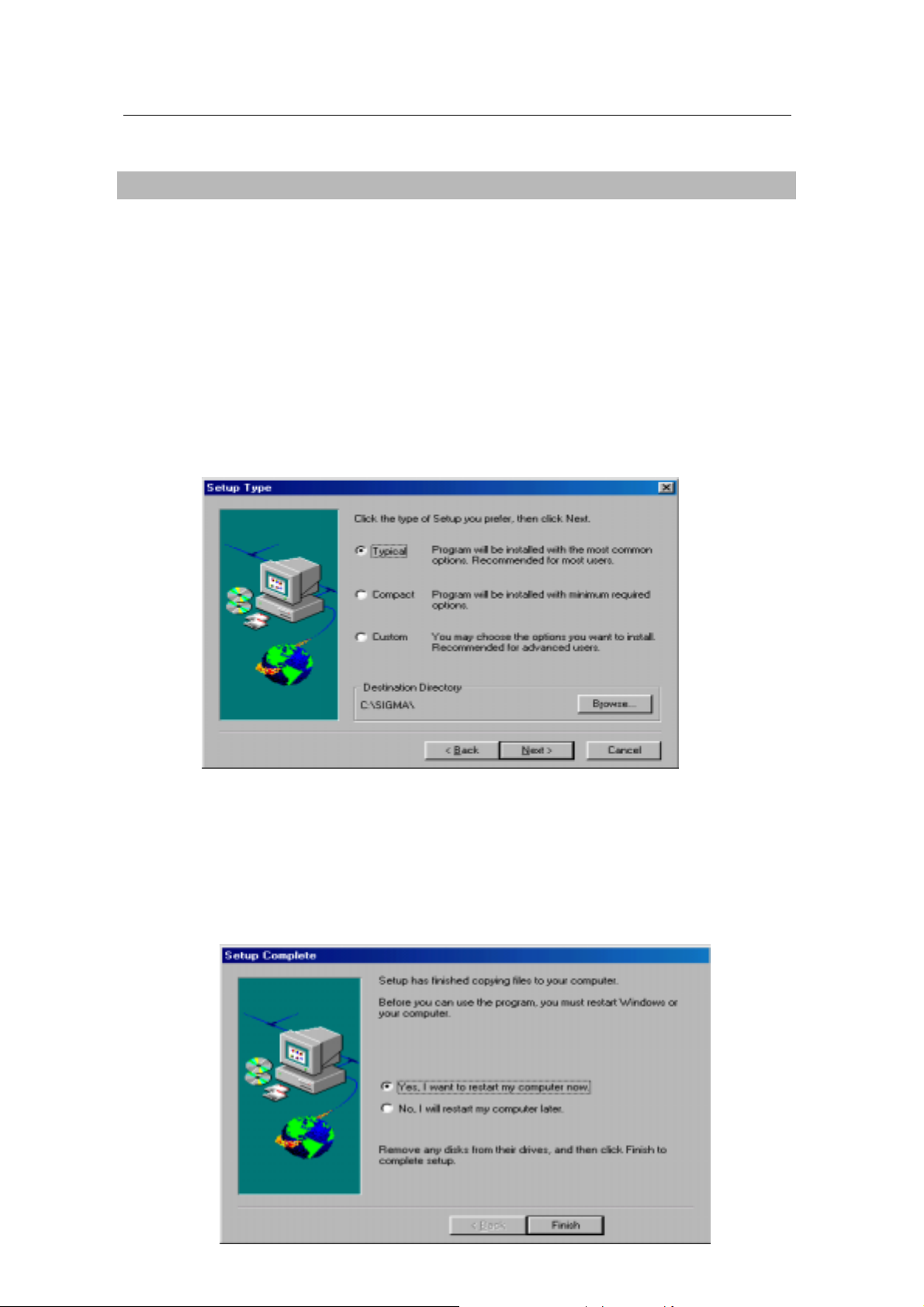
Installation of applicati on programs
Installation of application programs for MORPHEUS GEFORCE3
1. Insert the installation CD into your CD-ROM Drive.
2. Open “My Computer” in Windows 98 and select your CD-ROM Drive.
3. Run “SETUP.EXE” in the “UTILITY” folder.
4. The instruction screen appears. Then click “Next” to continue.
5. Installation directory and types are shown in the dialog box. Click “Next”.
If you want to change the ins tallati on dir ec t or y, click “Search” and place a direc tory you want.
If you want to install user-defined items, select “Custom” then “Next”.
6. A dialog box for the program folder appears, then click “Next”.
If you want to change the name of the program folder, enter a name in the white blank.
7. A dialog box that shows for confirmation appears, then click “Next” after checking the
settings. The applications will be copied and folders and icons will be created.
8. When the installation is completed, it will ask you to restart your system.
9. Click “Yes” to restart your system.
21
Page 22
Chapter 3 How to use Utility programs
Using the MORPHEUS GEFORCE3’s utilities
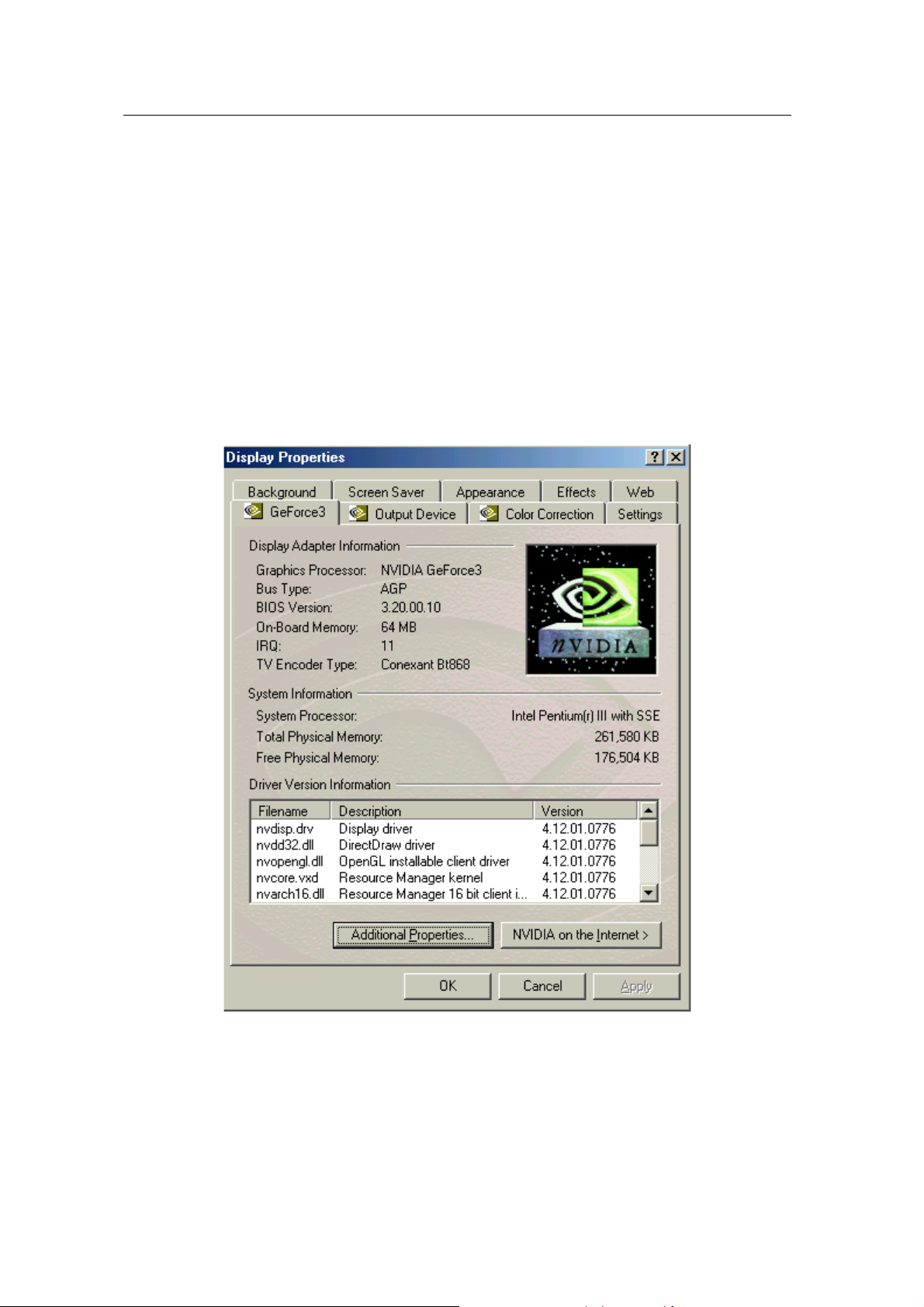
This is a utility program that sets display properties and 3D functions provided by the
MORPHEUS GeForce 3.
When selecting “GeForce 3” tab right after clicking “Advanced” in “Settings” of the “Display
properties”, the following dialog box that shows hardware information, driver version and
memory size appears. And more functions such as Gamma correction, 3D f eatures, OpenGL
and DirectX are prov ide d when c l ic k ing “ Ad dit ion al pr o per ties” in th e b elo w par t of the d ia log box .
22
Page 23
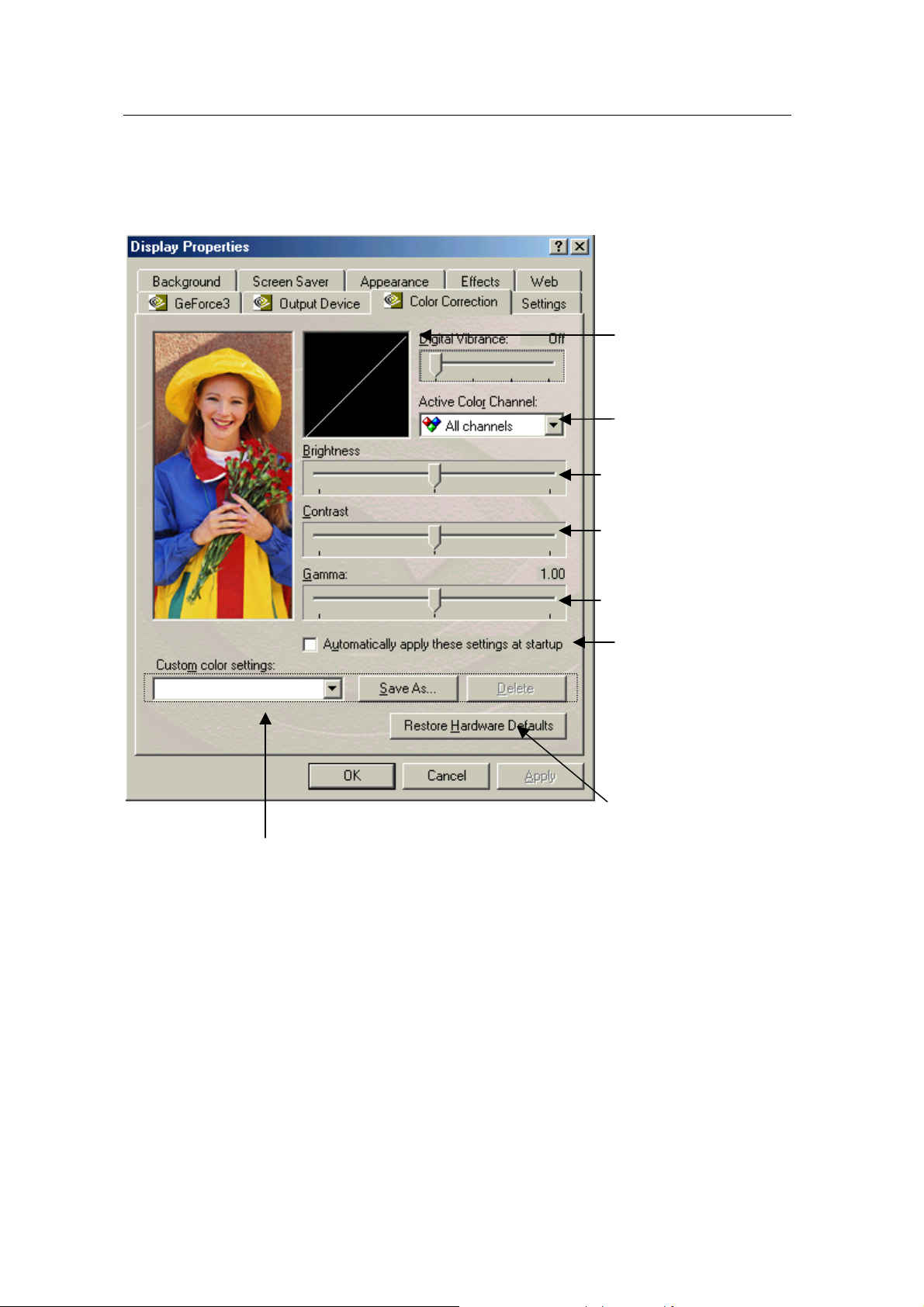
Color management
This is a utility to adjust a color (Gamma value) and contrast value.
Shows the screen condition that is
controlled by the below bars.
Sets a color to control among Red, Blue,
Green and all three colors.
Controls the brightness.
Saves or deletes the current set value.
Controls the contrast.
Controls the color (Gamma value).
If this is marked, the cu rrent settin gs are
applied when starting Windows.
Restores to the default value.
23
Page 24
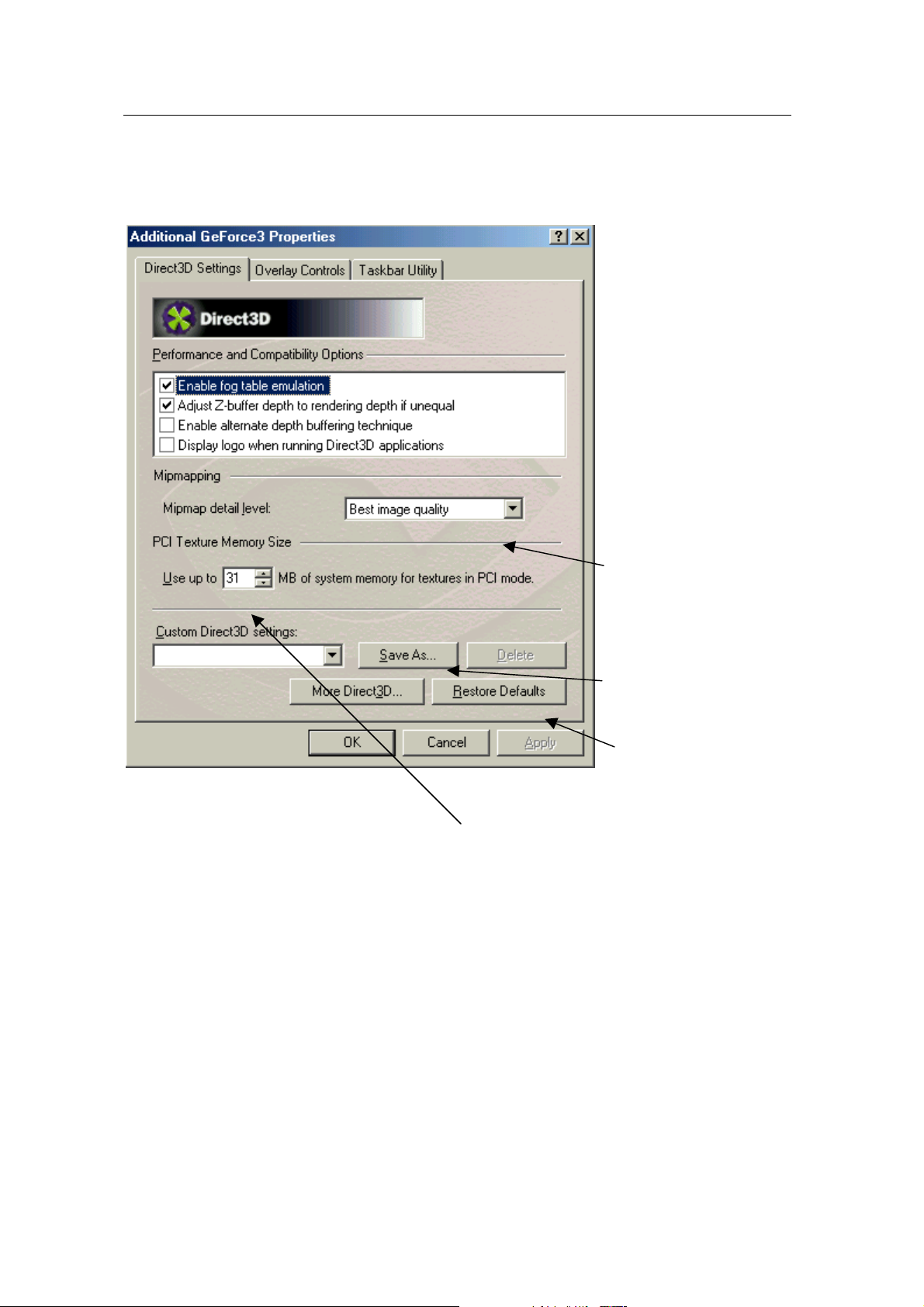
DirectX 3D settings
This is to specify each detailed item for 3D acceleration.
MIPMAP detail level (best
quality#$best speed) adjusts
5 levels of MIPMAP.
Saves the configuration.
Restores to the default val ue.
Sets Texel arrangement and PCI texture memory size.
24
Page 25
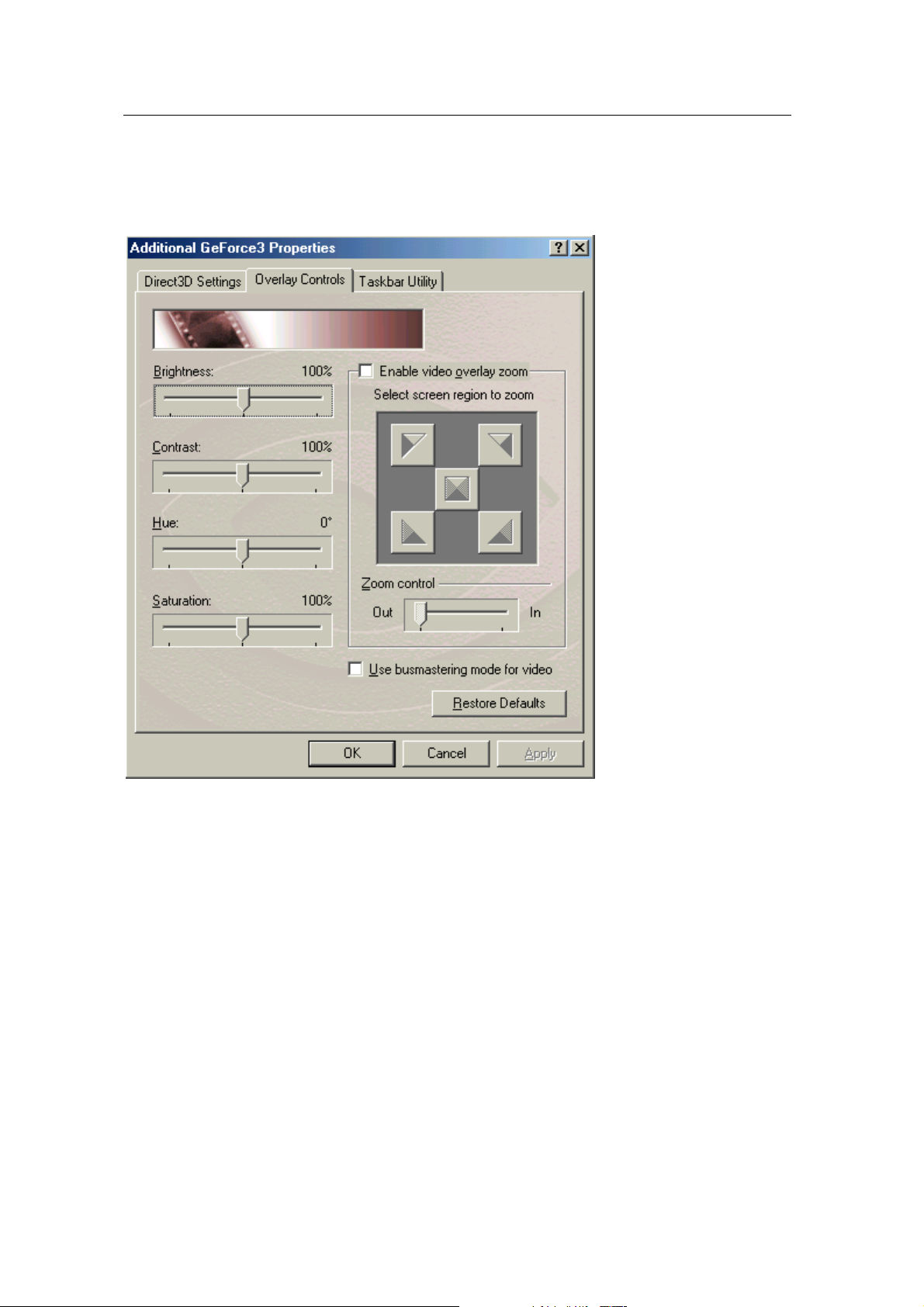
Overlay color control
This is to control the overlay color when watching TV or VCD.
25
Page 26
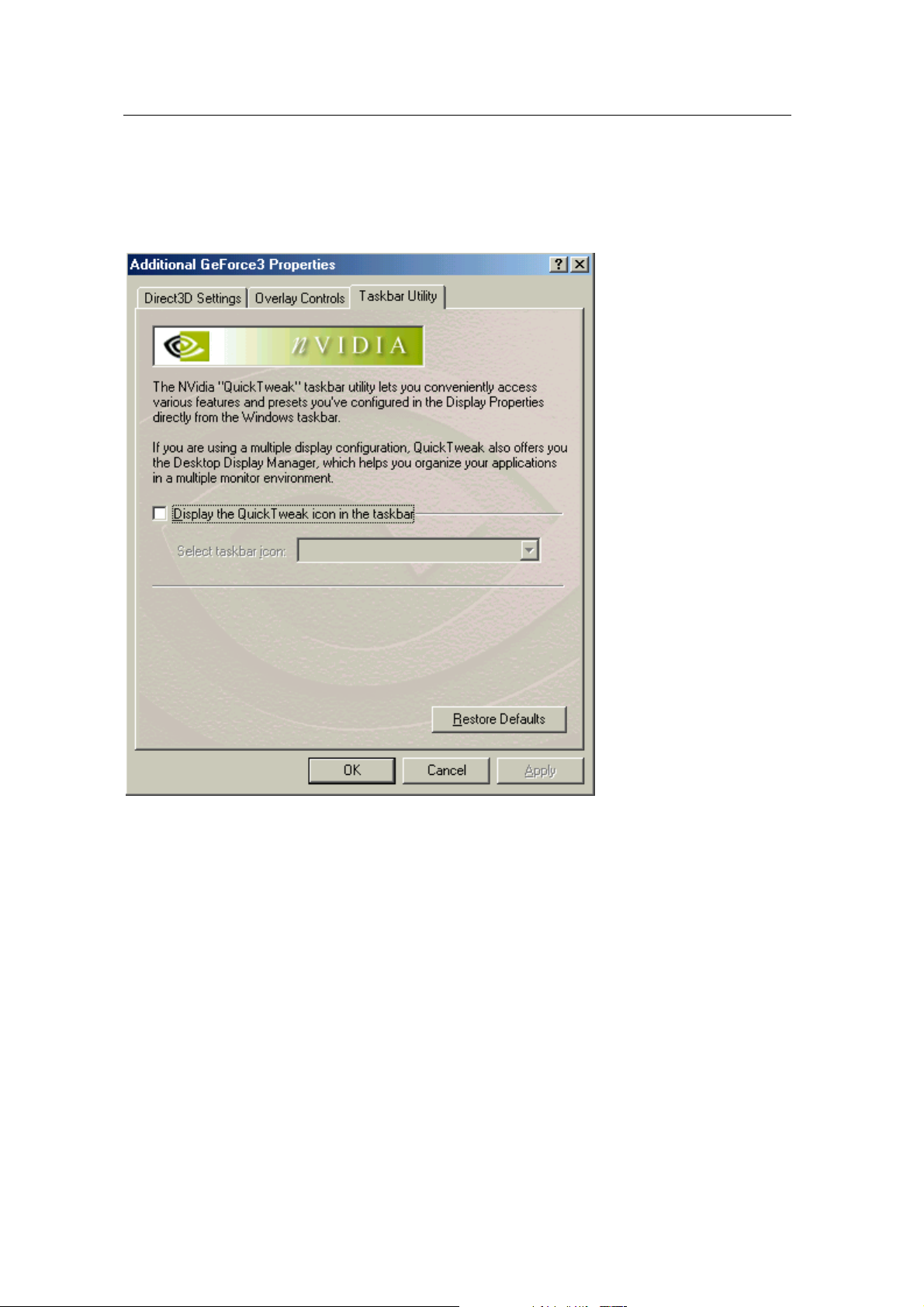
Taskbar Utility
This sets display drivers and icon images for display tabs.
26
Page 27
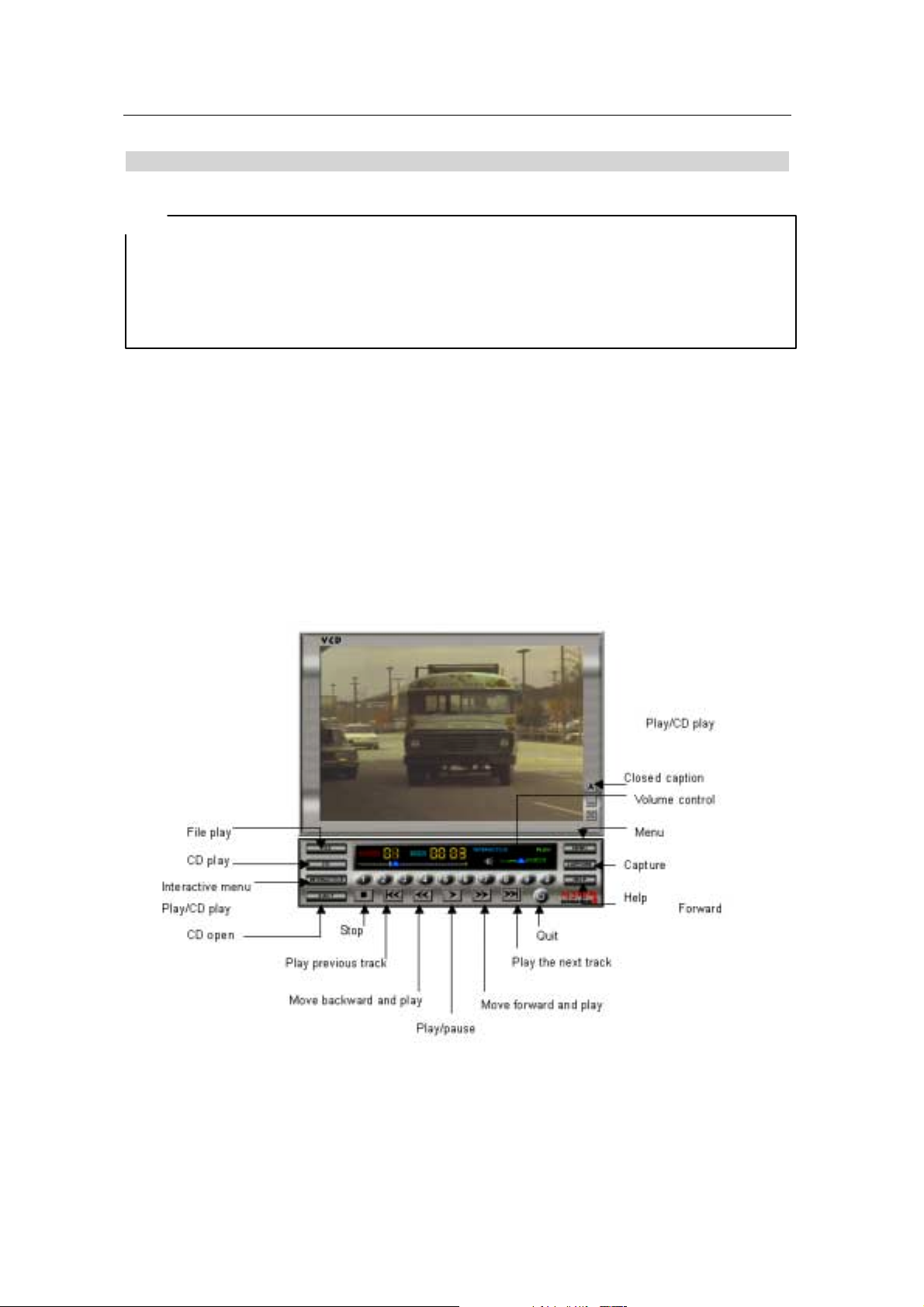
Watching Video CD
Note
Make sure that you have installed a sound card in your system before you run SIGMA utilities such as
SIGMA VCD player and SIGMA MP3 player.
When running a utility program, it automatically searches the sound card in your system. If your sound
card driver has not been installed correctly, the utility will deny to work.
!
! Starting the program
!!
Inser the video CD into the CD-ROM drive.
Select ‘program ’ of ‘ Star t ’ i n Windows 95 or 98. Run ‘Sigma VCD’ of ‘Sigma multimedia’ folder to
display screen window and player panel as follows.
SIGMA CD player is a S/W MPEG player to pla y Video, Audio CD and MIDI f iles. It also c an be
used for second language education with closed caption and screen captures.
27
Page 28
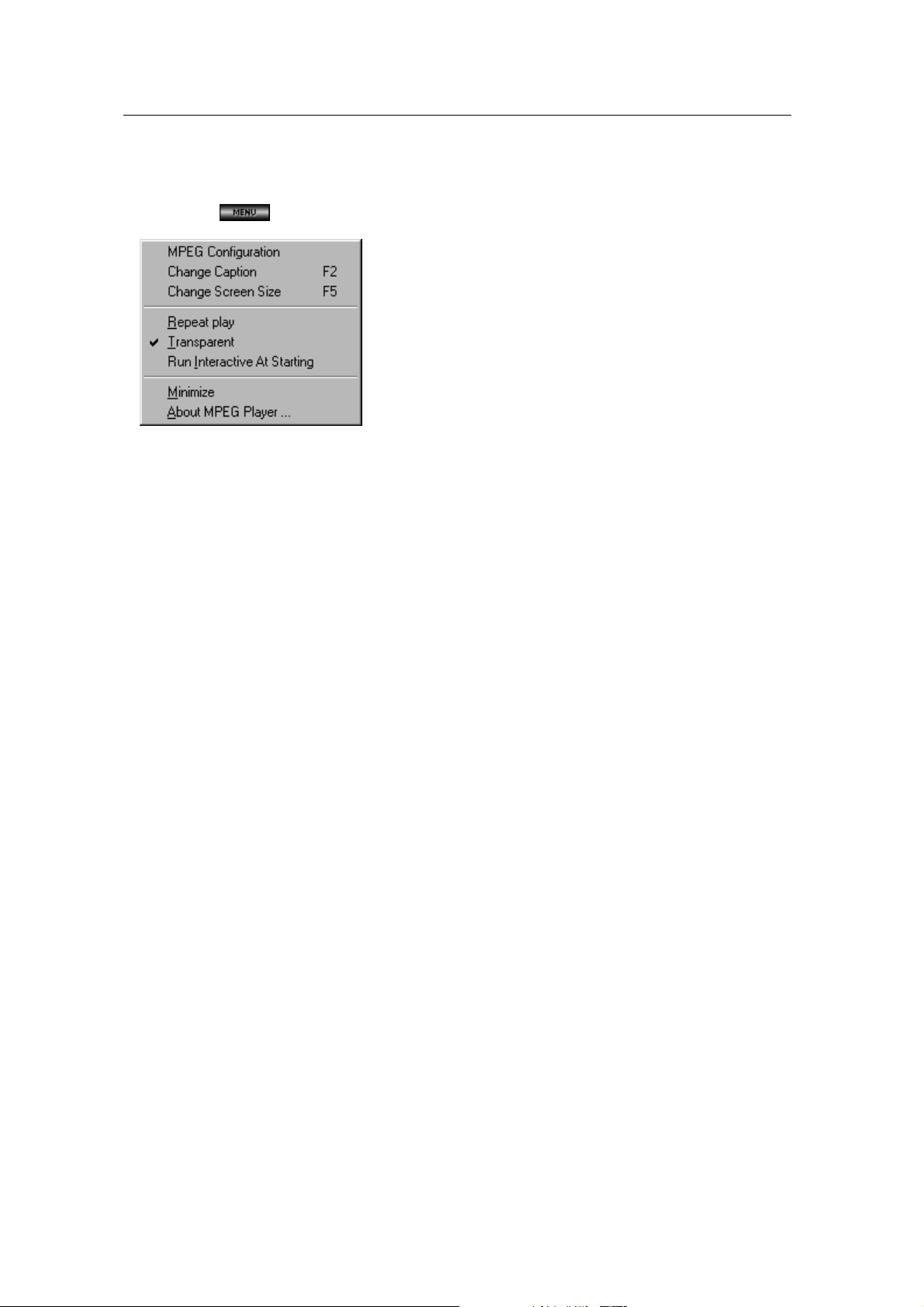
Menu screen
Click “Menu”[ ], the following pop-up menu appears.
MPEG config
Sets MPEG configuration for audio channel, volume control, screen size and DirectDraw.
Subtitle change
Changes the subtitle to another language. This is supported with Video CD 2.0.
Screen size control
Changes the screen size to the full or its original.
Auto replay
Replays a title from the beginning.
Hiding the background color of subtitle
Hides the background color of the subtitle on the screen.
Starting Interactive for VCD play
Makes the VCD player start in Interactive mode. It is supported with VCD 2.0 format.
Iconization (minimize)
Minimizes the SIGMA TV player panel.
Help
Shows the on-line help of SIGMA TV player.
About
Shows the information on the SIGMA TV player.
28
Page 29
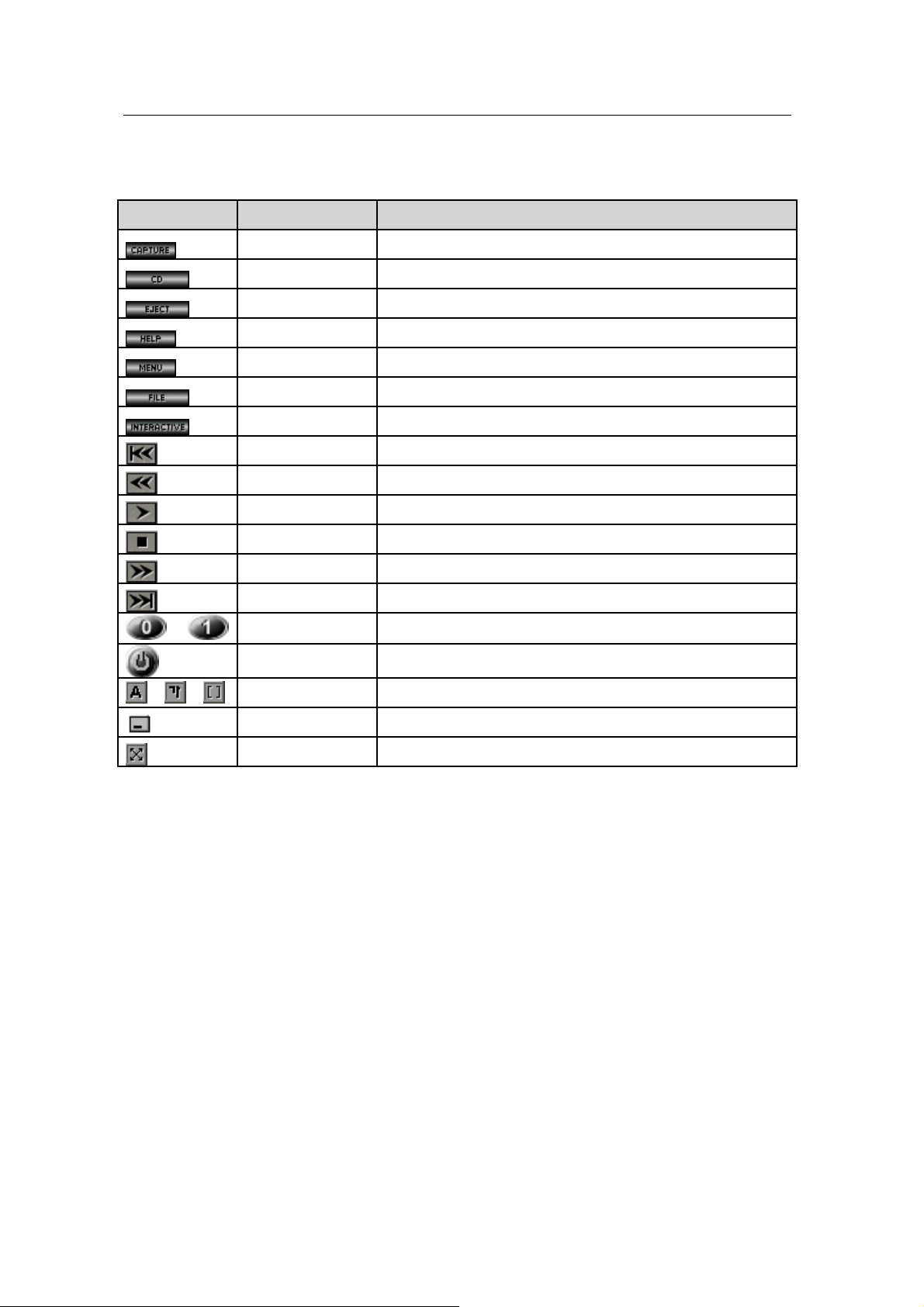
!
! Button Functions
!!
Button Description Function
~
/ / Subtitle Mode Change or quit a subtitle.
Capture Captures motion prictures.
Video CD Play Plays video CD or audio CD.
CD-ROM Eject Ejects CD-ROM drive tray.
Online Help Displays help for Sigma VCD Player.
Menu Displays configuration menu to play Sigma VCD Player.
File Open Opens images in file.
Interactive Mode
Previous Track Plays the previou s track.
Backward Play Plays backward.
Play / Pause Plays or pauses video CD or audio CD.
Stop Stops CD palying.
Forward Play Plays forward.
Next Track Plays the next track.
Number Uses to choose track or menu.
Quit Quits Sigma VCD Player.
Plays interactive mode supported in Video CD 2.0 다.
Iconize Minimizes a screen window.
Size Change Change to the full screen.
29
Page 30
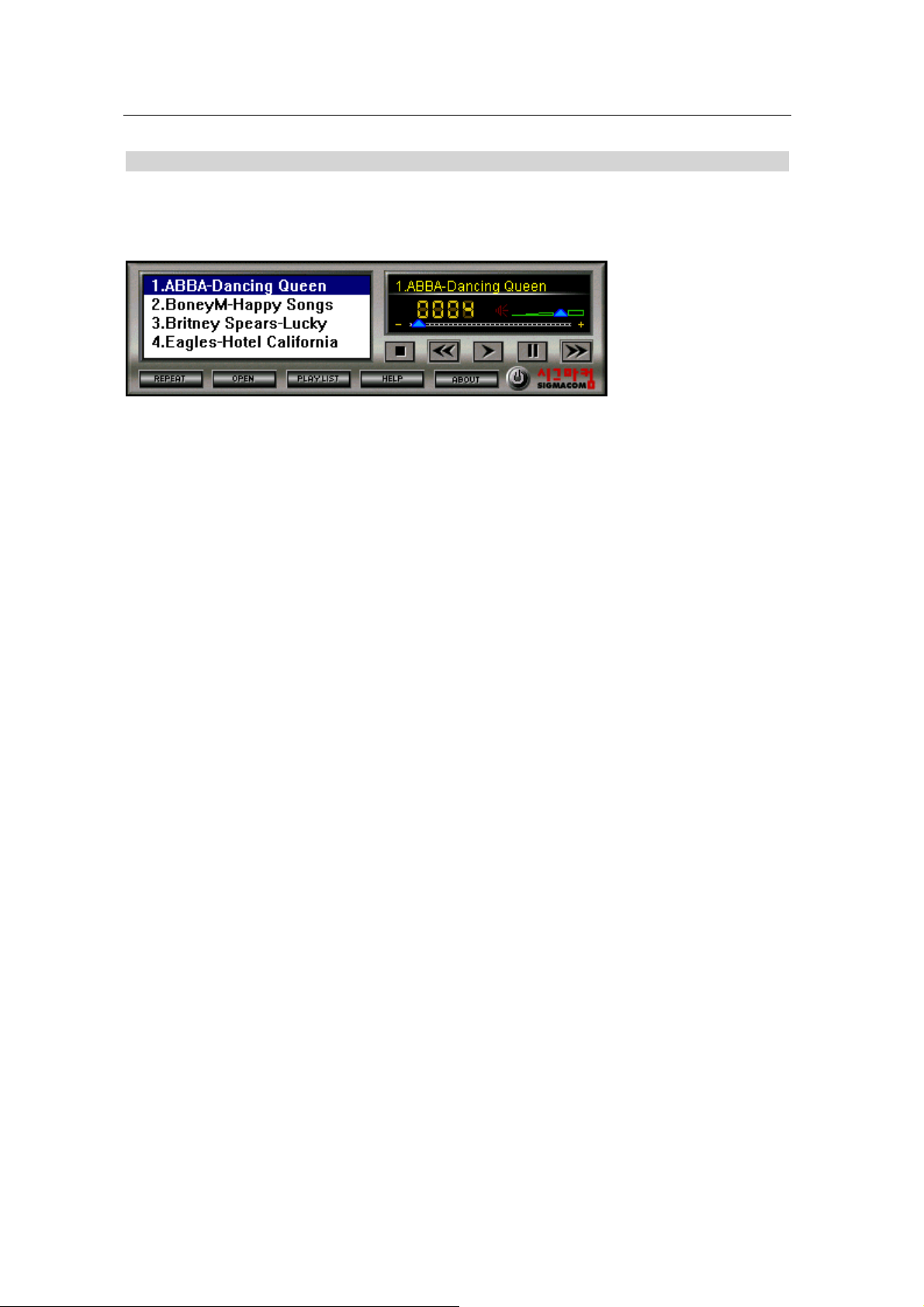
Listening to MP3 audio (Sigma MP3)
SIGMA MP3 player is a high quality MP3 player that runs in Windows environment.
You can play all kinds of MP3 files at your convenience.
Repeat
Repeats a MP3 file when clicking the icon.
Open
Opens a MP3 file or list to be played.
Play list
Makes a playable list of MP3 files.
Help
Shows the on line help of the SIGMA MP3 player.
About
Shows the information on the SIGMA MP3 player.
Exit
Quits the SIGMA MP3 player.
30
Page 31

Addendum
Q & A
Q1: There is an irregular beep sound when booting up the system after installation and nothing on
the monitor screen.
A1: Make sure that your system has been connected to the monitor with cable correctly. Also check the
power cable is well connected to the monitor. If the problem still exists, remove the VGA card from the AGP
slot, make clear the golden-plated pins of the VGA card with eraser, insert it again into the AGP slot and
reboot your system.
Q2: Window95/98 informs that the display setting is still incorrect after installation and restarting.
A2: Drivers for the new display adopter and the existing drivers may conflict with each other or
Windows95/98 does not recognizes the display adopter correctly. Follow the procedures below.
Reboot your system to Safe mode, select ‘Start’%’Settings’%’Control panel’%’System’%’Device Manager ’
and delete all controllers that have been set in “Display adopter”.
Delete a proper INF file regarding the display adopter (normally located in C:\W indows\INF\Other) and the
same INF file in the INF folder. Set to “Standard PCI graphics adopter” and reinstall the display drivers.
Q3: The monitor is not capable of high resolution and refresh rate.
A3: The monitor driver has not been set correctly.
Reinstall the monitor driver provided by its manufacturer or set to “Plug and Play monitor”.
If your monitor does not support DDC, set to “Super VGA 1600X1200” for your convenience.
Q4: Dual monitor is not configured in Windows 98.
A4: In order to use dual monitor in Windows 98, two display adopters need to support Primary and
Secondary display each. If you set the SIGMA display adopter (AGP) to the Primary, the other PCI display
adopter should be set to the Secondary.
When restarting Windows 98, it says the secondary display controller has been detected on your second
monitor. At this time, if you install PCI display driver in the display properties of the primary monitor, you
can use the display controller with two monitors.
Q5: Display drivers are not installed in Window NT4.0.
A5: Basically the SIGMA display adopter supports AGP2X or higher.
As Windows NT does not support AGP2X, you need to install Windows NT 4.0 Service pack3 or higher.
You can download Windows NT 4.0 Service Pack3 at www.microsoft.com.
Q5: When running 3D games, the system is halted.
A5: There is a problem in DirectX driver setting.
Reinstall updated display drivers and DirectX drivers. Select C:\Program files\DirectX\Setup and run
“Dxdiag.exe”. Select “Display” tab and check whether Direct3D works correctly by pressi ng “Test” tab in the
Direct3D”.
Q6: When running the SIGMA VCD player, Windows 95/98 says that the SIGMA graphics card is not
detected and it refuses to run the SIGMA VCD player.
Q6: This comes from not detecting the SIGMA display adopter.
You should use BIOS provided by SIGMACOM to run the SIGMA VCD player. (Error message appears if
you use another BIOS or you update it from Internet or BBS)
Update BIOS from SIGMA Home page at www.sigmacom.co.kr.
Q7: Nothing on the screen when running the SIGMA VCD player.
A7: Generally VCD 2.0 title has been designed for playing movies by Interactive navigation. In case of
playing a simple DAT file without Interactive, there is no problem to run the motion file. However when
loading and playing a VCD title that does not have interactive function, it refuses to play because the
SIGMA VCD player is designed for interactive navigation.
Q8: When running the SIGMA VCD player, the system is halted or gives an error message that it is
quitted by mis-calculation.
A8: It may come from S/W MPEG driver.
If there is another S/W MPEG driver in your system (ex: Compcore, Mediametics,Xing …) before installing
the SIGMA VCD player, it may cause the conflict. Reinstall the SIGMA VCD player.
If the problem still exists, open “System.ini file” and delete another MPEG drivers that registered at MCI
part. After that, reinstall the SIGMA multimedia programs.
Q9: When running the SIGMA VCD player, the motion picture is step-played or stopped.
A9: It may be played slowly if your CD-ROM Drive is connected to the IDE connector as Slave.
Change its connection to the Master.
31
 Loading...