

Page 1
USB 306/307
USB 308/309 MODEM
QUICK START GUIDE
GUIDE DE DÉMARRAGE RAPIDE
GUÍA DE INICIO RÁPIDO
www.sierrawireless.com
2131222_Generic USB306_7_8_9 QSG_r1.0.indd CVR12131222_Generic USB306_7_8_9 QSG_r1.0.indd CVR1 24/06/2009 1:12:12 PM24/06/2009 1:12:12 PM
Page 2

2131222_Generic USB306_7_8_9 QSG_r1.0.indd CVR22131222_Generic USB306_7_8_9 QSG_r1.0.indd CVR2 24/06/2009 1:13:25 PM24/06/2009 1:13:25 PM
Page 3
Welcome to
the HSPA+ USB modem
Your package contains:
• HSPA+ USB modem with TRU-Install™
• This Quick Start Guide
• USB extension cable
• Laptop clip
• Lanyard
You can also purchase the following accessories for your modem:
• External antenna — improves performance in areas with low signal
strength (available at www.sierrawireless.com/eStore)
• microSD
You can use your USB modem with these operating systems:
• Windows
• Windows Vista
• Mac OS® X 10.4.11 or later
™
card — for external data storage
(available at consumer electronics stores)
®
XP
®
(Windows 64-bit editions are also
supported)
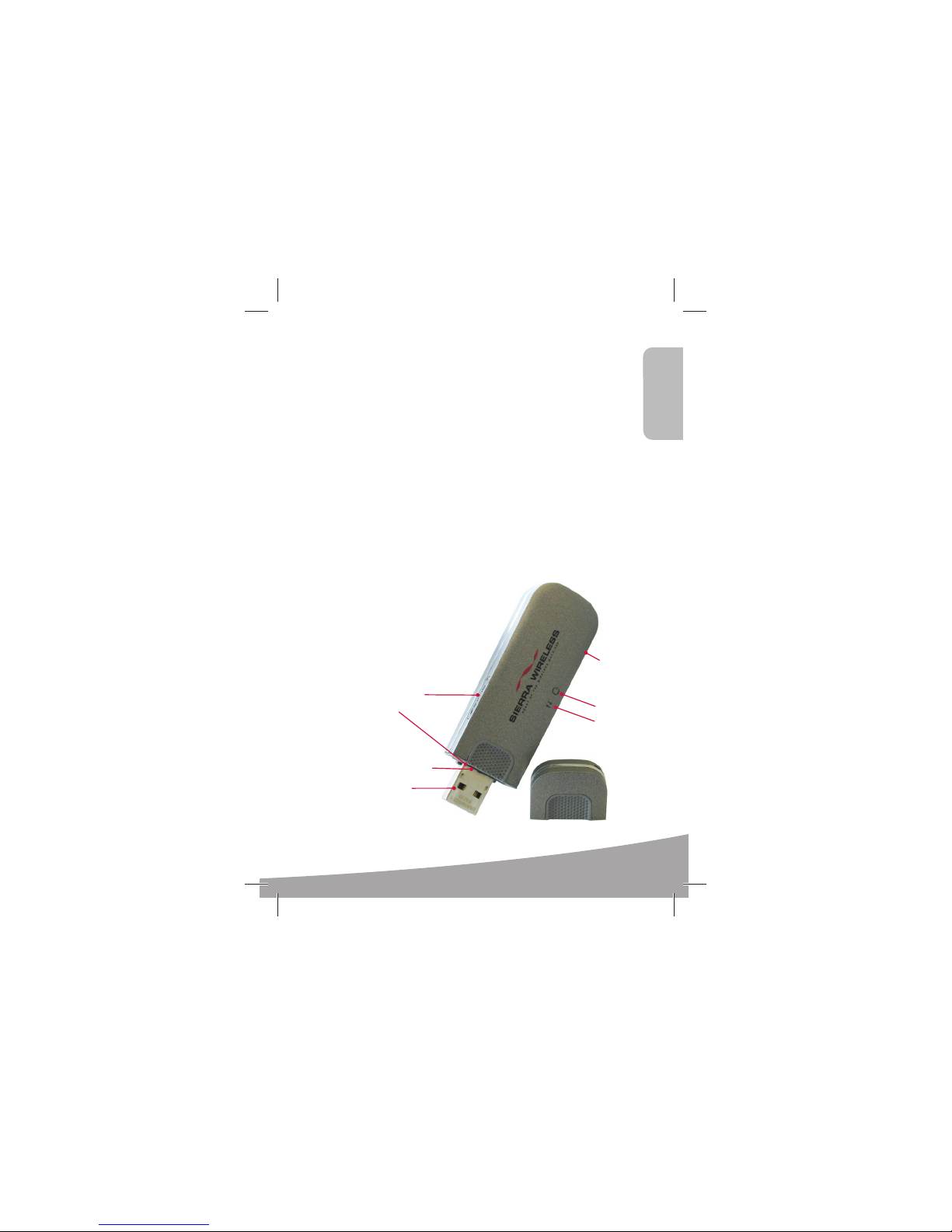
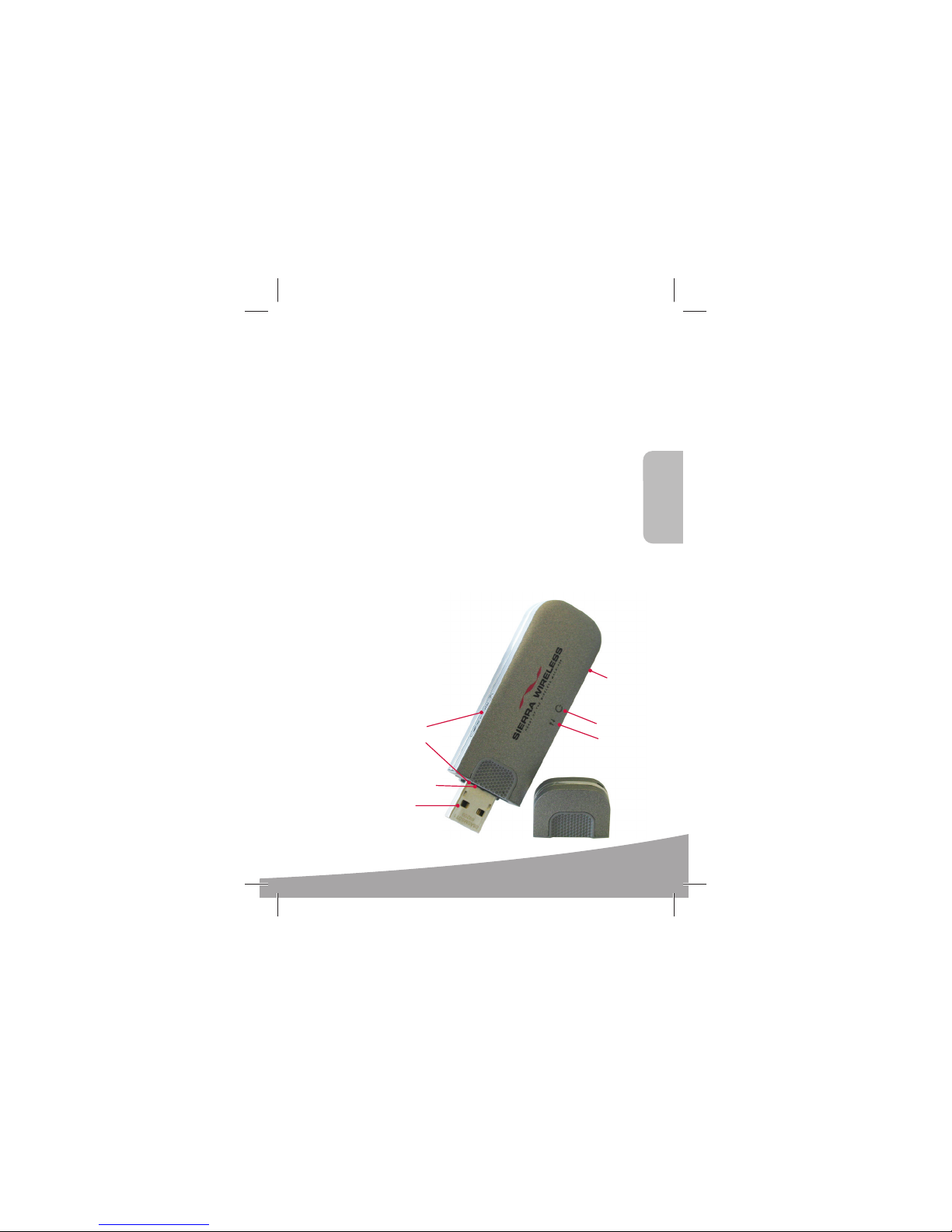
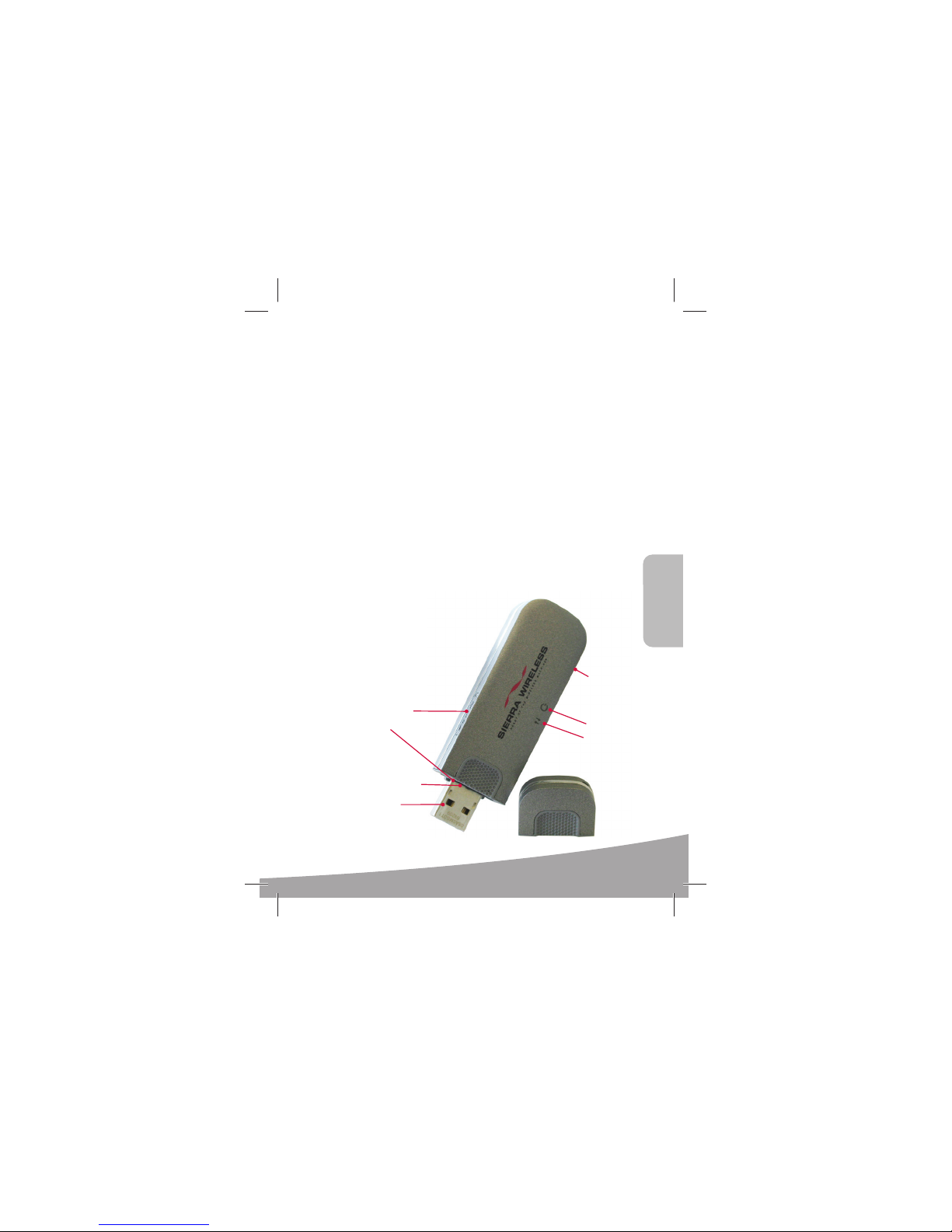
microSD slot
USB 308/309
USB 306/307
SIM card slot
USB connector
External antenna
connector
LEDs
Power
Data
Cap
English
The appearance of your modem and the location of tthe SIM card slot and microSD card slot may be
slightly different than shown.
2131222_Generic USB306_7_8_9 QSG_r1.0.indd BDY32131222_Generic USB306_7_8_9 QSG_r1.0.indd BDY3 24/06/2009 1:13:29 PM24/06/2009 1:13:29 PM
1
Page 4
2
1
3
Installation
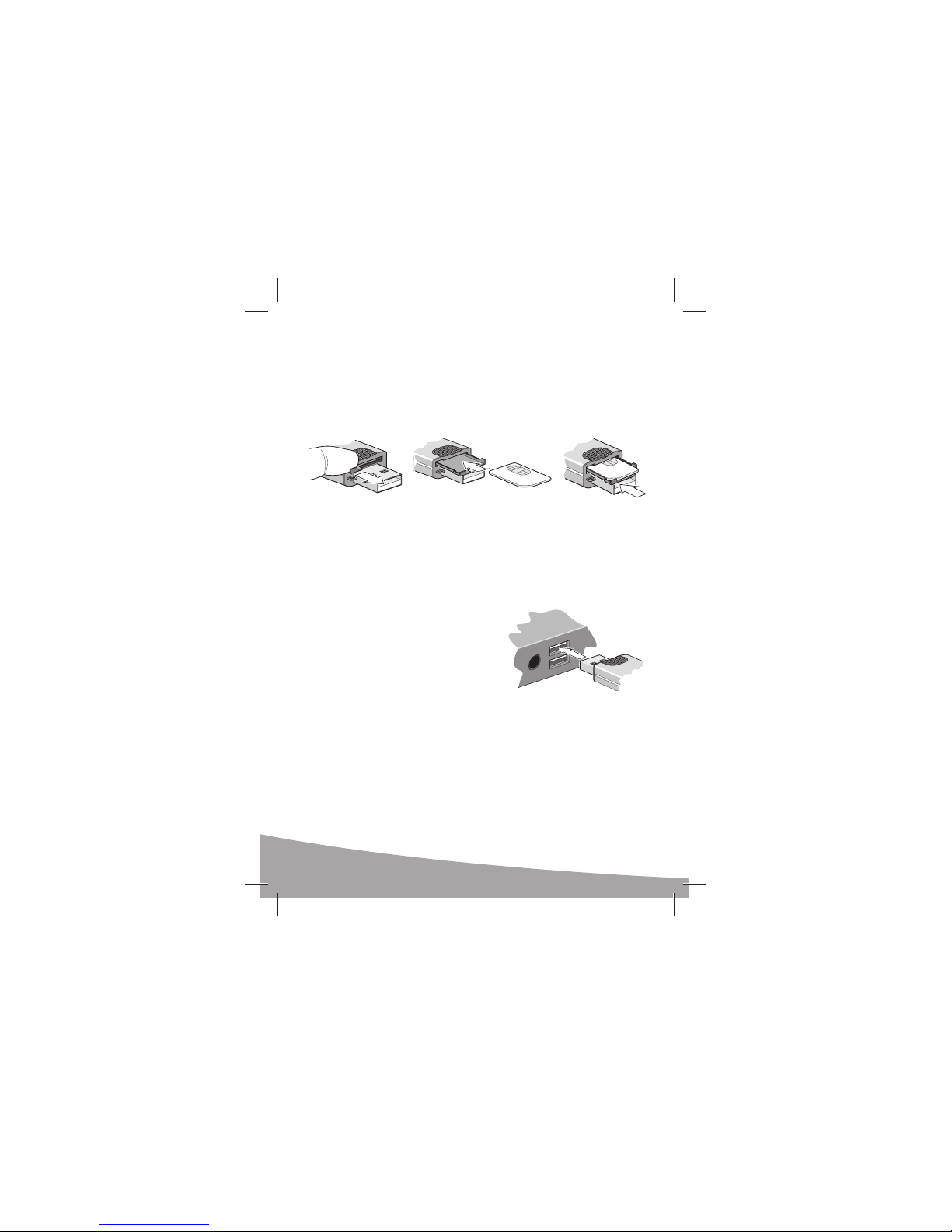
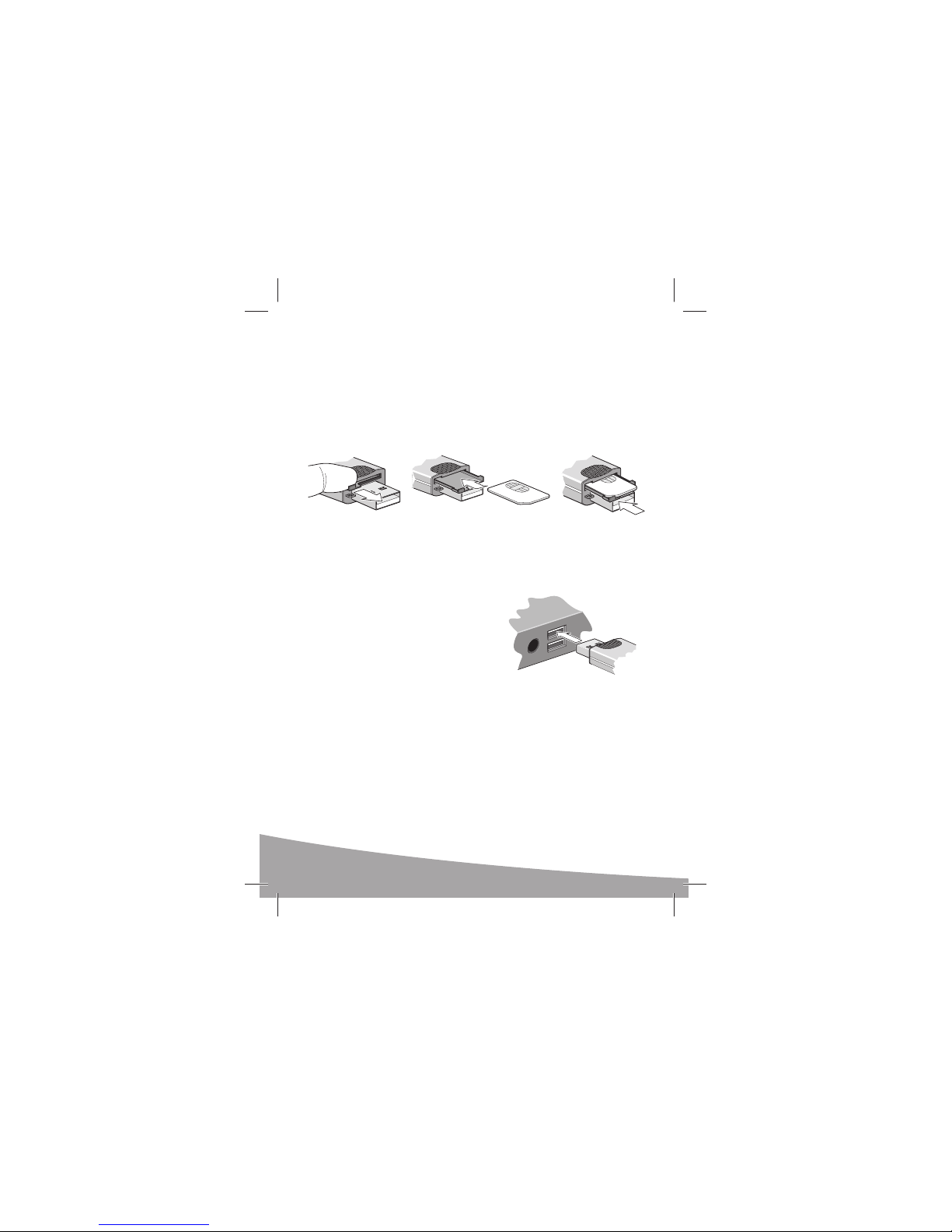
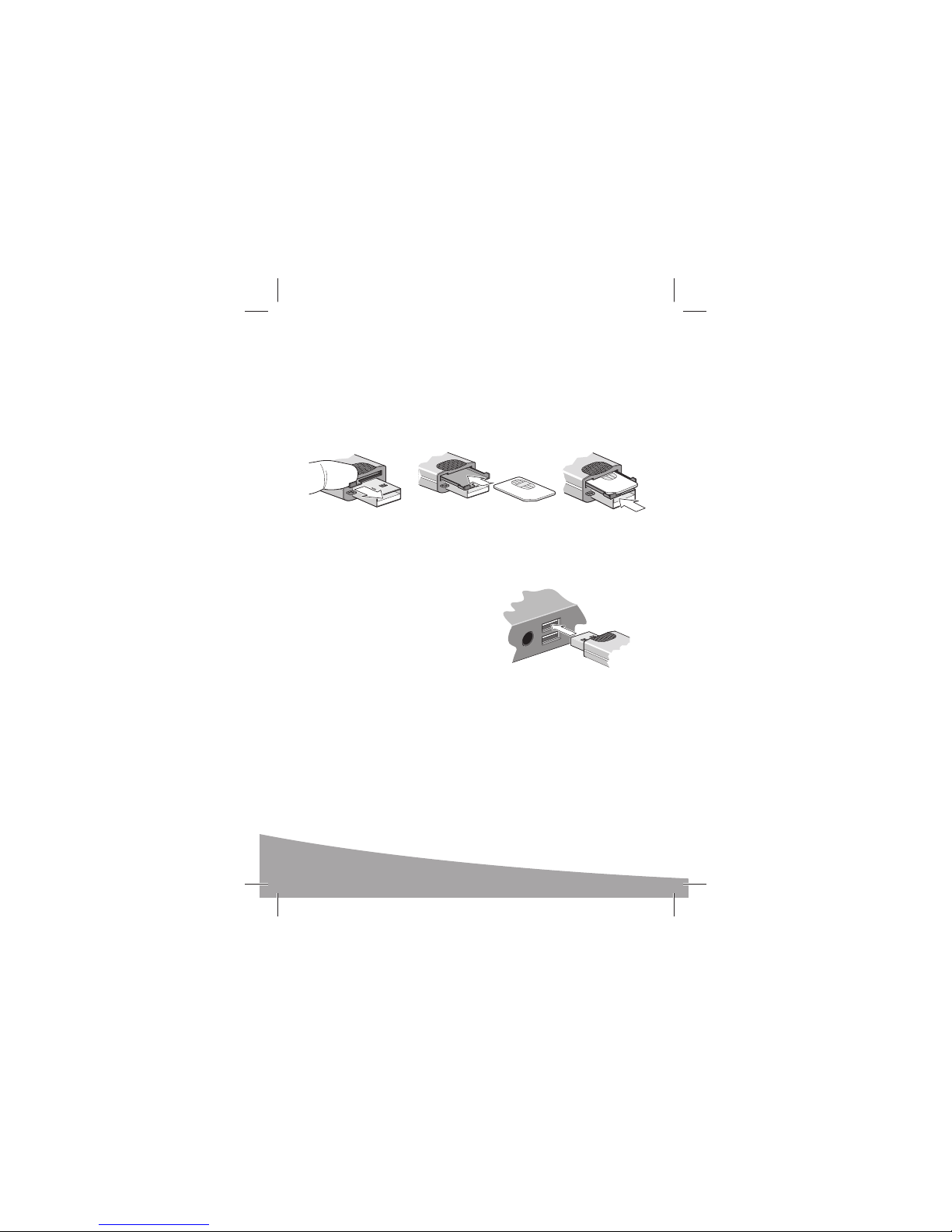
This modem is TRU-Install enabled and does not require a CD for installation.
Remove the cap from the end of the modem and insert the SIM card as
1
shown in the illustration.
Depending on the model, your modem may not have a SIM tray.
Insert the USB modem into the USB slot.
2
Windows
The software installation process starts
automatically. Follow the on-screen
prompts to install the Watcher software.
Mac OS X
When the 3G Watcher window appears,
double-click the installer package.
Once the software is installed, the modem searches for a network. When
3
the modem finds a network, the Connect button in Watcher becomes
available.
Click Connect to connect to your network.
2
2131222_Generic USB306_7_8_9 QSG_r1.0.indd BDY42131222_Generic USB306_7_8_9 QSG_r1.0.indd BDY4 24/06/2009 1:13:34 PM24/06/2009 1:13:34 PM
Page 5
3
1
2
4
4
The first time you run 3G Watcher:
Mac OS X 10.4.11
1. After clicking Connect, open System Preferences and select Network.
2. When the “New Port Detected” message appears, click OK.
3. Click Apply Now. Your modem connects to the network.
Mac OS X 10.5
1. After clicking Connect, the message “A new network interface has been
detected” appears. Click the Network Preferences... button.
2. In the Network window, click Apply. Your modem connects to the network.
If you are prompted to configure a profile, click Yes . The Profiles window
4
opens. From the list of default profiles, select your service provider. If
your service provider is not on the list, contact them.
Click OK. The modem is ready to use.
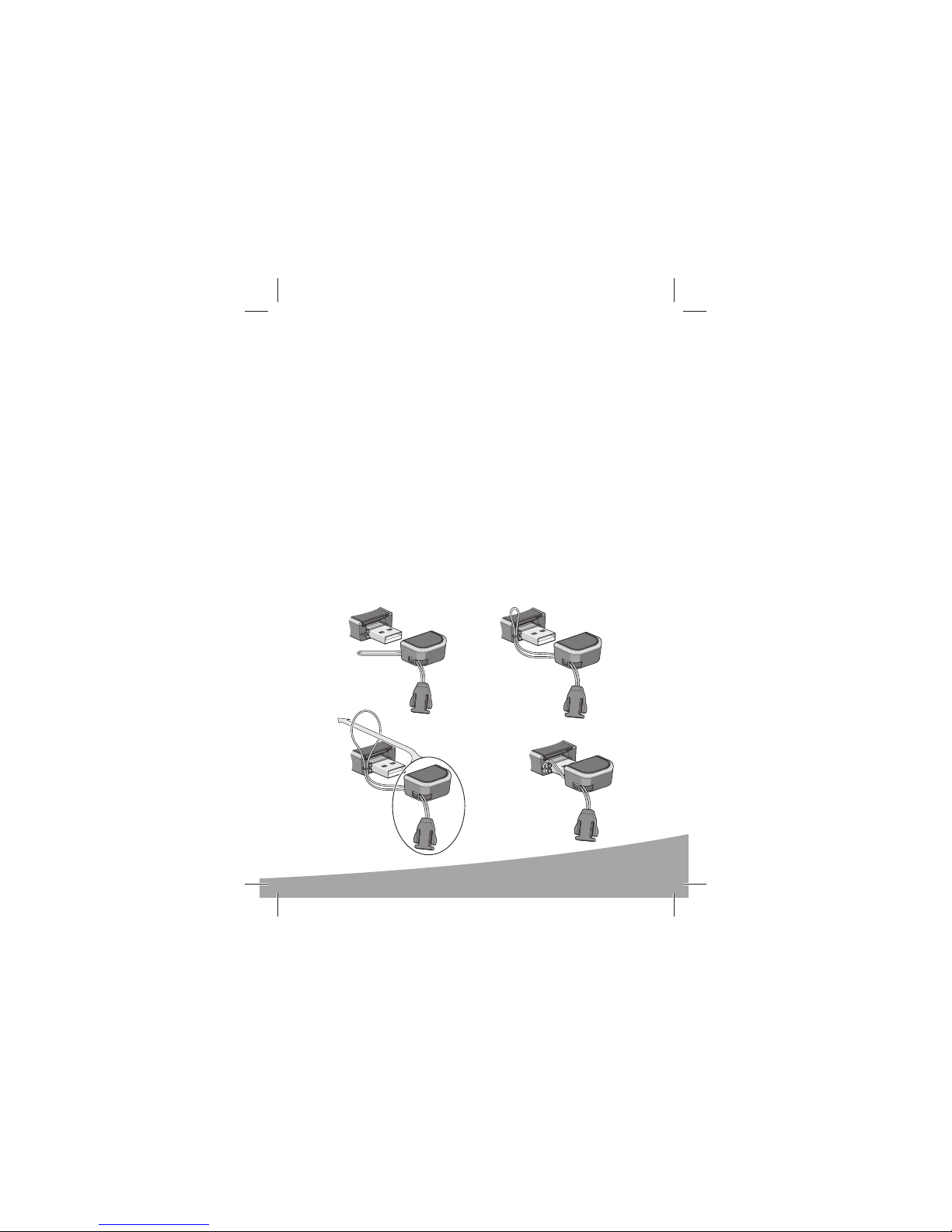
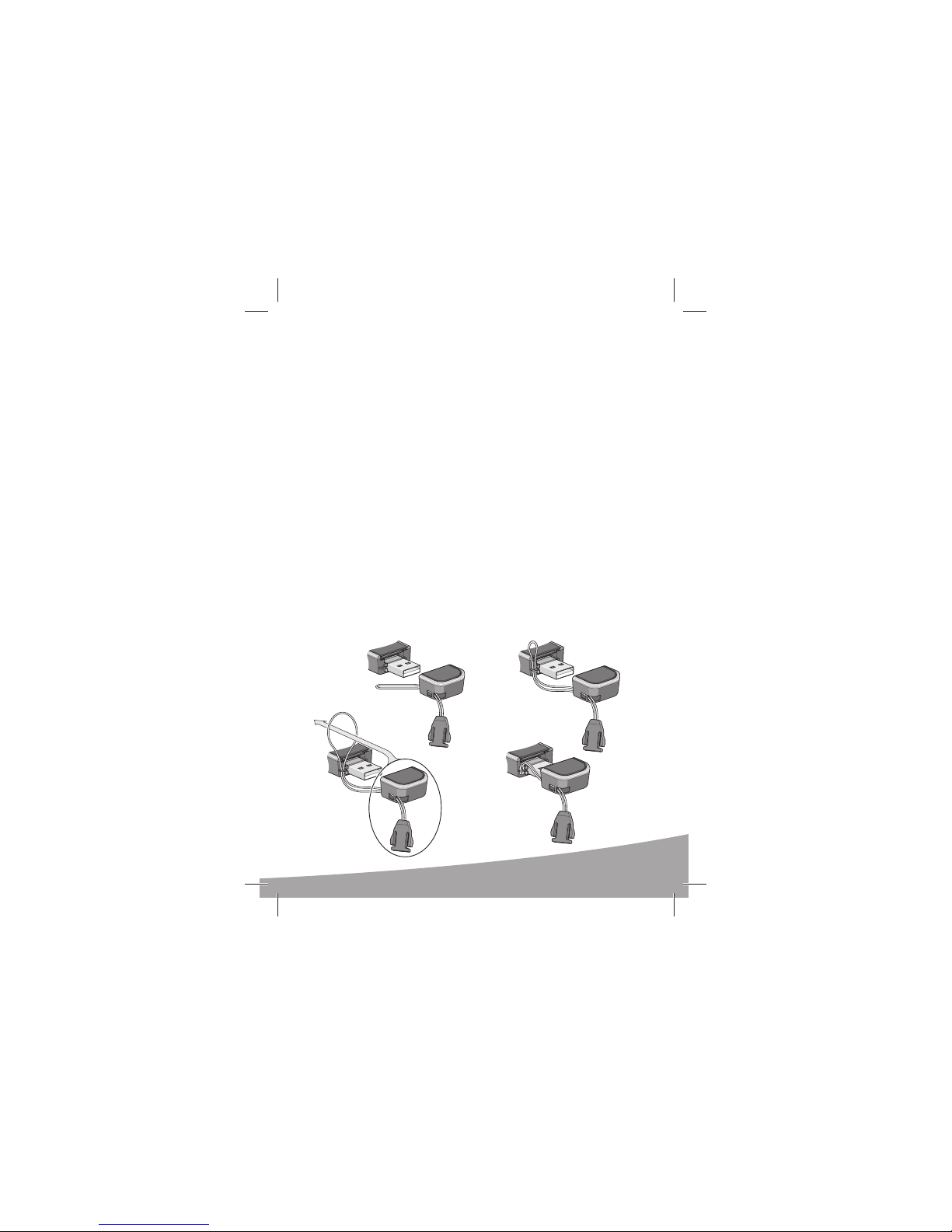
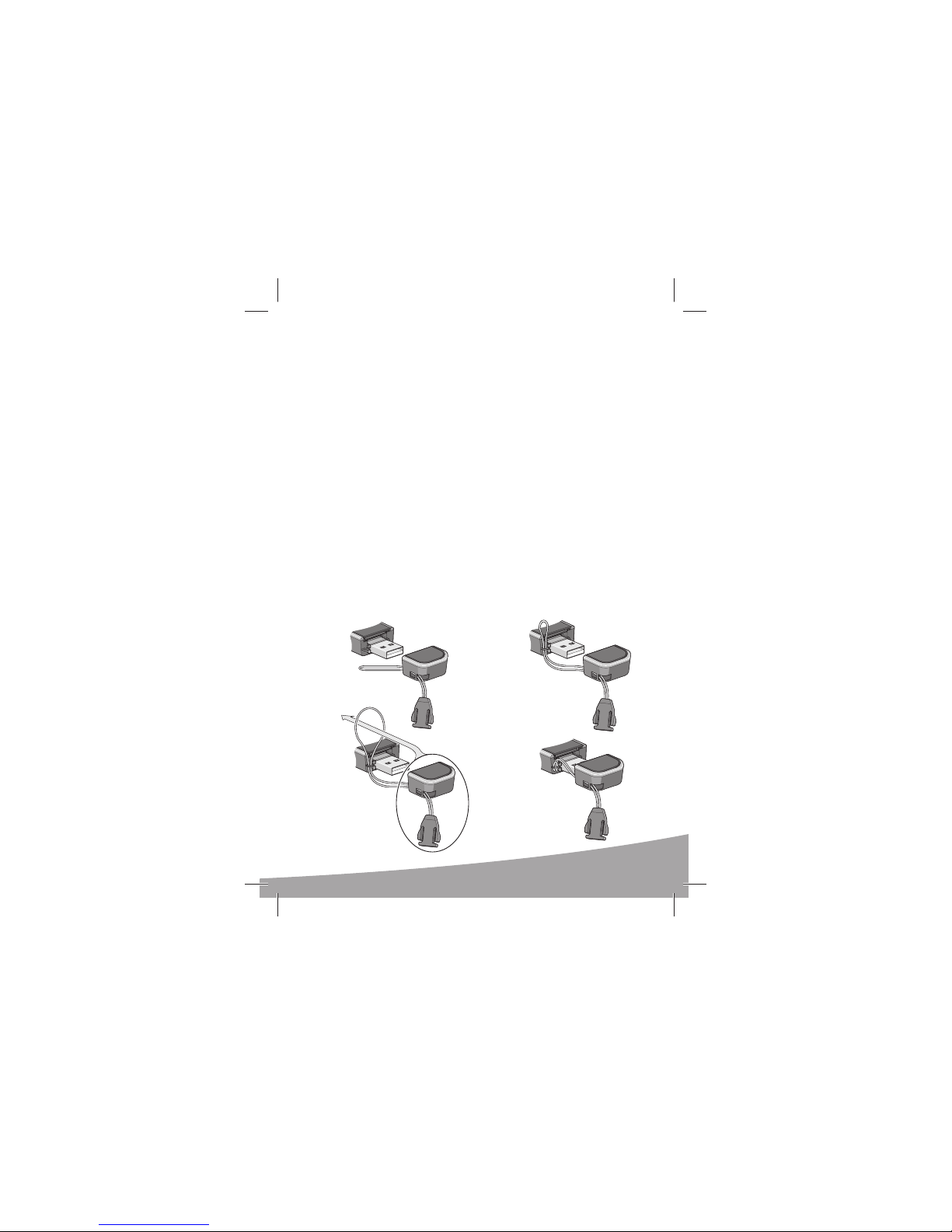
Attach the lanyard
To keep everything together, it’s a good idea to thread the lanyard through the cap
and the modem, as shown in the illustrations.
1
3
2131222_Generic USB306_7_8_9 QSG_r1.0.indd BDY52131222_Generic USB306_7_8_9 QSG_r1.0.indd BDY5 24/06/2009 1:13:37 PM24/06/2009 1:13:37 PM
2
4
3
Page 6
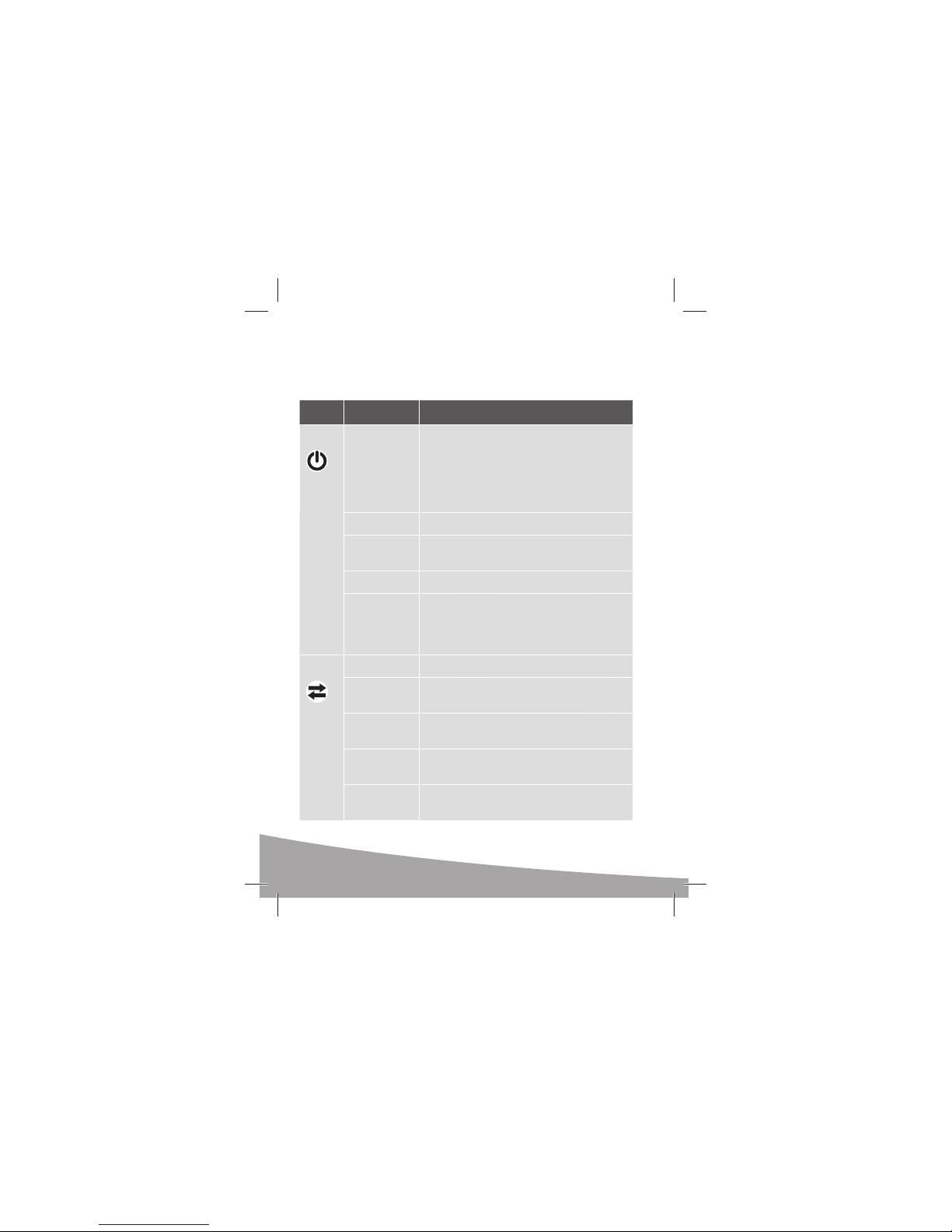
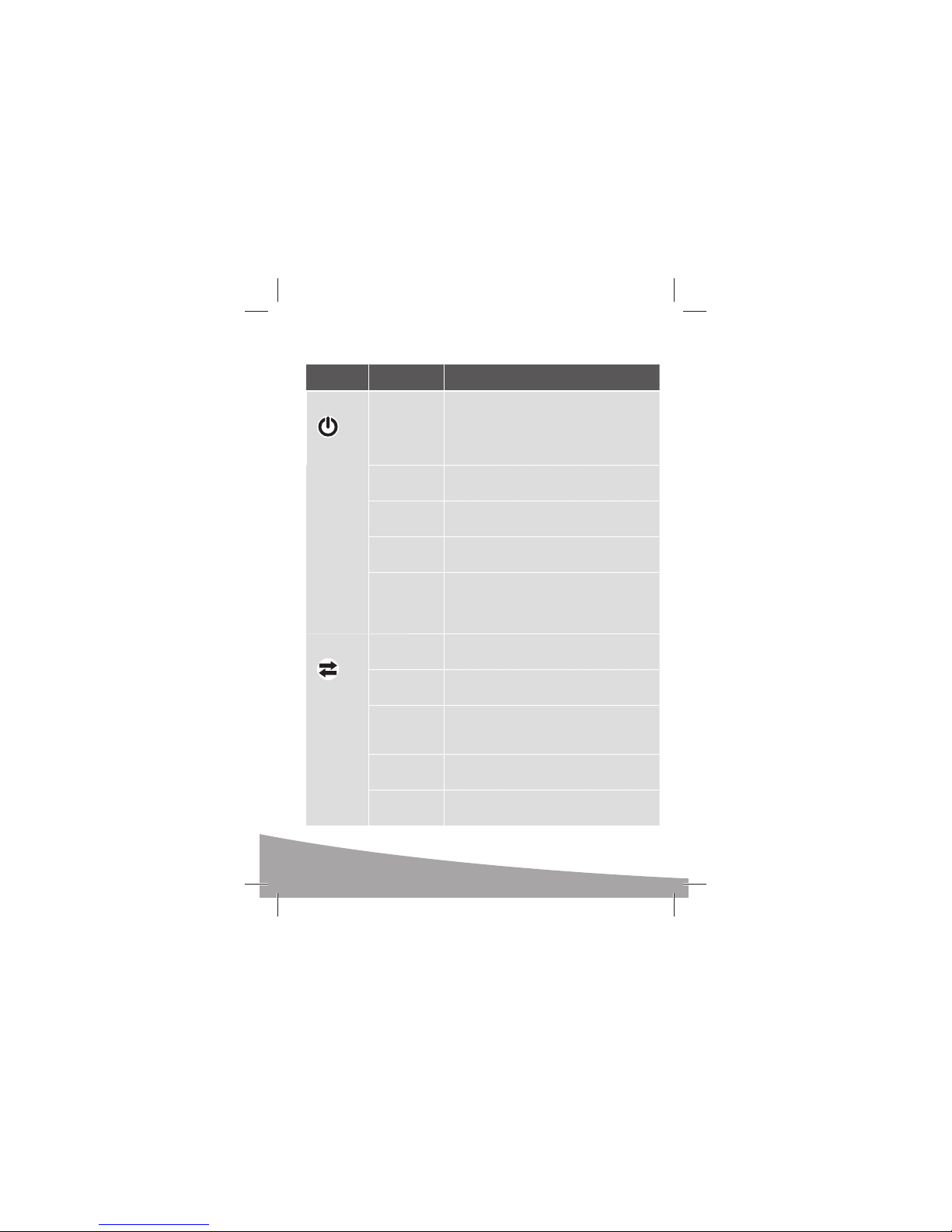
LED Operation
The two LEDs show the current status of the modem.
LED State Indicates
Power Off One of the following states:
Solid blue The power is on, the modem is working normally.
Blinking blue The firmware is being updated. Do not remove
Blinking amber The modem is searching for service (initializing).
Solid amber Modem error — either the modem is having a
Data Off The modem is unable to detect 2G or 3G service.
Blinking amber The modem has detected a 2G network (EDGE,
Solid amber The modem is connected to a 2G network and is
Blinking blue The modem has detected a 3G network (UMTS,
Solid blue The modem is connected to a 3G network and
• The modem is not inserted in the computer.
• The computer is off or in “suspend and
resume” mode.
• The modem radio has been turned off using
Watcher or another connection client.
the modem from the computer.
problem initializing (searching for service) or is
offline because of a failure.
Contact your service provider.
GPRS, GSM) and is ready to connect.
able to send and receive data.
HSPA) and is ready to connect.
can send and receive data.
4
2131222_Generic USB306_7_8_9 QSG_r1.0.indd BDY62131222_Generic USB306_7_8_9 QSG_r1.0.indd BDY6 24/06/2009 1:13:38 PM24/06/2009 1:13:38 PM
Page 7

Frequently asked questions
What do I do if the software installation does not start
automatically?
If TRU-Install does not start automatically, you can start the installation process manually.
Windows
1. Double-click My Computer (Windows XP) or Computer (Windows Vista) on your
desktop.
2. Click the TRU-Install drive.
3. Under the TRU-Install drive, open the Win folder and double-click the
Setup.exe file. Follow the on-screen prompts to install the software.
Mac OS X
If you do not see the 3G Watcher window:
1. Open Finder.
2. Under Devices, double-click 3G Watcher.
3. Double-click the installer package.
Does the latest version of Watcher work with my other Sierra
Wireless modems?
Yes, Watcher is backwards compatible with all Sierra Wireless USB and ExpressCard modems. It is not compatible with non-Sierra Wireless products. You can set
Watcher to automatically check for updates. For more information, see the Watcher
Help (select Help > Help topics).
When do I use the extension cable?
If the orientation of your computer’s USB slot or the thickness of your computer are
such that pressure is applied to the end or side of the modem, you may damage the
modem or your computer. In such cases, do not insert the modem directly into your
computer’s USB slot. Use the USB extension cable instead.
2131222_Generic USB306_7_8_9 QSG_r1.0.indd BDY72131222_Generic USB306_7_8_9 QSG_r1.0.indd BDY7 24/06/2009 1:13:39 PM24/06/2009 1:13:39 PM
5
Page 8

2131222_Generic USB306_7_8_9 QSG_r1.0.indd BDY82131222_Generic USB306_7_8_9 QSG_r1.0.indd BDY8 24/06/2009 1:13:39 PM24/06/2009 1:13:39 PM
Page 9
Présentation du modem
sans fi l HSPA+ USB
L’emballage contient les éléments suivants :
• Le modem HSPA+ USB avec TRU-Install
• Le présent guide de démarrage rapide
• Un câble d’extension USB
• Une attache pour ordinateur portable
• Une lanière
Vous pouvez également vous procurer les accessoires suivants pour votre
modem :
• Antenne externe : améliore les performances dans les zones où la
force du signal est faible (disponible à l’adresse www.sierrawireless.
com/eStore)
• Carte microSD™ : carte de stockage de données externe (disponible
dans les magasins d’électronique grand public)
Vous pouvez utiliser votre modem USB avec n’importe lequel de ces systèmes d’exploitation :
• Windows Vista
• Windows® XP
(Les versions 64 bits de Windows sont
également prises en charge)
• Mac OS® X 10.4.11 ou une version
ultérieure
Connecteur USB
®
Emplacement pour
carte microSD
USB 308/309
USB 306/307
Emplacement
pour carte SIM
™
Voyants
Alimentation
Donnée
Connecteur
d’antenne externe
Capuchon
Français
2131222_Generic USB306_7_8_9 QSG_r1.0.indd BDY92131222_Generic USB306_7_8_9 QSG_r1.0.indd BDY9 24/06/2009 1:13:41 PM24/06/2009 1:13:41 PM
7
Page 10
Installation
1
2
3
Ce modem est compatible avec TRU-Install et ne nécessite pas de CD
d’installation.
Retirez le capuchon de l’extrémité du modem et insérez la carte SIM, comme
1
illustré ci-contre.
Selon le modèle, votre modem ne pourrait pas un plateau SIM.
Insérez le modem USB dans le port USB.
2
Windows
L’installation du logiciel commence automatiquement. Suivez les instructions
qui s’affichent à l’écran pour installer le
logiciel Watcher.
Mac OS X
Lorsque la fenêtre 3G Watcher apparaît, double-cliquez sur le programme d’installation. Redémarrez votre ordinateur comme indiqué.
Une fois le logiciel installé, le modem recherche un réseau. Une fois que le
3
modem a trouvé un réseau, le bouton Se connecter devient disponible dans
Watcher.
Cliquez sur Se connecter pour vous connecter au réseau.
8
2131222_Generic USB306_7_8_9 QSG_r1.0.indd BDY102131222_Generic USB306_7_8_9 QSG_r1.0.indd BDY10 24/06/2009 1:13:43 PM24/06/2009 1:13:43 PM
Page 11
4
3
1
2
4
La première fois que vous exécutez 3G Watcher :
Mac OS X 10.4.11
1. Après avoir cliqué sur Se connecter, accédez à Préférences système, puis
sélectionnez Réseau.
2. Lorsque le message “Nouveau port détecté” apparaît, cliquez sur OK.
3. Cliquez sur Appliquer maintenant. Votre modem se connecte au réseau.
Mac OS X 10.5
1. Une fois que vous avez cliqué sur Se connecter, le message “Une nouvelle
interface réseau a été détectée” apparaît. Cliquez sur Préférences réseau.
2. Dans la fenêtre Réseau, cliquez sur Appliquer. Votre modem se connecte
au réseau.
Si vous êtes invité à configurer un profil, cliquez sur Oui. La fenêtre Profils
4
s’ouvre. Sélectionnez votre fournisseur de services dans la liste des profils
par défaut. Si votre fournisseur de services ne se trouve pas dans la liste,
contactez-le.
Cliquez sur OK. Le modem USB 308/309 est prêt à l’emploi.
Fixation de la lanière
Pour conserver tous les éléments ensemble, nous vous conseillons de faire passer
la lanière dans le capuchon et le modem, comme illustré ci-dessous.
1
3
2131222_Generic USB306_7_8_9 QSG_r1.0.indd BDY112131222_Generic USB306_7_8_9 QSG_r1.0.indd BDY11 24/06/2009 1:13:44 PM24/06/2009 1:13:44 PM
2
4
9
Page 12
Voyants
Le modem USB possède deux voyants qui indiquent l’état du modem.
Voyant État Signifi cation
Power Éteint Indique l’un des états suivants :
Bleu, allumé en
permanence
Bleu clignotant Une mise à jour du microprogramme est en cours.
Orange
clignotant
Orange, allumé
en permanence
Data Éteint Le modem ne parvient pas à détecter le service
Orange
clignotant
Orange, allumé
en permanence
Bleu clignotant Le modem a détecté un réseau 3G (UMTS, HSPA).
Bleu, allumé en
permanence
• Le modem n’a pas été inséré dans l’ordinateur.
• L’ordinateur est éteint ou en mode veille.
• La radio du modem a été désactivée depuis
Watcher ou un autre client de connexion.
Le modem est sous tension et fonctionne normalement.
Ne retirez pas le modem de l’ordinateur.
Le modem recherche un service (en cours
d’initialisation).
Erreur modem : le modem a un problème
d’initialisation (en cours de recherche d’un service) ou n’est plus connecté en raison d’une défaillance. Contactez votre fournisseur de services.
2G ou 3G.
Le modem a détecté un réseau 2G (EDGE, GPRS,
GSM). Il est prêt à se connecter.
Le modem est connecté à un réseau 2G. Il peut
envoyer et recevoir des données.
Il est prêt à se connecter.
Le modem est connecté à un réseau 3G et peut
envoyer et recevoir des données.
10
2131222_Generic USB306_7_8_9 QSG_r1.0.indd BDY122131222_Generic USB306_7_8_9 QSG_r1.0.indd BDY12 24/06/2009 1:13:45 PM24/06/2009 1:13:45 PM
Page 13

Foire aux questions
Que dois-je faire si l’installation du logiciel ne commence pas automatiquement ?
Si TRU-Install ne démarre pas automatiquement, vous pouvez lancer le
processus d’installation manuellement.
Windows
1. Double-cliquez Poste de travail (Windows XP) ou sur Ordinateur
(Windows Vista) sur votre bureau.
2. Cliquez sur le lecteur TRU-Install.
3. Dans le lecteur TRU-Install, ouvrez le dossier Win, puis double-cliquez
sur le fichier Setup.exe. Suivez les instructions qui s’affichent à l’écran
pour installer le logiciel.
Mac OS X
Si la fenêtre 3G Watcher ne s’affiche pas :
1. Ouvrez le Finder.
2. Dans Appareils, double-cliquez sur 3G Watcher.
3. Double-cliquez sur le programme d’installation.
La dernière version de Watcher fonctionne-t-elle avec mes autres
modems Sierra Wireless ?
Oui, car Watcher est rétro-compatible avec tous les modems Sierra Wireless
USB et ExpressCard. En revanche, il n’est pas compatible avec les produits
autres que ceux de Sierra Wireless. Vous pouvez paramétrer Watcher afin
qu’il recherche automatiquement les mises à jour disponibles. Pour de plus
amples informations, reportez-vous à l’Aide de Watcher ; pour cela, cliquez
sur Aide > Rubriques d’aide.
Quand dois-je utiliser le câble d’extension ?
Si l’orientation du port USB de l’ordinateur ou si l’épaisseur de ce dernier
sont telles que de la pression est appliquée sur l’extrémité ou sur le côté
du modem, vous risquez d’endommager votre modem ou votre ordinateur. Face à de telles situations, n’insérez pas le modem directement dans
l’emplacement USB de votre ordinateur. Utilisez plutôt le câble d’extension
pour ordinateur portable.
2131222_Generic USB306_7_8_9 QSG_r1.0.indd BDY132131222_Generic USB306_7_8_9 QSG_r1.0.indd BDY13 24/06/2009 1:13:45 PM24/06/2009 1:13:45 PM
11
Page 14

2131222_Generic USB306_7_8_9 QSG_r1.0.indd BDY142131222_Generic USB306_7_8_9 QSG_r1.0.indd BDY14 24/06/2009 1:13:45 PM24/06/2009 1:13:45 PM
Page 15
Bienvenido al módem HSPA+ USB
Contenido del paquete:
• Módem USB con TRU-Install
• Esta guía de inicio rápido
• Cable de extensión USB
• Clip para acoplarlo al portátil
• Cordón
Asimismo, puede adquirir los siguientes accesorios para su módem:
• Antena externa: mejora el rendimiento en las zonas con una intensidad de
señal baja (disponible en www.sierrawireless.com/eStore)
• Tarjeta microSD
™
las tiendas de productos electrónicos de consumo)
Puede utilizar el módem USB con
cualquiera de estos sistemas operativos:
• Windows® XP
• Windows Vista
®
(Las ediciones de Windows de 64 bits
también son compatibles)
• Mac OS® X 10.4.11 o posterior
™
: para el almacenamiento externo de datos (disponible en
Español
Ranura para Tarjeta
microSD
USB 308/309
USB 306/307
Conector de antena exterior
Indicadores LED
Alimentación
Datos
Ranura para
Tarjeta SIM
Conector USB
Tap a
13
2131222_Generic USB306_7_8_9 QSG_r1.0.indd BDY152131222_Generic USB306_7_8_9 QSG_r1.0.indd BDY15 24/06/2009 1:13:48 PM24/06/2009 1:13:48 PM
Page 16
2
3
1
Instalación
Este módem dispone de TRU-Install y no necesita un CD de instalación.
Quite la tapa del extremo del módem e inserte la tarjeta SIM, tal y
1
como se muestra en la ilustración.
Dependiendo del modelo, su módem puede no tener una bandeja
de SIM.
Introduzca el módem USB en la ranura USB.
2
Sistema operativo Windows
El proceso de instalación de software
empieza automáticamente. Siga las
instrucciones que aparecen en pantalla
para instalar el software Watcher.
Mac OS X
Cuando aparezca la ventana 3G
Watcher, haga doble clic en el paquete de instalación. Reanude su computadora cuando se le indique.
Una vez instalado el software, el módem busca una red. Cuando el mó-
3
dem encuentra una red, se activa el botón Conectar de Watcher.
Haga clic en Conectar para conectarse a la red.
14
2131222_Generic USB306_7_8_9 QSG_r1.0.indd BDY162131222_Generic USB306_7_8_9 QSG_r1.0.indd BDY16 24/06/2009 1:13:49 PM24/06/2009 1:13:49 PM
Page 17
4
3
1
2
4
La primera vez que ejecute 3G Watcher:
Mac OS X 10.4.11
1. Después de hacer clic en Conectar, abra Preferencias del Sistema y selec-
cione Red.
2. Cuando aparezca el mensaje “Nuevo puerto detectado”, clic en OK.
3. Haga clic en Aplicar. El módem se conecta a la red.
Mac OS X 10.5
1. Después de hacer clic en Conectar, aparece el mensaje de que se ha de-
tectado una nueva interfaz de red. Haga clic en el botón Preferencias Red...
2. En la ventana Red, haga clic en Aplicar. El módem se conecta a la red.
Si se le solicita que configure un perfil, haga clic en Sí. Se abre la ventana
4
Perfiles. En la lista de perfiles predeterminados, seleccione su proveedor
de servicios. Si el proveedor de servicios no aparece en la lista, póngase en
contacto con él.
Haga clic en Aceptar. El módem USB ya está listo para utilizarse.
Acople el cordón
Para tenerlo todo junto, es buena idea ensartar el cordón en la tapa y el módem,
tal y como muestran las ilustraciones.
1
3
2131222_Generic USB306_7_8_9 QSG_r1.0.indd BDY172131222_Generic USB306_7_8_9 QSG_r1.0.indd BDY17 24/06/2009 1:13:50 PM24/06/2009 1:13:50 PM
2
4
15
Page 18
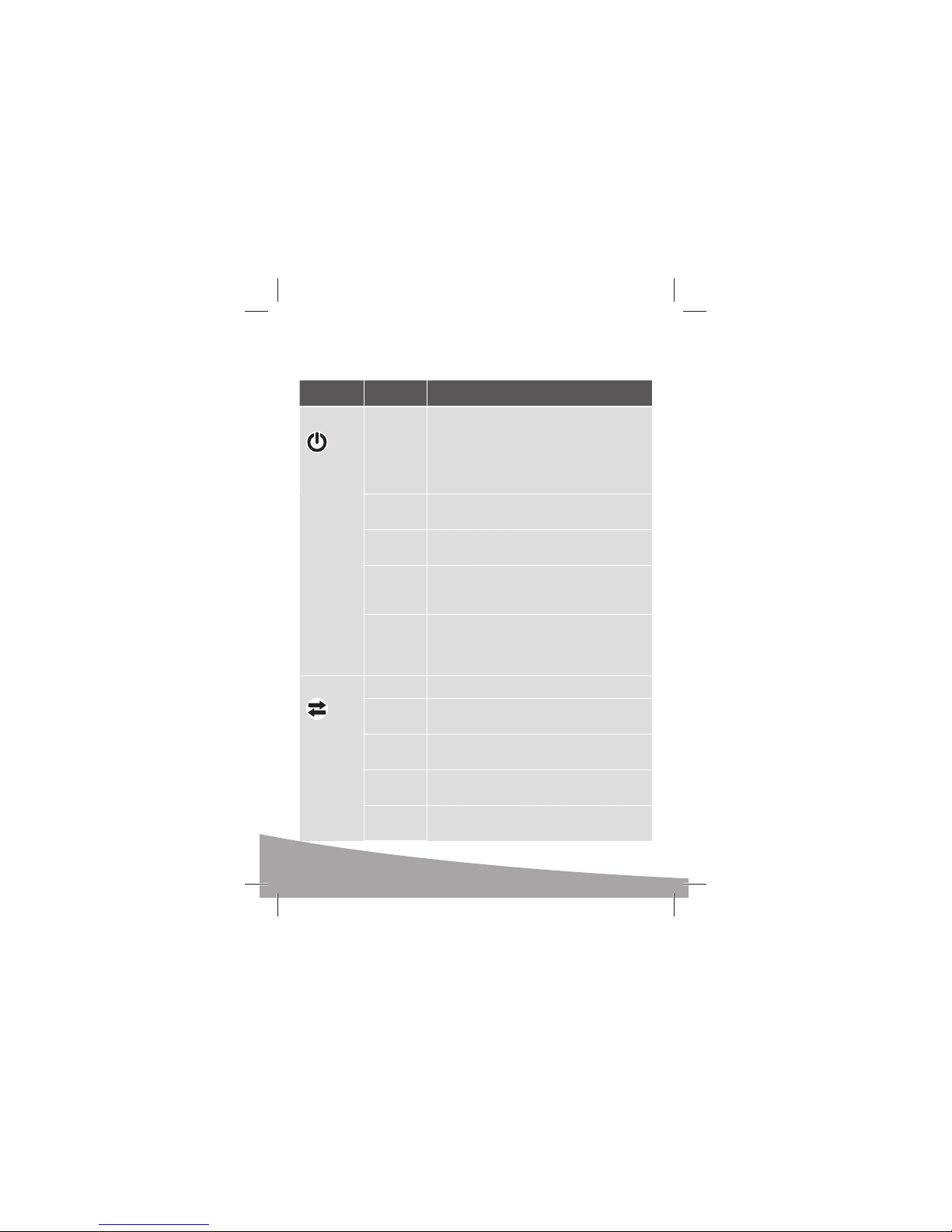
Indicadores LED
El módem tiene dos indicadores LED que muestran el estado actual del módem.
LED Estado Indica
Alimentación Apagado Indica uno de los siguientes estados:
Azul fijo El módem está encendido y funciona con normali-
Azul
intermitente
Ámbar
intermitente
Ámbar fijo Error del módem—el módem tiene problemas para
Datos Apagado El módem no puede detectar un servicio de 2G ó 3G.
Ámbar
intermitente
Ámbar fijo El módem está conectado a una red de 2G y puede
Azul
intermitente
Azul fijo El módem está conectado a una red de 3G y puede
• El módem no se ha introducido en el equipo.
• El equipo está apagado o en modo “suspensión
y reanudación”.
• Se ha apagado el radio módem mediante
Watcher o cualquier otro cliente de conexión
dad.
El firmware se está actualizando.
No extraiga el módem del equipo.
El módem está buscando servicio (inicializando)
inicializar (buscar servicio) o está fuera de línea
a causa de un fallo. Póngase en contacto con su
proveedor de servicios.
El módem ha detectado una red de 2G (EDGE, GPRS,
GSM) y está listo para conectarse.
enviar y recibir datos.
El módem ha detectado una red de 3G (UMTS, HSPA)
y está listo para conectarse.
enviar y recibir datos.
16
2131222_Generic USB306_7_8_9 QSG_r1.0.indd BDY182131222_Generic USB306_7_8_9 QSG_r1.0.indd BDY18 24/06/2009 1:13:51 PM24/06/2009 1:13:51 PM
Page 19

Preguntas más frecuentes
¿Qué hago si la instalación de software no se inicia automáticamente?
Si TRU-Install no se inicia automáticamente, puede iniciar el proceso de
instalación manualmente.
Windows
1. Haga doble clic en Mi PC (Windows XP) o Equipo (Windows Vista) en el
escritorio.
2. Haga clic en la unidad TRU-Install.
3. En la unidad TRU-Install, abra la carpeta Win y haga doble clic en el
archivo
Setup.exe. Siga las instrucciones que aparecen en pantalla para instalar
el software.
Mac OS X
Si no ve la ventana 3G Watcher:
1. Abra el Finder.
2. En Dispositivos, haga doble clic en 3G Watcher.
3. Haga doble clic en el paquete de instalación.
¿La última versión de Watcher funciona con mis otros módems de Sierra Wireless?
Sí, la compatibilidad de Watcher tiene efecto retroactivo para todos los módems USB y ExpressCard de Sierra Wireless. No es compatible con los productos que no sean de Sierra Wireless. Puede configurar Watcher para que
busque actualizaciones automáticamente. Para obtener más información,
consulte la ayuda de Watcher (haga clic en Ayuda > Temas de ayuda).
¿Cuándo utilizo el cable de extensión?
En los casos en los que la orientación de la ranura USB del equipo o el grosor del equipo apliquen una presión en el extremo o lateral del módem, es
posible que se dañe el módem o el equipo. En dichos casos, no introduzca
el módem directamente en la ranura USB del equipo. En su lugar, utilice el
cable de extensión USB para acoplarlo al portátil.
2131222_Generic USB306_7_8_9 QSG_r1.0.indd BDY192131222_Generic USB306_7_8_9 QSG_r1.0.indd BDY19 24/06/2009 1:13:51 PM24/06/2009 1:13:51 PM
17
Page 20
2131222 Rev. 1.0 (June 2009)
© 2009 Sierra Wireless. All rights reserved.
Heart of the Wireless Machine® is a registered trademark of Sierra Wireless. Watcher® is a trademark of
Sierra Wireless, registered in the European Community. Sierra Wireless, the Sierra Wireless logo, the red
wave design, TRU-InstallTM, and CompassTM are trademarks of Sierra Wireless. Windows® and Vista® are
registered trademarks of Microsoft Corporation. Mac OS
and other countries. Other trademarks are the property of the respective owners.
Portions of this product may be covered by some or all of the following US patents:
5,515,013, 5,629,960, 5,845,216, 5,847,553, 5,878,234, 5,890,057, 5,929,815, 6,169,884,
6,191,741, 6,199,168, 6,339,405, 6,359,591, 6,400,336, 6,516,204, 6,561,851, 6,643,501,
6,653,979, 6,697,030, 6,785,830, 6,845,249, 6,847,830, 6,876,697, 6,879,585, 6,886,049,
6,968,171, 6,985,757, 7,023,878, 7,053,843, 7,106,569, 7,145,267, 7,200,512, 7,295,171,
7,287,162, D442,170, D459,303, D599,256, D560,911 and other patents pending.
This product includes technology licensed from:
Manufactured or sold by Sierra Wireless or its licensees under one or more patents licensed from InterDigital Group.
2131222_Generic USB306_7_8_9 QSG_r1.0.indd BDY202131222_Generic USB306_7_8_9 QSG_r1.0.indd BDY20 24/06/2009 1:13:51 PM24/06/2009 1:13:51 PM
®
is a trademark of Apple Inc., registered in the US
 Loading...