

Page 1
___________________
___________________
___________________
___________________
SIMATIC NET
Industrial Remote Communication Remote Networks
SINEMA Remote Connect - Client
Operating Instructions
11/2017
C79000
-G8976-C395-04
Preface
Requirements for operation
1
Installation and
commissioning
2
Configuration
3
Page 2
Siemens AG
Division Process Industries and Drives
Postfach 48 48
90026 NÜRNBERG
GERMANY
Document order number: C79000-G8976-C395-04
Ⓟ
10/2017 Subject to change
Copyright © Siemens AG 2015 - 2017.
All rights reserved
Legal information
Warning notice system
This manual contains notices you have to observe in order to ensure your personal safety, as well as to prevent
damage to property. The notices referring to your personal safety are highlighted in the manual by a safety alert
symbol, notices referring only to property damage have no safety alert symbol. These notices shown below are
graded according to the degree of danger.
DANGER
indicates that death or severe personal injury will result if proper precautions are not taken.
WARNING
indicates that death or severe personal injury may result if proper precautions are not taken.
CAUTION
indicates that minor personal injury can result if proper precautions are not taken.
NOTICE
indicates that property damage can result if proper precautions are not taken.
If more than one degree of danger is present, the warning notice representing the highest degree of danger will
be used. A notice warning of injury to persons with a safety alert symbol may also include a warning relating to
property damage.
Qualified Personnel
The product/system described in this documentation may be operated only by
personnel qualified
for the specific
task in accordance with the relevant documentation, in particular its warning notices and safety instructions.
Qualified personnel are those who, based on their training and experience, are capable of identifying risks and
avoiding potential hazards when working with these products/systems.
Proper use of Siemens products
Note the following:
WARNING
Siemens products may only be used for the applications described in the catalog and in the relevant technical
documentation. If products and components from other manufacturers are used, these must be recommended
or approved by Siemens. Proper transport, storage, installation, assembly, commissioning, operation and
maintenance
are required to ensure that the products operate safely and without any problems. The permissible
ambient conditions must be complied with. The information in the relevant documentation must be observed.
Trademarks
All names identified by ® are registered trademarks of Siemens AG. The remaining trademarks in this publication
may be trademarks whose use by third parties for their own purposes could violate the rights of the owner.
Disclaimer of Liability
We have reviewed the contents of this publication to ensure consistency with the hardware and software
described. Since variance cannot be precluded entirely, we cannot guarantee full consistency. However, the
information in this publication is reviewed regularly and any necessary corrections are included in subsequent
editions.
Page 3

SINEMA Remote Connect - Client
Operating Instructions, 11/2017, C79000-G8976-C395-04
3
Preface
Purpose of this documentation
This manual supports you when installing, configuring and operating the application SINEMA
RC Client.
Validity of this documentation
This manual is valid for the following software version:
● SINEMA Remote Connect as of version V1.0 SP3
Article number - licenses
To enable the connection functionality on the SINEMA RC Server, the following license is
available:
Product name
Article number
SINEMA Remote Connect Client
6GK1721-1XG01-0AA0
Abbreviations/acronyms and terminology
●
SINEMA RC
In the remainder of the manual, the "SINEMA Remote Connect" software is abbreviated
to "SINEMA RC".
New in this release
● Logon with PKI certificate
● Logon with Smartcard
Required experience
To be able to configure and operate the system described in this document, you require
experience of the following products, systems and technologies:
● SIMATIC NET - Telecontrol
● IP-based communication
● STEP 7 Basic / Professional
● SIMATIC S7
Page 4

Preface
SINEMA Remote Connect - Client
4 Operating Instructions, 11/2017, C79000-G8976-C395-04
Further documentation
● Operating instructions "SINEMA Remote Connect server"
This manual supports you when installing, configuring and operating the application
SINEMA RC Server.
● Getting Started "SINEMA Remote Connect"
Based on an example, the configuration of SINEMA Remote Connect is shown.
Current manuals and further information
You will find the current manuals and further information on telecontrol products on the
Internet pages of Siemens Industry Online Support:
● Using the search function:
Link to Siemens Industry Online Support
(http://support.automation.siemens.com/WW/view/en
)
Enter the entry ID of the relevant manual as the search item.
● via the navigation in the "Telecontrol" area:
Link to the area "Telecontrol" (https://support.industry.siemens.com/cs/de/en/ps/15915
)
Go to the required product group and make the following settings:
"Entry list" tab, Entry type "Manuals"
You will find the documentation for the products relevant here on the data storage medium
that ships with some products:
● Product CD / product DVD
● SIMATIC NET Manual Collection
Security information
Siemens provides products and solutions with industrial security functions that support the
secure operation of plants, systems, machines and networks.
In order to protect plants, systems, machines and networks against cyber threats, it is
necessary to implement – and continuously maintain – a holistic, state-of-the-art industrial
security concept. Siemens’ products and solutions constitute one element of such a concept.
Customers are responsible for preventing unauthorized access to their plants, systems,
machines and networks. Such systems, machines and components should only be
connected to an enterprise network or the internet if and to the extent such a connection is
necessary and only when appropriate security measures (e.g. firewalls and/or network
segmentation) are in place.
Additionally, Siemens’ guidance on appropriate security measures should be taken into
account. For additional information on industrial security measures that may be
implemented, please visit
Link: (https://www.siemens.com/industrialsecurity
)
Siemens’ products and solutions undergo continuous development to make them more
secure. Siemens strongly recommends that product updates are applied as soon as they are
available and that the latest product versions are used. Use of product versions that are no
Page 5

Preface
SINEMA Remote Connect - Client
Operating Instructions, 11/2017, C79000-G8976-C395-04
5
longer supported, and failure to apply the latest updates may increase customers’ exposure
to cyber threats.
To stay informed about product updates, subscribe to the Siemens Industrial Security RSS
Feed under
Link: (https://www.siemens.com/industrialsecurity
)
Training, Service & Support
You will find information on Training, Service & Support in the multi--language document
"DC_support_99.pdf" on the data medium supplied with the documentation.
SIMATIC NET glossary
Explanations of many of the specialist terms used in this documentation can be found in the
SIMATIC NET glossary.
You will find the SIMATIC NET glossary here:
● SIMATIC NET Manual Collection or product DVD
The DVD ships with certain SIMATIC NET products.
● On the Internet under the following entry ID:
50305045 (http://support.automation.siemens.com/WW/view/en/50305045
)
Trademarks
The following and possibly other names not identified by the registered trademark sign ® are
registered trademarks of Siemens AG:
SINEMA, SCALANCE
Page 6

Preface
SINEMA Remote Connect - Client
6 Operating Instructions, 11/2017, C79000-G8976-C395-04
Page 7

SINEMA Remote Connect - Client
Operating Instructions, 11/2017, C79000-G8976-C395-04
7
Table of contents
Preface ................................................................................................................................................... 3
1 Requirements for operation ..................................................................................................................... 9
2 Installation and commissioning .............................................................................................................. 11
2.1 Security recommendations ..................................................................................................... 11
2.2 Installing SINEMA RC Client .................................................................................................. 13
2.3 Licensing ................................................................................................................................. 15
3 Configuration ........................................................................................................................................ 17
3.1 Logging in ............................................................................................................................... 17
3.2 Start page ............................................................................................................................... 19
3.3 Making general settings .......................................................................................................... 22
3.4 Making NAT settings ............................................................................................................... 24
Index..................................................................................................................................................... 25
Page 8

Table of contents
SINEMA Remote Connect - Client
8 Operating Instructions, 11/2017, C79000-G8976-C395-04
Page 9

SINEMA Remote Connect - Client
Operating Instructions, 11/2017, C79000-G8976-C395-04
9
1
Hardware requirements
Parameter
Minimum requirements
Processor
1 GHz
RAM
1 GB (32- bits) or 2 GB (64 bits)
Storage requirements hard disk
• approx. 900 MB (with a 32-bit operating sys-
tem)
• approx. 2.1 GB (with a 64-bit operating sys-
tem)
Required operating systems
● Microsoft Windows 7 Professional 32/64-bit + Service Pack 1
● Microsoft Windows 7 Enterprise 32/64-bit + Service Pack 1
● Microsoft Windows 7 Ultimate 32/64-bit + Service Pack 1
● Microsoft Windows 8.1 Professional 64-bit
● Microsoft Windows Server 2008 R2 64-bit + Service Pack 1 (requirement: NET 3.5 or
higher is installed)
● Microsoft Windows 10 Professional 64-bit
Please note for SINEMA RC Client V1.0 SP3, secure boot is currently not supported.
The parameter "nointegritychecks on" must be set.
● Microsoft Windows Server 2012 R2 64-bit
Required license
For SINEMA RC Client, the following license type is available:
● SINEMA Remote Connect Client
Page 10
Requirements for operation
SINEMA Remote Connect - Client
10 Operating Instructions, 11/2017, C79000-G8976-C395-04
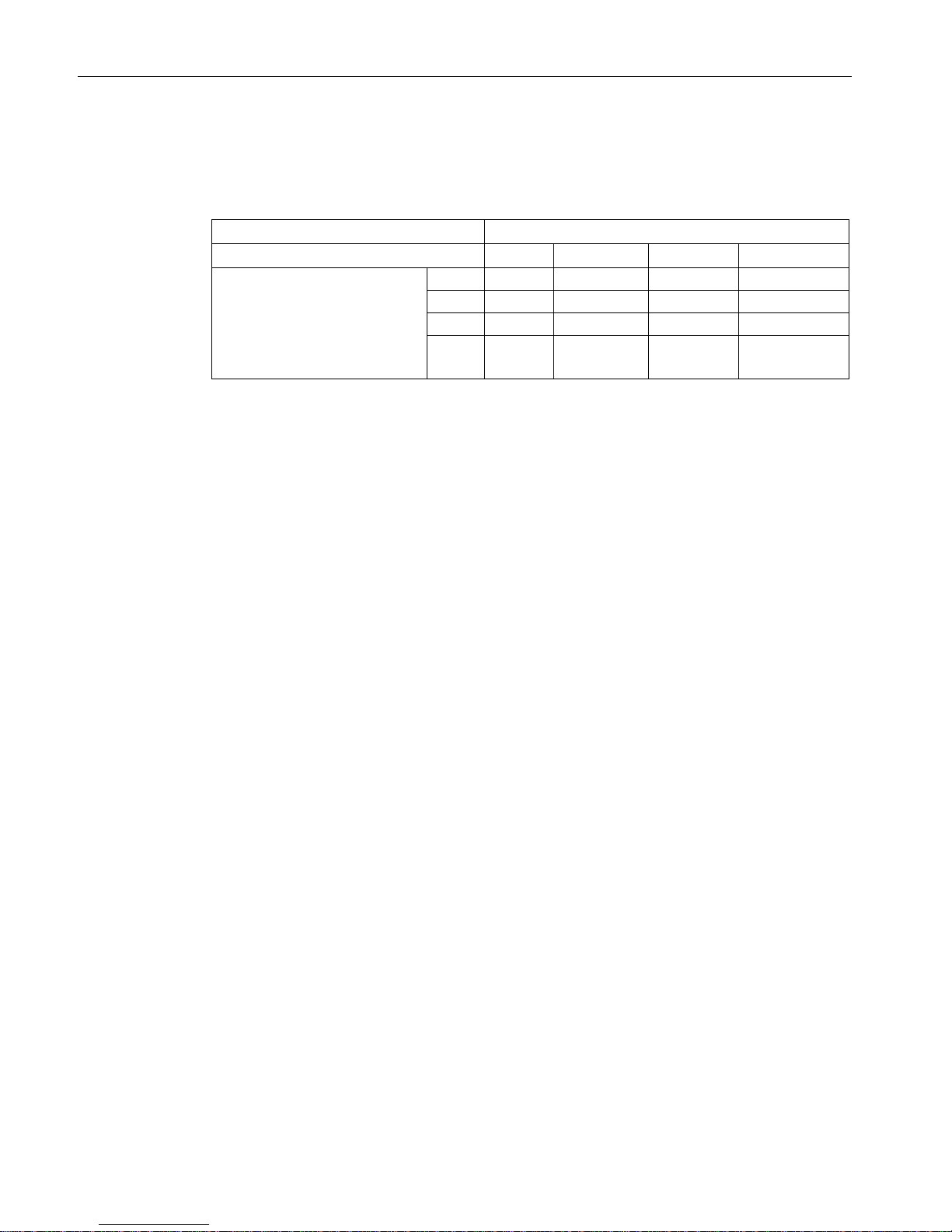
Compatibility
The table shows which SINEMA RC client versions and SINEMA RC versions are
compatible with each other.
SINEMA RC client
Version
1.0
1.0 SP1
1.0 SP2
1.0 SP3
SINEMA RC version
1.0 ✓ - - -
1.1 ✓ - -
1.2 - - ✓ -
1.3
- - - ✓
Page 11

SINEMA Remote Connect - Client
Operating Instructions, 11/2017, C79000-G8976-C395-04
11
2
2.1
Security recommendations
Keep to the following security recommendations to prevent unauthorized access to the
system.
General
● You should make regular checks to make sure that the device meets these
recommendations and other internal security guidelines if applicable.
● Evaluate your plant as a whole in terms of security. Use a cell protection concept with
suitable products (
https://www.industry.siemens.com/topics/global/en/industrial-
security/pages/default.aspx).
● Do not connect the device directly to the Internet. Operate the device within a protected
network area.
Physical access
Restrict physical access to the device to qualified personnel. Use the security mechanisms
of the operating system.
Security functions of the software
● Keep the software up to date. Check regularly for security updates for the product. You
will find information on this at
(https://support.industry.siemens.com/cs/ww/en/ps/21713/dl
):
● Keep the operating system up to date. Check regularly for security updates of the
operating system and use them.
Use the options of the Windows firewall and the configuration options of the product.
Keys and certificates
This section deals with the security keys and certificates you require to establish a
connection.
● We recommend that you use certificates with a key length of 4096 bits.
● The product supports RSA 1024 - 8192 bits key length.
Automation License Manager (ALM)
Turn off remote access to the ALM service. This option can be found in the "Connections"
tab in the ALM settings.
Page 12

Installation and commissioning
2.1 Security recommendations
SINEMA Remote Connect - Client
12 Operating Instructions, 11/2017, C79000-G8976-C395-04
Available protocols
The following list provides you with an overview of all used services of the product.
Keep this in mind when configuring a firewall.
The table includes the following columns:
● Protocol
● All protocols that the device supports
● Port number
Port number assigned to the protocol
● Port status
– Open, authentication required
The port is always open and cannot be closed. To use it, authentication is necessary.
– Open (when configured), authentication necessary
The port is open if it has been configured. To use it, authentication is necessary.
Protocol
Port number
Port status
OpenVPN
UDP
1194
Outgoing
TCP 5443 Outgoing
Web client
TCP
443
Outgoing
ALM
TCP
4410
Outgoing
Routing up-
date
UDP 5243 Open, authentication required
Page 13

Installation and commissioning
2.2 Installing SINEMA RC Client
SINEMA Remote Connect - Client
Operating Instructions, 11/2017, C79000-G8976-C395-04
13
2.2
Installing SINEMA RC Client
Overview
Most of the installation is handled automatically. The SETUP routine itself recognizes
whether other program components apart from SINEMA RC Client itself need to be installed.
The installation routine takes the required actions as necessary.
Note
You can only install one SINEMA RC Client per PC.
Note
Multiple OpenVPN clients
If the SINEMA Remote Connect client is installed parallel to other OpenVPN clients, perfect
functioning cannot be guaranteed.
It is recommended to install only the SIN
EMA Remote Connect as OpenVPN client
Note
Prior to installation
Before installing read the readme and follow the instructions for installation and updating.
Sequence
To install SINEMA RC Client on your computer, follow the steps below:
1. Log in to the Windows operating system as administrator. Open the Windows Explorer
and double-click on the "Setup.exe" file in the root directory of the installation DVD. As an
alternative, start the program from the Windows menu
"Start > Run".
If the Auto Run function is enabled for your DVD drive, the installation will start
automatically.
2. Select the language for the Setup wizard of SINEMA RC Client and click "Continue".
3. Click the "Open source license agreement" button to display the license agreement. After
reading the license agreement, select the option "I accept the conditions of the above
license agreement as well as the conditions of the Open Source license agreement" and
then click "Continue".
4. A dialog box opens containing the list of programs to be installed. Leave the preselection
of the components as it stands. These include:
– .NET Framework
– Open VPN
– Automation License Manager (ALM)
5. If you require further information about the ALM, click the "Readme" button on the right of
the dialog box.
6. Select the "Save as" button to display the current storage space of the computer.
Page 14

Installation and commissioning
2.2 Installing SINEMA RC Client
SINEMA Remote Connect - Client
14 Operating Instructions, 11/2017, C79000-G8976-C395-04
7. Click the "Browse" button if you want to change the standard target directory and install
the application somewhere else.
8. Select the required storage location and click the "Continue" button.
Note
Memory requirements
If the drive does not have enough free storage space, click the "Browse" button to select
a different location for the installation.
The "System settings" dialog box opens.
9. Accept the changes to the system settings.
Follow the further instructions that guide you through the entire installation. This process
can take several minutes.
When it is finished, a final window is displayed for the setup. This contains a status
message about the successful installation of the SINEMA RC Client.
In the setup window, you can either restart the computer immediately or later. Select the
required option and click the "Finish" button to complete the installation.
Result
After restarting you will find a new link "SINEMA RC Client" on your desktop and a new entry
in the Start menu "All Programs > Siemens Automation > SIMATIC > SINEMA RC Client".
In addition, the network interface "TAP Windows Adapter V9" is installed. Via this interface,
the SINEMA RC Client establishes a VPN connection to the SINEMA RC Server.
Page 15

Installation and commissioning
2.3 Licensing
SINEMA Remote Connect - Client
Operating Instructions, 11/2017, C79000-G8976-C395-04
15
2.3
Licensing
Automation License Manager
To manage your license, you use the Automation License Manager (ALM) program. This
program is used to manage the license keys. Software products that require license keys
automatically indicate this requirement to the Automation License Manager. If the ALM finds
a valid license key for the software, this can be used according to the end user license
agreement.
After installing the SINEMA RC Client, you can call up the documentation for the Automation
License Manager. To do this, select "Start > All Programs > Siemens Automation >
Documentation in the Windows menu.
Storage location for license keys
You can store license keys on memory media such as license key data media or removable
disk drives (however not on CDs or CDRWs) and on USB memory sticks.
For productive operation of the SINEMA RC client, the license key must be saved locally on
your PC or must be located on a connected PC.
Note
Prior to installing/uninstalling a license key, check that your PC is free of viruses. It is
possible that viruses are exchanged between the hard disks and storage data media.
To transfer t
he license keys, write protection of the storage data medium must be disabled.
Non-existent license key
SINEMA RC Client checks at regular intervals whether a valid license key exists. If this is not
the case, you will receive a system message.
Page 16

Installation and commissioning
2.3 Licensing
SINEMA Remote Connect - Client
16 Operating Instructions, 11/2017, C79000-G8976-C395-04
Page 17

SINEMA Remote Connect - Client
Operating Instructions, 11/2017, C79000-G8976-C395-04
17
3
3.1
Logging in
Logging on to SINEMA RC Server
1. Double-click on the "SINEMA RC Client" icon on your desktop.
Or in the menu "Start > All Programs > Siemens Automation > SIMATIC > SINEMA RC
Client" select the "SINEMA RC Client" entry.
2. Enter the IP address of the SINEMA RC Server:
If the SINEMA RC Server uses a port other than 443 as the HTTPS standard port, enter
the port number along with the server address (IP address or FQDN). A colon ":" must be
entered between the server address and the port number as a delimiter e.g.
192.168.234.1:6443 or my.server.org:6443
3. Log on to SINEMA RC with one of the following logon methods:
Logon method
User name / password
1. Enter the user name and the password.
Assuming that the user name and the password have been created on the SINEMA RC Server.
With the system administrator ("admin" after installation) you cannot log on to the SINEMA RC Client.
2. Click the "Log on" button.
Smartcard
Requirement
• A card reader on the PC or notebook
• The card reader is connected according to the manufacturer's
instructions and the driver belonging to it is installed.
• A card with a valid end entity certificate.
• The path to the library file pks11-dll is set, see section "General
settings (Page 22)"
1. Insert your card in the card reader device.
2. For the login method select "Smartcard".
3. Click the symbol "Smartcard PKI Login".
4. Enter your PIN and click the "OK" button
Page 18

Configuration
3.1 Logging in
SINEMA Remote Connect - Client
18 Operating Instructions, 11/2017, C79000-G8976-C395-04
Logon method
Local certificate
Requirement
• The certificate file (*.p12 *.pfx) is available on the PC or notebook.
1. Navigate to the storage directory of the certificate file.
2. Select the certificate file and click the "Open" button.
3. If the file is password protected, enter the password.
4. Click the "Log on" button.
4. If the CA certificate of the server was not stored in the certificate store of the pC before
the logon, you will be requested to check the Web server certificate and, if appropriate, to
confirm it.
Click on "Allow" if you are sure that the correct Web server certificate will be displayed.
5. Possibly a user agreement will be displayed. If you click the "Allow" button, the start page
appears, see section "Start page (Page 19)".
6. Click the "Open VPN tunnel" button.
Result
:
● The OpenVPN configuration file is downloaded from the SINEMA RC server
● The SINEMA RC client automatically creates a configuration file with the most important
settings. These include among other things the IP addresses and NAT settings.
● The SINEMA RC Client establishes the VPN tunnel.
Connecting to the SINEMA RC Server automatically
With this function the SINEMA RC client logs on with the SINEMA RC Server automatically
and establishes the VPN tunnel.
The automatic establishment is only possible with a valid SINEMA RC user account.
Procedure
1. Start the SINEMA RC Client.
2. Log on with SINEMA RC client. Click the "Log on" button.
3. In the area SINEMA Remote Connect user account, click the symbol
4. Enable the option "Start SINEMA RC Client automatically after Windows login"
5. Enter the user name and the password.
Assuming that the user name and the password have been created on the SINEMA
RCSINEMA RC Server.
6. Enable the option "Automatic tunnel establishment after SINEMA RC Client login".
7. Confirm the settings with the "OK" button.
Result
:
The SINEMA RC Client logs in with the SINEMA RC Server automatically after Windows
login and establishes the VPN tunnel.
Page 19
Configuration
3.2 Start page
SINEMA Remote Connect - Client
Operating Instructions, 11/2017, C79000-G8976-C395-04
19
3.2
Start page
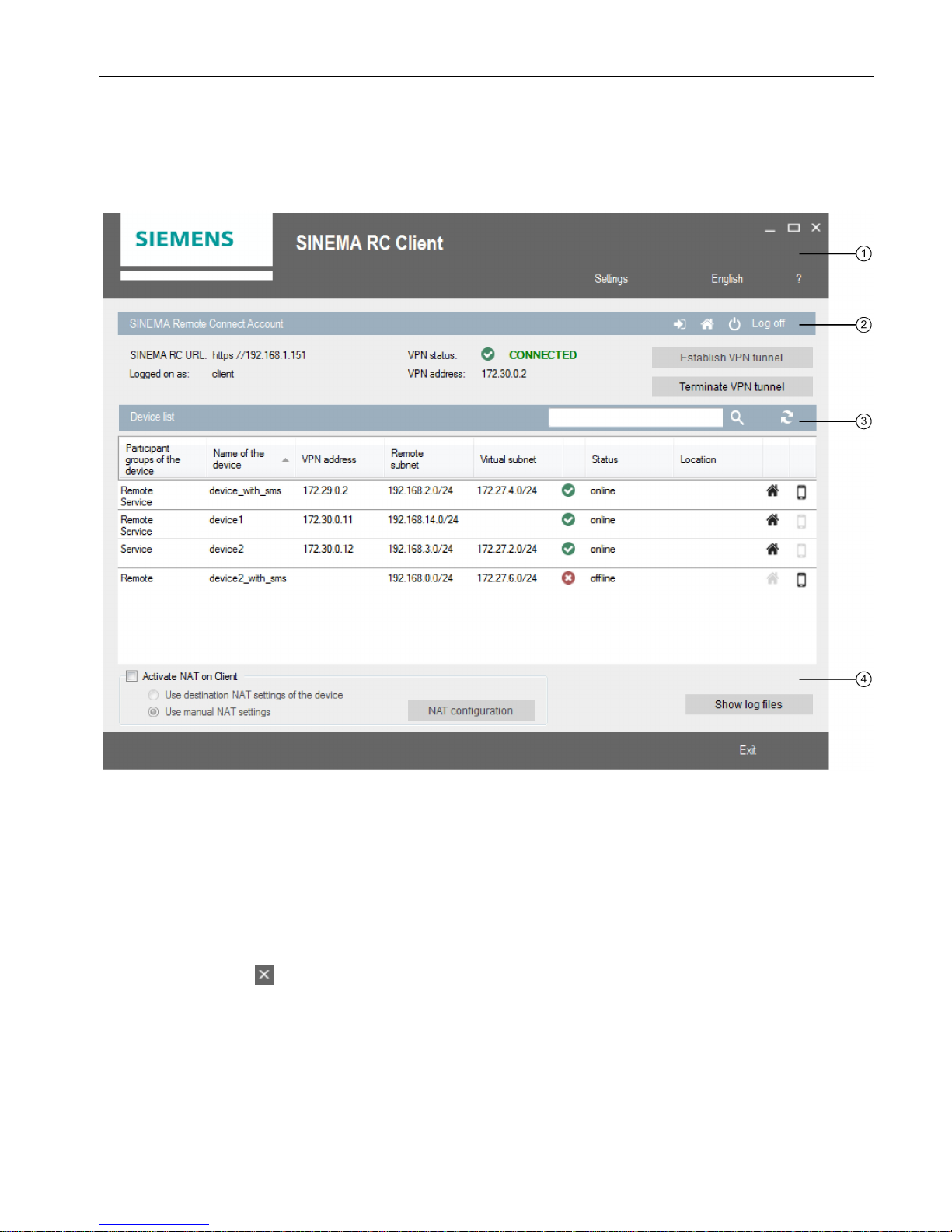
Selection area ①
The following is available in the selection area:
● Settings: Click the button to make settings for local ports and the proxy, refer to the
section "Making general settings (Page 22)".
● Language settings: Select a user interface language.
● ? : Select the required information.
●
Closes the application but does not stop communication between the SINEMA RC
client and the server.
Page 20

Configuration
3.2 Start page
SINEMA Remote Connect - Client
20 Operating Instructions, 11/2017, C79000-G8976-C395-04
SINEMA Remote Connect user account ②
You obtain an overview of the user account. These include the IP address of the SINEMA
RC Server and the user name. Click the "Log out" button.
To start VPN connection establishment to the SINEMA RC server, click the "Open VPN
tunnel" button.
You terminate the VPN connection with the "Close VPN tunnel" button. If the user account is
assigned the right "Force comment", the user will be prompted to enter a comment. Only
then is the VPN connection terminated. The comment is entered in the log of the SINEMA
RC Server.
The "VPN Status" shows whether or not the VPN connection is established (online / offline).
If a VPN connection exists, the VPN address of the client is displayed
This area contains the following symbols:
●
Opens the WBM on the SINEMA RC Server.
●
Opens the autostart settings, see section "Logging in (Page 17)".
Page 21
Configuration
3.2 Start page
SINEMA Remote Connect - Client
Operating Instructions, 11/2017, C79000-G8976-C395-04
21
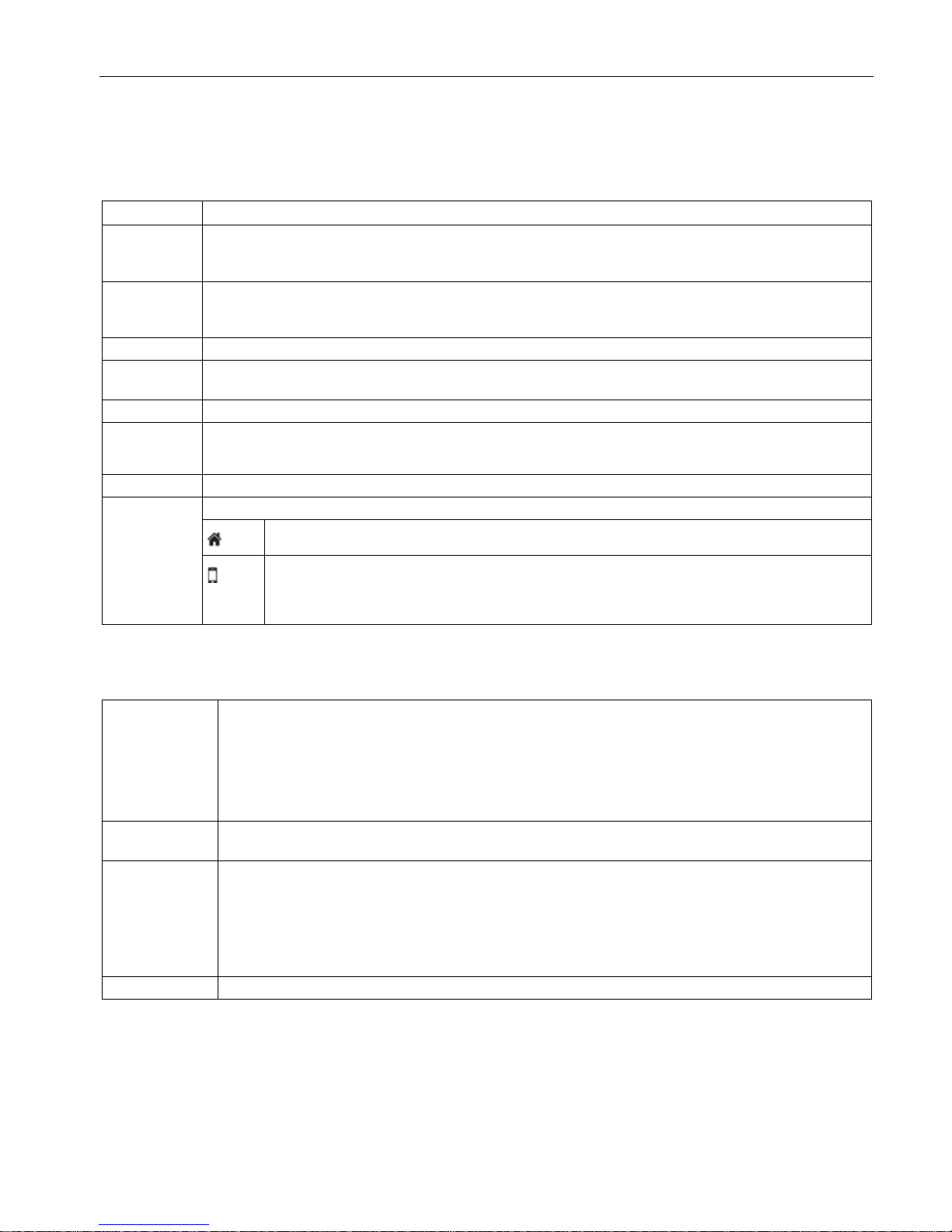
Device list ③
In the device list, you obtain the following information:
Box
Description
Participant
groups of the
device
The participant groups assigned to the device
Name of the
device
Name of the available device. The name is adopted from the settings of the SINEMA RC Server. If a
check box is displayed in front of the device name, the NAT function is enabled, refer to the section
"Making NAT settings (Page 24)".
VPN address
VPN address of the device that the device receives from the SINEMA RC Server.
Remote sub-
net
The IP address of the remote subnet.
Virtual subnet
The virtual IP address. Assuming that this is configured on the SINEMA RC Server.
Status
• online: The device is connected
• offline: The device is not connected
Location
Location of the device
Actions
Shows the actions enabled for this device.
Opens the WBM on the device
Only available with the type of connection "Wake-up SMS" or "Digital input & Wake-up SMS".
• If the device is not connected, the SINEMA RC Server sends the wake-up SMS message to
the device.
Buttons ④
Activate NAT on
Client
A NAT IP address is assigned to the device in the remote subnet.
If you do not want to use the destination NAT settings of the device, enable the option "Use manual
NAT settings" and click on the button "NAT configuration".
When you enable or disable the option, existing VPN tunnels are closed. Click the "Open VPN tunnel"
button to re-establish the VPN tunnel.
To update the display in the device list, click the "Update" button.
NAT configurati-
on
See section "Making NAT settings (Page 24)".
Show log files You receive the following log information. The path on which the log file is stored is shown in brackets.
• SINEMA RC Client (C:\ProgramData\Siemens\Automation\SINEMA_RC_Client\logs\SRCClient.log)
• SINEMA RC Service
(C:\ProgramData\Siemens\Automation\SINEMA_RC_Client\logs\srccService.log)
• Open VPN Client (C:\ProgramData\Siemens\Automation\SINEMA_RC_Client\logs\openvpn.log)
Exit The SINEMA RC Client application is closed.
Page 22

Configuration
3.3 Making general settings
SINEMA Remote Connect - Client
22 Operating Instructions, 11/2017, C79000-G8976-C395-04
3.3
Making general settings
Local port settings
The local port settings are used for internal communication of the SINEMA RC client.
Adaptations are only necessary if there is a port conflict in the system.
1. Select the port via which the OpenVPN service is addressed.
2. Select the port via which the SINEMA RC Client service can be reached.
If you change the default port, existing connections are terminated. In this case, click the
"Open VPN tunnel" button again.
VPN proxy settings
A proxy is a communications interface in a network and serves as an intermediary between
the Internet and the network to be protected. The proxy receives queries from the client and
forward these to the relevant server via its own address. The address of the client is not
made known to the server.
In contrast to simple address translation using NAT, a proxy server can run communication
itself instead of passing on packets unseen to the recipient. You can find out whether your
proxy server supports OpenVPN from your network administrator.
If you use a proxy server, for example to reach a Web server via this in the remote subnet,
make the following settings:
User proxy settings
Enable the check box to make the proxy settings (disabled as default).
Proxy type Type of the proxy server
• HTTP: Proxy server only for access using HTTP.
• SOCKS: Universal proxy server
Server
Enter the address of the proxy server.
Port
Specify via which port via which the proxy server can be reached.
Authentication Select an authentication method:
• None: No authentication
• Basic: Standard authentication. User name and password are sent unen-
crypted.
• NTML: Authentication according to the NTML standard (Windows user
logon)
User name If you have selected an authentication method other than "none", enter a user
name for access to the proxy server.
Password
Enter a corresponding password.
Confirm password
Confirm the password.
Page 23

Configuration
3.3 Making general settings
SINEMA Remote Connect - Client
Operating Instructions, 11/2017, C79000-G8976-C395-04
23
Smartcard setting
To log on with the Smartcard, specify the path of the library file pks11-dll (32-bit).
Routing settings
● Insert default route
– Disabled (default setting)
The routes of the SINEMA RC Server are adopted in the routing table of the client PC.
Other settings are not necessary.
– Enabled
Enable the setting only when the connection establishment from the SINEMA RC
client to the server takes several minutes. When enabled three routes are entered in
the routing table of the client PC that divert the entire data traffic of the client PC to the
SINEMA RC Server. This means for example that you can no longer call up mails from
a mail server. In this case, in the routing table you can create a route to the destination
network of the mail server. To create a route, you require administrator rights.
The route is added via the command line with the following command:
route
add <destination network> mask <subnet mask> <gateway> metric <path costs>
Example:
Destination network of the mail server: 192.168.172.0
Client PC is connected to the destination network:
route add 192.168.172.0 mask
255.255.255.0 metric 2
Destination network is reachable via a gateway:
route add 192.168.172.0 mask
255.255.255.0 10.168.2.20 metric 2
Page 24

Configuration
3.4 Making NAT settings
SINEMA Remote Connect - Client
24 Operating Instructions, 11/2017, C79000-G8976-C395-04
3.4
Making NAT settings
Activate NAT
1. Enable the "Activate NAT on Client" option.
2. Select a device in the list.
Result
NAT is activated. As default the NAT settings of the device are used. If you require different
settings, adapt the NAT setting.
If changes are made to NAT, existing VPN tunnels are closed. Click the "Open VPN tunnel"
button to re-establish the VPN tunnel.
Configuring destination NAT
1. If you require certain settings, enable the option "Using manual NAT settings" and click
the "NAT configuration" button.
2. Click the "NAT configuration" button.
3. Configure the "Destination subnet".
Description
Network
Network address of the destination subnet
Subnet mask The subnet mask matching the destination network.
4. Configure the "Translated subnet".
Description
Network Network address of the translated subnet into which the destination IP
address will be converted or translated.
Subnet mask The subnet mask matching the network.
5. Click the "OK" button to apply the changed settings.
Result
Destination NAT is configured. For the data packets to be sent to an IP address within the
destination subnet, the destination IP address is replaced by the suitable IP address from the
translated subnet.
Existing VPN tunnels are closed. Click the "Open VPN tunnel" button to re-establish the VPN
tunnel.
Page 25

SINEMA Remote Connect - Client
Operating Instructions, 11/2017, C79000-G8976-C395-04
25
A
Abbreviations/acronyms, 3
Article number, 3
Automation License Manager, 15
D
Definition of terms, 3
Destination NAT
Configuring, 24
G
Glossary, 5
I
Installation
Sequence, 13
L
License, 3, 9
License key, (License key)
Storage location, 15
Local port settings, 22
M
Minimum requirements, 9
N
NAT
Activate, 24
P
Processor, 9
R
RAM, 9
S
Service & Support, 5
Set
Local port, 22
VPN proxy, 22
SIMATIC NET glossary, 5
SIMATIC NET manual, 4
Start page
Button, 21
Device list, 21
Selection area, 19
User account, 20
VPN proxy settings, 22
T
Training, 5
Page 26

Index
SINEMA Remote Connect - Client
26 Operating Instructions, 11/2017, C79000-G8976-C395-04
 Loading...