

Page 1

Siemens AG 2003, M:\Mobil\R65\CF62_TMO\en\sug\A65IVZ.fm
Contents 1
VAR Language: en; VAR issue date: 040413
This is a summarised version of the operating instructions.
The detailed version is available on the Internet at:
www.siemens-mobile.com/cf62
left page (1) of CF62 Leopard TMO SUG us, A31008-H6050-A50-1-4A19 (02.06.2004, 16:09)
Legal notices .............................. 2
Safety precautions ..................... 4
Antenna care ........................... 6
Phone operation ...................... 6
Electronic devices .................... 7
Phone overview ....................... 11
Display symbols ....................... 14
Getting started ......................... 15
Switch on, off/PIN entry ........... 18
Emergency number (SOS) ...... 18
Switching on your phone
for the first time ..................... 19
General instructions ................ 20
Standard functions .................. 21
Security .................................... 22
Codes .................................... 22
Calling ...................................... 23
Text entry ................................. 27
Default Book ............................ 31
Phonebook ............................... 32
<New Entry> .......................... 32
Call (search for an entry) ........ 32
Change entry ......................... 32
Addressbook ............................ 33
<New Entry> .......................... 33
Change entry ......................... 33
Call (search for an entry) ........ 34
Groups ................................... 34
Call Log .................................... 35
Voice message/mailbox ........... 36
Messages ................................. 37
Picture Msg .............................. 40
Message lists/settings .............. 42
Ring Tones ................................ 43
Internet .................................... 44
Settings .................................... 45
Profiles ................................... 45
Display ...................................46
Dynamic Light ........................47
Call Setup ...............................48
Clock ......................................49
Connectivity ........................... 50
Security .................................. 51
Network ................................. 53
Organizer .................................. 54
Fast access key ......................... 57
My Stuff .................................... 58
Pictures ..................................58
Sounds ...................................58
Games & More .......................59
Extras ..................................... 60
Data Inbox ............................. 62
Questions & Answers ............... 63
Customer Care .......................... 67
Care and maintenance ............. 69
Product data ............................. 70
Quality ...................................... 72
Display quality statement ....... 72
U.S. FDA .................................... 73
FCC/Industry Canada Notice ..... 79
Ten driving safety tips .............. 80
Intellectual property ................ 82
SAR (CF62T) .............................. 83
End user license agreement .....85
Menu tree ................................. 90
Index ......................................... 96
Contents
This is a summarised version of the
operating
instructions.
The detailed
version is
available on
the Internet at:
www.sieme
nsmobile.com/cf
62
Page 2

Siemens AG 2003, M:\Mobil\R65\CF62_TMO\en\sug\A65_LegalNotices.fm
Legal notices2
VAR Language: en; VAR issue date: 040413
left page (2) of CF62 Leopard TMO SUG us, A31008-H6050-A40-1-4A19 (02.06.2004, 16:09)
Legal notices
The mobile phone described in this guide is approved for use on the GSM and
GPRS networks operating on the GSM 900, 1800 (DCS/PCN) and 1900 (PCS)
bands. It is approved for use in the country where it was originally sold and
may be approved for use in other countries.
© 2004 Siemens Information and Communication Mobile, LLC.
All rights reserved.
Siemens and the CF62 model phone
are trademarks or registered trademarks of Siemens AG and/or its affiliates in the United States and/or
other countries.
T9® is a registered trademark of
America Online, Inc. in the United
States. Java and all Java-based trademarks and logos are trademarks or
registered trademarks of Sun Microsystems, Inc. in the U.S and other
countries. The names of actual companies and products mentioned
herein may be the trademarks of
their respective owners.
Disclaimer
THE INFORMATION CONTAINED IN
THE USER GUIDE IS WRITTEN FOR
THE CF62 PHONE. SIEMENS
RESERVES THE RIGHT TO MAKE
CHANGES AND IMPROVEMENTS TO
THE PRODUCTS AND ANY OF THE
FEATURES OF THE PRODUCTS
DESCRIBED IN THIS DOCUMENT
WITHOUT PRIOR NOTICE. THE CONTENTS OF THE USER GUIDE ARE PRO-
VIDED "AS IS". EXCEPT AS REQUIRED
BY APPLICABLE LAW, NO WARRANTIES OF ANY KIND, EITHER EXPRESS
OR IMPLIED, INCLUDING, BUT NOT
LIMITED TO, THE IMPLIED WARRANTIES OF MERCHANTABILITY AND FITNESS FOR A PARTICULAR PURPOSE,
ARE MADE IN RELATION TO THE
ACCURACY, RELIABILITY OR CONTENTS OF THIS DOCUMENT.
SIEMENS RESERVES THE RIGHT TO
REVISE THE USER GUIDE OR WITHDRAW IT AT ANY TIME WITHOUT
PRIOR NOTICE. UNDER NO CIRCUMSTANCES SHALL SIEMENS BE
RESPONSIBLE FOR ANY LOSS OF
DATA OR INCOME OR ANY SPECIAL,
INCIDENTAL, CONSEQUENTIAL OR
INDIRECT DAMAGES HOWSOEVER
CAUSED.
Export Information
The mobile phone may be subject to
export regulation of the United
States and other countries. Diversion
contrary to law is prohibited. You
must comply with all applicable
export laws, restrictions and regula-
Page 3
Siemens AG 2003, M:\Mobil\R65\CF62_TMO\en\sug\A65_LegalNotices.fm
3Legal notices
VAR Language: en; VAR issue date: 040413
left page (3) of CF62 Leopard TMO SUG us, A31008-H6050-A40-1-4A19 (02.06.2004, 16:09)
tions of the United States foreign
agencies or authorities, and may not
export, or transfer for the purpose of
re-export, the mobile phone or any
part of the phone in violation of any
applicable restrictions, laws or regulations, or without all necessary
approvals.
Network Services
A number of features included in this
guide are called Network Services.
They are special services provided by
wireless service providers. In order
to use any of these Network Services, you must subscribe to these
service(s) from your service provider
and obtain instructions for their use.
Some of these Network Services may
not be available when roaming on a
network other than your home network.
Standby and
Talk Time Information
The mobile phone incorporates features that are new to the mobile
phone world. These may include
color displays and lighting, graphic
games, music reproduction and
browsing the Internet. The way you
use the display and the features will
affect the performance of the battery and how long it lasts between
charge cycles. The quoted standby
times and talk times show the minimum and maximum performance
that can be expected from the battery under normal network condi-
tions and with the default settings as
set by the factory. However, playing
games (particularly with the backlight continuously switched on) and
listening to music will shorten the
time available for standby and to
make and receive telephone calls.
Operation times also vary depending
on network conditions, SIM settings,
charging and battery condition, how
you use your phone and other factors.
Memory
The mobile phone contains an internal memory device that stores the
software required to operate the
mobile phone, communicate with
the GSM/GPRS network and provide
the user interface. Some features in
the internal memory run additional
devices and some additional games
and utilities. The amount of memory
available in the mobile phone is
finite and may be insufficient to
store large numbers of applications
and files.
Warning!
Remember to back up your data and to do
so frequently. Always back up all data and
programs before sending the mobile phone
in for repair.
Page 4
Siemens AG 2003, M:\Mobil\R65\CF62_TMO\en\sug\A65_Security.fm
Safety precautions4
VAR Language: en; VAR issue date: 040413
left page (4) of CF62 Leopard TMO SUG us, A31008-H6050-A40-1-4A19 (02.06.2004, 16:08)
Safety precautions
Please read the operating instructions and safety precautions carefully before use.
Information for parents
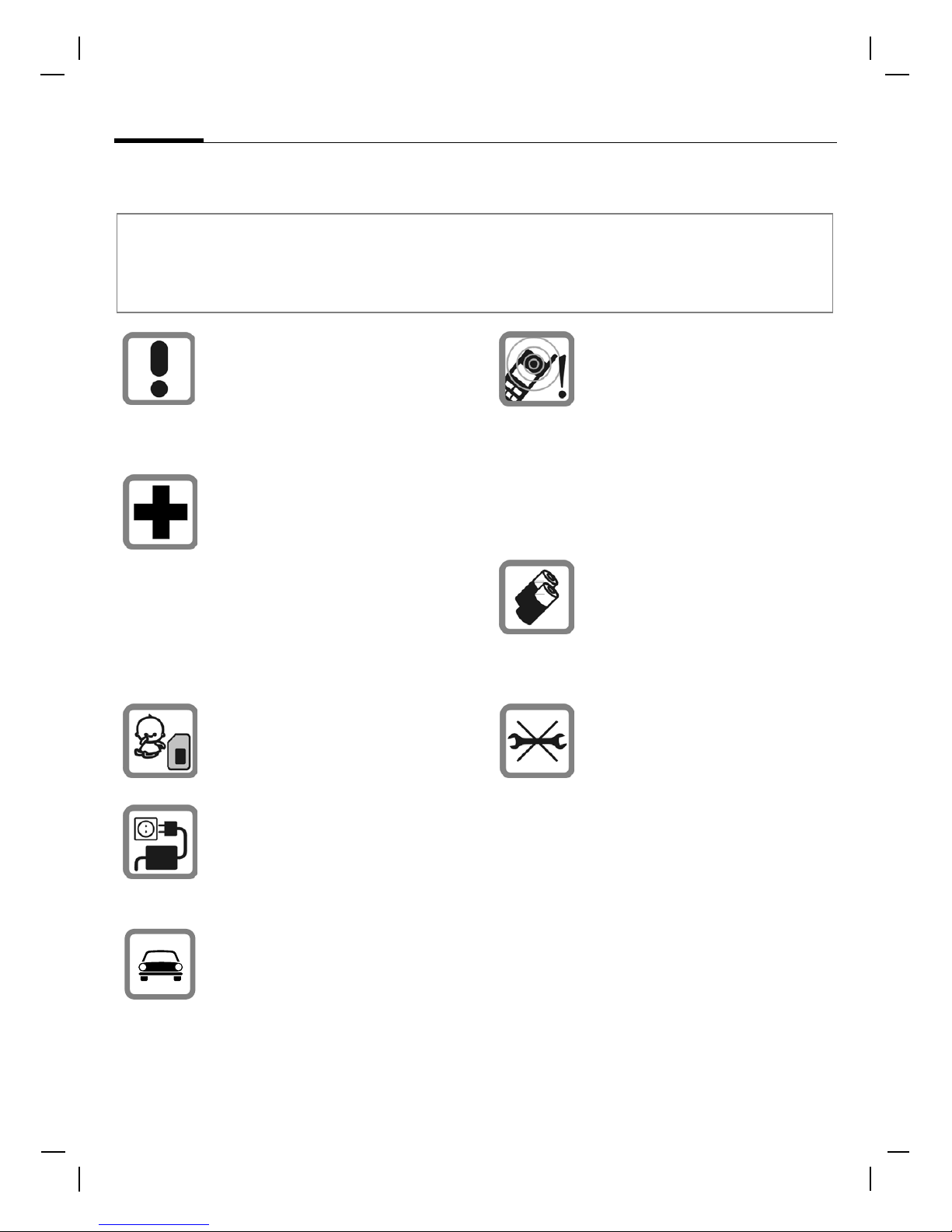
Explain the content and the hazards associated with using the phone to your children.
Remember to comply with
legal requirements and local
restrictions when using the
phone. For example, in airplanes, gas stations, hospitals
or while driving.
Cellular phones can interfere
with the functioning of medical
devices such as hearing aids
or pacemakers. Keep at least
8 inches (21 cm) between
phone and pacemaker. When
using the cell phone hold it to
the ear which is farthest from the
pacemaker. For more information
consult your doctor.
The SIM card may be removed.
Caution! Small parts like this
could be swallowed by young
children.
The mains voltage specified on
the power supply unit (V) must
not be exceeded. Otherwise
the charging device may be
destroyed.
Do not use a handheld while
driving.
The ringtone (p. 43), info tones
(p. 43) and speakerphone talking are reproduced through the
loudspeaker. Do not hold the
phone to your ear when it rings
or when you have switched on
the speakerphone function
(p. 25). Otherwise you risk serious, permanent damage to your
hearing.
Use only original Siemens batteries (100% mercury-free) and
charging devices. Otherwise
you risk serious damage to
health and property: The battery
may explode, for instance.
Do not open the phone. Only the
battery (100% mercury-free) or
SIM card may be replaced. You
must not open the battery under
any circumstances. Any other
changes to this device are
strictly prohibited, as they will
invalidate the type approval
required for operation of the unit.
Page 5
Siemens AG 2003, M:\Mobil\R65\CF62_TMO\en\sug\A65_Security.fm
5Safety precautions
VAR Language: en; VAR issue date: 040413
left page (5) of CF62 Leopard TMO SUG us, A31008-H6050-A40-1-4A19 (02.06.2004, 16:08)
Important
Please dispose of unwanted
batteries and phones as specified by the laws in your country.
The phone may cause interference close to TVs, radios and
PCs.
Use only Siemens original
accessories. This will avoid
potential risks to health or property and ensure compliance with
all relevant regulations.
Improper use will invalidate the warranty!
These safety instructions also apply to
Siemens original accessories.
Product attributes are subject to changes in
technology, design and availability.
Siemens reserves the right to modify products without prior notice.
Page 6
Siemens AG 2003, M:\Mobil\R65\CF62_TMO\en\sug\A65_Security.fm
Safety precautions6
VAR Language: en; VAR issue date: 040413
left page (6) of CF62 Leopard TMO SUG us, A31008-H6050-A40-1-4A19 (02.06.2004, 16:08)
Antenna care
Use only the supplied or an approved
replacement antenna. Unauthorized
antennas, modifications, or attachments could damage the phone and
may violate FCC regulations.
Phone operation
Normal position
Hold the phone as you would any
other telephone with the antenna
pointed up and over your shoulder.
Tips on efficient operation
For your phone to operate most
efficiently:
• Extend your antenna fully
(if applicable).
• Do not touch the antenna unnecessarily when the phone is in use.
Contact with the antenna affects
call quality and may cause the
phone to operate at a higher
power level than otherwise
needed.
Driving
Laws pertaining to the use of mobile
phones while driving vary significantly from state to state and sometimes even from locality to locality
within states. For example, some
areas may allow persons to use their
mobile phones only if they employ a
hands-free device, and some areas
may prohibit the use of cell phones
entirely. Accordingly, Siemens recommends that persons check the
laws for the areas in which they drive
or will be driving. For areas where
the use of mobile phones while driving is permitted, Siemens encourages persons to use their phones
responsibly and to employ handsfree devices. Also, if using your
phone while driving, please:
• Give full attention to driving –
driving safely is your first
responsibility;
• Use hands-free operation;
• Pull off the road and park before
making or answering a call, if
driving conditions so require.
Important
Read this information before using
your wireless handheld phone.
As this mobile phone is equipped
with a fixed (non-retractable)
antenna, some paragraphs in the
text below may not be applicable.
Page 7

Siemens AG 2003, M:\Mobil\R65\CF62_TMO\en\sug\A65_Security.fm
7Safety precautions
VAR Language: en; VAR issue date: 040413
left page (7) of CF62 Leopard TMO SUG us, A31008-H6050-A40-1-4A19 (02.06.2004, 16:08)
For vehicles equipped with
air bags
An air bag inflates with great force.
DO NOT place objects, including
either installed or portable wireless
equipment, in the area over the air
bag or in the air bag deployment
area. If in-vehicle wireless equipment is improperly installed and the
air bag inflates, serious injury could
result.
Electronic devices
Most modern electronic equipment
is shielded from radio frequency (RF)
signals. However, certain electronic
equipment may not be shielded
against the RF signals from your
wireless phone.
Pacemakers
The Health Industry Manufacturers'
Association recommends that a minimum separation of 6 inches (21 cm)
be maintained between a handheld
wireless phone and a pacemaker to
avoid potential interference with the
pacemaker. These recommendations are consistent with the independent research by and recommendations of Wireless Technology
Research.
Persons with pacemakers
• should ALWAYS keep the phone
more than six inches from their
pacemaker when the phone is
turned ON;
• should not carry the phone in a
breast pocket;
• should use the ear opposite the
pacemaker to minimize the potential for interference;
• should turn the phone OFF immediately if there is any reason to
suspect that interference is taking
place.
Hearing aids
Some digital wireless phones may
interfere with some hearing aids. In
the event of such interference, you
may want to consult your service
provider or your hearing aid manufacturer to discuss alternatives.
Other medical devices
If you use any other personal medical devices, consult the manufacturers of your devices to determine if
they are adequately shielded from
external RF energy. Your physician
may be able to assist you in obtaining this information.
Turn your phone OFF in health care
facilities when any regulations
posted in these areas instruct you to
do so. Hospitals or health care facili-
Page 8

Siemens AG 2003, M:\Mobil\R65\CF62_TMO\en\sug\A65_Security.fm
Safety precautions8
VAR Language: en; VAR issue date: 040413
left page (8) of CF62 Leopard TMO SUG us, A31008-H6050-A40-1-4A19 (02.06.2004, 16:08)
ties may be using equipment that
could be sensitive to external RF
energy.
Vehicles
RF signals may affect improperly
installed or inadequately shielded
electronic systems in motor vehicles.
Check with the manufacturer or its
representative regarding your vehicle. You should also consult the
manufacturer of any equipment that
has been added to your vehicle.
Posted facilities
Turn your phone OFF in any facility
where posted notices so require.
Airplanes
FCC and Airline Regulations prohibit
using your phone while in the air.
Turn your phone OFF when
requested by the airline.
Check and comply with the policy of
your airline regarding the use of your
phone while the airplane is on the
ground.
Blasting areas
To avoid interfering with blasting
operations, turn your phone OFF
when in a “blasting area” or in areas
posted: “Turn off two-way radio.”
Obey all signs and instructions.
Potentially explosive
atmospheres
Turn your phone OFF when in any
area with a potentially explosive
atmosphere and obey all signs and
instructions. Sparks in such areas
could cause an explosion or fire
resulting in bodily injury or even
death.
Areas with a potentially explosive
atmosphere are often but not always
clearly marked. They include: fueling
areas such as gasoline stations;
below deck on boats; fuel or chemical transfer or storage facilities; vehicles using liquefied petroleum gas
(such as propane or butane); areas
where the air contains chemicals or
particles, such as grain, dust or metal
powders; and any other area where
you would normally be advised to
turn off your vehicle engine.
Page 9

Siemens AG 2003, M:\Mobil\R65\CF62_TMO\en\sug\A65_Security.fm
9Safety precautions
VAR Language: en; VAR issue date: 040413
left page (9) of CF62 Leopard TMO SUG us, A31008-H6050-A40-1-4A19 (02.06.2004, 16:08)
Emergency calls (SOS)
Your wireless phone can be used
to make emergency calls. You can
make an emergency call from the
main display screen. Enter the local
emergency number such as 911 and
then press the
Akey.
This phone, like any wireless phone,
operates using radio signals, wireless and landline networks, and userprogrammed functions. Because of
this, connections in all conditions
cannot be guaranteed. Therefore,
you should never rely solely on any
wireless phone for essential communications (for example, medical
emergencies). Remember - to make
or receive any calls, the phone must
be switched on and be used in a service area that has adequate signal
strength. Emergency calls might not
be possible on all wireless phone
networks or when certain network
services or phone features are in use.
Check with local service providers
regarding their network features.
Always make certain that your
phone is properly charged before
attempting any emergency calls. If
you allow your battery to discharge,
you will be unable to receive or make
calls, including emergency calls. You
must then wait a few minutes after
the charging begins to place any
emergency calls.
When making an emergency call,
remember to give all of the necessary information as accurately as
possible. Remember that your wireless phone might be the only means
of communication at the scene of an
accident, therefore you should not
terminate the call until given permission to do so.
Batteries and Chargers
Only use original Siemens batteries
(100% mercury-free) and charging
devices. Use of non-Siemens batteries and/or charging devices may
cause explosion resulting in serious
injury and/or property damage. Use
original Siemens accessories in order
to avoid possible injury and property
damage and to ensure compliance
with applicable laws and regulations. Improper use invalidates the
warranty.
Battery safety precautions
To reduce the risk of fire, injury or
electric shock, and to properly dispose of batteries, please read and
understand the following instructions. CONTAINS LITHIUM-ION OR
NICKEL-METAL HYDRIDE BATTERY.
BATTERY MUST BE RECYCLED OR DISPOSED OF PROPERLY. DO NOT DISPOSE IN MUNICIPAL WASTE.
1. Only use the batteries specified
for use with this mobile phone.
2. Do not use batteries of different
sizes or from different manufacturers in this mobile phone.
Page 10

Siemens AG 2003, M:\Mobil\R65\CF62_TMO\en\sug\A65_Security.fm
Safety precautions10
VAR Language: en; VAR issue date: 040413
left page (10) of CF62 Leopard TMO SUG us, A31008-H6050-A40-1-4A19 (02.06.2004, 16:08)
3. Do not dispose of the battery in a
fire; it may explode. Dispose of
used batteries and phones in
accordance with applicable laws
and safety regulations. Do not
expose battery to water. Check
with local codes for special disposal instructions.
4. Do not open or mutilate the battery. Doing so may cause damage
to the eyes or skin.
5. Exercise care in handling the battery in order not to short the battery with conducting materials
such as rings, bracelets, and keys.
The battery or conducting material may overheat and cause burns
or fire.
6. Charge the battery provided with,
or identified for use with, this
product only in accordance with
the instructions and limitations
specified in the User's Guide. Do
not attempt to charge the battery
by any means other than those
specified in the User's Guide.
Page 11
Siemens AG 2003, M:\Mobil\R65\CF62_TMO\en\sug\A65_Overview.fm
11Phone overview
VAR Language: en; VAR issue date: 040413
left page (11) of CF62 Leopard TMO SUG us, A31008-H6050-A40-1-4A19 (02.06.2004, 16:08)
Phone overview
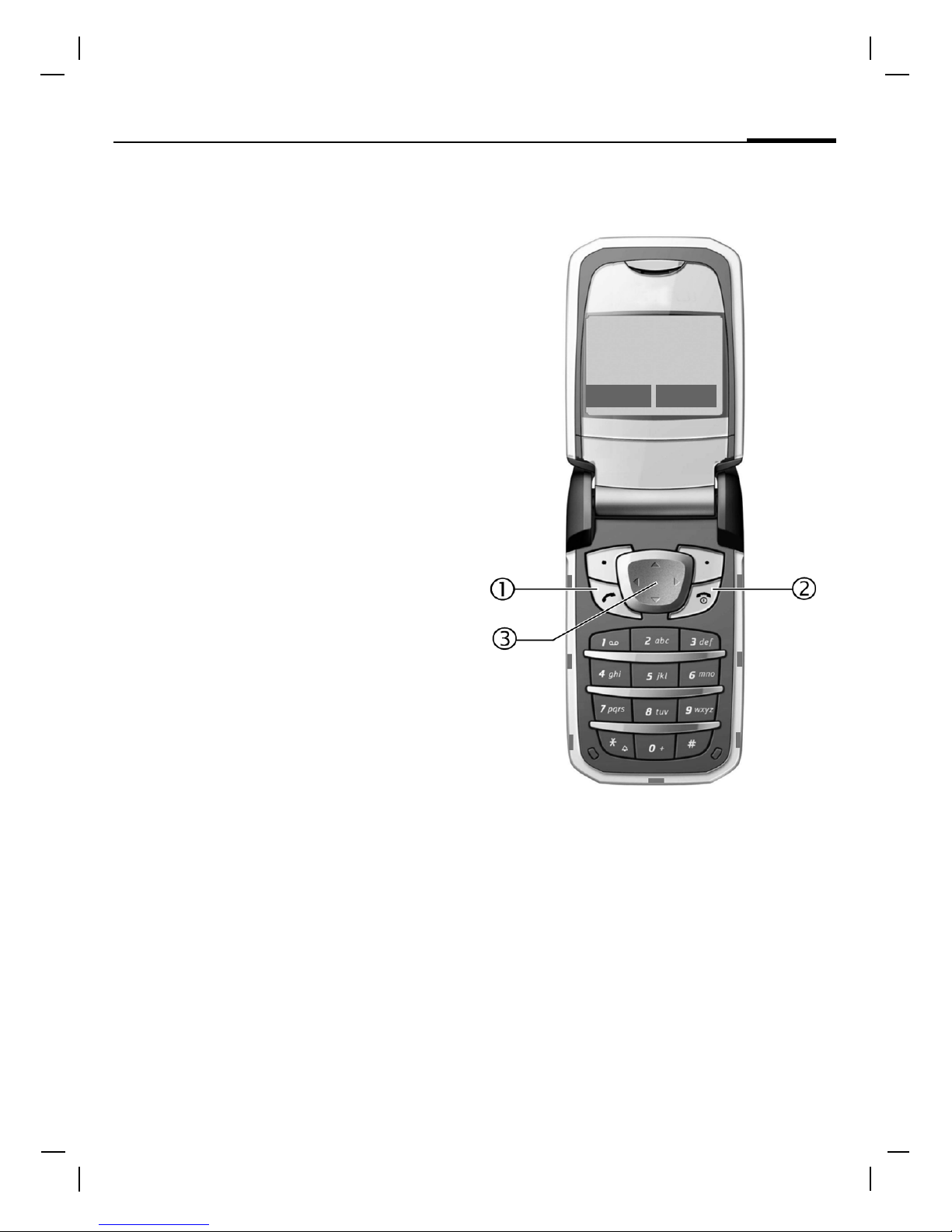
1 A Call key
Dial phone number/name displayed/selected,
take calls. Show last phone numbers dialed in
standby mode.
2
B
On/Off/End key
• Switched off: hold down to switch on.
• During a conversation or in an application:
press briefly to finish.
• In menus: Press briefly to go back a level.
Hold down to return to standby mode.
• In standby mode: hold down to switch
off phone.
3 Navigation key
In lists, messages and menus:
I Scroll up and down.
E Function call (same function as
right soft key (page 12).
D Back one menu level.
During a call:
G Start adjusting the volume.
H Open Addressbook/Phonebook.
E Open call menu.
In standby mode:
G Open Call Log.
H Open Addressbook/Phonebook.
E Open New Media Msg/
New Sound.
D Open Messages.
_g
Service provider
01.05.2004 10:10
Pict. Msg Menu
Page 12
Siemens AG 2003, M:\Mobil\R65\CF62_TMO\en\sug\A65_Overview.fm
Phone overview12
VAR Language: en; VAR issue date: 040413
left page (12) of CF62 Leopard TMO SUG us, A31008-H6050-A40-1-4A19 (02.06.2004, 16:08)
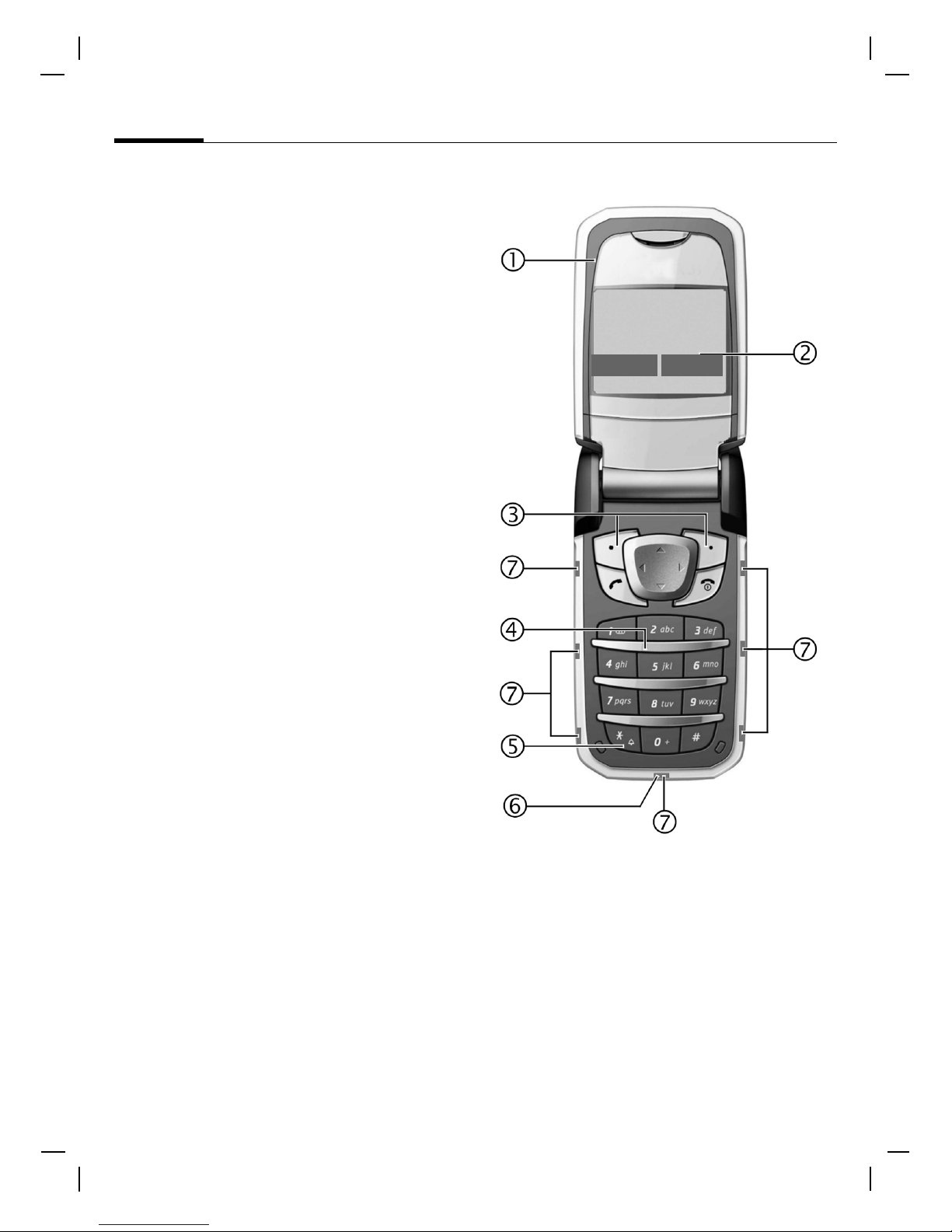
1 Loudspeaker
2 Color Display
3 Soft keys
The current functions of these keys are shown
in the bottom line of the display as §Text§/
symbol (e.g., Q ).
4 Input keys
5
*
Ringtone
• Hold down in standby mode:
Switch all audible signals on/off
(except alarm).
• Hold down on incoming call:
Switch off ring tone for this call only.
Holding down the # key in standby mode:
Switch all audible signal on/off (except Alarm).
6 Plug socket
For charger, headset, camera etc.
7 Dynamic Light
Seven LEDs are used to visually indicate different events and functions as well as the current phone status, e.g. network searching,
battery low, etc. (set, page 47).
You can set the visual signal (LEDs) on the
phone for certain functions and events. The
LEDs then flash in different rhythms depending on the current function.
_g
Service provider
01.05.2004 10:10
Pict. Msg Menu
Page 13
Siemens AG 2003, M:\Mobil\R65\CF62_TMO\en\sug\A65_Overview.fm
13Phone overview
VAR Language: en; VAR issue date: 040413
left page (13) of CF62 Leopard TMO SUG us, A31008-H6050-A40-1-4A19 (02.06.2004, 16:08)
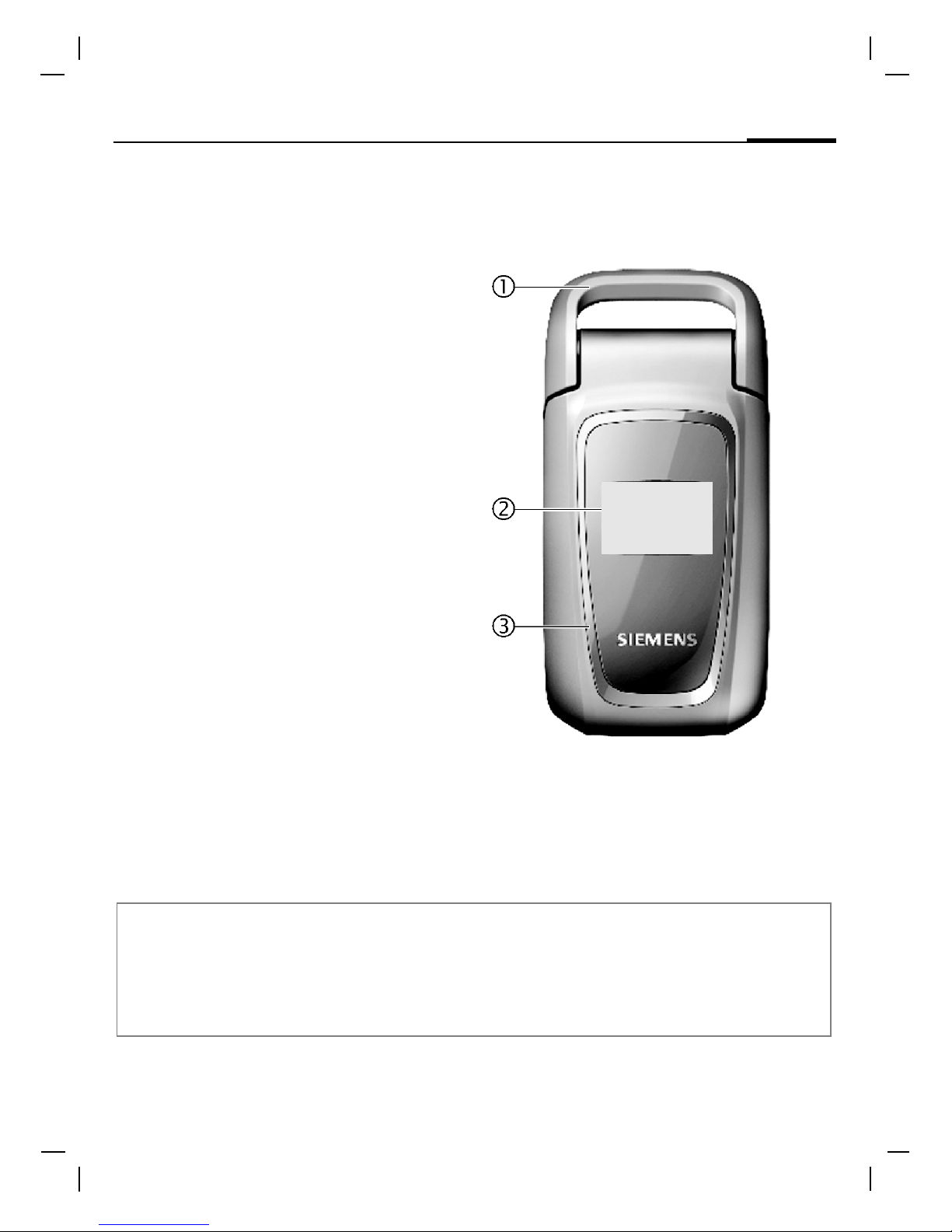
1 Antenna
Do not unnecessarily obstruct the antenna.
2 2nd display
Displays time, incoming calls, screensaver
and certain other information when the clamshell is closed.
In addition, symbols are used to indicate the
following events:
¿ Missed incoming call
Ø Missed alarm
Missed appointment
… Missed message
3 Clamshell
In standby mode, opening the clamshell
switches off the 2nd display and switches on
the color display. When the clamshell is
closed, the color display is switched off, and
the 2nd display is switched on. An alarm tone
sounds and a warning message is shown on
the 2nd display. If the clamshell is not opened
again within 3 seconds, applications are
terminated.
When Auto Answer (page 49) is activated a
call can be answered by simply opening the
clamshell.
Note
Your phone is supplied with protective films over the displays. Remove these films before
getting started.
In rare cases, static discharge may cause discoloration at the edges of the display. However
this will disappear within 10 minutes.
_g
10:10
Page 14
Siemens AG 2003, M:\Mobil\R65\CF62_TMO\en\sug\A65_Displaysymbols.fm
Display symbols14
VAR Language: en; VAR issue date: 040413
left page (14) of CF62 Leopard TMO SUG us, A31008-H6050-A40-1-4A19 (02.06.2004, 16:09)
Display symbols
Display symbols (selection)
_
Signal strength.
h
Charging.
d
Battery charge level, e.g. 50 %.
è
Addressbook/Phonebook
Z
Call Log
É
Surf & Fun/Service provider
portal
Alarm Clock
]
Messages
Ring Tones
Ñ
My Stuff
m
Settings
n
Call(s) is/are forwarded.
j
Ringer off.
k
Short ring (beep) only.
l
Ringtone only if the caller is
stored in the Addressbook/Phonebook.
Ø
Alarm set.
Ö
Alarm clock activated.
T
Message memory full.
²
No network access.
ABC/
Abc/abc
Indicates whether upper or lowercase letters are active.
Voice Messages
™
Text input with T9.
«
Activated and available.
ª
Registered.
Temporarily interrupted.
Ê
WAP online.
Ë
WAP via GPRS online.
Ì
WAP no network.
±
Auto answer feature on.
Organizer symbols (selection)
u
Memo
v
Call
w
Meeting
{
Birthday
È
Anniversary
Access with left soft key (selection)
…
Message received.
Û
MMS notification received.
\
Voice message received.
Unanswered call.
Depending on the service provider, some
of the symbols shown here may differ from
those in the phone.
Page 15
Siemens AG 2003, M:\Mobil\R65\CF62_TMO\en\sug\A65_Startup.fm
15Getting started
VAR Language: en; VAR issue date: 040413
left page (15) of CF62 Leopard TMO SUG us, A31008-H6050-A40-1-4A19 (02.06.2004, 16:08)
Getting started
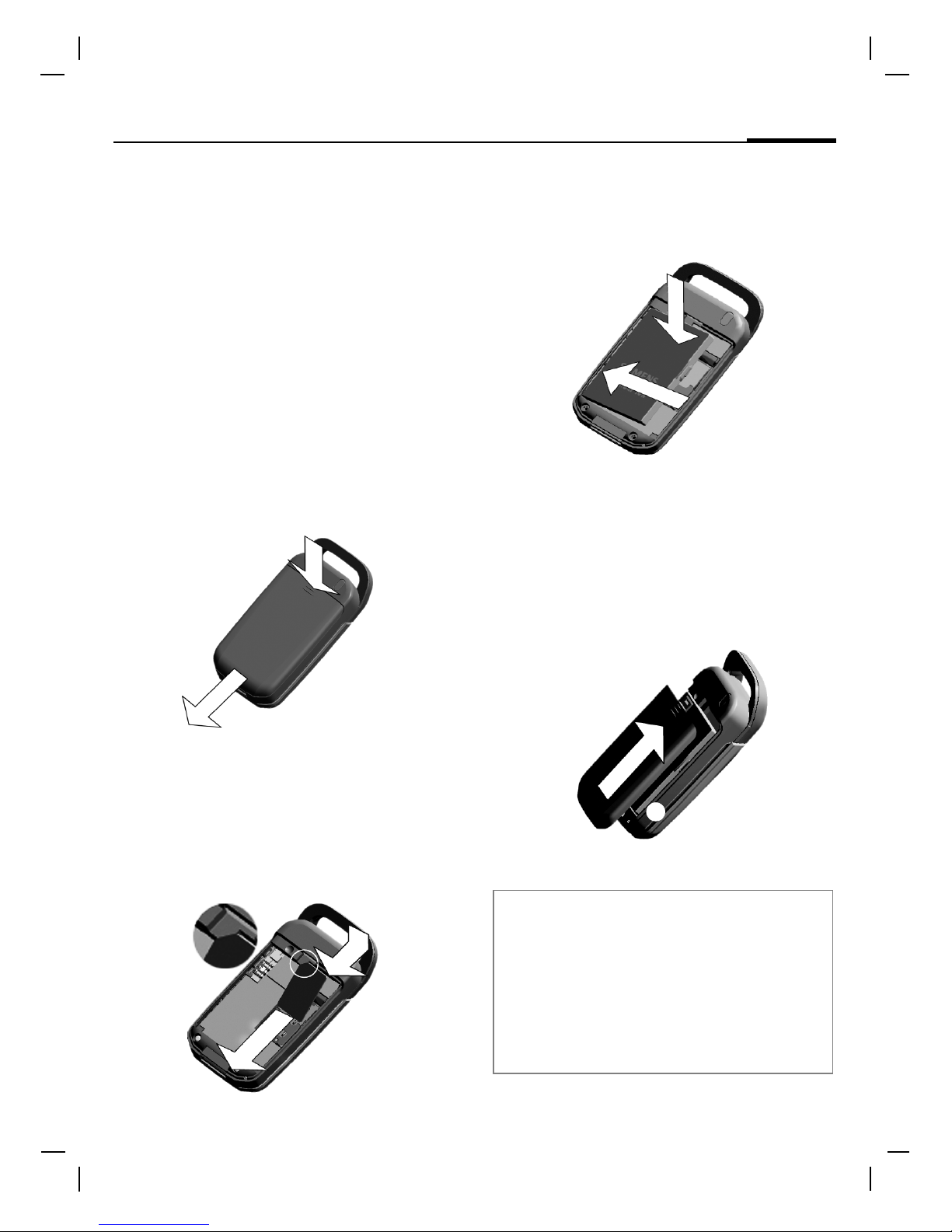
Insert SIM card/battery
The service provider supplies you
with a SIM card on which all the
important data for your line is
stored. If the SIM card has been
delivered in credit card size, snap the
smaller segment out and remove
any rough edges.
Press grooved area
1, then remove
the cover downwards in the direction of the arrow
2.
• Place the SIM card in the slot with
the contact surface facing down-
wards. Gently push the holder tab
over the SIM card
3 (ensure the
beveled corner is correctly positioned).
• Insert the battery into the phone
sideways
4, then press down-
wards
5 until it snaps into place.
• To remove, press the retaining tab
on the side of the battery, then lift
the battery out.
• Place cover on phone and then
push towards the upper edge,
until it clicks into place
6.
1
2
3
Additional information
Please switch off your phone before
removing the battery!
3 V and 1.8 V SIM cards are supported.
Please contact your service provider if
you have an older card.
SIM card problems .......................page 63
4
5
6
Page 16
Siemens AG 2003, M:\Mobil\R65\CF62_TMO\en\sug\A65_Startup.fm
Getting started16
VAR Language: en; VAR issue date: 040413
left page (16) of CF62 Leopard TMO SUG us, A31008-H6050-A40-1-4A19 (02.06.2004, 16:08)
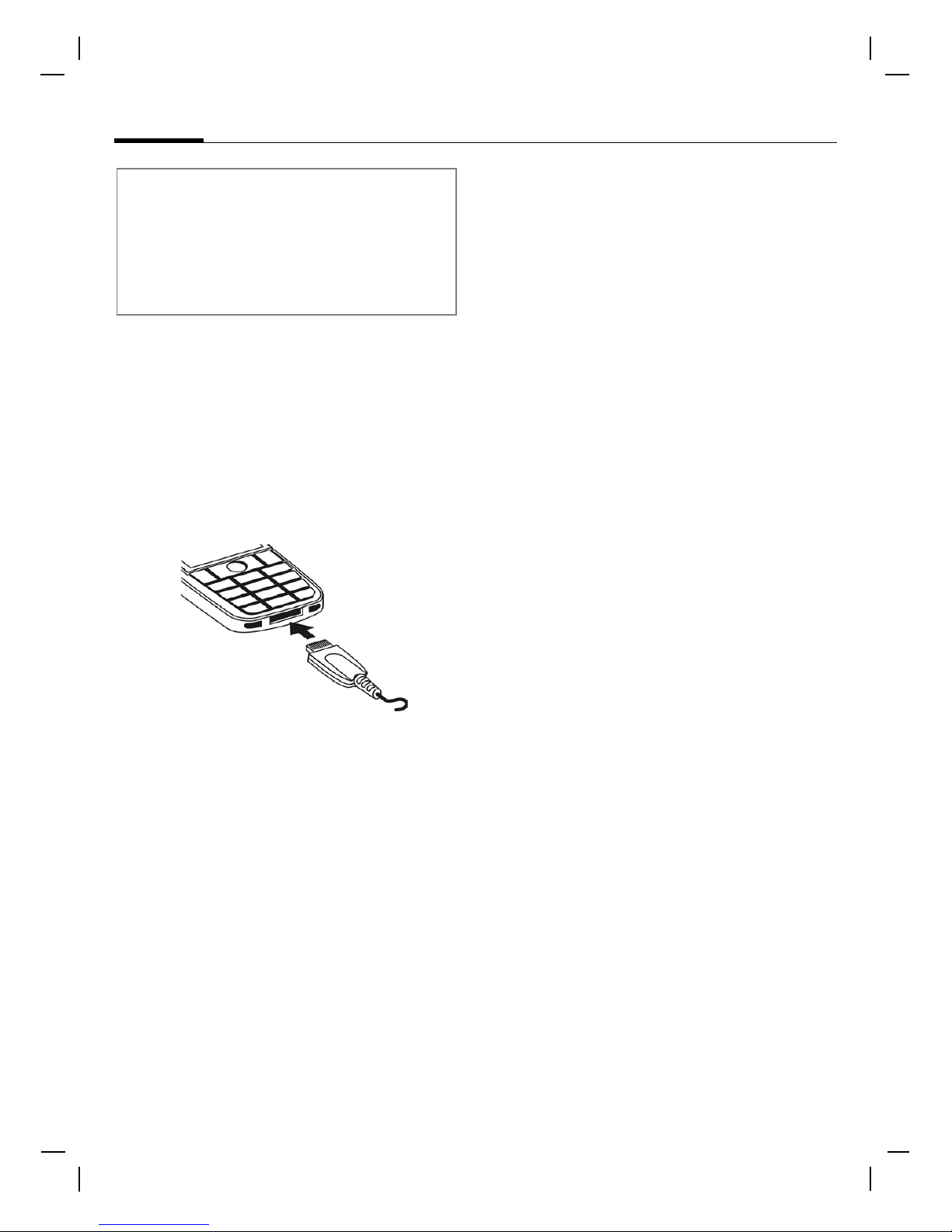
Charge battery
The battery is not fully charged
when delivered. Plug charger cable
into the bottom of the phone, plug
power supply unit into a mains
power socket and charge for at least
two hours.
Display when charging is in progress:
h
During charging.
If Dynamic Light is activated for
Charging (page 47) the middle two
LEDs flash slowly to show that the
charging process is in progress.
When the battery is fully charged,
these LEDs switch off.
Charging time
An uncharged battery is fully
charged after about 2 hours. Charging is only possible within a temperature range of +5 °C to +40 °C. If the
temperature rises/falls 5 °C above/
below this, the charge symbol
flashes a warning. The mains voltage
specified on the power supply unit
must not be exceeded (Operating
time, page 71).
Charging and Discharging
Note that a new battery's full performance is achieved only after two or
three complete charge and discharge cycles. The operations times
provided are reasonable estimates
and may be affected by network conditions, charging and phone usage.
The battery can be charged and discharged hundreds of times but it will
eventually wear out. A noticeably
shorter operating time (talk-time
and standby time) may be an indication that the battery requires
replacement.
Use only Siemens batteries and
recharge your battery only with
Siemens chargers. When the charger
is not in use, disconnect it from the
power source. Do not leave the battery connected to a charger for
longer than a week, since overcharging may shorten its life. If left unused
a fully charged battery will discharge
itself over time.
If the battery is completely empty, it
may take a few minutes before you
can make or receive a call once you
plug the phone into a charger.
Temperature extremes will affect
the ability of your battery to charge:
allow it to cool down or warm up
first.
Note
Keep SIM cards out of reach of small children. The SIM cards and its contacts are
easily damaged by scratching or bending,
so be careful when handling, inserting or
removing the SIM card.
Page 17
Siemens AG 2003, M:\Mobil\R65\CF62_TMO\en\sug\A65_Startup.fm
17Getting started
VAR Language: en; VAR issue date: 040413
left page (17) of CF62 Leopard TMO SUG us, A31008-H6050-A40-1-4A19 (02.06.2004, 16:08)
Do not short circuit the battery. Accidental short-circuiting can occur
when a metallic object (coin, clip or
pen) causes direct connection of the
+ and – terminals of the battery
(metal strips on the back of the battery) for example when you carry a
spare battery in your pocket or
purse. Short-circuiting the terminals
may damage the battery or the connecting object.
Leaving the battery in hot or cold
places, such as in a closed car in summer or winter conditions, will reduce
the capacity and lifetime of the battery. Always try to keep the battery
between 15 °C and 25 °C (59 °F and
77 °F). A phone with a hot or cold
battery may be temporarily inoperable, even when the battery is fully
charged.
Do not dispose of batteries in a fire!
Explosion may result.
Batteries must be disposed of properly. Comply with all local laws or
regulations in disposing of your
battery.
Charge icon not visible
If the battery has been fully discharged, the charge icon is not
immediately visible when the power
supply unit is plugged in. It will
appear after up to two hours. In this
case the battery, is fully charged
after 3–4 hours.
Only use the power supply unit provided!
Display while in service
Charge level display during operation (empty – full):
adg
A beep sounds when the battery is
nearly discharged. The charge level
of the battery is only displayed correctly after an uninterrupted charging/discharging cycle. You should
therefore not remove the battery unnec-
essarily and if possible not terminate
the charging process early.
Note
Use the battery only for its intended
purpose.
Never use any charger or battery that is
damaged or worn out.
Additional information
The power supply unit heats up when it is
used for long periods. This is normal and
not dangerous.
If the battery is removed for longer than
30 seconds, the clock will be reset.
Page 18
Siemens AG 2003, M:\Mobil\R65\CF62_TMO\en\sug\A65_Startup.fm
Switch on, off/PIN entry18
VAR Language: en; VAR issue date: 040413
left page (18) of CF62 Leopard TMO SUG us, A31008-H6050-A40-1-4A19 (02.06.2004, 16:08)
Switch on, off/PIN entry
Switch on/off
Open the clamshell to access the
keypad.
B
Hold down On/Off/
End key.
Enter PIN
The SIM card can be protected with a
4- to 8-digit PIN.
J
Enter the PIN using the
number keys. The characters
****
appear to
ensure nobody can read
your PIN on the display.
Correct errors with §
Clear§
.
§OK§ To confirm, press the
right soft key. Logging on
to the network will take a
few seconds.
If the clamshell is closed before a PIN
is entered, the phone is switched off
immediately.
Emergency number
(SOS)
Only to be used in real emergencies!
By pressing the soft key §SOS§ you can
make an emergency call on any network without a SIM card and without
entering a PIN (not available in all
countries).
Ensure the phone is switched on and
in service. Some networks may
require that a valid SIM card be properly inserted in the phone. Hold clear
for several seconds, to clear the display. Enter the emergency number,
and then press call. Give your location. Do not end the call until told to
do so.
Additional information
Change PIN..................................page 22
Clear SIM card barring .................page 22
Clock settings ..............................page 49
Note
Official emergency numbers vary by location (e.g. 911, 112 or other official emergency number). When traveling you should
determine the proper emergency number.
Page 19

Siemens AG 2003, M:\Mobil\R65\CF62_TMO\en\sug\A65_Startup.fm
19Switch on, off/PIN entry
VAR Language: en; VAR issue date: 040413
left page (19) of CF62 Leopard TMO SUG us, A31008-H6050-A40-1-4A19 (02.06.2004, 16:08)
Switching on your phone
for the first time
Time/Date
Set the clock to the right time once
at start-up.
§Yes§ Press.
J
First enter the date
(month, day, year), then
the time (12 hours,
including seconds).
§OK§ Press. The time and date
are updated.
Time Zones
Set the time zone for your area.
I
Select the required time
zone from the list ...
§Set§ … and set it.
Phonebook or Addressbook
You can choose whether you want
to use the Phonebook on the SIM card
or the internal Addressbook as
standard.
You can copy the SIM card Phonebook to the Addressbook on the
phone. Please do not interrupt this pro-
cedure. During this time do not accept
incoming calls. Follow the instruc-
tions on the display.
To copy data on the SIM card at a
later time, highlight entries (see
page 21) and copy these with the
function Copy to 9 (Phonebook
options menu).
You can change the default book
at any time (page 31).
Signal strength
_ Strong reception signal.
^ A weak signal reduces the
call quality and may lead
to loss of the connection.
Change your location.
Page 20

Siemens AG 2003, M:\Mobil\R65\CF62_TMO\en\sug\A65_Startup.fm
General instructions20
VAR Language: en; VAR issue date: 040413
left page (20) of CF62 Leopard TMO SUG us, A31008-H6050-A40-1-4A19 (02.06.2004, 16:08)
General instructions
User guide
The following symbols are used to
explain operation:
Without SIM card
If you switch on the phone without
a SIM card you can still use some
phone functions.
§Menu§ Those functions are
displayed.
§SOS§ Emergency, SOS.
Menu controls
The steps for reaching a function are
shown in a condensed form in this
user guide.
For example,
To display call list for missed calls in
condensed form:
§Menu§
K
Z
KMissed Calls
This comprises the following steps:
§Menu§ Open main menu.
K Select
Z
, then select the
Missed Calls function.
§Select§ Confirm.
Standby mode
Very often, function descriptions
begin in standby mode.
The phone is in standby mode and is
ready for use when the name of the
service provider appears on the display.
B
Hold down the On/Off/End
key to return to standby
mode from any situation.
J
Enter numbers or letters.
B
On/Off/End key.
A
Call key.
F
Press navigation key
(left/right).
I
Press navigation key
(top/bottom).
§Menu§
Displays a function.
L
Function dependent on
service provider, may require
special registration.
Page 21
Siemens AG 2003, M:\Mobil\R65\CF62_TMO\en\sug\A65_Startup.fm
21Standard functions
VAR Language: en; VAR issue date: 040413
left page (21) of CF62 Leopard TMO SUG us, A31008-H6050-A40-1-4A19 (02.06.2004, 16:08)
Standard functions
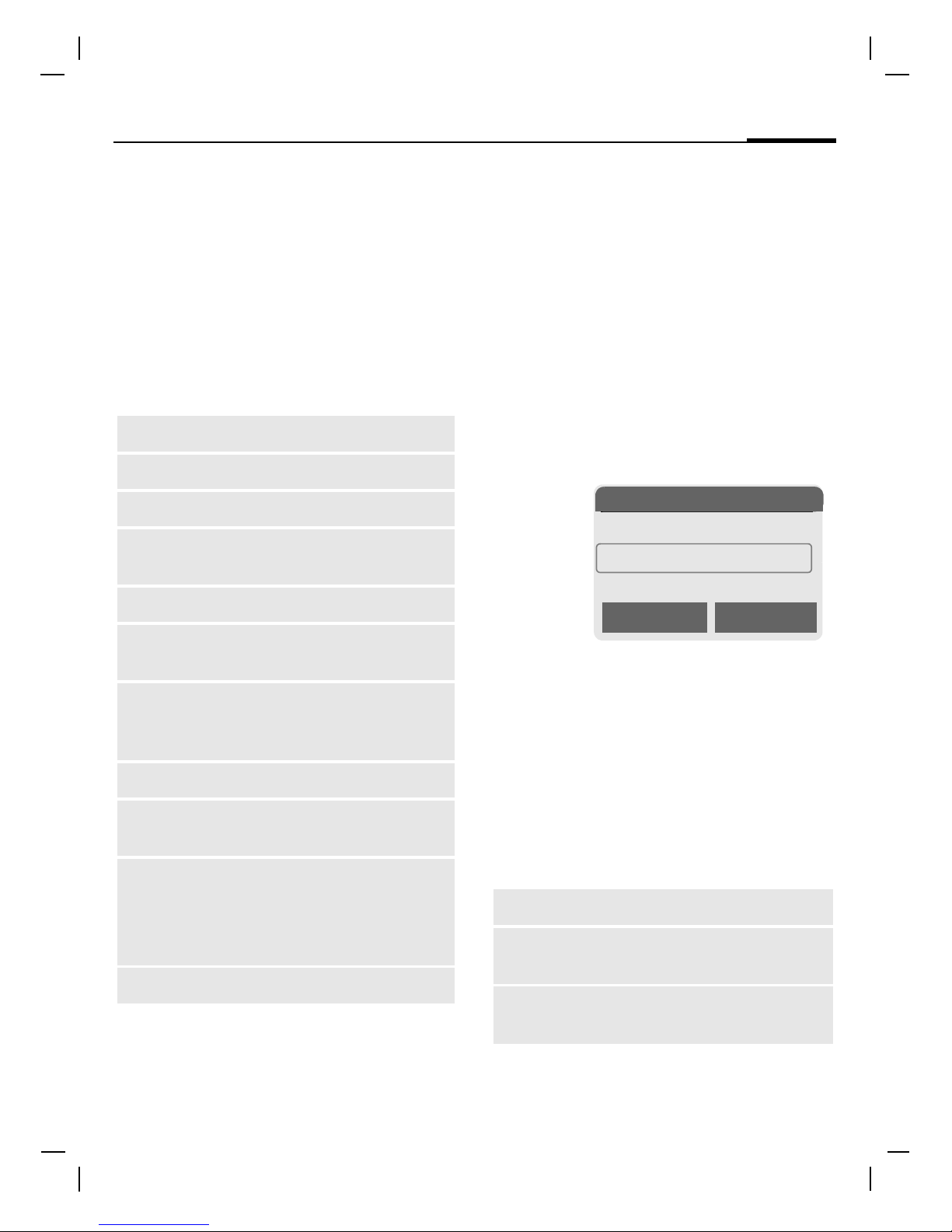
Option menus
Menu functions are provided for
selection in options menus. A selection of functions that occur frequently is shown here.
§Options§
Open menu.
Highlighting mode
With some applications (e.g. Phonebook) one or more entries in a list
can be highlighted to perform multiple functions simultaneously.
§Options§
Open menu.
Mark Text Activate highlighting
mode.
If an unmarked entry is selected, this
can be highlighted:
§Mark Text§ The current entry is high-
lighted.
If a highlighted entry is selected, this
can be unmarked:
§Unmark§ Unmark the current entry.
Additional highlighting functions:
Edit
Open the entry to edit.
Capacity
Display available capacity.
View
Display entry.
Delete/
Delete All
Delete entry/delete all
entries after confirmation.
New Entry
Create new entry.
Send
Message
Send entry as MMS message.
Send
Dial number or select from
the Addressbook/Phonebook, then send.
Save
Store entry.
Sort
Set sort criteria
(alphabetical, type, time).
Text Input
(page 27)
T9 Preferred: Activate/
deactivate T9 input.
Input Language: Select
language for text.
Rename
Rename selected entry.
Mark All
Highlight all entries.
Unmark All
Delete highlighting on all
marked entries.
Delete
Marked
All selected entries are
deleted.
N Phonebook Ú
o Anne
o Barbara
p Carol
Mark Text Options
Page 22
Siemens AG 2003, M:\Mobil\R65\CF62_TMO\en\sug\A65_Startup.fm
Security22
VAR Language: en; VAR issue date: 040413
left page (22) of CF62 Leopard TMO SUG us, A31008-H6050-A40-1-4A19 (02.06.2004, 16:08)
Security
§Menu§ KmKSecurity
KSelect function.
The phone and SIM card are protected against misuse by several
security codes.
Codes
PIN Control
You can stop the PIN prompt being
activated when the phone is
switched on, but you then risk
unauthorized use of the phone.
§Change§ Press.
J
Enter PIN and confirm
with §OK§.
Change PIN
You can change the PIN to any 4- to
8-digit number you find easier to
remember.
J
Enter current PIN and
confirm with §OK§.
J
,
§OK§ Enter new PIN.
J
,
§OK§ Re-enter new PIN.
Change PIN2
(Display only if PIN2 is available).
Proceed as for Change PIN.
Change Phonecode
You define the phone code (4–8 digits) when you call up a protected
function for the first time. It is then
valid for all phone code protected
functions.
Clear SIM card barring
If the PIN is entered incorrectly three
times, the SIM card is barred. Enter
the PUK (MASTER PIN), provided by
your service provider with the SIM
card, according to instructions. If the
PUK (MASTER PIN) has been lost,
please contact your service provider.
Keep these confidential numbers in a
safe place where you can access them
again if necessary.
Page 23

Siemens AG 2003, M:\Mobil\R65\CF62_TMO\en\sug\A65_Phone.fm
23Calling
VAR Language: en; VAR issue date: 040413
left page (23) of CF62 Leopard TMO SUG us, A31008-H6050-A40-1-4A19 (02.06.2004, 16:08)
Calling
Dialing with number keys
Open the clamshell to access the
keypad.
The phone must be switched on
(standby mode).
J
Enter number (always
with area code/international dialing code).
§Clear§ A short press clears
the last digit, a long press
clears the entire phone
number.
A
Press the Call key. The displayed phone number is
dialed.
End call
B
Press the End key briefly.
Press this key even if the
person on the other end
has hung up first.
Set volume
G
Use the top part of the
navigation key to start
adjusting the volume.
Then press top/bottom to
adjust the volume as
required (only possible
during a conversation).
If a Car Kit is used, its volume setting
will not affect the usual setting on
the phone.
Redial
To redial numbers that were dialed
previously:
A
Press the Call key once.
I
Select the required phone
number from the list,
then to dial ...
A
Press ...
If the number is busy
Auto. redial
§Auto Dial§ Press. The phone number
is automatically dialed ten
times at increasing time
intervals.
Callback b
§Callback§ Press. Your phone rings
when the busy number is
free.
Reminder
§Prompt§ Press. A beep reminds you
to redial the displayed
phone number after
15 minutes.
International dialing codes
0
Hold down until a "+" is displayed.
§Country§ Press and select country.
Page 24
Siemens AG 2003, M:\Mobil\R65\CF62_TMO\en\sug\A65_Phone.fm
Calling24
VAR Language: en; VAR issue date: 040413
left page (24) of CF62 Leopard TMO SUG us, A31008-H6050-A40-1-4A19 (02.06.2004, 16:08)
Accept call
The phone must be switched on
(standby mode). An incoming call
will interrupt any other use of the
phone.
Open the clamshell.
And
§Accept§ Press.
Or
A
Press.
A phone number transmitted by
the network is displayed or the
corresponding name if it is contained
in the Phonebook (page 32) or
Addressbook (page 33). A picture
may also appear (settings page 33).
Reject call
Open the clamshell.
And
§Mute§ Press. To forward a call,
see page 48.
Or
B
Press briefly.
Additional information
When Auto Answer (page 49) is activated
a call can be answered by simply opening
the clamshell.
Additional information
When Auto Answer (page 49) is activated
you must reject the call within 2 seconds.
Otherwise it will be accepted automatically.
Warning!
Please ensure you have accepted the call
before holding the phone to your ear. This
will avoid damage to your hearing from loud
ringtones.
Additional information
Missed calls..........................page 35
Switch off ringer............................page 43
Page 25
Siemens AG 2003, M:\Mobil\R65\CF62_TMO\en\sug\A65_Phone.fm
25Calling
VAR Language: en; VAR issue date: 040413
left page (25) of CF62 Leopard TMO SUG us, A31008-H6050-A40-1-4A19 (02.06.2004, 16:08)
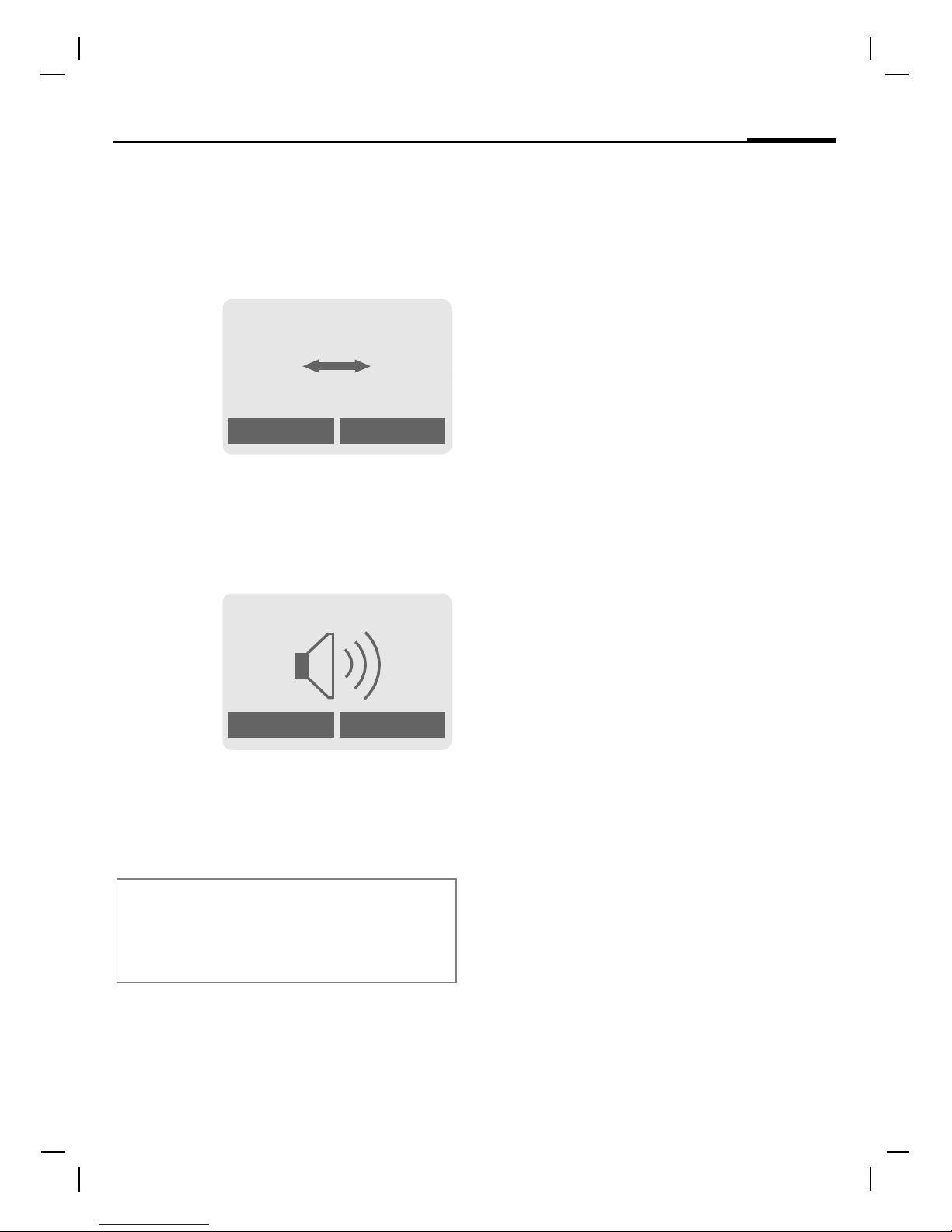
Speakerphone
You can put the phone aside during
a call. You can then hear the caller
via the loudspeaker.
§Spk. On§ Activate speakerphone
talking.
§Yes§ Switch on.
I
Use the navigation key to
adjust the volume.
§Spk. Off§ Switch off.
Swapping calls
• You call another number during a
call.
y Menu§ Open call menu.
Hold Put current call on hold.
Dial the new phone number. When
the new connection is established:
y Menu§ Open call menu.
Swap Swap between the calls.
• You are advised during a call that
another call is waiting by a special
"call waiting" tone (page 48).
§Swap§ Accept the waiting call
and put the current call on
hold. To swap between
the two calls, see above.
Or
B
End the current call.
§Accept§ Accept the new call.
Warning!
Always switch off "speakerphone talk-
ing" before holding the phone to your ear!
This will avoid damage to your hearing!
_g
vv
Carol
Spk. On
% Menu
_g
Spk. Off
% Menu
Page 26

Siemens AG 2003, M:\Mobil\R65\CF62_TMO\en\sug\A65_Phone.fm
Calling26
VAR Language: en; VAR issue date: 040413
left page (26) of CF62 Leopard TMO SUG us, A31008-H6050-A40-1-4A19 (02.06.2004, 16:08)
Conference
Call up to 5 parties and link them
together in a conference call. When
a connection is established:
y Menu§ Open menu and select
Hold. The current call is
put on hold.
J
Now dial a new number.
When the new connection
is established ...
y Menu§ … open menu and select
Conference. The held call is
joined.
Repeat procedure until all participants are linked together (up to
5participants).
End
B
All calls in the conference
are ended simultaneously
when the End key is
pressed.
Page 27
Siemens AG 2003, M:\Mobil\R65\CF62_TMO\en\sug\A65_Text.fm
27Text entry
VAR Language: en; VAR issue date: 040413
left page (27) of CF62 Leopard TMO SUG us, A31008-H6050-A40-1-4A19 (02.06.2004, 16:08)
Text entry
Text entry without T9
Press number key repeatedly until
the required letter appears. After a
brief interval the cursor will advance.
Example:
2
Press once briefly to type
the letter a, twice to type
b, etc.
Hold down to write the
number.
Ä, ä, 1–9 Umlauts and numbers
are displayed after the relevant letters.
§Clear§ Press briefly to delete the
letter before the cursor,
hold down to erase the
whole word.
F
Move the cursor
(forwards/back).
#
Press briefly: Swap
between abc, Abc,
T9
abc,
T9
Abc, T9ABC, 123. Status
shown in top line of display.
Hold down: All input variants are displayed.
*
Press briefly: Special characters are shown.
Hold down: Open input
menu.
0
Press once/repeatedly:
. , ? ! ’ " 0 - ( ) @ / : _
Hold down: Writes 0.
1
Writes a blank space.
Press twice = jumps a line.
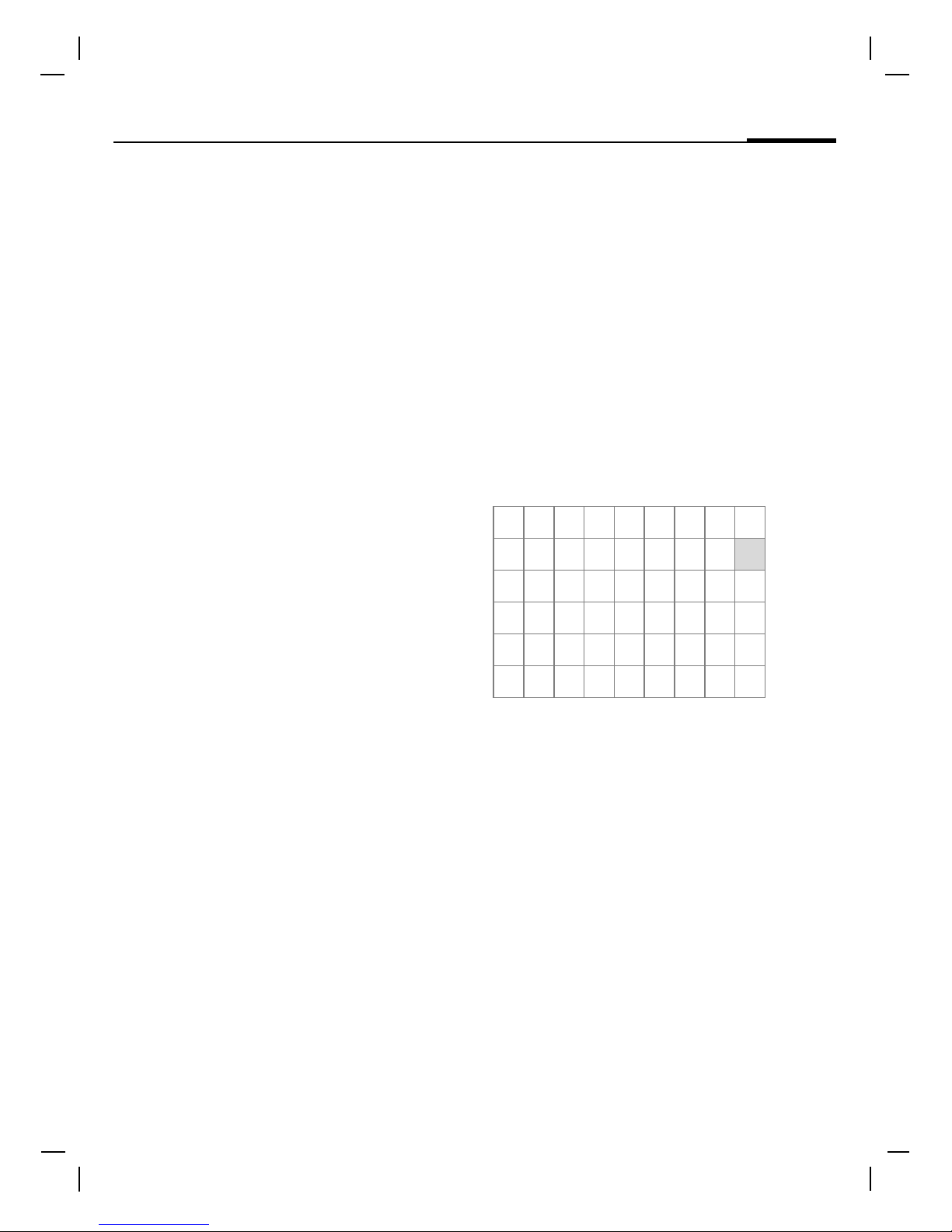
Special characters
*
Press briefly. The symbols
chart is displayed:
1) Line break
I, F Navigate to characters.
§Select§ Press.
Input menu
With text input:
*
Press down. The input
menu is displayed:
Text Format (SMS only)
Input Language
Mark Text
Copy/Add
1)
¿¡_; !?, .
+-"’:()/
*
¤¥
$
£
€&# \@
[]{}%~<=>
|^§ Γ ∆ Θ Λ Ξ Π
Σ Φ Ψ Ω
Page 28

Siemens AG 2003, M:\Mobil\R65\CF62_TMO\en\sug\A65_Text.fm
Text entry28
VAR Language: en; VAR issue date: 040413
left page (28) of CF62 Leopard TMO SUG us, A31008-H6050-A40-1-4A19 (02.06.2004, 16:08)
Text entry with T9
"T9" deduces the correct word from
the individual key entries by making
comparisons with an extensive dictionary.
Activate, deactivate T9
§Options§ Open text menu.
Text Input Select.
T9 Preferred
Select.
§Change§ Activate T9.
Select Input Language
Select the language in which you
want to compose your message.
§Options§ Open text menu.
Text Input Select.
Input Language
Select.
§Select§ Confirm, the new language
is set. Languages with T9
support are marked with
the T9 symbol.
Write a word using T9
Since the display changes as you proceed,
it is best if you finish a word without looking at the display.
Simply press the keys once only
where the relevant letter is located.
For "hotel", for example:
#
Press briefly for T9Abc
then type
4 6 8 3 5
1
Press. A blank ends a
word.
Do not use special characters such
as Ä but instead use the standard
characters, e.g. A; T9 will do the rest
for you.
Page 29
Siemens AG 2003, M:\Mobil\R65\CF62_TMO\en\sug\A65_Text.fm
29Text entry
VAR Language: en; VAR issue date: 040413
left page (29) of CF62 Leopard TMO SUG us, A31008-H6050-A40-1-4A19 (02.06.2004, 16:08)
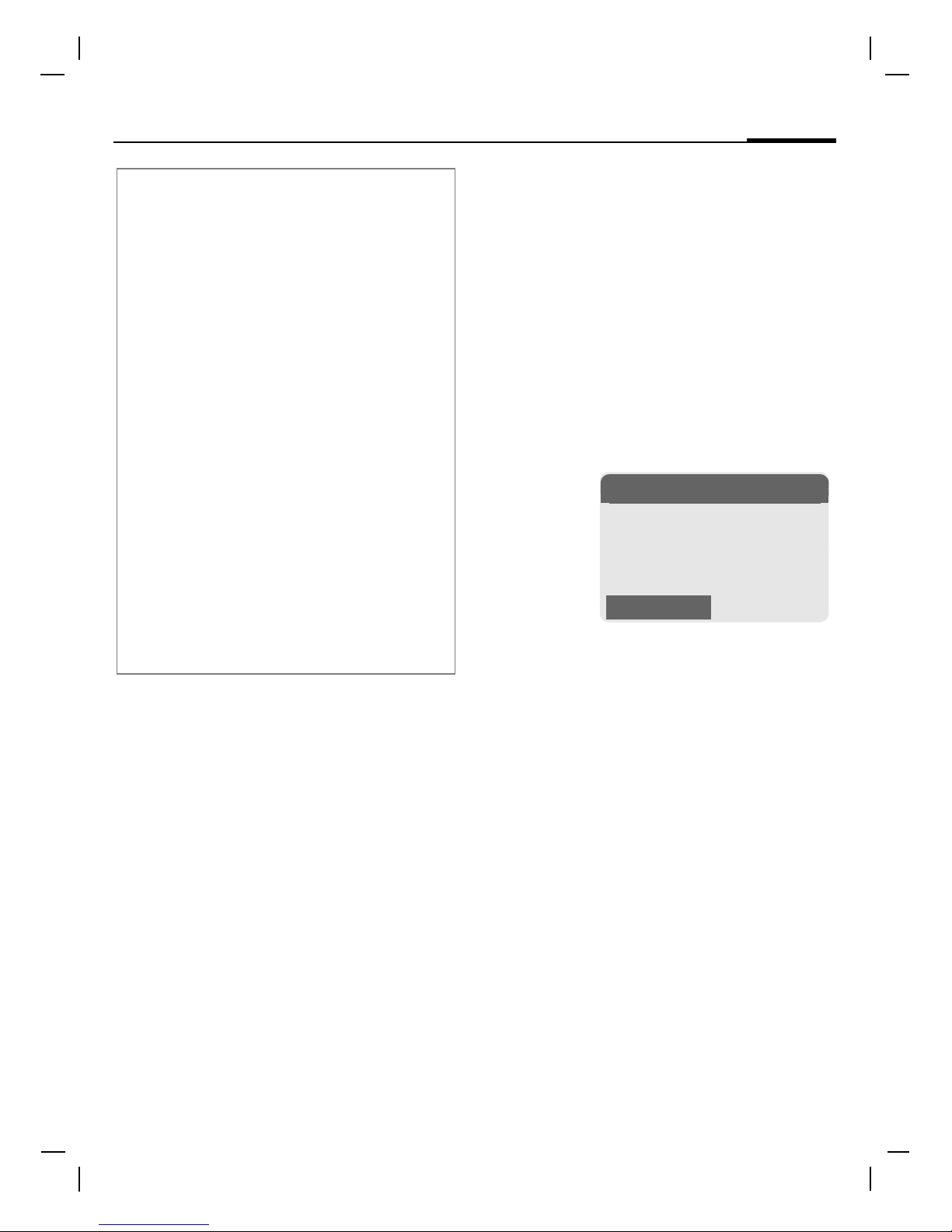
T9 word suggestions
If several options are found in
the dictionary for a key sequence
(a word), the most probable is displayed fir st. If the w ord you want has
not been recognized, the next suggestion from T9 may be correct.
The word must be §highlighted§. Then
press
»
again. The displayed word
is replaced with a different
word. If this word is also
incorrect, press
»
again. Repeat until the
correct word is displayed.
If the word you want is not in the dictionary, it can also be written without T9.
To add a word to the dictionary:
§Learn§ Select.
The last suggestion is deleted and
the word may now be entered without
T9 support. Press §Save§ to add it
automatically to the dictionary.
Additional information
0
Set a period. A word is concluded if it is followed
by a space. Within a word,
a period represents an apostrophe or hyphen:
e.g. §provider.s§ = provider’s.
E
Go to the right. Ends a word.
#
Press briefly:
Swap between: abc, Abc,
T9
abc, T9Abc, 123, T9ABC
and ABC. Status shown in top
line of display.
Hold down:
All input modes are displayed.
*
Press briefly:
Select special characters
(page 27).
Hold down:
Open input menu (page 27).
™
SMS 1 748
At 8 pm we are
___
Learn
»
Page 30
Siemens AG 2003, M:\Mobil\R65\CF62_TMO\en\sug\A65_Text.fm
Text entry30
VAR Language: en; VAR issue date: 040413
left page (30) of CF62 Leopard TMO SUG us, A31008-H6050-A40-1-4A19 (02.06.2004, 16:08)
Correct a word
Words written with T9:
F
Move left or right, word
by word, until the required
word is §highlighted§.
»
Scroll through the T9
word suggestions again.
§Clear§ Deletes the character to
the left of the cursor and
displays a new possible
word!
Words not written with T9:
F
Move letter by letter to
the left/right.
§Clear§ Deletes the letter to the
left of the cursor.
J
Letters are inserted at the
cursor position.
Text Modules
Text modules can be stored in the
phone for adding to your messages
(SMS, MMS).
Write text modules
§Menu§ K]KText Modules
<New Entry>
H
Select <New Entry>.
J
Write text module.
§Save§ Press.
Accept the default name
or give it a new name,
then save with §OK§.
Use text modules
J
Write message
(SMS, MMS).
§Options§ Open text menu.
I
Select Text Modules.
I
Select text module from
the list.
E
Confirm. The text module
is displayed.
§OK§ Confirm. The text module
is inserted in the message
to the right of the cursor.
Additional information
Within a "T9 word", individual letters may
not be edited without first removing the
T9 status. In most cases it is better to
rewrite the complete word.
T9® Text Input is licensed under one or more of
the following:
U.S. Pat. Nos. 5,818,437, 5,953,541,
5,187,480, 5,945 928 and 6,011,554;
Canadian Pat. No. 1,331,057;
United Kingdom Pat. No. 2238414B;
Hong Kong Standard Pat. No. HK0940329;
Republic of Singapore Pat. No. 51383;
Euro.Pat. No. 0 842 463 (96927260.8)
DE/DK, FI, FR, IT, NL, PT, ES, SE, GB;
and additional patents are pending worldwide.
Page 31
Siemens AG 2003, M:\Mobil\R65\CF62_TMO\en\sug\A65_Pref_Book.fm
31Default Book
VAR Language: en; VAR issue date: 040413
left page (31) of CF62 Leopard TMO SUG us, A31008-H6050-A40-1-4A19 (02.06.2004, 16:08)
Default Book
§Menu§ KèKSelect function.
Show Entries
Entries in the standard directory
(Addressbook or Phonebook) are
shown for selection.
J
/
I
Select a name with the
first letter and/or scroll.
A
The number is dialed.
<New Entry>
Create new entry in standard
directory.
Phonebook (see page 32)
Addressbook (see page 33)
Default Book
Select the Phonebook (only one
phone number possible per entry) or
the Addressbook as your standard
directory (default book). Your preference should be for the Addressbook,
because more entries and functions
(e.g. pictures, birthdays, several
phone numbers per entry, etc.) are
possible.
H
Select Phonebook or
Addressbook.
E
Set as standard.
Groups
(see page 34)
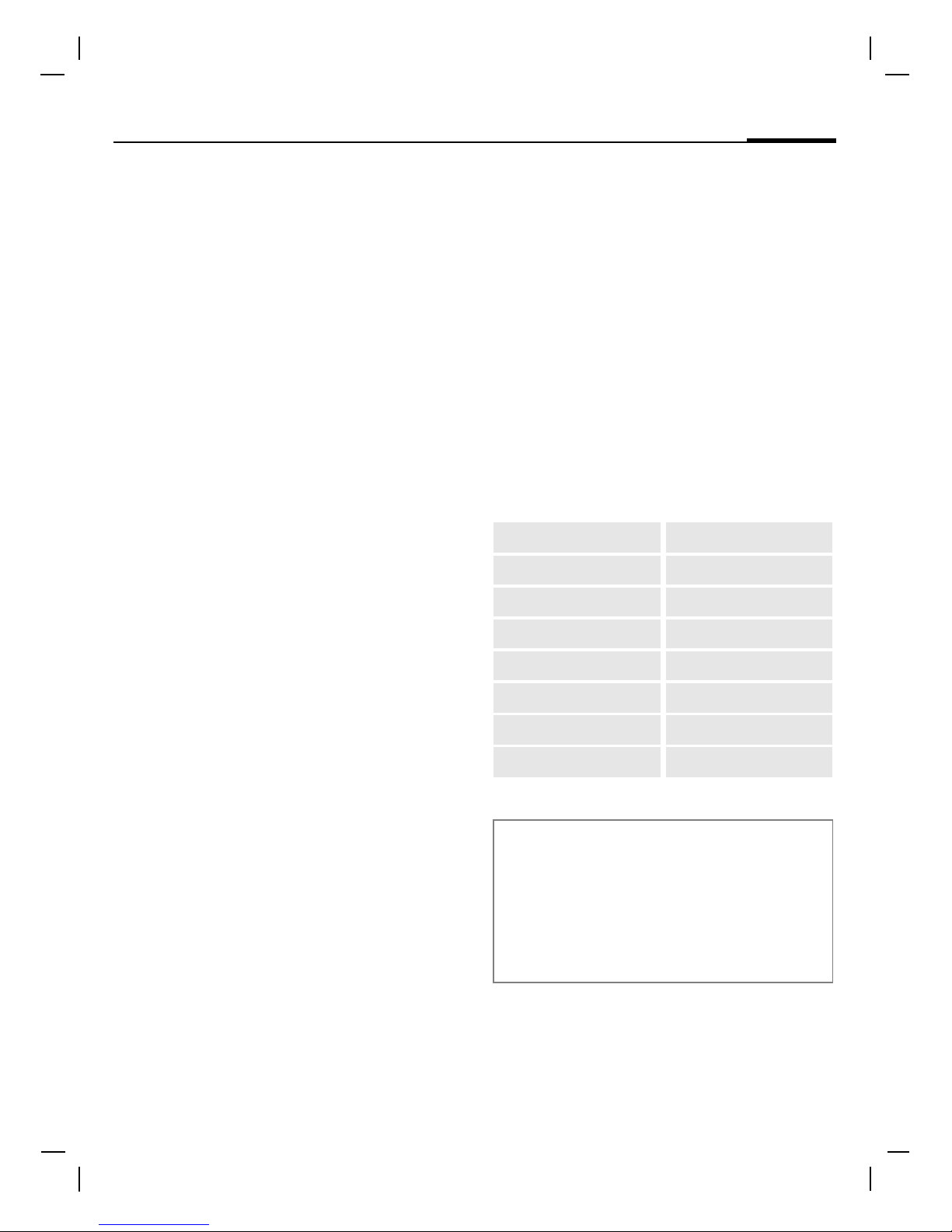
Business Card
Create your own business card.
Send it as an SMS/MMS to another
GSM-phone.
If no business card has been created
yet, you will be asked for your input.
I
Move from field to field to
enter your details. You
will find explanations of
these input fields on
page 33 and page 34.
§Save§ Press.
Information numbers
Information numbers are stored
here in accordance with the respective service provider.
Last name: E-Mail 2:
First name: URL:
Phone: Company:
Phone/Office: Street:
Phone/Cell: Zip Code:
Fax: City, State:
Fax 2: Country:
E-Mail: Birthday:
Additional information
The content of the business card corresponds to international standards (vCard).
·
Copy numbers from Addressbook/Phonebook.
§Options§ Addressbook menu.
Page 32
Siemens AG 2003, M:\Mobil\R65\CF62_TMO\en\sug\A65_Phonebook.fm
Phonebook32
VAR Language: en; VAR issue date: 040413
left page (32) of CF62 Leopard TMO SUG us, A31008-H6050-A40-1-4A19 (02.06.2004, 16:08)
Phonebook
Entries in the Phonebook (on the SIM
card) are managed separately from
those in the Addressbook. You can,
however, exchange data between
the Phonebook and the Addressbook.
<New Entry>
If the Phonebook is set as standard
(Addressbook as standard, page 31):
H
Open Phonebook
(in standby mode).
H Select <New Entry>.
E
Confirm.
I
Select and fill in the input
fields. The maximum
number of characters
available is displayed at
the top of the screen.
Number: Always enter phone num-
ber with area code.
Name: Enter first and/or last
names.
Group: Phone numbers may be
assigned to the VIP group.
Location Select the storage
location SIM or Protected
SIM (PIN2 required).
Record no.:
Is automatically assigned
to the entry.
§Save§ Press to store the new
entry.
Call (search for an entry)
H
Open Phonebook and
select name.
A
Number is dialed.
Change entry
I
Select entry in Phonebook, confirm and select
Change.To store your
changes §Save§.
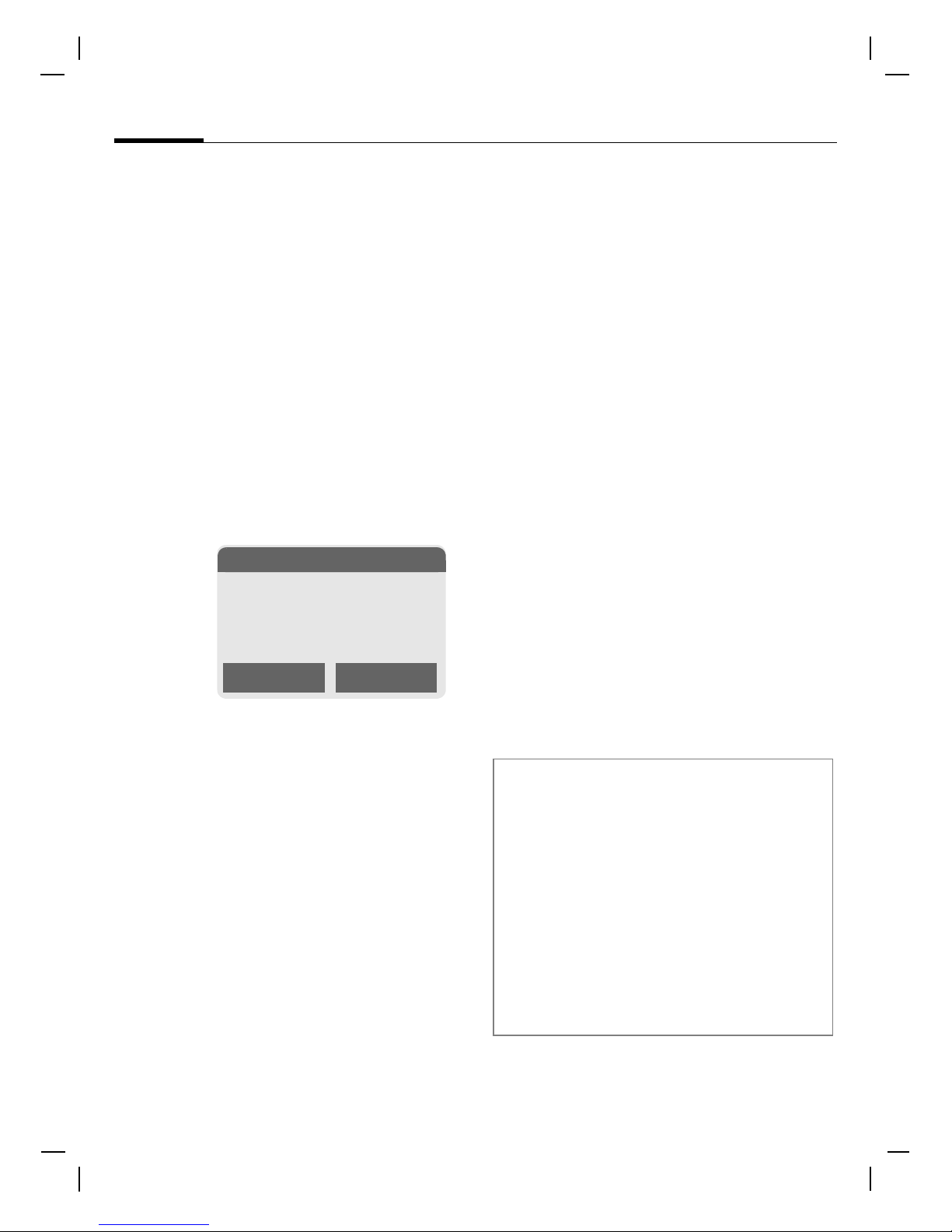
N Phonebook Ú
<Special Books>
O
Select
Additional information
<Special Books>:
<Own Numbers>: Enter personal phone
numbers, <VIP Numbers>: Assign important numbers to group, <SIM Phonebook>,
<Protected SIM>, <Info Numbers>.
O Temporary swap
to Addressbook ............................page 33
§Country§ International dialing
code..............................................page 23
Text entry .....................................page 27
Page 33
Siemens AG 2003, M:\Mobil\R65\CF62_TMO\en\sug\A65_Adressbook.fm
33Addressbook
VAR Language: en; VAR issue date: 040413
left page (33) of CF62 Leopard TMO SUG us, A31008-H6050-A40-1-4A19 (02.06.2004, 16:08)
Addressbook
The Addressbook can store up to
500 entries that are managed in the
phone memory.
<New Entry>
If the Addressbook has been selected
as standard:
H
Open Addressbook
(in standby mode).
E
Confirm.
J
Enter first and/or last
name.
Group
Organized entries by
groups. Select with
§Change§.
H
Make additional entries
field by field.
Picture
§Select§ Assign a picture to an
Addressbook entry. It is
displayed if you are called
by the corresponding
phone number.
All Fields
§Select§ Show all input fields if the
display was previously
reduced (§Options§, Field
Setup).
§Save§ Save the entry.
Change entry
H
Open Addressbook
(in standby mode).
H
Select required entry.
§View§ Press.
§Edit§ Open entry.
J
Make changes.
§Save§ Save setting.
Phone:
URL: (Internet address)
Phone/Office: Company:
Phone/Cell: Street:
Fax: Zip Code:
Fax 2: City, State:
E-mail: Country:
E-Mail 2: Birthday:
Right soft key
When you jump from line to line while reading, the right soft key changes according to
the data type. Press this key to activate the
relevant application:
§Link§ Visit URL (page 44).
§Show§ Display associated picture.
Page 34
Siemens AG 2003, M:\Mobil\R65\CF62_TMO\en\sug\A65_Adressbook.fm
Addressbook34
VAR Language: en; VAR issue date: 040413
left page (34) of CF62 Leopard TMO SUG us, A31008-H6050-A40-1-4A19 (02.06.2004, 16:08)
Call (search for an entry)
H
Open Addressbook
(in standby mode).
J
/
I
Select a name with the
first letter and/or scroll.
A
The number is dialed.
If an Addressbook entry has several
numbers stored:
I
Select phone number.
A
The number is dialed.
Groups
Nine groups are specified in your
phone to enable you to arrange your
Addressbook entries clearly. You can
rename seven groups.
H
Open Addressbook
(in standby mode).
<Groups> Select (the number of
entries is listed behind the
group name).
H Select group.
E
Open menu.
Rename Group
Select and name group.
Group Symbol
Assign to a group a symbol that will
appear on the display when one of
its members calls you.
H Select group.
E
Open menu.
Group Symbol
Select.
F Choose a symbol.
§OK§ Confirm.
Additional information
<Groups> Group functions (page 34).
Birthday After entering the date of birth,
the "reminder box" can be
activated. You can now enter
the time for the reminder. The
phone will then remind you
with an acoustic tone and also
with a display one day before
the birthday and on the birthday.
Copy data from another
Addressbook entry.
§Country§ Copy international dialing
code from the list (page 23).
O
Temporarily switch to Phonebook.
Additional information
No Group: Contains all Addressbook
entries that do not belong to a group (name
cannot be changed).
Received: Contains vCard Addressbook
entries received by SMS (name cannot be
changed).
SMS to group................................page 38
Page 35

Siemens AG 2003, M:\Mobil\R65\CF62_TMO\en\sug\A65_Records.fm
35Call Log
VAR Language: en; VAR issue date: 040413
left page (35) of CF62 Leopard TMO SUG us, A31008-H6050-A40-1-4A19 (02.06.2004, 16:09)
Call Log
Call Log
Your phone stores the phone numbers of calls for convenient redialing.
§Menu§
K
Z
§Select§ Press.
I
Select call list and
confirm.
I
Select phone number.
A
Dial phone number.
Missed Calls
b
The phone numbers of calls that you
have received but not answered are
stored for call back purposes.
Icon for missed call.
Received Calls b
Accepted calls are listed.
Dialed Calls
Access to the last numbers dialed.
A
Fast access in standby
mode.
Clear Log
The records are deleted.
Call list menu
§Options§ Edit entries.
Page 36

Siemens AG 2003, M:\Mobil\R65\CF62_TMO\en\sug\A65_Mailbox.fm
Voice message/mailbox36
VAR Language: en; VAR issue date: 040413
left page (36) of CF62 Leopard TMO SUG us, A31008-H6050-A40-1-4A19 (02.06.2004, 16:08)
Voice message/mailbox
§Menu§ K
]
KMessage Setup
KVoice Mail
Most service providers offer a mailbox,
in which a caller may leave a voice
message for you
• if your phone is switched off or
not ready to receive,
• if you do not want to answer,
• if you are making a phone call
(and Call Waiting is not activated,
page 48).
You may have to register for this service with the service provider and
enter the settings manually.
Settings b
The service provider supplies you
with two phone numbers:
Save mailbox number
Call this phone number to listen to
the voice messages left for you.
§Menu§
K]KMessage Setup
KVoice Mail
Enter mailbox number and confirm
with §OK§.
• Save call forwarding number
Calls are forwarded to this phone
number (see also page 48).
§Menu§
K
m
KPhone Setup
KCall Forward
Ke. g., All UnansweredKSet
Dial call forwarding number and register it on the network with §OK§. Forwarding will be confirmed after a
few seconds (see also page 48).
Listening to message b
A new voice message can be
announced as follows:
An
\ icon with beep or
]
a text
message announces a new voice
mail, or you can receive a call with an
automatic announcement. Dial into
your mailbox and listen to your
message(s).
1
Hold down (if necessary
enter mailbox number
once only). Hold down
(if necessary enter mailbox number once only).
CB Services
§Menu§ K
]
KSettings
KCB Services
Some service providers offer information services (info channels). If
reception is activated, your "Topic
List" will provide you with messages
on the activated topics.
Page 37
Siemens AG 2003, M:\Mobil\R65\CF62_TMO\en\sug\A65_Messages.fm
37Messages
VAR Language: en; VAR issue date: 040413
left page (37) of CF62 Leopard TMO SUG us, A31008-H6050-A40-1-4A19 (02.06.2004, 16:08)
Messages
You can transmit and receive very
long messages (up to 760 characters)
on your phone. They are automatically composed of several "normal"
SMS messages (note higher charges).
Additionally, you can insert pictures
and sounds in an SMS.
Depending on the service provider,
e-mails and faxes can also be sent
and e-mails received via SMS
(change setting if necessary,
page 42).
Writing and sending
§Menu§ K
]
KNew Text Msg
·
/
J
Dial number or select
from the Addressbook/
Phonebook.
J
Write text (text input
using "T9", page 28).
§Clear§ Press briefly to
delete letter by letter,
hold down to delete an
entire word.
A Press.
§OK§ Confirm. The SMS is sent
to the service center for
transmission.
Text options
§Options§ Open text menu.
Save
Save composed text in
draft list.
Picture&Sound
Add pictures, animations and sounds to
message (see following
text).
Insert text
Insert text module
(page 30).
Format Line Feed
Small Font, Medium
Font, Large Font
Underline
Default Alignm., Left,
Right, Center
Mark Text (highlight
text using navigation
key)
Delete Text
Delete the whole text.
Insert From
Insert entry from
Addressbook/Phonebook.
T9 Input
(page 28)
Send via ...
Select an SMS profile
for transmission
(page 42).
(For standard functions see page 21.)
Page 38
Siemens AG 2003, M:\Mobil\R65\CF62_TMO\en\sug\A65_Messages.fm
Messages38
VAR Language: en; VAR issue date: 040413
left page (38) of CF62 Leopard TMO SUG us, A31008-H6050-A40-1-4A19 (02.06.2004, 16:08)
Special functions
§Options§ Open menu.
Txt Msg to Group
You can send an SMS message as a
"broadcast message" to a recipient
group.
After you open Text Msg to begin a
new SMS:
To: Select a group that you
would like to send a
SMS to.
Text: Type in your text message
or add a ringtone or picture to the SMS.
D
Phonebook/Addressbook
icon.
E
Group.
§Group§ The list of groups is dis-
played. Select and open
group, select group members and send SMS.
Picture&Sound
Insert pictures and sounds into
message.
Picture&Sound
Select.
The menu contains:
Fix Animations, Fix Sounds,
Own Animations, Own Pictures, Own Sounds
I
Select section, then select
the required entry and
confirm.
Additional information
Insert special characters...............page 27
SMS profile...................................page 42
Page 39
Siemens AG 2003, M:\Mobil\R65\CF62_TMO\en\sug\A65_Messages.fm
39Messages
VAR Language: en; VAR issue date: 040413
left page (39) of CF62 Leopard TMO SUG us, A31008-H6050-A40-1-4A19 (02.06.2004, 16:08)
Send via...
The phone provides you with several
methods for sending text and data
via different transmission routes.
Access to these functions is available
in the options menu of the relevant
application. These menu items can
vary depending on the application.
Send via... As Entry
Phonebook and Addressbook entries
as well as appointments can be sent
as an SMS to other suitable cellular
phones.
For larger items, several SMS messages may be generated and sent as
a concatenated message.
Send via... As Text
Business cards, Addressbook entries
or appointments can be sent as text
messages by SMS (this may result in
several being generated).
Send via...
KVia Picture Msg
The MMS address field is opened.
Receive/read SMS
…
Arrival of new SMS
announced on display
. To
read the SMS press D.
I
Scroll through message
line by line.
§Reply§ Function for replying
directly.
Text Msg Archive
§Menu§ K
]
KText Msg Archive
The list of SMS messages stored in
the phone is displayed.
Other functions for editing SMS can be
found under §Options§.
Page 40
Siemens AG 2003, M:\Mobil\R65\CF62_TMO\en\sug\A65_Messages.fm
Picture Msg40
VAR Language: en; VAR issue date: 040413
left page (40) of CF62 Leopard TMO SUG us, A31008-H6050-A40-1-4A19 (02.06.2004, 16:08)
Picture Msg
The Multimedia Messaging Service
enables you to send texts, pictures
(also photos) and sounds in a combined message to another mobile
phone or to an e-mail address. All
elements of an MMS message are
merged to form a "slide show".
Depending on your phone's settings,
you will receive either the complete
message automatically or notification that an MMS has been saved on
the network, giving sender and size
details. You may then download it to
your phone to read it.
Ask your service provider whether
this service is available. You may
need to register for this service
separately.
Writing/sending
MMS messages
An MMS consists of the address
header and the content.
§Menu§
K]KNew Picture Msg
Input fields
To:
·/
J
Phone number/
e-mail address of recipient(s).
Subject: Enter MMS heading
(up to 40 characters).
Picture: Press §Insert§. The
picture list is opened
for selection.
Text: Press §Edit§. Write text
using T9.
Sound: Press §Insert§.
If you select §Insert§: The
options you have are:
New Record
File System
My Stuff: You can now
select a stored melody
(see also page 58).
New Ringtone: Record new
tones, for sending by
MMS only (see below).
Slide duration:
Enter length of display
for individual pages
(minimum 0.1 seconds).
New recording
The phone records via its microphone.
§Record§ Start recording. The
current recording duration
and available time
remaining are displayed.
§Stop§ End recording.
§Play§ Replay recording.
§Save§ Save. To give the record-
ing its own name,
§Delete§ the description.
§OK§ Save.
You can select this function in the main
menu by choosing Voice Messages.
Page 41
Siemens AG 2003, M:\Mobil\R65\CF62_TMO\en\sug\A65_Messages.fm
41Picture Msg
VAR Language: en; VAR issue date: 040413
left page (41) of CF62 Leopard TMO SUG us, A31008-H6050-A40-1-4A19 (02.06.2004, 16:08)
Attach extra pages
§Options§ Open menu.
New Slide Select.
Attach business card
§Options§ Open menu.
Extras Select.
I
Scroll to Business Card.
·
Attach business card.
Attach appointment
§Options§ Open menu.
Extras Select.
I
Scroll to Appointment.
¤
Import appointment from
calendar.
Send MMS
§Options§ Open menu.
Send Select.
Receive/read MMS
…/Û
Indicates receipt/notification of an MMS
. Press the
left soft key to read the
MMS or notification.
Depending on the setting, (page 42)
the
• complete MMS is received
• or the notification is opened. Press
§Receiving§ to receive the complete
MMS, with §Play§ automatic presentation of the MMS. Cancel
using any key.
• Open attachments using §Options§
and Attachments.
• Open images and tones using
§Options§ and Content.
Other functions for editing MMS can be
found under §Options§.
Page 42

Siemens AG 2003, M:\Mobil\R65\CF62_TMO\en\sug\A65_Messages.fm
Message lists/settings42
VAR Language: en; VAR issue date: 040413
left page (42) of CF62 Leopard TMO SUG us, A31008-H6050-A40-1-4A19 (02.06.2004, 16:08)
Message lists/settings
All SMS and MMS messages are
saved in four different lists:
Inbox
§Menu§ K
]
KInbox
KPicture Msg/Text Message
The list of SMS and MMS messages
and notifications received is displayed. To receive an MMS subsequently, open notification and press
§Receiving§.
Draft
§Menu§ K
]
KDraft
KPicture Msg/Text Message
The list of stored drafts is displayed.
Unsent
§Menu§ K
]
KUnsent
KPicture Msg/Text Message
The list of MMS messages not yet
successfully sent or concatenated
SMS messages not yet completely
sent is displayed.
Sent
§Menu§ K
]
KSent
KPicture Msg/Text Message
The list of sent SMS or MMS messages is displayed.
SMS profiles,
MMS profiles
§Menu§ K
]
KMessage Setup
KText Msg/Picture Msg
Profiles have to be created for SMS
and MMS. The transmission characteristics are defined in these. The
data for these may already have
been entered. If not, you can obtain
this from your service provider. Additional information is available in the
comprehensive operating instructions on the Internet at:
www.siemens-mobile.com/cf62
Page 43
Siemens AG 2003, M:\Mobil\R65\CF62_TMO\en\sug\A65_RingTones.fm
43Ring Tones
VAR Language: en; VAR issue date: 040413
left page (43) of CF62 Leopard TMO SUG us, A31008-H6050-A40-1-4A19 (02.06.2004, 16:08)
Ring Tones
§Menu§ K
KSelect function.
You can set the tones to match your
needs.
Ringer Setting
Activate/deactivate the ringtone or
reduce it to a short beep.
Vibrating Alert
Activate/deactivate silent alert (also
in addition to the ringtone). The
silent alert is activated if the highest
volume is set for the ring tone. This is
to remind you not to hold the phone to
your ear when ringing in order to avoid
damaging your hearing.
Volume
Set different volumes for types of
call/functions.
Set ring tones
§Menu§ K
KSelect function.
Here you can set the ringtone separately for call types/functions. You
can download new ringtones from
the Internet via Download New.
More Tones...
Here you can set the ringtone separately for the other functions.
Opening Tone, Closing Tone
Set signal to acknowledge opening/
closing the clamshell.
Call Screening
Only calls from numbers that are in
the Addressbook/Phonebook or in a
predefined group are signaled.
Other calls are only displayed. If you
do not accept these calls, they are
forwarded to your mailbox (if set,
page 48).
l
Screen display in standby
mode:
call screening is activated.
Key Tones
Type of acoustic key tone:
Click or Tone or Silent
Minute Beep
During a call, you will hear a beep
after each minute.
Info Tones
Set service and alarm tones.
Additional information
Please ensure you have accepted the call
before holding the phone to your ear. This
will avoid damage to your hearing from
loud ring tones.
Page 44
Siemens AG 2003, M:\Mobil\R65\CF62_TMO\en\sug\A65_Surf&Fun.fm
Internet44
VAR Language: en; VAR issue date: 040413
left page (44) of CF62 Leopard TMO SUG us, A31008-H6050-A40-1-4A19 (02.06.2004, 16:08)
Internet
Internet browser (WAP)
Get the latest information from the
Internet that is specifically adapted
to the display options of your phone.
In addition, you can download
games and applications to your
phone. Internet access may require
registration with the service provider.
§Menu§
KÉKSelect function.
Home b
A connection is established with the
Internet provider’s portal (may be
specified/configured by default by
your service provider).
Bookmarks
List of URLs for fast access.
Internet b
The browser is activated as soon as
you call up the function.
(For settings, see the browser menu,
Settings, Start with...)
I
Select required function
in the start menu.
§Select§ Confirm.
End connection
B
Hold down to close the
browser. After GPRS/CSD
lingertime (WAP param)
the connection will also
be ended.
WAP profiles
§Menu§ K
É
KInternetKProfiles
Activate WAP profile
You can change the current profile
every time you access the Internet.
I
Select profile.
§Select§ Activate. The current pro-
file is selected.
Set WAP profile
Up to 5 WAP profiles can be configured (may be barred by your provider). The entries may vary depending on the service provider:
I
Select profile.
§Edit§ Open to configure, then
fill in the data fields.
To select the connection profile, see
page 50.
Additional information
Í Browser menu.
É Offline.
Ê Online.
Ë GPRS Online.
Ì
No network.
*
Select special characters,
such as @, ~, \ , see page 27.
0
Press repeatedly for:
. , ? ! ’ " 0 - ( ) @ / : _
Page 45

Siemens AG 2003, M:\Mobil\R65\CF62_TMO\en\sug\A65_Setup.fm
45Settings
VAR Language: en; VAR issue date: 040413
left page (45) of CF62 Leopard TMO SUG us, A31008-H6050-A40-1-4A19 (02.06.2004, 16:08)
Settings
Profiles
Several settings can be stored in a
phone profile, for example to adapt
the phone to the surrounding noise
level.
• Five standard profiles are provided
with default settings. They can be
changed however:
Normal Envi., Quiet Envi., Noisy Envi.,
Car Kit, Headset
• You can set two personal profiles
(<Empty>).
• The special profile Airplane Mode is
permanent and cannot be changed.
§Menu§
K
m
KProfiles
Switch on
I
Select default profile or
personal profile.
E
Switch on profile.
Settings
I
Select profile.
E
Open menu, then select
Change Settings The list of
available functions is displayed.
Car Kit
If a Siemens original Car Kit is used,
the profile is activated automatically
as soon as the phone is placed in the
cradle (page 53).
Headset
If a Siemens original headset is
used, the profile is activated automatically as soon as the headset is
in operation.
Airplane Mode
Sound and dynamic light for all
alarms (appointments, alarm clock)
are deactivated. Alarms are only
indicated on the display. This profile
cannot be modified. The phone will
switch off if you select this profile.
Switch on
I
Scroll to Airplane Mode.
E
Switch on profile.
A security prompt must be
confirmed.
The phone switches itself
off automatically.
Normal mode
The previously set profile will be
reactivated automatically when you
switch on your phone again.
Page 46
Siemens AG 2003, M:\Mobil\R65\CF62_TMO\en\sug\A65_Setup.fm
Settings46
VAR Language: en; VAR issue date: 040413
left page (46) of CF62 Leopard TMO SUG us, A31008-H6050-A40-1-4A19 (02.06.2004, 16:08)
Display
§Menu§ K
m
KDisplay
KSelect function.
Language
Set the language of the display text.
When "automatic" is set, the language of your service provider is
used. Reset to this language in
standby mode:
*
# 0 0 0 0 #
A
Text Input
See also page 28.
T9 Preferred
Activate/deactivate intelligent text
entry.
Input Language
Select language for text entry. Languages with T9 support are marked
with the T9 symbol.
Background
Set background graphic for display.
Logo
Choose picture to be displayed
instead of the provider logo.
Color Scheme
Select color scheme for the entire
user interface.
Screensaver
The screensaver shows a picture in
the 2nd display when a period set by
you has elapsed. The function is
ended by opening the clamshell.
With code protection, the PIN must
be entered when the clamshell is
opened. Other screensavers:
www.siemens-mobile.com/screensaver
Startup Animation
Shown when phone is switched on.
Other animations:
www.siemens-mobile.com/animations
Shutdown Animation
Shown when phone is switched off.
My Greeting
Enter greeting to be displayed when
phone is switched on.
Large Font
You can choose from two font sizes
for the display.
Note
You can use the radio off function if use of
the radio transmitting and receiving functionality of the phone is prohibited, but use
of other features of the phone is expressly
permitted. If you are using the phone radio
off mode on an aircraft or in a hospital, turn
it off immediately if instructed to do so. The
phone may not be used in radio off mode in
refueling stations, potentially explosive
atmospheres or wherever you are
instructed against use. Turn off the phone
wherever its use is dangerous, unlawful or
you are instructed not to use it.
Page 47

Siemens AG 2003, M:\Mobil\R65\CF62_TMO\en\sug\A65_Setup.fm
47Settings
VAR Language: en; VAR issue date: 040413
left page (47) of CF62 Leopard TMO SUG us, A31008-H6050-A40-1-4A19 (02.06.2004, 16:08)
Illumination
The illumination for the color display
and the 2nd display can each be set
independently.
Color Display
Set display light brighter/darker.
The darker the setting the longer the
standby time.
2nd Display
Switch the display light on or off.
Contrast
Set color display contrast.
Dynamic Light
§Menu§ K
m
KDynamic Light
KSelect function.
The dynamic light consists of 7 LEDs
at the edge of the keyboard
(page 12).
It is used to indicate visually different
events and functions, as well as the
current phone status (e.g. network
searching, battery low, etc.).
You can set the visual signal (LEDs)
on the phone for certain functions
and events. The LEDs then flash in
different rhythms depending on the
current function.
You can also create your own flash
rhythms.
Show Light Effects
This enables you to switch the visual
signal on and off centrally for all
functions and events.
Play Demo
All flash rhythms are displayed in
sequence. End with §Cancel§. Show
next flash rhythm with §Next§.
Brightness
This enables you to set the brightness for the visual signal.
d
Calls, Group Calls, Other Calls
You can assign different flash
rhythms to the relevant call types
and to each group.
During Call
Select a flash rhythm to flash during
the call.
Alarms
Select a flash rhythm to signal an
alarm or appointment.
More Light...
Set the flash rhythm for other
functions or events:
Incoming messages, Missed Event,
During Sending, Opening Clamshell,
Closing Clamshell, Net Search,
Screensaver, Low Battery, Switch On,
Switch Off, Charging
Page 48

Siemens AG 2003, M:\Mobil\R65\CF62_TMO\en\sug\A65_Setup.fm
Settings48
VAR Language: en; VAR issue date: 040413
left page (48) of CF62 Leopard TMO SUG us, A31008-H6050-A40-1-4A19 (02.06.2004, 16:08)
Call Setup
§Menu§ K
m
KCall Setup
KSelect function.
Hide ID b
When you make a call, your phone
number can be displayed on the
recipient's display (depending on
service providers).
Call Waiting b
If you are registered for this service,
you can check whether it is set and
you can activate/deactivate it (see
also page 26).
Call Forward
You can specify when calls are to
be forwarded to your mailbox or
other numbers.
Set up call forwarding (example)
The most common condition for call
forwarding is, for example:
All Unanswered
b
I
Select All Unanswered.
(Includes the conditions
Not Reachable, No Reply,
Busy, see below)
E
Press.
Set Select.
J
Enter the phone number
to which the call will be
forwarded (if not already
entered).
§OK§ Confirm. After a short
pause, the setting is confirmed by the network.
All Calls
b
All calls are forwarded.
n
Symbol in the top line of
the display in standby
mode.
Other forwarding options:
Not Reachable, No Reply, Busy
Status Check
You can check the current forwarding status for all conditions.
After a short pause, the current situation is transmitted by the network
and displayed.
p Condition set.
o Not set.
s
Display if status is
unknown (e.g. with
anewSIM card).
Clear All
b
All set forwardings are cleared.
Page 49
Siemens AG 2003, M:\Mobil\R65\CF62_TMO\en\sug\A65_Setup.fm
49Settings
VAR Language: en; VAR issue date: 040413
left page (49) of CF62 Leopard TMO SUG us, A31008-H6050-A40-1-4A19 (02.06.2004, 16:08)
§Menu§
K
m
KPhone Setup
KSelect function.
Clamshell
Set to allow calls to be answered by
opening clamshell.
Minute Beep
During a call, you will hear a beep
after each minute as a reminder of
the time elapsed. The recipient does
not hear this beep.
Clock
§Menu§ K
m
KClock
KSelect function.
Time/Date
The clock must be set to the right
time once at start-up.
§Change§ Press.
J
First enter the date, then
the time.
Time Zones
Set the time zone for your area.
Time Format
Select 24h or 12h.
Date Format
DD.MM.YYYY or MM/DD/YYYY
Buddhist Year
Switch to the Buddhist year (not on
all phone models).
Show Clock
Activate/deactivate time display in
standby mode.
Automatic Switch Off
The phone switches off each day at
the set time.
Activate
§Time§ Press.
J
Enter time
(24-hour-clock).
§OK§ Confirm.
Deactivate
§Manual§ Press.
§OK§ Confirm.
Additional information
If the battery is removed for longer than
30 seconds, the clock will be reset.
Page 50

Siemens AG 2003, M:\Mobil\R65\CF62_TMO\en\sug\A65_Setup.fm
Settings50
VAR Language: en; VAR issue date: 040413
left page (50) of CF62 Leopard TMO SUG us, A31008-H6050-A40-1-4A19 (02.06.2004, 16:08)
Connectivity
§Menu§ K
m
KConnectivity
KSelect function.
GPRS b
(General Packet Radio Service)
GPRS is a new method for transmit-
ting data faster in the mobile network.
Data Counter
Display of information on connection
status.
Authentication
E
Activate or deactivate
encrypted WAP dial-up
(CSD connections only).
Data Services
For the MMS, WAP and HTTP applica-
tions at least one connection profile
must be set up and activated.
The default for the phone depends
on each service provider:
• The settings have already been
implemented by the provider. You
can start immediately.
• Access profiles have already been
created by your provider. Then
select and activate profile.
• The access profiles must be configured manually.
If necessary, check with your service
provider for details. Current settings
for each service provider can be
found on the Internet under
www.siemens-mobile.com/customercare
in the FAQ section.
I
Select profile.
E
Open menu, then press
Change Settings
If necessary enter CSD settings and
GPRS settings (your service provider
will supply you with information on
this if necessary):
§Options§ Open, select Change Set-
tings
K§Edit§ and enter
data.
§Save§ Save settings.
§Menu§
K
m
KConnectivity
KSelect function.
HTTP Profile
I
Select profile.
Page 51

Siemens AG 2003, M:\Mobil\R65\CF62_TMO\en\sug\A65_Setup.fm
51Settings
VAR Language: en; VAR issue date: 040413
left page (51) of CF62 Leopard TMO SUG us, A31008-H6050-A40-1-4A19 (02.06.2004, 16:08)
Fax/Data
Rec Fax/Data b
The call is signaled by a special ringtone and the type of call (fax or data)
is displayed. Now start the communication program on your PC to
receive the fax/data.
Send Voice/Fax
b
To switch from voice mode to fax
mode, set the function on the phone
before transmission.
Rec Voice/Fax
After starting the PC communication
program, activate the function during
a call.
End transmission
End transmission with PC software
and/or press
B
.
Security
§Menu§ K
m
KSecurity
KSelect function.
Babysitter
(Phone code protected)
Only one phone number can be
dialed.
Fixed Dial b
(PIN2 protected)
Restrict calls to SIM-protected num-
bers in the Phonebook.
Last 10 Only
(Phone code protected)
Restrict calls to the list of "dialed
numbers" (page 35).
Codes
PIN Control, Change PIN, Change PIN2,
Change Phonecode (page 22).
This SIM Only b
(Phone code protected)
Your phone is prevented from being
used with a different SIM card.
Page 52
Siemens AG 2003, M:\Mobil\R65\CF62_TMO\en\sug\A65_Setup.fm
Settings52
VAR Language: en; VAR issue date: 040413
left page (52) of CF62 Leopard TMO SUG us, A31008-H6050-A40-1-4A19 (02.06.2004, 16:08)
§Menu§
K
m
KSecurity
KSelect function.
Barring b
Network barring restricts the use of
your SIM card.
All Outgoing: Outgoing calls, except
emergency numbers, are barred.
Outgo internat: Calls can only be made
within the country.
Out.int.x home: International calls are
not permitted except calls to your
home country.
All Incoming: The phone is barred for
all incoming calls.
When roaming: You will not receive
calls when outside your home network.
Status Check: Status check for net-
work barring
Clear All: Clear all barrings.
§Menu§
K
m
KSecurity
KSelect function.
Phone Identity
The phone identity number (IMEI)
is displayed. This information may
be useful for customer service.
Alternative input in standby mode:
*
# 0 6 #
File System
Format
The file system memory (p. 58) is
formatted and all data that has been
saved is deleted, including e.g. ringtones, images, games etc.
Clean Up
The file system is defragmented.
Master Reset
The phone is reset to the default values (factory setting) (does not apply
to SIM card or network settings).
Alternative input in standby mode:
*
# 9 9 9 9 #
A
Software version
Display the software version for your phone
in standby mode:
*
# 0 6 #, then press §Info§.
Page 53
Siemens AG 2003, M:\Mobil\R65\CF62_TMO\en\sug\A65_Setup.fm
53Settings
VAR Language: en; VAR issue date: 040413
left page (53) of CF62 Leopard TMO SUG us, A31008-H6050-A40-1-4A19 (02.06.2004, 16:08)
Network
§Menu§ K
m
KNetwork
KSelect function.
Line b
To select/bar a telephone number,
two independent telephone numbers
have to be registered.
Network Info
The list of currently available GSM
networks is displayed.
Auto Network Selection
If activated, the next network is
dialed in the order of your "preferred
networks".
Choose Network
Network search is restarted.
Preferred Network
Set the service providers you prefer
when you leave your home network.
Band selection b
Select GSM 900, GSM 1800 or GSM
1900.
Fast Search
Network reconnection is
speeded up.
User group b
Depending on your service provider,
you can create groups with this service. These can provide access to
internal (company) information, for
example, or special tariffs apply.
Please check with your service
provider for details.
Accessories
§Menu§ K
m
KAccessories
KSelect function.
Car Kit
Auto Answer
Calls are accepted automatically
after a few seconds.
Headset
Accept call with Call key or PTT key
(Push To Talk).
Auto Answer
Calls are accepted automatically
after a few seconds.
Closing the clamshell
When used in conjunction with a Car Kit or
a headset, dialing or incoming calls will not
be canceled by closing the clamshell.
Page 54

Siemens AG 2003, M:\Mobil\R65\CF62_TMO\en\sug\A65_Organizer.fm
Organizer54
VAR Language: en; VAR issue date: 040413
left page (54) of CF62 Leopard TMO SUG us, A31008-H6050-A40-1-4A19 (02.06.2004, 16:08)
Organizer
Calendar
§Menu§ K
ç
KCalendar
You can enter appointments in the
calendar. Time and date must be set
for the calendar to work correctly
(page 49).
F
Page between days.
I
Press briefly to page
between weeks, hold
down to page between
months.
Calendar days in bold face
indicate appointments on
this day.
Agenda
§Agenda§ Call up from the monthly
overview.
Appointments for each individual
day are shown in the agenda in chronological order.
Appointments
§Menu§ K
ç
KAppointments
All appointment entries are displayed
in chronological order. If an alarm is
missed it appears in the list of missed
appointments (page 56).
Enter new appointment
E
Press.
Type:
§Change§ Press repeatedly to select
the required type:
u
Memo
Text input for description.
v
Call
Enter phone number.
Shown with alarm.
w
Meeting
Text input for description.
{ Birthday
or
È
Anniversary
Enter name and date.
I
Then make further entries
field by field.
Page 55

Siemens AG 2003, M:\Mobil\R65\CF62_TMO\en\sug\A65_Organizer.fm
55Organizer
VAR Language: en; VAR issue date: 040413
left page (55) of CF62 Leopard TMO SUG us, A31008-H6050-A40-1-4A19 (02.06.2004, 16:08)
Description:
Description of the appointment.
Date:
Date of appointment.
Time:
Time of appointment.
Alarm:
§ON§ Activate alarm.
J
Enter start time of
the alarm before the
appointment, then select
with:
§Change§ Minutes, Hours, Days
Recurrence:
Select a timeframe for repeating the
appointment: No, Daily, Weekly,
Monthly, Annual
Enter a parameter for repeating:
Forever, Until, Events (number)
If Weekly is selected, certain weekdays can be highlighted.
Alarm
When the set date and time are
reached there is an audible and a
visual alarm.
Alarm type Memo/Meeting: the text is
shown in the display.
Alarm type Call: The phone number
is displayed and can be dialed immediately.
Alarm type Birthday and Anniversary:
you will be notified one day before
the event and on the birthday/ anniversary itself.
§Pause§ The alarm stops for
5minutes.
§Off§ The alarm is stopped.
Notes
T9 support (page 28) makes writing
short notes such as shopping lists
easier. Protect confidential notes
with the phone code (page 51).
Please note that it is possible for confidential notes to be read from the
phone using appropriate programs
when connected to a PC.
Additional information
Alarms set are shown in the display as
follows:
Ö
Alarm clock.
Ø
Appointments.
An alarm sounds even when the phone is
switched off (the phone does not switch to
standby mode). To deactivate it, press any
key.
Set alarm tone ..............................page 43
Clock ............................................page 49
Page 56

Siemens AG 2003, M:\Mobil\R65\CF62_TMO\en\sug\A65_Organizer.fm
Organizer56
VAR Language: en; VAR issue date: 040413
left page (56) of CF62 Leopard TMO SUG us, A31008-H6050-A40-1-4A19 (02.06.2004, 16:08)
Missed appointments
Events with an alarm to which you
have not reacted are listed for reading. In addition, when the clamshell
is closed missed appointments are
shown on the 2nd display.
Time Zones
Set the time zone for your area.
Calend. Setup
§Menu§ K
ç
KCalend. Setup
Begin of Week
You can set which weekday is listed
first on the left in the monthly and
weekly overviews.
Page 57

Siemens AG 2003, M:\Mobil\R65\CF62_TMO\en\sug\A65_FastDial.fm
57Fast access key
VAR Language: en; VAR issue date: 040413
left page (57) of CF62 Leopard TMO SUG us, A31008-H6050-A40-1-4A19 (02.06.2004, 16:09)
Fast access key
The left soft key and the number
keys 2 to 9 (speed dialing numbers)
can each be assigned an important
phone number or a function. The
phone number can then be dialed or
the function started at the touch of a
button.
Left soft key b
Assign a function/phone number to
the left soft key for fast access.
Change (example)
§Text Msg§ Press briefly.
§Change§ Search for application,
e.g., Internet.
Phone Number: Select from
Addressbook/Phonebook.
§Select§ Confirm setting.
Apply (example)
Key assigned with phone number/name.
§Carol§ Hold down.
Speed dialing keys
Only possible for keys 2 to 9. Key 1 is
reserved for the mailbox.
Change (example)
J
Press an unassigned number key (2–9):
§Set§ Select application,
e.g. Text Msg.
Phone Number: Select from
Phonebook.
Bookmarks: Select URL
from Bookmarks.
Apply (example)
3
Press and hold down key.
Menu speed dialing
All menu functions are numbered
internally. A function may be
selected directly by entering these
numbers in sequence.
Example:
§Menu§ Press.
2
for Records
3
for Missed Calls
Page 58
Siemens AG 2003, M:\Mobil\R65\CF62_TMO\en\sug\A65_Explorer.fm
My Stuff58
VAR Language: en; VAR issue date: 040413
left page (58) of CF62 Leopard TMO SUG us, A31008-H6050-A40-1-4A19 (02.06.2004, 16:09)
My Stuff
The following folders are provided
for organizing your files: Pictures,
Sounds, Color scheme, Data inbox.
§Menu§
KÑ
Files and folders are displayed.
You can scroll through these lists
using the navigation key:
I
Scroll up and down.
D
Jump back from a folder.
E
Open folder or execute
file using related application
Index structure
The file system assigns special folders to different data types.
The following folders are also
included in Sounds or Pictures:
Folders may have different names
depending on carrier.
Pictures
In this folder you have the ability to
set the background for display.
Or you select an image to send via
Picture Msg.
Sounds
You can create your own ringtone or
select a ringtone to be assigned for
call type or function (page 43).
Folders Contents Format
Pictures
Images, Animations, Photos
*.bmp
*.bmx
*.bmz
*.gif
*.jpg
*.jpeg
*.png
Sounds
Melodies
mid
amr
wav
Games &
More
Games
*.jar
*.jad
Extras
Applications
*.*
Color
Scheme
Color scheme
*.col
Data
Inbox
Business cards,
appointments
*.vcf
*.vcs
Download New
This enables you to download
new files from the Internet.
New
Ringtone
This enables you to record
your own ringtones
(in Sounds folder only).
EMS Files that can be received via
SMS/MMS.
Page 59
Siemens AG 2003, M:\Mobil\R65\CF62_TMO\en\sug\A65_Explorer.fm
59My Stuff
VAR Language: en; VAR issue date: 040413
left page (59) of CF62 Leopard TMO SUG us, A31008-H6050-A40-1-4A19 (02.06.2004, 16:09)
Games & More
Download games and other applications. You will receive information
about relevant applications on the
Internet. Once you have selected a
game or application you can start
downloading it immediately. Then
you can use the application. Most
applications include instructions.
Applications and games can be
found at wap.siemens-mobile.com or
on the Internet at
www.siemens-mobile.com/city
Please obey all applicable laws,
including all laws pertaining to intellectual property and copyright, while
using this feature or accessory.
Please note that in some jurisdictions it may be unlawful to record a
phone conversation or take a picture
without notice to or the consent of
all participants.
Games & More
Stored applications and links are
found under:
§Menu§
KÉKGames & More
Different functions are available
depending on which entry is
highlighted:
£ Download New
§Internet§ The selected Internet
page is loaded.
§
Use game/application offline
§Select§ Executable application
can be started
immediately.
¦ Load game/application online
§Select§ Description file only;
application still has to be
loaded.
Useful for many games (virtual joystick):
2
8
6
4
13
7
9
5
Page 60
Siemens AG 2003, M:\Mobil\R65\CF62_TMO\en\sug\A65_Explorer.fm
My Stuff60
VAR Language: en; VAR issue date: 040413
left page (60) of CF62 Leopard TMO SUG us, A31008-H6050-A40-1-4A19 (02.06.2004, 16:09)
Extras
Alarm Clock
§Menu§ KÑ KExtrasK
The alarm will ring at the time set by
you, even when the phone is
switched off. When the clamshell is
open the alarm is shown in the color
display; when the clamshell is closed
the alarm is shown on the 2nd display. If the phone has been switched
off in Airplane Mode the alarm is only
shown on that display and is not
indicated by sound or dynamic light.
Setting
Set the time for the alarm call
(hh:mm).
§OK§ Confirm settings.
§On/Off§ Activate/deactivate the
alarm.
Additional information
You can use WAP to download applications (e.g.
ringtones, games, images, animations) from the
Internet. Downloading or running applications will
not affect or change the software already
installed on your Java™-enabled cell phone.
Siemens excludes all warranty and liability claims
in respect of or in connection with any applications
subsequently installed by the customer and any
software not included in the original delivery
package. This also applies to functions enabled
subsequently at the customer's instigation. The
purchaser bears sole risk for the loss of, damage
to, and any defects arising in, this device or
the applications and for any direct damage or
consequential damage of whatever nature resulting from the use of this application.
For technical reasons, such applications and subsequent enabling of certain functions will be lost
in the event of the device being replaced/ re-supplied and may be lost if it is repaired.
In such cases, the buyer is required to download
or release the application again. Please ensure
that your phone has Digital Rights Management
(DRM) so that individual applications downloaded
via WAP are protected against unauthorized
reproduction. These applications are then exclusively intended for your phone and cannot be
transferred from this even to create a backup.
Siemens does not warranty, guarantee or accept
any liability for the customer's ability to download
or enable applications again or to do so free of
charge. Where technically possible, back up your
applications to PC using the Siemens Data
Exchange software (to download from the
Internet:
www.siemens-mobile.com/cf62
Note
Depending on your service provider, the
menu Extras may also include Internet
and Games & More. See the Surf & Fun
(page 44) column for further functions.
Ø
Alarm Clock
11:56:27
z 07:30
On/Off OK
Page 61
Siemens AG 2003, M:\Mobil\R65\CF62_TMO\en\sug\A65_Explorer.fm
61My Stuff
VAR Language: en; VAR issue date: 040413
left page (61) of CF62 Leopard TMO SUG us, A31008-H6050-A40-1-4A19 (02.06.2004, 16:09)
Calculator
§Menu§ KÑ KExtrasKCalculator
J
Enter number
(up to 8 digits).
§.§=§+§-§*§/§ Select calculator function.
J
Repeat procedure with
other numbers.
#
Result is displayed.
Currency Converter
§Menu§ KÑ KExtras
KCurrency Converter
Calculate the exchange rates. You
can enter three currencies.
If no currency has yet been entered,
press §OK§ for the first input.
Otherwise
§Options§
Open menu.
New Entry Select and enter symbols
for the currencies.
§OK§ Confirm.
J
Enter exchange rate.
Save with §Options§
and §OK§.
Convert
Any combination of calculations
can then be carried out between the
currencies entered.
I
Select a currency combination.
§Select§ Confirm and enter
amount (up to 12 digits).
#
Result is displayed.
§Repeat§ Another conver-
sion using different data.
Additional notes
Ø Alarm clock activated.
z
Alarm clock deactivated.
Ö
Screen display in standby
mode: Alarm clock activated.
Calculator functions
§.§=§+§-§*§/§ Press right soft key
repeatedly.
± Toggle between "+" and "–".
% Convert to percentage.
Ï
,,
/
Ð
Save /Retrieve number.
e Exponent (max. two digits).
Special keys:
*
Set decimal.
0
Add (press down).
Calculator functions
§.§=§ Press right soft key
repeatedly.
Ð
Retrieve a saved number
from the calculator.
Page 62

Siemens AG 2003, M:\Mobil\R65\CF62_TMO\en\sug\A65_Explorer.fm
My Stuff62
VAR Language: en; VAR issue date: 040413
left page (62) of CF62 Leopard TMO SUG us, A31008-H6050-A40-1-4A19 (02.06.2004, 16:09)
Currency data is available only on an
'AS IS' basis without any warranty.
Siemens obtains currency data from
third party sources and is not responsible for the timeliness, accuracy,
reliability or completeness of the
currency data.
Stopwatch
§Menu§ KÑ KExtrasKStopwatch
Two intermediate times can be
recorded and saved.
#
Start/stop.
*
Intermediate time.
§Start§ Start stopwatch.
§Reset§ Reset.
Countdown
§Menu§ K
y
KCountdown
A set time elapses. The last 4 seconds
are indicated by a beep. At the end a
special beep sounds.
§Set§ Set period of time.
§Start§ Start counter.
§Stop§ Interrupt counter.
§Change§ Change period of time.
§Reset§ Reset counter to starting
time.
Data Inbox
Files received via SMS or download
may be stored here.
Page 63
Siemens AG 2003, M:\Mobil\R65\CF62_TMO\en\sug\A65_faq.fm
63Questions & Answers
VAR Language: en; VAR issue date: 040413
left page (63) of CF62 Leopard TMO SUG us, A31008-H6050-A40-1-4A19 (02.06.2004, 16:09)
Questions & Answers
If you have any questions on the use of your phone, you can contact us at
www.siemens-mobile.com/customercare around the clock. As further help we have listed
some frequently asked questions and answers below.
Problem Possible causes Possible solution
Phone cannot be
switched on.
On/Off key not pressed long
enough.
Press On/Off key for at least two seconds.
Battery empty. Charge battery. Check charging indicator in the
display.
Battery contacts dirty. Clean contacts.
See also below under
"Charging error".
Too little standby
time.
Frequent use of organizer and
games.
Limit use if necessary.
Fast search activated. Deactivate fast search (page 53).
Display illumination on. Switch off display illumination (page 47).
Unintentional keystrokes
(illumination!).
Close clamshell (page 13).
Charging error
(charge icon not
displayed).
Battery totally discharged. 1) Plug in charger cable, battery is on charge.
2) Charge icon appears after approx. 2 hours.
3) Charge battery.
Temperature out of range:
41 °F to +140 °F.
Make sure the ambient temperature is right, wait a
while, then recharge.
Contact problem. Check power supply and connection to the phone.
Check battery contacts and phone connection socket,
clean them if necessary, then insert battery again.
No mains voltage. Use different mains power socket, check mains
voltage.
Wrong charger. Use only Siemens original accessories.
Battery faulty. Replace battery.
Page 64
Siemens AG 2003, M:\Mobil\R65\CF62_TMO\en\sug\A65_faq.fm
Questions & Answers64
VAR Language: en; VAR issue date: 040413
left page (64) of CF62 Leopard TMO SUG us, A31008-H6050-A40-1-4A19 (02.06.2004, 16:09)
SIM error. SIM card not inserted correctly. Check that the SIM card is inserted correctly
(page 15).
Dirty SIM card contacts. Clean SIM card with a dry cloth.
SIM card with wrong voltage. Use 3V SIM cards only.
SIM card damaged
(e.g. broken).
Carry out a visual check. Change SIM card at service
provider.
No network
connection.
Signal weak. Move higher, to a window or an open space.
Outside GSM range. Check service provider's coverage area.
Invalid SIM card. Notify the service provider.
New network not authorized. Try manual selection or select a different network
(page 53).
Network call barring is set. Check network barrings (page 52).
Network overloaded. Try again later.
Phone loses
network.
Signal too weak. Reconnection to another service provider is automatic
(page 53). Switching phone off and on again can
speed this up.
Calls not possible. Second line set. Set first line
‘ (page 53).
New SIM card inserted. Check for new barrings.
Charge limit reached. Reset limit with PIN 2.
Credit used up. Load credit.
Certain uses of
phone not
possible.
Call restrictions are in place. Barrings can be set by service provider.
Check barrings (page 52).
Impossible to
make entries in
Phonebook.
Phonebook is full. Delete entries in Phonebook or transfer to Address-
book (page 32).
Voice messaging
not functioning.
Call forwarding to mailbox not
set.
Set call forwarding to mailbox (page 48).
SMS (text message)
T flashing.
SMS memory is full. To free up capacity, delete or file (page 39) messages
(SMS).
Function cannot
be set.
Not supported by service provider or registration required.
Contact your service provider.
Problem Possible causes Possible solution
Page 65
Siemens AG 2003, M:\Mobil\R65\CF62_TMO\en\sug\A65_faq.fm
65Questions & Answers
VAR Language: en; VAR issue date: 040413
left page (65) of CF62 Leopard TMO SUG us, A31008-H6050-A40-1-4A19 (02.06.2004, 16:09)
Capacity problems with, for
example, Games
& More, ringtones,
pictures, SMS
archive.
Phone memory full. Delete files in the relevant areas.
No WAP access,
downloading not
possible.
Profile not activated, profile
settings wrong/incomplete.
Activate (page 44), set (page 44) WAP profile or set
HTTP profile (page 50). If necessary, ask your service
provider.
Text message
cannot be sent.
Service provider does not support this service.
Contact your service provider.
Phone number for service center not set or incorrect.
Set service center (page 42).
SIM card contract does not
support this service.
Contact your service provider.
Service center too busy. Repeat message.
Recipient does not have a
compatible phone.
Check.
EMS pictures &
sounds are not displayed on the destination phone.
Destination phone does not
support the EMS standard.
No Internet access
possible.
Incorrect WAP profile set, or
wrong or incomplete settings.
Check settings or contact your service provider.
PIN error/
PIN2 error.
Three wrong entries. Enter the PUK (MASTER PIN) supplied with the SIM
card according to the instructions. If the PUK (MASTER PIN) has been lost, please contact your service
provider.
Phone code error. Three wrong entries. Contact Siemens Service (page 67).
Service provider
Code error.
No authorization for this service.
Contact your service provider.
Too few/too many
menu entries.
Functions may have been
added or deleted by the service
provider via the SIM card.
Check with your service provider.
No fax possible. Wrong settings in the PC. Check settings (page 51).
No authorization for this
service.
Contact your service provider.
Problem Possible causes Possible solution
Page 66
Siemens AG 2003, M:\Mobil\R65\CF62_TMO\en\sug\A65_faq.fm
Questions & Answers66
VAR Language: en; VAR issue date: 040413
left page (66) of CF62 Leopard TMO SUG us, A31008-H6050-A40-1-4A19 (02.06.2004, 16:09)
Charge meter
does not work.
Charge pulse is not
transmitted.
Contact your service provider.
Damage
Severe shock. Remove battery and SIM and re-insert them. Do not dismantle the phone!
Phone became
wet.
Remove battery and SIM. Dry immediately with a cloth, but do not apply heat. Dry connector contacts thoroughly. Stand cell phone upright in an air current. Do not dismantle
the phone!
Problem Possible causes Possible solution
Reset all settings to factory default (page 52): * # 9 9 9 9 #
A
Page 67
Siemens AG 2003, M:\Mobil\R65\CF62_TMO\en\sug\A65_Hotline.fm
67Customer Care
VAR Language: en; VAR issue date: 040413
left page (67) of CF62 Leopard TMO SUG us, A31008-H6050-A40-1-4A19 (02.06.2004, 16:09)
Customer Care
Qualified Siemens employees are waiting to
offer you expert information about our products and installation.
In some countries repair and replace services are impossible where the products are
not sold through our authorised dealers.
When calling customer service, please have
ready your receipt and the phone identity
number (IMEI, to display press
*
# 0 6 #), the
software version (to display, press
*
# 0 6 #,
then info) and if available, your Siemens
Service customer number.
If repair work is necessary, please contact
one of our service centres:
Abu Dhabi .........................................0 26 42 38 00
Argentina .....................................0 80 08 88 98 78
Australia..........................................13 00 66 53 66
Austria.............................................05 17 07 50 04
Bahrain .................................................... 40 42 34
Bangladesh.......................................0 17 52 74 47
Belgium.............................................0 78 15 22 21
Bolivia ...............................................0 21 21 41 14
Bosnia Herzegovina..........................0 33 27 66 49
Brazil............................................0 80 07 07 12 48
Brunei ................................................. 02 43 08 01
Bulgaria............................................... 02 73 94 88
Cambodia ........................................... 12 80 05 00
Canada ........................................1 88 87 77 02 11
China ...........................................0 21 38 98 47 77
Croatia ..............................................0 16 10 53 81
Czech Republic.................................2 33 03 27 27
Denmark ............................................. 35 25 86 00
Dubai ................................................0 43 96 64 33
Egypt.................................................0 23 33 41 11
Estonia................................................ 06 30 47 97
Finland............................................09 22 94 37 00
France.............................................01 56 38 42 00
Germany ......................................0 18 05 33 32 26
Greece .........................................0 80 11 11 11 16
Hong Kong.......................................... 28 61 11 18
Hungary ..........................................06 14 71 24 44
Iceland .................................................. 5 11 30 00
India.............................22 24 98 70 00 Extn: 70 40
Indonesia .....................................0 21 46 82 60 81
Ireland.............................................18 50 77 72 77
Italy .................................................02 24 36 44 00
Ivory Coast.......................................... 05 02 02 59
Jordan...............................................0 64 39 86 42
Kenya.................................................... 2 72 37 17
Kuwait ................................................... 2 45 41 78
Latvia .................................................... 7 50 11 18
Lebanon.............................................. 01 44 30 43
Libya ...............................................02 13 50 28 82
Lithuania ...........................................8 52 74 20 10
Luxembourg........................................ 43 84 33 99
Macedonia .......................................... 02 13 14 84
Malaysia....................................+ 6 03 77 12 43 04
Malta .......................................+ 35 32 14 94 06 32
Mauritius ............................................... 2 11 62 13
Mexico .......................................01 80 07 11 00 03
Morocco .............................................. 22 66 92 09
We offer fast, individual advice! You have
several options:
Our online support on the Internet:
www.siemens-mobile.com/customercare
We can be reached any time, any place.
You are given 24 hour support on all
aspects of our products. Here you will find
an interactive fault-finding system, a compilation of the most frequently asked questions and answers, plus user guides and
current software updates to download.
You will also find the most frequently
asked questions and answers in the section entitled "Questions and answers" in
this user guide.
Note
Only qualified service personnel must
repair equipment.
Page 68

Siemens AG 2003, M:\Mobil\R65\CF62_TMO\en\sug\A65_Hotline.fm
Customer Care68
VAR Language: en; VAR issue date: 040413
left page (68) of CF62 Leopard TMO SUG us, A31008-H6050-A40-1-4A19 (02.06.2004, 16:09)
Netherlands .................................0 90 03 33 31 00
New Zealand...................................08 00 27 43 63
Nigeria ..............................................0 14 50 05 00
Norway.................................................22 70 84 00
Oman....................................................... 79 10 12
Pakistan..........................................02 15 66 22 00
Paraguay ..........................................8 00 10 20 04
Philippines ........................................0 27 57 11 18
Poland.............................................08 01 30 00 30
Portugal ............................................8 08 20 15 21
Qatar....................................................04 32 20 10
Romania .........................................02 12 04 60 00
Russia..........................................8 80 02 00 10 10
Saudi Arabia .....................................0 22 26 00 43
Serbia .............................................01 13 80 95 50
Singapore ............................................62 27 11 18
Slovak Republic ..............................02 59 68 22 66
Slovenia............................................0 14 74 63 36
South Africa ....................................08 60 10 11 57
Spain.................................................9 02 11 50 61
Sweden.............................................0 87 50 99 11
Switzerland .....................................08 48 21 20 00
Taiwan ............................................02 23 96 10 06
Thailand............................................0 27 22 11 18
Tunisia .................................................71 86 19 02
Turkey..........................................0 21 65 79 71 00
Ukraine ........................................8 80 05 01 00 00
United Arab Emirates........................0 43 66 03 86
United Kingdom ...........................0 87 05 33 44 11
USA .............................................1 88 87 77 02 11
Vietnam...........................................84 89 30 01 21
Zimbabwe ............................................04 36 94 24
Page 69

Siemens AG 2003, M:\Mobil\R65\CF62_TMO\en\sug\A65_Maintenance.fm
69Care and maintenance
VAR Language: en; VAR issue date: 040413
left page (69) of CF62 Leopard TMO SUG us, A31008-H6050-A40-1-4A19 (02.06.2004, 16:09)
Care and maintenance
Your phone has been designed and
manufactured to the highest of standards and should be treated with
great care. The suggestions below
will help you to enjoy your phone for
many years.
• Protect your phone from moisture
and humidity! Precipitation,
humidity and liquids contain minerals that will corrode electronic
circuits. At all events, should your
phone become wet, disconnect it
immediately from the power supply and remove the battery!
• Do not use or store the phone in
dusty, dirty areas. Its moving parts
may be damaged.
• Do not store your phone in hot
areas. High temperatures can
shorten the life of electronic
devices, damage batteries and
warp or melt certain plastics.
• Do not store your phone in cold
areas. When the phone warms up
again (to its normal ambient temperature), moisture can form
inside the phone, which may damage electronic circuit boards.
• Do not drop, knock or shake your
phone. Rough handling can damage internal circuitry!
• Do not use harsh chemicals, cleaning solvents, or strong detergents
to clean the phone!
The above suggestions apply equally
to your phone, battery, charger and
all accessories. If any of these parts
are not working properly, take them
to your nearest qualified service outlet. The personnel there will assist
you and, if necessary, repair the
device.
Do not paint it. Paint can clog the
your phone's moving parts and prevent proper operation.
Use only the supplied or an approved
replacement antenna. Unauthorized
antennas, modifications or attachments could damage your phone
and may violate FCC regulations governing radio devices.
If the phone, battery, charger or any
accessory is not working properly,
take it to your nearest qualified service facility. Back up all data before
taking your phone to a service center
as maintenance or recovery of data
is not guaranteed. If you have any
sensitive information, please back it
up and then delete it from your
phone before taking your phone to
the service center. The personnel
there will assist you and, if necessary, arrange for service.
Page 70
Siemens AG 2003, M:\Mobil\R65\CF62_TMO\en\sug\A65_Data.fm
Product data70
VAR Language: en; VAR issue date: 040413
left page (70) of CF62 Leopard TMO SUG us, A31008-H6050-A40-1-4A19 (02.06.2004, 16:08)
Product data
Declaration of conformity
Siemens Information and Communication Mobile hereby declares that
the phone described in this user
guide is in compliance with the
essential requirements and other relevant provisions of European Directive 1999/5/EC (R&TTE). The declaration of conformity (DoC) concerned
has been signed. Please call the company hotline if you require a copy of
the original, or:
www.siemens-mobile.com/conformity
Exposure to radiofrequency signals
Your wireless handheld portable
telephone is a low power radio transmitter and receiver. When it is ON, it
receives and also sends out radiofrequency (RF) signals.
In August 1996, The Federal Communications Commission (FCC)
adopted RF exposure guidelines with
safety levels for hand-held wireless
phones. Those guidelines are consistent with the safety standards previously set by both U.S. and international standards bodies:
• American National Standards
Institute (ANSI) C95.1 (1992)
• National Council of Radiation Protection and Measurement (NCRP)
Report 86 (1986)
• International Commission of NonIonizing Radiation Protection
(ICNIRP) 1996
• Ministry of Health (Canada) Safety
Code 6
Those standards were based on comprehensive and periodic evaluations
of the relevant scientific literature.
For example, over 120 scientists,
engineers, and physicians from universities, government health agencies, and industry reviewed the available body of research to develop the
ANSI standard (C95.1).
The design of your phone complies
with the FCC guidelines (and those
standards). For additional information concerning exposure to radio
frequency signal, see the statement
by the FDA at the end of this user
guide.
Page 71
Siemens AG 2003, M:\Mobil\R65\CF62_TMO\en\sug\A65_Data.fm
71Product data
VAR Language: en; VAR issue date: 040413
left page (71) of CF62 Leopard TMO SUG us, A31008-H6050-A40-1-4A19 (02.06.2004, 16:08)
Technical data
Operating time
The operating time depends upon
usage: Extreme temperatures considerably reduce the phone’s
standby time. You should therefore
avoid the leaving the phone in the
sun or on a heater.
Talk time: 90 to 300 minutes.
Standby time: 50 to 220 hours.
GSM class: 4 (2 watt)
Frequency range: 880– 960 MHz
GSM class: 1 (1 watt)
Frequency range: 1,710– 1,880 MHz
GSM class: 1 (1 watt)
Frequency range: 1,850– 1,990 MHz
Weight: 85 g
Size: 81.5 × 45.2 × 21.9 mm
(78 ccm)
Li-ion battery: 750 mAh
Operating
temperature: –10 °C… +55 °C
SIM card: 3.0 V or 1.8 V
Phone ID
You will need the following details if you
lose your phone or SIM card:
the number of the SIM card (on the card):
..............................................................
15-digit serial number of the phone
(under the battery):
..............................................................
the customer service number of the
service provider:
..............................................................
Lost phone
If you lose your phone or SIM card contact
your service provider immediately to prevent misuse.
Action taken Time
(min)
Reduces standby
time by
Calling 1 30– 90 minutes
Light * 1 60 minutes
Network search 1 5–10 minutes
* Keypad input, dynamic light games,
organizer, etc.
Page 72

Siemens AG 2003, M:\Mobil\R65\CF62_TMO\en\sug\Akku_Quali.fm
Quality72
VAR Language: en; VAR issue date: 040413
left page (72) of CF62 Leopard TMO SUG us, A31008-H6050-A40-1-4A19 (02.06.2004, 16:09)
Quality
Battery quality statement
The capacity of your cellular phone
battery will be reduced every time it
is charged/discharged. Storage at
excessively high or low temperatures will also result in a gradual
capacity loss. As a result, the operating time of your cellular phone may
be considerably reduced, even after
a full recharge of the battery.
Regardless of this, the battery has
been designed and manufactured so
that it can be recharged and used for
six months after the purchase of
your cell phone. After six months, if
the battery is clearly suffering from
loss of performance, we recommend
that you replace it. Please buy only
Siemens original batteries.
Display quality statement
For technological reasons, some
small dots in other colors may
appear in the display in rare cases.
Please remember that if some dots
appear brighter or darker in the display, this generally does not mean
that a fault has occurred.
Page 73

Siemens AG 2003, M:\Mobil\R65\CF62_TMO\en\sug\A65_FDA.fm
73U.S. FDA
VAR Language: en; VAR issue date: 040413
left page (73) of CF62 Leopard TMO SUG us, A31008-H6050-A40-1-4A19 (02.06.2004, 16:08)
U.S. FDA
The U.S. Food and Drug Administration's (FDA) Center for
Devices and Radiological Health
Consumer Update on Mobile
Phones
FDA has been receiving inquiries
about the safety of mobile phones,
including cellular phones and PCS
phones. The following summarizes
what is know – and what remains
unknown – about whether these
products can pose a hazard to
health, and what can be done to
minimize any potential risk. This
information may be used to respond
to questions.
Why the concern?
Mobile phones emit low levels of
radio frequency energy (i.e., radio
frequency radiation) in the microwave range while being used. They
also emit very low levels of radio frequency energy (RF), considered nonsignificant, when in the stand-by
mode. It is well known that high levels of RF can produce biological damage through heating effects (this is
how your microwave oven is able to
cook food). However, it is not known
whether, to what extent, or through
what mechanism, lower levels of RF
might cause adverse health effects
as well. Although some research has
been done to address these questions, no clear picture of the biological effects of this type of radiation
has emerged to date. Thus, the available science does not allow us to
conclude that mobile phones are
absolutely safe, or that they are
unsafe. However, the available scientific evidence does not demonstrate adverse health effects associated with the use of mobile phones.
What kinds of phones are in question?
Questions have been raised about
hand-held mobile phones, the kind
that have a built-in antenna that is
positioned close to the user's head
during normal telephone conversation. These types of mobile phones
are of concern because of the short
distance between the phone's
antenna – the primary source of the
RF – and the person's head. The
exposure to RF from mobile phones
in which the antenna is located at
greater distances from the user (on
the outside of a car, for example) is
drastically lower than that from
hand-held phones, because a person's RF exposure decreases rapidly
with distance from the source. The
safety of so-called "cordless phones",
which have a base unit connected to
the telephone wiring in a house and
which operate at far lower power
levels and frequencies, has not been
questioned.
Page 74

Siemens AG 2003, M:\Mobil\R65\CF62_TMO\en\sug\A65_FDA.fm
U.S. FDA74
VAR Language: en; VAR issue date: 040413
left page (74) of CF62 Leopard TMO SUG us, A31008-H6050-A40-1-4A19 (02.06.2004, 16:08)
How much evidence is there that handheld mobile phones might be harmful?
Briefly, there is not enough evidence
to know for sure, either way; however, research efforts are on-going.
The existing scientific evidence is
conflicting and many of the studies
that have been done to date have
suffered from flaws in their research
methods. Animal experiments investigating the effects of RF exposures
characteristic of mobile phones have
yielded conflicting results. A few animal studies, however, have suggested that low levels of RF could
accelerate the development of cancer in laboratory animals. In one
study, mice genetically altered to be
predisposed to developing one type
of cancer developed more than
twice as many such cancers when
they were exposed to RF energy
compared to controls. There is much
uncertainty among scientists about
whether results obtained from animal studies apply to the use of
mobile phones. First, it is uncertain
how to apply the results obtained in
rats and mice to humans. Second,
many of the studies showed
increased tumor development used
animals that had already been
treated with cancer-causing chemicals, and other studies exposed the
animals to the RF virtually continuously – up to 22 hours per day.
For the past five years in the United
States, the mobile phone industry
has supported research into the
safety of mobile phones. This
research has resulted in two findings
in particular that merit additional
study:
1. In a hospital-based, case-control
study, researchers looked for an
association between mobile phone
use and either glioma (a type of
brain cancer) or acoustic neuroma
(a benign tumor of the nerve
sheath). No statistically significant
association was found between
mobile phone use and acoustic neuroma. There was also no association
between mobile phone use and gliomas when all types of gliomas were
considered together. It should be
noted that the average length of
mobile phone exposure in this study
was less than three years.
When 20 types of glioma were considered separately, however, an
association was found between
mobile phone use and one rare type
of glioma, neuroepithelliomatous
tumors. It is possible with multiple
comparisons of the same sample
that this association occurred by
chance. Moreover, the risk did not
increase with how often the mobile
phone was used, or the length of the
calls. In fact, the risk actually
decreased with cumulative hours of
mobile phone use. Most cancer causing agents increase risk with
increased exposure. An ongoing
study of brain cancers by the
Page 75

Siemens AG 2003, M:\Mobil\R65\CF62_TMO\en\sug\A65_FDA.fm
75U.S. FDA
VAR Language: en; VAR issue date: 040413
left page (75) of CF62 Leopard TMO SUG us, A31008-H6050-A40-1-4A19 (02.06.2004, 16:08)
National Cancer Institute is expected
to bear on the accuracy and repeatability of these results.
1
2. Researchers conducted a large
battery of laboratory tests to assess
the effects of exposure to mobile
phone RF on genetic material. These
included tests for several kinds of
abnormalities, including mutations,
chromosomal aberrations, DNA
strand breaks, and structural
changes in the genetic material of
blood cells called lymphocytes. None
of the tests showed any effect of the
RF except for the micronucleus
assay, which detects structural
effects on the genetic material. The
cells in this assay showed changes
after exposure to simulated cell
phone radiation, but only after
24 hours of exposure. It is possible
that exposing the test cells to radiation for this long resulted in heating.
Since this assay is known to be sensitive to heating, heat alone could
have caused the abnormalities to
occur. The data already in the literature on the response of the micronucleus assay to RF are conflicting.
Thus follow-up research is necessary.
2
FDA is currently working with government, industry, and academic
groups to ensure the proper followup to these industry-funded research
findings. Collaboration with the Cellular Telecommunications Industry
Association (CTIA) in particular is
expected to lead to FDA providing
research recommendations and scientific oversight of new CTIA-funded
research based on such recommendations.
Two other studies of interest have
been reported recently in the literature:
• Two groups of 18 people were
exposed to simulated mobile
phone signals under laboratory
conditions while they performed
cognitive function tests. There
were no changes in the subjects'
ability to recall words, numbers,
or pictures, or in their spatial
memory, but they were able to
make choices more quickly in one
visual test when they were
exposed to simulated mobile
phone signals. This was the only
change noted among more than
20 variables compared.
3
• In a study of 209 brain tumor
cases and 425 matched controls,
there was no increased risk of
brain tumors associated with
mobile phone use. When tumors
did exist in certain locations, however, they were more likely to be
on the side of the head where the
mobile phone was used. Because
this occurred in only a small number of cases, the increased likelihood was too small to be statistically significant.
4
In summary, we do not have enough
information at this point to assure
the public that there are, or are not,
Page 76

Siemens AG 2003, M:\Mobil\R65\CF62_TMO\en\sug\A65_FDA.fm
U.S. FDA76
VAR Language: en; VAR issue date: 040413
left page (76) of CF62 Leopard TMO SUG us, A31008-H6050-A40-1-4A19 (02.06.2004, 16:08)
any low incident health problems
associated with use of mobile
phones. FDA continues to work with
all parties, including other federal
agencies and industry, to assure that
research is undertaken to provide
the necessary answers to the outstanding questions about the safety
of mobile phones.
What is known about cases of human
cancer that have been reported in users
of hand-held mobile phones?
Some people who have used mobile
phones have been diagnosed with
brain cancer. But it is important to
understand that this type of cancer
also occurs among people who have
not used mobile phones. In fact,
brain cancer occurs in the U.S. population at a rate of about 6 new cases
per 100,000 people each year. At
that rate, assuming 80 million users
of mobile phones (a number increasing at a rate of about 1 million per
month), about 4800 cases of brain
cancer would be expected each year
among those 80 million people,
whether or not they used their
phones. Thus it is not possible to tell
whether any individual's cancer
arose because of the phone, or
whether it would have happened
anyway. A key question is whether
the risk of getting a particular form
of cancer is greater among people
who use mobile phones than among
the rest of the population. One way
to answer that question is to compare the usage of mobile phones
among people with brain cancer
with the use of mobile phones
among appropriately matched people without brain cancer. This is
called a case-control study. The current case-control study of brain cancers by the National Cancer Institute,
as well as the follow-up research to
be sponsored by industry, will begin
to generate this type of information.
What is FDA's role concerning the safety
of mobile phones?
Under the law, FDA does not review
the safety of radiation emitting consumer products such as mobile
phones before marketing, as it does
with new drugs or medical devices.
However, the agency has authority
to take action if mobile phones are
shown to emit radiation at a level
that is hazardous to the user. In such
a case, FDA could require the manufacturers of mobile phones to notify
users of the health hazard and to
repair, replace or recall the phones
so that the hazard no longer exists.
Although the existing scientific data
do not justify FDA regulatory actions
at this time, FDA has urged the
mobile phone industry to take a
number of steps to assure public
safety. The agency has recommended that the industry:
• Support needed research into possible biological effects of RF of the
type emitted by mobile phones;
Page 77

Siemens AG 2003, M:\Mobil\R65\CF62_TMO\en\sug\A65_FDA.fm
77U.S. FDA
VAR Language: en; VAR issue date: 040413
left page (77) of CF62 Leopard TMO SUG us, A31008-H6050-A40-1-4A19 (02.06.2004, 16:08)
• Design mobile phones in a way
that minimizes any RF exposure to
the user that is not necessary for
device function; and
• Cooperate in providing mobile
phone users with the best possible
information on what is known
about possible effects of mobile
phone use on human health.
At the same time, FDA belongs to an
interagency working group of the
federal agencies that have responsibility for different aspects of mobile
phone safety to ensure a coordinated effort at the federal level.
These agencies are:
• National Institute for Occupational Safety and Health
• Environmental Protection Agency
• Federal Communications Commission
• Occupational Health and Safety
Administration
• National Telecommunications and
Information Administration
The National Institutes of Health also
participates in this group.
In the absence of conclusive information
about any possible risk, what can concerned individuals do?
If there is a risk from these products
– and at this point we do not know
that there is – it is probably very
small. But if people are concerned
about avoiding even potential risks,
there are simple steps they can take
to do so. For example, time is a key
factor in how much exposure a person receives. Those persons who
spend long periods of time on their
hand-held mobile phones could consider holding lengthy conversations
on conventional phones and reserving the hand-held models for shorter
conversations or for situations when
other types of phones are not available.
People who must conduct extended
conversations in their cars every day
could switch to a type of mobile
phone that places more distance
between their bodies and the source
of the RF, since the exposure level
drops off dramatically with distance.
For example, they could switch to:
• a mobile phone in which the
antenna is located outside the
vehicle,
• a hand-held phone with a built-in
antenna connected to a different
antenna mounted on the outside
of the car or built into a separate
package, or
• a headset with a remote antenna
to a mobile phone carried at the
waist.
Where can I find additional information?
For additional information, see the
following websites:
• Federal Communications Commission (FCC) RF Safety Program
(select "Information on Human
Page 78

Siemens AG 2003, M:\Mobil\R65\CF62_TMO\en\sug\A65_FDA.fm
U.S. FDA78
VAR Language: en; VAR issue date: 040413
left page (78) of CF62 Leopard TMO SUG us, A31008-H6050-A40-1-4A19 (02.06.2004, 16:08)
Exposure to RF Fields from Cellular
and PCS Radio Transmitters"):
www.fcc.gov/oet/rfsafety
• World Health Organization (WHO)
International Commission on
Non-Ionizing Radiation Protection
(select Qs & As):
www.who.int/emf
• United Kingdom, National Radiological Protection Board:
www.nrpb.org.uk
• Cellular Telecommunications Industry Association (CTIA):
www.wow-com.com
• U.S. Food and Drug Administration (FDA) Center for devices and
Radiological Health:
www.fda.gov/cdhr/consumer/
1
Muscat et al. Epidemiological Study of
Cellular Telephone Use and Malignant Brain
Tumors. In: State of the Science Symposium; 1999 June 20; Long Beach, California.
2
Tice et al. Tests of mobile phone signals for
activity in genotoxicity and other laboratory
assays. In: Annual Meeting of the Environmental Mutagen Society; March 29, 1999,
Washington, DC; and personal communication, unpublished results.
3
Preece, AW, Iwi, G, Davies-Smith, A,
Wesnes, K, Butler, S, Lim, E, and Varey, A.
Effect of a 915-MHz simulated mobile phone
signal on cognitive function in man. Int. J.
Radiat. Biol., April 8, 1999.
4
Hardell, L, Nasman, A, Pahlson, A,
Hallquist, A and Mild, KH. Use of cellular
telephones and the risk for brain tumors; a
case-control study. Int. J. Oncol, 15: 113–
116, 1999.
Page 79

Siemens AG 2003, M:\Mobil\R65\CF62_TMO\en\sug\A65_FDA.fm
79FCC/Industry Canada Notice
VAR Language: en; VAR issue date: 040413
left page (79) of CF62 Leopard TMO SUG us, A31008-H6050-A40-1-4A19 (02.06.2004, 16:08)
FCC/Industry
Canada
Notice
Your phone may cause TV or radio
interference (for example, when
using a telephone in close proximity
to receiving equipment). The FCC or
Industry Canada can require you to
stop using your telephone if such
interference cannot be eliminated. If
you require assistance, please contact your local service facility.
Page 80
Siemens AG 2003, M:\Mobil\R65\CF62_TMO\en\sug\A65_Driving_Tips.fm
Ten driving safety tips80
VAR Language: en; VAR issue date: 040413
left page (80) of CF62 Leopard TMO SUG us, A31008-H6050-A40-1-4A19 (02.06.2004, 16:08)
Ten driving
safety tips
Your Siemens wireless phone gives
you the power to communicate by
voice – almost anywhere, anytime.
But an important responsibility
accompanies the benefits of wireless
phones, one that every user must
uphold.
When driving a car, driving is your
first responsibility. When using your
wireless phone behind the wheel of
a car, practice good common sense
and remember the following tips:
Get to know your phone and its features
such as speed dial and redial.
Carefully read your instruction manual and learn to take advantage of
valuable features most phones offer
including, automatic redial and
memory dial – most phones can
store up to 99 numbers in memory
dial. Also, work to memorize the
phone keypad so you can use the
speed dial function without taking
your attention off the road.
When available, use a hands-free device.
A number of hands-free wireless
phone accessories are readily available today. Whether you choose an
installed mounted device for your
phone or a speaker phone accessory,
take advantage of these devices if
they are available to you.
Position your phone within easy reach.
Make sure you place your wireless
phone within easy reach and where
you can grab it without removing
your eyes from the road. If you get
an incoming call at an inconvenient
time, let your voicemail answer it
for you.
Suspend conversations during hazardous driving conditions or situations.
Let the person you are speaking to
know you are driving; if necessary,
suspend the call in heavy traffic or
hazardous weather conditions. Rain,
sleet, snow and ice can be hazardous, but so is heavy traffic. As a
driver, your first responsibility is to
pay attention to the road.
Do not take notes or look up phone numbers while driving.
If you are reading an addressbook or
business card while driving a car, or
writing a "to do" list, then you are not
watching where you are going. It’s
common sense. Don’t get caught in a
dangerous situation because you are
reading or writing and not paying
attention to the road or nearby
vehicles.
Page 81
Siemens AG 2003, M:\Mobil\R65\CF62_TMO\en\sug\A65_Driving_Tips.fm
81Ten driving safety tips
VAR Language: en; VAR issue date: 040413
left page (81) of CF62 Leopard TMO SUG us, A31008-H6050-A40-1-4A19 (02.06.2004, 16:08)
Dial sensibly and assess the traffic.
If possible, place calls when you are
not moving or before pulling into
traffic. Try to plan your calls before
you begin your trip, or attempt to
coincide your calls with times you
may be stopped at a stop sign, red
light or otherwise stationary. But if
you need to dial while driving, follow
this simple tip – dial only a few numbers, check the road and your mirrors, then continue.
Do not engage in stressful or emotional
conversations that may be distracting.
Stressful or emotional conversations
and driving do not mix – they are distracting and even dangerous when
you are behind the wheel. Make people you are talking with aware you
are driving and if necessary, suspend
phone conversations that have the
potential to divert your attention
from the road.
Use your phone to call for help.
Your wireless phone is one of the
greatest tools you can own to protect yourself and your family in dangerous situations – with your phone
at your side, help is only three numbers away. Dial 9-1-1 in the case of
fire, traffic accident, road hazard, or
medical emergency. Remember, it is
a free call on your wireless phone.
Use your phone to help others in
emergencies.
Your wireless phone provides you a
perfect opportunity to be a "good
Samaritan" in your community. If
you see an auto accident, crime in
progress or other serious emergencies where lives are in danger, call
9-1-1, as you would want others to
do for you.
Call roadside assistance or a special
wireless non-emergency assistance
number when necessary.
Certain situations you encounter
while driving may require attention,
but are not urgent enough to merit a
call to 9-1-1. But you can still use
your wireless phone to lend a hand.
If you see a broken-down vehicle
posing no serious hazard, a broken
traffic signal, a minor traffic accident
where no one appears injured, or a
vehicle you know to be stolen, call
roadside assistance or other special
non-emergency wireless numbers.
Provided by the Cellular Telecommunications Industry Association (CTIA)
"The wireless industry reminds you to
use your phone safely when driving."
For more information, please call
1 (888) 901-SAFE, or visit our Web site
at: www.wow-com.com
Page 82

Siemens AG 2003, M:\Mobil\R65\CF62_TMO\en\sug\A65_intellectual_property.fm
Intellectual property82
VAR Language: en; VAR issue date: 040413
left page (82) of CF62 Leopard TMO SUG us, A31008-H6050-A40-1-4A19 (02.06.2004, 16:09)
Intellectual
property
Intellectual Property Restrictions
All Intellectual Property, as defined
below, which is owned by or otherwise the property of Siemens Information and Communications
Mobile, LLC ("Siemens"), its affiliates, partners or suppliers, relating
to the Phone, including but not limited to accessories, parts or software
relating thereto (the "Phone System"), is proprietary under federal
laws, state laws and International
treaty provisions. Intellectual Property includes, but is not limited to,
inventions (patentable or unpatentable), patents, trade secrets, copyrights, software, computer programs, and related documentation
and other works of authorship. You
may not infringe or otherwise violate
the rights secured by the Intellectual
Property. Moreover, you agree that
you will not (and will not attempt to)
disassemble, decompile, reverse
engineer, prepare derivative works
from, modify or make any other
effort to create source code from the
software. No title to ownership in
the Intellectual Property is transferred to you through purchase or
possession of the Phone or its components. All applicable rights of the
Intellectual Property shall remain
with Siemens, its affiliates, partners
or suppliers.
Siemens will have no liability with
respect to any claim of patent
infringement which is based upon
the combination of the Product or
parts furnished hereunder with software, apparatus or devices not furnished by Siemens, nor will Siemens
have any liability for the use of ancillary equipment or software not furnished by Siemens which is attached
to or used in connection with the
Product, The foregoing states the
entire liability of Siemens with
respect to infringement of patents
by the Product or any parts thereof.
Laws in the United States and other
countries preserve for Siemens certain exclusive rights for copyrighted
Siemens software, such as the exclusive rights to reproduce and distribute copies of such Siemens software.
Siemens software may be used only
in the Product in which the software
was originally embodied when purchased, and such software in such
Product may not be replaced, copied, distributed. modified in any
way, or used to produce any derivative thereof. No other use including,
without limitation, alteration, modification, reproduction, distribution.
or reverse engineering of such
Siemens software or exercise of
rights in such Siemens software is
permitted. No license is granted by
implication, estoppel or otherwise
under Siemens patent rights or
copyrights.
Page 83

Siemens AG 2003, M:\Mobil\R65\CF62_TMO\en\sug\A65_sar.fm
83SAR (CF62T)
VAR Language: en; VAR issue date: 040413
left page (83) of CF62 Leopard TMO SUG us, A31008-H6050-A40-1-4A19 (02.06.2004, 16:09)
SAR (CF62T)
RF EXPOSURE/SPECIFIC ABSORPTION
RATE (SAR) INFORMATION
THIS SIEMENS CF62T PHONE MEETS
THE GOVERNMENT'S REQUIREMENTS FOR EXPOSURE TO ELECTROMAGNETIC FIELDS.
Your cell phone is a radio transmitter
and receiver. It is designed and manufactured not to exceed the emission limits for exposure to radio frequency (RF) energy established by
the Federal Communications Commission (FCC) of the U.S. Government and by Health Canada. These
limits are part of comprehensive
guidelines and establish permitted
levels of RF energy for the general
population. The guidelines were
developed and confirmed by independent scientific organizations
through periodic and thorough evaluation of scientific studies*. The limits include a substantial safety margin designed to assure the safety of
all persons, regardless of age and
health.
The exposure standard for cell
phones employs a unit of measurement known as the Specific Absorption Rate, or SAR. The SAR limit
established by the FCC and by Health
Canada is 1.6 W/kg**. Tests for SAR
are conducted using standard operating positions accepted by the FCC
and by Industry Canada with the
phone transmitting at its highest cer-
tified power level in all tested frequency bands. Although the SAR is
determined at the highest certified
power level, the actual SAR level of
the phone while operating can be
well below the maximum value. This
is because the phone is designed to
operate at multiple power levels so
as to use only the power required to
reach the network. In general, the
closer you are to a wireless base station, the lower the power output.
Before a phone model is available for
sale to the public, it must be tested
and the manufacturer must certify to
the FCC and Industry Canada that it
does not exceed the limit established by each government for safe
exposure. The tests are performed in
positions and locations (e.g., at the
ear and worn on the body), reported
to the FCC and available for review
by Industry Canada. The highest SAR
value for this Siemens CF62T when
tested for use at the ear is
1.32 W/kg***
and when worn on the body
+
is
0.36 W/kg***
Additional information on Specific
Absorption Rates (SAR) can be found
on the Cellular Telecommunications
Internet Association (CTIA) web-site
at www.phonefacts.net or the Canadian Wireless Telecommunications
Association (CWTA) website
www.cwta.ca
Page 84

Siemens AG 2003, M:\Mobil\R65\CF62_TMO\en\sug\A65_sar.fm
SAR (CF62T)84
VAR Language: en; VAR issue date: 040413
left page (84) of CF62 Leopard TMO SUG us, A31008-H6050-A40-1-4A19 (02.06.2004, 16:09)
SAR information on this Siemens
CF62T phone is on file with the FCC
and can be found under the Display
Grant section of
www.fcc.gov/oet/fccid
after searching on FCC ID PWX-CF62T
While there may be differences
between the SAR levels of various
phones and at various positions, all
Siemens products meet the governmental requirements for safe RF
exposure.
+
For body worn operation, this
mobile phone has been tested
and meets FCC RF exposure
guidelines when used with a
Siemens accessory designated
for this product, where
available, or when used with a
carry accessory that contains no
metal and that positions the
handset at least 1.5 cm/0.59 in
from the body. Use of other
carry accessories may not ensure
compliance with FCC RF
exposure guidelines.
* The World Health Organization
(WHO, CH-1211 Geneva 27,
Switzerland), on the basis of the
actual knowledge, does not see
any necessity for special
precautionary measures when
using cell phones.
Further information:
www.who.int/peh-emf
www.mmfai.org
www.siemens-mobile.com
** averaged over 1 g of tissue.
***SAR values may vary depending
on national requirements and
network bands. SAR information
for different regions can be
found at www.siemens-mobile.com
Page 85

Siemens AG 2003, M:\Mobil\R65\CF62_TMO\en\sug\A65_EndUserLic.fm
85End user license agreement
VAR Language: en; VAR issue date: 040413
left page (85) of CF62 Leopard TMO SUG us, A31008-H6050-A40-1-4A19 (02.06.2004, 16:09)
End user license agreement
This Software License Agreement
("Agreement") is between You and
Siemens Information and Communication Mobile, LLC and/or one of its
affiliates ("Licensor"). The Agreement authorizes You to use the Software specified in Clause 1 below,
which may be included on Your
phone, stored on a CD-ROM, sent to
You by electronic mail, downloaded
from Licensor's Web pages or servers
or from other sources under the
terms and conditions set forth below. This is an agreement on end
user rights and not an agreement for
sale. Licensor continues to own the
copy of the Software and any other
copy that You are authorized to
make pursuant to this Agreement.
Read this Agreement carefully before installing, downloading or using
the Software. Further, by installing,
downloading and/or using the Software, You agree to the terms and
conditions of this Agreement.
1. Software.
As used in this Agreement, the term
"Software" means, collectively: (i) all
the software in Your phone, all of
the contents of the disk(s), CDROM(s), electronic mail and its file
attachments, or other media with
which this Agreement is provided;
(ii) related Licensor or third party
software; (iii) digital images, stock
photographs, clip art or other artistic
works ("Stock Files") (iv) related explanatory written materials
("Documentation"); (v) fonts (vi) upgrades, modified versions, updates,
additions and copies of the Software, if any, licensed to You by Licensor (collectively "Updates") and
(vii) any other possible documentation related thereto.
2. End user rights and use.
Licensor grants to You a non-exclusive, non-transferable end user right
to install the Software or use the
Software installed on the phone. The
Software is licensed with the phone
as a single integrated product and
may be used with the phone only as
set forth in these licensing terms.
3. Limitations on end user rights.
(a) You may not copy, distribute, or
make derivative works of the Software.
(b) You may not use, modify, translate, reproduce or transfer the right
to use the Software or copy the Software except as expressly provided in
this Agreement.
(c) You may not resell, sublicense,
rent, lease or lend the Software; except You may permanently transfer
all of Your rights as set forth in the
Agreement only as part of a permanent sale or transfer of the phone,
provided the recipient agrees to the
terms of this Agreement.
Page 86

Siemens AG 2003, M:\Mobil\R65\CF62_TMO\en\sug\A65_EndUserLic.fm
End user license agreement86
VAR Language: en; VAR issue date: 040413
left page (86) of CF62 Leopard TMO SUG us, A31008-H6050-A40-1-4A19 (02.06.2004, 16:09)
(d) You may not reverse engineer,
reverse compile, disassemble or otherwise attempt to discover the
source code of the Software (except
to the extent that this restriction is
expressly prohibited by law) or create derivative works based on the
Software.
(e) You shall not display, modify,
reproduce or distribute any of the
Stock Files included with the
Software.
(f) You shall not display, modify, reproduce or distribute any of the preloaded content included with the
software unless permitted as stated
in the User Guide or in the prompts
in the Software. In the event that
You are allowed to display, modify,
reproduce or distribute certain parts
of the pre-loaded content, You shall
review the "Readme" files associated
with the pre-loaded content (contained on the CD) to ascertain what
rights You have with respect to such
materials. Pre-loaded content may
not be used in the production of libelous, defamatory, fraudulent, infringing, lewd, obscene or
pornographic material or in any otherwise illegal manner. You agree
that You shall only use the pre-loaded content in a manner that complies with all applicable laws,
including, but not limited to, applicable restrictions concerning copyright
and other intellectual property
rights. You may not register or claim
any rights in the pre-loaded content
or derivative works thereof.
(g) You agree that You shall only use
the Software in a manner that complies with all applicable laws in the
jurisdiction in which You use the
Software, including, but not limited
to, applicable restrictions concerning copyright and other intellectual
property rights.
4. Copyright.
Licensor and/or its software suppliers and their respective affiliates
own the Software and all rights, including without limitation including
proprietary rights therein, are protected by international treaty provisions and other applicable national
laws of the country in which it is being used. The structure, organization
and code of the Software are the
valuable trade secrets and confidential information.
5. Multiple copies/updates.
If the Software supports multiple
platforms or languages, if You receive the Software on multiple media, of if You otherwise receive
multiple copies of the Software, the
number of phones on which all versions of the Software are installed
shall be one phone. If the Software is
an Update to a previous version of
the Software, You must possess a
valid end user right to such previous
Page 87

Siemens AG 2003, M:\Mobil\R65\CF62_TMO\en\sug\A65_EndUserLic.fm
87End user license agreement
VAR Language: en; VAR issue date: 040413
left page (87) of CF62 Leopard TMO SUG us, A31008-H6050-A40-1-4A19 (02.06.2004, 16:09)
version in order to use the Update
and You may use the previous version for ninety (90) days after You
receive the Update in order to assist
You in the transition to the Update.
After such time You no longer have a
right to use the previous version, except for the sole purpose of enabling
You to install the Update.
6. Commencement & termination.
This Agreement is effective from the
first date You use or install the Software. Your end user rights automatically and immediately terminate
without notice from Licensor if You
fail to comply with any provision of
this Agreement. In such event, You
must immediately delete, destroy or
return at Your own cost and expense, and without entitlement to
any refund of the purchase price, the
phone and the Software, and all related material to Licensor.
7. EXCEPT AS EXPRESSLY PROVIDED
IN THE LIMITED WARRANTY FOR THE
PHONE, YOU ACKNOWLEDGE THE
SOFTWARE IS PROVIDED "AS IS"
WITHOUT WARRANTY OF ANY KIND
EXPRESS OR IMPLIED. TO THE MAXIMUM EXTENT PERMITTED BY APPLICABLE LAW NEITHER LICENSOR,
LICENSOR'S SOFTWARE SUPPLIERS
OR THEIR RESPECTIVE AFFILIATES,
NOR THE COPYRIGHT HOLDERS
MAKE ANY REPRESENTATIONS OR
WARRANTIES, EXPRESS OR IMPLIED,
INCLUDING BUT NOT LIMITED TO
THE WARRANTIES OF MERCHANT-
ABILITY OR FITNESS FOR A PARTICULAR PURPOSE OR THAT THE
SOFTWARE WILL NOT INFRINGE ANY
THIRD PARTY PATENTS, COPYRIGHTS, TRADEMARKS OR OTHER
RIGHTS. THERE IS NO WARRANTY BY
LICENSOR OR BY ANY OTHER PARTY
THAT THE FUNCTIONS CONTAINED
IN THE SOFTWARE WILL MEET YOUR
REQUIREMENTS OR THAT THE OPERATION OF THE SOFTWARE WILL BE
UNINTERRUPTED OR ERROR FREE.
8. NOT FAULT TOLERANT. THE SOFTWARE MAY CONTAIN TECHNOLOY
THAT IS NOT FAULT TOLERANT AND
IS NOT DESIGNED, MANUFACTURED,
OR INTENDED FOR USE IN ENVIRONMENTS OR APPLICATIONS IN WHICH
THE FAILURE OF THE LICENSED
SOFTWARE COULD LEAD DIRECLTY
TO DEATH, PERSONAL INJURY, OR
SEVERE PHYSICAL OR ENVIRONMENTAL DAMAGE OR FINANCIAL LOSS.
9. Limitation of liability.
TO THE MAXIMUM EXTENT PERMITTED BY APPLICABLE LAW, IN NO
EVENT SHALL LICENSOR OR LICENSOR'S SOFTWARE SUPPLIERS OR
THEIR RESPECITVE AFFILIATES AND
EMPLOYEES BE LIABLE FOR ANY
LOST PROFITS, REVENUE, SALES,
DATA OR COSTS OF PROCUREMENT
OF SUBSTITUTE GOODS OR SERVICES, PROPERTY DAMAGE, PERSONAL
INJURY, INTERRUPTION OF BUSINESS, LOSS OF BUSINESS INFORMATION OR FOR ANY SPECIAL, DIRECT,
INDIRECT, INCIDENTAL, ECONOMIC,
Page 88

Siemens AG 2003, M:\Mobil\R65\CF62_TMO\en\sug\A65_EndUserLic.fm
End user license agreement88
VAR Language: en; VAR issue date: 040413
left page (88) of CF62 Leopard TMO SUG us, A31008-H6050-A40-1-4A19 (02.06.2004, 16:09)
COVER, PUNITIVE, SPECIAL OR CONSEQUENTIAL DAMAGES, HOWEVER
CAUSED AND WHETHER ARISING UNDER CONTRACT, TORT, NEGLIGENCE,
OR OTHER THEORY OF LIABILITY
ARISING OUT OF THE USE OF OR INABILITY TO USE THE SOFTWARE,
EVEN IF LICENSOR OR ITS SOFTWARE
SUPPLIERS ARE ADVISED OF THE
POSSIBILITY OF SUCH DAMAGES. BECAUSE SOME COUNTRIES/STATES/
JURISDICTIONS DO NOT ALLOW THE
EXCLUSION OR LIMITATION OF LIABILITY, BUT MAY ALLOW LIABILITY
TO BE LIMITED, IN SUCH CASES, THE
LIABILITY OF LICENSOR, ITS SOFTWARE SUPPLIERS AND THEIR RESPECTIVE AFFILIATES AND EMPLOYEES
SHALL BE LIMITED TO, AT LICENSOR'S OPTION, EITHER (A) RETURN
OF THE PRICE PAID LESS A REASONABLE AMOUNT FOR USAGE, OR (B)
REPAIR OR REPLACMENT OF THE
SOFTWARE THAT DOES NOT MEET
THE LIMITED WARRANTY PROVIDED
WITH THE PHONE AND WHICH IS RETURNED IN ACCORDANCE WITH THE
REQUIREMENTS OF THE LIMITED
WARRANTY.
Nothing contained in this Agreement shall prejudice the statutory
rights of any party dealing as a consumer. Nothing contained in this
Agreement limits Licensor's liability
to You in the event of death or personal injury resulting from Licensor's
negligence if law prohibits such a
limitation. Licensor is acting on behalf of its software suppliers and
their respective employees and affiliates for the purpose of disclaiming,
excluding and/or restricting obligations, warranties and liability as provided in this clause 9, but in no other
respects and for no other purpose.
10. Technical support.
Licensor has no obligation to furnish
You with technical support except as
agreed in writing between You and
Licensor in the Limited Warranty provided with the phone.
11. Export control.
The Software may be subject to export regulations of the United States
and other countries. You agree that
You shall comply with all applicable
export laws, restrictions and regulations of the United States or foreign
agencies or authorities, and shall not
export, or transfer for the purpose of
re-export, any Software, product or
technical data received under this
Agreement or any Software or product produced by use of such technical data, including processes and
services, in violation of any applicable restrictions, laws or regulations,
or without all necessary approvals.
Page 89

Siemens AG 2003, M:\Mobil\R65\CF62_TMO\en\sug\A65_EndUserLic.fm
89End user license agreement
VAR Language: en; VAR issue date: 040413
left page (89) of CF62 Leopard TMO SUG us, A31008-H6050-A40-1-4A19 (02.06.2004, 16:09)
12. Applicable law & general provisions.
This Agreement shall be governed by
and construed in accordance with
the laws of the State of California
without regard to its conflicts of laws
rules. This is the entire agreement
between Licensor and You relating
to the Software and it supersedes
any prior representations, discussions, undertakings, end user agreements, communications or
advertising relating to the Software.
Page 90
Siemens AG 2003, M:\Mobil\R65\CF62_TMO\en\sug\A65_MenuTree.fm
Menu tree90
VAR Language: en; VAR issue date: 040413
left page (90) of CF62 Leopard TMO SUG us, A31008-H6050-A40-1-4A19 (02.06.2004, 16:08)
Menu tree
è ‘Preferred
Book’
>
Show Entries
New Entry
Business Card
Groups
Default Book
Z
Call Log
>
Missed Calls
Received Calls
Dialed Calls
Clear Log
É
Internet
(see also page 95)
] Messages
>
Inbox
New Text Msg
New Picture Msg
Draft
>
Text Message
Picture Msg
Unsent
>
Text Message
Picture Msg
Sent
>
Text Message
Picture Msg
Text Msg Archive
Text Modules
Page 91
Siemens AG 2003, M:\Mobil\R65\CF62_TMO\en\sug\A65_MenuTree.fm
91Menu tree
VAR Language: en; VAR issue date: 040413
left page (91) of CF62 Leopard TMO SUG us, A31008-H6050-A40-1-4A19 (02.06.2004, 16:08)
] Messages
>
Message Setup
>
T9 Preferred
Input Language
Text Msg
Picture Msg
Voice Mail
Ring Tones
>
Ringer Setting
Vibrating Alert
Volume
>
Calls
Call Tone Messages
Group Tone Alarms
Applications
Alarm Tone
Message Tone
More Tones...
>
CBS Tone
Start Melody
End Melody
Opening Tone
Closing Tone
Call Screening
Key Tones
Minute Beep
Info Tones
ç Organizer
>
Calendar
Appointments
Notes
Missed Alarms
Time Zones
Calendar Setup
Page 92
Siemens AG 2003, M:\Mobil\R65\CF62_TMO\en\sug\A65_MenuTree.fm
Menu tree92
VAR Language: en; VAR issue date: 040413
left page (92) of CF62 Leopard TMO SUG us, A31008-H6050-A40-1-4A19 (02.06.2004, 16:08)
Ñ My Stuff
>
Pictures
Sounds
Games & More
Extras
Color Scheme
>
Alarm Clock
Data Inbox Calculator
Currency Converter
Stopwatch
Countdown
Voice Command
m Settings
>
Profiles
Display
>
Language
Text Input
>
T9 Preferred
Background Input Language
Logo
Color Scheme
Screensaver
>
Enable
Startup Anim. Style
Shutdn Anim. Preview
My Greeting Timeout
Large Font Code Protection
Illumination
>
Color Display
Contrast 2nd Display
Page 93
Siemens AG 2003, M:\Mobil\R65\CF62_TMO\en\sug\A65_MenuTree.fm
93Menu tree
VAR Language: en; VAR issue date: 040413
left page (93) of CF62 Leopard TMO SUG us, A31008-H6050-A40-1-4A19 (02.06.2004, 16:08)
m Settings
>
Dynamic Light
>
Show Light Effects
Play Demo
Brightness
d Calls
Group Calls
Other Calls
During Call
Alarms
More Light...
>
Incoming Msg
Missed Event
During Sending
Opening Clamshell
Closing Clamshell
Net Search
Screensaver
Low Battery
Charging
Switch On
Switch Off
Call Setup
>
Hide ID
Call Waiting
Call Forward
>
All Calls
All Unanswered
Not Reachable
No Reply
Busy
Status Check
Clear All
Clamshell
>
Auto Answer
Minute Beep
Page 94
Siemens AG 2003, M:\Mobil\R65\CF62_TMO\en\sug\A65_MenuTree.fm
Menu tree94
VAR Language: en; VAR issue date: 040413
left page (94) of CF62 Leopard TMO SUG us, A31008-H6050-A40-1-4A19 (02.06.2004, 16:08)
m Settings
>
Clock
>
Time/Date
Time Zones
Time Format
Date Format
Show Clock
Auto Off
Connectivity
>
Data Counter
Data Services
>
MMS, WAP
HTTP Profile HTTP
Authentication
Fax/Data
>
Send Voice/Fax
Allow Java SMS Rec Voice/Fax
Rec Fax/Data
Security
>
Fixed Dial
Codes
>
PIN Control
This SIM Only Change PIN
Master Reset Change PIN2
Change Phonecode
Page 95
Siemens AG 2003, M:\Mobil\R65\CF62_TMO\en\sug\A65_MenuTree.fm
95Menu tree
VAR Language: en; VAR issue date: 040413
left page (95) of CF62 Leopard TMO SUG us, A31008-H6050-A40-1-4A19 (02.06.2004, 16:08)
m Settings
>
Security
>
Phone Identity
File System
>
Format
Clean Up
Network
>
Network Info
Auto Network
Choose Network
Fast Search
User group
>
Active
Select group
Outgo. access
Preferred Group
Accessories
>
Car Kit
>
Auto Answer
Headset
>
Auto Answer
Note on Surf & Fun
Depending on your service provider, you may have direct access to their portal instead of the
Surf & Fun menu option. Contact your service provider for details of the services offered on
the portal. In this case, you will find the Internet and Games & More menu options in the
Extras y menu.
Please note, that the folders on your phone may differ in name, location and icon then this
menu tree.
Page 96

Siemens AG 2003, M:\Mobil\R65\CF62_TMO\en\sug\A65SIX.fm
Index96
VAR Language: en; VAR issue date: 040413
left page (96) of CF62 Leopard TMO SUG us, A31008-H6050-A40-1-4A19 (02.06.2004, 16:09)
Index
A
Addressbook
Dial entry................................ 34
New entry............................... 33
Read entry .............................. 33
Agenda ...................................... 54
Alarm
Alarm clock............................. 60
Appointment .......................... 55
Switch off ............................... 55
Type ....................................... 55
Alarm clock ................................ 60
All calls (fowarding).................... 48
Answering service (external)....... 36
Application, download................ 59
Appointments ............................ 54
Archive (SMS)............................. 39
Audio ......................................... 43
Authentication ........................... 51
Auto display
Clock ...................................... 49
Auto. redial ................................ 23
B
Background ................................ 46
Band selection ............................ 53
Battery
Charge.................................... 16
Insert...................................... 15
Operating time ....................... 71
quality declaration ............ 69, 72
Big letters (message on display).. 46
Birthday
Addressbook........................... 34
Bookmarks (WAP) ....................... 44
Business card.............................. 31
Busy number .............................. 23
C
Calculator ...................................61
Calendar .....................................54
Call
Accept/end.............................. 24
Barring.................................... 52
Conference ............................. 26
End ......................................... 23
Forward .................................. 48
Reject......................................24
Swap (change) ........................25
Call back ..................................... 23
Call forwarding ........................... 48
Calling ........................................ 23
Calling images (Addressbook) ..... 33
Calls dialed (call list).................... 35
Calls received (call list) ................35
Car Kit
Setting....................................53
Care of phone ............................. 69
Cell Broadcast (CB)...................... 36
Charging the battery ...................16
Clock ..........................................49
Codes ......................................... 22
Color schemes ............................ 46
Conference ................................. 26
Connection profile ...................... 50
Contrast (message on display).....47
Countdown................................. 62
Currency converter ..................... 61
Customer care ............................ 67
D
Data exchange (settings)............. 50
Date format ................................ 49
Dialing code................................23
Dialing with number keys............23
Dial-up access (connection)......... 50
Page 97

Siemens AG 2003, M:\Mobil\R65\CF62_TMO\en\sug\A65SIX.fm
97Index
VAR Language: en; VAR issue date: 040413
left page (97) of CF62 Leopard TMO SUG us, A31008-H6050-A40-1-4A19 (02.06.2004, 16:09)
Display
Big letters ............................... 46
Color schemes ........................ 46
Contrast ................................. 47
Illumination ............................ 47
Symbols.................................. 14
Display (settings)........................ 46
Driving safety ............................. 80
Dynamic Light ............................ 47
E
Emergency number .................... 18
End user license agreement........ 85
Entry no. (phonebook)................ 32
Extras......................................... 60
F
Factory settings .......................... 52
Fast access ................................. 57
Fast network search.................... 53
Filter .......................................... 43
Forward ..................................... 48
G
Games & More............................ 59
Games (download) ..................... 59
GPRS
Switch on/off .......................... 50
Group......................................... 34
H
Handset volume ......................... 23
Headset
Setting ................................... 53
Hide ID ....................................... 48
Highlighting mode...................... 21
Hold call ..................................... 25
Hotline ....................................... 67
HTTP profile................................ 50
I
Identity number (IMEI)................ 52
Illumination (display).................. 47
IMEI number ............................... 52
Inbox
MMS .......................................42
Index (file system) ...................... 14
Info tones ................................... 43
Input language (T9) .................... 28
International dialing code ........... 23
L
Last 10 only ................................ 51
Legal notices................................. 2
Logo, provider logo..................... 46
Loss of phone, SIM card .............. 71
M
Mailbox ...................................... 36
Maintenance of phone ................69
Menu
Control....................................20
Speed dialing ..........................22
Menu tree................................... 90
Message
MMS .......................................40
SMS .................................. 37, 39
Minute beep ......................... 43, 49
Missed appointments .................. 56
Missed calls (call list)...................35
MMS
Lists ........................................42
Profile ..................................... 42
Receive ................................... 41
Write....................................... 40
N
Network
Barring.................................... 52
Line ........................................ 53
Settings .................................. 53
Notes.......................................... 55
O
Only ‚ ..................................... 51
Page 98

Siemens AG 2003, M:\Mobil\R65\CF62_TMO\en\sug\A65SIX.fm
Index98
VAR Language: en; VAR issue date: 040413
left page (98) of CF62 Leopard TMO SUG us, A31008-H6050-A40-1-4A19 (02.06.2004, 16:09)
Only this SIM .............................. 51
Operating times (battery) ........... 71
Organizer ................................... 54
Own files.................................... 58
Own greeting ............................. 46
Own stuff................................... 58
P
Phone (settings) ......................... 48
Phone data................................. 71
Phone identity number (IMEI) ..... 52
Phone number transmission on/off .
48
Phonebook
Call......................................... 32
New entry............................... 32
Picture (Addressbook)................. 33
PIN
Change................................... 22
Control ................................... 22
Enter ...................................... 18
Error....................................... 65
Preferred directory...................... 31
Product data............................... 70
Profiles
HTTP....................................... 50
MMS....................................... 42
Phone..................................... 45
WAP ....................................... 44
Prompt....................................... 23
Provider logo.............................. 46
Q
Questions & Answers.................. 63
R
Records ................................ 35, 57
redial.......................................... 23
Reminder ................................... 23
Ringer setting............................. 43
S
Safety precautions ........................4
Screensaver ................................46
Security ................................ 22, 51
Service tones .............................. 43
Set time/date ..............................49
Settings
Accessories ............................. 53
Audio......................................43
Clock....................................... 49
Data connection...................... 50
Display....................................46
Forward .................................. 48
Network.................................. 53
Phone .....................................48
Profiles.................................... 45
Security................................... 51
Short message (SMS) ..................37
Shown in the display ................... 14
Shut down animation..................46
Signal strength ...........................19
Silent alert .................................. 43
SIM card:
Clear barring ........................... 22
Insert ......................................15
Problems.................................64
SMS
Archive ...................................39
Read .......................................39
T9 input .................................. 28
Write....................................... 37
SOS ........................................ 9, 18
Speakerphone talking ................. 25
Special characters ....................... 27
Speech time (battery) ................. 71
Speed dialing keys ...................... 57
Standard values .......................... 52
Standby mode ............................ 20
Standby time .............................. 71
Page 99

Siemens AG 2003, M:\Mobil\R65\CF62_TMO\en\sug\A65SIX.fm
99Index
VAR Language: en; VAR issue date: 040413
left page (99) of CF62 Leopard TMO SUG us, A31008-H6050-A40-1-4A19 (02.06.2004, 16:09)
Startup animation....................... 46
Stopwatch.................................. 62
Surf & fun................................... 44
Swap.......................................... 25
Switch off phone
Automatic............................... 49
Manual ................................... 18
Switch on. .................................. 18
Symbols ..................................... 14
T
T9
Text entry ............................... 28
Word suggestions ................... 29
Technical data ............................ 71
Text entry with T9 ...................... 28
Text entry without T9 ................. 27
Text module ............................... 30
Time zones........................... 19, 49
Tones ......................................... 43
U
Unanswered............................... 48
Upper and lowercase letters........ 27
User group ................................. 53
V
Voice message (mailbox) ............ 36
Volume
Handset volume...................... 23
Profiles ................................... 45
Ringer..................................... 43
 Loading...