

Page 1
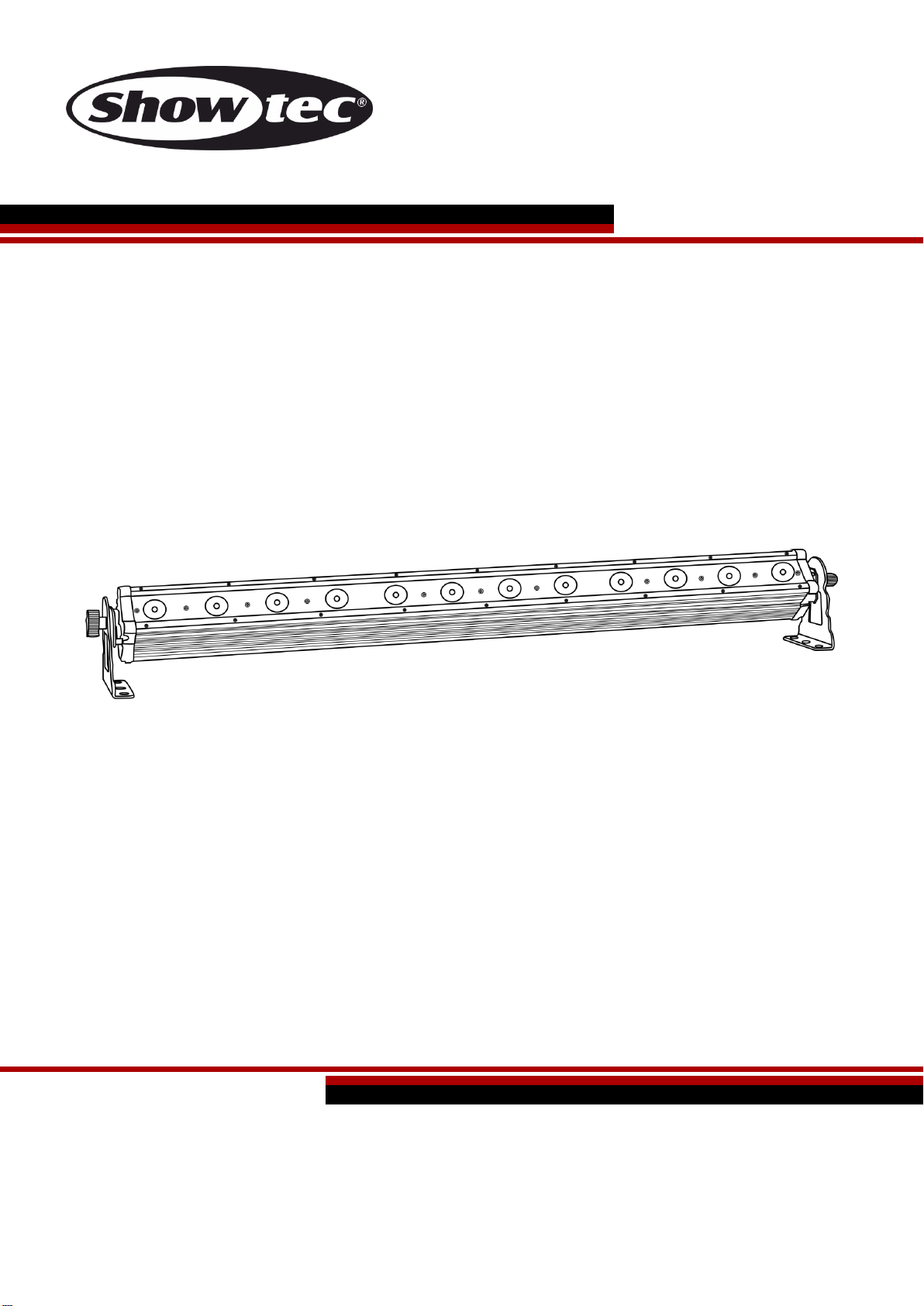
Pixel Bar 12 Q6 V1
Highlite International B.V. – Vestastraat 2 – 6468 EX – Kerkrade – the Netherlands
Ordercode: 41303
MANUAL
ENGLISH
Page 2

Ordercode: 41303
Pixel Bar 12 Q6
Table of contents
Warning ............................................................................................................................................................................... 2
Safety Instructions ......................................................................................................................................................... 2
Operating Determinations .......................................................................................................................................... 4
Rigging ............................................................................................................................................................................ 4
Connection with the mains ......................................................................................................................................... 5
Return Procedure .......................................................................................................................................................... 5
Claims .............................................................................................................................................................................. 5
Description of the device ................................................................................................................................................. 6
Overview ........................................................................................................................................................................ 6
Backside ......................................................................................................................................................................... 7
Installation ........................................................................................................................................................................... 7
Set Up and Operation ....................................................................................................................................................... 7
Control Modes ............................................................................................................................................................... 7
One Pixel Bar (Manual control) ............................................................................................................................... 7
One Pixel Bar (Sound-control) ................................................................................................................................. 8
One Pixel Bar (Built-in programs, Auto Run) .......................................................................................................... 8
Multiple Pixel Bars (Master/Slave control) ............................................................................................................. 8
Multiple Pixel Bars (DMX512 Mode) ........................................................................................................................ 9
Fixture Linking ...............................................................................................................................................................10
Data Cabling ...............................................................................................................................................................10
Control Panel ...............................................................................................................................................................11
DMX Control Mode .....................................................................................................................................................11
DMX Addressing ..........................................................................................................................................................11
Menu overview ................................................................................................................................................................12
Main Menu Options ....................................................................................................................................................13
DMX Mode ................................................................................................................................................................13
Master / slave addressing ......................................................................................................................................13
Static Color Mode ...................................................................................................................................................14
Sound control Mode ...............................................................................................................................................14
Built-in Programs .......................................................................................................................................................15
Auto Run Program ...................................................................................................................................................15
Reset factory settings ..............................................................................................................................................16
DMX Channels .............................................................................................................................................................16
3 DMX Channels .......................................................................................................................................................16
8 DMX Channels .......................................................................................................................................................17
11 DMX Channels .....................................................................................................................................................17
13 DMX Channels .....................................................................................................................................................19
72 DMX Channels .....................................................................................................................................................21
Maintenance ....................................................................................................................................................................22
Replacing a Fuse ........................................................................................................................................................22
Troubleshooting ...............................................................................................................................................................23
No Light .........................................................................................................................................................................23
No Response to DMX ..................................................................................................................................................23
Product Specifications ....................................................................................................................................................25
Dimensions ........................................................................................................................................................................26
1
Page 3
Ordercode: 41303
Pixel Bar 12 Q6
Your shipment includes:
Showtec Pixel Bar 12 Q6
• 3 brackets and screws
• IEC powercable 1,5m
• User manual
Warning
Unpacking Instructions
Immediately upon receiving this product, carefully unpack the carton and check the contents to ensure
that all parts are present, and have been received in good condition. Notify the dealer immediately and
retain packing material for inspection if any parts appear to be damaged from shipping or the carton
itself shows signs of mishandling. Save the carton and all packing materials. In the event that the fixture
must be returned to the factory, it is important that the fixture be returned in the original factory box and
packing.
LED Expected Lifespan
LEDs gradually decline in brightness over time. HEAT is the dominant factor that leads to the acceleration
of this decline. Packaged in clusters, LEDs exhibit higher operating temperatures than in ideal or singular
optimum conditions. For this reason when all color LEDs are used at their fullest intensity, life of the LEDs is
significantly reduced. If improving the lifespan is of higher priority, place care in providing for lower
operational temperatures. This may include climatic-environmental and the reduction of overall
projection intensity.
Safety Instructions
Every person involved with the installation, operation and maintenance of this device has to:
● be qualified
● follow the instructions of this manual
Before your initial start-up, please make sure that there is no damage caused by transportation. Should
there be any, consult your dealer and do not use the device.
To maintain perfect condition and to ensure a safe operation, it is absolutely necessary for the user to
follow the safety instructions and warning notes written in this manual.
Please consider that damages caused by manual modifications to the device are not subject to
warranty. This device contains no user-serviceable parts. Refer servicing to qualified technicians only.
2
Page 4
Ordercode: 41303
Pixel Bar 12 Q6
IMPORTANT:
The manufacturer will not accept liability for any resulting damages caused by the non-observance of
this manual or any unauthorized modification to the device.
Never let the power cord come into contact with other cables! Handle the power cord and all
connections with the mains with particular caution!
Never remove warning or informative labels from the unit.
Never use anything to cover the ground contact.
Never place any material over the lens.
Never look directly into the light source.
Never leave any cables lying around.
Do not insert objects into air vents.
Do not connect this device to a dimmerpack.
Do not switch the device on and off in short intervals, as this would reduce the device’s lifespan.
Do not touch the device’s housing bare-handed during its operation. Allow the fixture to cool for at
least 5 minutes before handling.
Do not shake the device. Avoid brute force when installing or operating the device.
Only use device indoor, avoid contact with water or other liquids.
Only operate the fixture after having checked that the housing is firmly closed and all screws are
tightly fastened.
Only operate the device after having familiarized with its functions.
Avoid flames and do not put close to flammable liquids or gases.
Always keep case closed while operating.
Always allow free air space of at least 50 cm around the unit for ventilation.
Always disconnect power from the mains, when device is not used or before cleaning! Only handle
the power cord by the plug. Never pull out the plug by tugging the power cord.
Make sure that the device is not exposed to extreme heat, moisture or dust.
Make sure that the available voltage is not higher than stated on the rear panel.
Make sure that the power cord is never crimped or damaged. Check the device and the power
cord from time to time.
If the lens is obviously damaged, it has to be replaced to prevent its functions from being impaired,
due to cracks or deep scratches.
If device was dropped or struck, disconnect mains power supply immediately. Have a qualified
engineer inspect for safety before operating.
If the device has been exposed to drastic temperature fluctuation (e.g. after transportation), do not
switch it on immediately. The arising condensation water might damage your device. Leave the
device switched off until it has reached room temperature.
If your Showtec device fails to work properly, discontinue use immediately. Pack the unit securely
(preferably in the original packing material), and return it to your Showtec dealer for service.
For adult use only. Device must be installed out of reach of children. Never leave the unit running
unattended.
Never attempt to bypass the thermostatic switch or fuses.
For replacement, use fuses of same type and rating only.
The user is responsible for correct positioning and operating of the Pixel Bar 12 Q6. The manufacturer
will not accept liability for damages caused by the misuse or incorrect installation of this device.
This device falls under protection class I. Therefore it is essential to connect the yellow/green
conductor to earth.
Repairs, servicing and electrical connection must be carried out by a qualified technician.
WARRANTY: Till one year after date of purchase.
3
Page 5
Ordercode: 41303
Pixel Bar 12 Q6
Operating Determinations
● This device is not designed for permanent operation. Regular operation breaks will ensure that the
device will serve you for a long time without defects.
● The minimum distance between light-output and the illuminated surface must be bigger than 1
meter.
● The maximum ambient temperature ta = 40°C must never be exceeded.
● The relative humidity must not exceed 50 % with an ambient temperature of 40° C.
● If this device is operated in any other way than the one described in this manual, the product may
suffer damages and the warranty becomes void.
● Any other operation may lead to dangers like short-circuit, burns, electric shock, crash etc.
You endanger your own safety and the safety of others!
Rigging
Please follow the European and national guidelines concerning rigging, trussing and all
other safety issues.
Do not attempt the installation yourself!
Always let the installation be carried out by an authorized dealer!
Procedure:
If the Pixel Bar 12 Q6 is lowered from the ceiling or high joists, professional trussing systems have to
be used.
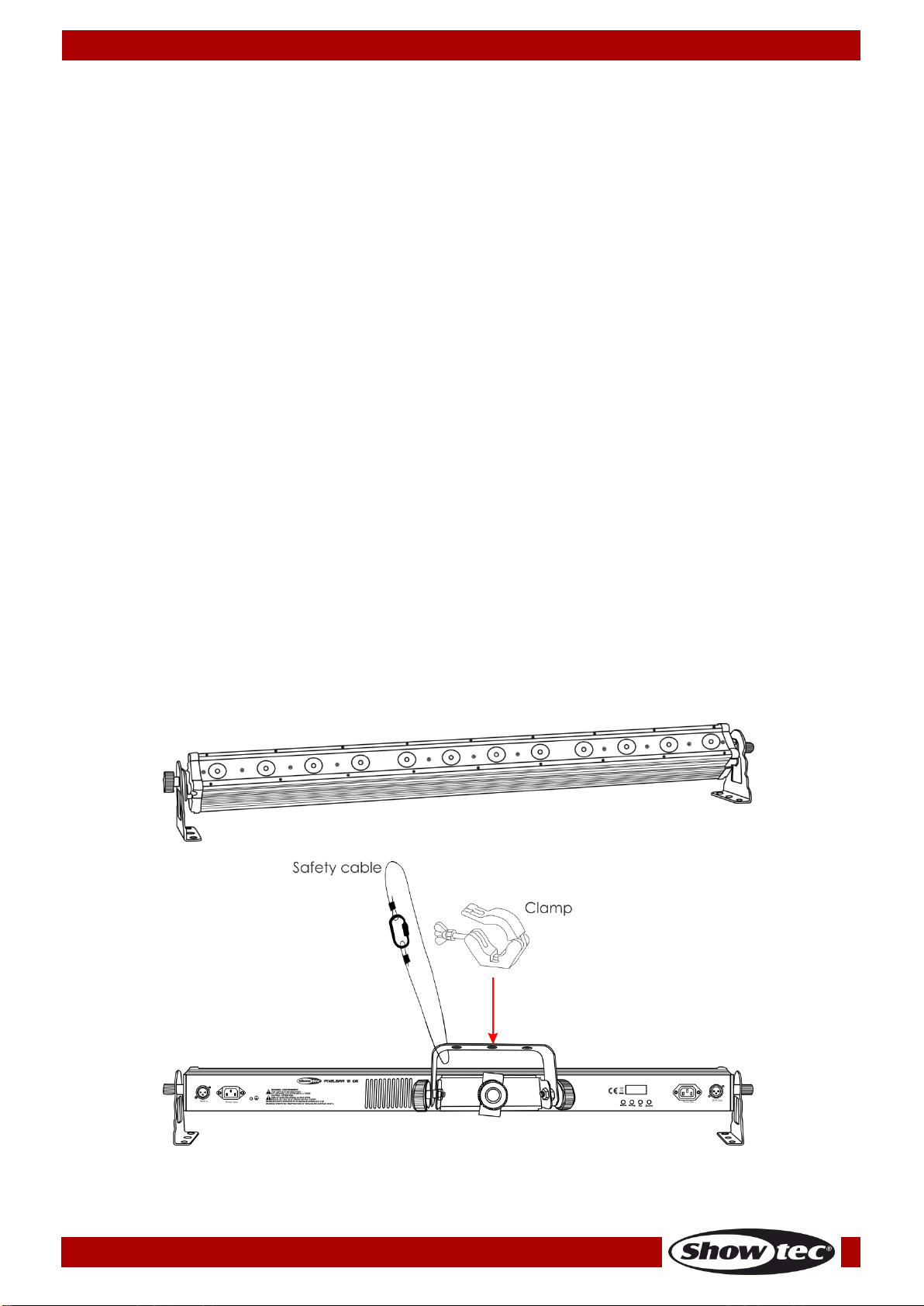
Use a clamp to mount the Pixel Bar 12 Q6, with the mounting-bracket, to the trussing system.
The Pixel Bar 12 Q6 must never be fixed swinging freely in the room.
The installation must always be secured with a safety attachment, e.g. an appropriate safety net
or safety-cable.
When rigging, derigging or servicing the Pixel Bar 12 Q6, always make sure, that the area below
the installation place is blocked and staying in the area is forbidden.
The Pixel Bar 12 Q6 can be placed on a flat stage floor or mounted to any kind of truss by a clamp.
4
Page 6
Ordercode: 41303
Pixel Bar 12 Q6
International
EU Cable
UK Cable
US Cable
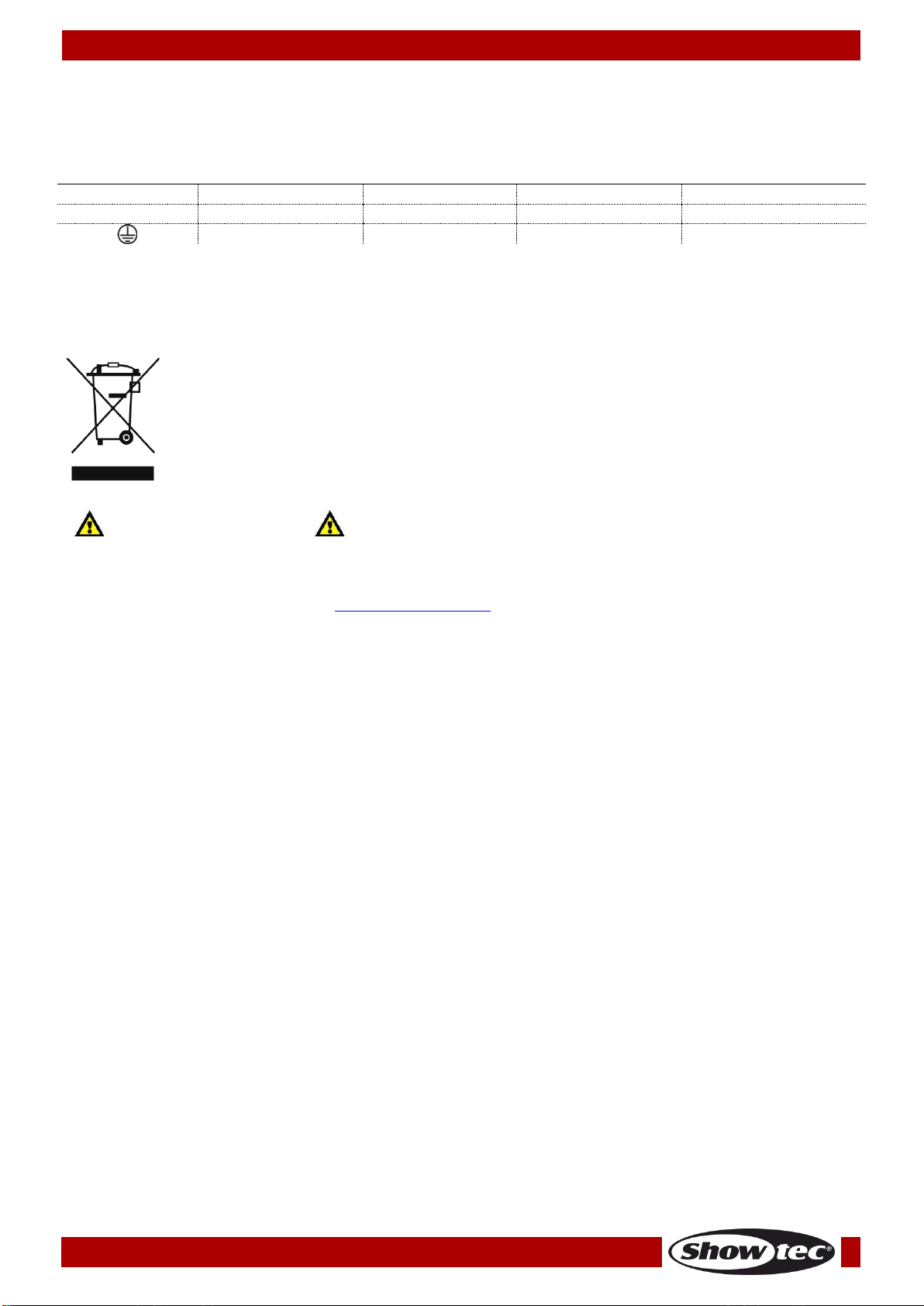
Pin
L
BROWN
RED
YELLOW/COPPER
PHASE
N
BLUE
BLACK
SILVER
NEUTRAL
YELLOW/GREEN
GREEN
GREEN
PROTECTIVE GROUND
Return Procedure
Connection with the mains
Connect the device to the mains with the power plug.
Always check if the right color cable is connected to the right place.
Make sure that the device is always connected properly to the earth!
Improper installation can cause serious damage to people and property!
Returned merchandise must be sent prepaid and in the original packing, call tags will not be issued.
Package must be clearly labeled with a Return Authorization Number (RMA number). Products returned
without an RMA number will be refused. Highlite will not accept the returned goods or any responsibility.
Call Highlite 0031-455667723 or mail aftersales@highlite.nl and request an RMA prior to shipping the fixture.
Be prepared to provide the model number, serial number and a brief description of the cause of the
return. Be sure to properly pack fixture as any shipping damage resulting from inadequate packaging is
the customer’s responsibility. Highlite reserves the right to use its own discretion to repair or replace
product(s). As a suggestion, proper UPS packing or double-boxing is always a safe method to use.
Note: If you are given an RMA number, please include the following information on a piece of paper
inside the box:
01) Your name.
02) Your address.
03) Your phone number.
04) A brief description of the symptoms.
Claims
The client has the obligation to check the delivered goods immediately upon delivery for any shortcomings and/or visible defects, or perform this check after our announcement that the goods are at their
disposal. Damage incurred in shipping is the responsibility of the shipper; therefore the damage must be
reported to the carrier upon receipt of merchandise.
It is the customer's responsibility to notify and submit claims with the shipper in the event that the fixture is
damaged due to shipping. Transportation damage has to be reported to us within one day after receipt
of the delivery.
Any return shipment has to be made post-paid at all times. Return shipments must be accompanied with
a letter defining the reason for return shipment. Non-prepaid return shipments will be refused, unless
agreed otherwise in writing.
Complaints against us must be made known in writing or by fax within 10 working days after receipt of the
invoice. After this period, complaints will not be handled anymore.
Complaints will only be considered if the client has so far complied with all parts of the agreement,
regardless of the agreement of which the obligation is resulting.
5
Page 7
Ordercode: 41303
Pixel Bar 12 Q6
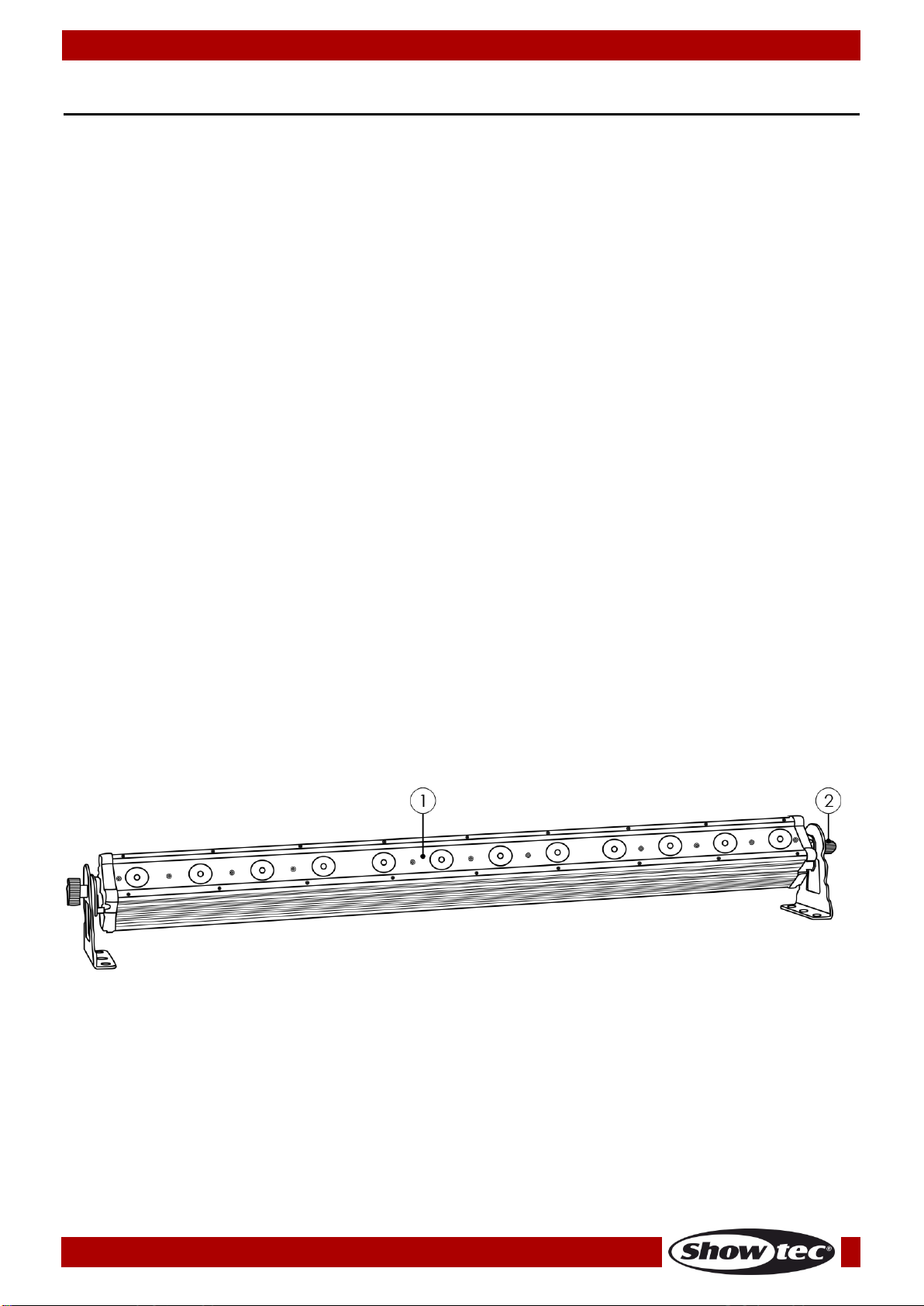
Fig. 01
Description of the device
Features
The Showtec Pixel Bar 12 Q6 is a LED bar with 12 x 6-in-1 RGBWA-UV LEDs. It offers full pixel control in 72
channel mode to create beautiful color flows but can also be controlled in 3, 8, 11 or 13 channel mode.
• LEDs: 12 x 3W RGBWA-UV
• Beam angle: 40 º
• Compact size
• Pixel control
• Power and data daisy chain
• Lumen @2m: 450 Lux (Full On)
• Colormixing: RGBWA-UV
• Power Supply: 100-240V AC, 50/60Hz
• Control Mode: DMX512
• Dimmer: 0-100%
• Strobe: 0-20Hz
• Power Consumption: 72 Watt
• 3 pin female XLR socket and 3 pin male XLR socket
• IEC Power In and IEC power Out (Max. 10A)
• Linkable via 3-pin XLR cable
• Built-in microphone
• Housing: Black aluminum
• LCD display
• Fuse: 3A / 250V
• Cooling: Convection
• IP rating: IP-20
• Built-in programs mode, Auto running mode, DMX mode, slave mode, static color mode and sound-
activated mode.
• Selectable 3, 8, 11, 13 and 72 DMX channel operation
• Dimensions: 1085 x 80 x 135 mm (LxWxH) (incl. brackets)
• Weight: 5,64 kg
Note: Knowledge of DMX is required to fully utilize this unit.
Overview
01) 12 x 3W RGBWA-UV LEDs
02) Adjustment screw + mounting bracket
6
Page 8
Ordercode: 41303
Pixel Bar 12 Q6
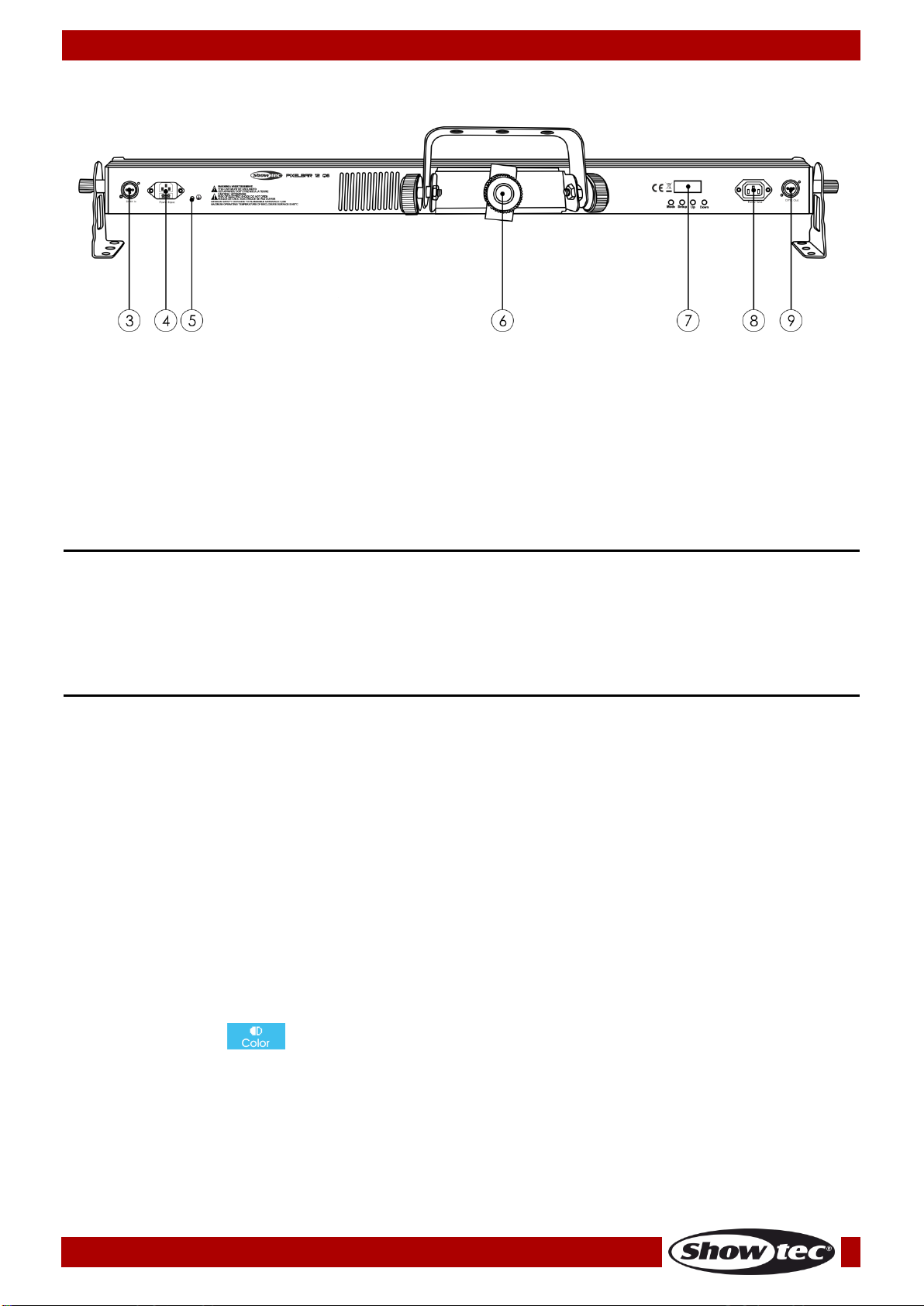
Fig. 02
There are 6 modes:
Manual control (Static)
Sound-controlled
Built-in Programs
Auto Run
Master/Slave
DMX512
Backside
03) DMX signal connector (IN) 3-pin
04) IEC Power In + Fuse 3A / 250V
05) Ground/Earth connection
06) Mounting bracket for Truss mounting
07) Menu Buttons + LCD display
08) IEC Power Out (max 10A)
09) DMX signal connector (OUT) 3-pin
Installation
Remove all packing materials from the Pixel Bar 12 Q6.
Check that all foam and plastic padding is removed. Connect all cables.
Do not supply power before the whole system is set up and connected properly.
Always disconnect from electric mains power supply before cleaning or servicing.
Damages caused by non-observance are not subject to warranty.
Set Up and Operation
Follow the directions below, as they pertain to your preferred operation mode.
Before plugging the unit in, always make sure that the power supply matches the product specification
voltage. Do not attempt to operate a 120V specification product on 230V power, or vice versa.
Connect the device to the main power supply.
Control Modes
One Pixel Bar (Manual control)
01) Fasten the effect light onto firm trussing or place it on the floor. Leave at least 0,5 meter on all sides
for air circulation.
02) When the Pixel Bar is not connected by a DMX-cable, it functions as a stand-alone device.
03) If device is set to , then the fixture can be manually controlled.
04) Please see page 14 for more information about the Manual control mode.
7
Page 9
Ordercode: 41303
Pixel Bar 12 Q6
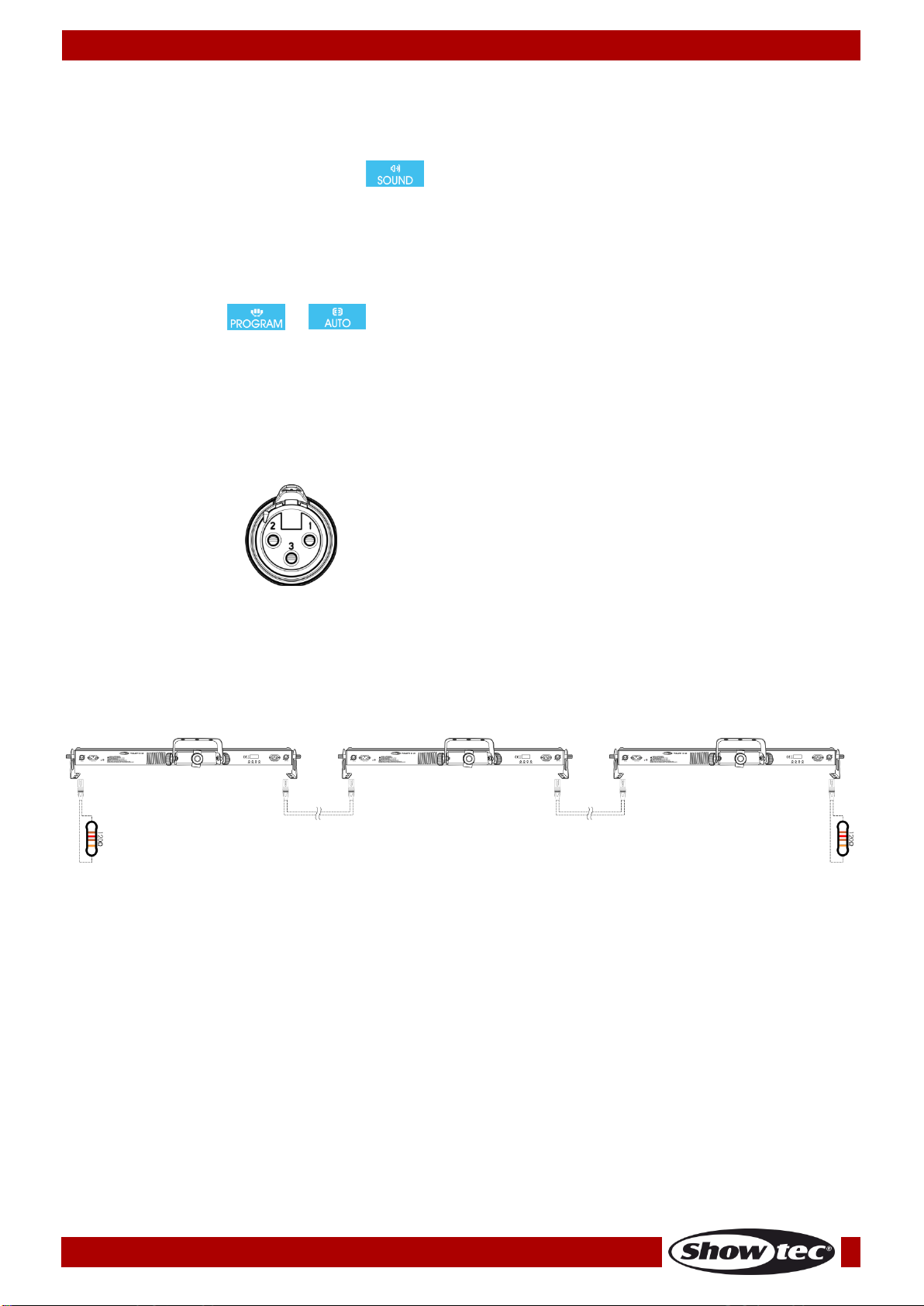
The pins:
1. Earth
2. Signal (-)
3. Signal (+)
Fig. 03
One Pixel Bar (Sound-control)
01) Fasten the effect light onto firm trussing or place it on the floor. Leave at least 0,5 meter on all sides
for air circulation.
02) When the Pixel Bar is not connected by a DMX-cable, it functions as a stand-alone device.
03) Turn on the music. If device is set to (Audio), then the fixture will react to the beat of the
music. Please see page 14 for more information about the Sound-controlled mode.
One Pixel Bar (Built-in programs, Auto Run)
01) Fasten the effect light onto firm trussing or place it on the floor. Leave at least 0,5 meter on all sides
for air circulation.
02) When the Pixel Bar is not connected by a DMX-cable, it functions as a stand-alone device.
03) If device is set to or , then the fixture will play one of its built-in programs or show its
auto run mode. Please see pages 15-16 for more information about the built-in programs or auto run
mode.
Multiple Pixel Bars (Master/Slave control)
01) Fasten the effect light onto firm trussing or place it on the floor. Leave at least 0,5 meter on all sides
for air circulation.
02) Plug the end of the electric mains power cord into a proper electric power supply socket.
03) Use a 3-p XLR cable to connect the Pixel Bars and other devices.
04) Link the units as shown in Fig. 03, connect a DMX signal cable from the first unit's DMX "out" socket to
the second unit's "in" socket. Repeat this process to link the second and third units. You can use the
same functions on the master device as described on pages 14-16 (Static control, Built-in Programs,
Auto run). This means you can set your desired operation mode on the master device and all slave
devices will react the same as the master device.
Multiple Pixel Bars (Master/Slave control)
8
Page 10

Ordercode: 41303
Pixel Bar 12 Q6
Fig. 04
Multiple Pixel Bars (DMX512 Mode)
01) Fasten the effect light onto firm trussing or place it on the floor. Leave at least 0,5 meter on all sides
for air circulation.
02) Plug the end of the electric mains power cord into a proper electric power supply socket.
03) Use a 3-p XLR cable to connect the Pixel Bars and other devices.
04) Link the units as shown in Fig. 04, Connect a DMX signal cable from the first unit's DMX "out" socket to
the second unit's "in" socket. Repeat this process to link the second and third units.
05) Supply electric power: Plug electric mains power cords into each unit's IEC socket, then plug the
other end of the mains power cord into proper electric power supply sockets, starting with the first
unit. Do not supply power before the whole system is set up and connected properly.
Multiple Pixel Bars DMX Set Up
9
Note: Link all cables before connecting electric power!
Page 11

Ordercode: 41303
Pixel Bar 12 Q6
Important:
Fixtures on a serial data link must be daisy chained in one single line. To comply with the
EIA-485 standard no more than 30 devices should be connected on one data link.
Connecting more than 30 fixtures on one serial data link without the use of a DMX optically
isolated splitter may result in deterioration of the digital DMX signal.
Maximum recommended DMX data link distance: 100 meters
Maximum recommended number on a DMX data link: 30 fixtures
Maximum recommended number of fixtures on a power link: 7 @ 110V
Maximum recommended number of fixtures on a power link: 14 @ 240V
Fixture Linking
You will need a serial data link to run light shows of one or more fixtures using a DMX-512 controller or to
run synchronized shows on two or more fixtures set to a master/slave operating mode. The combined
number of channels required by all the fixtures on a serial data link determines the number of fixtures the
data link can support.
The Pixel Bar 12 Q6 uses up to 72 channels.
Data Cabling
To link fixtures together you must obtain data cables. You can purchase DAP Audio certified DMX cables
directly from a dealer/distributor or construct your own cable. If you choose to create your own cable
please use data-grade cables that can carry a high quality signal and are less prone to electromagnetic
interference.
DAP Audio DMX Data Cables
• DAP Audio Basic microphone cable for allround use. bal. XLR/M 3-pin > XLR/F 3-pin. Ordercode
FL01150 (1,5 m), FL013 (3 m), FL016 (6 m), FL0110 (10 m), FL0115 (15 m), FL0120 (20 m).
• DAP Audio X-type data cable XLR/M 3-pin > XLR/F 3-pin. Ordercode FLX0175 (0,75 m),
FLX01150 (1,5 m), FLX013 (3 m), FLX016 (6 m), FLX0110 (10 m).
• DAP Audio cable for the demanding user with exceptional audio-qualities and connector made by
Neutrik®. Ordercode FL71150 (1,5 m), FL713 (3 m), FL716 (6 m), FL7110 (10 m).
• DAP Audio cable for the demanding user with exceptional audio-qualities and connector made by
Neutrik®. Ordercode FL7275 (0,75 m), FL72150 (1,5 m), FL723 (3 m), FL726 (6 m), FL7210 (10 m).
• DAP Audio 110 Ohm cable with digital signal transmission. Ordercode FL0975 (0,75 m),
FL09150 (1,5 m), FL093 (3 m), FL096 (6 m), FL0910 (10 m), FL0915 (15 m), FL0920 (20 m).
• DAP Audio DMX adapter: 3-pin/5-pin. Ordercode FLA30.
10
Page 12

Ordercode: 41303
Pixel Bar 12 Q6
A. LCD Display
B. Mode button
C. Setup Button
D. Up Button
E. Down Button
Fig. 05
Display Dims after 15 seconds
Control Panel
DMX Control Mode
The fixtures are individually addressed on a data-link and connected to the controller.
The fixtures respond to the DMX signal from the controller. (When you select the DMX address and save it,
the controller will display the saved DMX address the next time.)
DMX Addressing
The control panel on the backside of the device allows you to assign the DMX fixture address, which is
the first channel from which the Pixel Bar will respond to the controller. Please note when you use the
controller, the unit has up to 72 channels. When using multiple Pixel Bars, make sure you set the DMX
addresses right. Therefore, the DMX address of the first Pixel Bar should be 1(d001); the DMX address of
the second Pixel Bar should be 1+72=73 (d073); the DMX address of the third Pixel Bar should be
72+73=145 (d145), etc. Please, be sure that you do not have any overlapping channels in order to control
each Pixel Bar correctly. If two or more Pixel Bars are addressed similarly, they will work similarly.
Controlling:
After having addressed all Pixel Bars, you may now start operating these via your lighting controller.
Note: After switching on, the Pixel Bar will automatically detect whether DMX 512 data is received or not.
The problem may be:
• The XLR cable from the controller is not connected with the input of the Pixel Bar.
• The controller is switched off or defective, the cable or connector is defective, or the signal wires are
swapped in the input connector.
Note: It is necessary to insert a XLR termination plug (with 120 Ohm) in the last fixture in order to ensure
proper transmission on the DMX data link.
When no button is pressed for 15 seconds, the display will dim. To light up the display, you have to press
the Mode, Setup, Up or Down button. Once you have pressed the button, the display will light up.
11
Page 13

Ordercode: 41303
Pixel Bar 12 Q6
Menu overview
12
Page 14

Ordercode: 41303
Pixel Bar 12 Q6
DMX Address / DMX Configuration
Slave mode
Static color control
Sound control mode
Built-in programs
Auto run mode
3 Channels mode
8 Channels mode
11 Channels mode
13 Channels mode
72 Channels mode
Main Menu Options
DMX Mode
With this menu you can set the DMX address and choose a DMX configuration.
01) Press the Mode button until the display shows .
02) Press the Setup button to enter the menu.
03) You can choose 512 different DMX addresses.
04) Use the Up and Down buttons to select the required address between .
05) Press the Setup button again to proceed in the menu. Now you can choose a different DMX Mode
with the Up and Down buttons.
Master / slave addressing
Master
01) The default setting for this device is master.
02) Only one fixture can be the master.
Note:
• Disconnect the fixture from the DMX controller before master/slave operating, otherwise data
collisions may occur and the fixtures will not work properly!
• In master/slave mode, the master fixture can execute the built-in programs, all the slave fixtures will
work the same.
• When operating the master/slave chain, you can identify the master fixture from the slave fixtures
easily. The master doesn’t have any cable plugged into the DMX input connector.
Slave control
This function allows you to control the slaves from the master’s control panel in a master/slave setup.
01) Only 1 fixture can be the master, the others have to be Slaves. The Default setting for a device is
Master. So on the first device you don’t have to change anything.
On the slave devices you must press the Mode button until the display shows .
02) All slave devices must have address .
13
Page 15

Ordercode: 41303
Pixel Bar 12 Q6
You can set the sensitivity from low-sensitivity to high-sensitivity
between 000 - 031 with the Up and Down buttons.
Static Color Mode
With this menu you can create a static color.
01) Press the Mode button until the display shows .
02) Press the Setup button to make a color.
03) With this sub menu you can set 6 static colors of the Pixel Bar.
You can choose Red, Green, Blue, White, Amber or UV-light by pressing the Setup button.
04) Use the Up and Down buttons to set the values of each individual color from 000-255.
Sound control Mode
With this menu you can set the sensitivity of the sound mode from the Pixel Bar.
01) Press the Mode button on the device until the display shows .
02) Press the Setup button to enter the submenu.
03) You can scroll through these options with the Setup button.
04) You can choose between 3 sound modes , or
.
05) With the mode , the Pixel Bar will react to the beat of the music from the left side to the right
side of the bar.
06) With the mode , the Pixel Bar will react to the beat of the music from the right side to the left
side of the bar.
07) Turn on the music and the Pixel Bar will react to the beat of the music.
14
Page 16

Ordercode: 41303
Pixel Bar 12 Q6
Built-in Programs
With this menu you can choose a built-in program.
01) Press the Mode button on the device until the display shows .
02) You can choose between 19 built-in programs , by using the Up and Down
buttons.
03) If you choose and you press Setup you can choose between 16 colors and Black with the
Up and Down buttons.
04) Press Setup again and you can set the strobe value by using the Up and Down buttons.
05) Press the Setup button to go back to .
06) Press the Setup button again and the Up and Down buttons until the display shows .
07) With the Up and Down buttons you can choose between .
08) Press the Setup button again to set the speed, strobe or fade value.
09) Use the Up and Down buttons to set the speed between 0-100, strobe value between 0-99 and fade
value between 0-100.
Auto Run Program
With this menu you can set the Auto run mode of the Pixel Bar.
01) Press the Mode button on the device until the display shows .
02) The Pixel Bar will start automatically with its built-in program.
03) Press the Setup button to enter the submenu.
04) With you can set the frequency of each step of the Auto program.
15
Page 17

Ordercode: 41303
Pixel Bar 12 Q6
Channel 1 – Built-in Programs
2-12
Program 2
13-25
Program 3
26-38
Program 4
39-51
Program 5
52-64
Program 6
65-77
Program 7
78-90
Program 8
91-103
Program 9
104-116
Program 10
117-129
Program 11
130-142
Program 12
143-155
Program 13
156-168
Program 14
169-181
Program 15
182-194
Program 16
195-207
Program 17
208-220
Program 18
221-233
Program 19
234-255
Sound mode
Channel 2 – Speed (CH1 must be set between 2-233 )
0-255
Gradual speed adjustment, from slow to fast
Channel 2 – Sound sensitivity (CH1 must be set between 234-255 )
0-255
Gradual adjustment Sensitivity, from 1-100%
Channel 3 – Linear Strobe (CH1 must be set between 2-233 )
0-255
Strobe intensity, from slow to fast (0-20 Hz)
Channel 3 – Sound mode (CH1 must be set between 234-255 )
0-84
Sound mode 1
85-169
Sound mode 2
170-255
Sound mode 3
05) With you can set the speed of the Auto program.
06) With you can set the frequency of the strobe of the Auto program.
07) With you can set the fade value of the Auto program.
08) You can scroll through these options with the Setup button.
09) With the Up and Down buttons you can adjust the options.
Reset factory settings
Switch the power off and hold at the same time the Mode and Up button.
Switch the power on and release the Mode and Up button.
The Pixel Bar 12 Q6 will reset to the factory settings. The fixture will start up in the Auto Run mode.
DMX Channels
3 DMX Channels
16
Page 18

Ordercode: 41303
Pixel Bar 12 Q6
Channel 1 – Red Dimmer intensity (CH7 must be set between 0-255 )
0-255
Gradual adjustment Red from 0 – 100%
Channel 2 – Green Dimmer intensity (CH7 must be set between 0-255 )
0-255
Gradual adjustment Green from 0 – 100%
Channel 3 – Blue Dimmer intensity (CH7 must be set between 0-255 )
0-255
Gradual adjustment Blue from 0 – 100%
Channel 4 – White Dimmer intensity (CH7 must be set between 0-255 )
0-255
Gradual adjustment White from 0 – 100%
Channel 5 – Amber Dimmer intensity (CH7 must be set between 0-255 )
0-255
Gradual adjustment Amber from 0 – 100%
Channel 6 – UV-light Dimmer intensity (CH7 must be set between 0-255 )
0-255
Gradual adjustment UV-light from 0 – 100%
Channel 7 – Dimmer (Colors RGBWA-UV must be open )
0-255
Gradual adjustment, from dark to brightest 0-100%
Channel 8 – Linear Strobe (CH1, CH2, CH3, CH4, CH5 or CH6 and CH7 must be set between 0-255 )
0-255
Strobe intensity, from slow to fast (0-20 Hz)
Channel 1 – Dimmer (Colors RGBWA-UV must be open )
0-255
Gradual adjustment, from dark to brightest 0-100%
Channel 2 – Red Dimmer intensity (CH1 must be set between 001-255 )
0-255
Gradual adjustment Red from 0 – 100%
Channel 3 – Green Dimmer intensity (CH1 must be set between 001-255 )
0-255
Gradual adjustment Green from 0 – 100%
Channel 4 – Blue Dimmer intensity (CH1 must be set between 001-255 )
0-255
Gradual adjustment Blue from 0 – 100%
Channel 5 – White Dimmer intensity (CH1 must be set between 001-255 )
0-255
Gradual adjustment White from 0 – 100%
Channel 6 – Amber Dimmer intensity (CH1 must be set between 0-255 )
0-255
Gradual adjustment Amber from 0 – 100%
Channel 7 – UV-light Dimmer intensity (CH1 must be set between 0-255 )
0-255
Gradual adjustment UV-light from 0 – 100%
8 DMX Channels
11 DMX Channels
17
Page 19

Ordercode: 41303
Pixel Bar 12 Q6
Channel 8 – Built-in Programs (CH1 must be set between 001-255 )
0-1
No function
2-11
Program 1
12-23
Program 2
24-35
Program 3
36-47
Program 4
48-59
Program 5
60-71
Program 6
72-83
Program 7
84-95
Program 8
96-107
Program 9
108-119
Program 10
120-131
Program 11
132-143
Program 12
144-155
Program 13
156-167
Program 14
168-179
Program 15
180-191
Program 16
192-203
Program 17
204-215
Program 18
216-227
Program 19
228-255
Sound mode
Channel 9 – Color presets (CH1 must be set between 001-255 and CH8 between 2-11 )
0-14
Black
15-29
Red
30-44
Green
45-59
Blue
60-74
White
75-89
Amber
90-104
UV-light
105-119
Orange
120-134
Yellow
135-149
Violet
150-164
Pink
165-179
Cyan
180-194
Light Red
195-209
Light Green
210-224
Light Blue
225-239
Warm White
240-255
Cold White
Channel 9 – Built-in program speed (CH8 must be set between 12-227 )
0-255
Gradual speed adjustment, from slow to fast
Channel 9 – Sound sensitivity (CH8 must be set between 228-255 )
0-255
Gradual adjustment Sensitivity, from 1-100%
Channel 10 – Linear Strobe
(CH1 and CH2, CH3, CH4, CH5, CH6 or CH7 must be set between 0-255, CH8 between 2-227 or CH9
between 15-255 )
0-255
Strobe intensity, from slow to fast (0-20 Hz)
18
Page 20

Ordercode: 41303
Pixel Bar 12 Q6
Channel 10 – Sound mode (CH1 and CH8 must be set between 228-255 )
0-84
Sound mode 1
85-169
Sound mode 2
170-255
Sound mode 3
Channel 11 – Fade
(CH1 And CH2,CH3, CH4, CH5, CH6 or CH7 must be set between 001-255, CH8 between 12-227 or CH9
between 15-255 )
0-255
Set the fade from slow to fast
Channel 1 – Dimmer (Colors RGBWA-UV must be open )
0-255
Gradual adjustment, from dark to brightest 0-100%
Channel 2 – Red Dimmer intensity (CH1 must be set between 001-255 )
0-255
Gradual adjustment Red from 0 – 100%
Channel 3 – Green Dimmer intensity (CH1 must be set between 001-255 )
0-255
Gradual adjustment Green from 0 – 100%
Channel 4 – Blue Dimmer intensity (CH1 must be set between 001-255 )
0-255
Gradual adjustment Blue from 0 – 100%
Channel 5 – White Dimmer intensity (CH1 must be set between 001-255 )
0-255
Gradual adjustment White from 0 – 100%
Channel 6 – Amber Dimmer intensity (CH1 must be set between 0-255 )
0-255
Gradual adjustment Amber from 0 – 100%
Channel 7 – UV-light Dimmer intensity (CH1 must be set between 0-255 )
0-255
Gradual adjustment UV-light from 0 – 100%
Channel 8 – Color presets (CH1 must be set between 001-255 )
0-11
Black
12-23
Red
24-35
Green
36-47
Blue
48-59
White
60-71
Amber
72-83
UV-light
84-95
Orange
96-107
Yellow
108-119
Violet
120-131
Pink
132-143
Cyan
144-155
Light Red
156-167
Light Green
168-179
Light Blue
180-191
Warm White
192-255
Cold White
13 DMX Channels
19
Page 21

Ordercode: 41303
Pixel Bar 12 Q6
Channel 9 – Linear Strobe
(CH1 and CH2, CH3, CH4, CH5, CH6, CH7 or CH10 must be set between 0-255 and
CH8 between 12-255 )
0-255
Strobe intensity, from slow to fast (0-20 Hz)
Channel 10 –Dimmer intensity Sections
(CH1 and CH2, CH3, CH4, CH5, CH6, CH7 or CH8 must be set between 0-255 )
0-30
Section 1 ,2 and 3 on
31-61
Section 1 on
62-92
Section 2 on
93-123
Section 3 on
124-154
Section 1 and 2 on
155-185
Section 1 and 3 on
186-216
Section 2 and 3 on
217-247
Section 1 ,2 and 3 on
248-255
Section 1 ,2 and 3 off
Channel 11 – Auto run (CH1 must be set between 0-255 )
0-1
No function
2-255
Auto run program
Channel 12 – Auto run speed (CH1 and CH11 must be set between 001-255 )
0-255
Gradual speed adjustment, from slow to fast
Channel 13 – Fade (CH1 and CH2, CH3, CH4, CH5, CH6 or CH7 must be set between 001-255 or CH8
between 12-255 or CH11 between 2-255 )
0-255
Set the fade from fast to slow
20
Page 22

Ordercode: 41303
Pixel Bar 12 Q6
0-255
Gradual adjustment Red from 0 – 100%
0-255
Gradual adjustment Green from 0 – 100%
0-255
Gradual adjustment Blue from 0 – 100%
0-255
Gradual adjustment White from 0 – 100%
0-255
Gradual adjustment Amber from 0 – 100%
0-255
Gradual adjustment UV-light from 0 – 100%
0-255
Gradual adjustment Red from 0 – 100%
0-255
Gradual adjustment Green from 0 – 100%
0-255
Gradual adjustment Blue from 0 – 100%
0-255
Gradual adjustment White from 0 – 100%
0-255
Gradual adjustment Amber from 0 – 100%
0-255
Gradual adjustment UV-light from 0 – 100%
0-255
Gradual adjustment Red from 0 – 100%
0-255
Gradual adjustment Green from 0 – 100%
0-255
Gradual adjustment Blue from 0 – 100%
0-255
Gradual adjustment White from 0 – 100%
0-255
Gradual adjustment Amber from 0 – 100%
72 DMX Channels
Channel 1 – Red Pixel LED 1
Channel 2 – Green Pixel LED 1
Channel 3 – Blue Pixel LED 1
Channel 4 – White Pixel LED 1
Channel 5 – Amber Pixel LED 1
Channel 6 – UV-Light Pixel LED 1
Channel 7 – Red Pixel LED 2
Channel 8 – Green Pixel LED 2
Channel 9 – Blue Pixel LED 2
Channel 10 – White Pixel LED 2
Channel 11 – Amber Pixel LED 2
Channel 12 – UV-light Pixel LED 2
Channel 61– Red Pixel LED 11
Channel 62 – Green Pixel LED 11
Channel 63 – Blue Pixel LED 11
Channel 64 – White Pixel LED 11
Channel 65 – Amber Pixel LED 11
21
Page 23

Ordercode: 41303
Pixel Bar 12 Q6
0-255
Gradual adjustment UV-light from 0 – 100%
0-255
Gradual adjustment Red from 0 – 100%
0-255
Gradual adjustment White from 0 – 100%
0-255
Gradual adjustment Blue from 0 – 100%
0-255
Gradual adjustment White from 0 – 100%
0-255
Gradual adjustment Amber from 0 – 100%
0-255
Gradual adjustment UV-light from 0 – 100%
Channel 66 – UV-light Pixel LED 11
Channel 67 – Red Pixel LED 12
Channel 68 – Green Pixel LED 12
Channel 69 – Blue Pixel LED 12
Channel 70 – White Pixel LED 12
Channel 71 – Amber Pixel LED 12
Channel 72 – UV-light Pixel LED 12
Maintenance
The operator has to make sure that safety-relating and machine-technical installations are to be
inspected by an expert after every year in the course of an acceptance test.
The operator has to make sure that safety-relating and machine-technical installations are to be
inspected by a skilled person once a year.
The following points have to be considered during the inspection:
01) All screws used for installing the device or parts of the device have to be tightly connected and must
not be corroded.
02) There may not be any deformations on housings, fixations and installation spots.
03) Mechanically moving parts like axles, eyes and others may not show any traces of wearing.
04) The electric power supply cables must not show any damages or material fatigue.
The Pixel Bar 12 Q6 requires almost no maintenance. However, you should keep the unit clean.
Otherwise, the fixture’s light-output will be significantly reduced. Disconnect the mains power supply and
then wipe the cover with a damp cloth. Wipe the front glass panel clean with glass cleaner and a soft
cloth. Do not use alcohol or solvents. The front glass panel will require weekly cleaning, as smoke-fluid
tends to build up residues, reducing the light-output very quickly. Do not immerse in liquid.
Keep connections clean. Disconnect electric power, and then wipe the DMX and audio connections
with a damp cloth. Make sure connections are thoroughly dry before linking equipment or supplying
electric power.
Replacing a Fuse
Power surges, short-circuit or inappropriate electrical power supply may cause a fuse to burn out. If the
fuse burns out, the product will not function whatsoever. If this happens, follow the directions below:
01) Unplug the unit from electric power source.
02) Insert a flat-head screwdriver into a slot in the fuse cover. Gently pry up the fuse cover.
the fuse will come out.
03) Remove the used fuse. If brown or unclear, it is burned out.
04) Insert the replacement fuse into the holder where the old fuse was. Reinsert the fuse cover. Be sure to
use a fuse of the same type and specification. See the product specification label for details.
22
Page 24

Ordercode: 41303
Pixel Bar 12 Q6
Troubleshooting
No Light
This troubleshooting guide is meant to help solve simple problems.
If a problem occurs, follow the steps below in sequence until a solution is found. Once the unit operates
properly, do not carry out the following steps.
If the light effect does not operate properly, refer servicing to a technician.
Response: Suspect three potential problem areas as the power supply, the LEDs, the fuse.
01) Power supply. Check that the unit is plugged into an appropriate power supply.
02) The LEDs. Return the Pixel Bar 12 Q6 to your Showtec dealer.
03) The fuse. Replace the fuse. See page 22 for replacing the fuse.
04) If all of the above appears to be in order, switch the unit on again.
05) If you are unable to determine the cause of the problem, do not open the Pixel Bar 12 Q6, as this
may damage the unit and the warranty will become void.
06) Return the device to your Showtec dealer.
No Response to DMX
Response: Suspect the DMX cable or connectors, a controller malfunction, a light effect DMX card
malfunction.
01) Check the DMX setting. Make sure that DMX addresses are correct.
02) Check the DMX cable: Unplug the unit; change the DMX cable; then reconnect to electrical power.
Try your DMX control again.
03) Determine whether the controller or light effect is to blame. Does the controller operate properly with
other DMX products? If not, take the controller in for repair. If it does, take the DMX cable and the
light effect to a qualified technician.
23
Page 25

Ordercode: 41303
Pixel Bar 12 Q6
Problem
Probable cause(s)
Solution
One or more
fixtures do not
function at all
No power to the fixture
• Check if power is switched on and
cables are plugged in.
Primary fuse blown
• Replace fuse
Fixtures reset
correctly, but all
respond
erratically or not
at all to the
controller
The controller is not connected.
• Connect controller.
3-pin XLR Out of the controller
does not match XLR Out of the first
fixture on the link (i.e. signal is
reversed)
• Install a phase reversing cable
between the controller and the
first fixture on the link
Fixtures reset
correctly, but
some respond
erratically or not
at all to the
controller
Poor data quality
• Check data quality. If much lower
than 100 percent, the problem
may be a bad data link
connection, poor quality or
broken cables, missing termination
plug, or a defective fixture
disturbing the link
Bad data link connection
• Inspect connections and cables.
Correct poor connections. Repair
or replace damaged cables
Data link not terminated with 120
Ohm termination plug
• Insert termination plug in output
jack of the last fixture on the link
Incorrect addressing of the fixtures
• Check address setting
One of the fixtures is defective and
disturbs data transmission on the
link
• Bypass one fixture at a time until
normal operation is restored:
unplug both connectors and
connect them directly together.
• Have the defective fixture
serviced by a qualified technician
3-pin XLR Out on the fixtures does
not match (pins 2 and 3 reversed)
• Install a phase-reversing cable
between the fixtures or swap pin 2
and 3 in the fixture that behaves
erratically
No light or lamp
cuts out
intermittently
Fixture is too hot
• Allow the fixture to cool down
• Clean the fan
• Turn up the air conditioning
LEDs damaged
• Disconnect the fixture and return it
to your dealer
The power supply settings do not
match local AC voltage and
frequency
• Disconnect fixture. Check settings
and correct if necessary
24
Page 26

Ordercode: 41303
Pixel Bar 12 Q6
Model:
Showtec Pixel Bar 12 Q6
Input Voltage:
100-240V AC, 50/60Hz
Consumption Power
72 Watt
Power linking 110V:
7pcs
Power linking 240V:
14pcs
DMX linking:
30pcs
Fuse:
3A / 250V
Dimensions:
1085 x 80 x 135 mm (LxWxH) (incl. brackets)
Weight:
5,64 kg
Operating and Programming:
Signal pin OUT:
Pin 1 (earth), pin 2 (-), pin 3 (+)
DMX Mode:
3, 8, 11, 13 and 72 DMX channel operation
Signal input:
3-pin XLR male
Signal output:
3-pin XLR female
Electro-mechanical effects:
Light source:
12 x 3W RGBWA-UV
Lux @2m:
450 Lux (Full On)
Beam Angle:
40 º
Sections selectable:
3 or 12
Dimmer:
0-100%
Strobe:
0-20Hz
Color Range:
RGBWA-UV
Cooling:
Convection
Display:
LCD display
Housing:
Black aluminum
IP rating:
IP-20
DMX-control:
DMX512 via standard DMX-controller
Control:
DMX, Auto, Sound, Static, Slave, Built-in programs
Connections:
XLR Data in/out (XLR 3-pin), IEC Power In and IEC power
Out (Max. 10A)
Built-in microphone
Max. ambient temperature ta:
40°C
Max. housing temperature tB:
80°C
Minimum distance:
Minimum distance from flammable surfaces:
0,5 m
Minimum distance to lighted object:
1 m
Website: www.Showtec.info
Email: service@highlite.nl
Product Specifications
Design and product specifications are subject to change without prior notice
25
Page 27

Ordercode: 41303
Pixel Bar 12 Q6
Dimensions
26
Page 28

©2016 Showtec
 Loading...