

Page 1
1. INTRODUCTION
The Shintaro Blazer USB 3.0 internal card reader is
ideal for a 3.5 inch drive bay installation. It provides an
excellent solution for direct access to the front of your
computer. If the host PC is not equipped with a USB 3.0
controller, our adapters for the PCI-E card or the expresscard slot are the perfect alternatives.
SHUSB3EX / SHUSB3PCIE.
The ve memory card slots can support more than fty
types of memory cards. It can accept small form factor
ash cards directly; such as Mini SD, RS-MMC, MS-Duo
and MS Micro (M2). You can use them to read, write or
erase data easily without requiring any adapter. It also
supports standard memory cards such as Secure Digital
card (SD), Multi Media card (MMC), Compact Flash (CF),
Memory Stick (MS), Memory Stick Pro, xD picture card
(xD) and other compatible memory cards.
2. PACKAGE CONTENTS
Internal MultiCard Reader/Writer•
Driver disc with user manual•
Screws x 4•
1 x USB 3.0 to motherboard header adaptor•
3. HARDWARE INSTALLATION
Remove the cover of your computer. 1.
(Refer to your computer hardware manual for
instructions on removing the cover).
Remove the 3.5 inch drive bay’s plastic cover 2.
on the PC front panel.
Put Shintaro USB 3.0 internal card reader with 3.
cables into the drive bay.
Mount internal card reader rmly in both tracks 4.
of the drive bay with the four screws provided
Connect the USB cables from the Shintaro USB 3.0 5.
internal card reader to USB 3.0 ports.
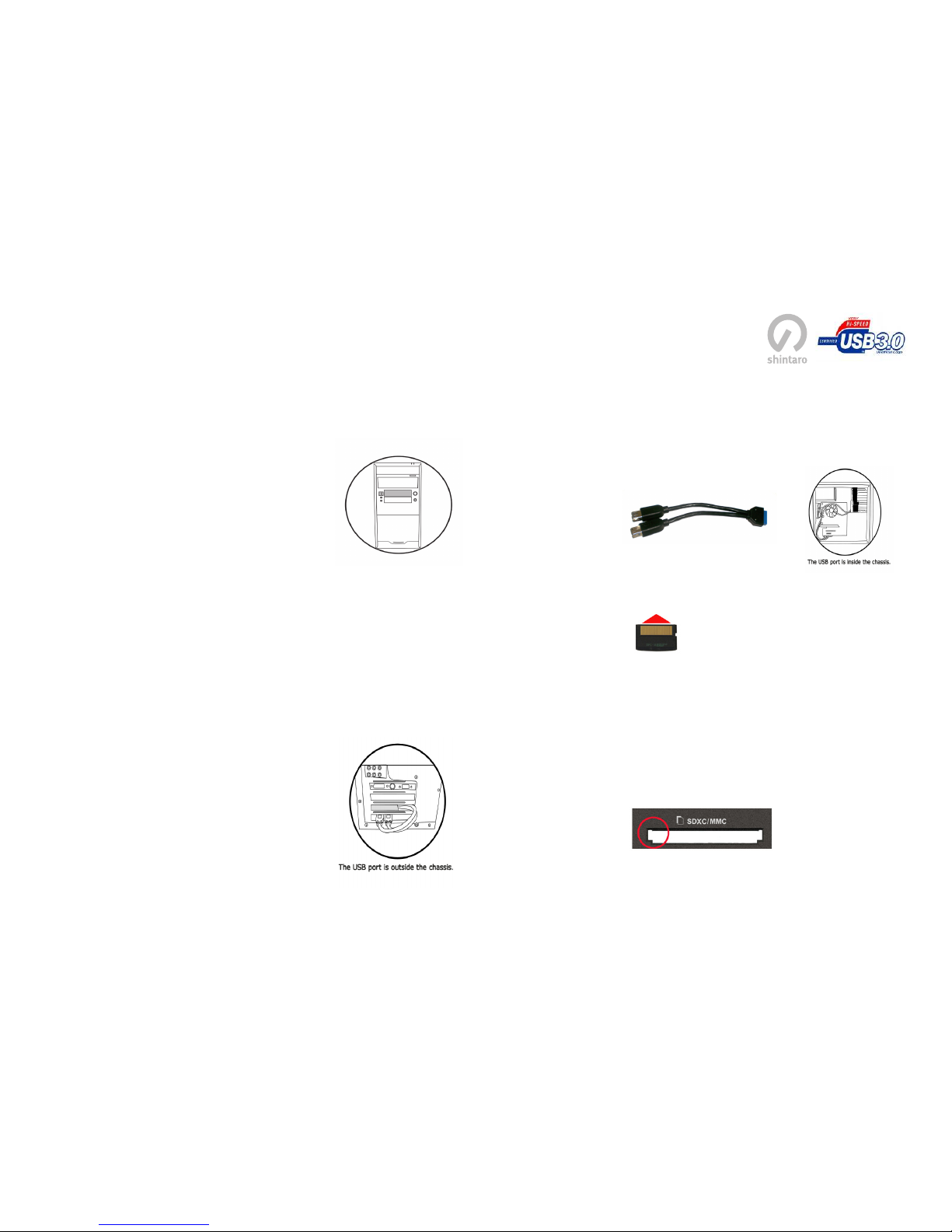
i. If your computer’s USB Port is outside the chassis,
please remove back panel as shown below.
Plug the power cord back in then start to install the driver
of the Internal USB 3.0 Card Reader.
ii. If the motherboard has USB 3.0 headers on board
connect directly to the Motherboard using the
supplied USB 3.0 to header adaptor cable
4. NOTICES
xD
Note: When inserting xD memory card into the card
reader slot, you should ip it to the back as seen below.
SD
Note 1: After inserting SDXC/SDHC memory card, be
careful of the memory card’s lock switch which will be
shifted slightly as below.
Note 2: When inserting the Mini SD memory card, align it
to the left of the slot.
CF
Note : If the CF 64GB UDMA 6 memory card is formatted
as NTFS in Win VISTA/7 before using, it can not be
Quick Guide
Shintaro Blazer USB3.0 Internal Card Reader
Page 2
formatted again in Win XP.
SPECIFICATION
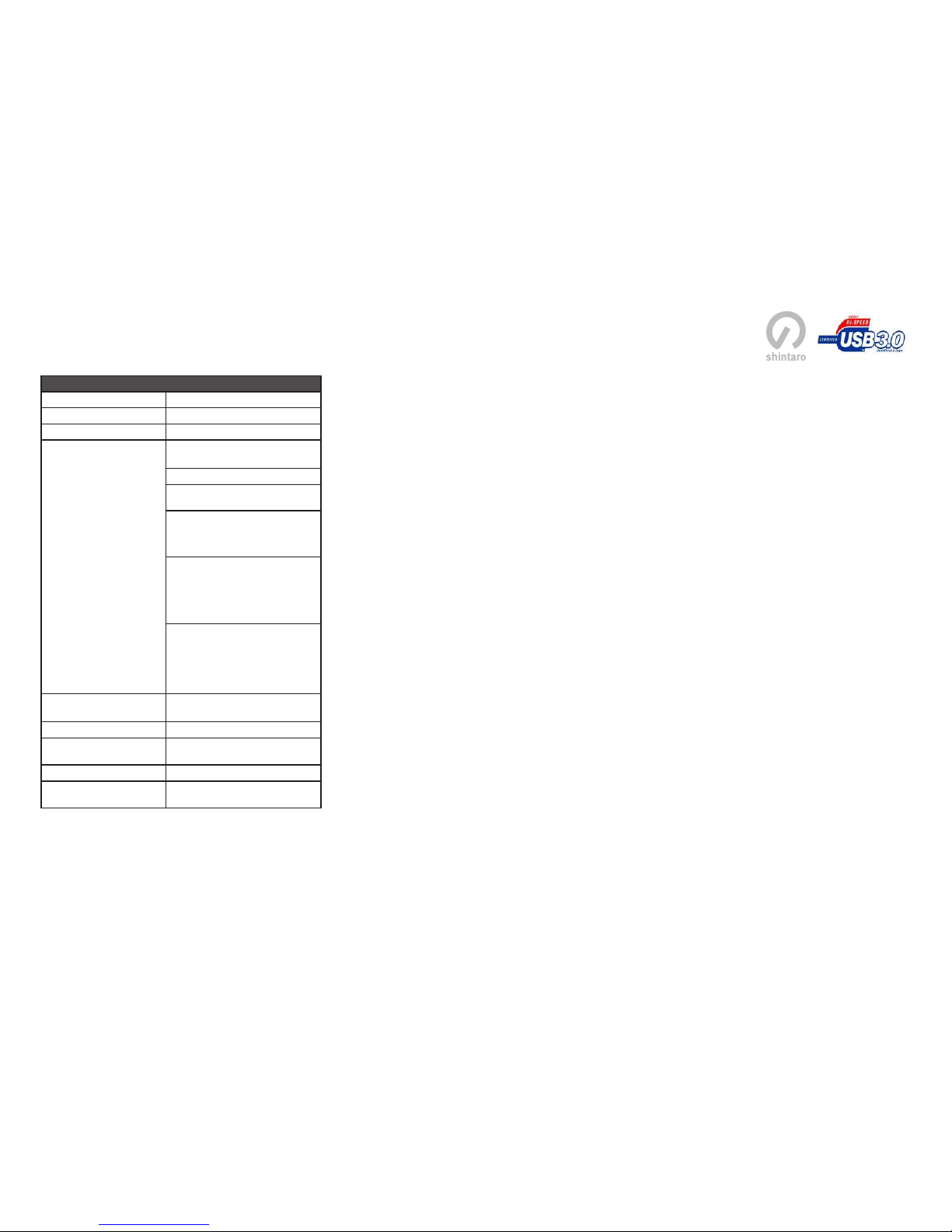
Five Memory Slots
SD; CF; MS; xD; Micro-SD/M2
Interface to PC
USB 3.0
Front Panel I/O
USB 3.0 Port x 1(for HRU- 312R3)
Memory card supports
Compact Flash Card Series: CF UDMA
6, CF Type I, CF Type II, CF Ul
tra II, Micro Drive, MagicStor, etc
xD Picture Card series: xD, xD M-series,
xD H-series, etc
Secure Digital Card series: SD, SD 3.0
UHS-I, SDXC, SDHC, SD Ultra II, mini
SD, mini SDHC, Micro-SD, Micro-SDHC,
etc
MMC card series: MMC-I, MMC-II, MMC
4.0, MMC Dual Voltage, MMC Mobile,
MMC 4.0 Dual Voltage, RS-MMC, RSMMC Dual Voltage, RS-MMC Mobile,
RS-MMC 4.0, RS-MMC 4.0 Dual Voltage, MMC Micro(*), etc
Memory Stick card series: MS, M2 ,MS
PRO-HG Duo, MS HG Micro, MS Select,
MS ROM, MS PRO, MS Magic Gate,
MS PRO Magic Gate, MS-Duo Magic
Gate, MS PRO Duo , MS micro, etc
(*): accepted by card adapter
Indicator
Green LED: Power(holding on light) &
Access(ash)
Power Input
USB Bus Power
System Environment
Operating Temperature: 5°C ~ 40°C
Operating Humidity: 20%RH ~ 50%RH
Certification
FCC Class B, CE
System Support
Win XP, Win Vista 32/64, Win 7 32/64
Linux Kernel ( USB2.0 only )
* The SH-ICR3USB3 with one USB 3.0 passes through port.
* Win XP does not support Exfat format.
* Specifications are subject to change without notice.
ICON PROGRAM INSTALLATION
After you install the external card reader to your PC, install
the Shintaro USB 3.0 Card Reader Icon Program.
Windows XP/VISTA/7
Insert the program disc into the CD-ROM/ 1.
DVD-ROM drive.
Click the folder “IconMan_R_V1.20_(xD)”.2.
Click the le “IconMan_R_V1.20_(xD)”.3.
Click “OK” to complete the installation.4.
Quick Guide
Shintaro Blazer USB3.0 Internal Card Reader
 Loading...