

Page 1
BestScope
BestScope
International
Il
International
Limited
Limited
Limited
Limited
Digital
Digital
Digital
Digital LCD
LCD
LCD
LCD Stereo
Stereo
Stereo
Stereo Measuring
BLM-340M
BLM-340M
BLM-340M
BLM-340M
User
User
User
User
Measuring
Measuring
Measuring M
’
s
Manual
’
s
Manual
’
’
s
s Manual
Manual
M
icroscope
M
icroscope
Microscope
icroscope
This manual is written for Industrial LCD Microscope BLM-340M. For safety and for exerting the best
performance, making you familiar with the instrument entirely, it is strongly recommended that you read this
manual carefully before using the microscope.
1
Page 2

BestScope
BestScope
BestScope
BestScope International
Contents
Contents
Contents
Contents
Use
Notices
Use
Notices
Use
Use Notices
Notices
1.
Name
1.
Name
1.
1. Name
Name of
2.
Adjust&Operation
2.
Adjust&Operation
2.
2. Adjust&Operation
Adjust&Operation ………………………………………………………………5
2.1
2.1
2.1
2.1 Installation
3.
Installation
3.
Installation
3.
3. Installation
Installation and
4.
Maintenance
4.
Maintenance
4.
4. Maintenance
Maintenance ………………………………………………………………22
of
Components
of
Components
of Components
Components ………………………………………………………………4
Installation
Installation
Installation ………………………………………………………………5
and
Operation
and
Operation
and Operation
Operation of
of
Image
of
Image
of Image
Image Tester
Tester
Tester
Tester …………………………………17
International
International
International Limited
4
4
4
17
17
17
22
22
22
5
5
5
5
5
5
Limited
Limited
Limited
Maintenance
4.1
Maintenance
4.1
4.1
4.1
Maintenance
Maintenance of
of
LCD
of
of LCD
microscope
LCD
microscope
LCD microscope
microscope …………………………………………………22
22
22
22
2
Page 3

Use
Notices
Use
Notices
Use
Use Notices
Notices
BestScope
BestScope
BestScope
BestScope International
International
International
International Limited
Limited
Limited
Limited
BLM-340M LCD microscope has renovated the traditional way of microscopic observation and
adopted a modern way of electronic imaging. Options for accurate 10x-75x magnification
range.This patented microscope makes the observation more comfortable and thoroughly resolves
the fatigue caused by using a traditional microscope at work for a long time. It features high
resolution of LCD display to preview genuine imagings .This unit integrates magnification, imaging,
display and built-in LED illumination functions. It can be conveniently applied to testing and
inspecting in product assembly, research and teaching fields.
I.
S
afety
I.
I.
I. S
1.
1.
1.
1. C
S
Safety
note
afety
note
afety note
note
C
arefully
C
arefully
Carefully
arefully open
open
the
open
the
open the
the box,
box,
avoid
box,
avoid
box, avoid
avoid the
the
accessories,
the
accessories,
the accessories,
accessories, dropping
dropping
dropping
dropping to
to
to
to ground
ground
ground
ground and
and
and
and being
being
damaged.
being
damaged.
being damaged.
damaged.
2.
Do
2.
2.
2. Do
3.
3.
3.
3. W
4.
4.
4.
4. Make
5.
5.
5.
5. C
keep
Do
keep
Do keep
keep the
shaking
shaking
shaking
shaking environment
W
W
When
body.
body.
body.
body.
Make
Make
Make sure
C
heck
C
heck
Check
heck the
consistent
consistent
consistent
consistent with
environment
environment
environment.
hen
moving
hen
moving
hen moving
moving the
sure
sure
sure the
the
the
the input
the
instrument
the
instrument
the instrument
instrument out
.
Make
.
Make
. Make
Make sure
the
instrument,
the
instrument,
the instrument,
instrument, please
the
instrument
the
instrument
the instrument
instrument is
input
voltage:
input
voltage:
input voltage:
voltage: be
with
the
with
with the
power
the
power
the power
power supply
out
of
out
out of
is
is
is earthed
be
be
be sure
supply
supply
supply voltage,
direct
of
direct
of direct
direct sunlight,
sure
the
sure
sure the
earthed
earthed
earthed,
sure
sure
sure the
stage
the
stage
the stage
stage is
please
please
please use
,
,
, to
the
the
the input
voltage,
voltage,
voltage, or
use
use
use two
to
to
to avoid
input
input
input voltage
sunlight,
sunlight,
sunlight, high
is
is
is smooth,
two
two
two hands
avoid
avoid
avoid lighting
or
or
or it
high
high
high temperature
smooth,
smooth,
smooth, horizon
hands
hands
hands to
lighting
lighting
lighting strike.
voltage
voltage
voltage which
it
it
it will
which
which
which signed
will
bring
will
bring
will bring
bring a
temperature
temperature
temperature or
horizon
horizon
horizontal
to
to
to grip
strike.
strike.
strike.
tal
and
tal
and
tal and
and firm
grip
with
grip
with
grip with
with the
signed
signed
signed in
a
serious
a
serious
a serious
serious damage
in
in
in the
or
humidity,
or
humidity,
or humidity,
humidity, dusty
firm
enough.
firm
enough.
firm enough.
enough.
the
two
the
two
the two
two sides
the
below
the
below
the below
below of
damage
damage
damage to
to
to
to the
dusty
dusty
dusty and
sides
of
sides
sides of
the
of
the
of the
the microscope
of
the
microscope
of
the
microscope
of the
the microscope
microscope is
the
instrument.
the
instrument.
the instrument.
instrument.
and
easy
and
easy
and easy
easy
microscope
microscope
microscope
is
is
is
3
Page 4
BestScope
BestScope
BestScope
BestScope International
International
International
International Limited
Limited
Limited
Limited
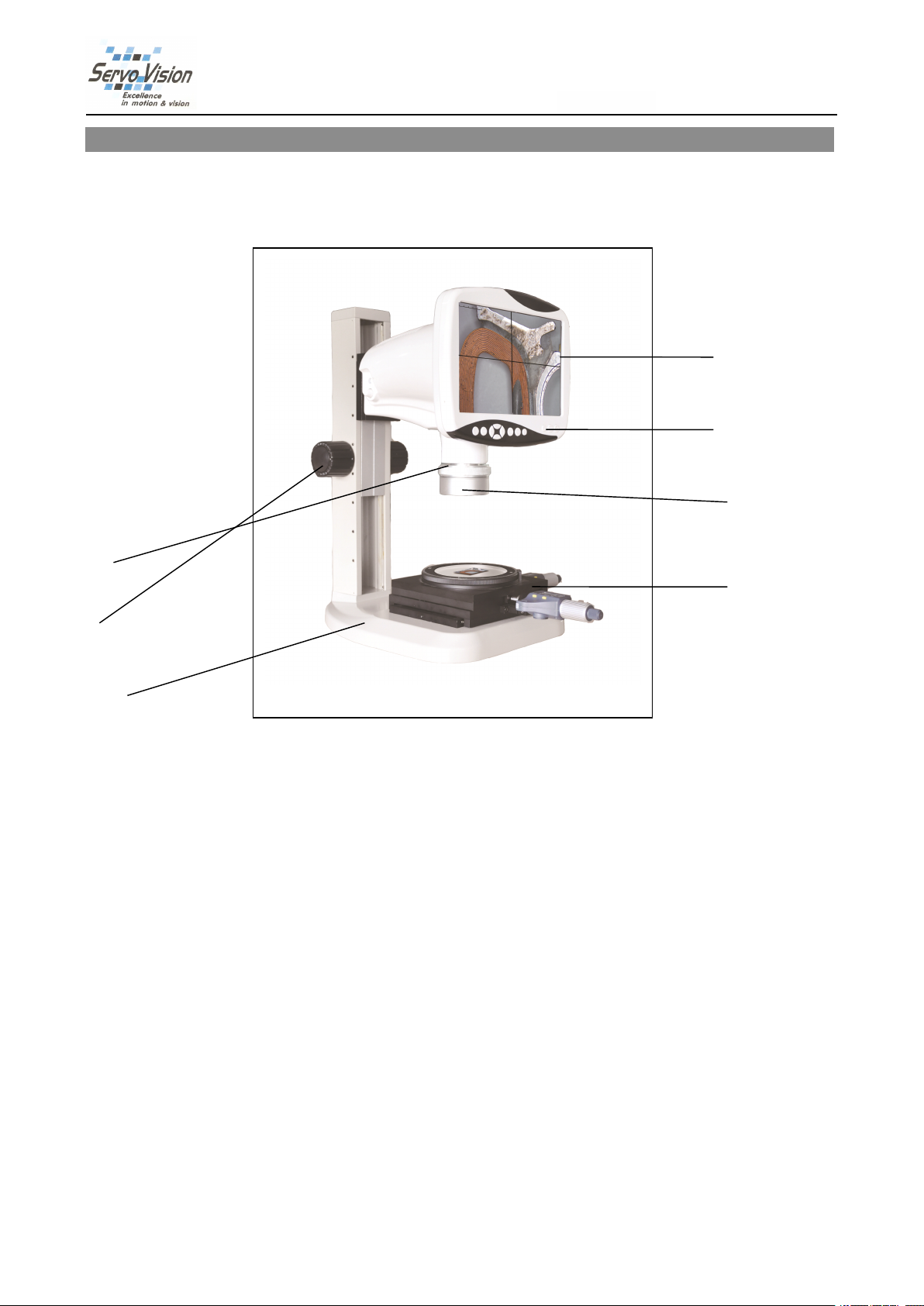
1.Name
1.Name
1.Name
1.Name of
1.Components
1.Components
1.Components
1.Components
3
3
3
3
of
Components
of
Components
of Components
Components
6
6
6
6
5
5
5
5
4
4
4
4
2
2
2
2
1
1
1
1
1.
Base
1.
Base
1.
1. Base
Base
2.
Focus
2.
2.
2. Focus
3.
3.
3.
3. Continual
4.
4.
4.
4. LED
5.
5.
5.
5. Operation
6.
6.
6.
6. LCD
7.
7.
7.
7. Measuring
Based on the model you have purchased, some of the features shown above may change.
adjusting
Focus
adjusting
Focus adjusting
adjusting hand
Continual
Continual
Continual zooming
LED
Ring
LED
Ring
LED Ring
Ring lamp
Operation
Operation
Operation button
LCD
Screen
LCD
Screen
LCD Screen
Screen
Measuring
Measuring
Measuring stage
hand
hand
hand wheel
zooming
zooming
zooming
lamp
lamp
lamp
button
button
button layout
stage
stage
stage
layout
layout
layout
wheel
wheel
wheel
7
7
7
7
4
Page 5
2.
Adjustment&
2.
Adjustment&
2.
2. Adjustment&
Adjustment& Operation
2.1
Operation
2.1
Operation
2.1
2.1 Operation
Operation buttons
Operation
Operation
Operation
buttons
buttons
buttons and
and
function
and
function
and function
function
BestScope
BestScope
BestScope
BestScope International
International
International
International Limited
Limited
Limited
Limited
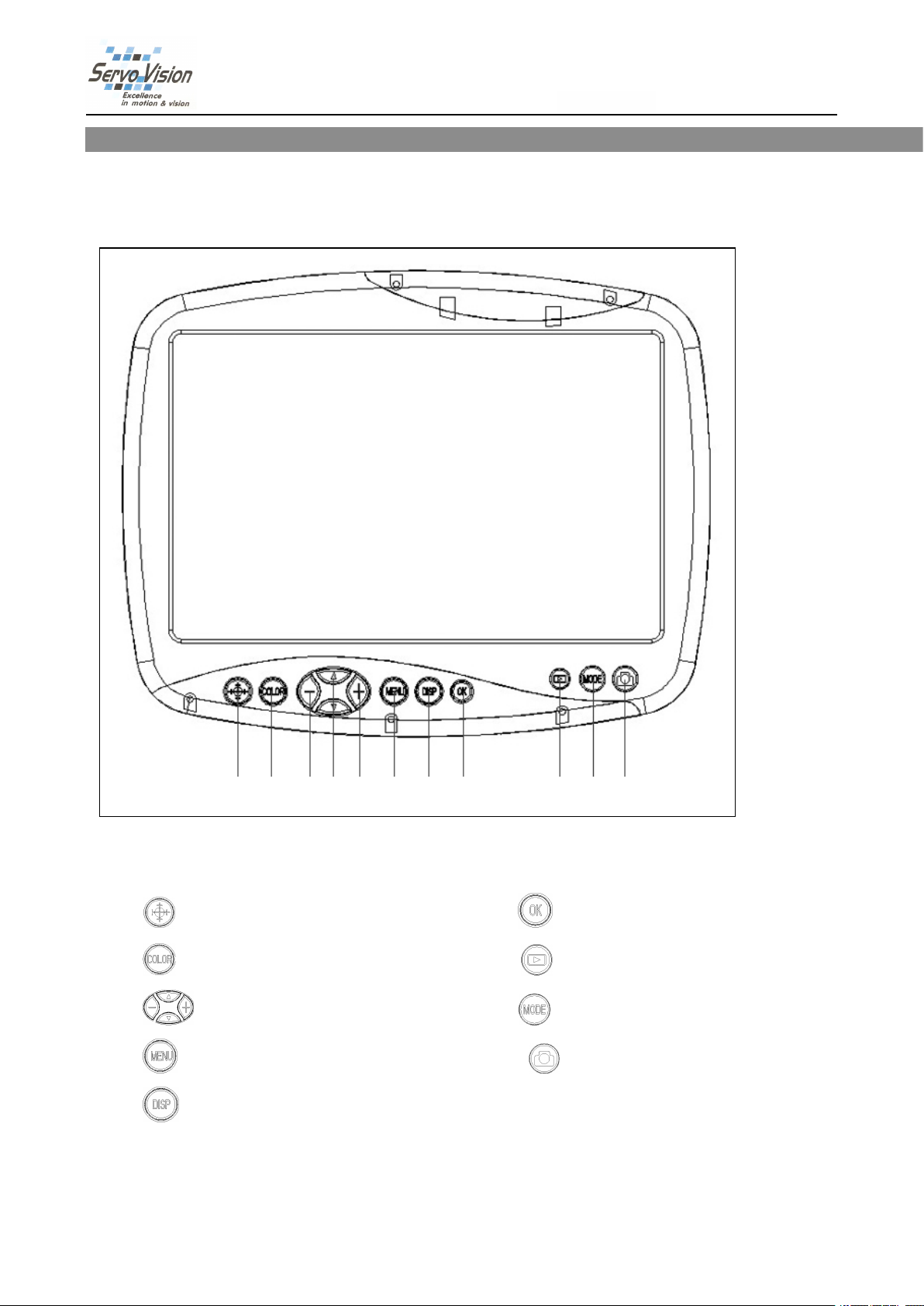
1 2 3 4 5 6 7 8 9
2.1.1
Operation
2.1.1
Operation
2.1.1
2.1.1 Operation
Operation buttons
1、 Crosshair & Coordinate 6、 Confirm Button
2、 Color: White、Black、Red、Purple、Green 7、 Snapshot & Video Playback View
3、 Direction key 8、 Snapshot & Video Switch
4、 Menu: Setting & Exit 9、 Snapshot & Video
5、 Display button:Only display image and remove kinds of characters, symbols
2.1.2
Power
2.1.2
Power
2.1.2
2.1.2 Power
Power on
buttons
buttons
buttons and
on
on
on
and
functions
and
functions
and functions
functions
5
Page 6
BestScope
BestScope
BestScope
BestScope International
A.
A.
Before power on, please take out the SD card from the card reader firstly. Insert SD card into SD slot in the
A.
A.
right of the microscope head completely until it is locked. Push softly the inserted SD card, it will eject out, then
take it out (When the card is under reading or writing, do not pull it out. Better power off first before pulling out
the SD card).
B.
B.
Connect the DC plug of the power adapter to the “DC” jack on the the microscope. Press the power switch
B.
B.
on microscope base, “WELCOME” should appear on the LCD screen. After 3 seconds, the microscope system
will be in the preview in the real time automatically when you can snap.
C.
C.
Adjust microscope’s definition: according to its imaging focal length, make images sharp from LCD display
C.
C.
screen, and then the adjustment is done.
2.1.3
Introduction
2.1.3
Introduction
2.1.3
2.1.3 Introduction
Introduction of
of
display
of
display
of display
display on
on
the
on
the
on the
the LCD
LCD
screen
LCD
screen
LCD screen
screen
International
International
International Limited
Limited
Limited
Fig.1
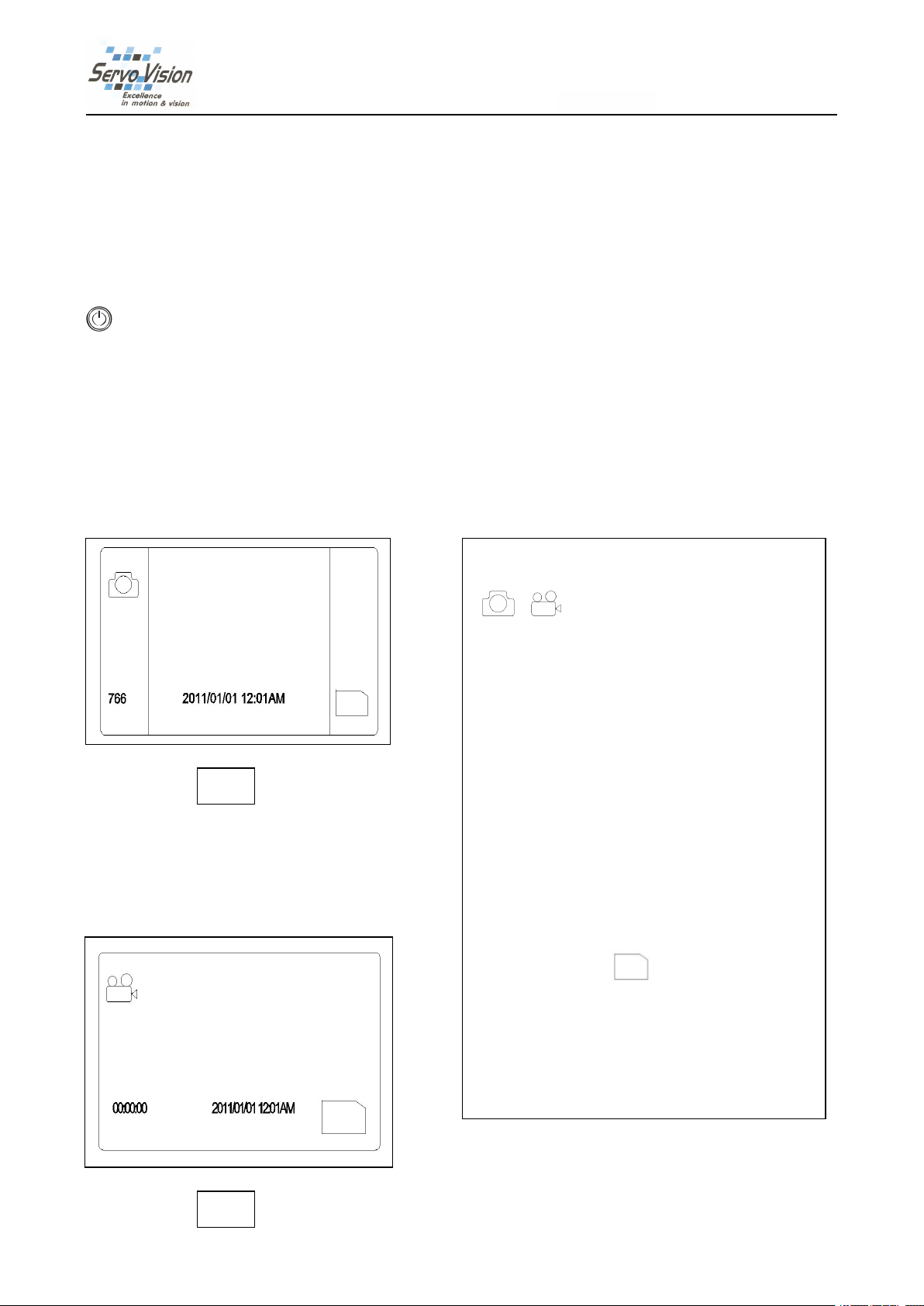
Icons of upper left corner of Fig.1 and Fig.2
( & ) indicate snap(photo) mode and video
mode.
On
the
snap
On
the
On
On the
the snap
Shown on the below left corner is the Nos of photos
that can be taken or the video recording time(“766”
means in the current setup mode, it still can shoot
766pcs photos ) Fig.1. (“00 : 00 : 00” means in
current setup mode it still can record 00min 00sec
Fig.2.
When you insert SD card, the below right corner
will show this mark
mode
snap
mode
snap mode
mode:
)
.
Fig.2
6
Page 7
2
1
2
1
2
2.1
1.4
With
With
With
With the
4
Function
4
Function
4 Function
Function menu
the
help
of
the
help
the help
help of
the
of
the
of the
the button,
menu
menu
menu control
control
control
control
button,
button,
button, it
it
is
it
is
it is
is able
able
able
able to
to
carry
to
carry
to carry
carry out
out
the
out
the
out the
the setting
BestScope
BestScope
BestScope
BestScope International
setting
setting
setting of
of
of
of the
the
whole
the
whole
the whole
whole system.
International
International
International Limited
system.
system.
system. The
The
The
The direction
Limited
Limited
Limited
direction
direction
direction key
key
key
key
allows
allows
allows
allows you
On
the
snap
On
the
On
On the
the snap
select
select
select
select a
A
A
A
A:Resolution
a
a
a setting
Resolution
Resolution
Resolution /
model,press
snap
model,press
snap model,press
model,press menu
setting
setting
setting from
you
to
you
you to
choose
to
choose
to choose
choose the
from
the
from
the
from the
the above
/
/
/ B
the
following
the
following
the following
following functions:
menu
menu
menu button
above
above
above 3
3
items.
3
items.
3 items.
items.
B
Camera
B
Camera
B:Camera
Camera function
functions:
functions:
functions:
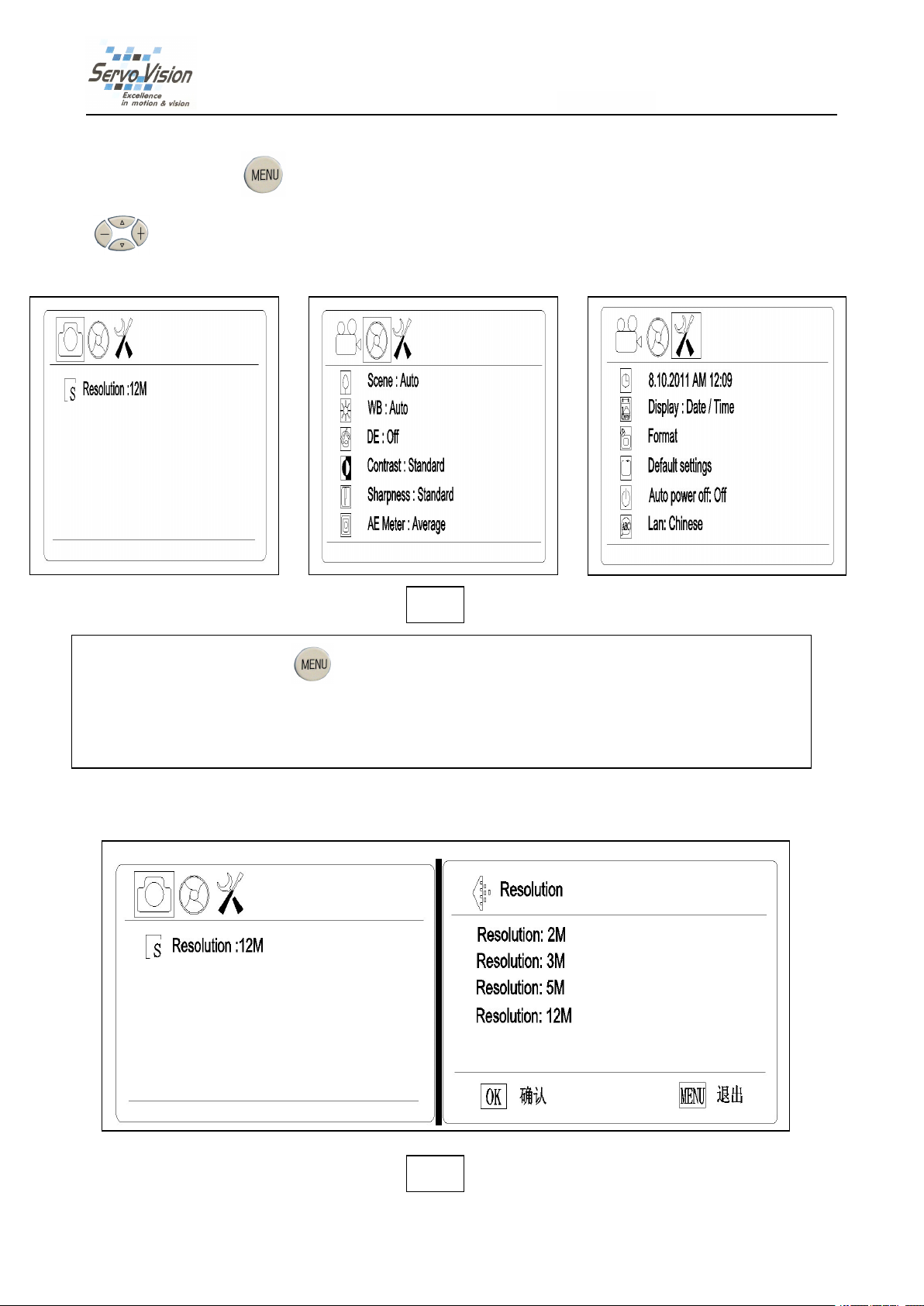
Fig.3
button
button
button to
function
function
function setting
to
enter
to
enter
to enter
enter menu
setting
setting
setting /
menu
menu
menu interface.
/
/
/ C
interface.
interface.
interface. Use
C
Display
C
Display
C:Display
Display setting/
Use
direction
Use
direction
Use direction
direction key
setting/
setting/
setting/
key
to
key
to
key to
to
A
A
A
A. Photo
Photo
Photo
Photo Resolution
Resolution
Resolution
Resolution
Fig.4
7
Page 8
Select
photo
Select
Select
Select photo
On snap model, press MENU
selected now), then press the OK
resolution
photo
resolution
photo resolution
resolution
MENU
MENU
MENU button as shown the “Resolution:12M”(12M means the pixels has
OK
OK
OK key to select the pixels for photo taken base on 2M/3M/5M/
BestScope
BestScope
BestScope
BestScope International
International
International
International Limited
Limited
Limited
Limited
12M use by up & down keys (Fig.11
Fig.10
comes back to Fig.10
A.
Video
A.
Video
A.
A. Video
Video Resolution
Fig.10
Fig.10.then you press MENU
Resolution
Resolution
Resolution
Fig.11
Fig.11
Fig.11). Press OK
MENU
MENU
MENU button again, the model comes back to snap model.
OK
OK
OK button to save your selection, the model
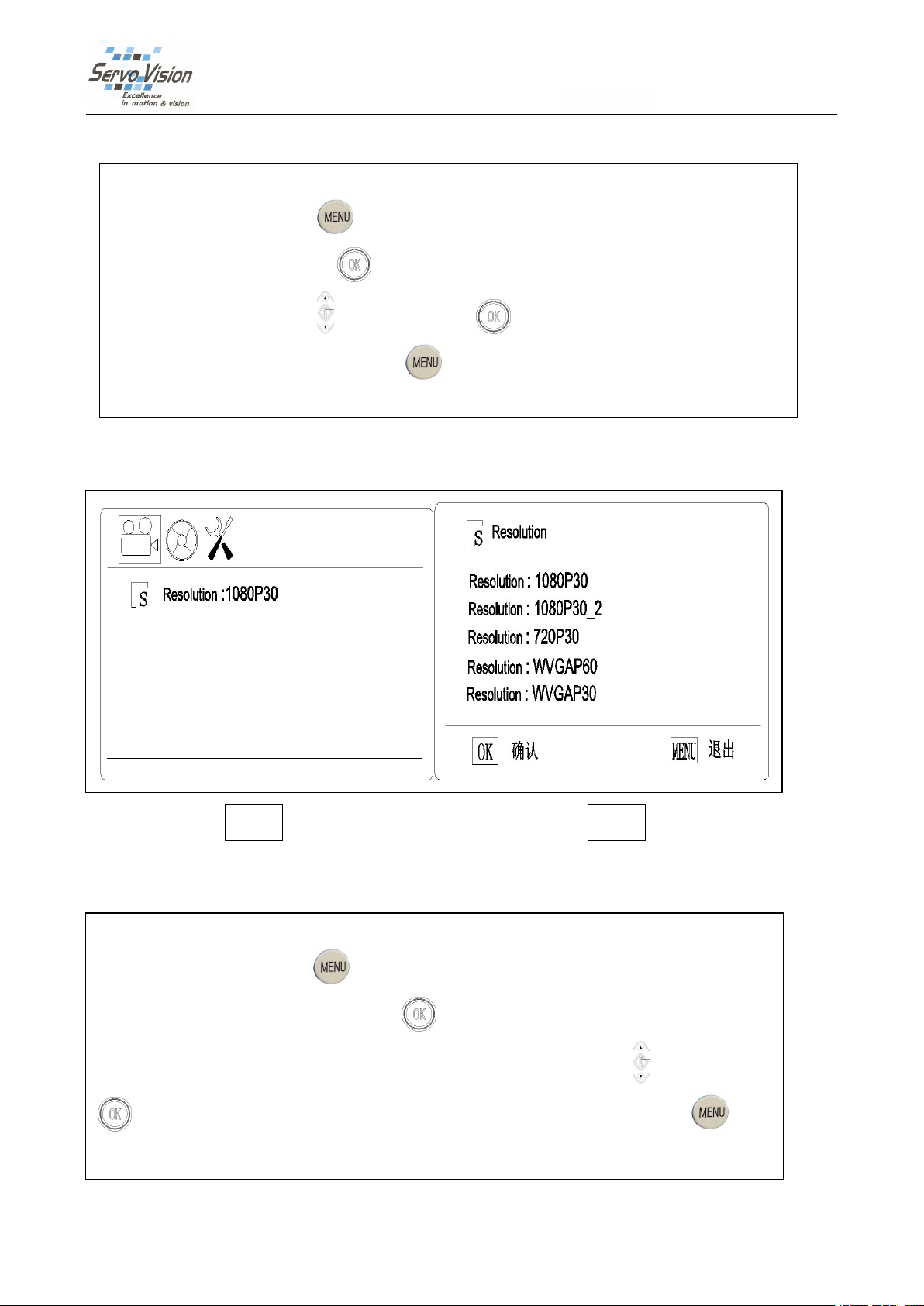
Fig.5 Fig.6
Select
video
Select
Select
Select video
On video model, press MENU
pixels has selected now), then press the OK
1080P30/1080P30-2/720P30/ WVGAP60/WVGA P30 use by up & down keys (Fig.6
button to save your selection, the model comes back to Fig.5
again, the model comes back to video model.
resolution
video
resolution
video resolution
resolution
MENU
MENU
MENU button as shown the “Resolution:1080P30”(1080P30 means the
OK
OK
OK key to select the pixels for video taken base on
Fig.6
Fig.6
Fig.6). Press OK
Fig.5
Fig.5
Fig.5.then you press MENU
MENU
MENU
MENU button
OK
OK
OK
8
Page 9
B
Camera
B
Camera
B
B.Camera
Camera function
function
function
function setting
setting
setting
setting
BestScope
BestScope
BestScope
BestScope International
International
International
International Limited
Limited
Limited
Limited
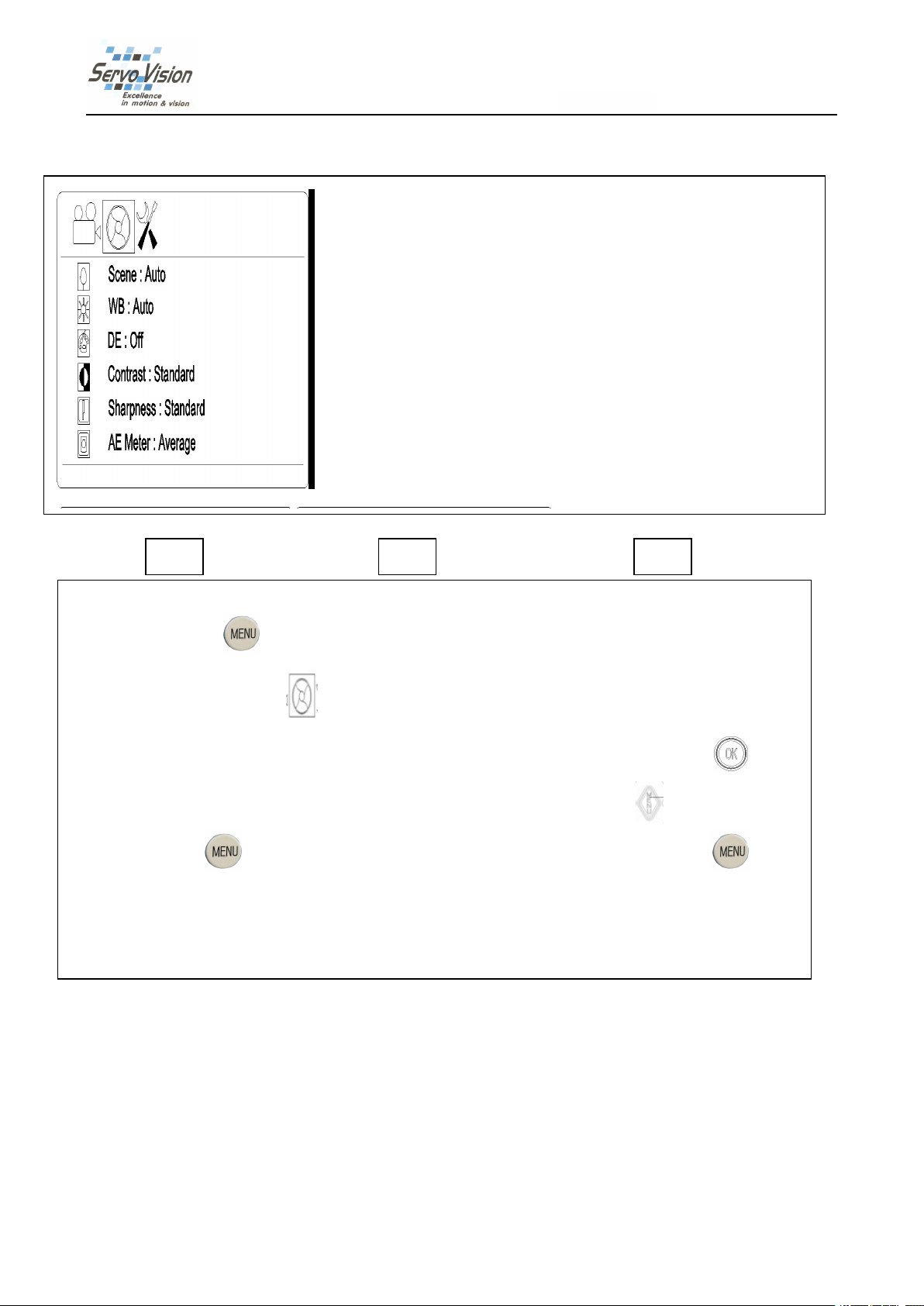
Fig.7 Fig.8 Fig.9
Camera
Camera
Camera
Camera function
On snap model, press
the “Camera Function Setting” (Fig7)
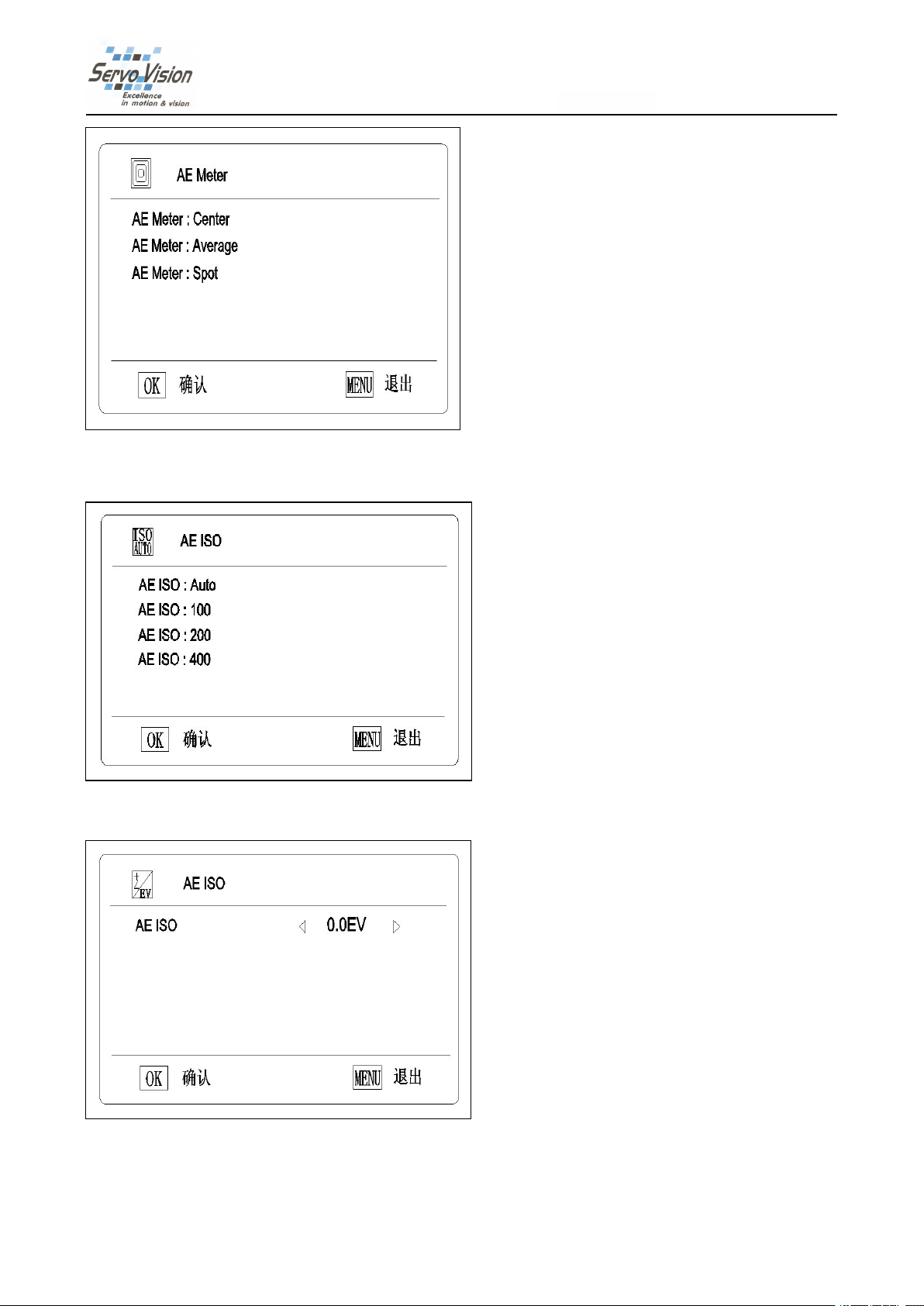
Sharpness/ AE Meter/ AE ISO/ AE Bias. (Fig.7&8).
enter the Scene setting and choose by up & down keys (Fig.9)
selection or exit by MENU
again, you can come back to snap model .
On video model, the operation is same.
function
function
function setting
setting
setting
setting
MENU
MENU
MENU button. Once confirmed, the model comes back to Fig7
:
Setting
:
Setting
:
: Setting
Setting up
MENU
MENU
MENU
MENU
up
each
up
up each
button as show the “Resolution”, then press the left & right key to enter
(Fig7)
(Fig7)
(Fig7).Then press up&down key to select as Scene/ WB/ DE/ Contrast/
item.
each
item.
each item.
item.
(Fig.7&8).
(Fig.7&8).
(Fig.7&8).For example: Fig.7
(Fig.9)
(Fig.9)
(Fig.9). Press OK
Fig.7
Fig.7
Fig.7
You
can press the OK
OK
OK
OK botton again to save your
Fig7
Fig7
Fig7, press MENU
OK
OK
OK key to
MENU
MENU
MENU
C
Display
C
Display
C
C. Display
Display setting
setting
setting
setting
9
Page 10
BestScope
BestScope
BestScope
BestScope International
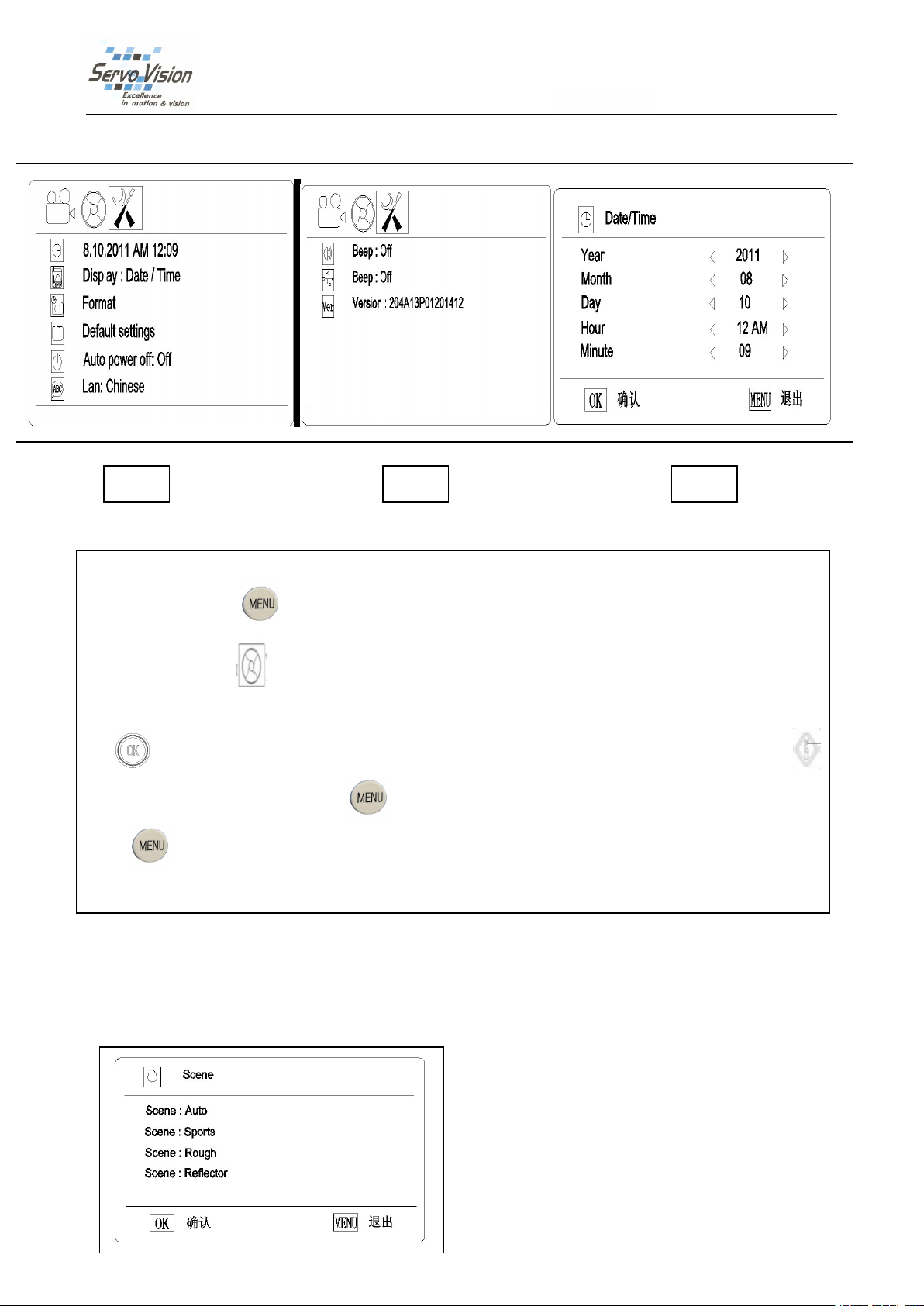
Fig.10 Fig.11 Fig.12
International
International
International Limited
Limited
Limited
Limited
Display
Display
Display
Display Setting
On snap model, press
the “Display Setting” (Fig10)
settings、Auto power off、Langue、Beep、USB、Version. (Fig.10&11).
OK
OK
OK
OK key to enter the Date/Time setting and change by direction keys (Fig.12)
again to save your selection or exit by MENU
press MENU
On video model, the operation is same.
2
2
2
2.1
A
Scene
A
Scene
A
A Scene
Scene
Setting
Setting
Setting
MENU
MENU
MENU again, you can come back to snap model.
1
5
Camera
1
5
Camera
1.5
5 Camera
Camera function
:
Setting
:
Setting
:
: Setting
Setting up
function
function
up
each
up
each
up each
each item.
MENU
MENU
MENU
MENU
(Fig10)
(Fig10)
(Fig10).Then press up&down key to select as Date/Time、Display、Format、Default
setting
function setting
setting
setting details
item.
item.
item.
button as show the “Resolution”, then press the left & right key to enter
(Fig.10&11).
(Fig.10&11).
(Fig.10&11).For example: Fig.17
(Fig.12)
(Fig.12)
(Fig.12).
MENU
MENU
MENU button. Once confirmed, the model comes back to Fig10
details
details
details
Fig.17
Fig.17
Fig.17
.
You
.
. Press OK
OK
OK
OK botton
can press the
Fig10
Fig10
Fig10,
10
Page 11

MENU
You
can choose different Scene by MENU
performance.
B.
WB
B.
B.
B. WB
WB will help you to obtain superb color when observing.
C
C
C
C DE
(White
WB
(White
WB (White
(White Balance)
DE
(Color
DE
(Color
DE (Color
(Color effects)
Balance)
Balance)
Balance)
effects)
effects)
effects)
MENU
MENU button according to the objects observed so that help you to get perfect
BestScope
BestScope
BestScope
BestScope International
International
International
International Limited
Limited
Limited
Limited
D.
Sharpness
D.
Sharpness
D.
D. Sharpness
Sharpness
E.
AE
E.
AE
E.
E. AE
AE Meter
Meter
Meter
Meter
11
Page 12
F.
AE
F.
AE
F.
F.
AE
AE ISO
ISO
ISO
ISO
BestScope
BestScope
BestScope
BestScope International
International
International
International Limited
Limited
Limited
Limited
G.
AE
Bias
G.
AE
G.
G. AE
2
2
2
2.1
A.
A.
A.
A. Date/Time
Bias
AE Bias
Bias
1
6
Display
1
6
Display
1.6
6 Display
Display setting
Date/Time
Date/Time
Date/Time
setting
setting
setting details
details
details
details
12
Page 13
BestScope
BestScope
BestScope
BestScope International
You
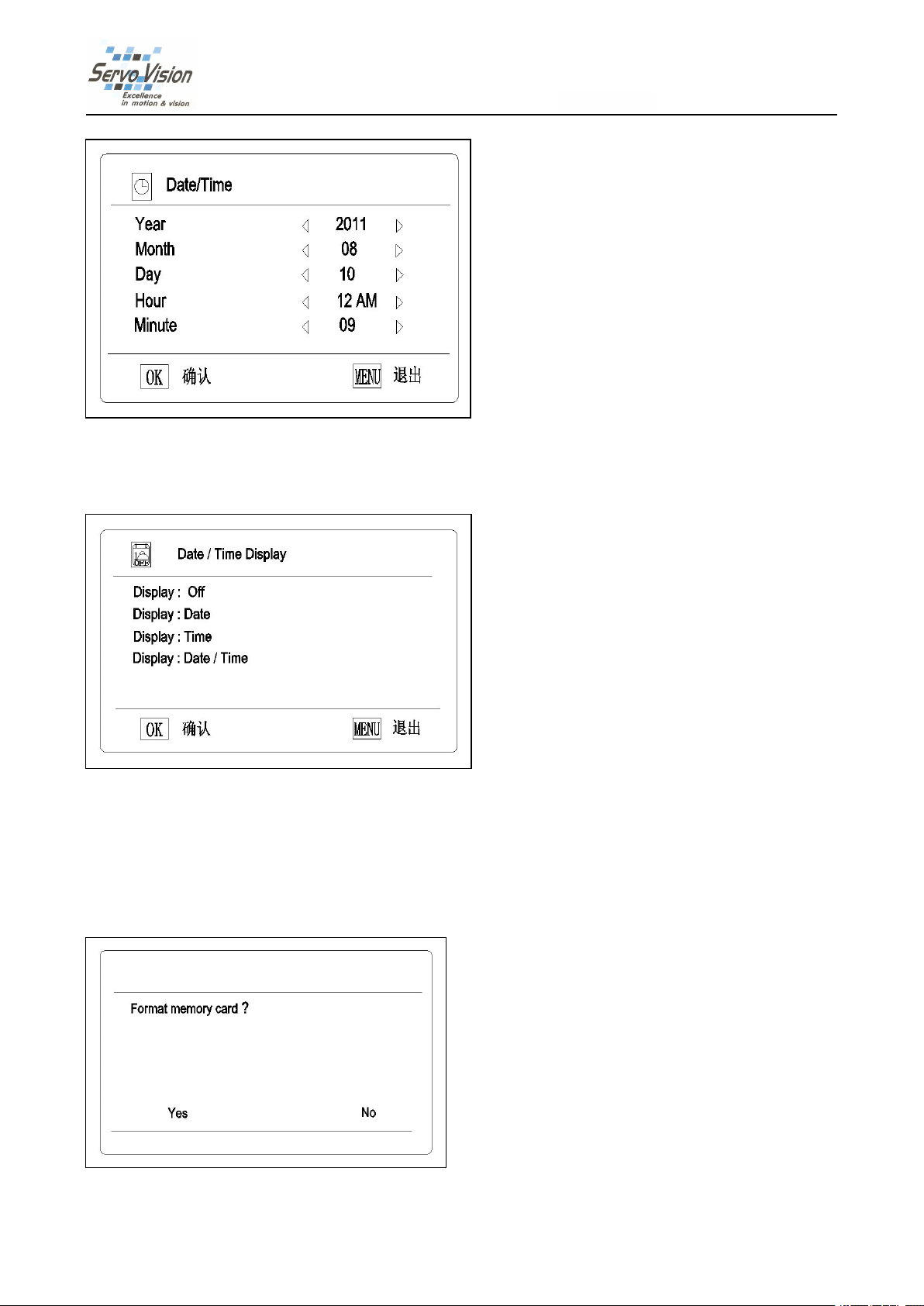
can use left and right keys of direction button to change the time. After fixed,you can save the time.
B.
Display
B.
Display
B.
B. Display
Display
International
International
International Limited
Limited
Limited
Limited
Date and time information can be stored together with photo taken in SD card. File names also contain date and
time information. Before using this camera, please set the date and time properly.
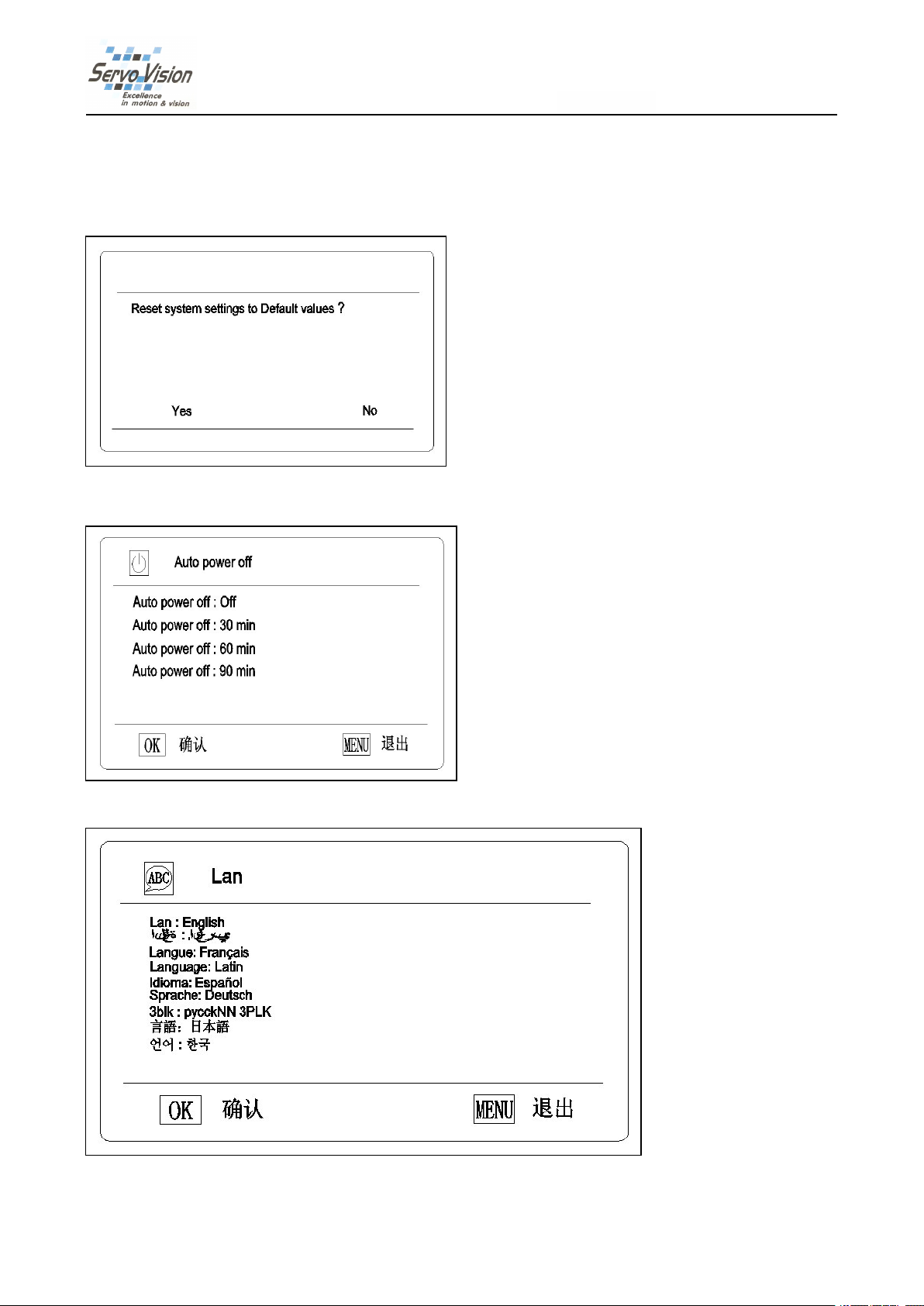
want. If you want to display “Date”, you can choose the second option.
C
.
Format
C
.
Format
C
C.
. Format
Format
Select
“
Yes
”
can
Select
Select
Select “
“
“
Yes
Yes
Yes
format
”
can
format
”
” can
can format
format all
all
the
all
the
all the
the SD
SD
card
SD
card
SD card
card inserted
inserted
inserted
inserted;(Attention
(Attention
(Attention
(Attention:Even
Even
the
Even
the
Even the
the protected
You
can choose what display you
protected
protected
protected content
content
content
content will
will
be
will
be
will be
be deleted
deleted
deleted
deleted
13
Page 14
when
formatting,
when
formatting,
when
when formatting,
formatting, can
the
snap
the
the
the snap
D.
D.
D.
D. Reset
E.
E.
E.
E. Auto
modlel.
snap
modlel.
snap modlel.
modlel.
Reset
system
Reset
system
Reset system
system settings
Auto
power
Auto
power
Auto power
power off
off
off
off
can
not
can
not
can not
not be
settings
settings
settings to
be
resumed
be
resumed
be resumed
resumed again.)
to
default
to
default
to default
default values
again.)
again.)
again.) Select
values
values
values ?
?
?
?
Select
Select
Select “
“
No
“
No
“No
No”
”
and
”
and
” and
and press
BestScope
BestScope
BestScope
BestScope International
press
menu
press
menu
press menu
menu botton
botton
botton
botton ,
International
International
International Limited
,
the
model
,
the
model
, the
the model
model comes
Limited
Limited
Limited
comes
back
comes
back
comes back
back to
to
to
to
F.
Langue
F.
Langue
F.
F.
Langue
Langue
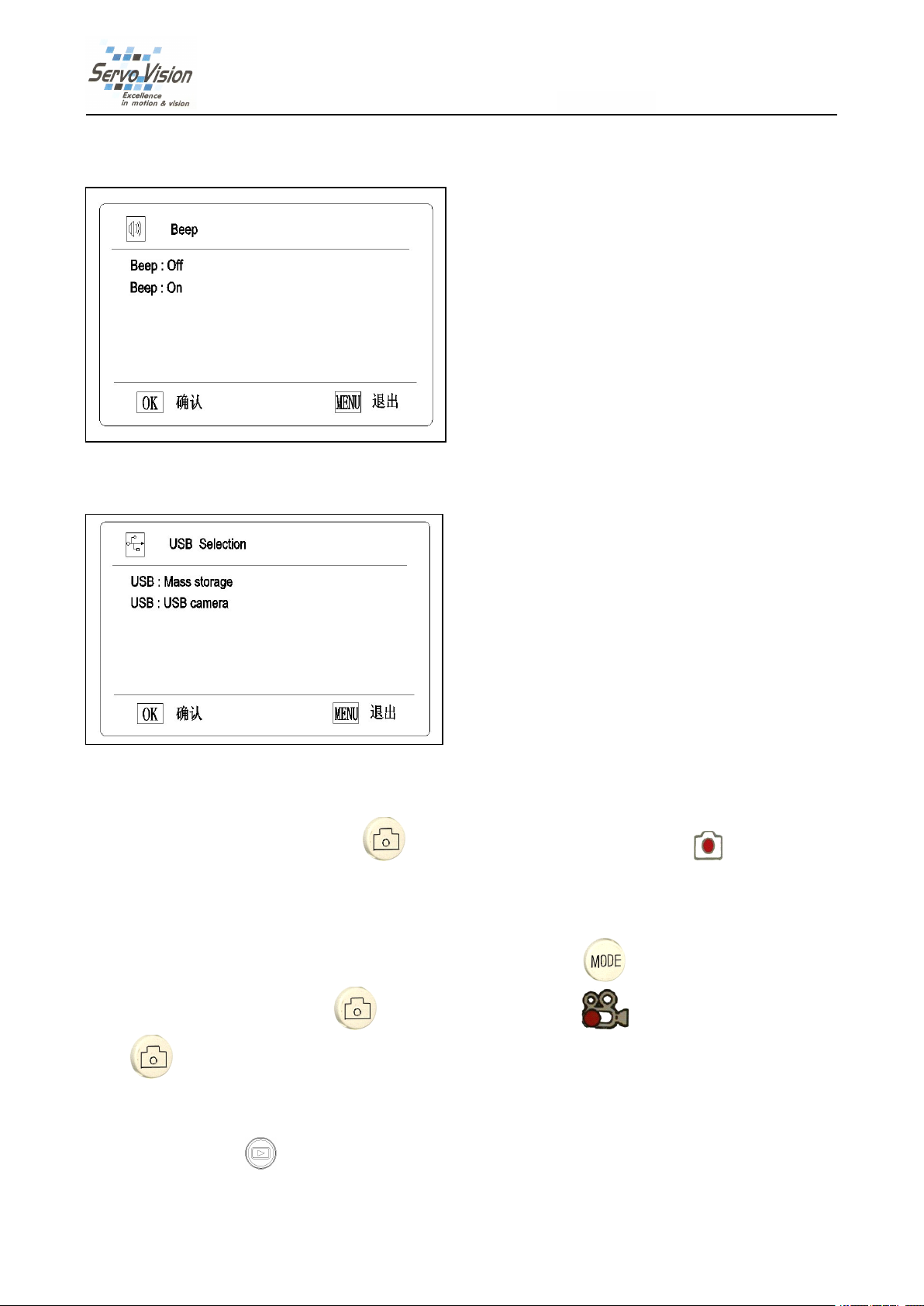
We developed 9 languages according to your demand.
14
Page 15
G.
Beep
G.
Beep
G.
G. Beep
Beep
H.
USB
H.
H.
H. USB
Selection
USB
Selection
USB Selection
Selection
BestScope
BestScope
BestScope
International
International
Limited
Limited
Limited
2
1
7
2
2
2.1
A.
Snapshot
A.
Snapshot
A.
A. Snapshot
Snapshot On the snap model, press button to snapshot pictures and meantime icon of upper left
of LCD screen will show. The pictures automatically stored in SD card. When the card is full,the LCD screen will
show “Card full”
B.
Record
B.
Record
B.
B. Record
Record On the snap model, you can enter video model by pressing button. Meantime the image will
show full screen and you can press button to start recording and will show on the LCD screen.
Press button again,the video is over and automatically stored in SD card . When the card is full,the LCD
screen will show “Card full”
C.
Playback
C.
Playback
C.
C. Playback
Playback Press button to select playback model.
Press up & down keys to browse every photo and video which is taken and stored in the SD card.
Snapshot
1
7
Snapshot
1.7
7 Snapshot
Snapshot &
&
Record
&
Record
& Record
Record
15
Page 16

BestScope
BestScope
BestScope
BestScope International
Press left key, the screen will display multi photos and videos. Index display helps to find target photo or video
quickly in many pictures and videos.
On the snap model, you can review pictures but can’t review videos.
On the video model, you can review videos but can’t review pictures.
International
International
International Limited
Limited
Limited
Limited
16
Page 17
3. Installation and Operation of Image Tester
A.
Installation
A.
Installation
A.
A. Installation
Installation of
1
.
Installation
1
.
Installation
1
1.
. Installation
Installation method
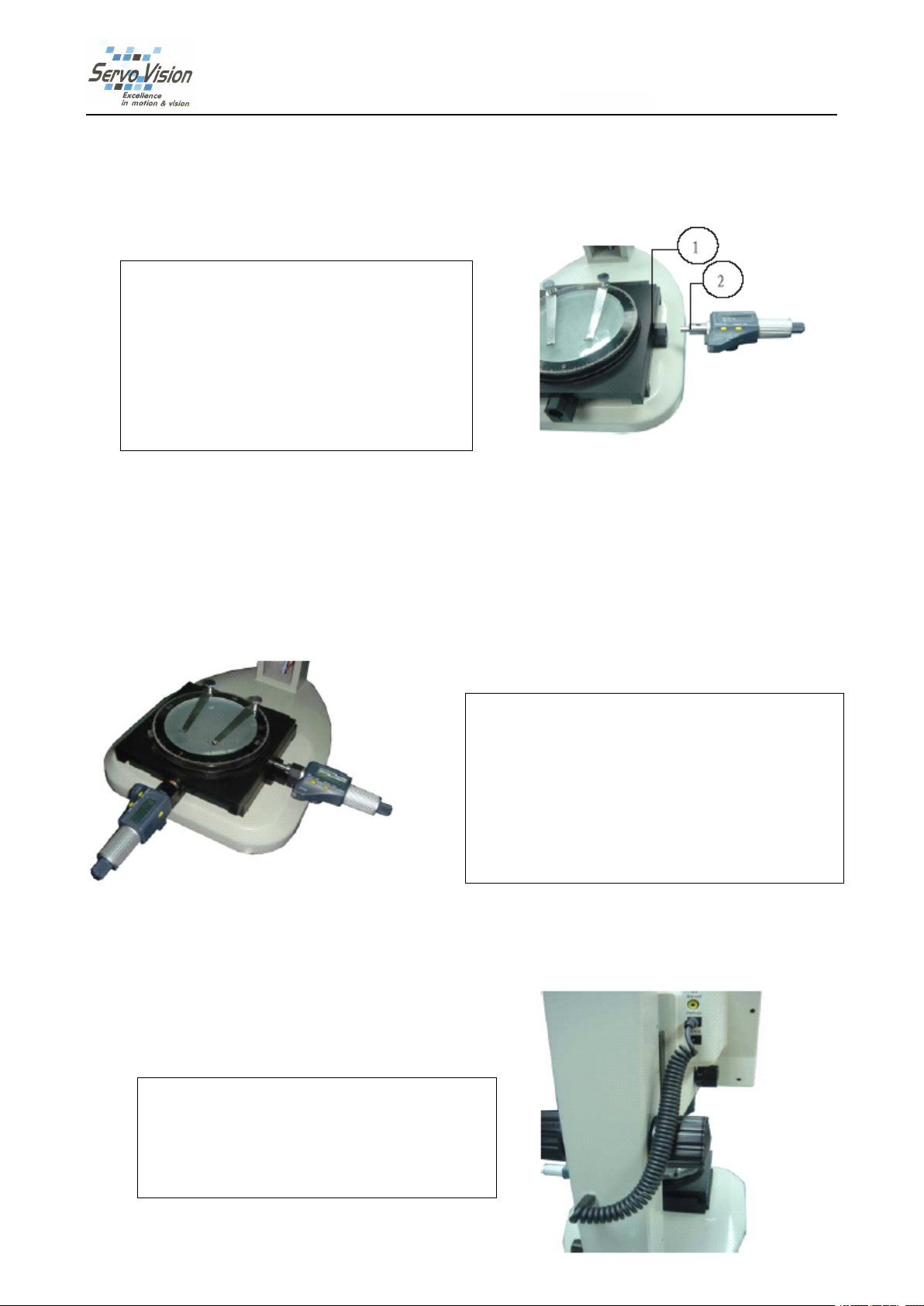
★ Plug ② support rod of micrometer into ①
movable platform clamp spring first, with the LCD
screen facing upward, and noting that the support
rod of micrometer should be plugged to location.
Then, use M3 inner hexangular spanner to tight
uniformly the fastening screw for the rod of
micrometer to the extent of not shedding off and
rotating the micrometer.
of
image
of
of image
method
method
method and
tester:
image
tester:
image tester:
tester:
and
and
and steps
steps
steps
steps of
of
the
micrometer:
of
the
micrometer:
of the
the micrometer:
micrometer:
BestScope
BestScope
BestScope
BestScope International
International
International
International Limited
Limited
Limited
Limited
2.
The
2.
2.
2. The
manual.
manual.
manual.
manual.
B.
B.
B.
B. The
instructions
The
instructions
The instructions
instructions for
The
connection
The
connection
The connection
connection and
★ The connection of bed light source: Connect one
end of the connection line with the both ends having
spring and normal DC specification to the DC
socket marked with "DC OUT", with another
terminal inserting into the DC socket of the frame
for
installation
for
installation
for installation
installation method
and
application
and
application
and application
application of
method
method
method and
of
bed
of
of bed
light
bed
light
bed light
light source:
★ Install another micrometer in the same way and
steps to the movable platform clamp spring. Tighten the
fastening screw to clamp the support rod of micrometer
to the extent of not shedding off and not rotating. Put it
into the black/white workbench or single sided frosted
glass workbench (note that the smooth surface should
be facing upward). The final installation structure is as
shown in the diagram.
and
application
and
application
and application
application of
source:
source:
source:
of
the
of
the
of the
the system
system
system
system are
are
are
are referred
referred
referred
referred to
to
DMS100
to
DMS100
to DMS100
DMS100 user
user
user
user
17
Page 18

BestScope
BestScope
BestScope
BestScope International
International
International
International Limited
Limited
Limited
Limited
Image
Image
Image
Image Tester
C.
C.
C.
C. Operating
★
1.
1.
1.
1. Place
platform,
platform,
platform,
platform, wipe
and
and
and
and connect
2.
2.
2.
2. Press
Tester
Tester
Tester
Operating
Operating
Operating instructions
The
The
The
The measurement
Place
Place
Place the
connect
connect
connect the
Press
Press
Press lightly
instructions
instructions
instructions for
measurement
measurement
measurement of
the
system
the
system
the system
system levelly
wipe
clean
wipe
clean
wipe clean
clean the
the
the
the main
lightly
lightly
lightly the
of
of
of length:
levelly
levelly
levelly on
the
workbench
the
workbench
the workbench
workbench surface,
main
system
main
system
main system
system power
the
main
the
main
the main
main system
for
the
for
for the
system
system
system power
measurement
the
measurement
the measurement
measurement application
length:
length:
length:
on
a
desktop.
on
a
desktop.
on a
a desktop.
desktop. Firstly,
surface,
surface,
surface, connect
power
power
power supply.
supply.
supply.
supply.
power
power
power switch,
application
application
application of
Firstly,
Firstly,
Firstly, install
connect
connect
connect properly
switch,
switch,
switch, start
start
start
start the
★ Adjust the black knob at the right side of column
for the brightness of bed light source, attaining the
sharp image outline. The arrowhead direction is the
rotating direction for increasing brightness. The
reverse direction is for brightness attenuating and
turning off the bed light source power.
of
image
of
of image
install
install
install and
properly
properly
properly the
the
the
the instrument
and
and
and fasten
instrument
instrument
instrument and
tester:
image
tester:
image tester:
tester:
fasten
fasten
fasten the
the
the
the DC
the
the
the micrometer
DC
connection
DC
connection
DC connection
connection line
and
and
and rotate
micrometer
micrometer
micrometer and
line
line
line of
rotate
the
rotate
rotate the
rapid
the
rapid
the rapid
rapid driving
and
the
and
the
and the
the movable
of
bed
of
of bed
light
bed
light
bed light
light source,
driving
driving
driving device
movable
movable
movable
device
device
device of
source,
source,
source,
of
of
of
micrometer
micrometer
micrometer
micrometer so
substance
substance
substance
substance to
shine
shine
shine
shine thoroughly
3.
Adjust
3.
Adjust
3.
3. Adjust
Adjust the
source,
source,
source,
source, making
4.
Self
4.
Self
4.
4. Self
Self define
the
substance
the
substance
the
the substance
substance tested
align
align
align
align closely
driving
driving
driving
driving device
The
value
The
value
The
The value
value of
Remarks:
Remarks:
Remarks:
Remarks: The
micrometer
micrometer
micrometer
micrometer
so
so
so that
to
be
to
be
to be
be measured
thoroughly
thoroughly
thoroughly for
the
the
the focal
making
making
making the
define
define
define the
tested
tested
tested runs
closely
closely
closely one
one
one
one side
device
device
device to
to
to
to align
of
the
of
the
of the
the micrometer
The
The
The detail
that
the
screw
that
the
that the
the screw
measured
measured
measured lightly
for
the
for
the
for the
the best.
focal
length,
focal
length,
focal length,
length, magnification
the
substance
the
substance
the substance
substance to
the
linear
the
linear
the linear
linear graphic,
runs
runs
runs parallel
side
of
side
of
side of
of the
align
closely
align
closely
align closely
closely the
micrometer
micrometer
micrometer is
detail
application
detail
application
detail application
application of
rod
screw
rod
screw rod
rod of
lightly
lightly
lightly on
best.
best.
best.
magnification
magnification
magnification and
to
to
to be
graphic,
graphic,
graphic, rotate
parallel
parallel
parallel with
the
substance
the
substance
the substance
substance tested
the
the
the position
is
is
is the
of
the
micrometer
of
the
micrometer
of the
the micrometer
on
the
on
on the
be
be
be measured
with
with
position
position
position to
the
the
the value
center
the
center
the center
center of
measured
measured
measured having
rotate
the
rotate
the
rotate the
the rotary
the
the
with the
the cross
tested
tested
tested with
value
of
value
of
value of
of the
of
the
of
of the
micrometer
the
micrometer
the micrometer
stretches
micrometer stretches
and
and
and the
having
having
having a
rotary
rotary
rotary disc
cross
cross
cross line.
to
be
to
be
to be
be measured
the
substance
the
substance
the substance
substance value
micrometer is
stretches
stretches out
of
workbench
of
workbench
of workbench
workbench surface,
the
brightness
the
brightness
the brightness
brightness of
a
very
sharp
a
very
sharp
a very
very sharp
sharp image.
disc
of
disc
disc of
line.
line.
line. Rotate
with
with
with the
measured
measured
measured with
the
of
the
of the
the rotation
Rotate
Rotate
Rotate again
the
the
the cross
is
is
is referred
again
again
again the
cross
cross
cross line.
with
with
with cross
value
value
value measured.
referred
referred
referred to
out
about
out
out about
surface,
surface,
surface, with
of
of
of the
image.
image.
image.
rotation
rotation
rotation movable
the
the
the rapid
line.
line.
line. Reset
cross
cross
cross line
measured.
measured.
measured.
to
to
to the
half
about
half
about half
half of
with
the
with
the
with the
the bed
the
upper
the
upper
the upper
upper light
movable
movable
movable platform,
rapid
rapid
rapid driving
Reset
the
Reset
the
Reset the
the micrometer.
line
of
line
line of
the
the
the operation
one
of
one
of one
one side
operation
operation
operation manual
of
length
of
length
of length
length (12.5mm).
bed
bed
bed light
light
light
light source
platform,
platform,
platform, so
driving
driving
driving device
micrometer.
micrometer.
micrometer. Rotate
side
side
side of
(12.5mm).
(12.5mm).
(12.5mm). Place
light
source
light
source
light source
source available
source
source
source and
manual
manual
manual of
and
and
and the
so
so
so that
device
device
device of
of
of
of the
of
of
of micrometer
Rotate
Rotate
Rotate the
the
aligned
the
aligned
the aligned
aligned substance.
of
of
of the
Place
Place
Place the
available
available
available to
the
bed
the
the bed
that
that
that one
micrometer
micrometer
micrometer to
the
the
the electronic
light
bed
light
bed light
light
one
side
one
side
one side
side of
the
rapid
the
rapid
the rapid
rapid
substance.
substance.
substance.
electronic
electronic
electronic
the
the
the
to
to
to
of
of
of
to
to
to
Operation
Operation
Operation
Operation Manual
1.
1.
1.
1. S
Manual
Manual
Manual of
S
ketch
S
ketch
Sketch
ketch diagram
diagram
diagram
diagram of
of
Electronic
of
Electronic
of Electronic
Electronic Micrometer
of
of
of structure:
Micrometer
Micrometer
Micrometer
structure:
structure:
structure:
18
Page 19
BestScope
BestScope
BestScope
BestScope International
International
International
International Limited
Limited
Limited
Limited
Image
Image
Image
Image Tester
2.
2.
2.
2. LCD
Tester
Tester
Tester
LCD
screen:
LCD
screen:
LCD screen:
screen:
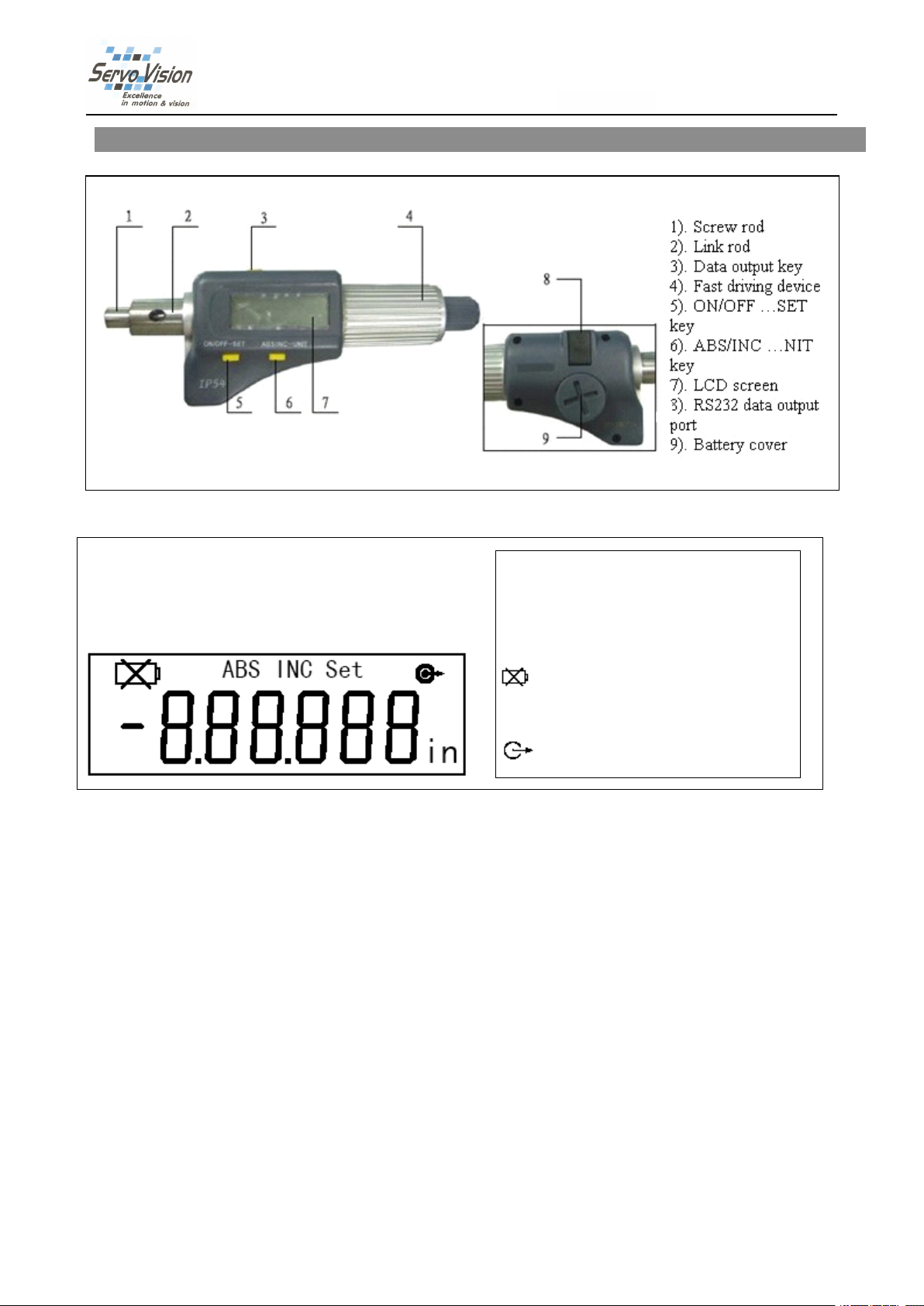
IN: The prompt sign for indication of
English system measurement mode
Set: The prompt sign for indication of initial
value setting
INC: The prompt sign for indication of
relative measurement mode
: The prompt sign for under voltage
alarm indication of battery
ABS: The prompt sign for indication of
absolute measurement mode
: The prompt sign for indication of
data output status
3.
The
3.
The
The
The function
3.
3.
There
are
There
are
There
There are
are two
(1)
Short
(1)
Short
(1)
(1) Short
Short press
(2)
Long
(2)
Long
(2)
(2) Long
Long press
3.
1.
ON/OFF
3.
1.
ON/OFF
3.
3. 1.
1. ON/OFF
ON/OFF …
The
key
The
key
The
The key
key operation
The
key
The
key
The
The key
key operation
"Set".
"Set".
"Set".
"Set".
The
initial
The
initial
The
The initial
initial values
under
the
under
the
under
under the
the metric
The
initial
The
initial
The
The initial
initial values
function
function
function and
two
two
two kinds
press
press
press (time
press
press
press (time
operation
operation
operation <
operation
operation
operation≥
values
values
values of
metric
metric
metric system
values
values
values of
and
and
and operation
kinds
kinds
kinds of
(time
(time
(time <
(time
(time
(time ≥
…
SET:
…
SET:
… SET:
SET: The
≥
≥
≥2
of
of
of digital
system
system
system mode;
of
of
of digital
operation
operation
operation of
of
key
operation:
of
key
operation:
of key
key operation:
operation:
<
2
seconds)
<
2
seconds)
< 2
2 seconds)
seconds)
≥
2
seconds)
≥
2
seconds)
≥ 2
2 seconds)
seconds)
The
switch
The
switch
The switch
switch key,
<
2
seconds:
<
2
seconds:
< 2
2 seconds:
seconds: Power
2
seconds:
2
seconds:
2 seconds:
seconds: Setting
digital
digital
digital display
digital
digital
digital display
Setting
display
display
display meter
mode;
mode;
mode;
display
display
display meter
of
the
key:
of
the
key:
of the
the key:
key:
key,
delay
key,
delay
key, delay
delay setting
Power
Power
Power supply
Setting
Setting initial
supply
supply
supply ON/OFF
initial
initial
initial value
meter
of
meter
of
meter of
of different
meter
of
meter
of
meter of
of different
setting
setting
setting key
value
value
value of
different
different
different measuring
different
different
different measuring
key
key
key
ON/OFF
ON/OFF
ON/OFF of
of
digital
of
digital
of digital
digital display
measuring
measuring
measuring range
measuring
measuring
measuring range
of
digital
of
digital
of digital
digital display
display
display
display meter
display
display
display meter
range
range
range are
range
range
range are
meter
meter
meter
meter
of
meter
of
meter of
of absolute
are
respectively
are
respectively
are respectively
respectively 0,
are
respectively
are
respectively
are respectively
respectively 0,
absolute
absolute
absolute measurement:
measurement:
measurement:
measurement: Display
0,
25,
50
25,
50
25, 50
50 …
1
”
,
2
1
”
,
2
1”
”,
, 2
2”
…
…
… 275
”
…
”
…
” …
…11
0,
0, 25,
0,
0,
0, 1
Display
Display
Display
275
mm
275
mm
275 mm
mm
11
”
under
11
”
under
11”
” under
under
19
Page 20

BestScope
BestScope
BestScope
BestScope International
International
International
International Limited
Limited
Limited
Limited
Image
Image
Image
Image Tester
the
the
the
the English
After
After
After
After reinstalling
The
The
The
The default
3.
2.
3.
2.
3.
3. 2.
2. ABS/INC
system
system
system
system to
The
The
The
The key
Relative
Relative
Relative
Relative measurement
The
The
The
The key
measurement
measurement
measurement
measurement mode
3.3.
3.3.
3.3.
3.3. The
The
The
The
The key
Tester
Tester
Tester
English
English
English system
default
default
default initial
ABS/INC
ABS/INC
ABS/INC …
key
key
key operation
key
key
key operation
The
The
The data
key
key
key operation
"
"
"
" ".
system
system
system mode.
reinstalling
reinstalling
reinstalling a
initial
initial
initial value
…
…
… UNIT:
to
measurement
to
measurement
to measurement
measurement mode
operation
operation
operation <2
measurement
measurement
measurement mode
operation
operation
operation ≥
mode
mode
mode with
data
output
data
output
data output
output key:
operation
operation
operation <
".
".
".
mode.
mode.
mode.
a
battery,
a
battery,
a battery,
battery, the
value
value
value of
UNIT:
UNIT:
UNIT: Absolute/relative
<2
<2
<2 seconds:
≥
2
≥
2
≥2
2 seconds:
with
with
with "in"
<
<
< 2
the
initial
value
the
initial
the initial
initial value
of
the
digital
of
the
digital
of the
the digital
digital display
Absolute/relative
Absolute/relative
Absolute/relative measurement
mode
convert
mode
convert
mode convert
convert key.
seconds:
seconds:
seconds: Absolute
mode
mode
mode with
seconds:
seconds:
seconds: Metric/English
key:
key:
key:
2
seconds:
2
seconds:
2 seconds:
seconds: It
Absolute
Absolute
Absolute and
with
"INC"
with
"INC"
with "INC"
"INC" indication,
Metric/English
Metric/English
Metric/English system
"in"
indication,
"in"
indication,
"in" indication,
indication, otherwise
It
will
It
will
It will
will deliver
setting
value
setting
value setting
setting will
display
display
display meter
key.
key.
key.
deliver
deliver
deliver output
meter
meter
meter is
measurement
measurement
measurement mode
and
relative
and
relative
and relative
relative measurement
indication,
indication,
indication, absolute
otherwise
otherwise
otherwise it
output
output
output once,
will
be
will
will be
system
system
system convert:
carried
be
carried
be carried
carried out
is
0.
is
0.
is 0.
0.
mode
mode
mode convert
measurement
measurement
measurement mode
absolute
absolute
absolute measurement
convert:
convert:
convert: The
it
is
the
it
it is
metric
is
the
metric
is the
the metric
metric system
once,
and
once,
and
once, and
and it
out
automatically.
out
automatically.
out automatically.
automatically.
convert
convert
convert key,
measurement
measurement
measurement mode
The
The
The English
it
it
it will
key,
the
key,
the
key, the
the delay
mode
convert:
mode
convert:
mode convert:
convert:
mode
mode
mode with
English
English
English system
system
system
system measurement
will
will
will display
system
system
system
measurement
measurement
measurement mode.
display
display
display on
on
on
on the
delay
metric
delay
metric
delay metric
metric system/English
with
"ABS"
with
"ABS"
with "ABS"
"ABS" indication.
the
LCD
the
LCD
the LCD
LCD screen
system/English
system/English
system/English
mode.
mode.
mode.
indication.
indication.
indication.
screen
screen
screen once
once
once
once as
as
as
as
Continuous
Continuous
Continuous
Continuous key
displays
displays
displays
displays continuously
The
output
The
output
The
The output
output data
4.
Power
4.
Power
4.
4. Power
Power supply:
●
Digital
●
Digital
●
● Digital
Digital display
LCD
LCD
LCD
LCD screen
●
The
●
The
●
● The
The digital
5
5
5
5 minutes
or
or
or
or pressing
for
for
for
for energy
●
Insert
●
Insert
●
● Insert
Insert a
Take
Take
Take
Take out
●
Change
●
Change
●
● Change
Change for
key
key
key operation
continuously
continuously
continuously "
data
data
data will
supply:
supply:
supply:
display
display
display meter
screen
screen
screen is
digital
digital
digital display
minutes
minutes
minutes and
pressing
pressing
pressing "ON/OFF
energy
energy
energy saving
a
coin
a
coin
a coin
coin to
out
the
out
the
out the
the used
for
for
for a
operation
operation
operation ≥
will
be
will
will be
is
display
display
display meter
and
and
and it
"ON/OFF
"ON/OFF
"ON/OFF …
saving
saving
saving if
a
a
a new
ended
be
ended
be ended
ended if
meter
meter
meter adopts
unclear
is
unclear
is unclear
unclear or
meter
meter
meter will
it
will
it
will
it will
will resume
if
it
if
it
if it
it is
to
the
slot
to
the
slot
to the
the slot
slot on
used
battery.
used
battery.
used battery.
battery.
new
battery
new
battery
new battery
battery with
≥
2
seconds:
≥
2
seconds:
≥ 2
2 seconds:
seconds: It
"
".
"
".
" ".
".
if
you
if
you
if you
you press
adopts
adopts
adopts one
or
or
or when
resume
resume
resume to
is
is
is not
one
one
one SR44
when
displaying
when
displaying
when displaying
displaying "
will
cut
will
cut
will cut
cut off
to
to
to the
…
SET"
…
SET"
… SET"
SET" key.
not
to
be
not
to
be
not to
to be
be used.
on
the
on
the
on the
the battery
with
with
with the
It
will
deliver
It
will
deliver
It will
will deliver
deliver output
press
this
press
press this
SR44
SR44
SR44 battery.
off
off
off the
the
the
the original
key.
key.
key. Please
used.
used.
used.
battery
battery
battery cover
the
the
the positive
key
this
key
this key
key again.
battery.
battery.
battery. Please
"
"
" ".
the
power
the
power
the power
power automatically
original
original
original value
Please
Please
Please press
cover
cover
cover and
positive
positive
positive polarity
output
output
output display
again.
again.
again.
Please
Please
Please replace
".
".
".
automatically
automatically
automatically if
value
value
value prior
press
press
press "ON/OFF
and
and
and rotate
polarity
polarity
polarity heading
display
display
display data
replace
replace
replace the
prior
to
prior
to
prior to
to the
"ON/OFF
"ON/OFF
"ON/OFF …
rotate
clockwise
rotate
clockwise
rotate clockwise
clockwise to
heading
heading
heading up.
data
continuously,
data
continuously,
data continuously,
continuously, and
the
battery
the
battery
the battery
battery when
if
the
digital
if
the
digital
if the
the digital
digital display
the
auto
the
the auto
…
…
… SET"
cutting
auto
cutting
auto cutting
cutting off
SET"
SET"
SET" key
to
to
to lose
up.
Screw
up.
Screw
up. Screw
Screw tightly
when
when
when the
display
display
display meter
off
off
off if
key
to
key
to
key to
to turn
lose
and
lose
and
lose and
and open
tightly
tightly
tightly the
and
and
and the
the
the
the digit
meter
meter
meter is
if
rotating
if
rotating
if rotating
rotating the
turn
off
turn
off
turn off
off the
open
open
open the
the
the
the battery
the
LCD
the
LCD
the LCD
LCD screen
digit
displayed
digit
displayed
digit displayed
displayed on
is
not
used
is
not
used
is not
not used
used for
the
screw
the
screw
the screw
screw rod
the
power
the
power
the power
power supply
the
battery
the
battery
the battery
battery cover.
battery
battery
battery cover
cover
cover
cover anti-
screen
screen
screen
on
on
on
for
for
for
rod
rod
rod
supply
supply
supply
cover.
cover.
cover.
anti-
anti-
anti-
clockwise.
clockwise.
clockwise.
clockwise.
5.
The
5.
The
5.
5. The
The data
●
The
●
The
●
● The
The data
data
output:
data
output:
data output:
output:
data
output
data
output
data output
output is
is
of
the
is
of
the
is of
of the
the standard
standard
standard
standard RS232
RS232
RS232
RS232 C
C
format,
C
format,
C format,
format, and
and
can
and
can
and can
can be
be
connected
be
connected
be connected
connected to
to
the
to
the
to the
the serial
serial
PC
serial
PC
serial PC
PC port
port
via
port
via
port via
via
20
Page 21

BestScope
BestScope
BestScope
BestScope International
International
International
International Limited
Limited
Limited
Limited
Image
Image
Image
Image Tester
cable.
cable.
cable.
cable.
6.
6.
6.
6. Precautions:
●
●
●
● Do
●
●
●
● Do
●
●
●
● Do
●
●
●
● Please
●
●
●
● Please
●
●
●
● The
Tester
Tester
Tester
Precautions:
Precautions:
Precautions:
Do
not
Do
Do not
Do
Do
Do not
Do
Do
Do not
key,
key,
key,
key, otherwise,
Please
Please
Please do
too
too
too
too cold
Please
Please
Please do
field.
field.
field.
field.
The
The
The dry
not
not
not
not use
fall
not
fall
not fall
fall off
not
dismantle
not
dismantle
not dismantle
dismantle the
not
press
not
press
not press
press the
otherwise,
otherwise,
otherwise, it
do
not
do
not
do not
not use
cold
or
cold
or
cold or
or too
do
not
do
not
do not
not use
dry
soft
dry
soft
dry soft
soft cloth
use
organic
use
organic
use organic
organic solvent
off
or
off
or
off or
or collide
the
the
the key
it
it
it will
use
use
use or
too
hot.
too
hot.
too hot.
hot.
use
use
use the
cloth
cloth
cloth or
solvent
solvent
solvent such
collide
collide
collide the
key
key
key with
will
will
will affect
the
the
the digital
the
digital
the
digital
the digital
digital display
with
with
with a
affect
affect
affect the
or
store
or
store
or store
store the
the
digital
the
digital
the digital
digital display
or
cotton
or
cotton
or cotton
cotton may
such
such
such as
digital
digital
digital display
a
a
a sharp
the
the
the sensitivity
the
the
the digital
display
display
display meter
display
display
display meter.
sharp
sharp
sharp object.
display
display
display meter
may
may
may be
as
as
as acetone
meter.
meter.
meter.
object.
object.
object.
sensitivity
sensitivity
sensitivity of
digital
digital
digital display
be
be
be used
acetone
acetone
acetone or
meter
meter
meter and
To
press
To
press
To
To
press
press a
of
key.
of
key.
of key.
key.
display
display
display meter
meter
meter
meter in
used
used
used to
meter
meter
meter at
in
an
in
an
in an
an environment
to
wipe
to
wipe
to wipe
wipe the
or
benzene
or
benzene
or benzene
benzene to
and
do
not
and
do
and do
do not
a
key,
a
key,
a key,
key, please
at
at
at a
environment
environment
environment with
the
the
the stains
to
clean
to
clean
to clean
clean the
apply
not
apply
not apply
apply too
please
please
please move
a
location
a
location
a location
location with
with
with
with too
stains
on
stains
on
stains on
on the
the
meter.
the
meter.
the meter.
meter.
move
move
move along
with
with
with direct
the
the
the surface
too
great
too
too great
too
too
too high
surface
surface
surface of
a
great
a
great a
a force.
along
along
along the
direct
sunlight,
direct
sunlight,
direct sunlight,
sunlight, or
high
high
high voltage
of
of
of digital
force.
force.
force.
the
moving
the
moving
the moving
moving direction
or
an
or
an
or an
an environment
voltage
voltage
voltage or
or
strong
or
strong
or strong
strong magnetic
digital
digital
digital display
display
display
display meter.
direction
direction
direction of
environment
environment
environment
of
of
of the
magnetic
magnetic
magnetic
meter.
meter.
meter. Do
the
the
the
Do
Do
Do
●
Use
soft
cloth
●
Use
●
● Use
●
●
●
● Please
7.
7.
7.
7. Characteristics:
Measurement
Measurement
Measurement
Measurement of
Power
Power
Power
Power consumption:
soft
Use soft
soft cloth
Please
Please
Please take
Characteristics:
Characteristics:
Characteristics:
take
take
take out
consumption:
consumption:
consumption: ≤
to
cloth
to
cloth to
out
out
out the
of
force:
of
force:
of force:
force: 5-10
to wipe
wipe
the
wipe
the
wipe the
the measurement
the
battery
the
battery
the battery
battery if
5-10
N
5-10
N
5-10 N
N measuring
≤
35
μ
A
≤
35
μ
A
≤ 35
35 μ
μ
A
A
measurement
measurement
measurement face
if
the
meter
if
the
meter
if the
the meter
meter is
measuring
measuring
measuring range:
operation
operation
operation
operation temperature:
face
face
face before
is
not
is
not
is not
not to
range:
range:
range: 0-25
temperature:
temperature:
temperature: 0-40
before
before
before measurement.
measurement.
measurement.
measurement.
to
be
used
to
be
used
to be
be used
used for
0-25
0-25
0-25 (the
for
a
long
for
a
long
for a
a long
long time.
(the
present
(the
present
(the present
present product
0-40
º
C
0-40
º
C
0-40º
ºC
C storage
time.
time.
time.
product
product
product supplied)
storage
storage
storage temperature:
supplied)
supplied)
supplied) resolutions:
temperature:
temperature:
temperature: -20
resolutions:
resolutions:
resolutions: 1
-20
-20
-20 -
-
60
-
60
- 60
60º
º
º
ºC
1
1
1 μ
C
C
C
μ
μ
μ m
m
m
m
21
Page 22

4.Maintenance
4.Maintenance
4.Maintenance
4.Maintenance
4.1
Maintenace
4.1
Maintenace
4.1
4.1 Maintenace
Maintenace of
For
the
sake
For
the
For
For the
the sake
into
the
into
into
into the
instrument,
the
instrument,
the instrument,
instrument, otherwise,
sake
sake of
of
of
of good
of
LCD
of
of LCD
good
good
good microscope
microscope
LCD
microscope
LCD microscope
microscope
microscope
microscope
microscope protection,
otherwise,
otherwise,
otherwise, the
the
the
the photo
protection,
protection,
protection, it
photo
route
photo
route
photo route
route and
it
is
required
it
is
required
it is
is required
required to
and
the
and
the
and the
the electronic
BestScope
BestScope
BestScope
BestScope International
to
avoid
to
avoid
to avoid
avoid dust,
electronic
electronic
electronic circuit
circuit
circuit
circuit of
International
International
International Limited
dust,
water
dust,
water
dust, water
water and
of
microscope
of
microscope
of microscope
microscope might
and
humidity
and
humidity
and humidity
humidity intruding
might
might
be
be
might be
be damaged.
Limited
Limited
Limited
intruding
intruding
intruding
damaged.
damaged.
damaged.
Moreover,
Moreover,
Moreover,
Moreover, the
imaging
imaging
imaging
imaging quality.
prevent
prevent
prevent
prevent dust
The
The
The
The product
and
and
and
and storage
.
.
℃.
.
Optical
Optical
Optical
Optical section
agent.
agent.
agent.
agent.
an
air
an
air
an
an air
air blower
the
the
the apparent
quality.
quality.
quality.
When
When
When
When the
product
product
product is
storage
storage
storage being
The
The
The
The lens
If
If
If
If the
If
If
If
If the
the
the
the microscope
dust
from
dust
from
dust from
from entering
is
is
is suitable
being
being
being 30%
section
section
section
lens
should
lens
should
lens should
should be
the
surface
the
surface
the surface
surface of
the
surface
the
surface
the surface
surface of
blower
blower
blower ball
apparent
apparent
apparent grease
microscope
microscope
microscope is
suitable
suitable
suitable for
ball
ball
ball to
grease
grease
grease spot,
is
is
is not
entering
entering
entering in.
30%
30%
30%- 80%.
of
of
of lens
of
of
of lens
to
to
to clean,
in.
in.
in.
for
application
for
application
for application
application and
80%.
80%.
80%. The
be
stored
be
stored
be stored
stored in
lens
is
attached
lens
is
attached
lens is
is attached
attached with
lens
is
lens
lens is
attached
is
attached
is attached
clean,
please
clean,
please
clean, please
spot,
finger
spot,
finger
spot, finger
finger print
not
in
use,
not
in
not in
in use,
The
The
The environmental
in
a
in
a
in a
a dry
attached with
please use
the
use,
the
use, the
the microscope
and
and
and storage
environmental
environmental
environmental temperature
dry
environment,
dry
environment,
dry environment,
environment, and
with
dust,
with
dust,
with dust,
dust, please
with
with
with finger
use
absorbent
use
absorbent
use absorbent
absorbent cotton
print
on
the
print
on
print on
on the
microscope
microscope
microscope should
storage
storage
storage indoor,
please
please
please use
finger
print,
finger
finger print,
surface
the
surface
the surface
surface of
indoor,
indoor,
indoor, with
temperature
temperature
temperature for
and
and
and it
use
use
use an
dirt,
print,
dirt,
print, dirt,
dirt, greasy
cotton
cotton
cotton or
of
of
of optical
should
should
should be
with
with
with the
it
is
available
it
is
available
it is
is available
available to
an
air
blower
an
air
blower
an air
air blower
blower ball
greasy
greasy
greasy stain
or
lens
or
lens
or lens
lens paper
optical
optical
optical kit,
be
be
be covered
the
the
the environ-mental
for
for
for operation
paper
paper
paper dipped
kit,
dust,
kit,
dust,
kit, dust,
dust, dirt
covered
covered
covered with
environ-mental
environ-mental
environ-mental humidity
operation
operation
operation and
stain
stain
stain or
with
with
with a
and
and
and storage
to
place
to
place
to place
place it
ball
to
ball
ball to
clear
to
clear
to clear
clear it
or
other
or
other
or other
other trace
dipped
dipped
dipped with
with
with
with a
a
a
a clean
storage
storage
storage being
it
in
it
in
it in
in a
trace
trace
trace not
dirt
stains
dirt
stains
dirt stains
stains will
clean
sheath
clean
sheath
clean sheath
sheath timely
humidity
humidity
humidity for
being
being
being 0
a
container
a
container
a container
container with
it
off.
it
off.
it off.
off.
not
available
not
available
not available
available to
a
little
a
a little
alcohol
little
alcohol
little alcohol
alcohol or
will
effect
will
will effect
for
for
for operation
with
with
with drier
the
effect
the
effect the
the
timely
timely
timely to
operation
operation
operation
0
0
0℃-40
drier
drier
drier
to
use
to
use
to use
use
or
ether
or
ether
or ether
ether
to
40
40
40
to
to
mixture
mixture
mixture
mixture (proportion
Notice:
Notice:
Notice:
Notice: Under
may
may
may
may be
LCD
LCD
LCD
LCD screen
during
during
during
during operation
and
and
and
and it
It
It
It
It is
damage
damage
damage
damage or
(proportion
(proportion
(proportion 1:4)
Under
Under
Under no
be
damaged.
be
damaged.
be damaged.
damaged. Moreover,
screen
screen
screen
It
is
It
is
It
It is
is required
operation
operation
operation and
In
case
In
case
In
In case
case the
it
is
forbidden
it
is
forbidden
it is
is forbidden
forbidden to
is
forbidden
is
forbidden
is forbidden
forbidden for
or
or
or electric
no
no
no any
required
required
required to
the
the
the LCD
for
electric
electric
electric shock.
Moreover,
Moreover,
Moreover, it
and
and
and storage.
LCD
LCD
LCD screen
for
for the
1:4)
to
wipe
1:4)
to
1:4) to
to wipe
any
circumstances
any
circumstances
any circumstances
circumstances should
to
pay
to
to pay
to
to
to use
shock.
shock.
shock.
attention
pay
attention
pay attention
attention that
storage.
storage.
storage.
screen
screen
screen surface
use
organic
use
organic
use organic
organic solution
the
consumers
the
consumers
the consumers
consumers to
off
wipe
off
wipe off
off them
it
is
not
it
is
not
it is
is not
not allowed
surface
surface
surface is
solution
solution
solution agent
them
lightly.
them
lightly.
them lightly.
lightly.
should
should
should the
allowed
allowed
allowed to
that
that
that no
is
is
is dirty,
to
to
to disassemble
the
the
the lens
to
wipe
to
wipe
to wipe
wipe the
no
heavy
no
heavy
no heavy
heavy pressure
dirty,
it
it
it is
agent
to
agent
to
agent to
to wash
is
is
is only
dirty,
dirty, it
disassemble
disassemble
disassemble the
lens
surface
lens
surface
lens surface
surface be
the
lens
the
lens
the lens
lens with
pressure
pressure
pressure on
only
only
only available
wash
wash
wash and
the
the
the microscope
on
on
on the
available
available
available to
and
clean.
and
and clean.
microscope
microscope
microscope by
be
dry
be
dry
be dry
dry cleaned,
with
water
with
water
with water
water or
the
surface
the
surface
the surface
surface of
to
use
to
use
to use
use clean
clean.
clean.
by
by
by themselves,
cleaned,
cleaned,
cleaned, otherwise
or
or
or other
themselves,
themselves,
themselves, least
otherwise
otherwise
otherwise the
other
other
other liquid
of
color
of
color
of color
color LCD
clean
and
clean
and
clean and
and soft
liquid
liquid
liquid solutions.
LCD
LCD
LCD screen
soft
soft
soft cloth
least
least
least there
the
surface
the
surface
the surface
surface of
solutions.
solutions.
solutions.
screen
screen
screen is
cloth
to
cloth
to
cloth to
to wipe
there
there
there is
of
lens
of
lens
of lens
lens
is
allowable
is
allowable
is allowable
allowable
wipe
lightly,
wipe
lightly,
wipe lightly,
lightly,
is
danger
is
danger
is danger
danger of
22
of
of
of
 Loading...