

Page 1
Table of Contents
■ Introduction............................................................1
■ Key Features...........................................................2
■ Specifications.........................................................3
■ Packing Checklist ..................................................4
■ Product Description...............................................5
■ Installation..............................................................6
■ Video Compensation .............................................7
■ LED Indicators........................................................8
■ Push Button: Switch to the control status ..........10
■ Hotkeys Control .....................................................12
■ Remote Station Unit Hotkeys Control..................13
■ Local Computer Unit Hotkeys Control.................14
■ Appendixes.............................................................15
Please read this manual thoroughly and follow the
Installation procedures to prevent any damage to the KVM
switch or any connecting device
Page 2

Page 3
------------------------ Introduction
The ServerLink Extend Cat5 KVM Extender consists of a Local
Computer Unit and a Remote Station Unit that can be used to
locate a keyboard/monitor/mouse set up to 150 meters away from a
computer or KVM switch using an inexpensive Category 5 UTP
(unshielded twisted pair) cable. It provides an ideal and convenient
way to remotely access the computer which is located in a secure,
clean or dirty, harsh environment.
The ServerLink Extend Cat5 KVM Extender is designed to enable
one computer to be controlled by one or two users. It also allows for a
console to control two computers locally and remotely. It is an ideal
solution for factory or construction areas where you want to secure
your computers and valuable data or ma nage them either in remote
or both in remote and local sites.
No software or dip switches are required, just plug and play. With one
push button, two LED indicators and simple hotkey commands, you
can manage this device easily.
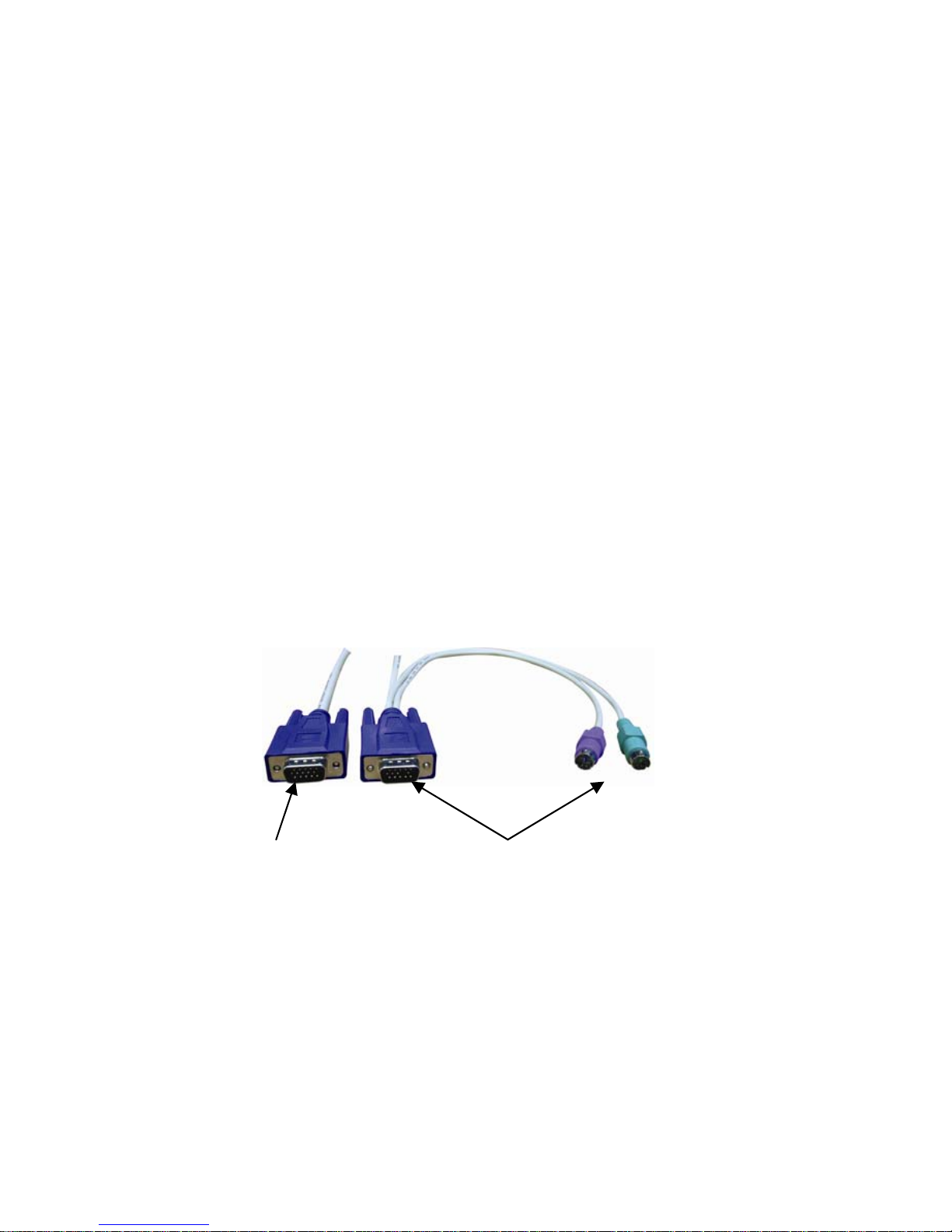
Connection to
ServerLink Extend
Figure 1: Connection of 1-to-3 cable
Connection to
Monitor/Keyboard/Mouse
1
Page 4

------------------------ Key Features
Connects the Local Computer Unit and Remote Station Unit via
Category 5 UTP cable
Remotely locates the keyboard, mouse and monitor up to 150m
from a computer
Supports PS/2
Video compensation can be adjusted by hotkey to ensure the
optimum signal quality for any length of cable within the limit.
Easy to get and install the standard cable at lower cost
Simple indication makes operation user-frien dly
Locates the computer away from your desk and work area, saving
you valuable space
Allows two users to share a single computer both in local and
remote areas.
Applicable for one console to manage two computers locally and
remotely
Beeps confirmation for key control makes the operation easier and
cross-checked
Supports for standard PS/2 keyboard & mice, including Microsoft
IntelliMouse
Compatible with XGA, VGA, and SVGA system
2
Page 5

------------------------ Specifications
PS/2 Model SLX-202P
Connections CAT5/CAT5e/CAT6 – RJ45 female
Remote Station Unit Console
Connectors
Local Computer Unit Local Console
Connectors
LED Indicators Local
(Remote Station Unit)
LED Indicators Local
(Local Computer Unit)
Push Button Switch to the control status
Power Supply (min) External power adapter DC 9V, 500mA
Resolution
Local PC
PC
Remote
Remote
miniDIN6, female x 2
HDB15 female x 1
HDB15 female x 1
miniDIN6, female x 2
HDB15 female x 1
HDB15 female x 1
On: Controls local PC
On: Controls remote PC
On: Controls local PC
On: Local PC is controlled remotely
Flash Alternatively: Auto mode
Up to 1600 x 1200 (dependant on
CAT5/CAT5e/CAT6 cable length)
Weight 293g
Dimensions (W x D x H) 156 x 65 x 20 (mm)
Table 1: Specifications of ServerLink Cat5 KVM Extenders
3
Page 6

------------------------ Packing Checklist
z ServerLink Extend Cat5 KVM Extender Remote Station Unit x 1
z ServerLink Extend Cat5 KVM Extender Local Computer Unit x 1
z Power Adapter – 9V DC, 600mA x 1
z User Manual x 1
z Foot Pad x 2 sets
z KVM Cable x 2 (LKS-02H)
NOTE: USE OF POWER SUPPLY
• NOT required if you have a computer connected to both
Station and Local Computer Units
• Required if there is NO computer connected to Remote
Station Unit.
4
Page 7

------------------------ Product Description
Figure 3: Indication and Connection
5
Page 8

---------------------- Installation
Connection Pattern
Figure 4: Connection pattern of ServerLink Extend Cat5 KVM
Extender
• A keyboard, mouse and monitor must be connected to the
Remote Station Unit.
• You do need to connect a computer to the Remote Station Unit.
• Optional Power Supply is required if there is NO computer
connected to Remote Station Unit.
• A computer must be connected to the Local Computer Unit.
• You do not need to connect a keyboard, mouse and monitor to
the Local Computer Unit if you don’t want to control the
computer locally.
• Computer connected to the Remote Station Unit cannot be
controlled from the Local Computer Unit.
6
Page 9

------------------------ Video Compensation
Before operating, Video Compensation should be conducted.
Hotkeys are used to adjust the Equalization on the Remote Unit to
achieve optimum video signal for various cable lengths. There are
five segments of CAT 5 cable lengths can be chosen from. To
achieve the best visibility, please refer to the chapter of “Remote
Station Unit Hotkeys Control” to adjust the video compensation.
Verify the length of CAT 5 cable you are using, then, use the hotkeys
to adjust the video compensation. When you press Ctrl twice, and
F11 keys, different beeps will be sounded to indicate the setup of
cable length. Please refer to Operation of Hotkey Control.
7
Page 10

------------------------ LED Indicators
The LEDs on the ServerLink Extend Cat5 KVM Extender show the
latest status which indicates the linking, communication, and control
situation between Local Computer Unit and Remote Station Unit.
Remote Station Unit
LED Status Control Description
Remote: Off, Local: On
Remote: On, Local: Off
Remote Station Unit controls
its local PC.
Remote Station Unit is
remotely taking control of the
Local Computer Unit.
In this mode, there are two
statuses as follows:
1. If the 3 LEDs (Num, Caps
and Scroll Lock) on the
keyboard are flashing, the Local
Computer Unit is now taking
control of the system.
2. If the 3 LEDs (Num, Caps
and Scroll Lock) on the
keyboard are not flashing, the
system is waiting for Remote
Station Unit or Local
Computer Unit to take control
Table 3.1: LED - Control indication for Remote Station Unit
Power Up LED Status
LED Indicators
Local: On
Table 3.2: The Initial status and indication is displayed
8
when ServerLink Extend Cat5 KVM
Extender is powered up
Page 11

Local Computer Unit
LED Status Control Description
Local Computer Unit
controls its local PC. In this
Remote: Off, Local: On
Remote: On, Local: Off
mode, the Remote Station
Unit cannot take control of the
Local Computer Unit
remotely.
Remote Station Unit is
remotely taking control of the
Local Computer Unit. The 3
LEDs (Num, Caps and Scroll
Lock) on the keyboard will be
flashing
Remote/Local Flashes
alternately
(Auto Mode)
Table 4.1: LED - Control indication for Local Computer Unit
The system is waiting for
Remote Station Unit or
Local Computer Unit to take
control.
Power Up LED Status
Table 4.2: The Initial status and indication is displayed when
Local/remote: Flashes alternately
ServerLink Extend Cat5 KVM Extender is
powered up
LED Indicators
9
Page 12

-----------------Push Button: Switch to the
control status
The button on the panel of Local Computer Unit and Remote
Station Unit respectively, can be pushed (switched) in sequence to
select the operation modes.
Button on Remote Station Unit
The button on the panel of Remote Station Unit can be pushed
(switched) in sequence to select the following two modes:
Loc
→
Com(Remote)
Local: The LED of Local is “On”. In this mode, the system controls
its local computer.
Remote: The LED of Remote is “On”. In this mode, the system
remotely controls the Local Computer Unit.
10
Page 13

Button on Local Computer Unit
There are three modes that can be chosen, the sequence is as
follows:
Auto
Auto:
• In this mode, the Remote and Local LEDs are flashing
alternately.
• The system is now waiting to be controlled by either Local
Computer Unit or Remote Station Unit.
• Once the keyboard or mouse of Local Computer Unit is
active, the LED of Local is on and the LED of Remote is off.
This status indicates that the Local Computer Unit is now
taking control of the system.
• Once the keyboard or mouse of Remote Station Unit is
active, the LED of Remote is on and the LED of Local is off.
This status indicates that the Remote Station Unit is now
taking control of the system.
• In either case, the latch time period of 5, 15, 30, or 60
seconds is offered to allow the Local Computer Unit or
Remote Station Unit to take control again. If the latch time
expires with no keyboard or mouse activity, the status
returns to the “Auto” mode.
• In “Auto” mode, whenever the keyboard, mouse buttons
or scroll wheel of mouse is activated, the Unit (Local
Computer Unit or Remote Station Unit) immediately tak es
control of the system.
Local: The LED of Local is “On”. In this mode, the system is being
controlled by the Local Computer Unit. In this case, the
Remote Station Unit can learn this status from the flashing
of 3 LEDs (Num, Caps and Scroll Lock) on the keyboard.
→
Loc → Com(Remote)
Remote: The LED of Remote is “On”. In this mode, the system is
remotely controlled by the Remote Station Unit.
11
Page 14

-----------------Hotkeys Control
Hotkey commands are short keyboard sequences to select a
computer, to activate computer scan, and so forth. The ServerLink
Extend Cat5 KVM Extender is always interpreting keystrokes for
hotkeys. A hotkey sequence starts with two left Ctrl keystrokes
followed by one or two more keystrokes. A built-in buzzer generates
a high-pitched beep for correct hotkey command, while one short and
one long beeps are sounded for wrong commands. Thus, the ba d ke y
commands will not be forwarded to the selected modes.
12
Page 15
--------------Remote Station Unit
Hotkeys Control
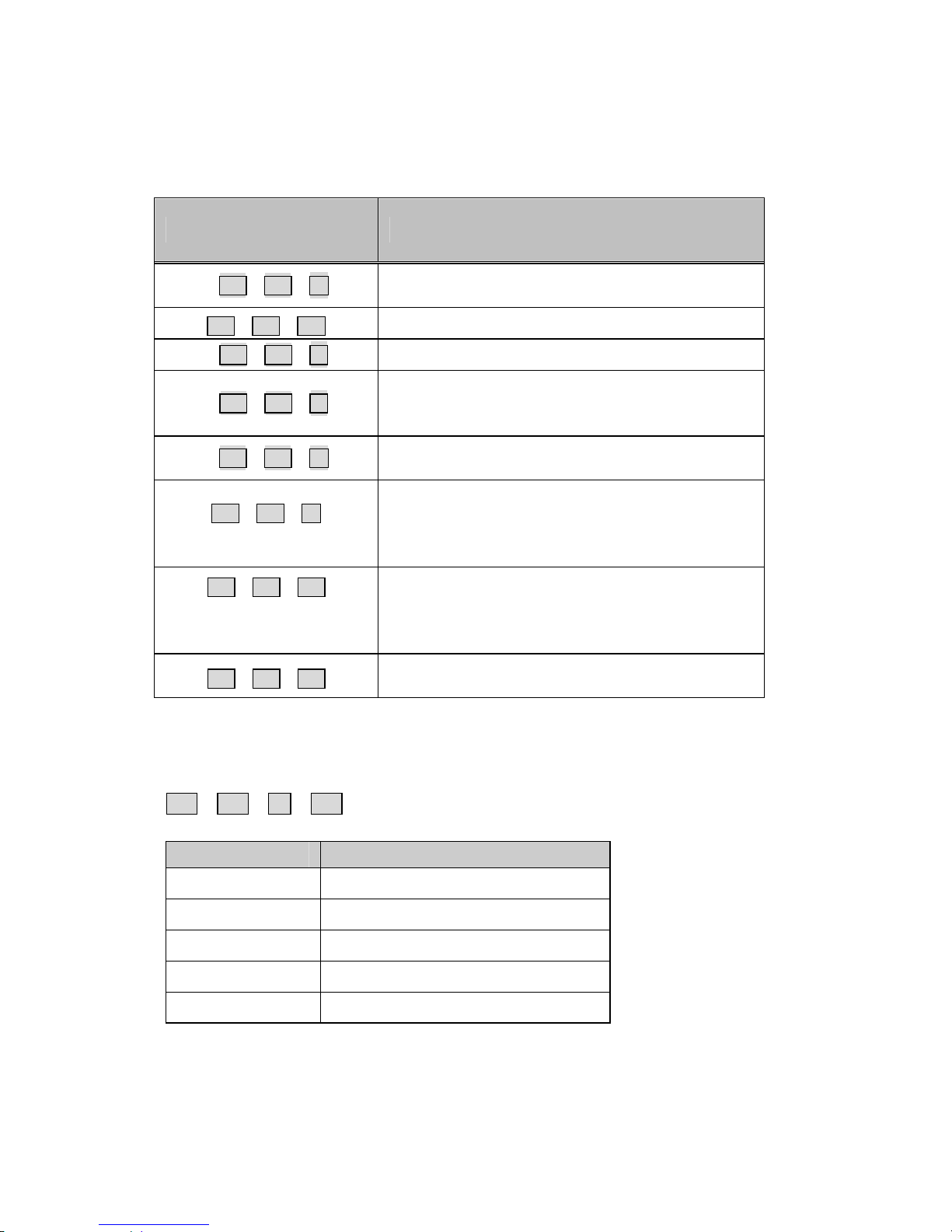
Hotkey Commands Function Description
*Ctrl + Ctrl + Ti
Ctrl + Ctrl + Esc
*Ctrl + Ctrl + 1i
*Ctrl + Ctrl + 2i
*Ctrl + Ctrl + F2
Ctrl + Ctrl + F4
(Keyboard speed selection)
Ctrl + Ctrl + F11
(Video Compensation
Adjustment)
Ctrl + Ctrl + F12
Toggles console control between Local
Computer and Remote Computer
Escape from hotkey mode
Switches control to local computer
Switches control to remote computer(input
allowed only if the Local Computer Unit is in
Remote or Auto mode)
Toggles console control between Local
Computer and Remote Computer
Adjusts the typematic rates of keyboard, the
ServerLink Extend Cat5 KVM Extender generates 1
to 4 beeps corresponding to 6, 12, 20, and 30
characters/sec respectively.
Adjusts the video compensation, the ServerLink
Extend Cat5 KVM Extender generates 1 to 5 beeps
corresponding to the cable lengths of 0~30, 30~60,
60~90, 90~120 & 120~150 meters, respectively.
Mouse resynchronized
(for PS/2 only)
Table 5: Hotkey control for Remote Station Unit
Beeps corresponding to video compensation
Ctrl + Ctrl + E + F11
Beep sounds UTP Cable Length
1 beep
2 beeps
3 beeps
4 beeps
5 beeps
0〜100 feet (0〜30 meters)
100〜200 feet (30〜60 meters)
200〜300 feet (60〜90 meters)
300〜400 feet (90〜120 meters)
400〜500 feet (120〜150 meters)
13
Page 16

---------Local Computer Unit Hotkeys
Control
Hotkey Commands Function Description
Ctrl + Ctrl + Ti
Ctrl + Ctrl + Esc
Ctrl + Ctrl + 1i
Ctrl + Ctrl + 2i
Ctrl + Ctrl + 3i
Ctrl + Ctrl + F3
Ctrl + Ctrl + F4
(Keyboard speed selection)
Ctrl + Ctrl + F12
Toggle switch selects Auto-Loc-Rem
mode
Escape from hotkey mode
Local Mode: Allows the user at local computer
exclusive access to the system; remote access
from computer at Remote Station Unit is disabled.
Remote Mode: Allows the remote user at Remote
Station Unit exclusive access to the computer at
Local Computer Unit; access to the computer
from the Local Computer Unit is disabled
Auto mode selection
Auto mode latch time: 5, 15, 30, 60 seconds
Adjust the typematic rates of keyboard, the
ServerLink Extend Cat5 KVM Extender
generates 1 to 4 beeps corresponding to 6, 12, 20,
and 30 characters/sec respectively.
Mouse resynchronization
(for PS/2 only)
Table 6: Hotkey control for Local Computer Unit
z Mouse resynchronization:
When the mouse can not work normally, conduct this function and make it
synchronized with your system.
14
Page 17

-----------------Appendixes
Cable Requirements
The cable use to connect the Local Computer Unit and Remote
Station Unit can be either Category 5, Category 5e or Category 6
terminated with RJ45 connectors. These are purchased separately.
This cable is not provided with the standard package because it is
subject to the different lengths you may require. The length of cable
used should be less than 150m, otherwise poor r esults, especially for
video resolution, may occur over distances beyond the limit.
CAT5/CAT5e/CAT6 Cable
The ServerLink Extend Cat5 KVM Extender requires an unshielded
twisted pair(UTP) cable up to a maximum length of 150 meters.
The cable must be wired in compliance with the EIA/TIA 568B
industry standard as shown below.
Pin Wire Color Pair Function
1 White/Orange 2 T
2 Orange 2 R
3 White/Green 3 T
4 Blue 1 R
5 White/Blue 1 T
6 Green 3 R
7 White/Brown 4 T
8 Brown 4 R
Table A1: Wiring definition of CAT5
Note: CAT5, CAT5e or CAT6 cables may be used for extender pair.
15
Page 18

The above diagram shows the RJ45 connector of a
CAT5/CAT5e/CAT6 cable with its metal contacts facing up.
Limited Warranty
IN NO EVENT SHALL THE DIRECT VENDOR'S LIABILITY FOR
DIRECT OR INDIRECT, SPECIAL, INCIDENTIAL OR
CONSEQUENTIAL DAMAGES, LOSS OF PROFIT, LOSS OF
BUSINESS, OR FINANCIAL LOSS WHICH MAY BE CAUSED BY
THE USE OF THE PRODUCT EXCEEDS THE PRICE PAID FOR
THE PRODUCT.
The direct vendor makes no warranty or rep resentation, expressed or
implied with respect to the contents or use of this documentation, and
especially disclaims its quality, performance, merchantability, or
fitness for any particular purpose.
The direct vendor also reserves the right to revise or update the
product or documentation without obligation to notif y any user of such
revisions or updates. For further information, please contact your
direct vendor.
All the brand names and registered trademarks are the property of their
respective owners.
PP5-E7000-200
Printed in Taiwan
16
 Loading...