

Page 1
SP25 VDE
Operators Manual
Revision 2.0-1
USAUSA
USAUSA
USA
Page 2

Contents
Specifications ................................................................5
SAFETY INFORMA TION...........................................6
INTRODUCTION .........................................................8
MACHINE (Final paper delivery view).......................9
MACHINE (Duplicator delivery view) ......................10
OPERA TION P ANEL ................................................ 11
WHERE TO PUT THE SERIPRINTER...................12
POWER ON AND OFF .............................................13
BASIC OPERA TION .................................................14
INK..............................................................................17
WHA T TO DO IF SOMETHING GOES WRONG ... 18
PRINTING TIPS.........................................................19
Page 3

SP25 VDE OM 2.0-1 (2006) 3
This documentation or any part of it may not be reproduced, stored or transmitted
in any form, including, but not limited to electronic, photocopying, mechanical copying, electrostatic copying, recording or other means without express written permission of SeriPrint SA (Pty.) Ltd.
SeriPrint, SeriPrinter, SP100II, SP25, SeriInk, SeriLink and all other related
brand names are registered trademarks of SeriPrint South Africa (Pty) Ltd.
ZipRip, is a trademark of SMA (Australia) Ltd.
PostScript is a trademark of Adobe Systems Inc. W indows is a registered
trademark of Microsoft Inc. Other brand or product names, throughout
this document, are trademarks or registered trademarks of their respective
holders.
Page 4

4 SP25VDE OM 2.0-1(2006)
Page 5

SP25 VDE OM 2.0-1 (2006) 5
Specifications
Machines supported .............. Digital Duplicator Models C229, C233, C232,
C239, C235, C244 and C262
Ricoh , Gestetner, Nashuatec, Rex Rotary ,
Standard, Savin and Lanier .
Print Speed ........................... 60 to 120 Sheets per Minute. (Max 11x17, A3)
Timers ................................... Copies, Lamp Hours
Paper Handling ...................... Automatic speed adjusting vacuum belts
Paper Collection .................... As per digital duplicator specification
Paper Size ............................. Maximum size - As per digital duplciator
Minimum size - Width 78 mm Length 148 mm
Paper W eight......................... As per digital duplicator specification
Drying Mechanism ................. Ink Polymerization
Drying ................................... 3 x 400 Watt
Power ................................... 110v
Power Save........................... Automatic Inactivity Shutdown.
In k ........................................ 13 Base Colors plus 10 Standard Colors.
Dimensions Boxed ................. 800mm H, 900mm L, 700mm W
Dimensions Stored................. 658mm H, 874mm L, 600mm W
Dimensions Set up ................. 658mm H, 1234mm L, 600mm W
W eight................................... 80 kg.
Certification ........................... CE, FCC Class A.
This devise complies with Part 15 of the FCC Rules.
Federal Communications Commission (FCC) Statement.
This equipment has been tested and found to comply with the limits for a Class A digital device, pursuant to
part 15 of the FCC Rules. These limits are designed to provide reasonable protection against harmful
interference in a commercial installation. This equipment generates, uses, and can radiate radio frequency
energy and, if not installed and used in accordance with the instructions, may cause harmful interference to
radio communications. Operation of this equipment in a residnetial area is likely to cause harmful interference
in which case the user will be required to correct the interference at his own risk.
Scientific Management Associates UK Ltd is not responsible for any radio or television interference caused
by using other than recommended cables and connectors or by unauthorised changes or modifications to this
equipment. Unauthorised changes or modifications could void the user’s authority to operate the equipment.
This devise complies with part 15 of the FCC Rules. Operation is subject to the following two conditions
(1) this device may not cause harmful interference, and (2) this devise must accept any interference
received, including interference that may cause undesired operation.
Page 6

6 SP25VDE OM 2.0-1(2006)
SAFETY INFORMA TION
When using your equipment, the following safety precautions should always be
followed.
Safety During Operation
WARNING: Indicates a potentially hazardous situation which, if instructions
are not followed, could result in death or serious injury .
CAUTION: Indicates a potentially hazardous situation which, if in-
structions are not followed, may result in minor or moderate injury or damage to property.
WARNING:
• Connect the power cord directly into a wall outlet and never use an extension cord.
• Disconnect the power plug by pulling the plug, not the cable.
• Only connect the machine to the power source described in the Specifications on
page 5 of this manual. Connect the power cord directly into a wall outlet and do not
use an extension cord.
• Do not damage, break or make any modifications to the power cord. Do not place
heavy objects on it. Do not pull it hard nor bend it. These actions could cause an
electric shock or fire.
• Do not modify or replace any parts other than the ones specified in this manual
• Since some parts of the machine are supplied with high voltage, touch only the parts
specified in this manual.
• To avoid hazardous electric shock, do not remove any covers or screws other than
those specified in this manual.
• Do not operate the machine without covers.
• Turn off the power and disconnect the power plug (by pulling the plug, not the
cable) if any of the following conditions exists:
• Something is spilled into or on the equipment
• You suspect your equipment needs service or repair.
• Your equipment’s cover has been damaged.
• Do not leave machine unattended while printing is in progress.
• Do not operate the machine when it is not connected to a Digital Duplicator.
• Only attach to the specified Digital Duplicators listed on page 5.
• UV light is hazardous. Use equipment in accordance with the operation manual.
• Do not remove any covers. No USER servicable parts inside.
Page 7

SP25 VDE OM 2.0-1 (2006) 7
• Adequate ventilation must be provided as specified in the section of this manual
entitled “Where to put the SeriPrinter”.
CAUTION
• Protect the equipment from direct sunlight, dampness or wet weather, such as rain,
snow, and so on.
• While printing, do not turn off any portion of the system. To do so will cause
damage to integral components and damage the belts.
• While printing, do not open the cover.
• While printing, do not unplug the power cord.
• While printing, do not move the machine.
• Keep all liquids off the machine.
• Do not allow paper clips, staples, or other small objects to fall inside the machine
• Be careful not to cut yourself on any sharp edges when you reach inside the machine
to remove miss fed sheets of paper.
• Do not spill liquid on the machine.
• Do not sit on the machine.
• Do not place the machine up against a wall. Ensure that there is no less than 50cm
between the machine and the wall.
• Unplug the power cord from the wall outlet before you move the equipment. While
moving the equipment, you should take care that the power cord will not be damaged
under the equipment.
• If you clean rubber parts with benzine, or other volatile solvent, wipe them with a
dry cloth afterwards.
• Always print with UV filter cover in place.
• Do not open any panels marked - HIGH VOLTAGE
• Always turn the power to the machine off when you have finished printing for the
day.
• When the machine will not be used for long periods, disconnect the power plug
from the wall outlet, always pull the plug (not the cable).
• If the machine must be transported by vehicle, please contact your service
representative.
• For environmental reasons, do not dispose of the equipment or expended supply
waste at household waste collection points. Disposal can take place at an authorized
dealer or at appropriate collection sites.
Page 8
8 SP25VDE OM 2.0-1(2006)
INTRODUCTION
The SeriPrinter System produces dry printed output, similar to a copier . This is as
a result of it’ s unique and patented fixing system. This enables the user to print on
a wide variety of paper , card and certain coated stock including vinyl.
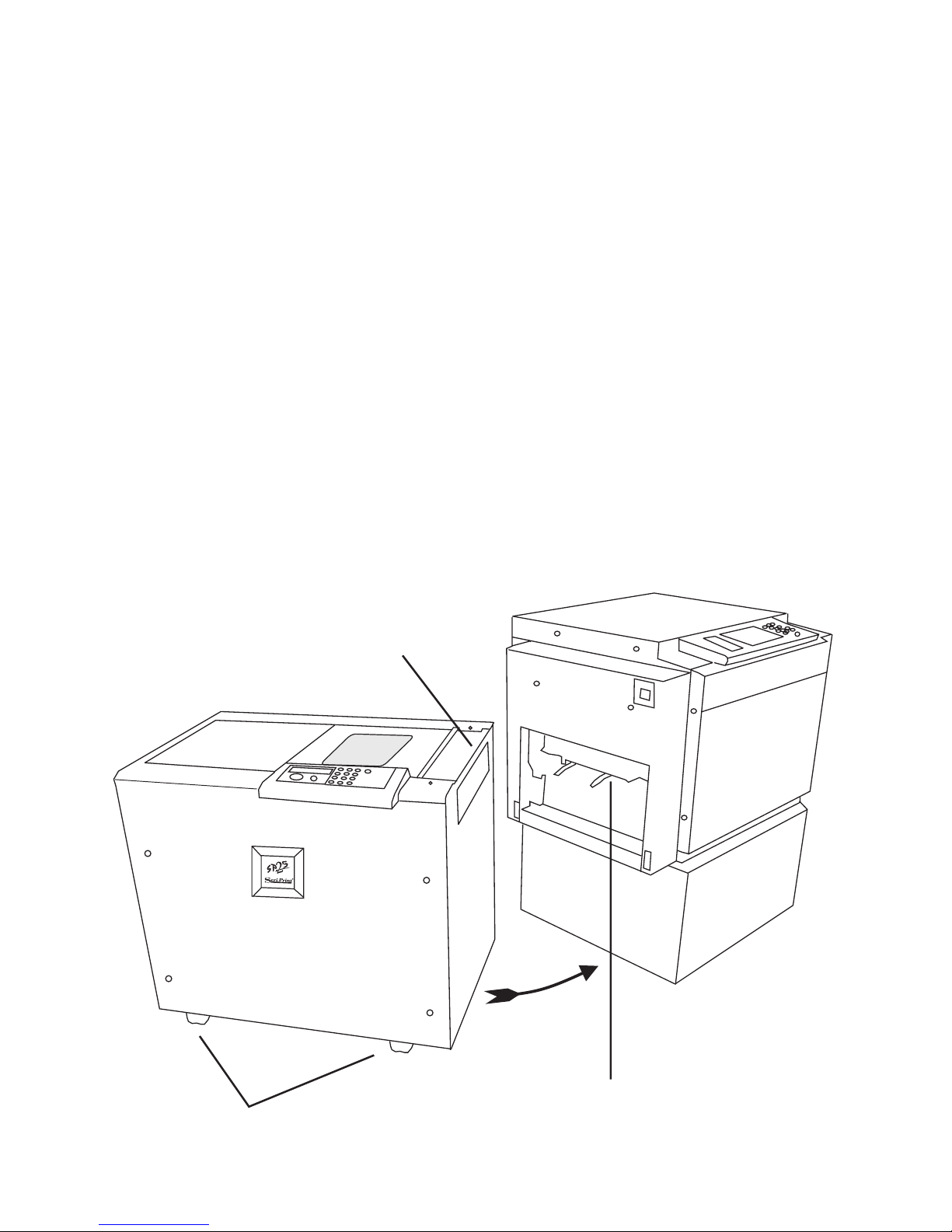
The SeriPrinter is a freestanding unit which, operates in conjunction with the Ricoh
family of duplicators. No electrical connections to the duplicator are required.
The Model 25 is positioned at the paper exit side of the duplicator , after removing
the paper delivery tray and repositioning it on the delivery side of the Model 25.
Once the Seriprinter is set up an extended range of paper and card stocks can be
printed on. This includes vinyl and certain coated stock which traditional duplicator ink can not dry on.
In addition a wide range of ink colors are available with the Model 25. This
includes white, varnish, and a comprehensive range of mixed colors.
Duplicator Paper Delivery
ä
ä
ä
ä
SeriPrinter
Receives Paper
Height Adjusters
Page 9
SP25 VDE OM 2.0-1 (2006) 9
MACHINE (Final paper delivery view)
ä
ä
ä
ä
ä
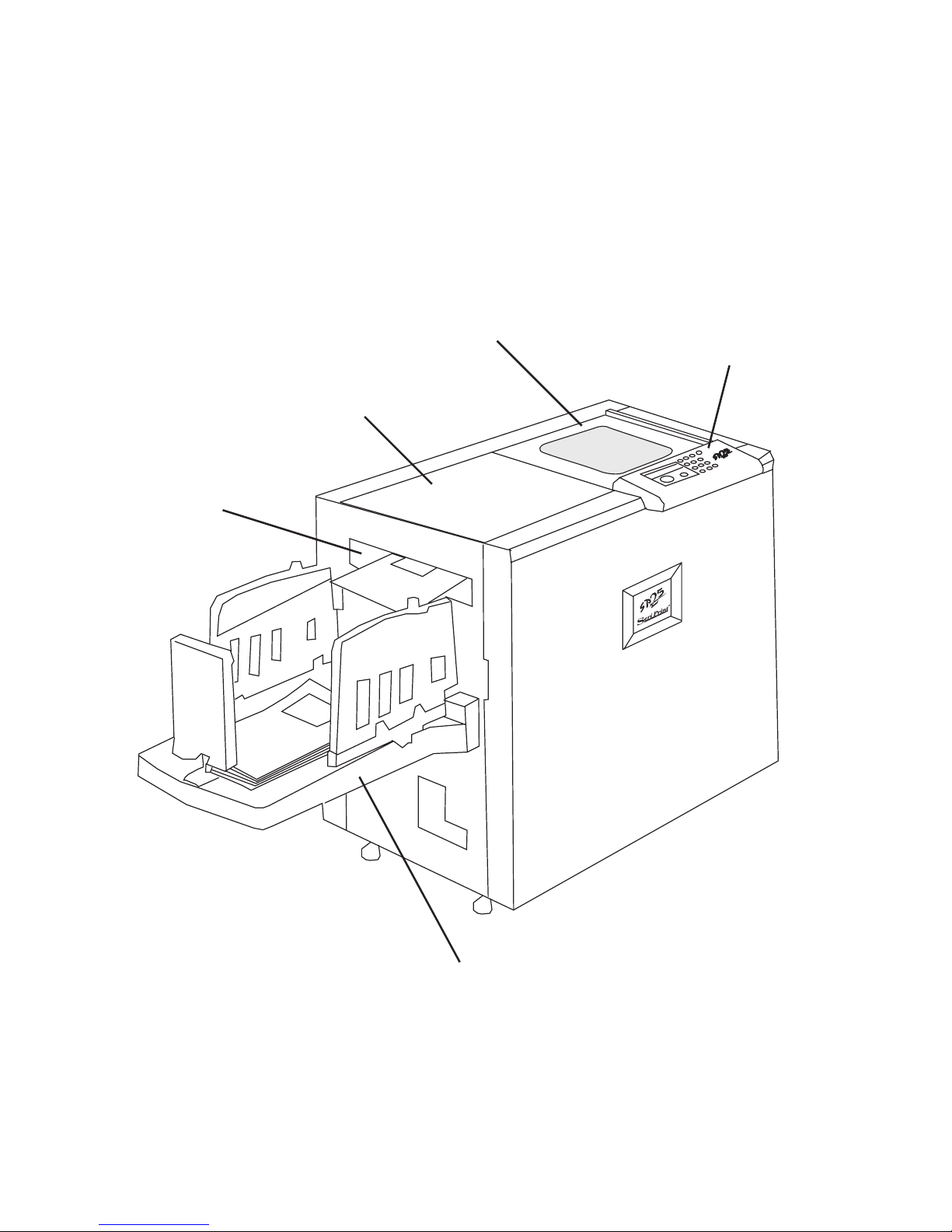
Digital Duplicator
paper tray
Paper exit
Fixing area
UV Protective cover
Control panel
Page 10
10 SP25VDE OM 2.0-1(2006)
MACHINE (Duplicator delivery view)
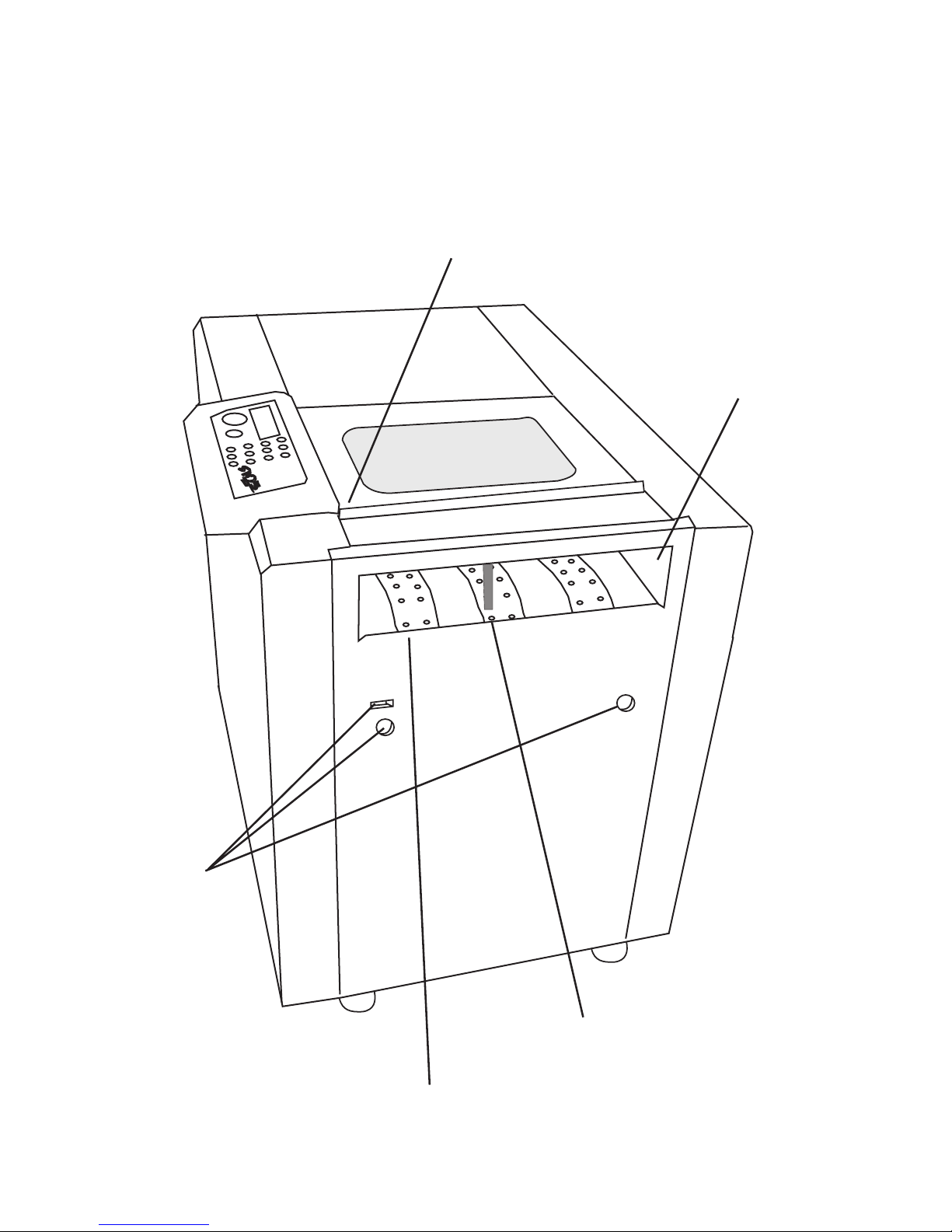
Paper collection from
duplicator
ä
ä
ä
ä
Paper transport vacuum belts
Paper jam pin
Safety switch
ä
Docking holes
and slot
Page 11
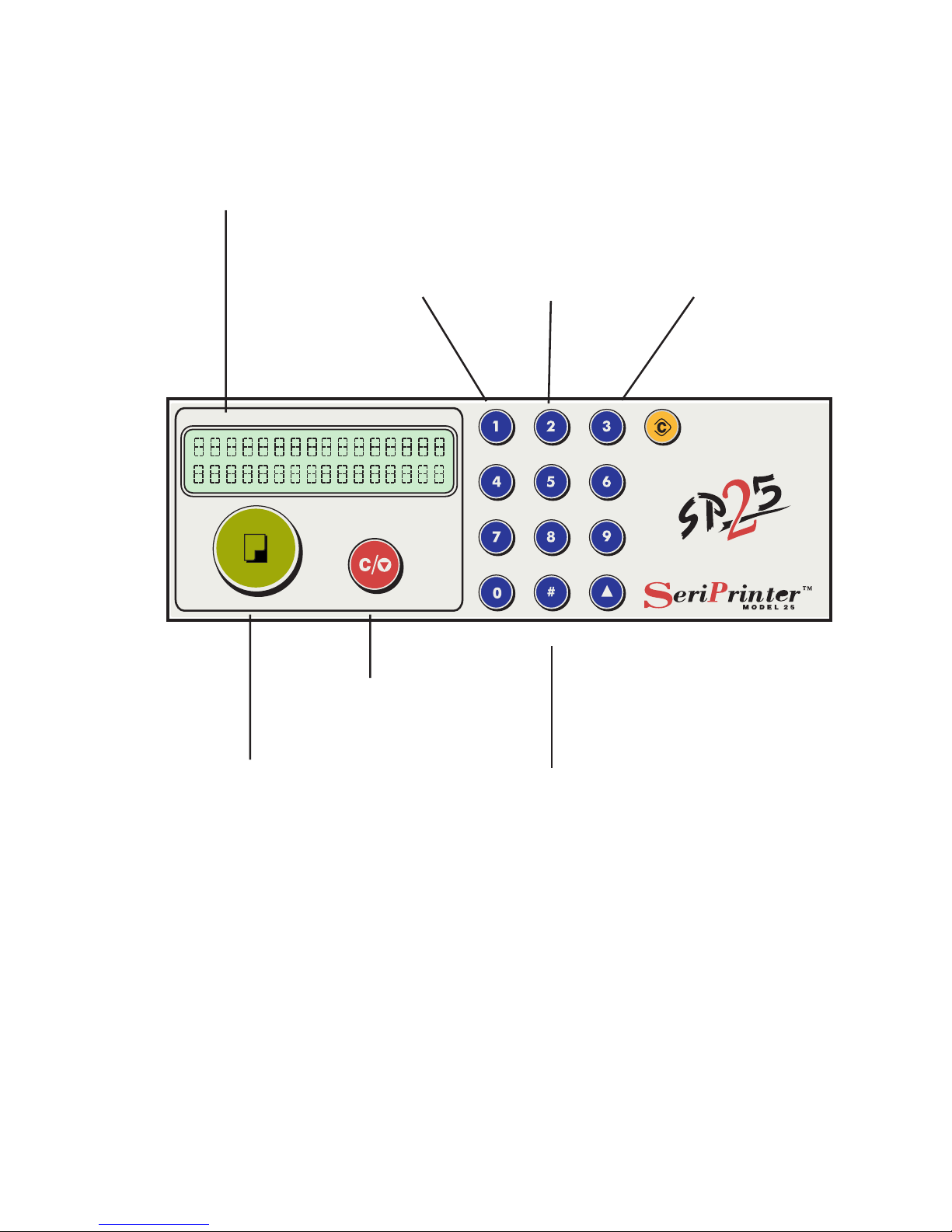
SP25 VDE OM 2.0-1 (2006) 11
OPERA TION P ANEL
ä
ä
ä
ä
Machine status LCD
On Button
Off Button
Service Buttons
ä
ä
ä
Manual S peed
Control ON &
OFF
Increase
Manual S peed
Decrease
Manual S peed
Page 12

12 SP25VDE OM 2.0-1(2006)
WHERE TO PUT THE SERIPRINTER.
Y our machines’ s location should be carefully chosen because environmental conditions greatly affect it’ s performance.
Environmental Conditions
Optimum environmental conditions
Caution
• Keep the equipment away from humidity and dust. Otherwise a fire or
an electric shock might occur .
• Do not place the equipment on an unstable or tilted surface. If it top-
ples over , it could cause injury .
Caution
• If you use the equipment in a confined space, make sure there is a
continuous air turnover. Alternatively , an extraction tube can be fitted
to vent the SeriPrinter exhaust outside the building.
• Make sure to locate this machine in a large well ventilated room that has an air
turnover of more than 30 m³ / hr / person.
• T emperature: 10 - 30 °C, 50 - 86 °F
• Humidity: 20 - 90 % RH
• The machine must be level within 5mm, 0.2” both front to rear and left to right.
Environments to avoid
• Locations exposed to direct sunlight or strong light (more than 1500 lux).
• Locations directly exposed to cool air from an air conditioner or heated air
from a heater .
• Places where the machine might be subjected to frequent strong vibration.
• Dusty areas.
• Areas with corrosive gases.
Page 13

SP25 VDE OM 2.0-1 (2006) 13
POWER ON AND OFF
This section should be read in conjunction with the Operation Panel diagram (See
Page 1 1)
Power ON Sequence
1. The SeriPrinter should be powered on two minutes before printing commences
on the duplicator .
2. Switch on the SeriPrinter’s main switch, located under the paper delivery tray .
The display panel will show lamp hours and machine status: idle.
3. Press the SeriPrinter’s large green ON button, located below the display panel.
The belts will start and after approximately 15 seconds the lamps will turn on.
The status: warming will be displayed with the remaining time. After warm-
ing has completed the status: Ready Low Power will be displayed.
The SeriPrinter is now ready to receive paper from the duplicator .
Power OFF Sequence:
1. Press the Red OFF button. The lamps and belts will go off. The display panel
will indicate that the machine is - Switching off - (and the time befor e the
machine shuts down will be shown in seconds on the display panel). The
cooling process will commence. After cooling is complete the LCD will display: Lamp hours and machine status: idle.
CAUTION:
Do Not power OFF at the main switch or plug switch before the cooling
process has completed.
Page 14

14 SP25VDE OM 2.0-1(2006)
BASIC OPERA TION
Before proceeding with operating the SeriPrinter . The following important points
should be observed.
1. Installation.
The SeriPrinter installation procedure must have been complete by a trained
service technician using the SP25 installation manual.
2. SeriDrums.
Only SeriDrums should be used in the Digital Duplicator when a SeriPrinter
has been installed.
• SeriDrums are identified by a red drum handle.
• SeriInk is light and heat sensitive. Store in a cool dark place.
• DO NOT EXPOSE A SERIDRUM TO DIRECT SUNLIGHT .
• When a SeriDrum is not in use, it should be stored in its box.
• A SeriDrum should never be left without a master whether it is in the Digital
Duplicator or in a box. This will increase the life of the screens on the drum.
• When a SeriDrum will be stored for a period longer than 5 days, unclamp
the section of the master material secured by the clamp.
• When a SeriDrum will be stored for a period longer than 4 weeks, make a
a master with no image on the drum and unclamp the section of the master
material secured by the clamp.
3. Operation.
1. Follow the power ON sequence for the SeriPrinter detailed in the previous
section. Printing can commence once the display panel indicates machine
status : READY
3. Set the paper exit tray to the paper size in the duplicator paper feed tray.
4. Insert a SeriDrum into duplicator . Refer to the Digital Duplicator’ s operators
manual for correct insertion and removal of a drum.
5. Refer to the Digital Duplicator’s operators manual for Preparation and S tandard Printing Operation.
6. Follow the power OFF sequence when printing is complete. Detailed in the
previous section.
Page 15

SP25 VDE OM 2.0-1 (2006) 15
Note:
Changing speed on the duplicator will result in automatic speed adjustment on
the SeriPrinter .
T o release paper jams on the SeriPrinter (See Page 17)
Energy Saving:
After more than 10 seconds of inactivity the SeriPrinter will auotmatically slow
down the motor to save energy and display the message “Ready Low Power”.
After 30 minutes of inactivity the SeriPrinter will display a warning message
that it will turn off. Unless a page is printed the SeriPrinter will turn off after
displaying the warning message for 5 minutes. The default power off time can
be changed or disabled by a Service T echnician to suit the individual operator .
Speed Control:
Automatic - This is the default speed control mechanism. The Seriprinter will
automatically adjust its belt speed to match the duplicator print speed.
Manual - T o set the SeriPrinter to manual speed control press the “3” on the
numerical pad of the control panel. The LCD will display the current speed.
T o increase the speed press “2” and to decrease press “1”. T o exit manual
speed control press the “3” again.
Note: If the manual speed is set slower then the speed of the Digital Duplicator a paper jam will occur .
Master Eject Box.
The Master Eject box should be emptied once a day .
Note: If this is not done the master eject box will be difficult to empty .
Page 16

16 SP25VDE OM 2.0-1(2006)
4. Undocking and Docking.
The SeriPrinter is physically attached to the Digital Duplicator . This is called
the docking mechanism. In order to release the docking mechanism there is a
button located on the rear panel of the SeriPrinter on the side where the machines are docked. Press this button firmly and pull the Digital Duplicator
away from the SeriPrinter .
The SeriPrinters height will have been set using its adjustable legs.
Therefore the wheels will not be on the ground. If the SeriPrinter is
pulled or pushed away from the Digital Duplicator the legs could be
damaged or broken.
In order for a Digital Duplicator to be docked correctly onto a SeriPrinter the
height of the SeriPrinter must be adjusted correctly . Ensure this procedure is
done by a trained service technician.
Page 17

SP25 VDE OM 2.0-1 (2006) 17
INK
1. SeriInk is light and heat sensitive and should be stored in a cool, dark place.
2. There are 13 Base colors which are used to make up most shades in the
Pantone color chart. 7 Standard colors are available. Refer to Color Guide.
3. SeriInk is not available in fluorescence or metallic.
4. SeriInk can be used with thermographic powder.
5. SeriInk will print and be touch dry on gloss vinyl (can be scratched off).
6. SeriInk will dry on gloss paper, but solid areas will print better on matt paper .
7. If a drum has not been used in over 1 week remove ink cartridge and shake
before use.
8. T o print CMYK use Seri Mon Blue (C) + Seri Magenta (M) + Seri Primrose
Yellow (Y) + Seri Black (B)
9. Some advantages of quick drying ink:
• Less dot gain
• No set off
• No smudging
• Finishing equipment needs less cleaning
• Less paper cockling gives better registration
• V ibrant colors
• Multi pass prints double sided
Accessories
Scale ( 2 different)
EDP Code List
Special matched colors - contact the local Dealer for information.
Page 18

18 SP25VDE OM 2.0-1(2006)
WHA T T O DO IF SOMETHING GOES WRONG
1. Paper jam in SeriPrinter:
If a paper jam occurs in the SeriPrinter the lamps and belts will switch off.
The SeriPrinter Jam Pin will activate blocking paper from exiting
the duplicator.
The duplicator will detect that paper can not exit and will stop printing. The
duplicator will show a Paper Jam error ..
Open the cover and remove jammed paper . Also remove jammed paper
from the duplicator.
Close the cover . W ait for SeriPrinter to complete recovery and warming.
Resume printing.
The SeriPrinter will not reset the Jam if the cover is not opened and closed.
2. How to avoid paper jams in SeriPrinter:
a) Ensure there is no obstruction when paper exits the duplicator .
b) Ensure there is no obstruction when paper exits the SeriPrinter .
c) Ensure the Paper delivery tray is not full.
d) Ensure the SeriPrinter is docked correctly to the Digital Duplicator .
e) Only print from the Duplicator when the SeriPrinter has completed
warming process.
2. Paper Jam message.
After detecting a paper jam the SeriPrinter will display a message indicating
where the Jam occurred.
If the Jam occurred between the paper exit of the duplicator and the paper
entry point of the SeriPrinter then “Paper Jam 1, Vacuum Bed Entry .” will be
displayed.
If the Jam occurred in front of the SeriPrinter lamp box then “Paper Jam 2,
Lamp Box Entry” will be displayed.
If the Jam occurred at the exit of the SeriPrinter lamp box then “Paper Jam 3,
Lamp Box Exit” will be displayed.
If the paper entered the SeriPrinter lamp box but did not exit the lamp box
then “Paper Jam 4, Lamp Box” will be displayed.
Page 19

SP25 VDE OM 2.0-1 (2006) 19
PRINTING TIPS
1. Slower print will produce better solids. Be sure that the ink being used is
not a process ink, as process inks will not render good solids. Check that
the paper or card surface is not too rippled for the ink to fill in properly .
2. The type of paper used to print your color work will have a substantial effect
on the accuracy of colour registration. The most accurate register is achieved
on a matt surfaced 120 gsm paper .
3. When printing multiple passes do not leave your print run to stand overnight
before completing all passes. The paper may take in moisture and expand
before the next morning making register impossible for additional colors.
4. Make use of trapping and overprinting of black keylines around full color
images.
5. Try to avoid placing elements requiring tight register at opposite ends of the
paper . Paper skewing is exaggerated over the distance the elements are
apart.
6. Make sure the leading edge of the paper is not damaged or curled.
7. When stacking the paper in the paper feed unit of the duplicator ensure that
the stack is neat and straight.
8. Ensure that the side paper guides are firmly set and the paper is not set askew
in the feed unit.
9. Print on A4\letter size rather than A3\11x17 to improve spot color registration.
10. Smudging on the leading edge and corners could be due to very heavy ink
coverage in these areas. T o remove the smudging reduce the ink coverage or
rotate the image by 180 degrees so that the heavy coverage is no longer on the
leading edge.
Page 20

20 SP25VDE OM 2.0-1(2006)
Dealer information
For further information visit:
www.seriprinter.com
 Loading...