

Page 1
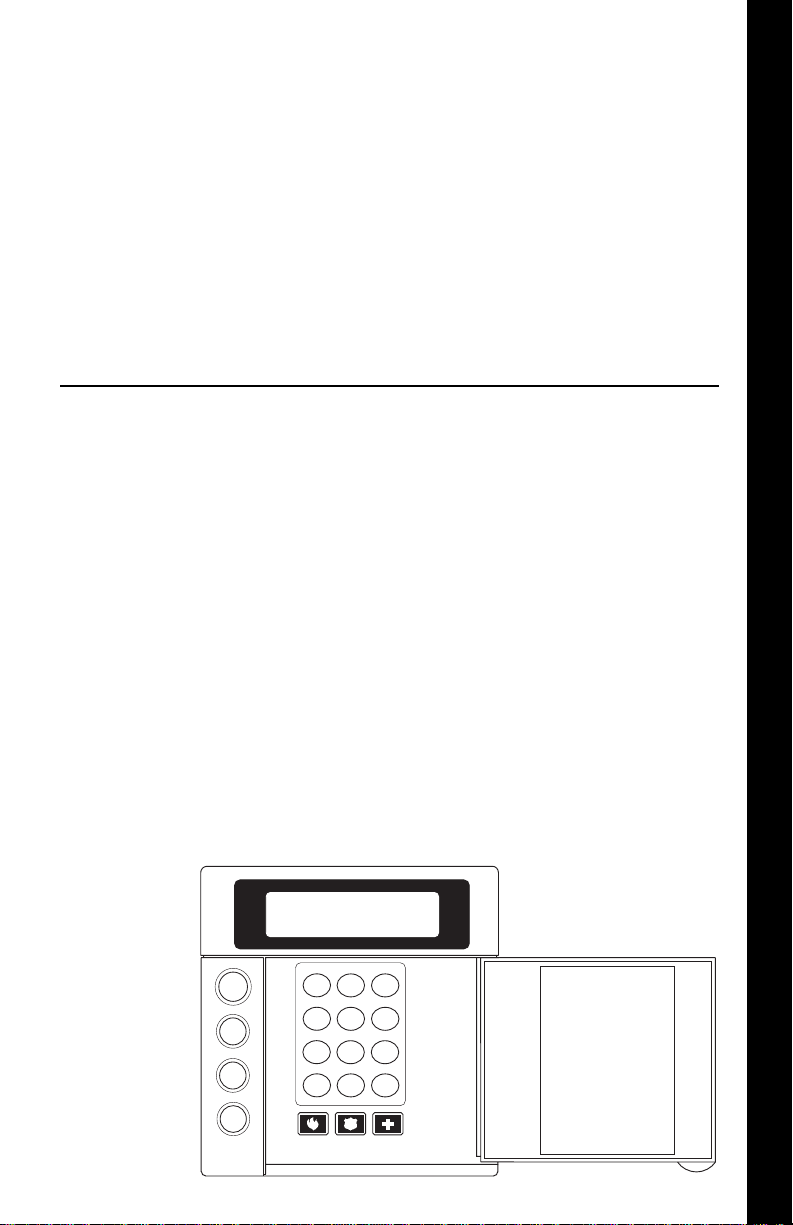
How to Use Your
AWAY
STAY
NIGHT
1
23
4
56
7
89
CLEAR
0
ENTER
VIEW INFO ALM MEM
EVENT LOG
BYPASS DELAY ARM CHIME
RST SMOKE TEST PROGRAM
QUIT ACCESS INSTANT
HOME NEXT
D
OFF
CANCEL
Sentrol Security System
ZXLCD/ZXVFD
Control Station
1
Page 2

INTRODUCTION
Thank you for choosing the ZX200/ZX210 or the ZX400/ZX410/ZX440F Security
Control. This control will provide you with years of reliable operation when properly
installed and maintained.
To maximize the benefits of your Security System, it is important to carefully read
the entire contents of this manual and become familiar with all control operations.
Your Security Company Representative has recorded confidential information about
your system in this manual, therefore, you should store it in a secure place. Contact
your Security Company Representative immediately with any questions.
It is important to note however, that no security system provides total protection
over life or property, nor can it detect intrusion or other conditions in all circumstances. Ask your Security Company Representative to fully review the features of
your system, indicate areas of potential risk, and detail recommendations for future
upgrades to the system.
The following is a list of general precautions you should follow to maximize the
benefits of your security system:
1. The system must be tested at least once per week to ensure proper operation.
Contact your Security Company Representative for testing procedures and
scheduling of a regular maintenance program.
2. If the system is malfunctioning, have it serviced by a qualified professional as
soon as possible.
3. If the electrical system of the building is altered, be sure that the changes do
not create an interruptible power supply to the control panel.
4. If the telephone system is serviced, test the security system to ensure that
communication to the Central Station is intact.
5. Motion detectors are designed to detect specific types of motion within a
defined area. Be sure that you understand which areas are protected and under
what conditions the system is active (temperature and time variations, etc.).
6. Smoke detection devices cannot detect all types of fire under all circumstances.
Have your Security Company Representative explain the limitations of your fire
system. Have smoke detectors cleaned and tested on a regular basis.
7. Security systems rely upon electrical power as a primary power source. When
the electrical power fails, the control is powered by a standby battery. The
standby battery is automatically checked by the system and should be replaced
by a qualified service technician at regular intervals.
8. If upon returning to the building, you discover that an alarm has occurred, DO
NOT ENTER THE PREMISES. Immediately contact the proper authorities.
9. Be sure to inform your neighbors that a security system has been installed.
Also explain the meanings of the various audible signals and ask them to
contact the appropriate authorities upon activation of an alarm.
10. The ZX200/ZX210 and the ZX400/ZX410/ZX440F Security Controls are UL Listed
for Grade A Household Burglary and UL requires that audible burglar alarms be
sounded by a bell and fire alarms by a horn. For combination burglar and fire
alarm systems, the sounder will emit a temporal tone for fire alarms and a steady
tone for burglar alarms. The fire alarm signal takes priority over the burglar bell.
11. UL requires that exit times not exceed 60 seconds. Entrance times may not
exceed 45 seconds. Cutoff time for siren/bell cannot be less than 4 minutes for
residential fire and burglary and 15 minutes for commercial burglary.
2
Page 3

Table of Contents
Operating Your System .................................................. 5
The LCD & VFD Control Station ...................................... 5
The Control Station Keys ................................................. 6
The Control Station Display ............................................ 8
Turning Your System ON................................................. 9
Turning Your System OFF .............................................. 10
Silencing Alarms ............................................................ 10
System Not Ready ......................................................... 11
Changing The Security Level ......................................... 11
Chime ...........................................................................12
Viewing and Printing The Event Log ............................. 12
Optional Features ......................................................... 14
Bypass ...........................................................................14
Group Bypass ................................................................14
Selective Bypass/Unbypass ............................................15
Removing Bypass .......................................................... 16
Force-Arming ................................................................ 17
Turning Your System ON Using Two Button/Double Press 17
Exit-ON .........................................................................18
Automatic-ON............................................................... 18
Delay Automatic-ON ..................................................... 18
Keyswitch Operation .....................................................19
Access Output ............................................................... 19
Duress ...........................................................................20
Panic Keys .....................................................................20
User On Premise............................................................ 20
Secondary Function Keys .............................................. 21
Alarm Conditions .......................................................... 22
Alarm Memory ..............................................................22
Trouble Conditions ....................................................... 23
Silencing Trouble........................................................... 23
Identifying Zone Conditions.......................................... 23
Testing Your System ..................................................... 24
Walk Test ....................................................................... 24
Battery Test ...................................................................25
Bell Test.........................................................................26
Communicator Test ....................................................... 27
Keypad Test...................................................................28
RF Signal Strength......................................................... 29
TABLE OF CONTENTS
3
Page 4

TABLE OF CONTENTS
ZX200/ZX210 Programming ........................................ 30
Remote Connect ........................................................... 30
Programming the User Passcodes ................................. 30
Programming the Zone Names ..................................... 32
ZX400/ZX410/ZX440F Programming .......................... 34
Remote Connect ........................................................... 34
Set Clock ....................................................................... 35
Programming the Automatic-ON Feature ..................... 36
Programming the Latch Key Feature .............................40
Programming the User Passcodes ................................. 45
Cancelling the Automatic-ON for Today ....................... 46
Cancelling Exit-ON for Today ........................................47
Programming the Zone Names ..................................... 48
Multi-Area Operation ................................................... 50
Common Area Operation ............................................. 51
Fire Detection ............................................................... 52
Introduction .................................................................. 52
When an Alarm Occurs ................................................. 52
Resetting Smoke Detectors............................................ 53
Developing An Evacuation Plan ..................................... 53
Fire Prevention And Escape ........................................... 54
Know Fire Hazards......................................................... 54
In Case Of Fire............................................................... 54
Be Prepared ................................................................... 55
Supervisory Alarm & Fire Trouble .................................. 55
Glossary ......................................................................... 56
System Reference Guide............................................... 57
Protection Zones........................................................... 59
Owner’s Insurance Premium Credit Requested Form..... 61
FCC Compliance............................................................ 63
4
Page 5
OPERATING YOUR SYSTEM
Operating Your System
Read these instructions carefully to familiarize yourself with the
system. Your system has been customized to meet your specific
requirements. Some features discussed are optional and may not be
programmed in your particular system. If you have questions concerning the features on your system, consult your Security Company
Representative.
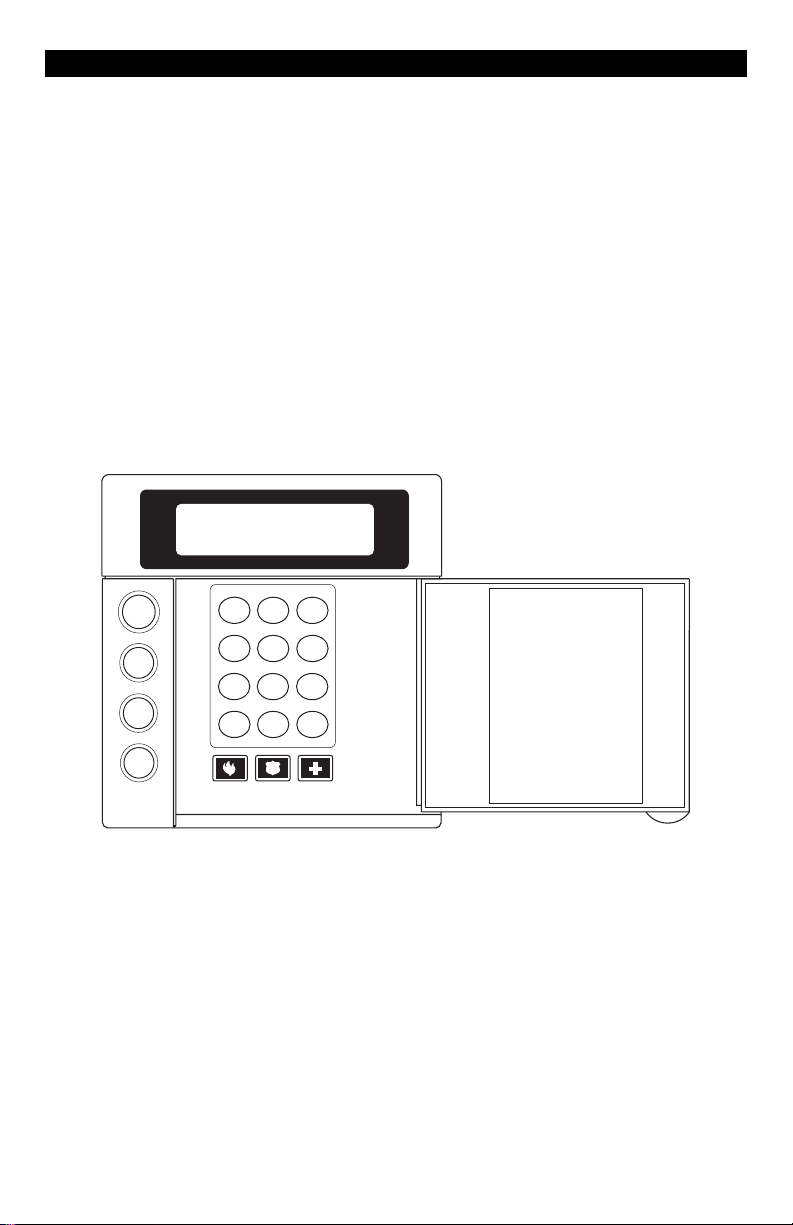
The LCD & VFD Control Station
OFF
CANCEL
AWAY
STAY
NIGHT
D
VIEW INFO ALM MEM
1
BYPASS DELAY ARM CHIME
4
RST SMOKE TEST PROGRAM
7
QUIT ACCESS INSTANT
CLEAR
HOME NEXT
(ZXLCD and ZXVFD)
EVENT LOG
23
56
89
ENTER
0
5
Page 6
OPERATING YOUR SYSTEM
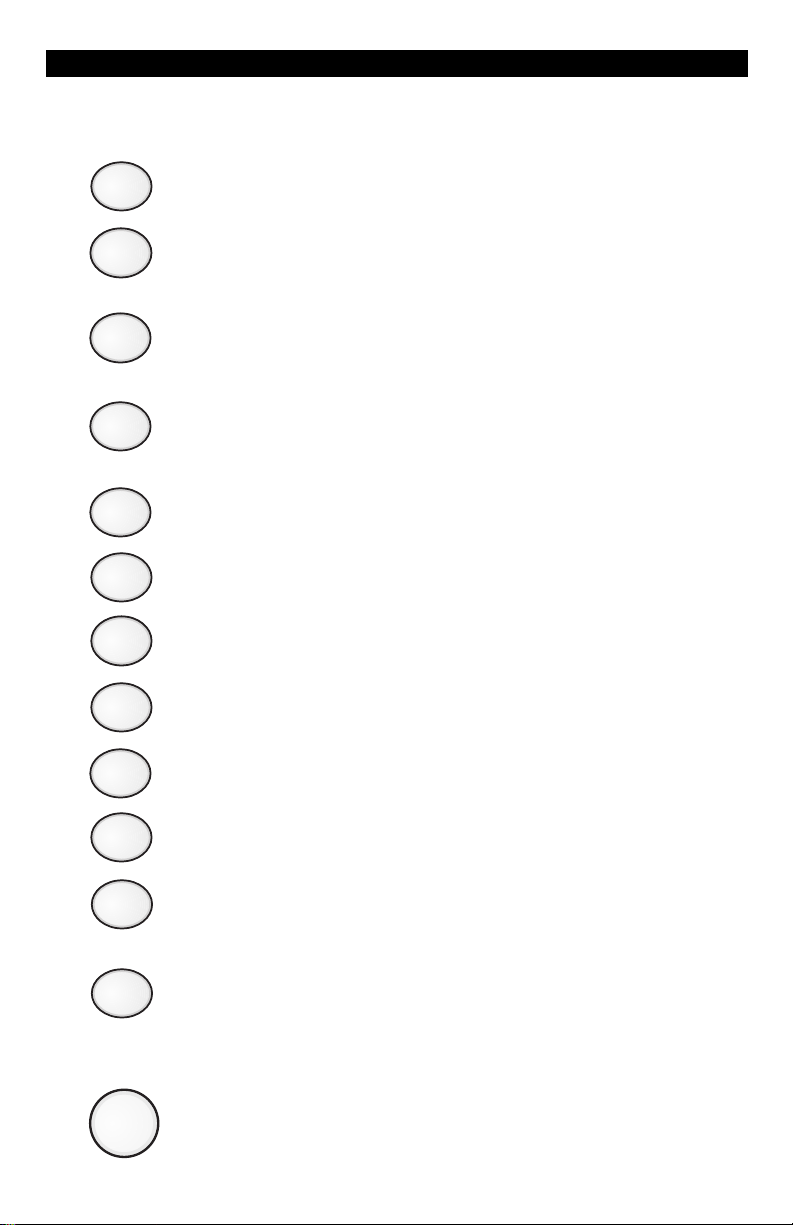
The Control Station Keys
1
This key is used to view system information.
Alarm Memory Key
View Info Key
2
3
4
5
6
7
8
Allows you to display the most recent zones where an alarm
occurred.
Event Log Key - (ZX400/ZX410/ZX440F only)
Allows you to view events on the keypad. If a printer is
attached, you may print the recorded activities.
Bypass Key
Allows you to turn your system ON with one or more zones
intentionally left unprotected until the system is turned OFF.
Delay Arm Key - (ZX400/ZX410/ZX440F only)
Extends or postpones the Automatic-ON by one hour.
Chime Key
Turns the door/window monitor ON or OFF.
Reset Smoke Key
Resets all smoke detectors in alarm.
Test Key
Allows you to perform system testing.
9
0
CLEAR
ENTER
OFF
CANCEL
Program Key
Used to enter the programming mode.
Access Key
Used to activate a door strike or other access output function.
Quit Key
Used to reset any entry error and to allow you to exit out of
an operation.
Instant Key
Used in programming to store entered data. May also be
used to disable the entry and exit countdown time when
pressed during the countdown time when turning the
system ON with STAY or NIGHT.
Off Cancel Key
Used to turn OFF, silence, or cancel conditions.
6
Page 7
OPERATING YOUR SYSTEM
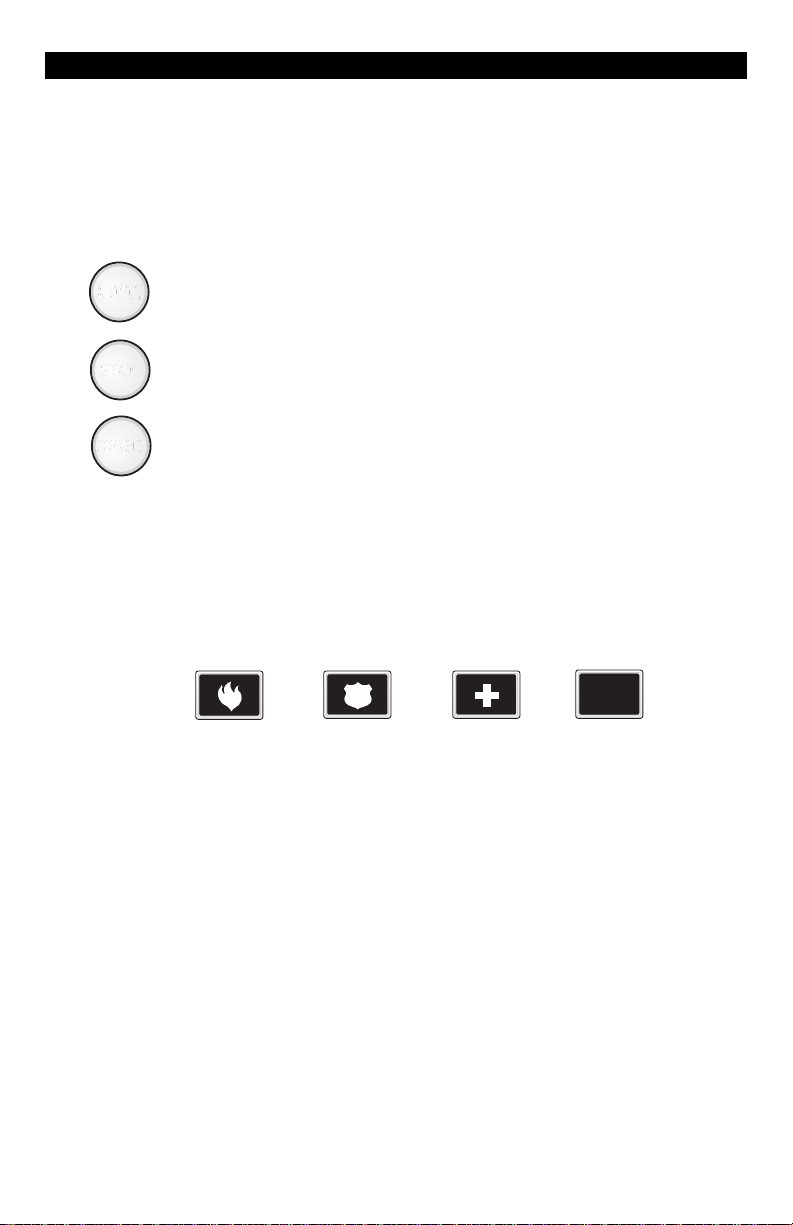
Armed Status Indicator
These keys, followed by your passcode, are used to turn your
system ON. Each key corresponds to a different level of
security.
AWAY
AWAY
STAY
STAY
NIGHT
NIGHT
No one at home; total protection; all sensors are ON.
Building is occupied; selected door and window sensors are
ON.
Bedtime; selected door, window and interior sensors are ON.
Panic Keys
When enabled, these keys activate the auxiliary alarms (Fire,
Police, Medical) or call your pager. Consult with your
Security Company Representative for details.
PAGER
Fire
Police
(Hold Up)
Medical
(Auxiliary)
Pager
7
Page 8
OPERATING YOUR SYSTEM
The Control Station Display
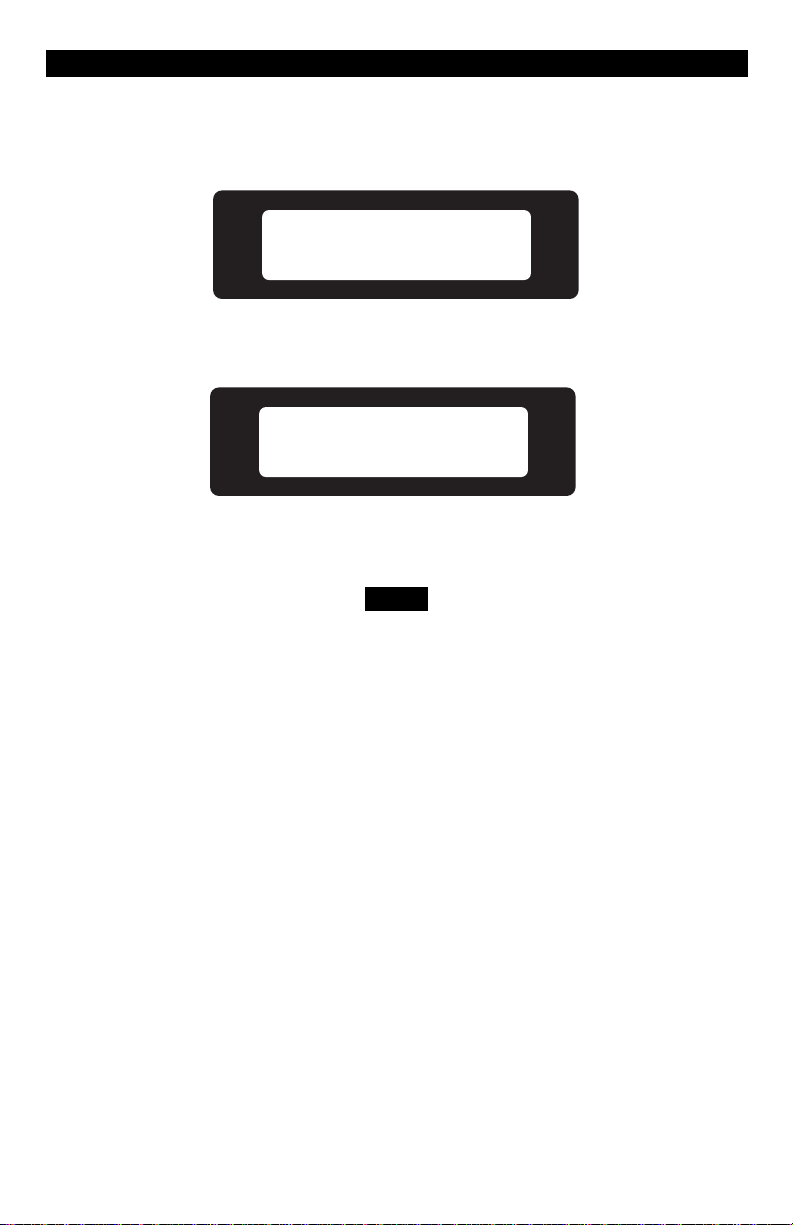
READY TO ARM
A1 READY TO ARM
JAN 21 05:27:52
ZX400/ZX410/ZX440F
To save power, the LCD Control Station display will
dim and the VFD Control Station display will go into
screen saver mode after four (4) minutes of no
keypresses or sounder activity. Press any key to turn
the display back ON.
ZX200/ZX210
NOTE
8
Page 9
OPERATING YOUR SYSTEM
Turning Your System ON
1. Close all doors and windows.
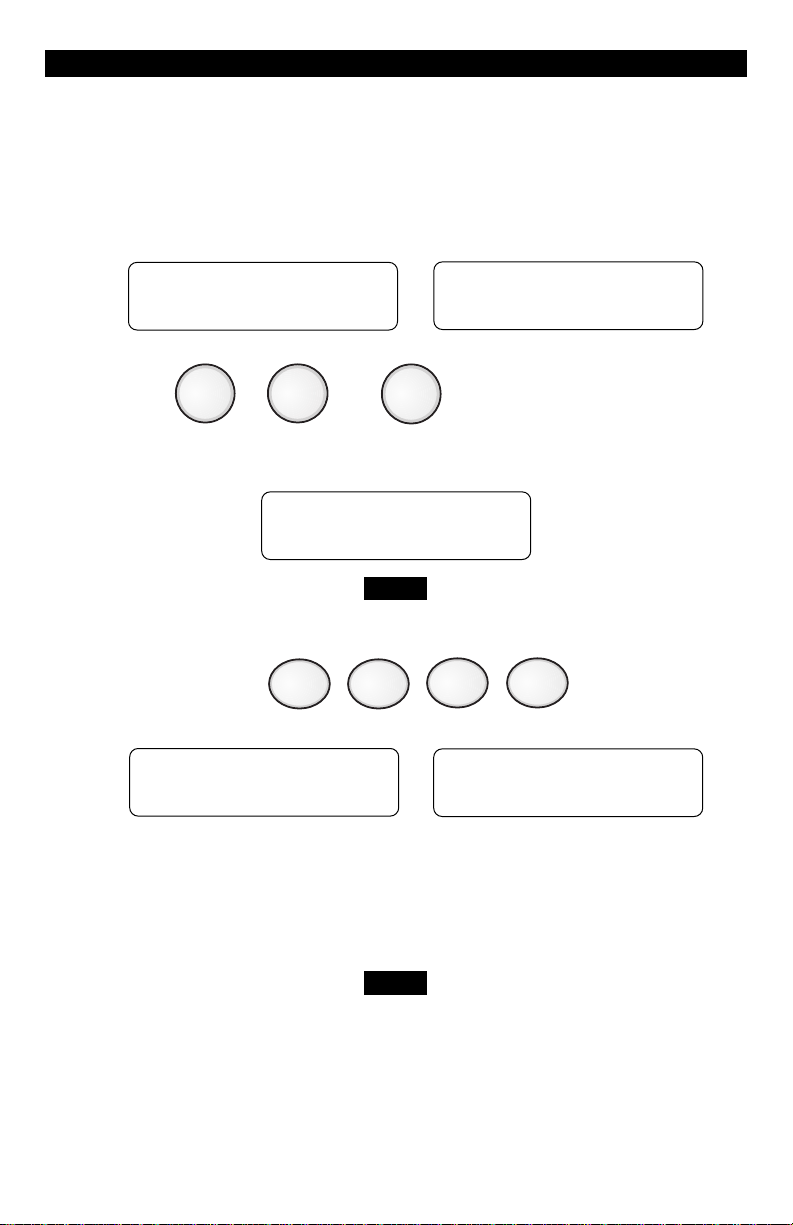
2. Check for a Ready display on the Control Station. If you do not see
it, see Operating Your System - System Not Ready.
READY TO ARM
A1 READY TO ARM
JAN 21 05:27:52
ZX200/ZX210 ZX400/ZX410/ZX440F
3. Press , or .
AWAY
If you turn your system ON in the AWAY mode, the Control Station
will display:
STAY
NIGHT
TO ARM AWAY
ENTER PASSCODE
NOTE
The examples in this manual show the AWAY prompt.
The prompt may show STAY or NIGHT.
4. Enter passcode:
The Control Station will briefly display:
ARMED AWAY
AREA 1
ARMED AWAY
ZX200/ZX210 ZX400/ZX410/ZX440F
5. The Control Station will then begin exit countdown time. It is safe
to exit the building during the countdown time. If you exit during
the last 10 seconds of countdown time, the timer will restart the
countdown once. If you turn your system ON in the AWAY mode
and you do not exit, the countdown will begin again only once so
that you may exit.
When turning your system ON in the STAY or NIGHT
mode, you may press the ENTER key during the
countdown time to cancel the countdown and turn
your system ON instantly. When you cancel the
countdown time, the entry time is also disabled. If
your front door is opened while the system is turned
ON, an alarm will occur immediately.
NOTE
9
Page 10
OPERATING YOUR SYSTEM
Turning Your System OFF
OFF
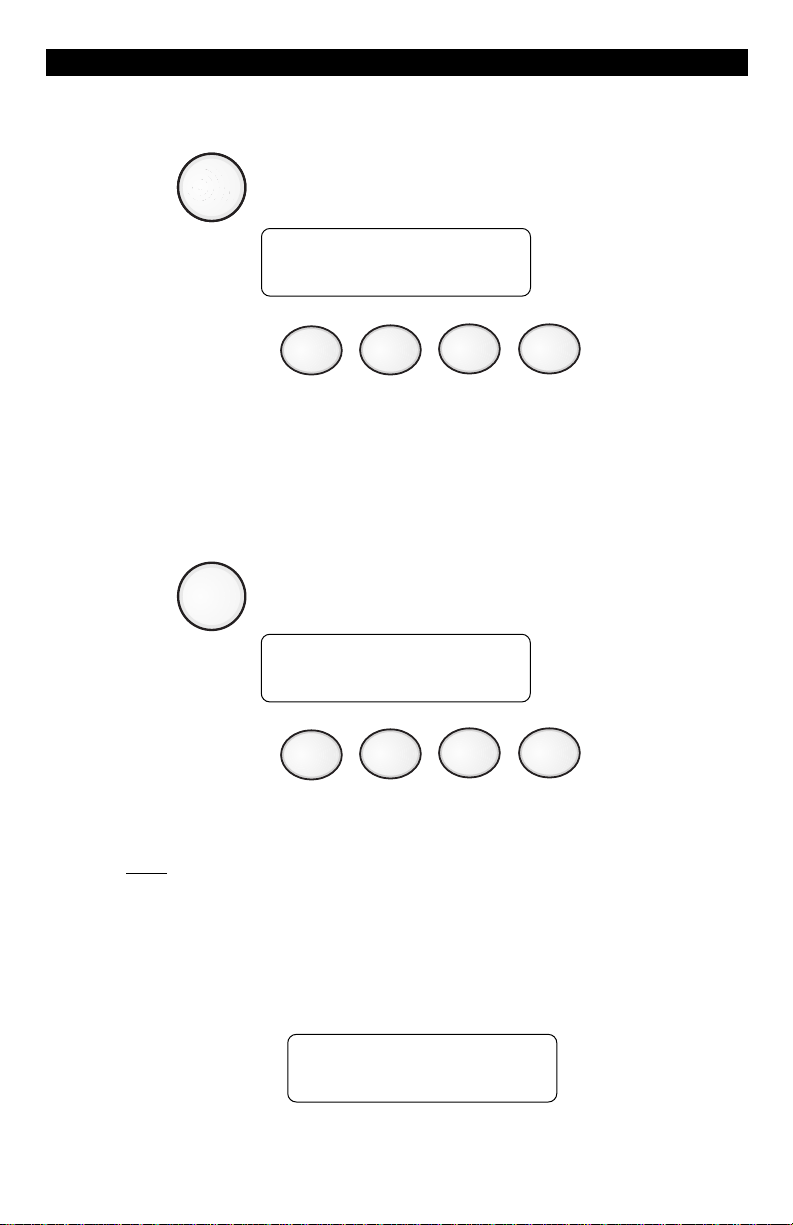
1. Press . The Control Station will display:
OFF
CANCEL
CANCEL
TO TURN OFF
ENTER PASSCODE
2. Enter passcode:
The Armed Status Indicator light will turn OFF.
Silencing Alarms
To silence an alarm:
1. Press . The Control Station will display:
OFF
CANCEL
TO TURN OFF
ENTER PASSCODE
2. Enter passcode:
Silencing an alarm quickly may prevent a false alarm from being
reported to the authorities. If the Armed Status Indicator light is
NOT flashing, you can stop the false alarm from being reported. If
the Armed Status Indicator light is flashing, then the false alarm has
been reported and you need to contact the Central Station. When
you silence an alarm that has been reported, the Control Station
will go into Alarm Memory mode. See Alarm Conditions - Alarm
Memory. When you silence an alarm before the alarm is reported,
the Control Station will briefly display:
ALARM CANCELLED
Not Displayed on ZX200
10
Page 11
OPERATING YOUR SYSTEM
System Not Ready
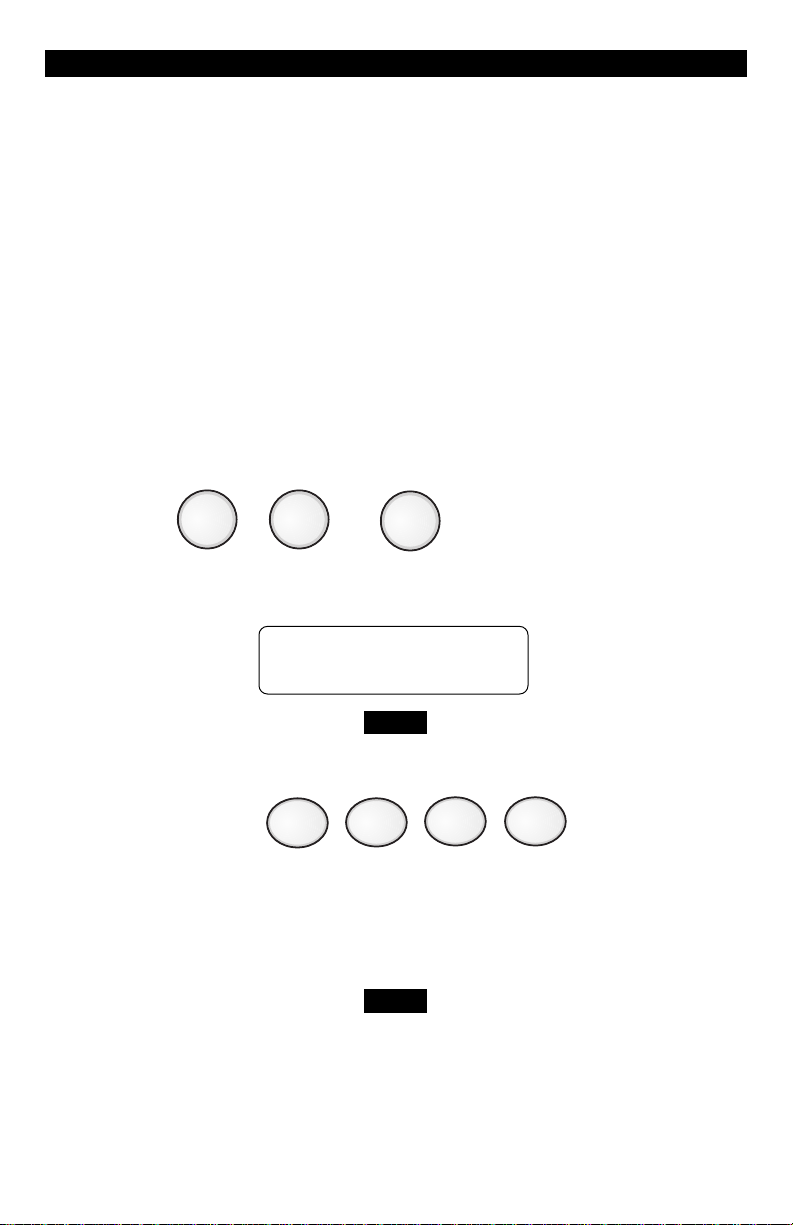
1. Press the View Info key (Key #1) repeatedly to view zones not
ready. The Control Station will display the zone condition and the
zone number.
2. Secure zones not ready. If you cannot secure a zone or do not want
to secure a zone, you may still turn the system ON by bypassing the
zone. See Optional Features - Bypass and Force Arming.
Changing The Security Level
From the STAY or NIGHT mode
1. Press , or .
If you turn your system ON in the AWAY mode, the Control Station
will display :
STAYAWAY
NIGHT
TO ARM AWAY
ENTER PASSCODE
NOTE
The examples in this manual show the AWAY prompt.
The prompt may show STAY or NIGHT.
2. Enter passcode:
3. The Control Station will then begin exit countdown time. It is safe to
exit the building during the countdown time. If you exit during the
last 10 seconds of countdown time, the timer will restart the countdown once. If you turn your system ON in the AWAY mode and you
do not exit, the countdown will begin again only once so that you
may exit.
When the system is turned ON in the STAY or NIGHT
mode, you can switch between these modes as often
as you wish without turning your system OFF. When
the system is turned ON in the AWAY mode, you must
turn your system OFF first before you can change
security levels.
NOTE
11
Page 12
OPERATING YOUR SYSTEM
Chime
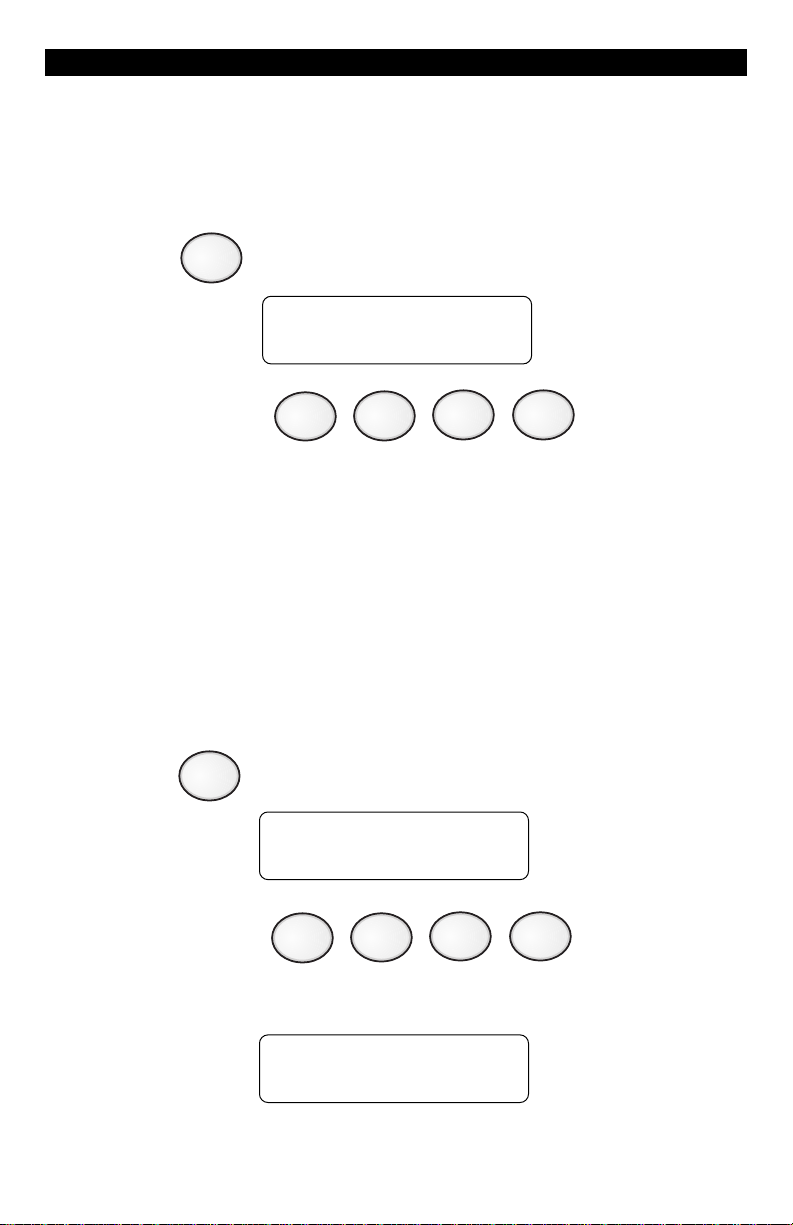
To enable or disable a “Chime” sound whenever an exterior window or
door zone is opened:
1. Press . The Control Station will display:
6
TO SET CHIME
ENTER PASSCODE
2. Enter passcode:
The Control Station will display whether the chime was turned ON or if
it was turned OFF.
Viewing and Printing The Event Log
(ZX400/ZX410/ZX440F only)
The Event Log is a record of the activities of your security system. You
may print the Event Log if you have a printer attached.
To enter into the Event Log:
1. Press . The Control Station will display:
3
FOR EVENT LOG
ENTER PASSCODE
2. Enter passcode:
The Control Station will display:
ENTER 1=VIEW
2=PRINT
12
Page 13
OPERATING YOUR SYSTEM
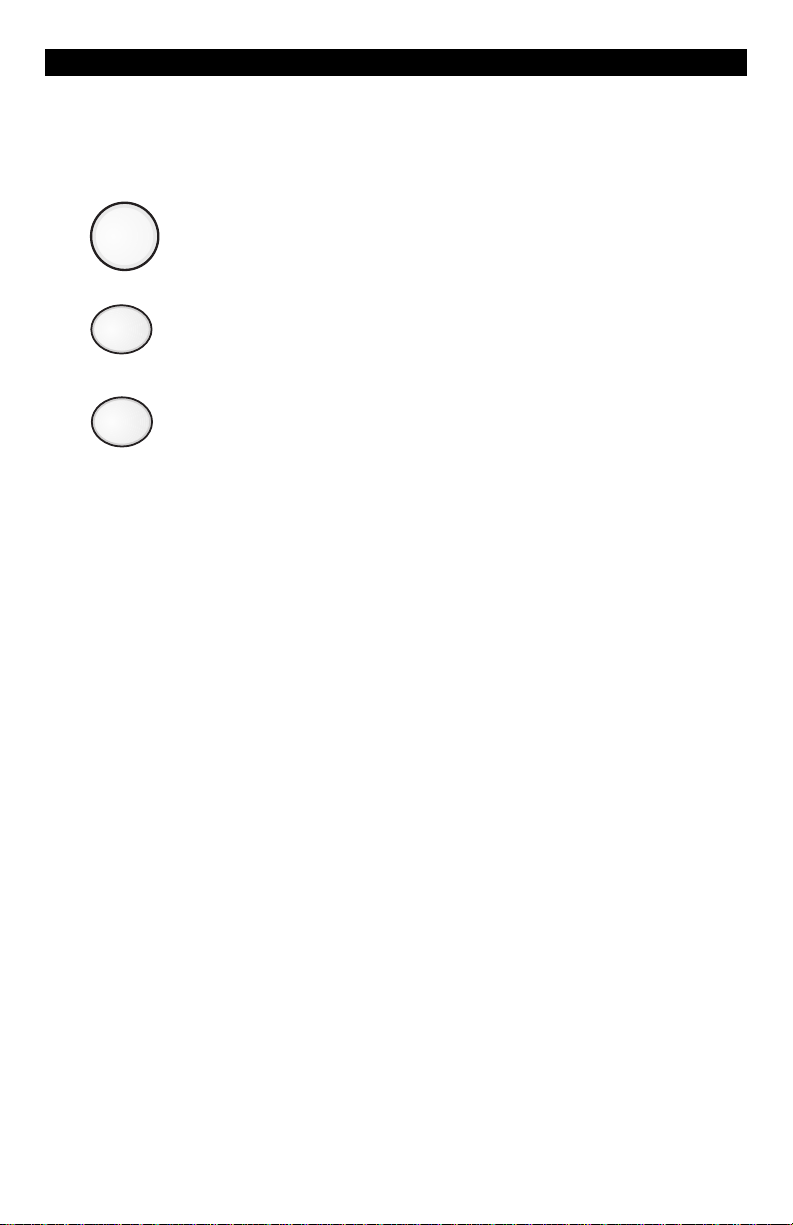
If 1 is selected, the Control Station will display the last event that
occurred. Press:
OFF
CANCEL
To scroll backwards through the event log
To scroll forward
1
CLEAR
If 2 is selected, the recorded information will be sent to the attached
printer.
To return to the Ready mode
13
Page 14
OPTIONAL FEATURES
Optional Features
I
T
O
P
N
O
E
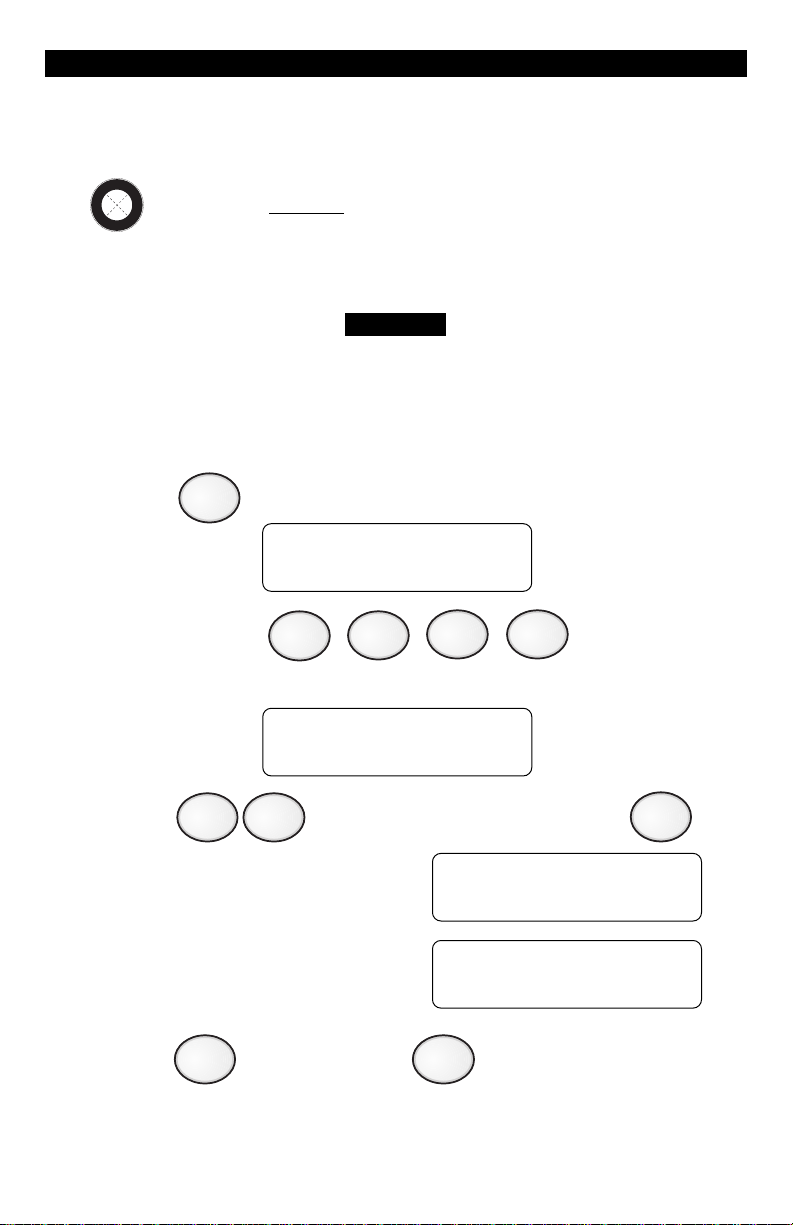
Bypass - (DO NOT enable for UL Listed Systems)
D
N
E
A
L
B
This feature allows you to turn your system ON with one or more zones
intentionally left unprotected until the system is turned OFF.
WARNING
Bypassed zones are unprotected and will not cause
an alarm if opened while your system is ON.
Group Bypass - (to intentionally bypass all open zones)
1. Press . The Control Station will display:
4
TO BYPASS ZONES
ENTER PASSCODE
2. Enter passcode:
The Control Station will display:
ZONE __
3. Press to bypass all open zones, then press .
The Control Station will briefly
display:
then returns to the zone selection
display:
4. Press to save changes or to cancel any changes
made.
9
ENTER
9
ZONE 99 - BYPASS
FAULTED ZONES
ZONE __
CLEAR
ENTER
14
Page 15
ENTER
OPTIONAL FEATURES
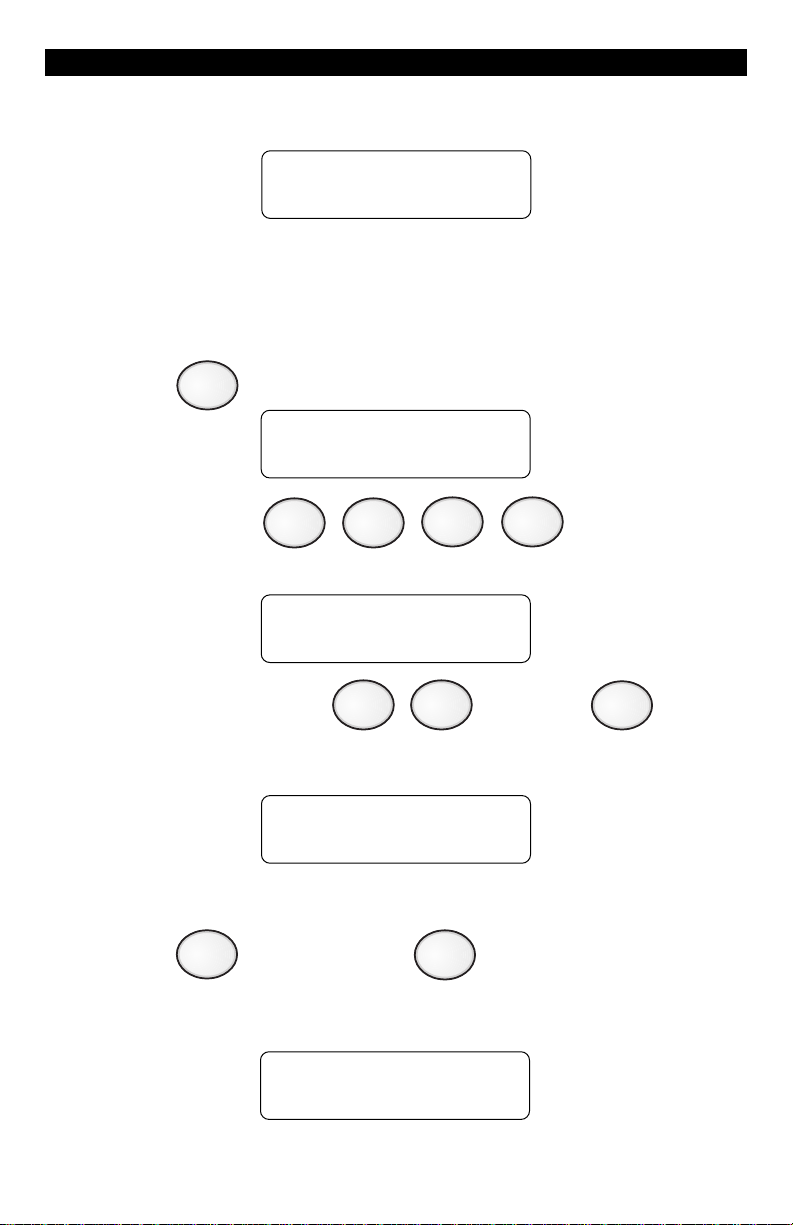
After saving any changes, the Control Station will briefly display:
BYPASSING
COMPLETE
before returning to the READY prompt.
Selective Bypass/Unbypass -
1. Press . The Control Station will display:
4
(to intentionally bypass/unbypass
a specific zone)
TO BYPASS ZONES
ENTER PASSCODE
2. Enter passcode:
The Control Station will display:
ZONE __
3. Enter the zone number , then press .
The Control Station will briefly display the zone that was bypassed/
unbypassed and then return to the zone selection display.
ENTER
ZONE __
Repeat step 3 for each zone you wish to bypass or unbypass. See
Protection Zones for a list of zone numbers and descriptions.
4. Press to save changes or to cancel changes.
After saving any changes, the Control Station will return to the
READY prompt after briefly displaying:
CLEAR
BYPASSING
COMPLETE
15
Page 16
OPTIONAL FEATURES
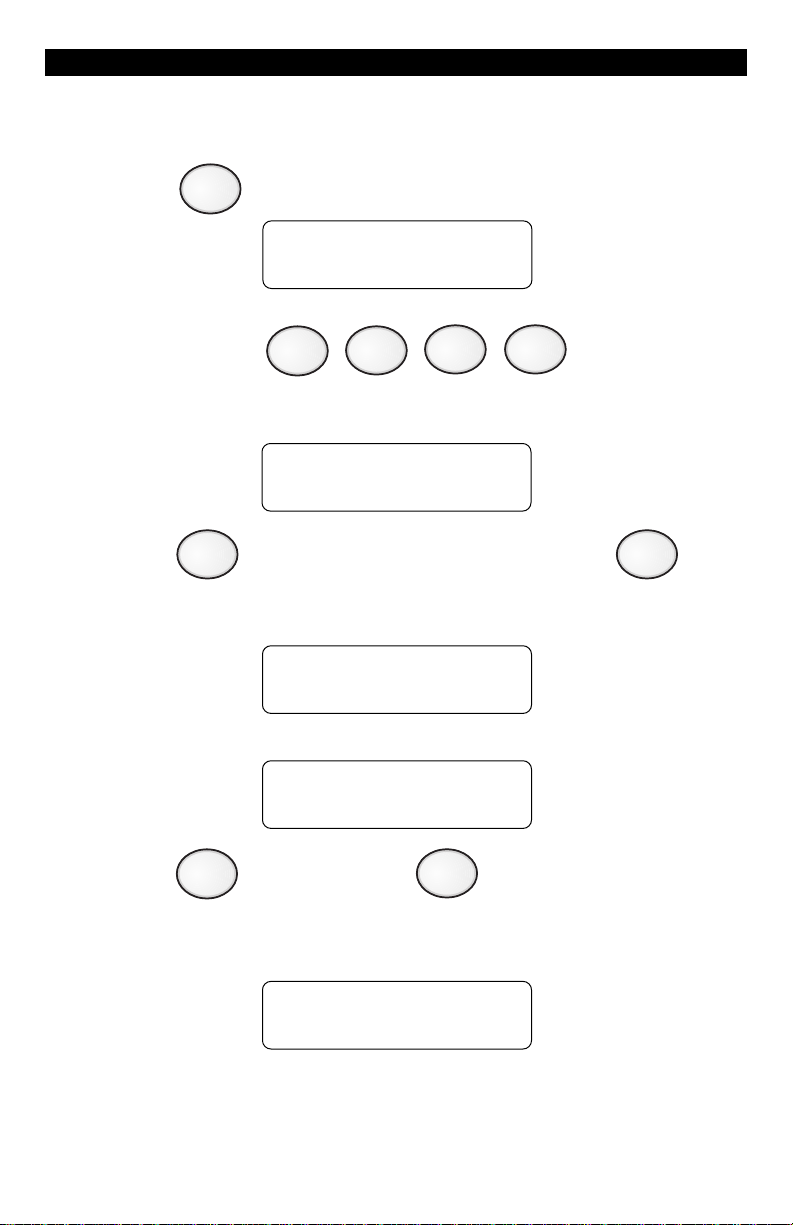
ENTER
Removing Bypass
1. Press . The Control Station will display:
4
TO BYPASS ZONES
ENTER PASSCODE
2. Enter passcode:
The Control Station will display:
ZONE _ _
3. Press to unbypass all bypassed zones, then press .
The Control Station will briefly display:
0
ZONE 00 - ALL
ZONES UNBYPASSED
then returns to the zone selection display:
ZONE __
4. Press to save changes or to cancel changes.
After saving any changes, the Control Station will return to the
READY prompt after briefly displaying:
ENTER
CLEAR
BYPASSING
COMPLETE
16
Page 17
AWAY
OPTIONAL FEATURES
I
T
O
P
N
O
E
D
Force-Arming - (DO NOT enable for UL Listed Systems)
N
E
A
L
B
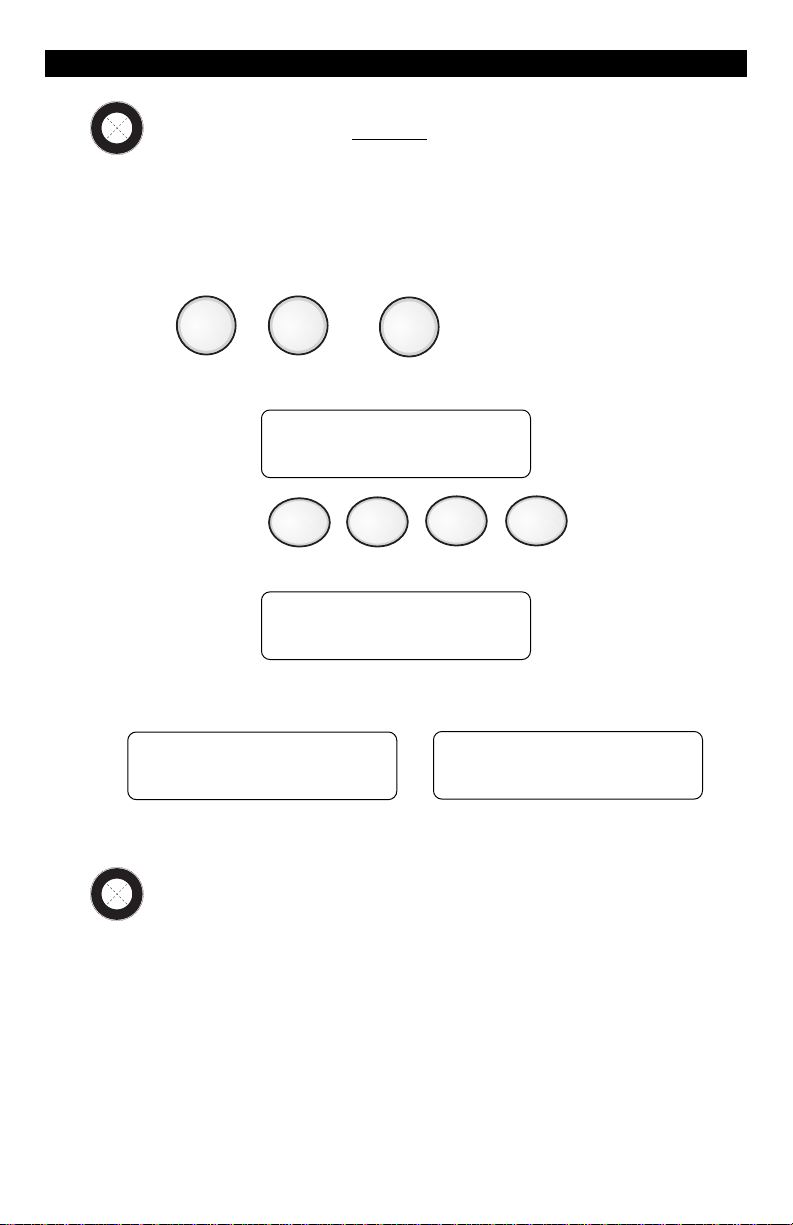
When you turn the system ON with Force-Arming, the system will not
turn ON any zones that are not ready. Once the zone is secured, that
zone is automatically turned ON and will cause an alarm if it is violated.
See Operating Your System - System Not Ready, to identify zones that
are not ready.
1. Press , or .
STAY
NIGHT
The Control Station will display selection:
TO ARM AWAY
ENTER PASSCODE
2. Enter passcode:
The Control Station will display:
CANNOT ARM
3. Within 5 seconds, press the same key that was pressed in Step 1
above. The Control Station will briefly display:
FORCE ARM AWAY
AREA 1
FORCE ARM AWAY
ZX200/ZX210
I
T
O
P
N
Turning Your System ON Using Two Button/
O
E
D
N
E
A
Double Press
L
B
ZX400/ZX410/ZX440F
Your system may be programmed to quickly turn ON using either the
two button method or the double press method.
The two button method allows you to quickly turn your system ON by
pressing the AWAY, STAY, or NIGHT key and then pressing the Enter key.
The double press method allows you to quickly turn your system ON by
pressing the AWAY, STAY, or NIGHT key twice.
17
Page 18
OPTIONAL FEATURES
I
T
O
P
N
O
E
D
Exit-ON (ZX400/ZX410/ZX440F only)
N
E
A
L
B
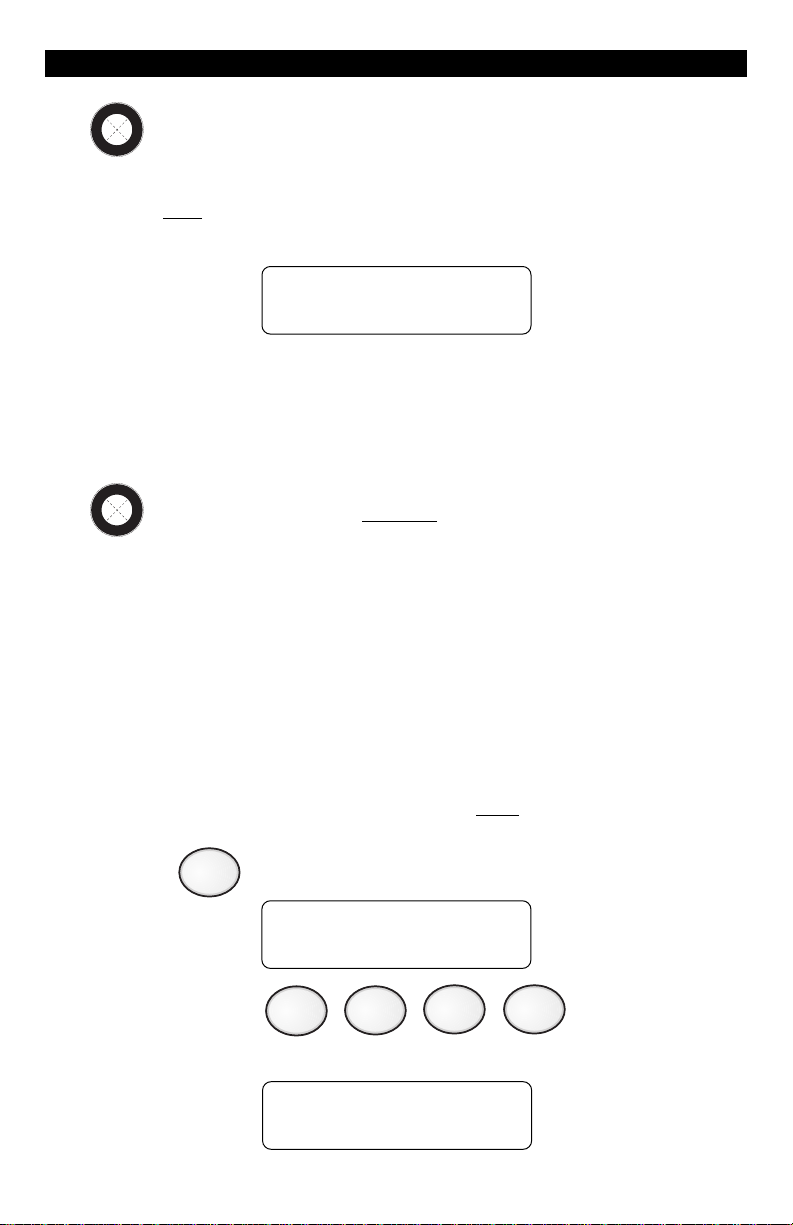
This feature allows your system to turn ON automatically ten (10)
minutes
after you leave the premises and no other activity is detected.
Your Control Station will display a visual countdown
9 MIN 59 SEC
UNTIL AUTO ARM
and then sound an audible warning at two (2) minutes and one (1)
minute before the system turns ON. See ZX400/ZX410/ZX440F
Programming - Cancelling Exit-ON For Today for instructions on how
to cancel this feature for the day.
I
T
O
P
N
O
E
D
Automatic-ON - (DO NOT enable for UL Listed Systems)
N
E
A
L
B
This feature turns your system ON at a scheduled time daily. Your
Control Station will periodically display a visual warning and sound an
audible warning each minute starting at ten (10) minutes before the
system turns ON. See ZX400/ZX410/ZX440F Programming - Programming the Automatic-ON Feature and Cancelling Automatic-ON For Today.
(ZX400/ZX410/ZX440F only)
Delay Automatic-ON (ZX400/ZX410/ZX440F only)
To postpone the Automatic-ON for one hour after the audible warning
begins:
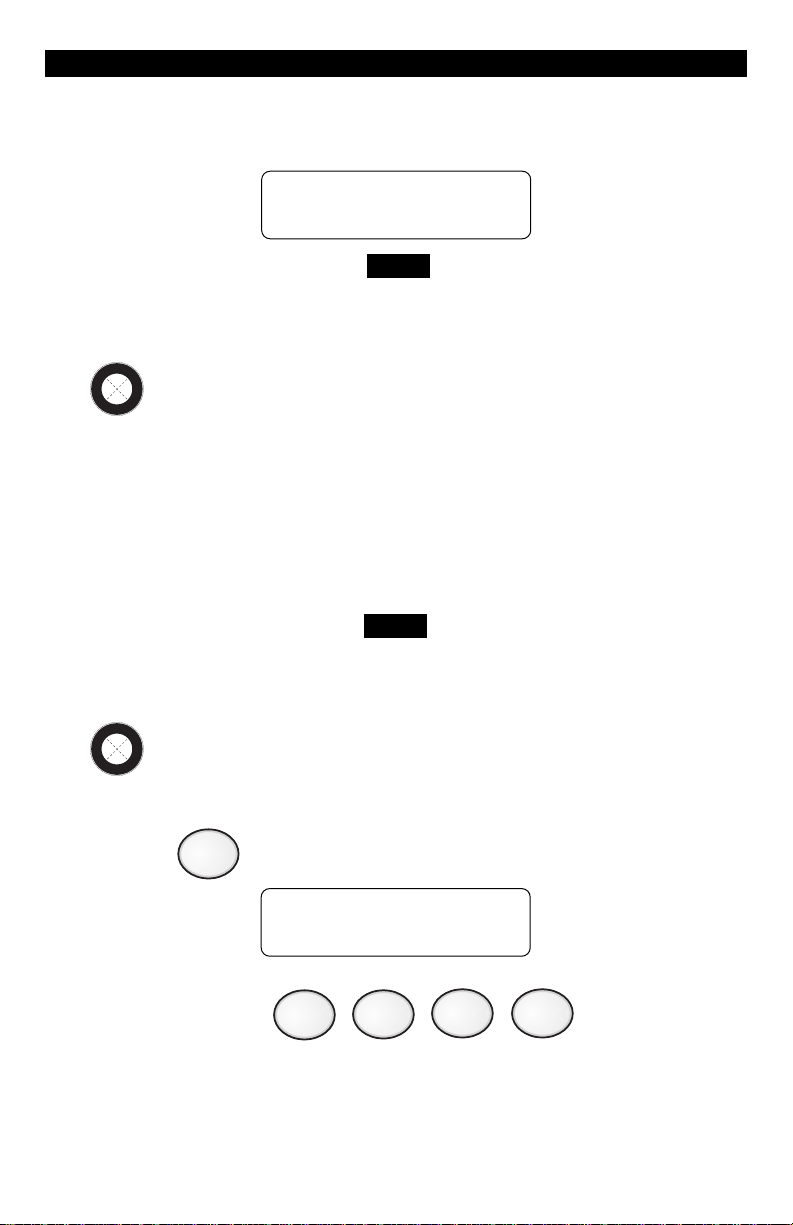
1. Press . The Control Station will display:
5
TO DELAY ARM
ENTER PASSCODE
2. Enter passcode:
If Automatic-ON has been delayed, the Control Station will display:
AUTO ARM DELAYED
18
Page 19
OPTIONAL FEATURES
If the audible warning for Automatic-ON has not started, then the
display will state:
NO AUTO ARM TO
DELAY
NOTE
You cannot extend the Automatic-ON time past
midnight.
I
T
O
P
N
O
E
D
Keyswitch Operation
N
E
A
L
B
To turn your system ON/OFF or to silence an alarm:
1. Insert key
2. Turn key and hold for a second
3. Remove key
NOTE
If key is used to turn the system ON, the system will
be turned ON in the AWAY mode only.
I
T
O
P
N
O
E
D
Access Output (This system is not UL Listed for Access Control)
N
E
A
L
B
To activate an Access Output device or door strike:
1. Press . The Control Station will display:
0
FOR ACCESS
ENTER PASSCODE
2. Enter passcode:
19
Page 20
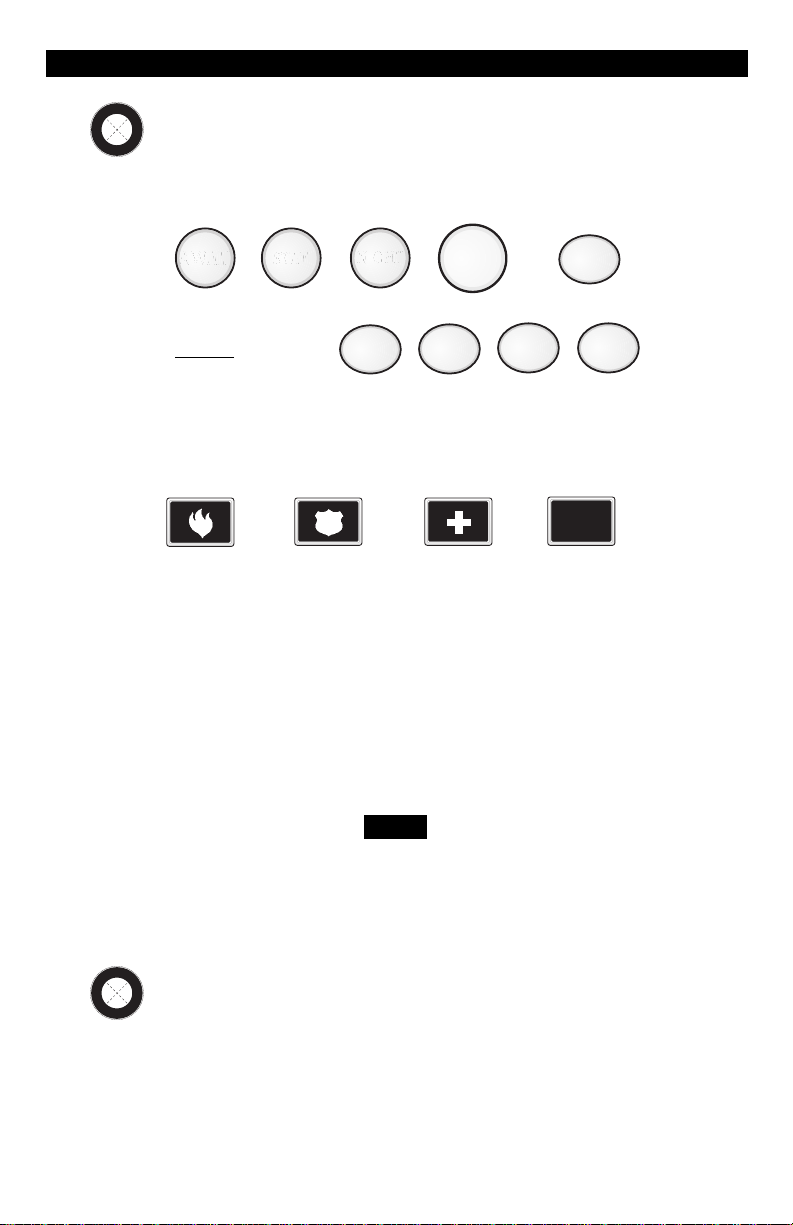
OPTIONAL FEATURES
I
T
O
P
N
O
E
D
Duress
N
E
A
L
B
To send a silent alarm signal:
1. Press , , , , or .
2. Enter
AWAY
AWAY
Duress Passcode:
STAY
STAY
NIGHT
NIGHT
OFF
CANCEL
0
Panic Keys
PAGER
Fire
Police
(Hold Up)
To activate a panic key, you must press and hold the panic key for three
(3) seconds. On the ZX400/ZX410/ZX440F, you have the option of
pressing the panic key twice within 1 second. Double press is not
available with the ZX200/ZX210. Ask your Security Company Representative how your panic keys are enabled. See System Reference Guide
for a listing of which Control Stations have the panic keys enabled and
the sound for each key.
An audible alarm may result. To silence the alarm,
press the Off Cancel key and then enter your
passcode.
NOTE
Medical
(Auxiliary)
Pager
I
T
O
P
N
O
E
D
N
User On Premise
E
A
L
B
When a User On Premise passcode is used to activate an access output,
disarm, or silence an alarm, notification will be reported to the Central
Station or to a pager. See your Security Company Representative for
more details.
20
Page 21

OPTIONAL FEATURES
I
T
O
P
N
Secondary Function Keys
O
E
D
N
E
A
(ZX400/ZX410/ZX440F only)
L
B
Your system may have secondary function keys available. See your
Security Company Representative for complete details. To activate:
Press then to turn the Lamp Trigger OFF/ON.
Press then to turn the Universal Output OFF/ON.
Press then for quick access.
Press then to turn an output OFF/ON (ex: room
ENTER
ENTER
ENTER
ENTER
1
2
3
4
light).
ENTER
Press then to turn an output OFF/ON (ex: basement
5
light).
Press then to turn an output OFF/ON (ex: lamp or
ENTER
6
television).
Below is the description of what your secondary functions keys are
programmed to do:
ENTER
ENTER
1
2
ENTER
ENTER
ENTER
ENTER
3
4
5
6
21
Page 22

ALARM CONDITIONS
Alarm Conditions
Alarm Memory
To view zones and keypads that caused an alarm:
1. Press . The Control Station will display:
2
TO VIEW ALARMS
ENTER PASSCODE
2. Enter passcode:
The Control Station will display the alarm type and the source of alarm.
The ZX400/ZX410/ZX440F will alternate this display with the time and
date that the alarm occurred. If more than one zone (or keypad)
caused an alarm, press the View Info key (Key #1) repeatedly to view
the alarms.
22
Page 23

TROUBLE CONDITIONS
Trouble Conditions
When your system detects a trouble condition, the Control Station will
alternate between displaying the system state (Ready to Arm, etc.) and
the trouble message, with each message displayed for two seconds at a
time. If more than one trouble condition is present, then each trouble
condition is displayed separately. Refer to the Installation Manual or
your Security Company Representative for a description of the possible
trouble conditions.
Silencing Trouble
To silence the trouble sounder:
1. Press . The Control Station will display:
OFF
CANCEL
TO TURN OFF
ENTER PASSCODE
2. Enter passcode:
After you silence the trouble sounder, the Control Station display will
alternate between the system status and the trouble message. If you
have an RF User Device Low Battery or your system is a ZX440F, then as
long as the trouble condition is present, an audible trouble output may
sound briefly every four hours.
Identifying Zone Conditions
Press the View Info key (Key #1) repeatedly to display the following
zone conditions that may have occurred: Trouble Zones, Faulted
Zones, and/or Bypassed Zones. The Control Station will display the
zone condition and the zone name and number.
NOTE
If a trouble condition does not go away, contact your
Security Company Representative.
23
Page 24

TESTING YOUR SYSTEM
Testing Your System
It is recommended that all tests be performed on a weekly basis. Your
system must be OFF to perform these tests. There are six (6) options
available.
1 Walk Verifies that all system zones are operating properly
2 Battery Verifies that the system battery is fully charged
3 Bell Verifies that the system audibles are operating properly
4 Communicator Verifies that the system communicates with the Central
Station
5 Keypad Verifies that the Control Station lights operate properly
6 RF Signal Strength Tests the signal strength of wireless sensors
Walk Test
To perform a walk test:
(ZX400/ZX410/ZX440F only)
1. Press . The Control Station will display:
8
FOR TESTS
ENTER PASSCODE
2. Enter passcode:
The Control Station will display:
ENTER 1-5 TO
SELECT A TEST
ZX200/ZX210 ZX400/ZX410/ZX440F
3. Press .
4. Open or activate each sensor. As each sensor is opened, listen for an
audible and visual indication to occur at the Control Station indicating
the sensor is working properly. When all sensors have been opened,
return to the Control Station.
1
ENTER 1-6 TO
SELECT A TEST
24
Page 25

TESTING YOUR SYSTEM
5. Press repeatedly to view any zones that have not been
tested. If you opened a sensor and the Control Station indicates that
it was not tested, it may be faulty. Retest the sensor or contact your
Security Company Representative.
6. Press to quit.
1
CLEAR
Battery Test
The battery test is used by the Security Company Representative to test
the battery after a new battery has been installed. Your battery is
automatically tested periodically.
To perform a battery test:
1. Press . The Control Station will display:
8
FOR TESTS
ENTER PASSCODE
2. Enter passcode:
The Control Station will display:
ENTER 1-6 TO
SELECT A TEST
3. Press .
If no trouble condition occurs, the Control Station will sound an
audible tone and return to the ready status. If a low/no battery
trouble condition occurs, the Control Station will display:
2
LOW/NO BATTERY
OFF TO SILENCE
Contact your Security Company Representative when this condition occurs.
25
Page 26

TESTING YOUR SYSTEM
Bell Test
To perform a bell test:
1. Press . The Control Station will display:
8
FOR TESTS
ENTER PASSCODE
2. Enter passcode:
The Control Station will display:
ENTER 1-6 TO
SELECT A TEST
3. Press .
The audible will sound for several seconds. The Control Station
will display:
3
BELL TEST
NOTE
Notify your neighbors before you test the bell.
26
Page 27

TESTING YOUR SYSTEM
Communicator Test
NOTE
Your system must be monitored by a Central Station
to perform this test. This test will take a while to
perform.
This test is used to verify that your system is communicating with the
Central Station.
To perform a communicator test:
1. Press . The Control Station will display:
8
FOR TESTS
ENTER PASSCODE
2. Enter passcode:
The Control Station will display:
ENTER 1-6 TO
SELECT A TEST
3. Press . The Control Station will briefly display:
4
TESTING
COMMUNICATIONS
4. If the test passes, the Control Station will sound four (4) beeps
when the test is completed. The Control Station will display:
COMM TEST
PASSED
If the test fails, a Communications Failure trouble condition results
several minutes later. The Control Station will display:
COMM FAILURE
OFF TO SILENCE
27
Page 28

TESTING YOUR SYSTEM
Keypad Test
To perform a keypad test:
1. Press . The Control Station will display:
8
FOR TESTS
ENTER PASSCODE
2. Enter passcode:
The Control Station will display:
ENTER 1-6 TO
SELECT A TEST
3. Press .
The Control Station will briefly light all of its indicators (AWAY, STAY,
and NIGHT) and display:
5
KEYPAD TEST
28
Page 29

TESTING YOUR SYSTEM
ENTER
RF Signal Strength (ZX400/ZX410/ZX440F only)
If your system includes wireless sensors, then you can test the strength of
signals from these sensors by performing an RF Signal Strength test. The
strength of a signal can be affected by a low battery condition on the
sensor or changes in the environment due to furniture or appliances.
To test the signal strength of selected RF Zones:
1. Press . The Control Station will display:
8
FOR TESTS
ENTER PASSCODE
2. Enter passcode:
The Control Station will display:
ENTER 1-6 TO
SELECT A TEST
3. Press . The Control Station will display:
6
DEVICE 00
SELECT RF DEVICE
4. Enter a number between 13 and 28 to select a wireless sensor to
test. See Protection Zones for a list of zone numbers and descriptions.
Press . The Control Station will display one of the following:
DEVICE 13
NO DEVICE
The selected zone is not RF or is missing.
DEVICE 13
LOW SIGNAL
Call your Installation Representative.
DEVICE 13
ACCEPTABLE
5. Repeat step 4 or press to exit.
CLEAR
29
DEVICE 13
STRONG SIGNAL
Page 30

ZX200/ZX210 PROGRAMMING
ZX200/ZX210 Programming
Your system has several features which you may be able to program
yourself. DO NOT attempt to program the system unless you have
been properly trained on programming procedures and you fully
understand these operations. There are two (2) options available:
1 Remote Connect Allows the installer to program and diagnose
problems from a remote site using the
telephone lines.
2 Program User Codes Allows you to change any passcodes.
Remote Connect
Contact your Security Company Representative for instructions.
Programming the User Passcodes
Your system may be programmed with up to 9 user passcodes. Consult
your Security Company Representative as to which passcodes have
been enabled and what Authority Level has been assigned to each one.
To program User Passcodes:
1. Press . The Control Station will display:
9
TO PROGRAM
ENTER PASSCODE
2. Enter passcode: .
The Control Station will display:
SELECT PROGRAM
OPTION 1-2
30
Page 31

ENTER
ZX200/ZX210 PROGRAMMING
3. Press . The Control Station will display:
2
USER 00
SELECT USER ID
4. Enter the User ID Passcode (1 - 9) that you wish to
program/change.
5. Press .
NOTE
The Control Station will display the first digit of the
selected User ID passcode. As each new number is
selected, the Control Station will display the next digit
that may be accepted or changed.
6. Enter new four-digit passcode
Repeat above steps for each passcode to be programmed or press
to return to the Ready mode.
CLEAR
If the new passcode being entered is a duplicate of an existing one, the
Control Station will sound an error tone and return to the first digit
location so you may try again.
To view an existing passcode, press after each digit displayed
until all four digits have been displayed.
If you wish to make a User ID passcode inoperable,
enter as the new four-digit passcode.
0
0 0 0
ENTER
31
Page 32

ZX200/ZX210 PROGRAMMING
ENTER
Programming the Zone Names
NOTE
This operation cannot be performed from an LED or
SSD Control Station. Do not perform this operation
during walk test mode or when any keypad is in use.
This feature allows you to program a name in for each zone location
(i.e.: zone 1 is the Front Door).
To program zone names:
1. Press + at the same time.
The Control Station will display:
CLEAR
ENTER
ZONE 00
SELECT ZONE ID
2. Enter zone number: (1 - 8). Press .
See Protection Zones for a list of zone numbers.
3. The Control Station will display the zone number selected on the
first line and the zone name to be programmed on the second line.
Press the key associated with each character listed on the next
page to enter in the new zone name. Each keypress will change
the display to the next character listed for that key. A maximum of
12 letters (includes spaces) may be used for each zone name.
32
Page 33

ZX200/ZX210 PROGRAMMING
CLEAR
CLEAR
Key Character Available
0123456789:;<=>?@
1
ABC
2
DE F
3
GHI
4
JKL
5
MN O
6
PQRS
7
TUV
8
WXYZ[¥]^_
9
space ! “ # $ % & ‘ * + , - . /
0
Used to move the cursor back one position
Used to move the cursor forward one position
4. Press to start over if a mistake is made or press
to save the zone name and return to the zone number prompt.
5. Press from the zone number prompt to exit.
33
ENTER
Page 34

ZX400/ZX410/ZX440F PROGRAMMING
ZX400/ZX410/ZX440F
Programming
Your system has several features which you may be able to program
yourself. DO NOT attempt to program the system unless you have
been properly trained on programming procedures and you fully
understand these operations. There are eight (8) options available:
1 Remote Connect Allows the installer to program and diagnose
problems from a remote site using the
telephone lines.
2 Set Clock Sets the system date and time. (Military
format)
3 Program Automatic-ON Schedules your system to automatically turn
ON at a specific day(s) and time(s).
4 Program Latch Key Monitors entry of a specific passcode.
5 Program User Codes Allows you to change any passcodes.
6 Cancelling Automatic-ON Cancels the system from automatically
For Today
7 Cancelling Exit-ON Cancels the system from automatically
For Today
8 Program Zone Names Allows you to enter a name to each zone.
turning ON for the scheduled time for that
day only.
turning ON for Today 10 minutes after you
leave the premises for that day only.
Remote Connect
Contact your Security Company Representative for instructions.
34
Page 35

ZX400/ZX410/ZX440F PROGRAMMING
Set Clock
The clock is set according to military time (24:00 hours).
To set the clock:
1. Press . The Control Station will display:
9
TO PROGRAM
ENTER PASSCODE
2. Enter passcode:
The Control Station will display:
SELECT PROGRAM
OPTION 1-8
3. Press . The Control Station will display:
2
10:53 02/04/97
ENTER = COMPLETE
4. Set the new time and date. (See example)
Example: To set the clock to 2:15 pm on June 17, 1997:
Press (2:15 pm)
Press (June 17, 1997)
5. Press
to save changes.
CLEAR
4 51 1
6
to start over if a mistake is made or press
1
35
7
90
7
ENTER
Page 36

ZX400/ZX410/ZX440F PROGRAMMING
Programming the Automatic-ON Feature
(DO NOT enable for UL Listed Systems)
This feature allows you to automatically turn your system ON at certain
times for certain days. There are four items to be programmed:
A. Setting the Security Level
B. Day(s) of week to automatically turn ON
C. Hour to turn ON each day
D. Minute to turn ON each day
A. Setting the Security Level
To program the Automatic-ON feature:
1. Press . The Control Station will display:
9
TO PROGRAM
ENTER PASSCODE
2. Enter passcode:
The Control Station will display:
SELECT PROGRAM
OPTION 1-8
3. Press . The Control Station will display:
3
LOCATION: 00
VALUE: -- -
4. Press (for location 1).
5. Press . The Control Station will display the current setting.
6. Press for AWAY, press for STAY, or press
1
ENTER
0
1
2
for NIGHT.
7. Press to save selection and return to the location prompt.
ENTER
36
Page 37

ZX400/ZX410/ZX440F PROGRAMMING
B. Day(s) To Turn ON
To select the day(s) of the week you want your system to automatically
turn ON, add together the values below for those days selected.
Value Day of the Week
1 Sunday
2 Monday
4 Tuesday
8 Wednesday
16 Thursday
32 Friday
64 Saturday
Example: To have your system automatically turn ON for Monday,
Tuesday, and Saturday, add 2 + 4 + 64. Enter the value 70.
8. The Control Station will display:
LOCATION: 00
VALUE: - - -
Press (for location 2).
9. Press . The Control Station will display the current value.
10. Enter new value: (0 - 127)
11. Press to save selection and return to the location prompt.
2
ENTER
ENTER
37
Page 38

ZX400/ZX410/ZX440F PROGRAMMING
C. Hour To Turn ON Each Day
If the time scheduled is from 12:00 am to 12:09 am, the ten minute
warning period will not begin until 12:00 am and will therefore be
less than the set ten minute time period.
The hour to turn ON must be entered, in military format, for each day you
selected. Each day has a corresponding location number.
Location Day of the Week
3 hour on Sunday
5 hour on Monday
7 hour on Tuesday
9 hour on Wednesday
11 hour on Thursday
13 hour on Friday
15 hour on Saturday
NOTE
Steps 12 - 15 must be repeated for each day of the
week you selected.
12. The Control Station will display:
LOCATION: 00
VALUE: -- -
Enter the location number from the chart above.
13. Press . The Control Station will display the current
scheduled time.
14. Enter hour where 0 = midnight and 23 = 11:00 pm.
15. Press to save selection and return to the location prompt.
ENTER
ENTER
38
Page 39

ZX400/ZX410/ZX440F PROGRAMMING
ENTER
ENTER
CLEAR
D. Minute To Turn ON Each Day
The minute to turn ON must be entered for each day you selected. Each
day has a corresponding location number.
Location Day of the Week
4 minute on Sunday
6 minute on Monday
8 minute on Tuesday
10 minute on Wednesday
12 minute on Thursday
14 minute on Friday
16 minute on Saturday
NOTE
Steps 16 - 19 must be repeated for each day of the
week you selected.
16. The Control Station will display:
LOCATION: 00
VALUE: - - -
Enter location number from chart above.
17. Press . The Control Station will display the current
scheduled time.
18. Enter minute: (0 - 59)
19. Press to save selection and return to the location prompt.
20. Press to return to the ready mode.
39
Page 40

ZX400/ZX410/ZX440F PROGRAMMING
Programming the Latch Key Feature
This feature allows you to monitor the entry of a designated person’s
passcode. The system will look for that passcode to be used on the
selected day(s) during the programmed time frame. During that time
frame, the Control Station will chime once a minute until that passcode
is entered or the time frame has expired. The system will send a report
if the passcode was not entered during the scheduled time on the
scheduled day. Contact your Security Company Representative for
more details.
There are five items to be programmed:
A. Setting the user passcode ID to be monitored
B. Day(s) of week to monitor
C. Time frame for the days that the user passcode must be entered
D. Hour to monitor each day
E. Minute to monitor each day
A. Setting the Latch Key User ID to be Monitored
To program the Latch Key feature:
1. Press . The Control Station will display:
9
TO PROGRAM
ENTER PASSCODE
2. Enter passcode:
The Control Station will display:
SELECT PROGRAM
OPTION 1-8
3. Press . The Control Station will display:
4
LOCATION: 00
VALUE: - - -
4. Press (for location 1).
1
40
Page 41

ENTER
ZX400/ZX410/ZX440F PROGRAMMING
ENTER
5. Press . The Control Station will display the current setting.
6. Enter User ID (0 - 50, where 0 disables Latch
Key Monitoring).
7. Press to save selection and return to the location prompt.
ENTER
B. Day(s) of Week to Monitor
To select the day(s) of the week you want to be monitored, add
together the values below for those days selected.
Value Day of the Week
1 Sunday
2 Monday
4 Tuesday
8 Wednesday
16 Thursday
32 Friday
64 Saturday
Example: To set up monitoring for Monday, Wednesday, and Friday,
add 2 + 8 + 32. Enter the value 42.
8. The Control Station will display:
LOCATION: 00
VALUE: - - -
Press (for location 2).
9. Press . The Control Station will display the current setting.
10. Enter new value (0 - 127)
11. Press to save selection and return to the location prompt.
2
ENTER
41
Page 42

ZX400/ZX410/ZX440F PROGRAMMING
C. Latch Key Time Window
The latch key time window is the amount of time in minutes, before
and after the scheduled time, that the selected user has to enter the
designated passcode. The time frame may be from 0 minutes to 255
minutes.
NOTE
The Latch Key Time Window cannot cross over the
midnight boundary.
Example: If the scheduled time is 3:00 pm and the time frame given
to enter the passcode is from 2:30 pm until 3:30 pm, you
need to enter a value of 30.
12. The Control Station will display:
LOCATION: 00
VALUE: -- -
Press (for location 3).
13. Press . The Control Station will display the current
scheduled time.
14. Enter value (0 - 255)
15. Press to save selection and return to the location prompt.
3
ENTER
ENTER
42
Page 43

ZX400/ZX410/ZX440F PROGRAMMING
ENTER
D. Hour To Be Monitored For Each Day
The monitoring hour must be entered, in military format, for each day
you selected. Each day has a corresponding location number.
Location Number Day of the Week
4 hour on Sunday
6 hour on Monday
8 hour on Tuesday
10 hour on Wednesday
12 hour on Thursday
14 hour on Friday
16 hour on Saturday
NOTE
Steps 16 - 19 must be repeated for each day of the
week you selected.
16. The Control Station will display:
LOCATION: 00
VALUE: - - -
Enter location number from chart above.
17. Press . The Control Station will display the current
scheduled time.
18. Enter hour where 0 = midnight and 23 = 11:00 pm.
19. Press to save selection and return to the location prompt.
ENTER
43
Page 44

ZX400/ZX410/ZX440F PROGRAMMING
E. Minute To Be Monitored For Each Day
The monitoring minute must be entered for each day you selected.
Each day has a corresponding location number.
Location Number Day of the Week
5 minute on Sunday
7 minute on Monday
9 minute on Tuesday
11 minute on Wednesday
13 minute on Thursday
15 minute on Friday
17 minute on Saturday
NOTE
Steps 20 - 23 must be repeated for each day of the
week you selected.
20. The Control Station will display:
LOCATION: 00
VALUE: - - -
Enter location number from chart above.
21. Press . The Control Station will display the current
scheduled time.
22. Enter minute: (0 - 59) .
23. Press to save selection and return to the location prompt.
24. Press to return to the ready mode.
ENTER
ENTER
CLEAR
44
Page 45

ZX400/ZX410/ZX440F PROGRAMMING
ENTER
Programming the User Passcodes
Your system may be programmed with up to 50 user passcodes. Consult
your Security Company Representative as to which passcodes have been
enabled and what Authority Level has been assigned to each one.
To program User Passcodes:
1. Press . The Control Station will display:
9
TO PROGRAM
ENTER PASSCODE
2. Enter passcode: .
The Control Station will display:
SELECT PROGRAM
OPTION 1-8
3. Press . The Control Station will display:
5
USER 00
SELECT USER ID
4. Enter the User Passcode ID (1 - 50) that you wish
to program/change.
5. Press .
6. Enter new four-digit passcode
Repeat above steps for each passcode to be programmed or press
to return to the Ready mode.
If the new passcode being entered is a duplicate of an existing one, the
Control Station will sound an error tone and return to the first digit
location so you may try again.
If you wish to make a User ID passcode inoperable, enter ”0000“ as the
new four digit passcode.
45
CLEAR
Page 46

ZX400/ZX410/ZX440F PROGRAMMING
Cancelling the Automatic-ON for Today
If your system is programmed to perform an Automatic-ON scheduled
for today, you may cancel it for today only without changing your
programmed schedule.
To cancel Automatic-ON for today:
1. Press . The Control Station will display:
9
TO PROGRAM
ENTER PASSCODE
2. Enter passcode:
The Control Station will display:
SELECT PROGRAM
OPTION 1-8
3. Press .
If Automatic-ON was programmed for today, the Control Station
will display:
6
AUTO ARM ABORTED
TODAY
If Automatic-ON was
Station will display:
not programmed for today, the Control
NO AUTO ARM TO
ABORT
46
Page 47

ZX400/ZX410/ZX440F PROGRAMMING
Cancelling Exit-ON for Today
If your system is programmed to automatically turn ON ten (10)
minutes after you leave the premises with no other activity detected,
you may cancel it for today only.
To cancel Exit-ON for today:
1. Press . The Control Station will display:
9
TO PROGRAM
ENTER PASSCODE
2. Enter passcode:
The Control Station will display:
SELECT PROGRAM
OPTION 1-8
3. Press .
If Exit-ON was programmed for today, the Control Station will display:
7
EXIT ARM ABORTED
TODAY
47
Page 48

ZX400/ZX410/ZX440F PROGRAMMING
Programming the Zone Names
This feature allows you to program a name in for each zone location
(i.e.: zone 1 is the Front Door).
To program zone names:
1. Press . The Control Station will display:
9
TO PROGRAM
ENTER PASSCODE
2. Enter passcode: .
The Control Station will display:
SELECT PROGRAM
OPTION 1-8
3. Press . The Control Station will display:
8
ZONE 00
SELECT ZONE ID
4. Enter zone number: . Press .
(See Protection Zones for a list of zone numbers).
5. The Control Station will display the zone number selected on the
first line and the zone name to be programmed on the second line.
Press the key associated with each character listed on the next
page to enter in the new zone name. Each keypress will change
the display to the next character listed for that key. A maximum of
12 letters (includes spaces) may be used for each zone name.
ENTER
48
Page 49

ZX400/ZX410/ZX440F PROGRAMMING
Key Character Available
0123456789:;<=>?@
1
ABC
2
DE F
3
GHI
4
JKL
5
MN O
6
PQRS
7
TUV
8
WXYZ[¥]^_
9
space ! “ # $ % & ‘ * + , - . /
0
Used to move the cursor back one position
Used to move the cursor forward one position
6. Press to start over if a mistake is made or press
7. Press from the zone number prompt to exit.
CLEAR
to save the zone name and return to the zone number prompt.
CLEAR
49
ENTER
Page 50

MULTI-AREA OPERATION
Multi-Area Operation
Your system may be configured with two separate areas of protection.
For example, a duplex may have one system but have both halves set
up as separate areas for protection. Or, you may have one system for
your house and a storage building with each building set up as separate areas for protection. See your Security Company Representative
for more details.
If you have access to both areas through a Control Station, the Control
Station will prompt you to make an area selection for Area 1, Area 2, or
both for any operation, test, or programming that is performed. When
the Control Station is displaying the system status, it will alternate
between the Primary and the Secondary area when the Secondary area
is turned ON.
Examples:
If you press then enter your passcode, the Control Station will
display:
AWAY
(ZX400/ZX410/ZX440F only)
ENTER 1=AREA1
2=AREA2 3=BOTH
Your options are: Press 1 for Area 1
Press 2 for Area 2
Press 3 for both areas.
If Area 1 is turned OFF and Area 2 is turned ON in the AWAY mode, the
display will alternate between the Ready display for Area 1:
A1 READY TO ARM
JAN 21 05:27:52
and the ON display for Area 2:
AREA 2
ARMED AWAY
50
Page 51

COMMON AREA OPERATION
Common Area Operation
Your system may be configured with two separate areas of protection
and a common area. For example, an office building with two separate
offices and a common lobby. The lobby (or common area) only gets
armed when both areas are armed in the AWAY mode. When one area
is armed in the AWAY mode, the common area becomes an extension
of the other area. When either area is disarmed, the common area also
is disarmed. Faulted common area zones may be viewed on all Control
Stations.
Arming and disarming operations are the same as previously described,
except that when you arm an area in the AWAY mode, all common area
zones may need to be secure. You cannot Force-Arm common area
zones, but you may bypass them. You may exit or enter through the
common area as long as one of the two areas is in Exit or Entry time
countdown.
NOTE
Common Area is available in Rev 2.11 software and
later revisions. Check software version label or control
panel to determine revision level of software.
(ZX400/ZX410/ZX440F only)
51
Page 52

FIRE DETECTION
Fire Detection
Introduction
Your system may include fire detection, depending on the options
purchased and the local codes and regulations for your area. Fire alarm
systems are always active and cannot be turned OFF. All fire systems
require regular testing and maintenance. Common household dust
buildup in smoke detectors can cause them to false alarm or fail in a
time of need. Consult your Security Company Representative for a
scheduled maintenance program.
All devices in a Fire Alarm system should be tested monthly except as
described in NFPA 72. See Testing Your System - Walk Test for testing
zones and Bell Test for testing the bell.
When an Alarm Occurs
When a Fire Alarm occurs, the bell sounds, the Control Stations produce the fire alarm tone and display a Fire Alarm message and/or
display the zone that caused the alarm.
To silence the alarm, press the Off Cancel key and enter your passcode.
If you silence a Fire Alarm and the Control Station goes into Alarm
Memory Mode (see Alarm Conditions - Alarm Memory), the alarm will
be reported if your system is connected to a Central Station. If a false
alarm occurs, notify the authorities immediately.
If you silence a Fire Alarm and the Control Station does not go into
Alarm Memory mode, then the alarm was aborted and a Fire Trouble
condition will be displayed. You have 255 seconds to reset the smoke
detector (see Resetting Smoke Detectors below), otherwise the smoke
detectors will reset automatically after 255 seconds have elapsed.
NOTE
Your system may be equipped with Waterflow zones.
If you press the Off Cancel key and enter your
passcode to silence the alarm, but the alarm does
not silence, then the alarm may be due to a Waterflow
zone. In this case, you must press the ‘4’ (RESET
SMOKE) key and enter your passcode to silence the
alarm.
52
Page 53

FIRE DETECTION
For Fire Alarms that are not due to a Waterflow zone,
you cannot reset smoke detectors while the alarm is
sounding. You must silence the alarm with the Off
Cancel key first.
Resetting Smoke Detectors
Most smoke detectors “latch” in an alarm condition once they are
triggered. If your Control Station displays a Bell Silenced condition or a
trouble condition at the zone after you have silenced a Fire Alarm, you
will need to reset the smoke detector. Press the RESET SMOKE key (7)
and enter your passcode. The trouble condition should disappear in a
couple of seconds. If the trouble condition does not clear after resetting the smoke detector, contact your Security Company Representative for service.
Developing An Evacuation Plan
Preparation and education are of prime importance in the prevention of
fire. An evacuation plan should be established BEFORE a severe
situation arises. Your security system may or may not contain fire
detection and notification equipment. Make sure your Security Company Representative fully explains the configuration of your system.
Make sure you fully understand the limitations of your system.
Use the following steps in establishing an evacuation plan:
1. Evaluate all possible escape routes from your home and draw a
floor plan.
2. Select two exit escape routes from each room.
3. Provide escape ladders for rooms above the first floor. Check the
ladders to be sure that they will reach the ground.
4. Draw a rough sketch of your escape plan so that everyone is
familiar with it.
5. Practice your escape plan to assure that everybody knows what
they have to do in a severe situation.
6. Establish a meeting place outside where your family is to report.
7. Advise the local fire authority if you have installed a fire alarm
system.
53
Page 54

FIRE DETECTION
Discuss the following with all residents:
1. Familiarity with alarm signals.
2. Status of bedroom doors.
3. Testing of door during a fire and use of alternate escape routes if
HOT to touch.
4. Crawling and holding breath techniques during a fire.
5. ESCAPE FAST, DO NOT STOP for packing.
6. Emphasize that no one is to return to a burning building.
Fire Prevention And Escape
The purpose of heat and smoke detectors is to detect a fire in its earliest
stages and sound an alarm, giving you more time to exit the premises
before smoke reaches a dangerous level.
Know Fire Hazards
No detection device can protect life in all situations. Therefore, safeguards should be taken to avoid such potentially dangerous situations
as smoking in bed, leaving children home alone, and cleaning with
flammable liquids such as gasoline.
The best fire protection is minimizing fire hazards through proper
storage of materials and good housekeeping practices. Careless use of
combustible materials and electrical appliances overloading electrical
outlets are major causes of fire. Explosive and fast burning materials
must be eliminated from the home.
In Case Of Fire
Leave immediately! Do not stop to pack or search for valuables. In
heavy smoke, hold your breath and stay low - crawl if necessary. The
clearest air usually is at the floor. If you have to go through a closed
door, carefully feel the door and door knob to see if undue heat is
present. If relatively cool, brace your foot against the bottom of the
door with your hip against the middle, and one hand against the top
edge. Open slightly. If there is a rush of hot air, slam the door quickly
and latch it. Unvented fire will build up considerable pressure. Be sure
that all members of the household realize this danger.
54
Page 55

FIRE DETECTION
Use your neighbor’s phone or street fire alarm box. The job of extinguishing the fire should be left to the professionals. Too many unforeseen things can occur when inexperienced people try to extinguish a
fire.
Be Prepared
Perform fire drills regularly. Use them to assure recognition of an alarm
signal. For your protection, simulate different circumstances (smoke
the hall, living room, etc.). Then have everyone react to the situation.
Draw a floor plan and show two exits from each room. It is important
that children be instructed carefully. Their tendency is to hide in a
crisis.
It is imperative that one meeting place outside the home be established. You should insist that everyone meet there during an alarm.
This will eliminate the tragedy of someone reentering the house for a
missing member who is actually safe.
If you have small children and/or invalids residing in your household,
you can help your fire department by placing decals on bedroom
windows. Most fire departments supply the decals.
Become familiar with the distinctive sounds of your Fire alarm and
Burglar alarm signals.
Supervisory Alarm (ZX400/ZX410/ZX440F only)
& Fire Trouble
If a trouble condition for a Fire zone is displayed on your keypad,
consult your installer. A Fire Trouble condition results when a fire alarm
is silenced and the smoke detector has not been reset, or the smoke
detector is dirty and needs to be cleaned/serviced. A Fire Trouble also
results when a Fire zone is bypassed.
If none of the above apply, the Fire Trouble may be due to a wiring
problem and a service call may be required. A Supervisory Alarm
condition indicates that the fire suppression system has been compromised.
55
Page 56

GLOSSARY
Glossary
Alarm Memory: A history of the alarms that occurred most recently.
Bypass: To temporarily remove a zone from operation.
Control Station: The remote station used to enter instructions to the
control panel such as to arm, disarm and bypass. Also called a keypad.
Display: Shows the system status using LEDs or text display.
Duress Code: Special User passcode that, when entered, will send a silent
alarm to your monitoring station.
Entry Time: Time permitted to enter the armed premises through a delay
defined zone.
Faulted: A detection zone which is not secure, such as a protected door
or window which has been left open causing the control to lose its
“Ready” status.
Force Arm: To override. To force the system to arm when one or more
zones are not ready.
Indicator Lights: The lights (LEDs) on the Control Station.
Interior: The backup or second line of defense. Consists of one or more
zones that detect intruders that have already entered the building. Interior
detection devices usually consist of motion detection devices, interior door
contacts, and under carpet sensors designed to surprise the intruder.
Keypad: A generic term for the Control Station.
Latch Key Supervision: Monitors the entry of a passcode according to a
schedule.
Program: To set the operating characteristics of the main system electron-
ics such as the passcode which is used to turn the system ON or OFF.
Ready: The system is ready to be turned ON or OFF.
Remote Programming: The ability to service the system from a remote
location (specified by your Security Company Representative) with the aid
of a computer.
Sensors: Devices that detect violations and report such conditions to the
control panel. Sensors include door and window contacts or any device
used to inform the control of a particular condition.
Supervisory/Trouble: Your installer may have defined one or more of
your control’s zones for supervisory/trouble condition indication. (All Fire
zones are automatically supervisory/trouble zones). If a wire breaks on
supervisory/trouble Fire zone, the Control Station sounder will beep
continuously to alert you of the problem.
User Passcode: A code which is used to perform operations on the
system
Zone: The areas of protection represented by zone indicators.
56
Page 57

SYSTEM REFERENCE GUIDE
System Reference Guide
Emergency Numbers
Police Fire
Neighbor Doctor
Central Station Service Rep.
Central Station Subscriber Number
Delay Times
Seconds of exit delay time for AWAY arms
Seconds of exit delay time for STAY and NIGHT arms
Seconds of entry time (Delay 1) for Zone(s)
Seconds of entry time (Delay 2) for Zone(s)
Seconds of pre-alarm time
Control Station Location
12 3
45 6
Circle the Control Stations that have the Panic Keys Enabled
Panic Key (Key ”A”) Enabled 123456
Sound
Panic Key (Key “B”) Enabled 123456
Sound
Panic Key (Key “C”) Enabled 123456
Sound
57
Page 58

SYSTEM REFERENCE GUIDE
Passcode Attempts Before Control Station Lockout:
NOTE
The lockout is a temporary measure that affects only
the Control Station in use for the passcode attempts.
Features Enabled
Bypassing Exit-ON Hold Up
Force-Arming Automatic-ON Auxiliary Alarm
Double Press ON Keyswitch User On Premise
Two Button ON Household Fire Intrusion
58
Page 59

PROTECTION ZONES
Protection Zones
One or more sensing devices have been assigned by the installer of
your alarm system to each of the various protection zones in your
system (although not every zone may have been used). For example,
the sensing device on your Entry/Exit door may have been assigned to
zone 01, sensing devices on windows in the master bedroom to zone
02, and so on. For your convenience, a chart has been provided below
which may be used to record the specific protection points that have
been assigned to each zone in your system. Your installer will assist you
in recording this information. Only zones 1-8 are available with the
ZX200/ZX210.
Zone Protection Point(s) Zone Protection Point(s)
01 16
02 17
03 18
04 19
05 20
06 21
07 22
08 23
09 24
10 25
11 26
12 27
13 28
14 29
15 30
59
Page 60

NOTES
Notes
60
Page 61

Owner’s Insurance Premium Credit Requested
This form should be completed and forwarded to your homeowner’s insurance
carrier for possible premium credit.
This control is UL Listed for: UL Grade A Household Burglary
UL Household Fire Warning System
A. General Information:
Insured’s Name and Address
Insurance Co.
Policy No:
Sentrol Security System
Type of Alarm: Burglary Fire Both
Installed by:
Serviced by:
B. Notifies (Insert B=Burglary, F=Fire)
Local Sounding Device: Police Dept. Fire Dept.:
Central Station: Name and Address:
C. Powered By: A.C. With Rechargeable Power Supply
D. Testing Quarterly Monthly Weekly Other
(Continued on Reverse)
61
Page 62

E. Smoke Detector Locations
Furnace Room Kitchen Bedrooms
Attic Basement Living Room
Dining Room Hall Other
F. Burglary Detecting Device Locations:
Front Door Basement door All Exterior Doors Rear Door
1st Floor windows All Windows Interior Locations Other
All Accessible Openings, Including Skylights, Air Conditioners and Vents
G. Additional Pertinent Information:
Signature: Date:
62
Page 63

FCC Compliance
FCC COMPLIANCE
This equipment complies with Part 68 of the Federal Communications Commissions (FCC) rules. All connections to the
telephone net work must be made through standard telephone company plugs and jacks, RJ31-X or equivalent, in such a
manner as to allow for easy and immediate disconnection of the equipment. If the connection cord is unplugged from the
jack, there shall be no interference to the telephone equipment still connected to the telephone network.
The FCC registration number and Ringer Equivalence Number (REN) can be found printed on the wiring connection label
located inside the Control Box Enclosure. If requested, provide this information to your telephone company. The REN is
useful to determine the quantity of devices that may be connected to your telephone line and still have all of this devices ring
when your number is called. In most, but no all, areas, the sum of the RENs of all devices should not exceed five.
In the unlikely event that the equipment should ever fail to operate properly, it should be disconnected from the telephone
jack to determine if the problem is with the telephone net work or with the equipment. If a problem is found with the
equipment, leave it disconnected until it is repaired or replaced.
In the unlikely event that the equipment should ever cause harm to the telephone network, the telephone company may
temporarily discontinue your service. If possible, they will notify you in advance. However, if advance notice isn’t practical,
the telephone company may temporarily discontinue service without prior notification. In the case of temporary
discontinuance, the telephone company shall promptly notify the telephone subscriber who will be given the opportunity to
correct the situation. The customer also has the right to bring a complaint to the FCC if he feels the disconnection is not
warranted.
Your telephone company may make changes in its facilities, equipment, operations, or procedures that could affect the
proper operation of your equipment. If they do, you will be given advance notice so as to give you an opportunity to
maintain uninterrupted service.
You should notify the telephone company if this equipment is removed from the premises and the telephone jack is no longer
needed.
The FCC prohibits the connection of this equipment to party lines and the use of this equipment in conjunction with coinoperated telephone service. An AC surge arrestor should be installed in the system’s AC power outlet.
Part 15 Notification
Part 68 Notification
This equipment has been tested and found to comply with the limits for a Class B digital device, pursuant to Part 15 of FCC
rules. These limits are designed to provide reasonable protection against harmful interference when the equipment is
operated in a residential environment. This equipment generates, uses, and can radiate radio frequency energy and, if not
installed and used in accordance with the instruction manual, may cause harmful interference to radio communications.
However, there is no guarantee that interference will not occur in a particular installation. If this equipment does cause
harmful interference to radio or television reception, which can be determined by turning the equipment off and on, the user
is encouraged to try to correct the interference by one or more of the following measures:
• Reorient or relocate the receiving antenna.
• Increase the separation between the equipment and the receiver.
• Connect the equipment into an outlet on a circuit different from that to which the receiver is connected.
• Consult the dealer or and experienced radio/TV technician for help.
CAUTION: Changes or modifications not expressly approved by the manufacturer could void the user’s authority to
operate the equipment.
Canadian Notice
The Canadian Department of Communications label identifies certified equipment. This certification means that the equipment
meets certain telecommunications network protective, operational and safety requirements. The Department does not guarantee
that the equipment will operate to the user’s satisfaction. Before installing this equipment, users should ensure that it is
permissible to be connected to the facilities of the local telecommunications company. The equipment must also be installed
using an acceptable method of connection. In some cases, the company’s inside wiring associated with a single line individual
service may be extended by means of a certified connector assembly (telephone extension cord). The customer should be aware
that compliance with the above conditions may not prevent degradation of service in some situations. Repairs to certified
equipment should be made by and authorized Canadian maintenance facility designed by the supplier. Any repairs of alterations
make by the user to this equipment, or equipment malfunctions, may give the telecommunications company cause to request the
user to disconnect the equipment. Users should ensure for their own protection that the electrical ground connections of the
power utility, telephone lines and internal metallic water pipe system, if present, are connected together. This precaution may be
particularly important in rural areas.
CAUTION: Users should not attempt to make such connections themselves, but should contact the appropriate electric
inspection authority, or electrician, as appropriate.
The
LOAD NUMBER (LN) assigned to each terminal device denotes the percentage of the total load to be connected to a
telephone loop which is used by the device, to prevent overloading. The termination on a loop may consist of any combination
of devices subject only to the requirement that the total of the Load Numbers of all of the devices does not exceed 100.
This equipment is a Class B Digital apparatus which complies with the radio interference regulations, CRC c. 1374.
All Rights Reserved
No part of this publication may be reproduced, stored in a retrieval system, or transmitted in any form, or by any means electronic, mechanical, photocopying, recording, or otherwise without the prior written permission of the manufacturer. The
material in this publication is for information purposes and subject to change without notice. The manufacturer assumes no
responsibility for any errors which may appear in this publication. Printed in U.S.A.
63
Page 64

Sentrol reserves the right
to change specifications
without notice.
©1997 Sentrol
SENTROL
64812801D
64
 Loading...