

Page 1

NXT Series
Lockbox Getting Started
Guide
by SentriLock LLC
Page 2

Published by: SentriLock, LLC
Copyright © 2003- 2012 by SentriLock, LLC
All rights reserved. You may not reproduce or transmit any part of this document by any form or means,
without written permission of the publisher.
REALTOR® Lockbox is a trademark of the National Association of REALTORS® and is used under
exclusive license by SentriLock, LLC.
The REALTOR® Lockbox is protected under the following patents: U.S. D496.234, 6,989,732,7,009,489
and 7,086,258. Canadian Reg. No. 105091. Other U.S. and Foreign Patents Pending.
Page 3

Contents
Getting Started 1
Getting Started Overview .......................................................................................................... 1
How to Open the Key Compartment ......................................................................................... 1
How to Release the Shackle from one of your Lockboxes........................................................ 2
How to Put a Lockbox on a Listing........................................................................................... 3
How to Renew a SentriCard®................................................................................................... 5
How to Lock the Keypad........................................................................................................... 5
Top 5 Things you Should Know About your Lockbox ............................................................. 5
How to Get Help........................................................................................................................ 6
Appendix 7
Glossary of Terms 9
NXT Series Lockbox Getting Started Guide Contentsiii
Page 4
Getting Started
Getting Started Overview
The Lockbox NXT Getting Started Guide summarizes the most common operations you will perform with your
Lockbox.
The Lockbox NXT Owner's Guide contains additional information about the features of your Lockbox. You can
access the Lockbox NXT Owner's Guide from the Lockbox Web site. To access the Web site, visit
http://lockbox.sentrilock.com/lbs. Click Support | Documentation. You can view the Owner's Guide in
both HTML and PDF format. You'll need your SentriLock ID and Password (both of which are printed on the
Card Carrier sheet that was packaged with your SentriCard® to access the Lockbox Web site.
Last update to this section: Friday, February 5, 2010.
How to Open the Key Compartment
In the instructions below, you will use your SentriCard® and PIN to access the key compartment. Your PIN is
the number printed in large characters in the upper right corner of the card carrier sheet that came with your
SentriCard®.
1. With the gold contacts facing you and the arrows pointing towards the lockbox, insert
your SentriCard® into the card slot that's located along the bottom edge of the lockbox.
Note: It may be easier to get to the card slot if you first rotate the lockbox clockwise or counter-clockwise
around the door knob. This saves you from having to bend down to insert your SentriCard®.
NXT Series Lockbox Getting Started Guide Getting Started1
Page 5
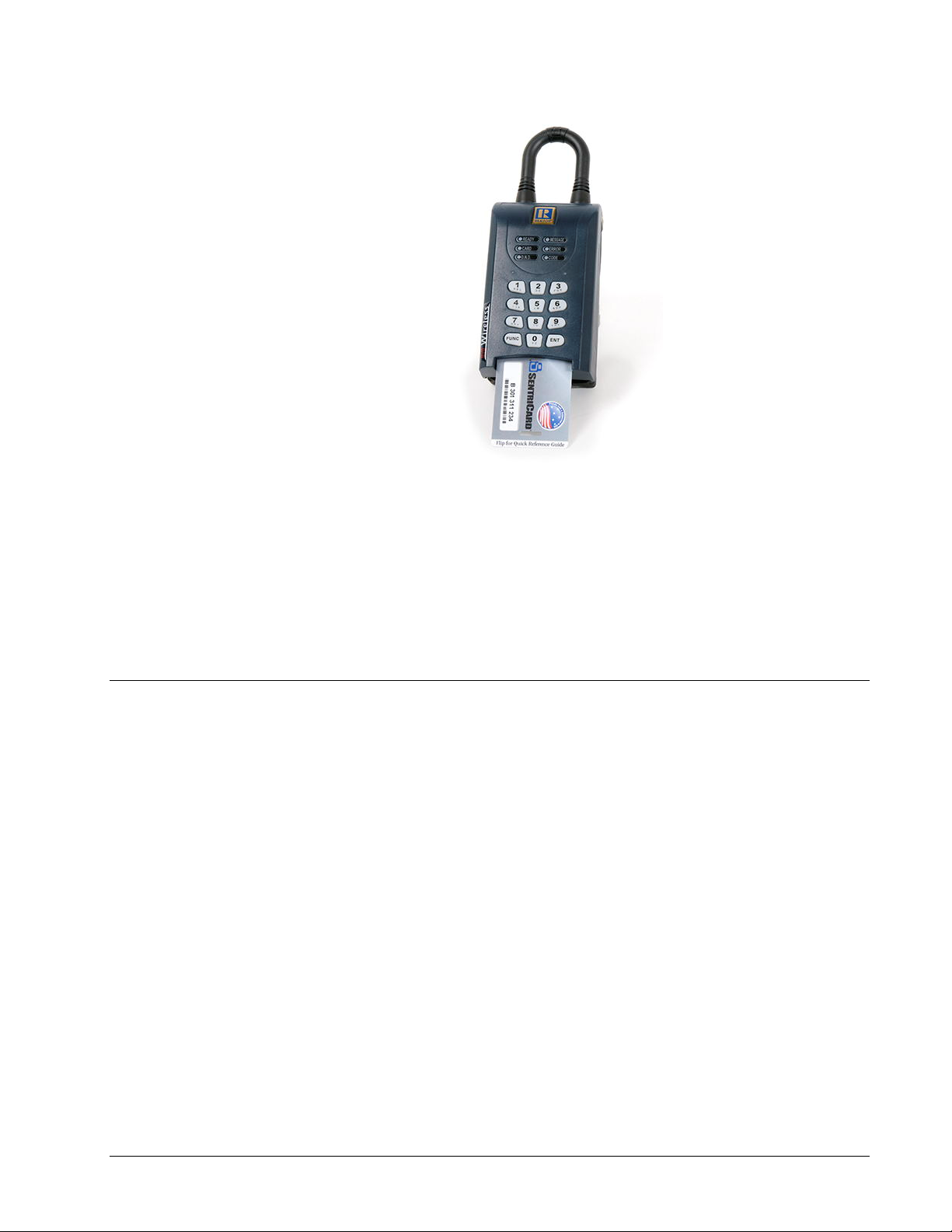
Figure 1 Inserting a SentriCard® into a lockbox.
2. Wait for the lockbox to display the CODE light, then enter your PIN and press ENT.
3. The lockbox will display the READY light. Remove your SentriCard® from the lockbox.
The lockbox will open the key compartment
4. To close the lockbox key compartment, make sure the listing key is laying flat in the key
vault. Using both thumbs, press firmly on the top left and top right corners of the key door
until it won't push in any more.
Last update to this section: Friday, February 5, 2010.
How to Release the Shackle from one of your Lockboxes
1. Insert your SentriCard® into your lockbox. Wait for the lockbox to display the CODE light,
then enter your PIN and press ENT. Do not remove your SentriCard® from the lockbox.
2. When the lockbox displays the READY light, press FUNC + 1 + ENT. The lockbox will
begin beeping.
3. While firmly holding the lockbox, after five triple beeps the lockbox will display the
READY light, indicating that it's time to pull the shackle out of the lockbox. The shackle
will come all the way out of the lockbox. If you are not holding onto the lockbox when the
shackle unlatches, it could fall to the ground!
2Getting Started NXT Series Lockbox Getting Started Guide
Page 6
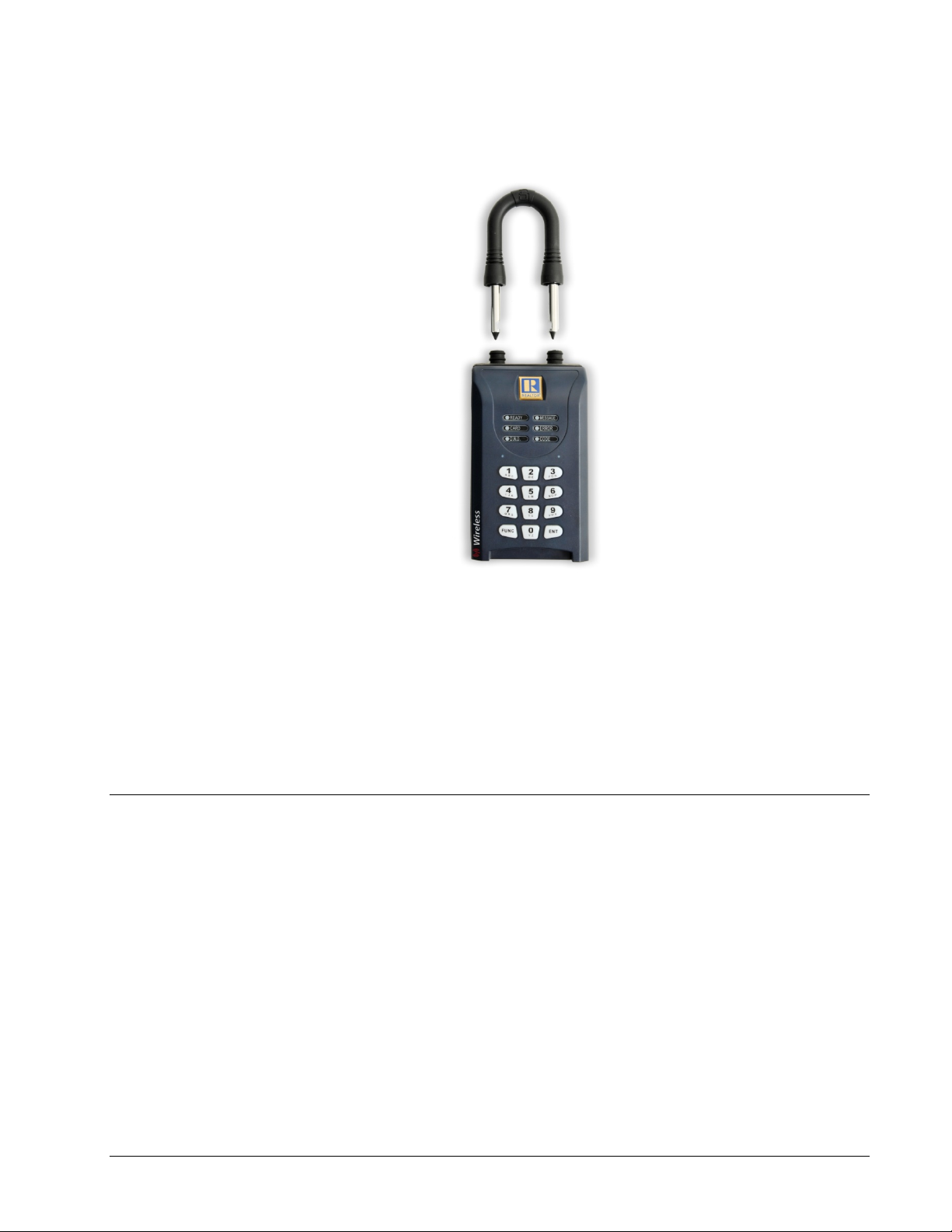
Figure 2 Removing the shackle from a lockbox
4. When using Function 1 to release the shackle, please wait for the motor to reset itself
and the red DND light to go out before re-inserting the shackle. To reinsert the shackle,
firmly press the shackle into the lockbox. The shackle is reversible, so it doesn't matter
which way you insert it. You may have to wiggle it slightly to get it to go into the lockbox.
Make sure you hear or feel a positive "click" that confirms the shackle latch has engaged.
Last update to this section: Thursday, February 4, 2010.
How to Put a Lockbox on a Listing
Attaching your lockbox to a listing is as easy as FUNC + 1, FUNC + 2, and FUNC + 3! Follow these steps to
attach your lockbox to a listing:
1. Insert your SentriCard® in the lockbox.
2. Wait for the lockbox to display the CODE light, then enter your PIN and press ENT. Do
not remove your SentriCard®!
3. Press FUNC + 1 and press the ENT key. The lockbox will make five - triple beeps before
it releases the shackle. Make sure you hold onto your lockbox when you release the
shackle because the shackle will come all the way out of the lockbox. Remove the
shackle from the lockbox. Leave your SentriCard® in the lockbox!
4. Press FUNC + 2 followed by either:
the numeric portion of the listing's street address; or
the numeric portion of the listing's MLS number.
NXT Series Lockbox Getting Started Guide Getting Started3
Page 7
When you finish, press ENT. Leave your SentriCard® in the lockbox! If you made a mistake keying in the
number, simply repeat this step.
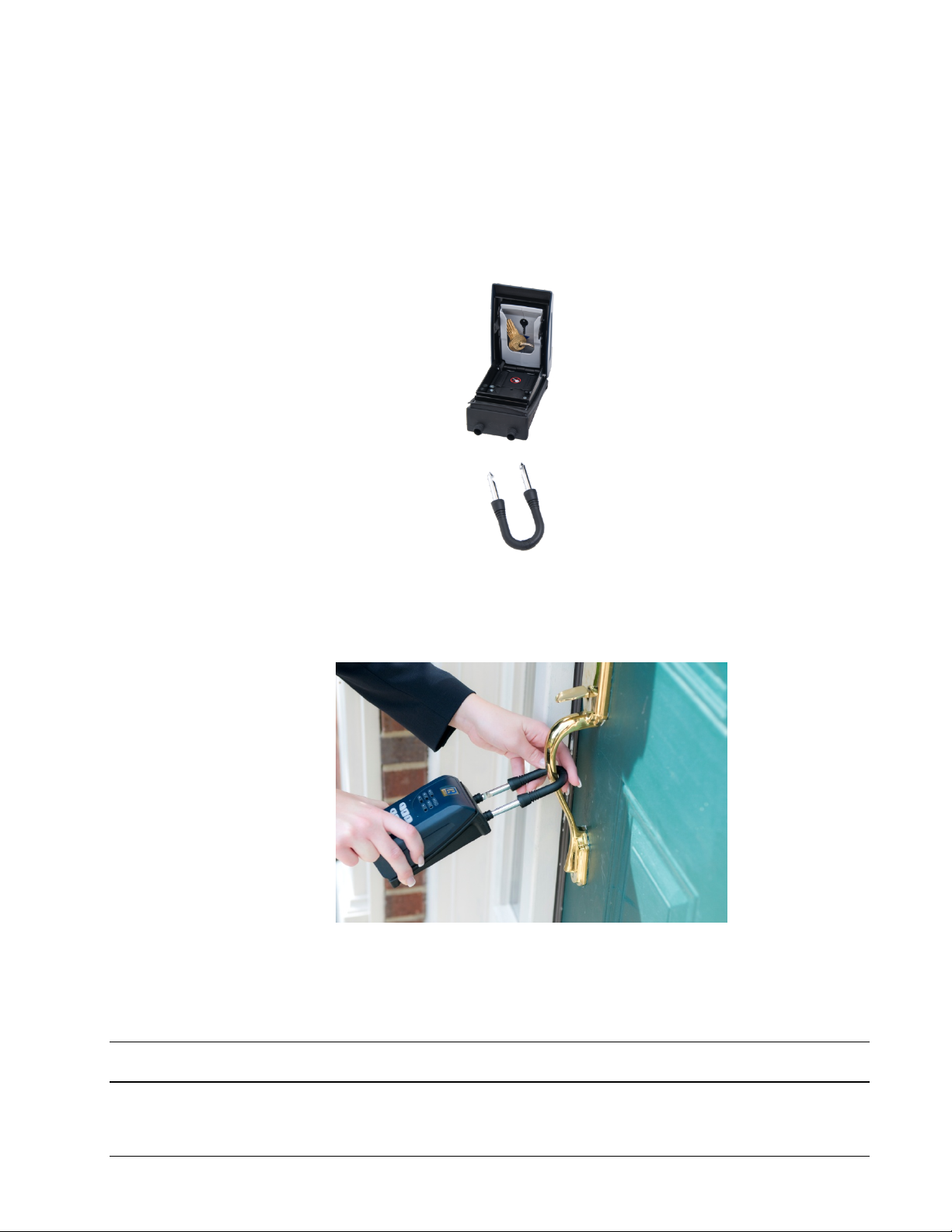
5. Press FUNC + 3 followed by ENT. The key compartment will open. Place the dwelling
key(s) in the key vault and close the lockbox door. When using Function 3 to open the
key compartment, wait for the green READY light to go solid before closing the key
compartment. This is also true when using a SentriCard® to open the key compartment
during a showing.
Figure 3 Opening the key compartment of a lockbox
6. You may now remove your SentriCard® from the lockbox.
7. Hang the shackle over the door knob (or some other sturdy fixture that will allow the
lockbox to hang vertically),
Figure 4 Placing a lockbox on a listing
8. Firmly press the shackle into the lockbox. Make sure you hear the click that indicates the
shackle is completely latched in the lockbox. Do not attach the lockbox to an object that
could fill it with water, and make sure the card slot is the lowest point on the lockbox as it
is also the drain point for any water that gets into the lockbox.
Note: Once the key compartment has been latched closed, the lockbox will enter Hardlock Mode. This mode
provides added security by locking the latches into an immovable state.
4Getting Started NXT Series Lockbox Getting Started Guide
Page 8
Should the lockbox be in Hardlock Mode while the shackle is out of the lockbox, it may be difficult, if not
impossible, to reinsert it. If this happens, simply re-open the key compartment. When the DND light has
gone out, reinsert the shackle before closing the key compartment.
To allow for keeping the shackle out of the lockbox after re-latching the key compartment, with the intention of
later placing the lockbox on a listing, Hardlock Mode will not engage within 24 hours after the last shackle
release. To force the lockbox into Hardlock Mode at any time, press FUNC + 5 + 9 + ENT on the keypad of
the lockbox. This does not require a SentriCard®.
Last update to this section: Monday, April 5, 2010.
How to Renew a SentriCard®
1. Your SentriCard® will expire if you don’t renew it within the period selected by your
Association. To renew your SentriCard®, insert it into the card reader attached to your
PC or your Broker’s office PC. The SentriLock Card Utility will display the Login
window. If the SentriLock Card Utility does not display the Login window, click Start |
Programs | SentriLock Card Utility | SentriLock Card Utility.
2. The SentriLock Card Utility will detect your ID and auto fill in the SentriLock ID field
automatically. Enter your password in the Password field.
3. Click the Renew button to renew your SentriCard®. The SentriLock Card Utility may
prompt you to send information from your SentriCard® to the SentriLock Server. Click
OK to send the information. When the SentriLock Card Utility finishes updating your
SentriCard® it displays the Renew Card Summary window. This window displays the
card's new expiration date. Click OK and remove your SentriCard® from the card reader.
Last update to this section: Friday, February 5, 2010.
How to Lock the Keypad
When your lockbox is not on a listing, you probably store it in your office. Before you store the lockbox, you
should lock the keypad. This will prevent unintended activation of the keypad which could prematurely run
down the battery. When you're ready to use the lockbox on a listing, you need to unlock the keypad. To
unlock the keypad, all you have to do is insert a SentriCard® into the lockbox.
1. Insert your SentriCard® into the lockbox. Wait until the CODE light displays, then enter
your PIN and press ENT. Do not remove your SentriCard® from the lockbox.
2. When the READY light displays, press FUNC + 6 + 7 + ENT. The READY light will
display. Remove your SentriCard®. The keypad backlight will flash for several seconds,
indicating that the keypad is being locked. You can test to see if it's locked by holding
down any key for at least one second. Nothing should happen, indicating it is successfully
locked and ready for storage.
Last update to this section: Friday, February 5, 2010.
Top 5 Things you Should Know About your Lockbox
The Lockbox NXT Getting Started Guide contains information about how to use your Lockbox NXT system.
This topic contains some of the more important information you need to know.
NXT Series Lockbox Getting Started Guide Getting Started5
Page 9
1. Don't write your PIN on your SentriCard®!
2. When you release the shackle, it will completely detach from the lockbox, so hold onto
the lockbox to prevent it from falling to the ground.
3. Don't leave your SentriCard® on your car's dashboard or any surface that could get hot
enough to melt it, and don't bend it excessively.
4. After removing your lockbox from a house, lock the keypad before storing it.
5. Your SentriCard® only inserts about halfway into the lockbox. Do not try to force it further
into the lockbox.
Last update to this section: Friday, February 5, 2010.
How to Get Help
SentriLock provides free support services to all Lockbox NXT customers. SentriLock provides 24/7 support
through our automated telephone systems as well as our user-friendly website. Live support is available 7
days a week from 8 a.m. – 12 a.m. EST excluding the following US holidays: New Year's Day, Memorial Day,
Independence Day, Labor Day, Thanksgiving Day, Christmas Eve, and Christmas Day.
Support Services provides direct telephone support in any of 170+ languages through language translation
services. SentriLock representatives will work directly with the member with the assistance of two way
translators to facilitate discussion.
Support via the Internet
The best way to reach SentriLock Support is via the Internet. You can reach us in one of the following ways:
Click the Support button on the toolbar in the Lockbox Web Site
http://lb.sentrilock.com/lbs/index/ or SentriLock Card Utility. Click Add Ticket to send a
message to SentriLock Support.
Send details via e-mail to: [email protected]
To access FAQs and manuals, click the Support button on the toolbar in the Lockbox
Web Site or SentriLock Card Utility. Click FAQ to get the latest FAQs. Click
Documentation to access manuals, guides and handouts.
Support via the Telephone
If you prefer to contact SentriLock Support via the telephone, call our toll free number: 1-
877-736-8745
Note: If you're having trouble with a lockbox or your computer, please contact SentriLock Support when you
have the lockbox or computer available.
Last update to this section: Thursday, February 4, 2010
6Getting Started NXT Series Lockbox Getting Started Guide
Page 10
Appendix
General Specifications
Product Size
Width 3.188”
Height (excluding shackle) 5.406”
Shackle Clearance 2.3”
Depth (included keypad) 2.41”
Weight 2 lbs. 5 oz.
Motor Ratings
Rated Voltage 5V +/- 1V
Torque 1400gf-cm
Load Current 145ma at 200 g.cm
Current Consumption
Standby current (sleep mode) 12uA (micro-amps)
Operating current (backlight on) 55ma.
Typical operating current (motor on) 104 - 200 ma.
Absolute maximum current consumption (rotor lock condition) 750 ma.
Alarm (When Wrong code inputted) 16 ma.
UL Listing
Security Listed / Equipment 44WJ
Software / Program and Website function is not verified by UL.
Federal Communications Commission
FCC ID: W9T-P10100
Industrie Canada
IC: 8174A-P10100
General Information and Warnings
WARNING - FAILURE TO FOLLOW THESE INSTRUCTIONS MAY LEAD TO PERSONAL INJURY,
PROPERTY DAMAGE, AND DAMAGE TO THE LOCKBOX AND COULD VOID YOUR WARRANTY:
Do not operate or store the lockbox above 151 degrees F (66 degrees C) or below -22 degrees F (-30
degrees C). UL tested.
Do not immerse the lockbox in water.
Do not store or operate the lockbox in the presence of explosive vapors.
Do not disassemble the lockbox as there are no user serviceable parts inside.
Do not drop the lockbox onto hard surfaces as permanent damage may result.
NXT Series Lockbox Getting Started Guide Appendix7
Page 11

Use caution when releasing the shackle as the shackle is completely removable and the lockbox could
fall causing personal injury or property damage.
Do not attempt to recharge the battery as doing so may result in fire or explosion.
Do not dispose of the battery in a fire as it may explode. Check your local codes for proper lithium battery
disposal regulations.
Do not carry unpackaged batteries in your pocket or purse as metal objects could cause a short circuit
and thereby cause bodily injury or property damage.
Do not immerse the battery in water. Lithium is highly reactive with water and immersion could cause an
explosion or fire.
8Appendix NXT Series Lockbox Getting Started Guide
Page 12

Glossary of Terms
Card Reader
You will use a card reader to transfer data to and from your SentriCard®. There are several styles and types
of card readers available. A card reader can connect to a USB port or PCMCIA slot. You can install a card
reader at both your home and office. To use a card reader, you'll need a computer (PC) with an Internet
connection and the SentriLock Card Utility.
Lockbox Web site
You can use the Lockbox Web Site to edit and view listing, Agent, and lockbox information. You can also use
the Web site to access manuals and contact SentriLock Support.
You can access the Lockbox Web Site from:
http://lockbox.sentrilock.com/lbs
For more information about using the Lockbox Web Site, see the Lockbox Web Site Reference Guide:
http://lockbox.sentrilock.com/lbs/manuals/lockweb/helpcontents1.htm
SentriLock Card Utility
The SentriLock Card Utility is a program you install on your PC. You will use the SentriLock Card Utility, card
reader and an Internet connection to send data to and from your SentriCard®. You use the SentriLock Card
Utility to renew your SentriCard®.
For more information, see the SentriLock Card Utility Reference Guide:
http://lockbox.sentrilock.com/lbs/manuals/lockutil/helpcontents1.htm
SentriLock Server
Several of SentriLock's programs access the SentriLock Server. The Lockbox Web Site and SentriLock Card
Utility use the server to send, retrieve, and store information about lockboxes, users, Agents, and listings.
For example, when you log into the Lockbox Web Site, you access information on the SentriLock Server that
relates to the user permission you selected from the User Permission window.
NXT Series Lockbox Getting Started Guide Glossary of Terms9
 Loading...