

Page 1
Quick-Start Instructions
This is not a substitute for the
instruction manual. It is for
reference only.
Read and understand the
instruction manual before use.
MADE IN THE USA
WITH GLOBALLY SOURCED COMPONENTS
Distributed by:
851 Transport Drive
Valparaiso, IN 46383-8432
Phone: 219 465 2700
Web: www.gasleaksensors.com
Innovative Detection Solutions
Page 2
1. Turn on TRAK-IT IIIa GLT Device and Tablet
(for the tablet press and hold the top left
button).
2. Wait until TRAK-IT IIIa GLT displays
‘WAITING FOR TRAINER’ on screen.
3. Note: If TRAK-IT IIIa GLT Device has passed
‘WAITING FOR TRAINER’ screen (Either
you have skipped or it has already been
connected with application), It will take you
directly to the Instrument screen.
4. Launch the GLT application (if it does not
auto launch).
5. Tap the “Connect” on the device from the list
6. After the connection has been made, tap
either of the two options
7. Training Mode: It will put device in
simulation mode and allows trainer to
control device (sensors are inactive).
8. Monitoring Mode: It will put device in
Normal mode and allows trainer to monitor
remotely (sensors are active).
9. The TRAK-IT IIIa GLT will continue through
warm-up and arrive at the work display.
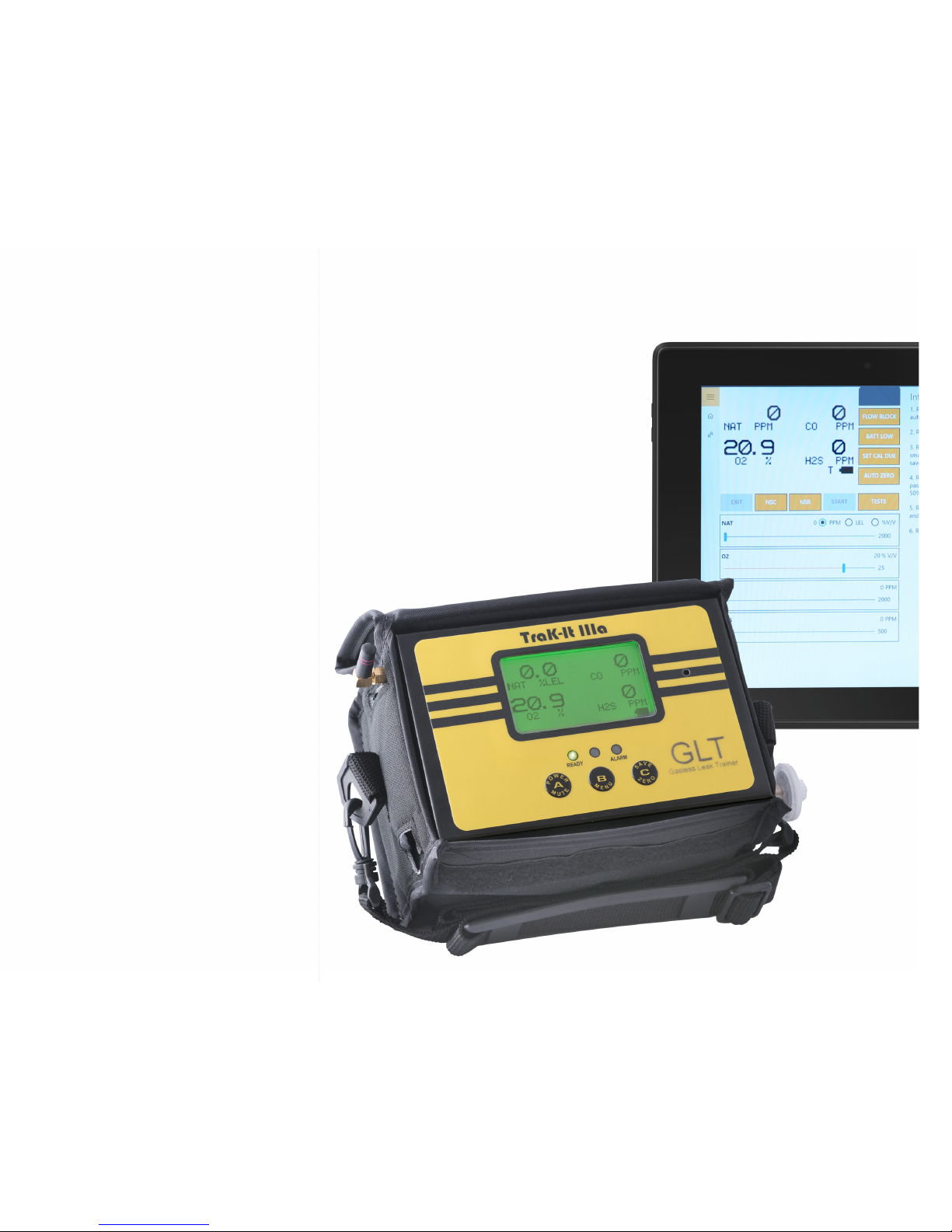
10. The tablet will display the TRAK-IT IIIa
GLT screen with adjustable slide bars if
in “training mode” or just the screen if in
“monitor mode”.
Trak-It® IIIa GLT
QUICK-START INSTRUCTIONS
11. The training modules will be displayed
simultaneously on the right hand side or
bottom side of the screen depending on the
orientation of the tablet.
12. Note: If you need to switch the mode, you
need to ‘Disconnect’ and Restart the ‘TRAK-IT
IIIa GLT’.
13. Note: If any congurations or mode changes
on ‘TRAK-IT IIIa GLT’, please power cycle
the TRAK-IT IIIa GLT and connect to the
application again.
 Loading...