

Page 1
Welcome
Thanks for choosing the Sendum PT300D
as your Package Tracking solution!
The purpose of this Quick Start Guide is to
help you get your system up and running
as quickly as possible. The process is
simple and will typically take just a few
minutes of your time.
PT300D QuickStart Guide
What’s in this Guide
Welcome ...............................1
Getting Started .........................1
1. Gather what you’ll need ................... 1
2. Familiarize yourself with your PT300D ........ 2
3. Charge up your Sensor Pack ............... 2
4. Activate Your Wireless Account .............. 2
5. Provision your PT300D .................... 3
6. Log into your Findum Account .............. 4
7. Configure your Trackers ................... 4
Appendix ..............................4
LED Light Indications ........................ 4
Getting Started
1. Gather what you’ll need
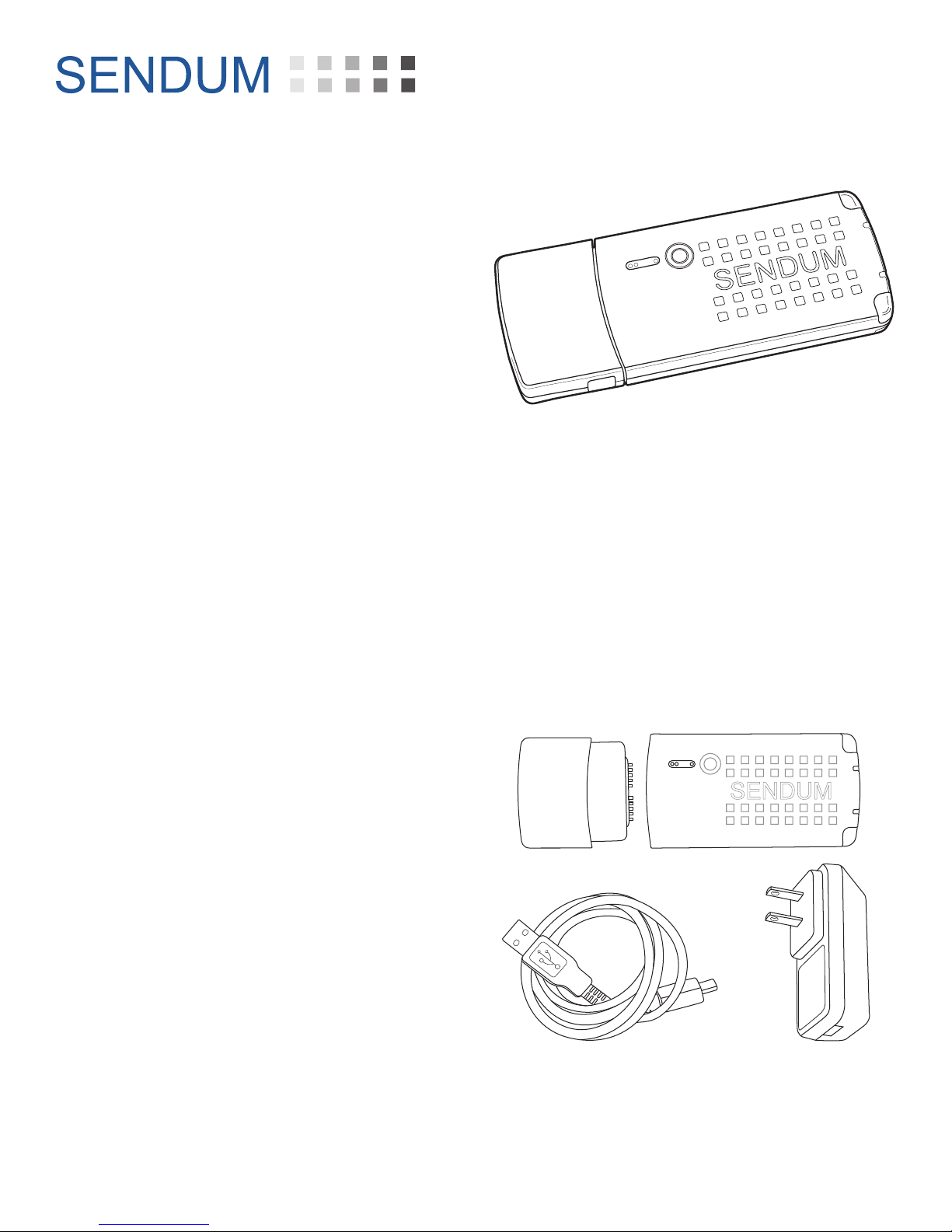
a) You’ll require:
Sensor PackPT300D Command
Module
DPB00007 -- 1 --
Charger Cable
Battery Charger
b) All of these components should be in
your original PT300D product package.
Page 2
PT300D QuickStart Guide
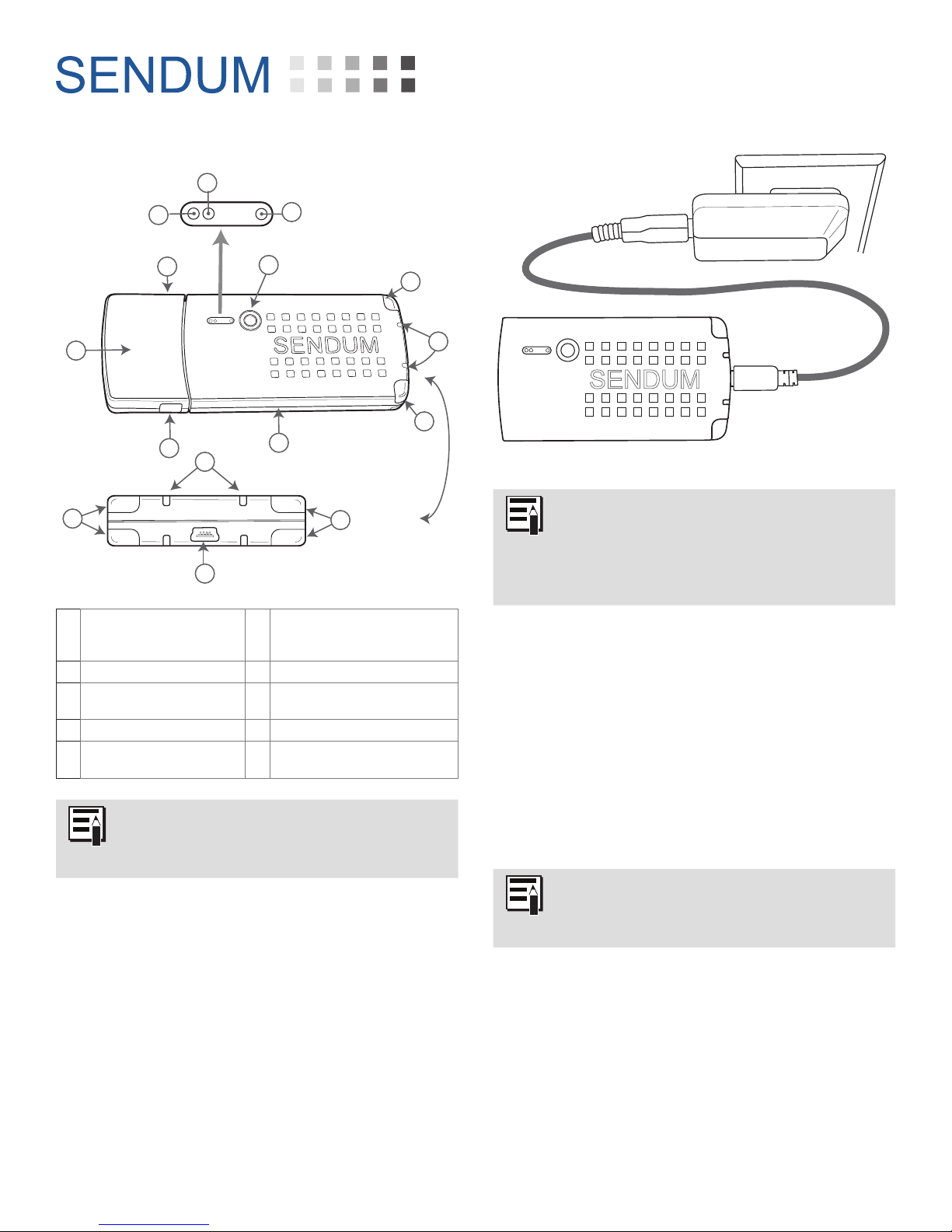
2. Familiarize yourself with your PT300D
H
G
B
A
B
F
C
J
A PT300D Command Module F Atmospheric Vents (for
B Module Release Buttons (2) G Network LED
C Light Detectors (Ambient,
Infrared)
D Sensor Pack I Charger LED
E Status Button (Touch-
Sensitive)
I
E
C
C
D
End View
C
temperature, relative humidity,
and altimeter/pressure)
H Battery LED
J Mini-USB Connector (AC/DC
Charger; USB On-the-Go)
Sendum Sensor Packs contain the
battery used to power the PT300D.
Charger
F
Battery/Sensor Pack
If your Sensor Pack has been sitting on
the shelf for awhile, the battery charge
may be too low to permit provisioning.
In that case, allow up to six hours of
charging before getting started.
4. Activate Your Wireless Account
Your PT300D has been configured for use with
the wireless service provider that you selected
when you purchased your device. What’s
missing is a new M2M (machine-to-machine)
airtime account that you need to set up and
activate with that provider. You can do this by
contacting them and providing them with the
Device Identifier number of your device.
3. Charge up your Sensor Pack
a) In order to use your PT300D, as well as
to provision it, you’ll need to have your
Sensor Pack fully charged.
b) To charge your Sensor Pack, simply
plug your charger into any standard
electrical receptacle using the supplied
Battery Charger and cable.
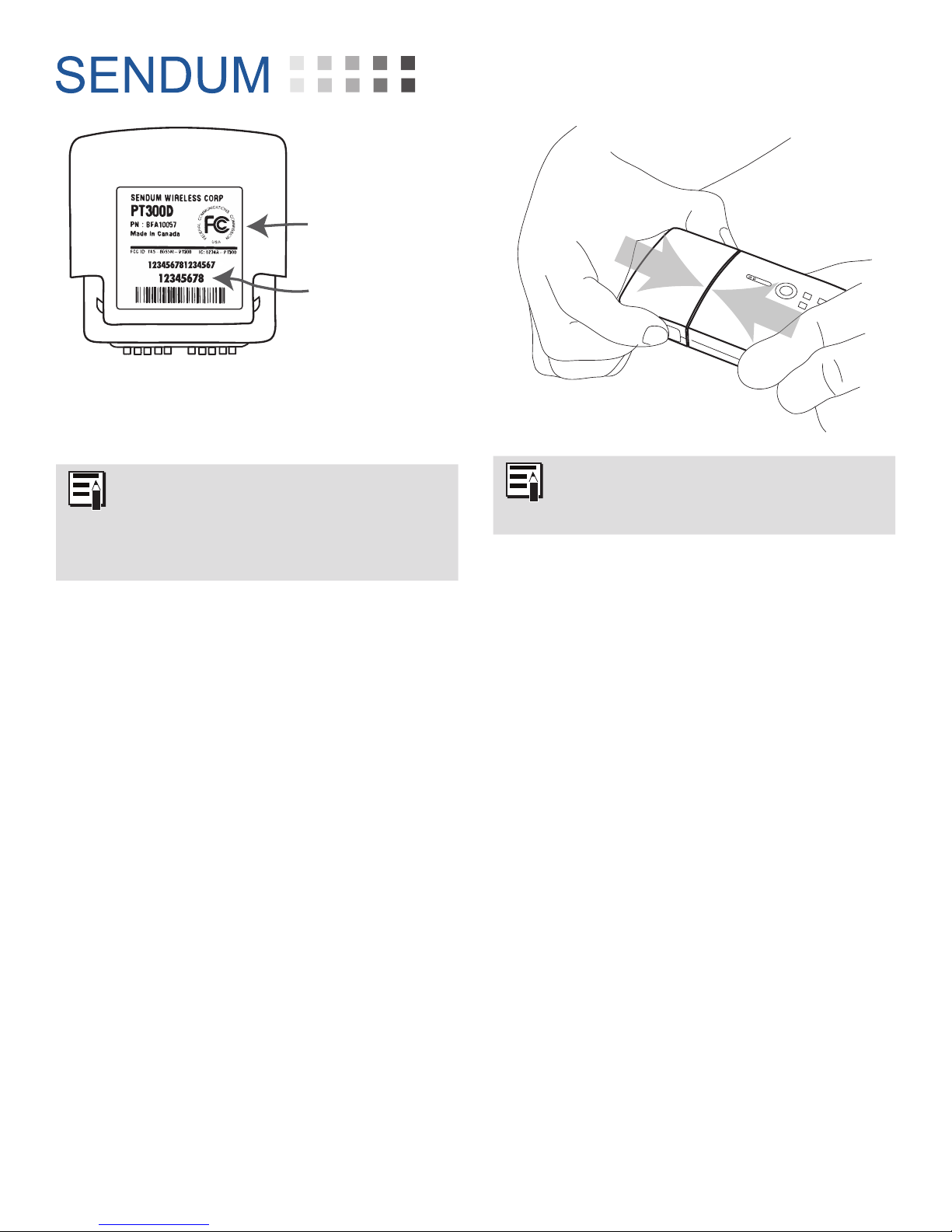
The Device Identifier is device-specific
serial number found on the back of the
PT300D Command Module.
-- 2 --
Page 3
PT300D Command
Module
Device Identifier
a) Request an M2M airtime account with
SMS texting capability. Typical data plan
sizes are 1 MB, 5 MB, and 10 MB.
PT300D QuickStart Guide
Each MB in your data plan allows
for approximately 1,000 network
communication sessions (i.e. for
location fixes, sensor reports, and
alarm notifications).
b) After setting up and activating your
account, proceed to step “5. Provision
your PT300D”.
c) After setting up and activating your
airtime account, please proceed to step
“6. Log into your Findum Account” on
page 4.
5. Provision your PT300D
a) Once your airtime account is activated
and your Sensor Pack fully charged,
plug the pack into the PT300D
Command Module.
You can also learn the Provisioning
process by watching our video at
www.sendum.com/pt300av
b) Make sure the connection between the
Command Module and the Sensor Pack
is solid and that you hear the confirming
“Click” sound.
i) This step initiates communication
with both your carrier and with
Sendum. While communicating,
both the Network and Battery LEDs
will go on and off periodically.
ii) When complete (about a minute),
both Network and Battery lights will
go solid green (indicating success).
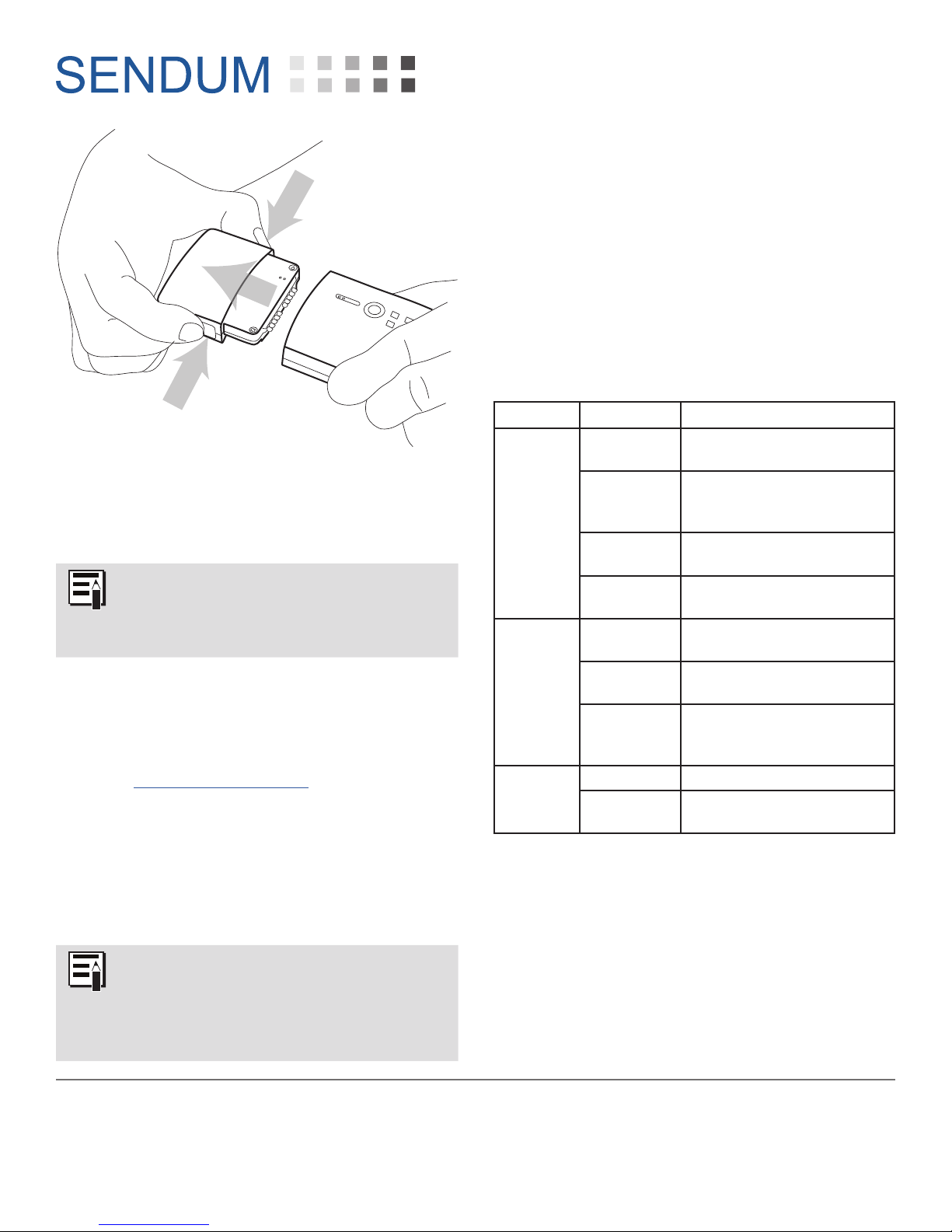
c) Remove Command Module from Sensor
Pack
i) To remove the PT300D Command
Module, squeeze the two tabs on
the side of the device, then pull the
module out of the Sensor Pack.
-- 3 --
Page 4
ii) Your PT300D Command Module
is now provisioned and ready for
deployment with any fully charged
Sensor Pack.
Before deploying your provisioned
PT300D, make sure to fully charge
your Sensor Pack. Note again that this
can take up to six hours.
6. Log into your Findum Account
a) Open up your web browser and go to
Sendum’s web portal (called Findum™)
at findum.sendum.com
b) Log into your account by using the same
email address and password that you
used when you (or whomever from your
organization) purchased your Sendum
products.
PT300D QuickStart Guide
7. Configure your Trackers
For information on how to use your PT300D
trackers within Findum, please refer to the
detailed Findum Help Guide. Once you are
logged into Findum, the guide is accessible by
clicking the Help link in the upper left hand
corner of any Findum page.
Appendix
LED Light Indications
LED Status Description
Device in carrier coverage
area
Device is in Aircraft
Transmission Suppression
Mode
Device out of carrier
coverage area
Device is in Coverage Sleep
Mode
Sensor Pack charge level
near full (80%+)
Sensor Pack needs
recharging
Sensor Pack charge level
good (approximately
20-80%)
Sensor Pack charging is
complete
Network
Battery
Charger
Green
Green
(Blinking)
Red
Red
(Blinking)
Green
Red
Red
(Blinking)
Red Sensor Pack is charging
Green
If you forgot your password, click
the “Forgot your Password?” link to
get a password reset link emailed to
you. From there, you can set a new
password and log in with that.
4500 Beedie Street, Burnaby, BC V5J 5L2
Sendum Wireless Corporation
www.sendum.com
-- 4 --
 Loading...