

Page 1

MANUAL COVER (FRONT)
Page 2
IMPORTANT SAFETY INFORMATION: READ THE FOLLOWING
WARNINGS BEFORE YOU OR YOUR CHILD PLAY VIDEO GAMES
WARNING - Seizures
Some people (about 1 in 4000) may have seizures or black outs triggered by light
flashes, such as while watching TV or playing video games, even if they have
never had a seizure before.
Anyone who has had a seizure, loss of awareness, or other symptom linked to an
epileptic condition should consult a doctor before playing a video game.
Parents should watch when their children play video games. Stop playing and
consult a doctor if you or your child have any of the following symptoms:
Convulsions Eye or muscle twitching Loss of awareness
Altered vision Involuntary movements Disorientation
To reduce the likelihood of a seizure when playing video games:
Sit or stand as far from the screen as possible.
Play video games on the smallest available television screen.
Do not play if you are tired or need sleep.
Play in a well-lit room.
Take a 10 to 15 minute break every hour.
Playing video games can make your muscles, joints or skin hurt after a few hours.
Follow these instructions to avoid problems such as Tendinitis, Carpal Tunnel
Syndrome or skin irritation:
Take a 10 to 15 minute break every hour, even if you don’t think you need it.
If your hands, wrists or arms become tired or sore while playing, stop and rest
them for several hours before playing again.
If you continue to have sore hands, wrists or arms during or after play, stop
playing and see a doctor.
WARNING - Repetitive Motion Injuries
WARNING: PLEASE CAREFULLY READ THE PRECAUTIONS
BOOKLET INCLUDED WITH THIS PRODUCT BEFORE USING
YOUR NINTENDO ® HARDWARE SYSTEM, GAME DISC OR
ACCESSORY. THIS BOOKLET CONTAINS IMPORTANT
SAFETY INFORMATION.
1.
2.
3.
4.
5.
To avoid electric shock when you use this system:
Use only the AC adapter that comes with your system.
Do not use the AC adapter if it has damaged, split or broken cords or wires.
Make sure that the AC adapter cord is fully inserted into the wall outlet or
extension cord.
Always carefully disconnect all plugs by pulling on the plug and not on the cord.
Make sure the Nintendo GameCube power switch is turned OFF before removing
the AC adapter cord from an outlet.
Playing video games can cause motion sickness. If you or your child feel dizzy or
nauseous when playing video games with this system, stop playing and rest. Do
not drive or engage in other demanding activity until you feel better.
The Nintendo GameCube is a Class 1 laser product. Do not attempt to
disassemble the Nintendo GameCube. Refer servicing to qualified personnel only.
Caution - Use of controls or adjustments or procedures other than those specified
herein may result in hazardous radiation exposure.
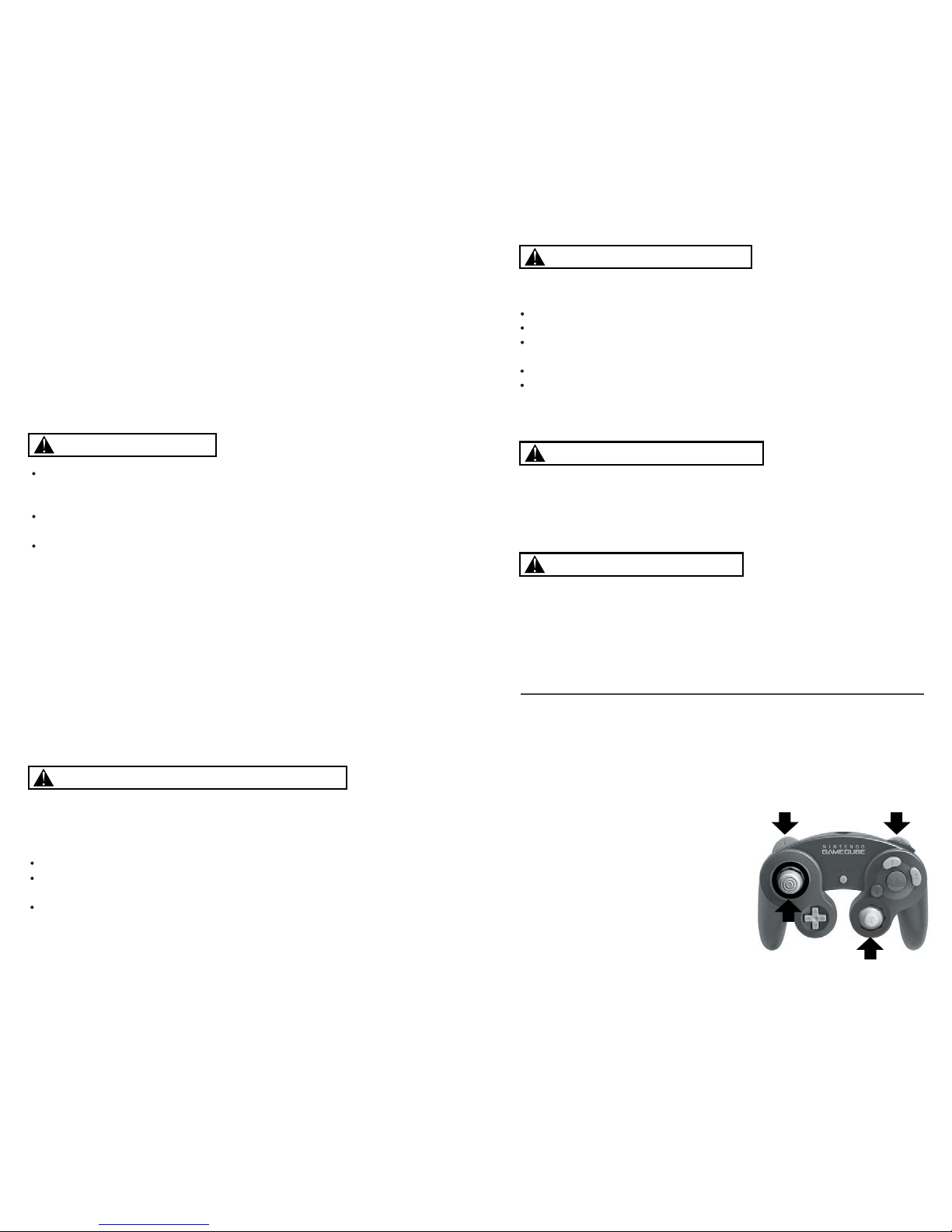
CONTROLLER NEUTRAL POSITION RESET
If the L or R Buttons are pressed or the Control Stick or C Stick are moved out of
neutral position when the power is turned ON, those positions will be set as the
neutral position, causing incorrect game control during game play.
To reset the controller, release all buttons
and sticks to allow them to return to the
correct neutral position, then hold down the
X, Y and START/PAUSE Buttons
simultaneously for 3 seconds.
WARNING - Electric Shock
CAUTION - Motion Sickness
CAUTION - Laser Device
L Button R Button
C Stick
Control
Stick
Page 3
3
Table of Contents
THIS PRODUCT HAS BEEN RATED BY THE
ENTERTAINMENT SOFTWARE RATING BOARD. FOR
INFORMATION ABOUT THE ESRB RATING, OR TO
COMMENT ABOUT THE APPROPRIATENESS OF THE
RATING, PLEASE CONTACT THE ESRB AT
1-800-771-3772, OR VISIT WWW.ESRB.ORG.
NINTENDO, NINTENDO GAMECUBE AND THE OFFICIAL SEAL ARE TRADEMARKS OF NINTENDO.
© 2001 NINTENDO. ALL RIGHTS RESERVED.
LICENSED BY
VIOLENCE
EVERYONE
T
his official seal is your assurance that Nintendo has
reviewed this product and that it has met our standards for
excellence in workmanship, reliability and entertainment
value. Always look for this seal when
buying games and accessories to ensure
complete compatibility with your
Nintendo product.
All Nintendo products are licensed by sale for use only with other authorized
products bearing the Official Nintendo Seal of Quality.
®
THIS GAME REQUIRES A
MEMORY CARD FOR SAVING
GAME PROGRESS, SETTINGS
OR STATISTICS.
Memory
Card
THIS GAME SUPPORTS
SIMULTANEOUS GAME PLAY
WITH ONE, TWO, THREE OR
FOUR PLAYERS AND
CONTROLLERS.
1-4 Player
Simultaneous
THIS GAME SUPPORTS
ALTERNATING GAME PLAY
WITH ONE, TWO, THREE OR
FOUR PLAYERS AND
CONTROLLERS.
1-4 Player
Alternating
Setting Up . . . . . . . . . 4
Controls . . . . . . . . . . . 5
Starting the Game . . . 7
Main Game . . . . . . . . . 9
Story Mode . . . . . . . . . . . . 13
Challenge Mode . . . . . . . . 13
Practice Mode . . . . . . . . . . 14
Party Game . . . . . . . . 15
Monkey Race 2 . . . . . . . . . 15
Monkey Fight 2 . . . . . . . . . 18
Monkey Target 2 . . . . . . . . 21
Monkey Billiards 2 . . . . . . 24
Monkey Bowling 2 . . . . . . 30
Monkey Golf 2 . . . . . . . . . 33
Monkey Boat. . . . . . . . . . . 36
Monkey Shot. . . . . . . . . . . 39
Monkey Dogfight . . . . . . . 42
Monkey Soccer . . . . . . . . . 45
Monkey Baseball . . . . . . . 48
Monkey Tennis . . . . . . . . . 52
Options . . . . . . . . . . . 55
Thank you for purchasing Super Monkey Ball™ 2. Please note that
this
software is designed only for use with the Nintendo
GameCube™. Be
sure to read this instruction booklet thoroughly
before you start playing.
Page 4
4
Setting Up
5
Controls
Super Monkey Ball 2 is a one to four player game.
Connect the Nintendo GameCube™ Controllers to
the Controller Sockets 1, 2, 3 and 4 (depending on
the number of players participating; see next page).
This software is compatible with Progressive Scan video output, using
the Component Cable (sold separately). Please refer to the instruction
manual of Nintendo GameCube™ for the directions on how to connect.
1 Connect your TV set and Nintendo GameCube™ with the
Component Cable.
2 Place the Super Monkey Ball 2 disc inside the GameCube™,
close the Disc Cover, and press the POWER Button.
3 After the Nintendo GameCube™ logo is displayed, press and hold
the b Button.
4 You will be asked whether to display in Progressive Mode. Select
“Yes” and the game will be displayed with Progressive Scan output.
Once the Progressive Mode is selected, unless the video cable is
changed, the Display Mode Select Screen will be displayed each
time the power is turned on, without pressing the b Button. Also,
depending on the type of television set you are using, the horizontal/
vertical ratio of the screen may be changed.
Super Monkey Ball 2 is a Memory Card compatible game [Nintendo
GameCube™ Memory Card (sold separately)]. 2 blocks of free
memory are needed to save game files, and at least 2 blocks for
each replay file.
When you start the game, the game will look for the game file. If there
are no Memory Cards inserted, the game will warn you and ask if
you would like to Retry (insert the Memory Card first) or Continue
without saving. If the Memory Card does not contain a game file,
the game will ask you either to continue without loading (create
new file), to retry, or to choose a Slot. If two Memory Cards, both
containing the game file, are found, the game will ask you which to
be used. Follow the on-screen instruction to start the game.
When the game file is being saved, manually or automatically, a
message will be displayed to notify that such action is taking place.
Never turn OFF the Nintendo GameCube™ power or remove the
Memory Card while the game data is being saved or loaded.
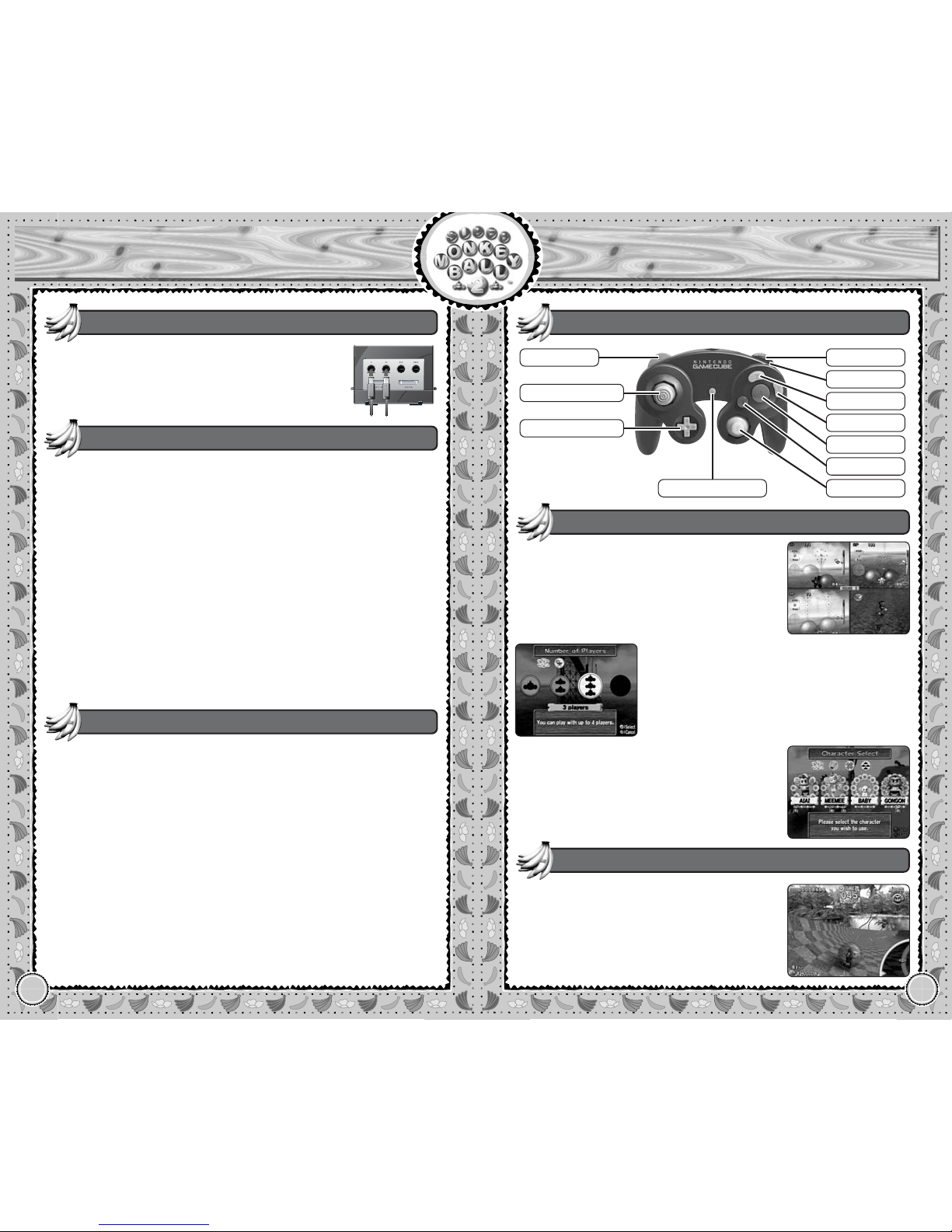
l
Button
r
Button
START/PAUSE
z
Button
y
Button
x
Button
a
Button
b
Button
c
Stick
+ Control Pad
Control Stick
Hardware Setup
Using Progressive Scan TV
Save Files
Nintendo GameCube™ Controller
Multiplayer Game – Simultaneous or Alternating
With some modes, more than one player can
enjoy the game, simultaneously or alternating. With simultaneous play, each player uses
his/her own controller to play. Connect the
same number of controllers as the number of
players participating.
When you select the number of players participating in the games with simultaneous
play, you can only select up to same number
of controllers currently connected.
With alternating play, each player takes a
turn playing. Therefore it is possible that
more than one player can use the same controller to play. During the Character Select
Screen, use the controller you are going to
use to select the character.
Except for a few games, use the Control
Stick to move the monkey in a ball. Detailed
Button functions will be explained in each
game. Press START/PAUSE during the game
to pause the game and display the Pause
Menu (p.10).
Basic Game Controls
Page 5
Page 6
8
Starting the Game
9
Main Game
Some modes may lack one or more of the
above steps, and some may have an extra
step or two. These will be explained under
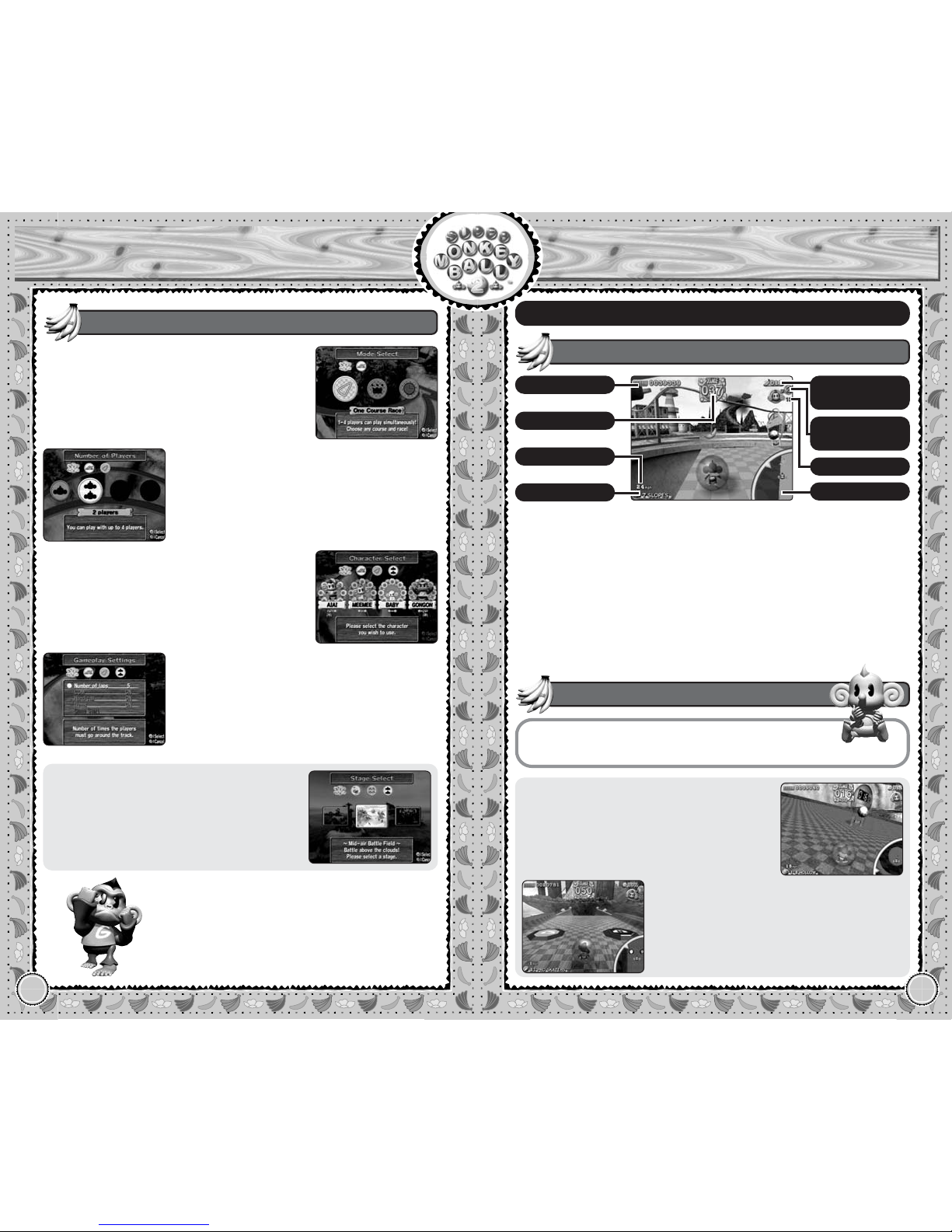
each game description.
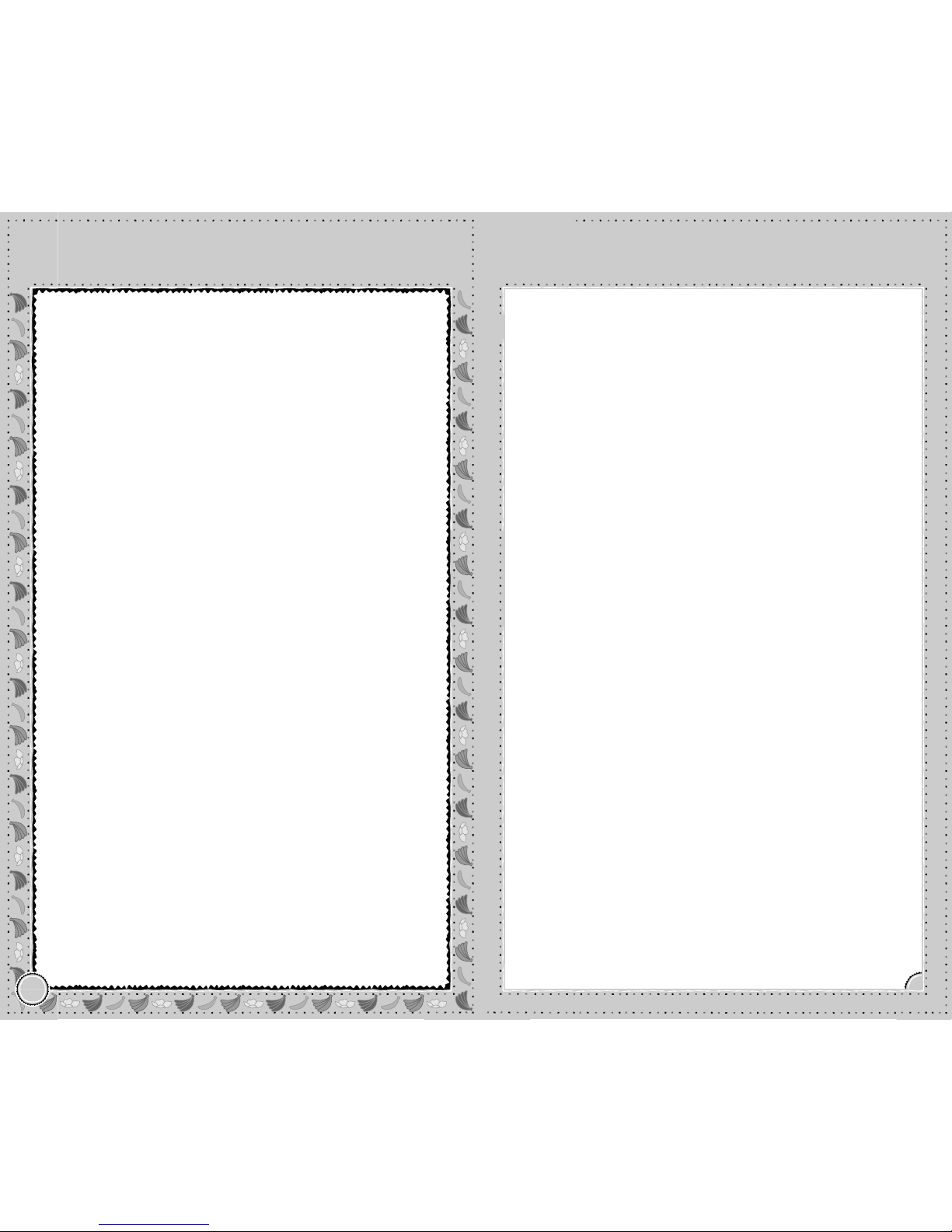
● Game Objective
In this game, you guide the ball by “tilting”
the playfield to roll it. But be careful not to
fall off the field, or your try will be over!
Guide the monkey successfully to the goal.
There are various kinds of traps and
switches on the map. Study what they
do carefully.
Score
Increase your score by picking
up bananas and reaching the
goal quickly.
Time Left
Time remaining to clear the current
stage. Reach the goal
before it reaches 0!
Number of Bananas
Pick up as many delicious
bananas as you can!
Monkeys Remaining
Indicates the number of monkeys remaining in the game.
Displayed only when playing the
Challenge Mode.
Current Player
Indicates which player is currently
playing. Displayed only when playing
with two or more players in
the
Challenge Mode.
Main Game
Except for Monkey Target 2 and Monkey
Shot, each game contains various modes.
Select the mode to play in.
Basic Flows of the Game
Select, if available, the characters you wish
to use. For modes with alternate play,
select with the controller you are going to
use. In some modes, you will also specify
COM characters.
If the mode selected is for one or more players, select the number of players to participate. In modes with simultaneous play, you
can only select up to the same number of
Controllers connected.
Finally, customize the gameplay settings.
When you are done, select Game Start to
begin the game.
Game Screen
Control Stick Tilt the play field (roll the ball).
a Button Change the size of the map display.
Game Controls
Score
Stage Number
Number of
Bananas
Map
Time Left
Speed
Monkeys
Remaining
Current Player
Page 7
Page 8
12
Main Game
13
Main Game
Story/Challenge Modes
DR. BAD-BOON
An ape without words. Other than being Dr.
Bad-Boon’s assistant, everything about him
is covered with mystery. Even Dr. Bad-Boon
doesn’t know his name. Like a shadow, he
follows Dr. Bad-Boon wherever he goes.
Cold-hearted Dr. Bad-Boon would leave him
behind and escape, but still he continues to
be his assistant without any complaints. He
appears to be very frightening, but in reality
he is very bashful.
DR. BAD-BOON’S ASSISTANT
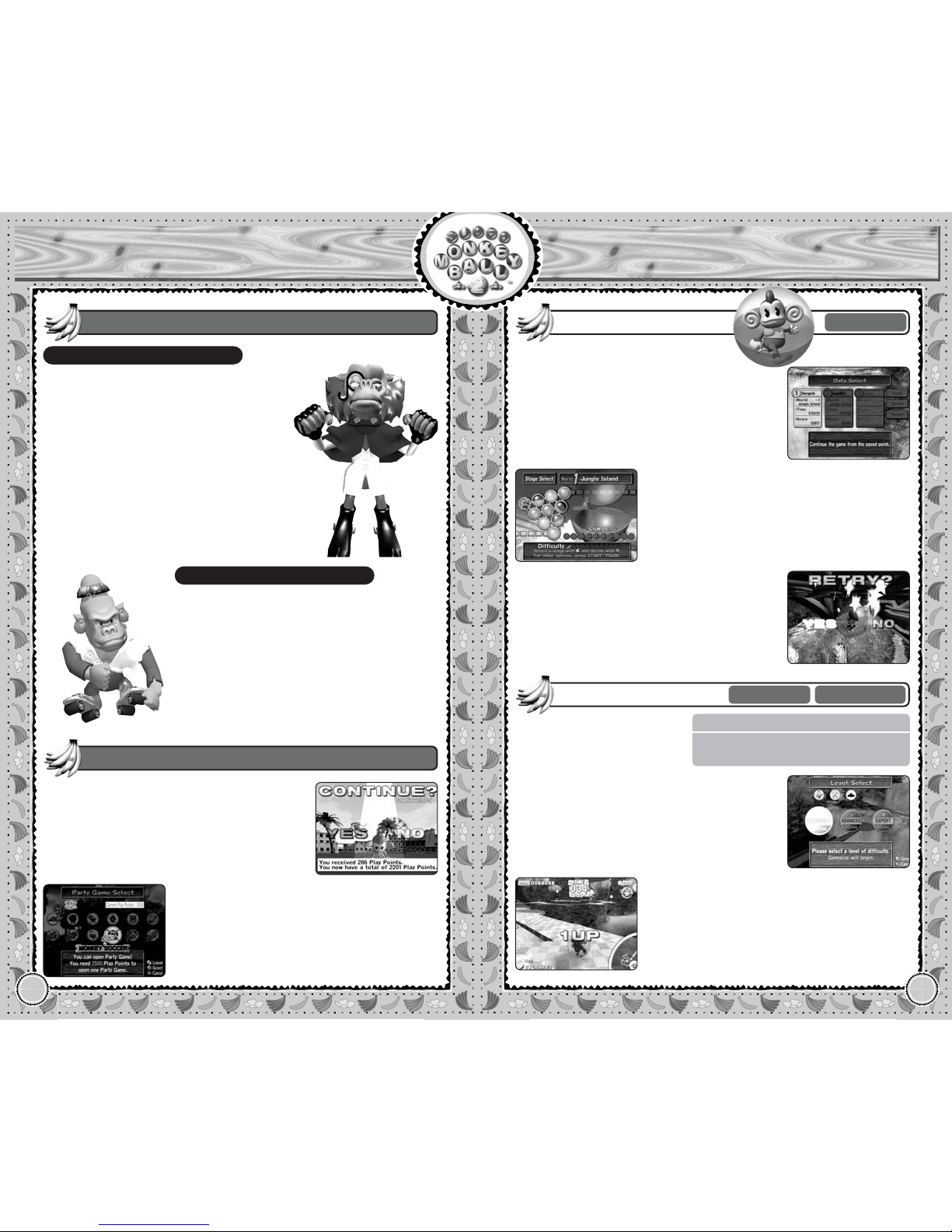
Play the game along with the story.
Story Mode
1 Player
Complete a series of stages
with various difficulties.
Challenge Mode
First, select from the three available Save
Files. If you select the blank (open) data, you
will start from the beginning. You will be
asked to enter your name.
If you select the data with previous gameplay,
you will continue from where you left off.
There is no “Game Over” in this mode, so
you can try as many times as you want until
you clear the stage.
There are 10 worlds in the mode, and each
world has 10 stages which you can select
and play in any order. When you clear all 10
stages, a movie clip can be seen, and a
brand new world becomes available.
There are three different levels available,
but it is recommended that you start
with BEGINNER.
Collect 100 bananas, and you gain 1 extra
monkey. Fall off the floor, or let the time run
out, you lose one monkey. The game will be
over when you lose all your monkeys.
The Enemies
With Story Mode and Challenge Mode (when
played by 1-player only), you earn a certain
amount of Play Points depending on your
performance within the game.
Play Points
Play Points can be used to unlock some of
the Party Games by spending certain
amounts. Earn as much as possible and
unlock them all!
1~4 Players Alternating
FLOW OF THE GAME
Number of Players / Character Select
Gameplay Settings
He is an evil-genius scientist from the future
world. In the future world, he fell in love with
Meemee and attempted to ask her to marry
him, but she was already married to Aiai,
and had had Baby by then. Thus he flew
back in time to the days when Aiai and
Meemee had not married yet. Dr. Bad-Boon
tries all sorts of evil plots to separate Aiai
from Meemee, but fails every time. While his
perseverance is commendable, he is becoming a real nuisance to the inhabitants of
Jungle Island, and has quickly become the
island’s most hated ape.
Page 9
14
Main Game
Practice Mode
15
Party Game
Monkey Race 2
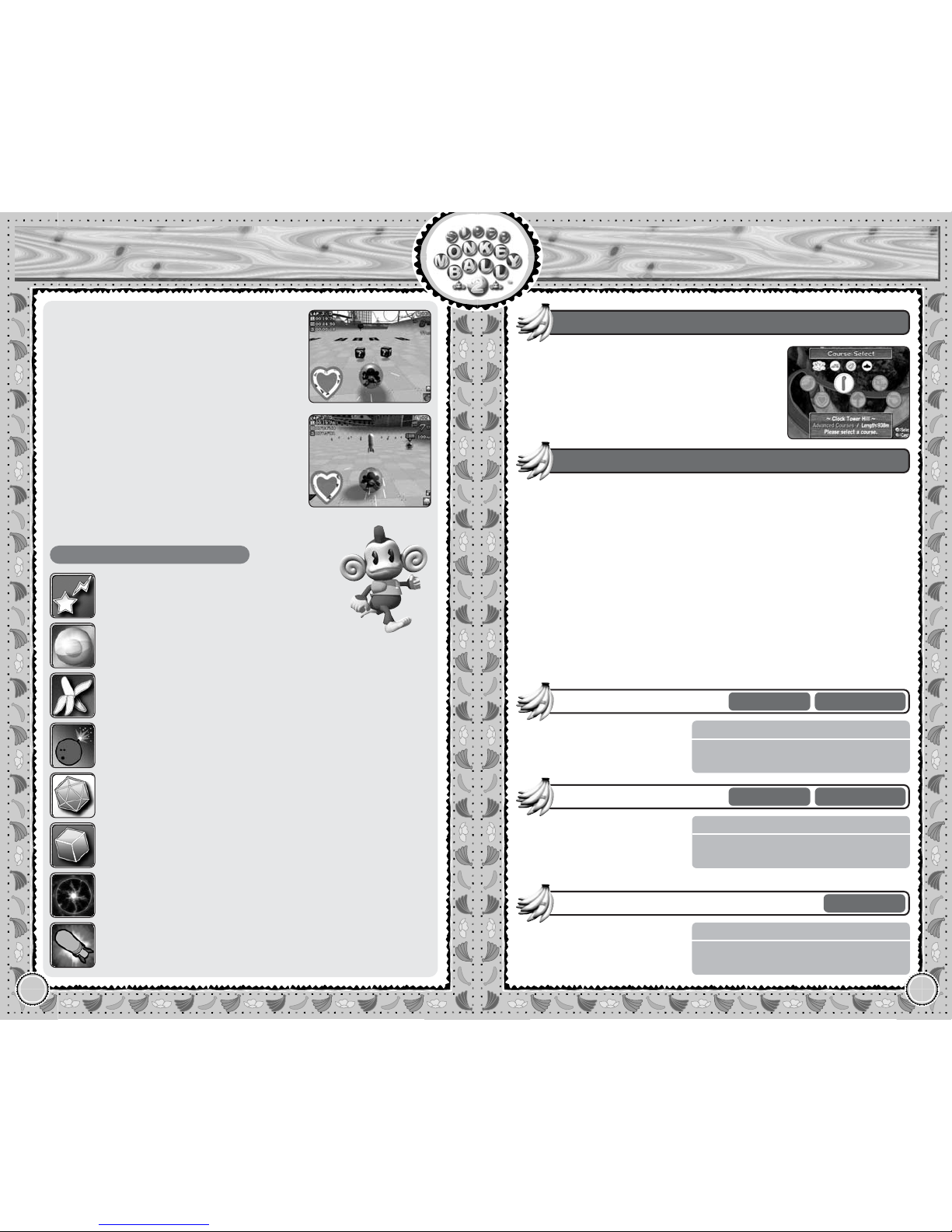
Control Stick Roll the ball.
a Button Use item.
y Button Select the item to use next.
Monkey Race 2
FLOW OF THE GAME
Character Select
Stage Select
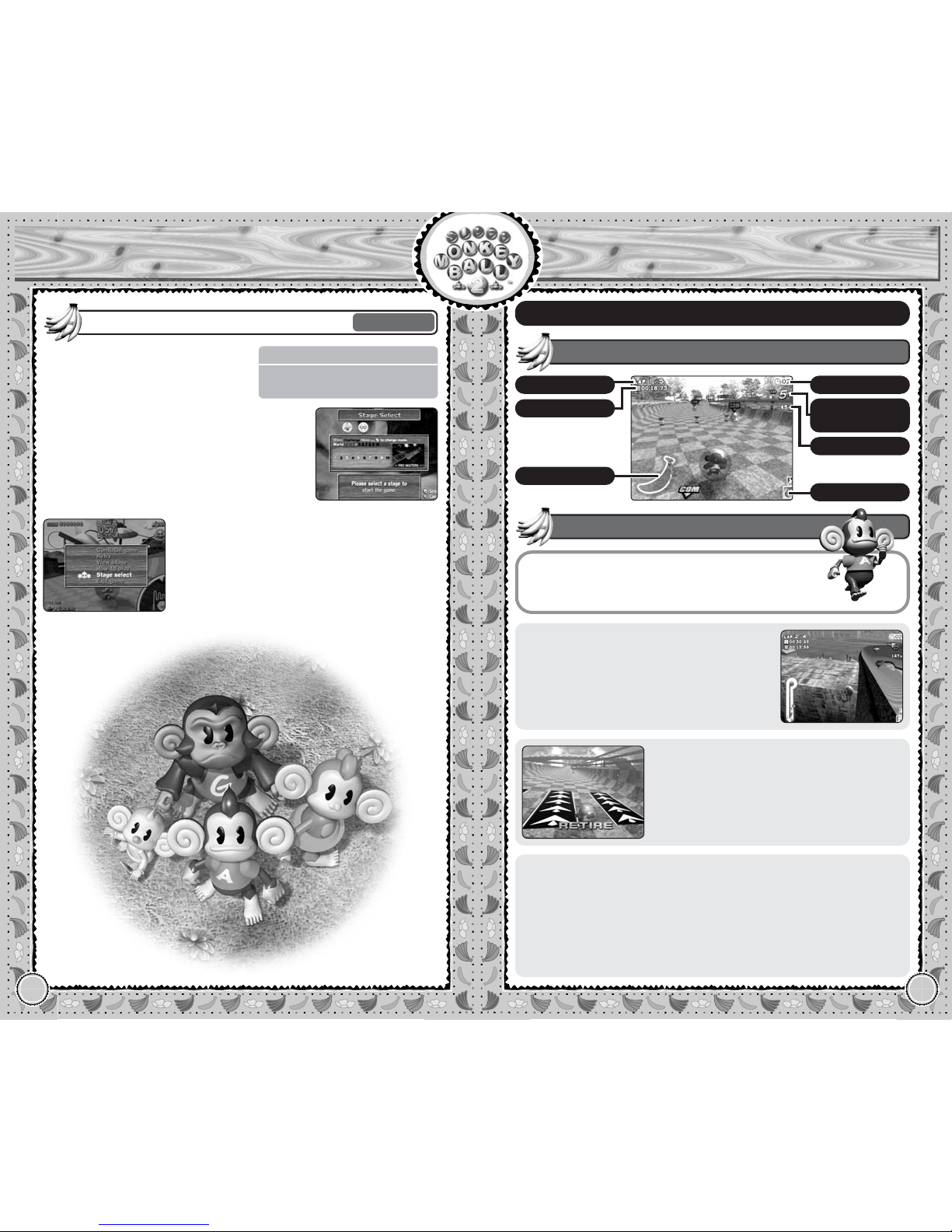
Practice the stages you have played.
Practice Mode
1 Player
After you select the character to use, select
the stage to play. You can switch between
the stages of the Story Mode or the
Challenge Mode with the
x Button
NOTE: You can only select the stages you
have already played in either the Story or
Challenge Modes.
Whether you reach the goal or fail to do so,
you can play the same stage over and over. To
quit, press the START/PAUSE to display the
Pause Menu, and either select Stage select or
Exit game (see Pause Menu on p.10).
Game Screen
● Course Out
If you fall off the course, you will restart
from the same location, resulting in great
loss of time. Be careful at tight turns!
● Retire from the Race
With a one player game, the time limit will
be displayed. If you do not make a lap
before this time expires, you will retire from
the race.
Game Controls
● Pause Menu
Continue game
Resume the current game.
Retry
Start the current race over from
beginning. Not available with
Grand Prix Mode.
How to play
Displays the Lesson Screen (p.6).
Exit game
Return to the Party Game
Select Screen.
Map
Lap
Lap Time
Time Limit
Current
Position
Items
Current Speed
Page 10
16
Party Game
Monkey Race 2
17
Party Game
Monkey Race 2
FLOW OF THE GAME
Number of Players / Character Select
Course Select / Gameplay Settings
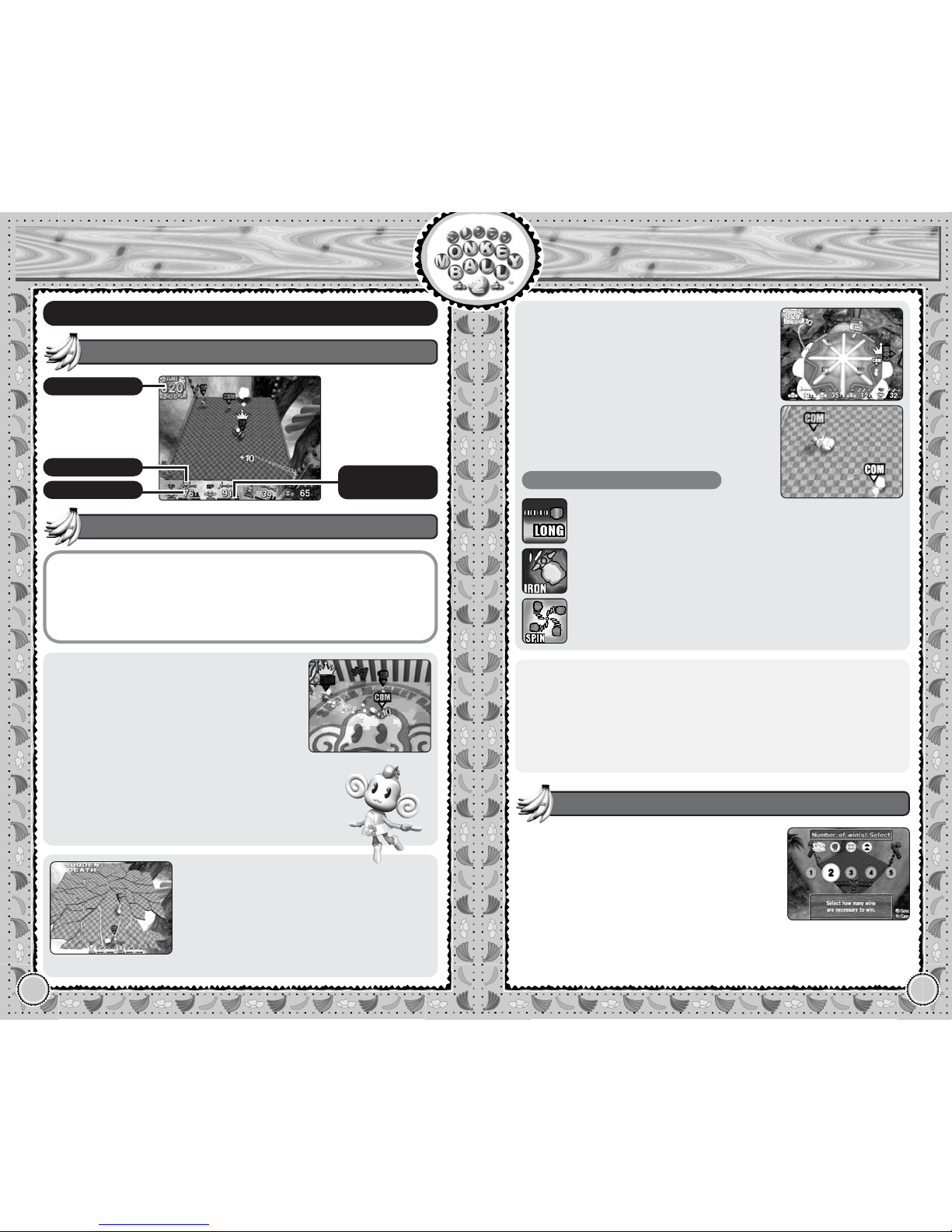
● Items
When the Items option is turned ON in the
Gameplay Settings, item boxes with “?” will
appear scattered throughout the course.
Roll over them to pick them up. You can
use them by pressing the a Button.
You can hold up to 3 items. The item
shown
at the bottom will be used when the
a Button
is pressed. Press the y Button
to change the item to be used. When a
fourth item box is picked up, the bottom
item will automatically be dropped.
With Time Attack Mode, however, no item
boxes appear, but you are given 3 Speed
Stars to start with. Use them wisely.
Types of Items
Speed Star
Increase your speed for a limited time.
Banana Peel
Drop a banana peel on the ground. The player rolling
over it will slip.
Bowling Bomber
Roll a bomb that will explode on contact at your opponent.
Polygon Ball
Your opponent’s ball becomes polygonal for a limited time.
Ice Cube
Turn your opponent into an ice cube for a limited time,
and make him/her slip.
Big Ball
Your ball becomes big enough to prevent almost any
attack from other opponents for a limited time.
Hunter Missile
Fire missiles at all opponents in front of you.
Gravity Bomber
Your opponents become heavier, making them slow
down for a limited time.
Except for Grand Prix Mode, you select the
course to race on. There are 6 courses available, with a description of the selected
course displayed at the bottom of the screen.
Course Select
Except for Time Attack Mode, you can customize the settings to
the game. Select Game Start when you are ready.
Number of laps (1~50)
Select the number of laps you must go around the track.
This selection is not available with Grand Prix Mode.
COM (ON/OFF)
Allows COM players to participate, filling all empty positions to
make it an 8-player game. With 1 player, this option is always ON.
Handicap (ON/OFF)
With handicap ON, the speed of the players who are behind will be
increased slightly.
Items (ON/OFF)
Allows players to use items.
Gameplay Settings
Select a course, and compete against the COM or
other players.
One Course Race
1~4 Players
Simultaneous
FLOW OF THE GAME
Number of Players / Character Select
Gameplay Settings
Race in all courses. You earn
points for the placement in
each race, and compete for
total points.
Grand Prix
1~4 Players
Simultaneous
FLOW OF THE GAME
Character Select
Course Select
Select a course and aim for
the best time.
Time Attack
1 Player
Page 11
18
Party Game
Monkey Fight 2
19
Party Game
Monkey Fight 2
● Pause Menu
Continue game
Resume the current game.
How to play
Displays the Lesson Screen
(p.6).
Exit game
Return to the Party Game
Select Screen.
Monkey Fight 2
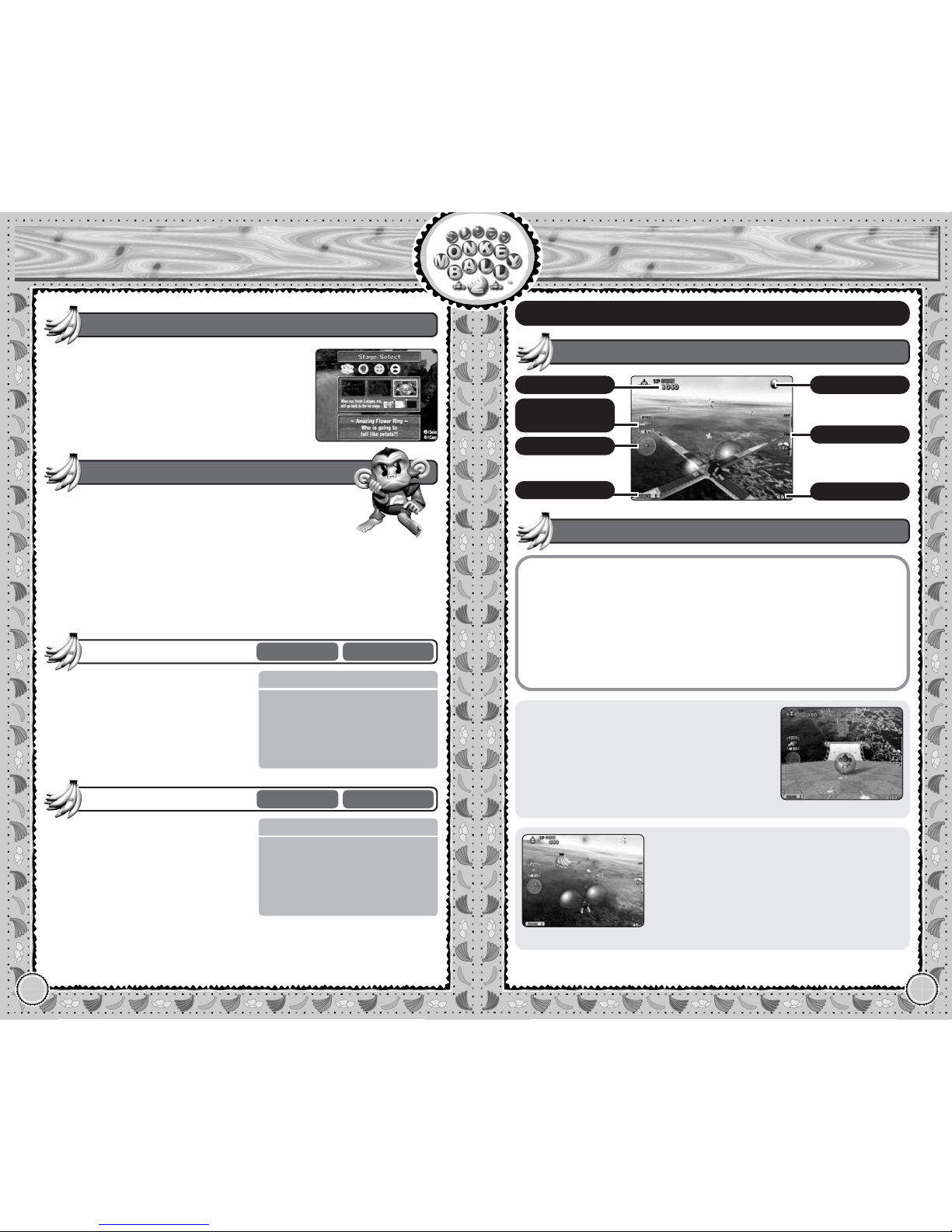
Game Screen
Control Stick Roll the ball.
a Button Punch in the direction you are facing.
b / r Button Press and hold to generate power. Release to punch.
c Stick Punch in the direction you press.
● KO Points
You score a point simply by punching your
opponents. You score big points if you
knock
your opponents off the stage
(amount varies by the handicap). Be careful not to fall off on your own, as 5 points
are given to all your opponents. There will
be a crown displayed above the point
leader of the round.
Note:
With Survival Mode, you don’t compete
for KO points, so this will not be displayed.
● Items
During the course of Normal Mode, power
up items will appear, either by breaking
item boxes (which drop once in a while
onto the playfield) or walls. Pick them up
for various effects. Except for Spinning
Punch, the power up will be in effect until
you fall off the playfield.
With Survival Mode, the items will not appear.
● Sudden Death Round
After the time is up, if there is a tie in KO
points, the players will enter Sudden
Death Round to determine the winner. On
this crumbling stage with no time limit, the
last one standing on the stage is declared
the winner.
Game Controls
Types of Items
Long Punch
The reach of your punch becomes longer, enabling you
to punch the far away opponents.
Spinning Punch
Hold down
a Button to deliver a spinning punch to the
opponents around you for a limited time.
Iron Punch
Your punch becomes harder, increasing your striking power.
You can determine the number of wins needed to win the match, from 1 to 5. The number of wins for each player will be indicated
by the number of bananas at the bottom of
the screen during the game.
Number of win(s) Select
Time Left
Rounds Won
KO Points
Handicap
Level
Page 12
20
Party Game
Monkey Fight 2
21
Party Game
Monkey Target 2
FLOW OF THE GAME
Number of Players
Character Select
Number of win(s) Select
Stage Select
Gameplay Settings
You can select 3 stages to be played on, in
any order. After the 3rd stage, the game
resorts back to the 1st stage.
When the Number of win(s) is set to 1, however, you will only select one stage.
Stage Select
You can customize the settings to the game. Select
Game Start when you are ready.
COM (ON/OFF)
Allows COM players to participate, filling all empty positions to
make it a 4-player game. With 1 player, this option is always ON.
Handicap 1P (2P, 3P, 4P) (1~5)
With Normal Mode, you can assign a handicap to each player separately,
giving more points for knocking opponents off the stage.
Gameplay Settings
Against COM or other players, you
compete for the most KO points
within the time limit.
Normal Mode
1~4 Players
Simultaneous
FLOW OF THE GAME
Number of Players
Character Select
Number of win(s) Select
Stage Select
Gameplay Settings
Compete on a crumbling stage with
sudden death rule. The last one
standing on the stage is the winner.
Survival Mode
1~4 Players
Simultaneous
Monkey Target 2
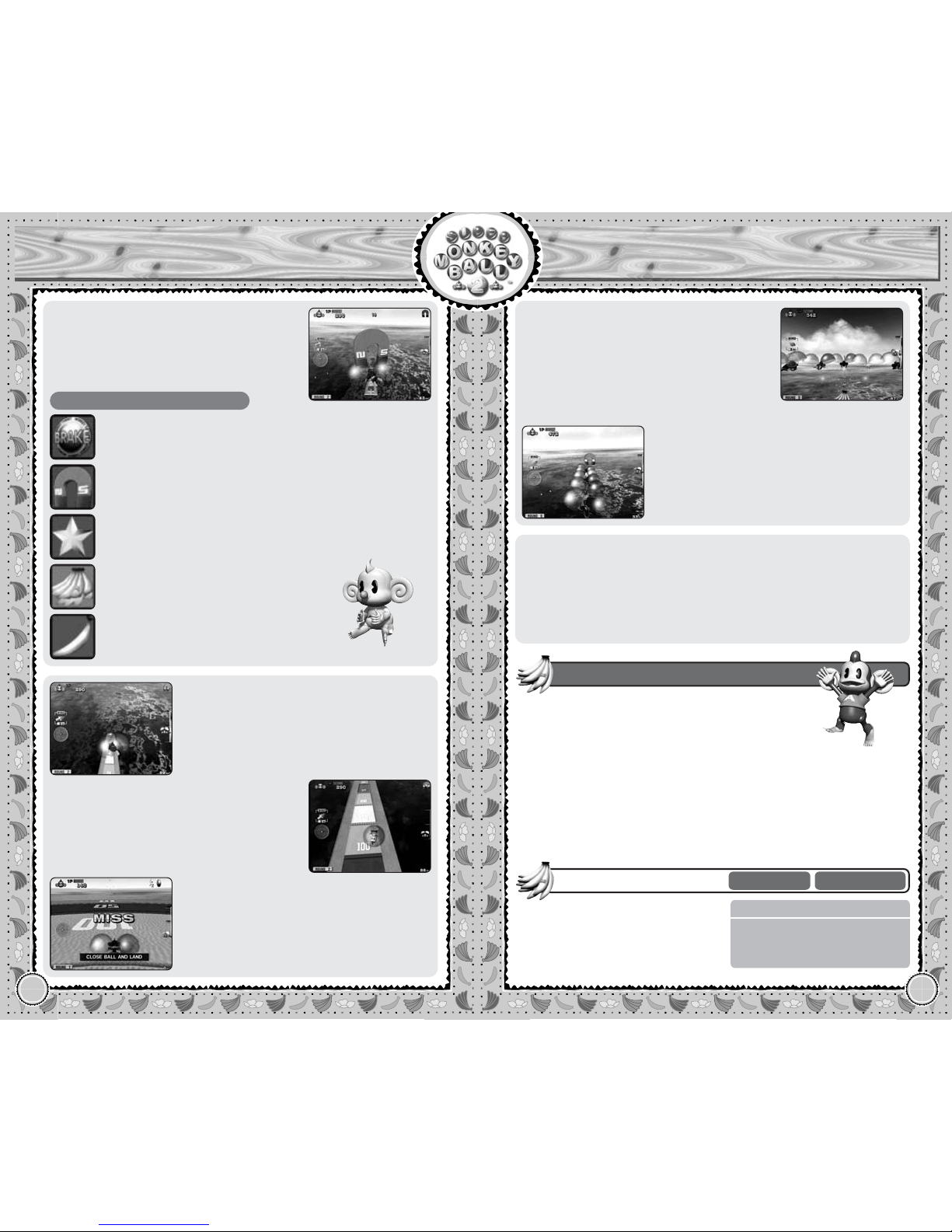
Game Screen
Control Stick Before the flight, roll the ball.
While airborne, glide (8 : climb; 2 : dive;
46: turn left/right).
a Button First press: expand wings.
Second press: close the wings and back to
the ball.
b Button With two or five balls, change formation.
y Button Press and hold to view from the top.
● Taking Flight
First, guide the ball to roll down the ramp.
Press the a Button to open the ball and
expand the wings. If you open too soon,
you may not have enough momentum to
reach the target. If you don’t open it, the
ball will sink into the sea.
● Glide
In midair, use the Control Stick to guide your
monkey(s). Be careful not to lose your
momentum, or you may not reach the target.
Remember also to take wind into account
when gliding.
Game Controls
Score
Wind
Direction/Speed
Radar
Round
Current Speed
Altimeter
Items
Page 13
22
Party Game
Monkey Target 2
23
Party Game
Monkey Target 2
● Items
In the air, there are various items that will help
you earn higher points. Except for bananas,
these items will not appear if the Items option
is turned OFF in the Gameplay Settings.
Types of Items
Brake Ball
Slows you down more quickly upon landing, with
less roll.
Lucky Star
Multiplies the landing points.
Banana Bunch
Adds 10 points each to your score.
Banana
Adds 1 point each to your score.
Magnet Ball
You will stick to the exact spot you landed.
● Landing
When you reach the target, press the a
Button again to close the ball, making the
monkey drop onto the landing pad.
Remember that once you close the
ball, you cannot reopen it. Also, if you
land without closing, you will not earn
landing points.
The landing pad is divided into several
zones with specific landing points. Try to
land on the zone with higher landing
points. With more than one monkey flying,
make sure to change formation to ensure
that the bulk of your monkeys land safely.
● Taking Formations
With one-player or two-player games, you
can have more than one monkey flying. This
can be selected from the Number of balls in
the Gameplay Settings. With a one-player
game, you can select either 1 or 5; with twoplayer game, you can select 1 or 2.
In the air, press the b Button to change
formation. Try to guide all the monkeys to
the landing pads with higher points.
● Pause Menu
Continue game
Resume the current game.
How to play
Displays the Lesson Screen
(p.6).
Exit game
Return to the Party Game
Select Screen.
FLOW OF THE GAME
Number of Players
Character Select
Gameplay Settings
You can customize the settings to the game. Select
Game Start when you are ready.
Number of rounds (3/6)
Determines the number of rounds to be played.
Number of balls (1/2/5)
Determines the number of monkeys (balls) flying in a round. The
available numbers vary depending on the number of players participating. With a three/four-player game, you can only select 1.
Items (ON/OFF)
When this is OFF, the items other than bananas will not appear.
Gameplay Settings
There is only one mode to this
game. The player with the most
points after the predetermined number of rounds becomes the winner.
Monkey Target 2
1~4 Players
Simultaneous
Page 14
24
Party Game
Monkey Billiards 2
25
Party Game
Monkey Billiards 2
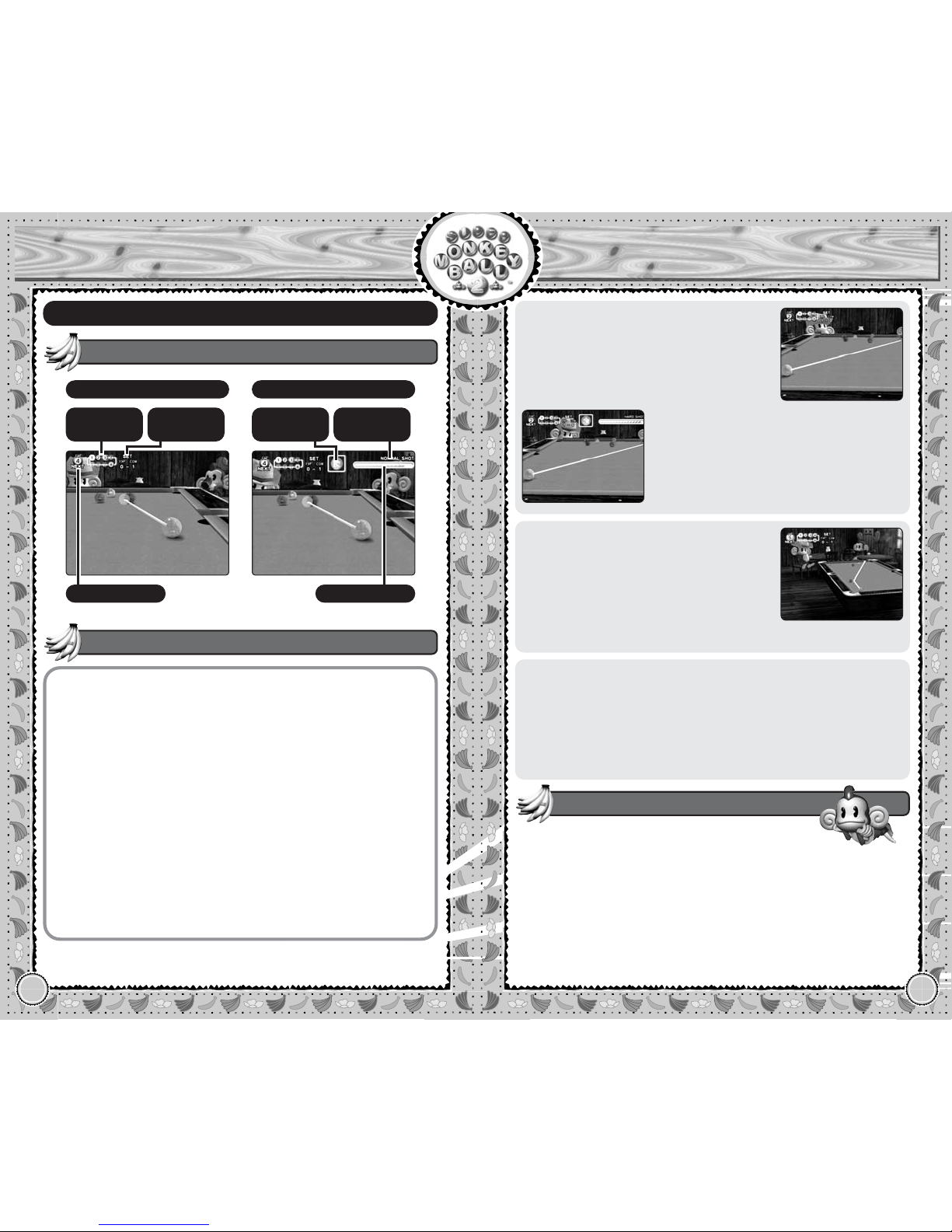
View Mode
Monkey Billiards 2
Shot Mode
Game Screen
● View Mode
Control Stick 46to determine direction.
a Button Set direction and switch to Shot Mode.
b Button Return camera position.
c Stick Camera movement.
r Button With Guide ON, display the path of your ball.
x Button Show ball number.
y Button Switch between 2D top view and 3D view.
● Shot Mode
Control Stick Determine where the cue will hit the ball (apply
“English” to the ball).
a Button Shoot.
b Button Return to View Mode.
c Stick Camera movement.
r Button With Guide ON, display the path of your ball.
x Button Show ball number.
y Button Adjust shot strength.
Game Controls
● Making Shots
In the View Mode, use the Control Stick 4
6
to determine the shot direction, and
press the a Button to switch to Shot Mode.
In Shot Mode, press the y Button to
switch between two levels of shot
strengths. Use the Control Stick to determine the spot to hit the cue ball (give
“English” to the ball). Watch the Shot
Gauge, and at the proper strength, press
the a Button to shoot.
● Guide
If the Guide is enabled (set at ON) in the
Pause Menu (see below), an imaginary cue
ball and its potential path will be displayed,
aiding you to view where the cue ball will
hit the target ball. Press the r Button to
view the potential path of cue ball (without
“English” on it) after hitting the target ball.
● Pause Menu
Continue game
Resume the current game.
Guide
Enables/disables the guide.
(Use 46to toggle setting)
Available only during your turn.
How to play
Displays the Lesson Screen (p.6).
Exit game
Return to the Party Game
Select Screen.
You can customize the settings of the game. Select
Game Start when you are ready.
Advice (ON/OFF)
Enables/disables occasional advice from the game.
Number of sets (1~99)
Determines the number of sets to play. Except for JPN 9, only the
odd number of sets can be selected.
COM level (1~5)
Determines the strength level of COM player(s). This selection is
only available when COM players are participating.
Gameplay Settings
Shot
Point
Shot
Strength
Shot Gauge
Next Ball to Hit
Balls
Sunk
Sets
Taken
Page 15
26
Party Game
Monkey Billiards 2
27
Party Game
Monkey Billiards 2
FLOW OF THE GAME
Rule Select
Number of Players
Character Select
Gameplay Settings
You can select from four rules: US
9, JPN 9, Rotation, and 8 Ball. With
JPN 9, up to 4 players can enjoy.
With others, you play either against
the COM or another player.
Vs. Mode
1, 2, or 4 Players
Alternating
FLOW OF THE GAME
Character Select
Gameplay Settings
Play against the COM in a tournament with varying modes. Try and
see how far you can get!
Tournament Mode
1 Player
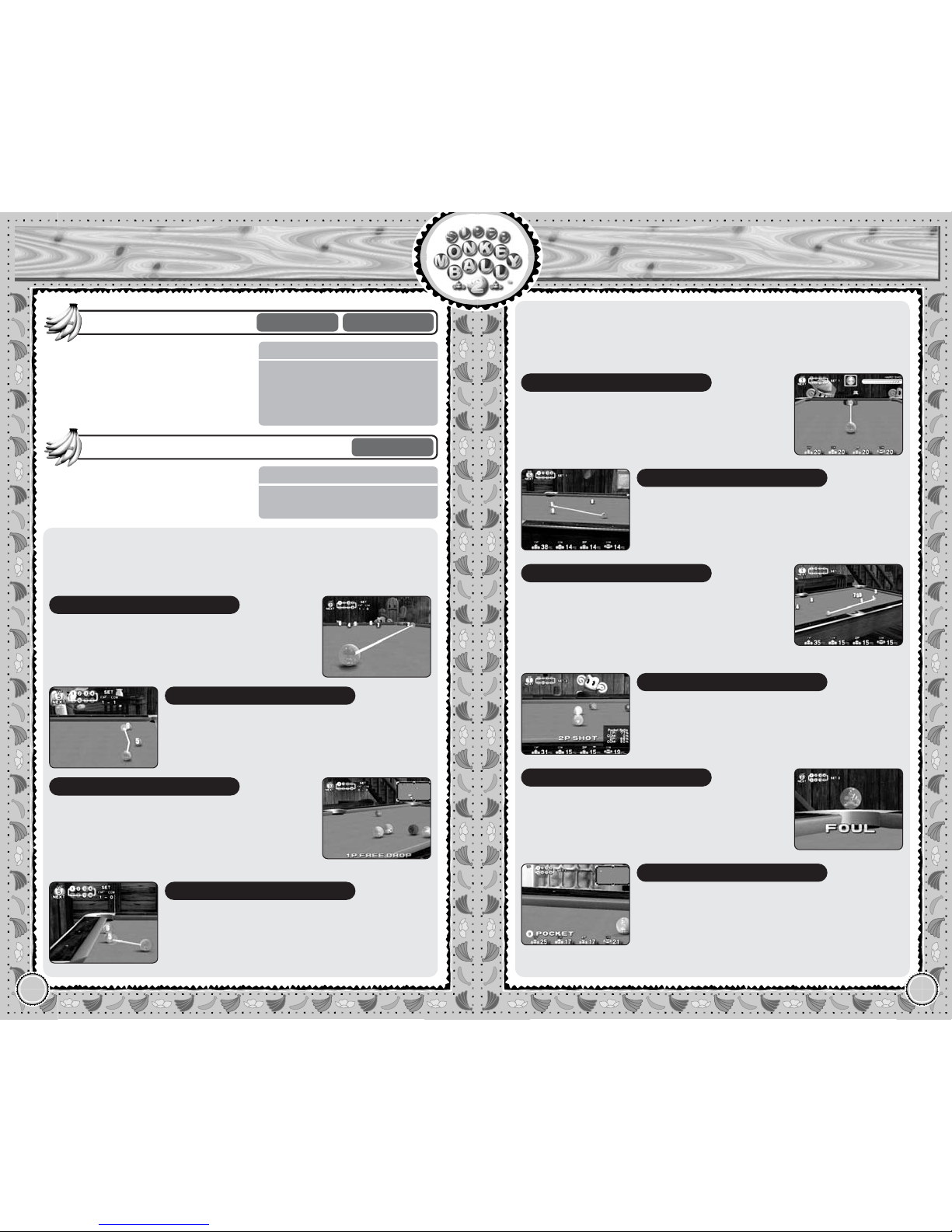
● US 9 Ball — Rules
US 9 Ball is played with 2 players. You will play against either the
COM or another player.
As long as you hit the lowest-numbered ball
first, any ball can be sunk into the pocket.
You will continue your turn until you either
miss or make a foul.
Turns to Hit
You must hit the ball with the lowest number
on the pool table.
Which Ball to Hit
Your main objective is to sink the 9 Ball. As
long as the lowest-numbered ball is hit
first,
you may sink the 9 Ball with a combo shot
for
the win. If the 9 Ball is sunk while you make
a foul, it is placed back on the table.
Sink the 9 Ball to Win
If the cue ball drops into the pocket, it is
called a foul. If the first ball hit is not the lowest-numbered ball, this is also a foul. The
next player can place the cue ball anywhere
on the pool table to take his turn.
Foul
● JPN 9 Ball — Rules
Japanese 9 Ball is played with 4 players. COM players will play
the vacant places, if any, to fill in.
You get 1 point from each player if you pocket
the 3, 5 or 7 Ball, and 2 points if you pocket
the 9 Ball. You get double points if these
balls are sunk into side pockets.
Scoring
Each player is given 20 points to start the
game. The player with the most points after
all sets are finished wins the game.
Play for Points
You will continue your turn until you either
miss or make a foul.
Turns to Hit
As in US 9 Ball, you must hit the ball with the
lowest number on the pool table, but you
may sink any numbered balls. The 3, 5, 7
and 9 balls will, however, be placed back on
the table if they are sunk before their order.
Which Ball to Hit
When the 9 Ball is sunk in its proper order,
and if the cue ball stops at the breaking area
of the table, the same player breaks the next
set from the same spot. Otherwise, the next
player breaks.
Sinking the 9 Ball
As in US 9 Ball, it is a foul if a cue ball is
sunk or when the lowest-numbered ball is
not hit first. Any ball sunk will be placed back
on the table.
Foul
Page 16
28
Party Game
Monkey Billiards 2
29
Party Game
Monkey Billiards 2
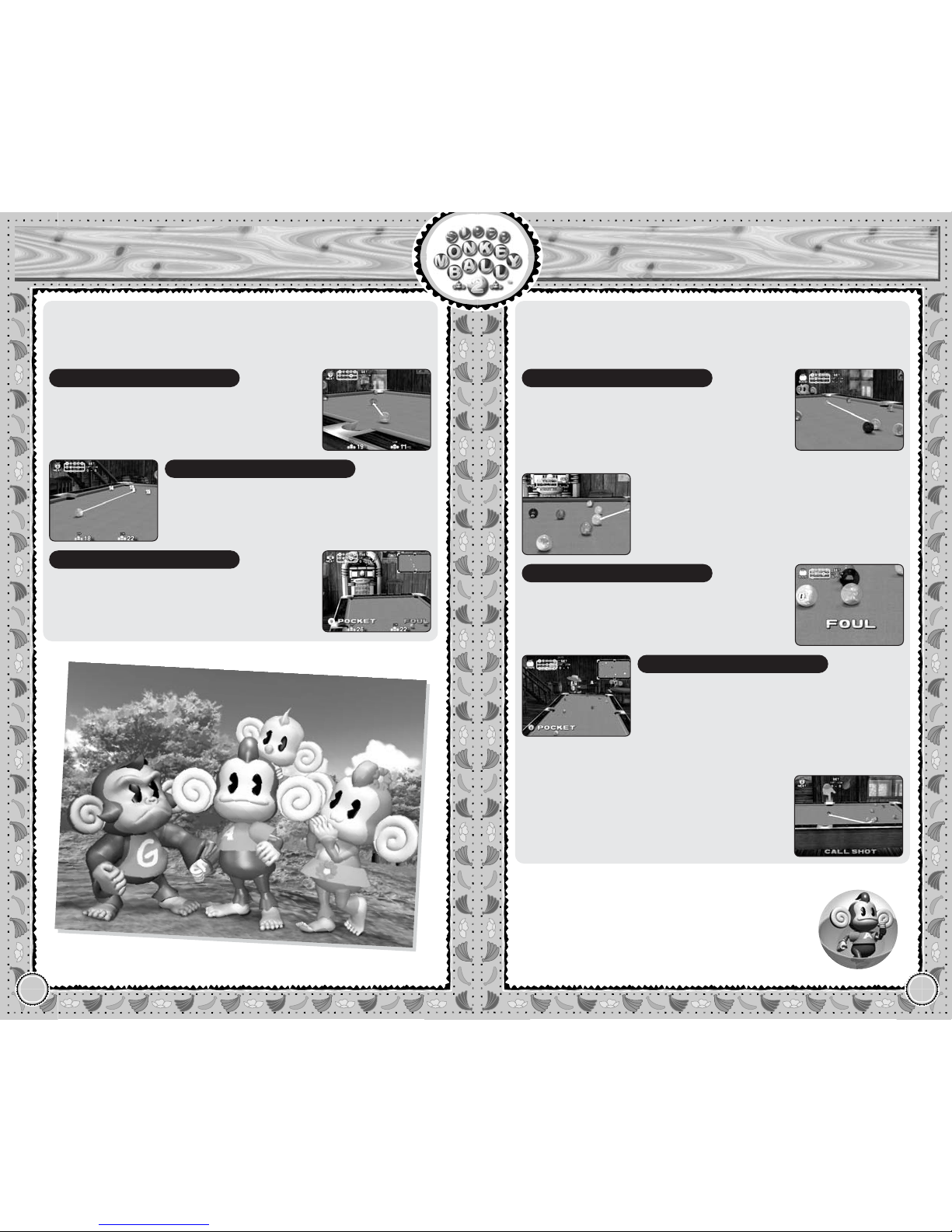
● Rotation — Rules
Rotation is played with 2 players. You will play against either the
COM or another player.
You may sink any ball on the table, provided
that you hit the lowest-numbered ball first.
Which Ball to Hit
You earn the same amount of points as the
number indicated on the ball you sink. You
win the set if your score reaches more than
60 points.
Play for Points
It is a foul if the cue ball is sunk or when the
lowest-numbered ball is not hit first. Any
balls sunk will be placed back on the table.
Foul
● 8 Ball — Rules
8 Ball is played with 2 players. You will play against either the
COM or another player.
If the Next Ball Indicator displays OPEN
(either no ball has been sunk yet, or balls of
both types have been sunk), you may sink
the balls of either group. Look at the balls
and decide which group is advantageous.
The balls are divided into two groups: Solids
(1~7 Balls) and Stripes (9~15 Balls). After the
break, you will be assigned to sink the balls
of the same group you sank first, and the
other player sinks the others.
Which Ball to Hit
When sinking the 8 Ball, you must also call
the pocket to sink. If you sink the 8 Ball into
the pocket you didn’t call, you will lose the
set. Aim carefully and sink the 8 Ball into the
pocket you called to win!
Except when breaking, if the 8 Ball is sunk
before all your balls are sunk, you will lose
the set. You must sink all your balls in order
to earn the right to sink the 8 Ball. If the 8 Ball
is sunk on the break, the game will continue
with the 8 Ball placed back on the table.
Sinking the 8 Ball
If the cue ball drops into the pocket, or if the
cue ball hits the opponent’s ball first, it is a
foul. The next player can place the cue ball
anywhere on the pool table to take his turn.
Foul
Page 17
30
Party Game
Monkey Bowling 2
31
Party Game
Monkey Bowling 2
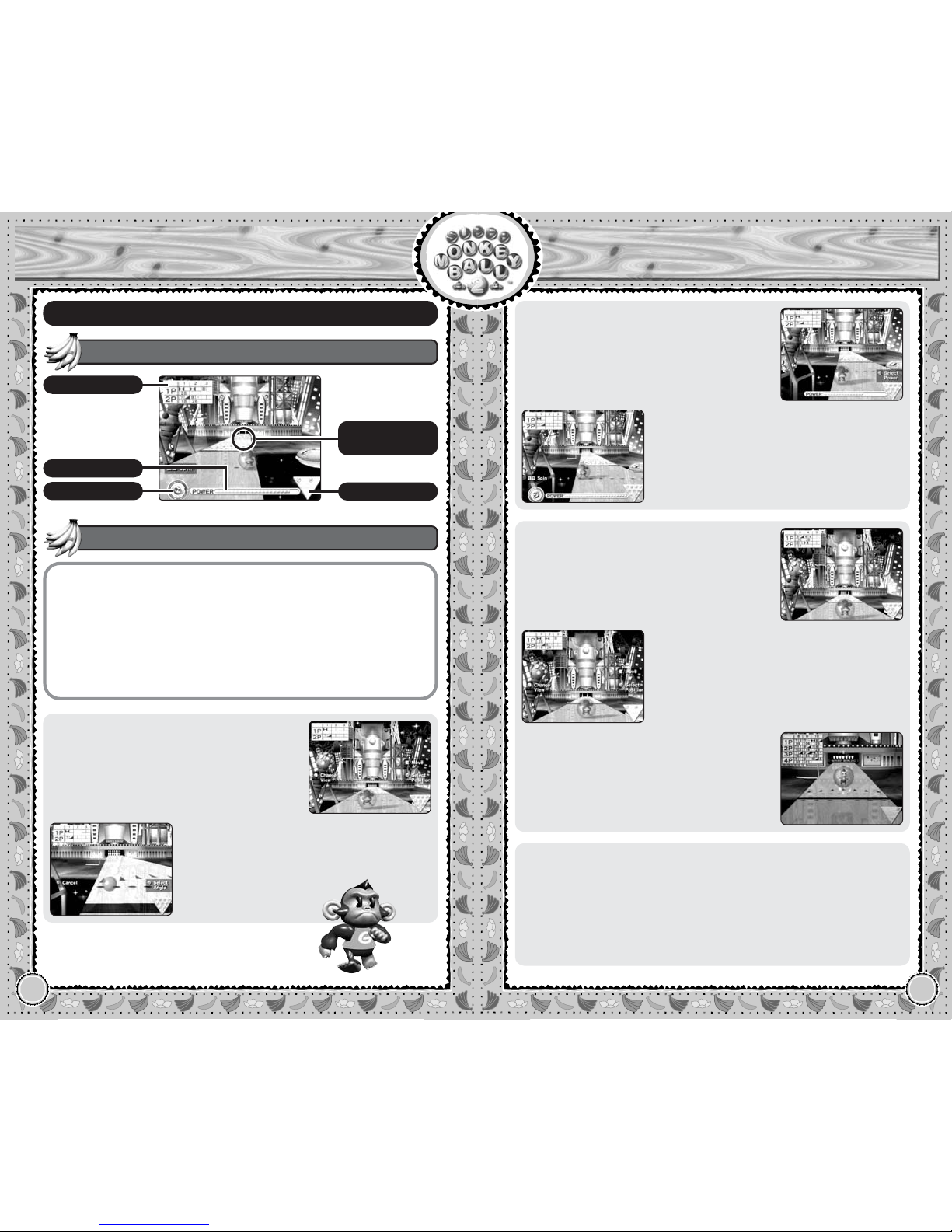
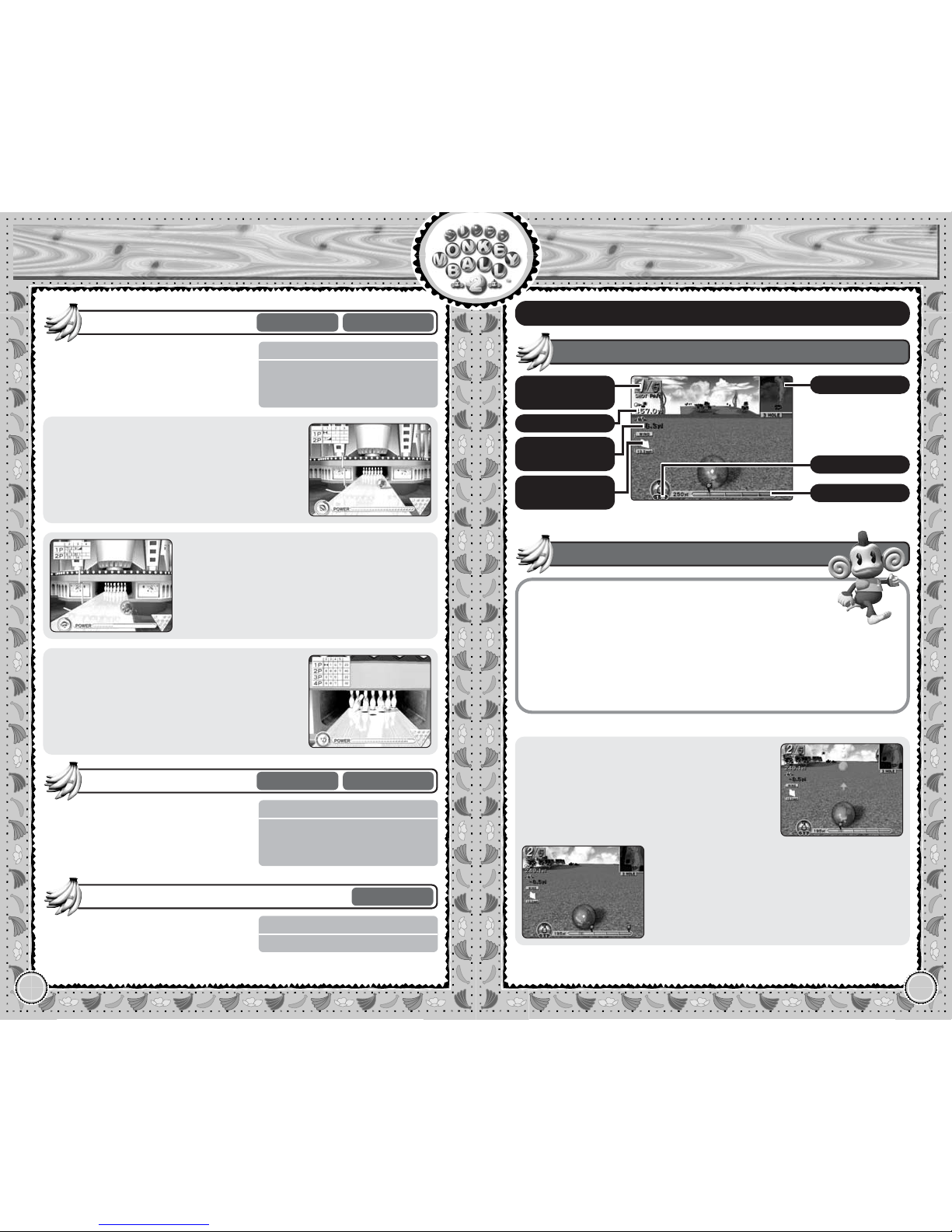
Monkey Bowling 2
Game Screen
Control Stick Change your throwing position.
a Button Select throwing position, direction,
and strength.
b Button Cancel throwing position/change viewpoint
during replay.
c Stick View lane from different angles.
l / r Button Spin the ball.
x Button Toggle scorecard (expand/contract).
Game Controls
Power Gauge
● Throwing the Ball
First, use the Control Stick 46 to determine the location to throw the ball from.
Use the c Stick to view lane from different
angles. Press the a Button when the location is determined.
Next, determine the angle to throw the ball.
The direction indicator moves automatically,
so press the a Button with the correct timing.
● Throwing the Ball (Continued)
Next, determine the strength to throw the
ball. Look at the power gauge, and press
the a Button at the correct time to throw.
As you approach the Foul Line, you can
add spin to the ball with the l or r
Buttons. The amount of spin depends on
how long the l/r Buttons are pressed.
● Scoring
With normal rules, you have two throws to
knock 10 pins in a frame, and the number
of fallen pins are added to your score.
If you get a Strike or a Spare on the 10th
and final frame of the game, you will be
allowed to take extra throw(s) (2 or 1,
respectively) to fulfill the bonus points.
If you knock all 10 pins on your first throw
(Strike), the number of pins knocked on
your next two throws will also be added as
bonus. If you knock all 10 pins with two
throws (Spare), the number of pins
knocked on your next throw will be added.
● Pause Menu
Continue game
Resume the current game.
Retry
Restart the Challenge Mode
from the beginning.
How to play
Displays the Lesson Screen (p.6).
Exit game
Return to the Party Game
Select Screen.
Score
Spin Gauge
Direction
to Throw Ball
Pins Left
Page 18
32
Party Game
Monkey Bowling 2
33
Party Game
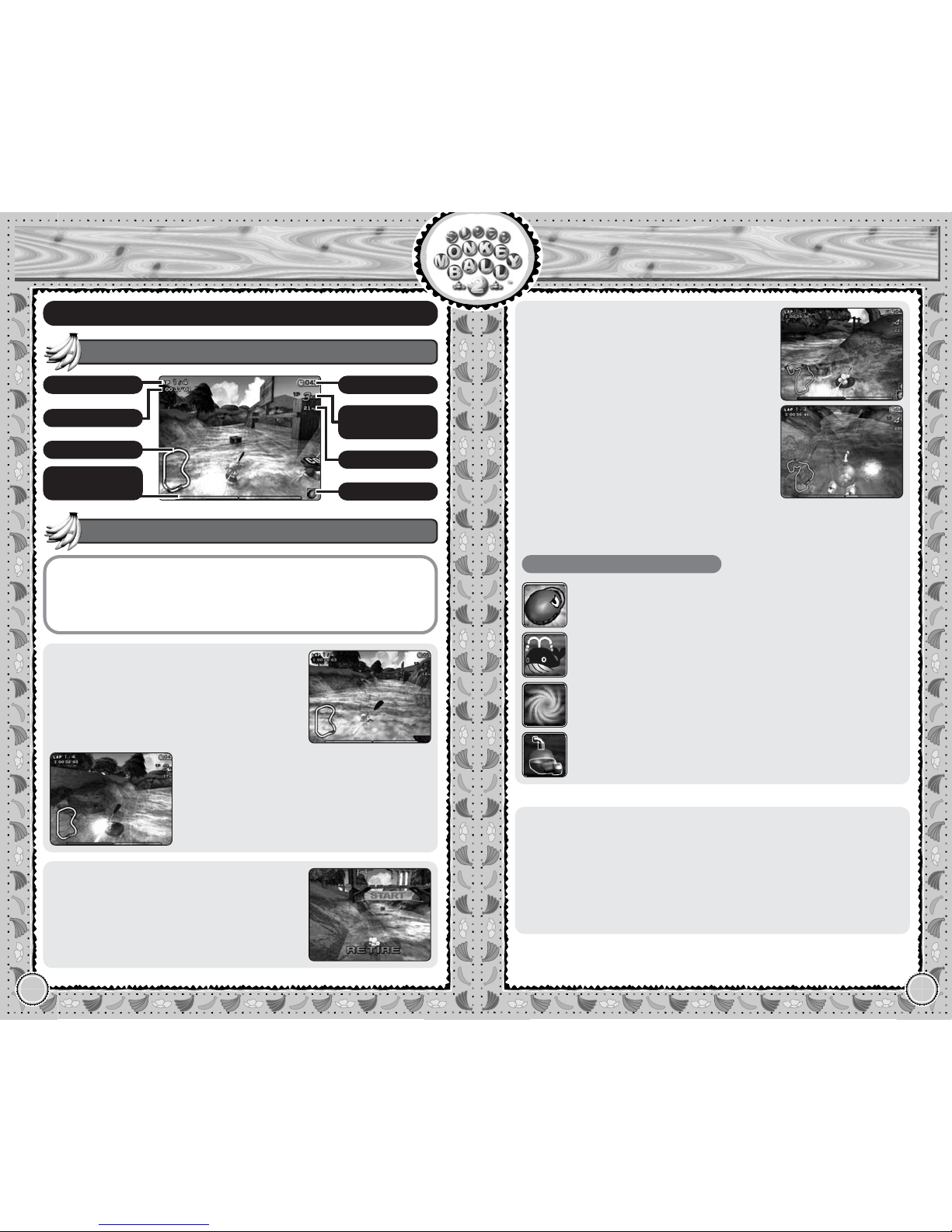
Monkey Golf 2
FLOW OF THE GAME
Rule Select
Number of Players
Character Select
Select from 3 rules, and play on a
normal lane.
Normal Mode
1~4 Players Alternating
FLOW OF THE GAME
Number of Players
Character Select
Level Select
Play on various bizarre shaped lanes.
At first, you can only select LEVEL 1.
If you meet the required score, you
can select the higher level.
Special Mode
1~4 Players Alternating
FLOW OF THE GAME
Character Select
10 patterns of pin layouts are
given. Knock down all pins in only
one throw, and clear all patterns in
the allowed number of tries.
Challenge Mode
1 Player
● Normal Rule
Play with normal rules.
● Strike Rule
You only have 1 throw per frame on a 20frame game. Note that even with a Strike,
you will not get the bonus points added.
● 9 pins Rule
There will be only 9 pins on the lane, with
the missing location varying on frames,
as the missing pin will automatically
be counted.
Control Stick 82 : Change club.
46: Change the direction to hit.
a Button Hit the ball.
b Button Switch camera angle/cancel.
c Stick Camera movement (Landing Sight Camera).
x Button Switch to Landing Sight Camera.
y Button Switch between Top View and Normal View.
z Button Display scorecard.
Game Controls
● Hitting the Ball
First, use the Control Stick 82 to determine the club to use, and 46to determine the direction to hit. When ready,
press the a Button to make the Power
Gauge move.
While the Power Gauge is moving, press
the a Button the first time to determine
the shot power, then press the a Button
again to determine the timing to hit. Try to
aim for the spot where the gauge started
(pink zone) to hit the ball straight.
Monkey Golf 2
Game Screen
Stroke
Number/Par
Cup Distance
Height
Difference
Wind
Direction/Speed
Course Map
Power Gauge
Club Selected
Page 19

Page 20
36
Party Game
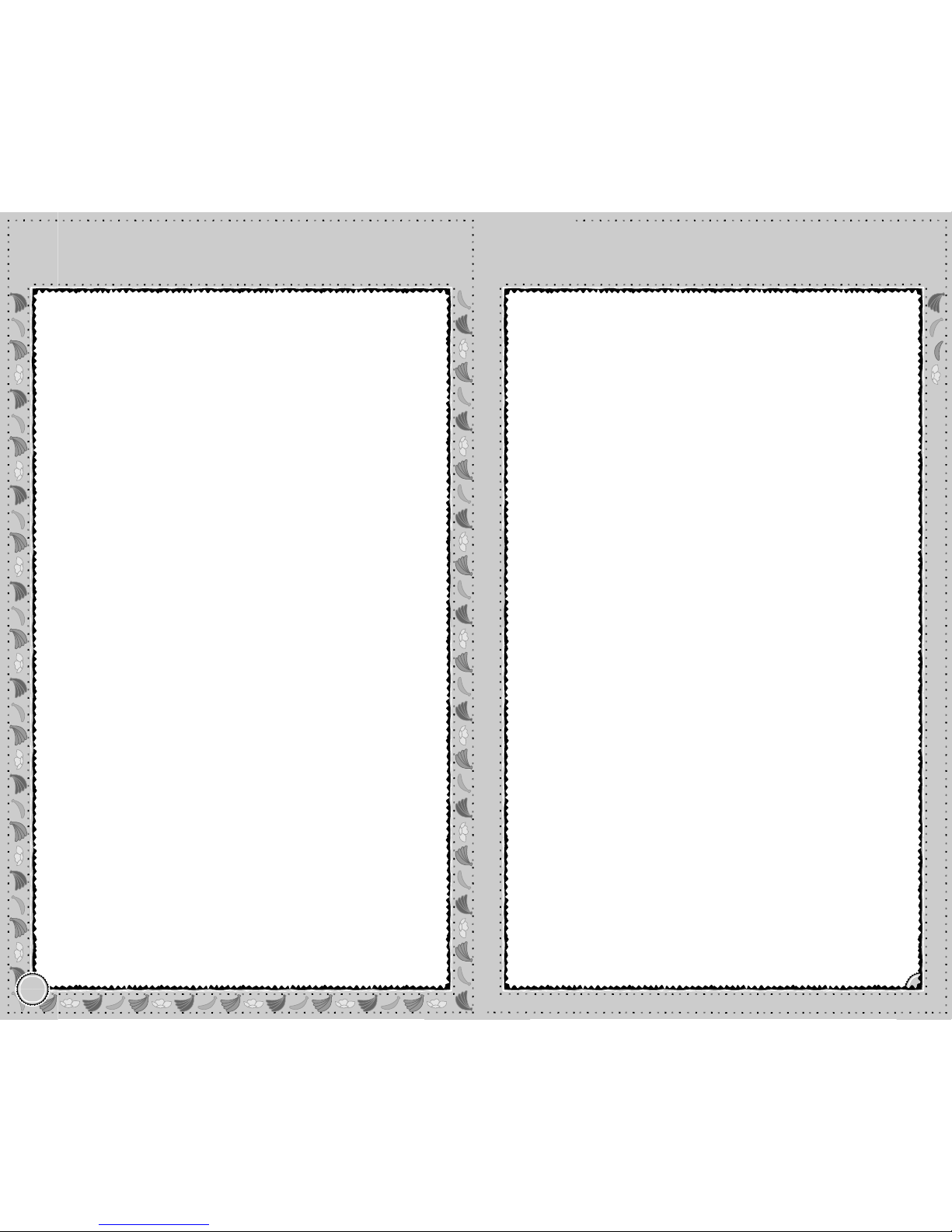
Monkey Boat
37
Party Game
Monkey Boat
Current Speed
Monkey Boat
Game Screen
l Button Use left paddle (turn right).
r Button Use right paddle (turn left).
a Button Use item.
y Button Select item to use next.
Game Controls
● Rowing
The boat turns to the opposite direction from
the side you paddle. To move forward, paddle left and right alternately.
The gauges at the bottom indicate how
hard you’re paddling. To make quick turns,
paddle quickly on one side. To go forward
faster, make large strokes.
● Retire from the Race
In a one player game, the time limit will be
displayed. If you do not complete a lap (or
reach the checkpoints on the Water
Dragon Route) before this time expires,
you will retire from the race.
● Items
When the Items option is turned ON in the
Gameplay Settings, item boxes with “?”
will appear scattered throughout the
course. Row your boat over them to pick
them up. You can use them by pressing
the a Button.
You can hold up to 3 items. The item
shown
at the bottom will be used when the
a Button
is pressed. Press the y Button
to change the item to be used. When a
fourth item box is picked up, the bottom
item will automatically be dropped.
With Time Attack Mode, however, no item
boxes appear, but you are given 3 Monkey
Submarines to start with. Use them wisely.
Types of Items
Piranha Torpedo
Fires a torpedo at your opponent and sinks him/her.
Whirling Swirl
Creates a tidal swell that will suck in your opponent.
Monkey Submarine
Dives and moves forward underwater.
Whale Bomb
Releases an explosion of water that will blow your
opponents up.
● Pause Menu
Continue game
Resume the current game.
Retry
Start the current race over from
beginning. Not available with
Grand Prix Mode.
How to play
Displays the Lesson Screen (p.6).
Exit game
Return to the Party Game
Select Screen.
Lap
Lap Time
Map
Rowing
Gauge
Time Limit
Current
Position
Items
Page 21
Page 22
40
Party Game
Monkey Shot
41
Party Game
Monkey Shot
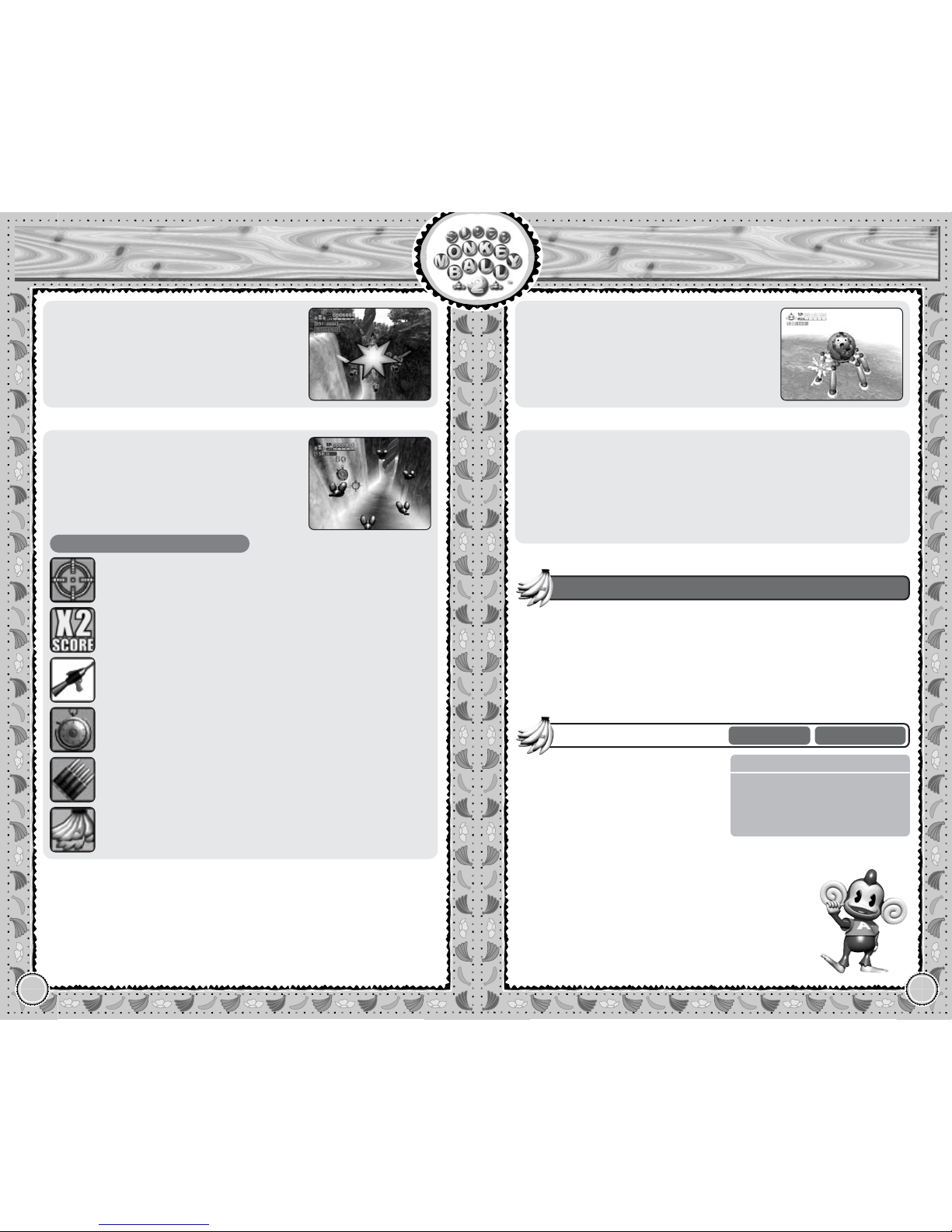
● Enemy Attacks
You take damage when the enemy missiles
hit you. Shoot and destroy the missiles before
they hit you. The game will be over when
your Life Gauge is completely depleted.
● Boss
At the end of each stage, you will confront
the stage boss. Find the weak spots,
and shoot.
● Items
During the game, some useful items will
appear, either inside a ball which you must
shoot to break open or by shooting a certain
enemy. Move the sight over to get the items
for various effects.
Types of Items
Big Gun
Your bullets become large, making it easier to hit
the target.
Automatic
You can shoot 18 bullets without reloading.
Stopwatch
You can stop not only the enemy movements, but also
other players for 5 seconds.
Bullet Plus
You get 30 bullets.
Banana Bunch
Replenishes the life gauge by one.
X2 Bonus
You earn double points for a limited time.
● Pause Menu
Continue game
Resume the current game.
How to play
Displays the Lesson Screen (p.6).
Exit game
Return to the Party Game
Select Screen.
You can customize the settings for the game. Select Game Start
when you are ready.
Auto Reload 1P (2P, 3P, 4P) (ON/OFF)
Enables/disables automatic reload for each player when he/she runs
out of bullets.
Gameplay Settings
FLOW OF THE GAME
Number of Players
Character Select
Stage Select
Gameplay Settings
There is only one mode for this
game. You can only select the
Beginner Stage at beginning, but
you will be able to select the next
stage if you beat the boss.
Monkey Shot
1~4 Players
Simultaneous
Page 23
42
Party Game
Monkey Dogfight
43
Party Game
Monkey Dogfight
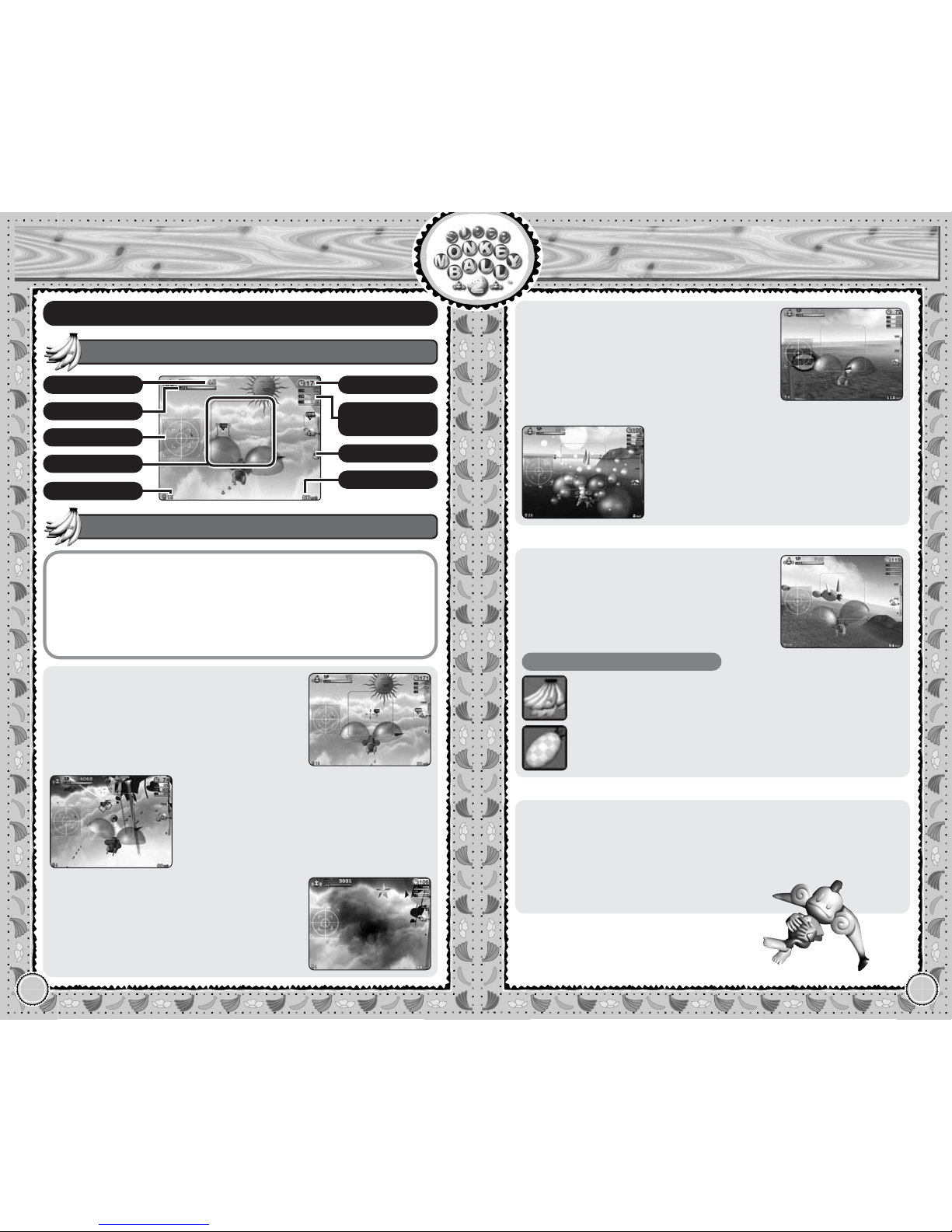
Current Speed
Monkey Dogfight
Game Screen
Control Stick Control (2 : climb; 8 : dive;
46: turn left/right).
a Button Fire bullet.
b Button Fire missile.
l Button Decrease speed.
r Button Increase speed.
Game Controls
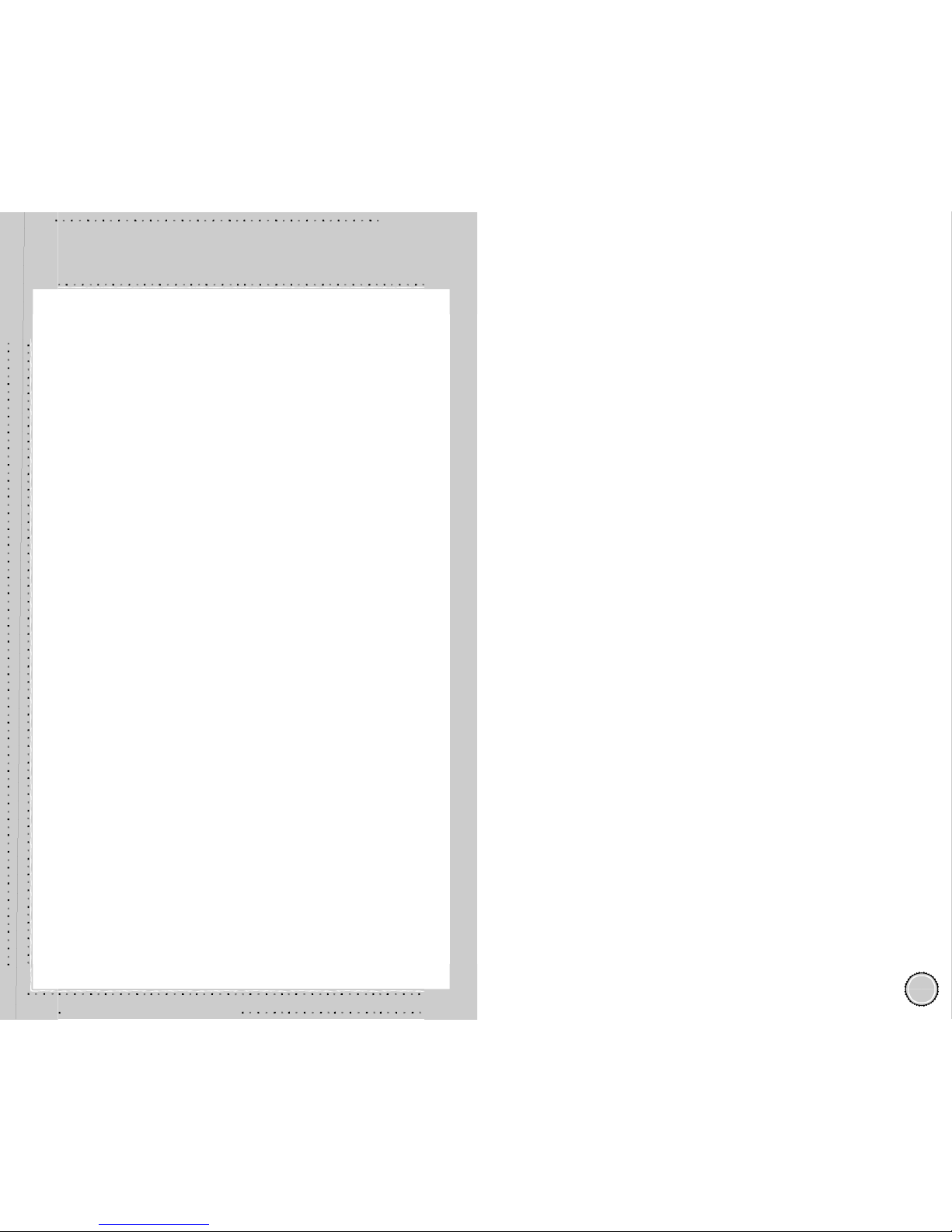
● Dogfight
Use the Control Stick to fly the monkey.
The sight changes to a crosshair when the
enemy is close enough to hit with your
gun. Press the a Button to fire the gun.
The monkey is shot down when the Life
Gauge is completely depleted. In
Normal
Mode, the monkey restarts from
the starting
location.
The enemy will be locked on automatically
when he/she is inside the firing range.
Press the b Button to fire a missile. There
will also be a warning message if you are
locked on by the opponent, or when a
missile is approaching.
● Field
The game is played on a field with boundaries in all directions. You will be bounced
back into the playfield if you try to go
beyond the boundaries. You won’t take any
damage if you fly into obstacles in the field.
In Turtle Island stage, however, touching
the water down below has the same effect
as being shot down. So be careful.
● Items
The following items appear in the game.
Types of Items
Banana
Regains your life gauge a little.
Pineapple
Adds 5 missiles.
● Pause Menu
Continue game
Resume the current game.
How to play
Displays the Lesson Screen (p.6).
Exit game
Return to the Party Game
Select Screen.
Score
Life Gauge
Radar
Firing Range
Missiles Left
Time Limit
Opponents’
Score/Life Gauge
Altimeter
Page 24
Page 25
46
Party Game
Monkey Soccer
47
Party Game
Monkey Soccer
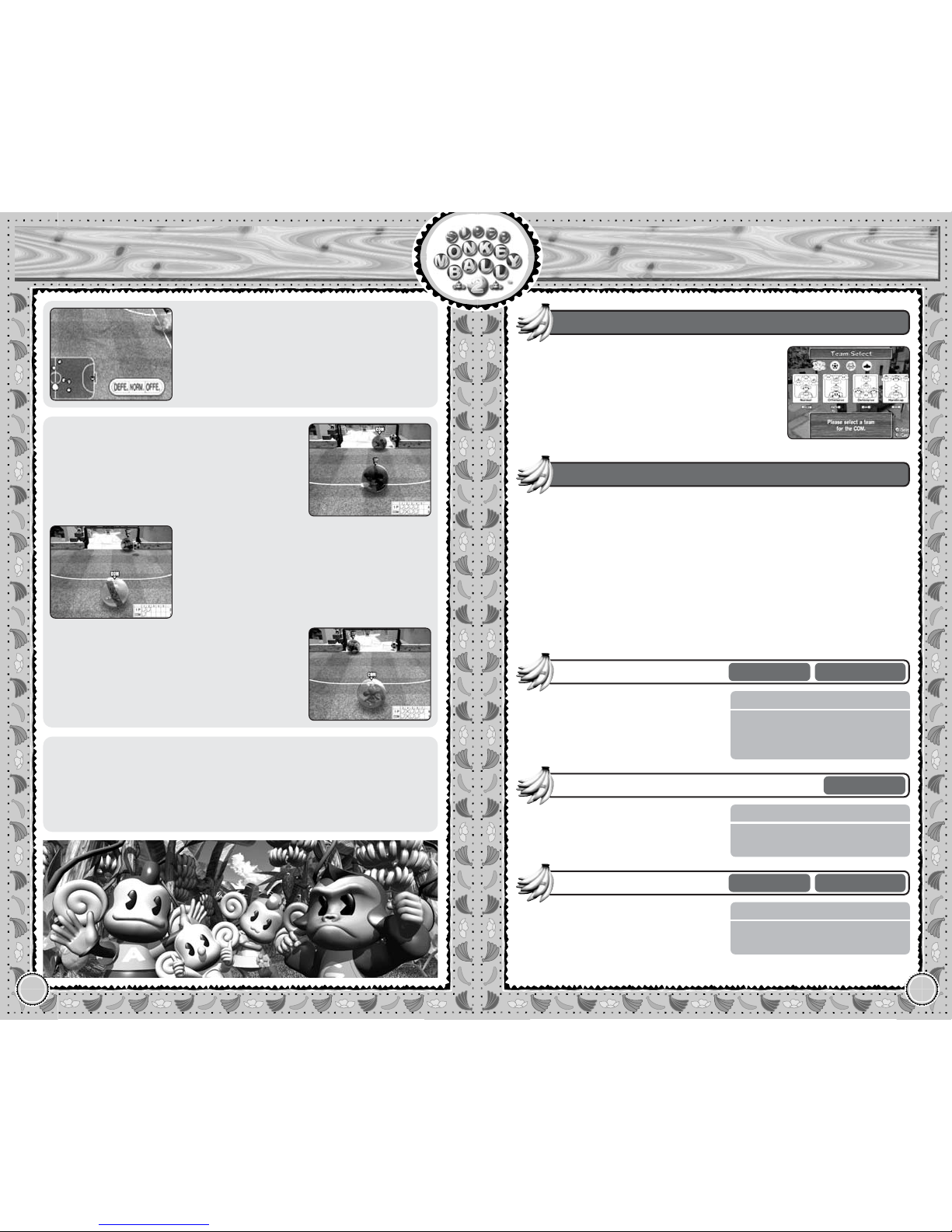
● Penalty Kick Shootout
In Penalty Kick Shootout, you do not need
buttons to shoot. When kicking, first use
the Control Stick to approach the ball. Just
as you touch the ball, select the direction
to kick with the Control Stick.
Penalty Kick Shootout is played in the
best-of-5-rounds style (it is possible to end
in rounds earlier than the 5th round). After
5 rounds, if the winner is not decided, the
Penalty Kick Shootout goes into extra
rounds until the winner is decided.
When you’re guarding the goal, use the
Control Stick 46to move the goalkeeper.
● Changing Strategies
You can order your team to be more offensive or defensive. Press either l or r
Button to change your team strategy.
● Pause Menu
Continue game
Resume the current game.
How to play
Displays the Lesson Screen (p.6).
Exit game
Return to the Party Game
Select Screen.
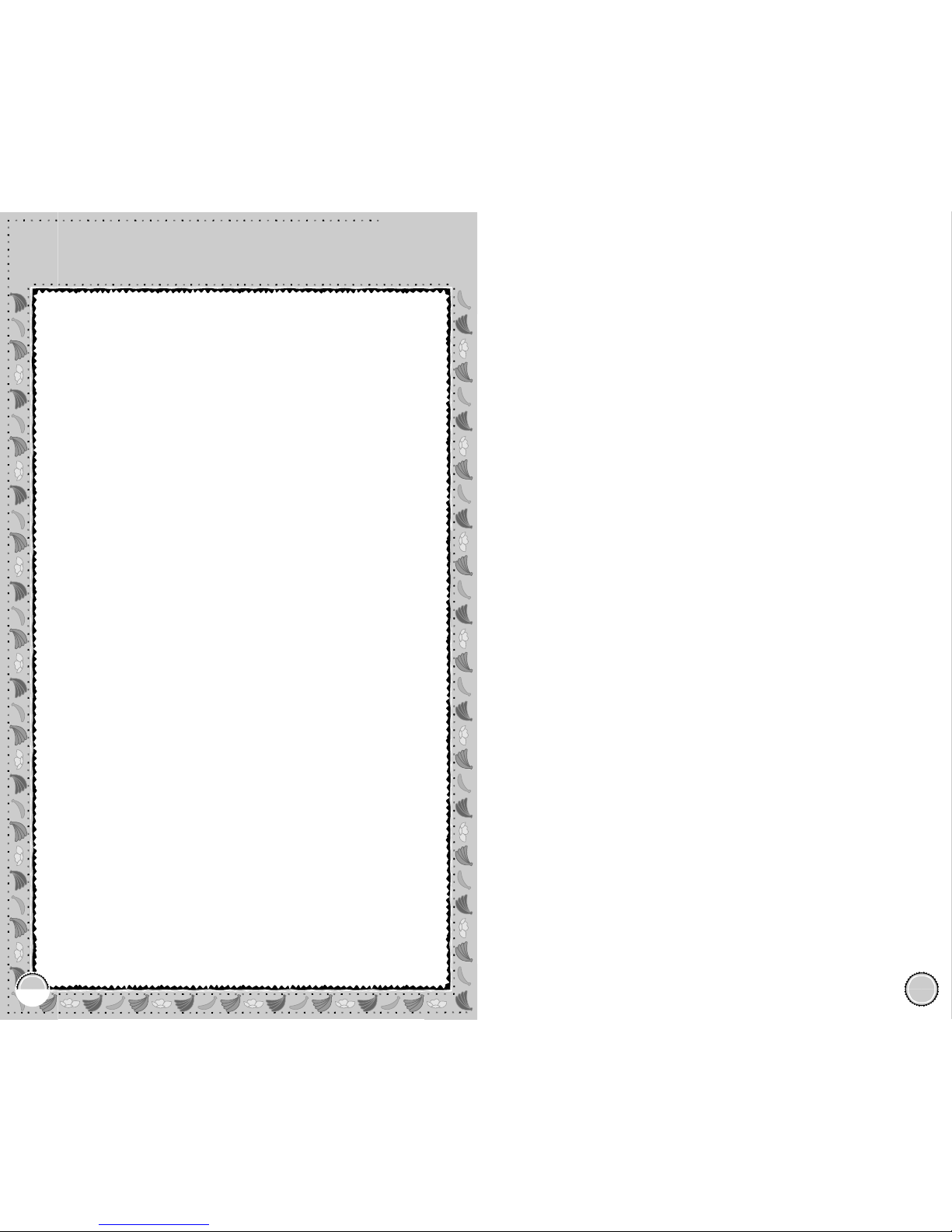
Select from 4 types of teams with different
formations.
Team Select
You can customize the settings for the game. Select Game Start
when you are ready.
Time Limit (2 min/3 min/5 min/10 min/20 min)
Selects the time limit of the game.
PK (ON/OFF)
Enables/disables Penalty Kick Shootout when the score is tied after
the time is up.
Com level (1~5)
Determines the strength level of COM team.
Gameplay Settings
FLOW OF THE GAME
Team Select
Gameplay Settings
Play in a tournament. See how far
you can get!
Tournament Mode
1 Player
FLOW OF THE GAME
Number of Players
Team Select
Gameplay Settings
Play against the COM or another
player in a friendly match.
Exhibition Mode
1~2 Players
Simultaneous
FLOW OF THE GAME
Number of Players
Team Select
Play in a Penalty Kick Shootout
against the COM or another player.
PK Mode
1~2 Players
Simultaneous
Page 26
Page 27
50
Party Game
Monkey Baseball
51
Party Game
Monkey Baseball
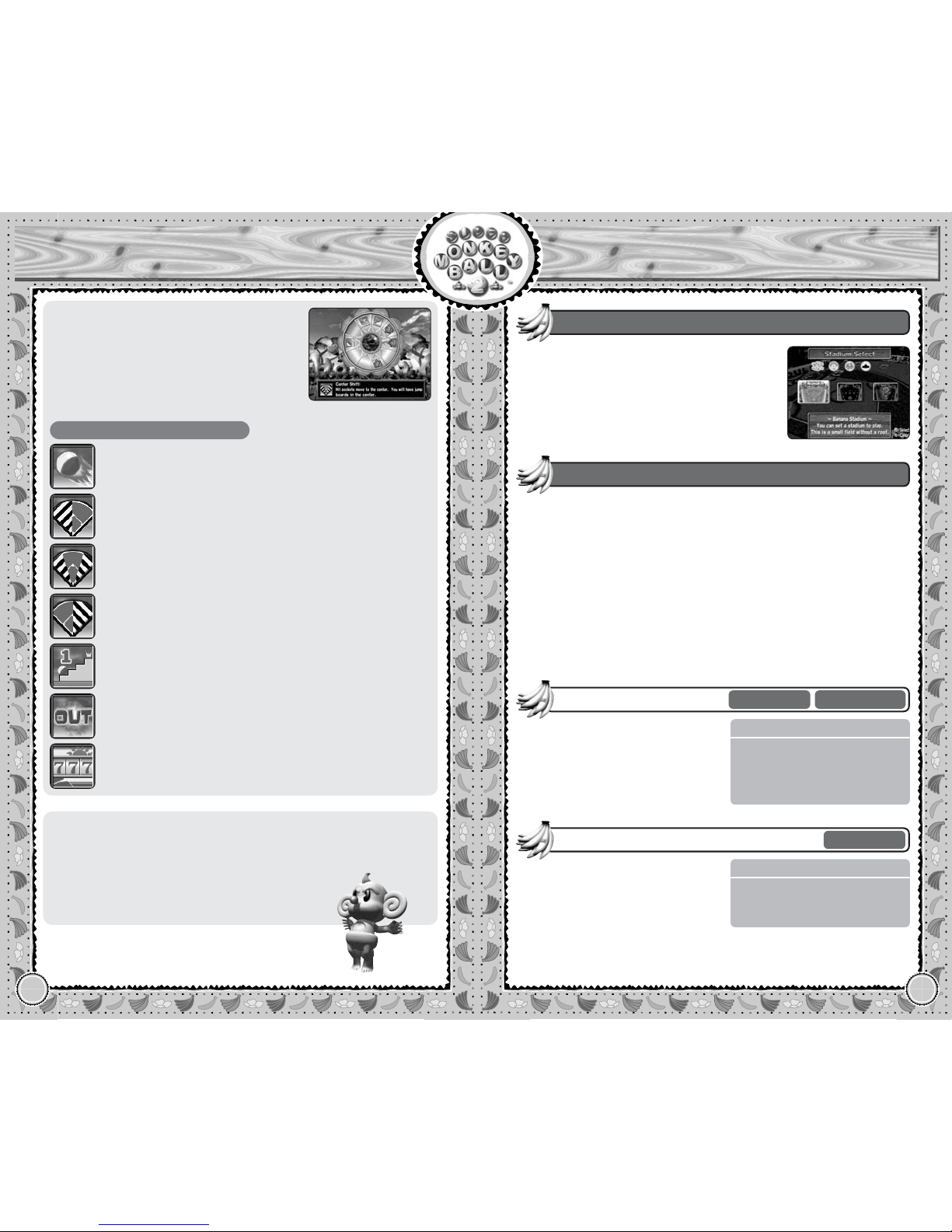
There are two types of stadiums available
in this game. Select either one, or select
Random to have the game choose the
stadium
randomly.
Stadium Select
● Spinning a Wheel
Before each half inning, each player spins
the Wheel to determine the layout of the
pockets and jump boards. Press the a
Button to stop the wheel. If the arrow
stops in a blank space, a basic shift will be
in effect.
Types of Items
Homerun Shift
It’s all or nothing, as all jump boards appear, and all
pockets become Out pockets.
Center Shift
Extra base hit pockets shift towards the center, and all
jump boards appear on the center field.
Left Shift
Extra base hit pockets shift towards the left side, and all
jump boards appear on the left field.
Hit Shift
All pockets become 1BH, but no jump boards appear.
Half Out
Half of the pockets become Out pockets. You will also
have two jump boards.
Lucky Seven
For the seventh inning, all non-symbol outcomes
become lucky zones.
Right Shift
Extra base hit pockets shift towards the right side, and
all jump boards appear on the right field.
You can customize the settings for the game. Select Game Start
when you are ready.
Bat first (1P/COM/RANDOM)
Determines which player bats first.
Number of innings (1~9)
Determines the number of innings to be played in a game.
Com level (1~5)
Determines the strength level of COM team. The selection is not
available when playing with two people.
10-Run Mercy Rule (ON/OFF)
Enables/disables the Mercy Rule.
Gameplay Settings
FLOW OF THE GAME
Team Select
Stadium Select
Gameplay Settings
Play in a tournament. You must win
to advance. Draw or lose, and
you’re out of the tournament. See
how far you can get!
Tournament Mode
1 Player
FLOW OF THE GAME
Number of Players
Team Select
Stadium Select
Gameplay Settings
Play against COM or another player in an exhibition game.
Exhibition Mode
1~2 Players
Simultaneous
● Pause Menu
Continue game
Resume the current game.
How to play
Displays the Lesson Screen (p.6).
Exit game
Return to the Party Game
Select Screen.
Page 28
52
Party Game
Monkey Tennis
53
Party Game
Monkey Tennis
Monkey Tennis
Game Screen
Control Stick Move monkey/determine the direction of the
ball to hit.
a Button Top Spin (fast and high return)/Serve
b Button Slice Spin (slow and low return)/Serve
x Button Lob.
y Button Display score.
Game Controls
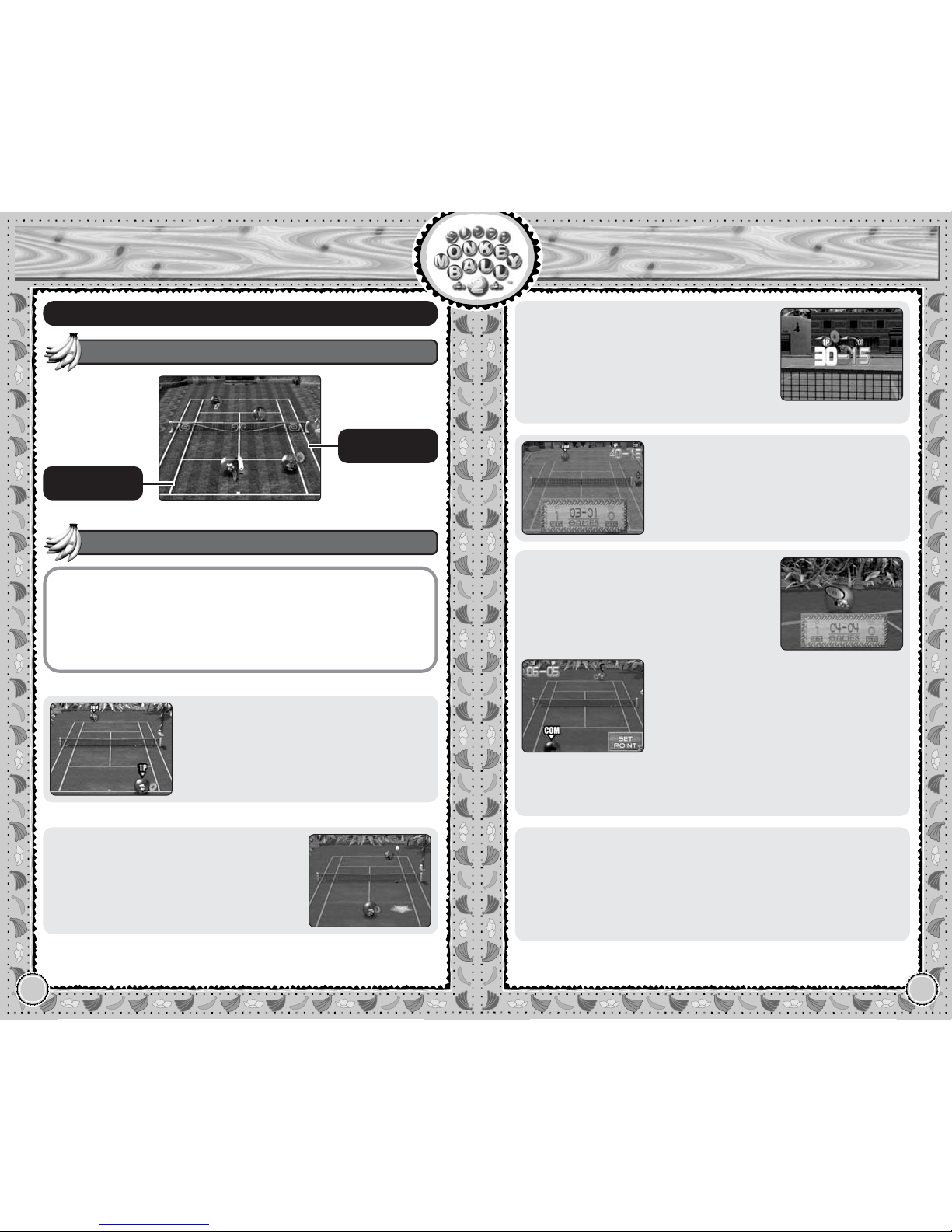
● Smash Mark
At times, there will be a Smash Mark displayed on the ground. Stand on the mark
and hit the ball to make a powerful smash.
● Scoring in Tennis
In Tennis, first three points are named 15,
30, 40 respectively. Unless
the score is tied
at 40, the player who
scores the fourth
point wins the game. If the game is tied at
40 (called deuce), you must take the next
two points to win the game.
● Tennis Rules
The game starts by serving the ball (either
a or b Button). Return the ball to the
opponent’s side of the court. You win a
point if the opponent cannot return the
ball. You lose a point if you hit the ball out.
● Winning a Set
To win a set, you must win the predetermined number of games with at least a
two game difference. If there is only a
one game difference, you must win one
more game.
● Tie Break
If the number of games won is tied at the
predetermined number of games needed to
win the set, the set goes into a Tie Break.
In a Tie Break, the first player who reaches
7 points with at least a two-point difference
wins the set. If the score is still tied at 7,
the Tie Break will continue until one player
takes a two-point advantage to win.
● Pause Menu
Continue game
Resume the current game.
How to play
Displays the Lesson Screen (p.6).
Exit game
Return to the Party Game
Select Screen.
Note: If Tie Break is disabled in Gameplay Settings, the game
will continue with normal rules until one player takes the next
two games.
Sideline for
Singles Match
Sideline for
Doubles Match
Page 29
54
Party Game
Monkey Tennis
55
Options
Options
In Options, you can change various game settings, as well as enjoy
some goodies.
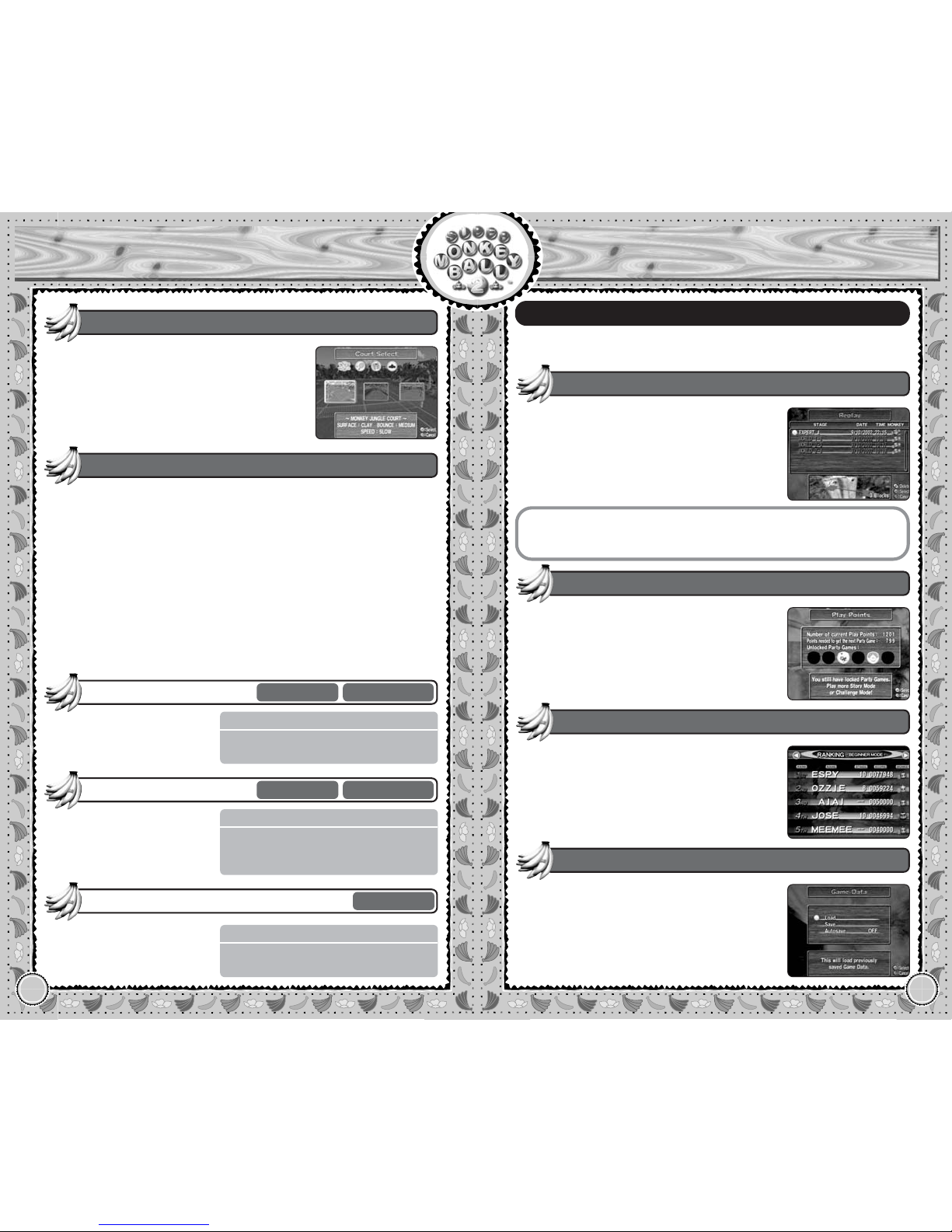
There are three types of courts, with different
characteristics that affect the movement of
the ball.
Court Select
Displays the current Play Points you have
accumulated, the amount you need to unlock
the next Party Game, and the list of Party
Games you have unlocked already.
Play Points
You can view your best records in each mode.
Inside each Ranking screen, use the Control
Stick 46to go through the submodes.
Ranking
Here you can load the previously saved
Game Data from the Memory Card, or save
the current Game Data to it. You can also
enable/disable the Autosave feature.
Game Data
Here you can watch the replays of the Main
Game which are saved onto the Memory Card.
Use the Control Stick 82 to select the replay
data, and press the a Button to play. Press the
x Button to delete the selected data. Press
the b Button to return to the Options Menu.
Replay
You can customize the settings for the game. Select Game Start
when you are ready.
Number of games (2~6)
Determines the number of games needed to win the set.
Number of sets (1/3/5)
Determines the number of sets needed to win the match.
Com level (1~5)
Determines the strength level of COM team. The selection is not
available when playing with two people.
Tie Break (ON/OFF)
Enables/disables the Tie Break.
Gameplay Settings
Play in a Singles Match against
COM or another player.
Singles Mode
1~2 Players
Simultaneous
FLOW OF THE GAME
Number of Players / Character Select
Court Select / Gameplay Settings
FLOW OF THE GAME
Character Select / Court Select
Gameplay Setting
Participate in a tournament
against COM players. How
far can you get?
Tournament Mode
1 Player
Play in a Doubles Match.
Select which player(s) play
against which in the Pair
Select screen.
Doubles Mode
1~4 Players
Simultaneous
FLOW OF THE GAME
Number of Players / Pair Select
Character Select / Court Select
Gameplay Settings
x Button Pause/unpause the replay.
a Button
While paused, press to play one frame at a time.
b Button
Quit replay and return to the Replay Menu Screen.
Page 30
*THIS LIMITED WARRANTY IS VALID FOR U.S. AND CANADIAN
NINTENDO GAMECUBE ™ MANUFACTURED FOR SALE IN AND PURCHASED
AND OPERATED IN THE UNITED STATES AND CANADA, ONLY!
Limited Warranty
Sega of America, Inc. warrants to the original consumer purchaser that the Nintendo
GameCube Game Disc shall be free from defects in material and workmanship for a period
of 90-days from the date of purchase. If a defect covered by this limited warranty occurs
during this 90-day warranty period, the defective Nintendo GameCube™ Game Disc or
component will be replaced free of charge. This limited warranty does not apply if the
defects have been caused by negligence, accident, unreasonable use, modification,
tampering or any other causes not related to defective materials or workmanship. Please
retain the original or a photocopy of your dated sales receipt to establish the date of
purchase for in-warranty replacement. For replacement, return the Game Disc, with its
original packaging and receipt, to the retailer from which the software was originally
purchased. In the event that you cannot obtain a replacement from the retailer, please
contact Sega to obtain support.
Obtaining technical support/service
To receive additional support, including troubleshooting assistance, please
contact Sega at:
* web site . . . . . . . . . . . http://www.sega.com
* e-mail . . . . . . . . . . . . . [email protected]
* telephone . . . . . . . . . 1-716-650-6701
LIMITATIONS ON WARRANTY
ANY APPLICABLE IMPLIED WARRANTIES, INCLUDING WARRANTIES OF
MERCHANTABILITY AND FITNESS FOR A PARTICULAR PURPOSE, ARE HEREBY LIMITED TO
90-DAYS FROM THE DATE OF PURCHASE AND ARE SUBJECT TO THE CONDITIONS SET
FORTH HEREIN. IN NO EVENT SHALL SEGA OF AMERICA, DREAMCAST INC., BE LIABLE
FOR CONSEQUENTIAL OR INCIDENTAL DAMAGES RESULTING FROM THE BREACH OF ANY
EXPRESS OR IMPLIED WARRANTIES. THE PROVISIONS OF THIS LIMITED WARRANTY ARE
VALID IN THE UNITED STATES ONLY. SOME STATES DO NOT ALLOW LIMITATIONS ON HOW
LONG AN IMPLIED WARRANTY LASTS, OR EXCLUSION OF CONSEQUENTIAL OR
INCIDENTAL DAMAGES, SO THE ABOVE LIMITATION OR EXCLUSION MAY NOT APPLY TO
YOU. THIS WARRANTY PROVIDES YOU WITH SPECIFIC LEGAL RIGHTS. YOU MAY HAVE
OTHER RIGHTS WHICH VARY FROM STATE TO STATE.
Sega is registered in the U.S. Patent and Trademark Office. Sega, Sega logo, and Super
Monkey Ball are registered trademarks or trademarks of Sega Corporation or its affiliates.
© AMUSEMENT VISION/SEGA, 2001, 2002. All Rights Reserved. DOLE® and DOLE & Sun
Design® are registered trademarks of Dole Food Company, Inc. This game is licensed for
use with The Nintendo GameCube System only. Copying and/or transmission of this game is
strictly prohibited. Unauthorized rental or public performance of this game is a violation of
applicable laws. SEGA of America, Inc., 650 Townsend Street, Suite 650, San Francisco, CA
94103. All Rights Reserved. www.sega.com. Programmed in Japan. Made and printed in the
USA. Dolby and the double-D symbol are trademarks of Dolby Laboratories.
56
Options
57
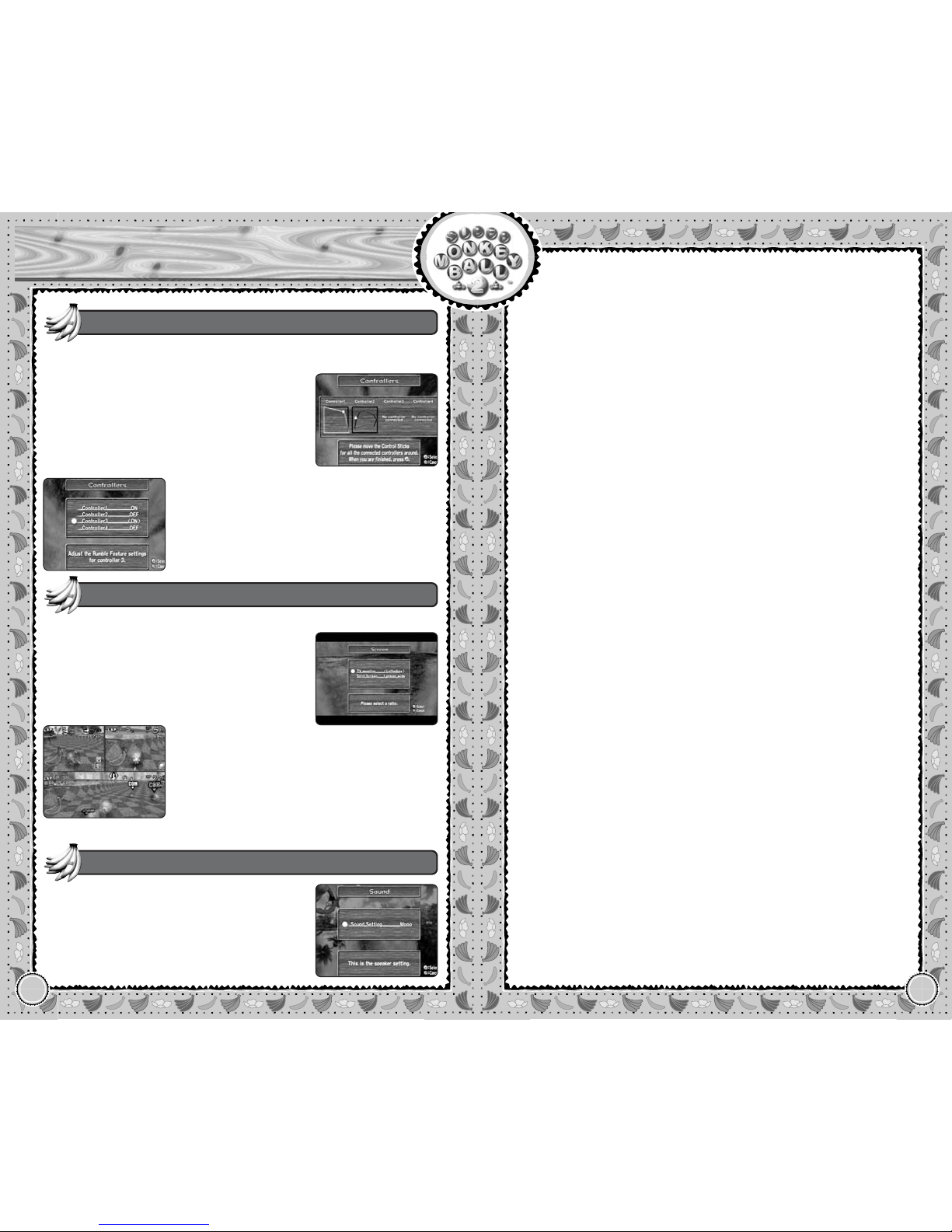
● Control Stick adjustment
Adjusts the Control Stick positions. For all
connected Controllers, move the Control
Stick around. This will determine the Control
Stick value at all eight corners, and adjusts
accordingly for you to play normally.
Here you can either adjust the Control Stick or enable/disable the
Rumble Feature for all connected Controllers.
Controller
Here you can adjust how the game is displayed on your TV set.
Game Screen
● Rumble Feature
You can enable or disable the Rumble
Feature separately for all 4 Controllers.
Select the Controller and press the a Button.
Then select either ON or OFF, and press the
a Button again.
● TV monitor
You can select the horizontal/vertical ratio of
the screen to be displayed on your TV monitor
(4:3 Normal/16:9 Wide/Letterbox).
● Split Screen
On some multiplayer games with simultaneous
play, the screen will be divided into four
areas for 3 or 4 players (two areas for 2 players). With 3-player game, you can either
choose to have one wide area for a selected
player, or have Live Action Camera displayed
on vacant space.
Here you can change the sound output of
the game between Stereo and Monaural.
Sound
Page 31

MANUAL COVER (BACK)
 Loading...