

Page 1
MANUAL COVER (FRONT)
99555 Aslan (DX GC Manual ) 5/13/03 4:06 PM Page 1
Page 2
IMPORTANT SAFETY INFORMATION: READ THE FOLLOWING
WARNINGS BEFORE YOU OR YOUR CHILD PLAY VIDEO GAMES
Playing video games can make your muscles, joints or skin hurt after a few hours.
Follow these instructions to avoid problems such as Tendinitis, Carpal Tunnel
Syndrome or skin irritation:
Take a 10 to 15 minute break every hour, even if you don't think you need it.
If your hands, wrists or arms become tired or sore while playing, stop and rest
them for several hours before playing again.
If you continue to have sore hands, wrists or arms during or after play, stop
playing and see a doctor.
WARNING - Repetitive Motion Injuries
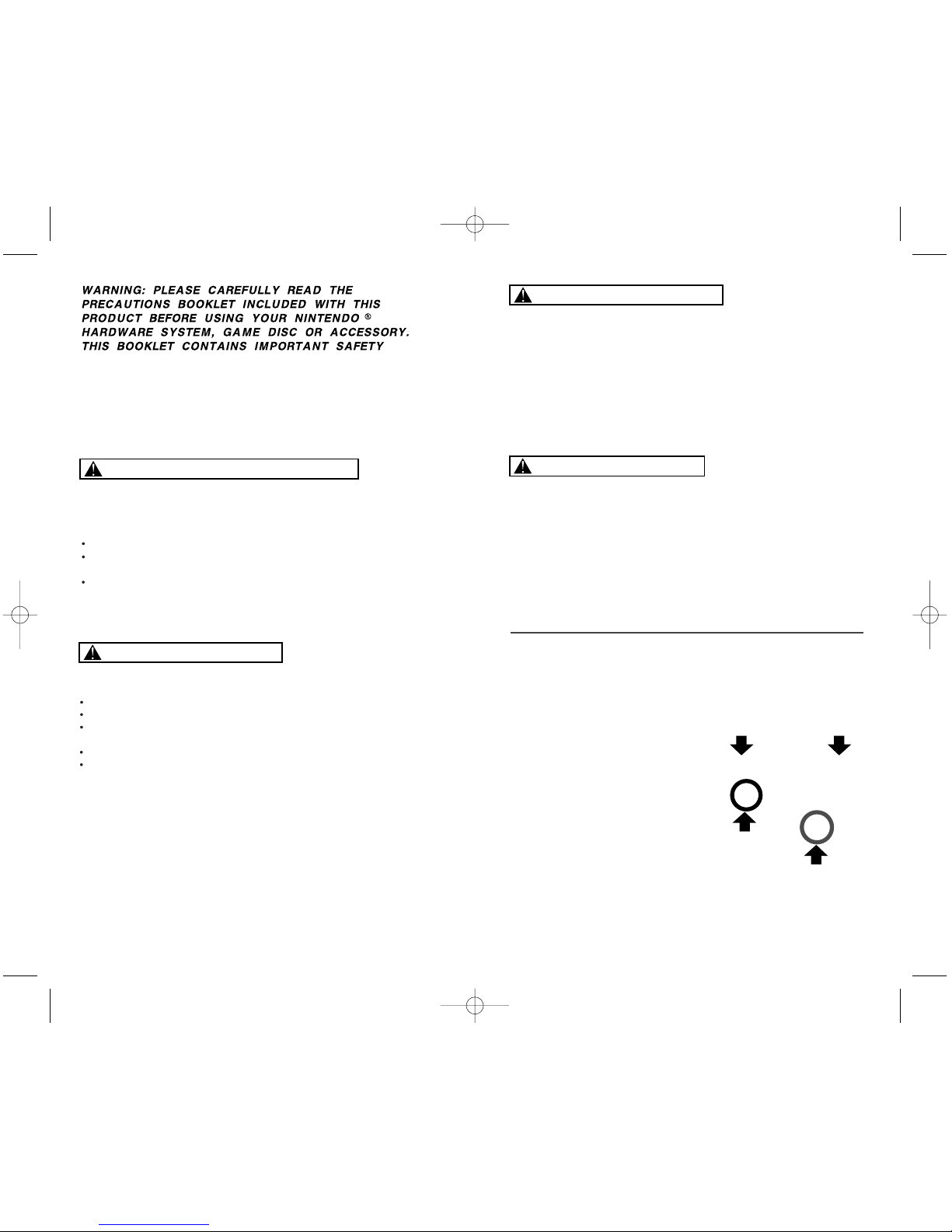
CONTROLLER NEUTRAL POSITION RESET
If the L or R Buttons are pressed or the Control Stick or C Stick are moved out of
neutral position when the power is turned ON, those positions will be set as the
neutral position, causing incorrect game control during game play.
To reset the controller, release all buttons
and sticks to allow them to return to the
correct neutral position, then hold down the
X, Y and START/PAUSE Buttons
simultaneously for 3 seconds.
Playing video games can cause motion sickness. If you or your child feel dizzy or
nauseous when playing video games with this system, stop playing and rest. Do
not drive or engage in other demanding activity until you feel better.
CAUTION - Motion Sickness
The Nintendo GameCube is a Class 1 laser product. Do not attempt to
disassemble the Nintendo GameCube. Refer servicing to qualified personnel only.
Caution - Use of controls or adjustments or procedures other than those specified
herein may result in hazardous radiation exposure.
CAUTION - Laser Device
L Button R Button
C Stick
Control
Stick
To avoid electric shock when you use this system:
Use only the AC adapter that comes with your system.
Do not use the AC adapter if it has damaged, split or broken cords or wires.
Make sure that the AC adapter cord is fully inserted into the wall outlet or
extension cord.
Always carefully disconnect all plugs by pulling on the plug and not on the cord.
Make sure the Nintendo GameCube power switch is turned OFF before removing
the AC adapter cord from an outlet.
WARNING - Electric Shock
99555 Aslan (DX GC Manual ) 5/13/03 4:06 PM Page 2
Page 3
3
Thank you for purchasing SONIC ADVENTURE DX-Director’s Cut™.
Please note that this software is designed only for use with the Nintendo
GameCube™. Be sure to read this instruction booklet thoroughly before
you start playing.
THIS PRODUCT HAS BEEN RATED BY THE
ENTERTAINMENT SOFTWARE RATING BOARD. FOR
INFORMATION ABOUT THE ESRB RATING, OR TO
COMMENT ABOUT THE APPROPRIATENESS OF THE
RATING, PLEASE CONTACT THE ESRB AT
1-800-771-3772, OR VISIT WWW.ESRB.ORG.
NINTENDO, NINTENDO GAMECUBE AND THE OFFICIAL SEAL ARE TRADEMARKS OF NINTENDO.
© 2001 NINTENDO. ALL RIGHTS RESERVED.
LICENSED BY
THIS GAME REQUIRES A
MEMORY CARD FOR SAVING
GAME PROGRESS, SETTINGS
OR STATISTICS.
THIS GAME IS COMPATIBLE
WITH THE GAME BOY
ADVANCE PORTABLE VIDEO
GAME SYSTEM.
THIS GAME IS COMPATIBLE
WITH PROGRESSIVE SCAN
TV'S.
All Nintendo products are licensed by sale for use only with other authorized
products bearing the Official Nintendo Seal of Quality.
®
THIS GAME SUPPORTS
GAME PLAY USING ONE
PLAYER AND CONTROLLER.
1 Player
Memory
Card
Game Boy
Advance compatible
Progressive Scan
compatible
CONTENTS
■ SETTING UP . . . . . . . . . . . . . . . . . 4
■ CHARACTER . . . . . . . . . . . . . . . . 5
■ BASIC CONTROLS . . . . . . . . . . . .12
✪
CONTROLS unique to each character
.14
■ STARTING A GAME . . . . . . . . . . .21
■ ADVENTURE MODE . . . . . . . . . .24
■ TRIAL MODE . . . . . . . . . . . . . . . .31
■ MISSION MODE . . . . . . . . . . . . . .32
■ MINI-GAME COLLECTION . . . . .33
■ CHAO . . . . . . . . . . . . . . . . . . . . . .34
✪ DOWNLOADING MINI-GAME .36
✪ MINI-GAME . . . . . . . . . . . . . . . .38
✪ CHAO RACE . . . . . . . . . . . . . . . .40
✪ CHAO TRANSPORTER . . . . . . . .44
■ CREDITS . . . . . . . . . . . . . . . . . . . .
99555 Aslan (DX GC Manual ) 5/13/03 4:06 PM Page 2
Page 4
54
SONIC ADVENTURE DX-Director’s Cut™ is a one player game.
Connect the Nintendo GameCube™ Controller to the Nintendo
GameCube™ Controller Socket 1.
HARDWARE SETUP
SONIC ADVENTURE DX-Director’s Cut™ is a Nintendo GameCube™
Memory Card compatible game (Nintendo GameCube™ Memory Card
sold separately). Although the game recognizes the Memory Card in
either of the two Memory Card Slots, it is recommended that you insert
the Memory Card into Memory Card Slot A. 1 block is needed to save
a game file.
When you start the game, the game will automatically look for the
game file. If the Memory Card does not contain a game file, the game
will ask you to create a game file. If there are no Memory Cards
inserted, the game will warn you and ask if you would like to Retry
(insert the Memory Card first) or Continue without saving. Follow the
on-screen instruction to start the game.
The game will automatically save game data during the game, and a
message will be displayed to notify that such action is taking place.
Never turn OFF the Nintendo GameCube™ power or remove the
Memory Card while the game data is being saved or loaded.
SAVE FILES
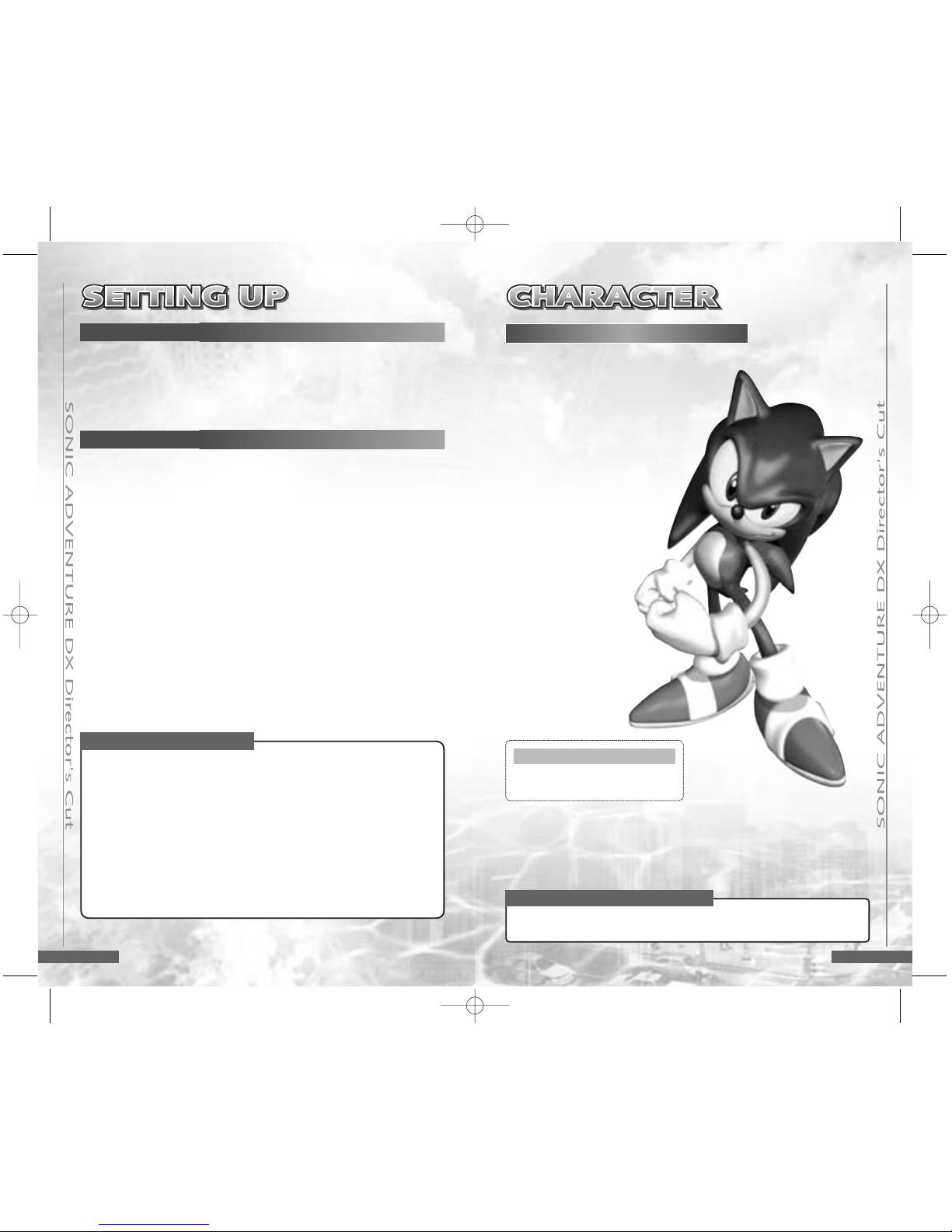
SONIC THE HEDGEHOG
He’s the world’s fastest, hypersonic hedgehog!
With a strong love of freedom, the only
thing Sonic hates is oppression. Despite
his short temper, deep down he’s a really
nice guy who is 100% committed to
helping those in trouble whenever and
wherever he can.
Sonic’s adventure begins just as
he is returning home from a long
journey…
▼ Jump on the switch atop the
capsule located at the end of
the course
to liberate the enslaved
animals and clear the stage.
NOTE: In some scenarios, an object
other than a capsule may be the
goal.
Destroy the capsule to rescue
the animals trapped inside.
ACTION STAGE GOAL
There are several possible shortcuts in
each stage so be sure to
explore various
routes along the way.
TIPS
Using Progressive Scan TV
This game can be set to display a higher resolution image on TV’s
that support progressive scan mode.
In order to use the progressive scan mode, you need a TV that can
accept this type of input (see your TV operation manual), and a
Nintendo GameCube component video cable (available only through
Nintendo, visit www. nintendo.com or call 1-800-255-3700).
To activate the progressive scan mode, press and hold the B Button
while the Nintendo GameCube logo is being displayed until the message “Do you want to display the game in progressive scan mode?”
appears. Select yes to activate the mode.
99555 Aslan (DX GC Manual ) 5/13/03 4:06 PM Page 4
Page 5
76
▼
In some scenarios, an object other
than a capsule may be the goal.
The most important thing is to beat Sonic so take full advantage of
Tails’ unique “propeller” action to find the short cuts that will enable
him to reach the capsule faster.
TIPS
To find and destroy the capsule
ahead of Sonic.
ACTION STAGE GOAL
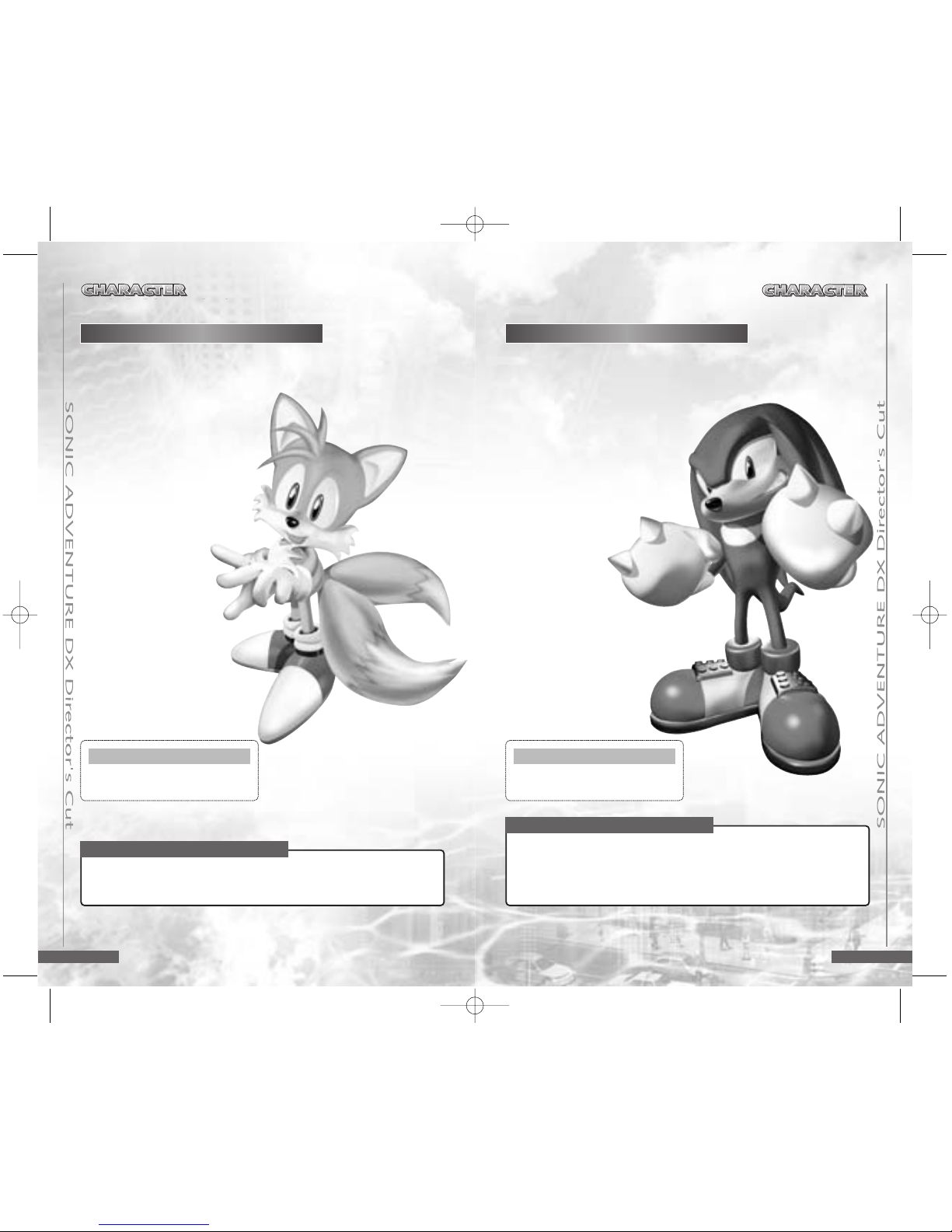
This sweet-natured fox is a natural born
mechanic with the unique ability to
fly high
in the sky using his two special tails.
A long time friend and admirer of
Sonic,
Tails devoted himself to
tinkering in his workshop while
Sonic was away on his
journey.
Tails’ adventure begins one day
when, in the midst of performing
a flight
test with his latest aircraft
invention, he suddenly began to
experience engine
trouble and…
Use Knuckles’ special emerald radar to locate the fragments. The
radar indicator changes from blue to green to yellow to red and
its
tempo speeds up, the closer he is to
a fragment. Also, not all the
Emerald
fragments are “visible.” Sometimes they
are buried under-
ground or hidden inside
enemies, so be sure to hunt around.
TIPS
To collect three of the fragments
of the Master Emerald.
ACTION STAGE GOAL
Knuckles is one wild and powerful spiny echidna. Although blessed
with an honest, straight-up personality, he often lacks flexibility. With
his powerful arms, he can glide through the air to
attack and land some
serious punches.
Guardian of the Master Emerald for
as long as he can remember, one
seemingly normal day his world is
shattered and his adventure
begins…
MILES “TAILS” PROWER KNUCKLES THE ECHIDNA
99555 Aslan (DX GC Manual ) 5/13/03 4:06 PM Page 6
Page 6

98
It is important that Amy and her bird
companion escape together. If
necessary,
use drum cans or other such shelter to
hide. ZERO can’t be
destroyed but he
can be knocked over temporarily a
limited number of
times. If attacked too often, he becomes invincible so don’t overdo it.
TIPS
Find and grab hold of the balloon
while avoiding capture by the evil
robot ZERO.
ACTION STAGE GOAL
Always bright and cheerful, Amy is the selfappointed girlfriend of Sonic. Possessing a
strong competitive streak, she is second to
none when in control of her Piko Piko
Hammer.
With many fond memories of her Sonicchasing days, she’s thrilled when their
two worlds collide again with the sudden
appearance of a huge spaceship one fine
day...
AMY ROSE
▼Fish of various species and sizes
live in the many fishing spots found
throughout the adventure field so try your hand at catching other fish
while searching for Froggy.
In order to catch a fish (or Froggy) you must first “hook” your prey. To
do this, once the fish (or frog) bites the lure, press 2 on the Control
Stick to hook (secure) the lure and then reel it in.
TIPS
To fish for and catch Big’s pal
Froggy.
ACTION STAGE GOAL
This giant cat is one laid-back and easy going fellow who loves to fish
and is never without his favorite rod and lure.
Big leads a tranquil life, together with his buddy “Froggy,” in a hut in a
serene part of the jungle.
Until one day when suddenly Froggy underwent an
unusual transformation…
BIG THE CAT
99555 Aslan (DX GC Manual ) 5/13/03 4:06 PM Page 8
Page 7
1110
ENEMIES
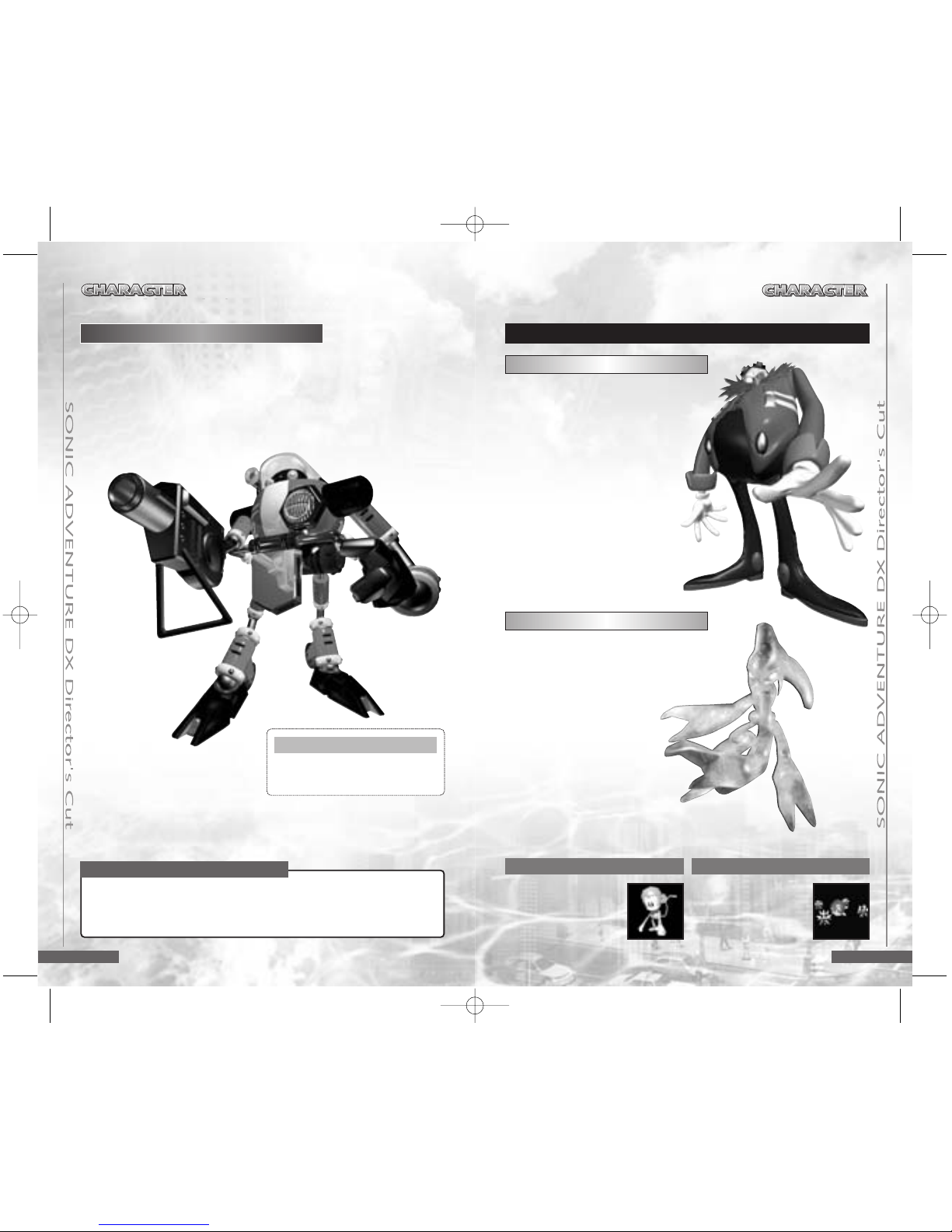
DR. ROBOTNIK
Ye s, just as we all feared, the mad
scientist is back and more ruthless
than ever before. In the past, Sonic
and friends have managed to ruin all
his evil plans, but are those days
over?! A
new battle has begun and
this time, Dr. Robotnik (“Eggman”
to Sonic and his pals
) has at long
last figured out how to harness
the
massive ancient powers of the 7
Chaos Emeralds to destroy
the
world!
Be sure to destroy enough enemies along the way to save enough
time to destroy the final target.
You can increase the allotted time by destroying enemies; however,
killing each enemy one at a time uses more
time than can be gained.
Instead, “lock-on” to multiple enemies and blast them
all away at once
to earn bonus time.
TIPS
To seek and destroy the target
located at the end of each course
within the allotted time.
ACTION STAGE GOAL
Created by the evil Dr. Robotnik, E-102
Gamma is an E-100 series
gunner robot.
Shortly after his “birth,” Gamma must
pass a test that will
enable him to join an elite unit of robots. His destiny then takes a
drastic turn when he meets a certain frog with an unusual tail…
CHAOS
This mysterious liquefied
life-form that had been
trapped in the Master
Emerald was released by
Dr. Robotnik to do his evil
bidding. Chaos grows
bigger
and more powerful
with each emerald that
Dr. Robotnik adds to him.
What will happen to the
world if Dr. Robotnik
manages to add all seven
Chaos Emeralds…?
E-102 GAMMA
SPIKY SPINNER
Armed with swinging
balls and chains, this
free-floating robot can
attack from a distance.
KIKI
Keep an eye out for this
bomb
throwing robotic
monkey, who
can attack
using two types of
bombs.
99555 Aslan (DX GC Manual ) 5/13/03 4:06 PM Page 10
Page 8
1312
BASIC CONTROLS
GAME START
START/PAUSE
ITEM SELECTION
Select with Control Stick
Enter/Continue to the Next Screen with
the A Button
CANCEL/RETURN TO THE PREVIOUS
SCREEN
B Button / X Button
▼ For details on performing actions unique to each individual
character,
see p.14 - p.20.
ACTIONS COMMON TO ALL CHARACTERS
“SONIC ADVENTURE DX-Director’s Cut™“ is a one player game.
Connect the Nintendo GameCube™ Controller to Controller Socket 1.
✽A maximum of four players can participate in the Chao Race. See p.40
for the controls during the Chao Race.
✽To soft reset the Nintendo GameCube™ and return to the Title Screen
during gameplay, simultaneously press and hold the B Button, X Button,
and START/PAUSE.
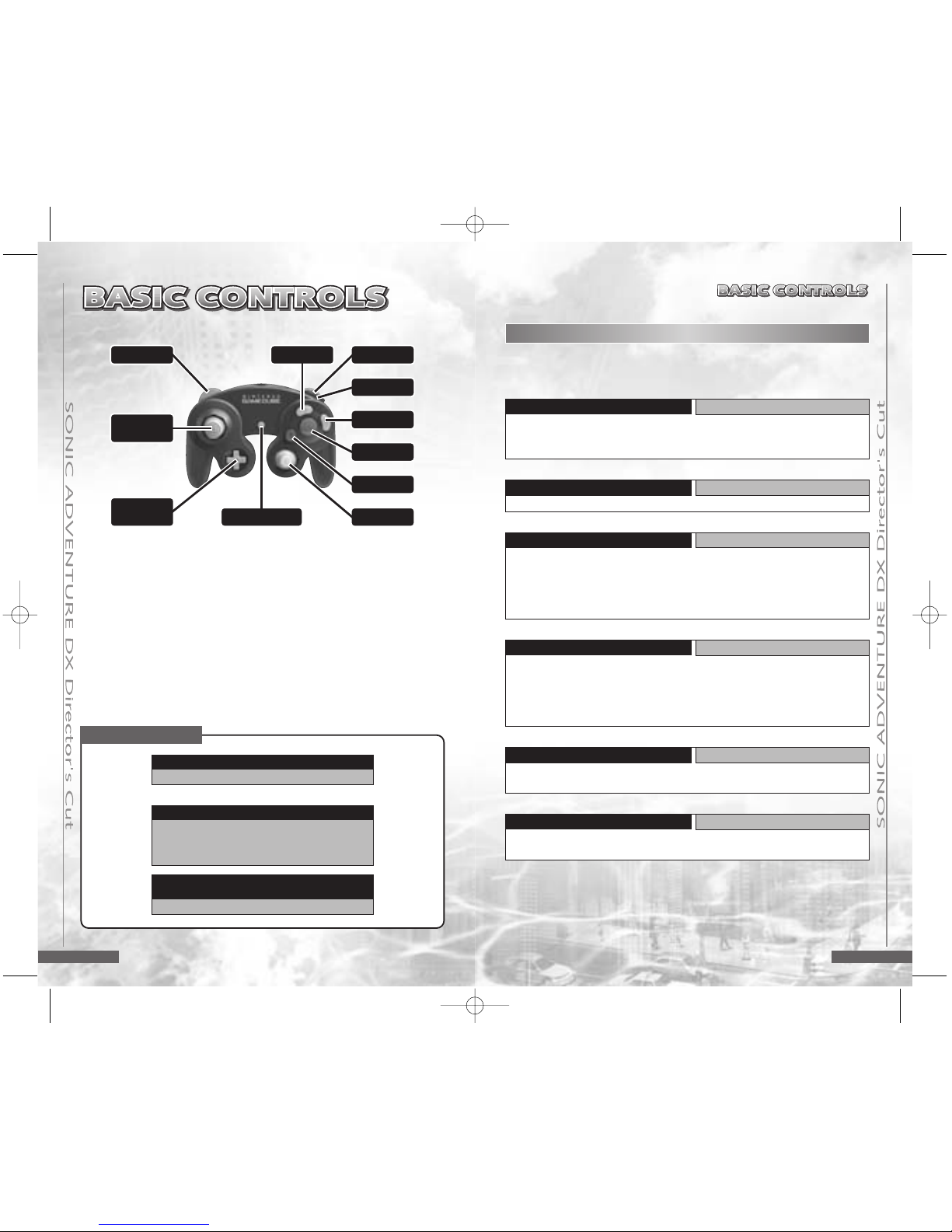
B BUTTON R BUTTON
Z BUTTON
X BUTTON
A BUTTON
B BUTTON
C STICK
CONTROL
STICK
+CONTROL
PAD
START/PAUSE
Y BUTTON
WALK AND RUN
Control Stick
To walk, press the Control Stick lightly in the direction you wish to
walk. Continue pressing in the same direction to run. To reduce
speed quickly, press in a different direction.
SHAKING OR WAVING ITEMS
B or X Button and Control Stick
Use this action to “shake” items or objects that cannot be moved. Also use
this action to “wave” items or to “cuddle” your Chao.
THROWING OR SETTING ITEMS DOWN
B
or XButton
To throw an item, press the B or X Button while moving.To set items down,
press the B or X Button while stopped.
PANNING THE CAMERA
L/ R Button
Use the L / R Button to pan the camera in a full 360º rotation. If the
setting is set to AutoCamera, you cannot pan the camera.
NOTE: In some situations, such as when your character is near a
wall or in an enclosed area, panning may not be possible.
CARRYING ITEMS
B or X Button
To pick up items such as bombs or eggs, stand in front of the item and
press the B or X Button. Actions that are common to all characters (e.g.,
walking, running, etc.) can be made while carrying an item. However,
actions that are unique to each character (e.g., Sonic’s Spin Dash, Tails'
Flying, etc.) cannot be performed while carrying an item.
JUMP
A Button
Jump height varies with each character.
99555 Aslan (DX GC Manual ) 5/13/03 4:06 PM Page 12
Page 9
1514
THE ANCIENT
LIGHT
▼ For a description of the actions common to all the characters, see p.13.
ACTION STAGE DISPLAY
1 Elapsed Time
2 Number of Collected Rings
3 Remaining Lives
4 Rescued Animals
SPIN ATTACK
B Button
Position Sonic near an enemy and jump so that as he lands, he
strikes the enemy with a furious spin attack in mid-jump.
HOMING ATTACK
A Button in Mid-jump
Use this attack to have Sonic automatically zero in and strike any
nearby enemies. If no enemies are within range, use this move to
have Sonic perform a “Jump Dash.”
SPIN DASH
BorX Button
Whether stopped or on the move, press and hold the B Button or
X Button to start Sonic spinning in place. When you release the
button, he will dash off in a burst of supersonic speed. Use the
Control Stick both to aim and steer. Just watch him go!
SONIC'S UNIQUE ACTIONS
HOLD
Hold the B or X Button
After obtaining “Light Speed Shoes,” Sonic’s spin becomes more
advanced. Now, when you press and hold the B or X Button, a
number of small blue lights will appear and wrap themselves
around Sonic until he glows with a neon blue light. In this special
state, Sonic can perform the following actions:
HOW LEVEL UP ITEMS AFFECT SONIC
LIGHT SPEED ATTACK
Release the B or X Button
Seek and obtain the “Ancient Light” to enable Sonic
to destroy all enemies within range using this most
powerful homing attack.
LIGHT SPEED
SHOES
LIGHT SPEED DASH
Release the B or X Button
As long as there are no enemies within striking range,
you can perform this unique action to send Sonic soaring up a pathway of lit rings suspended in mid-air.
1
2
43
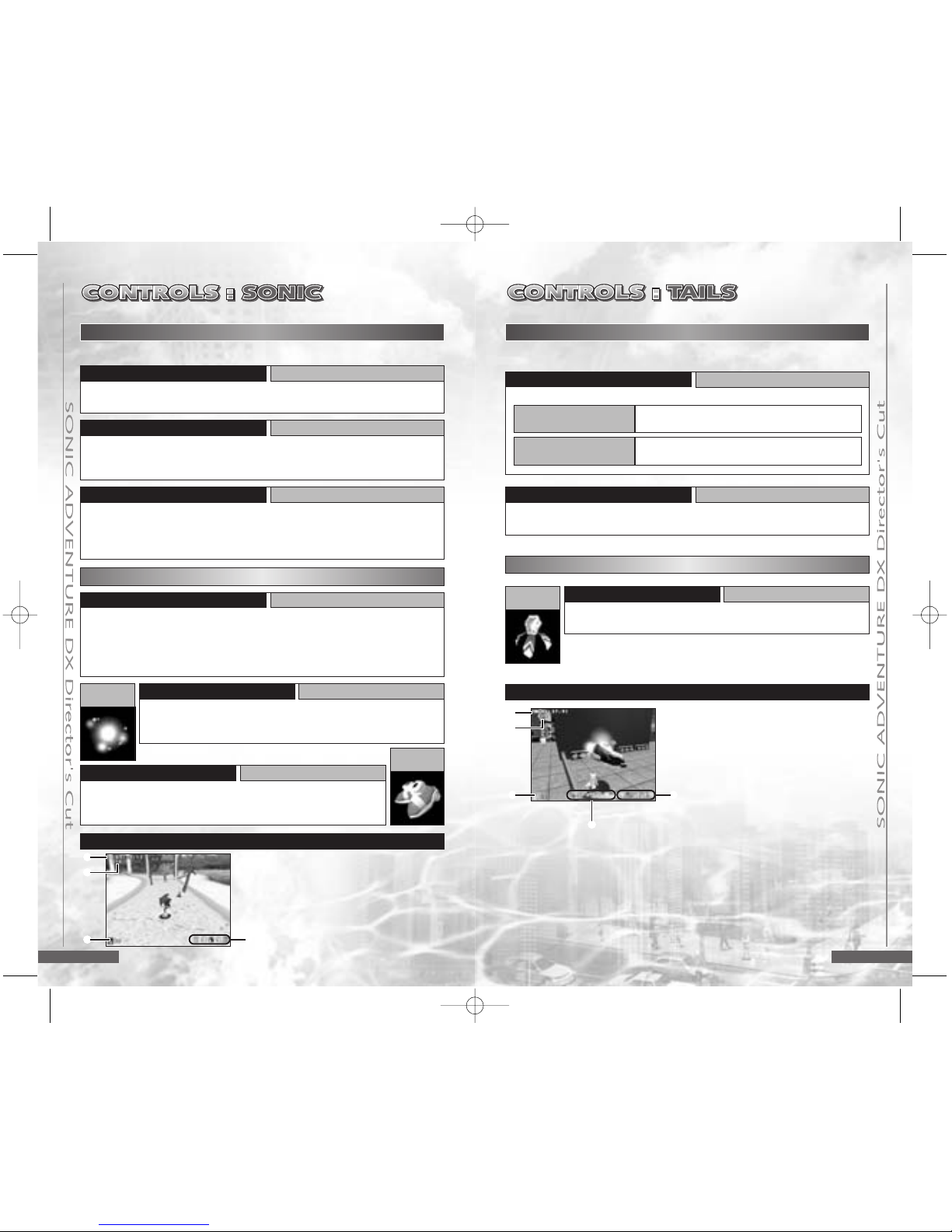
ACTION STAGE DISPLAY
1 Elapsed Time
2 Number of Collected Rings
3 Remaining Lives
4 This gauge shows the positions of
both Sonic, Dr. Robotnik and Tails
relative to their progress on the
course. The left side represents the
starting point and the right, the
finish line.
5 Rescued Animals
4
RHYTHM
BADGE
▼ For a description of the actions common to all the characters, see p.13.
PROPELLER FLIGHT
Pressing the A Button in Mid-Jump
▼ Propeller Flight Maneuvers
TAILS ATTACK
B or X Button
Press the B or X Button while stopped or when walking to have
Tails attack any nearby enemies with a 360º spin.
TAILS' UNIQUE ACTIONS
HOW LEVEL UP ITEMS AFFECT TAILS
RAPID TAILS ATTACK
Press and Hold the B or X Button
Seek and obtain the Rhythm Badge to execute this
powerful continuous attack.
Pressing and Holding
the A Button
Increase upward altitude.
BorXButton
Sudden drop in altitude (Not pressing anything
will cause a similar effect due to gravity.)
1
2
5
3
99555 Aslan (DX GC Manual ) 5/13/03 4:07 PM Page 14
Page 10

1716
ACTION STAGE DISPLAY
1 Elapsed Time
2 Number of Collected Rings
3 Remaining Lives
4 Emerald Radar – The color of and
speed at which these indicators
flash depend on Knuckles proximity to the Emerald fragments.
5 Number of Collected Emerald
Fragments – Displayed as each
fragment is collected.
6 Rescued Animals
SHOVEL CLAW
▼ For a description of the actions common to all the characters, see p.13.
GLIDING JUMP
Pressing and Holding the A Button
in Mid-jump
Use the Control Stick to maneuver Knuckles during a gliding jump.
Attack using the gliding jump by hitting enemies with Knuckles’ fists.
(Hitting with any other body part will cause Knuckles to take damage.) Release the A Button to cause Knuckles to drop. (It is possible to revive the glide by pressing and holding the A Button again.)
DIGGING
Pressing the B or X Button,
and A Button Simultaneously
Position Knuckles on a grassy or dir t area and press the
B or X Button and the A Button simultaneously. He will
dig down a bit and then resurface, uncovering any
available buried items.
KNUCKLES' UNIQUE ACTIONS
HOW LEVEL UP ITEMS AFFECT KNUCKLES
CLIMBING
Grab the Wall in Mid-gliding Jump
Knuckles will automatically begin to climb once he grasps a wall
during a gliding jump. To do
this, execute a glide jump and aim him
at the wall you wish to climb. After he has grabbed the wall, use the
Control Stick to maneuver him and press the A Button to jump.
PUNCH ATTACK
B or X Button
Press the B or X to execute a punch. Execute two punches in rapid
succession to have Knuckles perform a third, more powerful “dash
punch.”
▼ For a description of the actions common to all the characters, see p.13.
AMY'S UNIQUE ACTIONS
HAMMER ATTACK
B or X Button
Press the B or X Button while walking or when stopped to have
Amy attack and destroy enemies with her Piko Piko Hammer. Note
that even though she can attack and temporarily over turn ZERO,
he cannot be destroyed. Furthermore, he can only be overturned a
limited number of times.
HAMMER JUMP
Press the B or X Button while running
Press the B or X Button while running to have Amy swing the hammer, strike the ground and catapult her high in the air. Note that Amy
must be in a full run in order for this jump to work so wait until her
hammer appears before pressing the B or X Button. This special
jump can be used to reach heights higher than her normal jump.
JUMP ATTACK
Press the B or X Button in Mid-jump
Press the B or X Button in mid-jump to have Amy swing her hammer
and attack enemies in mid-air.
WARRIOR
FEATHER
HOW LEVEL UP ITEMS AFFECT AMY
SPIN HAMMER ATTACK
Bor X Button and Control Stick
Press and hold the B or X Button while rotating the
Control Stick to have Amy swing the hammer rapidly in
a 360º swing attack. Release the B or X Button to end
the swing attack. Note that if Amy spins in one place for
too long she will become temporarily dizzy and won’t be
able to walk straight.
ACTION STAGE DISPLAY
1 Elapsed Time
2 Number of Collected Rings
3 Remaining Lives
4 Rescued Animals
4
1
2
6
3
5
1
2
4
3
99555 Aslan (DX GC Manual ) 5/13/03 4:07 PM Page 16
Page 11

1918
1 Weight in Grams of Entire Catch
2 Number of Collected Rings
3 Remaining Lives
4 Line Tension Gauge
5 Reel Position
6 Line Length
7 Cast Indicator
Normal Mode (Before Casting) Display Fishing Mode (After Casting) Display
ACTION STAGE DISPLAY
▼ For a description of the actions common to all the characters, see p.13.
POWER MOVES (CARRYING,
THROWING, PULLING OR PUSHING)
B or X Button
Due to Big’s large physique, he is able to lift, carry and throw heavy
objects that the other characters can’t.
BIG'S UNIQUE ACTIONS
CASTING
B or X Button
Use the B or X Button to have Big cast into the water.
1.Position Big facing the water, press and hold the B or X Button to
display the cast indicator and use the Control Stick to position the
cast indicator over the desired spot.
2.Release the B or X Button to automatically cast the lure to the
desired spot.
3.If the cast is successful, the lure will sink down and the game will
switch into “fishing mode.”
LURE ATTACK
Press and release the B or X Button
Using the same action as when casting, face an enemy and press
and hold the
B or X Button
to display the cast indicator and use the
Control Stick to position the cast indicator over the enemy. Release
the
B or X Button
to attack.
If an enemy is nearby, you can also have Big attack them using his
pole by pressing
the B or X Button
.
LIFE BELT
HOW LEVEL UP ITEMS AFFECT BIG
FLOATING
Automatic
Once Big has the life belt, he will automatically float when he is
in the water. Use the Control Stick to move Big around or to
position him for casting. Press the A Button to have Big dive
underwater and use the Control Stick to walk him on the bottom.
When the A Button is released, Big will float up to the surface.
FISHING
Refer to the Diagram Below
FISHING MODE
Reeling In Quickly
A Button
Reeling In Slowly
B or X Button
Tugging the Rod
Control Stick
1. Once the lure has
sunk underwater, tug
on the lure to entice
the fish (frog). When
the fish (frog) bites
the lure, press down
on the Control Stick to
hook it.
2. Use the Control Stick
to maneuver the rod
system so that the
fish (frog) doesn’t get
away and reel in
carefully so as not to
unhook it.
3. Once you reel in the
fish close enough, Big
will automatically pull
it out of the water.
4
7
1
2
5
3
6
99555 Aslan (DX GC Manual ) 5/13/03 4:07 PM Page 18
Page 12

2120
▼ DELETING GAME FILES
Select the game file you wish to delete and press the A Button. Use
the Control Stick
to select “Delete” and then
press the A Button. Once
the confirmation window appears, select either “OK” or “Cancel.”
ACTION STAGE DISPLAY
1 Allotted Time Display
2 Number of Collected Rings
3 Remaining Lives
4 Warning Countdown (Countdown
begins when the remaining allotted
time reaches 5 seconds.)
5 Bonus Time (Added to the total
allotted time whenever lock-on is
made.)
6 Rescued Animals
JET BOOSTER
▼ For a description of the actions common to all the characters, see p.13.
HOVERING
A Button
Press and hold the A Button in mid-jump to enable
Gamma to hover and descend slowly using his jet
booster pack. If you release the A Button, the jet booster
will turn off and Gamma will fall rapidly. You can stop his
fall and continue hovering by pressing the A Button
again.
GAMMA'S UNIQUE ACTIONS
HOW LEVEL UP ITEMS AFFECT GAMMA
LASER GUN
B or X Button
Press and hold the B or X Button to activate the laser gun, aim the
laser beam at an
enemy and “target lock-on” will occur automatically.
Use the Control Stick to maneuver
and aim the laser beam. When
lock-on is successfully achieved, the target lock-on site will appear
over the enemy. You can have Gamma lock-on to multiple enemies
by waving the laser beam around an area with many enemies. Note
that both the laser beam and target lock-on indicator will disappear
after a few seconds.
HOMING MISSILE LAUNCH
Release the B or X Button after “Lock-on”
After achieving “lock-on” using the laser gun, release the B or X
Button to launch homing
missiles to attack. Note that Gamma can
be moving when “locking on” or launching missiles.
ROLLING MODE
Control Stick
Gamma will automatically transform from an upright-walking mode
to a compact wheeled mode whenever he reaches full-speed. Press
the A Button to return Gamma to the upright-walking mode.
When the Title screen appears, press START/PAUSE
to display the Nintendo GameCube™ Memory Card
selection screen.
STARTING A GAME
MEMORY CARD SELECTION/FILE SELECTION
MEMORYCARD SELECTION
46 + A Button = Enter, B or X Button = Cancel
After you turn the power ON and start the game, the Memory
Card
selection screen appears. Select the Memory Card containing the
“SONIC ADVENTURE DX-Director’s Cut™” game file you wish to play.
FILE SELECTION
82+ A Button = Enter, B or X Button = Cancel
The file selection screen appears once a Memory Card is selected.
Select the game file you wish to use. When the confirmation window
appears, select either “OK” or “Cancel.” Up to 3 separate SONIC
ADVENTURE DX-Director’s Cut™ files can be stored on one Memory
Card. When starting a game for the first time, select an empty file. To
continue a game, be sure to select the same game file for overwriting
(saving) the game data.
▲Once you have selected a file and started playing that game, you will no
longer be able to access the Memory Card or file selection screens even if you
return to the Title Screen. Instead, you will be taken directly to the Main Menu.
▲To switch to a different game file during
game play, select “Options” from the
Main
Menu and then, select “File Change.” For details, see p. 23.
The character being
played the last time
the game was saved.
The next adventure
stage to be started
once the character
is activated.
Game file number
Total number of
emblems collected
1
2
6
3
5
4
Characters available
for playing/saving
The last
successfully cleared
action stage, boss
battle, etc.
Total time played
99555 Aslan (DX GC Manual ) 5/13/03 4:07 PM Page 20
Page 13

2322
Adventure (See p.24)
Select this item to enter the Adventure mode
of the game.
Using this
mode, you can play the adventure
story as any of the 6 characters.
NOTE:
Sonic is the only character available at the start of a new game.
Trial (See p.31)
Select this mode to replay any of the action stages or mini-games that
have been successfully cleared during play in the “Adventure” mode.
The stages you can traverse in the Adventure mode can also be
experienced in this mode. You can also view a list of the number of
emblems each character has collected.
Mission (See p.32)
In this mode, you can attempt to find the missions scattered
throughout the Adventure Field and clear them all. Once all the stages
of each character in the Adventure mode are cleared, they will be
respectively unlocked by character to play in this mode.
Mini Game Collection (See p.33)
By clearing a certain condition, this mode will appear onscreen on the
Main Menu and will be available to choose.
Options (See p. 22)
Select this item to modify the various game settings or conduct sound
tests.
SOUND TEST
Select and enter “Sound Test” to display the Sound Test Menu. Use the
Control Stick to select a category and press the A Button. The contents
of the selected category are displayed as tracks. Use the Control Stick
to select a track and press the A Button to start playback. Press the
B or X Button to stop playback and return to the Sound Test Menu.
To return to the Main Menu, select “To Main Menu” or press the B or X
Button. Press the A Button to start playback and the B or X Button to
stop playback and return to the Sound Test Menu.
MESSAGE SETTINGS
It is possible to toggle the message setting between “Voice and Text” or “Voice
Only.” Use the Control Stick to select and the A Button to enter a setting.
LANGUAGE
Sonic Adventure supports the following languages:
● English ●French ●Japanese ●Spanish ●German
To change the language setting for the in-game text, select “Language”
from the Sonic Adventure Options Menu to display the language
options and then select and enter your preferred language setting.
SOUND OUTPUT
It is possible to toggle the sound output setting between “Stereo,”
“Mono” and “Dolby Prologic II.” Use the Control Stick to select and the
A
Button to enter a setting.
HOW TO ENJOY GAME WITH DOLBY
SURROUND PRO LOGIC II
This game is presented in Dolby Surround Pro Logic II. Connect your
game console to a sound system with Dolby Pro Logic II, and select
"Dolby Surround PRO LOGIC II" in the Options Screen of the game to
experience the excitement of surround sound.
Dolby, Pro Logic, and the double-D symbol are trademarks of Dolby Laboratories.
FILE CHANGE
To switch to a different Sonic Adventure game
file or erase a game file,
select this item to display the Memory Card and file selection screens.
For details, see “File Selection” on p.21.
RUMBLE FEATURE
Set ON/OFF the Rumble Feature.
MAIN MENU
Control Stick + A Button = Enter, B or X Button = Cancel
After selecting a Memory Card and game file, the
Main Menu appears. Select a game mode to start
game play.
OPTIONS
Control Stick + A Button = Enter, B or X Button = Cancel
All settings can be
modified. Select the
item that
represents the setting you wish
to modify.
Select “To Main Menu” or press the B or X Button
to return to the Main Menu.
99555 Aslan (DX GC Manual ) 5/13/03 4:07 PM Page 22
Page 14

2524
Event
Action
Stage
Entrance
Event
Action
Stage
Entrance
Adventure
Field
Adventure
Field
Action
Stage
Final Stage
cleared!
Sonic is the only character that can be selected at
the start of a new game. The other characters will
become available for play as you progress through
the adventure story.
The central game of SONIC ADVENTURE DX-Director’s Cut™ is called
the “Adventure mode.” The Adventure mode is comprised of two “areas.”
One area, called the “Adventure Field,” contains a variety of “Events”
that are encountered in the course of the overall adventure story. The
other area is called an “Action Stage.” In an Action Stage, each individual character must fulfill a unique “goal” in order to clear the stage successfully. The general flow of the game can be illustrated as follows:
ADVENTURE FLOW
Because there are no time limits or goals to
complete in the Adventure Field part of the game,
feel free to investigate and explore the Adventure
Field as much as you like. However, in order to
continue the overall game, it is necessary to find
the Level Up Items that grant your character special
powers as well as to locate the various Action Stage
entrances whenever your character is in the
Adventure Field. Each of the 3 areas within the
Adventure Field contains a “Chao Garden.” A Chao
Garden is a special location designed for raising
Chao creatures. For details about Chao creatures,
see p.34.
ADVENTURE FIELD
Sonic is the only character that can be selected at
the start of a new game. You will be able to select
other characters as you progress through the game.
The five additional characters in this game are Tails,
Knuckles, Amy, Gamma and Big. Each character
can be selected immediately following their
respective introduction.
CHARACTERS
Sometimes a “Boss” will appear in the Adventure Field after you have
successfully cleared an Action Stage. It is necessary for you to locate
and defeat the boss in battle to continue to the next stage.The battle
starts as soon as the boss’s name and life gauge
appear on the
screen.
Remember, it is important to have at least one ring throughout the
battle to prevent your character from dying when attacked.
Once the
boss’s life gauge reaches zero, victory is yours and the battle ends.
BATTLING THE BOSSES
Whenever you discover a new Action Stage entrance or meet up with
a new character while in the Adventure Field, an “event” in the form of
an FMA (Full Motion Action) sequence is shown. Events occur automatically and while the event is “playing,” you are unable to operate
your character.
EVENTS
CHARACTER SELECTION
Control Stick + A Button = Enter, B or X Button = Cancel
When you select a character, the items “Game,”
“Instruction,” and “Cancel”
are displayed. Select one
of these items.
GAME INSTRUCTIONS
Basic control instructions for the selected character
are displayed along with a brief summary of the
particular “goal” that the character must meet
to successfully clear the action stages. It is
recommended that you review this information
before playing the game. Press the A Button to
continue to the next screen and the B or X Button
to return to the previous screen.
STORY SCREENS
These screens provide a short story summary about
the selected character. Press the B or X Button to
return to the Character Selection Screen.
NOTE: These summaries are not displayed the very
first time the character is selected.
99555 Aslan (DX GC Manual ) 5/13/03 4:07 PM Page 24
Page 15

26
*In Action Stages, boss battles or minigames,
your character will restart at
the beginning of
the stage.
*In the Adventure Field, your
character will
restart from the location
where the character
was when the
game was last saved.
To “pause” the game during game play, press START/PAUSE
and the pause window appears. Options available in the
pause window vary according to the type of stage you are in
when the game is paused. Refer to this diagram and select
an option from the pause window.
PAUSING IN THE ADVENTURE FIELD
PAUSING IN THE ACTION STAGE
▼ Continue: Select to continue the
game.(Also in the Action Stage)
▼ Quit: Select to quit the game
and return to the Title Screen.
▼ Camera: Switch the camera settings.
❊ Auto Camera = The direction you
proceed is automatically indicated by
the camera.
❊ Free Camera = Toggle L / R Button to
search for the direction to proceed.
▼ Map: Identify your location.
▼ Mission: Details of each mission can
be viewed.
▼ Restart = Select to forfeit the rings your character is carrying and restart the game
from the location of the last point marker touched.
▼ Quit = Select to quit the game and return to the entrance of the Action Stage in
the Adventure Field.
A special feature of SONIC ADVENTURE DX-Director’s Cut™
is the ability for you to raise a unique species of creatures
called “Chao.” A Chao creature is essentially a “virtual pet” that
you first encounter in the form of an egg in the Adventure
Field. If you discover an egg, take it to a Chao Garden, hatch
the egg and raise your chao creature.You will find one “Chao
Garden” in each area of the Adventure Field. A Chao Garden
is a protected enemy-free location specifically designed for
raising Chao. All prospective parents, be forewarned! How you
raise and care for your Chao will determine not only its
physical characteristics but also its behavior and personality.
For more information about Chao creatures, see p.34.
CHAO
Each time your character successfully clears an
Action Stage you will receive a Sonic emblem. As
the “goal” of each Action Stage is comprised of three
levels, you can receive a total of 3 Sonic emblems
per Action Stage. Additional Sonic emblems can
also be found in both the mini-games and scattered
about the Adventure Field. The total number of
emblems you have collected is displayed in the File
Selection Screen.
EMBLEMS
Your character will lose one life if they sustain damage
while not carrying any rings. Your character can also
lose a life, even when carr ying rings, if they fall off the
Action Stage course or a cliff in the Adventure Field.
The “Game Over” Screen appears when the number of
“extra lives” your character has reaches zero and they
lose their last life. Select and enter “Continue” to restart
the game at the beginning of the same stage or “Quit”
to return to the Title Screen.
GAME OVER & CONTINUE
Each character has a different goal that must be met in order
to clear the Action Stages. This goal is displayed at the start
of each Action Stage. The goal of each stage is broken into
three levels (A, B, and C) so set your sights on clearing all
three levels and good luck! For details about Action Stage
goals and a diagram of the Action Stage display for each
individual character, see the character introductions on p.5.
ACTION STAGES
A number of rings can be found in each Action Stage.Your character can survive damage inflicted by an enemy attack as long
as they are carrying at least one ring. However, when attacked,
they will automatically lose all the rings they were carrying. If
attacked when not carrying any rings, your character will lose a
life. Whenever your character collects 100 rings, they will receive
an extra life. Item boxes containing an extra life can sometimes
be found in the Action Stages as well. The rings obtained in the
Adventure Field as well as Adventure stages except Casinopolis
are saved and can be used when shopping at the Chao Garden.
RINGS & BONUS LIVES
You will find a number of point markers throughout each
Action Stage that you can use to save your character’s time
and position within the course. If your character loses a life,
the next life will start from the location of the last point marker
touched with the time that was logged when the marker was
originally touched. The exact time at which the point marker
was touched is displayed briefly at the bottom right of the
action stage display whenever a point marker is touched.
POINT MARKERS
PAUSING THE GAME
Start = Pause, 82 = Select,
AButton = Enter, B or X Button = Cancel
27
99555 Aslan (DX GC Manual ) 5/13/03 4:07 PM Page 26
Page 16

2928
“Level Up Items” provide an enhanced ability or action that can be
used for the rest of the game. For details on each character’s
unique level up item (or items), see p.14 - p.20.
These shoes provide your
character with a boost of speed
for a limited time.
Use this item to destroy enemies
without damage for a limited
time.
Adds 5 rings to your ring
collection.
Adds 10 rings to your ring
collection.
Adds 1, 5, 10, 15, 20, or 40 rings
to your ring collection.
Protects your character from
damage one time only.
Attracts and collects all nearby
rings until damage is sustained.
Adds an extra life to the total
number of extra lives.
These illuminated balls provide
hints when consulted.
HIGH-SPEED SHOES
INVINCIBILITY
5 RINGS
10 RINGS
RANDOM RINGS
SHIELD
MAGNETIC SHIELD
EXTRA LIFE
HINT ORB
These special shoes enable
Sonic’s Light Speed Dash.
Tap into this sacred power to
unleash
Sonic’s Light Speed
Attack.
This relic of an ancient warrior
race enables the Rapid Tails
Attack.
Knuckles can dig up buried items
with these attached to his gloves.
This ancient warrior amulet
enables Amy’s Spin Hammer
Attack.
With this life preserver, Big can
stay afloat in the water.
LIGHT SPEED SHOES [SONIC]
THE ANCIENT LIGHT [SONIC]
RHYTHM BADGE [TAILS]
SHOVEL CLAW [KNUCKLES]
WARRIOR FEATHER [AMY]
An E100 series jet booster that
enables Gamma to hover in the
air.
JET BOOSTER [GAMMA]
LIFE BELT [BIG]
▲ There are other hidden Level Up
Items, so seek and you will find!
There are two types of “items” that can be collected in SONIC
ADVENTURE DX-Director’s Cut™. A number of “Item Boxes” are
located throughout the Action Stages as well as special “Level Up
Items,” that are hidden within the Adventure Field.
ITEMS
As you proceed through the game, you will encounter a number of
“mini-games.” Fulfilling
certain requirements while participating in these
mini-games may award you with bonus items.
Once a mini-game is
successfully cleared, it will be registered in the “Trial Mode” (for details,
see p.31) enabling you to replay the game as often as you like. While
some mini-games can be played by every character, certain minigames can only be played by certain characters.
MINI-GAMES
SKY CHASE (ACT I/II)
Maneuver Tails’ airplane, the “Tornado,” to pursue
and engage the enemy spaceship “Egg Carrier”
high in the sky in this 3D shooting mini-game.
Do your best to destroy the enemy before the
To r nado life gauge reaches zero.
CHARACTERS
Sonic, Tails
OPERATING
INSTRUCTIONS
Airplane Maneuvers/Target Lock-on Device = Control
Stick
Rapid Fire Gun = Press either the A, B or X Button
Missile Lock-on = Press and hold either the A, B or
X Button while aiming the target lock-on device
Homing Missile = Release the A, B or X Button after
lock on
ICE CAP / SAND HILL
Race across the sand covered ruins aboard a
specially designed “board,” maneuvering to avoid
numerous obstacles along the way. To reach the
goal of this mini-game in style, try pressing the
A Button on the jump ramps.
CHARACTERS
Sonic, Tails
OPERATING
INSTRUCTIONS
Sandboard Maneuvers = Control Stick
Jump = Press the A Button
❄ ICE CAP :
Ski down the mountain on a snowboard!
❄ SAND HILL : Race around the desert with a sandboard!
99555 Aslan (DX GC Manual ) 5/13/03 4:07 PM Page 28
Page 17

3130
TWINKLE CIRCUIT
Rev up your hover car and hone your driving
skills to compete in this 3D-racing game.
Race each character independently, while
recording their best times, to see who will make
it to the top three best rankings.
CHARACTERS
All characters
OPERATING
INSTRUCTIONS
Accelerator = A Button
Brake (reverse) = A or X Button
View Change = Control Stick and L / R Button
CHAO RACES
Enter your hand-raised Chao in one of several
races to compete for a top ranking against other
Chao. For details, see p.40.
NOTE: Chao races are not available in the Trial
Mode.
HEDGEHOG HAMMER
Ta ke part in this no-holds barred “HEDGEHOG HAMMER” using
the one and only Amy with her special hammer action.
Collect points by whacking “Sonic” dolls as they pop up from a
circle of holes. Bonus points are awarded for whacking the “Super
Sonic” dolls, but watch out for the “Dr. Robotnik” dolls. Whack those
and you will lose points. Exceed the current high score and victory
is yours.
CHARACTERS
Amy
OPERATING
INSTRUCTIONS
Amy Maneuvers = Control Stick
Whack Action = Press the A or X Button
TRIAL MODE
Control Stick + AButton = Enter, B or X Button = Cancel
In the Trial mode, you can select and replay
previously cleared Action Stages and mini-games
that are separate from the adventure game.
Select “Trial” from the Title Screen to display the
items “Action Stage” and “Mini-game.” Select and
enter an item to proceed to the Character Selection
Screen.
ACTION STAGE
Control Stick + AButton = Enter, B or X Button = Cancel
Select “Action Stage” to display the Character
Selection Screen and select a character. All the
Action Stages that have been previously cleared by
the selected character appear. Select the Action
Stage you wish to play. When the confirmation
screen listing the character and stage you have
selected appears, select either “OK” or “Cancel.”
MINI-GAME
Control Stick + AButton = Enter, B or X Button = Cancel
Select “Mini-game” to display the Character
Selection Screen, and then select a character. All
the Mini-Games that are available for the selected
character appear. Select the mini-game you wish
to play.
When the confirmation screen listing the character
and mini-game you have selected appears, select
either “OK” or “Cancel.”
EMBLEM RESULTS
Control Stick + AButton = Enter, B or X Button = Cancel
Select “Emblem Results” to view a list of the
emblems each character has collected. Use the
Control Stick to select a character to display the
emblems collected by that character. Press the
B Button to return to the Trial Mode Menu.
99555 Aslan (DX GC Manual ) 5/13/03 4:07 PM Page 30
Page 18

32 33
This mode will be unlocked to play once all the stages of each
character have been cleared using every character respectively in the
Adventure mode. There are a great number of missions to clear. The
missions can be cleared randomly, as it is not necessary to clear them
in order. For the detailed game flow, see below.
If a character
touches a mission
object, the details
are displayed on
the bottom of
screen.
Check the Mission
Num. and the
details.
❊ If you have any problems displaying or processing cer tain screens
during gameplay, please press the Z Button to display the Pause Menu
and go back to the Title Screen of the game.
❈ The color shown on top left
indicates a character to use
for clearing the mission.
● Sonic - Blue
● Miles - Yellow
● Knuckles - Red
● Amy - Pink
● Big The Cat - Purple
● E-102 - Gray
● Resume : Go back to the game and continue.
● Restart : Restart the game from the beginning.
● Quit : Quit the game and return to the Mini-Game Selection Screen.
To pause the game, press the Z Button.
Mission Found
By clearing a certain condition, mini-games will be
made available one by one. If a mini-game becomes
available, it will be displayed onscreen. Some of the
mini-games can be played by 2P. For detailed
in-game controls, see below.
A mission that has been discovered but not yet cleared is
displayed to the right. The missions that have yet to be discovered are shown in a semitransparent font.
A detailed in-game control is shown. Read
carefully before playing the game. Press the
A Button to start the game, and press the B
or X Button to go back to the previous screen.
Pause Menu
The game data is
saved automatically
both when the
mission starts and
when it is cleared.
Mission Start
If the screen above
is displayed, the
mission is cleared.
Go and find more
missions and clear
them all!
Mission Cleared
The missions cleared are
displayed with a mark below.
The details of the chosen mission
can be viewed. If the mission has not
been discovered yet, its details are
not shown.
The game
unlocked is
displayed.
A game
description as
well as the
goal to clear
the game can
be viewed.
Press to return to
the previous screen.
Use the Control Stick to
select a game to play.
❊ Note that when playing mini-games with 2 players, insert the 1P
controller into Controller Socket 1 and the 2P controller into Controller
Socket 2.
❊ In “Tails Adventure” included in the Mini-Game Collection, the
password can be viewed at Tails’ House. To resume the gameplay at
the beginning of the game, enter a password. Note that on the
password screen displayed at Tails’ House, do NOT press any other
buttons than START/PAUSE, otherwise the password will be
automatically changed, which makes you unable to return to gameplay.
-
99555 Aslan (DX GC Manual ) 5/13/03 4:07 PM Page 32
Page 19

3534
Chao are hatched from eggs that can be found in Chao Gardens or
the adventure field. The Chao life cycle spans three basic stages:
Egg6Infancy6Maturity
.
RAISING CHAO
Y
Hatching an Egg
There are two eggs found in the Chao Garden.
The Eggs will hatch by themselves, but you can
also hatch them. Chao’s personality varies upon
the way you hatch them, so try to hatch them in
various ways!
Y
Giving Food
Chao grow up eating fruit from trees. To obtain
fruit, stand in front of a tree and press and hold
the X Button to grab it. Next, use the Control Stick
to shake the tree. When the fruit falls from the
tree, give it to Chao.
Chao are hatched from eggs, and grow through infancy into maturity.
While growing up, Chao appearances, personalities, and actions
change according to the way they are treated by the player (i.e “petting” vs. “throwing”) or food and items (“small animals,” etc.) given by
the player.
EGG
INFANCY
MATURITY
^
^
?
?
You can buy fruit using the rings you have saved
in the Action Stage, or you can also exchange
items you no longer want to keep with rings. Use
the Up and Down of the Control Stick to select
Shopping or Sell Items and press the A Button.
Y
Shopping / Sell Items
You can buy or sell items. Use the Control Stick to select items you
wish to buy / sell and press the A Button.
In this game, there exists a tiny and cute mysterious
artificial form “A-LIFE” called “Chao.” Chao live in an
environment called “Chao Garden,” and create a
very unique ecosystem, learning and breeding
according to the player’s actions.
The Chao Data automatically saves when you leave
the Chao Garden. 8 blocks of free space are
required in the Memory Card in which the Main Data
is also saved.
RAISING CHAO CREATURES IN THE CHAO GARDENS
Keep tabs on the mood and health of your Chao by
noting these mood indicators.
Happy Alarmed Thinking
Confused
?
99555 Aslan (DX GC Manual ) 5/13/03 4:08 PM Page 34
Page 20

Y How to connect
37
ERROR MESSAGES
If you encounter any problems during gameplay, the following error
messages may be displayed on the screen. See below for the solutions.
[Message] Cables may not be connected properly. Reconnect the
cables and download again.
[Solution] Displayed either when the cable is disconnected or when
there is an error in communication. Make sure that the
cable is connected properly, and try downloading again.
[Message] Game data was not downloaded correctly.
[Solution] Displayed when downloading was not completed.
Tr y downloading again.
How to connect the Nintendo GameCube™ and the
Game Boy® Advance
■ Required Items
● Nintendo Game Boy® Advance. . . . . . . . . . . . . . . . . . 1
● Nintendo GameCube™ . . . . . . . . . . . . . . . . . . . . . . . . 1
● “SONIC ADVENTURE DX-Director’s Cut™”
Nintendo GameCube™ Game Disc . . . . . . . . . . . . . 1
● Nintendo GameCube™-Game Boy® Advance cable . . . 1
1. Connect the Nintendo GameCube™-Game Boy® Advance cable to
the Nintendo GameCube™.
2. Connect the cable to the Game Boy® Advance.
✻ Please do not connect an unused Game Boy® Advance and
cables to the Nintendo GameCube™.
3. For controls afterwards, see description on p.38.
■ Caution on Link Play
On the following conditions, the game may not be able to
communicate, or may malfunction.
● When connecting with a cable other than the Nintendo
GameCube™-Game Boy® Advance cable.
● When the cable is not connected all the way in.
● When the cable and Nintendo GameCube™-Nintendo Game Boy®
Advance are not connected properly.
● During communication, when the cable is disconnected/reconnected.
● During communication, when either the Nintendo GameCube™-
Nintendo Game Boy® Advance is turned OFF, or the RESET Button
of the Nintendo GameCube™ is pressed.
1 First off, pick up your Chao, take it to the Chao Transporter and step
on the red button.
2 Your Chao should be seen on the screen of the Nintendo Game
Boy® Advance. To start the mini-game, select either of the icons
displayed on top right.
HOW TO DOWNLOAD
To interrupt gameplay of the mini-game, press START/PAUSE and
select SLEEP MODE, in order to save battery life. To resume game,
simultaneously press START/PAUSE and the A Button. SLEEP MODE
is an energy-saving mode, but since the Game Boy® Advance’s power
is left ON, the battery power will be consumed slowly.
SLEEP
IMPORTANT
● Make sure that the Nintendo Game Boy® Advance’s power is
turned ON. If it is turned OFF, you will not be able to download.
● Make sure to connect the Nintendo GameCube™-Game Boy®
Advance cable to a Controller Socket.
IMPORTANT
Please note that when the Game Boy® Advance with downloaded
mini-game is turned OFF, the mini-game data will be erased.
36
-
99555 Aslan (DX GC Manual ) 5/13/03 4:08 PM Page 36
Page 21

3938
After starting the game and before exploring the
field, access Cheese to receive details of the
mission.
! Game Start
Get Tikal to describe the Chao you are currently
looking for, and go and find the exact Chao!
@ Get Tips from Tikal
If you find the Chao, bring it to Cheese to see if
you got the right Chao.You can move onto the next
mission to find the next Chao by completing the
mission.
# Identify your Chao
You can win the game by finding all the Chao
within the given time. However the game will be
over if you fail to complete all the missions.
$ Game Over
This is a mini-game in which you, as Sonic, have 3 minutes to find a
specific Chao for Cheese with help from Tikal. Before starting to play,
it is necessary that you download this mini-game following the
instructions outlined on p.36 - p.37. For the game control, see below.
For the detailed game flow and the rules, see next page.
Move a player: 8246
Control Pad
1 Pick up and Hold Chao /
Press again to release Chao
2 Go onto next dialogue
A Button
Pause the game
w
1 Release Chao after picking
up
B Button
In-Game Controls
A Button
B Button
Control Pad
START
How To View Screen
Meet Cheese here
● When Starting a game;
Receive a mission from
Cheese here and start the
game!
● Accessing Cheese;
Move to this point holding
Chao to access Cheese and
identify your Chao.
There are 7 Chao in total on the field. You, as Sonic, must first find
Tikal. She will advise you about the Chao you have to locate. Based on
her tips, you must discover the Chao and deliver it within the time limit.
If you bring her the right Chao, you can obtain rings and begin the next
mission. Note that bringing her a wrong Chao will result in a time loss
penalty. Find all 7 Chao to collect special bonus rings! The game will
be over if the remaining time becomes zero or you complete all the
missions.
Game Rules
Game Flow
-
99555 Aslan (DX GC Manual ) 5/13/03 4:08 PM Page 38
Page 22

4140
● Nintendo GameCube™ . . . . . . . . . . . . . . . . . . . . . . . . . 1
● Game Boy® Advance . . . . . . . . . . . . . . . . . . . . . . . 1 to 3
● “SONIC ADVENTURE DX-Director’s Cut™” Game Disc . . 1
● Nintendo GameCube™-Game Boy® Advance cable(s) 1 to 3
Connection between the Nintendo GameCube™ and the Game Boy®
Advance may not occur correctly in the following cases:
● When cables other than the Nintendo GameCube™-Game Boy®
Advance cable are used.
● When the cables are not inserted properly.
● When the cables are not connected to the Nintendo GameCube™ or
the Game Boy® Advance properly.
● When the cables were inserted or removed during linked
play.
● When turning off the power of the Nintendo GameCube™ or the
Game Boy® Advance during linked play, or pressing the Reset
Button of the Nintendo GameCube™.
● When in conditions which do not allow linked play to operate
properly in the Tiny Chao Garden (i.e. when the Chao is talking).
❈ How to connect the Game Boy® Advance to the Nintendo
GameCube™ with the Nintendo GameCube™-Game Boy®
Advance cable
❈ Before playing a game using the Game Boy® Advance,
make sure to put Chao into the Tiny Chao Garden. For
details on how to move your Chao to the Tiny Chao Garden,
see p.44 - p.45.
Caution on Link Play
Required Items
Y
How to connect
1. Connect one cable for each player playing to the Controller Sockets of
the Nintendo GameCube™.
❈ See the connection diagram on the right for where to insert the
cables.
2. Connect the cables to the Game Boy® Advance.
3. Turn on the power of the Nintendo GameCube™ console.
4. Turn on the power of the Game Boy® Advance.\
NOTE: Once you have transported Chao to your Nintendo GameCube,
you will need one Nintendo GameCube controller for each Chao Race
participant.
How to connect the Game Boy® Advance to the Nintendo
GameCube™ using the Nintendo GameCube™-
Game Boy® Advance cables.
99555 Aslan (DX GC Manual ) 5/13/03 4:08 PM Page 40
Page 23

42 43
[Message]
[Solution]
[Message]
[Solution]
[Message]
[Solution]
[Message]
[Solution]
[Message]
[Solution]
[Message]
[Solution]
Unable to select. Please bring your Chao.
Step on the button of the Chao Transporter holding your
Chao.
Unable to select. Step on the button without holding your
Chao.
Step on the button of the Chao Transporter without
holding your Chao.
This Memory Card contains different Chao Data.
Overwrite?
The Memory Card you are currently using already contains
different Chao Data. The Chao Data you are going to save
will overwrite the data already contained in the Memory
Card.
The Game Boy® Advance is not connected.
Please check if cables are connected to both the Nintendo
GameCube™ console and the Game Boy® Advance.
Chao is already there. You can’t go to the Tiny Chao
Garden.
There is already a different Chao in the Tiny Chao Garden
of the Game Boy® Advance you selected. Drop off your
Chao in the Tiny Chao Garden after picking up the Chao
which is currently in the Tiny Chao Garden.
Your garden is full. Unable to pick up anything.
Please note that you can only keep up to 24 Chao and 40
fruits in the Chao Garden at the same time. Take enough
Chao and fruits out of the Chao Garden before picking up
any other Chao or fruits.
In the Chao Garden, you can have your hand-raised
Chao participate in the Chao Race. If your Chao
wins, it will be awarded a medal. When the Race
Menu appears, set the appropriate items and start
the race.
ENTERING A CHAO RACE
If you encounter any problems during gameplay, the following error
messages may be displayed on the screen. See below for the solutions.
Error Message
Race Mode Selection
- Jewel Race:Ajewel goes to the winner of this advanced course
(one entry only).
- Party Race: Pit a number of raised Chao against one another in
this mode.
❈ Chao Select: Select the location of your Chao from the available
options.
❈ Course Select: Select a course from the available options.
● Displayed as Nintendo GameCube™ Error Messages
[Message]
[Solution]
Communication Error. Check if cables are connected
properly.
Please check if cables are properly connected to the Game
Boy® Advance or the Nintendo GameCube™. Connect it
again if necessary.
● Displayed as Game Boy® Advance Error Messages
99555 Aslan (DX GC Manual ) 5/13/03 4:08 PM Page 42
Page 24

4544
How to connect the Game Boy® Advance to the Nintendo
GameCube™ with the Nintendo GameCube™-Game Boy®
Advance cable
DROP OFF
● Nintendo GameCube™ . . . . . . . . . . . . . . . . . . . . . . . . . 1
● Game Boy® Advance . . . . . . . . . . . . . . . . . . . . . . . . . . . 1
● SONIC ADVENTURE DX-Director’s Cut Game Disc” . . . . . 1
●
“Sonic Advance”/ “Sonic Advance 2” /
“Sonic Adventure 2 Battle” / “Sonic Pinball Party” Game Pak . . . .
1
● Nintendo GameCube™-Game Boy Advance® cable . . . . . 1
Connection between the Nintendo GameCube™ and the Game Boy®
Advance may not occur correctly in the following cases:
● When cables other than the Nintendo GameCube™-Game Boy®
Advance cable are used.
● When the cables are not inserted properly.
● When the cables are not connected to the Nintendo GameCube™ or
the Game Boy® Advance properly.
● When the cables were inserted or removed during linked play.
● When turning off the power of the Nintendo GameCube™ or the
Game Boy® Advance during linked play, or pressing the Reset
Button of the Nintendo GameCube™.
● When in conditions which do not allow linked play to operate
properly in the Tiny Chao Garden (i.e. when the Chao is talking).
❈ Although you can still play the Tiny Chao Garden without
the “Sonic Advance” / ”Sonic Advance 2” / ”Sonic Pinball
Party” Game Pak, using the Game Pak will allow you to save
your game progress in the Tiny Chao Garden as well as give
you access to special items.
Caution on Link Play
Required Items
Y How to connect
1. Insert either of the 3 Game Paks into the Game Boy® Advance.
2. Connect the cables to the Socket 2 of the Nintendo
GameCube™.
❈ See the connection diagram on the right for where to insert
the cables.
3. Connect the cables to the Game Boy® Advance.
4. Turn on the power of the Nintendo GameCube™ console.
5. Turn on the power of the Game Boy® Advance.
See p.46 for further details on how to transfer Chao.
How to connect the Game Boy® Advance to the Nintendo
GameCube™ using the Nintendo GameCube™-Game Boy®
Advance cables.
99555 Aslan (DX GC Manual ) 5/13/03 4:08 PM Page 44
Page 25

4746
You can take your Chao you raised in the Chao Garden to the Tiny Chao
Garden of Game Boy® Advance or bring your Chao you raised in the Tiny
Chao Garden to the Chao Garden. You can also transport your Chao from
one Memory Card to another.
✽
You can save only one Chao in the Game Boy® Advance. If there is already
one Chao in the Tiny Chao Garden, you can put no more Chao in.
CAUTION
When ending gameplay, activate the Sleep Mode to conserve battery life. The
Sleep Mode is a power-saving mode. You can use this when there is no “Sonic
Advance”/ “Sonic Advance 2”/ “Sonic Pinball Party” Game Pak present. Press
S to activate the Sleep Mode, and use S and the A Button to reset the
Sleep Mode. Note that even in the Sleep Mode, the battery is being used.
When not playing the game for a long time, or turning the switch of the Game
Boy® Advance OFF, use the Chao Transporter to bring your Chao back to the
Chao Garden, so your Chao Data will be saved. You can save the data only
when there is a Game Pak of either of the 3 present. Press
S in the Tiny
Chao Garden, and select “SAVE & EXIT.”
SLEEP / SAVE
✽ Note that the toys you obtained in the Tiny Chao Garden cannot be picked up.
CAUTION
You can raise your Chao in the Tiny Chao Garden of either of the 3 games for
Game Boy® Advance or play various mini-games. You can also take the rings
you gained into Chao Garden in the “SONIC ADVENTURE DX-Director’s
Cut™” with you. Note that once you have put your Chao into the Chao
Tr ansporter of the Tiny Chao Garden, mini-games can be played without
connection to Game Boy® Advance. Items that are hard to find may appear
and the game data in both the Chao Transporter and the Tiny Chao Garden
can be saved simultaneously if connected to Game Boy® Advance.
Y Using the Chao Transporter
To transport the Chao, pick up the Chao, and take it
to the Chao Transporter located in the Chao Garden,
and step on the red button. Then the Chao will be
put in the Chao Transporter.
Y The Chao Transporter Menu
After stepping on the red button, the Chao Transport
Menu will be displayed. Use the +Control Pad to
select the menu and press the A Button to enter.
Y Change Chao’s Names
In order to change your Chao’s name, use the
+Control Pad to select the characters and press
the A Button to enter. When finishing changing the
name, select OK and press the A Button. You can
change the name with up to 7 characters.
Y Good-Bye to Chao
Say good-bye to Chao. Once you’ve said good-bye to
the Chao, you cannot meet the same Chao again.
Pick up the Chao you wish to say good-bye to, step
on the red button of the Chao Transporter and press
theA Button.
Y Dropping off your Chao
To put your Chao in the Game Boy® Advance, put
your Chao into the Chao Transporter and use the Up
and Down of the +Control Pad to select the Game
Boy® Advance you wish to transport the Chao into
and press the A Button. See p.44-45 for details on
how to connect the Game Boy® Advance with the
Nintendo GameCube™.
Y Pick up
To pick up the Chao, fruits and eggs you raised in
the Tiny Chao Garden from the Game Boy®
Advance, step on the red button without Chao, and
use the +Control Pad and the A Button to choose
the Chao, fruits and eggs to pick up.Then select
“Pick up“ and press the A Button.
By dropping Chao into the Tiny Chao Garden using the Chao Transporter, your
Chao can travel in between SONIC ADVENTURE DX-Director’s Cut™ and
Sonic Adventure 2 Battle™. Note that animals seen in SONIC ADVENTURE
DX-Director’s Cut™ become viewless when transporting Chao from SONIC
ADVENTURE DX-Director’s Cut™ to Sonic Adventure 2 Battle™. Likewise animals seen in Sonic Adventure 2 Battle™ cannot be viewed when Chao are
transported to SONIC ADVENTURE DX-Director’s Cut™. However the animals
can be seen again by transporting Chao back to their original Chao Garden.
99555 Aslan (DX GC Manual ) 5/13/03 4:08 PM Page 46
Page 26

48
The following credits list the staff responsible for the localization,
marketing and manual production for SONIC ADVENTURE DXDirector’s Cut™. See the in-game credits for the complete list of
the original development staff.
◆ Sega Of America CREDITS
❏ Product Manager - Cord Smith
❏ VP of Entertainment Marketing - Mike Fischer
❏ Localization Producer - Yosuke Moriya
❏ Localization Manager - Osamu Shibamiya
❏ Lead Tester - Demetrius Griffin
❏ Special Thanks
- Price Design Team
- Rob Alvarez
- Bob Schonfisch
- Caroline McNiel
- Teri Higgins
◆ Sega Of Japan CREDITS
International Business Product Development
❏ Yusuke Suai
Design Product Team
❏ Supervisor -Yoshihiro Sakuta
❏ Co-Supervisor -Hisakazu Nakagawa
❏ Designer - Satoru Ishigami
❏ Editor/DTP - Asako Miyajima
99555 Aslan (DX GC Manual ) 5/13/03 4:08 PM Page 48
Page 27

MANUAL COVER (BACK)
99555 Aslan (DX GC Manual ) 5/13/03 4:08 PM Page 50
 Loading...