

Page 1
SMB_NDS_MNLINT(6).qxp 12/2/05 7:40 PM Page 2
Page 2
3
Thank you for purchasing SUPER MONKEY BALL™ Touch & Roll. Please
note that this software is designed for use with the Nintendo DS™ system.
Be sure to read this instruction booklet thoroughly before you start playing.
TABLE OF CONTENTS
CONTROLS . . . . . . . . . . . . . . . . 4
CHARACTERS . . . . . . . . . . . . . . 6
STARTING THE GAME. . . . . . . . 7
MAIN GAME. . . . . . . . . . . . . . . . 8
• CHALLENGE . . . . . . . . . . . . . . 9
• PRACTICE . . . . . . . . . . . . . . . 10
• REPLAY . . . . . . . . . . . . . . . . . 10
PARTY GAMES . . . . . . . . . . . . . 11
• MONKEY RACE . . . . . . . . . . . 12
• MONKEY FIGHT . . . . . . . . . . 15
• MONKEY BOWLING. . . . . . . . 18
• MONKEY HOCKEY . . . . . . . . . 21
• MONKEY WARS. . . . . . . . . . . 24
• MONKEY MINI GOLF. . . . . . . 27
MULTIPLAYER . . . . . . . . . . . . . 30
OPTIONS. . . . . . . . . . . . . . . . . 36
SMB_NDS_MNLINT(6).qxp 12/2/05 7:40 PM Page 2
Page 3
54
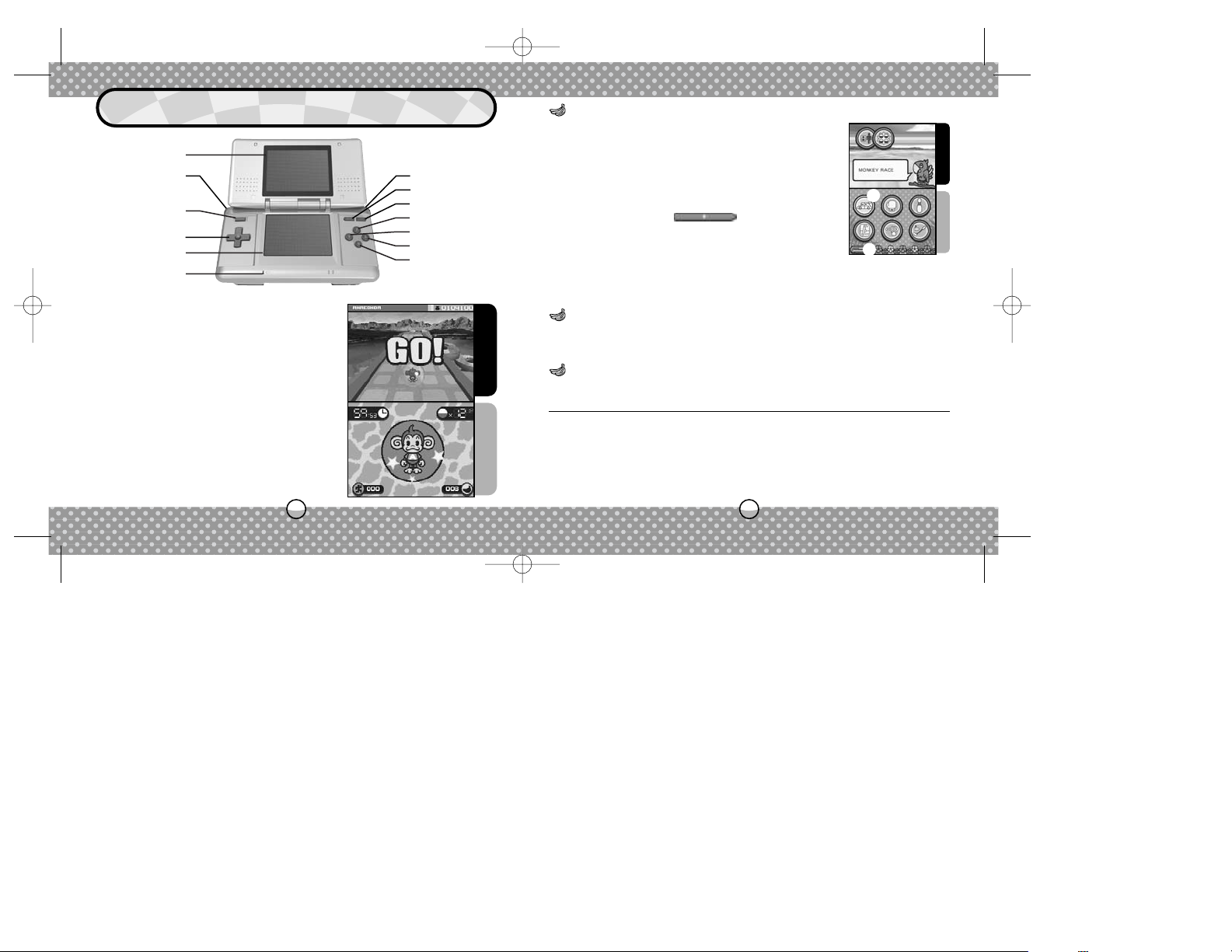
L Button
+Control Pad
Touch Screen
Top Screen
Power Button
R Button
SELECT
START
X Button
Y Button
A Button
B Button
Microphone
Top Screen
Touch Screen
You can only use the Touch Screen to touch
and control. Nothing will happen if you touch
the Top Screen. Also, please avoid touching
the Touch Screen with anything other than
the Nintendo DS Stylus or the Nintendo DS
Wrist Strap.
There are two types of controls for the menu screens.
Use whichever is easier for you.
Top Screen
Touch Screen
Double-touch the menu item on the Touch Screen to
advance. For example, touch ●
1 to select MONKEY
RACE. Touch ●
2 to cancel or go back one step. To
begin the game, touch displayed at the
bottom of Game Settings Screen.
You can also use the buttons for menu controls. Use +Control Pad to
select the menu item, and press the A Button to advance. Press the B
Button to cancel or go back one step.
Touch Screen and Stylus
+Control Pad and Buttons
The controls for the actual games will be explained separately in each
game section.
L Button + R Button
Return to Title Screen.
+ START + SELECT
L Button + R Button
+ A Button + B Button Press and hold at startup to reformat data.
+ X Button + Y Button
OTHER BUTTON CONTROLS USED IN THIS GAME
When you are not playing the game, you
can close the screen to switch the Nintendo
DS to Sleep Mode and preserve battery life.
The DS will be active as soon as you open
the screen.
MENU CONTROLS
Press START to pause the game and open the Pause Menu. Select
Continue to resume the game, Quit to exit the game.
PAUSE MENU
CONTROLS
1
2
SMB_NDS_MNLINT(6).qxp 12/2/05 7:40 PM Page 4
Page 4

AiAi
76
A high-spirited
monkey who just
can't get enough
bananas. He can
be scatterbrained
at times, but he is
very reliable when
it counts.
He is the son of AiAi
and MeeMee, travelling back from the
future. Although still
young, he is reliable
like his mother.
A stylish monkey
who is adored by
all the other monkeys. She loves
AiAi, and hopes
she will marry him
one day.
This powerful
monkey trains
every day to
become the
strongest monkey.
Although a bit
rowdy, you just can't
hate this big guy.
At the Title Screen, touch AiAi (or press START) to
display the Main Menu Screen. Touch one of the icons
displayed to select and enter the mode.
There are four cute monkeys starring in this game.
Enjoy the game using your favorite monkey!
Top Screen
Touch Screen
CHARACTERS STARTING THE GAME
Touch Screen
Play in one-player mode. Select either the Main
Game (p.8) or the Party Games (p.11).
SINGLE PLAYER
Play a party game in Multiplayer mode using
Nintendo DS Wireless Play.
MULTIPLAYER (p.30)
View rankings of Single Player Party Games, or the staff credits.
OPTIONS (p.36)
MeeMee
Baby GonGon
The game language reflects the Screen Language setting of the
Nintendo DS Setting Menu, and is available in English, French, Spanish,
German and Italian.
NOTE ON LANGUAGE SETTING
SMB_NDS_MNLINT(6).qxp 12/2/05 7:40 PM Page 6
Page 5
98
This is a mode where you play and clear 10 stages of
the selected World. The monkeys' abilities are the
same, so choose any monkey you like. Clear each
stage to advance to the next challenge. Clear each
World to unlock new Worlds.
You will lose one life for either falling off the stage
(Fallout) or failing to cross the goal within the time
limit. The game will be over if you lose all of your
lives, but if you collect 10 bananas you will gain one
life. Also, by meeting certain conditions, you will be
able to play the hidden Worlds. In a Bonus Stage,
even if you don't clear within the time limit, you will
not lose a life.
In Challenge Mode, the game data will be saved automatically after
clearing each World. If you end gameplay before clearing the World, the
data will not be saved, and you must restart from Stage 1.
Roll and guide the monkey-in-a-ball towards and across the goal within
the time limit, while avoiding fallouts. The Main Game can only be played
in SINGLE PLAYER.
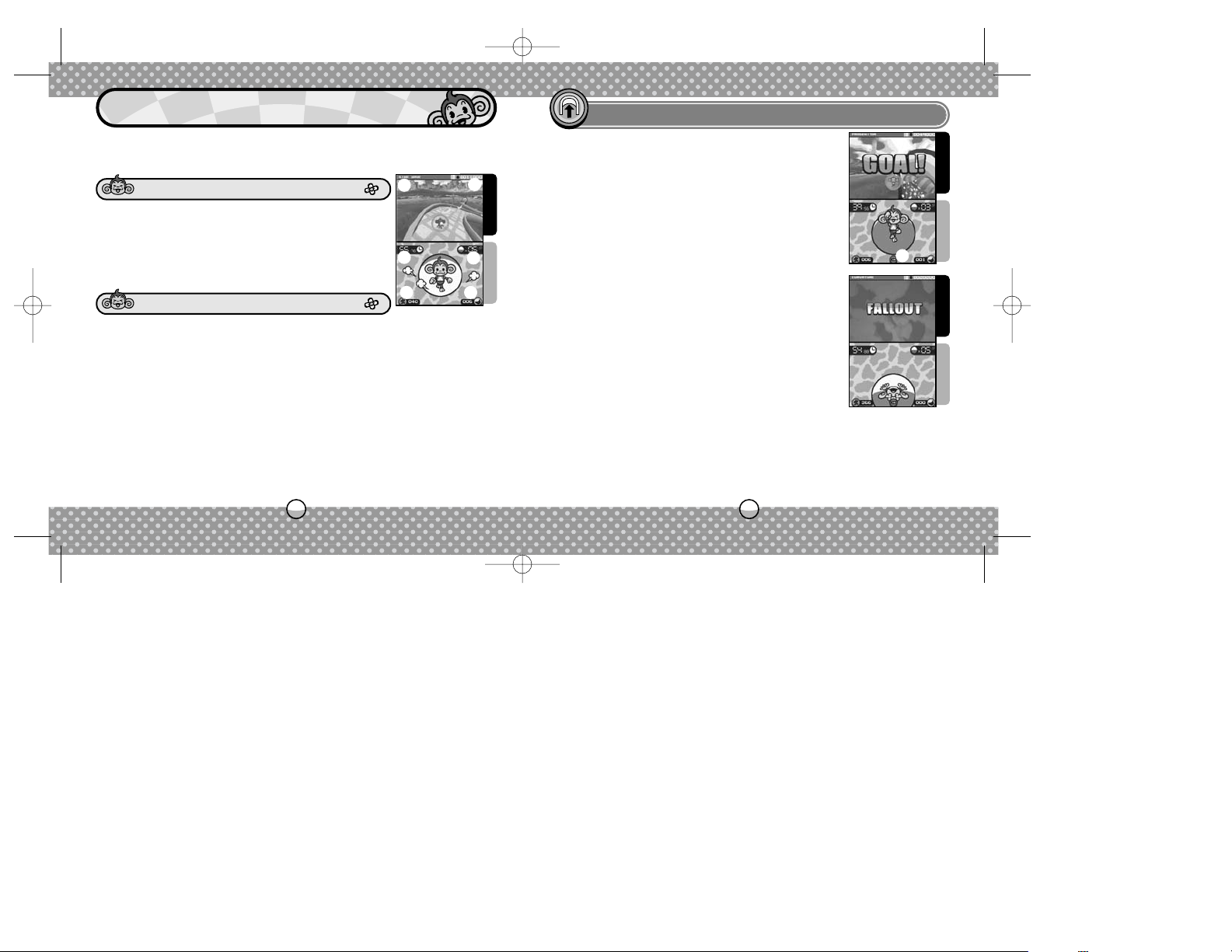
Top Screen
Touch Screen
In this game, all you have to do is to roll the ball. The game can be controlled with the Stylus and/or the +Control Pad. One of the controls may
be more advantageous depending on the stage, so try both.
●
1 Name of the Current Stage
●
2 Score
●
3 Time Remaining — Fail if the time reaches zero
●
4 Number of Monkeys (lives) Left
●
5 Current Velocity
●
6 Number of Bananas
Simply move the Stylus on the Touch Screen to control the direction
of the ball: touch upper half to roll forward, lower half to roll backward,
and left/right to turn. To slow down, either lift the Stylus or touch the
opposite direction.
Touch Screen and Stylus
The ball rolls in the direction the +Control Pad is entered. Press and hold
in the same direction to speed up.
+Control Pad
Top Screen
Touch Screen
Top Screen
Touch Screen
MAIN GAME
CHALLENGE MODE
CONTROLS
GAME SCREEN
1
2
3
4
5 6
1
●1 Camera Icon (see REPLAY, p.10)
SMB_NDS_MNLINT(6).qxp 12/2/05 7:40 PM Page 8
Page 6
1110
Select from the available stages of the Worlds in Challenge Mode and
play them over and over again! If there is a stage you’re having trouble
completing in Challenge Mode, practice it here. If you wish to quit, press
START and select Quit.
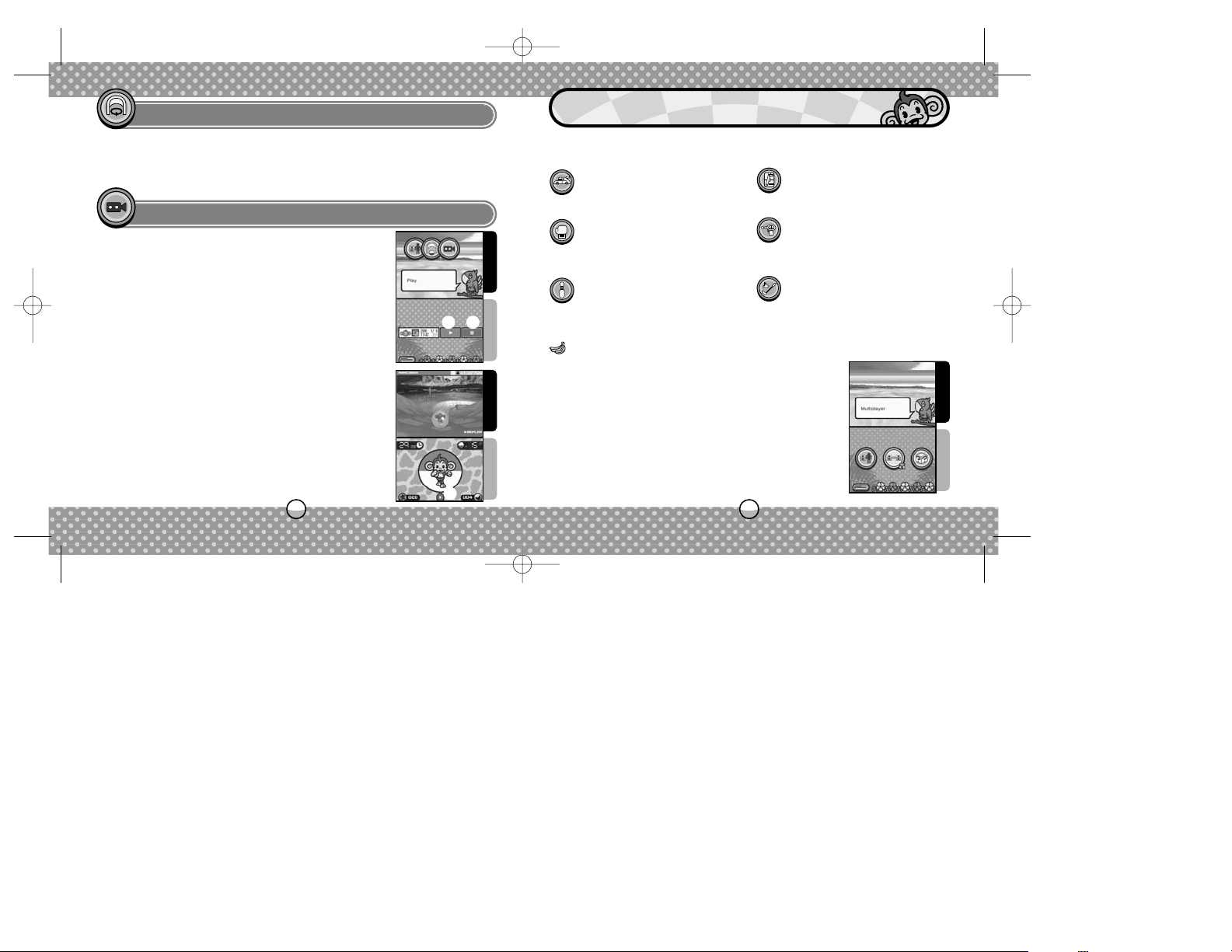
While in either Challenge or Practice Mode, a Camera
Icon will be displayed at the bottom center of the
Touch Screen whenever you clear or fail the stage.
Touch the Camera Icon to save the replay of the
Stage you’ve just cleared or failed.
When you select Replay from the mode screen, a list
of saved replays will be displayed. First touch the
replay data, then touch ●
1 to view replay data, or ●2 to
erase the data. To end the replay, touch ●
3 while the
replay is playing.
There are six Party Games in Super Monkey Ball Touch & Roll. Learn the
rules to each game and enjoy playing against COM or other players.
Select MULTIPLAYER MODE in the Main Menu, and
you'll be able to play Party Games with up to four
players. Gather your friends and enjoy the game. For
more details, please see MULTIPLAYER (p.30).
DS WIRELESS COMMUNICATIONS FOR MULTIPLAYER PLAY MODE
Top Screen
Touch Screen
Top Screen
Touch Screen
Top Screen
Touch Screen
PARTY GAMES
PRACTICE MODE
REPLAY
Race against other monkeys.
MONKEY RACE (p.12)
Knock other monkeys off the
stage!
MONKEY FIGHT (p.15)
Play a game of bowling.
MONKEY BOWLING (p.18)
Play hockey with a twist.
MONKEY HOCKEY (p.21)
Play in a shooting battle against
other monkeys.
MONKEY WARS (p.24)
Play mini golf on a variety of
courses.
MONKEY MINI GOLF (p.27)
1
2
3
SMB_NDS_MNLINT(6).qxp 12/2/05 7:40 PM Page 10
Page 7
1312
Top Screen
Touch Screen
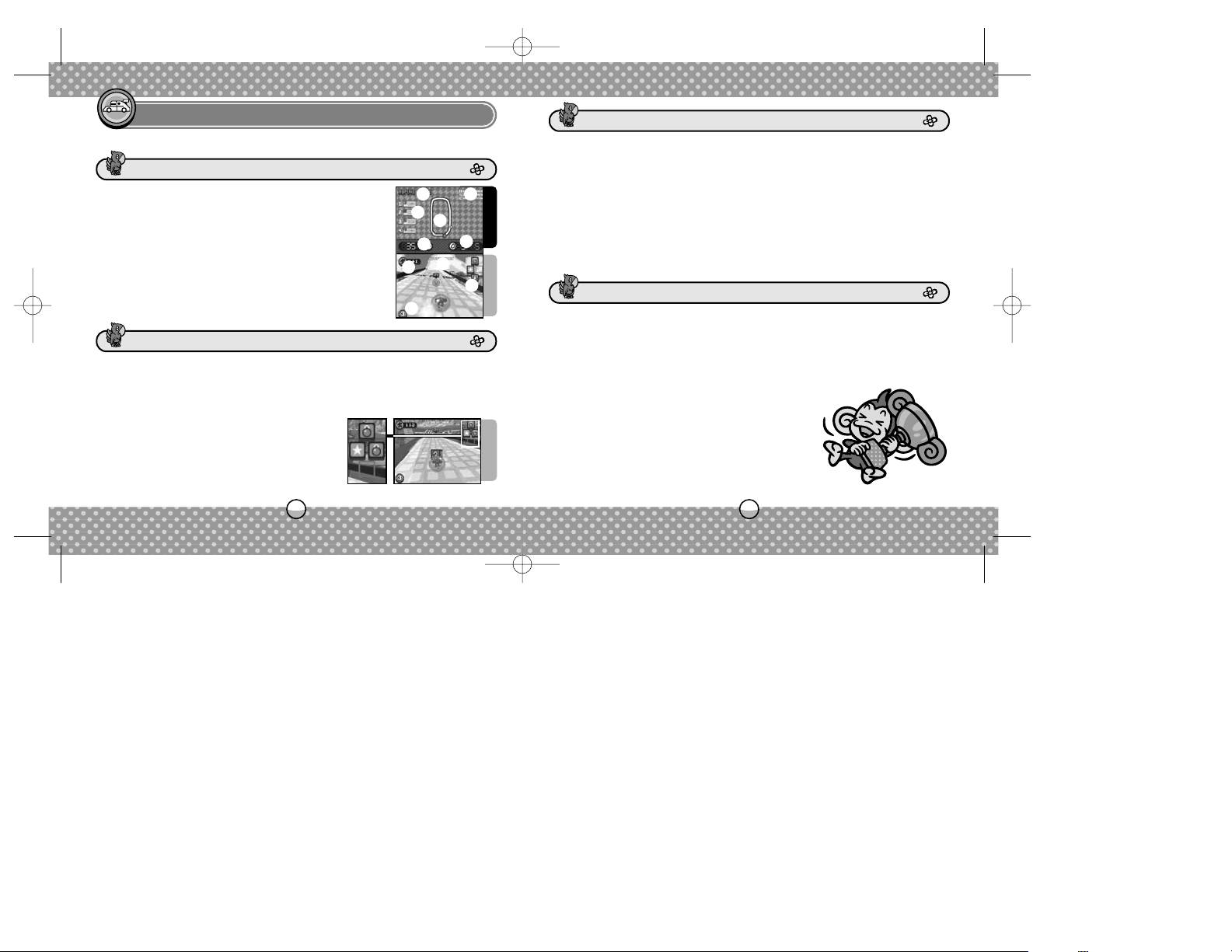
●1 Name of the Course
●
2 Lap Time
●
3 Order
●
4 Course Map
●
5 Time Remaining
●
6 Lap (current/total)
●
7 Current Velocity
●
8 Total Time
●
9 Item(s) in Possession
●
0 Current Position
The ball rolls in the direction you touch and move the Stylus. The
ball will roll faster by touching farther out in front. Touch behind the
ball to slow down.
Press the corresponding direction on the
+Control Pad to use your collected items.
Alternately, you can use the A/B/X/Y Buttons
to use the items in respective locations.
Roll (Touch Screen and Stylus)
Use Item (+Control Pad/A/B/X/Y Buttons)
Select a course, and compete against the COM or other players.
One Course (Single Player/Multiplayer)
Race through all courses and compete for the total points. You earn
points based on your placement in each race.
Grand Prix (Single Player/Multiplayer)
Select a course and aim for the best time. Note that there are no Game
Settings for this mode.
Time Attack (Single Player)
LAPS (1~50)
Select the number of laps you must go around the track. Available with
One Course race only.
COM (OFF/ON)
Allows COM players to participate. Not available with Single Player, since
you will be competing against the COM players.
ITEMS (OFF/ON)
Allows the use of items.
HANDICAP (OFF/ON)
Available with Multiplayer only. With the setting
ON, the speed of the players who are behind will
be slightly increased.
Race against other monkeys!
Touch Screen
MONKEY RACE
GAME SCREEN
GAME MODES
GAME SETTINGS
1 2
3
4
5
6
7
8
9
0
CONTROLS
SMB_NDS_MNLINT(6).qxp 12/2/05 7:40 PM Page 12
Page 8
1514
Top Screen
Touch Screen
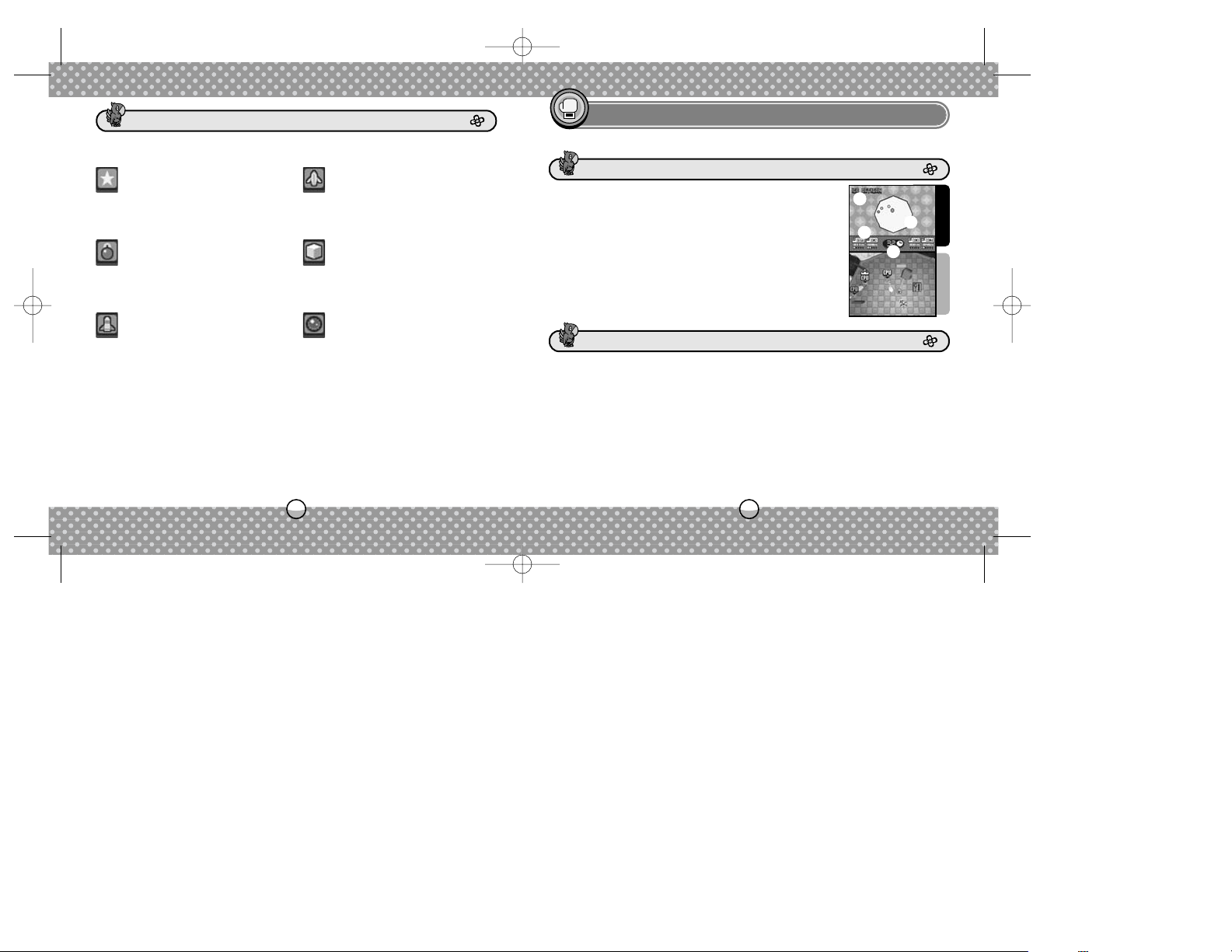
●1 Name of the Stage
●
2 Stage Map
●
3 KO Points & Rounds Won
●
4 Time Left. Displayed with Normal rule only
The ball rolls in the direction you touch and move the Stylus. Avoid opponents' punches and wait for the perfect time to attack.
Press either L Button or R Button to punch in the direction you are facing. You can punch with more power if you hold the button longer and
then release. You score KO Points for successfully hitting the opponent,
but will score even better if you can knock him/her off the stage.
Roll (Touch Screen and Stylus)
Punch (L/R Button)
Knock other monkeys off the stage!
If you touch a "?" marked box, you get an item. But which item you’ll be
getting is anyone's guess. Note that you can only hold up to four items.
MONKEY FIGHT
ITEMS
GAME SCREEN
Increase your speed for a limited
time.
SPEED STAR
Drop a banana peel on the ground,
causing the opponent who rolls
over it to slip and lose control.
BANANA PEEL
Roll a bomb that will explode on
contact with your opponent.
BOWLING BOMBER
Turn your opponent into an ice
cube for a limited time, and make
him/her slip.
ICE CUBE
Fire missiles at all opponents in
front of you.
HUNTER MISSILE
Bounce off your opponent on contact, or bounce back any opponent's attack for a limited time.
METAL BALL
1
2
3
4
CONTROLS
SMB_NDS_MNLINT(6).qxp 12/2/05 7:40 PM Page 14
Page 9
1716
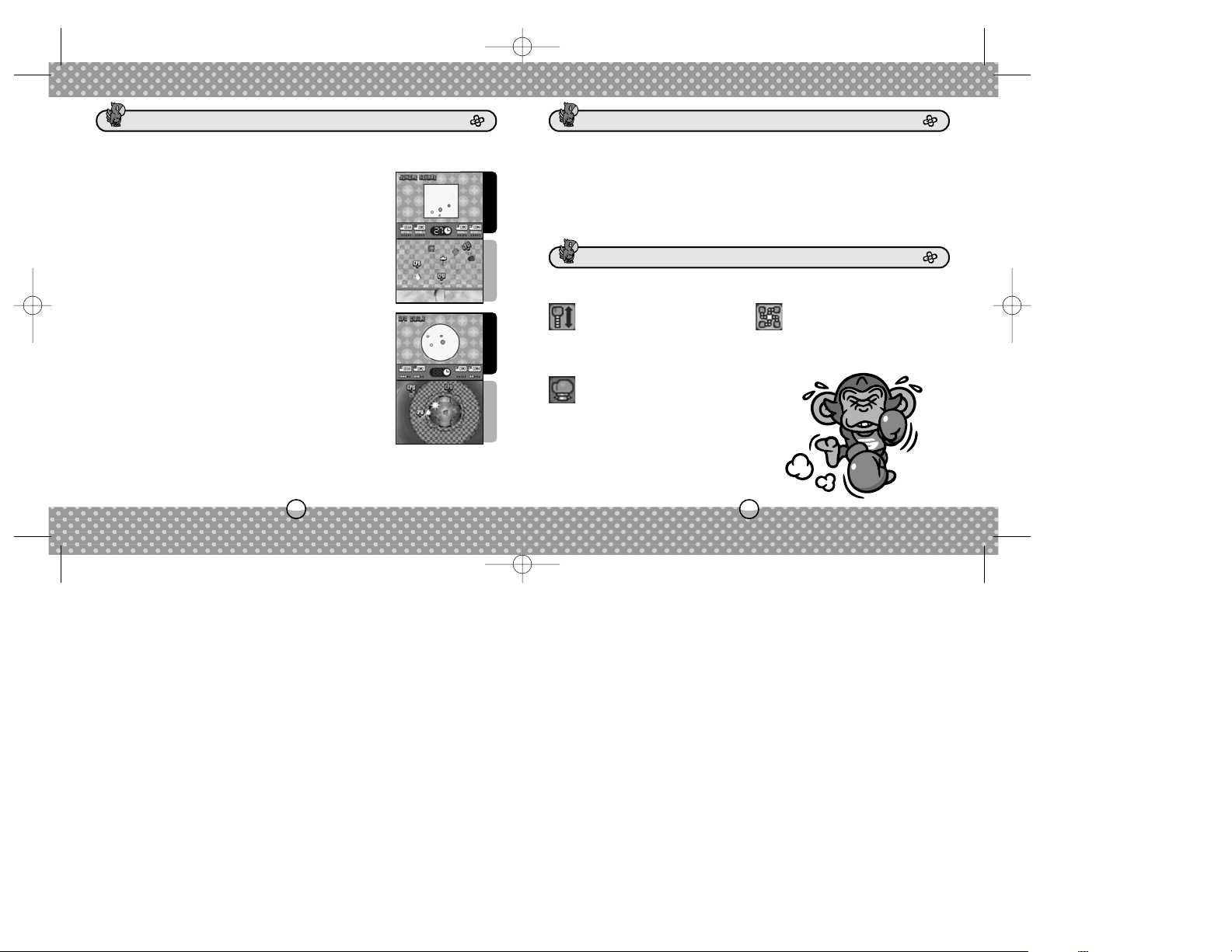
Against COM or other players, you compete for the
most KO Points within the time limit. If there is a tie
on the final round, the players will play an extra round
for sudden death.
Normal (Single Player/Multiplayer)
Fall off the stage and you're out. With no time limit,
the last one standing on the stage is the winner.
Survival (Single Player/Multiplayer)
RULE (NORMAL/SURVIVAL)
Select the game rule.
WIN(S) (1~5)
Selects the number of winning rounds needed to win the match.
COM (OFF/ON)
Allows COM players to participate. Not available with Single Player, since
you will always compete against the COM players.
Punch the item box on the stage to break it open, then touch it to get it.
Your punch will be powered up in three different ways.
In Monkey Fight, rather than selecting the game mode, you’ll be selecting
the following rules from the Game Settings.
ITEMS
GAME SETTINGSGAME MODES
The reach of your punch
becomes longer.
LONG PUNCH
Deliver a spinning punch to
the opponents around you for
a limited time.
SPINNING PUNCH
The size of your glove increases.
BIG PUNCH
Top Screen
Touch Screen
Top Screen
Touch Screen
SMB_NDS_MNLINT(6).qxp 12/2/05 7:40 PM Page 16
Page 10
1918
Top Screen
Touch Screen
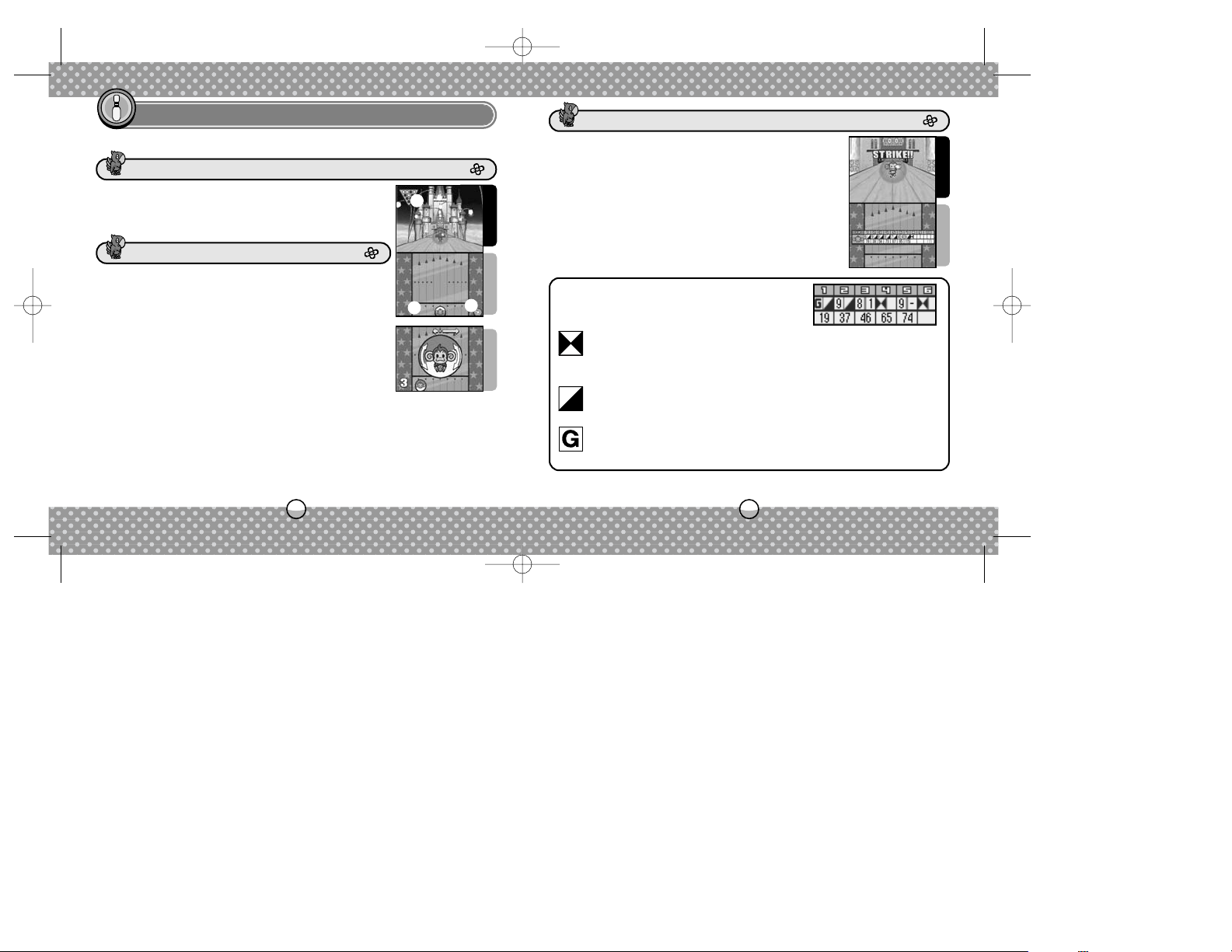
●1 Pins Remaining
●
2 Position of the Ball
●
3 Spin Icon
Slide the ball left/right behind the line to select the
position to throw the ball, then lift the Stylus.
Position the Ball (Touch Screen and Stylus)
You can spin the ball once per throw. First, touch the
Spin Icon to display the enlarged image of the ball.
Then, slide the Stylus in a circular motion within the
ball. The length of the arrows above indicate the
amount of spin and its direction. You can reposition
the ball after spinning, but as time passes, the spinning power may decrease.
Spin the Ball (Touch Screen and Stylus)
Touch Screen
Slide the Stylus from the ball towards the top of the Touch Screen as if to
draw a line. The ball will be thrown in that direction. The faster you draw
a line, the stronger you will throw.
Throw the Ball (Touch Screen and Stylus)
You throw twice in a frame and compete for the
most points in 10 frames.
Standard (Single Player/Multiplayer)
You score a point for each pin knocked down.
Here is a guide to read the score card.
SPARE
Knock down all 10 pins with two throws. The points for the next
throw will be added to your score as a bonus.
STRIKE
Knock down all 10 pins on your first throw of the frame. The
points for the next two throws will be added to your score as a
bonus.
GUTTER
If the ball drops off the lane, it's a fallout (gutter). You score
zero for the throw.
Play a game of Bowling, and knock down all the pins!
Top Screen
Touch Screen
Scoring
Note: There are no Game Settings for Monkey Bowling.
MONKEY BOWLING
GAME SCREEN
GAME MODES
CONTROLS
1
2
3
SMB_NDS_MNLINT(6).qxp 12/2/05 7:40 PM Page 18
Page 11
2120
Top Screen
Touch Screen
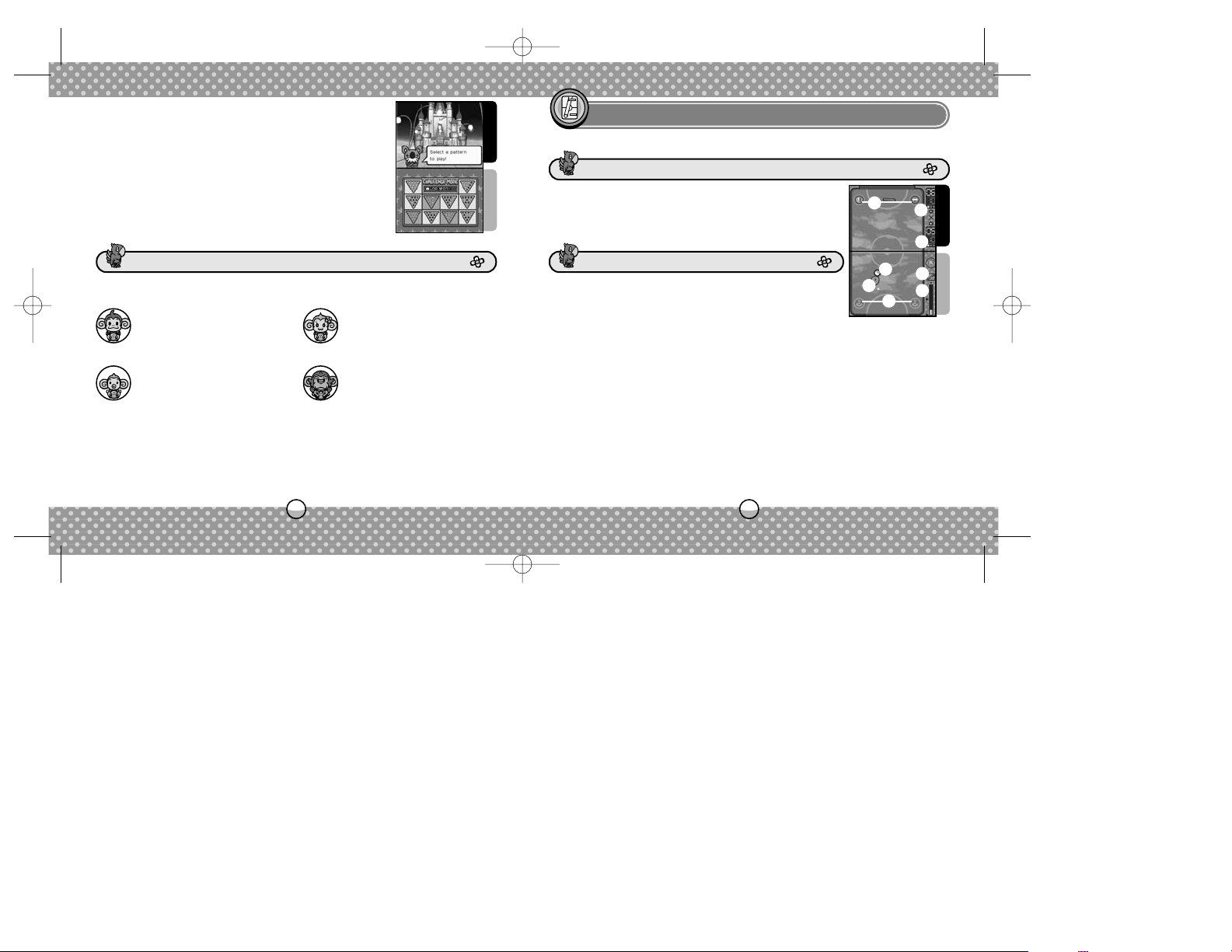
●1 Ball
●
2 Mallet (Smasher)
●
3 Opponent's Score
●
4 Your Score
●
5 Stylus Icon
●
6 Line Gauge
●
7 Item Zone
Touch the mallet (or Smasher, see below) and slide to
move your mallet freely. Hit the ball with your mallet
and bounce it back towards the goal in the opponent's area (Top Screen side).
Move the Mallet (Touch Screen and Stylus)
In Line Smasher, you draw your own mallet, called a Smasher. Draw a
line or shape on your side of the court. The amount you can draw
depends on the amount on the Line Gauge. The Line Gauge recovers
when the ball is in the opponent's side or when either side scores.
Draw a Smasher (Touch Screen and Stylus)
Line Smasher only. Your Smasher may break when hit by opponent's
blazing smashes. In such cases, either touch the Stylus Icon or press the
L/R Button to erase your current Smasher in use, and redraw it.
Redraw a Smasher (Touch Screen and Stylus, or L/R Button)
The abilities of the monkeys differ in this game, so take this into consideration when selecting the character to use in Monkey Bowling.
Play a game of Hockey with an interesting twist.
Top Screen
Touch Screen
There are 10 pin patterns, and for each pattern you
must knock out all pins in one throw. The game will
be over either when you clear all pin patterns or when
all the misses allowed are used up.
Challenge (Single Player)
MONKEY HOCKEY
GAME SCREEN
CONTROLS
MONKEYS' ABILITIES
AiAi (Standard Type)
Balanced abilities between
power and spins.
MeeMee (Better Spins)
Though she lacks power,
she can throw with sharp
spins.
Baby (Better Control)
Very weak in power and
spins, but easier to aim.
GonGon (Power Type)
Though he can't spin well,
he can throw with power
and speed.
1
2
3
4
5
6
7
7
SMB_NDS_MNLINT(6).qxp 12/2/05 7:40 PM Page 20
Page 12
2322
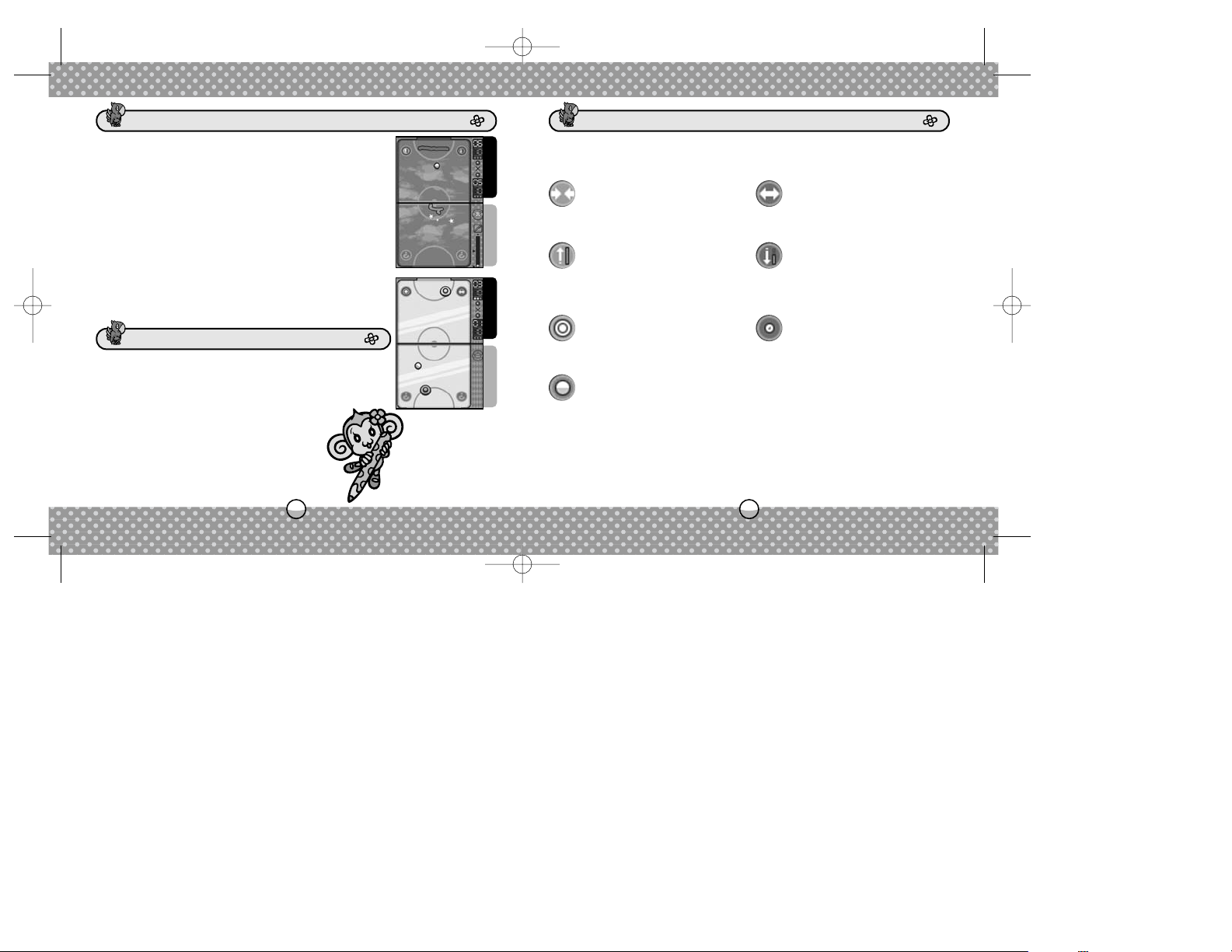
In this mode, instead of using a normal mallet, you
"draw" your own mallet called "Smasher" to bounce
the ball.
Line Smasher (Single Player/Multiplayer)
Use the regular mallet to play.
Classic (Single Player/Multiplayer)
POINT(S) (1~99)
Selects the amount of points needed to win a set.
WIN(S) (1~3)
Selects the number of set(s) needed to win a match.
SERVICE (YOU/OPPONENT)
Selects which player to serve first.
ITEMS (OFF/ON)
Allows the use of items.
When the ball enters the item zone, the displayed item will immediately
come into effect. If the color of ball is the same as yours, you get the
item; if it's the same as the opponent's, he/she gets it.
Top Screen
Touch Screen
Top Screen
Touch Screen
In either mode, Singles is played one-on-one,
Doubles is played two-on-two. If you select Doubles
with Single Player play, the COM will control your
partner. Shoot the ball into the opponent's goal to
score.
ITEMSGAME MODES
GAME SETTINGS
Your goal becomes narrower,
making it easier to defend.
CLOSE
The opponent's goal becomes wider,
making it easier for you to score.
OPEN
Appears only in Line Smasher.
The amount of your Line Gauge
increases.
LONG
Appears only in Line Smasher.
The amount of the opponent's
Line Gauge decreases.
SHORT
Appears only in Classic.
Your mallet becomes bigger.
BIG
Appears only in Classic. The opponent's mallet becomes smaller.
SMALL
Appears only in Singles. A second
ball appears on the court.
+BALL
SMB_NDS_MNLINT(6).qxp 12/2/05 7:40 PM Page 22
Page 13
2524
Top Screen
Touch Screen
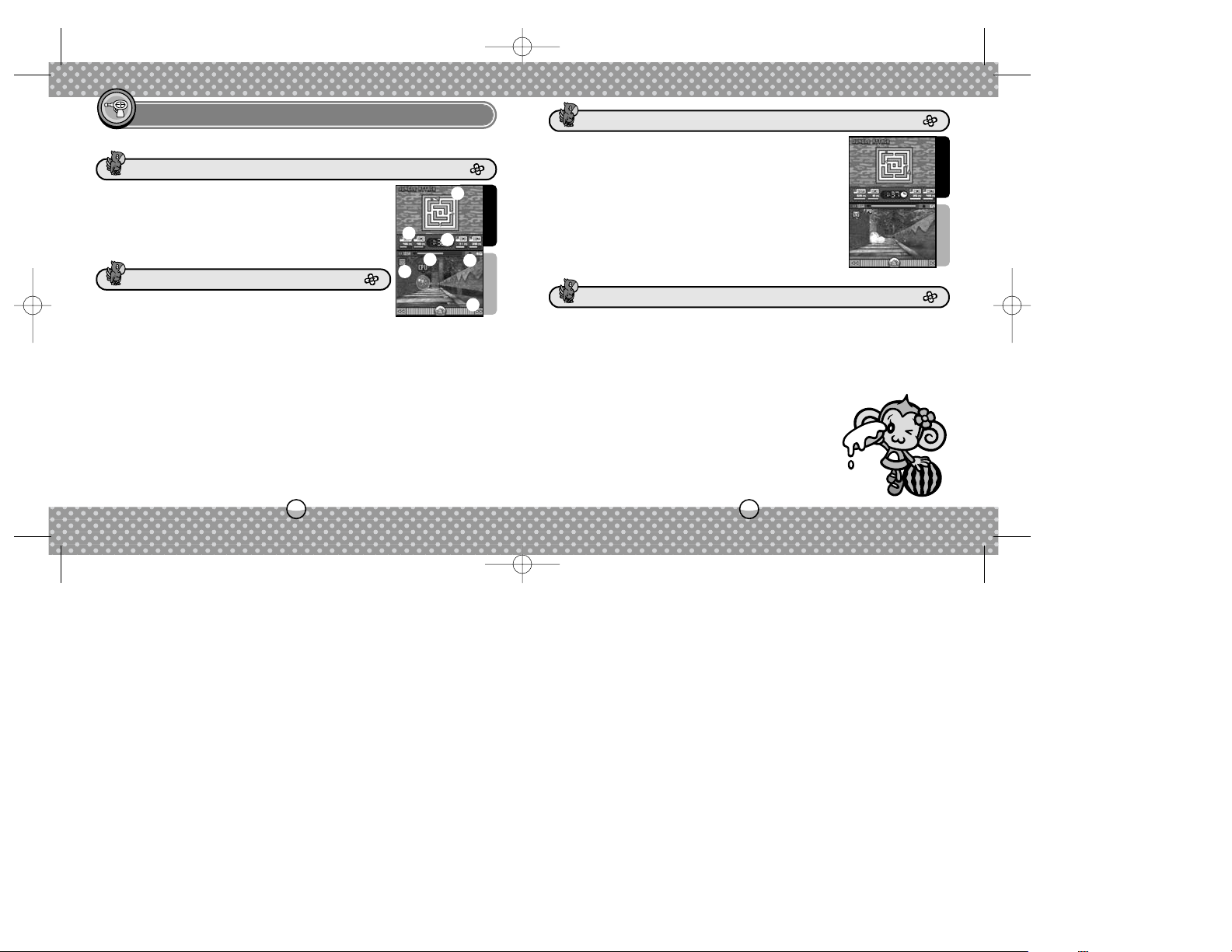
●1 Stage Map
●
2 Life/Points for each
player
●
3 Time Left
●
4 Your Life
●
5 Your Points
●
6 Weapon in Use/Bullets
Remaining
●
7 Turn Panel
Touch the Touch Screen, and you will shoot in that
direction. Touching once shoots once. To shoot in
succession, touch repeatedly.
Shoot (Touch Screen and Stylus)
Use the +Control Pad to move in the direction relative to where you are
facing. Look at the Stage Map to verify your position.
Move (+Control Pad)
Touch the Turn Panel and slide left/right to turn yourself. Alternately, you
can turn yourself simply by touching either of the arrows at the end of
the Turn Panel.
Turn Around (Touch Screen and Stylus)
TIME (1/3/5/7)
Selects the time limit of the game.
RADAR (OFF/ON)
When On, displays the opponents' locations on the map.
COM (OFF/ON)
Allows COM player(s) to participate (only in Multiplayer).
There is only one mode to this game, played either
Single Player or Multiplayer, with three different
stages (maps) to choose from. Shoot to hit and
defeat your opponents to score. The player with the
most points when the clock runs out is the winner of
the game.
A shooting battle between you and other monkeys!
Top Screen
Touch Screen
MONKEY WARS
GAME SCREEN
GAME MODES
GAME SETTINGS
CONTROLS
1
2
3
4
5
6
7
SMB_NDS_MNLINT(6).qxp 12/2/05 7:40 PM Page 24
Page 14
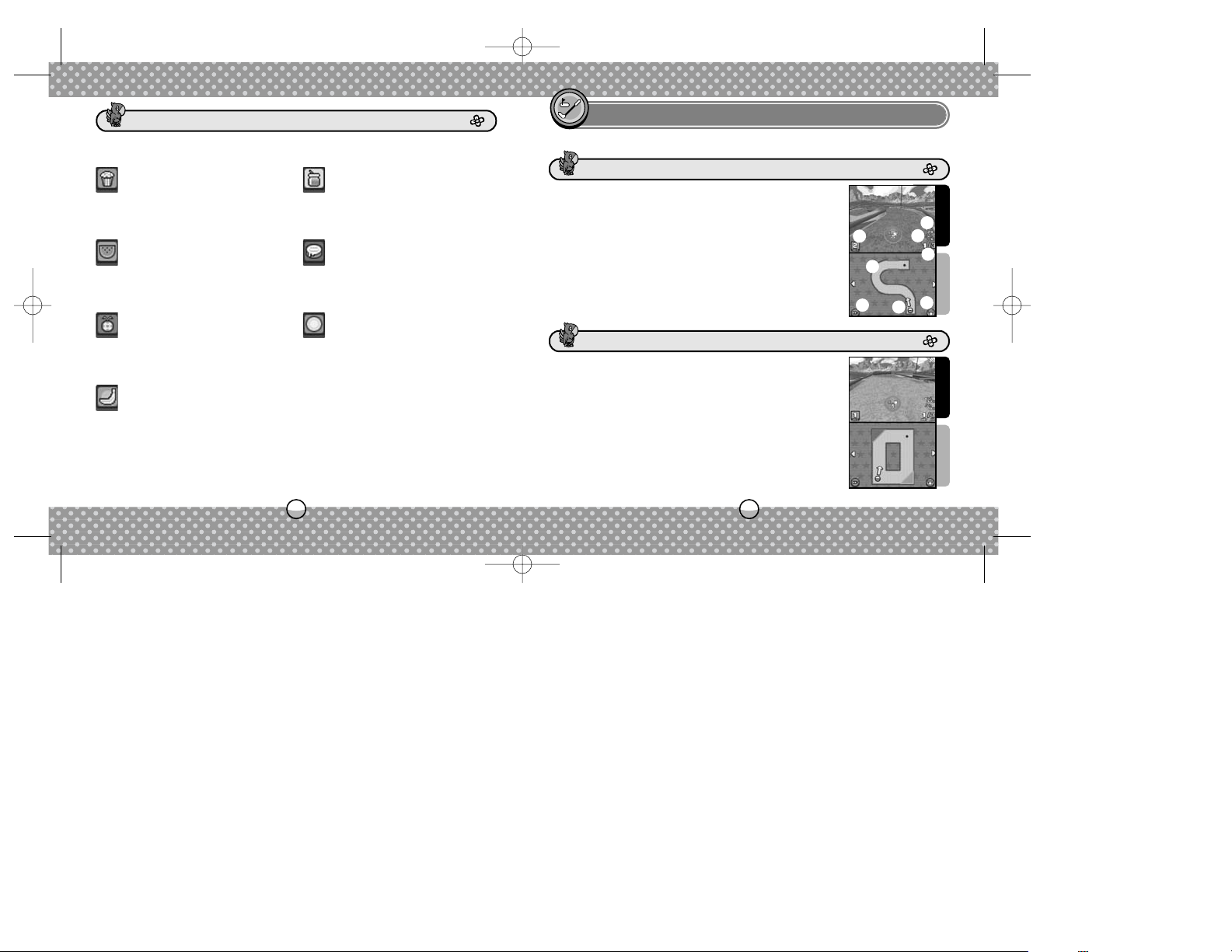
2726
Top Screen
Touch Screen
●1 Current Hole
●
2 Hole Distance
●
3 Height Difference
●
4 Stroke Number/Par
●
5 Course Map
●
6 Camera Icon
●
7 Your Ball
●
8 Putt Icon
Various items appear on the stage. Touch one to power up your attack.
Note that your attack reverts to normal when you run out of ammunition.
Play a game of Mini Golf with a variety of courses!
The arrow next to the ball indicates the direction of
your putt. Touch in any direction, relative to the ball,
to move the arrow. If you'd like to adjust the aim
slightly, touch either of the triangle icons at left/right
edge of the screen.
Aim (Touch Screen and Stylus)
Top Screen
Touch Screen
MONKEY MINI GOLF
GAME SCREEN
ITEMS
Though weak in power, you can
distract your opponents by bouncing them into the air.
POPCORN
Very sticky ammunition. It will slow
down the opponent.
HONEY
Like a machine gun, you can shoot
rapidly in succession to blow your
opponent away.
WATERMELON SEED
The victim’s vision is obstructed,
making it harder for the player to
see their own game screen.
CREAM PIE
Pineapple-shaped grenade which
damages opponents around the
explosion.
PINEAPPLE BOMB
Though slow moving, they deal
high damage on impact.
POWER BALL
Recovers your life.
BANANA
1
2
3
4
5
6
8
CONTROLS
7
SMB_NDS_MNLINT(6).qxp 12/2/05 7:40 PM Page 26
Page 15
2928
Sink the ball into the hole in the least number of putts as possible. If the
ball drops off the course (OB), you will hit again from the last-hit point
with one penalty stroke. You will be forced to give up the hole if you don't
sink the ball by the ninth stroke, advancing to the next hole automatically.
Stroke Play (Single Player/Multiplayer)
Compete for the quickest time to sink the ball into the hole. While the
number of putts will not be counted towards the final result, the ball
must be sunk into the hole within nine putts for any given hole. Fail to do
so and you will be forced to give up. In Multiplayer, everyone plays simultaneously, and the first player to sink the ball into the hole wins the hole.
Note that the hole is tied if no player reaches the hole by the ninth putt.
Time Attack (Single Player/Multiplayer)
Multiplayer Mode for two players. The player with the least putts wins the
hole, and the player with the most holes won wins the match.
Match Play (Multiplayer)
HOLES (1~18)
Number of holes to play. Note that your score will be ranked only if you
play all 18 holes.
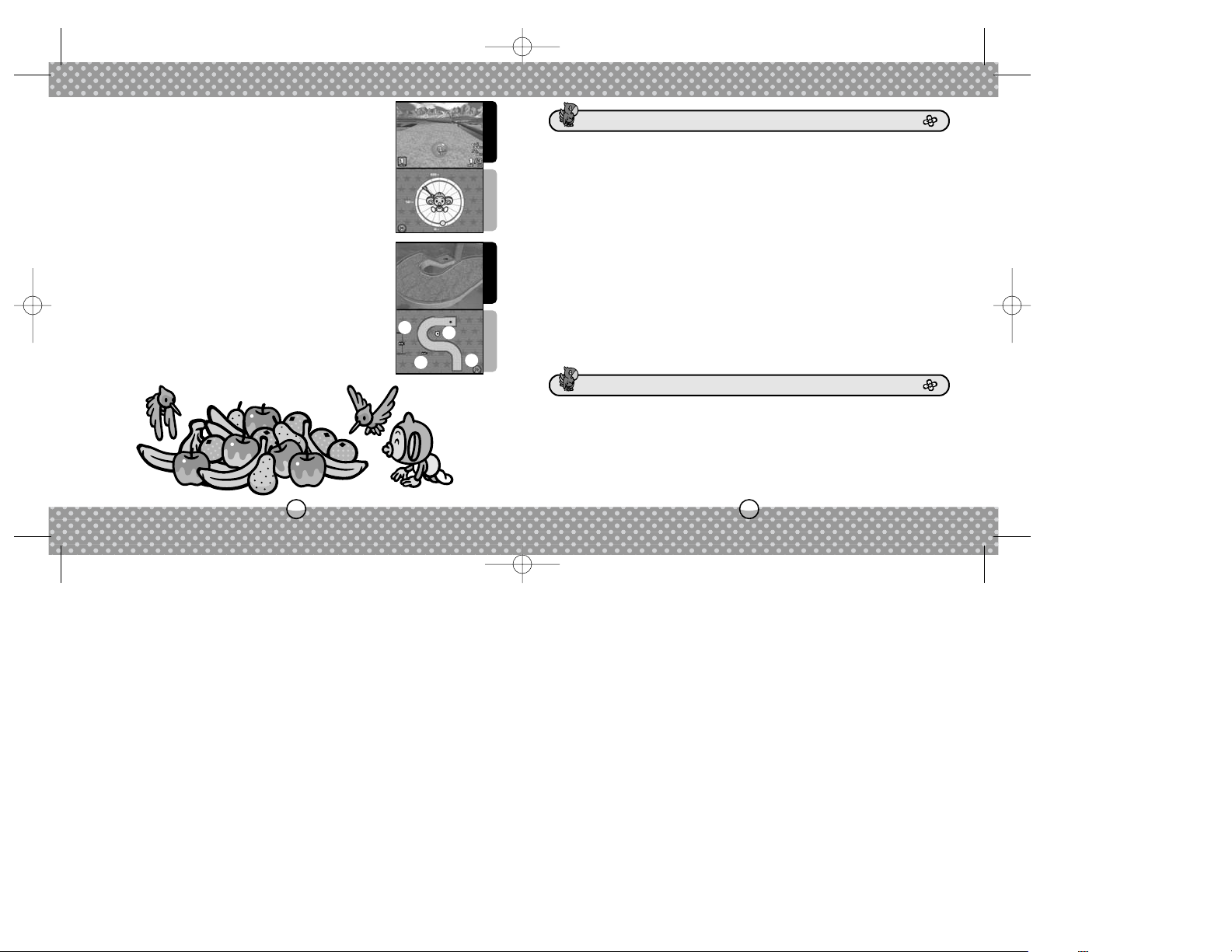
Touch the Putt Icon to switch to the Putt Mode. Touch
the putter and slide along the graph. The higher your
swing is, the farther the ball travels. Slide the putter
back quickly to the neutral position to hit the ball.
Note that if you remove your Stylus from the Touch
Screen, you will need to restart your putt.
Hit the Ball (Touch Screen and Stylus)
Touch the Camera Icon to switch to Camera Mode. By
sliding the camera, you can view the course from different angles.
Move Camera (Touch Screen and Stylus)
Top Screen
Touch Screen
●1 Slide vertically to change camera height.
●
2 Slide to move camera.
●
3 Slide to change direction of the camera.
●
4 Exit Camera Mode.
Top Screen
Touch Screen
GAME MODES
GAME SETTINGS
1
4
2
3
SMB_NDS_MNLINT(6).qxp 12/2/05 7:40 PM Page 28
Page 16
3130
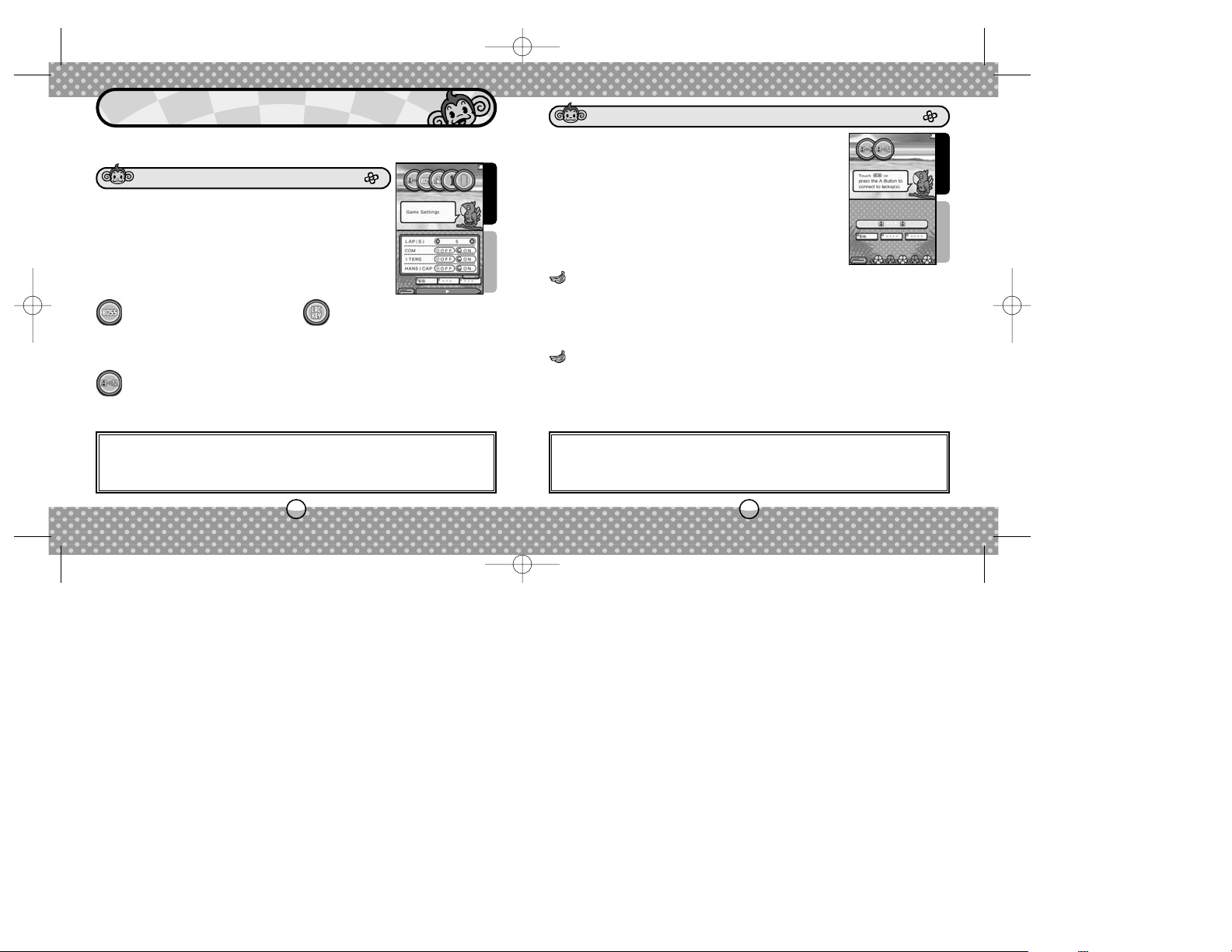
In Multiplayer Mode, you can enjoy Party Games with your friends using
the DS Wireless Communications.
Up to four players can play together, each with
his/her own Nintendo DS system and the Game Card.
One player becomes a "Boss" and creates a group.
Others become a "Lackey" and choose which group
to join. The Boss is the decision maker who selects
the game and settings, and begins the game.
Up to four players can play together using only one
Game Card. Here, the Nintendo DS system with
Game Card will be called "host," while the other system(s) will be called "guest(s)." Note that there will
be some limitations to the games you can play. Also,
it will take a little time for the guest(s) to download
the game from the host's system.
After you select DS Download Play, you will wait for the guest(s) to join.
When the desired number of guest(s) has joined, press the A Button to
allow the guest(s) to download the game. Once the downloading is
complete, select the game to play.
Guests will download the game from the host's system. After the downloading is complete and the host selects the game, the game begins.
Top Screen
Touch Screen
Top Screen
Touch Screen
MULTIPLAYER MODE
After you create a group, select
which of the Party Games to play
and the settings.
Be the Boss
Please see the facing page for
details.
DS Download Play
Select a group to join for the DS
Wireless Play. Up to four available
groups will be displayed. The game
begins when the Boss starts it.
Be a Lackey
DS DOWNLOAD PLAY
GAME SCREEN
During wireless gameplay, if communication seems to be affected by
other electronic devices, move to another location or turn off the interfering device. You may need to reset the power on the Nintendo DS and
start the game again.
HOST
GUEST(S)
CAUTION
If any player's system enters Sleep Mode during the DS Wireless
Communications, the communication will halt, ending the gameplay.
SMB_NDS_MNLINT(6).qxp 12/2/05 7:40 PM Page 30
Page 17
3332
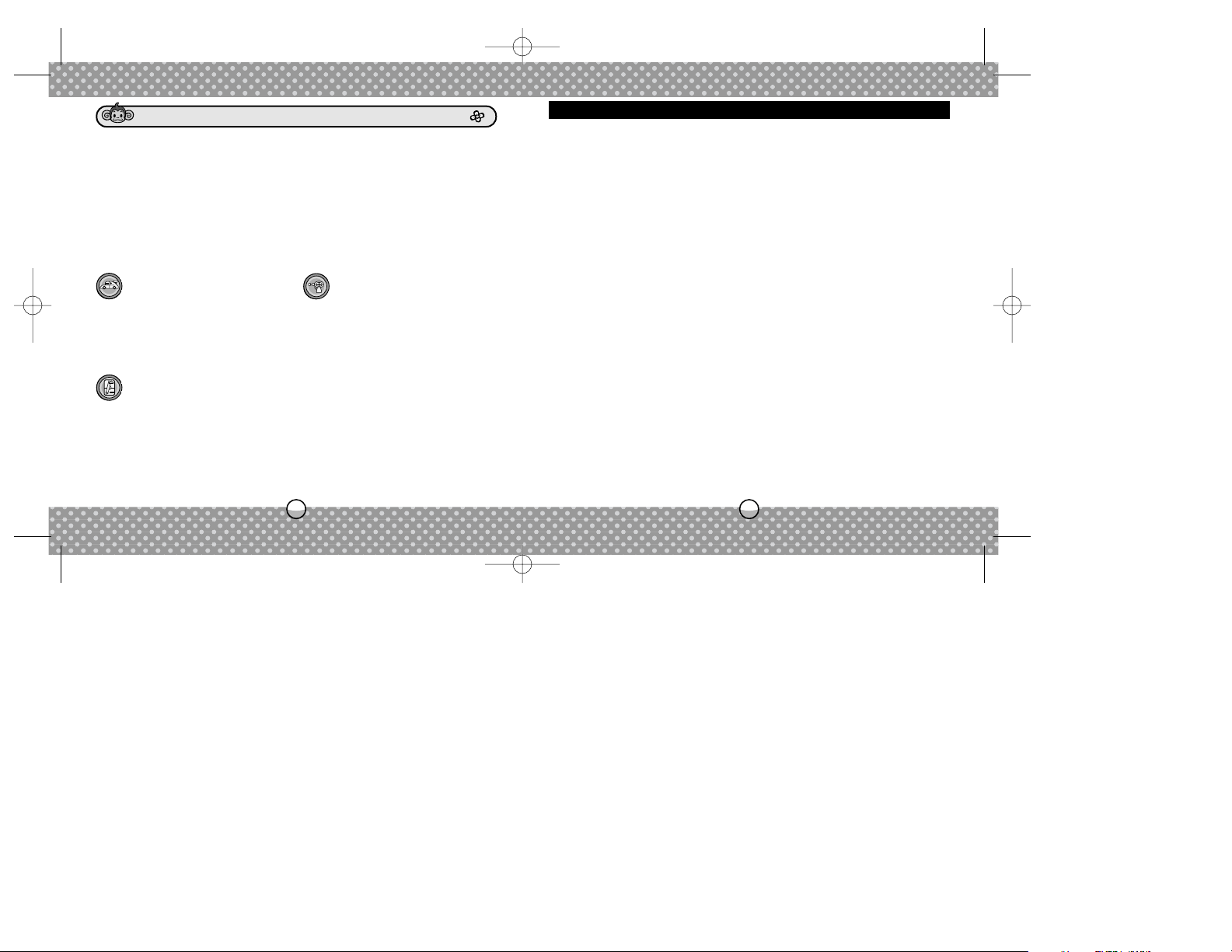
DS Wireless Communications (Single-Card Play)
The Things You'll Need
• Nintendo DS System . . . . . . . . . . . . . . . . . . . . . . . . . One for each player
• Nintendo DS "SUPER MONKEY BALL Touch & Roll" Game Card . . . . . . . . . . . . . . . . one
Host System:
1. Make sure that the power is turned off on your DS before you insert
the Game Card into the system.
2. Turn the power on. If the Start-up Mode of your system is set to MAN-
UAL MODE, the Nintendo DS Menu Screen will be displayed. In case it
is set to AUTO MODE, skip the next step and go on with step 4.
3. Touch the SUPER MONKEY BALL Touch & Roll NINTENDO Panel.
4. Now, follow the instructions on page 31.
Client System:
1. Turn the power on. The Nintendo DS Menu Screen will be displayed.
NOTE: Make sure the Start-up Mode of your system is set to MANUAL
MODE. For further details on how to set up the Start-up Mode, please
refer to the Nintendo DS Instruction Booklet.
2. Touch DS DOWNLOAD PLAY. The Game List Screen will appear.
3. Touch the SUPER MONKEY BALL Touch & Roll NINTENDO Panel.
4. You will be asked to confirm your choice. Touch YES to download
game information from the Host System.
5. Now, follow the instructions on page 31.
Here is an explanation of how to play using Single-Card Play.
Connection Procedures
The following games are available for Multiplayer play.
With the exception of Time Attack (Monkey Race) and CHALLENGE
(Monkey Bowling), you can enjoy all Party Games. You can also change
the Game Settings freely.
DS WIRELESS PLAY
You will have a choice of the following three games. Also, the characters
will be fixed as follows:
1P (host) = AiAi, 2P = MeeMee, 3P = Baby, 4P = GonGon.
DS DOWNLOAD PLAY
Alpine Route of the 1 Course Race
only. Game Settings are fixed as
follows:
LAPS=3, COM=ON, ITEMS=ON,
HANDICAP=ON
MONKEY RACE
Doubles of the Classic mode only.
1P and 3P team up against 2P and
4P. Game Settings are fixed as follows:
POINT(S)=5, WIN(S)=1,
SERVICE=YOU, ITEMS=ON
MONKEY HOCKEY
Jungle Attack only. Game Settings
are fixed as follows:
TIME=3, RADAR=ON, COM=ON
MONKEY WARS
GAMES AVAILABLE FOR DS WIRELESS COMMUNICATIONS
SMB_NDS_MNLINT(6).qxp 12/2/05 7:40 PM Page 32
Page 18
3534
For best results when using the wireless communications feature,
follow these guidelines.
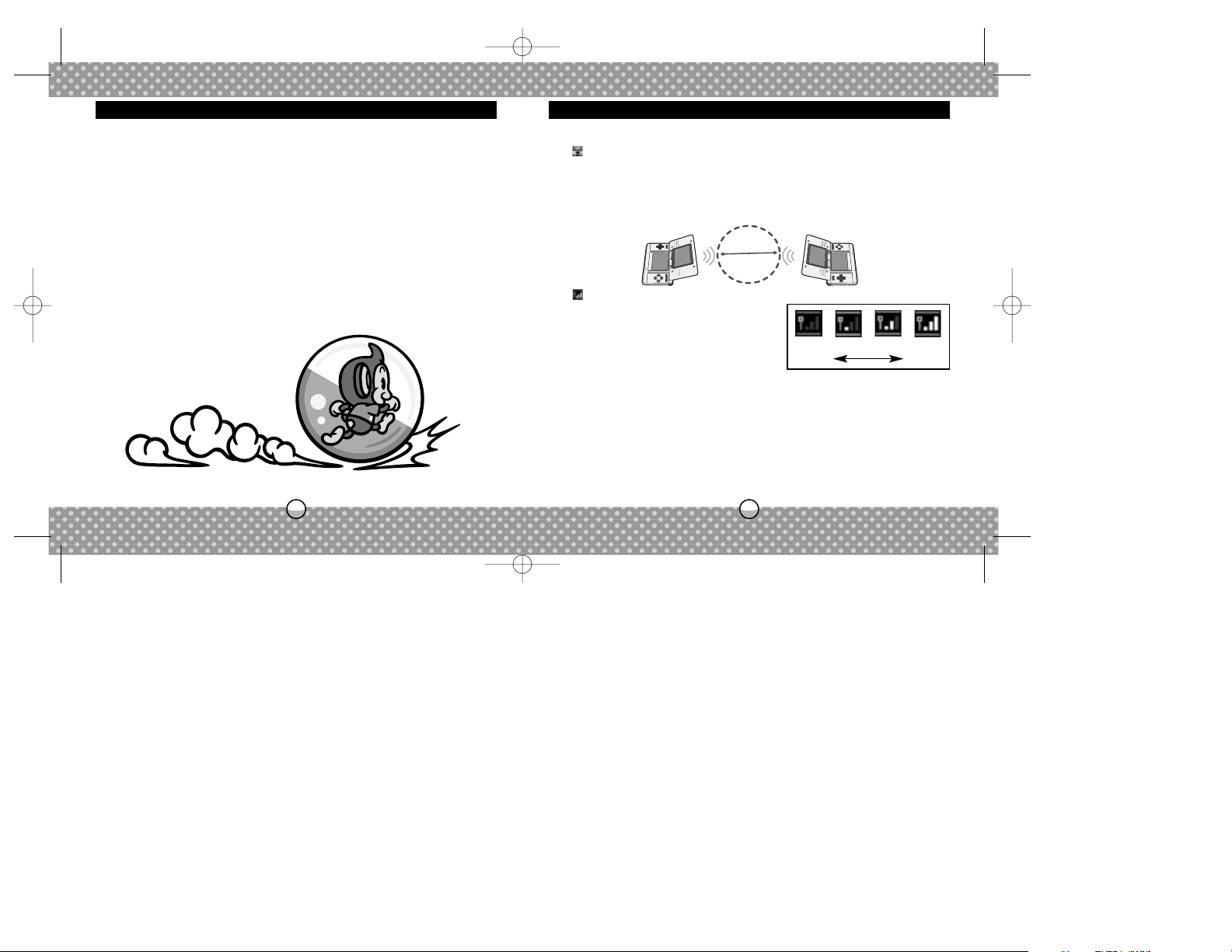
The icon is an indicator of wireless communications. It appears on the
Nintendo DS Menu Screen or Game Screen.
The DS wireless icon indicates that the associated choice will activate the
wireless communications function. DO NOT use DS Wireless Communications
in prohibited areas (such as in hospitals, on airplanes etc.). For further information regarding the usage of the wireless communications function, please
refer to the separate Health and Safety Precautions Booklet included with your
Nintendo DS system.
For best results, follow these guidelines:
• Begin with the distance between systems at about 30 feet (10 meters) or
less and move closer or farther apart as desired, keeping the signal strength
at two or more bars for best results.
• Keep the maximum distance between systems at 65 feet (20 meters) or less.
• The systems should face each other as directly as possible.
•
Avoid having people or other obstructions between the Nintendo DS systems.
• Avoid interference from other devices. If communications seem to be affect-
ed by other devices (wireless LAN, microwave ovens, cordless devices, computers), move to another location or turn off the interfering device.
Guidelines for Communication
0321
StrongWeak
Within
30 feet
The icon, which is displayed during wireless
communications, is an indicator of the current
wireless signal strength. There are four levels
of signal strength. A stronger signal reception
will provide smoother wireless communication
play.
When wireless communications are in progress,
the Power Indicator LED will blink rapidly.
DS Wireless Communications (Multi-Card Play)
Here is an explanation of how to play using Multi-Card Play.
The Things You'll Need
• Nintendo DS System . . . . . . . . . . . . . . . . . . . . . . . . .One for each player
• Nintendo DS "SUPER MONKEY BALL Touch & Roll" Game Card . . . One for each player
Connection Procedures
1. Make sure that the power is turned off on all systems, and insert the
Game Card into each system.
2. Turn the power on. If the Start-up Mode of your system is set to MAN-
UAL MODE, the Nintendo DS Menu Screen will be displayed. In case it
is set to AUTO MODE, skip the next step and go on with step 4.
3. Touch the SUPER MONKEY BALL Touch & Roll NINTENDO Panel.
4. Now, follow the instructions on page 30.
SMB_NDS_MNLINT(6).qxp 12/2/05 7:40 PM Page 34
Page 19
36
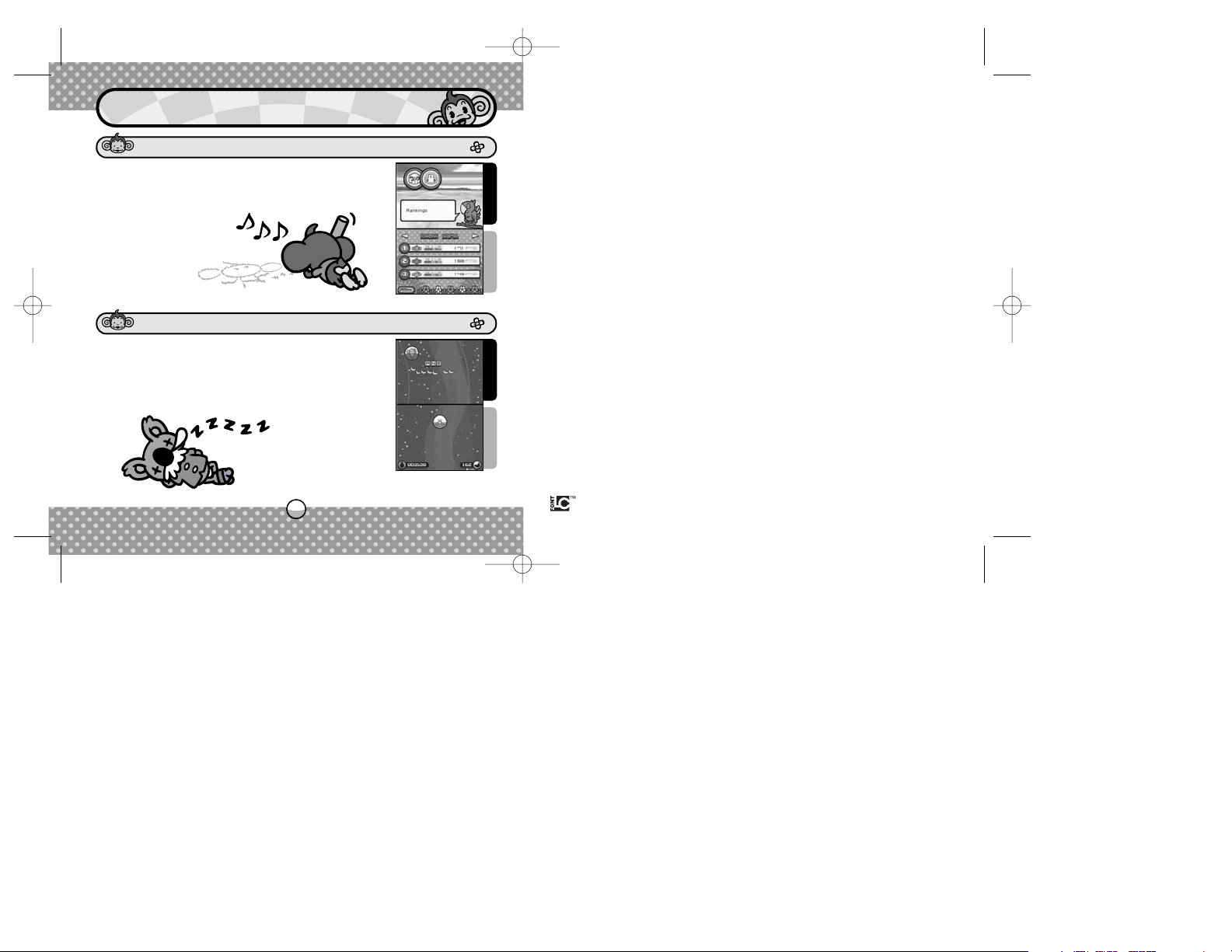
You can view the top three scores for each of the
Party Games (Single Player only). Hone your skills
and aim for high scores.
Top Screen
Touch Screen
This option is enabled when you clear a world in the
Main Game, allowing you to view a list of people who
were behind this game. When a monkey ball appears
at the bottom of the Touch Screen, touch and slide
upwards and hit the letters to get your bananas.
Top Screen
Touch Screen
OPTIONS
RANKINGS
STAFF CREDITS
SEGA of America, Inc.
650 Townsend Street, Suite 650, San Francisco, CA 94103
SEGA is registered in the U.S. Patent and Trademark Office. SEGA, the SEGA logo, and Super Monkey Ball are either registered trademarks
or trademarks of SEGA Corporation. All Rights Reserved. © SEGA Corporation, 2005. This game is licensed for use with the Nintendo DS
System only. Copying and/or transmission of this game is strictly prohibited. Unauthorized rental or public performance of this game is a
violation of applicable laws. Licensed by Nintendo. Nintendo, Nintendo DS and the Official Seal are trademarks of Nintendo. © 2005 Nintendo.
This product uses the LC Font by Sharp Corporation, except some characters. LCFONT, LC Font and the LC logo mark are
trademarks of Sharp Corporation.
SMB_NDS_MNLINT(6).qxp 12/2/05 7:40 PM Page 36
LIMITED WARRANTY:
SEGA of America, Inc. warrants to the original consumer purchaser that the game disc or cartridge shall be free from defects in
material and workmanship for a period of 90-days from the original date of purchase. If a defect covered by this limited warranty
occurs during this 90-day warranty period, the defective game disc or cartridge will be replaced free of charge. This limited
warranty does not apply if the defects have been caused by negligence, accident, unreasonable use, modification, tampering, or
any other causes not related to defective materials or manufacturing workmanship.This limited warranty does not apply to used
software or to software acquired through private transactions between individuals or purchased from online auction sites. Please
retain the original, or a photocopy, of your dated sales receipt to establish the date of purchase for in-warranty replacement. For
replacement, return the product, with its original packaging and receipt, to the retailer from which the software was originally
purchased. In the event that you cannot obtain a replacement from the retailer, please contact Sega to obtain support.
Obtaining technical support/service
To receive additional support, including troubleshooting assistance, please contact Sega at:
• Website: www.sega.com/support
• E-mail: [email protected]
• Telephone: 1-800-USA-SEGA
LIMITATIONS ON WARRANTY
ANY APPLICABLE IMPLIED WARRANTIES, INCLUDING WARRANTIES OF MERCHANTABILITY AND FITNESS FOR A PARTICULAR
PURPOSE, ARE HEREBY LIMITED TO 90 DAYS FROM THE DATE OF PURCHASE AND ARE SUBJECT TO THE CONDITIONS SET
FORTH HEREIN. IN NO EVENT SHALL SEGA OF AMERICA, INC., BE LIABLE FOR CONSEQUENTIAL OR INCIDENTAL DAMAGES
RESULTING FROM THE BREACH OF ANY EXPRESS OR IMPLIED WARRANTIES. THE PROVISIONS OF THIS LIMITED WARRANTY
ARE VALID IN THE UNITED STATES AND CANADA ONLY. SOME STATES DO NOT ALLOW LIMITATIONS ON HOW LONG AN
IMPLIED WARRANTY LASTS, OR EXCLUSION OF CONSEQUENTIAL OR INCIDENTAL DAMAGES, SO THE ABOVE LIMITATION OR
EXCLUSION MAY NOT APPLY TO YOU. THIS WARRANTY PROVIDES YOU WITH SPECIFIC LEGAL RIGHTS. YOU MAY HAVE
OTHER RIGHTS THAT VARY FROM STATE TO STATE.
To register this product, please go to www.sega.com
 Loading...