

Page 1
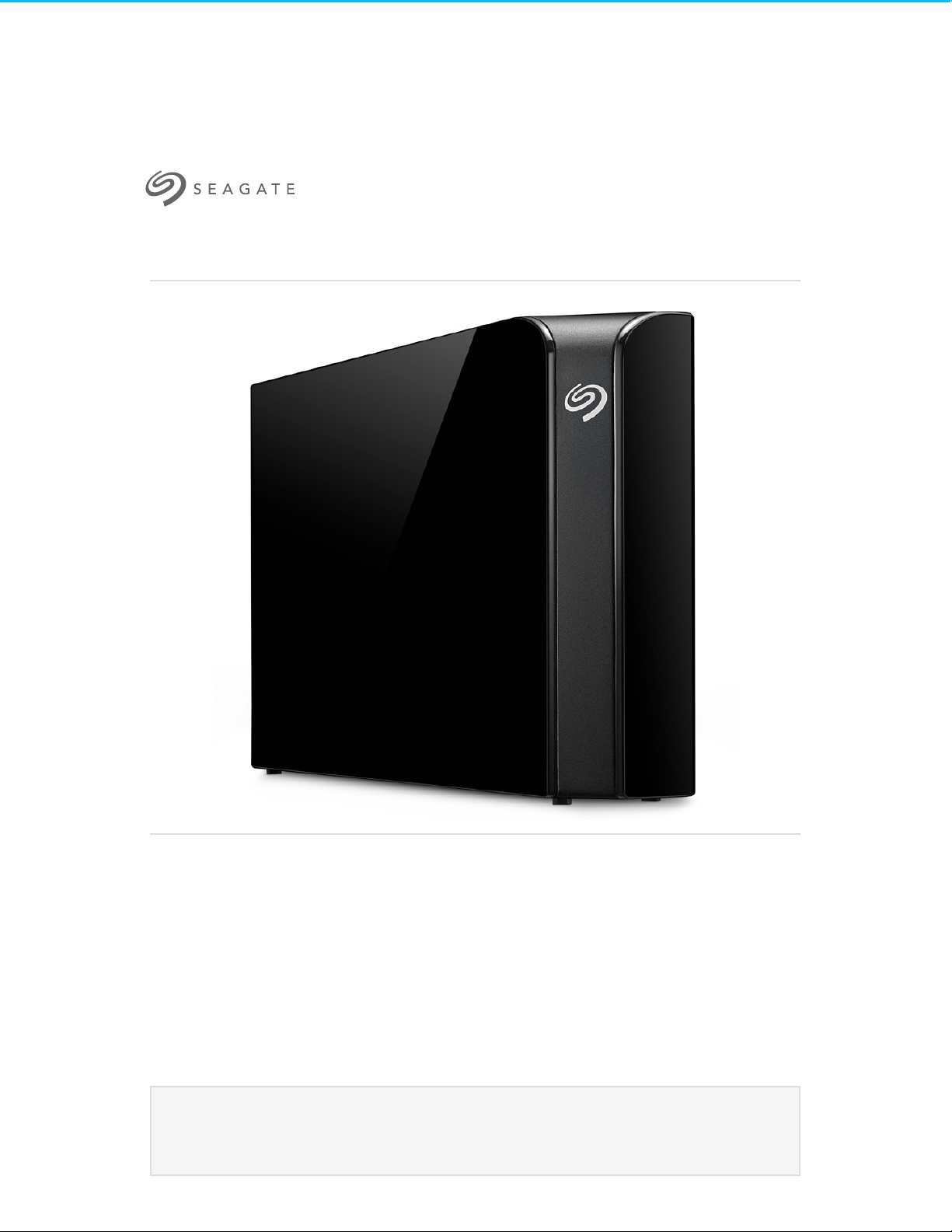
Seagate Backup Plus Desktop User Manual
Click here to access an up-to-date online version
of this document. You will also find the most recent content as well as expandable illu strations, easier
navigation, and search capability.
Model:
Page 2

. . . . . . . . . . . . . . . . . . . . . . . . . . . . . . . . . . . . . . . . . . . . . . . . . . . . . . . . . . . . . . . . . . . . . . . . . . . . . . . . . . . . . . . . . . . . . . . . . . . . . . . . . . . . . . . . . . . . . . . . . . . . . . . . . . . . . . . . . . . . . . . . . . . . . . . . . . . . . . . . . . . . . . . . . . . . . . . . . . . . . . . . . . . . . . . . . . . . . . . . . . . . . . . . . . . . . . . . . . . . . . . . . . . . . . . . . . . . . . . . . . . . . . . . . . . . . . . . . . . . . . . . . . . . . . . . . . . . . . . .
. . . . . . . . . . . . . . . . . . . . . . . . . . . . . . . . . . . . . . . . . . . . . . . . . . . . . . . . . . . . . . . . . . . . . . . . . . . . . . . . . . . . . . . . . . . . . . . . . . . . . . . . . . . . . . . . . . . . . . . . . . . . . . . . . . . . . . . . . . . . . . . . . . . . . . . . . . . . . . . . . . . . . . . . . . . . . . . . . . . . . . . . . . . . . . . . . . . . . . . . . . . . . . . . . . . . . . . . . . . . . . . . . . . . . . . . . . . . . . . . . . . . . . . . . . . . . . . . . . . . . . . . . . . . . . . . . . . . . . . .
. . . . . . . . . . . . . . . . . . . . . . . . . . . . . . . . . . . . . . . . . . . . . . . . . . . . . . . . . . . . . . . . . . . . . . . . . . . . . . . . . . . . . . . . . . . . . . . . . . . . . . . . . . . . . . . . . . . . . . . . . . . . . . . . . . . . . . . . . . . . . . . . . . . . . . . . . . . . . . . . . . . . . . . . . . . . . . . . . . . . . . . . . . . . . . . . . . . . . . . . . . . . . . . . . . . . . . . . . . . . . . . . . . . . . . . . . . . . . . . . . . . . . . . . . . . . . . . . . . . . . . . . . . . . . . . . . . . . . . . .
. . . . . . . . . . . . . . . . . . . . . . . . . . . . . . . . . . . . . . . . . . . . . . . . . . . . . . . . . . . . . . . . . . . . . . . . . . . . . . . . . . . . . . . . . . . . . . . . . . . . . . . . . . . . . . . . . . . . . . . . . . . . . . . . . . . . . . . . . . . . . . . . . . . . . . . . . . . . . . . . . . . . . . . . . . . . . . . . . . . . . . . . . . . . . . . . . . . . . . . . . . . . . . . . . . . . . . . . . . . . . . . . . . . . . . . . . . . . . . . . . . . . . . . . . . . . . . . . . . . . . . . . . . . . . . . . . . . . . . . .
. . . . . . . . . . . . . . . . . . . . . . . . . . . . . . . . . . . . . . . . . . . . . . . . . . . . . . . . . . . . . . . . . . . . . . . . . . . . . . . . . . . . . . . . . . . . . . . . . . . . . . . . . . . . . . . . . . . . . . . . . . . . . . . . . . . . . . . . . . . . . . . . . . . . . . . . . . . . . . . . . . . . . . . . . . . . . . . . . . . . . . . . . . . . . . . . . . . . . . . . . . . . . . . . . . . . . . . . . . . . . . . . . . . . . . . . . . . . . . . . . . . . . . . . . . . . . . . . . . . . . . . . . . . . . . . . . . . . . . . .
. . . . . . . . . . . . . . . . . . . . . . . . . . . . . . . . . . . . . . . . . . . . . . . . . . . . . . . . . . . . . . . . . . . . . . . . . . . . . . . . . . . . . . . . . . . . . . . . . . . . . . . . . . . . . . . . . . . . . . . . . . . . . . . . . . . . . . . . . . . . . . . . . . . . . . . . . . . . . . . . . . . . . . . . . . . . . . . . . . . . . . . . . . . . . . . . . . . . . . . . . . . . . . . . . . . . . . . . . . . . . . . . . . . . . . . . . . . . . . . . . . . . . . . . . . . . . . . . . . . . . . . . . . . . . . . . . . . . . . . .
. . . . . . . . . . . . . . . . . . . . . . . . . . . . . . . . . . . . . . . . . . . . . . . . . . . . . . . . . . . . . . . . . . . . . . . . . . . . . . . . . . . . . . . . . . . . . . . . . . . . . . . . . . . . . . . . . . . . . . . . . . . . . . . . . . . . . . . . . . . . . . . . . . . . . . . . . . . . . . . . . . . . . . . . . . . . . . . . . . . . . . . . . . . . . . . . . . . . . . . . . . . . . . . . . . . . . . . . . . . . . . . . . . . . . . . . . . . . . . . . . . . . . . . . . . . . . . . . . . . . . . . . . . . . . . . . . . . . . . . .
. . . . . . . . . . . . . . . . . . . . . . . . . . . . . . . . . . . . . . . . . . . . . . . . . . . . . . . . . . . . . . . . . . . . . . . . . . . . . . . . . . . . . . . . . . . . . . . . . . . . . . . . . . . . . . . . . . . . . . . . . . . . . . . . . . . . . . . . . . . . . . . . . . . . . . . . . . . . . . . . . . . . . . . . . . . . . . . . . . . . . . . . . . . . . . . . . . . . . . . . . . . . . . . . . . . . . . . . . . . . . . . . . . . . . . . . . . . . . . . . . . . . . . . . . . . . . . . . . . . . . . . . . . . . . . . . . . . . . . . .
. . . . . . . . . . . . . . . . . . . . . . . . . . . . . . . . . . . . . . . . . . . . . . . . . . . . . . . . . . . . . . . . . . . . . . . . . . . . . . . . . . . . . . . . . . . . . . . . . . . . . . . . . . . . . . . . . . . . . . . . . . . . . . . . . . . . . . . . . . . . . . . . . . . . . . . . . . . . . . . . . . . . . . . . . . . . . . . . . . . . . . . . . . . . . . . . . . . . . . . . . . . . . . . . . . . . . . . . . . . . . . . . . . . . . . . . . . . . . . . . . . . . . . . . . . . . . . . . . . . . . . . . . . . . . . . . . . . . . . . .
. . . . . . . . . . . . . . . . . . . . . . . . . . . . . . . . . . . . . . . . . . . . . . . . . . . . . . . . . . . . . . . . . . . . . . . . . . . . . . . . . . . . . . . . . . . . . . . . . . . . . . . . . . . . . . . . . . . . . . . . . . . . . . . . . . . . . . . . . . . . . . . . . . . . . . . . . . . . . . . . . . . . . . . . . . . . . . . . . . . . . . . . . . . . . . . . . . . . . . . . . . . . . . . . . . . . . . . . . . . . . . . . . . . . . . . . . . . . . . . . . . . . . . . . . . . . . . . . . . . . . . . . . . . . . . . . . . . . . . . .
. . . . . . . . . . . . . . . . . . . . . . . . . . . . . . . . . . . . . . . . . . . . . . . . . . . . . . . . . . . . . . . . . . . . . . . . . . . . . . . . . . . . . . . . . . . . . . . . . . . . . . . . . . . . . . . . . . . . . . . . . . . . . . . . . . . . . . . . . . . . . . . . . . . . . . . . . . . . . . . . . . . . . . . . . . . . . . . . . . . . . . . . . . . . . . . . . . . . . . . . . . . . . . . . . . . . . . . . . . . . . . . . . . . . . . . . . . . . . . . . . . . . . . . . . . . . . . . . . . . . . . . . . . . . . . . . . . . . . . . .
. . . . . . . . . . . . . . . . . . . . . . . . . . . . . . . . . . . . . . . . . . . . . . . . . . . . . . . . . . . . . . . . . . . . . . . . . . . . . . . . . . . . . . . . . . . . . . . . . . . . . . . . . . . . . . . . . . . . . . . . . . . . . . . . . . . . . . . . . . . . . . . . . . . . . . . . . . . . . . . . . . . . . . . . . . . . . . . . . . . . . . . . . . . . . . . . . . . . . . . . . . . . . . . . . . . . . . . . . . . . . . . . . . . . . . . . . . . . . . . . . . . . . . . . . . . . . . . . . . . . . . . . . . . . . . . . . . . . . . . .
. . . . . . . . . . . . . . . . . . . . . . . . . . . . . . . . . . . . . . . . . . . . . . . . . . . . . . . . . . . . . . . . . . . . . . . . . . . . . . . . . . . . . . . . . . . . . . . . . . . . . . . . . . . . . . . . . . . . . . . . . . . . . . . . . . . . . . . . . . . . . . . . . . . . . . . . . . . . . . . . . . . . . . . . . . . . . . . . . . . . . . . . . . . . . . . . . . . . . . . . . . . . . . . . . . . . . . . . . . . . . . . . . . . . . . . . . . . . . . . . . . . . . . . . . . . . . . . . . . . . . . . . . . . . . . . . . . . . . . . .
. . . . . . . . . . . . . . . . . . . . . . . . . . . . . . . . . . . . . . . . . . . . . . . . . . . . . . . . . . . . . . . . . . . . . . . . . . . . . . . . . . . . . . . . . . . . . . . . . . . . . . . . . . . . . . . . . . . . . . . . . . . . . . . . . . . . . . . . . . . . . . . . . . . . . . . . . . . . . . . . . . . . . . . . . . . . . . . . . . . . . . . . . . . . . . . . . . . . . . . . . . . . . . . . . . . . . . . . . . . . . . . . . . . . . . . . . . . . . . . . . . . . . . . . . . . . . . . . . . . . . . . . . . . . . . . . . . . . . . . .
. . . . . . . . . . . . . . . . . . . . . . . . . . . . . . . . . . . . . . . . . . . . . . . . . . . . . . . . . . . . . . . . . . . . . . . . . . . . . . . . . . . . . . . . . . . . . . . . . . . . . . . . . . . . . . . . . . . . . . . . . . . . . . . . . . . . . . . . . . . . . . . . . . . . . . . . . . . . . . . . . . . . . . . . . . . . . . . . . . . . . . . . . . . . . . . . . . . . . . . . . . . . . . . . . . . . . . . . . . . . . . . . . . . . . . . . . . . . . . . . . . . . . . . . . . . . . . . . . . . . . . . . . . . . . . . . . . . . . . . .
. . . . . . . . . . . . . . . . . . . . . . . . . . . . . . . . . . . . . . . . . . . . . . . . . . . . . . . . . . . . . . . . . . . . . . . . . . . . . . . . . . . . . . . . . . . . . . . . . . . . . . . . . . . . . . . . . . . . . . . . . . . . . . . . . . . . . . . . . . . . . . . . . . . . . . . . . . . . . . . . . . . . . . . . . . . . . . . . . . . . . . . . . . . . . . . . . . . . . . . . . . . . . . . . . . . . . . . . . . . . . . . . . . . . . . . . . . . . . . . . . . . . . . . . . . . . . . . . . . . . . . . . . . . . . . . . . . . . . . . .
. . . . . . . . . . . . . . . . . . . . . . . . . . . . . . . . . . . . . . . . . . . . . . . . . . . . . . . . . . . . . . . . . . . . . . . . . . . . . . . . . . . . . . . . . . . . . . . . . . . . . . . . . . . . . . . . . . . . . . . . . . . . . . . . . . . . . . . . . . . . . . . . . . . . . . . . . . . . . . . . . . . . . . . . . . . . . . . . . . . . . . . . . . . . . . . . . . . . . . . . . . . . . . . . . . . . . . . . . . . . . . . . . . . . . . . . . . . . . . . . . . . . . . . . . . . . . . . . . . . . . . . . . . . . . . . . . . . . . . . .
. . . . . . . . . . . . . . . . . . . . . . . . . . . . . . . . . . . . . . . . . . . . . . . . . . . . . . . . . . . . . . . . . . . . . . . . . . . . . . . . . . . . . . . . . . . . . . . . . . . . . . . . . . . . . . . . . . . . . . . . . . . . . . . . . . . . . . . . . . . . . . . . . . . . . . . . . . . . . . . . . . . . . . . . . . . . . . . . . . . . . . . . . . . . . . . . . . . . . . . . . . . . . . . . . . . . . . . . . . . . . . . . . . . . . . . . . . . . . . . . . . . . . . . . . . . . . . . . . . . . . . . . . . . . . . . . . . . . . . . .
. . . . . . . . . . . . . . . . . . . . . . . . . . . . . . . . . . . . . . . . . . . . . . . . . . . . . . . . . . . . . . . . . . . . . . . . . . . . . . . . . . . . . . . . . . . . . . . . . . . . . . . . . . . . . . . . . . . . . . . . . . . . . . . . . . . . . . . . . . . . . . . . . . . . . . . . . . . . . . . . . . . . . . . . . . . . . . . . . . . . . . . . . . . . . . . . . . . . . . . . . . . . . . . . . . . . . . . . . . . . . . . . . . . . . . . . . . . . . . . . . . . . . . . . . . . . . . . . . . . . . . . . . . . . . . . . . . . . . . . .
. . . . . . . . . . . . . . . . . . . . . . . . . . . . . . . . . . . . . . . . . . . . . . . . . . . . . . . . . . . . . . . . . . . . . . . . . . . . . . . . . . . . . . . . . . . . . . . . . . . . . . . . . . . . . . . . . . . . . . . . . . . . . . . . . . . . . . . . . . . . . . . . . . . . . . . . . . . . . . . . . . . . . . . . . . . . . . . . . . . . . . . . . . . . . . . . . . . . . . . . . . . . . . . . . . . . . . . . . . . . . . . . . . . . . . . . . . . . . . . . . . . . . . . . . . . . . . . . . . . . . . . . . . . . . . . . . . . . . . . .
. . . . . . . . . . . . . . . . . . . . . . . . . . . . . . . . . . . . . . . . . . . . . . . . . . . . . . . . . . . . . . . . . . . . . . . . . . . . . . . . . . . . . . . . . . . . . . . . . . . . . . . . . . . . . . . . . . . . . . . . . . . . . . . . . . . . . . . . . . . . . . . . . . . . . . . . . . . . . . . . . . . . . . . . . . . . . . . . . . . . . . . . . . . . . . . . . . . . . . . . . . . . . . . . . . . . . . . . . . . . . . . . . . . . . . . . . . . . . . . . . . . . . . . . . . . . . . . . . . . . . . . . . . . . . . . . . . . . . . . .
. . . . . . . . . . . . . . . . . . . . . . . . . . . . . . . . . . . . . . . . . . . . . . . . . . . . . . . . . . . . . . . . . . . . . . . . . . . . . . . . . . . . . . . . . . . . . . . . . . . . . . . . . . . . . . . . . . . . . . . . . . . . . . . . . . . . . . . . . . . . . . . . . . . . . . . . . . . . . . . . . . . . . . . . . . . . . . . . . . . . . . . . . . . . . . . . . . . . . . . . . . . . . . . . . . . . . . . . . . . . . . . . . . . . . . . . . . . . . . . . . . . . . . . . . . . . . . . . . . . . . . . . . . . . . . . . . . . . . . . .
. . . . . . . . . . . . . . . . . . . . . . . . . . . . . . . . . . . . . . . . . . . . . . . . . . . . . . . . . . . . . . . . . . . . . . . . . . . . . . . . . . . . . . . . . . . . . . . . . . . . . . . . . . . . . . . . . . . . . . . . . . . . . . . . . . . . . . . . . . . . . . . . . . . . . . . . . . . . . . . . . . . . . . . . . . . . . . . . . . . . . . . . . . . . . . . . . . . . . . . . . . . . . . . . . . . . . . . . . . . . . . . . . . . . . . . . . . . . . . . . . . . . . . . . . . . . . . . . . . . . . . . . . . . . . . . . . . . . . . . .
. . . . . . . . . . . . . . . . . . . . . . . . . . . . . . . . . . . . . . . . . . . . . . . . . . . . . . . . . . . . . . . . . . . . . . . . . . . . . . . . . . . . . . . . . . . . . . . . . . . . . . . . . . . . . . . . . . . . . . . . . . . . . . . . . . . . . . . . . . . . . . . . . . . . . . . . . . . . . . . . . . . . . . . . . . . . . . . . . . . . . . . . . . . . . . . . . . . . . . . . . . . . . . . . . . . . . . . . . . . . . . . . . . . . . . . . . . . . . . . . . . . . . . . . . . . . . . . . . . . . . . . . . . . . . . . . . . . . . . . .
. . . . . . . . . . . . . . . . . . . . . . . . . . . . . . . . . . . . . . . . . . . . . . . . . . . . . . . . . . . . . . . . . . . . . . . . . . . . . . . . . . . . . . . . . . . . . . . . . . . . . . . . . . . . . . . . . . . . . . . . . . . . . . . . . . . . . . . . . . . . . . . . . . . . . . . . . . . . . . . . . . . . . . . . . . . . . . . . . . . . . . . . . . . . . . . . . . . . . . . . . . . . . . . . . . . . . . . . . . . . . . . . . . . . . . . . . . . . . . . . . . . . . . . . . . . . . . . . . . . . . . . . . . . . . . . . . . . . . . . .
Cont ent sCont ent s
1 Introduction
Box content
Minim um system requirements
Hardware requirements
2 LED indicator and cables
Status light inform ation
USB 3.0
3 Connect Backup Plus Desktop to your computer
Step 1 - Connect to a power outlet
Step 2 – Connect to your computer
Step 3 – Registration and software
Macintosh computer
4 Safely remove your Backup Plus Desktop from your computer
Safely remove external storage from a Windows PC
Safely rem ove external storage from a Mac
5 Back up your computer to Backup Plus Desktop
What is a backup?
Backup options
6 Optional Formatting and Partitioning
About file system formats
Formatting instructions
7 Hard drive tests
Seagate diagnostic tool (Windows only)
Windows diagnostic tool
Mac diagnostic tool
. . . . . . . . . . . . . . . . . . . . . . . . . . . . . . . . . . . . . . . . . . . . . . . . . . . . . . . . . . . . . . . . . . . . . . . . . . . . . . . . . . . . . . . . . . . . . . . . . . . . . . . . . . . . . . . . . . . . . . . . . . . . . . . . . . . . . . . . . . . . . . . . . . . . . . . . . . . . . . . . . . . . . . . . . . . . . . . . . . . . . . . . . . . . . . . . . . . . . . . . . . . . . . . . . . . . . . . . . . . . . . . . . . . . . . . . . . . . . . . . . . . . . . . . . . . . . . . . . . . . . . . . . . . . . . . . . . . . . . . .Eject via Finder windo w
. . . . . . . . . . . . . . . . . . . . . . . . . . . . . . . . . . . . . . . . . . . . . . . . . . . . . . . . . . . . . . . . . . . . . . . . . . . . . . . . . . . . . . . . . . . . . . . . . . . . . . . . . . . . . . . . . . . . . . . . . . . . . . . . . . . . . . . . . . . . . . . . . . . . . . . . . . . . . . . . . . . . . . . . . . . . . . . . . . . . . . . . . . . . . . . . . . . . . . . . . . . . . . . . . . . . . . . . . . . . . . . . . . . . . . . . . . . . . . . . . . . . . . . . . . . . . . . . . . . . . . . . . . . . . . . . . . . . . . . .Eject via Des ktop
. . . . . . . . . . . . . . . . . . . . . . . . . . . . . . . . . . . . . . . . . . . . . . . . . . . . . . . . . . . . . . . . . . . . . . . . . . . . . . . . . . . . . . . . . . . . . . . . . . . . . . . . . . . . . . . . . . . . . . . . . . . . . . . . . . . . . . . . . . . . . . . . . . . . . . . . . . . . . . . . . . . . . . . . . . . . . . . . . . . . . . . . . . . . . . . . . . . . . . . . . . . . . . . . . . . . . . . . . . . . . . . . . . . . . . . . . . . . . . . . . . . . . . . . . . . . . . . . . . . . . . . . . . . . . . . . . . . . . . . .Windo ws
. . . . . . . . . . . . . . . . . . . . . . . . . . . . . . . . . . . . . . . . . . . . . . . . . . . . . . . . . . . . . . . . . . . . . . . . . . . . . . . . . . . . . . . . . . . . . . . . . . . . . . . . . . . . . . . . . . . . . . . . . . . . . . . . . . . . . . . . . . . . . . . . . . . . . . . . . . . . . . . . . . . . . . . . . . . . . . . . . . . . . . . . . . . . . . . . . . . . . . . . . . . . . . . . . . . . . . . . . . . . . . . . . . . . . . . . . . . . . . . . . . . . . . . . . . . . . . . . . . . . . . . . . . . . . . . . . . . . . . . .Mac
4
4
4
4
5
5
5
6
6
7
7
8
9
9
9
9
10
11
11
11
13
13
14
14
14
15
15
15
16
Page 3

. . . . . . . . . . . . . . . . . . . . . . . . . . . . . . . . . . . . . . . . . . . . . . . . . . . . . . . . . . . . . . . . . . . . . . . . . . . . . . . . . . . . . . . . . . . . . . . . . . . . . . . . . . . . . . . . . . . . . . . . . . . . . . . . . . . . . . . . . . . . . . . . . . . . . . . . . . . . . . . . . . . . . . . . . . . . . . . . . . . . . . . . . . . . . . . . . . . . . . . . . . . . . . . . . . . . . . . . . . . . . . . . . . . . . . . . . . . . . . . . . . . . . . . . . . . . . . . . . . . . . . . . . . . . . . . . . . . . . . . .8 Frequently asked questions 17
Page 4

Introducon
Welcome to the user manual for Seagate Backup Plus Desktop, a hard drive with ample capacity to store all
your important files. Connect your Backup Plus Desktop to a computer that supports USB 3.0 for fast
transfers of all your data.
Review this user manual for instructions on how to manage your Backup Plus Desktop. For common
questions and answers about your drive, please se e Frequently asked questions.
You can ge t the latest tips regarding your product and updated technical information at Seagate customer
support.
Box content
Seagate Backup Plus Desktop
USB 3.0 cable (Micro-B to Type A)
Power cable
Quick Start Guide
Software: Lyve and Seagate Dashboard (available for download)
Minimum system requirements
You can connect your Backup Plus Desktop to a computer that meets the following minimum requirements:
Windows 7 or highe r
Mac OS X 10.7 or higher
Hardware requirements
Backup Plus Desktop can be connected to computers with USB 3.0 and USB 2.0 ports. Howeve r, you can
reach transfer rates up to 5Gb/s when connected to a USB 3.0 port. Connecting the Backup Plus Desktop to a
computer with USB 2.0 limits performance to USB 2.0 spe eds.
Important info: Save your packaging. If you experience problems with your hard drive and want
to exchange it, the hard drive must be returne d in its original packaging.
4Se agate Backup Plus Des ktop
7/4/16
Page 5
LED indicator and cables
Status light informaon
Your hard drive features a status light that provides general information about the product. Refer to the table
be low for details.
Light color Status
White Drive is on and ready
Blinking white Drive activity
Off Drive is off
USB 3.0
USB is a serial input/output technology for connecting peripheral devices to a computer. USB 3.0 is a recent
implementation of this standard that provide s high bandwidth for data transfers.
Transfer rates can attain up to 5Gb/s as opposed to USB 2.0's 480Mb/s. This means that USB 3.0 is
theoretically up to ten times faster than its predecessor.
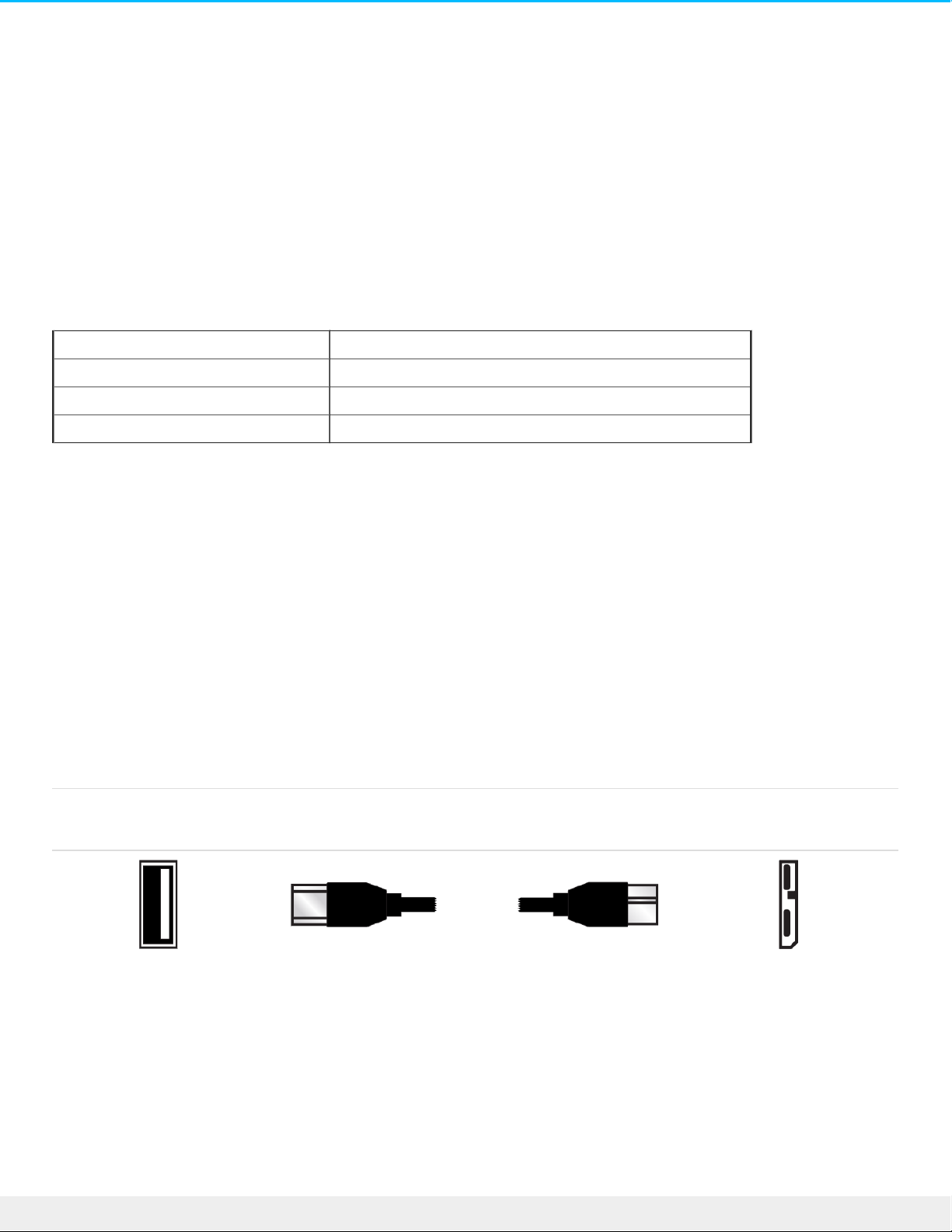
Make certain to use the USB 3.0 cable included with your Backup Plus Desktop. It features a Micro-B
connector on one e nd to plug into the Backup Plus Desktop and a standard Type A connector for unive rsal
connectivity to all PCs.
Connector Face
(Type A to Computer)
Cable End
(Type A to Computer)
Cable End
(Micro-B to Hard Drive)
Connector Face
(Micro-B to Hard Drive)
5Se agate Backup Plus Des ktop
7/4/16
Page 6
Connect Backup Plus Desktop to your
computer
Your Backup Plus Desktop is compatible with computers that feature a USB port.
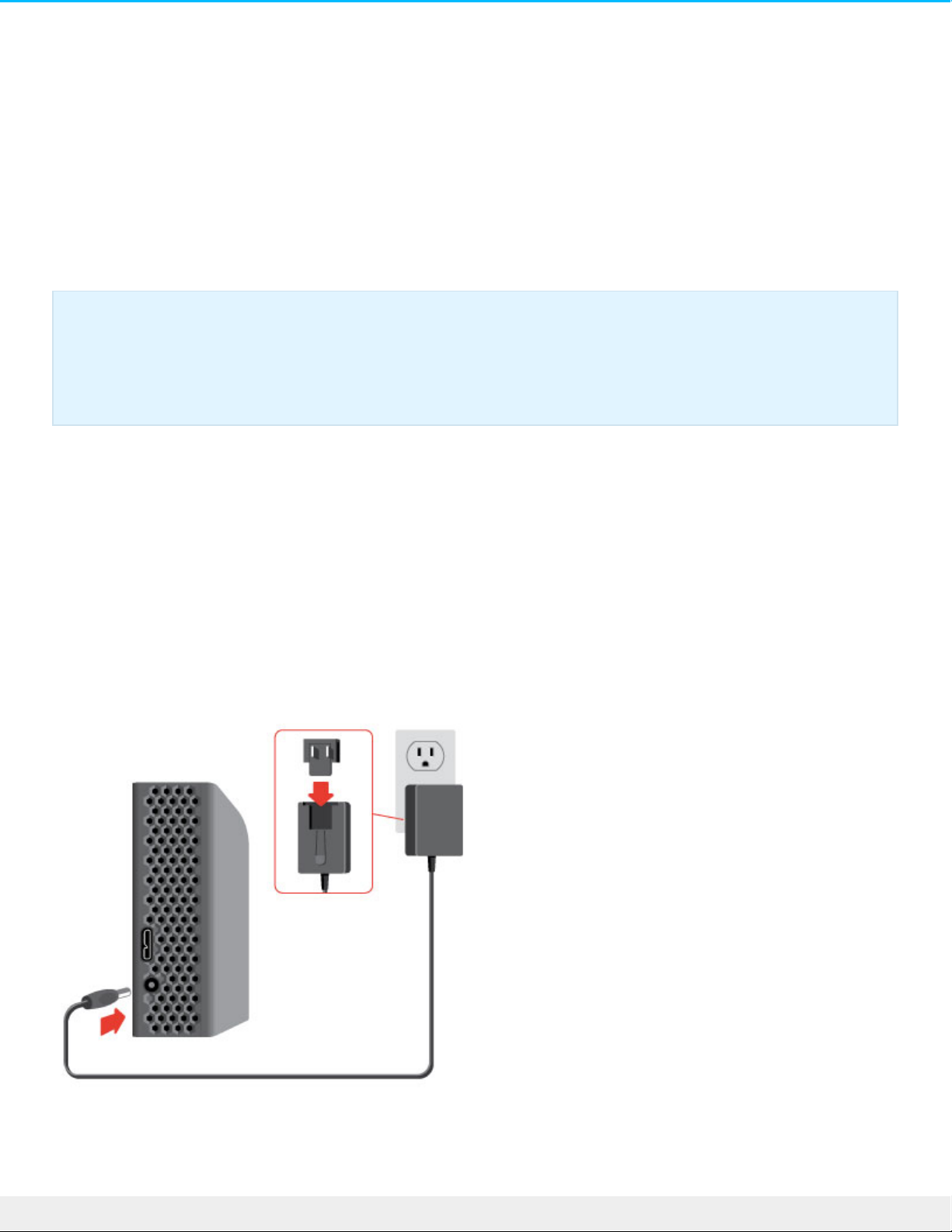
Step 1 - Connect to a power outlet
Attach one end of the include d power cable to Backup Plus Desktop and the other end to a working power
outlet. The LED turns on when the de vice receives power.
Power adapters can vary by region. Therefore, make certain to only use the power cable included with your
Seagate Backup Plus Desktop. Attaching third-party or other Seagate powe r cables with incorrect voltage can
damage Backup Plus Desktop.
Important info regarding USB connections: Your Seagate drive is shipped with a SuperSpe ed
USB 3.0 cable to ensure maximum data transfer performance when connected to a compatible
USB 3.0 port. The cable also works when connected to a USB 2.0 port, but drive performance is
limited to USB 2.0 transfer rates.
6Se agate Backup Plus Des ktop
7/4/16
Page 7
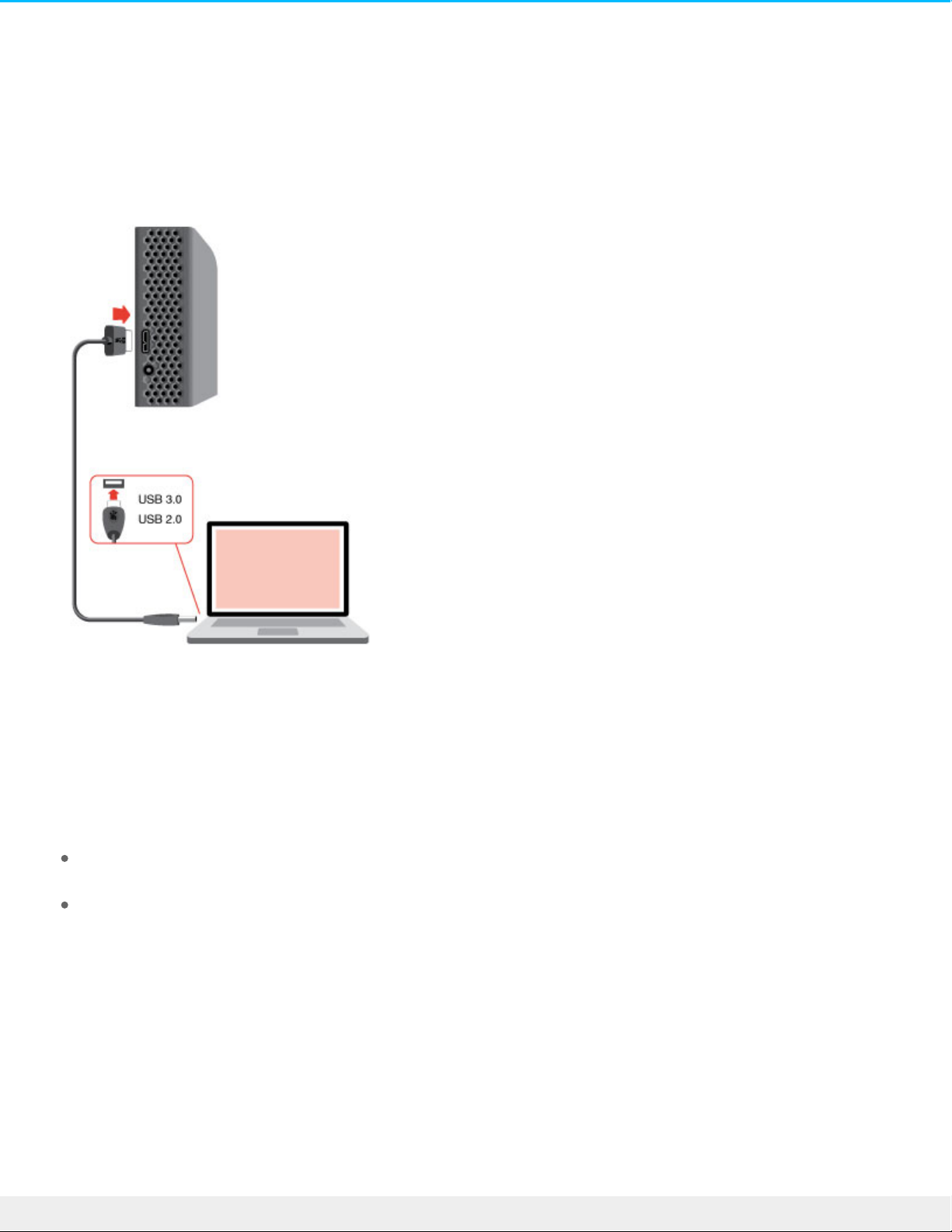
Step 2 – Connect to your computer
Attach the USB Micro-B end of the included USB cable to Backup Plus Desktop.
Attach the USB Type A end of the included USB cable to a compatible port on your computer.
Step 3 – Registraon and soware
Register your Seagate Backup Plus Desktop to receive the latest news regarding your device . You can
register your device and install Seagate software in a few simple steps.
Software included with your Backup Plus Desktop:
Lyve–Automatically collect photos and vide os stored on all your de vices and display them in one
organized view. For de tails, visit Lyve.
Dashboard–Backup software for your Windows computers, mobile devices and social me dia. For
de tails, se e Dashboard.
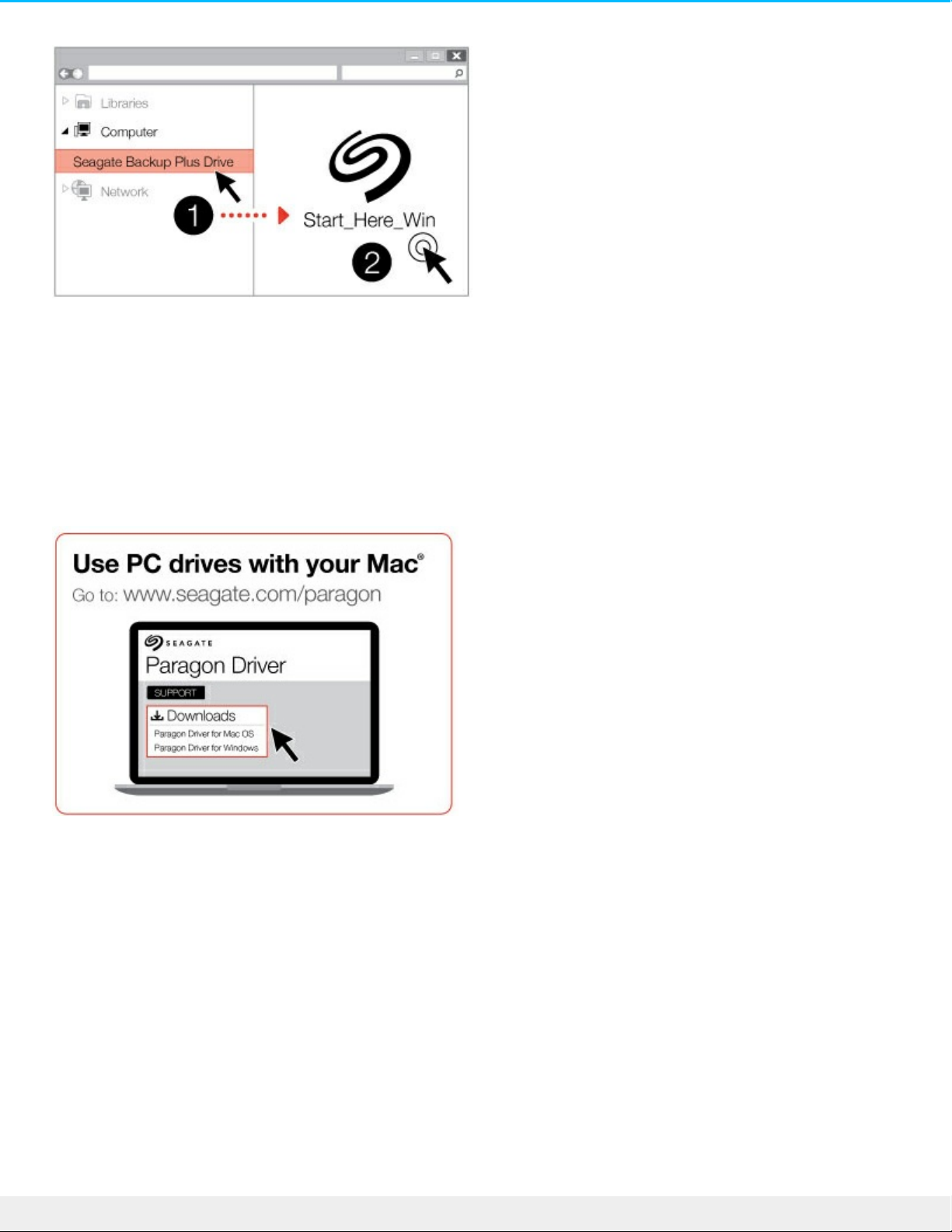
1. Ope n the Seagate Backup Plus Desktop volume in Windows Explorer. Launch the installe r by double
clicking Start_Here_Win.
2. Follow the on-scree n instructions to register your hard drive and install Seagate software.
If you have questions regarding setup or would like to learn more about your hard drive, visit Seagate Backup
Plus Desktop support.
7Se agate Backup Plus Des ktop
7/4/16
Page 8
Macintosh computer
Seagate Backup Plus Desktop is formatted for Windows using NTFS. Mac OS X can read hard drives
formatted as NTFS but write access is not available without the aid of a special driver. If you want to use
Backup Plus Desktop with a Macintosh computer, download and install the Paragon driver. For more
information, go to Paragon driver for Mac.
8Se agate Backup Plus Des ktop
7/4/16
Page 9
Safely remove your Backup Plus Desktop
from your computer
Always eject a storage drive from your computer before physically disconnecting it. Your computer must
pe rform filing and housekee ping operations on the drive before it is removed. Therefore, if you unplug the
drive without using the operating system’s software, your files can become corrupt or damaged.
Safely remove external storage from a Windows PC
Use the Safely Remove tool to eject the hard drive you want to remove.
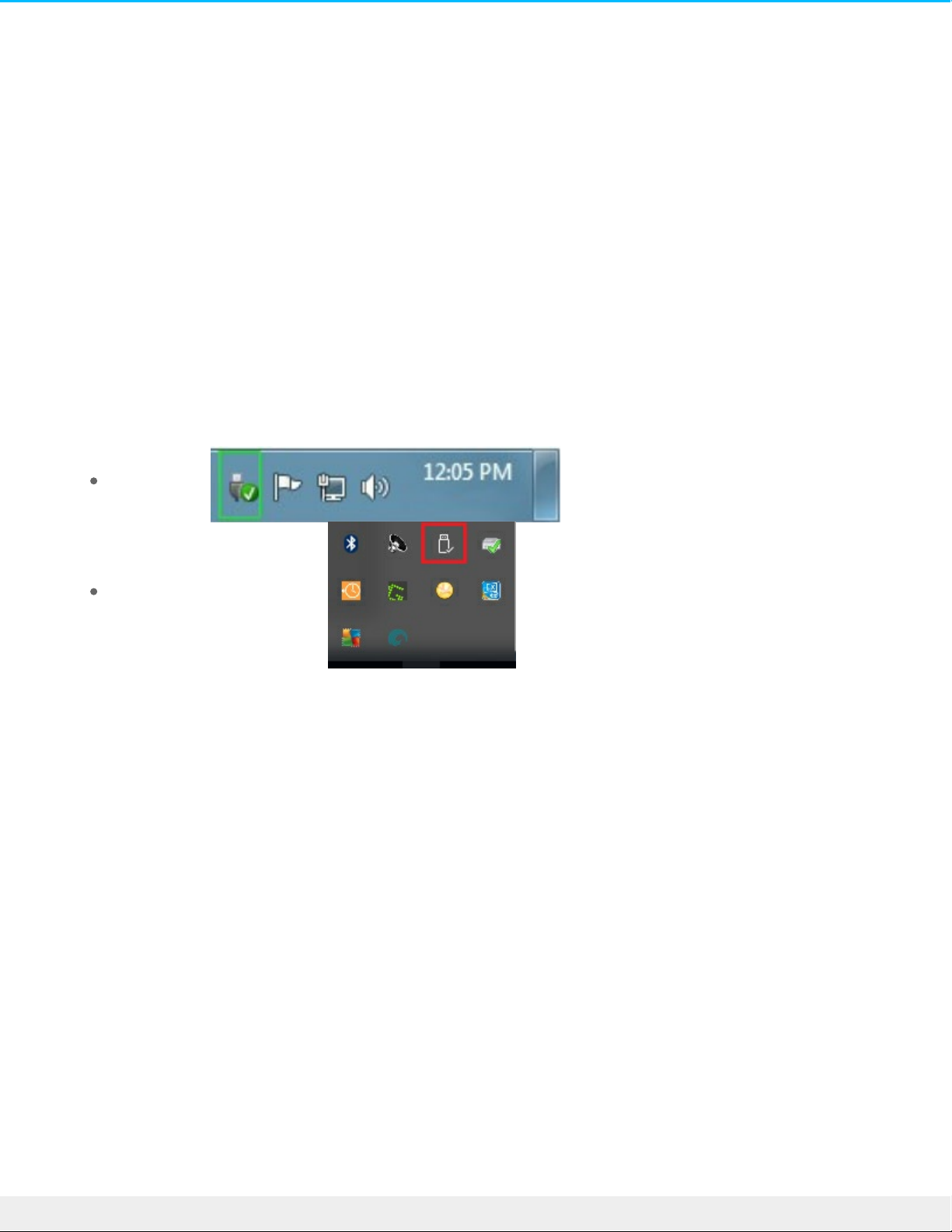
1. Click the Safely Remove icon in your Windows System Tray to view the de vice s you can eject.
Windows 7:
Windows 8 / Windows 10:
2. If you don't se e the Safely Remove Hardware icon, click the Show hidden icons arrow in the system tray
to display all icons in the notification area.
3. In the list of de vices, choose the de vice you want to remove . Windows displays a notification when it is
safe to remove the device.
4. Disconnect the hard drive from the computer.
Safely remove external storage from a Mac
The re are several ways you can eject your hard drive from a Mac. See below for two options.
Eject via Finder window
1. Ope n a Finder window.
2. In Devices on the sidebar, locate Se agate Backup Plus Desktop and click the e ject symbol to the right of
the drive name.
3. Once the drive disappears from the sidebar or, if the Finder window closes, you can disconnect the hard
drive's cable from your Mac.
9Se agate Backup Plus Des ktop
7/4/16
Page 10

Eject via Desktop
1. Select the de sktop icon for your hard drive and drag it to the Trash.
2. When the image is no longe r visible on your desktop, you can physically disconnect the hard drive from
your Mac.
10Se agate Backup Plus Des kto p
7/4/16
Page 11
Back up your computer to Backup Plus
Desktop
What is a backup?
The re are two type s of backup:
System backup: A system backup copies everything on your computer onto an external storage device
including the operating system, applications and data. If the computer’s hard drive fails, the computer can
be restored to its forme r state with the backed up system data.
File backup: A file backup copie s select data files onto an external storage device. If the computer’s hard
drive fails, the files are safe on the external storage drive but the ope rating system and applications must
be reinstalled.
Backup opons
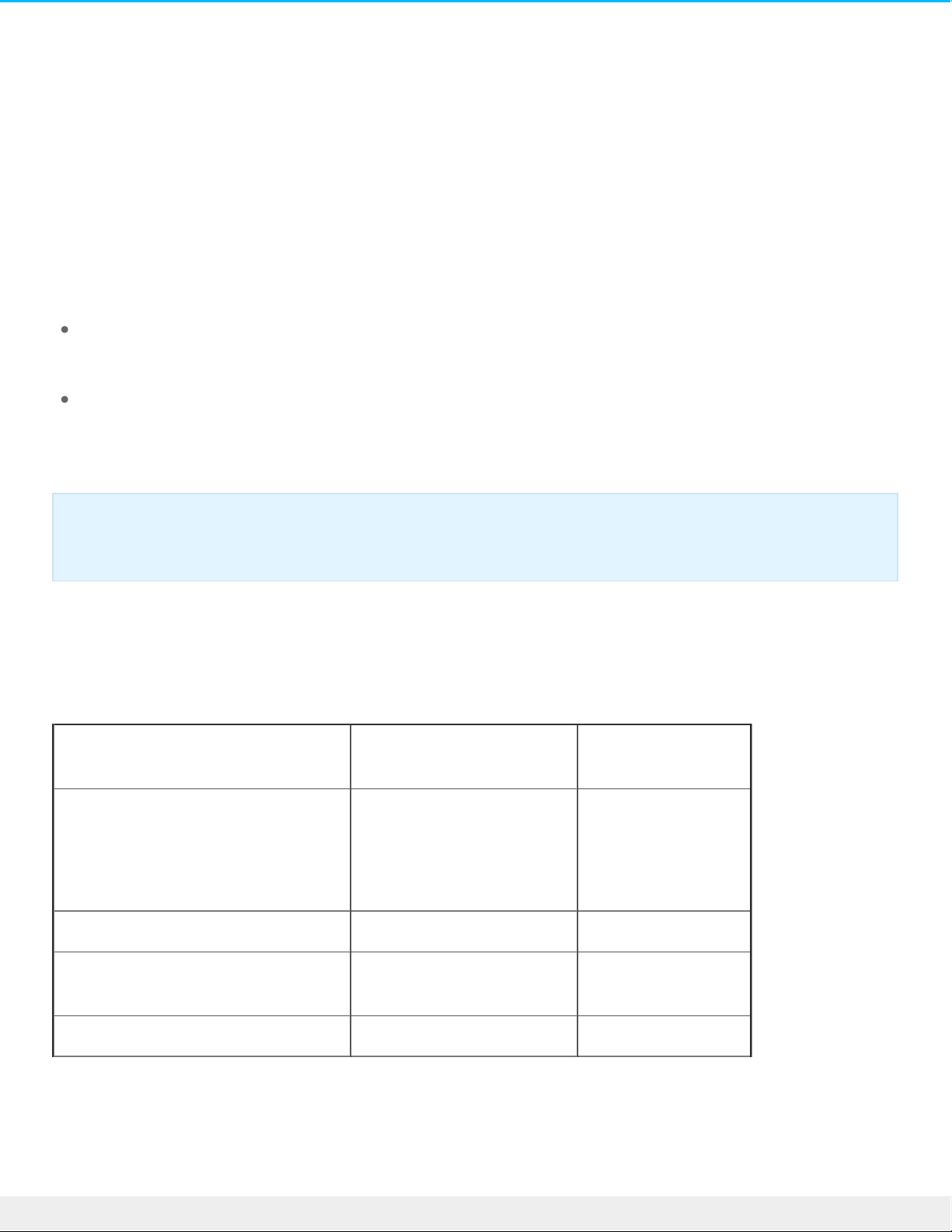
The following table shows how you can back up data from your computer to your Backup Plus Desktop.
System backup File backup
Seagate Dashboard
x
(Windows only)
Copy and paste x
Windows 7 Backup and Restore x x
Windows 8 File History x
Important info: Windows requires a repair or restore CD/DVD or USB de vice for full system
backups.
11Se agate Backup Plus Des kto p
7/4/16
Page 12

Windows 10: Backup and Restore or
File History
x
(Backup and Restore)
x
(File History)
Mac Time Machine x x
Click the links below for further information regarding each backup solution:
Seagate Dashboard
Windows System Image Backup
Windows 7 and 10 Backup and Restore
Windows 8 and 10 File History
Mac Time Machine
When initiating a backup task, make certain that your Backup Plus Desktop has sufficient capacity to hold the
data you want to back up.
All of the options in the table can be automated except for copy and paste. Copying and pasting is a manual
task that requires your attention with each change to a file on your computer. If you forget to manually copy
files, you risk losing important data should your computer’s hard drive experie nce problems. Automated
solutions, once created, only require that you connect your Backup Plus Desktop to your
computer. Therefore, Seagate recommends an automated backup solution.
12Se agate Backup Plus Des kto p
7/4/16
Page 13

Oponal Formang and Paroning
Your Backup Plus Desktop is formatted as NTFS for compatibility with Windows out of the box. Therfore,
you can connect Backup Plus Desktop to a Windows PC without formatting the hard drive. Howeve r, NTFS is
not fully compatible with Mac computers. If you want to connect Backup Plus Desktop to a Mac as well as a
Windows PC, you can install special software that allows Macs to read and write files to NTFS hard drives
similar to Windows PCs. For details and instructions, se e our dedicated support page for the Paragon driver
for Mac.
If you want to use Backup Plus Desktop exclusively with Mac computers, it is recomme nded that you use the
format native to the Mac operating system, HFS+ (journaled).
For further information on hard drive file systems and instructions for formatting hard drives, review the
section be low.
About file system formats
NTFS: since it is the native file system for Windows, volumes created in NTFS are read and write with
computers running Windows. Mac OS can read and write to NTFS volume s with the help of the Paragon
driver for Windows.
Mac OS Extended (HFS+): the native hard drive file system for Mac. Windows users can re ad and write to
HFS+ (journaled) hard drives by installing the Paragon drive r for Mac.
exFAT: generally compatible with Mac and Windows. exFAT is not a journale d file system which me ans it can
be more susceptible to data corruption when e rrors occur or the drive is not disconnected prope rly from
the computer.
FAT32: compatible with Mac and Windows. Howeve r, FAT32 is a legacy file system designed for low
capacity hard drives and it is not recommended for modern hard drive s or operating systems. A FAT32
partition can reach up to 32GB when formatte d on a Windows PC.
How to choose the file system format
Use NTFS if:
…the storage device is connected to Windows PCs. Install the Paragon driver for Mac for compatibility with
Macs.
Use HFS+ if:
…the storage device is connected to Macs. Install the Paragon driver for Windows for compatibility with
Windows PCs.
You can use exFAT if:
…the storage device is shared be twe en Mac and Windows computers. Howeve r, Seagate recommends
installing the Paragon driver when sharing hard drives between operating systems.
Use FAT32 if:
…the storage device is connected to older Windows and Mac computers. FAT32 is not recomme nded for
13Se agate Backup Plus Des kto p
7/4/16
Page 14

modern ope rating systems and computers.
Formang instrucons
The steps below help you format and partition a storage device.
Windows
1. Make sure the storage device is connected to and mounted on the computer.
2. Go to Search and then type diskmgmt.msc. In the search re sults, double click Disk Management.
3. From the list of storage devices in the middle of the Disk Management window, locate your Seagate
de vice.
4. The partition must be available to format. If it is curre ntly formatted, right click on the partion and then
choose Delete.
5. To create a new partition, right click on the volume and select New Simple Volume. Follow the on-screen
instructions when the New Simple Volume Wizard appears.
Mac
1. Make sure the storage device is connected to and mounted on the computer.
2. Select Go > Utilities in the Finder menu bar.
3. In the Utilities folder, double-click Disk Utility. All connected storage devices, partitions or disk images
are displayed in the left column.
4. Select the Seagate drive in the left column.
5. Click the Erase tab.
6. Choose a format from the drop-down window.
7. Enter a name for the volume.
8. Click Erase and confirm your selection in the pop-up window.
Caution: Formatting erases everything on the storage device. Seagate highly recommends that
you back up all data on your storage device before performing the steps below. Seagate is not
responsible for any data lost due to formatting, partitioning or using a Seagate storage device.
Note: Refer to your operating system's docume ntation for more information on formatting and
partitioning storage device s.
14Se agate Backup Plus Des kto p
7/4/16
Page 15
Hard drive tests
If you expe rience problems with your Seagate e xternal storage , you can run diagnostic tests on its hard
drive. Windows and Mac offer utilities to test and repair hard drives and Seagate provides utlities for
Windows.
Seagate diagnosc tool (Windows only)
Download Se atools for Windows and follow the steps be low to help de termine the health of your device.
Make certain to back up data on your storage de vice before running the test.
1. Close all open applications before running the hard drive diagnostic tests.
2. Before starting the test, make ce rtain that the computer is powered on. The computer must be plugged
into its powe r supply and the powe r supply should receive power from a wall socket.
3. Power management controls must be suspended during the tests. To adjust power management
settings:
Click Start or the Windows icon on the bottom left corner of your Windows desktop.
Go to Control Panel.
Choose Power O ptions.
Choose Change plan settings.
Choose Change advanced power settings
Expand the Hard Disks in the window.
Confirm that the setting is se t to Never.
4. Confirm that you have the correct storage device connected to your computer. Seatools for Windows
can be used with Seagate , Samsung, LaCie and Maxtor storage devices. Safely remove all other hard
drives.
5. If you have not done so, back up data on your storage device before running the test.
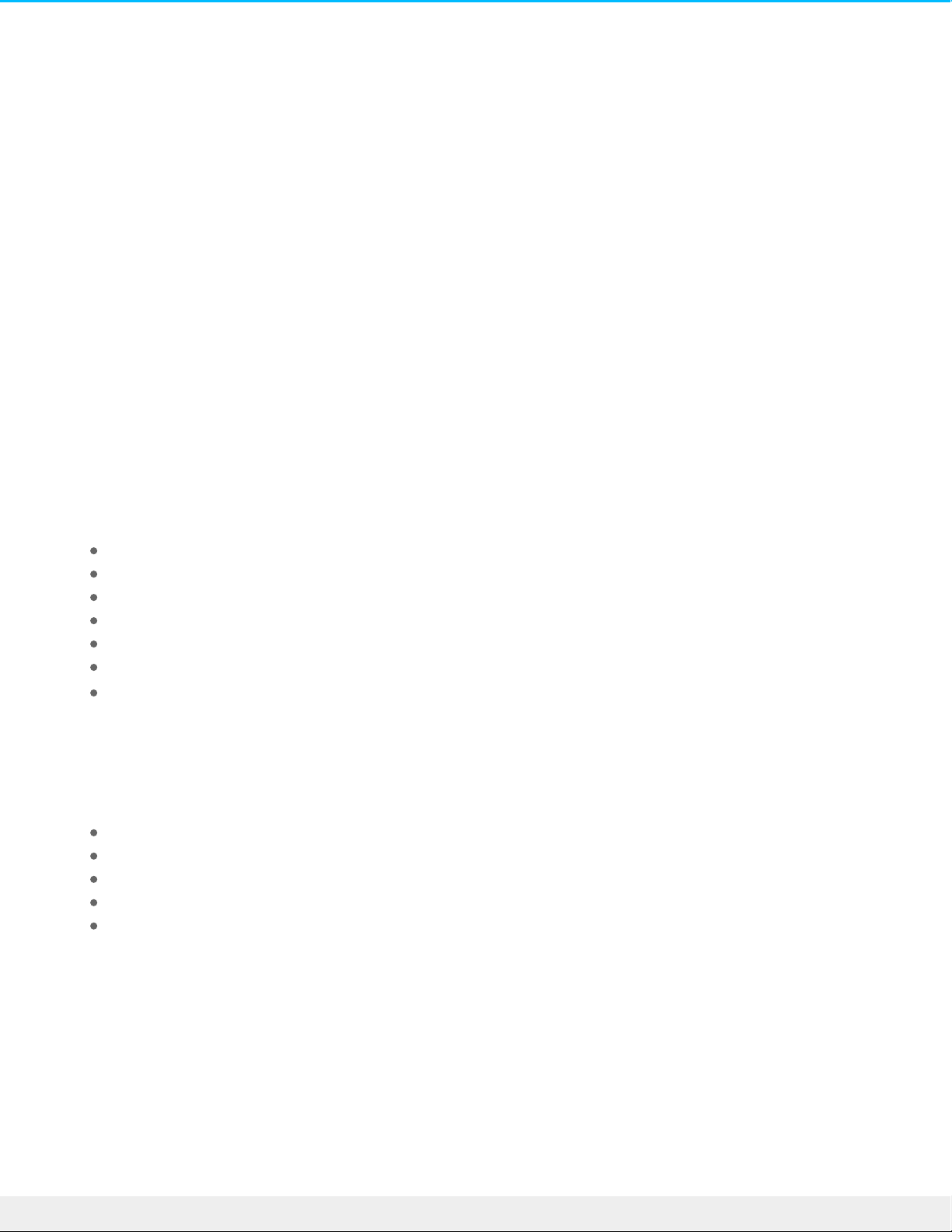
6. Launch Seatools and choose the tests to run from the menu:
Fix all
S.M.A.R.T. check
Short Drive Se lf Test
Short Generic
Long Generic (progresse s at 1% increments and can take seve ral hours to complete)
Following the test, a log for each drive is saved to the program installation folder. To read the log, click
Help>View Log File. You can also vie w a log in Help by clicking Pass Info or Fail Info, depending on your
results.
Windows diagnosc tool
Windows includes a utility calle d Check Disk (ChkDsk) that can be used to repair bad se ctors on the hard
15Se agate Backup Plus Des kto p
7/4/16
Page 16

drive. Always back up your data before running Check Disk scans on your hard drive. If a bad sector is found,
data that had been available can be inaccessible once the bad sector is reallocated.
Follow the steps below to run Check Disk:
1. Launch Command Prompt. Go to the start menu or start scree n to type cmd and then click Command
Prompt.
2. Type chkdsk X: /f. “X“ is the letter for your hard drive
The length of time for the test to complete can vary and is usually longer for higher capacity storage devices.
Mac diagnosc tool
Mac OS includes Disk Utility, a tool for formatting, testing and repairing hard drives. Disk Utility’s test and
repair option is called First Aid.
Always back up your data before running First Aid scans on your hard drive. If a bad sector is found, data that
had be en available can be inaccessible once the bad sector is reallocated.
Follow the steps below to run First Aid:
1. From the Finde r, click Go > Utilities > Disk Utility.
2. Hard drives are listed on the left of the Disk Utility window. Find your Seagate device and click it.
Information about the drive is available, including the file system. Additionally, partitions are visible in
the left column as a second inde nted row unde r the storage device. The re may be case s in which a
partition is mounte d on the desktop but does not appear in Disk Utility. You can still run the test on the
hard drive.
3. Click a partition to se lect it.
4. Click the First Aid tab/button.
5. To check the volume :
Mac OS 10.10 and earlier: click Verify Disk. If Disk Utility reports that the disk needs to be repaired,
click Repair Disk.
Mac OS 10.11 and late r: click Run to begin the test.
6. If you have additional partitions, repeat the test on each one.
16Se agate Backup Plus Des kto p
7/4/16
Page 17

Frequently asked quesons
For help setting up and using your Seagate hard drive, revie w the frequently asked questions below. For
additional support re sources, go to Seagate custome r support.
Q: What is the hard drive format for the Backup Plus Desktop?
A: The default hard drive format for Backup Plus Desktop is NTFS, native to Windows.
Q: Can I use my Seagate hard drive without backup software?
A: Yes, the hard drive does not require any special software to work. The hard drive can be used as
additional storage space to compliment your computer's hard drive. For example, copy videos, photos,
music and documents and then paste them to the Seagate hard drive.
Q: Can I use the Backup Plus Desktop with a Mac?
A: Yes. Howeve r, since it is formatted as NTFS, the Backup Plus Desktop appe ars as read-only on a Mac. If
you want to share files betwee n Windows PCs and Macs, install the Paragon drive r for Mac on your Mac. It
allows Macs to write files to hard drives formatted as NTFS.
tIf you only want to use Backup Plus Desktop with Macs, you can format it as Mac OS Extended (Journale d).
See Optional Formatting and Partitioning for instructions.
Q: Will my Se agate hard drive 's USB 3.0 port work with my computer's USB 2.0 port?
A: Yes, the cable e nd that plugs into the computer (USB Type A) is compatible with both USB 3.0 and USB
2.0. Howeve r, the transfer rates are much slower with USB 2.0.
Q: Can I use my Seagate hard drive with a USB hub?
A: Yes, the hard drive can be connected to a USB hub. If you use a hub and encounter detection problems,
slower than normal transfer rate s, random disconnection from your computer or other unusual issues, try
connecting the hard drive directly to the computer's USB port.
Some USB hubs are less than efficient with powe r management, which can be problematic for connected
de vices. In such a case, consider trying a powered USB hub that includes a power cable.
Please note that USB 2.0 hubs limit your Seagate hard drive's transfer rates to USB 2.0 speeds.
Q: Can I use my Se agate hard drive with a longer cable?
A: Yes, provided it is certified according to USB standards. However, Se agate recommends using the cable
shipped with your hard drive for the be st results. If you use a longer cable and experience problems with
de tection, transfer rates or disconnection, use the original cable included with your Seagate hard drive .
17Se agate Backup Plus Des kto p
7/4/16
Page 18

Q: Can I protect my Seagate hard drive with a password?
A: Yes, it is possible to protect the hard drive or individual folders and files with a password. There are
many third-party solutions for password protection. However, Seagate cannot guarantee them since we do
not test third-party applications.
Some ve rsions of Windows have a built-in utility calle d Bitlocker that can protect hard drives with a
password. For more information about Bitlocker, consult Microsoft's support documentation.
Q: Can I e ncrypt my Seagate hard drive?
A: Yes, the hard drive can be encrypted. There are many third-party solutions for encryption. However,
Seagate cannot guarantee them since we do not test third-party applications.
Some ve rsions of Windows have a built-in utility calle d Bitlocker that can encrypt hard drives. For more
information about Bitlocker, consult Microsoft's support documentation
18Se agate Backup Plus Des kto p
7/4/16
 Loading...