

Page 1

MCS Serial IP Adapter
Installation Manual
Revision A 2007.07.06
Page 2

Page 3

FOREWORDS:
Typographic Convention
So that our manuals are easy to read and understand, we have adopted the following
typographic convention:
Iconography
Indicates additional information concerning the subject.
Indicates a potentially hazardous situation which, if not avoided, coul result in
serious injury or death.
Indicates a potentially hazardous situation which, if not avoided, could result in
minor or moderate injury. It may also be used to alert unsafe practices.
Emphasis an important point which must not be ignored.
Page 4

Page 5

5
MCS Seria IP Adapter Installation Manual
Revision A 2007 07 06
©Screen Research 2006
Action:
W: Written
R: Page revised
A: Page added
D: Page deleted
C: Rewritten completely
Date Rev. N°Action New
pages
Rev.
révisées
Reason For Change
2007.07.06 A W New document
Updating Tab
MCS Serial IPAdapter
Page 6

Page 7

7
MCS Seria IP Adapter Installation Manual
Revision A 2007 07 06
©Screen Research 2006
1. Introduction 9
2. Connect The MCS Serial IP Adapter 10
3. Congure the MCS Serial IP Adapter 12
4. Assign IP Address 16
5. Congure Serial Port 17
6. Apply Changes 18
7. Reach Connection Quickly 19
8. Check Conguration 20
9. Conrm Connection 21
10. Send A Command Via Internet 22
11. Send A Command Via HyperTerminal 23
A - Legal Information 27
Table Of Contents
MCS Serial IP Adapter
Page 8

Page 9
9
MCS Seria IP Adapter Installation Manual
Revision A 2007 07 06
©Screen Research 2006
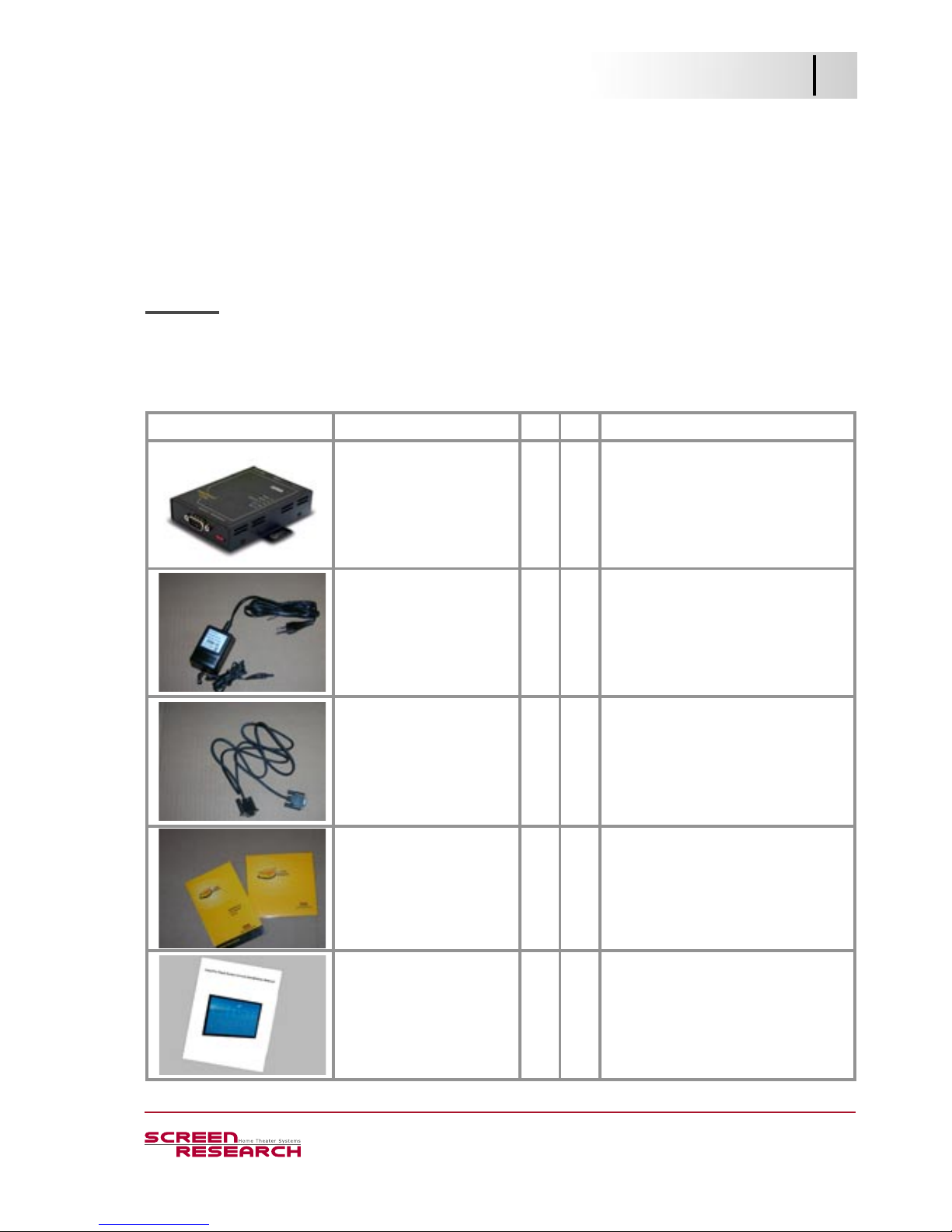
Accessories
1. Introduction
Congratulations on your purchase!
We want to help you to get the best results from your MCS Serial IP Adapter and to
operate it safely. This manual contains information on how to do that; please read it
carefully before operating.
1. Introduction
MCS Serial IP Adapter
Contents Description Yes No Remarks
MCS Serial IP Adapter
(1 piece)
Transformer
(1 piece)
Null-modem cable
(1 piece)
CD-Rom
(1 piece)
Technical Sheet
(1 piece)
Installation manual
(1 piece)
Page 10
10
MCS Serial IP Adapter Installation Manual
Revision A 2007 07 06
©Screen Research 2006
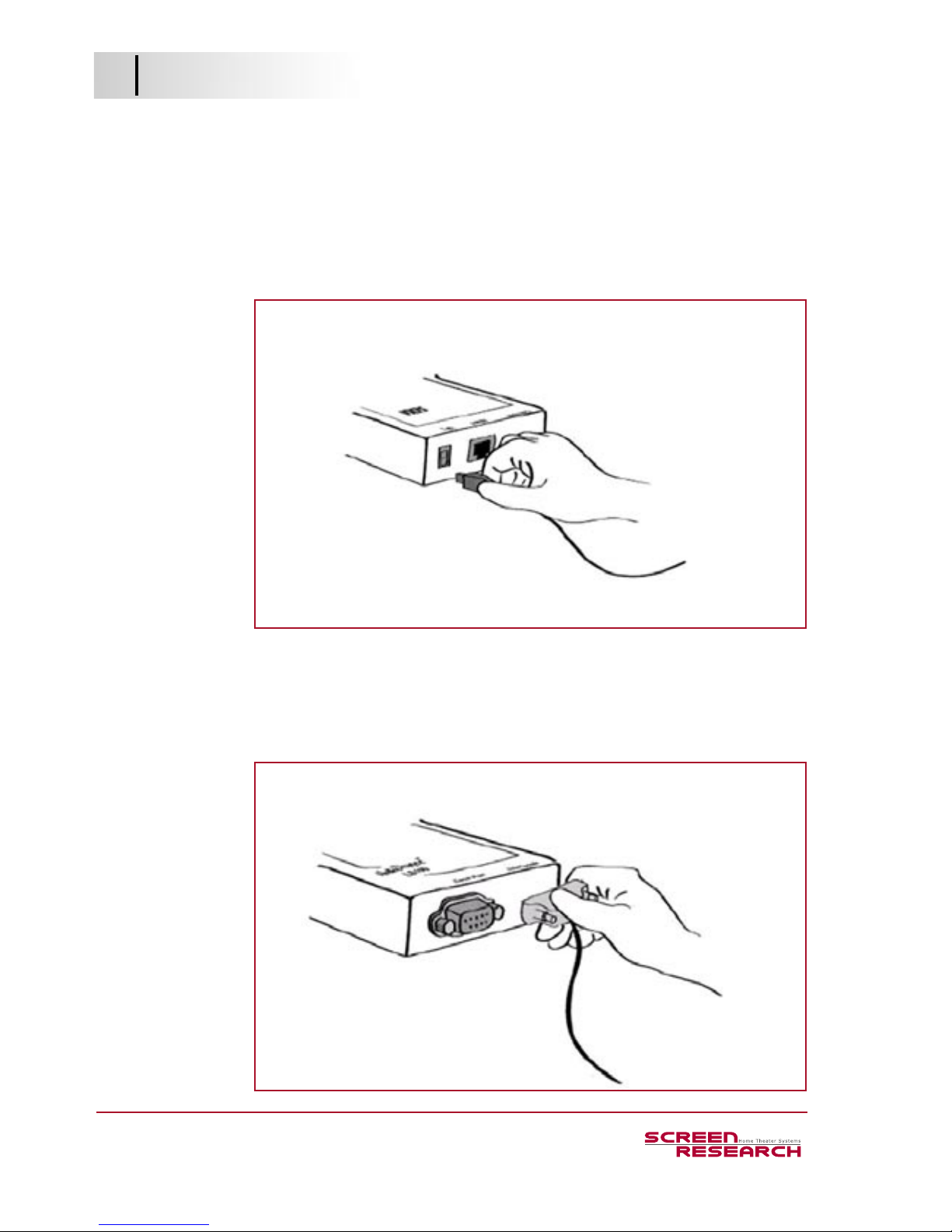
1. Hook up the power to the MCS Serial Ip Adapter.
The Power and Ready leds are blinking.
2. Connect the Null-Modem cable between your computer and the MCS Serial Ip
Adapter.
2. Connect The MCS Serial IP Adapter
2. Connect The MCS Serial IP Adapter
MCS Serial IP Adapter
Page 11
11
MCS Seria IP Adapter Installation Manual
Revision A 2007 07 06
©Screen Research 2006
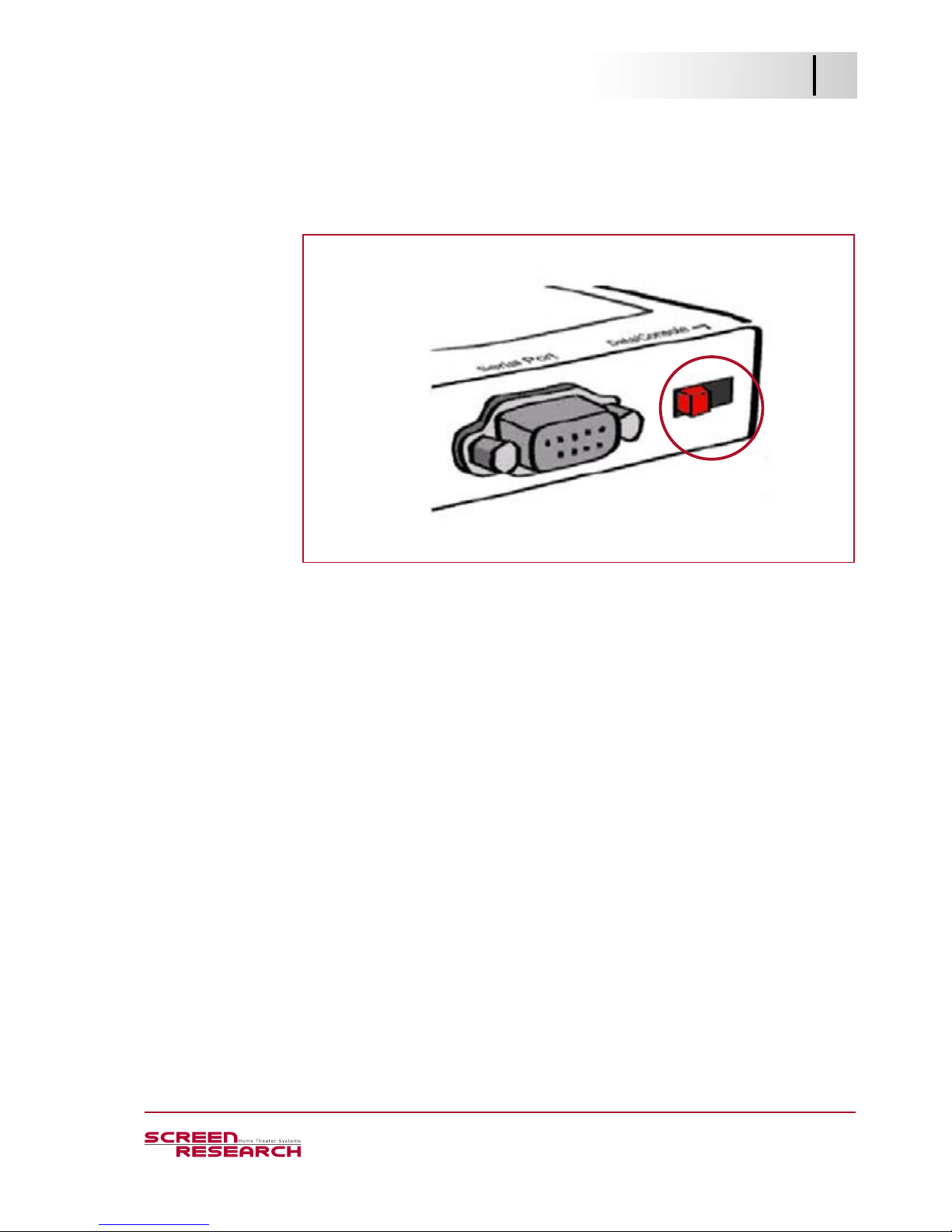
3. Slide Data/Console switch to the Console mode.
2. Connect The MCS Serial IP Adapter
MCS Serial IP Adapter
Page 12

12
MCS Serial IP Adapter Installation Manual
Revision A 2007 07 06
©Screen Research 2006
MCS Serial IP Adapter
Use the HyperTerminal program (Windows) to congure the MCS Serial IP Adapter:
1. Click on the button Start.
2. Choose the HyperTerminal application in Programs>Accessories>Com-
munication.
3. Congure The MCS Serial IP Adapter
It is not necessary to ll in the elds requested in the parameters when using
The HyperTerminal program for the rst time.
2. Congure The MCS Serial IP Adapter
Page 13
13
MCS Seria IP Adapter Installation Manual
Revision A 2007 07 06
©Screen Research 2006
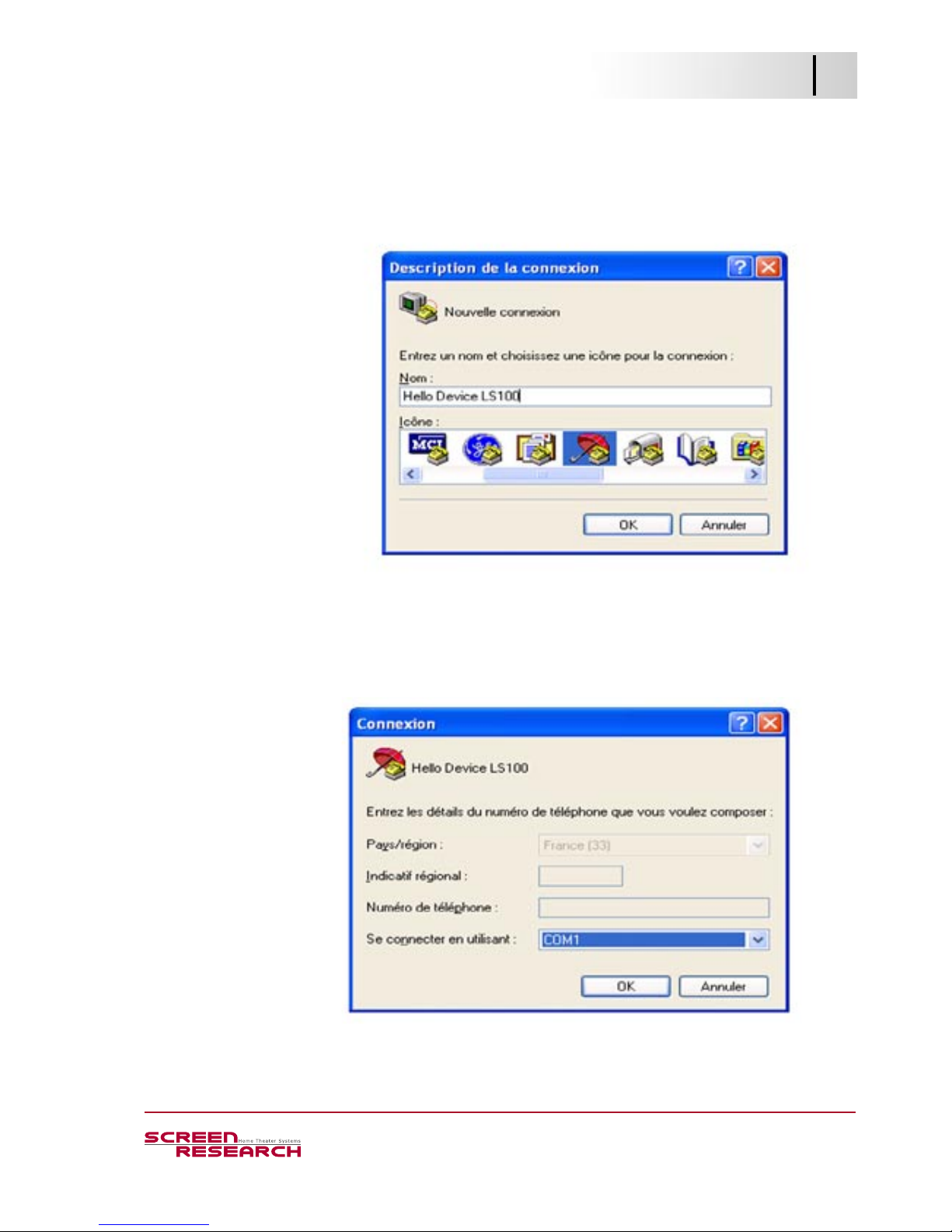
3. Enter a name to describe the connection. Choose an icon then in the Connection
Description window.
4. Select the COM port to which the adapter is connected in the Connection
window.
3. Congure The MCS Serial IP Adapter
MCS Serial IP Adapter
Page 14
14
MCS Serial IP Adapter Installation Manual
Revision A 2007 07 06
©Screen Research 2006
3. Congure The MCS Serial IP Adapter
MCS Serial IP Adapter
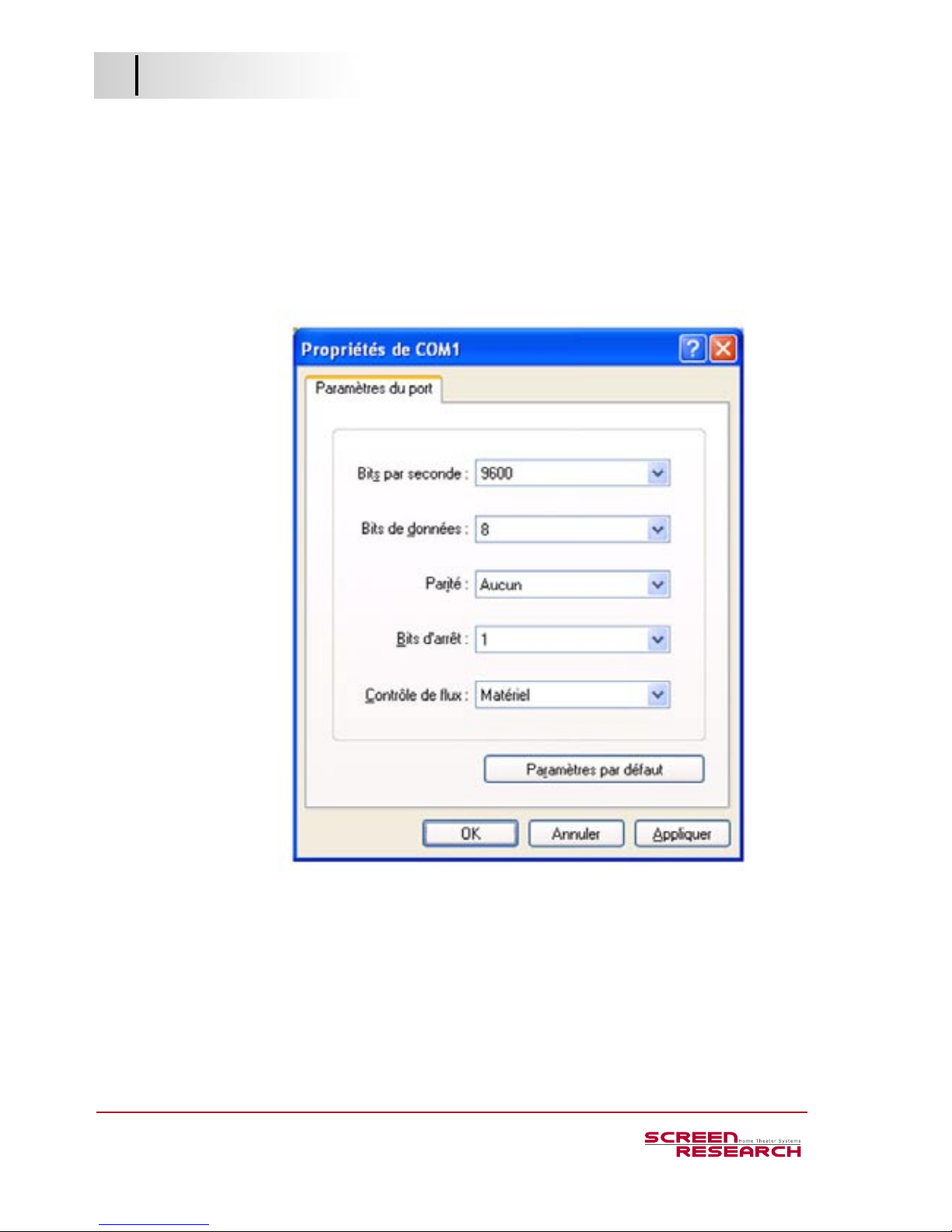
5. Select the following parameters to congure the COM port:
- “9600” for Baud rate
- “8” for Data bits
- “none” for Parity
- “1” for Stop bits
- “None” for Flow control.
6. Click on the button OK and go to the Main Menu.
7. Take the phone off the hook to indicate the connection to the adapter.
8. Press “Enter” key at the terminal emulation program.
Page 15
15
MCS Seria IP Adapter Installation Manual
Revision A 2007 07 06
©Screen Research 2006
3. Congure The MCS Serial IP Adapter
MCS Serial IP Adapter
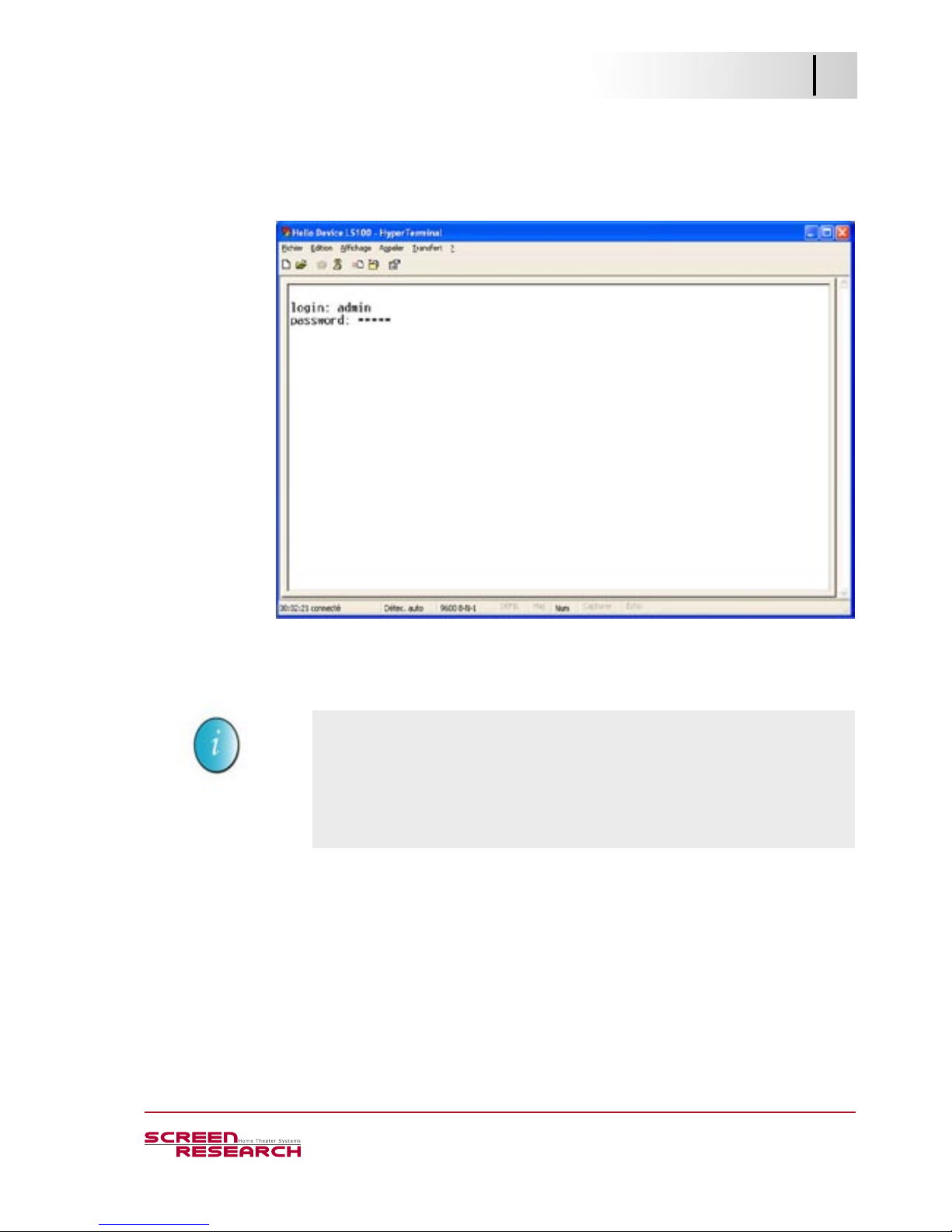
9. Enter the user name and password. Factory default settings of the user name and
password are both “admin”.
You can change by the terminal:
- IP address;
- client /server conguration;
- serial port conguration;
- login choice.
Page 16

16
MCS Serial IP Adapter Installation Manual
Revision A 2007 07 06
©Screen Research 2006
1. Assign a static IP address according to the local network.
2. Congure the subnet mask according to the local network.
3. Congure the IP address of the computer connected to Internet according to the
local network.
4. Assign IP Address
4. Assign IP Address
MCS Serial IP Adapter
Example of an IP address assignation:
1. We assigned to the adapter the static IP address 192.168.1.1.
2. We chose an unused IP address by a computer connected to this network =
192.168.1.11 IP address
3. We congured the subnet mask 255.255.255.0.
4. We congured the IP address of the computer connected to Internet =
192.168.1.111.
5. We chose command:
> set ip static 192.168.1.11 255.255.255.0 192.168.1.111
6. To verify that IP conguration is correct, we typed:
> get ip
IP_mode: static
IP_address: 192.168.1.11
Subnet_mask: 255.255.255.0
Gateway: 192.168.1.111
Page 17

17
MCS Seria IP Adapter Installation Manual
Revision A 2007 07 06
©Screen Research 2006
5. Congure Serial Port
MCS Serial IP Adapter
5. Congure Serial Port
1. Keep the factory default settings.
2. Check this conguration with command:
> get serial
Baudrate: 9600
Data_bits: 8_bits
Stop_bits: 1_bit
Flow_control:None
DTR_option: Always_high
DSR_option: None
Interchar_timeout(ms): 50
Select the following parameters to congure the connection serie and the driving
of the MCS via the MCS BRS:
- baud rate = 9600
- data bits = 8
- parity = none
- stop bits = 1
- ow control = none.
Page 18

18
MCS Serial IP Adapter Installation Manual
Revision A 2007 07 06
©Screen Research 2006
Save changed values using “save” and “reboot” commands as follows:
6. Apply Changes
6. Apply Changes
MCS Serial IP Adapter
> save
OK
< reboot
Reboot the MCS Serial IP adapter using ‘reboot’ command.
Page 19

19
MCS Seria IP Adapter Installation Manual
Revision A 2007 07 06
©Screen Research 2006
7. Reach Connection Quickly
MCS Serial IP Adapter
7. Reach Connection Quickly
1. Save connection settings from computer towards the MCS Serial IP Adapter.
2. Connection is accessible directly by the menu ‘Start> Programs> Accessories
> Communication > HyperTerminal >Connection name’.
Page 20
20
MCS Serial IP Adapter Installation Manual
Revision A 2007 07 06
©Screen Research 2006
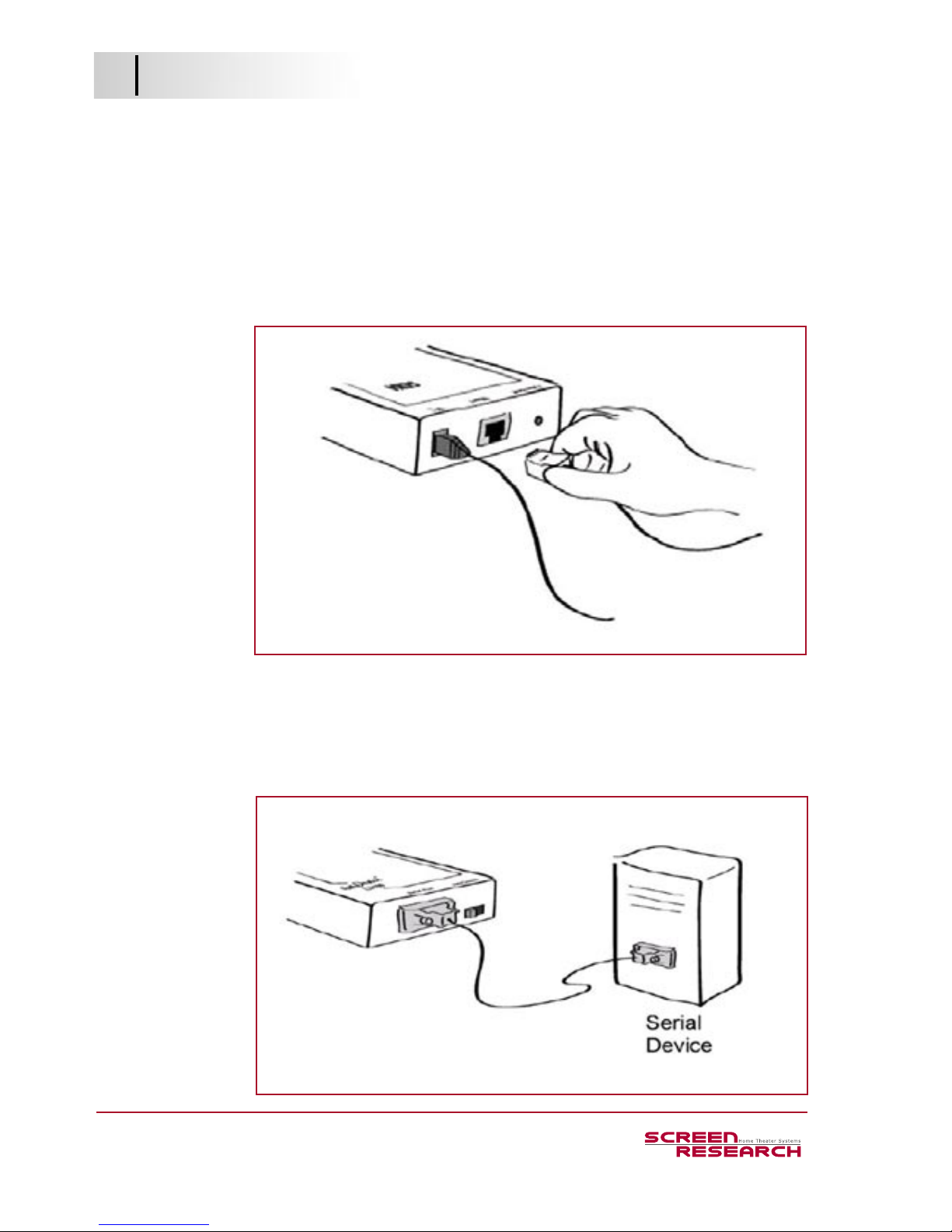
1. Hook up the Null-Modem cable.
2. Slide Data/Console swith to the Data side.
3. Hook up the Ethernet cable to the RJ45 connector of the MCS Serial Ip Adapter
with your switch.
The Link LED is blinking.
8. Check Conguration
8. Check Conguration
MCS Serial IP Adapter
4. Connect the series port of the adapter to the MCS BRS which is itself connected to
a MCS.
5.The adapter is connected to the network on the IP address dened before (see
chapter “4. Assign IP Address”). It drives the series port by protocol TCP/IP on the
6001 port.
Page 21
21
MCS Seria IP Adapter Installation Manual
Revision A 2007 07 06
©Screen Research 2006
9. Conrm Connection
MCS Serial IP Adapter
9. Conrm Connection
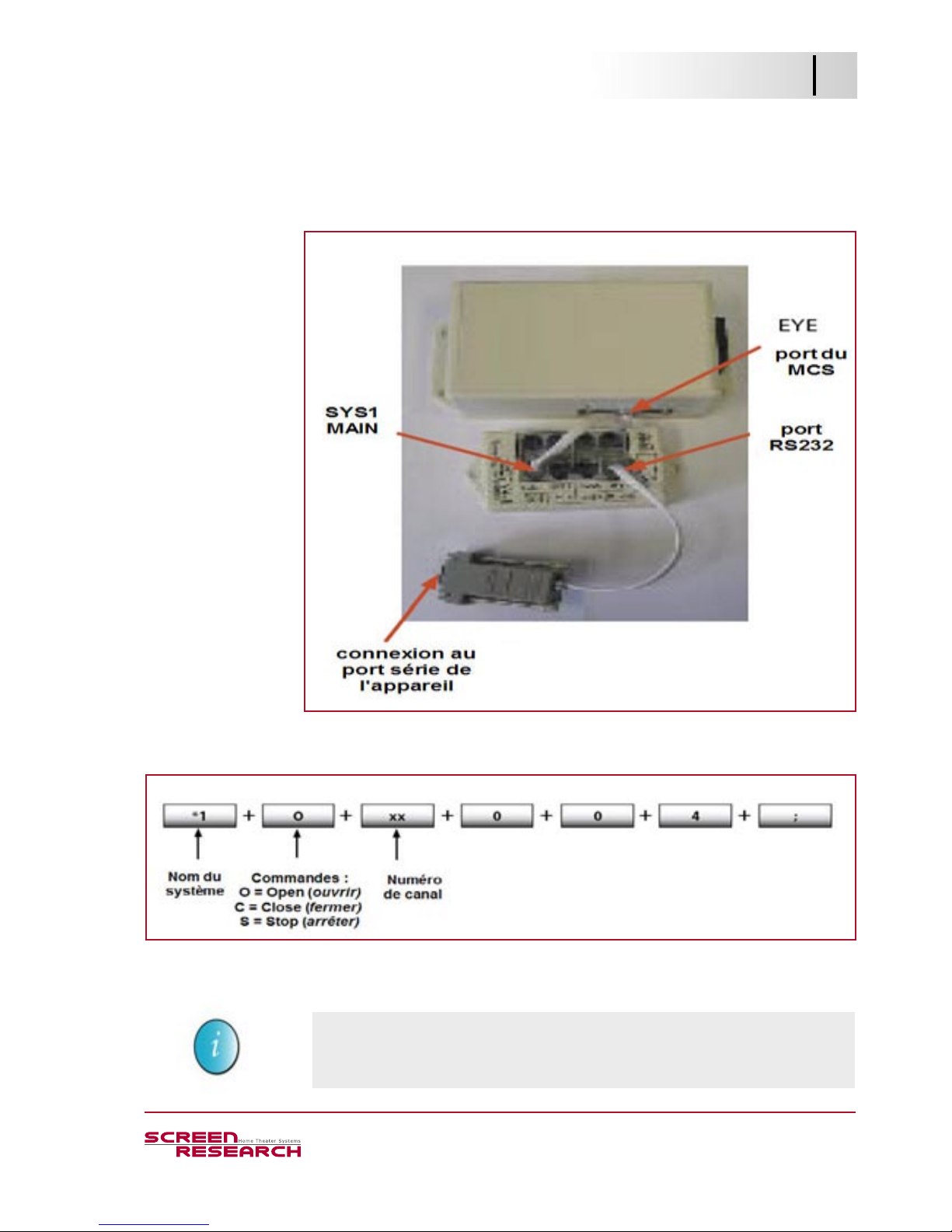
1. Connect a MCS on the SYS1 port of the MCS BRS.
Commands for the MCS are:
2. Type commands OPEN 1 and CLOSE 1 (that is to say respectively *1o01004;
et *1c01004) to test the MCS;
==> A “click” of the relay indicates that command was understood.
If you need more information about the MCS commands list , consult the installation manual “Motor Control System MCS-310/MCS-320”.
Page 22
22
MCS Serial IP Adapter Installation Manual
Revision A 2007 07 06
©Screen Research 2006
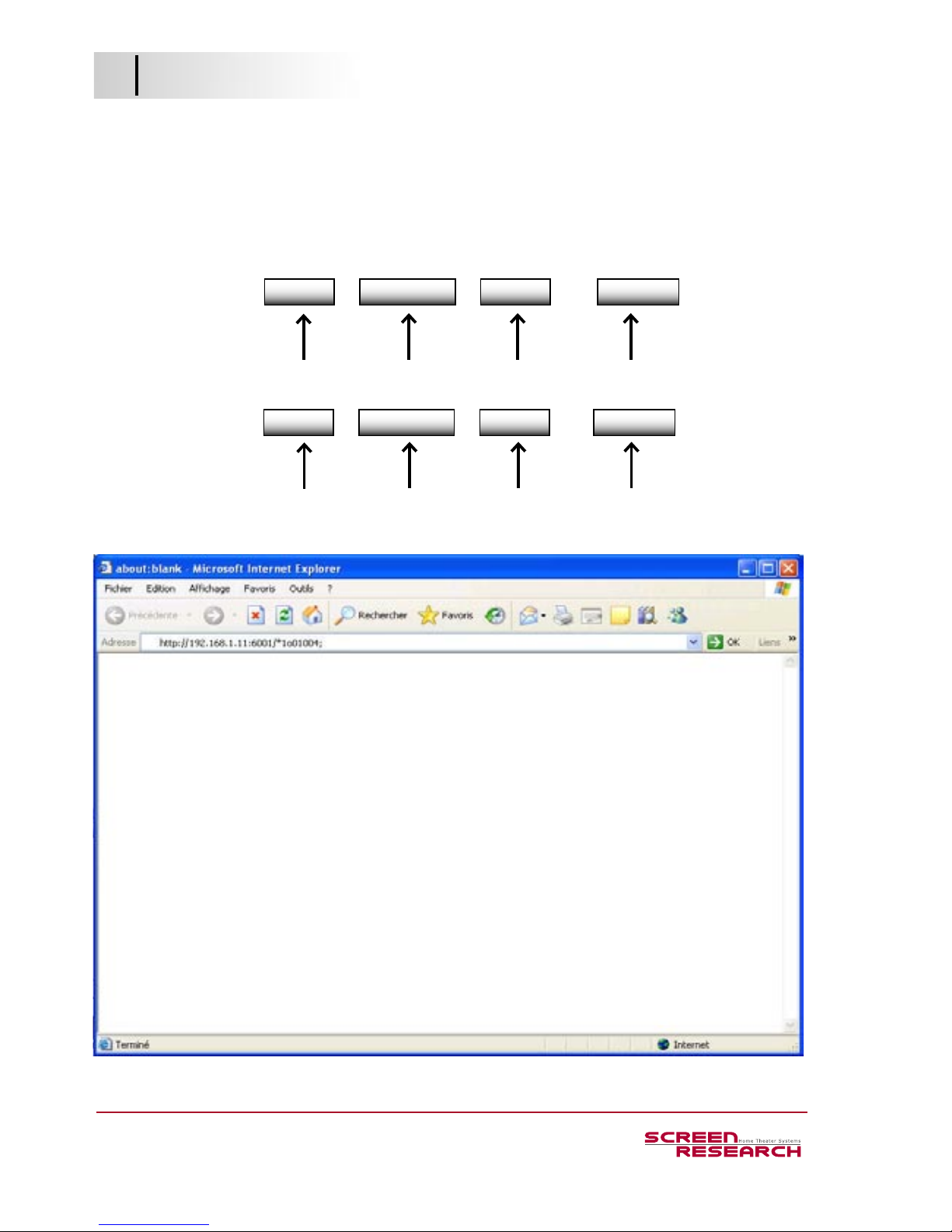
Type in your browser the IP address + the port name + the command name.
Example :
10. Send A Command Via Internet
10. Send A Command Via Internet
MCS Serial IP Adapter
http:// 192.168.1.11
+
:6001
+ /+
*1o01004;
http:// 192.168.1.11
+
:6001
+ /+
*1c01004;
Prex
IP Address Port MCS OPEN 1 Command
Prex
IP Address Port MCS CLOSE 1 Command
Page 23
23
MCS Seria IP Adapter Installation Manual
Revision A 2007 07 06
©Screen Research 2006
11. Send A Command Via HyperTerminal
MCS Serial IP Adapter
11. Send A Command Via HyperTerminal
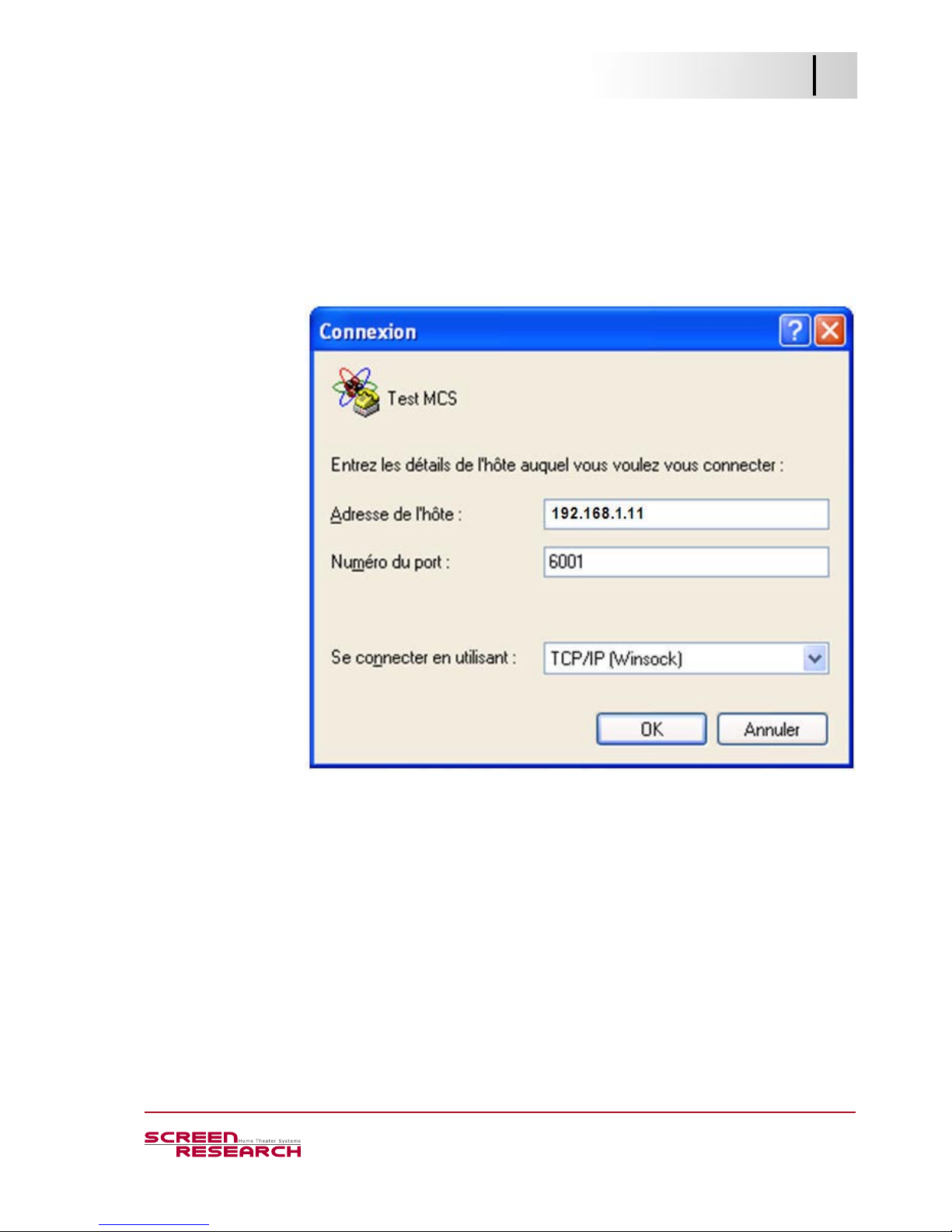
1. Congure a new connection while being connected to protocol TCP/IP.
2. Type the IP address and the port number.
3. The device is well connected: connection is done automatically.
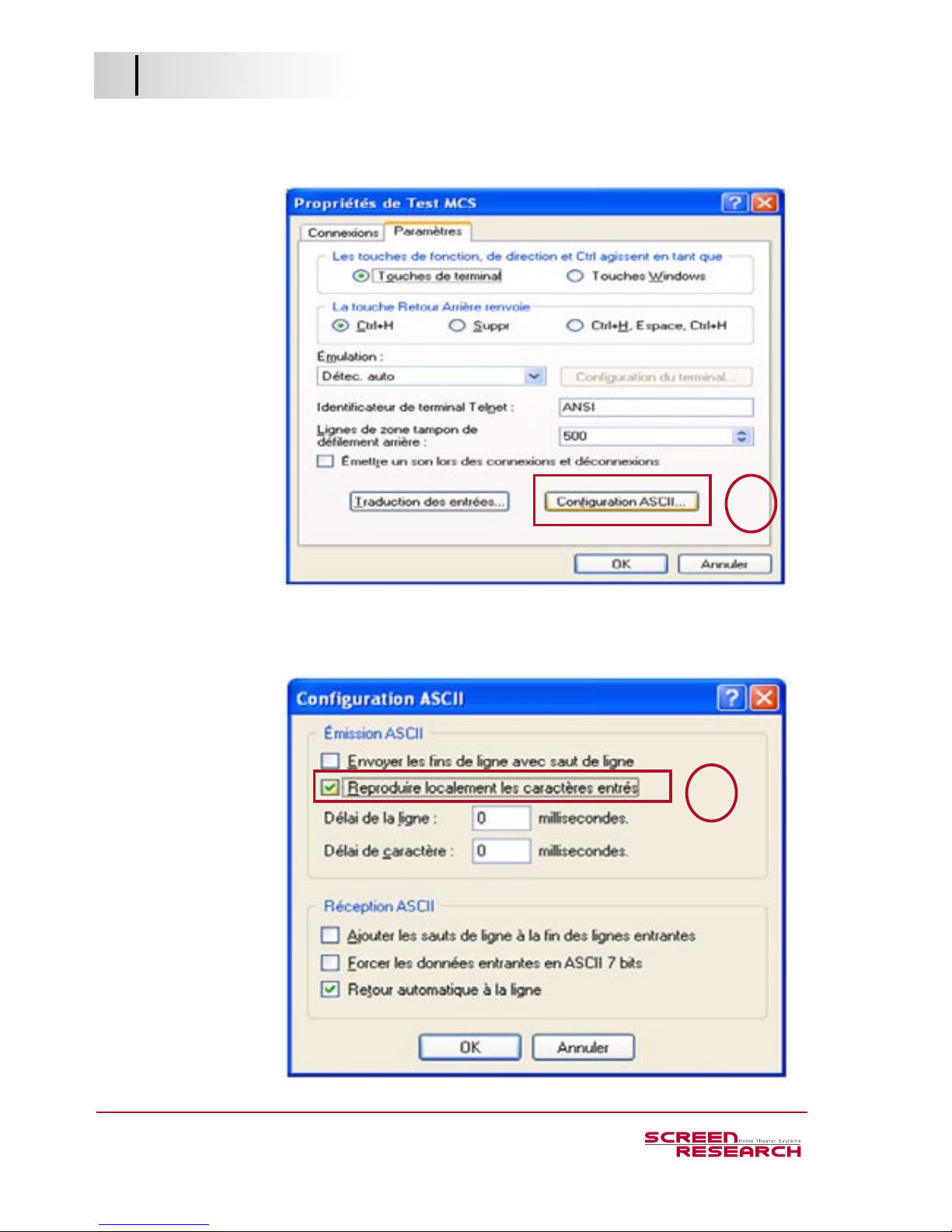
4. Select File>Preferences to see commands which are sent.
Page 24
24
MCS Serial IP Adapter Installation Manual
Revision A 2007 07 06
©Screen Research 2006
11. Send A Command Via HyperTerminal
MCS Serial IP Adapter
5. Click on the button Conguration ASCII .
6. Select “Reproduce Locally The Typed Data”.
5
6
Page 25

25
MCS Seria IP Adapter Installation Manual
Revision A 2007 07 06
©Screen Research 2006
11. Send A Command Via HyperTerminal
MCS Serial IP Adapter
7. Type commands as below:
*1c01004;
8. Command is correct: the MCS BRS returns the LF command (line break).
9. Command is sent to the motor: the MCS BRS returns the CR command (return to
the beginning of the line ).
Cursor starts automatically on the next line.
Page 26

ADEO SCREEN Sp. Z o.o.
Screen Research
Ul. Boelslawa Krzywoustego 31
59-500 Zlotoryja,
Poland - Europe
Tel. +48 76 850 53 01
Fax + 48 76 850 53 70
North America
Tel. +1 800 510-8850
Fax +1 800 910-8510
Email
To place orders: [email protected]
To get quotations: [email protected]
To contact Technical Support: [email protected]
© Copyright 2013 Adeo Screen. All rights reserved.
Adeo Screen products are covered by one or more of the following patents:
No. 08.02361 (France); No. 09.03989 (France); No. 167.61.72 (Europe); No. 167.75.55 (Europe); No. EP 2277083 (Europe);
No. US 7 777 947-B2 (USA); No. US 7 466 483-B2 (USA); No. US 2011 043908 (USA); USPTO : 200 701 71 522 (USA);
No. 200480025260.9 (China); No. 1126/CHENP/2007 (India); No. 2006-524398 (Japan) pending;
ClearPix, ClearPix 2, ClearPix 3; ClearPix 4k, SilverPix 3D; SilverPix 3D Sonic; MultiPix 4K; MultiPix 4K Sonic; SolidPix, SolidPix Sonic, X-Mask, C-Mask, E-Mask, LeWing,
TheaterCurve, Pi-Grip, E-Grip, StopLight, DécorMask, TailorMade and the Screen Research logo are all trademarks of Adeo Screen.
THX is a trademark of THX Ltd.
ISF is a trademark of Imaging Science Foundation Inc..
Sivoia QED and Sivoia QS are the registered trademarks of Lutron Electronics Co., Inc..
All other trademarks are the property of their respective owners.
 Loading...