

Page 1
65
3
4
4
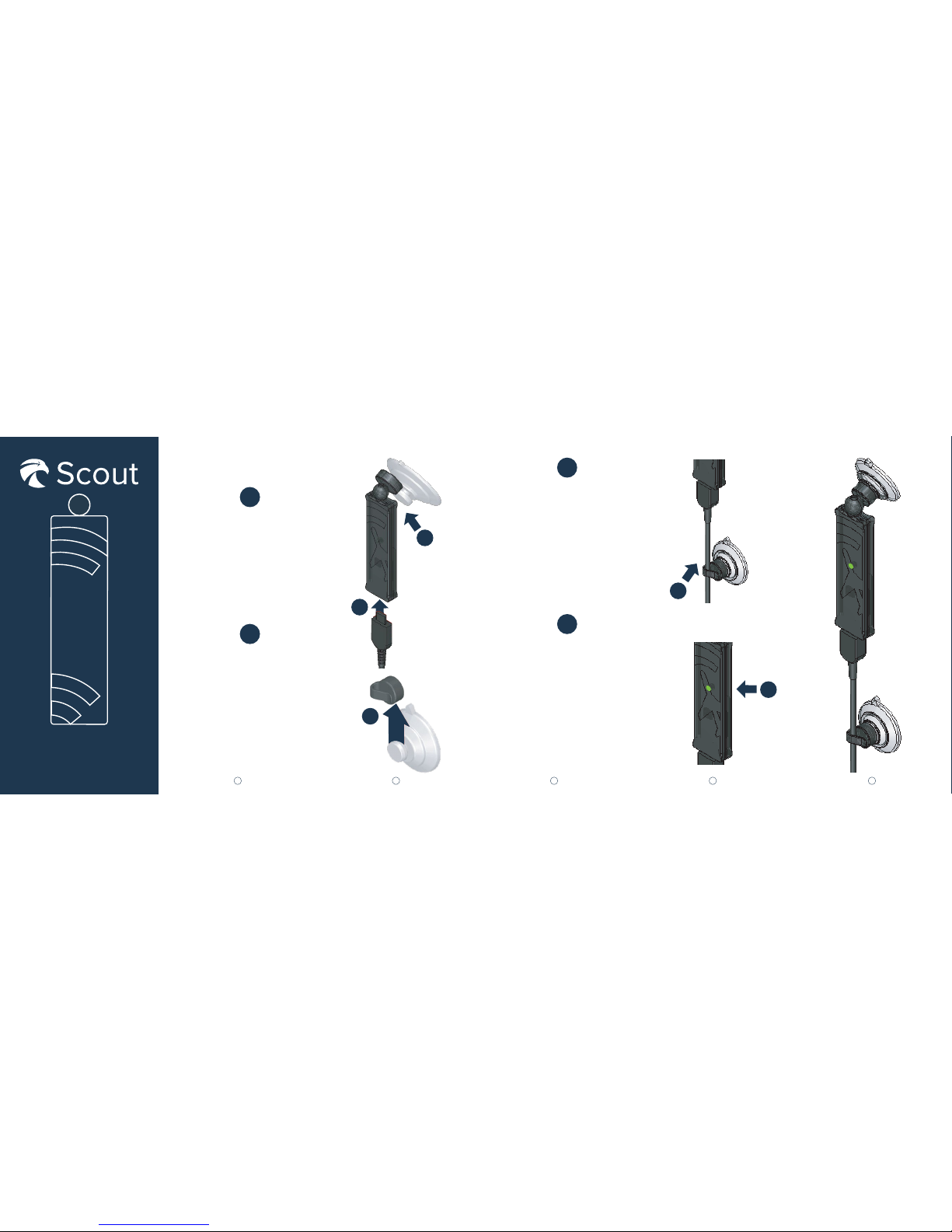
Plug the other end
of the Micro-USB
cable into a power
source. One light
indicates power;
two lights indicate
reception from an
ADS-B tower.
STEP
4
Slide the cable clip
with suction cup
onto the cable and
press it onto the
same surface to
secure Scout from
both ends.
STEP
3
3
2
1
1
2
Insert the
Micro-USB cable
into Scout, then
secure Scout to a
surface using the
first suction cup.
STEP
2
Slide one suction
cup into the gimbal
mount at the top of
Scout, and slide the
other into the
separate cable clip.
STEP
1
ADS-B Receiver
Quick Start Guide
Page 2
tower reception and
the presence of ADS-B
Out capabilities in your
aircraft. Reception is
dependent on a
number of factors,
including Scout
location, orientation,
and aircraft
configuration.
Need support? Visit
flywithscout.com/
support
Scout receives trac
information on both
UAT (978 MHz) and
1090ES (1090 MHz),
and weather and
NOTAMs/TFRs (FIS-B)
when in proximity to a
ground station.
ADS-B ground station
reception will usually
not be available until
in-flight.
The trac displayed
by Scout may not
represent all nearby
trac, based on ADS-B
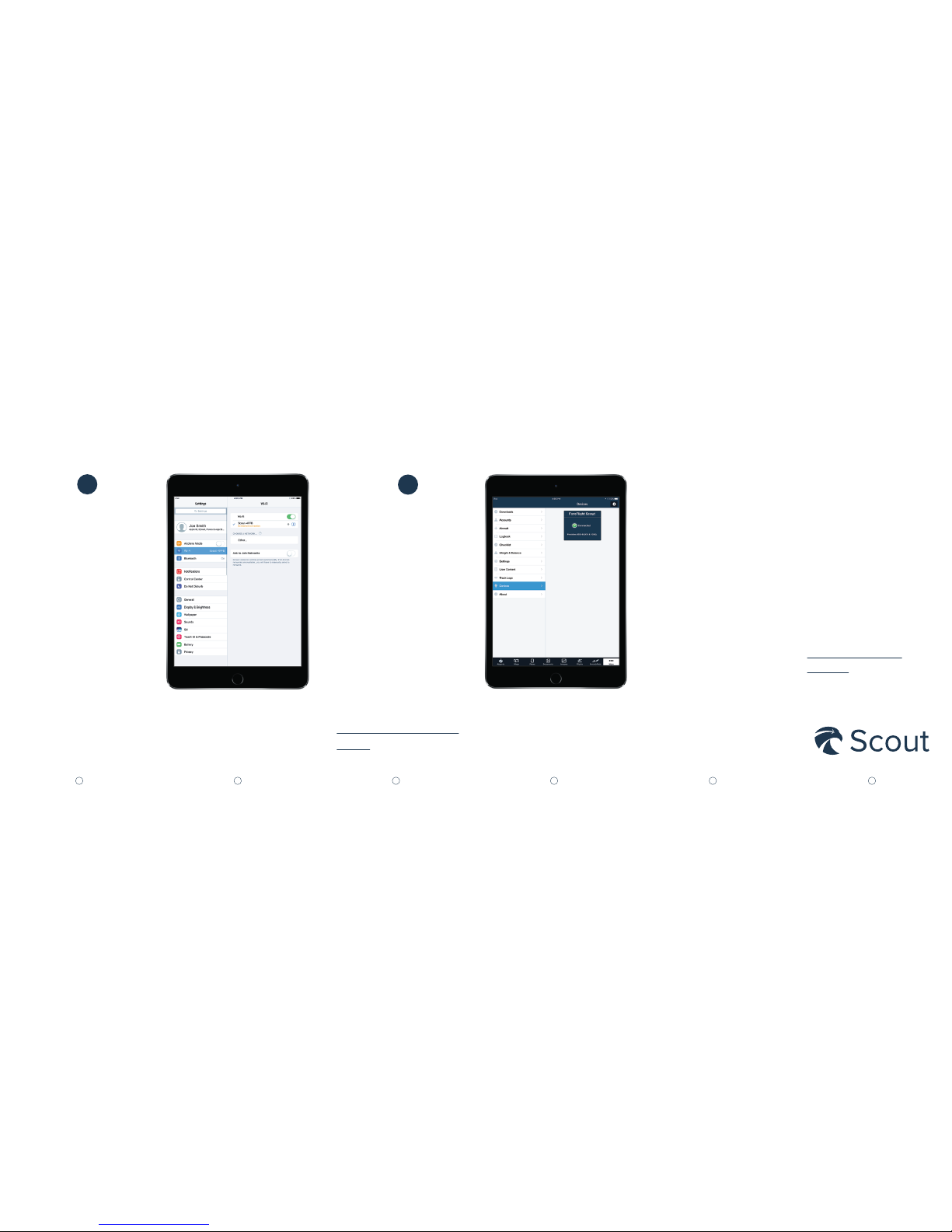
Open ForeFlight and
go to More > Devices
to confirm that Scout
is connected. Tap the
icon for Scout to view
detailed information
about the connection
and information
being received.
STEP
6
For the full guide and
instructions for
updating Scout’s
firmware, visit
foreflight.com/scout/
guide
Open the Settings
app on your iPad or
iPhone and go to
Wi-Fi. Scout’s Wi-Fi
network name will be
either “Scout-XXXX”
or “Ping-XXXX”
where “XXXX” is a
random sequence of
numbers and letters.
Tap on the Wi-Fi
network to connect.
STEP
5
121110987
 Loading...