

Page 1
USB – RS232
Cable Adapter
USER GUIDE
1
Page 2
USB - Serial RS232 Adaptation Cable
a) Installation Instructions for the USB-RS232 adaptation cable for systems:
Windows 98, Me, 2000, XP PRO.
b) Problems which may be encountered and the solutions.
a) Installation Instructions
Installation of the Drivers (Windows 98) :
- Switch the PC on and check that the USB port operates correctly.
- Connect the USB-Serial cable to the USB port; Windows opens the ‘Add new
hardware Wizard' window, click on ‘Next’.
- Insert the CD-ROM containing the drivers in the unit, select ‘Search for the best
driver for your peripheral and click on ‘Next’.
- Select ‘Enter the location' and type in the path D:\ Drivers (D : represents your CDROM unit), click on ‘Next’.
- Windows detects a driver for the USB-Serial cable (Prolific USB to serial Cable),
click on ‘Next’.
- Select ‘End’.
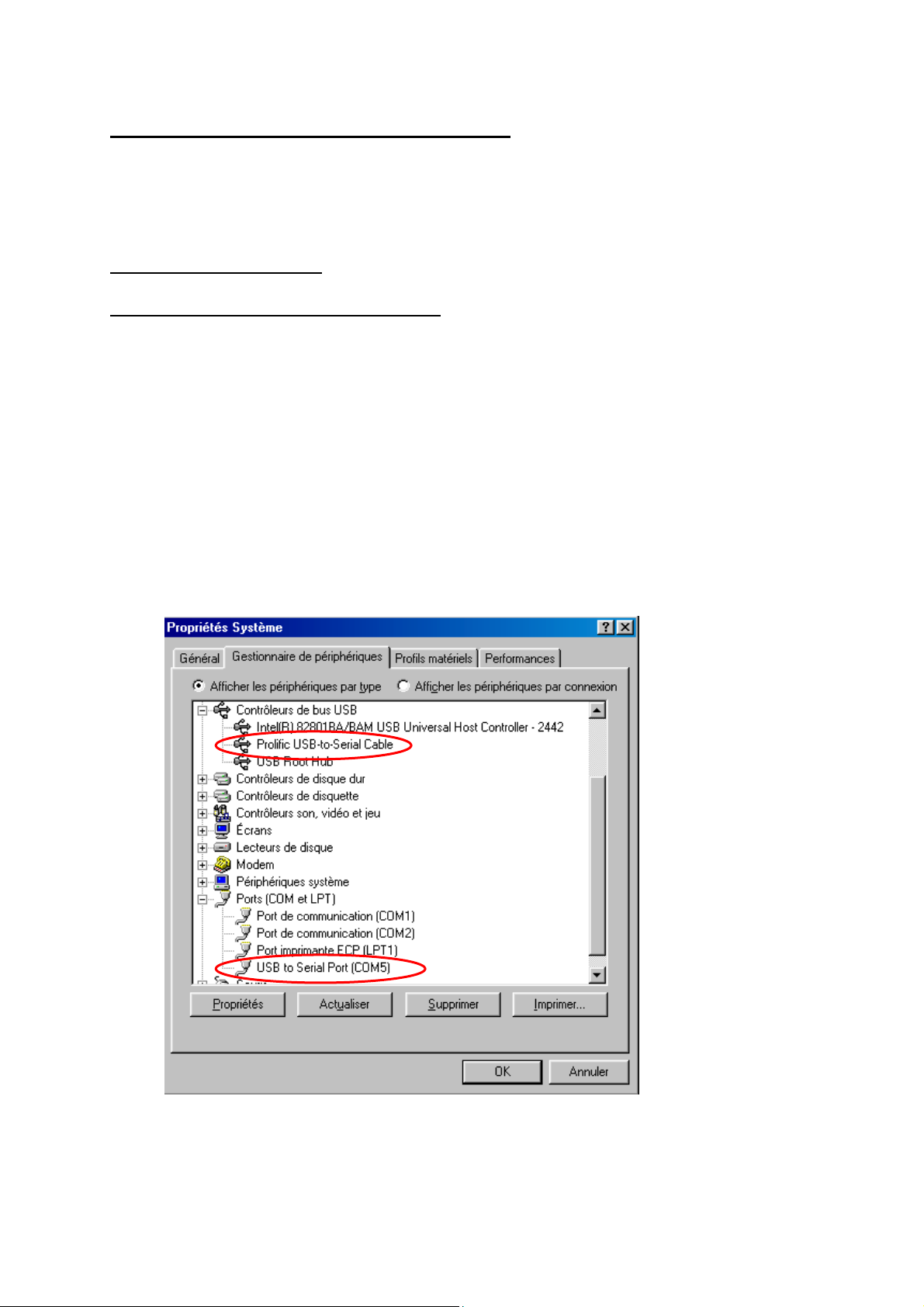
- To check the installation, open the ‘System Properties’, ‘Device Manager’ window
and check that both the USB to Serial Port and Prolific USB-to-Serial Cable are
present:
2
Page 3

Installation of the Drivers (Windows ME) :
- Switch the PC on and check that the USB port operates correctly.
- Connect the USB-Serial cable to the USB port; Windows opens the ‘Add new
hardware Wizard’ window, click on ‘Next’.
- Insert the CD-ROM containing the drivers in the unit, select ‘Search for the best
driver for your peripheral’ and click on ‘Next’.
- In 'Select a new driver’, select ‘Prolific USB-to-Serial cable’ (D:\ Drivers D :
represents your CD-ROM unit), click on ‘OK’ then on ‘End’.
- To check the installation, open the ‘System Properties', ‘Device Manager’ window and
check that both the USB to Serial Port and Prolific USB-to-Serial Cable are present.
Installation of the Drivers (Windows 2000) :
- Switch the PC on and check that the USB port operates correctly.
- Connect the USB-Serial cable to the USB port; Windows opens the ‘Insert a CDROM’ window, click on ‘OK'.
- Insert the CD-ROM containing the drivers in the unit, click on ‘Scroll’ and select
‘D:\Drivers\ Ser2pl.sys’ (D : represents your CD-ROM unit), click on ‘Open’ then on
'OK'.
- To check the installation, open the ‘System Properties', ‘Device Manager' window and
check that the USB to Serial Port is present.
Installation of the Drivers (Windows XP PRO) :
- Switch the PC on and check that the USB port operates correctly.
- Connect the USB-Serial cable to the USB port; Windows opens the ‘Hardware
detection Wizard’, insert the CD-ROM containing the drivers in the unit, select
‘Install the program automatically’, click on ‘Next’ then on ‘Continue’.
- To check the installation, open the ‘System Properties’, ‘Device Manager' window and
check that the USB to Serial Port is present.
To Uninstall the Drivers
- Disconnect the Cable from your PC.
- Insert the CD-ROM in the unit.
- Start the program DRemover.exe (D:\ Drivers\DRemover.exe)
3
Page 4
b) Problems Related to Transferring Data between the PC and the ZelioLogic SR2/SR3:
Problems Solutions
Monitoring :
With Windows 98 and Me :
When Monitoring, if you open a
window or another program than Zelio Soft 2,
the controller may switch off and all the
inputs outputs on the workshop side switch to
ON. This problem may also occur if you
scroll down to the bottom of the programming
sheet.
Updating the Controller :
With Windows XP PRO :
Updating the controller may cause
communication to be lost.
From the workshop :
Return to Edit mode then back into
Monitoring mode and press the controller's
On button.
On the controller :
Go into the fault menu and
acknowledge fault 58.
Close all the applications open (in
particular the programming window) and run
the software update again, since
communication was lost the controller display
is blank since the start-up program is no
longer there, that is why when you perform
this operation the software will ask you to
identify yourself the controller model (the
type and the 8-figure code are marked on the
side of the housing). Repeat this operation
several times if it does not work first time
around.
If the problem persists, re-load the
controller program using an RS 232 output
(disconnect the USB-RS232 cable).
Connection Test:
The connection may not operate after
installing the USB RS232 cable.
Go into ‘Device Manager’, ‘Ports
(com and Lpt)’, ‘USB TO Serial Port’,
‘Properties’, ‘Drivers’ and run a driver update
(repeat the installation operations).
4
 Loading...