

Page 1
Title Page
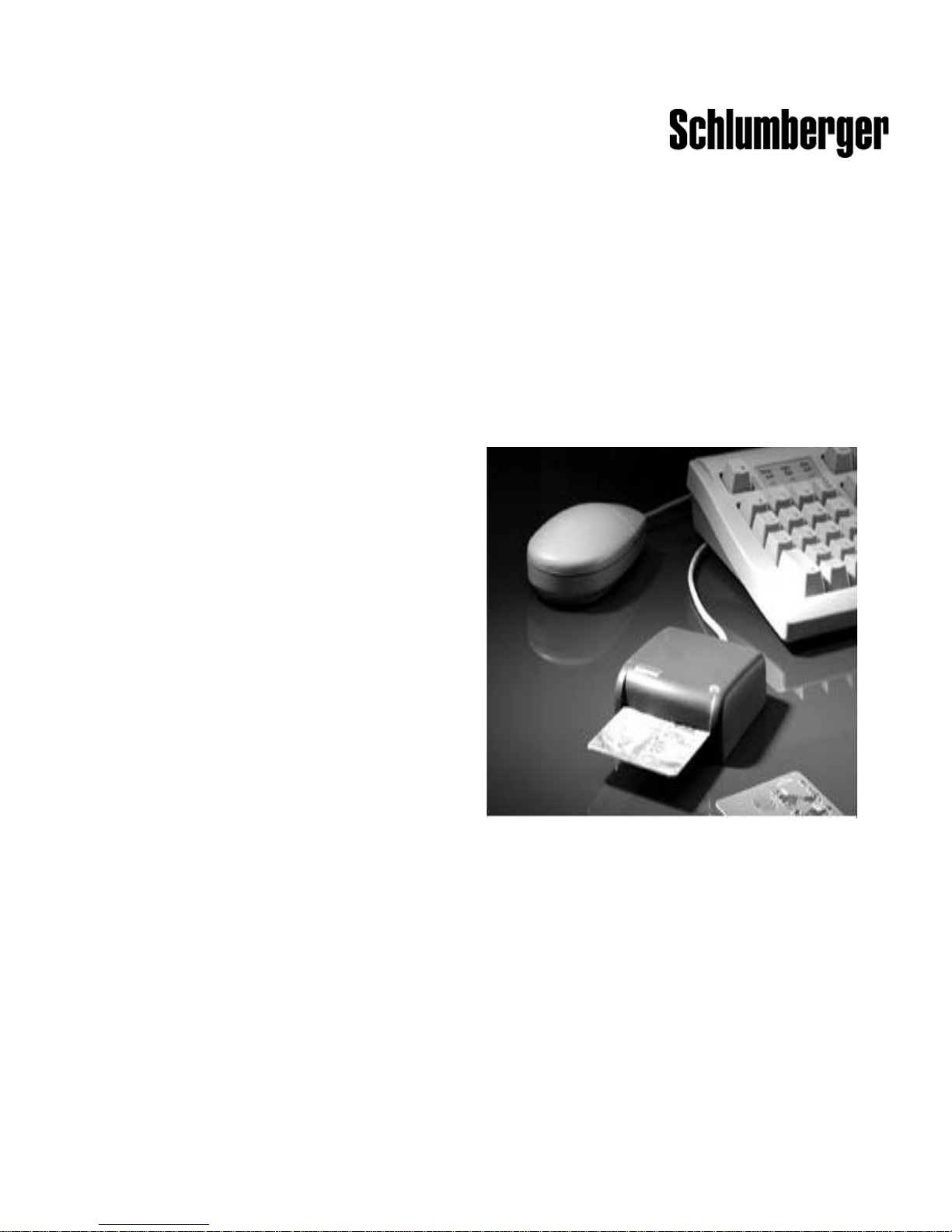
Reflex 72
Reader Installation Guide
1
2
Page 2

Copyrights and Trademarks
Trademarks
Schlumberger, Cryptoflex, Cyberflex, Cyberflex Access, and e-gate are
trademarks or registered trademarks of Schlumberger.
Microsoft, Windows, and Windows NT are registered trademarks of Microsoft
Corporation. Other company, product, and service names may be trademarks
or service marks of others.
Document Date
C300480_rev2 November 2003
Copyright 2002-2003 by Schlumberger
All rights reserved.
You will find the Reader Driver License Agreement (License.txt) in the
following directory: \Program Files\Schlumberger\Smart Cards and
Terminals\Smart Card Readers\Reflex 72\Docs.
The Reader Driver License Agreement is also available from the Reflex Reader
Technical Support website: http://www.reflexreaders.com/Support/
support.html.
Your feedback about this manual is welcome! Comments, questions, and
suggestions about any part of the Cyberflex® Access™ documentation library
can be posted to the Docs & Samples Conference of the User Discussion
Forums:
www.flexforum.com/cgi-bin/dcforum/dcboard.cgi.
ii Reflex 72 Reader Installation Guide
Page 3

Table of Contents
1 Introduction . . . . . . . . . . . . . . . . . . . . . . . . . . . . . . . . . . . . . . . . .1
2 Installation . . . . . . . . . . . . . . . . . . . . . . . . . . . . . . . . . . . . . . . . . .3
Installation Notes . . . . . . . . . . . . . . . . . . . . . . . . . . . . . . . . . . . . . . . . 3
Unsigned Driver Warning Messages . . . . . . . . . . . . . . . . . . . . . 5
Installing on Windows NT 4.0 . . . . . . . . . . . . . . . . . . . . . . . . . . . . . . 6
Contents
Updating on Windows NT 4.0 . . . . . . . . . . . . . . . . . . . . . . . . . . 9
Installing on Windows 98 or Windows Me . . . . . . . . . . . . . . . . . . 11
Updating on Windows 98 or Windows Me . . . . . . . . . . . . . . . 14
Installing or Updating on Windows 2000 or Windows XP. . . . . . 15
3 Troubleshooting . . . . . . . . . . . . . . . . . . . . . . . . . . . . . . . . . . .19
Index. . . . . . . . . . . . . . . . . . . . . . . . . . . . . . . . . . . . . . . . . . . . . . . . . . . . .31
iii
Page 4

Page 5
Introduction
Operating Systems Supported
1
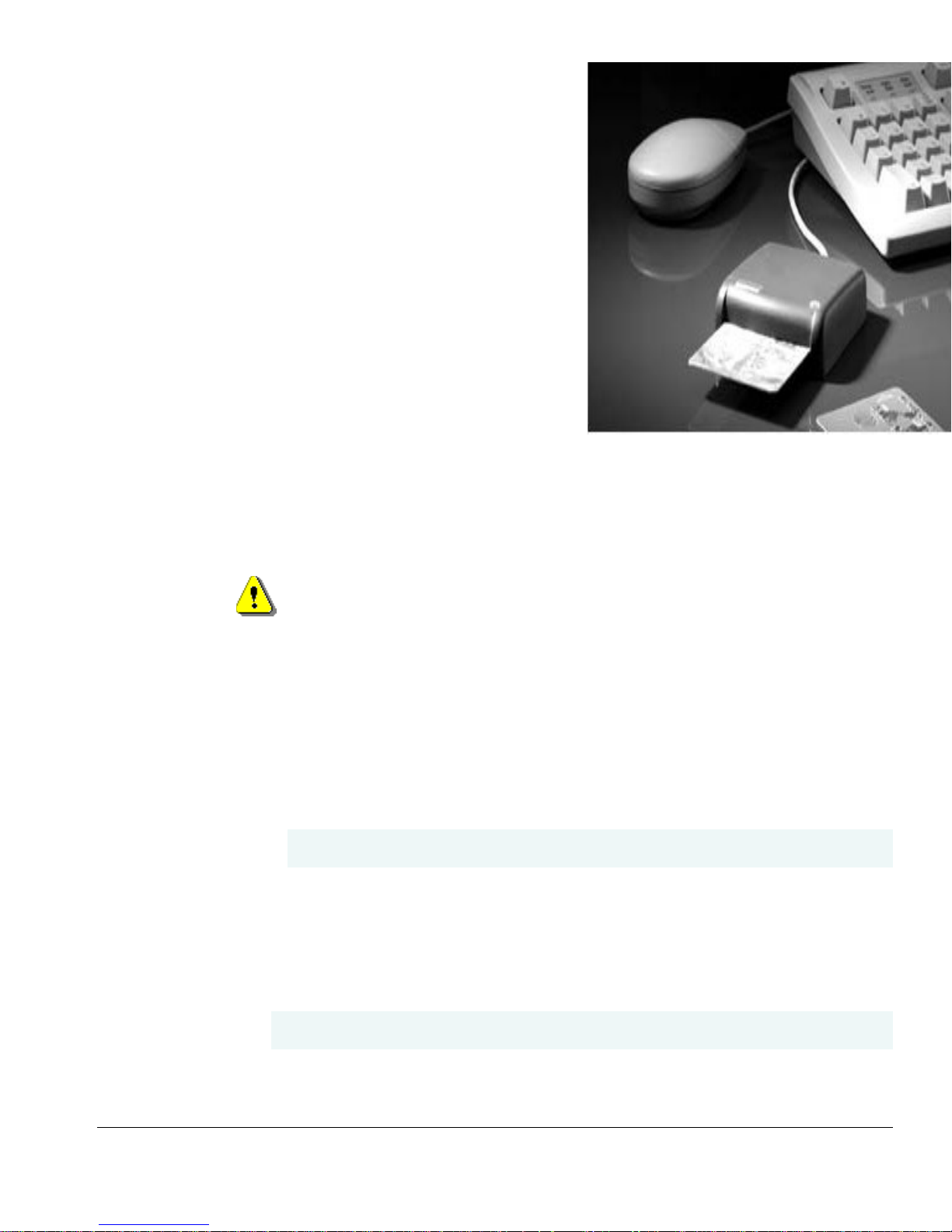
The SchlumbergerSema Reflex 72 is a
general-purpose smart card reader
that supports data speeds from
9600-115200 bps. The Reflex 72 smart
card reader uses a serial port for
transferring data and draws power
from the host machine through a PS/2
connector, which it can share with the mouse or keyboard.
• Microsoft Windows 98 (Second Edition)
• Windows Me
• Windows NT 4.0 (Service Pack 6)
• Windows 2000 (Service Pack 2)
• Windows XP Professional
NOTE The Reflex 72 smart card reader has been discontinued. Drivers for the
Reflex 72 were last verified on the platforms listed above, and are currently
available from the Reflex Reader Technical Support website
(www.reflexreaders.com/Support/Downloads/downloads.html) on an “as is”
basis. See the “End of Life Product Announcements” section in the Release
Notes for details.
Other System Requirements
• Minimum processing capability — 133 MHz processor with 32 MB RAM
• Connectors — Available COM port (RS-232) and a PS/2 connector (either
dedicated or shared)
1
Page 6

Chapter 1 - Introduction
Card Supported
Electrical Specifications
The SchlumbergerSema Reflex 72 smart card reader works with all leading
ISO 7816-compatible microprocessor cards, including:
• Cryptographic cards
• Java cards
• Subscriber Identity Modules (SIMs)
• SchlumbergerSema e-gate™ cards
• PC Interface — RS-232
• Power supply — 5V from PC PS/2 port
• Power consumption — Operating mode: 40mA; Idle mode: 5mA
• Communication speed with PC — 56700 bps
• Communication speed with card — 9600-115200 bps
Physical Specifications
• Dimensions — 75.8mm x 23mm x 68mm (2.98” x 0.91” x 2.67”)
• Color — Grey
Other features
• Live card insertion/removal support
• PPS support
Certifications and Standards Compliance
• Microsoft PC/SC
• Microsoft Hardware Compatibility List
Regulatory Approvals
• Microsoft PC/SC
• CE
• UL
• C-UL
2 Reflex 72 Reader Installation Guide
Page 7
Installation
This section contains instructions
for installing the
SchlumbergerSema Reflex 72
smart card reader. The computer
must have an available COM port
and a PS/2 connector — either an
open connector or one the reader
can share with the mouse or keyboard.
Installation Notes
The table presents the following information about installing the Reflex 72
smart card reader on each supported operating system:
• Overview of the installation sequence on each operating system. For
2
detailed instructions, see the sections that follow.
• Summary of each operating system’s Plug-and-Play or hot pluggable
capability.
• Summary of the expected behavior of the Reflex 72 smart card reader’s
power light on each operating system.
3
Page 8
Chapter 2 - Installation
Operating System Installation Notes
Windows NT 4.0
Windows 98 /
Windows Me
• Installation sequence: Install the Reflex 72 smart card reader
software (the installation program also automatically installs the
Microsoft Smart Card Base Components if they are not already
installed), power down the system (recommended for older
1
desktop systems
), connect the Reflex 72 smart card reader, and
then reboot the system.
• not Plug-and-Play compliant: Operating system and Smart Card
Resource Manager detect Reflex 72 smart card reader status only
at boot-time (mid-session connect/disconnect detected only at
reboot).
• Power light: Power light on the Reflex 72 flickers during I/O
activity only. When the operating system detects the device
during installation, the power light flickers briefly.
• Installation sequence: Install the Reflex 72 smart card reader
software (the installation program also automatically installs the
Microsoft Smart Card Base Components if they are not already
installed), connect the reader, and reboot.
• Plug-and-Play compliant: Operating system detects Reflex 72
smart card reader at connect/disconnect; Smart Card Resource
Manager detects Reflex 72 smart card reader at boot-time
(mid-session connect/disconnect detected only at reboot).
• Power light: Power light on the Reflex 72 flickers during I/O
activity only. When the operating system detects the device
during installation, the power light flickers briefly.
Windows 2000 /
Windows XP
• Installation sequence: Attach the Reflex 72 smart card reader,
and then install the Reflex 72 smart card reader software. Initiate
a scan for hardware changes.
• Hot pluggable: Operating system and Smart Card Resource
Manager detect Reflex 72 smart card reader status at connect/
disconnect.
• Power light: Power light on the Reflex 72 flickers during I/O
activity only. When the operating system detects the device
during installation, the power light flickers briefly.
1 NT computers in which the motherboard and Basic Input/Output System (BIOS) are
not compliant with Advanced Configuration and Power Interface (ACPI)
specifications.
Refer to the release notes for driver version numbers and information about
potential installation issues in a specific release.
4 Reflex 72 Reader Installation Guide
Page 9

Unsigned Driver Warning Messages
A driver is “unsigned” if certification of the driver by Microsoft was pending
but not yet complete at the time of release. Depending on driver signing
options established by local system security policy (Control Panel > System
Properties > Hardware > Driver Signing…), driver installation on Windows
2000, Windows XP, and Windows Server 2003 might either silently allow,
display a warning message, or block the installation of unsigned drivers. If a
warning message is displayed, click Ye s or Continue Anyway to complete
the driver installation.
Installation Notes
Reflex 72 Reader Installation Guide 5
Page 10
Chapter 2 - Installation
Installing on Windows NT 4.0
To install the SchlumbergerSema Reflex 72 smart card reader on a
Windows NT 4.0 computer, complete these tasks, which are described in detail
in the sections that follow.
Be sure to install the smart card reader software before you connect the
reader. If the proper software is not present when the computer detects the
reader, a partial configuration may result. A partial configuration can
interfere with future attempts to configure the reader properly.
1 Install the Reflex 72 smart card reader software.
2 For older Windows NT 4.0 desktop computers
computer. Connect the Reflex 72 smart card reader.
3 Reboot the computer.
Refer to the release notes for driver version numbers and information about
potential installation issues in a specific release.
Step 1: Install the Reflex 72 smart card reader software
Go to the Reflex Readers Download website (www.reflexreaders.com/
Support/Downloads/downloads.html) to download the latest Reflex 72 driver
package for Win NT. If the Microsoft Base Components are not already
installed on your computer, you will also need to download and install that
software.
See the package’s Install Notes for installation instructions.
Step 2: Connect the Reflex 72 smart card reader
If you have an older NT 4.0 desktop computer, we recommend that you
1
power down the computer before you connect the Reflex 72 smart card
reader. This step is necessary if the computer’s motherboard and Basic
Input/Output System (BIOS) are not compliant with Advanced
Configuration and Power Interface (ACPI) specifications. If you disconnect
a peripheral (such as the mouse or keyboard) to add the Reflex 72 smart
card reader to a nonACPI-compliant system, the peripheral may not
function when reconnected. In this case, the peripheral is unusable until
you reboot.
1
, power down the
1. NT computers in which the motherboard and Basic Input/Output System (BIOS) are
not compliant with Advanced Configuration and Power Interface (ACPI)
specifications.
6 Reflex 72 Reader Installation Guide
Page 11
Installing on Windows NT 4.0
2 Attach the Reflex 72 smart card reader’s serial plug to a COM port on the
computer. The Reflex 72 smart card reader communicates with the
computer through the COM port.
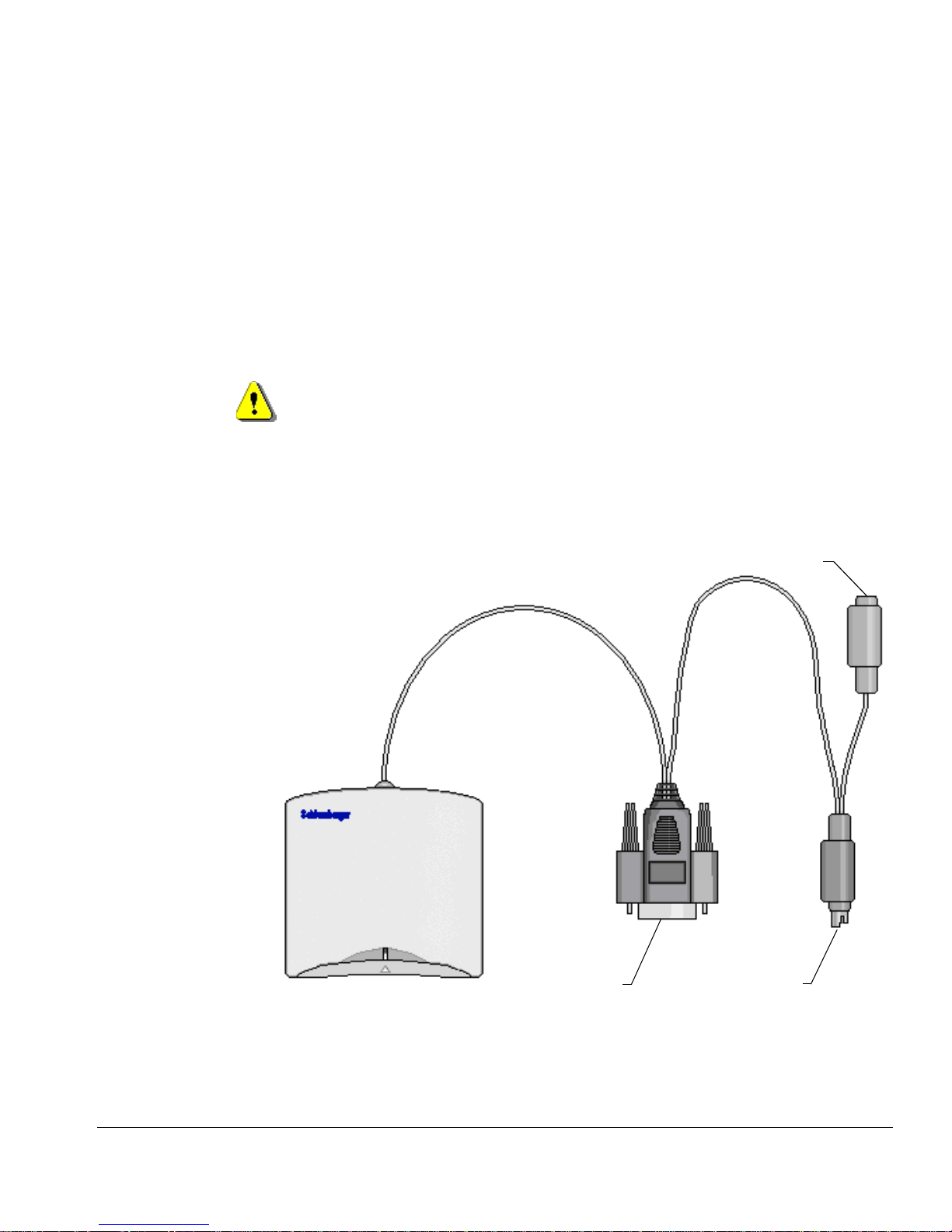
3 Insert the Reflex 72 smart card reader’s PS/2 jack into a connector on the
computer. If the computer does not have an open PS/2 connector, you can
use one that the keyboard or mouse currently uses, and daisy-chain the
keyboard or mouse onto the reader’s PS/2 connector.
Use the plug’s guidepost to help you position the connector correctly. If you
break off the guidepost and insert the plug improperly, you will disable your
computer.
4 If you disconnected the keyboard or mouse PS/2 jack, insert the
disconnected PS/2 jack into the reader’s female PS/2 connector, shown on
the right in the following illustration.
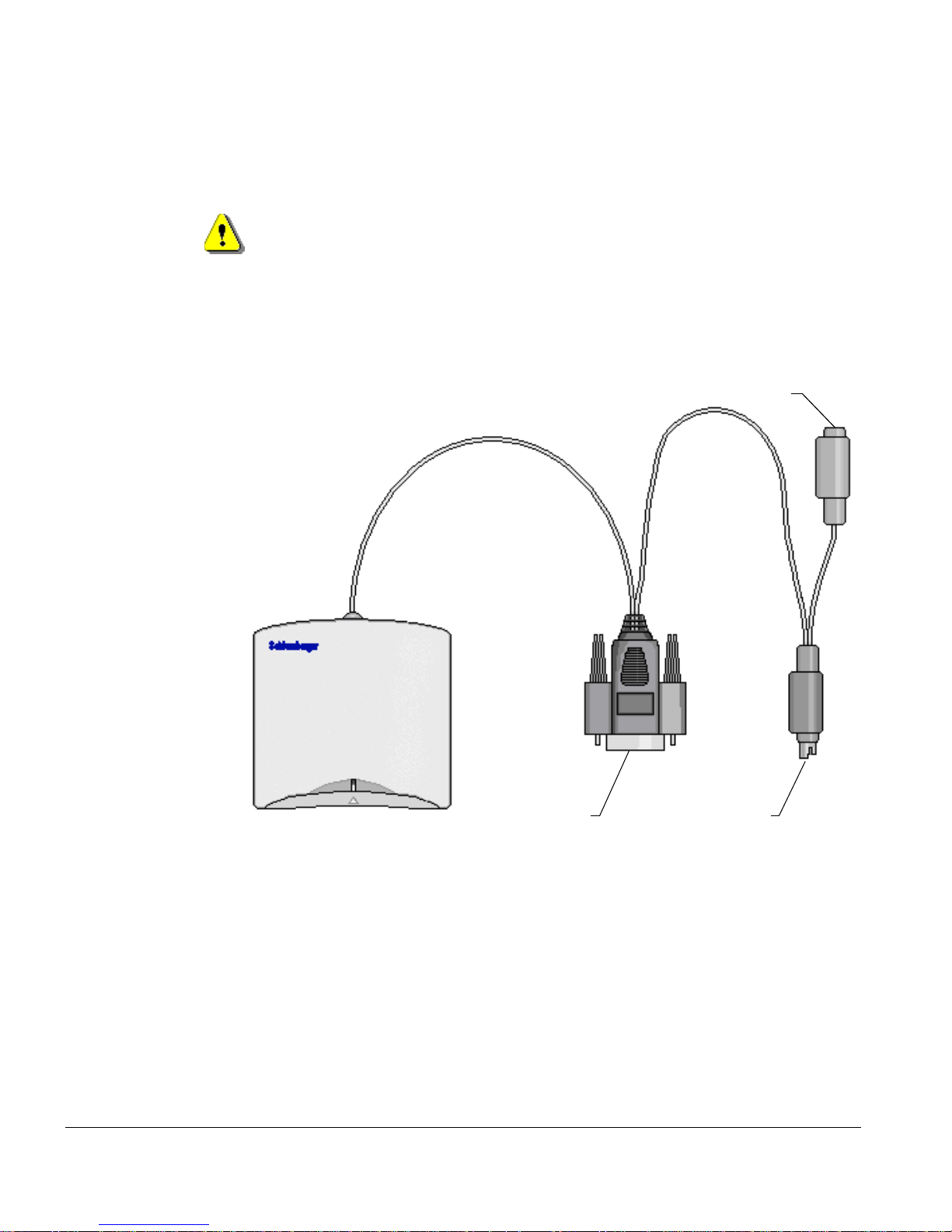
female PS/2 connector: If it is necessary to daisy-chain the reader with
the keyboard or mouse, insert the keyboard or mouse PS/2 jack here.
Reader Cables and Connectors
Reflex 72 Reader Installation Guide 7
serial plug:
Attach to a
computer COM
PS/2 jack:
Attach to a computer
PS/2 connector
Page 12

Chapter 2 - Installation
Step 3: Reboot the computer
On a Windows NT 4.0 computer, both the operating system and the Smart Card
Resource Manager detect the presence of the Reflex 72 smart card reader
during reboot only. The Reflex 72 smart card reader is not usable until you
reboot the computer.
These are other situations that require you to reboot your computer:
• If you connect the Reflex 72 smart card reader in mid-session, the Smart
Card Resource Manager is unaware of the change until you reboot.
• If you reconnect the Reflex 72 smart card reader after removing it, the
Reflex 72 smart card reader does not function until you reboot.
At this point you are ready to start using the Reflex 72 smart card reader. You
can test the reader setup using the Smart Card Reader Tools. From the Start
menu on the Windows taskbar, select Programs
Cards and Terminals
→ Smart Card Readers → Tools.
→ Schlumberger Smart
8 Reflex 72 Reader Installation Guide
Page 13

Updating on Windows NT 4.0
If you are updating the Reflex 72 smart card reader software (not installing the
hardware and software for the first time), complete these tasks, which are
described in detail in the sections that follow:
1 Install the new Reflex 72 smart card reader software.
2 Reboot the computer.
Refer to the release notes for driver version numbers and information about
potential installation issues in a specific release.
Step 1: Install the new Reflex 72 smart card reader software
Go to the Reflex Readers Download website (www.reflexreaders.com/
Support/Downloads/downloads.html) to download the latest Reflex 72 driver
package for Win NT.
See the package’s Install Notes for installation instructions.
Installing on Windows NT 4.0
Step 2: Reboot the computer
After you finish installing the new Reflex 72 smart card reader software,
reboot the computer.
If your computer previously used a Reflex 72 smart card reader driver with a
different name from the new driver, the registry entry for the earlier driver is
not overwritten when the new driver is installed. In this case, you might see
the following warning message each time you restart your computer:
At least one service or driver failed during system startup.
Use Event Viewer to examine the event log for details.
This message is not significant and can be ignored, but if you want to prevent
the message from displaying, use either of these methods:
• Disable the old device using the Devices Control Panel option. To access
this option, select Start
Devices, select the device, click Startup, and set the startup type to either
Manual or Disabled.
or
→ Settings → Control Panel. Double-click
Reflex 72 Reader Installation Guide 9
Page 14
Chapter 2 - Installation
Use the Registry Editor to remove the registry entries associated with the
•
old Reflex 72 smart card reader driver. (Open the old .reg file in a text
editor to identify which entries must be removed.) If you need more
information about editing the registry to complete this task, refer to the
operating system’s Help.
Using the Registry Editor incorrectly can cause serious problems that may
require you to reinstall your operating system.
10 Reflex 72 Reader Installation Guide
Page 15
Installing on Windows 98 or Windows Me
To install the SchlumbergerSema Reflex 72 smart card reader on a Windows 98
or Windows Me computer, complete these tasks, which are described in detail
in the sections that follow.
Be sure to install the smart card reader software before you connect the
reader. If the proper software is not present when the computer detects the
reader, a partial configuration may result. A partial configuration can
interfere with future attempts to configure the reader properly.
1 Install the Reflex 72 smart card reader software.
2 Connect the Reflex 72 smart card reader.
3 Reboot the computer.
Refer to the release notes for driver version numbers and information about
potential installation issues in a specific release.
Installing on Windows 98 or Windows Me
Step 1: Install the Reflex 72 smart card reader software
Go to the Reflex Readers Download website (www.reflexreaders.com/
Support/Downloads/downloads.html) to download the latest Reflex 72 driver
package for Win98/Me. If the Microsoft Base Components are not already
installed on your computer, you will also need to download and install that
software.
See the package’s Install Notes for installation instructions.
Step 2: Connect the Reflex 72 smart card reader
Attach the Reflex 72 smart card reader’s serial plug to a COM port on the
1
computer. The Reflex 72 smart card reader communicates with the
computer through the COM port.
2 Insert the Reflex 72 smart card reader’s PS/2 jack into a connector on the
computer. If the computer does not have an open PS/2 connector, you can
use one that the keyboard or mouse currently uses, and daisy-chain the
keyboard or mouse onto the reader’s PS/2 connector.
Reflex 72 Reader Installation Guide 11
Page 16
Chapter 2 - Installation
Use the plug’s guidepost to help you position the connector correctly. If you
break off the guidepost and insert the plug improperly, you will disable your
computer.
3 If you disconnected the keyboard or mouse PS/2 jack, insert the
disconnected PS/2 jack into the reader’s female PS/2 connector, shown on
the right in the following illustration
female PS/2 connector: If it is necessary to daisy-chain the reader with
the keyboard or mouse, insert the keyboard or mouse PS/2 jack here.
The power light flickers.
If you click the Refresh button in the Device Manager now, the computer
begins to scan for Plug-and-Play-compliant hardware. Displayed messages
report that the system has found the new hardware, and has located and
installed the software for it.
12 Reflex 72 Reader Installation Guide
serial plug:
Attach to a
computer COM
PS/2 jack:
Attach to a computer
PS/2 connector
Page 17

Step 3: Reboot the computer
The Smart Card Resource Manager detects the Reflex 72 smart card reader
only during reboot. Therefore, although you might see the Reflex 72 smart card
reader listed in the Device Manager as an installed device after you complete
step 2, the Reflex 72 smart card reader is not usable until you reboot.
These are other situations that require you to reboot your computer:
• If you connect the Reflex 72 smart card reader in mid-session, the Smart
Card Resource Manager is unaware of the change until you reboot.
• If you reconnect the Reflex 72 smart card reader after removing it, the
Reflex 72 smart card reader does not function until you reboot.
• If you remove the Reflex 72 smart card reader without first stopping the
device, these errors display:
Reader removal monitor error retry threshold
reached. The parameter is incorrect.
Reader monitor ‘Schlumberger Reflex 72 0’ received
uncaught error code: The parameter is incorrect.
Installing on Windows 98 or Windows Me
To make the Reflex 72 reader functional, reconnect it and reboot.
At this point you are ready to start using the Reflex 72 smart card reader. You
can test the reader setup using the Smart Card Reader Tools. From the Start
menu on the Windows taskbar, select Programs
Cards and Terminals
→ Smart Card Readers → Tools.
→ Schlumberger Smart
Reflex 72 Reader Installation Guide 13
Page 18
Chapter 2 - Installation
Updating on Windows 98 or Windows Me
If you are updating the Reflex 72 smart card reader software (not installing the
hardware and software for the first time), complete these tasks, which are
described in detail in the sections that follow:
1 Install the new Reflex 72 smart card reader software.
2 Step through the Update Device Driver wizard.
3 Reboot the computer.
Refer to the release notes for driver version numbers and information about
potential installation issues in a specific release.
Step 1: Install the new Reflex 72 smart card reader software
Go to the Reflex Readers Download website (www.reflexreaders.com/
Support/Downloads/downloads.html) to download the latest Reflex 72 driver
package for Win98/Me.
See the package’s Install Notes for installation instructions.
Step 2: Step through the Update Device Driver wizard
Use the operating system’s Update Device Driver wizard to point the operating
system to the new driver:
1 To start the Device Manager, select Start → Settings → Control Panel.
Double-click System, and then click the Device Manager tab.
2 In the Device Manager, expand the SmartCardReader device type, and then
double-click the name of the device to open its Properties.
3 In the device’s Properties, click the Driver tab, and then click the Update
Driver button.
The Update Device Manager wizard is launched. Select the option to let the
wizard search for suitable drivers for the device. If you need more information
about using the wizard to complete this task, see the operating system’s Help.
Step 3: Reboot the computer
After the wizard has finished updating the Reflex 72 driver, reboot the
computer.
14 Reflex 72 Reader Installation Guide
Page 19
Installing or Updating on Windows 2000 or Windows XP
Installing or Updating on Windows 2000 or Windows XP
To install or update the SchlumbergerSema Reflex 72 smart card reader on a
Windows 2000 or Windows XP computer, complete these tasks, which are
described in more detail in the sections that follow.
1 Connect the Reflex 72 smart card reader.
2 Install the Reflex 72 smart card reader software.
3 Initiate a scan for hardware changes.
Refer to the release notes for driver version numbers and information about
potential installation issues in a specific release.
Step 1: Connect the Reflex 72 smart card reader
Attach the Reflex 72 smart card reader’s serial plug to a COM port on the
1
computer. The Reflex 72 smart card reader communicates with the
computer through this port.
2 Insert the Reflex 72 smart card reader’s PS/2 jack into a PS/2 connector on
the computer. If the computer does not have an open connector, you can
use one that the keyboard or mouse currently uses, and daisy-chain the
keyboard or mouse onto the reader’s PS/2 connector.
Use the plug’s guidepost to help you position the connector correctly. If you
break off the guidepost and insert the plug improperly, you will disable your
computer.
Reflex 72 Reader Installation Guide 15
Page 20
Chapter 2 - Installation
3 If you unplugged the keyboard or mouse PS/2 jack, plug that jack into the
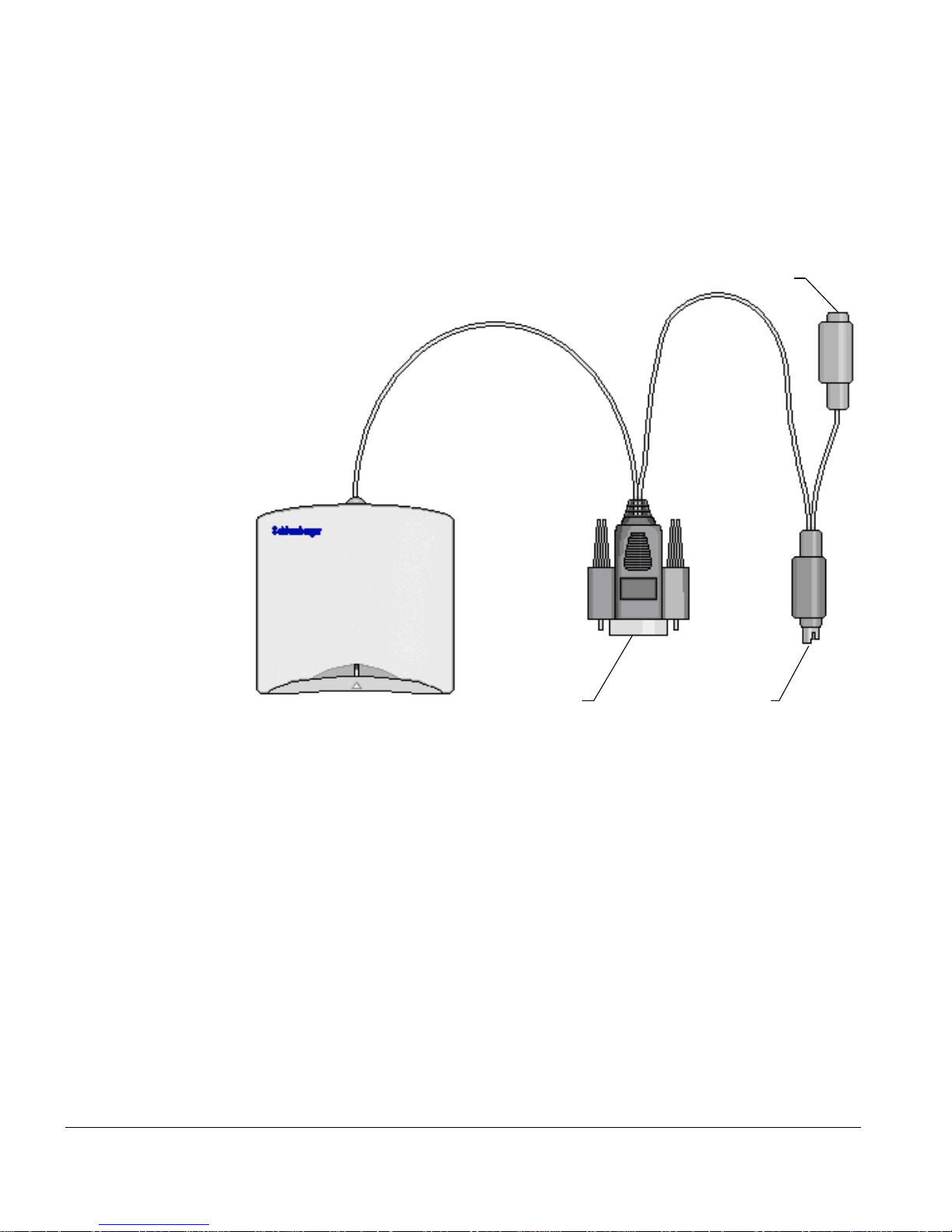
reader’s open PS/2 connector, as indicated in the following illustration
female PS/2 connector: If it is necessary to daisy-chain the reader with
the keyboard or mouse, insert the keyboard or mouse PS/2 jack here.
serial plug:
Attach to a
computer COM port
Reader Cables and Connectors
Step 2: Install the Reflex 72 smart card reader software
Go to the Reflex Readers Download website (www.reflexreaders.com/
Support/Downloads/downloads.html) to download the Reflex 72 driver
package for Win 2000 or Win XP.
See the package’s Install Notes for installation instructions.
Note that the Microsoft Smart Card Base Components are pre-installed on
Windows 2000 and Windows XP computers; do not reinstall the Microsoft
Smart Card Base Components.
PS/2 jack:
Attach to a computer PS/
2 connector
16 Reflex 72 Reader Installation Guide
Page 21

Step 3: Initiate a scan for hardware changes
Use the Device Manager to initiate a scan for hardware changes.
1 To start the Device Manager on Windows 2000, select Start → Settings →
Control Panel. Double-click System, click the Hardware tab, and then
click the Device Manager button.
Installing or Updating on Windows 2000 or Windows XP
To start the Device Manager on Windows XP, select Start
→ Control
Panel. Double-click System, click the Hardware tab, and then click the
Device Manager button.
2 In the Device Manager, select Action → Scan for hardware changes.
After the scan for hardware changes is initiated, messages will report that the
system has found the new hardware and has located and installed the software
for it.
NOTE On Windows 2000 and Windows XP systems, the operating system
sometimes automatically configures the Reflex 72 to use a different driver
from the one you have installed. See the Troubleshooting chapter for
information about checking the driver version and manually updating the
driver if necessary.
The Reflex 72 smart card reader is ready to use without rebooting the
computer. The Smart Card Resource Manager automatically detects the Reflex
72 smart card reader’s change in status whenever you disconnect or reconnect
it.
At this point you are ready to start using the Reflex 72 smart card reader. You
can test the reader setup using the Smart Card Reader Tools. From the Start
menu on the Windows taskbar, select Programs
Cards and Terminals
→ Smart Card Readers → Tools.
→ Schlumberger Smart
Reflex 72 Reader Installation Guide 17
Page 22

Page 23
Troubleshooting
This chapter describes some
problems you might encounter when
you set up and use the
SchlumbergerSema Reflex 72 smart
card reader, along with possible
causes and solutions. If you need
additional help, use the User
Discussion Forums or contact the SchlumbergerSema reader support team
through the Reflex Reader Technical Support website
(www.reflexreaders.com/Support/support.html).
Refer to the release notes for information about other known product issues.
The reader power light is not on
3
Cause Description: The Reflex 72 smart card reader power light is illuminated
only during I/O activity between the reader and the card.
The reader is not getting power to operate
No PS/2 connection
Cause Description: The Reflex 72 smart card reader’s PS/2 jack is not
connected to a PS/2 connector.
Solution: Make sure the Reflex 72 smart card reader’s PS/2 jack is securely
inserted in a PS/2 connector on the computer.
Insufficient power (laptop)
19
Page 24
Chapter 3 - Troubleshooting
Cause Description: The Reflex 72 smart card reader is connected to an older
laptop computer that is not compliant with industry standards and does not
supply sufficient power through the PS/2 connector to run the reader.
Solution: You can build an external power supply for the Reflex 72 smart
card reader. (For information about the pinout for an external power supply
cable, see www.linuxnet.com/docs.html, and follow the link to PS2 Power
Vampire AC Cable PINOUT.)
Legacy application (Windows NT 4.0)
Cause Description: An application that allocated COM ports statically was
once installed on the host Windows NT 4.0 system, and was connected to the
reader’s COM port.
Solution: Remove the legacy driver that is causing the conflict. The driver
could be from an application that was incompletely uninstalled. Alternatively,
connect the reader to a different COM port. (SchlumbergerSema recommends
that you connect the Reflex 72 smart card reader to COM1 if possible.)
Polling error (Windows NT 4.0)
Cause Description: A nonstandard device is using one of the COM ports and
interfering with detection of the reader. By default, the system attempts to poll
all four standard COM ports at boot-time in order to detect the Reflex 72 smart
card reader. If a nonstandard device uses one of the polled COM ports, the
device can cause the system’s initialization command to fail to reach the
reader’s port. (It is also possible for polling to cause the nonstandard device to
work erratically or stop working completely.)
Solution: Disable polling of the COM port used by the nonstandard device, by
editing the system registry.
Do not modify the system registry yourself unless you are a system
administrator or have considerable system administration expertise. You can
disable your system by modifying the registry improperly.
To resolve the problem, follow these steps:
1 Determine which device is causing the interference (or is being disabled),
and which COM port the device uses.
20 Reflex 72 Reader Installation Guide
Page 25

Troubleshooting
2 Display the system’s Registry Editor window.
3 Locate the Reflex 72 smart card reader’s registry parameters. The reader
parameters are located in this path:
My Computer
Current Control Set
→ HKEY_LOCAL_MACHINE → SYSTEM →
→ Control → Services → Slbl4 → Parameters
4 Double-click the COMMask parameter icon.
The Edit DWORD Value dialog box appears
5 In the Edit DWORD Value dialog box, modify the specification in the
Value data box to specify the COM ports to be polled.
The default COMMask value is
value, the default setting is
Fh (15 decimal). Converted to a binary
1111, with one bit assigned to each COM port.
(COM1 occupies the Least Significant Bit, or LSB.)
To specify a bit mask that disables polling for one of the COM ports, assign
a setting of 0 (off) to its bit position, convert the resulting binary value to a
hexadecimal or decimal value, and enter that value in the Value data box.
The following table shows some examples of COMMask settings.
Hex
Value
F 15 111 1 1111 = All COM ports polled.
E 14 111 0
Decimal
Value
Binary Values:
Bit 4 Bit 3 Bit 2 Bit 1
COM Port Polling Status
1110 = COM1 not polled.
D 13 110 1
B 11 101 1
7 7 011 1
NOTE SchlumbergerSema recommends that you disable polling only for COM
1101 = COM2 not polled.
1011 = COM3 not polled.
0111 = COM4 not polled.
ports that are causing problems. Allow the system to poll all other COM
ports.
6 Click OK to save the change.
Reflex 72 Reader Installation Guide 21
Page 26
Chapter 3 - Troubleshooting
The reader is getting power, but I can’t connect to it
No COM connection
Cause Description: The Reflex 72 smart card reader’s serial plug is not
connected.
Solution: Make sure the Reflex 72 smart card reader’s serial plug is
connected to a COM port.
BIOS Setup
Cause Description: The COM port is disabled in the system Basic Input/
Output System (BIOS).
Solution: To see if the COM port is likely to be disabled, check to see if the
port appears as a system device, as described in the following text. If the COM
port does not appear as expected, check the system BIOS setting to make sure
the COM port is enabled. (For information about your BIOS control system,
refer to the documentation for your system.)
Verifying the COM Port Status on Windows NT 4.0 systems
To see if a particular COM port is possibly disabled on a Windows NT 4.0
system, select Start
Ports to display the Ports list. Verify that the COM port appears in the Ports
list.
→ Settings → Control Panel, and then double-click
Verifying the COM Port Status on Windows 98, Me, 2000, and XP systems
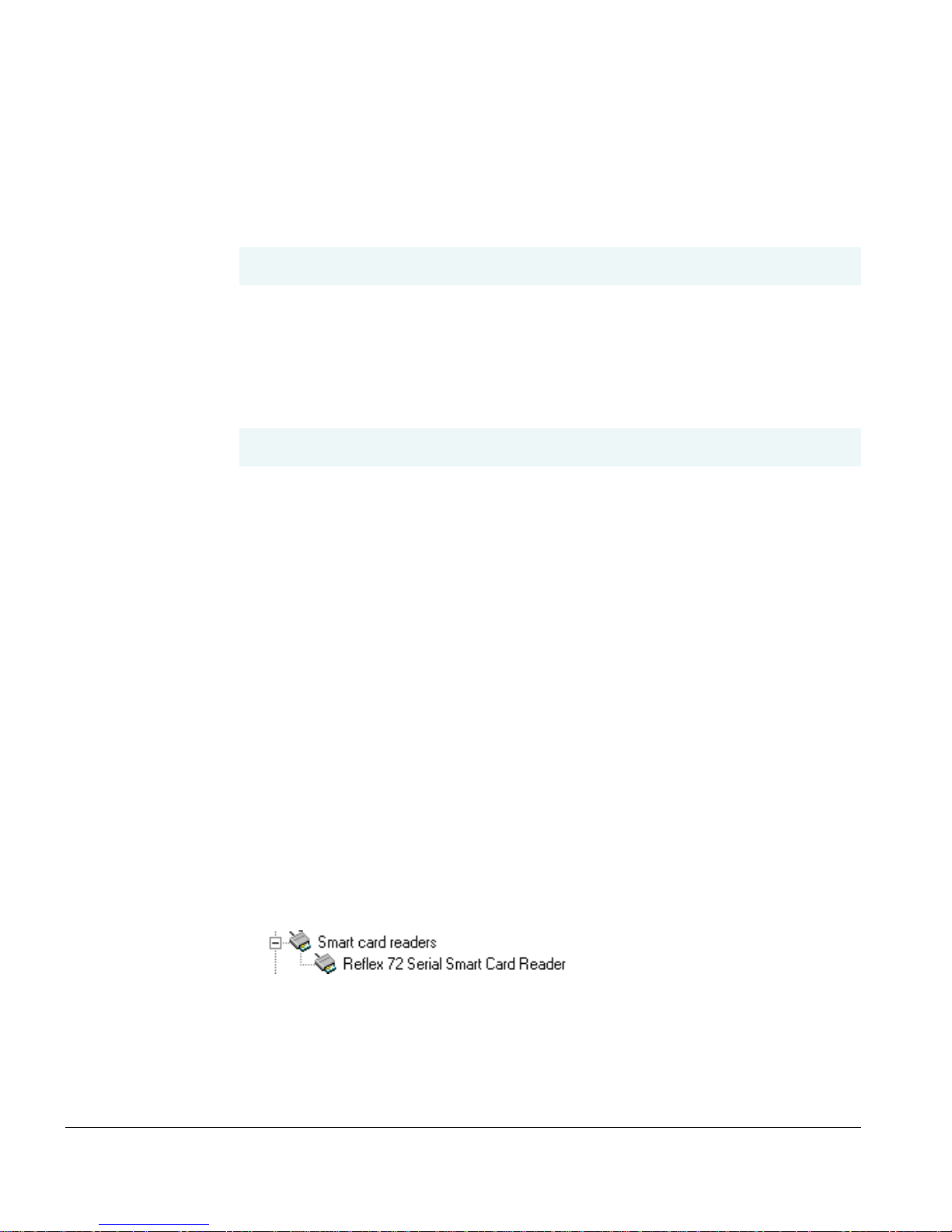
Open the Device Manager (for information about how to open the Device
Manager, refer to the documentation for your system) and verify that the COM
port appears in the device tree, as shown in the following example:
If the COM port appears, the BIOS setting is likely to be enabled. If it does not
appear, check to make sure the COM port is enabled in the BIOS setup.
22 Reflex 72 Reader Installation Guide
Page 27

Troubleshooting
Faulty COM port
Cause Description: The COM port is not functional.
Solution: To verify that the COM port is working properly, use one of these
methods:
• Perform a loopback test.
• Test the COM port by connecting another serial device to it.
• On a Windows 98, Me, 2000, or XP system, open the Device Manager (for
information about how to open the Device Manager, refer to the
documentation for your system), select the COM port, and then click the
Properties button. Check the port status in the dialog box that appears.
COM port allocation or settings (Windows NT 4.0 systems)
Cause Description: The COM port you selected on the host Windows NT 4.0
system for the reader may be allocated to another device. (This is less likely to
be the problem than an incorrect setting in the system BIOS.)
Solution: Check to make sure your system does not have any IRQ conflicts
and check the serial port settings, such as:
• Address value — If your serial port hardware uses address values other
than the values that Windows NT detects, change the base I/O address.
• Unique IRQ numbers for multiple COM ports — To use multiple COM
ports simultaneously, assign a unique IRQ number to each COM port.
The method for setting advanced port options is varies somewhat by operating
system. Brief instructions follow for setting port options on a Windows NT 4.0
system. For information about other operating systems, refer to your system’s
Windows help or documentation.
To display the Advanced Settings dialog box on a Windows NT 4.0 system,
follow these steps:
1 Select Start → Settings → Control Panel, and then double-click Ports
to display the Ports list.
Reflex 72 Reader Installation Guide 23
Page 28

Chapter 3 - Troubleshooting
2 Highlight the name of the port you chose for the reader, and then click the
Settings button.
The Settings for COM X dialog box appears.
3 Click the Advanced button.
The Advanced Settings for COM X dialog box appears.
4 Make any needed changes, and then click OK.
A message appears and informs you that changes do not take effect until
you restart Windows NT.
5 To implement your changes immediately, click the Restart Now button.
The system implements the new port settings. Check to see if you can
connect to the reader.
Infrared port conflict
Cause Description: The laptop computer’s infrared port conflicts with the
COM port.
Solution: First verify that the COM port is functional (as described on
page 23) and enabled in the BIOS setup (as described on page 22). If neither of
these is the problem, change the infrared port’s resource settings or disable
the infrared port. Make sure the infrared port is set to use a different COM port
than the reader. For more information about changing infrared port settings,
see the documentation for your system.
Premature reader connection (Windows 2000 and Windows XP systems)
Cause Description: The Reflex 72 smart card reader software was not
present on the computer when you connected the reader and the system
detected its presence. In this situation, the system may configure the Reflex 72
smart card reader incorrectly. This flawed configuration can interfere with
future attempts to configure the reader properly.
24 Reflex 72 Reader Installation Guide
Page 29

Troubleshooting
Solution: Uninstall the Reflex 72 smart card reader hardware on your
Windows 2000 or Windows XP system, and then install it again correctly. For
information about uninstalling hardware, see the documentation for your
system.
An error message says the removal monitor error retry threshold has been reached
Reader disconnection (Windows 98 and Windows Me systems)
Cause Description: The Reflex 72 smart card reader was disconnected in the
middle of a session on a Windows 98 or Windows Me system. The Smart Card
Resource Manager service responds with the following error:
Reader removal monitor error retry threshold reached. The
specified network resource or device is no longer available.
If you click OK to close the message box, the following message might display:
Reader monitor ‘Schlumberger Reflex 72 0’ received uncaught
error code: The device does not recognize the command.
If one or both of these messages appear, the reader will not function again in
the current Windows session, even if you reconnect it.
Solution: To make the Reflex 72 smart card reader functional, reconnect it
and reboot the system. The Smart Card Resource Manager detects the Reflex
72 smart card reader only at boot-time on Windows 98 and Windows Me
computers.
If you do not need to use the Reflex 72 smart card reader again in the current
Windows session, close the message boxes and continue the session.
Device driver reinitialization (Windows 98 and Windows Me systems)
Cause Description: The system reinitialized the Reflex 72 smart card reader’s
device driver when you clicked the Refresh button in the Device Manager tab
of the System Properties window on a Windows 98 or Windows Me computer.
The reinitialization interrupted the Smart Card Resource Manager service, and
the Reflex 72 smart card reader stopped working.
Reflex 72 Reader Installation Guide 25
Page 30

Chapter 3 - Troubleshooting
The Smart Card Resource Manager service responds with the Microsoft Smart
Card System errors shown earlier in this topic. If you click OK to close the
first message box, the second message box appears.
Solution: To make the Reflex 72 smart card reader functional again,
reconnect it and reboot the system. The Smart Card Resource Manager detects
the reader only at boot-time on Windows 98 and Windows Me computers.
If you do not need to use the reader again in the current Windows session,
close the message boxes and continue the session.
Since I added the reader to my system, I have a problem with another peripheral
Polling error (Windows NT 4.0 systems)
Cause Description: The COM port polling the system conducts at boot-time is
confusing the other (nonstandard) device and causing it to stop working.
Polling a nonstandard device’s COM port can also potentially prevent the
reader from working. (By default, the system attempts to poll all the COM
ports at boot-time, in order to detect the reader.)
Solution: Disable polling of the COM port used by the malfunctioning or
interfering device. Edit the system registry or ask your system administrator to
edit it.
Since I installed the reader, the system boots slowly
COM port selection (Windows 98 and Windows Me systems)
Cause Description: The Reflex 72 smart card reader is connected to a COM
port that follows the one used by an internal or external modem.
Solution: Reconnect the devices so that the Reflex 72 smart card reader uses
a COM port that precedes the modem. If possible, connect the Reflex 72 smart
card reader to COM1.
26 Reflex 72 Reader Installation Guide
Page 31

The Reflex 72 is not using the driver I installed
The operating system chose the wrong reader driver
Cause Description: On Windows 2000 and Windows XP systems, the operating
system sometimes automatically configures the smart card reader to use a
different driver from the one that you installed. A detailed discussion follows.
Solution: Reconfigure the smart card reader to use the correct driver. Detailed
instructions follow.
When the operating system detects that a smart card reader has been added
(during installation) or changed (during update), the operating system tries to
find the best driver for the device.
On Windows 2000 systems, depending on characteristics of both the new
driver and drivers already installed on a system, the operating system
sometimes automatically configures the smart card reader to use a driver that
is not the one that you installed.
Troubleshooting
On Windows XP systems, at the time of release, if the smart card reader is
plugged in before the driver software is installed, the correct driver is
automatically selected by the operating system. If the reader is not plugged in
before the driver software is installed, the operating system sometimes
automatically configures the smart card reader to use a driver that is not the
one that you installed.
You can confirm whether your smart card reader is using the correct driver by
checking the driver version number, as outlined in “Checking a Driver Version”
in this section.
If you discover that your smart card reader is configured to use an older driver
and you want to use the driver that you installed, you can manually update the
driver using the instructions outlined in “Manually Updating a Driver” in this
section.
Checking a Driver Version
To confirm whether your smart card reader is configured to use the driver that
you installed, you can check the version number using the Device Manager.
Reflex 72 Reader Installation Guide 27
Page 32

Chapter 3 - Troubleshooting
1 To start the Device Manager on Windows 2000, select Start → Settings →
Control Panel. Double-click System, click the Hardware tab, and then
click the Device Manager… button.
To start the Device Manager on Windows XP, select Start
→ Control
Panel. Double-click System, click the Hardware tab, and then click the
Device Manager… button.
2 In the Device Manager, expand the Smart card readers device type, and
then double-click the name of the device to open its Properties. In the
device’s Properties, click the Driver tab. Click Driver Details…. to
display driver information, including driver file name and version number.
3 Compare the version number displayed in the Driver File Details screen to
the version number for the driver listed on the Reflex Readers Download
website (www.reflexreaders.com/Support/Downloads/downloads.html).
If the smart card reader is currently configured to use an older driver, you can
manually update the driver using the instructions that follow.
Manually Updating a Driver
Use the Upgrade Device Driver wizard (on Windows 2000) or Hardware
Update wizard (on Windows XP) to update the smart card reader driver:
1 To start the Device Manager on Windows 2000, select Start → Settings →
Control Panel. Double-click System, click the Hardware tab, and then
click the Device Manager… button.
To start the Device Manager on Windows XP, select Start
→ Control
Panel. Double-click System, click the Hardware tab, and then click the
Device Manager… button.
2 In the Device Manager, expand the Smart card readers device type, and
then double-click the reader device to open its Properties.
3 In the device’s Properties, click the Driver tab, and then click the Update
Driver… button. The Upgrade Device Driver wizard (on Windows 2000) or
Hardware Update (on Windows XP) wizard is launched.
4 In the Upgrade Device Driver wizard (on Windows 2000) or Hardware
Update (on Windows XP) wizard, select to display a list of known drivers
for the device so that you can select a specific driver.
5 In the Select a device driver screen, click Have Disk …
28 Reflex 72 Reader Installation Guide
Page 33

Troubleshooting
6 In the Install from Disk screen, type in or browse to the \Program
Files\Schlumberger\Smart Card Readers\reader_name directory, and click
OK.
7 In the Select a Device Driver window, select the new device driver from the
list, and click Next.
You might see warnings that you are about to install an unsigned driver or
that you are about to install an unsigned driver over a signed driver. Click
Yes or Continue Anyway.
8 Follow screen instructions to complete updating the driver. If you need
more information about using the wizard to complete this task, refer to the
operating system’s Help.
The smart card reader is ready to use without rebooting the system.
Reflex 72 Reader Installation Guide 29
Page 34

Page 35

Index
C
cards supported 2
certifications 2
D
driver
checking version
manually updating 28
Index
O
operating system requirements 1
27
P
physical specifications 2
E
electrical specifications 2
I
installation 3–17
on Windows 2000/Windows XP 15
on Windows 98/Windows Me 11
on Windows NT 4.0 6
summary 4
introduction 1–2
Plug-and-Play capability 4
power light behavior 4
R
regulatory approvals 2
requirements
operating system
other system 1
1
S
smart cards supported 2
specifications
electrical
2
31
Page 36

Index: T
physical 2
standards 2
supported
smart cards
system requirements 1
2
T
troubleshooting 19–29
U
update
driver, manually
on Windows 2000/Windows XP 15
on Windows 98/Windows Me 14
on Windows NT 4.0 9
28
W
Windows 2000/Windows XP
installation
update 15
Windows 98/Windows Me
installation
update 14
Windows NT 4.0
installation
update 9
32 Reflex 72 Reader Installation Guide
15
11
6
 Loading...