

Page 1
5. System function
Press the desired key once to activate the function associated with it.
Wait for approximately 1 sec. before pressing the same key again. Pressing the same key several times in quick succession will
cancel the command.
Quick Reference Guide for Comelit Intercom
PERFORMING CALLS
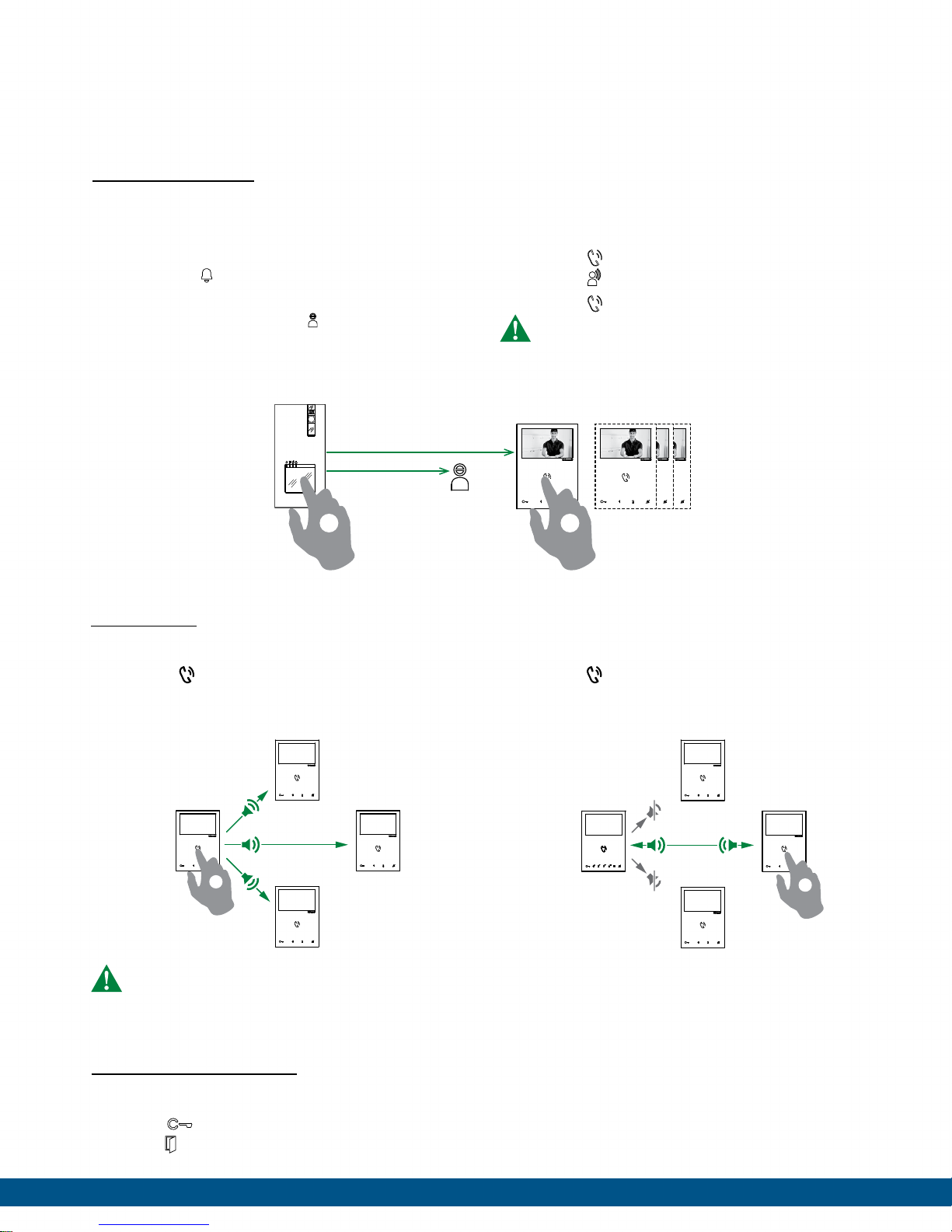
How to call from the external unit
To send the call from an external unit, touch the button
corresponding to the user you want to contact.
» On the external unit the caller illumination LED will light
up, the
sound. The video image from the external unit will appear
automatically on internal monitor/s.
» If the system is busy: the
external unit will emit the system busy tone.
LED will flash and the confirmation tone will
LED will flash and the
the system is busy
1 2
How to answer a call from an internal unit
» On receipt of a call from the external unit you will hear the
call ringtone
Press
» the
Press
A call from the external unit always takes priority over an
intercom communication or a paging call
» the call in progress will be ended for the other devices.
to enter into communication with the caller
LED will illuminate on the external unit.
again to terminate the call.
PAGING CALL
How to initiate a paging call
Press to initiate the all-page chime
» After the chime sounds, a 30 seconds message can be
broadcast to all monitors on the system (maximum 4
monitors).
1
A call from the external unit always takes priority over an intercom communication or a paging call
» the call in progress will be terminated for the other devices.
How to answer a paging call
Press to answer the paging call
» a (300 seconds) point to point conversation between the
two monitor is established.
» the paging call will be terminated for the other devices.
LOCK RELEASE FUNCTION
2
√ During “call in progress” or during Self-ignition.
Press
» the
to release the lock.
LED will illuminate on the external unit.
Smart Choice Communications | (877) 208-1158 | www.smartchoiceus.com | [email protected]
© 2018 Smart Choice Communications, LLC
Page 2
cycle
SELF-IGNITION FUNCTION
cycle
MAIN
UNIT
UNIT 1 UNIT 2 UNIT 3
MAIN EXTERNAL
UNIT
5.5 ACTIVATION/DEACTIVATION DOCTOR MODE
Press the programmed button for 3 sec to disable/enable the
Doctor function.
» 3 flashes (every 5 sec.) of the
LED indicate that the Doctor
function is active.
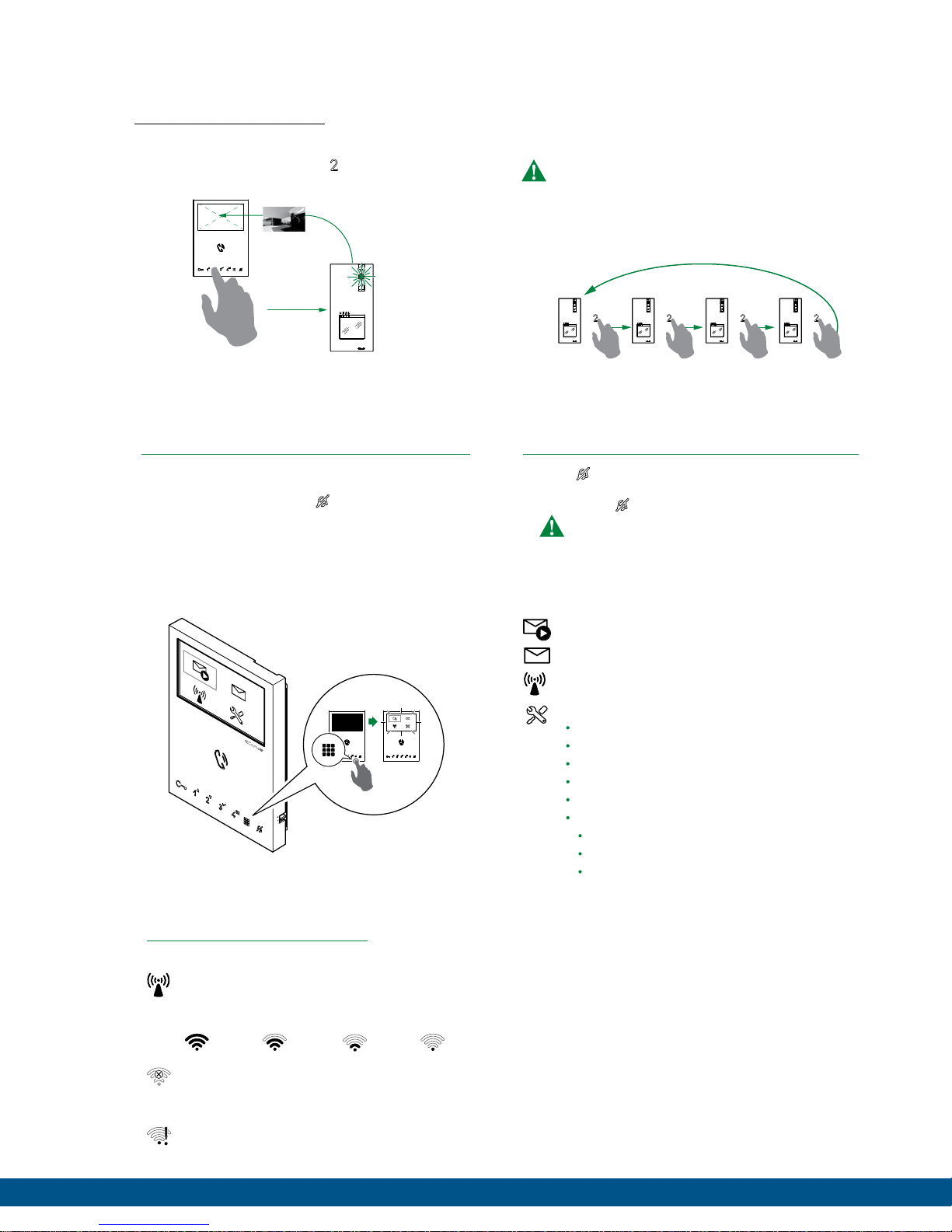
5.6 ACTIVATION/DEACTIVATION PRIVACY MODE
Press to disable/enable the ringtone for calls from the external
unit and paging call.
» The red
LED indicates that the Privacy function is active.
In Privacy mode the paging call are still received
5.4 SELF-IGNITION FUNCTION
√ Self-ignition is possible only when the system is in standby
Press the self-ignition button (
by default) to display on the
monitor the video from the external unit.
Press again to cycle through several cameras
If a call is underway with an external unit it is NOT possible
to cycle between the external units
Press and hold the key to disable / enable the function.
√ Self-ignition is possible only when the system is in standby
Press the self-ignition button (
monitor the video from the external unit.
ACTIVATION/DEACTIVATION
Press the programmed button for 3 sec to disable/enable the
Doctor function.
» 3 flashes (every 5 sec.) of the
function is active.
by default) to display on the
MAIN EXTERNAL
UNIT
DOCTOR MODE
LED indicate that the Doctor
Device functions
Press again to cycle through several cameras
If a call is underway with an external unit it is NOT possible
to cycle between the external units
Press and hold the key to disable / enable the function.
MAIN
UNIT
ACTIVATION/DEACTIVATIO
Press to disable/enable the ringtone for calls from the external
unit and paging call.
» The red
In Privacy mode the paging call are still received
UNIT 1 UNIT 2 UNIT 3
PRIVACY MODE
N
LED indicates that the Privacy function is active.
WI-FI CONNECTION STATUS
Access point: If the system requires wireless connection of
the monitor, link the device with the local router
Signal strength:
Excellent Good Moderate Weak
Connection absent: Monitor Wi-Fi reception is enabled,
therefore you need to check the router conditions (on/
o, correct operation, distance from the monitor, correct
password).
Router connected, no internet: Check with your internet
provider.
Video memory
Video messages list
Wi-Fi setup
Setup
Wi-Fi reporting unconnected
App registration enable
Date and time settings
Language
Information
Reset
Reset WiFi configuration
Factory reset
Reset APP
By installing and configuring the COMELIT App on smartphone /
tablet it is possible to answer video door entry calls from a local and
remote network (or mobile network); it is possible to make a Selfignition on cameras/entrance panels and send commands to actuator
modules.
Smart Choice Communications | (877) 208-1158 | www.smartchoiceus.com | [email protected]
© 2018 Smart Choice Communications, LLC
 Loading...