

Page 1
READ ME FIRST
Windows® 98/Me
*DSL Equipment Installation Guide:
®
Efficient Networks® 4060
*Digital Subscriber Line
©2001 SBC Advanced Solutions, Inc. All rights reserved.
Part Number: 40609801
Version 1.1
Page 2

Table of Contents
Follow Steps 1 through 8 to complete the DSL Equipment Installation
Step 1: Verify Your System Requirements and Documents 2
Step 2: Verify the Contents of Your DSL Equipment Kit 3
Step 3: Install a Telephone Filter on Every Telephone Line 4
Step 4: Choose Your Modem and Check Your Minimum Requirements 7
Step 5: Install the Efficient Networks® DSL Modem 12
Step 6: PC Requirements Passed 14
Step 7: Finish Configuring your System 15
Step 8: Follow Instructions Provided by your Internet Service Provider 17
APPENDICES 18
Having Trouble? 19
Troubleshooting SBC Express 20
For Support:
• Review the troubleshooting in this guide on page 19.
• Call your Internet Service Provider 'help desk' for further information on Internet Service
Provider connection, and registration.
IMPORTANT NOTE: This guide portrays the typical flow for the installation process.
Please follow the instructions, including running the SBC Express software BEFORE
installing any NIC cards or modems. Some computer or network configurations may cause
software windows to appear that are not depicted in this guide. Please read and follow the
instructions on those screens to continue the installation process.
Verify that you are installing your DSL equipment AFTER the “Service Completion Date”
given to you when you ordered your DSL Internet Service.
SBC Advanced Solutions, Inc. and affiliates have no responsibility for any personal injury
or property damage which may result from your installation of DSL Equipment as
discussed in this Guide. SBC Advanced Solutions, Inc. and its affiliates specifically
disclaim any liability for such injury or damage. By proceeding with this installation, you
assume all risk of personal injury or property damage. Please consult the documentation
provided by your PC vendor to identify any impacts to your warranty. SBC, SBC
EXPRESS and the SBC Logo are registered trademarks of SBC Communications, Inc.
Installation Guide for Customer Self-Install: Efficient Networks® 4060, Windows 98/Me Page 1
©2001 SBC Advanced Solutions, Inc. All rights reserved.
Page 3

Step 1: Verify Your System Requirements and Documents
This Installation Guide is for Windows® 98/Me users only.
The SBC Express installation software will ensure that you meet the following minimum
requirements. You will not be able to complete the installation without meeting these
requirements.
• PC with a Pentium-class processor, CD-ROM Drive, 166 MHz, 25 Mb free disk space,
32 Mb
Other items you may need during the installation process:
• Your system manufacturer Owner’s Manual.
• Documentation and/or software from your Internet Service Provider.
Call your Internet Service Provider if you have questions regarding System Requirements
or System Documentation.
.
Installation Guide for Customer Self-Install: Efficient Networks® 4060, Windows 98/Me Page 2
©2001 SBC Advanced Solutions, Inc. All rights reserved.
Page 4
Step 2: Verify the Contents of Your DSL Equipment Kit
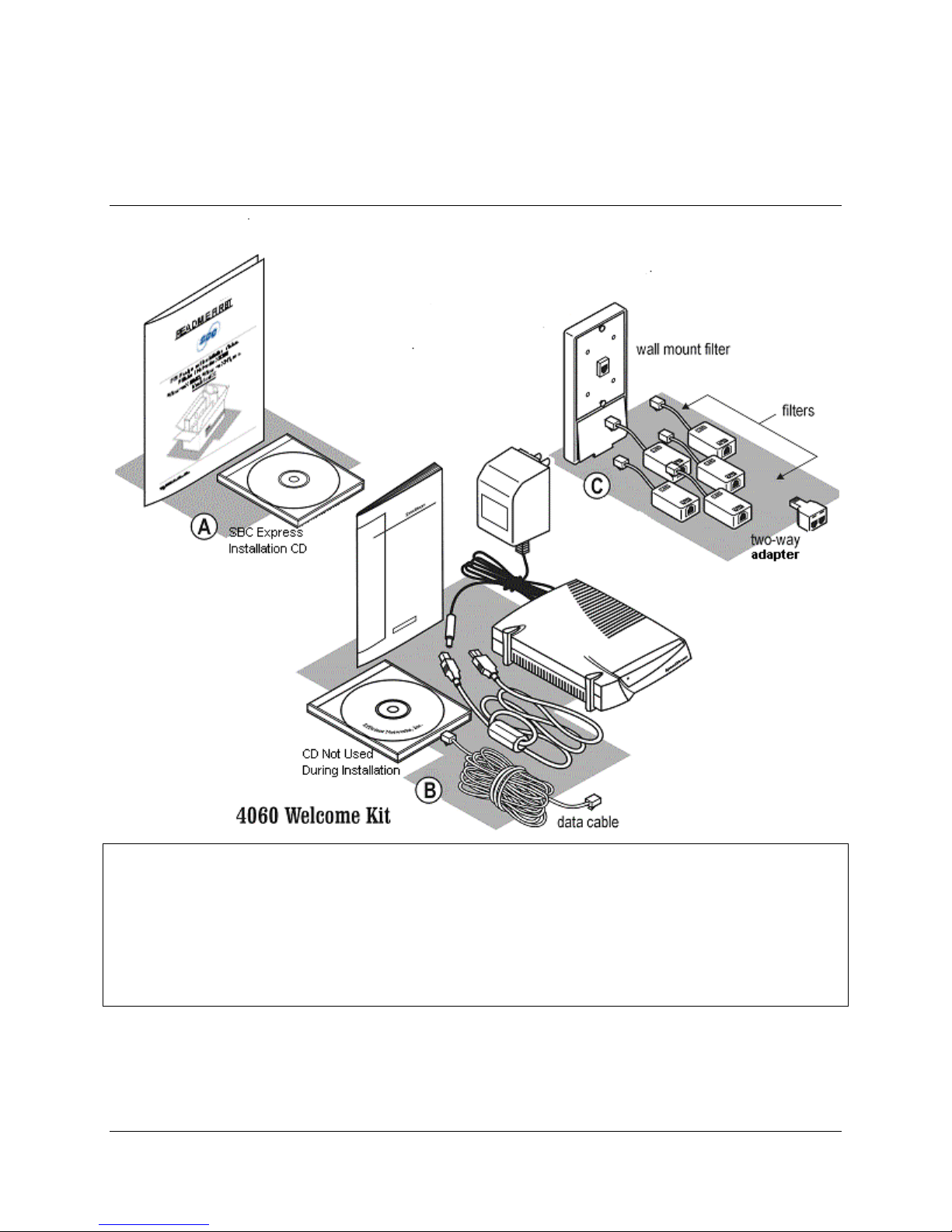
Your DSL Equipment Kit Contains:
A: This Installation Guide and the SBC Express Installation CD.
B: 1 Efficient Networks® 4060 DSL Modem with USB cable, power cable, and data cable.
C: 1 Filter Pack containing: 5 in-line filters, 1 wall-mount filter, and 1 two-way adapter.
D: Internet Software and/or instructions may be provided separately by your Internet Service
Provider.
Installation Guide for Customer Self-Install: Efficient Networks® 4060, Windows 98/Me Page 3
©2001 SBC Advanced Solutions, Inc. All rights reserved.
Page 5
j
j
Step 3: Install a Telephone Filter on Every Telephone Line
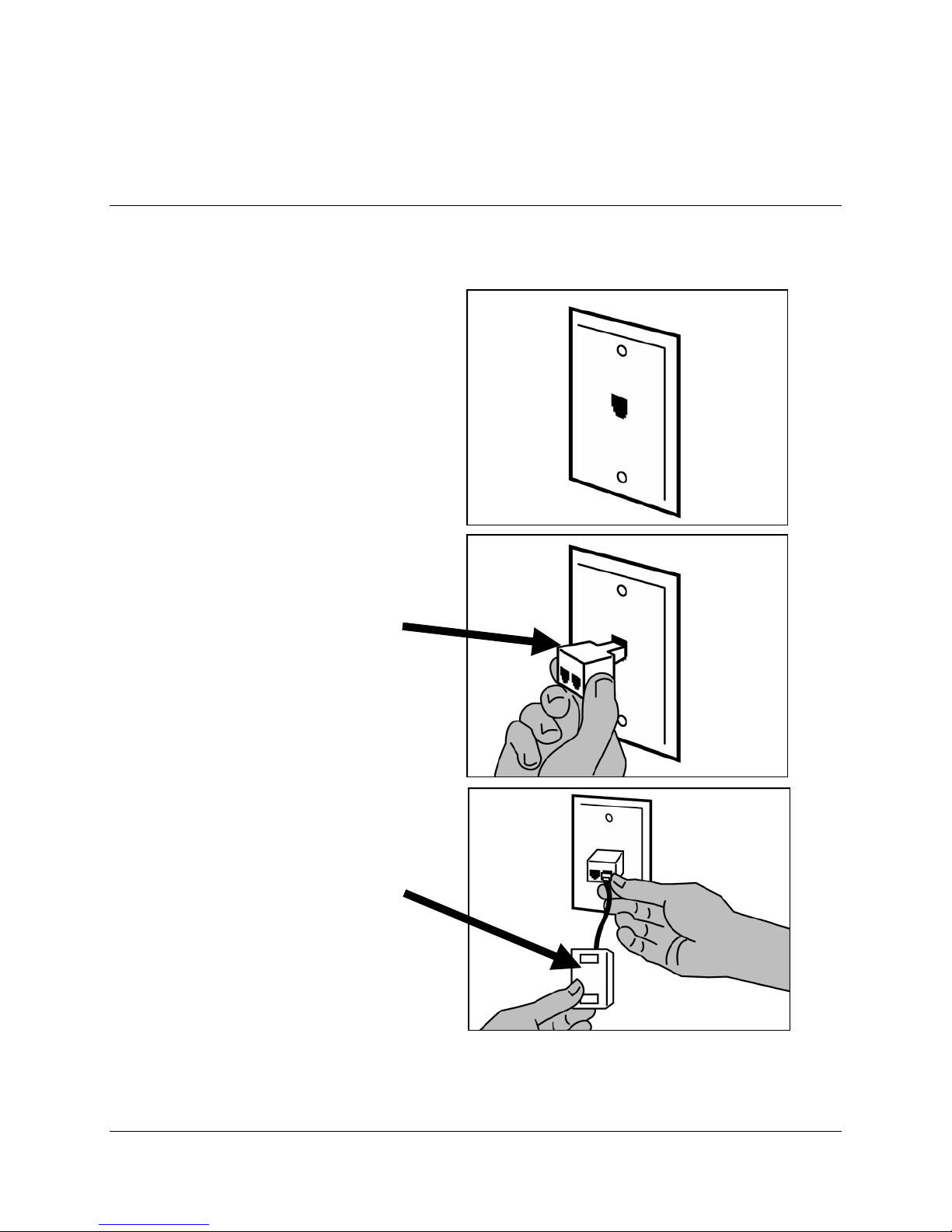
3-1 Set up the phone jack where your DSL modem will go.
1) Locate the phone
ack where you want
to connect your DSL
2) Insert the 2-way
adapter in the phone
ack
3) Connect a filter to
one side of the 2-way
adapter
Installation Guide for Customer Self-Install: Efficient Networks® 4060, Windows 98/Me Page 4
©2001 SBC Advanced Solutions, Inc. All rights reserved.
Page 6
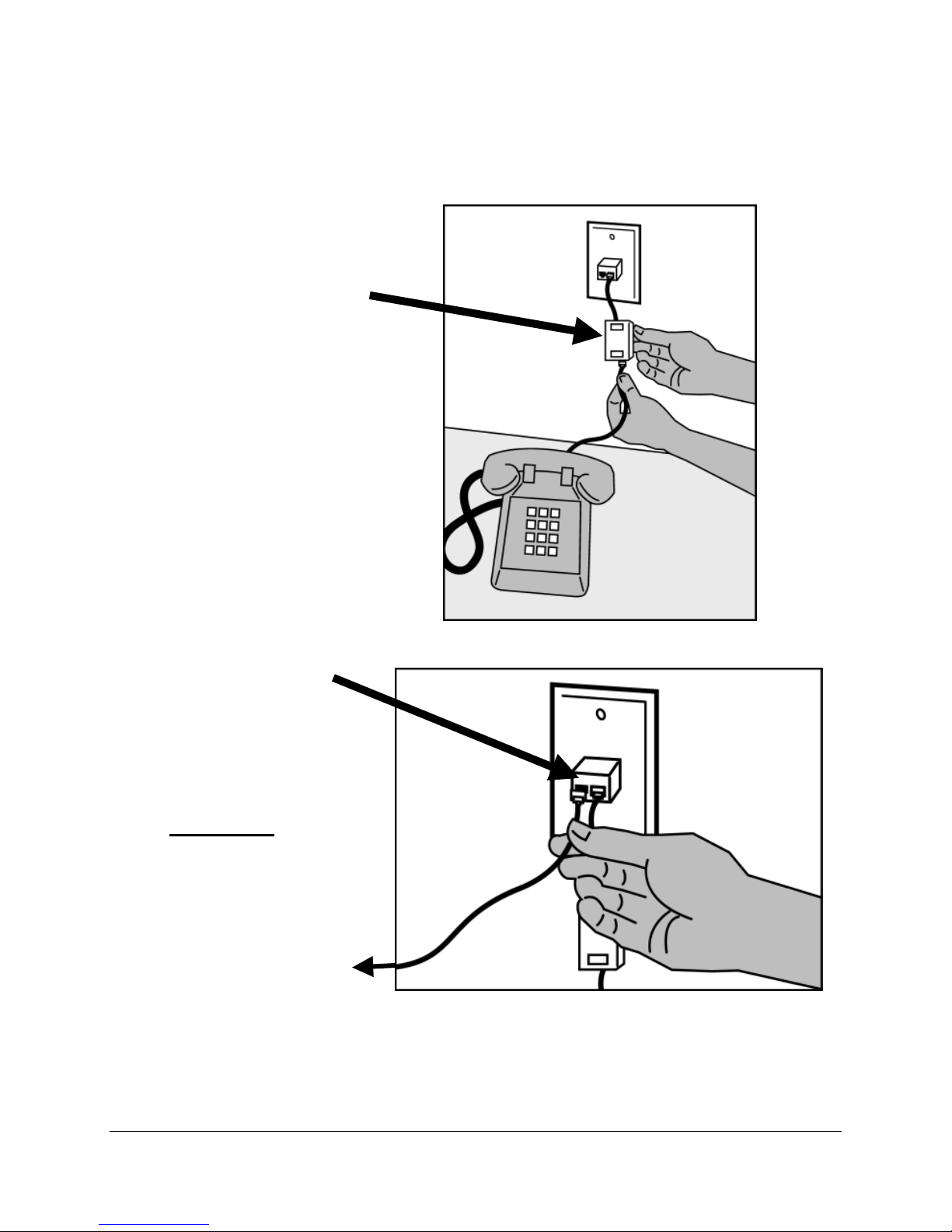
4) If you have a
phone, fax machine,
analog modem or
other phone device at
this location, connect
it to the filter
5) Connect the data
cable that will go to
your DSL modem to
the unfiltered
side of
the 2-way adapter
To the DSL modem
Installation Guide for Customer Self-Install: Efficient Networks® 4060, Windows 98/Me Page 5
©2001 SBC Advanced Solutions, Inc. All rights reserved.
Page 7
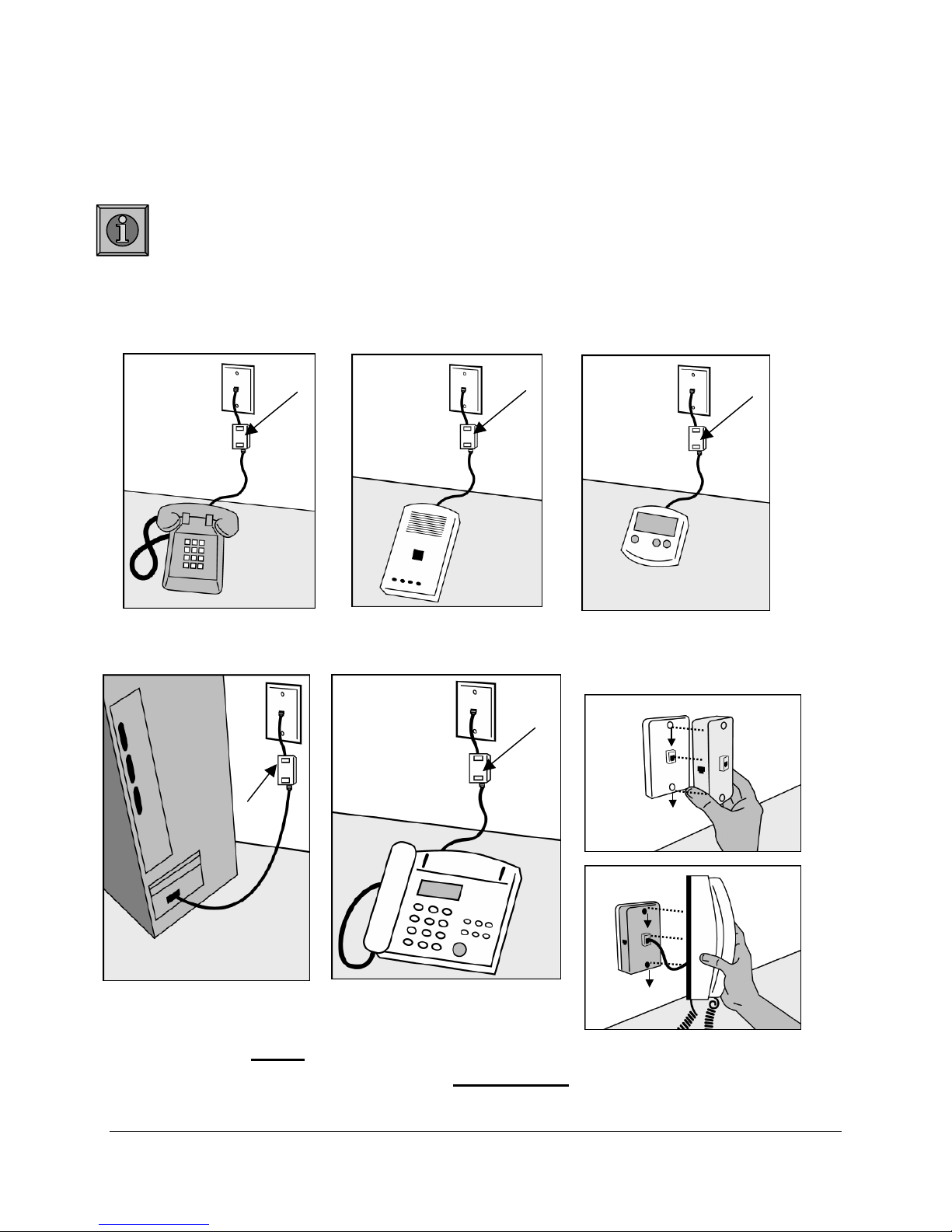
3-2 Install a filter on all other phones and phone devices.
Why do I need a filter on all my other phones and phone devices?
Converting your regular phone line into a high-speed Digital Subscriber Line (DSL) can
cause audible noise (high pitched tones and static) when you talk on the phone. You
need to install a filter on every telephone or device that shares the same phone number as
your DSL line to eliminate this noise.
Other phones
filter
Analog computer modems
Answering machines
filter
Fax machines
Caller ID boxes
filter
Wall mount phones
Use the wall mount filter shown
filter
filter
Wall mount filter
Remember! Don’t install a filter on the data cable that you are
connecting to your DSL modem
Installation Guide for Customer Self-Install: Efficient Networks® 4060, Windows 98/Me Page 6
©2001 SBC Advanced Solutions, Inc. All rights reserved.
.
Page 8
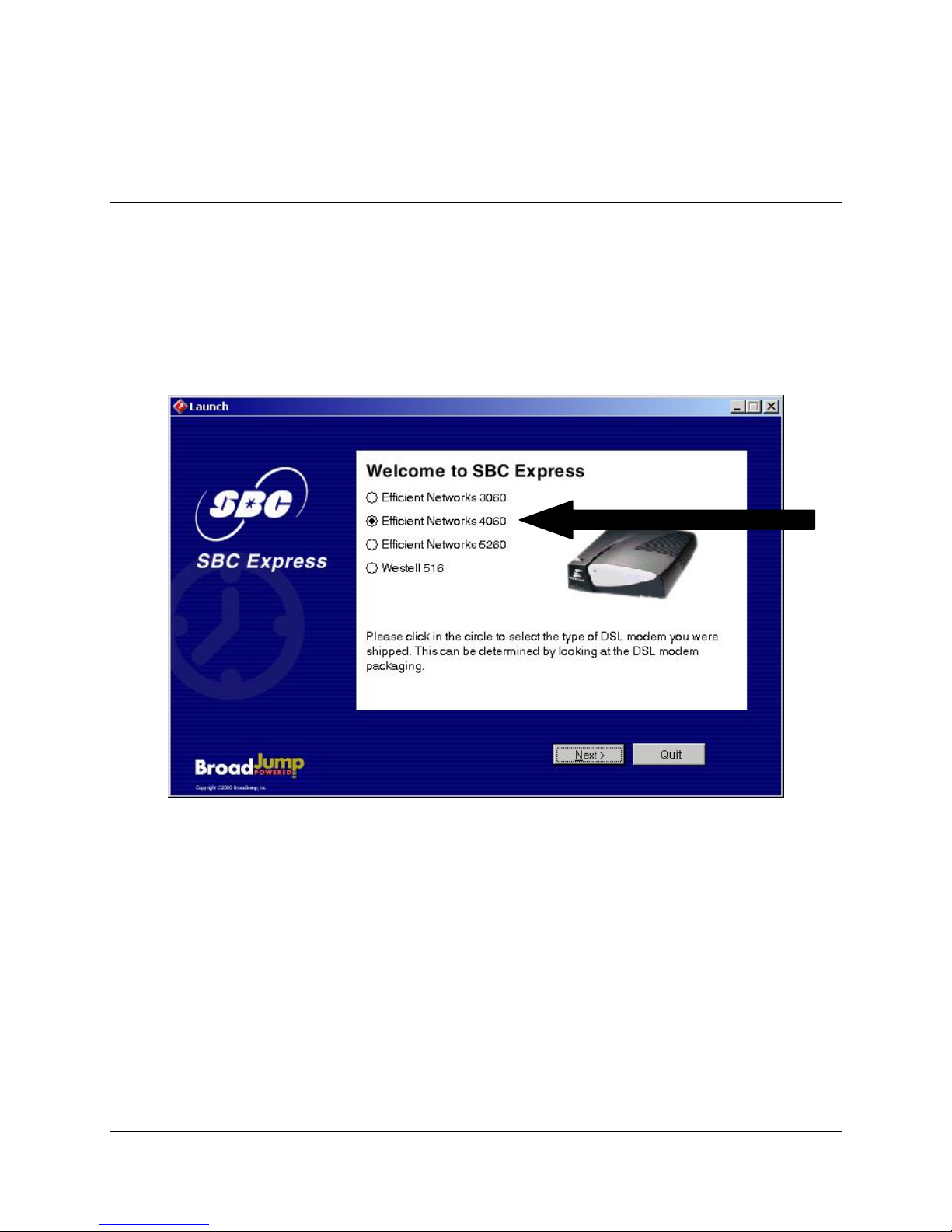
Step 4: Choose Your Modem and Minimum Requirements Check
4-1 Insert the SBC Express CD into your CD-ROM drive. SBC Express should start
automatically. If not, select Run from the Windows Start menu. Type “D:\Launch.exe”.
(Substitute the appropriate letter of your CD-ROM drive for “D”.)
4-2 Select Efficient Networks 4060 and click Next.
Installation Guide for Customer Self-Install: Efficient Networks® 4060, Windows 98/Me Page 7
©2001 SBC Advanced Solutions, Inc. All rights reserved.
Page 9
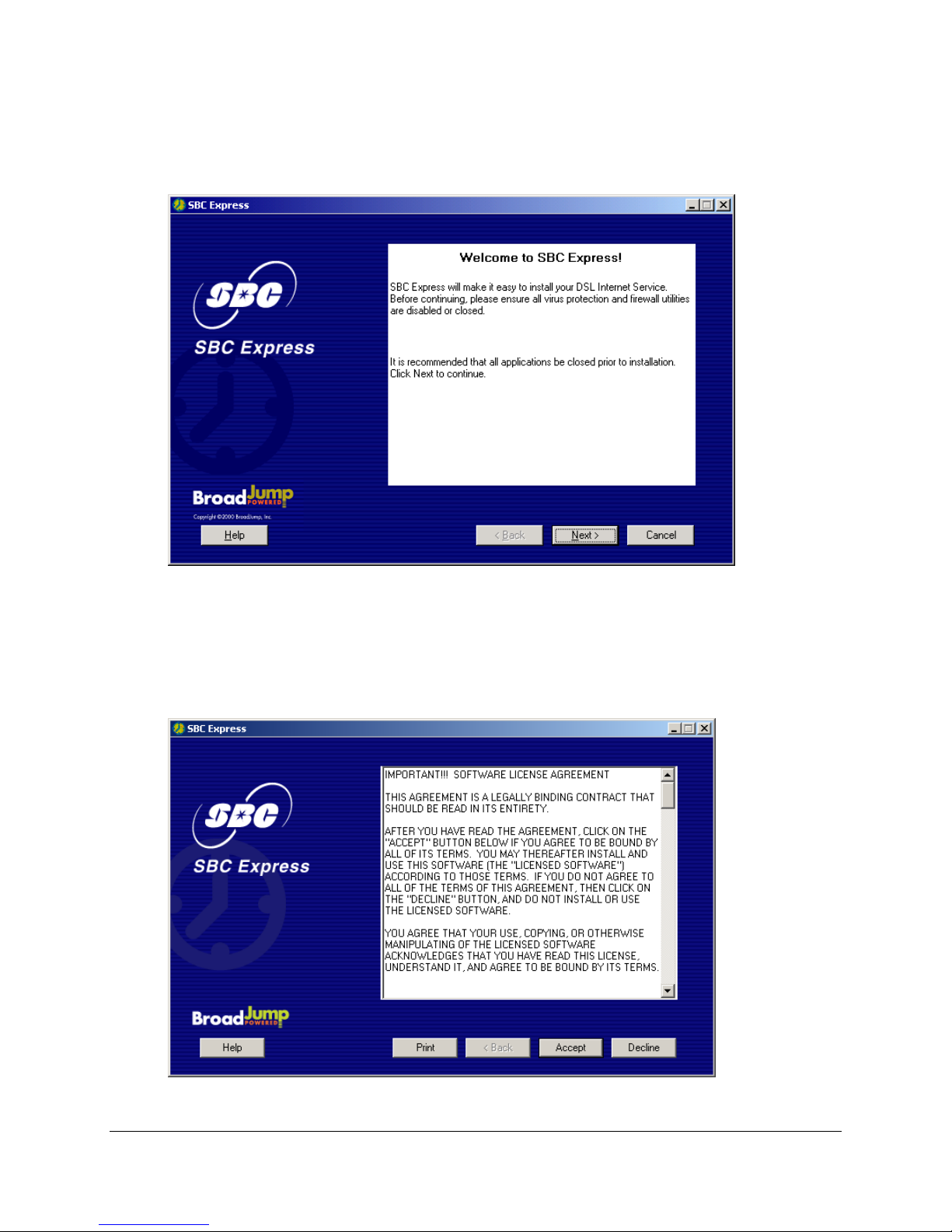
4-3 SBC Express displays the Welcome screen. Click Next to proceed.
4-4 SBC Express displays the license agreement. If you agree to the terms, click Accept.
Installation Guide for Customer Self-Install: Efficient Networks® 4060, Windows 98/Me Page 8
©2001 SBC Advanced Solutions, Inc. All rights reserved.
Page 10
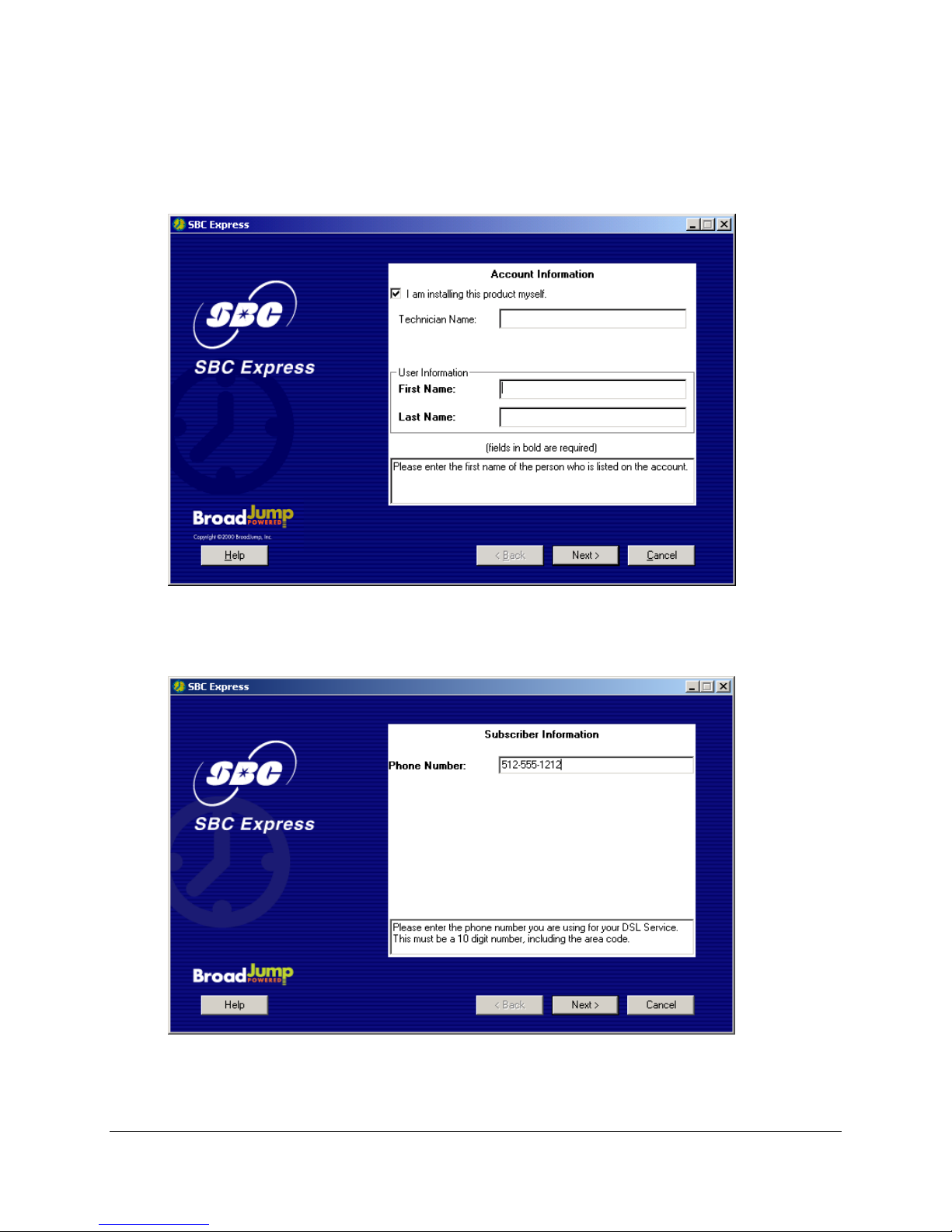
4-6 SBC Express now prompts you for your first and last name. Please type your first and last
name and then click Next to proceed. You do not need to enter a Technician Name.
4-7 Enter your 10-digit phone number in the next screen. Click Next to proceed.
Installation Guide for Customer Self-Install: Efficient Networks® 4060, Windows 98/Me Page 9
©2001 SBC Advanced Solutions, Inc. All rights reserved.
Page 11
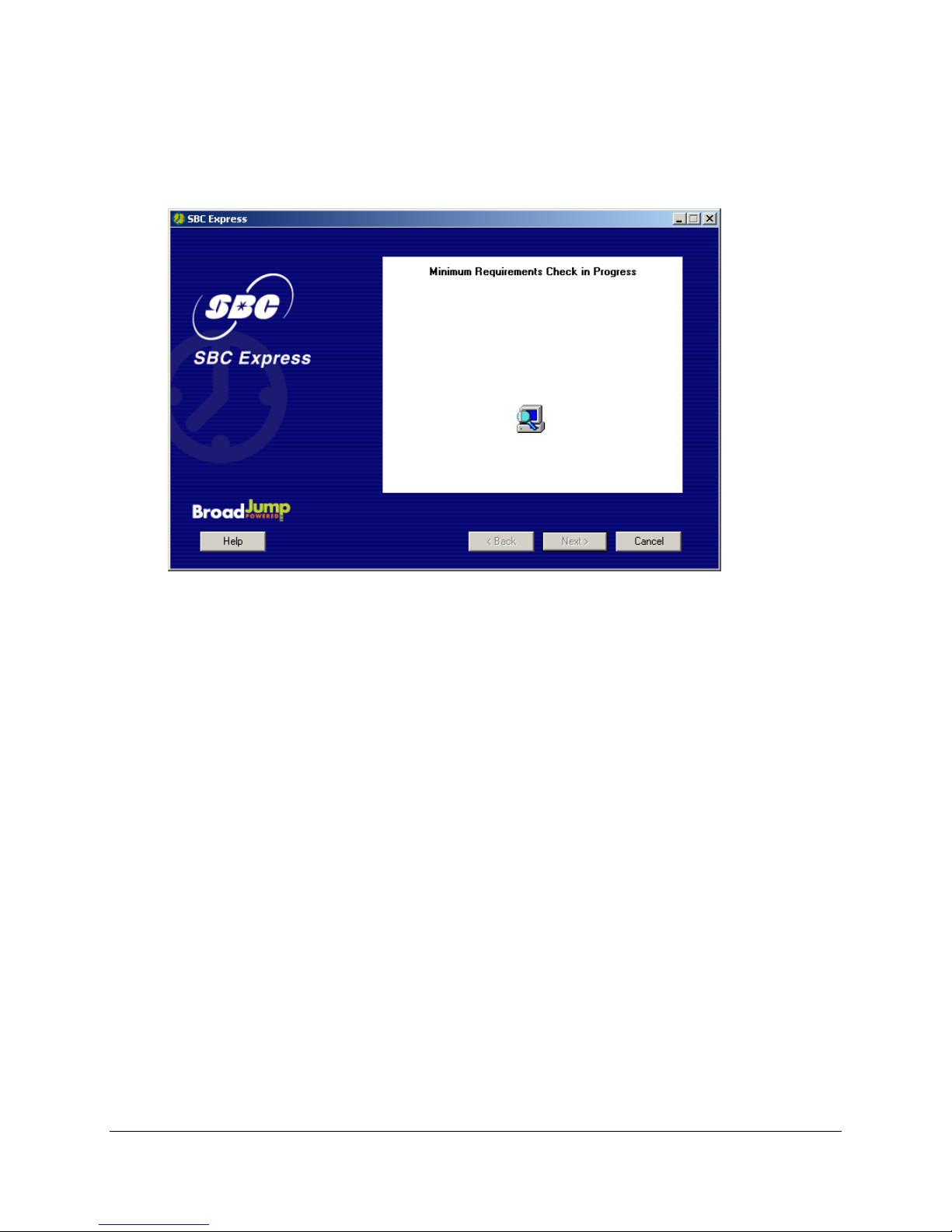
4-8 SBC Express quickly checks your computer system to ensure that it meets the minimum
requirements for DSL service.
Installation Guide for Customer Self-Install: Efficient Networks® 4060, Windows 98/Me Page 10
©2001 SBC Advanced Solutions, Inc. All rights reserved.
Page 12
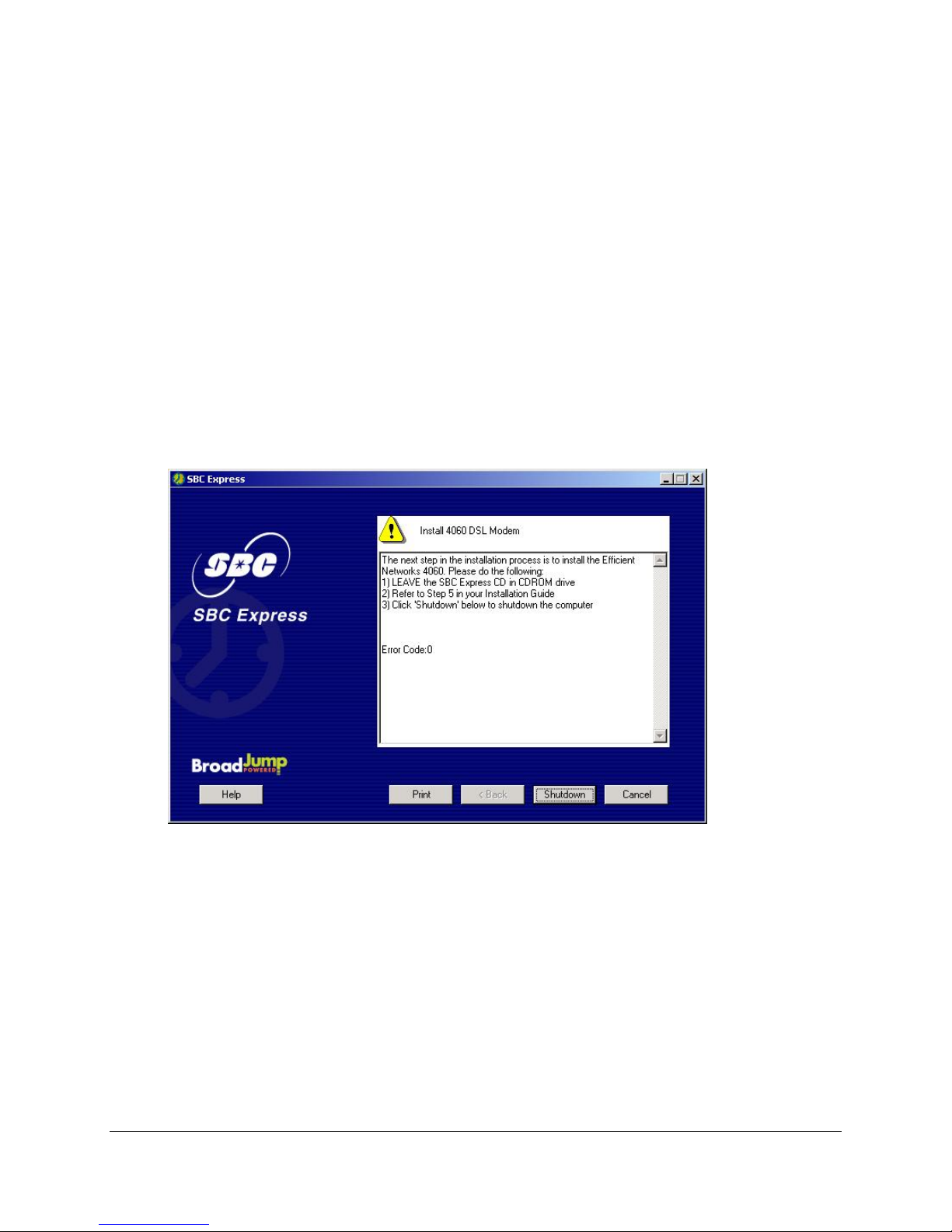
If your computer does not meet the minimum requirements, SBC Express displays a message
with details of the problem. Your computer must meet the minimum requirements before you
proceed.
One of the minimum requirements is that the Efficient Networks®
4060 modem must be installed (see screen below). To install the
Efficient Networks
® 4060, please go to Step 5 on page 12.
If you shutdown your computer, leave the CD in the the CD-ROM
drive, and SBC Express will continue after you restart.
If your Efficient Networks® 4060 is incorrectly installed, SBC Express will help you fix it. See
Troubleshooting SBC Express on page 20 for help troubleshooting network card and minimum
requirement problems.
If your computer meets the minimum requirements, including having the
Efficient Networks® 4060 installed, SBC Express automatically proceeds to
the next step. You should continue to
Installation Guide for Customer Self-Install: Efficient Networks® 4060, Windows 98/Me Page 11
©2001 SBC Advanced Solutions, Inc. All rights reserved.
Step 6 on page 14.
Page 13
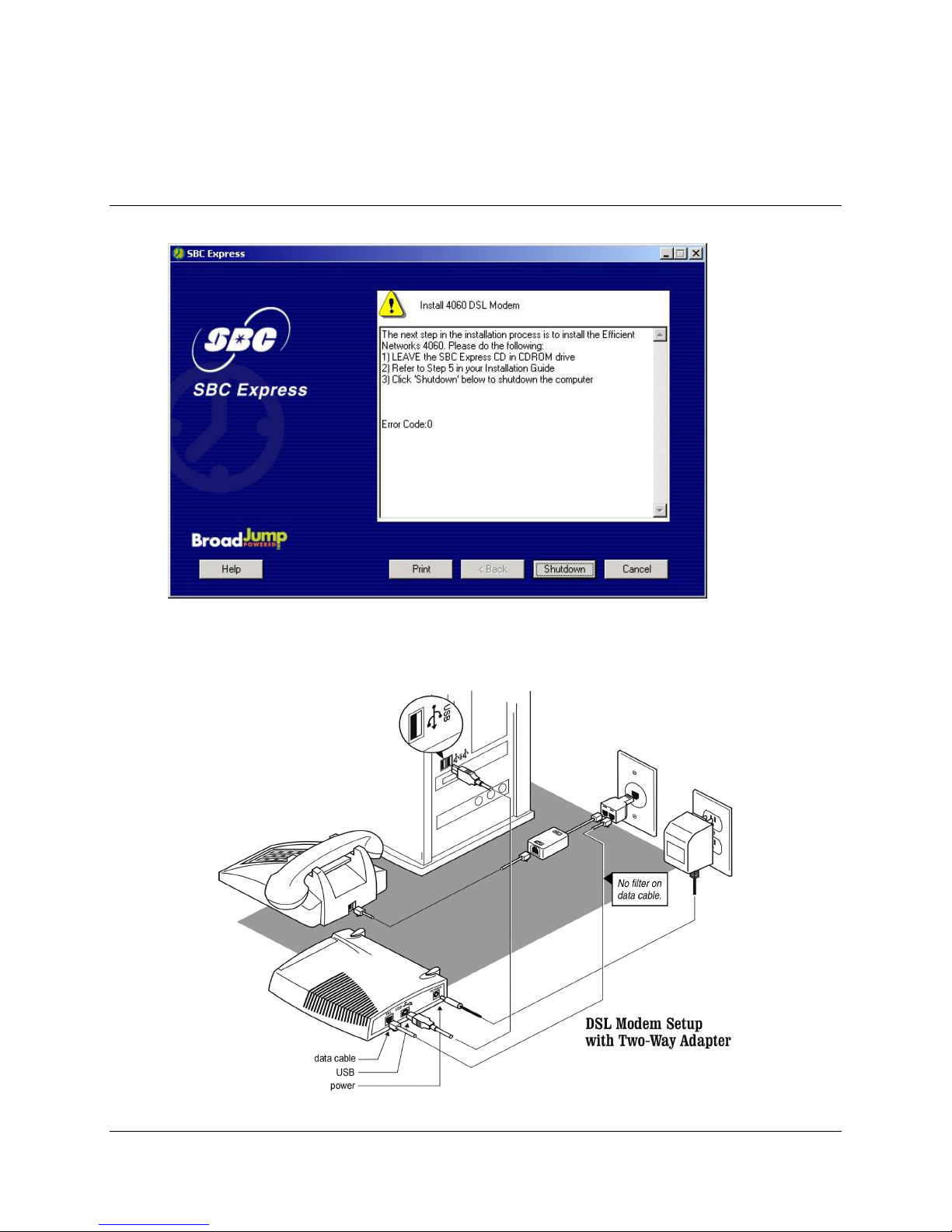
Step 5: Install the Efficient Networks® DSL Modem
You should be at the following screen in the SBC Express Installation Software:
5-1 Click Shutdown on the screen shown above. Consult the following diagram to install
your DSL modem.
Installation Guide for Customer Self-Install: Efficient Networks® 4060, Windows 98/Me Page 12
©2001 SBC Advanced Solutions, Inc. All rights reserved.
Page 14
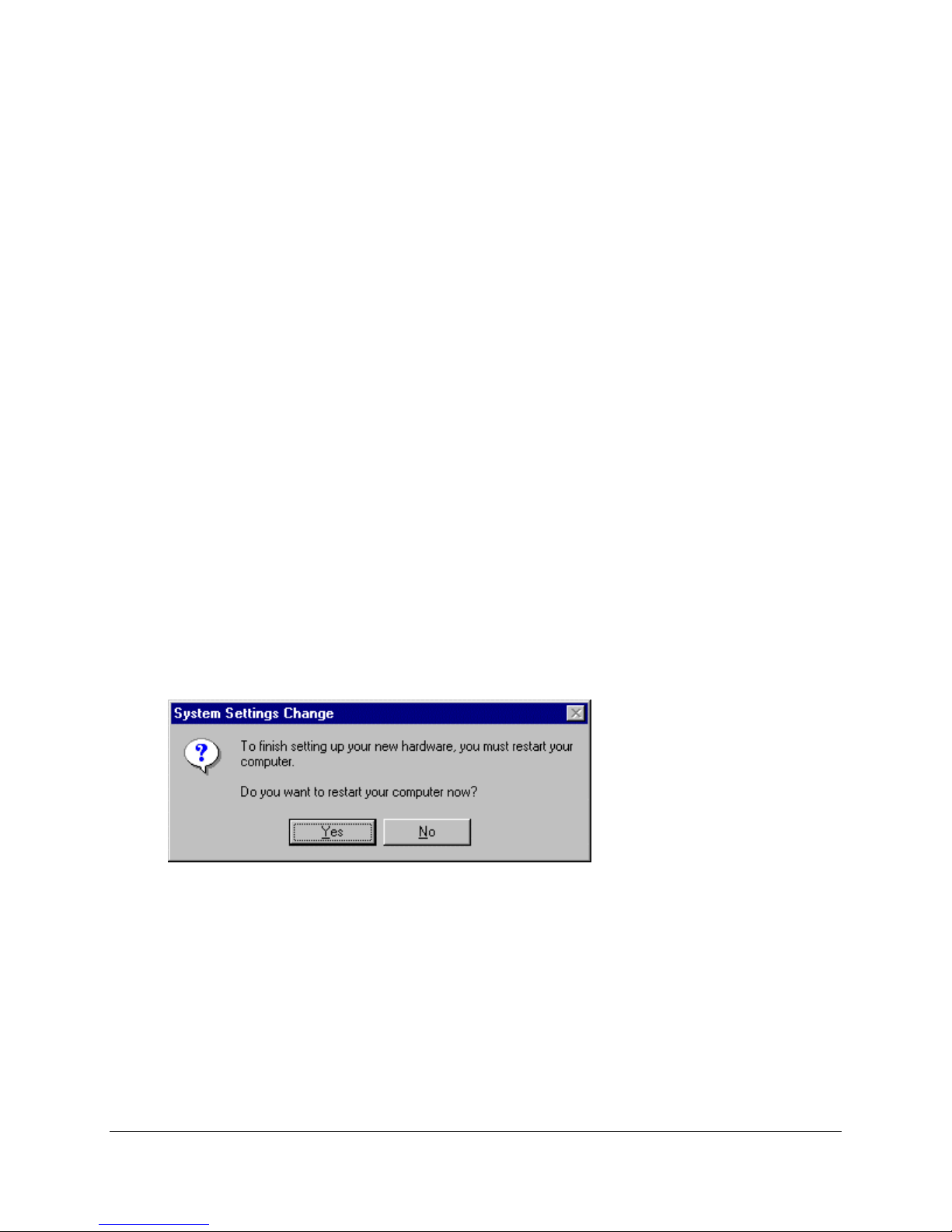
5-2 Plug the power cable into the DSL modem and an electrical outlet.
5-3 Plug the data cable into the DSL modem and a telephone wall jack. There should NOT
be a filter between the data cable and the wall jack.
5-4 Connect the USB cable to any operational USB port on your computer and to your DSL
Modem
5-5 Turn the computer on. Be sure to leave the SBC Express CD in the CDROM
drive.
5-6 If all the cables are securely connected, you will see a solid orange light on the front of
the modem.
• If you do not see a solid orange light on the front of the modem, check your power
5-7 After turning the computer on, Windows will install the necessary hardware
components—this process may take several minutes.
cable. Are you connected to a live electrical outlet? Are connections secured? Check
your Ethernet connections. Are they secure? Is the PC turned on?
Next, Windows will prompt you to reboot your computer. Select Yes.
Leave the SBC Express CD in the CDROM drive.
5-8 Proceed to Step 6.
Installation Guide for Customer Self-Install: Efficient Networks® 4060, Windows 98/Me Page 13
©2001 SBC Advanced Solutions, Inc. All rights reserved.
Page 15
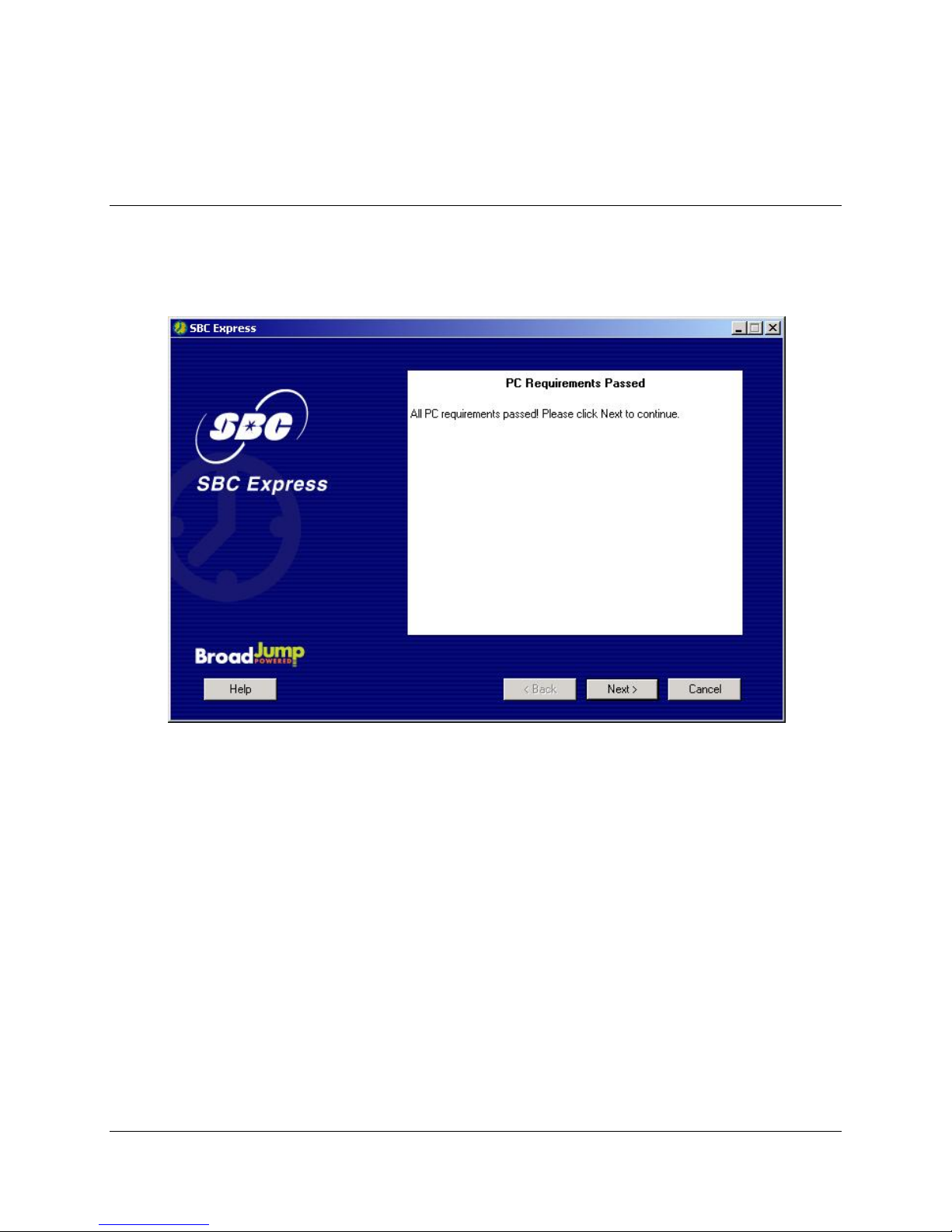
Step 6: PC Requirements Passed
6-1 After installing the Efficient Networks® SpeedStream 4060, SBC Express will notify you
that the PC requirements have been met. Click Next to proceed.
6-2 Proceed to Step 7.
Installation Guide for Customer Self-Install: Efficient Networks® 4060, Windows 98/Me Page 14
©2001 SBC Advanced Solutions, Inc. All rights reserved.
Page 16
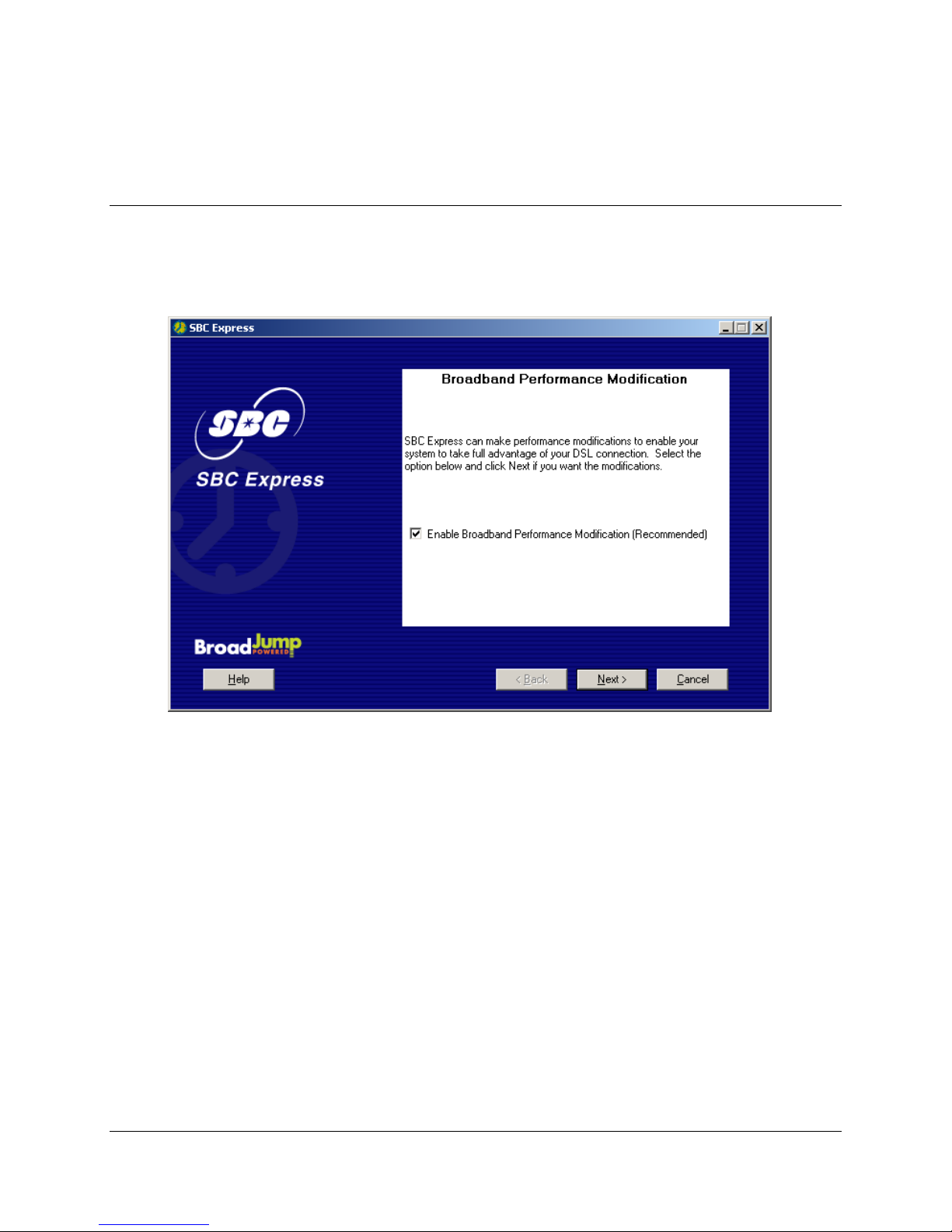
Step 7: Finish Configuring Your System
7-1 SBC Express modifies registry settings to optimize your network settings for your DSL
connection. If you do not want these settings, clear the check box. Click Next to proceed.
Installation Guide for Customer Self-Install: Efficient Networks® 4060, Windows 98/Me Page 15
©2001 SBC Advanced Solutions, Inc. All rights reserved.
Page 17
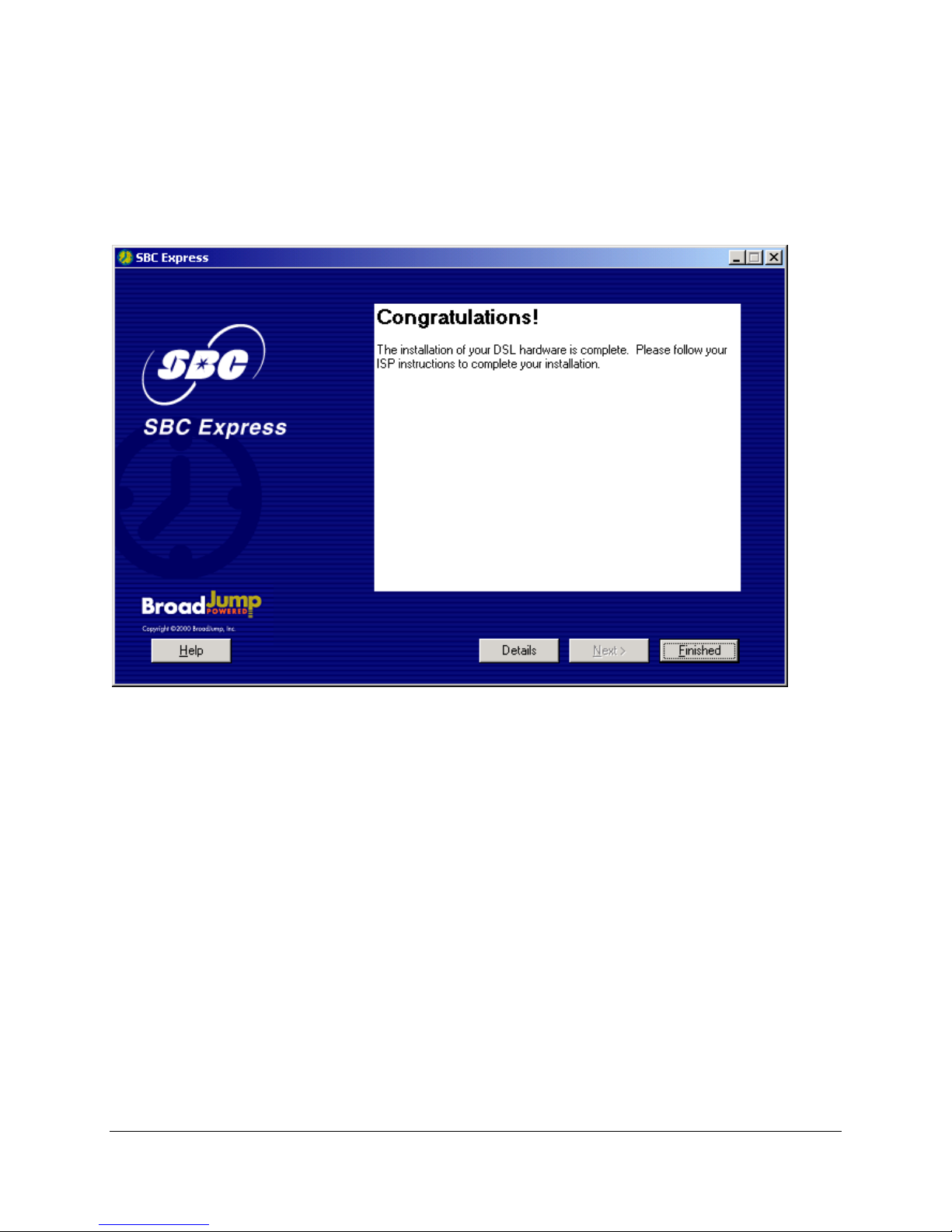
7-6 Congratulations! You have finished setting up your DSL hardware. Click Finished in
SBC Express and then proceed to Step 8.
Installation Guide for Customer Self-Install: Efficient Networks® 4060, Windows 98/Me Page 16
©2001 SBC Advanced Solutions, Inc. All rights reserved.
Page 18

Step 8: Follow the Instructions Supplied Separately
by your Internet Service Provider
Your Internet Service Provider may have provided you additional instructions. These
instructions may contain information about account setup, additional software installation, and/or
Internet usage. Please follow those instructions to complete your Internet connection setup.
Your Internet Service Provider will offer technical assistance if you need help connecting to the
Internet.
Installation Guide for Customer Self-Install: Efficient Networks® 4060, Windows 98/Me Page 17
©2001 SBC Advanced Solutions, Inc. All rights reserved.
Page 19

Appendices
Installation Guide for Customer Self-Install: Efficient Networks® 4060, Windows 98/Me Page 18
©2001 SBC Advanced Solutions, Inc. All rights reserved.
Page 20

APPENDIX A
Having Trouble?
If the suggestions below don’t resolve your problem, technical support is available from your
Internet Service Provider. Please refer to the Internet Service Provider's information on how to
contact them for technical assistance.
I can’t connect. What do I do?
• Make sure there is no filter on the phone jack/cord connected to your DSL modem
• Check your USB connection. Is it secure?
• Verify that you are installing your DSL equipment AFTER the “Service Completion Date”
given to you when you ordered your DSL Internet Service.
• Call your Internet Service Provider 'help desk' for further information on Internet Service
Provider connection, and registration.
Installation Guide for Customer Self-Install: Efficient Networks® 4060, Windows 98/Me Page 19
©2001 SBC Advanced Solutions, Inc. All rights reserved.
Page 21
APPENDIX B
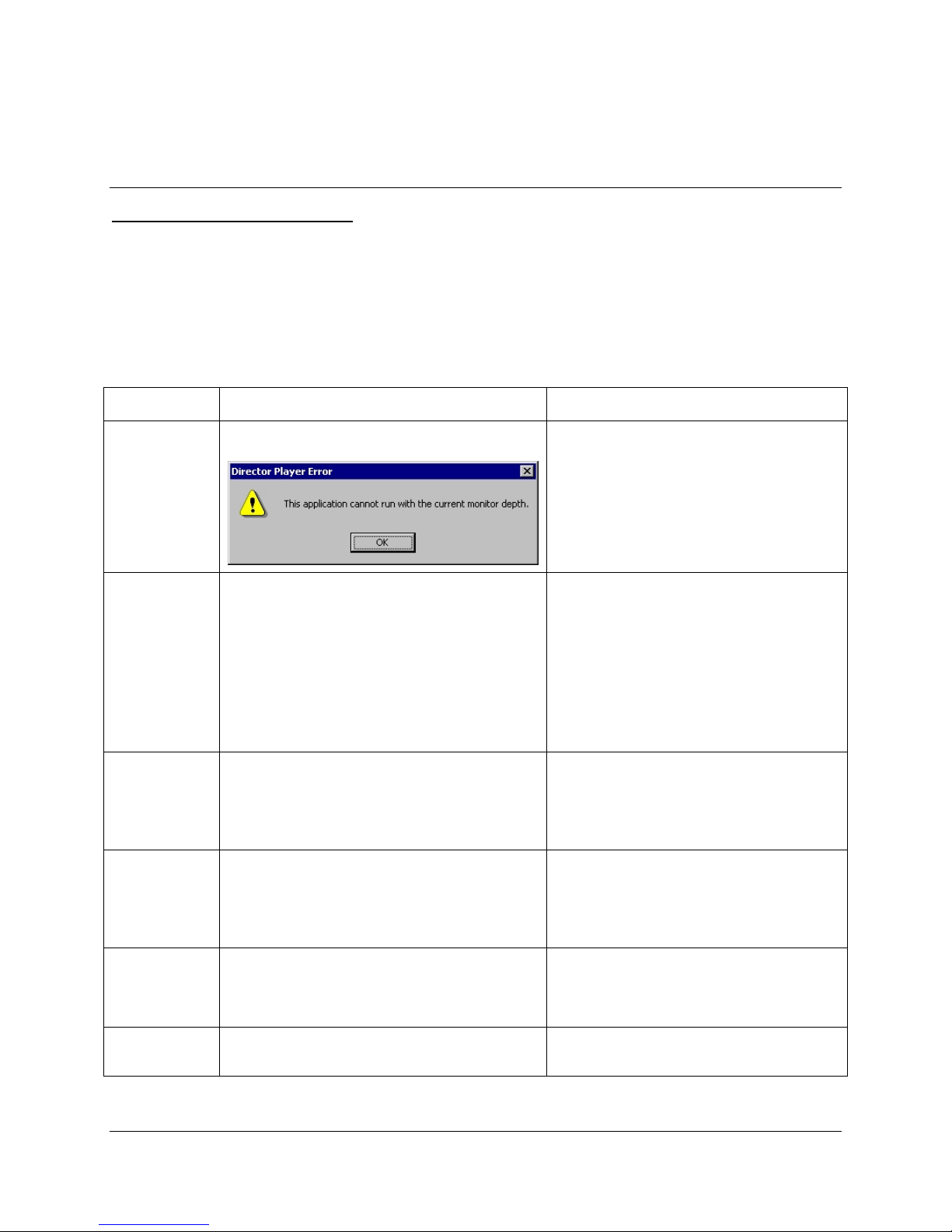
Troubleshooting SBC Express
Please refer to this list if you are having problems using SBC Express or if you receive an error
message. If after troubleshooting, you are still having problems, then you should contact your
Internet Service Provider for assistance.
Step Problem Solution
Launch The following dialog appears:
Minimum
Resources
Installing
Network
Interface Card
Incompatible
Adapter
SBC Express verifies minimum requirements on
several resources including hard drive space, RAM,
operating system level, and processor speed and
family.
If any of these resources are under the required value,
an error will display describing which resource did not
meet the requirement.
When installing Network Interface Cards on Windows
systems the installation process may ask for the
original installation disk.
This scenario can occur when a machine had a
previous NIC or Network Adapter installed, but the
physical device is missing or was misconfigured.
Reset your display to 256 colors or more. SBC
Express will not run in 16 color mode.
From the start menu, choose “settings->control
panel”. Double-click “Display” and choose the
“settings” tab. Select more colors from the
“colors” pull-down list.
Update your computer to the recommended
resource level.
Some of these files can be found in the SYSTEM
directory or the WINDOWS directory of the
machine. If not, you will have to provide an
installation CD-ROM for the installation of the
drivers to be successful.
Use the “Fix” button to launch the appropriate
system control panel along with context sensitive
help. The help provided will guide you through
the steps to disable or remove the adapter.
Missing Internet
Protocol
Disabled
Network Adapter
This scenario can occur if Client for Microsoft
Networks is not installed with the TCP/IP protocol or
if the NIC is installed without binding TCP/IP to the
NIC.
This scenario can occur when a NIC is present in the
system, yet the adapter has been disabled.
Installation Guide for Customer Self-Install: Efficient Networks® 4060, Windows 98/Me Page 20
©2001 SBC Advanced Solutions, Inc. All rights reserved.
Use the “Fix” button to launch the appropriate
control panel and context sensitive help to guide
you in binding TCP/IP to the network adapter.
Use the “Fix” button with context sensitive help
to guide you through enabling the adapter.
Page 22

Unknown
Network
Interface
Adapter
Ping Test The Ping Test is usually accomplished within the Configure
DNS Test The DNS Test will determine the currently defined DNS
This scenario can occur if a NIC is physically present and
detected by Plug-n-Play, but no drivers were installed for the
NIC. Windows will add this device to the “Other Devices”
section in the Device Manager.
TCP/IP step, where SBC Express pings the default gateway.
An explicit IP address can also be used.
servers, attempt to ping them, and upon a successful ping,
will resolve a specified hostname to an IP address.
Use the “Fix” button to launch the appropriate
control panel and context sensitive help to
guide you through removing the “Unknown
device”.
Failure during this test can occur from invalid
network settings, the USB cable not being
plugged in, the DSL modem not being in
synch, or if the specified IP address does not
allow a ping.
Make sure your USB cable is plugged in and
powercycle your DSL modem. Use the “Retry”
button to try the test again.
This test can fail if the DNS server is invalid.
If you entered static IP information, ensure you
entered the DNS servers correctly.
This concludes the DSL Equipment Installation Guide
Installation Guide for Customer Self-Install: Efficient Networks® 4060, Windows 98/Me Page 21
©2001 SBC Advanced Solutions, Inc. All rights reserved.
 Loading...