

Page 1
USER’S MANUAL
USER’S MANUAL
WS- 6926
Page 2

THE PROFESS ION AL EQU IPM ENT- --- --- ---------- -|U SER ’S MA NUAL| THE PROFESS ION AL EQU IPM ENT- --- --- ---------- -|U SER ’S MA NUAL|
Table of Contents
1.GUIDE.......................................................................
1.1 Important Safety Instructions............................
1.2 Unpacking.........................................................
1.3 PRODUCT OVERVIEW & ILLUSTRATION......
1.4 INSTALLATION OF METER.............................
2.OUTLINE...................................................................
3.THE MENU OSD INSTRUCTION..............................
3.1 Search...............................................................
3.1.1 Satellite....................................................
3.1.2 LNB type..................................................
3.1.3 ......................
3.1.4 TP Num....................................................
3.1.5 ..................................................
3.1.6 ...................................................
3.1.7 .............................................................
...............................................
...............................................
............................................
...............................
......................................................
.....................................
.........................................
........................................................
3.3 Multimedia.........................................................
3.3.1 MUSIC.....................................................
3.3.2 VIDEO.....................................................
LOW FREQ / HIGH FREQ
Frequency
Symbrate
Pol
3.1.8 NIT Search
3.1.9 LNB Power
3.1.10 LNB 22KHZ
3.1.11 DisEqc type & Input
3.1.12 Motor
3.1.13 Unicable setting
3.1.0.1 Quick Search
3.2TP Manager
3.3.3 PICTRUE.................................................
3.3.4 Upgrade...........................................................
3.4 System Setting....................................................
3.4.1 Language...................................................
3.4.2 Screen format............................................
3.4.3 ..............................................
3.4.4
..................................................
3.4.5 Time Zone..................................................
3.4.6 Channel reset.............................................
3.4.7 Mode, SW VER, Release Time..................
4. Channel......................................................................
4.1 Manager Channel...............................................
4.1.1 Rename Channel.......................................
4.1.2 Del Channel...............................................
4.1.3 Lock Channel.............................................
4.1.4 Skip Channel..............................................
4.2 Favorite Manager.................................................
4.2.1 ........................................................
4.2.2 .....................................................
4.2.3 ..................................................
4.2.4 ..................................................
4.2.5 ......................................................
4.3 EPG.....................................................................
4.4 Program List.........................................................
4.5 ................................................
5 Technical Specification..............................................
6 Trouble Shooting.......................................................
Factory reset
Longitude & Latitude; Location &Hemisphere
...................
Rename
Sort order
Favorite set
Favorite Sort
TV/Radio
4.2.6 Sat sort.......................................................
Subtitle & Teletext
01
05
02
06
07
08
08
10
13
01
06
07
07
08
08
08
08
08
08
09
11
11
13
14
02
26
28
15
15
16
18
18
18
18
18
18
18
19
19
19
19
25
25
24
23
23
23
22
22
21
21
21
20
20
Page 3
THE PROFESS ION AL EQU IPM ENT- --- --- ---------- -|U SER ’S MA NUAL| THE PROFESS ION AL EQU IPM ENT- --- --- ---------- -|U SER ’S MA NUAL|
1.2 Unpacking Equipment
Open the package and make sure it includes all below items, if
any is missing, please contact the reseller for replacement.
1.Digital Satellite Meter
2.User’s manual
3.AV cable
4.Car charger cable
5.Adaptor
6.Silicone case
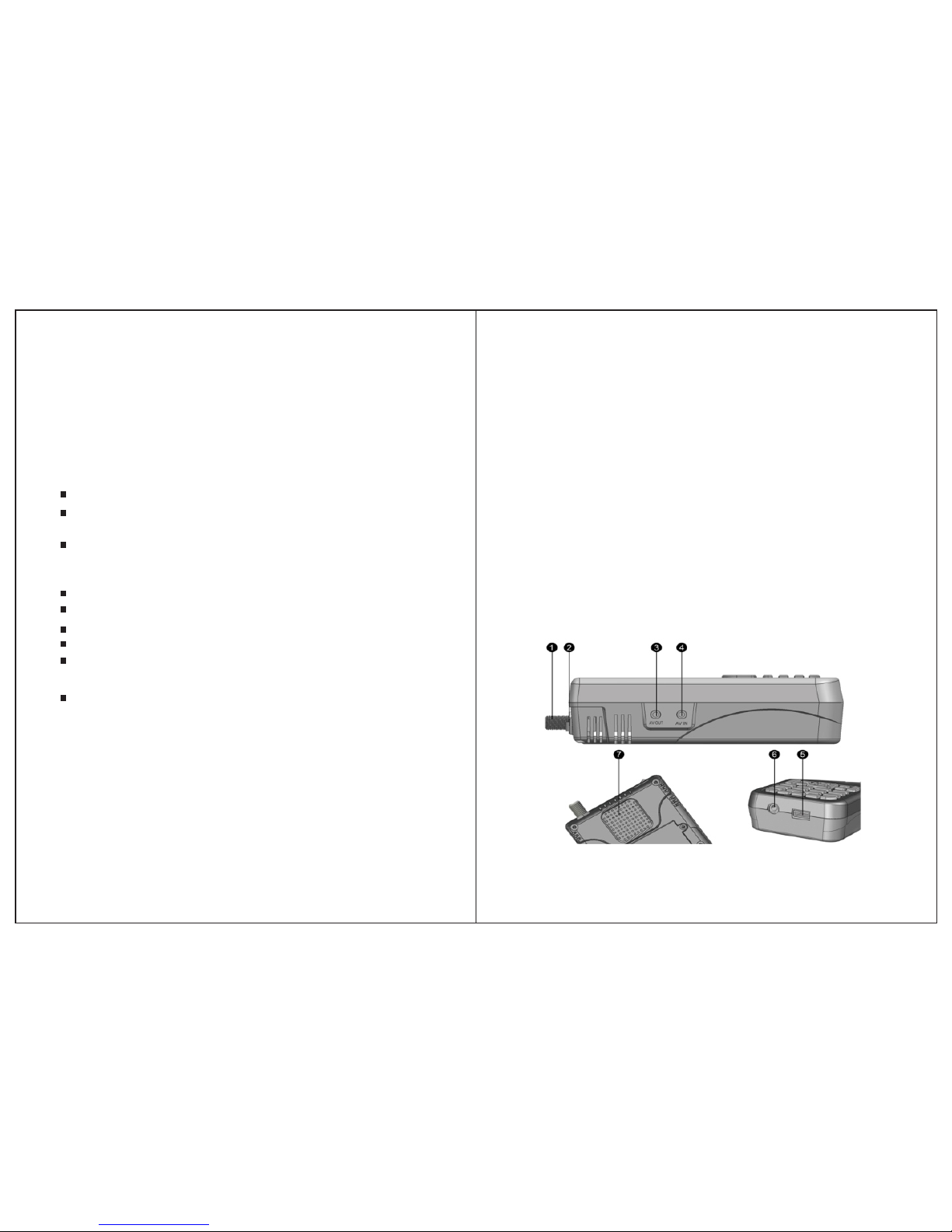
1.3 Product Overview & Illustration
01-Digita l Sat ell ite M ete r Digital Sat ell ite M ete r-0 2
Do not remove the cover.
Do not let the unit exposed to extreme heat, cold or humid
conditions.
Thank you for choosing our product. Before installation,we
would like to remind you some notes, which is very important
for operating safely and properly, as follows:
1.GUIDE
1.1 Important Safety Instructions
Be sure to read this user manual before starting your operation.
You must install the dish with correct direction and angle. If
the dish is not working properly, contact your local dealer.
When the unit is suddenly moved to a hot area from a cold
area, it may cause some problems. In that case, turn off the
power,and turn on again after 1-2 hours.
Keep meter placed in clean space with sufficient ventilation.
Do not cover the meter with or place it on a unit that emits heat.
Clean the case by a soft cloth with a little washing liquid.
No liquids or any other materials to come inside of the unit.
Warnin g:All inst ructions are subject to the lat est version
of soft ware without prior notice if an y new functions are
added t o the equipment.
Page 4
THE PROFESS ION AL EQU IPM ENT- --- --- ---------- -|U SER ’S MA NUAL| THE PROFESS ION AL EQU IPM ENT- --- --- ---------- -|U SER ’S MA NUAL|
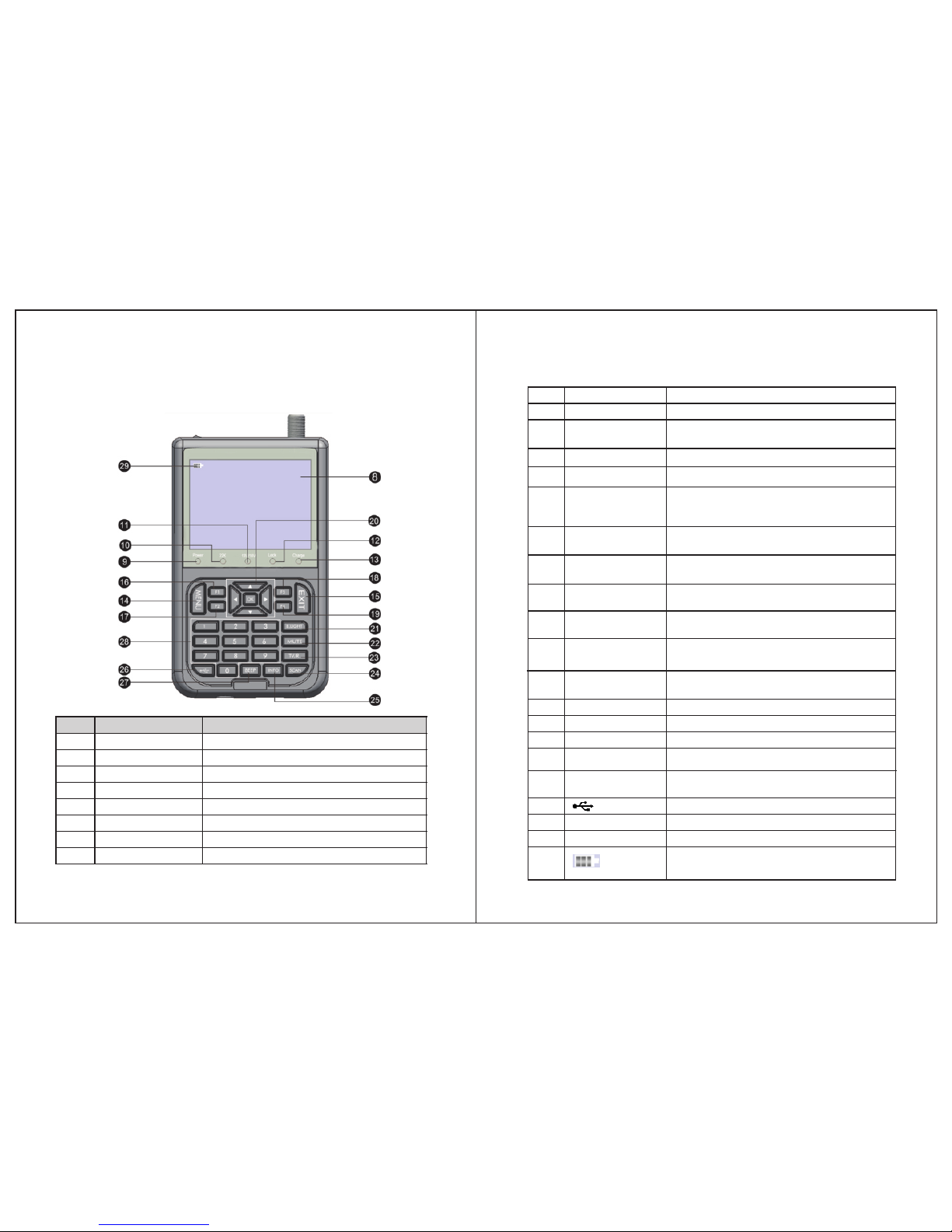
NO
Descri ption
FUNCTI ON
LNB IN Con nect to sat ellite an tenna cab le
AV OUT
Connec t to AV port for TV
AV IN
Connec t to AV port for m eter
Power wi tch
Tur n on/o ff meter
USB Port
Connec t to USB memo ry
DC Slot
Connec t to Adap tor I nput
Speake r
Speake r Integra ted
LCD Scre en
Vide o dis play
1
2
3
4
5
6
7
8
03-Digita l Sat ell ite M ete r Digital Sat ell ite M ete r-0 4
Power Power indi cator lig ht
22KHZ
22Khz in dicator l ight
13V/18 V
Verti cal /Hori zontal po larizat ion volta ge
output l ight
LOCK
Signal l ock indic ator ligh t
Charger (Not e1)
Charger indi cator lig ht
F1 (Note 2 )
1)Show s the Subti tle menu ;
2)TV/R adio swit ch
F2(Not e 2)
1)Show s the EPG men u;
2)Audi o select
F3(Not e 2)
1)Show s the Favor ite Manag er menu;
2)lock b eep alarm
F4(Not e 2)
1)Show s Manager C hannel me nu;
2)TV system sw itch
B.Ligh t
Displa y of LCD ON/O FF
MENU
Show the m ain menu on t he screen
or jump ba ck to previ ous menu in
sub-me nu settin g conditi ons
NEVIGATION KEY
Volum e Cont rol o r move c urs or,
channe l or change , confirm e tc
EXIT
Escape f rom prese nt menu and s ave
the sett ings
0-9
Select c hannels o r enter pro grammin g
MUTE
Enable o r disable t he audio ou tput
SCAN
'Quick S earch' me nu shortc ut key
(Note 4)
When pow er on the met er ,
displa ys the batt ery level
9
10
11
12
13
14
15
16
17
18
19
20
21
22
23
24
25
26
27
TV/RAD IO Swi tch be twe en TV and Radi o mode
INFO
To dis play chan nel statu s or variou s
progra m informa tion of cur rent chan nel
28
29
USB menu s hortcut k ey
BEEP (Not e 3)
Sound Ala rm for L ock ing Si gna l on/o ff
Page 5
THE PROFESS ION AL EQU IPM ENT- --- --- ---------- -|U SER ’S MA NUAL| THE PROFESS ION AL EQU IPM ENT- --- --- ---------- -|U SER ’S MA NUAL|
Note1 :When the adapter insert d c slot,Ch arg ing indic ator
scint illation three time s, then the indicator i s often bri ght,
when th e batteries charged sufficient, the c harge indicator is
going o ut.
Note2 :Keeping the key over 1 s, it will be t he (2) function,
other wise is the (1)function.
Note3 :The Key only in menu'3.1.0.1 Q uick Search'is effective.
2. OUTLINE
3.5 Inc h High Definition TFT LCD Screen
H.264 H ardware decoding
Digit al meter for signal strength an d quality
Suppo rts scan of Aut o,Manual.
Sound a nd Light Alarm for L ocking Signal
Speak er Integrated
Suppo rt both AV ou t and AV in
Ant short protect
PAL-NTSC auto- conversi on
8.4V/ 3000mAh Lion Battery Includ ed
Softw are upgrade via USB port
Easy to c arry
Fully D VB-S/DVB-S2
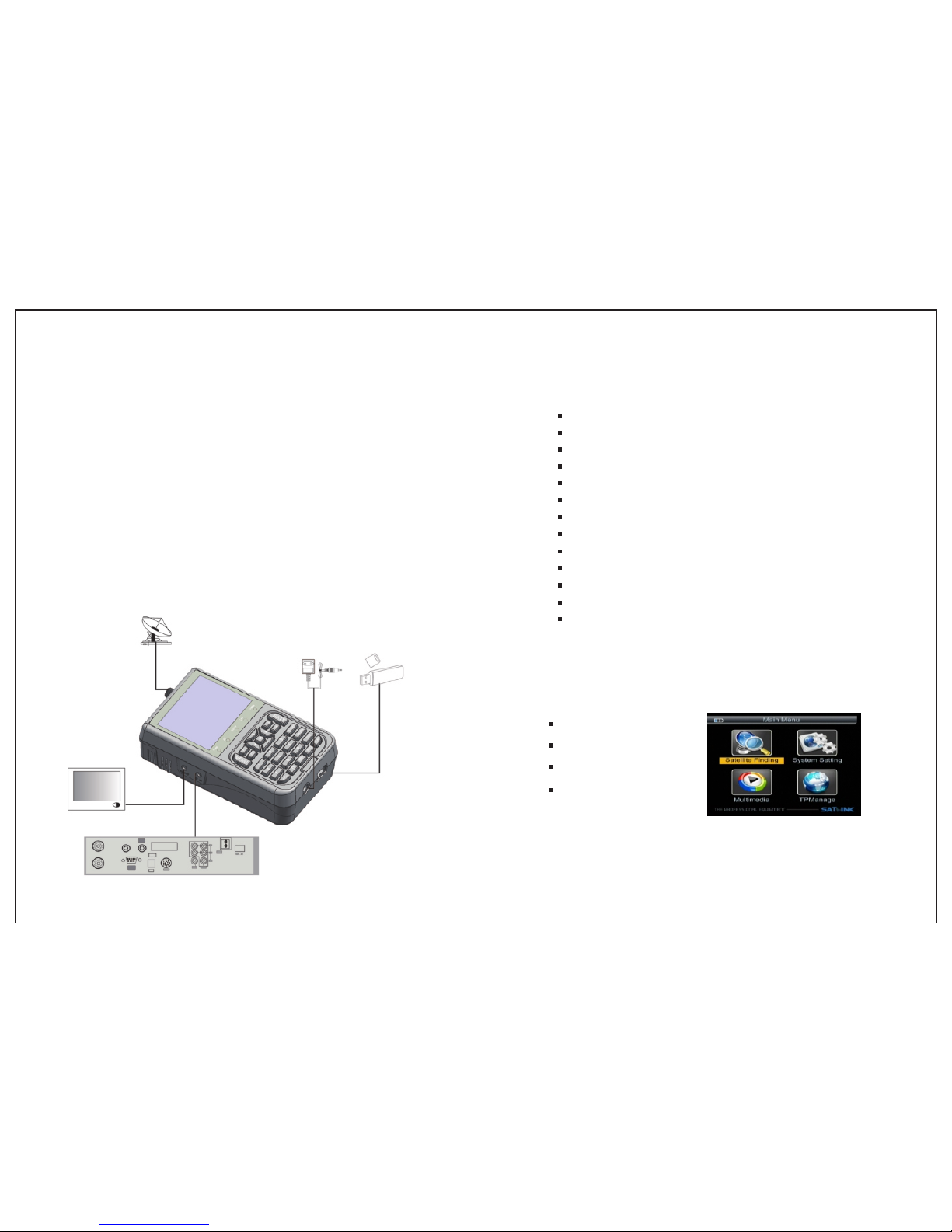
3. THE MENU OSD INSTRUCTION
If you ha ve installed and connected th e cables of the meter,
press ing MENU key to display the Main Me nu.
Satel lite Finding
Syste m
Multi media
TP Manag e
05-Digita l Sat ell ite M ete r Digital Sat ell ite M ete r-0 6
1.4 INS TALL ATION OFMETER
Note4 :When the battery is on power fai lure, a voice alarm, pl-
ease a timely charge, do no t contin ue to be used to av oid the
inter nal battery runs out and shorte n the usage time.
Press t he keys of to move t he cursor up or down in
the men u interface, then use OK key to con firm a selection.
▲▼◄►
Page 6
THE PROFESS ION AL EQU IPM ENT- --- --- ---------- -|U SER ’S MA NUAL| THE PROFESS ION AL EQU IPM ENT- --- --- ---------- -|U SER ’S MA NUAL|
3.1 Sea rch
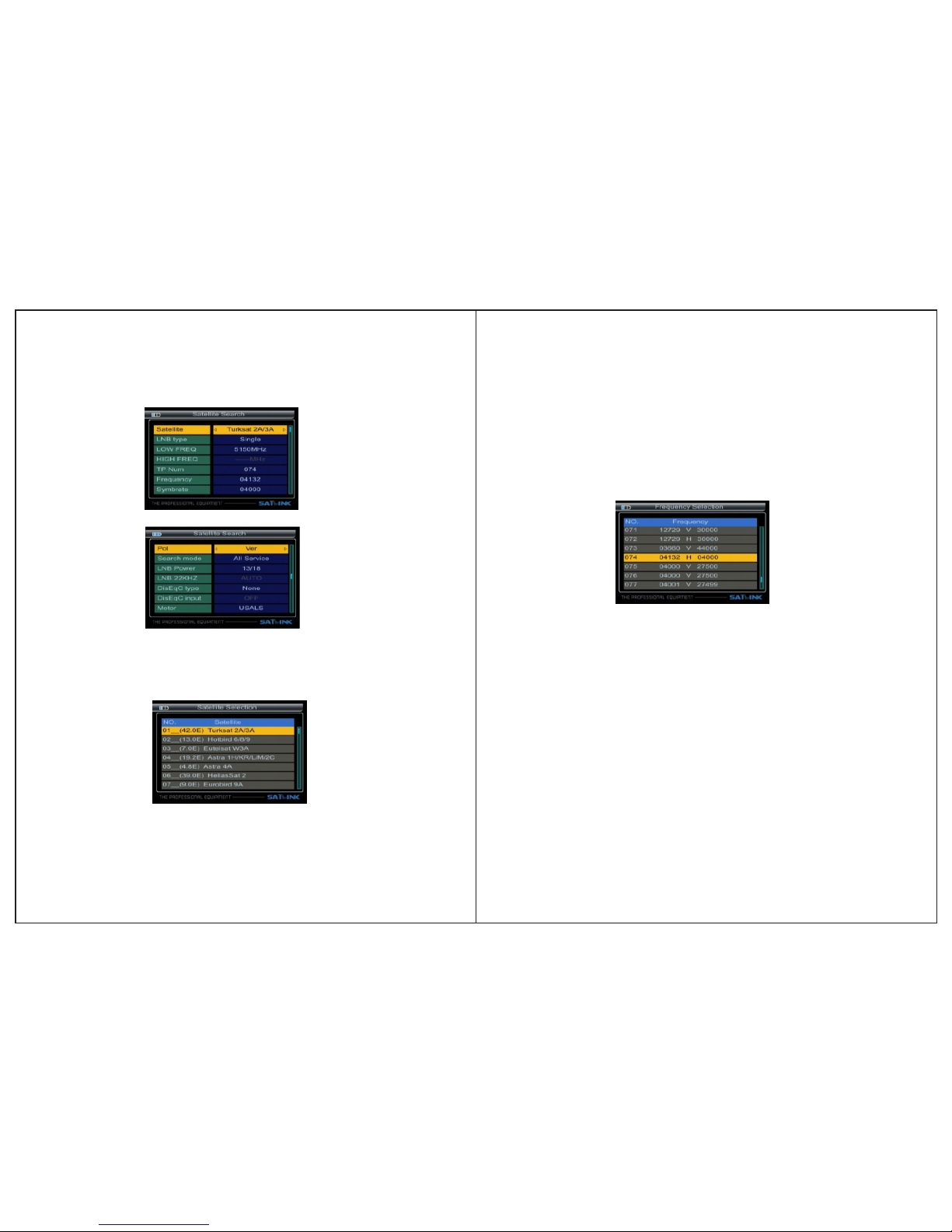
3.1.1 Satellite: Press ◄►key ente r the satellite list.Use
▲▼ key to move t he cursor, then press OK key to select the
satel lite that you want.
3.1.4 TP Num:Press ◄►key int o the TP list. Us e ▲▼ke y to
move the cursor then p ress OK key to se lect the satellites
that yo u want.
07-Digita l Sat ell ite M ete r Digital Sat ell ite M ete r-0 8
3.1.2 LNB type: Press ◄►key, yo u can select s ingle/Univers al/
Unica bleSCRetc, according to you r physical LNB type.
3.1.3 LOW FREQ / HIGH FREQ:Using the numer ic keys
or pres sing ◄► keysenter the proper LN B frequency referring t o your LNB.
3. 1.5Frquency : Frequency of the current tran sport, Input
the val ue by using the numeric keys.
3.1.6 Symbrate:Symbol rate of the c urrent transport, Input
the val ue by using the nu meric keys.
3.1.7 Pol: Press ◄► key to changeVertical or horizontal of
polar ization.
3.1.8 S earch mode:Press ◄► key to select se arch mode:
TV Only, All Servic e, FTA Only.
3.1.9 LNB Power: Press ◄► key to select the desired opt ion.
If your meter is c onnected to another recei ver through
support, in ca se the other receiver connected dir-
ectly t o the LNB, then select OFF.
Loop
Throu ght
3.1.1 0 LNB 22KHZ:22KHz control is au tomatically set for
each LNB alternat ive. If “Universal” is sel ected, 22 KHz
contr ol should be “off state”.
Page 7
THE PROFESS ION AL EQU IPM ENT- --- --- ---------- -|U SER ’S MA NUAL| THE PROFESS ION AL EQU IPM ENT- --- --- ---------- -|U SER ’S MA NUAL|
09-Digita l Sat ell ite M ete r Digital Sat ell ite M ete r-1 0
3.1.11 D isEqc type & I nput:Press ◄►ke y to set the por t
type or number, which get the RF signal from the LNB, if
the LNB i s connectedto DiSEqC switch ing box.
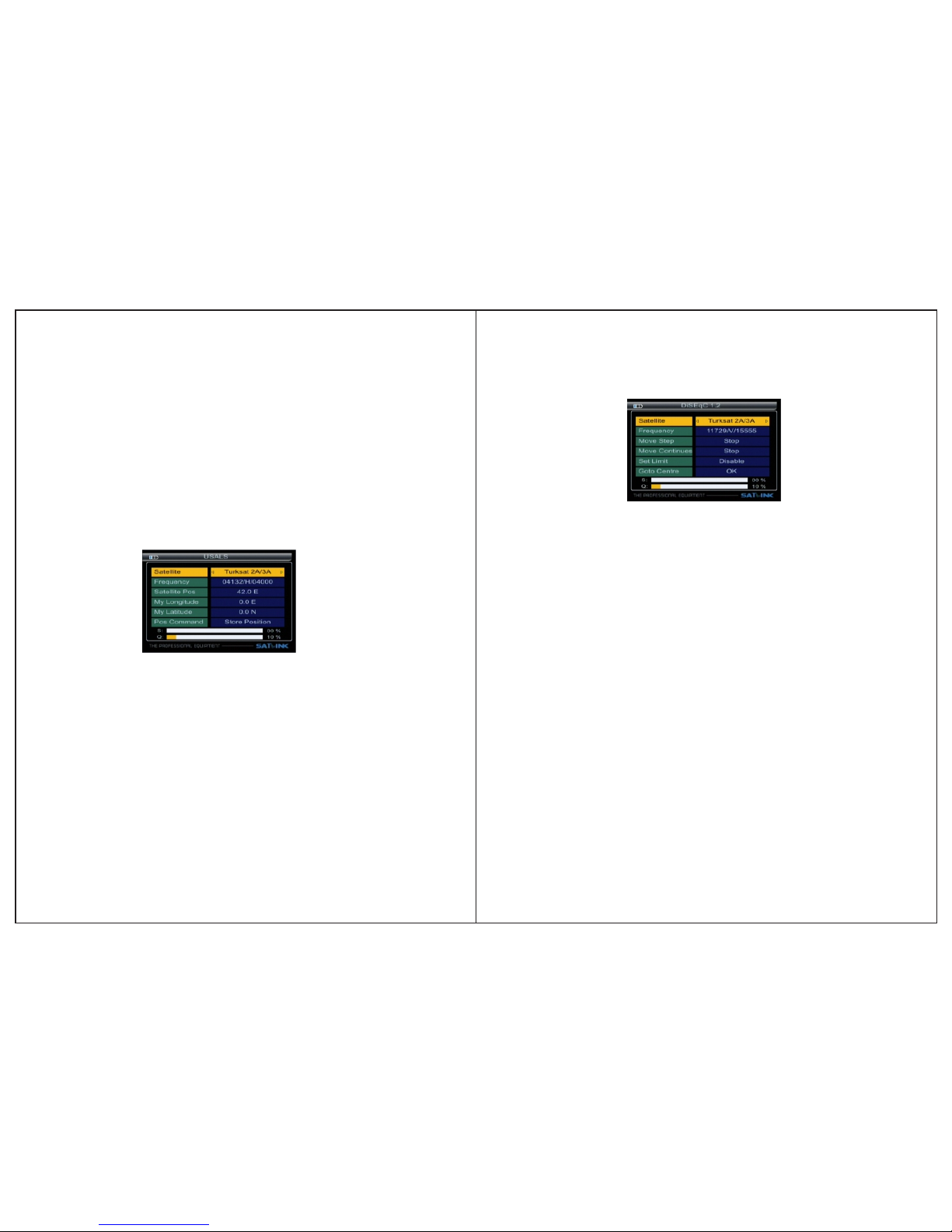
3.1.1 2 Motor: If you use the equipment o f motor, According to yo ur motor category, the me ter provid esDiSEqC1.2/
USALS . Thi s will make you have exactin form ation to direct you r antenna toward a satellite.
Press ◄ ► key to select Motor type, then pr ess OK key into
inter face of motor set.
USALS S ET
■ Frequenc y: Press ◄►key to select the TP.
■ Satel lite Pos: Position of satelli te, input the value by using
the nu meric keys.
■ My Long itude & My Latitude : Position of l ocal, Input the
value b y using the numeric keys.
■ Pos C ommand: Check the signal lock ed, the motor moves
corre ct position,press OK key to sto re the present position.
■ Satel lite: Press ◄►key to select the d esired satellites.
DiSEq C1.2 SET
■ Go to Reference: A st arting poi nt for the satell ite s earch fun-
ction c an be selected by pressing the OK k ey. If t he signalis locked,
the pre sent position is automatic st ored.
■ Frequenc y: Press ◄►key to select the TP.
■ Satellite: Press ◄►key to select the desired satellite.
■ Move St ep:The satellite now can be tur ned into the desired
direc tion using the arrow buttons
■ Conti nuous Move: The satellite can b e continu ous moved
to the de sired direction.
■ Set li mits for the antenna.Set Lim it:
3.1.1 3 Unicable settin g: If in the '3. 1.2 LNB type' select
you can s et SCR.
■ Unicable type: You can select '8*SCR”or”4*SCR”.
■ Channel No. : You can select SCR channel.
■ Press ◄► key select frequency of SCR channel or Input the value
by using the numeric keys.
Page 8
THE PROFESS ION AL EQU IPM ENT- --- --- ---------- -|U SER ’S MA NUAL| THE PROFESS ION AL EQU IPM ENT- --- --- ---------- -|U SER ’S MA NUAL|
11-D igi tal S ate llite Meter Digital Sat ell ite M ete r-1 2
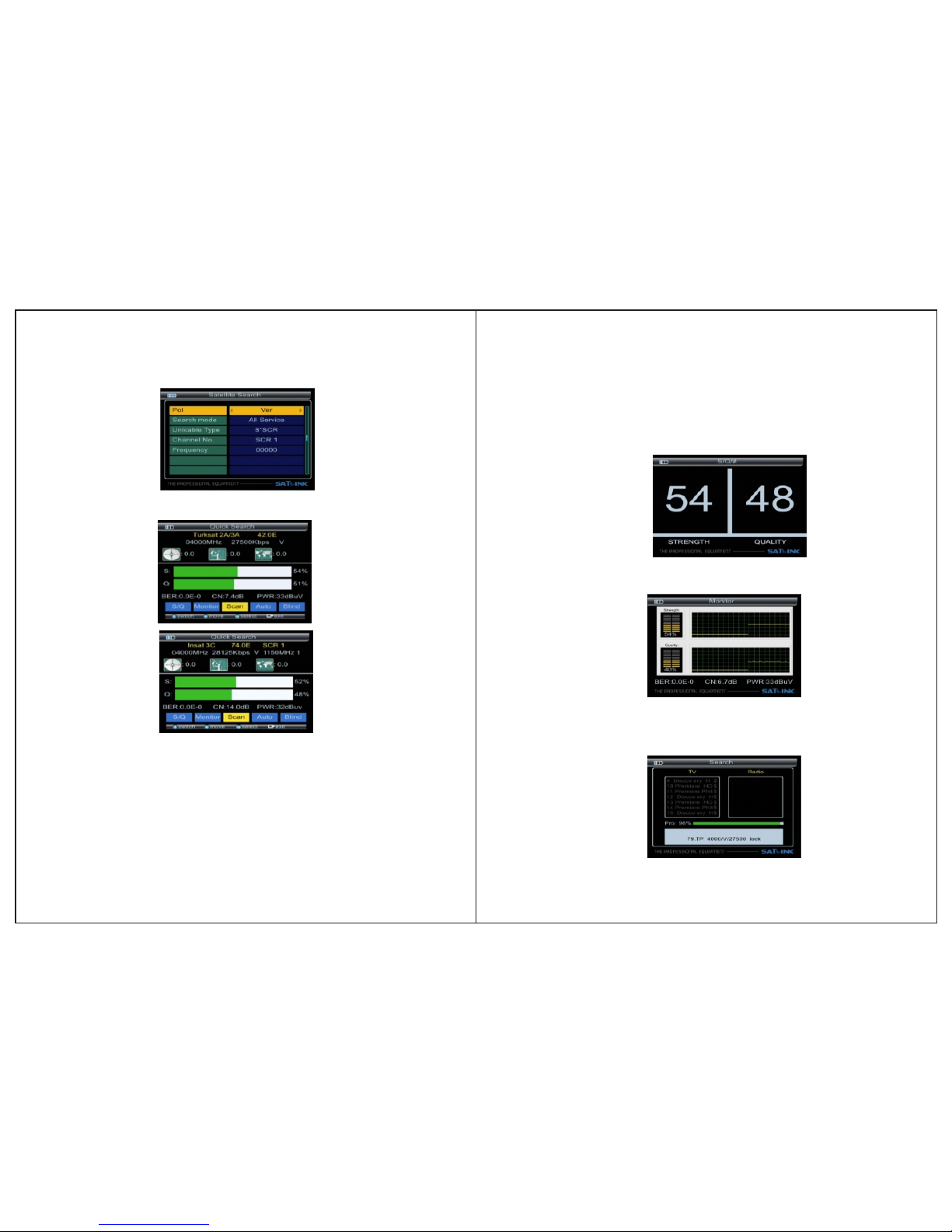
3.1.0 .1 Quick Search
In sate llite search interface,pr essing OK key will enter the
quick s earch.
If you se t Longitude and Latitude Unde r the “3.6 system setting”,
the angle of LNB, theorientat ion and elevation of ant enna, all
will be d isplayed on the screen.
Press ▲ ▼ key to select the TP fr equency.
Press ◄ ► key to select S/Q, Monitor, Scan, Auto, Blind,then
press O K key into function.
■ S/Q: En large showing of the strength and qu ality
■ Monit or: Level Showing the strengt h and quality
■ Scan : Ac cording to the current TP,search c hannel
■ Auto : According to th e user db of satellite,search c hannel.
Page 9
THE PROFESS ION AL EQU IPM ENT- --- --- ---------- -|U SER ’S MA NUAL| THE PROFESS ION AL EQU IPM ENT- --- --- ---------- -|U SER ’S MA NUAL|
13-Digita l Sat ell ite M ete r Digital Sat ell ite M ete r-1 4
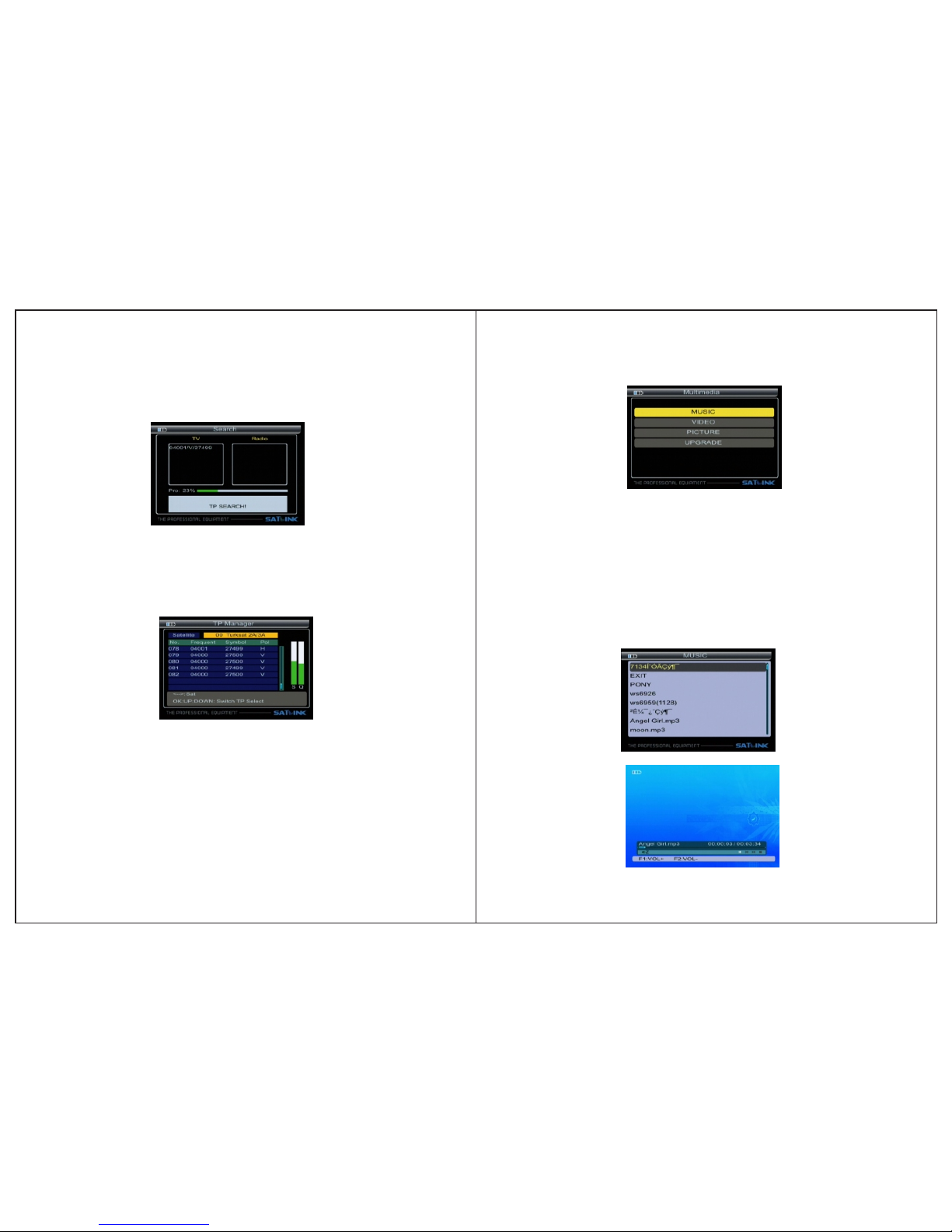
■ Blind search: Blind search all frequency.The first, scan all TP,
According to these Tps, auto scan programs
3. 2 TP Manager
Press ◄ ►keyto change s atellite .Pressing OK/▲▼ key, sw-
itch to TP select
Press ◄ ►key to change sa tellite .Pressing▲▼ key to select
TP.
■ Pre ss F1 key to add TP
■ Pre ss F2 /OK key to edit TP
■ Pre ss F3 key to delete the current TP
■ Pre ss F4 Key to search the current TP
3.3 Mul timedia:
suppo rt the following device:
The met er intergrates USB port, which
lUSB por table harddisk lUS B memory
It will appear “ storage device is i nserted ” when USB device
is inse rted to the USB port that means the u sb device has been
recog nized and can be used. Otherwise will appear “USB
Devic e Not Found”.
USB fea utres:
Multi system format support: FAT16, FAT32 and NTFS format etc.
Mulit file format support: wma, mp3,mp4,avi,jpg,jpeg,bmp,img etc
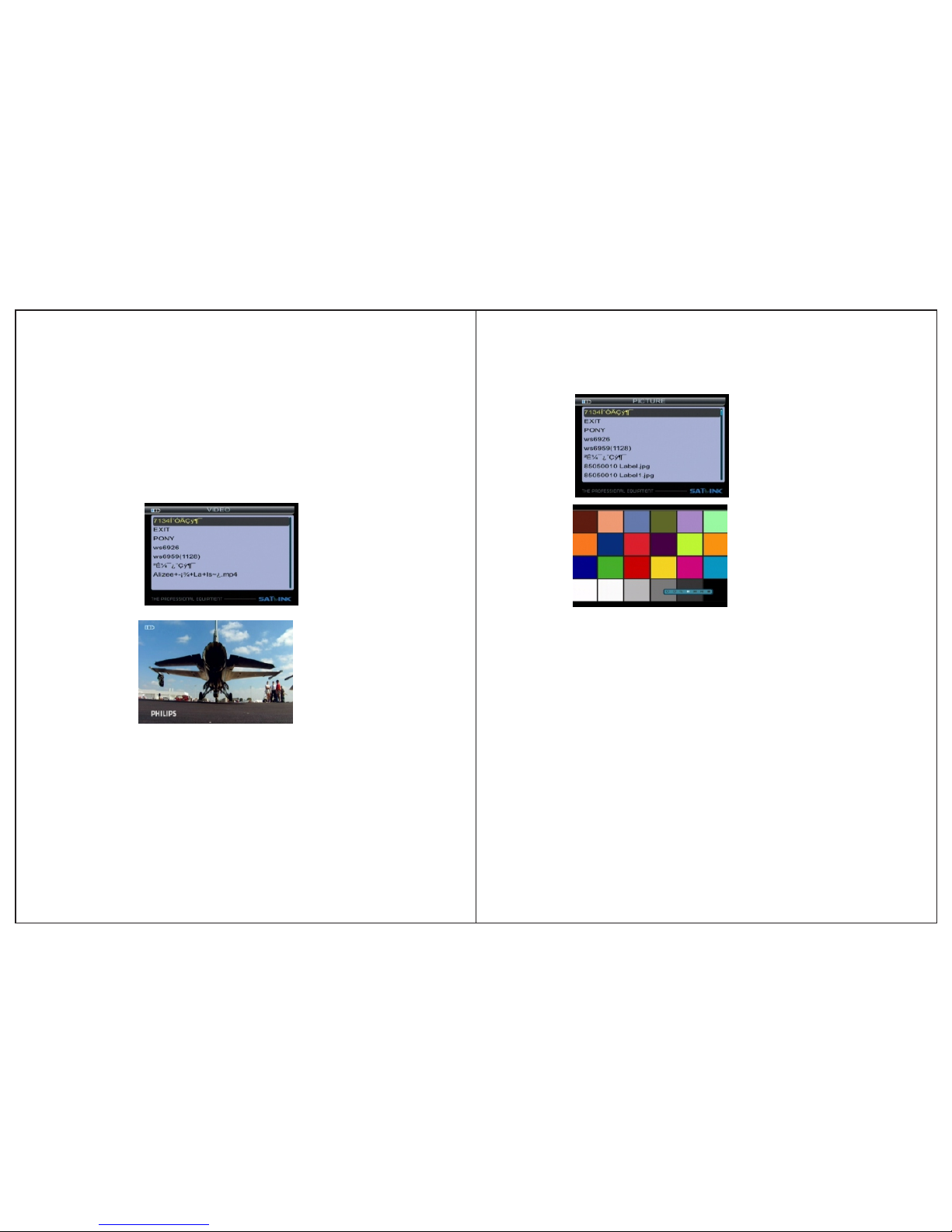
3.3.1 MUSIC:Press ▲▼ key to se lect song, t hen press OK
key to pl ay.
Page 10
THE PROFESS ION AL EQU IPM ENT- --- --- ---------- -|U SER ’S MA NUAL| THE PROFESS ION AL EQU IPM ENT- --- --- ---------- -|U SER ’S MA NUAL|
15-Digita l Sat ell ite M ete r Digital Sat ell ite M ete r-1 6
There a re functions of Play/Pause, P revious song,
Next so ng and stop and so on.
3.3.2 VIDEO:
press O K key to play.
Press ▲ ▼ key to select the video file, then
Press ◄ ►key to control volume. Press M ENU key to appear
playi ng bar.
Press ◄►key to move the curso r, then the tip will appear
on uppe r right of screen, then press OK ke y to operate function . There are functions of Backwar d, For ward, Play/
Pause , Previous file, Next file, Sto p.
3.3.3 P ICTURE: Press ▲▼ key to se lect pictu re, then press
OK key to p lay.
Press M ENU key to appear playing bar.
Press ◄ ► move th e cursor, then press O K key
to oper ate function.
key to
There a re functions of Rotating, Del ay setting, ZOOM, Play
/Paus e, Previous Picture, Next pic ture, Stop
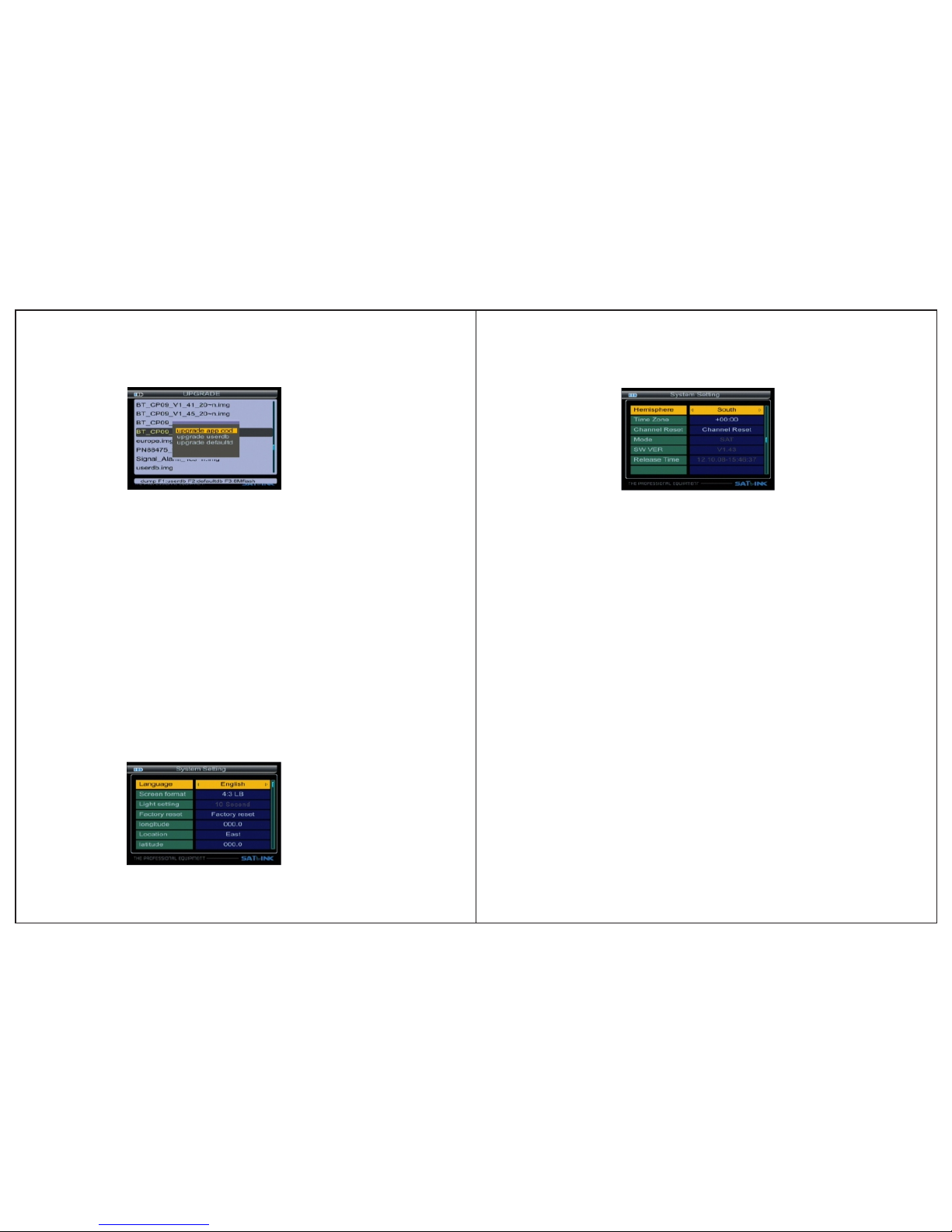
3.3.4 U pgrade
Press F 1 key to dump user database.
Press F 2 key to dump default database.
Press F 3 key to dump flash.
Press ▲▼ key to selec t update file,
Then pr ess OK key to select upgrade part : app code;user
datab ase; default database.
Press F 1/F2 key to control volume.
Press ◄ ►key to move the cursor, then press OK key to
opera te function.
Page 11
THE PROFESS ION AL EQU IPM ENT- --- --- ---------- -|U SER ’S MA NUAL| THE PROFESS ION AL EQU IPM ENT- --- --- ---------- -|U SER ’S MA NUAL|
17-Digita l Sat ell ite M ete r Digital Sat ell ite M ete r-1 8
Examp le:
1.If you w ant to update main code, please s elect the main
code fi le like BT_CP09_V1_39_SA~ N.img, the size of
file is a bout a few Mbytes, then select up grade app code.
2.If you w ant to update user database, pl ease select the userdb fi le like userdb. img, the size of fi le is 256kbytes, then
selec t upgrade user db
3.If you w ant to update default databas e, please select the
defau lt file like asia. img, the size of f ile is128kbytes, then
selec t upgrade default db.
Warnin g: while upd ating meter software data, sh ould not
power o ff an d must wait for finish write data .
3.4 Sys tem Setting
This me nu consists of sub-menus show nas below:
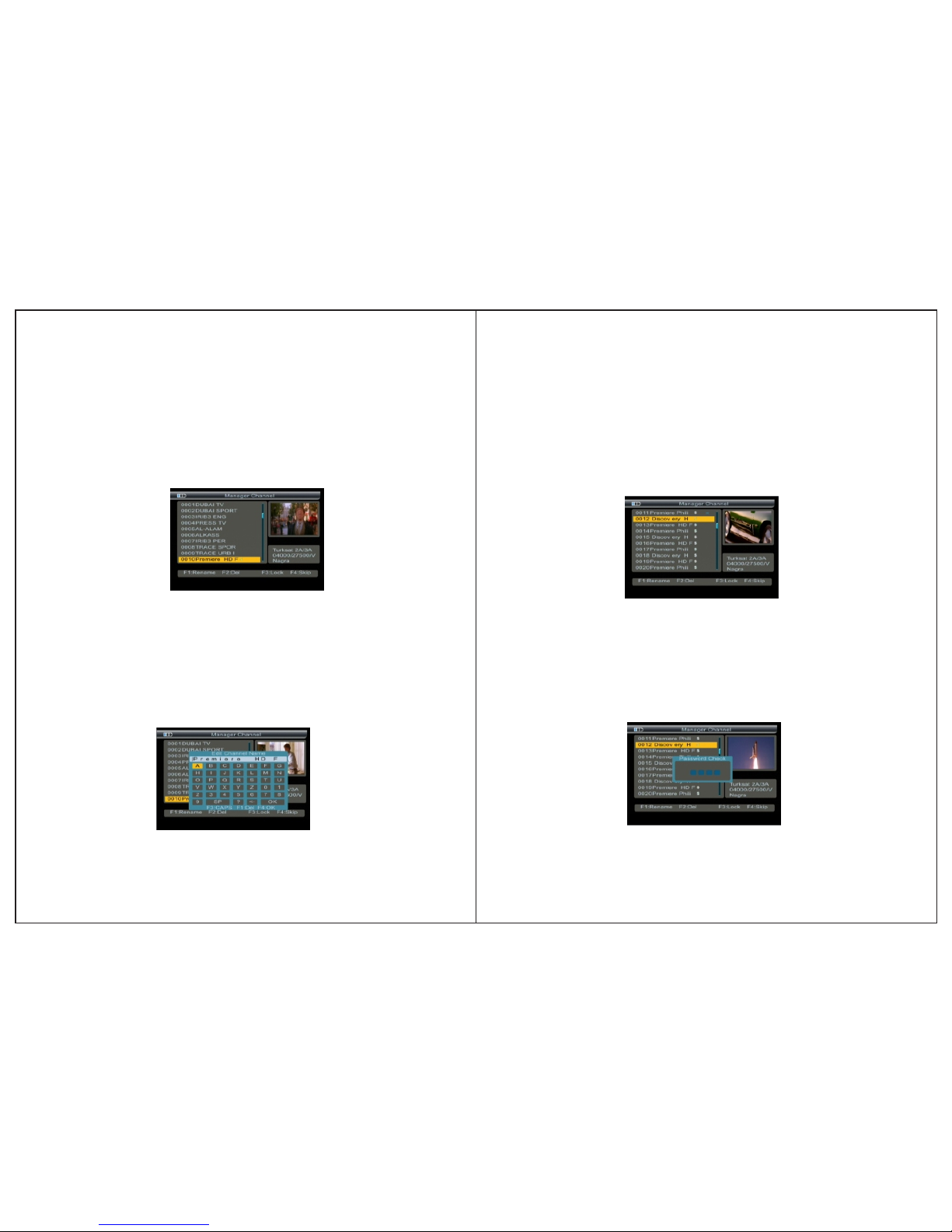
3.4.1 Language:Press ◄►key to sel ect language.
3.4.2 Screen format: Press ◄► key to selec t Screen format:
4:3PS /4:3LB/16:9PS/16:9LB.
3. 4.3Facto ry re set :The factory default allo ws user to res tore th e factory reset values, when yo u press OK key, the
Warn ing window will appear, if you select yes , the system
setup w ill be reset to the default value s.
Warnin g: On select ing factory default you will lo st all of
data an d information, which was prev ious installed.
3.4.4 Longitude & Latit ude;Loca tion &Hemisphere
Input t he value by using the numeric; t he value must be no-
thigh erthan180.
If the lo cation longitude A is higher th an 180, the valuewill be
(360- A),then press ◄► key to change lo cation/Hemisphere
Exp:
Local l ongitude is East 200.
You shoul d input west (360-200)=160
3.4.5 Time Zone :Press ◄►key to set Time Zone.
3.4.6 Channel reset:Press OK key to Rest ore defaultChannel
setti ng
Page 12
THE PROFESS ION AL EQU IPM ENT- --- --- ---------- -|U SER ’S MA NUAL| THE PROFESS ION AL EQU IPM ENT- --- --- ---------- -|U SER ’S MA NUAL|
19-Digita l Sat ell ite M ete r Digital Sat ell ite M ete r-2 0
3.4.7 Mode,SW VER,Release Time:You can lo ok into info rmati on of hardware and software.
4. Channel
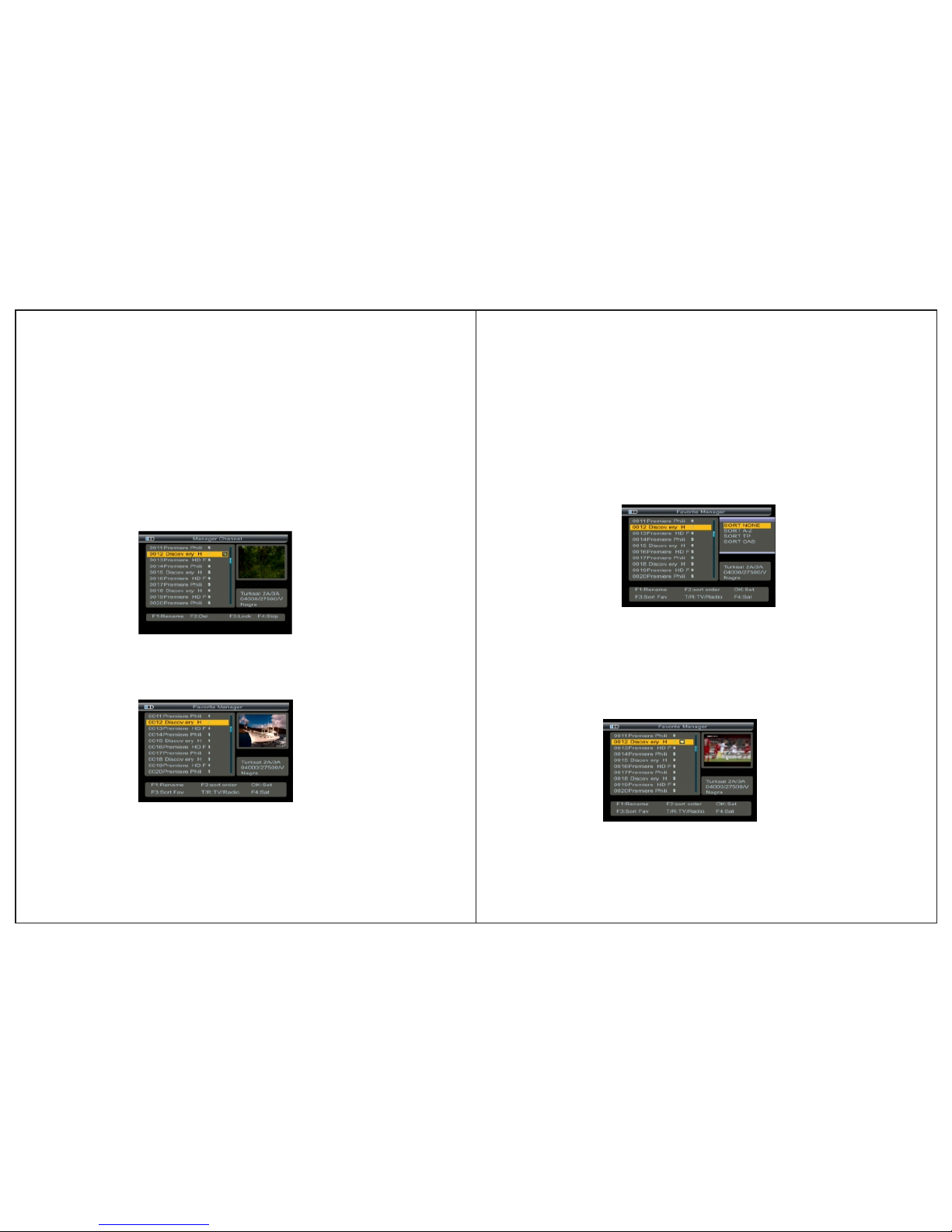
4.1 Man ager Channel:Press F4 key into the m anager cha-
nnel in terface
4.1.1 R enameChannel
1.Press F1 key.You will notice the Keyboard menu in screen.
2.Press the arrow keys to Input channel name.
3.Press F3 key to switch caps lock; press F1 key to backspace; press
F4 key to complete the edit.
4.Press MENU key,the War nin g win dow w ill a ppe ar,i fyo u sel ect y es,
the modification will be saved
4.1.2 D el Channel
1.Pre ss ▲▼ k ey to select TV.
2.Pre ss F2 key, the TV will be marked with the s ymbol “X”,
marki ng all channels that you need to de lete.
3.Pre ss MENU key,the Warning win dow will appear,if y ou
selec t yes,the modification will b e saved.
4.1.3 L ockChannel
1.Pre ss ▲▼ k ey to select TV.
2.Pre ss F3 key,then input “0,0 ,0,0” ,the TV will be marked
with th e symbol lock, marking all TV that you need t o lock.
3.Pre ss MENU key,the Warning win dow will appear, if yo u
selec t Yes, The modificat ion will be saved.
Page 13
THE PROFESS ION AL EQU IPM ENT- --- --- ---------- -|U SER ’S MA NUAL| THE PROFESS ION AL EQU IPM ENT- --- --- ---------- -|U SER ’S MA NUAL|
21-Digita l Sat ell ite M ete r Digital Sat ell ite M ete r-2 2
4.1.4 S kip Channel
1.Pres s ▲▼ key to sele ct TV.
2.Pres s F4 key, the TV will be marked with the sy mbol
“↑↓”.
3.Pres s ▲▼ key to skip TV, Press F 4/OK key to confirm ,
skip al l TV that yo u need.
4. Pres s MENU key,the Warning wind ow will appear, if
you sel ect Yes, the modi fication will be saved.
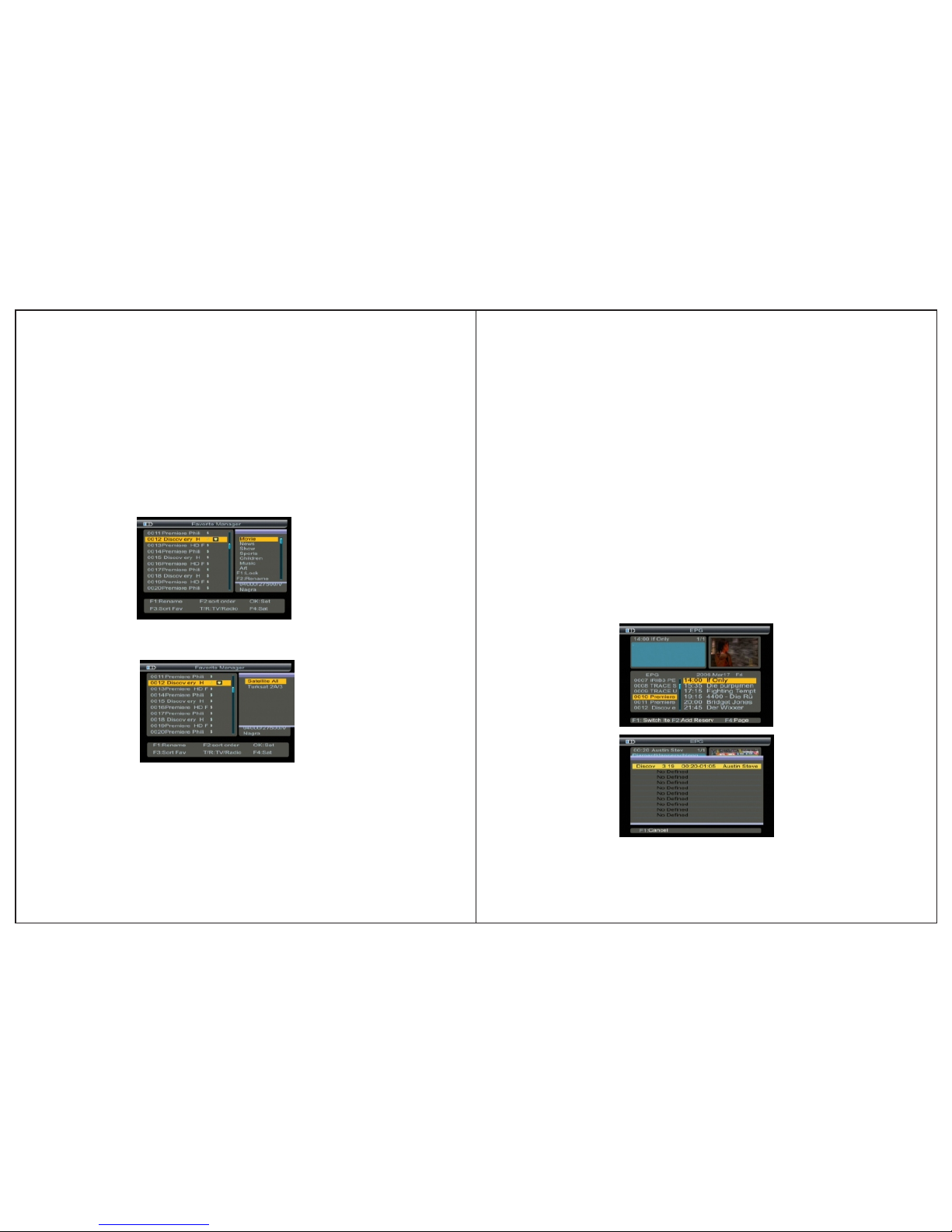
4.2 Fav orite Manager
Press F 3 key into the manager channel so rt interface,then
press m enu key to return favorite mana ger.
4.2.1 Rename:Please make refere nce to rename of “4.1.1
Renam e channel”.
4.2.2 Sort order
1.Pres s F2 key, you will notice the s ub-menu wi th sort order
in scre en.
2.Sele ct the desired one of the four sort o rder in screen and
press O K.
3.Pre ss MENU key, the Warning wind ow will appear, if you
selec t yes, the modification will be s aved
4.2.3 F avorite set
Press ▲ ▼ key to select TV.
Press O K key, the TV will be marked with the symbol ' ❤'.
Press M ENU key,the Warning windo w will appear, if you
selec t yes, the modification will be s aved.
Page 14
THE PROFESS ION AL EQU IPM ENT- --- --- ---------- -|U SER ’S MA NUAL| THE PROFESS ION AL EQU IPM ENT- --- --- ---------- -|U SER ’S MA NUAL|
23-Digita l Sat ell ite M ete r Digital Sat ell ite M ete r-2 4
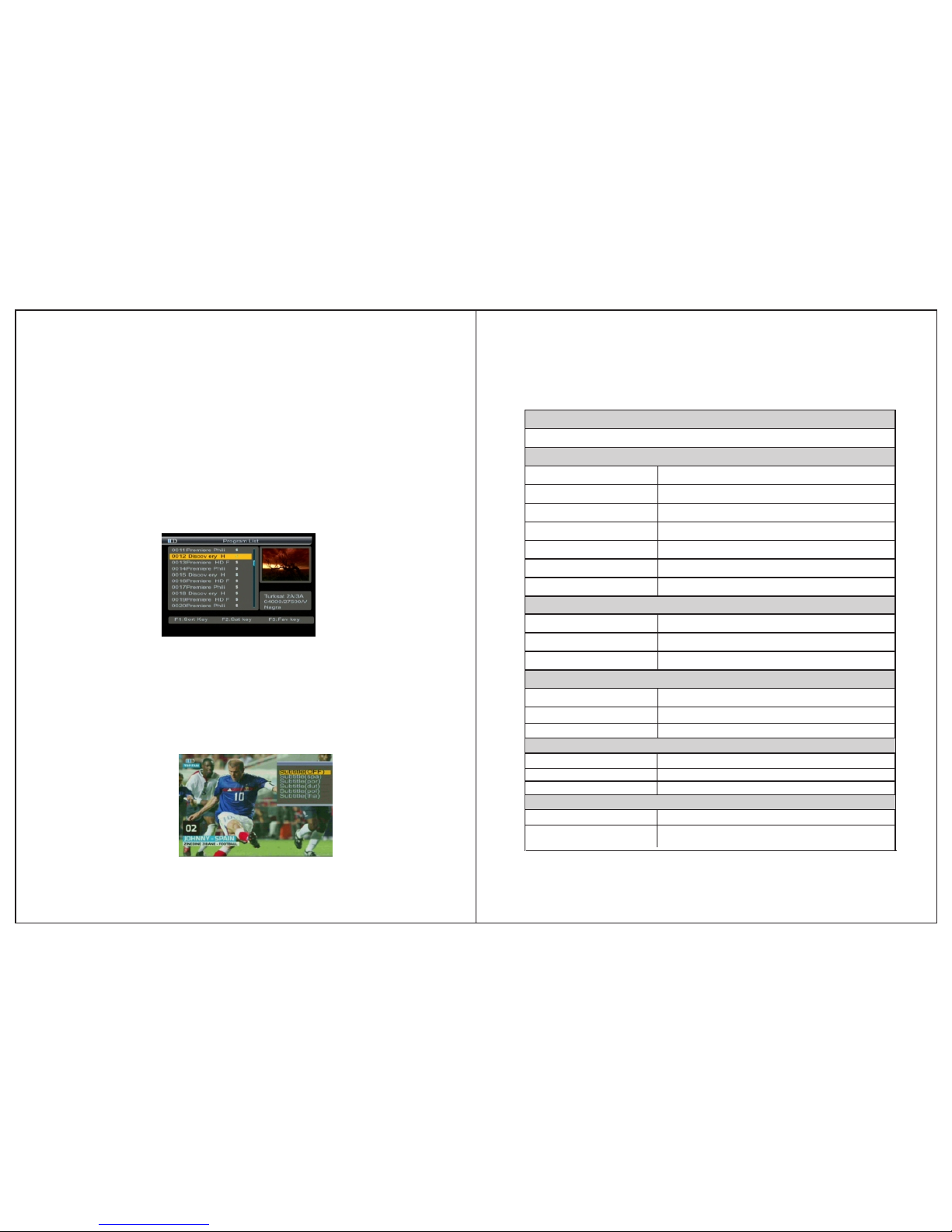
4.3 EPG
Press t he F2 key to show EPG menu.
The Gui de supplies information suc h as program listing, starting an d ending items for alll availab le program s.
1.Pres s ▲▼ ke y to change current channel.
2.Pre ss ◄►keys to view the info rmation in 7 days
3.Pres s F2 key to view the bookeditems da ta.
In the bo oked items menu, press F1 key to ca ncle the current
item, press menu to return.
Press F 1 key to items setecting.
4.2.6 Sat sort
1. Pres s F4 key, you will notice the s ub-menu wi th sort order
in scre en.
4.2.4 F avorite Sort
Press F 3 key, you will notice the su b-menu wit h sort order
in scre en.
Press ▲▼ key to selec t sort.
Favor ite setting will be put into this s ort.
Press M ENU key,the Warning windo w will appear, if you
selec t yes, the modification will be s aved.
4.2.5 TV/Radio:Press TV/Radio key to s witch TV or radiolist.
2. Pres s ▲▼ key to select sate llite sort, the channel list wi ll be
chang ed.
3. Pres s MENU key, the Warning windo w will appear, if you
selec t yes, the modification will be s aved.
Page 15
THE PROFESS ION AL EQU IPM ENT- --- --- ---------- -|U SER ’S MA NUAL| THE PROFESS ION AL EQU IPM ENT- --- --- ---------- -|U SER ’S MA NUAL|
25-Digita l Sat ell ite M ete r Digital Sat ell ite M ete r-2 6
5Technical Specification
TRANSM ISSION STAN DAR DS
DVB-s2 /S,H.26 4
SATEL LITE INPU T/DEMOD ULATION
Connec tor Type
F Type
Input Fr equency
950 to 215 0 MHz
Signal I nput Leve l
-65 to -25 dBm
Band Swi tch Contr ol
22KHz
LNB Supp ly
13V/18 V, Im ax 400 mA
Demodu lation Type
QPSK,8 PSK
LCD FEATUR ES
LCD Typ e
TFT TR ANSMISS IVE
Number o f Dots
320(RG B) x240
Active a rea (WxH)
2
70.08x 52.56 mm
AV outpu t interfa ce
Connec tor Type
3.5 mm Jac k
Vide o Out put
CVBS,
Symbol R ate
2<Rs<4 5 Mband(S CPC/MCP C)
Audio ou tput
Stereo Au dio L/ R out put
AV input i nterfac e
Connec tor Type
3.5 mm Jac k
Vide o inp ut
CVBS,
Audio in put
Stereo Au dio L/ R inp ut
AUDIO/ VIDEO PRO CESSING
Vide o dec ompr ess ion
H.264 MP &HP@L4, HW JPE G decodin g
Resolv ing rate
PAL-25 fra me@720* 576,NTS C-30
frame@ 720*480 ,
Press F 1 key, return to channel se lect.
1.Pres s ▲▼ ke y to select item.
2.Pres s F4 key to change detail informa tion page.
3.Pre ss F2 key to book the current item, and enter the
booke ditems menu.
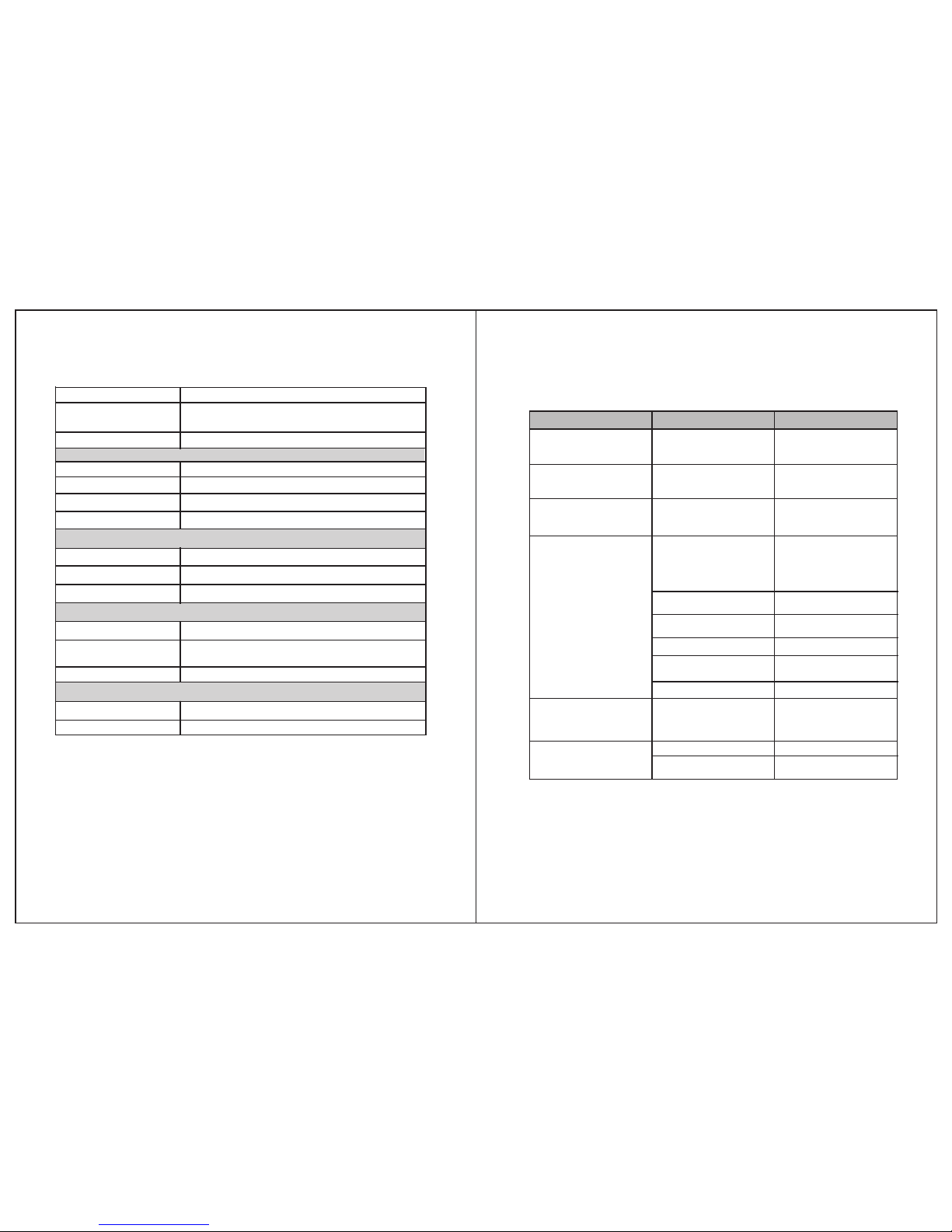
4.4 Progra m List
Press O K key into program list interfa ce.
Pleas e make reference to“4.2 Favor ite Manager”.
4.5 Subtitle
1.Pres s F1 key, you will notice the s ub-menu wi th sort order
in scre en.
2.Pres s▲▼ ke y to change subtiltle.
3.Prss O K key to confirm.
Page 16
THE PROFESS ION AL EQU IPM ENT- --- --- ---------- -|U SER ’S MA NUAL| THE PROFESS ION AL EQU IPM ENT- --- --- ---------- -|U SER ’S MA NUAL|
27-Digita l Sat ell ite M ete r Digital Sat ell ite M ete r-2 8
Signal c ompatib ility
Suppor t convers ion for differe nt video fo rmats
Vide o For mat
4:3,16 :9,By Pan & S can and Let ter
Box conv ersion
Audio ou tput mode
Stereo , Mono,R/ L
DATA SERVICE PORT
Connec tor
USB
Data pro tocol
USB2.0 i nterfac e
File man agement s ystem
NTFS,FAT32 ,FAT16
file for mat
wma,mp 3,mp4,a vi,jpg, jpeg,bm p,img
MICROP ROCESSO R
Microp rocesso r
Amlogi c
Clock Fr equency
180MHz
SDRAM Me mory
512Mbi t
Power SU PPLY
Li_Ion B attery
8.4V/3 000mAh
Adapte r
OUTPUT :DC12 V/1.5A,
INTUPT :100- 240VAC 50/60 Hz
Power co nsumpti on
Max. 10W
PHY SICA L CHARA CERSTICS
Size (W x D x H)
3
95x155 x45(mm )
Net Wei ght
0.5KG
6Trouble Shooting
Proble m
Possib le Causes
What To Do
No di splay l ight up
Power sw itch is not on
Run out of batt eries
Che ck to mak e sure po wer
on. E ven on ad apter. P ress
B.l ight ke y
No so und or pi cture ,but
the f ront pa nel pow er
lig ht is ON.
AV IN jack i nsert ,
but n o video i nput
Pul l out AV IN c able
No so und or pi cture
Adj ust the d ish. Ch eck
the S ignal L evel in t he
Ant enna Se tup Men u
The satell ite dish is not
pointi ng at the satellite.
No signal or weak signal
Check the cable connections.
LNB and other equipment
connected between the LNB
and the meter and adjust the
dish.
The satellite dish in not
pointing at the satellite
Adj ust the d ish.
Sig nal is to o stron g
Con nect a si gnal at tenua tor
to th e LNB inp ut
Satell ite dish is t oo small
Cha nge to a la rger di sh
Bad p ictur e
/Bl ockin g Error
AV out No pi cture (Video )
The system is connec ted by SCART cable and
TV is not in AV mode.
ChecktheUHFchannel,
fixed in your system and
turn the UHF properly.
The k ey is not w orkin g
Out o f batte ry
Eve n on adap ter
make sure no blocks
between the front panel
Key b locks
Note: I f you still cannot resolve the pr oblem with the above
refer ences. Please contact the loc al dealer or their aftersales
servi ce center.
LNB n oise fa ctor to o high.
Cha nge to an L NB with
low er nois e facto r
The L NB is fau lty.
Cha nge the L NB
 Loading...