

Page 1
1
Unpack
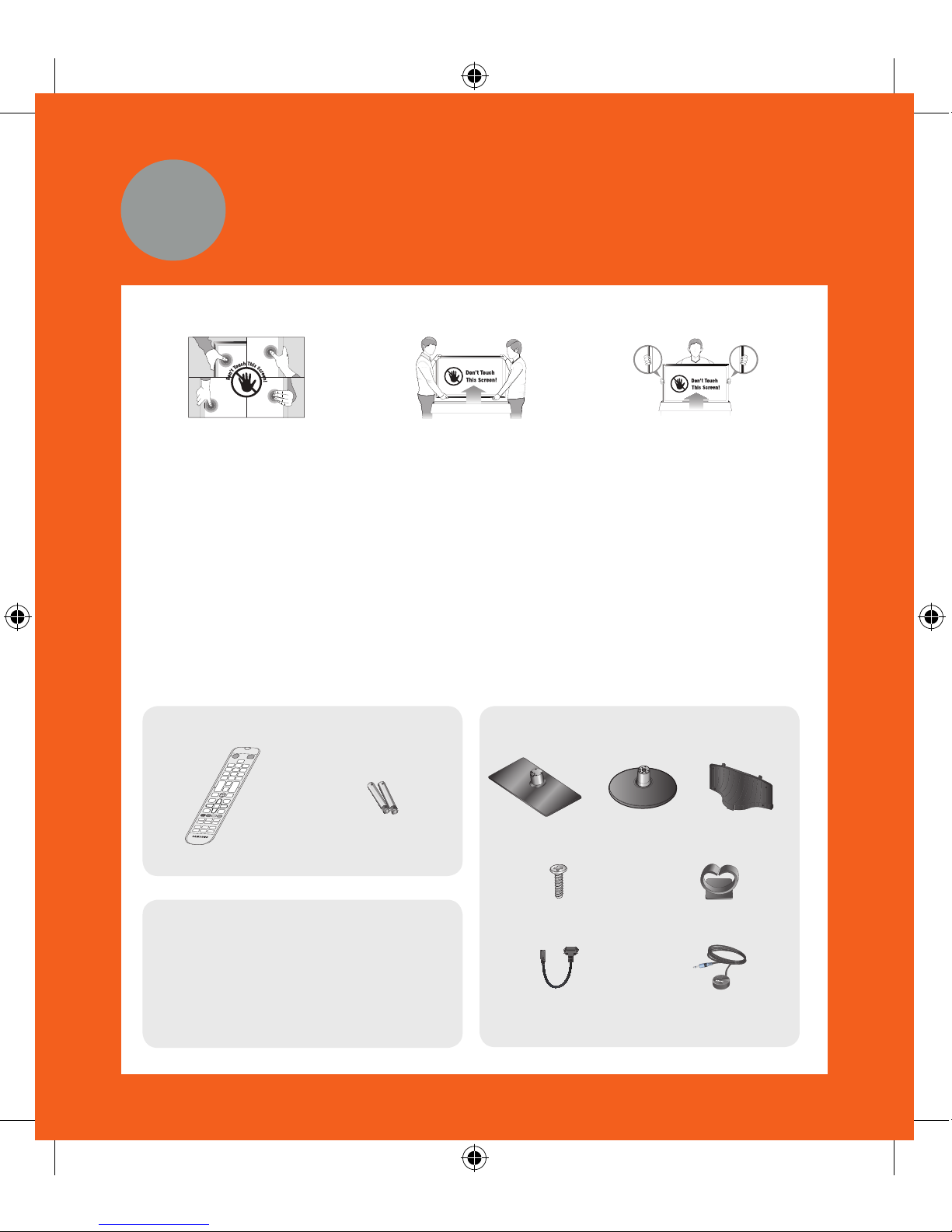
Taking the TV Out of the Box
• Warning:
Do not touch the TV’s
screen when you take
it out of the box. Hold it
by its edges only. If you
touch the screen, you
can cause the TV panel
to crack.
• Recommendation 1:
Two people should
remove the TV from the
box as shown above.
When removing the
TV, hold it by its edges
only. Do not touch the
screen.
• Recommendation 2:
If only one person is
available to remove
the TV from the box,
remove it as shown in
the illustration above.
Hold the TV by its
edges. Do not touch
the screen.
Included in this Box
Remote Control
Remote Control Batteries (2 AAA)
Stand Parts and Cables
or
Base Stand Mount
Screws (x8) Cable Holder
Power Cord IR Extender Cable
Also included
• User manual
• Regulatory guide
[UH6203-QSG]BN68-06331A-00ENG.indb 1 2014-05-09 1:01:23
Page 2
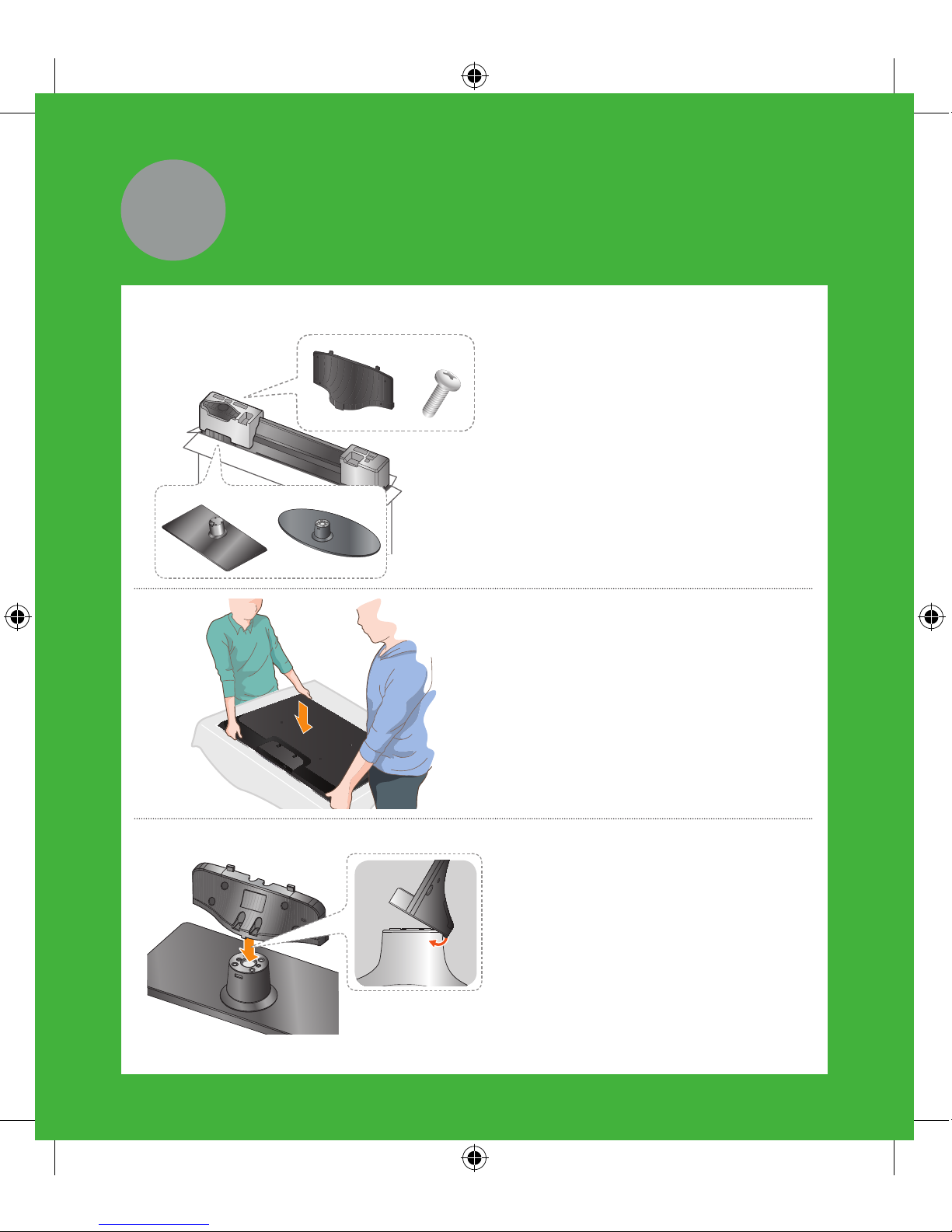
Stand and styrofoam shape may vary differ depending on the model.
or
1 Locate the Base, Stand Mount,
and Screws in the box and set
them aside.
✎
Remove the top portion of
the box to locate the stand
parts.
2 Lay the TV on a soft surface,
screen side down. Use the
packing material to protect the
screen.
3 Fit the stand and mount
together, making sure the notch
on the mount aligns with the
stand.
2
Assemble
[UH6203-QSG]BN68-06331A-00ENG.indb 2 2014-05-09 1:01:24
Page 3

4 Insert 4 screws and
secure the Base to the
Stand Mount.
5 Holding the stand parallel
to the screen, slide the
stand into the notches on
the back of the TV.
6 Insert 4 screws, and
secure the stand to the
T V.
[UH6203-QSG]BN68-06331A-00ENG.indb 3 2014-05-09 1:01:25
Page 4
3
Connect
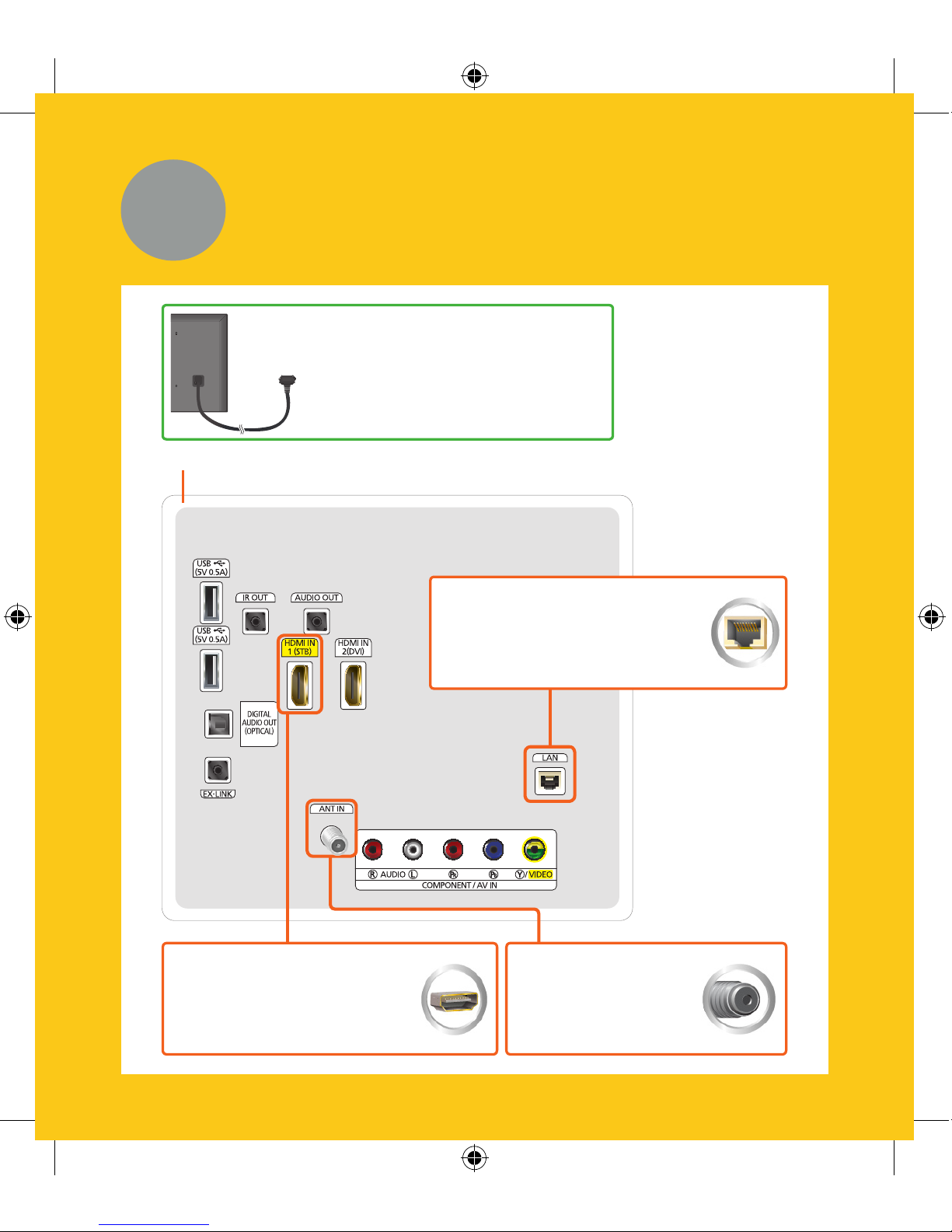
Connection panel on the back of the TV
Cable/Satellite/DVR
Connect your set-top box or
digital video recorder with an
HDMI cable.
TV signal
Connect your
coaxial cable to the
Antenna In port.
After you have connected all your
external devices, plug the TV’s power
cord into the back of the TV. DO NOT
plug it into a wall outlet until you have
reached Section 6, Initial Setup.
Internet
Connect here with an Ethernet
cable or wirelessly later during
the Initial Setup.
* Recommended Connections
[UH6203-QSG]BN68-06331A-00ENG.indb 4 2014-05-09 1:01:26
Page 5
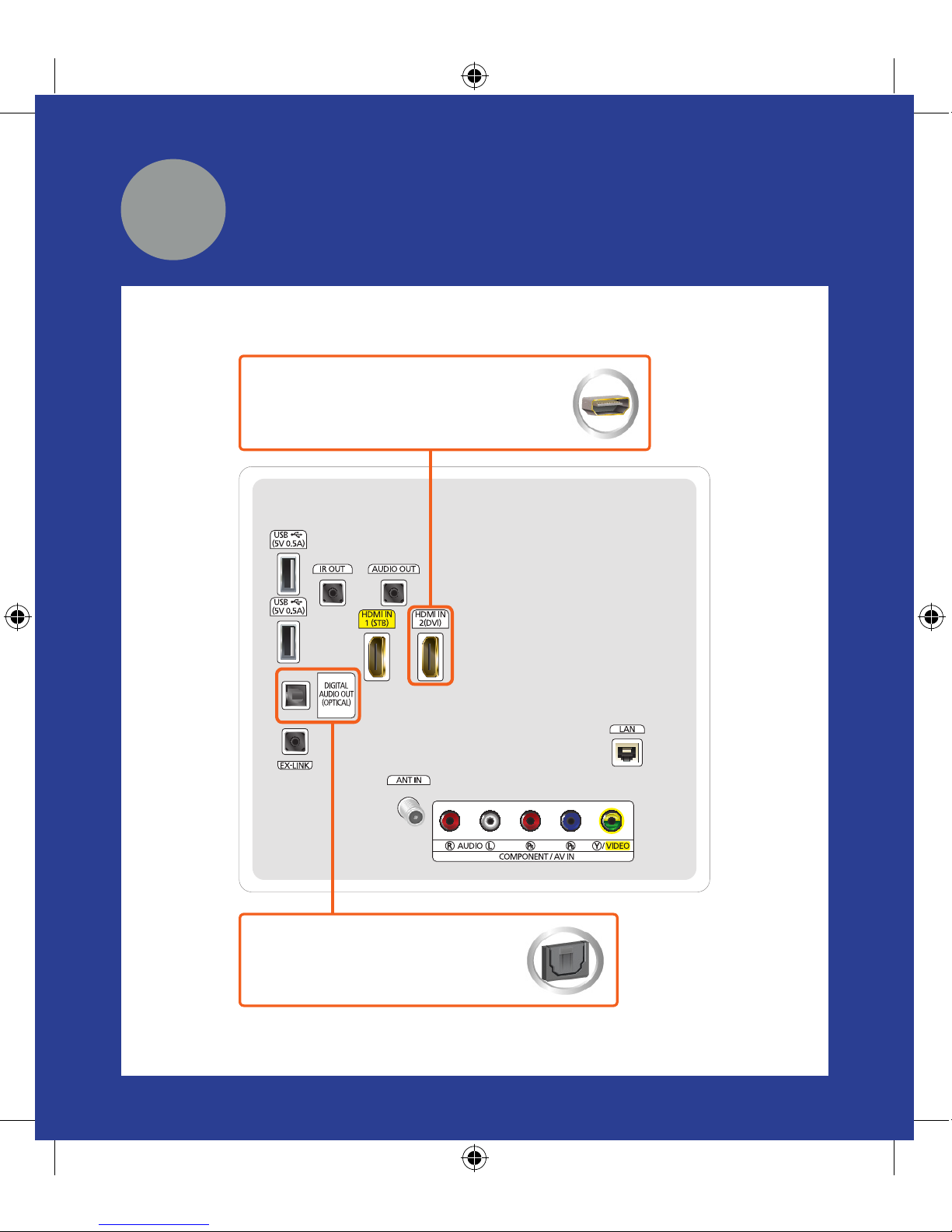
Audio
Connect a receiver/home theater
using an optical audio cable.
Blu-ray/DVD/Home Theater
Connect your video player using an
HDMI cable.
4
Gear
* Recommended Connections
[UH6203-QSG]BN68-06331A-00ENG.indb 5 2014-05-09 1:01:26
Page 6
5
STB Control
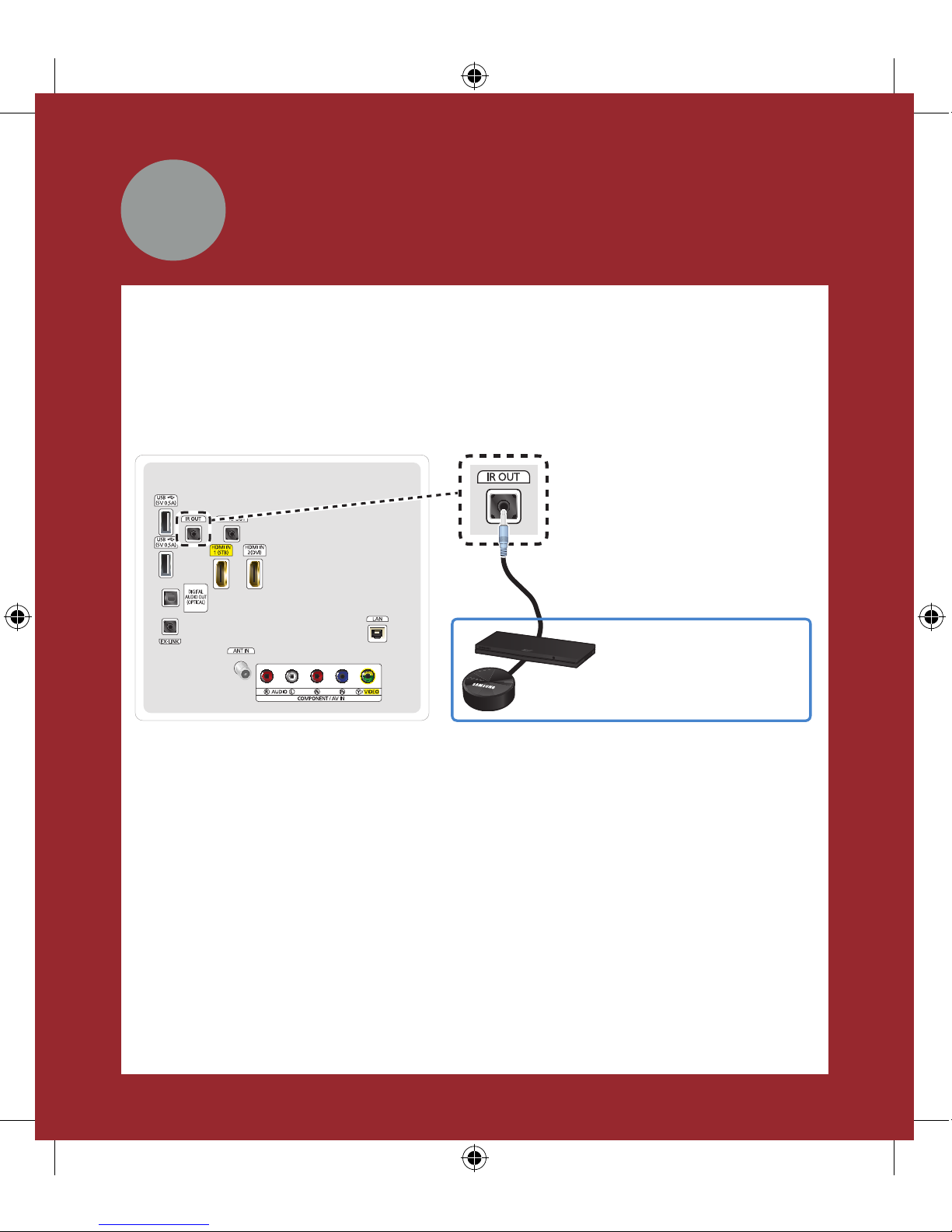
You can control your set-top-box or satellite box with the Remote Control. To establish
control, you must first set up the IR extender cable. If you don’t have an STB, skip this
section.
1 Connect the IR extender cable to the TV’s IR output connector.
Place the transmitter
end within 4 inches
of the set-top-box’s
remote control sensor.
IR Out
Connect the
IR Extender Cable here.
2 Position the transmitter end within 4 inches (10 cm) of the set-top-box’s remote
control sensor, pointing in the direction of the sensor. Make sure there are no
obstacles between the transmitter end of the IR extender cable and the settop-box or satellite box. Any obstacles will interfere with the transmission of the
remote control signals.
3 Finalize control of your set-top or satellite box when you run Initial Setup.
[UH6203-QSG]BN68-06331A-00ENG.indb 6 2014-05-09 1:01:27
Page 7
When you turn on your TV for the first time, it immediately starts the Initial Setup.
During Initial Setup, your TV connects to your home network, implements Smart Hub
agreements, links to the source of your live TV signal, and sets up control of your settop or satellite box.
Information You Need
Have the following information on hand
before you turn on your TV for the first
time:
• Your wireless network’s password.
(Make sure your network is on.)
• Your Postal or Zip code.
• The name and location of your cable
or satellite provider (if you use one).
Internet Access
The TV must be connected to the Internet
to use the Smart Features. If you have
a wireless network, confirm that your
network router is working before you
start the initial setup. If you have a wired
network, connect the TV to the network
with an Ethernet cable before you begin
(CAT 7 cable preferred).
Running Initial Setup
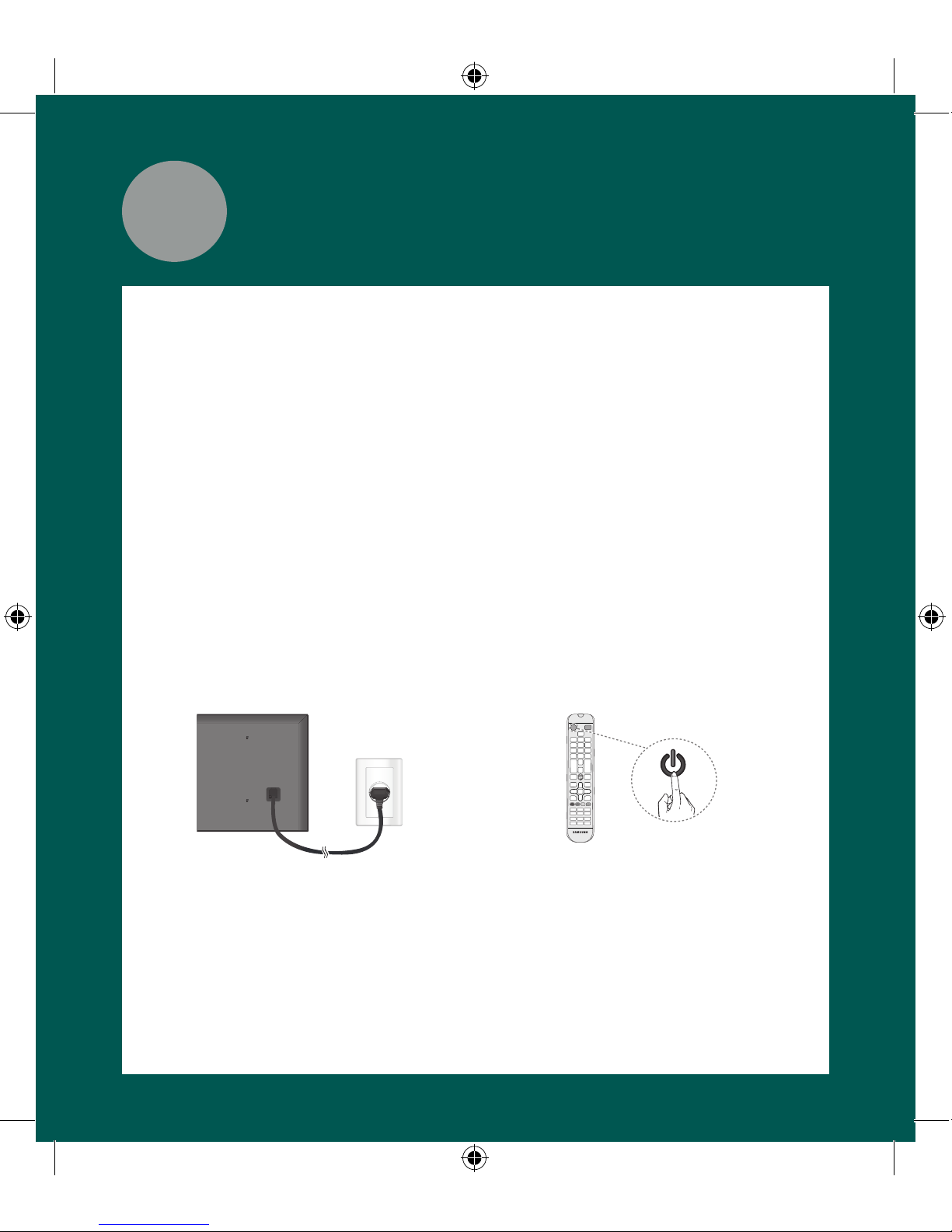
1 Plug your TV into a wall outlet.
2 Aim the Remote Control at the TV.
3 Press the TV button on the Remote
Control to turn on the TV, and then
follow the directions on the screen.
To learn more about operating your TV and its Smart Features, see your TV’s user‘s
manual or launch the TV’s built in e-Manual. Congratulations on the purchase of your
new Smart TV!
6
Initial Setup
[UH6203-QSG]BN68-06331A-00ENG.indb 7 2014-05-09 1:01:28
Page 8
Common issues
Can’t Connect to Network or
Apps (For Internet supported
models only)
•
Make sure the TV has a network
connection (MENU > Network >
Network Status)
• Contact your Internet service
provider.
No Picture/Sound or Distorted
Picture/Sound from an External
Device
•
Make sure your connection to the
device is correct.
• Perform a TV Self Diagnosis to
identify the problem (MENU >
Support > Self Diagnosis > Sound
or Picture Test)
• Change the picture size. (Use the
“P.SIZE” button on your remote.)
Poor Picture Quality
•
Select High Definition (HD) channels
or programs.
Your Settings are Lost after 5
Minutes
•
Change to Home Mode (MENU >
Support > Use Mode > Home Use)
“Weak or No Signal” Displayed
in TV Mode/Cannot Find Channel
•
Press the SOURCE button on your
remote.
• If the TV is not connected to a cable
or satellite box, run Auto Program
to search for channels (MENU >
Broadcasting > Auto Program)
Can’t See All Apps or Apps Not
Working
•
Reset Smart Hub (MENU > Smart
Hub > Smart Hub Reset)
The stand is wobbly or crooked
•
Make sure the indicator arrows
on the stand and stand holder are
properly aligned.
The TV won’t turn on
•
Make sure all cables are fully inserted
and that the remote has batteries
installed.
[UH6203-QSG]BN68-06331A-00ENG.indb 8 2014-05-09 1:01:28
Page 9
More help
REQUIRE ASSISTANCE
WITH YOUR PRODUCT?
Purchase any Samsung TV and you’ll
enjoy the convenience of Samsung
Service. If you require any assistance
with your TV, first try any of Samsung’s
helpful support options listed here.
Troubleshooting
•
For more quick solutions to common
issues, see Troubleshooting and
Maintenance in the user’s manual.
Built-in user manual
•
A complete guide to your TV is
available by pressing the E-MANUAL
button. You can also select Support
> e-Manual in the TV’s menu.
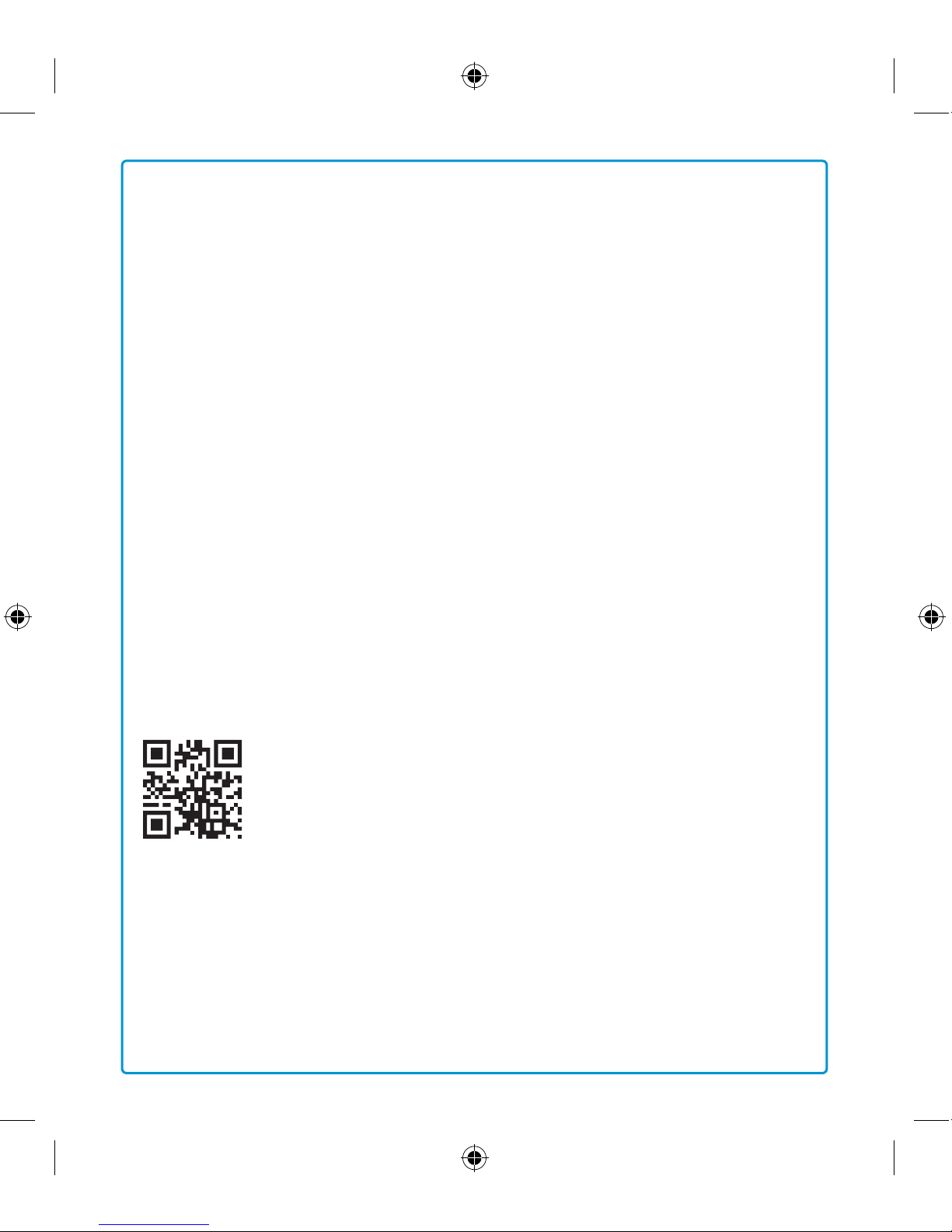
Scan the QR code to view our
helpful How-to Videos
Scan this with your
smart phone to see
helpful videos.
If you experience issues, please do not take the TV back to the store.
In the United States of America, call us at 1-800-SAMSUNG (1-800-726-7864) or
visit us at www.samsung.com or www.samsung.com/spsn for support and warranty
service.
Tech Support and Chat
•
www.samsung.com/support
Remote Support
•
Samsung Remote Support service
offers you one-on-one support with
a Samsung Technician who can
remotely diagnose your TV.
For Remote Support:
1 Call the Samsung Contact Center
at 1-800-SAMSUNG and ask for
remote support.
2 Open the menu on your TV and go
to the Support section.
3 Select Remote Management, and
then read and agree to the service
agreements. When the PIN screen
appears, provide the PIN number to
the agent.
4 The agent accesses your TV.
[UH6203-QSG]BN68-06331A-00ENG.indb 9 2014-05-09 1:01:28
Page 10
BN68-06331A-00
Samsung
Smart TV
Setup Guide
[UH6203-QSG]BN68-06331A-00ENG.indb 10 2014-05-09 1:01:28
 Loading...