

Page 1
Page 2

OVERVIEW
This guide provides you with everything you need to get
started. If you need additional information on features and
services, please select one of these helpful options:
n
Refer to your User Guide
n
Visit www.t-mobile.com
Page 3

3
TABLE OF CONTENTS
Introducing Your Phone .................................................. 4
Service Activation ............................................................ 6
SIM Card and Battery ....................................................... 7
Power .............................................................................. 9
Call Functions ................................................................. 9
Main Menu Setup .......................................................... 10
Mobile Backup ............................................................... 11
Contacts ......................................................................... 12
myFaves
®
Setup ............................................................ 13
Bluetooth
®
Setup ............................................................ 19
Emergency Dialing ......................................................... 21
Caring for Your Phone .................................................... 22
Tips for Safety ................................................................ 23
Having Fun
Turn to the Having Fun section of this booklet to learn
what else your new phone can do.
Page 4
4
5
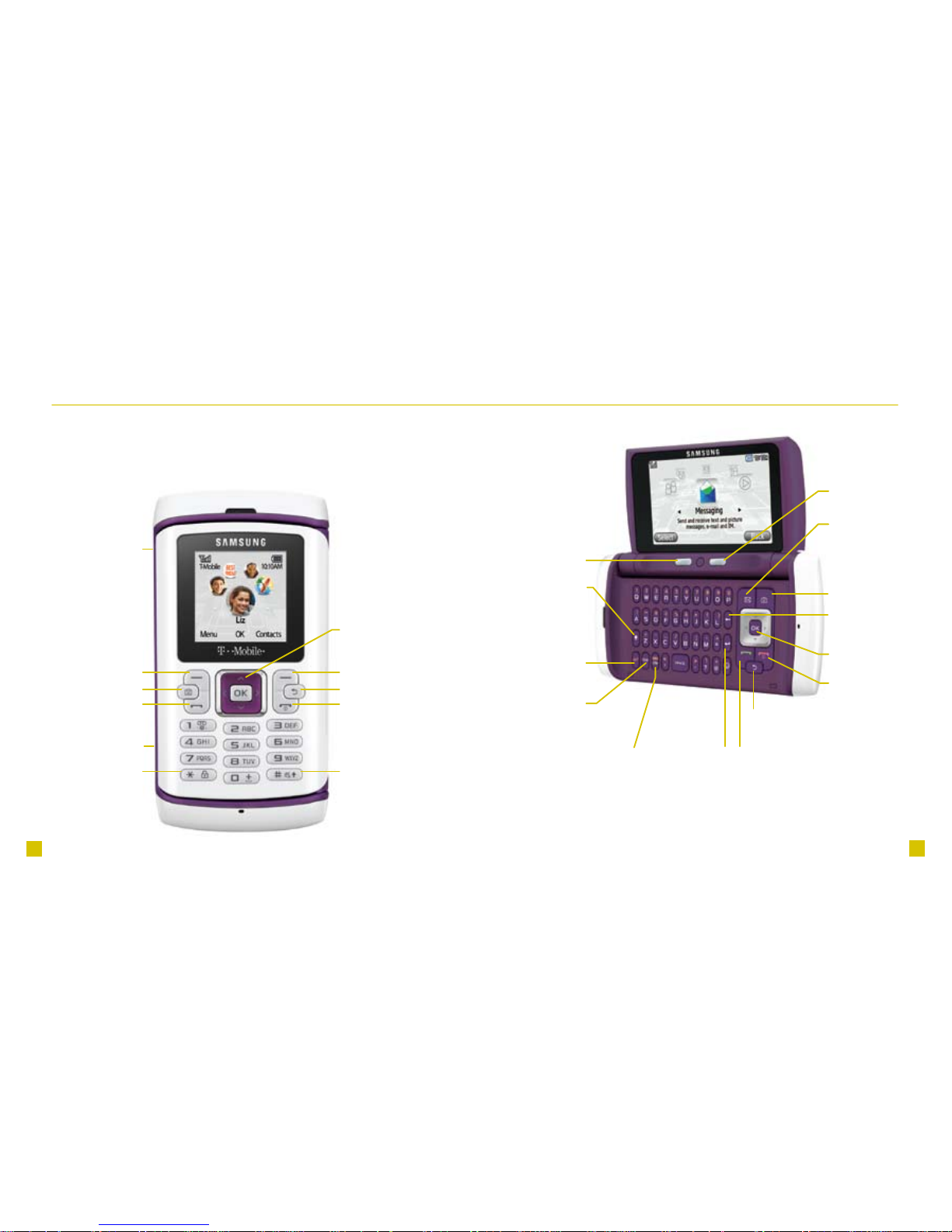
INTRODUCING YOUR PHONE
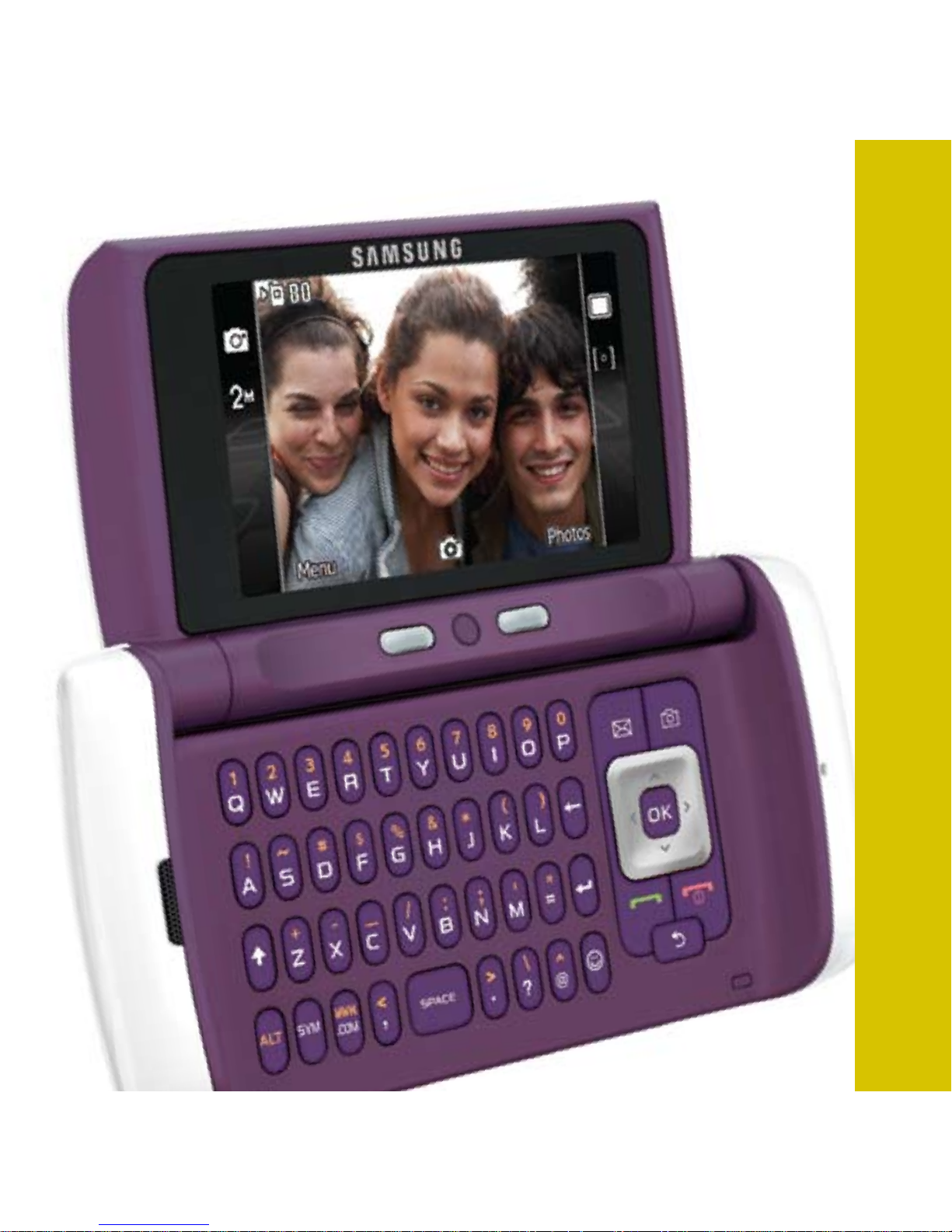
Samsung Comeback
TM
Left Soft key
Send key
Press to make
and answer calls.
* key
Press and hold to
lock the keypad.
Camera key
Volume keys
Charger / headset port
Navigation
and OK key
Right Soft key
End key
Press to power
on/off, hang up,
exit menus.
# key
Press and hold to
turn silent mode
on/off.
Clear / Back key
Shift / Symbol
key - Press to
type capital letters.
Press ALT + this
key to access the
symbol list.
Left Soft key
Send key
Press to make
and answer calls.
Camera key
Navigation
and OK key
Right Soft key
End key
Press to power
on/off, hang up,
exit menus.
Customizable
Messaging key
Press to set as
the shortcut for a
messaging tool.
Clear / Back
key
ALT key
Press to type
alternate characters.
Symbol key
Press to open the
symbol menu.
WWW. / .COM key
Press to insert WWW
or .com when entering
a browser URL or when
logging in to Instant
Messenger.
Return key
Press to go to the
next line in text
entry screen.
Delete key
Press to delete
characters.
Page 5
6
7
SIM CARD AND BATTERY
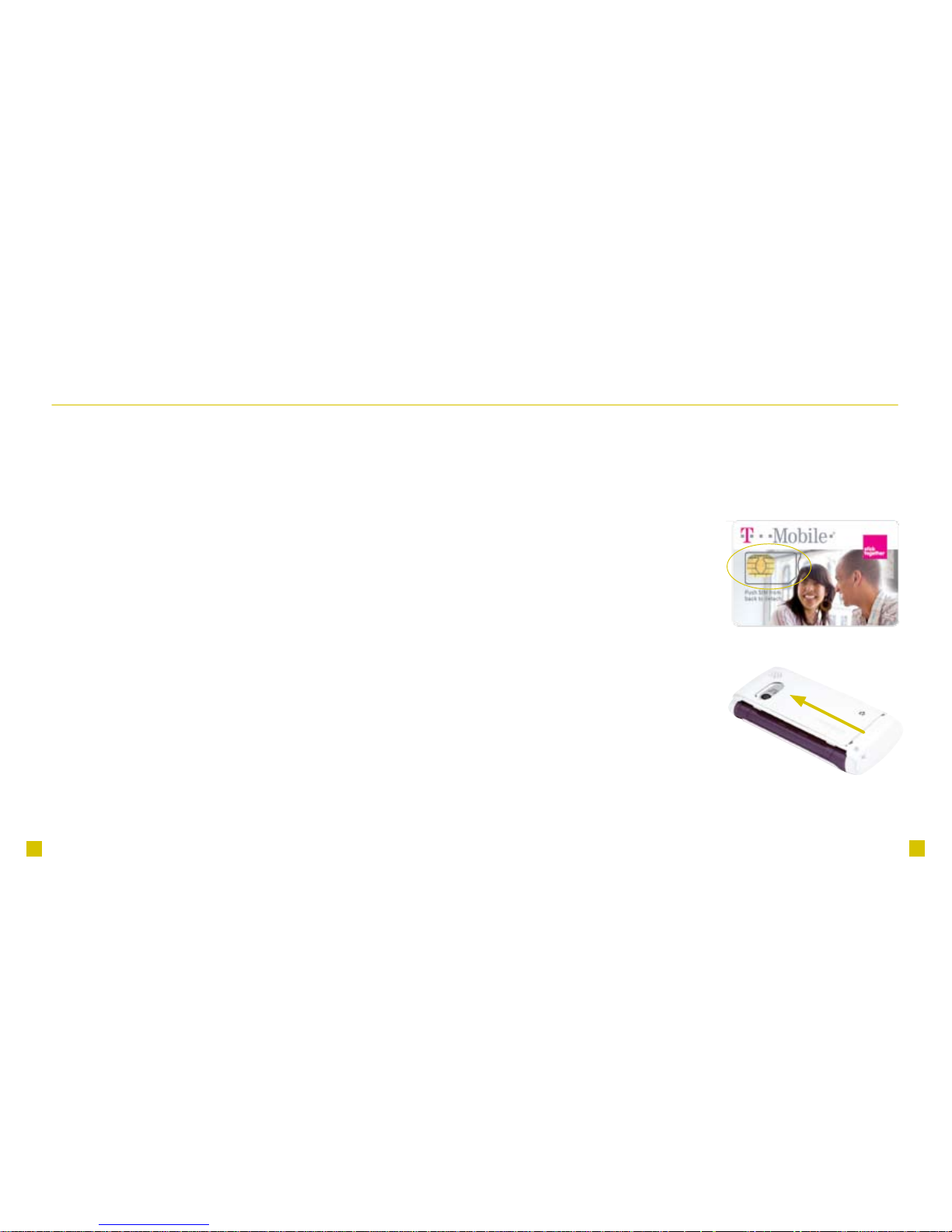
Your Subscriber Identity Module (SIM) card identies you to
the wireless network. Your phone will not work without the SIM
card. To insert the SIM and battery:
1. Detach your SIM card.
2. Remove the battery cover
by pressing down on the
center of the back cover
and lifting the cover away.
Lift and remove the battery.
SERVICE ACTIVATION
If you are a new T-Mobile customer and your service
has not been activated, simply call Customer Care at
1-800-937-8997 from your landline phone and a T-Mobile
Activations representative will assist you.
You will need the following information when activating service:
n
Service Agreement and agent
code on your Agreement
n
Your name, home address, home
phone, and billing address
NOTE: For business and government accounts, please provide the name
of your company or government agency, address, and tax ID.
n
Your Social Security number, current driver’s license
number, and date of birth for credit check purposes
n
Your choice of T-Mobile rate plan and services
(see www.t-mobile.com for latest plan information)
n
SIM serial number and IMEI number
(located on the box bar code label)
By activating service, you acknowledge that you have read, understand,
and agree to be bound by each of T-Mobile’s Terms and Conditions and
your Service Agreement.
Page 6
8
9
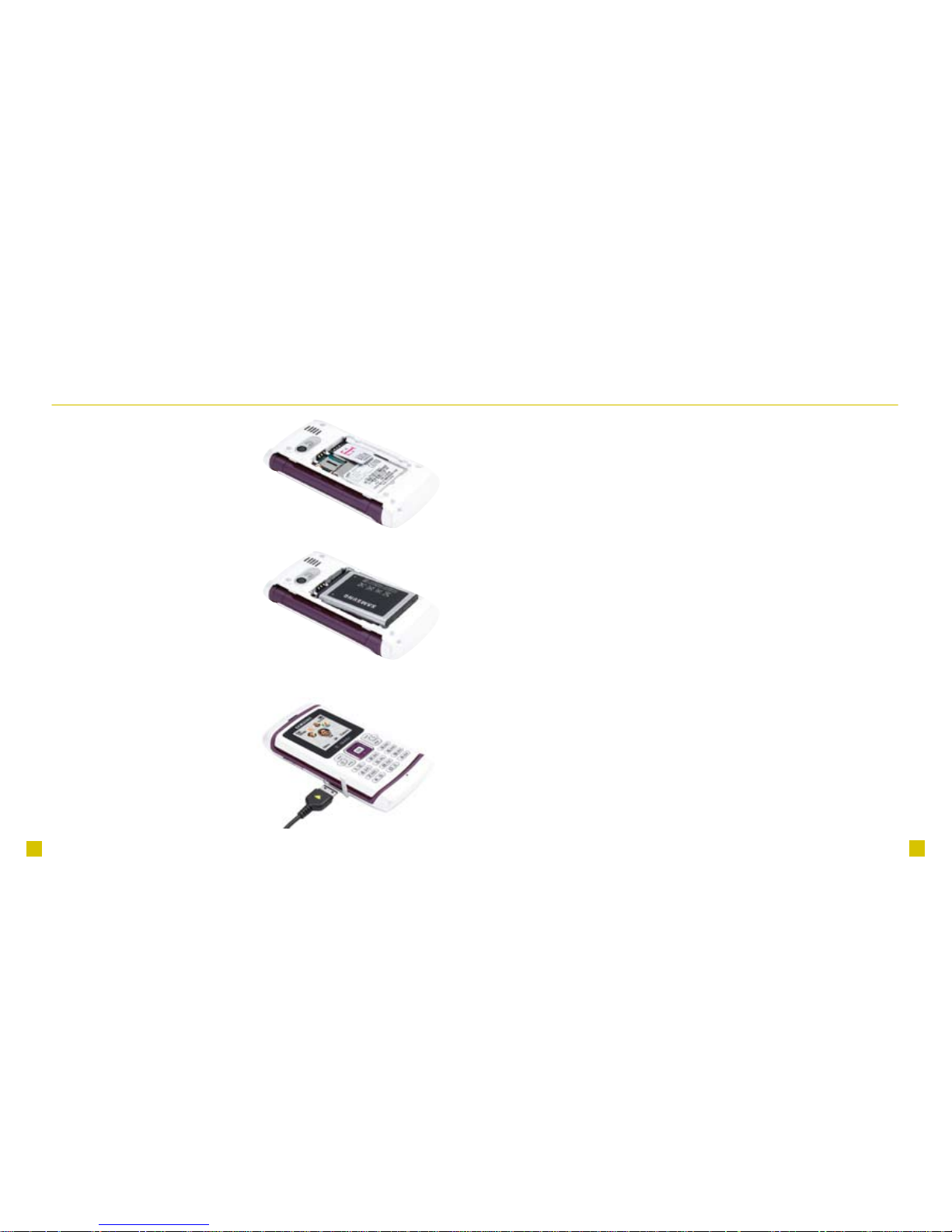
3. Slide the SIM card into
the slot with the notched
corner facing out of the
slot and the golden
contacts facing down.
4. Align the golden contacts
on the battery with the
contacts in the battery
compartment. Snap the
battery into place and
replace the battery cover.
5. Plug the charger into
the phone and into an
electrical outlet. When
charging is complete,
disconnect the charger
from the phone.
POWER
To turn on the phone, press and hold the red End key.
CALL FUNCTIONS
To make a call, dial the number and press the green Send
key.
To answer a call, select Accept or press the green Send key.
To end a call, press the red End key.
Set up and call voicemail
To set up voicemail, press and hold the 1 key and follow the
tutorial.
To reset the password to the last four digits of your phone
number, type #PWD# or #793# and press the green Send
key.
To call voicemail, press and hold the 1 key.
Page 7
10
11
MOBILE BACKUP
Mobile Backup is a free service that lets you store contact
information on your phone and on www.my.t-mobile.com.
You can manage contacts on your phone or on the Web and
the changes are synchronized. With Mobile Backup, you don’t
have to worry about losing your contact information if you lose
your phone.
Your phone contacts are backed up by T-Mobile the rst
time you turn on your phone and each time you make a
change to your contacts. Your contacts are available to view
and manage on www.my.t-mobile.com. You may opt out
of this service. However, if you choose certain services (like
myFaves), your address book may be backed up in order
to deliver these specic services. See the FAQ section on
www.my.t-mobile.com for more details.
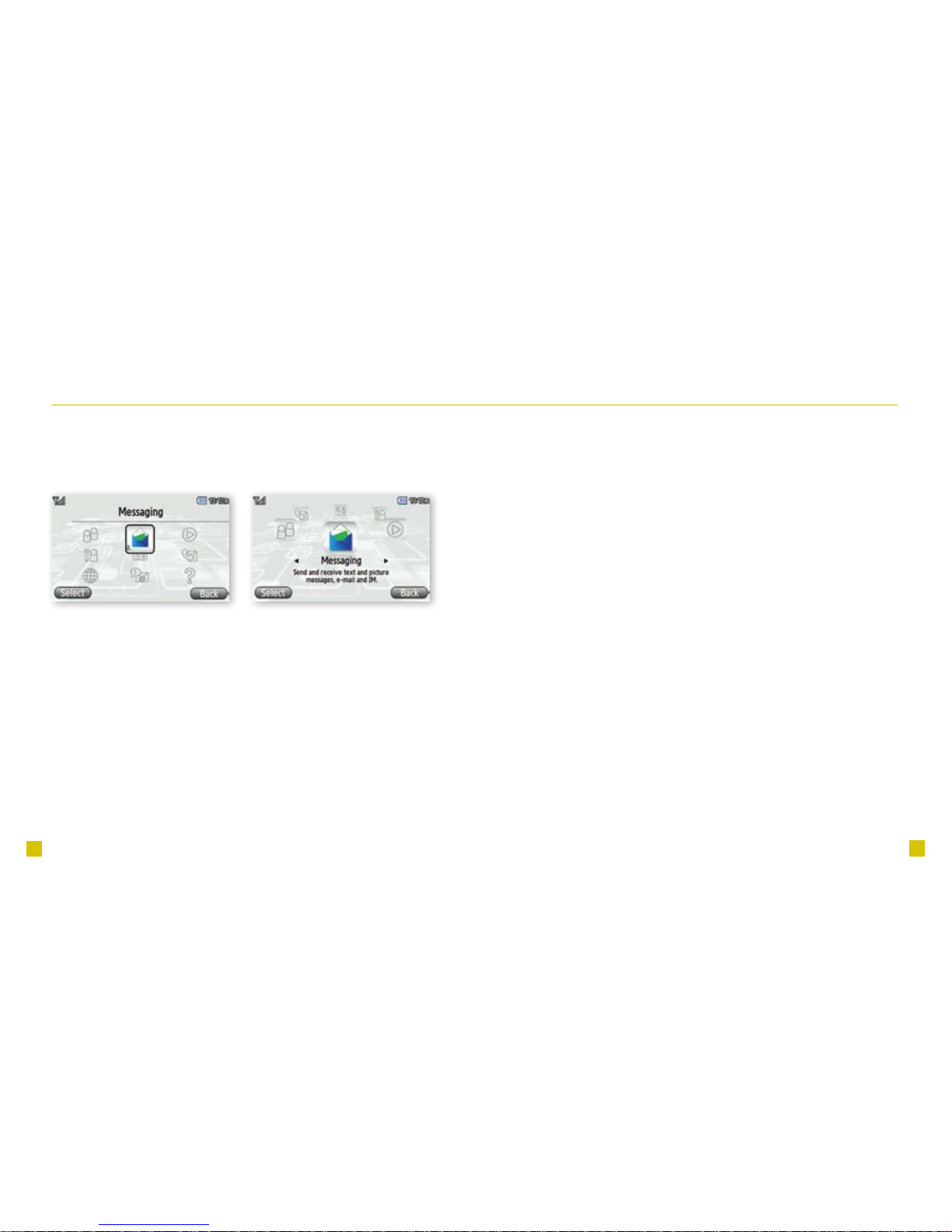
MAIN MENU SETUP
You can set up your menu to display in circular view or in grid
view.
1. From the main screen, select Menu.
2. Scroll to and select Settings.
3. Scroll to and select Menu design.
4. Select Circle menu or Grid menu.
5. Select OK.
Grid view Circular view
Page 8
12
13
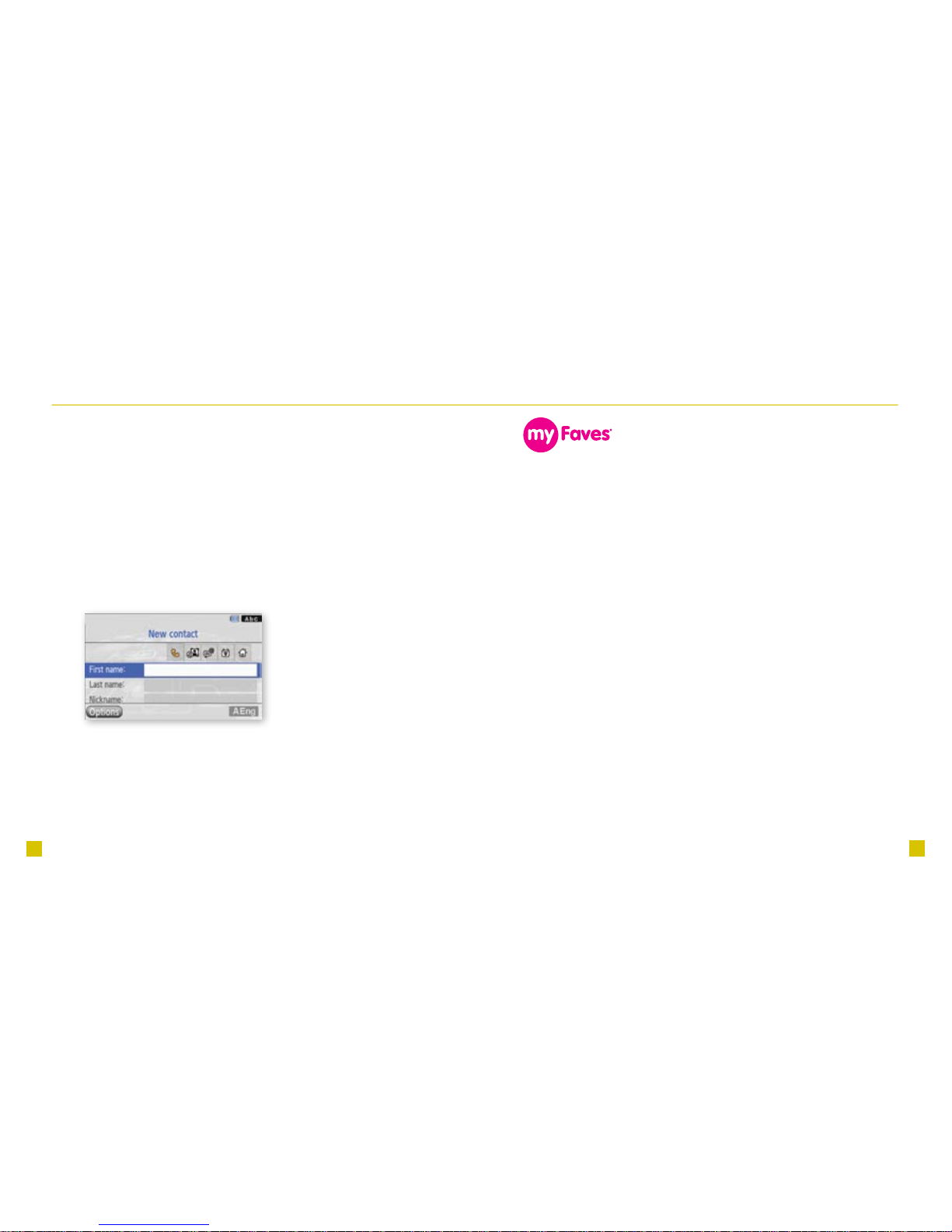
CONTACTS
Add contacts using your phone
1. From the main screen, enter the contact’s phone
number.
2. Select Options.
3. Scroll to and select Save in Phonebook.
4. Select New.
5. Select Mobile, Home, Work, or Others.
6. Enter the contact’s information.
7. Select Save.
Call contacts
1. Press the Navigation key down to access the phone
book.
2. Scroll to the contact and press the green Send key.
SETUP
myFaves is an optional calling plan. Benets of signing up to
myFaves:
n
Unlimited nationwide calling to any ve U.S.
numbers, on any network (even landlines)*
n
One-touch calling, text messaging,
e-mail, and photo sharing**
n
No domestic roaming or domestic
long-distance charges
n
Personalize contacts with favorite pictures and
downloadable icons**
* myFaves only applies to calls directly between two people and allows un-
limited nationwide calling to ve U.S. numbers. You can change myFaves
numbers once/month.
** Separate purchase/download charges may apply. Separate charges apply
to send/receive domestic/international text/picture messages and e-mail.
Page 9
14
15
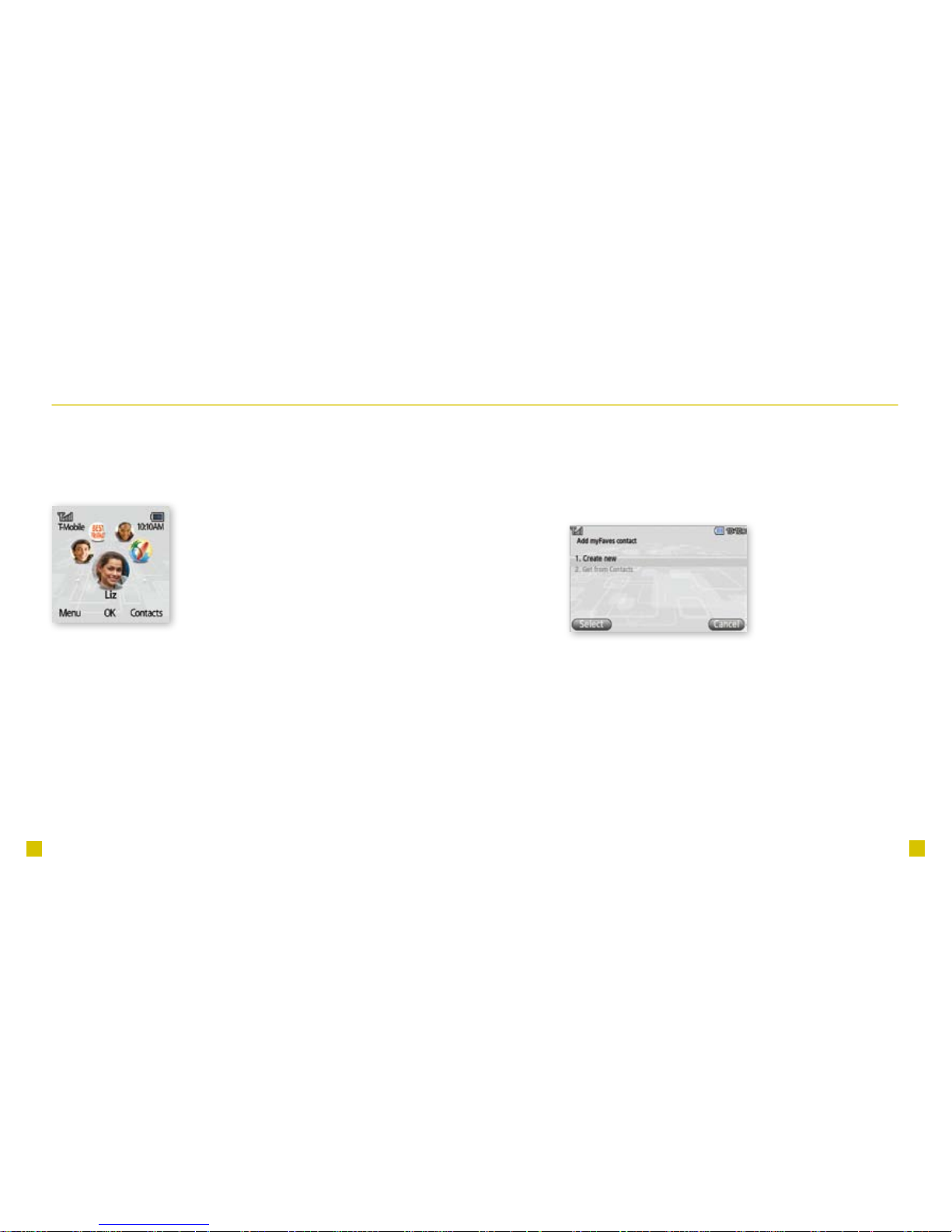
2. Select one of the following:
n
Create new:
Enter the contact’s name. Scroll down and enter the
contact’s phone number.
n
Get from Contacts:
Scroll to and select the contact.
3. Scroll to and select Icon.
4. Select one of the following:
n
MyFaves icons: Scroll to and select the icon.
n
Photos: Locate and select the picture.
n
Take picture: Frame the subject and
press the OK key. Select Set.
n
Downloads: Scroll to and select an image that
you previously downloaded.
5. Select Save.
Subscribe to myFaves
®
To subscribe, go to www.t-mobile.com. When you have
subscribed to myFaves, you will see ve circles on the main
screen a few minutes after you power on your phone.
Add myFaves contacts
1. With the ip closed:
From the main screen, scroll to and select an
unassigned circle.
With the ip open:
From the main screen, select the myFaves icon and then
scroll to and select an unassigned circle.
Page 10

16
17
For more information on how to assign icons and
ringtones, see instructions in the Add myFaves contacts
section of this guide.
Replace a myFaves contact
1. Select the myFaves contact you wish to replace.
2. Select Options.
3. Scroll to and select Replace contact. The phone book
opens.
4. Scroll to and select the contact in the phone book.
5. Select Save.
6. Select Yes.
Move a myFaves contact to another circle
1. Select the myFaves contact.
2. Select Options.
3. Scroll to and select Change order.
4. Scroll to the desired location.
5. Select Done.
6. Select OK.
Call myFaves contact
With the ip closed:
1. From the main screen, scroll to the contact.
2. Press the green Send key to call.
With the ip open:
1. From the main screen, select the myFaves icon.
2. Scroll to the contact.
3. Press the green Send key.
Edit a myFaves contact
Names and icons: You can change names and icons at any
time.
Phone numbers: You can only change a contact’s phone
number once per calendar month. If a number change is not
allowed, you will receive an error message explaining why.
1. Select the myFaves contact.
2. Select Options.
3. Select Edit prole.
4. Edit the contact’s name and number.
5. To see more edit options, scroll to the right to view the
tabs. For example, to edit icons and ringtones, scroll to
the right to see edit options.
Page 11

18
19
BLUETOOTH® SETUP
Your phone comes with Bluetooth technology, which is a
wireless technology that enables a data connection between
your phone and a Bluetooth wireless headset. Headset is sold
separately.
Prepare a Bluetooth wireless headset
To pair your phone with a Bluetooth headset, make sure that
your headset is fully charged and that you put the headset into
pairing mode. See your Bluetooth headset’s manual for more
information.
Minimize myFaves circles on external display
1.
From the main screen, select Menu.
2. Scroll to and select Settings.
3. Select myFaves settings.
4. Select Display.
5. Scroll to and select Minimize.
6. Select OK.
7. Press the red End key to exit.
When minimized, press the OK key to show myFaves
and press the red End key to hide myFaves.
Page 12
20
21
EMERGENCY DIALING
While all phones are equipped with 911 emergency
calling, this phone may or may not permit its location to be
approximated during a 911 call.*
* Availability of this feature depends on upgrades to the (a) wireless network and
(b) 911 calling system that are required to be installed by the local 911 response
agency or public safety answering point (PSAP); these upgrades may not be
available everywhere within our wireless coverage area or your roaming area. This
approximation of the phone’s location and the transmittal of location information are
subject to emergency situations, transmission limits, network problems/limitations,
interconnecting carrier problems, your phone, buildings/tunnels, signal strength and
atmospheric/topographical conditions, and may be curtailed, interrupted, dropped or
refused. The phone’s approximate location is transmitted to the local 911 response
agency or PSAP while the call is in progress; this approximation is intended solely
to aid the PSAP in dispatching emergency assistance or to limit the search area for
emergency services personnel. You should not rely solely on a phone for essential
communications (such as a medical or other emergency). Please see T-Mobile’s
Terms and Conditions and Privacy Policy for additional service restrictions and
details.
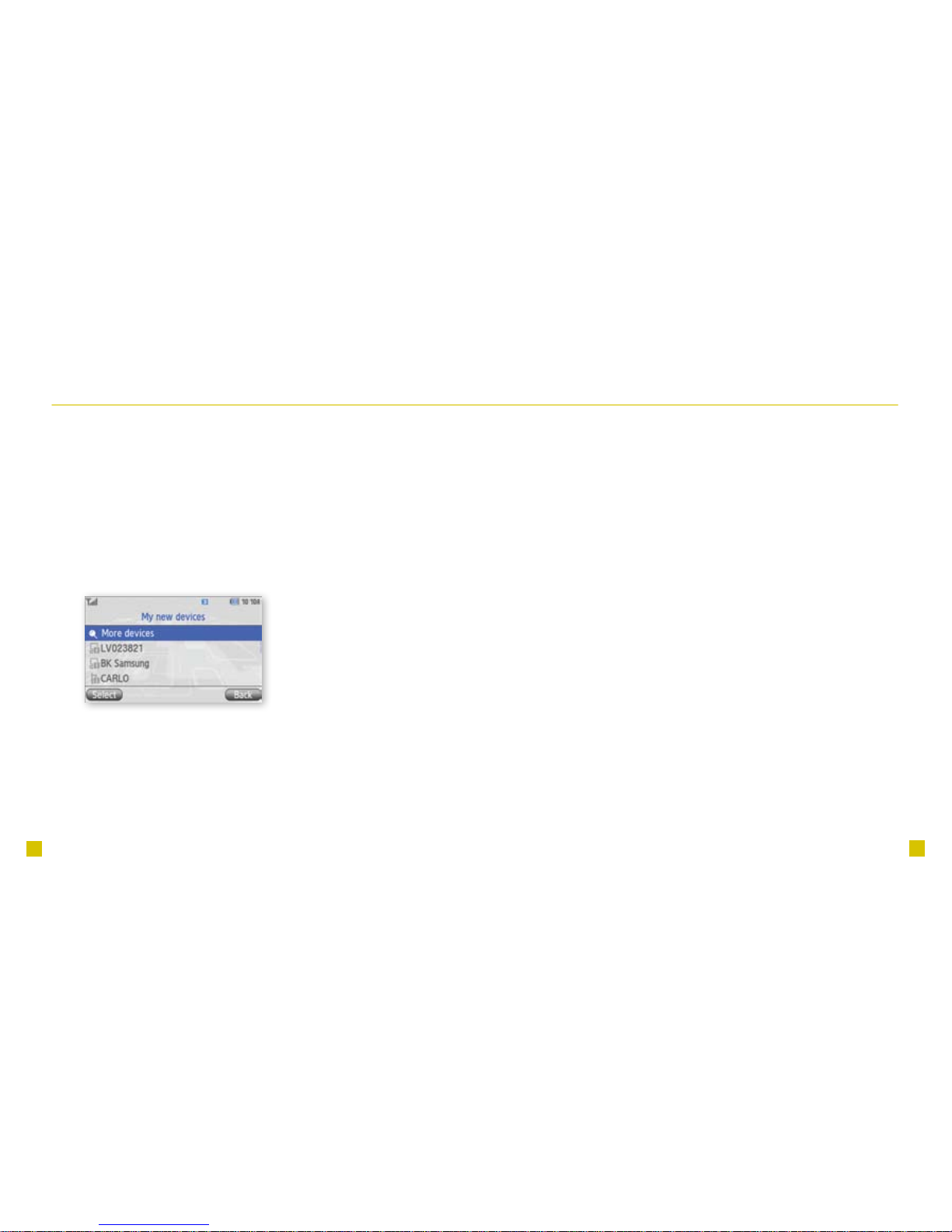
Turn on the Bluetooth feature and pair with a headset
1.
From the main screen, select Menu.
2. Scroll to and select Settings.
3. Scroll to and select Bluetooth.
4.
Select Turn Bluetooth On. Your phone turns on Bluetooth
and searches for your Bluetooth headset.
5. Select the headset.
6. Enter the PIN if required.
7. Select OK.
Page 13

22
23
CARING FOR YOUR PHONE
MAKING IT LAST
Your phone is a complex electronic device; think of it as a
mini- computer. Here are some hints that should help you
extend the life of your new phone.
Phones aren’t cheap, so keep yours in a safe place —
away from children who may nd it fun to see if the phone
sinks or oats, and away from dogs that nd plastic-coated
products to be irresistible chew toys.
Water will damage your phone and accessories — even
a small amount such as water droplets from a soda in your
car cup-holder, melting snowakes, tears of joy, squirt-gun
crossre or steam from hot water in the kitchen or bathroom.
Use only batteries and accessories from the original
manufacturer of your phone. Non-approved accessories can
cause damage to you or your phone and shorten the phone’s
life. Hint: If it’s being sold out of someone’s car trunk, walk
away.
If your charger or any other accessory is damaged,
replace it or take it to a qualied service dealer. Do not attempt to operate your phone charger if it has received a sharp
blow, been dropped, thrown from a speeding motorcycle or is
otherwise damaged; doing so may damage your phone.
TIPS FOR SAFETY
Check with your doctor if you have a pacemaker or hearing
aid in order to ensure that cell phone usage is safe with your
device. If you have questions about the interaction of cellular
radio frequency and any other electronic equipment, ask the
manufacturer of the equipment if cell phone radio frequencies
will disrupt the equipment’s performance.
When you are driving, T-Mobile encourages you to use
your phone in a safe and sensible manner. Here are
a few tips:
n
Assess road conditions before answering.
Your safety is more important than any call.
n
Prepare your hands-free headset, if you have one,
or turn on your speakerphone option before you
start moving.
n
Keep your phone closed. If it rings and you discover
it’s in the back seat, do NOT crawl over the seat
to answer it while driving.
n
Program frequently used numbers into your
speed dial for easy one-touch dialing.
n
Remember that laws prohibiting or restricting the use
of a mobile phone while driving may apply in your
area.
Page 14

Page 15
having fun
Page 16
II
11
Table of Contents
Text Messaging ................................................................ 2
Picture Messaging ........................................................... 4
E-mail .............................................................................. 6
Instant Messaging ........................................................... 8
myFaves
®
..................................................................... 10
Call myFaves
......................................................... 10
Send Text Messages ............................................. 10
Send Multimedia Messages ................................. 13
Send Instant Messages ........................................ 14
Send Audio Postcards .......................................... 15
Send E-mail Messages ......................................... 16
Wave Hello ............................................................ 17
Web Browsing .............................................................. 18
Accessories for Your Phone .......................................... 20
Additional Information ................................................... 21
Page 17
2
3
Text Messaging
Your phone supports four text modes:
n
ABC mode: You can access ABC
mode when the ip is closed.
This mode allows you to type
letters by pressing the keys until
the correct letter displays. For
example, to type RUN, you press
the 7 key three times, the 8 key
twice, and the 6 key twice.
n
T9
®
mode: This mode allows you
to type words with only one press
per letter. The phone predicts the
word you want. For example, to
type RUN, you press 7, 8, 6.
n
Number mode: This mode
allows you to type numbers.
n
Symbol mode: This mode allows
you to type symbols, such as
punctuation marks.
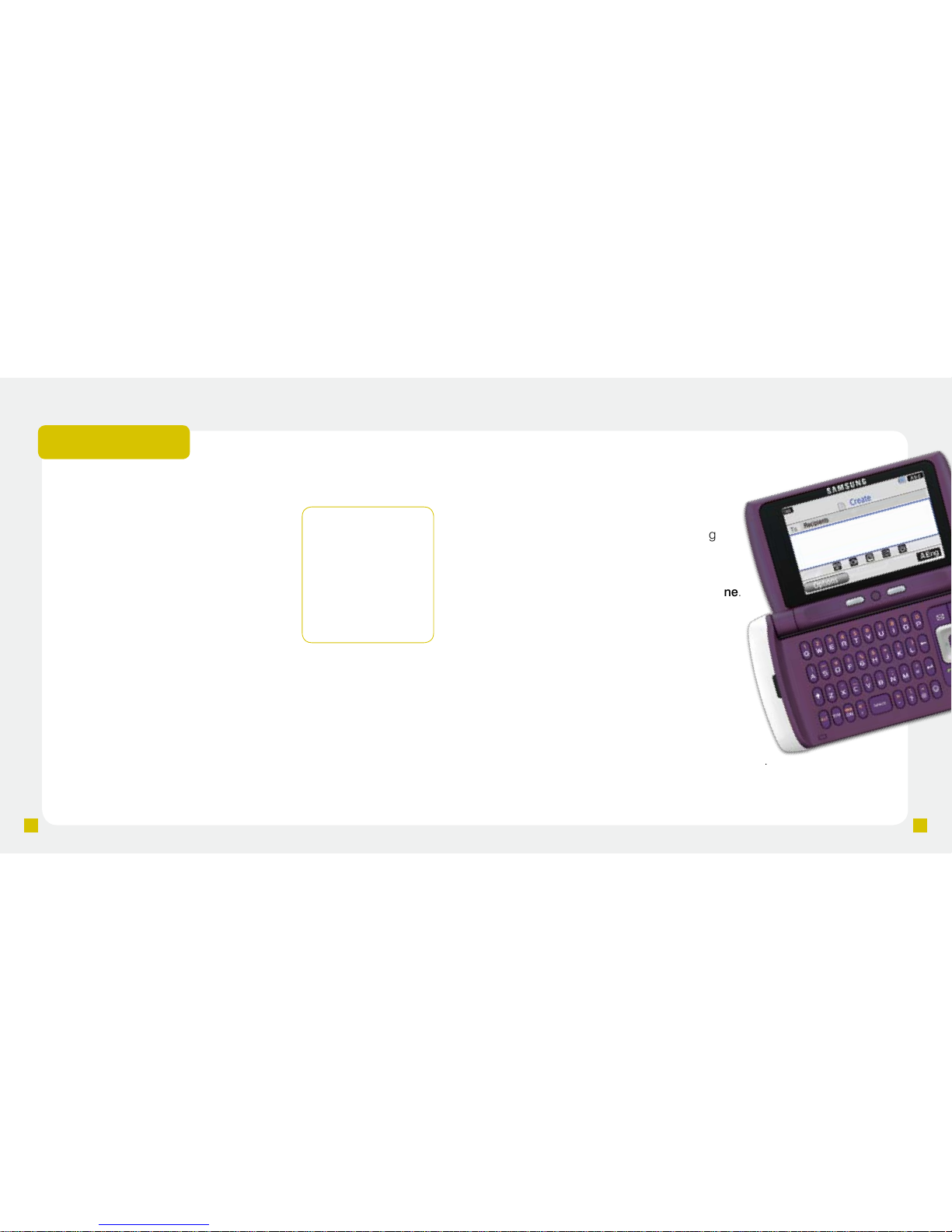
Send text messages
1. From the main screen, select Menu.
2. Scroll to and select Messaging.
3. Select Create message.
4. Scroll down and enter your
message.
5. Press the OK key after entering
your message.
6. Select Recent recipients,
Contacts, or Groups.
7. Select the contact and select Done.
8. Press the OK key to send.
Read text messages
Your phone noties you when you have a
new text message. To read, touch View.
To read by going to the Menu:
1. From the main screen, select Menu.
2. Scroll to and select Messaging.
3. Scroll to and select Inbox.
4. Scroll to and select the message to view.
TIP: To change
mode while in the
text entry screen,
press the Right
Soft key and
select ABC, T9
(English), Symbol,
or Numeric.
Separate charges may apply to send/receive domestic/international text messages.
Page 18
4
5
Picture Messaging
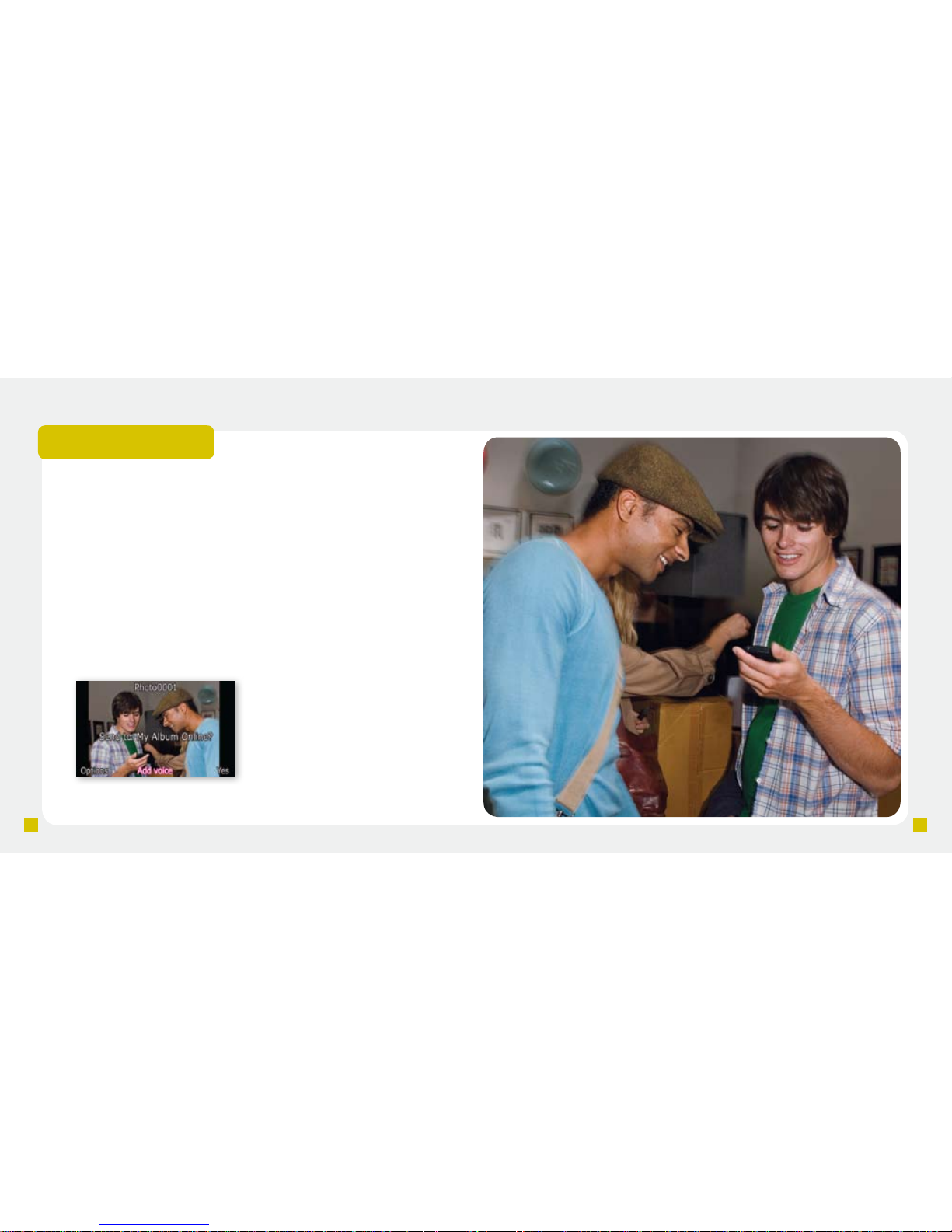
Send picture messages
1. Open the ip.
2. Press the Camera key to open the camera.
3. Frame the subject.
4. Press the OK key to take the picture.
5. Select one of the following:
n
Yes to send your picture to your online Album.
n
Options > Send via > Message to send to another
destination. Scroll down and enter you message. Select
Options > Add recipients. Select Recent recipients,
Contacts, or Groups. Select the contact and select Done.
6. Select Send.
Separate charges may apply to send/receive/read domestic/international picture messages.
Page 19
6
7
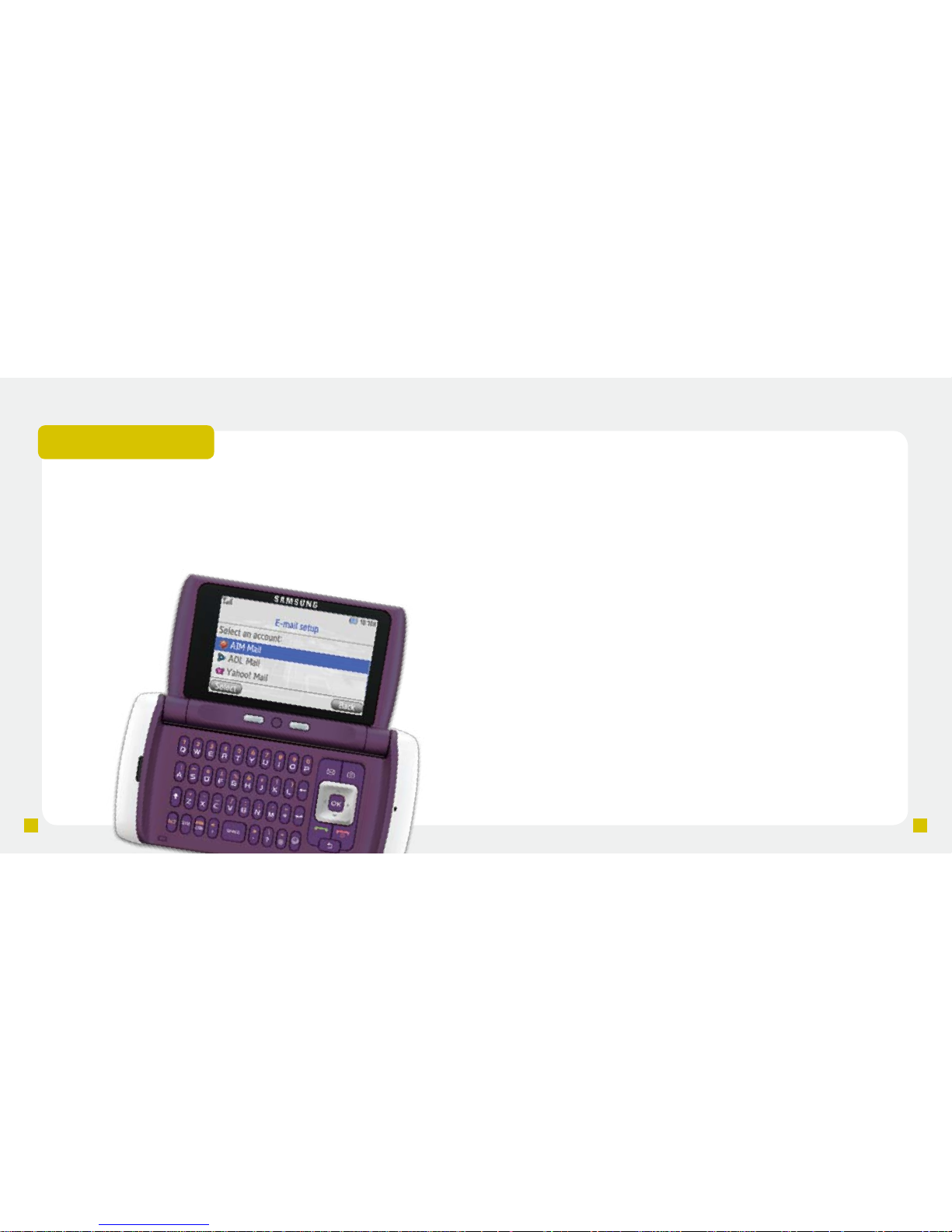
E-mail
Your phone comes with e-mail so you can stay connected while you
are on the go with Yahoo!
®
, AOL®, and other popular e-mail providers.
Setting up e-mail on your phone is easy—enter your e-mail address
and password and your phone automatically receives e-mails from
your e-mail account. You can read, send, reply, and even delete e-mails
so you can keep in touch whenever you want.
Sign in
1. From the main screen, select Menu.
2. Scroll to and select Messaging.
3. Scroll to and select Email.
4. At the Welcome screen, select Next.
5. Select AIM Mail, AOL Mail, Yahoo! Mail, or More to see
more providers.
6. If required, read the terms of use and select I Agree.
7. Enter your username and password.
8. Select Sign in.
Read e-mail messages
1. From the main screen, select Menu.
2. Scroll to and select Messaging.
3. Scroll to and select E-mail.
4. Select the e-mail account.
5. Sign in to your account.
6. Select OK.
7. Scroll to and select the message to read.
Separate charges may apply to send/receive/read domestic/international e-mails.
Page 20
8
9
James05
movie @ 7.15. don’t b late.
0207_lana
no worries. on my way.
James05
see you then!
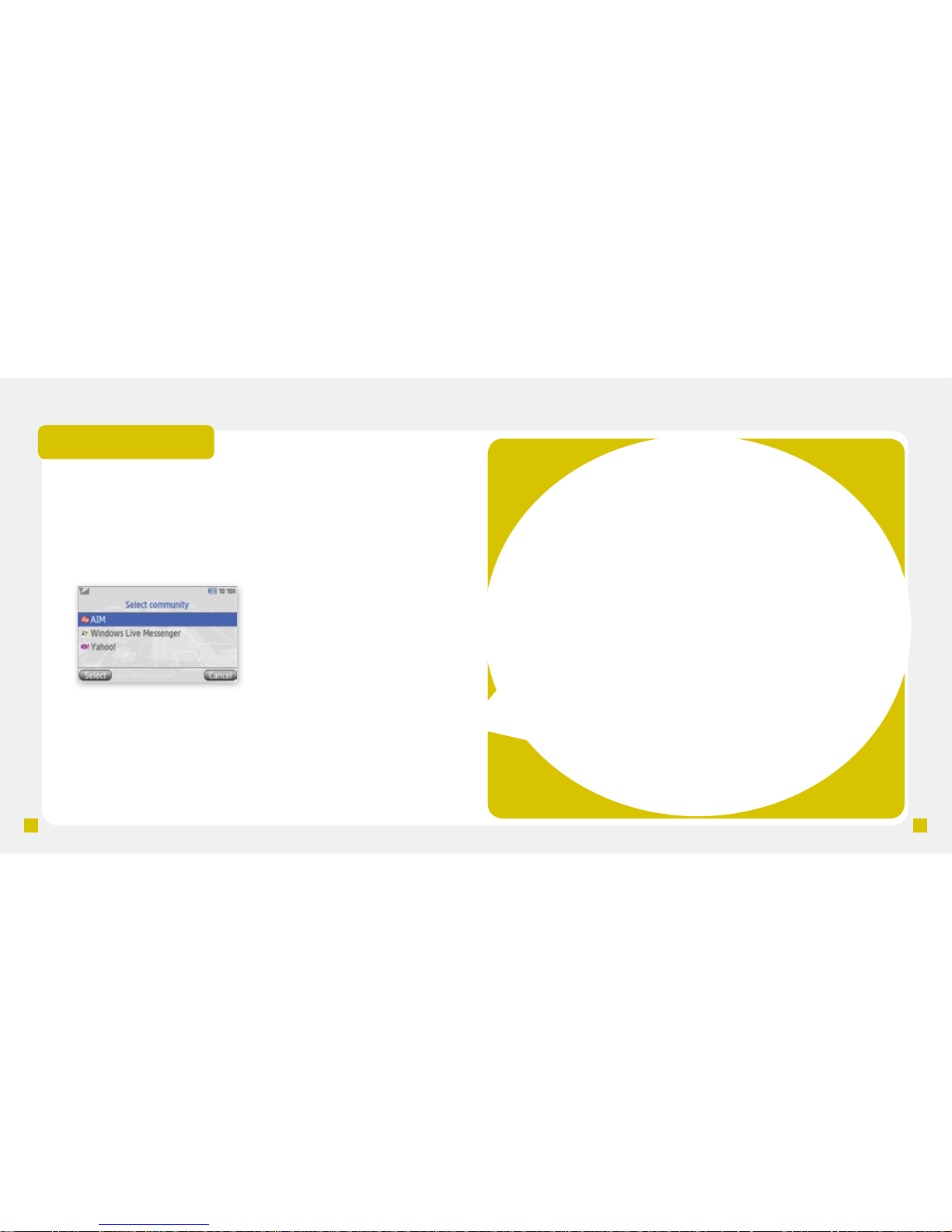
Instant Messaging
Access and send instant messages
1. From the main screen, select Menu.
2. Scroll to and select Messaging.
3. Scroll to and select IM.
4. Select AIM, Windows Live Messenger, or Yahoo!.
5. Sign in to your account.
Separate charges may apply to send/receive domestic/international instant messages.
Page 21
10
11
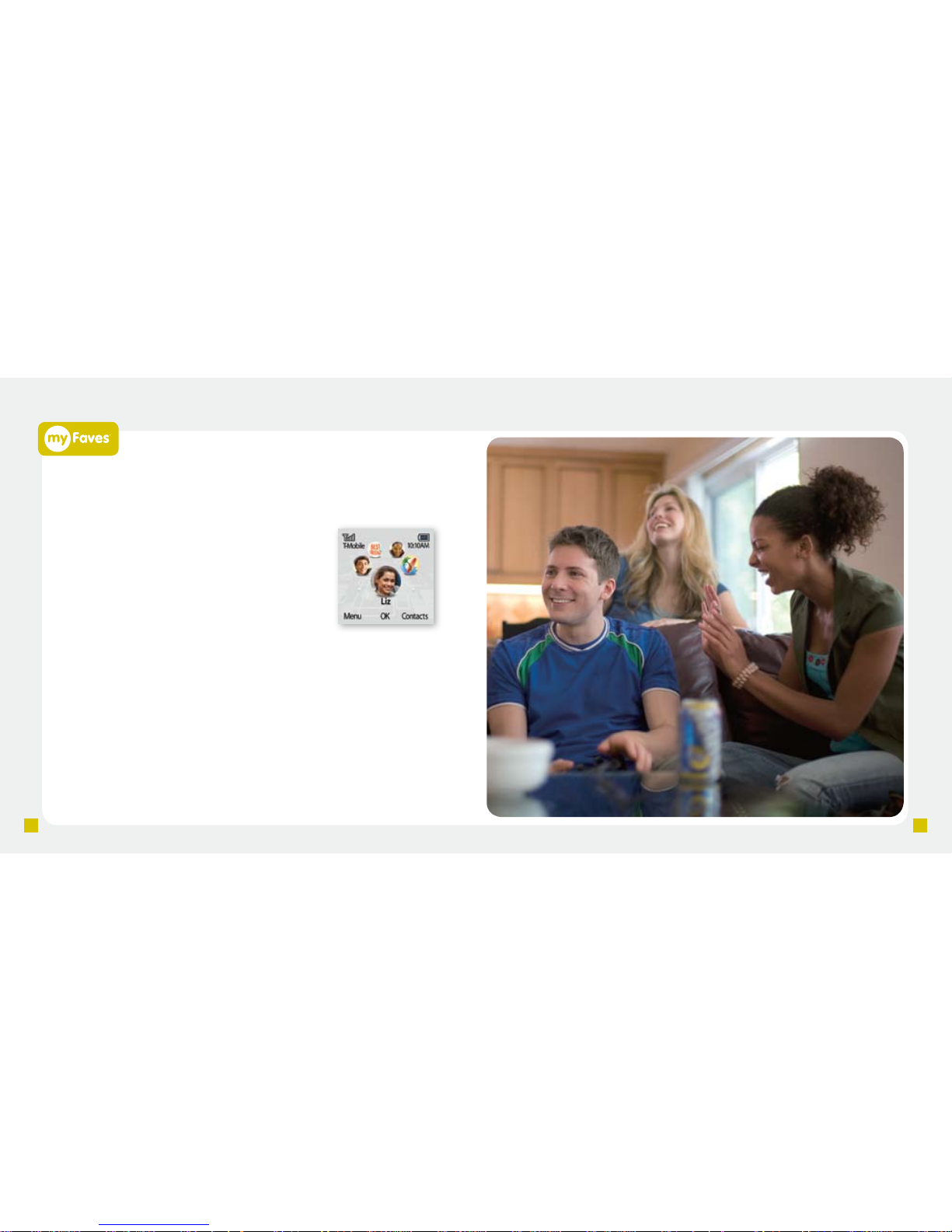
Call myFaves® contact
With the ip closed:
1. From the main screen, scroll to the contact.
2. Press the green Send key to call.
With the ip open:
1. From the main screen, select the
myFaves icon.
2. Scroll to the contact.
3. Press the green Send key.
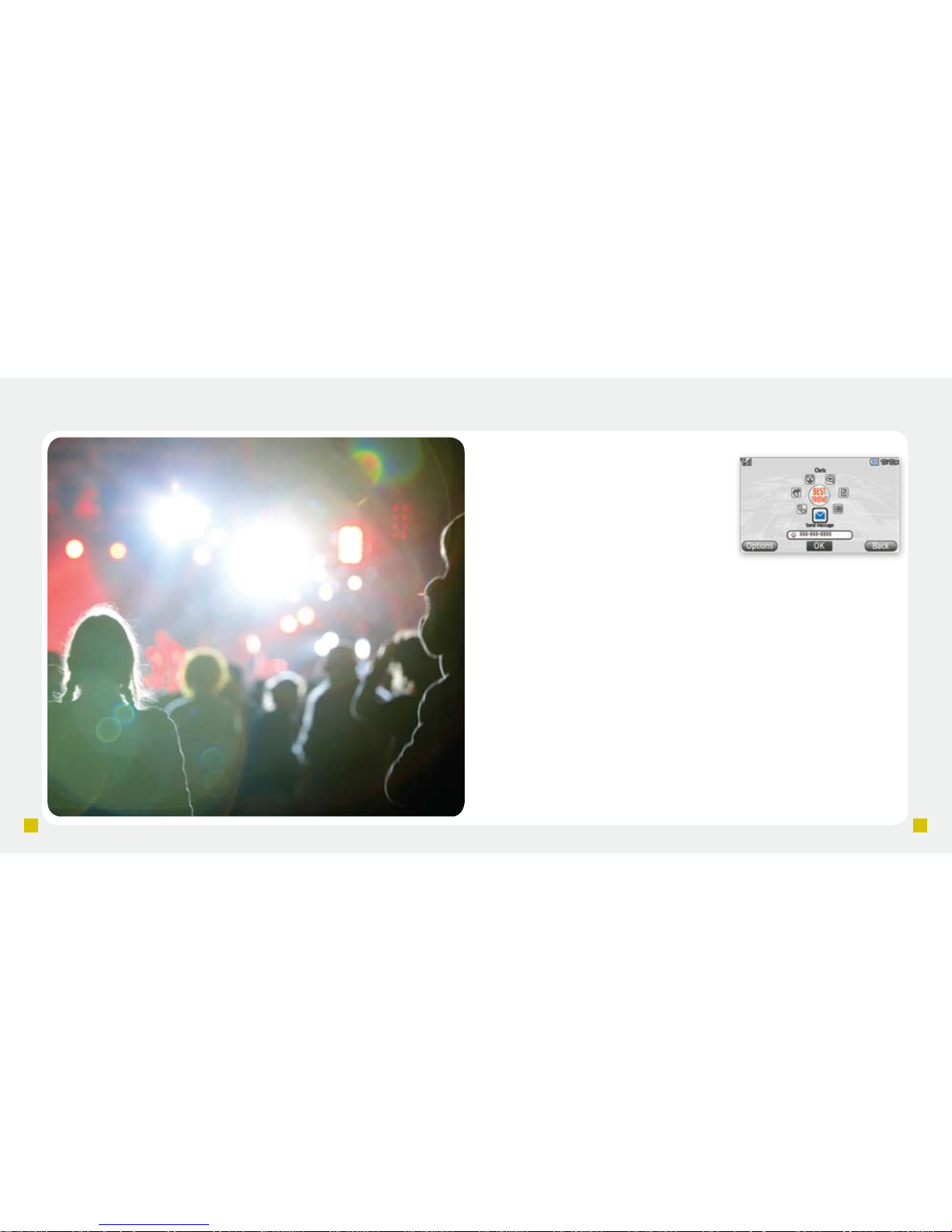
Send text messages
1. Select the myFaves contact.
2. Scroll to and select Send message.
3. Enter your message.
4. Select Send.
Separate charges may apply to send/receive domestic/international text messages.
Page 22
12
13
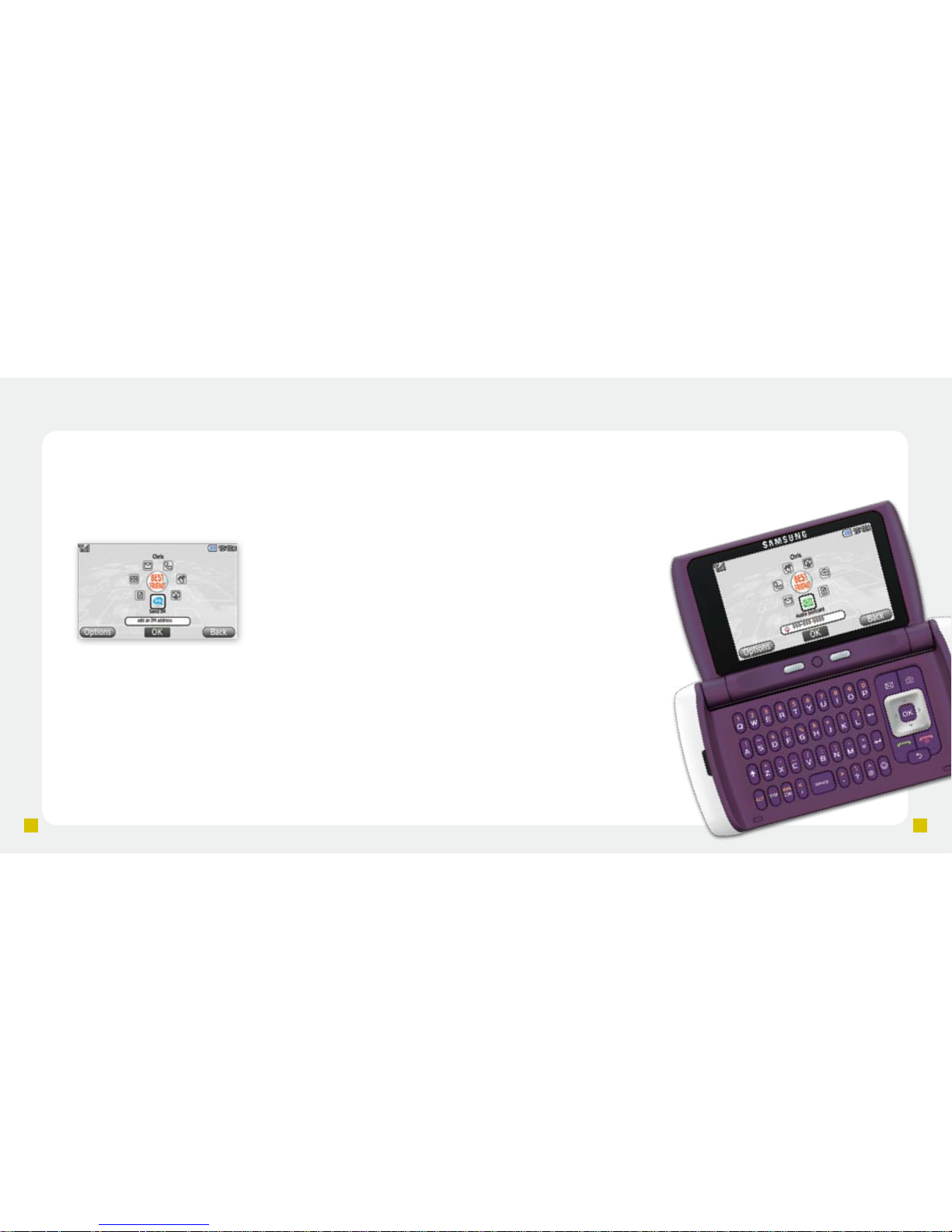
Send multimedia messages
1. Select the myFaves contact.
2. Scroll to and select
Send message.
3. Enter your message.
4. Scroll down and select one
of the following:
n
Record sound to record a
voice message.
n
Add sound to attach a previously recorded message.
n
Add picture to attach a previously taken picture.
n
Take picture to take a new picture to send.
n
Add video to record a new video or to select a previously
recorded video.
5. Select Send when done.
Separate charges may apply to send/receive domestic/international multimedia messages.
“DUDE, you’ve got to hear this band...”
Page 23
14
15
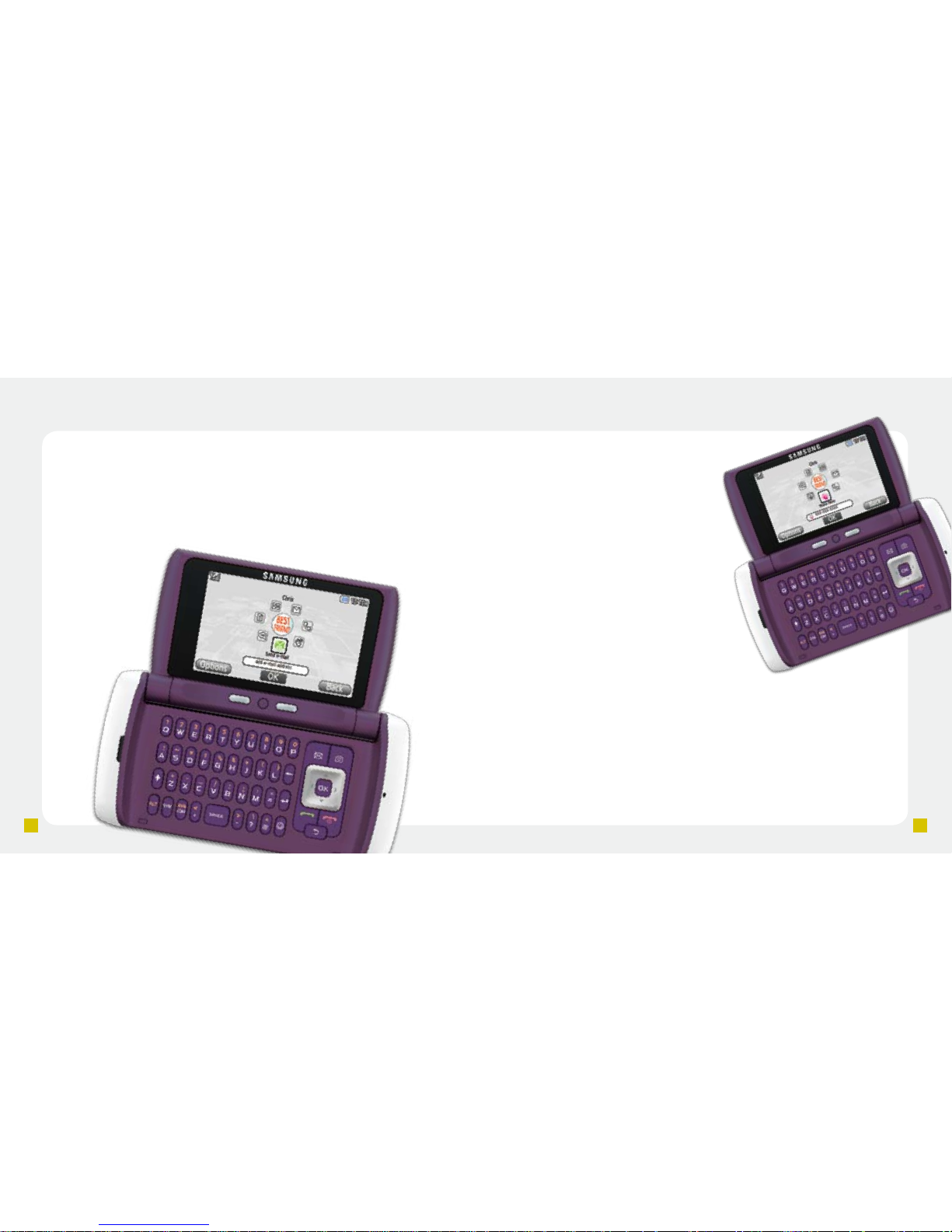
Send instant messages
1. Select the myFaves contact.
2. Scroll to and select Send IM.
3. Scroll to IM (AIM), IM (Windows Live Messenger), or IM
(Yahoo) and select Add.
4. Sign in to communicate with your myFaves contact.
Send audio postcards
1. Select the myFaves contact.
2. Scroll to and select Audio postcard.
3. Press the Navigation key left or right to scroll to the
desired picture frame.
4. Frame the subject.
5. Press the OK key to
take the picture.
6. Select Add Voice
if desired to record
a voice message.
7. Select Stop
when done.
8. Select Send.
Separate charges may apply to send/receive domestic/international instant messages and audio
postcards.
Page 24
16
17
Send e-mail messages
1. Select the myFaves contact.
2. Scroll to and select Send e-mail.
3. Select the e-mail provider.
4. Sign in to your account to communicate.
Separate charges may apply to send/receive domestic/international e-mail messages.
Wave hello to your contact
1. Select the myFaves contact.
2. Scroll to and select Wave
Hello.
Edit your wave
1. Select the myFaves contact.
2. Select Options.
3. Scroll to and select
Customize Wave.
4. Select Create custom
Wave, Change to a Kiss,
Change to a Hug, or
Change to Wave.
Page 25
18
19
Web Browsing
Experience the mobile Web like never before with T-Mobile’s new
web2go
SM
experience. New features include access to the browser
optimized for viewing on your phone, a customizable start page for
easy access to information, a powerful built-in Web search engine, and
account information viewable on your phone.
For more information about these
services, see the web2go section
of your services guide or visit
t-mobile.com/shop/addons.
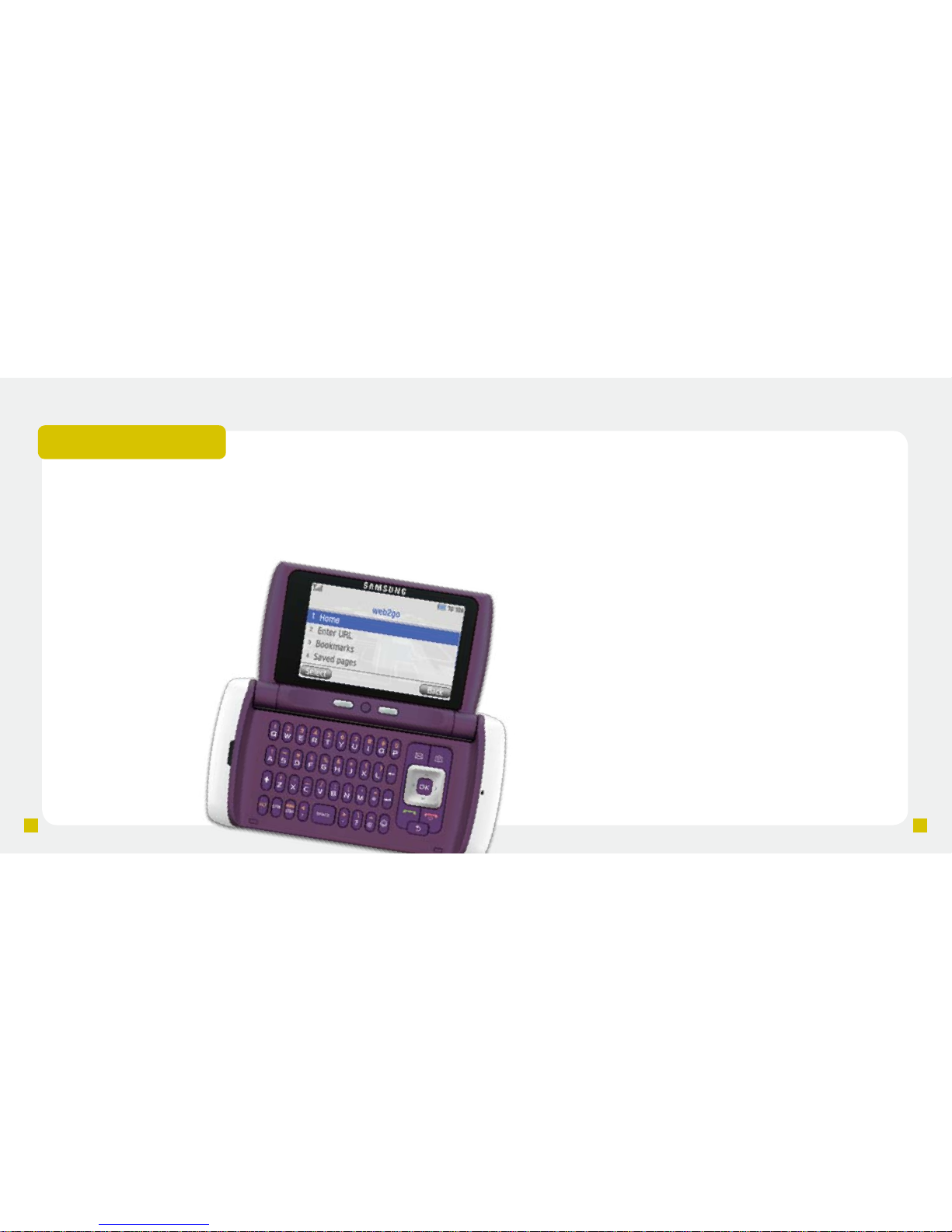
Access web2go
With the ip closed:
1. From the main screen,
select Menu.
2. Scroll to and select
Media.
3. Select web2go.
With the ip open, from
the main screen, select
web2Go.
Download content
You can download ringtones, wallpapers, games, applications,
myFaves icons, and CallerTunes from your phone. To download:
1. Access web2go.
2. Scroll to and select the Downloads tab.
3. Select the item(s) to download.
Access account information
You can view monthly usage, bill summary, and other information on
your phone. To view:
1. Access web2go.
2. Scroll to and select the My Account tab.
Full access to the new t-zones® web2go experience requires the purchase of a compatible Web
access data plan; separate additional charges may apply for downloads. Not all sites optimized
for Web browsers. Actual content available for download may vary.
Page 26
20
21
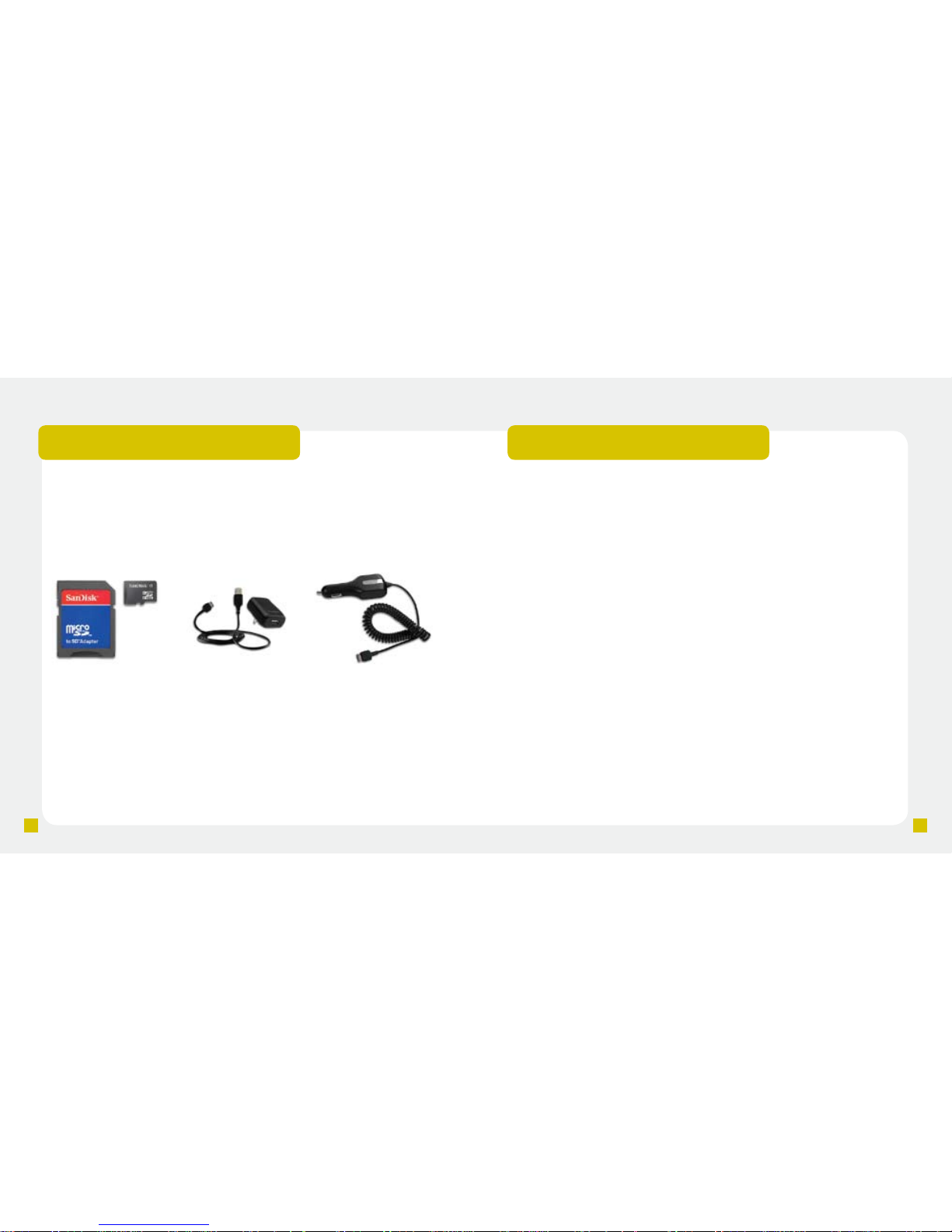
Accessories For Your Phone
Whether you are looking for a charger, a fashionable carrying case,
a Bluetooth
®
headset or just want to browse for fun extras for your
phone, T-Mobile is the place to shop for accessories. Here are a few
examples….
To purchase accessories for your phone, visit T-Mobile.com,
call 1.800.204.2449 or visit your nearest T-Mobile store.
*Accessory selection subject to change and may vary by location.
Memory Card Car Charger
Additional Information
myFaves: Not available with all rate plans. myFaves only applies to calls
directly between two people and allows unlimited nationwide calling to 5
U.S. numbers. You can change myFaves numbers once/month.
Messaging Plans/Features: You will be charged for all data sent by or
to you through the network, regardless of whether received. Character
length/le size of messages/attachments may be limited. T-Mobile is not
liable for content of messages/attachments or for any failures, delays or
errors in any T-Mobile generated alerts or notications.
Downloads: Additional charges apply; not all downloads available on
all devices. You obtain no rights in downloads; duration of use may
be limited; may be stored solely for use with your device. T-Mobile is
not responsible for any download lost due to your error. See Pricing,
Services and Device brochures, and T-Mobile’s Terms and Conditions
(including arbitration provisions) at T-Mobile.com, for rate plan
information, charges for features and services, and restrictions and
details.
Yahoo!
®
and the Yahoo!® Messenger logos are registered trademarks
of Yahoo! Inc. The Bluetooth
®
word mark and logo are owned by the
Bluetooth SIG, Inc. and are used by T-Mobile under license. T-Mobile,
and the magenta color are federally registered trademarks of Deutsche
Telekom AG. myFaves and the myFaves design are federally registered
trademarks, and web2go is a service mark, of T-Mobile USA, Inc.
©2009 T-Mobile USA, Inc.
USB & Wall
Charging System
Page 27
Page 28
 Loading...