

Page 1

User Manual
SM-V505
English (EU). 12/2015. Rev.1.0
www.samsung.com
Page 2

Table of Contents
Basics
3 Read me first
4 Package contents
5 About the Samsung Connect
6 Device layout
7 Connecting the USB power adaptor
8 Setting up the Samsung Connect
10 Turning the screen on and off
10 Touchscreen
12 Navigating the screen
13 Home screen
16 Menu panel
17 Setting the screen lock
17 Entering text
18 Updating the Samsung Connect
Settings
26 Introduction
26 Connections
28 Device
29 System
SmartThings
31 Introduction
31 Connecting new devices
32 Disconnecting devices
33 Using the Dashboard
35 Using My Home
36 Setting routines
37 Viewing family presence
Samsung Connect’s features
19 Using the Bluetooth speaker
21 Notifications
22 Weather
23 Smart Home Monitor
23 Manage things
24 S Voice
25 Help
37 Viewing notifications
38 Using SmartApps
Appendix
39 Troubleshooting
2
Page 3

Basics
Read me first
Please read this manual before using this device to ensure safe and proper use.
•
Descriptions are based on the device’s default settings.
•
Some content may differ from your device depending on the region, service provider,
model specifications, or device’s software.
•
Content (high quality content) that requires high CPU and RAM usage will affect the
overall performance of the device. Apps related to the content may not work properly
depending on the device’s specifications and the environment that it is used in.
•
Samsung is not liable for performance issues caused by apps supplied by providers other
than Samsung.
•
Samsung is not liable for performance issues or incompatibilities caused by edited
registry settings or modified operating system software. Attempting to customise the
operating system may cause the Samsung Connect or apps to work improperly.
•
Software, sound sources, wallpapers, images, and other media provided with this
Samsung Connect are licensed for limited use. Extracting and using these materials for
commercial or other purposes is an infringement of copyright laws. Users are entirely
responsible for illegal use of media.
•
Default apps that come with the Samsung Connect are subject to updates and may no
longer be supported without prior notice. If you have questions about an app provided
with the Samsung Connect, contact a Samsung Service Centre. For user-installed apps,
contact service providers.
•
Modifying the Samsung Connect’s operating system or installing softwares from
unofficial sources may result in Samsung Connect malfunctions and data corruption or
loss. These actions are violations of your Samsung licence agreement and will void your
warranty.
•
Some functions may not work as described in this manual depending on the maker and
model of the mobile device you connect to the Samsung Connect.
3
Page 4
Basics
Instructional icons
Warning: situations that could cause injury to yourself or others
Caution: situations that could cause damage to your device or other equipment
Notice: notes, usage tips, or additional information
Package contents
Check the product box for the following items:
•
Samsung Connect
•
Quick start guide
•
The items supplied with the Samsung Connect and any available accessories may
vary depending on the region or service provider.
•
The supplied items are designed only for this Samsung Connect and may not be
compatible with other devices.
•
Appearances and specifications are subject to change without prior notice.
•
You can purchase additional accessories from your local Samsung retailer. Make
sure they are compatible with the Samsung Connect before purchase.
•
Some accessories, such as docking devices, may not have the same water- and
dust-resistance certification.
•
Use only Samsung-approved accessories. Using unapproved accessories may cause
the performance problems and malfunctions that are not covered by the warranty.
•
Availability of all accessories is subject to change depending entirely on
manufacturing companies. For more information about available accessories, refer
to the Samsung website.
4
Page 5
Basics
About the Samsung Connect
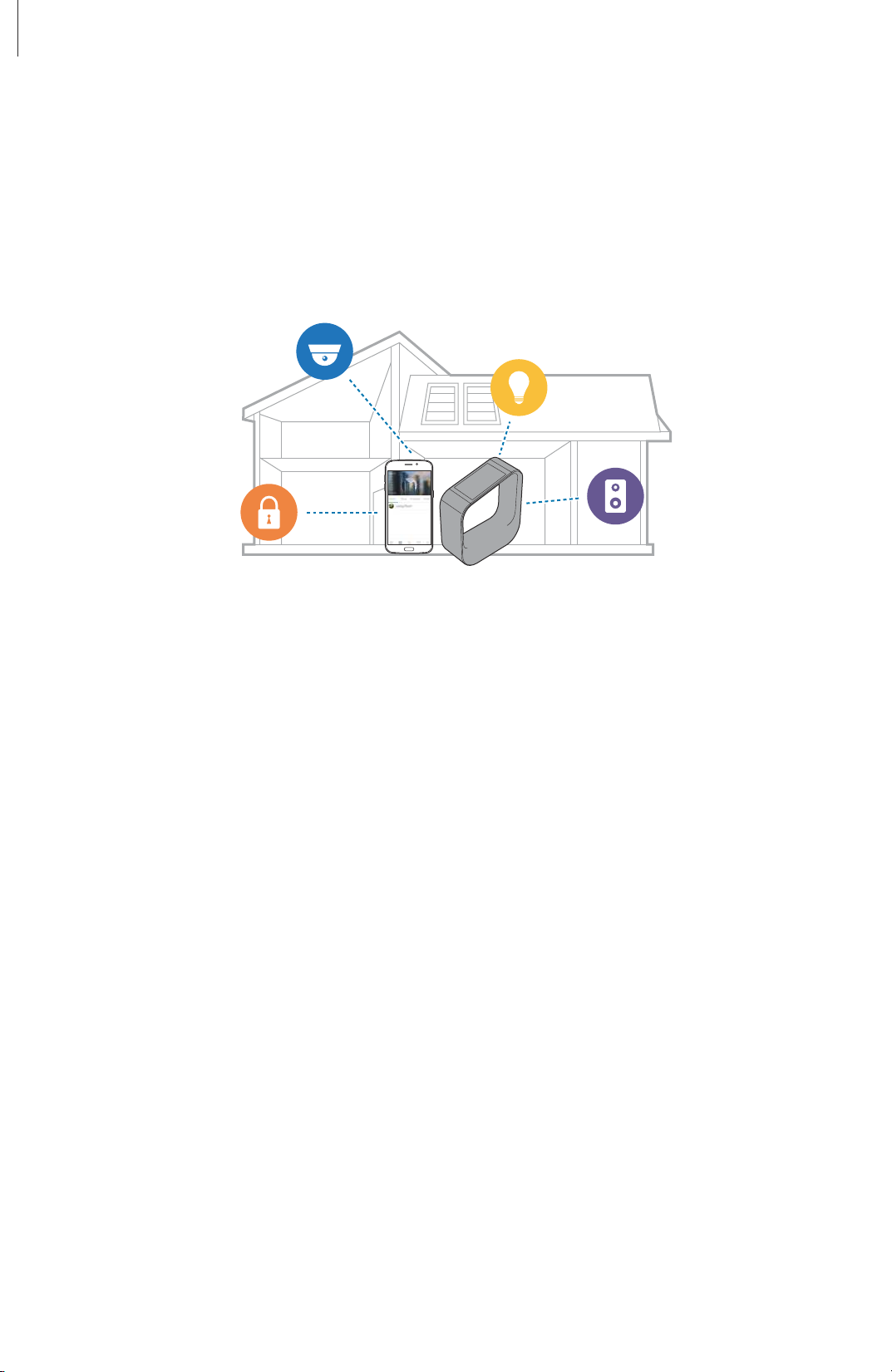
The Samsung Connect functions as a hub for smart devices in your home. You can connect a
variety of devices in your home to the Samsung Connect. The Samsung Connect allows you
to monitor, control, and manage connected devices via the SmartThings mobile app on your
mobile device and the Samsung Connect.
Before you start
•
When placing the Samsung Connect, keep the following in mind:
–
Place the Samsung Connect on a flat surface in a central location in your home where
it can connect to the most devices.
–
Avoid placing the Samsung Connect near TVs.
•
You must have a SmartThings account to sync the Samsung Connect and your mobile
device.
•
The Samsung Connect uses 868.4 MHz Z-wave frequencies. Before purchasing additional
devices to connect to the Samsung Connect, check if their Z-wave frequencies are
compatible with the Samsung Connect.
5
Page 6
Basics
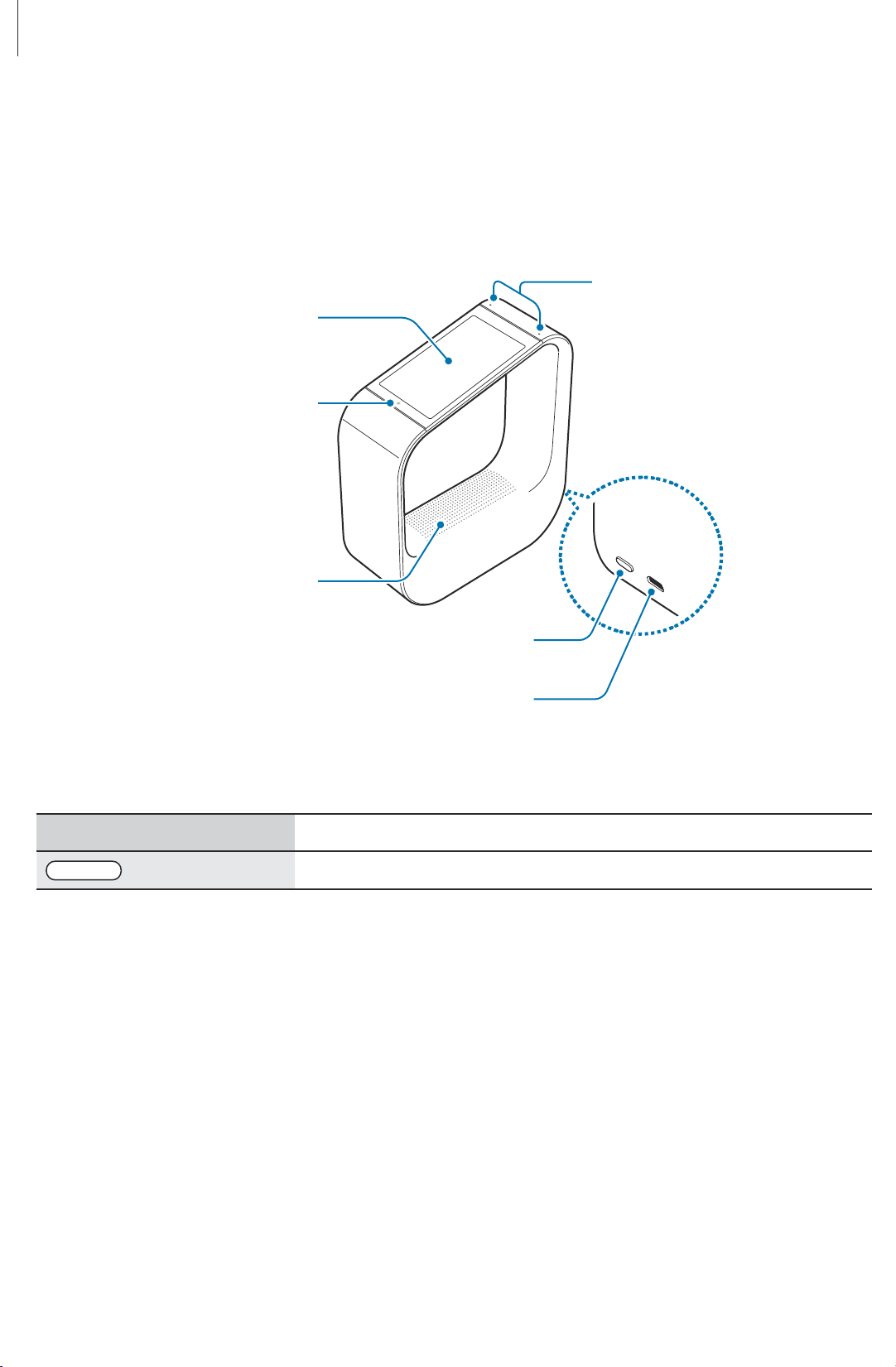
Microphone
Device layout
Samsung Connect
Touchscreen
Light sensor
Speaker
Key
Key Function
Standby/Wake
•
Press to turn on or off the screen.
Standby/Wake key
USB power jack
6
Page 7
Basics
Connecting the USB power adaptor
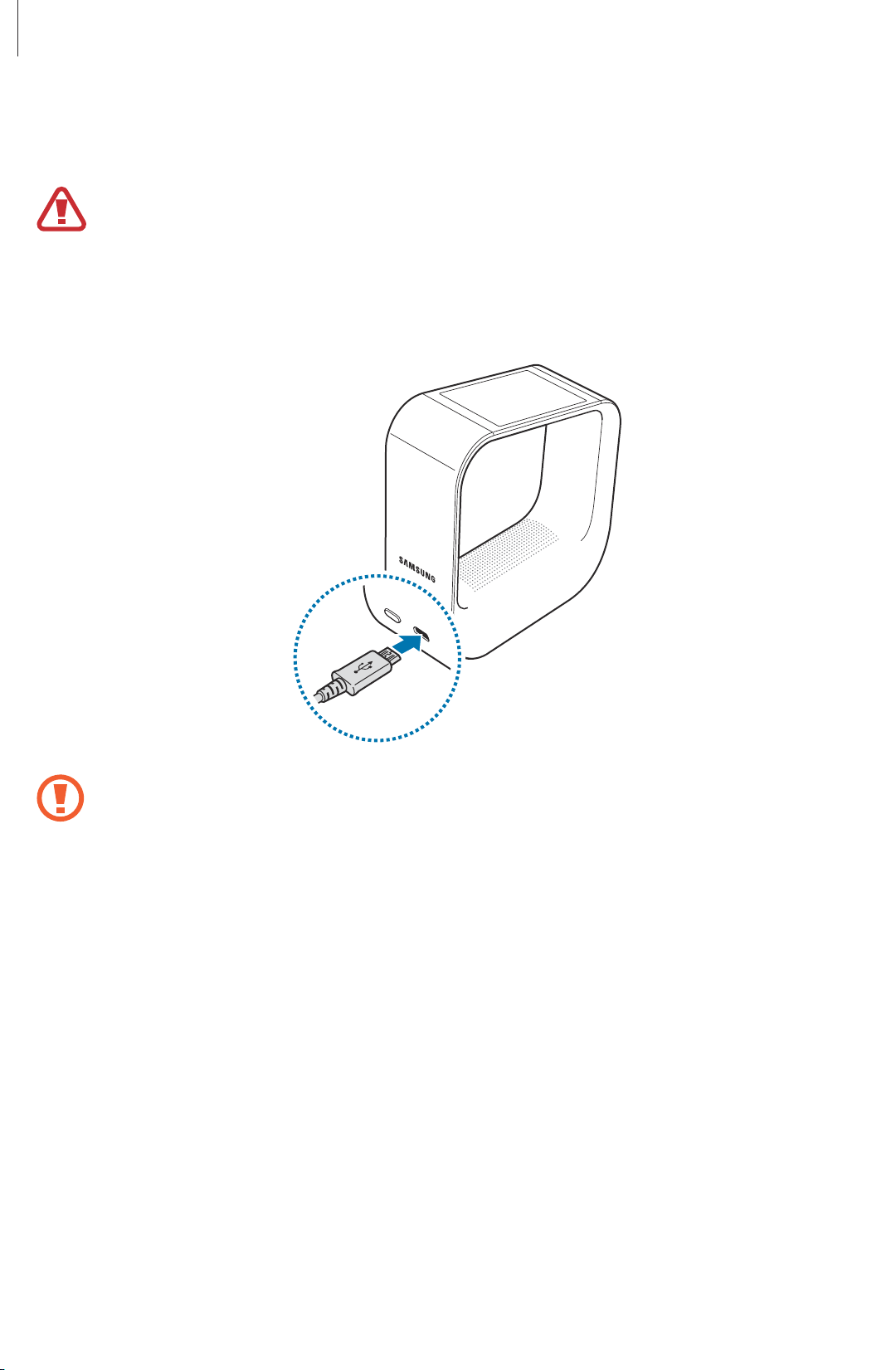
Use only Samsung-approved cables. Unapproved cables can damage the Samsung
Connect.
Connect the USB cable to the USB power adaptor, and then plug the end of the USB cable
1
into the USB power jack.
Connecting the USB power adaptor improperly may cause serious damage to the
Samsung Connect. Any damage caused by misuse is not covered by the warranty.
Plug the USB power adaptor into an electric socket.
2
The Samsung Connect will turn on.
7
Page 8

Basics
When you are not using the Samsung Connect, disconnect it from the power supply. First,
unplug the USB power adaptor from the Samsung Connect, and then unplug it from the
electric socket.
•
If your Samsung Connect is frozen and unresponsive, press and hold the Standby/
Wake key and tap
•
Only use the USB power adaptor and the USB cable supplied with the Samsung
Connect. If you connect the Samsung Connect to a USB power adaptor or
computer that does not supply at least 2 A, the Samsung Connect may turn off due
to a low power supply.
•
The Samsung Connect will turn off when it is not connected to a USB power
adaptor or when the power supply is interrupted.
•
To save energy, unplug the USB power adaptor when not in use. The USB power
adaptor does not have a power switch, so you must unplug the USB power adaptor
from the electric socket when not in use to avoid wasting power. The USB power
adaptor should remain close to the electric socket and be easily accessible when in
use.
•
Follow all posted warnings and directions from authorised personnel in areas
where the use of wireless devices is restricted, such as aeroplanes and hospitals.
Restart
to restart it.
Setting up the Samsung Connect
You must have a SmartThings account to use the Samsung Connect. You should also
download and install the SmartThings mobile app on your mobile device.
The Samsung Connect and your mobile device will be synced via your SmartThings account
so that you can view information on both devices.
Samsung Connect
When the welcome screen appears, tap
1
Select a network from the Wi-Fi networks list, and then tap
2
If you select a secured network, enter the password and tap
Next
.
Next
.
Connect
to connect to it.
8
Page 9

Basics
Read and agree to the terms and conditions, and then tap
3
Tap
4
5
6
7
8
Log in
If you do not have a SmartThings account, tap
Enter the name of the Samsung Connect’s location and tap
Read the on-screen instructions about connecting new devices and tap
The Samsung Connect will automatically search for devices to connect to. This may take
several minutes.
Tap
Next
The Samsung Connect will prompt you to download the SmartThings mobile app on
your mobile device.
Read and agree to S Voice’s terms and conditions, and then tap
, enter your SmartThings account information, and then tap
Sign up
to complete the setup.
Next
.
Log in
to create a new account.
Next
.
Next
.
.
Connect
.
Say “Hi, Samsung” to the Samsung Connect.
9
Tap OK to go to the Home screen.
10
Mobile device
On the mobile device, download and install
1
Store, Apps Store, or Windows Store.
Launch
2
Tap
3
Swipe to the right, read the on-screen instructions, and then tap
4
SmartThings
Log In
, enter your SmartThings account information, and then tap
.
SmartThings Mobile
from the Google Play
Log In
OK, got it
.
.
9
Page 10
Basics
Turning the screen on and off
To turn on the screen, tap the screen. Or, press the Standby/Wake key.
To turn off the screen, press the Standby/Wake key. If the Samsung Connect is not used for a
specified period, the screen will automatically turn off.
You can also turn on the screen using a voice command. Say “Hi, Samsung” to turn on the
device. Refer to S Voice for more information.
Touchscreen
•
Do not allow the touchscreen to come into contact with other electrical devices.
Electrostatic discharges can cause the touchscreen to malfunction.
•
To avoid damaging the touchscreen, do not tap it with anything sharp or apply
excessive pressure to it with your fingertips.
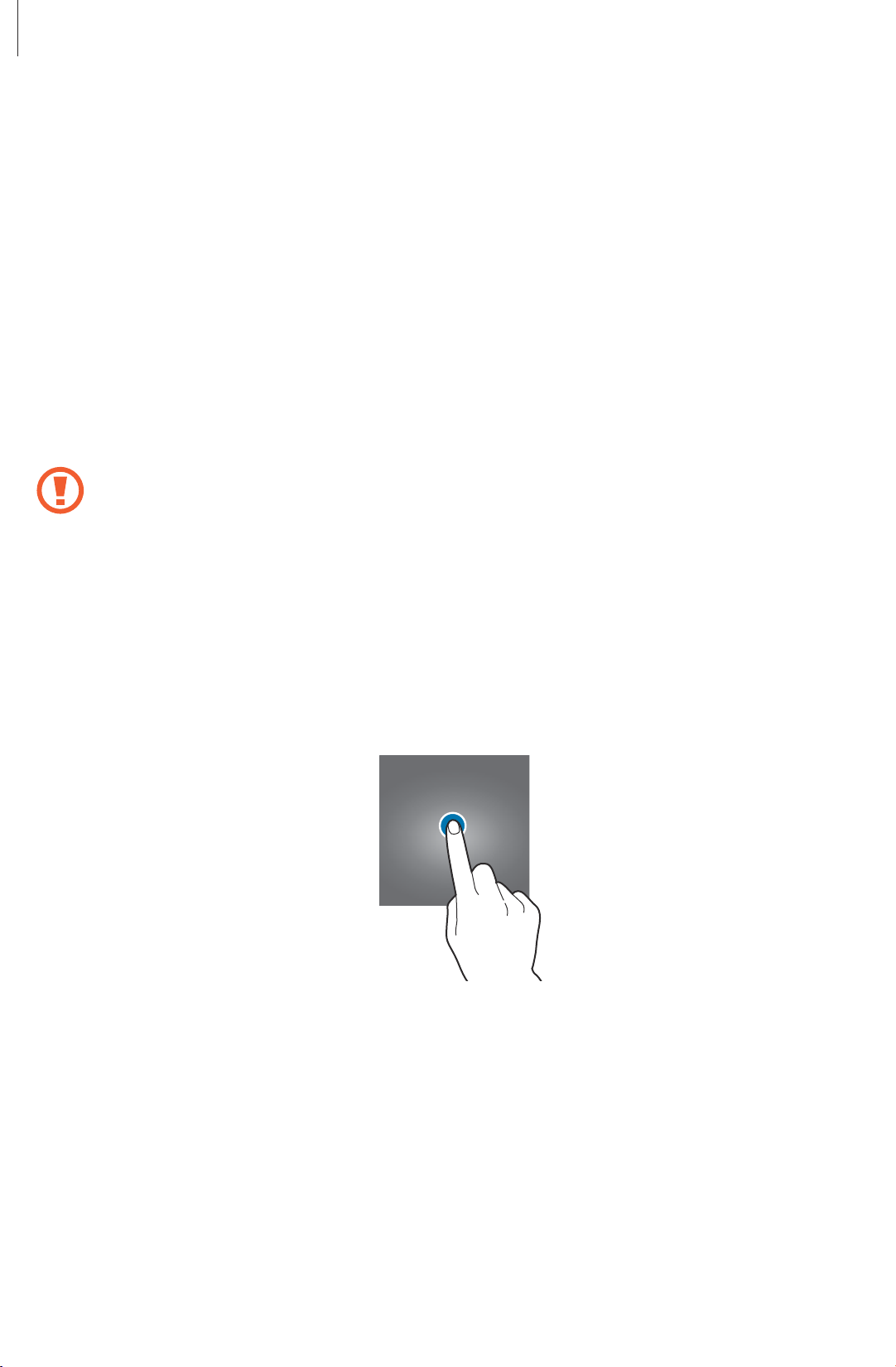
Tapping
To open an app, to select a menu item, or to press an on-screen button, or to enter a character
using the keyboard on the screen, tap it with your finger.
10
Page 11
Basics
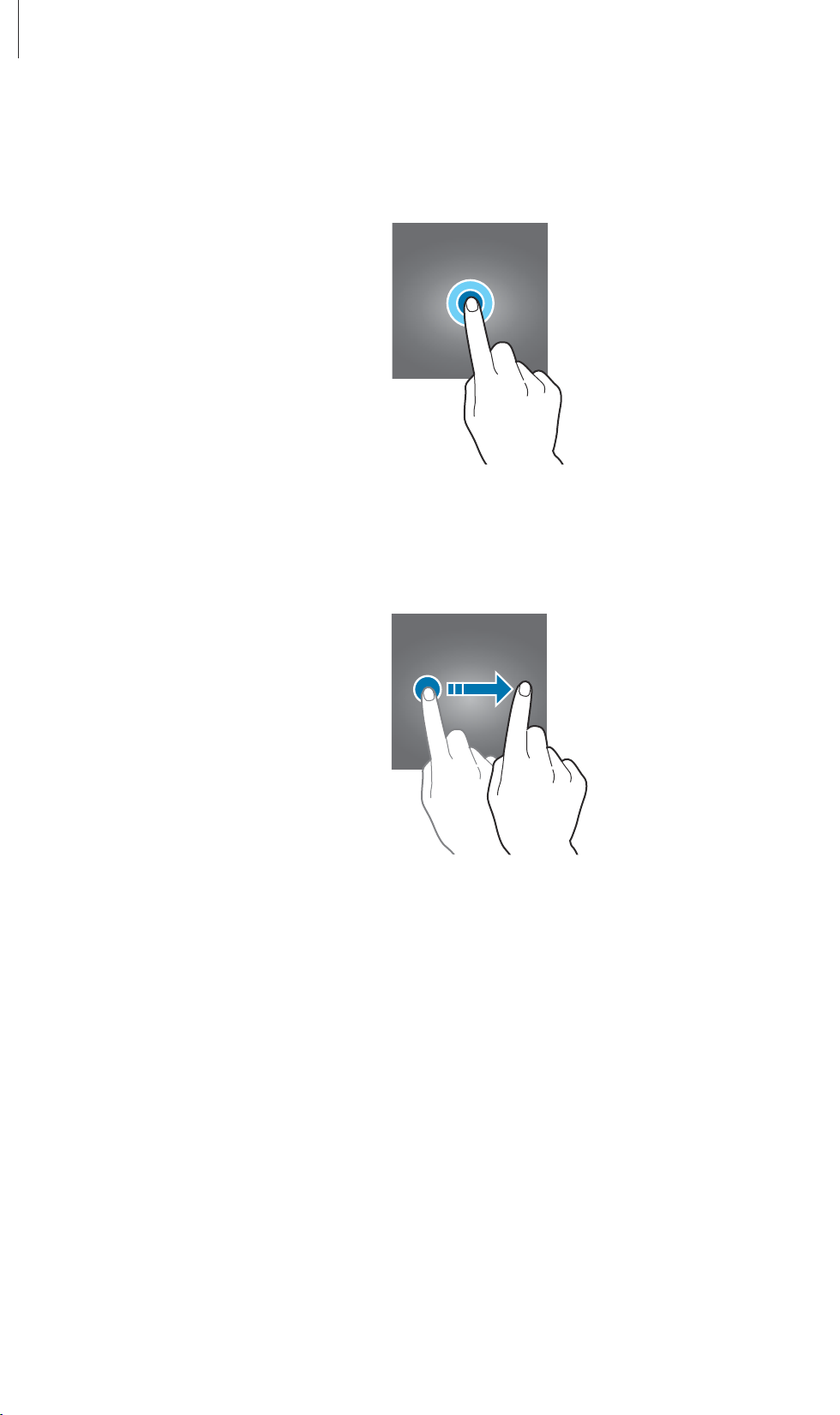
Tapping and holding
Tap and hold the Home screen for two or more seconds to access the Edit mode.
Swiping
Swipe to the left or right to view other panels.
11
Page 12
Basics
Navigating the screen
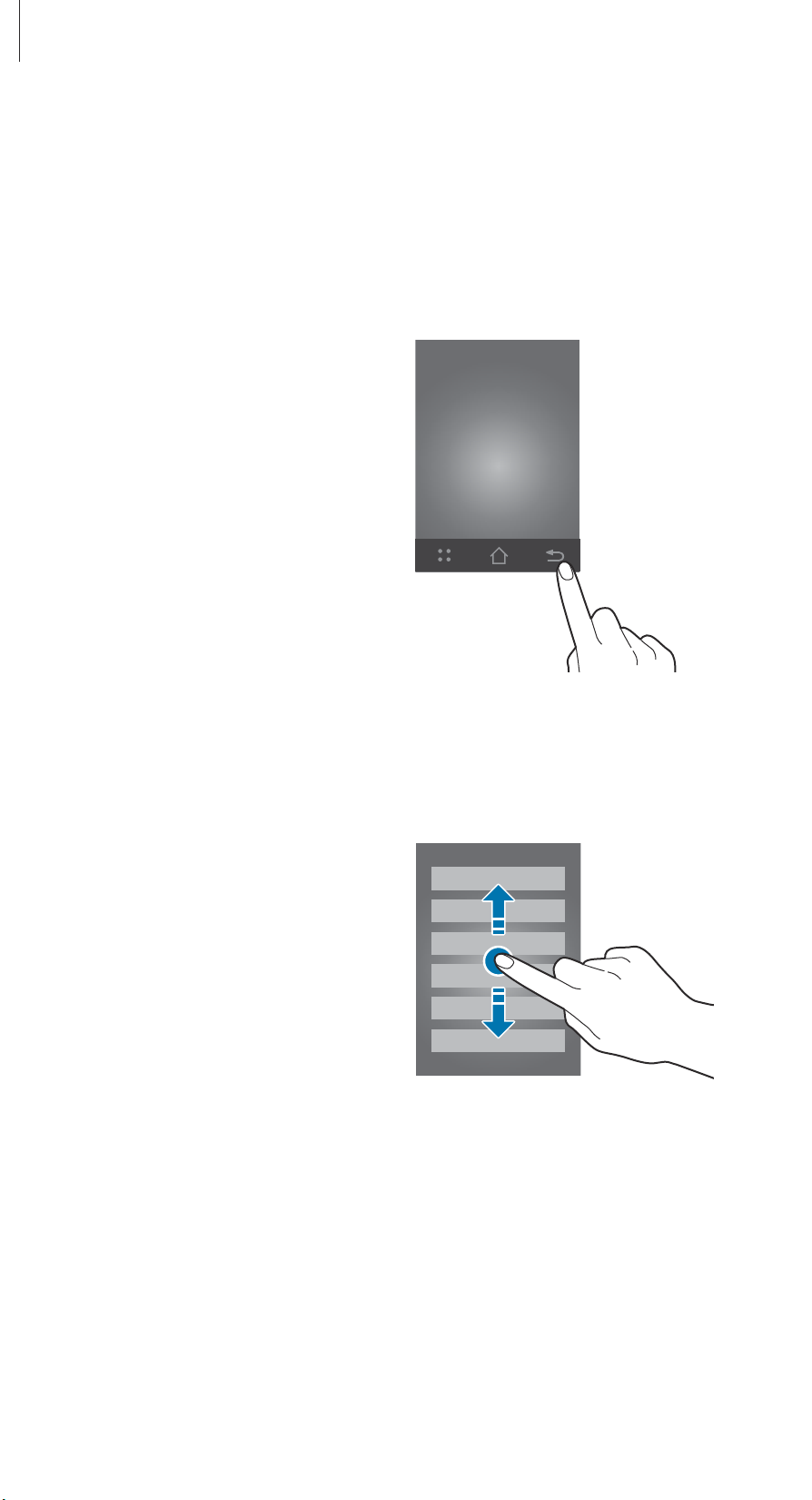
Returning to the previous screen
Press the Back key in the bottom right of the screen.
Scrolling through items
Swipe upwards or downwards to scroll through apps or items.
12
Page 13
Basics
Home screen
Introduction
The Home screen can have multiple panels. Swipe to the left or right to view items on the
Home screen, such as the dashboard and widgets.
Available widgets and their arrangement may vary depending on the software
version.
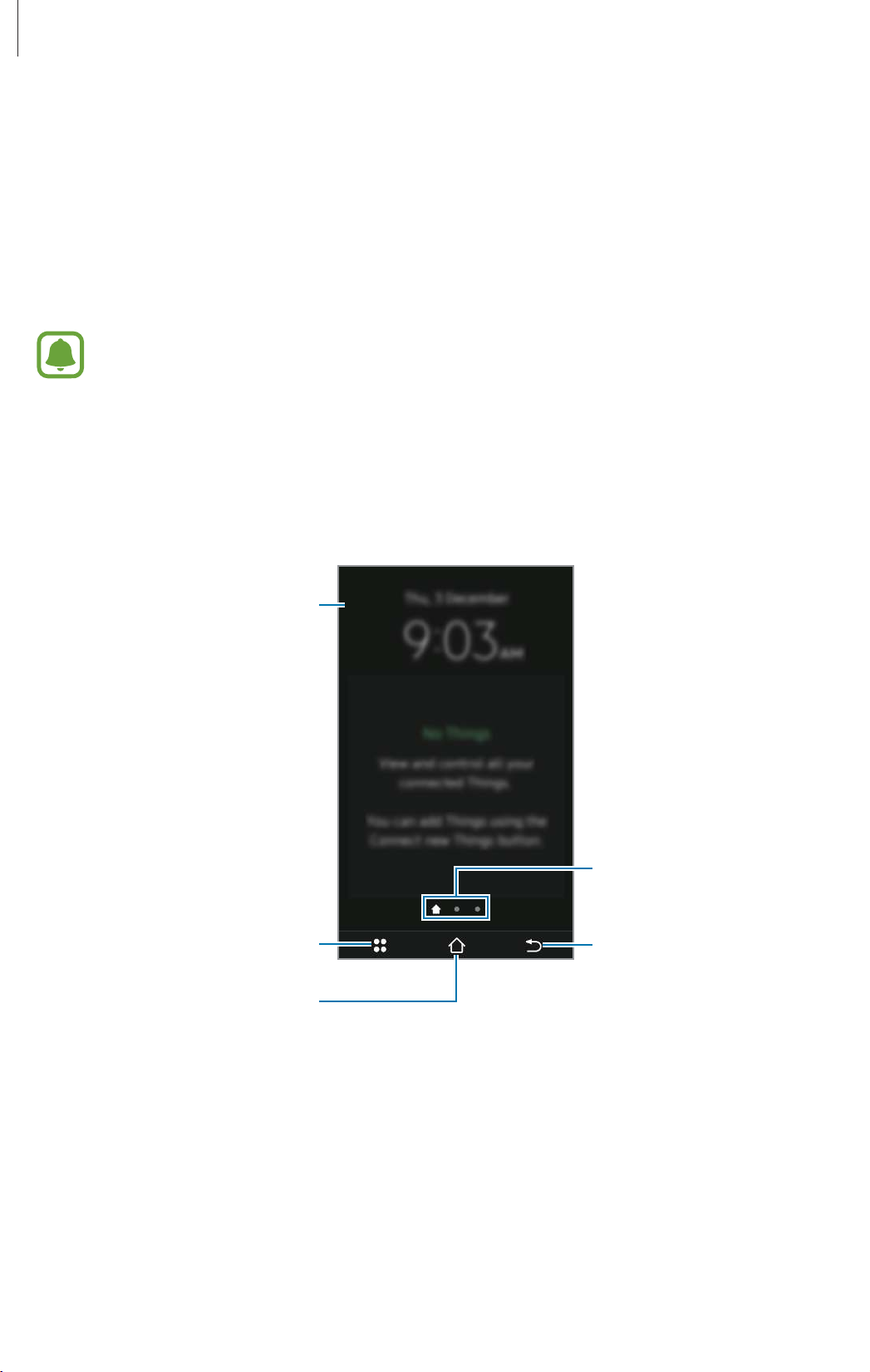
Dashboard
The dashboard provides you with information about the current time, the status of the
connected devices, and more.
Current time and date
Menu panel icon
Home screen icon
Screen indicators
Move to the previous screen.
13
Page 14
Basics
Widgets
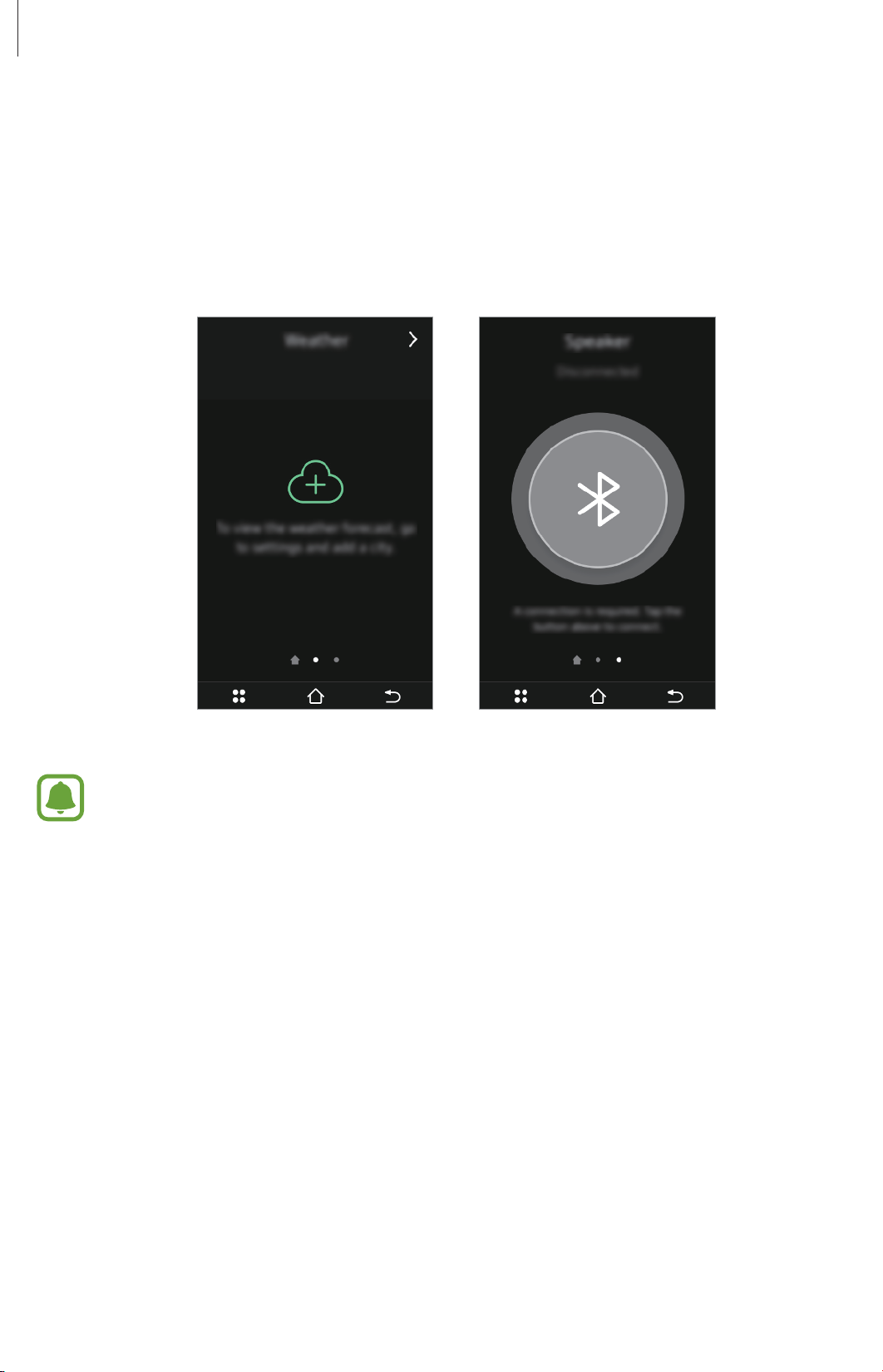
You can add widgets to the Home screen. Widgets are small apps that offer limited
functionality to provide information and convenient access. The Weather and the Bluetooth
speaker widgets are available by default.
On the dashboard, swipe to the left and select a widget to use.
SpeakerWeather
When you customise settings for
SmartThings mobile app, you can also add widgets to the Home screen. Refer
to
Connecting new devices and Setting routines for more information about
customising settings.
Routines
and
Things
on your mobile device’s
14
Page 15
Basics
Adding widgets
Tap and hold the Home screen, and then tap .
1
Select a category.
2
Tick the desired widget and tap
3
You cannot remove default widgets.
Removing widgets
Tap and hold the Home screen.
1
Tap on the desired widget. Alternatively, tap and deselect the desired widget.
2
Rearranging widgets
Tap and hold the Home screen.
1
Tap and hold a widget, and then drag it to another location.
2
Done
.
15
Page 16
Basics
Menu panel
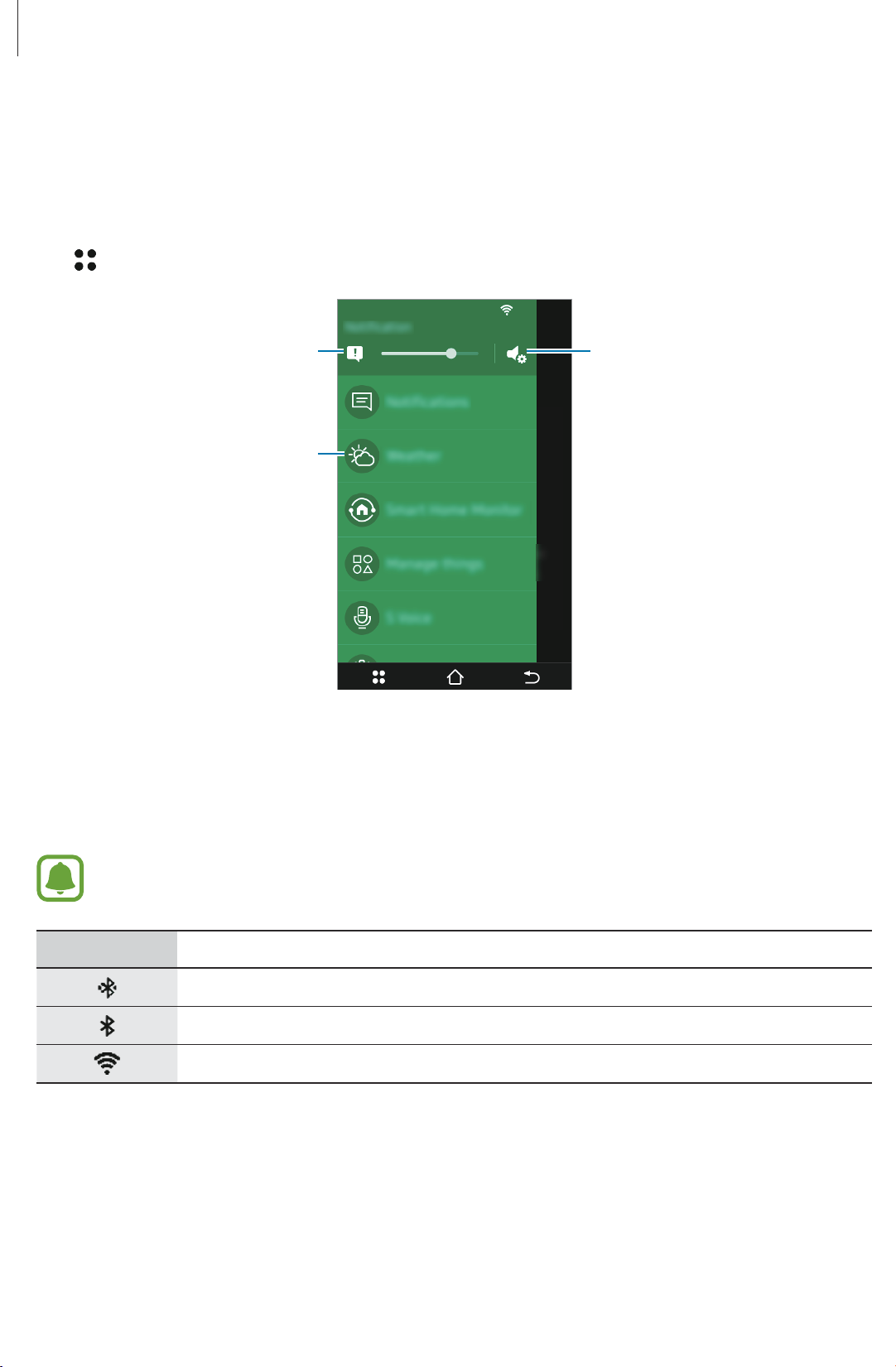
The Menu panel allows you to easily customise Samsung Connect settings, add new devices,
and more.
Tap
at the bottom left of the screen.
Adjust the volume of
notifications.
An app
Display the volume settings.
Indicator icons
Indicator icons appear at the top of the screen. The icons listed in the table below are most
common.
The indicator icons shown may vary depending on the region.
Icon Meaning
Bluetooth device connected
Bluetooth feature activated
Wi-Fi connected
Opening apps
On the Menu panel, tap an app icon to open the app.
16
Page 17
Basics
Setting the screen lock
Prevent others from accessing your Samsung Connect when you are not using it. If you have
enabled the screen lock feature, it will activate when the screen turns off. After activating this
feature, the Samsung Connect requires an unlock code whenever you turn on the screen.
Setting a PIN
On the Menu panel, tap
A PIN consists of numbers only. Enter four numbers, and then enter the PIN again to verify it.
When you set a PIN, you cannot use voice commands.
Settings
→
Lock screen
and tap the
Pin lock
switch to activate it.
Unlocking the Samsung Connect
Press the Standby/Wake key to turn on the screen. Then, swipe in any direction and enter the
unlock code.
To deactivate this feature, open the Menu panel, tap
switch to deactivate it, and then enter the PIN again.
lock
Settings
→
Lock screen
, tap the
Pin
Entering text
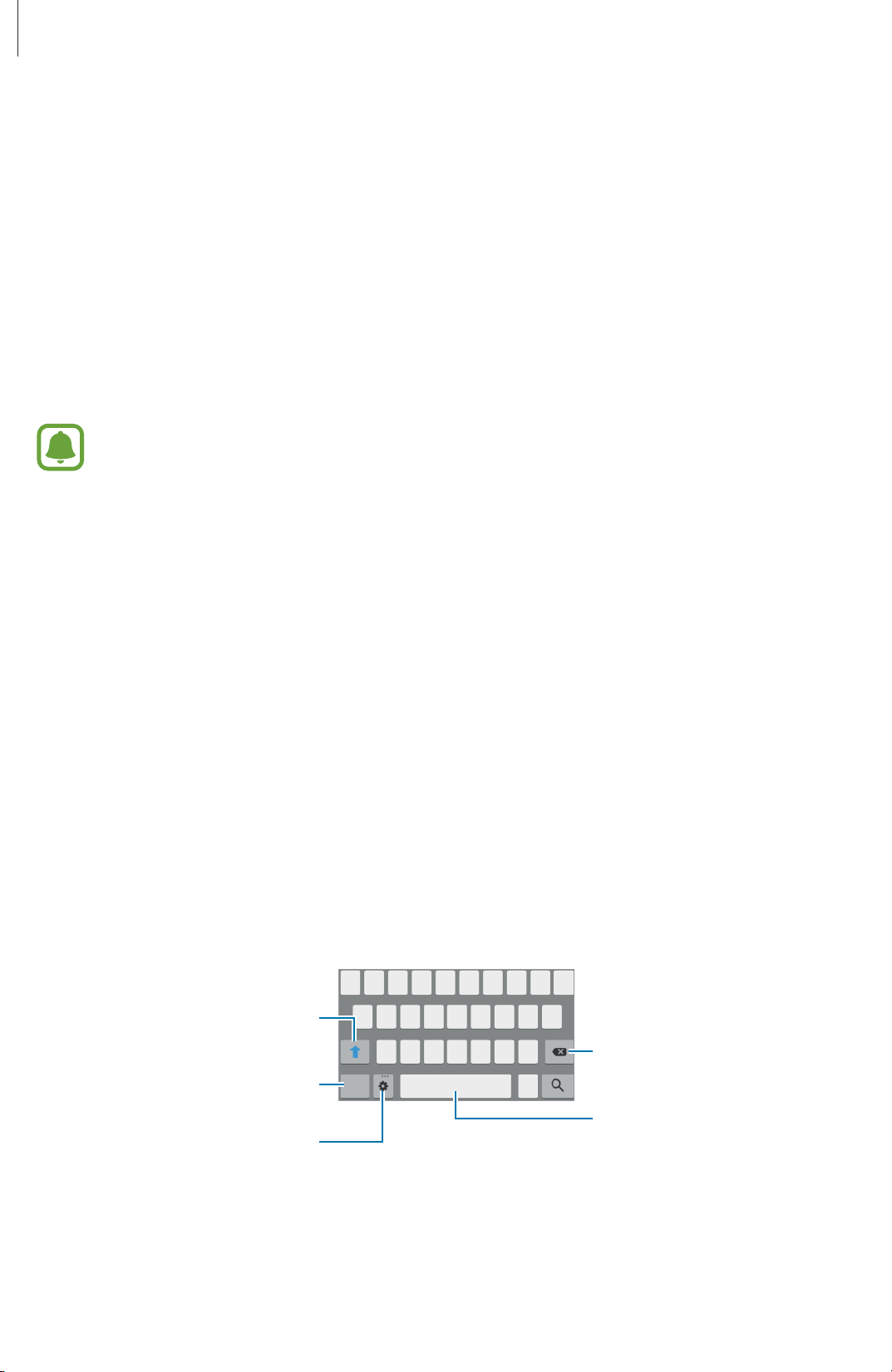
Keyboard layout
A keyboard appears automatically when you enter account information, set names for items,
and more.
Enter uppercase. For all caps, tap
it twice.
Enter punctuation marks.
Change the keyboard settings.
Delete a preceding character.
Enter a space.
17
Page 18
Basics
Changing the keyboard layout
Tap , select a language under
On
3 x 4 keyboard
corresponding key repeatedly until the desired character appears.
, a key has three or four characters. To enter a character, tap the
Input languages
, and then select a keyboard layout to use.
Updating the Samsung Connect
The Samsung Connect can be updated to the latest software.
Updating over the air
The Samsung Connect can be directly updated to the latest software by the firmware overthe-air (FOTA) service.
On the Menu panel, tap
To automatically check for available updates, tap the
it.
Settings
→
About device
→
Software update
Auto update
→
Update now
switch to activate
.
18
Page 19

Samsung Connect’s features
Using the Bluetooth speaker
Bluetooth
Bluetooth is a wireless technology standard that uses a 2.4 GHz frequency to connect to
various devices over short distances. It can connect and exchange data with other Bluetooth
enabled devices, such as mobile devices, computers, printers, and other digital home
appliances, without connecting via cables.
Notices for using Bluetooth
•
To avoid problems when connecting the Samsung Connect to another device, place the
devices close to each other.
•
Ensure that the Samsung Connect and the other Bluetooth device are within the
Bluetooth connection range (10 m). The distance may vary depending on the
environment the devices are used in.
•
Ensure that there are no obstacles between the Samsung Connect and a connected
device, including human bodies, walls, corners, or fences.
•
Do not touch the Bluetooth antenna of a connected device.
•
Bluetooth uses the same frequency as some industrial, scientific, medical, and low power
products and interference may occur when making connections near these types of
products.
19
Page 20
Samsung Connect’s features
Connecting to another device via Bluetooth
You can set the Samsung Connect as a Bluetooth speaker when you connect your mobile
device to the Samsung Connect.
Samsung Connect On the Menu panel, tap
1
Bluetooth
display
Mobile device Activate the Bluetooth feature and search for Bluetooth devices.
2
For more information, refer to the mobile device’s user manual.
Mobile device Tap the Samsung Connect’s name from the list of available devices.
3
Samsung Connect Accept the Bluetooth connection request to confirm.
4
The devices will be connected when you accept the Bluetooth connection on your
mobile device.
Samsung Connect Tap next to a connected device’s name and tap the
5
switch to activate it.
•
switch to activate it. Alternatively, on the dashboard, swipe to the left to
Speaker
If the Bluetooth connection fails or the other device cannot locate the Samsung
and tap .
Settings
→
Bluetooth
and tap the
Media audio
Connect, remove the device’s information from the other device’s list. Then, try to
connect again.
•
The Bluetooth connection range and sound quality may vary depending on the
connected devices.
Disconnecting the connected devices
On the Menu panel, tap
disconnect, and then tap
To unpair the device, tap
Settings
OK
→
Bluetooth
.
next to a connected device’s name and tap
, tap the connected device name to
Unpair
.
20
Page 21
Samsung Connect’s features
Playing music
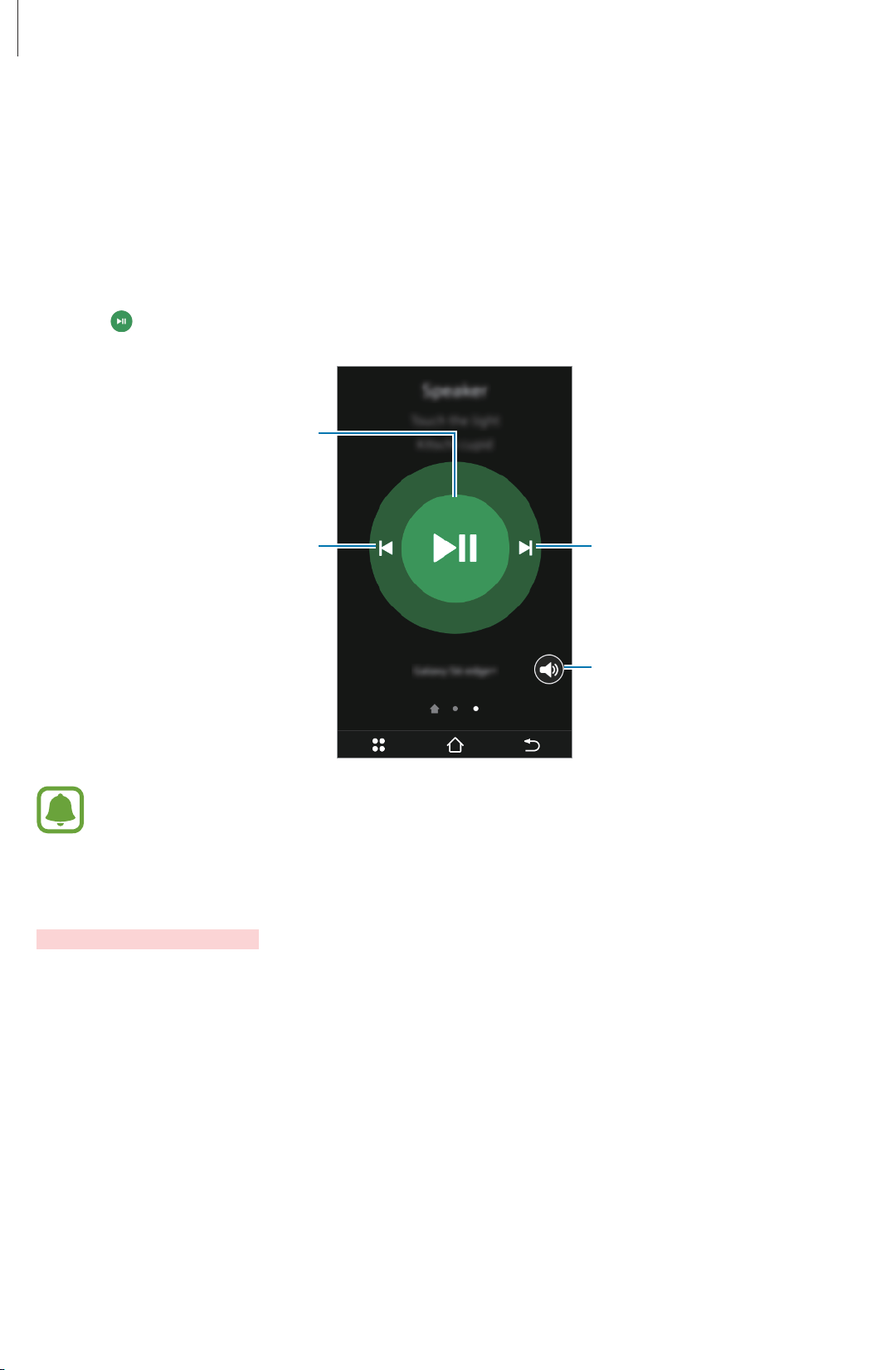
The Samsung Connect can control media playback and the volume of connected devices
from the Bluetooth speaker widget.
On the dashboard, swipe to the left to display
1
Tap to play music.
2
Pause and resume playback.
Skip to the previous song.
Speaker
.
Skip to the next song.
Adjust the volume.
The Samsung Connect may not be able to control music playback when connected to
some devices.
Notifications
You can view notifications about your home status.
When an incident occurs, a notification message will appear on the screen. To view
notifications, on the Menu panel, tap
Notifications
.
21
Page 22
Samsung Connect’s features
Weather
Setting a city
By default, the weather information is empty, therefore set a city that you want to see
weather for.
On the dashboard, swipe to the left to display
1
the Menu panel and tap
Enter a city name and select a city from the list.
2
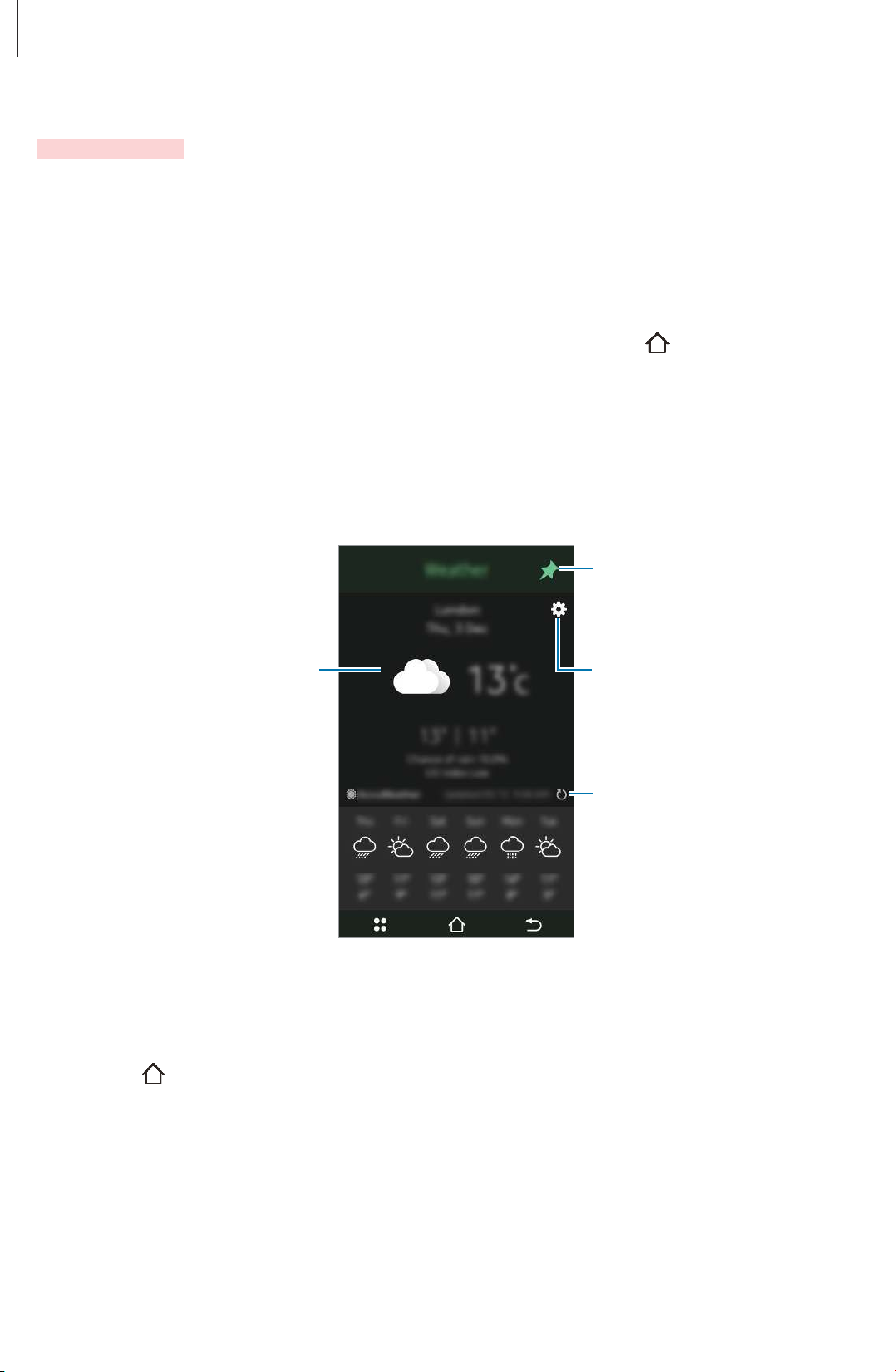
The Samsung Connect will display the current weather and the predicted weather for the
week.
Current weather
Weather
.
Weather
and tap . Alternatively, open
Remove the Weather widget
from the Home screen.
Customise the settings.
Retrieve the weather
information.
Viewing weather information
On the Menu panel, tap
screen. Tap
and swipe to the left to display
Weather
. You can view brief weather information on the Home
Weather
22
.
Page 23

Samsung Connect’s features
Smart Home Monitor
You can monitor your home on the Samsung Connect.
To use this feature on the Samsung Connect, you must customise settings
Monitor
Home Monitor menu
On the Menu panel, tap
on your mobile device’s SmartThings mobile app. Refer to Customising the Smart
for more information.
Smart Home Monitor
.
Smart Home
Manage things
Things
You can view and control all your connected devices. The Samsung Connect will display a list
of the connected devices that you have added on your mobile device’s SmartThings mobile
app.
To use this feature on the Samsung Connect, you must add devices on the SmartThings
mobile app. Refer to
On the Menu panel, tap
Connecting new devices for more information.
Manage things
→
Things
. To connect new devices, tap
Connect
new things
. The Samsung Connect will search for devices to connect to.
Routines
You can use preset commands to make your connected devices perform specific actions
automatically. The Samsung Connect will display routines that you have set on your mobile
device’s SmartThings mobile app.
To use this feature on the Samsung Connect, you must customise routines on the
SmartThings mobile app. Refer to
On the Menu panel, tap
Manage things
Setting routines for more information.
→
Routines
.
Rooms
You can assign your connected devices to rooms in your home and control them from one
place. The Samsung Connect will display a list of rooms that you have added on your mobile
device’s SmartThings mobile app.
To use this feature on the Samsung Connect, you must add rooms on the SmartThings mobile
app. Refer to
On the Menu panel, tap
Using My Home for more information.
Manage things
→
Rooms
23
.
Page 24
Samsung Connect’s features
Family
You can view your family members’ presence statuses. The Samsung Connect will display a
lists of family members that you have registered on your mobile device’s SmartThings mobile
app.
To use this feature on the Samsung Connect, you must add family members on the
SmartThings mobile app. Refer to
On the Menu panel, tap
Manage things
Viewing family presence for more information.
→
Family
.
S Voice
Waking up the Samsung Connect
You can wake up the Samsung Connect with a voice command while the screen is off.
Say “Hi, Samsung” to the Samsung Connect. Alternatively, on the Menu panel, tap
When you launch this feature for the first time, read the on-screen instructions and tap
Using voice commands
Say “Hi, Samsung” to the Samsung Connect. Alternatively, on the Menu panel, tap
1
S Voice
S Voice
Ok
.
.
.
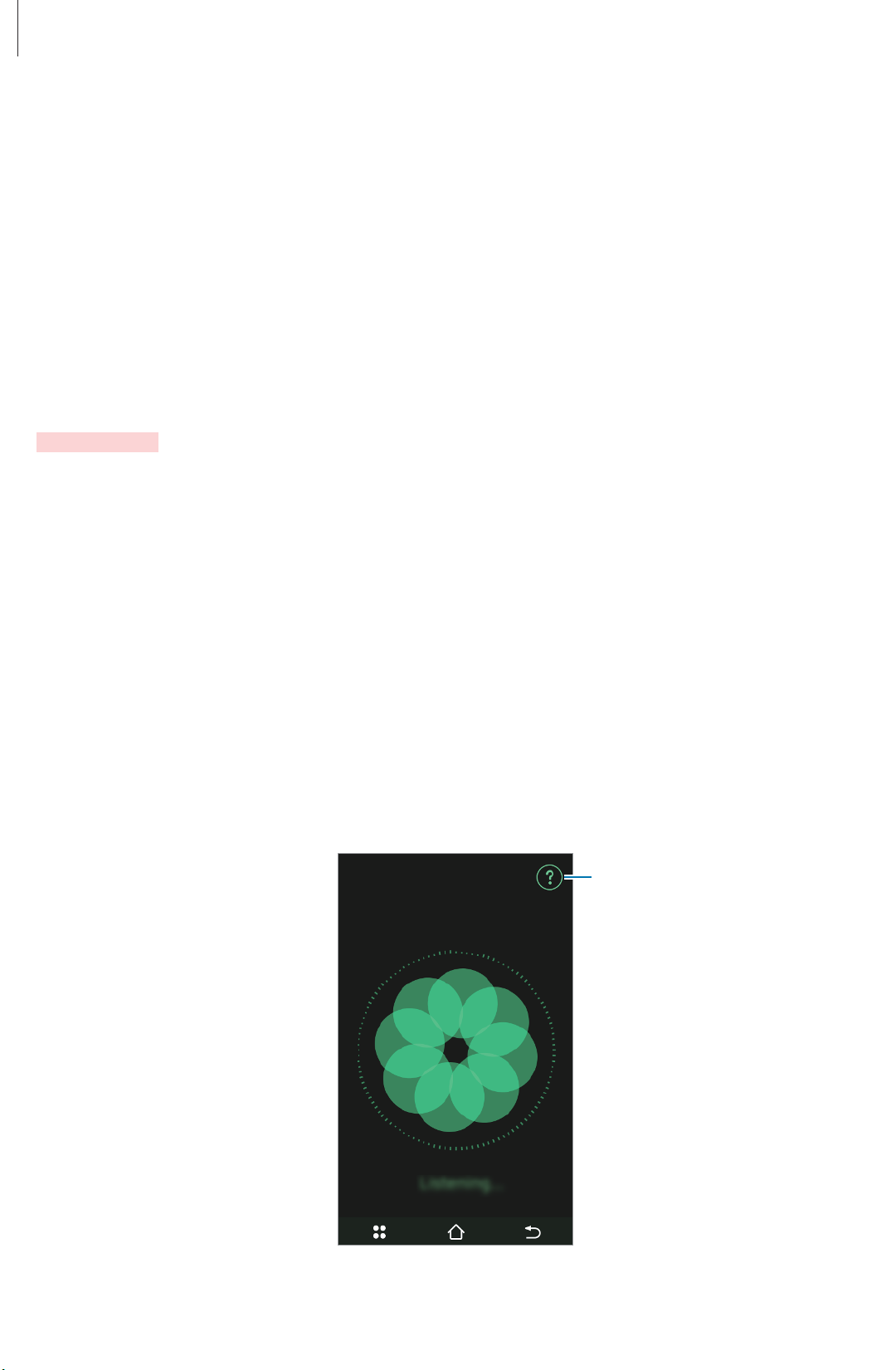
The Samsung Connect will begin voice recognition.
View examples of voice
commands.
24
Page 25

Samsung Connect’s features
Say a voice command.
2
If the Samsung Connect recognises the command, the device will perform the
corresponding action.
This feature will close automatically if the Samsung Connect is not used for a specified
period.
Tips for better voice recognition
•
Speak clearly.
•
Speak in quiet places.
•
Say voice commands within 3 metres of the Samsung Connect.
•
Do not use offensive or slang words.
•
Avoid speaking in dialectal accents.
•
Avoid placing the Samsung Connect near TVs.
•
Avoid listening to music loudly via the Samsung Connect’s Bluetooth speaker.
The device may not recognise your commands or may perform unwanted commands
depending on your surroundings or how you speak.
Help
View help information to learn how to use the Samsung Connect.
On the Menu panel, tap
Help
and select a category.
25
Page 26
Settings
Introduction
Customise settings for functions and apps. You can make your Samsung Connect more
personalised by configuring various setting options.
Tap
Settings
Connections
Wi-Fi
Activate the Wi-Fi feature to connect to a Wi-Fi network.
on the Menu panel.
On the Settings screen, tap
Your device uses a non-harmonised frequency and is intended for use in all European
countries. The WLAN can be operated in the EU without restriction indoors, but
cannot be operated outdoors.
Wi-Fi
, and then tap the switch to activate it.
Connecting to a Wi-Fi network
On the Settings screen, tap
1
Select a network from the Wi-Fi networks list.
2
Networks that require a password appear with a lock icon.
Tap
3
Connect
If you cannot connect to a Wi-Fi network properly, restart your device’s Wi-Fi feature
or the wireless router.
if you want to connect to a secured network.
Wi-Fi
, and then tap the switch to activate it.
26
Page 27
Settings
Bluetooth
Use Bluetooth to play music on your Samsung Connect by connecting to other Bluetoothenabled devices.
•
Some devices, especially those that are not tested or approved by the Bluetooth
SIG, may be incompatible with your device.
•
Do not use the Bluetooth feature for illegal purposes (for example, pirating copies
of files or illegally tapping communications for commercial purposes).
Samsung is not responsible for the repercussion of illegal use of the Bluetooth
feature.
Pairing with other Bluetooth devices
On the Settings screen, tap
1
The detected devices are listed.
Select a device to pair with.
2
If the device you want to pair with is not in the list, request that the device turns on its
visibility option. Refer to the other device’s user manuals.
Your device is visible to other devices while the Bluetooth settings screen is open.
Accept the Bluetooth connection request on the Samsung Connect to confirm.
3
The devices will be connected when the other device accepts the Bluetooth connection
request.
Bluetooth
, and then tap the switch to activate it.
27
Page 28

Settings
Unpairing Bluetooth devices
On the Settings screen, tap
1
The Samsung Connect displays the paired devices in the list.
Tap the device name to unpair.
2
Tap OK.
3
Bluetooth
, and then tap the switch to activate it.
Device
Display
Change the display settings.
On the Settings screen, tap
•
Brightness
: Adjust the brightness for the display.
Display
.
•
Activate screen saver
activating the screensaver.
•
Screen saver duration
screensaver.
: Set the length of time the Samsung Connect waits before
: Set the length of time the Samsung Connect displays a
Sound & Notification
On the Settings screen, tap
•
Read out noti. pop-up
received from the SmartThings mobile app.
Sound & Notification
: Set the Samsung Connect to read aloud pop-up notifications
.
28
Page 29

Settings
Lock screen
Set the screen lock using a PIN.
On the Settings screen, tap
Lock screen
→
Pin lock
.
System
Accounts
View your SmartThings account information.
On the Settings screen, tap
Language and input
View the display language and change the keyboard settings.
On the Settings screen, tap
•
Display language
Accounts
Language and input
: View the display language for all menus.
.
.
•
Keyboard settings
: Change the keyboard settings.
Date and time
Access and alter the following settings to control how the device displays the time and date.
•
Auto set
•
Set date
•
Set time
•
Set time zone
•
24-hour clock
: Automatically update the time and date when moving across time zones.
: Set the current date manually.
: Set the current time manually.
: Set the home time zone.
: Display time in 24-hour format.
29
Page 30

Settings
About device
Access device information, edit the device name, or update device software.
On the Settings screen, tap
About device
.
Reset S Voice
Delete the data used by
On the Settings screen, tap
S Voice
from the S Voice server.
Reset S Voice
→
Reset
.
Reset Samsung Connect
Reset settings to the factory default values and delete all data.
On the Settings screen, tap
Reset Samsung Connect
→
Reset
.
30
Page 31
SmartThings
Introduction
When you download and install the SmartThings mobile app on your mobile device, you
can control your devices in your home, monitor and receive notifications about what is
happening at home, and more.
SmartThings
Tap
When you launch
account. After you sign in, the SmartThings mobile app will be connected to the Samsung
Connect.
•
You can download the app from the Google Play Store, Apps Store, or Windows
Store.
•
For more information about the SmartThings mobile app, visit
support.smartthings.com. Alternatively, on the Apps screen of your mobile device,
launch
on the Apps screen of your mobile device.
SmartThings
SmartThings
for the first time, you must sign in to your SmartThings
and tap →
Support
.
Connecting new devices
Connect your devices in your home to the Samsung Connect so that you can control them via
the SmartThings mobile app and the Samsung Connect.
On the Apps screen of your mobile device, tap
1
Tap →
2
The mobile device will automatically search for your devices.
Select a device from the list.
3
Enter the name of the device and assign the device to an existing room.
4
If you have not added rooms, refer to
Connect New Device
. Alternatively, tap →
Using My Home to create them.
SmartThings
31
.
Things
→
Connect New Device
.
Page 32

SmartThings
Viewing connected devices
You can view a list of connected devices with their current statuses.
Tap
→
Things
.
Connecting to additional hubs
If you have additional hubs, you can connect the hub to your devices by adding locations.
On the Apps screen of your mobile device, tap
1
Tap →
2
Follow the on-screen instructions to complete adding locations.
3
My Locations
→ →
Add Location
SmartThings
.
.
Disconnecting devices
Tap →
1
Things
.
Select a device from the list.
2
Tap →
3
The device will be disconnected from the Samsung Connect and the SmartThings mobile
app.
Edit Device
→
Remove
.
Deleting device connections
If you have trouble reconnecting a Z-wave device to the Samsung Connect, you can delete
the device connection and try again.
Devices you want to exclude must be within the range of the Samsung Connect.
On the Apps screen of your mobile device, tap
1
2
Tap →
My Locations
.
SmartThings
.
32
Page 33
SmartThings
Tap on a location.
3
Tap the Samsung Connect’s name.
4
Tap
5
Z-Wave Utilities
If the Samsung Connect is included into another network, Group 1 is used to provide
Lifeline services and the Samsung Connect will send the Device Reset Locally signal
to associated nodes in the event that the Samsung Connect is reset by the consumer.
→
General Device Exclusion
Using the Dashboard
.
Introduction
On the dashboard, you can access the Smart Home Monitor menu and customise settings
for monitoring your home. After customising your settings, you can your home’s status
information.
Customising the Smart Home Monitor menu
On the Apps screen of your mobile device, tap
1
Tap →
2
Select an alarm type and customise the settings.
3
•
•
•
Setup
Security
Smoke
Leaks
: Set gas leak alarms and notification settings.
.
: Set security alarms and notification settings.
: Set smoke alarms and notification settings.
SmartThings
→ .
•
Custom
When you are finished, the line under the alarm’s name will change to green to indicate
completion.
: Create monitoring rules to keep you informed about your home’s status.
33
Page 34
SmartThings
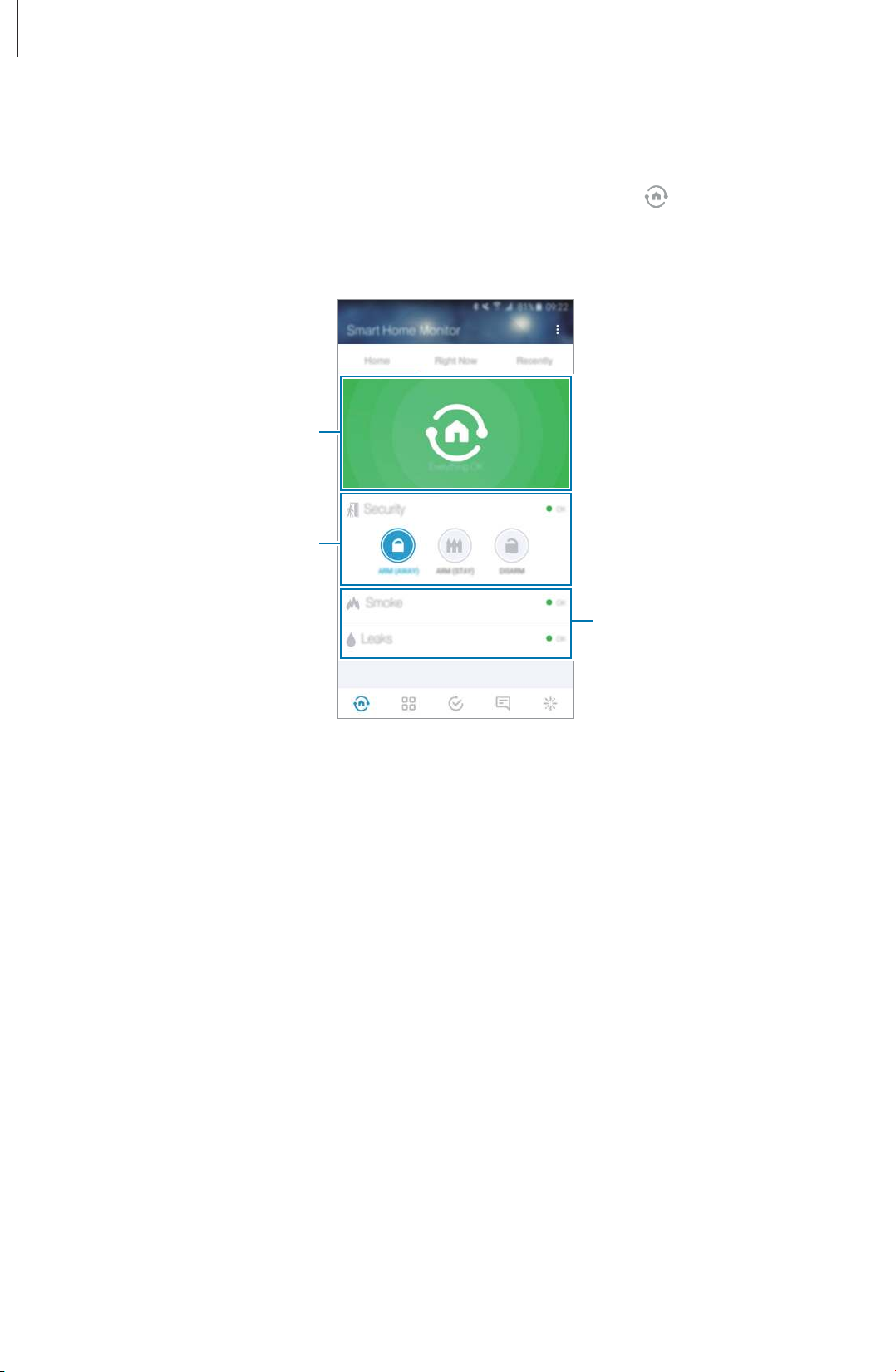
Monitoring your home
On the Apps screen of your mobile device, tap
1
Tap
2
Home
.
Notification area
Security options
SmartThings
Monitoring items and current
status
→ .
Select a security option to use.
3
•
ARM (AWAY)
you are away.
•
ARM (STAY)
are home.
•
DISARM
Tap the notification area to view detailed information when an incident occurs.
4
When an incident occurs, the notification area will change to red and an alert message
will appear.
: Turn on the security system. You can monitor your home’s sensors when
: Turn on the security system. You can monitor selected sensors when you
: Turn off the security system and disable all monitoring and alarms.
34
Page 35

SmartThings
Using My Home
Add rooms to sort your connected devices according to their location in your home. You can
easily control the devices in one place.
On the Apps screen of your mobile device, tap
1
Tap
2
3
4
5
Rooms
Enter the name of the room.
Tap
Set room image
Tap
Add Devices to your Room
Done
tap
→ →
.
Add Room
to assign an image.
.
, select connected devices to add to the room, and then
Controlling connected devices in a room
Tap a room’s name.
1
Tap
2
Right Now
and tap the button next to a device to perform the assigned function.
SmartThings
→ .
To view more information about the device, tap the device name.
To view a list of recent activity in the room, tap
Recently
.
35
Page 36

SmartThings
Setting routines
Introduction
Routines allow you to instantly perform assigned actions at different times, such as when you
are at home or at the office. When you tap a routine, the Samsung Connect will perform your
assigned actions.
On the Apps screen of your mobile device, tap
SmartThings
→ .
Customise routines
On the Apps screen of your mobile device, tap
1
Tap on a routine type.
2
Customise options for actions that will be performed when you tap a routine type.
3
Tap
4
Done
.
SmartThings
→ .
Activate routines
On the Apps screen of your mobile device, tap
1
SmartThings
→ .
Tap a routine type.
2
The Samsung Connect will perform the assigned action and display a notification
regarding which actions are being performed on the screen.
For example, if the routine has set specific lights to turn on and set the Smart Home
Monitor menu to
off security system.
DISARM
, the Samsung Connect will turn on the lights and the turned
36
Page 37

SmartThings
Viewing family presence
When you register family members to the SmartThings mobile app, you can monitor who is
home. Register your family members to the app via presence sensors or compatible mobile
devices.
To use this feature, you must set the Samsung Connect’s location information when you set
up the Samsung Connect. Refer to
Setting up the Samsung Connect for more information.
Registering family members
On the Apps screen of your mobile device, tap
1
Tap
2
3
4
Things
Select a device type to connect.
Follow the on-screen instructions to complete the connection.
→
Coming and Going
.
SmartThings
Viewing family presence status
On the Apps screen of your mobile device, tap
1
Tap
2
Family
.
SmartThings
→ .
→ .
Viewing notifications
You can check important messages about your home status, such as alerts about lights being
turned on or a family member’s arrival.
On the Apps screen of your mobile device, tap
1
Tap
2
Messages
or
Activity Feed
.
SmartThings
37
→ .
Page 38

SmartThings
Using SmartApps
Installing apps from SmartApps allows you to quickly find and personalise automations or
rules for your connected devices.
Installing apps
On the Apps screen of your mobile device, tap
1
Tap
2
3
4
5
SmartApps
Select a category, select an app, and then tap
Customise the settings for the selected app.
Tap
Done
.
.
Uninstalling apps
On the Apps screen of your mobile device, tap
1
Tap
2
3
SmartApps
Select an app and tap
.
Remove
.
SmartThings
Install
.
SmartThings
→ .
→ .
38
Page 39

Appendix
Troubleshooting
Before contacting a Samsung Service Centre, please attempt the following solutions. Some
situations may not apply to your Samsung Connect.
Your Samsung Connect does not turn on
When the Samsung Connect is not connected to the USB power adaptor, your Samsung
Connect will not turn on. Connect the adaptor before turning on the Samsung Connect.
Your Samsung Connect is inactive
•
Make sure the Samsung Connect is securely connected to the USB power adaptor.
•
Restart the Samsung Connect by unplugging it from the USB power adaptor, wait a few
minutes, and then reconnect the USB power adaptor to the Samsung Connect.
The touchscreen responds slowly or improperly
•
If you attach a protective cover or optional accessories to the touchscreen, the
touchscreen may not function properly.
•
If you are wearing gloves, if your hands are not clean while touching the touchscreen,
or if you tap the screen with sharp objects or your fingertips, the touchscreen may
malfunction.
•
The touchscreen may malfunction in humid conditions or when exposed to water.
•
Restart your Samsung Connect to clear any temporary software bugs.
•
Ensure that your Samsung Connect software is updated to the latest version.
•
If the touchscreen is scratched or damaged, visit a Samsung Service Centre.
39
Page 40

Appendix
Your Samsung Connect freezes or has fatal errors
If your Samsung Connect freezes or hangs, you may need to close apps or turn off the
Samsung Connect and turn it on again. If your Samsung Connect is frozen and unresponsive,
press and hold the Standby/Wake key and tap
If this does not solve the problem, perform a factory data reset. On the Samsung Connect,
open the Menu panel and tap
performing the factory data reset, remember to make backup copies of all important data
stored on the Samsung Connect.
If the problem is still not resolved, contact a Samsung Service Centre.
Settings
→
Restart
Reset Samsung Connect
to restart it.
→
Reset
. Before
Another Bluetooth device cannot locate your Samsung Connect
•
Ensure that the Bluetooth wireless feature is activated on your Samsung Connect.
•
Reset your Samsung Connect and try again.
•
Ensure that your Samsung Connect and the other Bluetooth device are within
the Bluetooth connection range (10 m). The distance may vary depending on the
environment the devices are used in.
If the tips above do not solve the problem, contact a Samsung Service Centre.
A Bluetooth connection between the Samsung Connect and a device
cannot be established
•
Ensure that the Bluetooth feature on both devices is activated.
•
Ensure there are no obstacles, such as walls or electrical equipment, between the devices.
•
Ensure that your Samsung Connect and the other Bluetooth device are within
the Bluetooth connection range (10 m). The distance may vary depending on the
environment the devices are used in.
•
Restart both devices again.
40
Page 41

Appendix
There is no Internet connection
•
Make sure the wireless router connected to your Samsung Connect is working properly.
•
Restart your Samsung Connect’s Wi-Fi feature or the wireless router.
Your Samsung Connect is hot to the touch
When you use apps that require more power or use apps on your Samsung Connect for an
extended period of time, your Samsung Connect may feel hot to the touch. This is normal and
should not affect your Samsung Connect’s lifespan or performance.
A small gap appears around the outside of the Samsung Connect case
•
This gap is a necessary manufacturing feature and some minor rocking or vibration of
parts may occur.
•
Over time, friction between parts may cause this gap to expand slightly.
41
Page 42

Copyright
Copyright © 2015 Samsung Electronics
This manual is protected under international copyright laws.
No part of this manual may be reproduced, distributed, translated, or transmitted in any form
or by any means, electronic or mechanical, including photocopying, recording, or storing
in any information storage and retrieval system, without the prior written permission of
Samsung Electronics.
Trademarks
•
SAMSUNG and the SAMSUNG logo are registered trademarks of Samsung Electronics.
•
Bluetooth® is a registered trademark of Bluetooth SIG, Inc. worldwide.
•
Wi-Fi®, Wi-Fi Protected Setup™, Wi-Fi CERTIFIED™, and the Wi-Fi logo are registered
trademarks of the Wi-Fi Alliance.
•
All other trademarks and copyrights are the property of their respective owners.
 Loading...