

Page 1
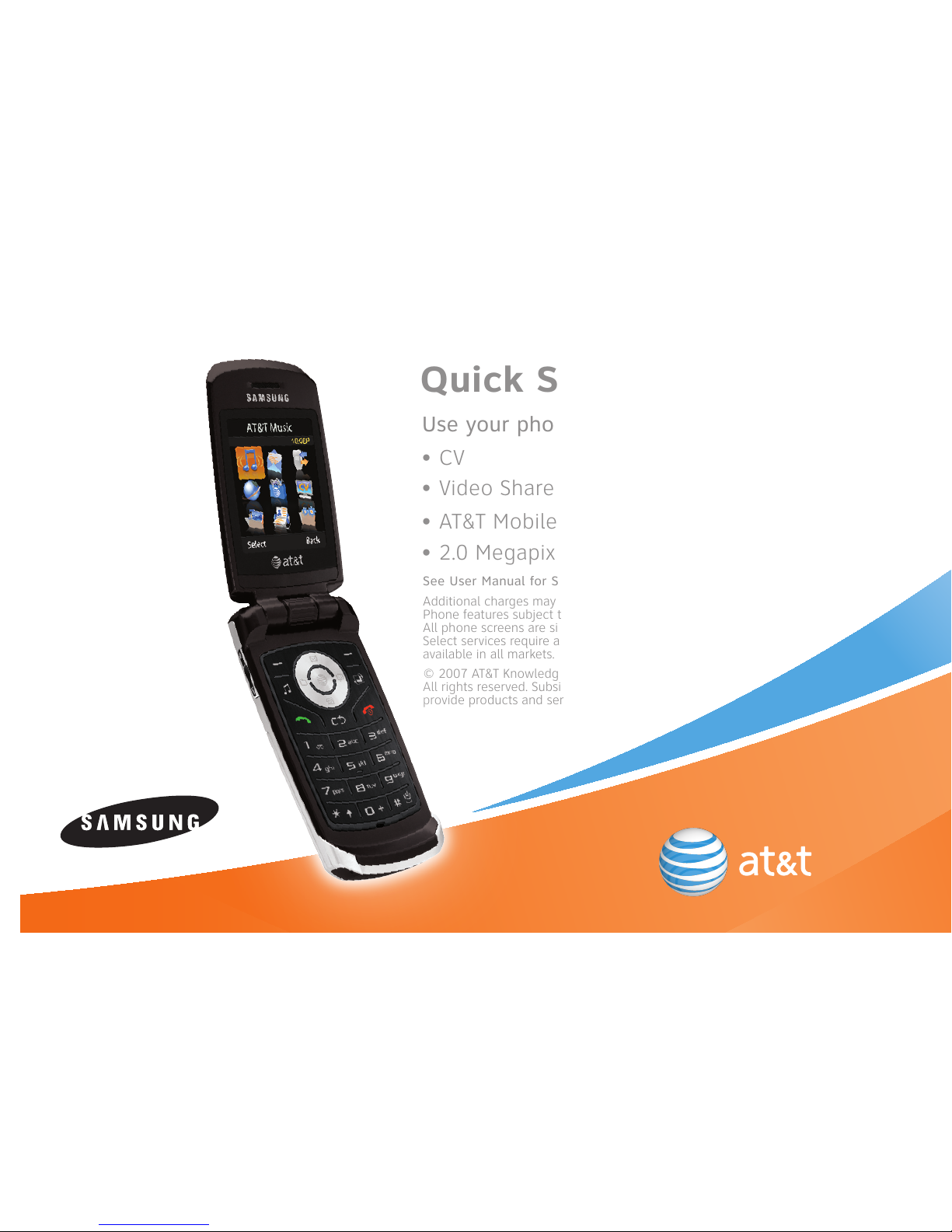
Quick Start Guide
Use your phone for more than just talking
• CV
• Video Share
• AT&T Mobile Music
• 2.0 Megapixel Camera
See User Manual for Spanish Instructions
Additional charges may apply. Visit att.com for more details.
Phone features subject to change without prior notice.
All phone screens are simulated.
Select services require an AT&T Nation plan and may not be
available in all markets.
© 2007 AT&T Knowledge Ventures.
All rights reserved. Subsidiaries and affiliates of AT&T Inc.
provide products and services under the AT&T brand.
SLM™
Page 2
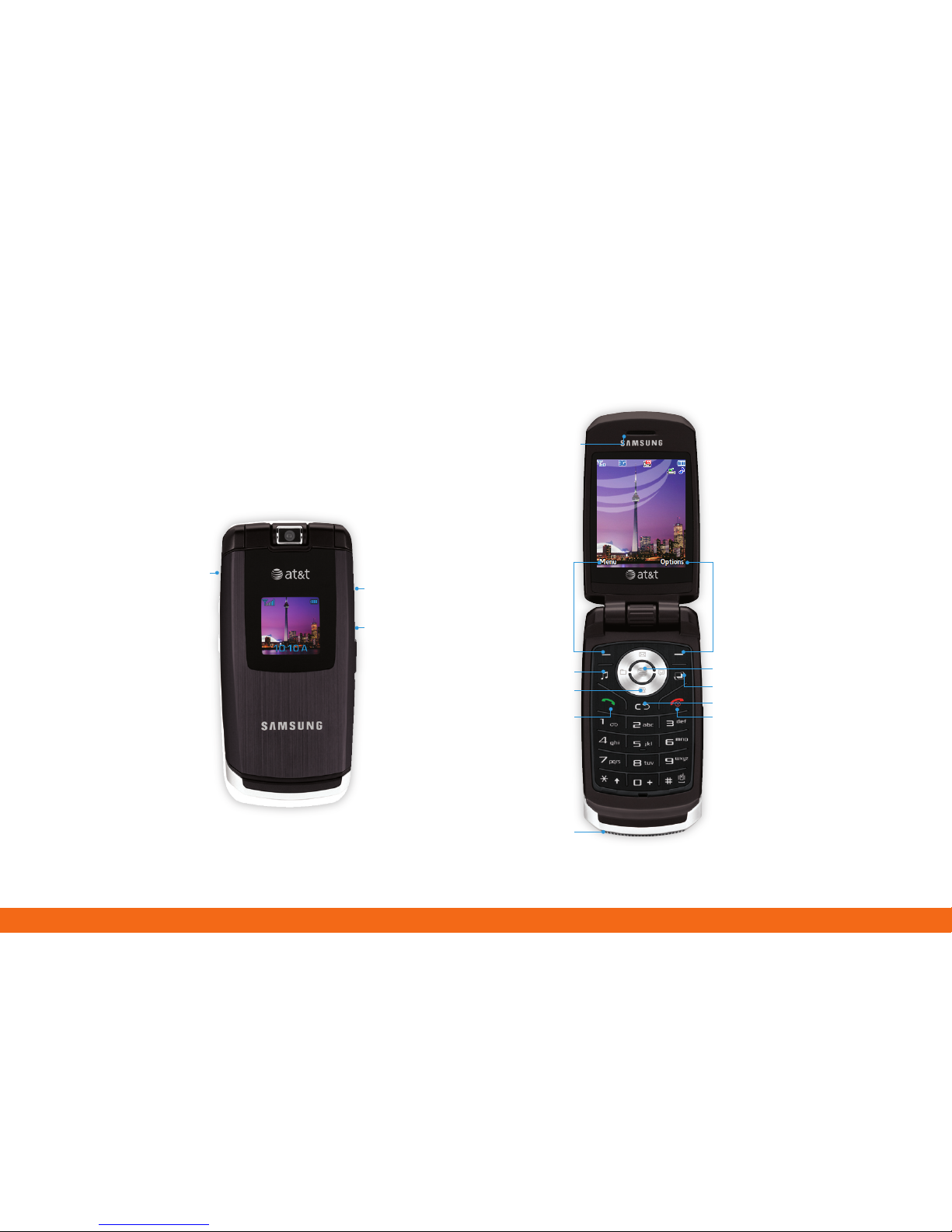
Volume
Up/Down
Left Soft Key
Navigation Key
AT&T Music Key
Send Key
Right Soft Key
Clear Key
Power/End
Key
Headset Jack/
Charging & USB
Port
Center Navigation Key
Earpiece/Speaker
Getting to Know Your Phone
For more information visit att.com/DeviceSupport
For Quick Tips go to Menu<Settings< Quick Tips
Multitasking Key
microSD Card
Slot
Microphone
Page 3
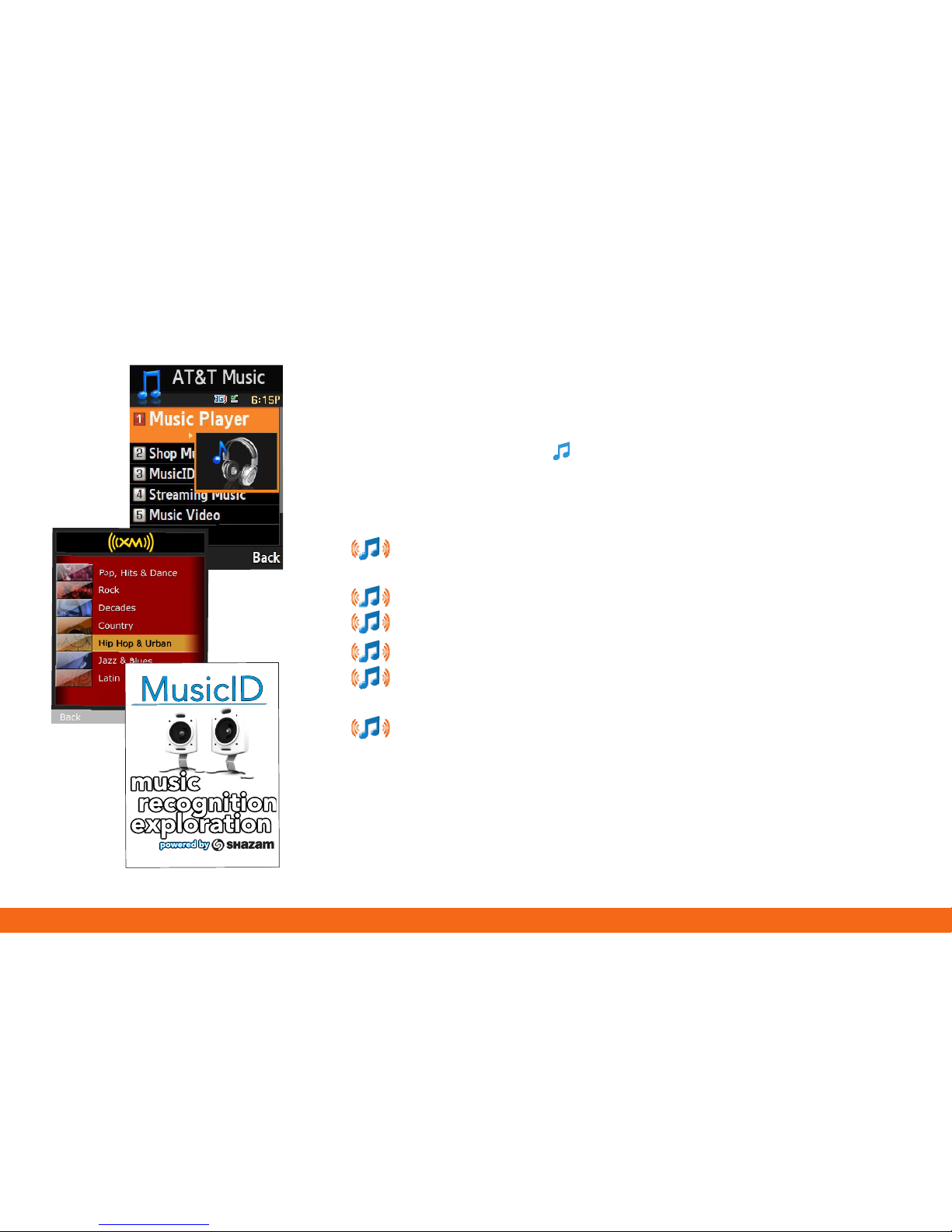
Browse and select music from leading digital music stores like
Napster® and eMusic™ with Shop Music
Listen to your music on an integrated Music Player
Enjoy dozens of commercial-free music stations with XM Radio
Watch the latest music videos under Music Videos
Personalize with ringtones and Answer Tones™ under Shop
Music
Instantly ID the title and artist of a song with MusicID and
purchase it through Napster®
AT&T Mobile Music
AT&T Mobile Music provides the ultimate music experience
with the push of the music button. Listen to your
favorite music, watch the latest music videos, and stay in
the know with music news and more.
Page 4
Transfer Music
Transfer music from leading digital music stores like Napster®
and eMusic™ to your phone. It’s Simple.
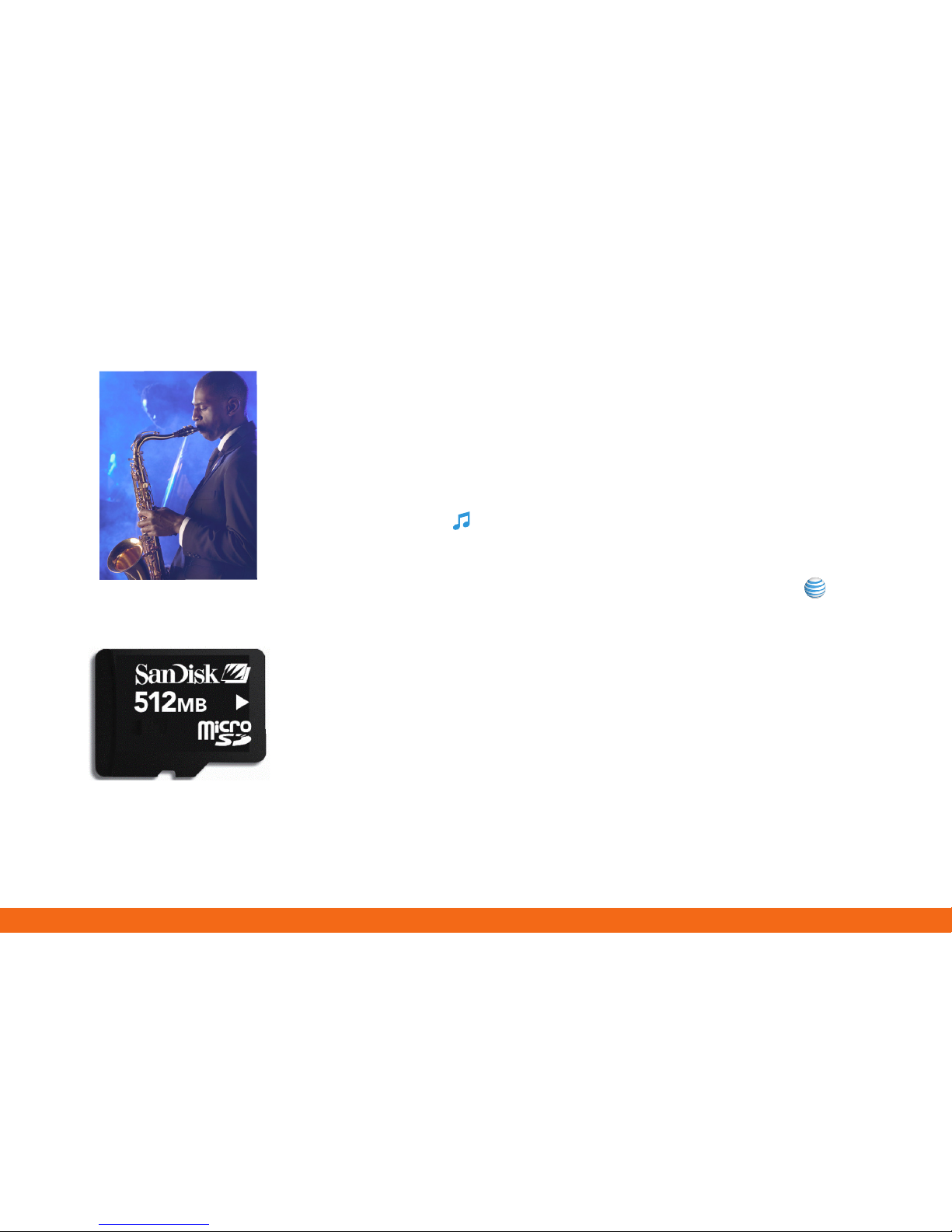
1. Insert the microSD™ card* into the microSD™ slot
2. Press the Key
3. Select Shop Music - The top 10 songs will be listed that you can
select from
4. To find music tracks, scroll to Find Music and press
5. Select Search to search by album, artist or song
Note: $1.99 per track or $7.49 for 5 tracks. Standard usage data rates apply
* memory card is
included in the box
Page 5
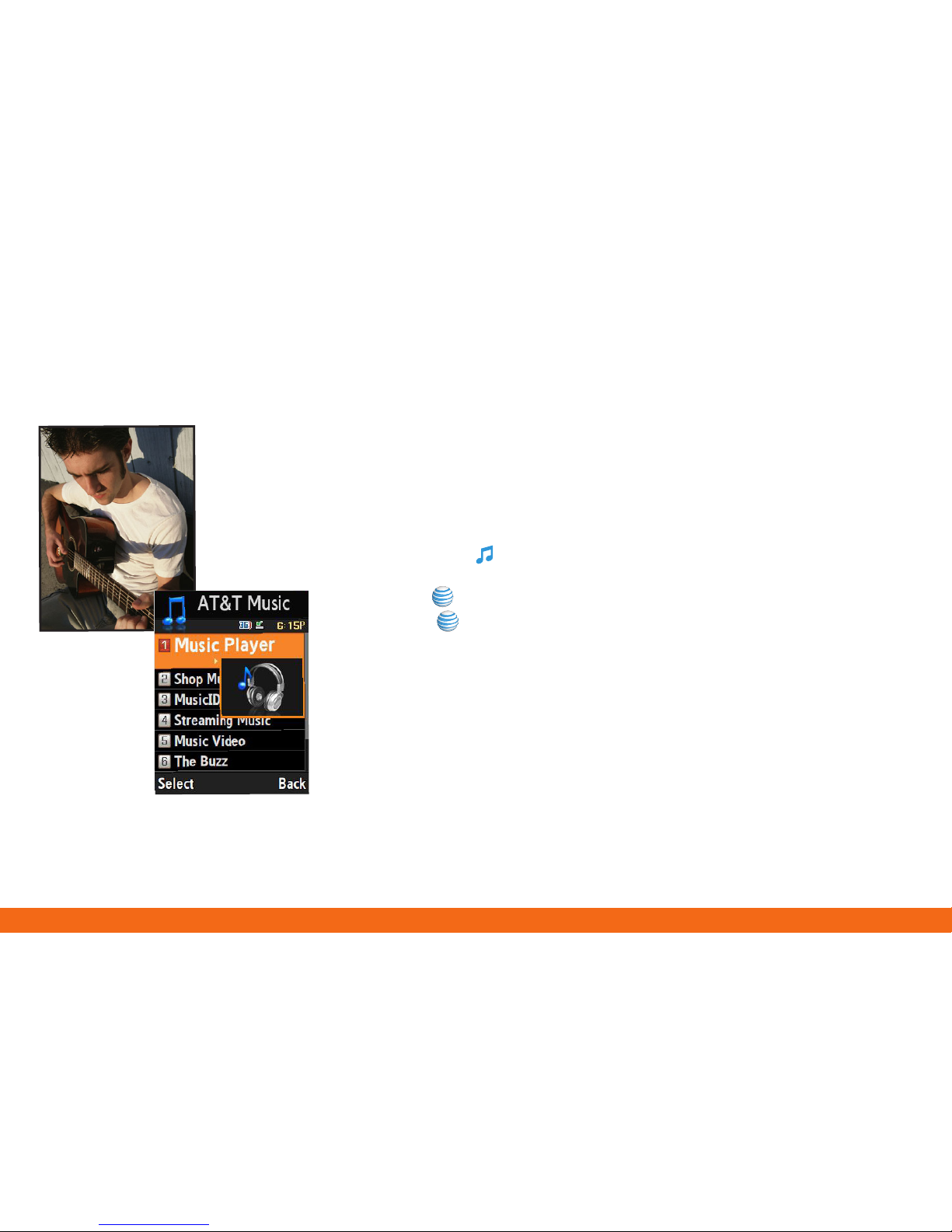
Listen to music from your favorite artists right on your
phone. To listen to music that you have transferred
to your phone, follow these quick easy steps.
Play Music
Playing Music on your a747
1. Press the key and select Music Player (1)
2. Select Now Playing or All Music and select the song and
press
3. Press to play/pause. Press up or down on the navigation key
to change the volume and the left or right navigation keys to go
to the previous or next song
Page 6
*Video Share is not available in all markets.
Both parties must be in a 3G service
area –
a 3G icon must appear by the
signal bars prior to a call being placed,
and both parties
must remain in the 3G
coverage area for the duration of the
Video Share session.
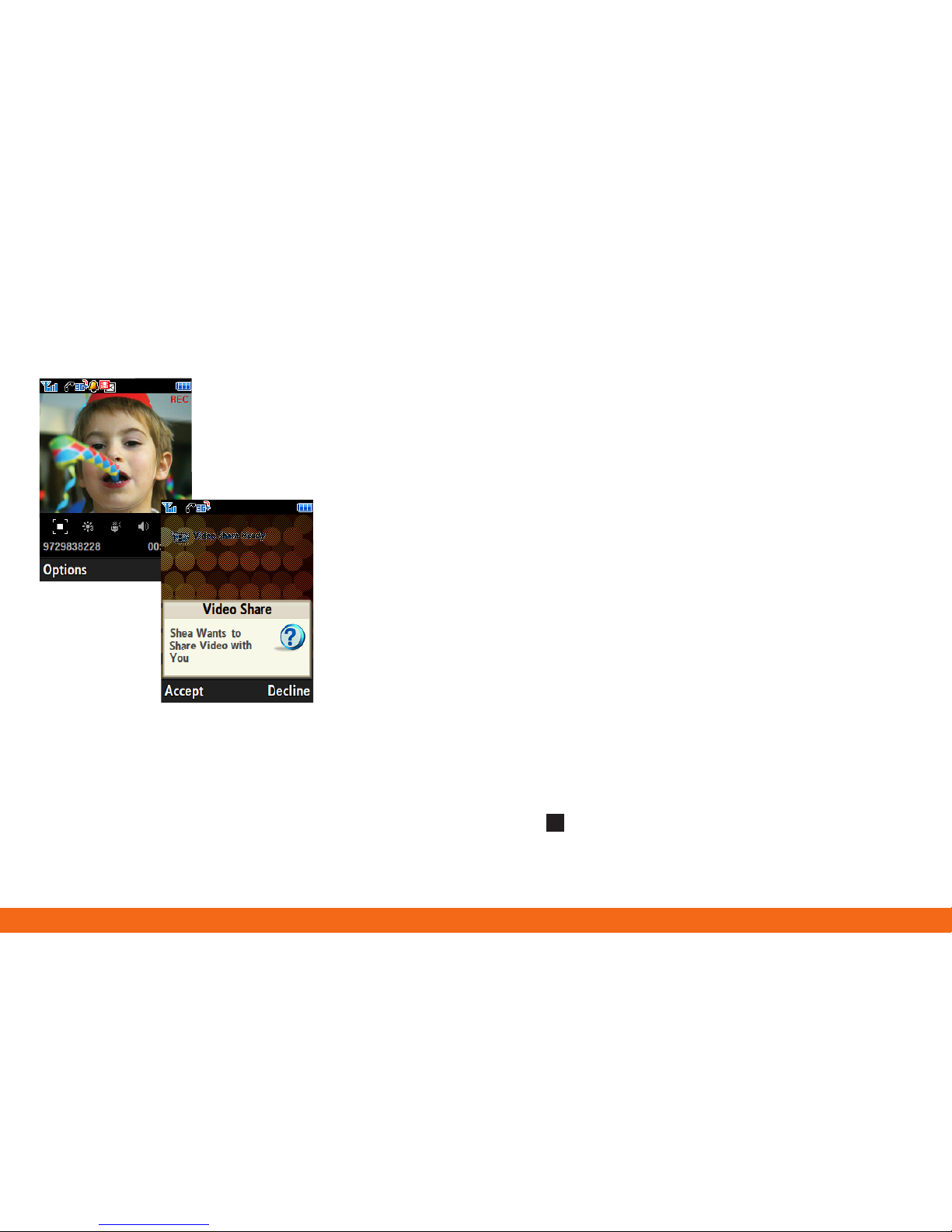
Share events the moment they happen.
Video Share lets you stream live video directly to
friends and family.
Video Share™
To make a Video Share Call
1. Dial the 10-digit number of another 3G Video Share capable
device*
2. Once the call is answered, press the Right soft key Video Share
to initiate the Video Share session
To accept a Video Share Call
1. When receiving a Video Share call, the name or number of the
person who wants to share video with you will appear on your
screen
2. Select Accept and the Video Share session will begin
automatically
To end a Video Share call and continue with the phone call,
press the stop icon
Page 7
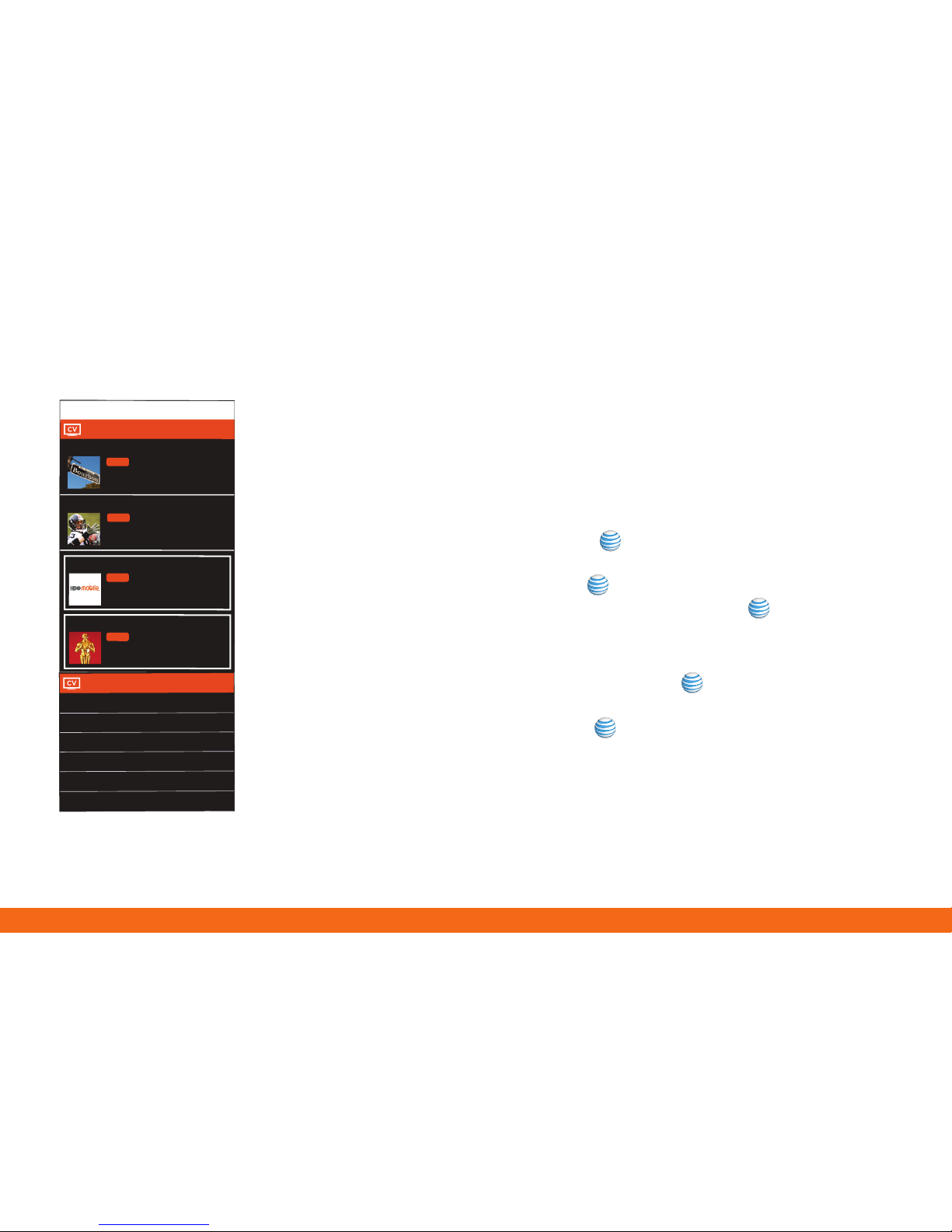
1. From the idle screen, press the Left Soft Key for Menu
2. Select CV (6), then press to connect
3. Once connected, select the program options you
wish to view and press
4. Select the clip you want to play and press
Personalize your CV content:
1. Select Customize CV from the CV home screen
2. Select Edit My Favorites and press
3. Select the content you would like to appear on your CV
Home screen and press
CV brings your phone to life. Watch news,
sports, weather, and entertainment clips
while on the go.
Parental Controls available. See box insert for details.
CV requires a MEdia™ Max plan.
PL
AY
PL
AY
PL
AY
PL
AY
My Favorite
s
EDIT
Cingular
Vi
deo
Rebuilding
The
Big Easy
Rookie makes
final draft pick
NBC
ESPN
Access Hollywood
What’
s on HBO
M
obil
e
Stars shine on
the red carpet
HBO Mobile Previe
w
PL
AY
PL
AY
PL
AY
PL
AY
My Favorite
s
EDIT
Vi
d
eo Categories
1.
TV to Go
2.
Entertainmen
t
3.
News & W
eather
4.
Sports
5.
HBO Mobil
e
6.
Premium Channels
Cingular
Vi
de
o
Rebuilding
The
Big Easy
Rookie makes
final draft pick
NBC
ESPN
Access Hollywood
What’
s on HBO
M
obil
e
Stars shine on
the red carpet
HBO Mobile Previe
w
CV
Page 8
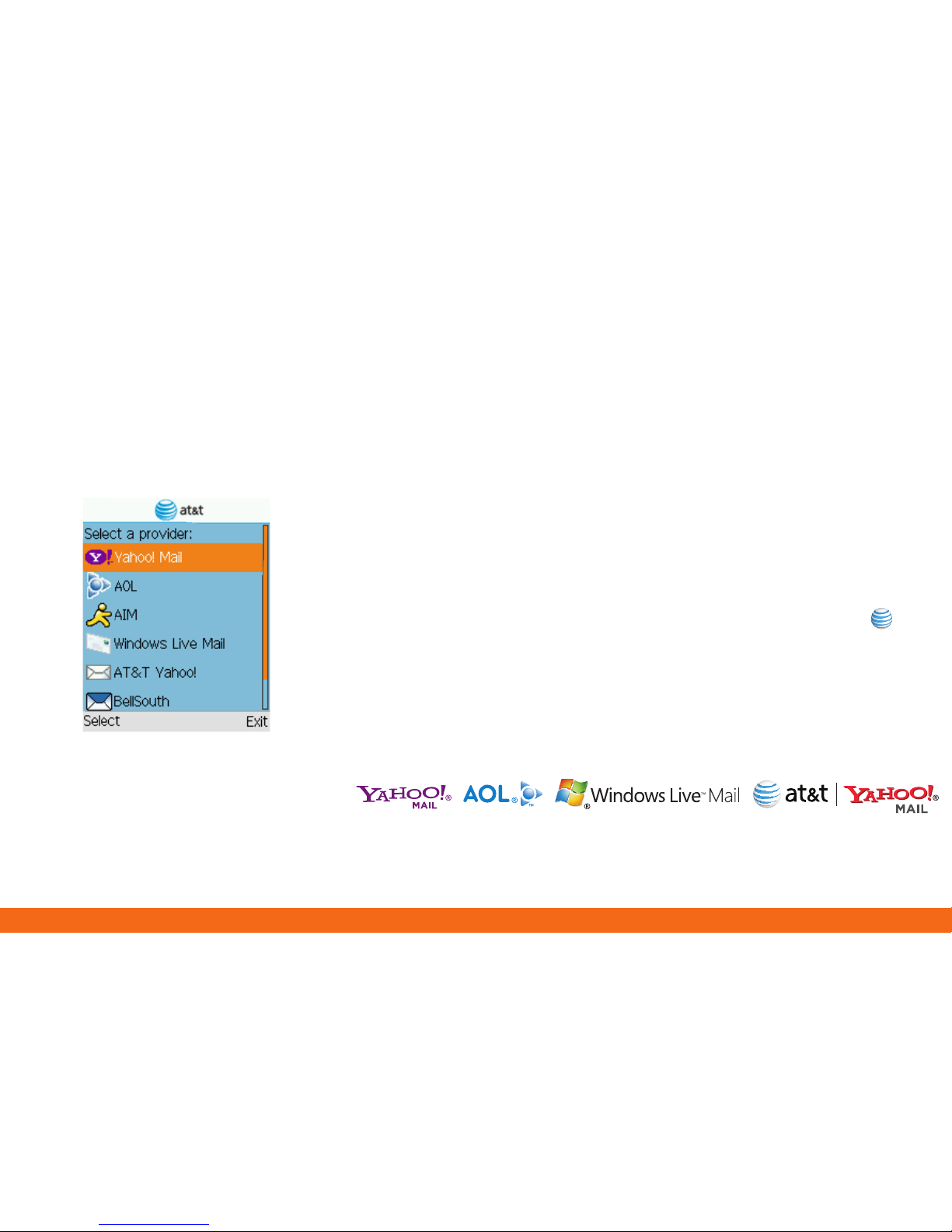
1. From the idle screen, press the Menu soft key
2. From the Menu screen, press 2 for Messaging
3. Press 3 for Mobile E-mail
4. Scroll to the e-mail provider of your choice and press the key
(Note: you may also be prompted to select a domain name from
that provider)
5. Type in your personal Email address (e.g., “silverfox2”), then enter
your account’s Password and press the Sign In soft key
6. You will be connected to your account’s Inbox and contacts,
where you can send and receive emails
Mobile Email
Take your email with you. With Mobile Email, you can quickly
and easily access your email if your account is with one of
the following providers: Yahoo!®, AOL®/AIM, Windows Live™
Mail, or AT&T® Yahoo!
All providers may not be available on all devices. Yahoo! and the Yahoo! logo are trademarks and/or
registered trademarks of Yahoo! Inc. AOL, America Online and the Triangle Logo are registered
trademarks of America Online. Windows Live and the Windows logo are either registered trademarks or
trademarks of Microsoft Corporation in the United States and/or other countries.
Page 9
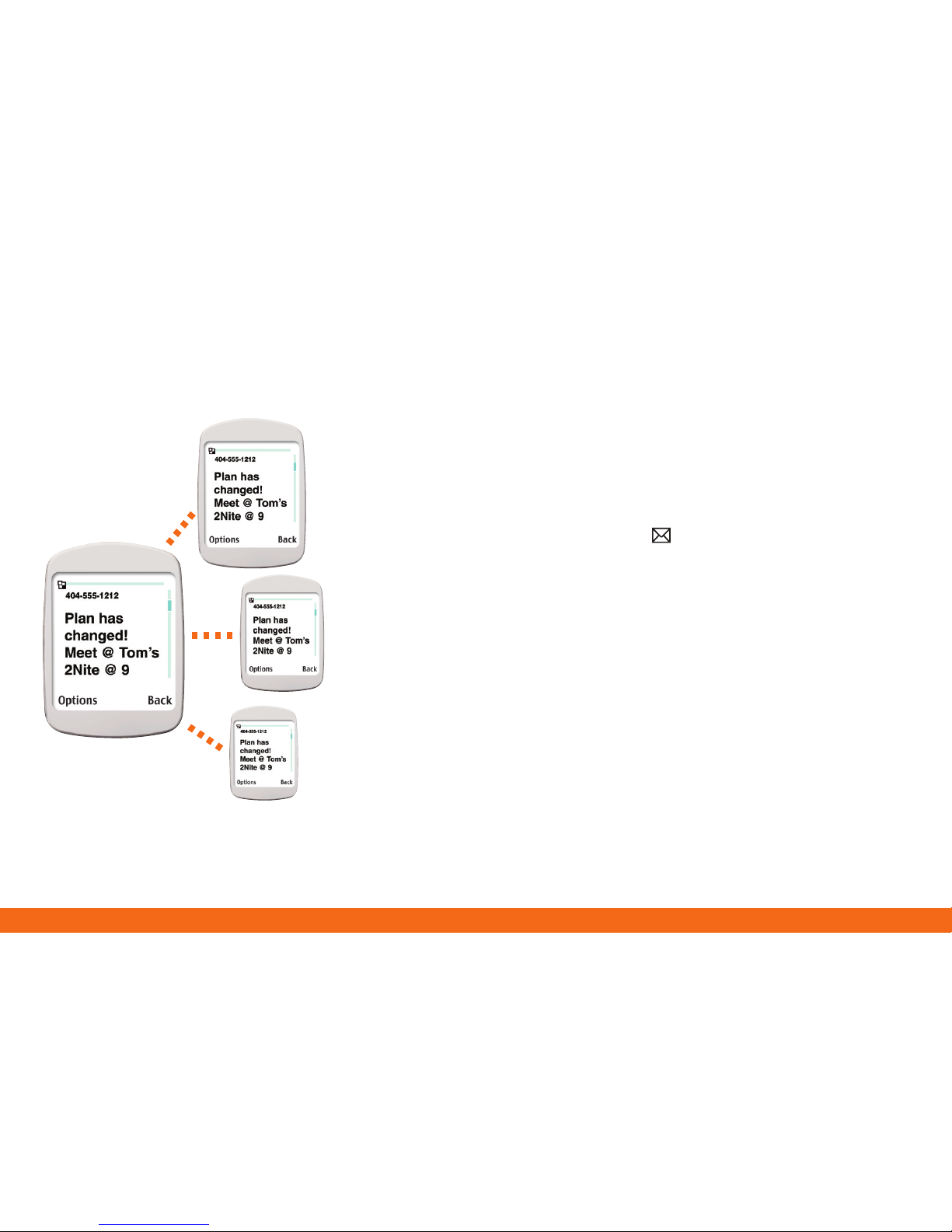
1. From the idle screen, press the located on the
navigation key
2. Type your message
3. Press the right soft key for Send to
4. Enter the phone number of the person you wish to send your
text message
5. Press the Right soft key for Send, to send your message
Text Messaging
When you need to communicate privately and quickly,
use text messaging. You can text message to other
wireless phones and email addresses.
Page 10
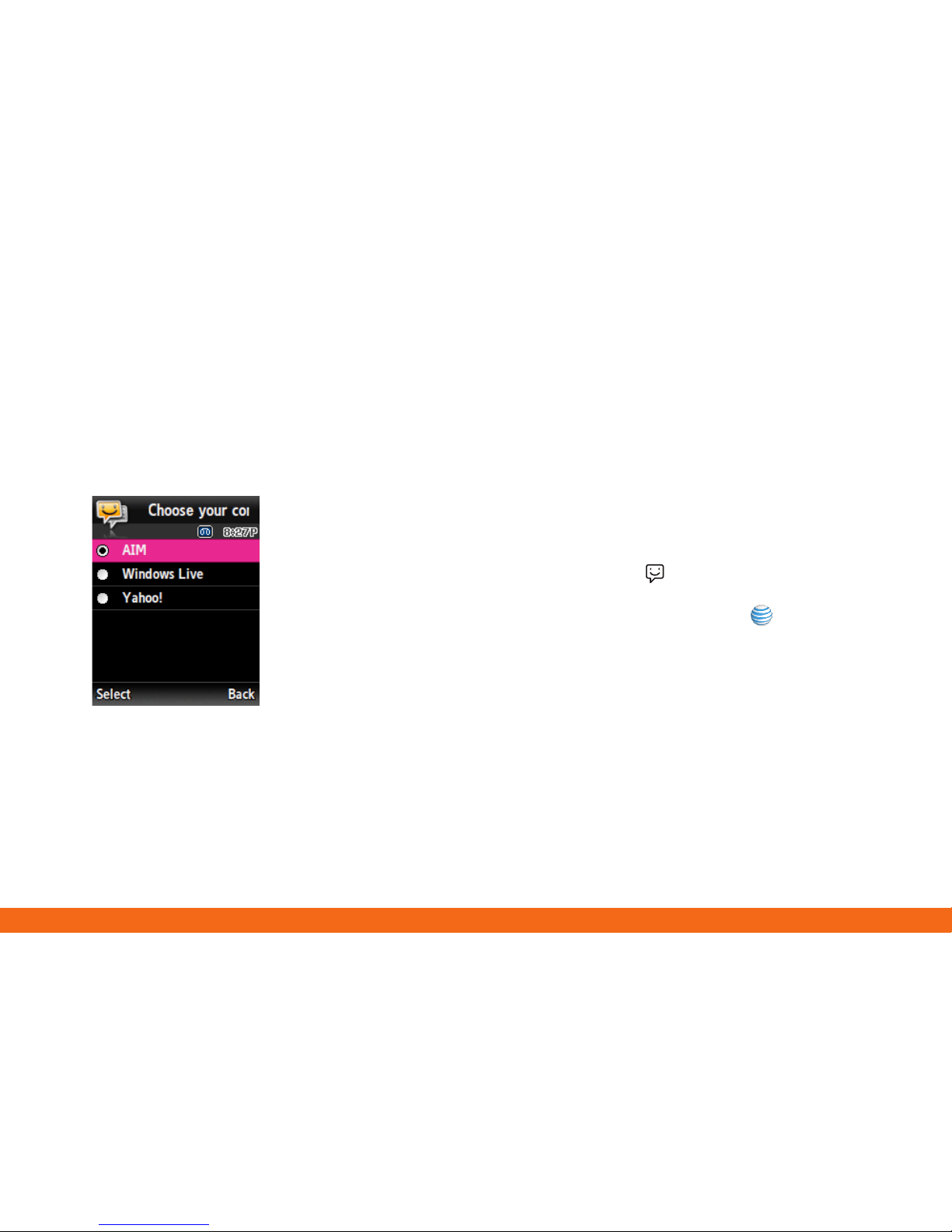
Instant Messaging
If you subscribe to an instant messaging service such as
AIM®, Yahoo!® or Windows Live®, you can take the
convenience and fun of instant messaging on the go with
your wireless phone.
To choose your IM service:
1. From the idle screen, press the located on the
navigation key
2. Highlight your IM community and press the key
3. Press 1 to Sign In. The first time you enter a community, enter
your Screen Name/ID or Email and your Password
4. Check the Automatic Sign-In box to be automatically connected
in the future
5. Press the Left soft key to Sign In/On
To use IM:
1. Once signed on, you’re ready to send instant messages to your
buddy list already set up with your IM service
Note: When you receive an incoming instant message, a “new message” icon will appear
on screen.
Page 11
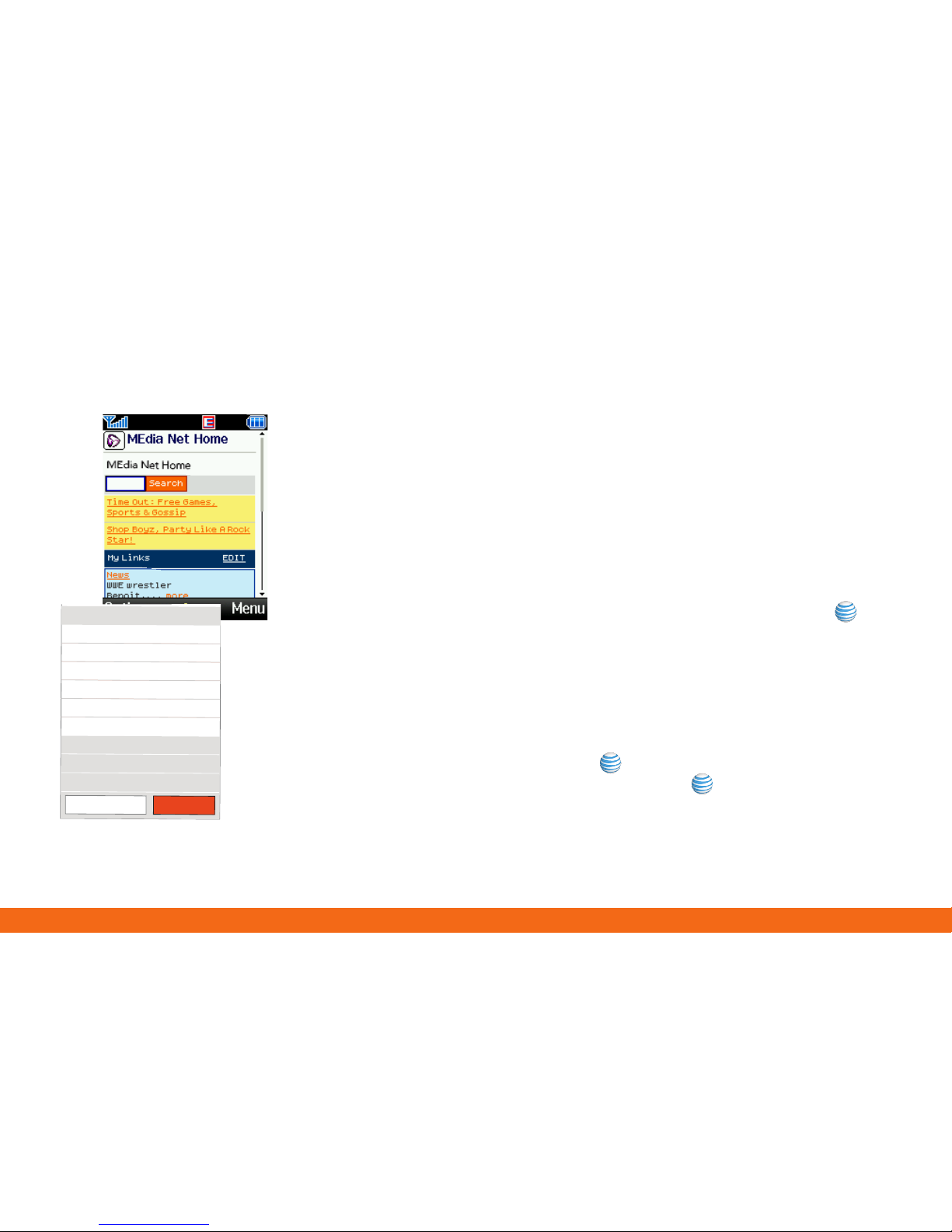
My Links
Check
Yo
ur Email on
the Go
!
Categories
1
What
’s
Hot!
2
T
ones, Games & Pic
s
3
Mail & Messaging
4
Sports
5
Entertainment
0
More Categories
My
A
ccoun
t
Customize MEdia Ne
t
Help
Sports
Yan
kees (MLB
)
NY
Y
3 - Sea 2 (Final
)
We
athe
r
Los
Angele
s
Currently 85
E
DIT
E
DIT
ME
di
a
Net
Hom
e
Search
MEdia™ Net
With MEdia Net, you can get the information that is
important to you at a glance. Check local weather,
your team scores or movie listings with just a few
clicks.
1. From the idle screen, press the Menu soft key
2. Press 4 for MEdia Net
3. Press 1 for MEdia Net Home
4. Highlight the content you want to view and press the key
- Weather
- News
- Sports... and more!
Personalize your MEdia Net home screen:
1. From the MEdia Net home screen, scroll to “Customize
MEdia Net” and press the key
2. Select Edit Categories and press the key
3. Highlight the categories you would like to appear on your
MEdia Net home screen and press Save
Page 12
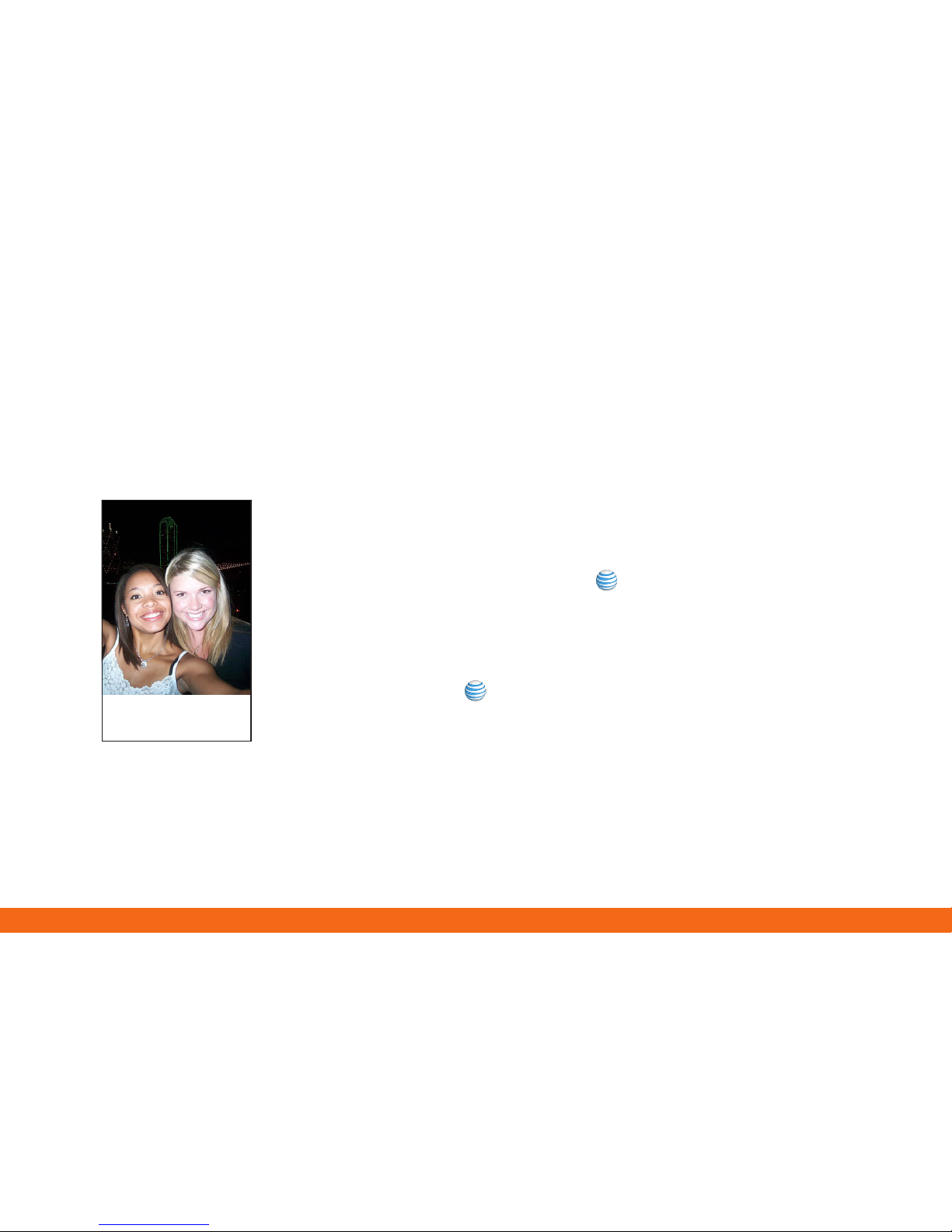
Take a Picture
1. From the idle screen, press the Options soft key
2. Select Camera and press key
3. Press Up or Down on the navigation key for zoom, and
Right and Left to adjust brightness. Press the Left soft key to
adjust image resolution and select shooting mode, frames,
effects, timer, or other options
4. Press the key to take the photo
Send a Picture
5. Press the Options soft key
6. Press 2 to select Send and then select 1 for via Message
7. Press the Options soft key. Select 1 for Add Recipient and
choose the phone number
8. Press the Send To soft key to send the message with the photo
attached
Take a Picture
Capture those special moments right from
your phone and send them to friends and family.
It’s easy.
Note: Pictures will automatically be saved in My Stuff (7) in the Graphics folder.
Girls night out.
We miss you!
Page 13
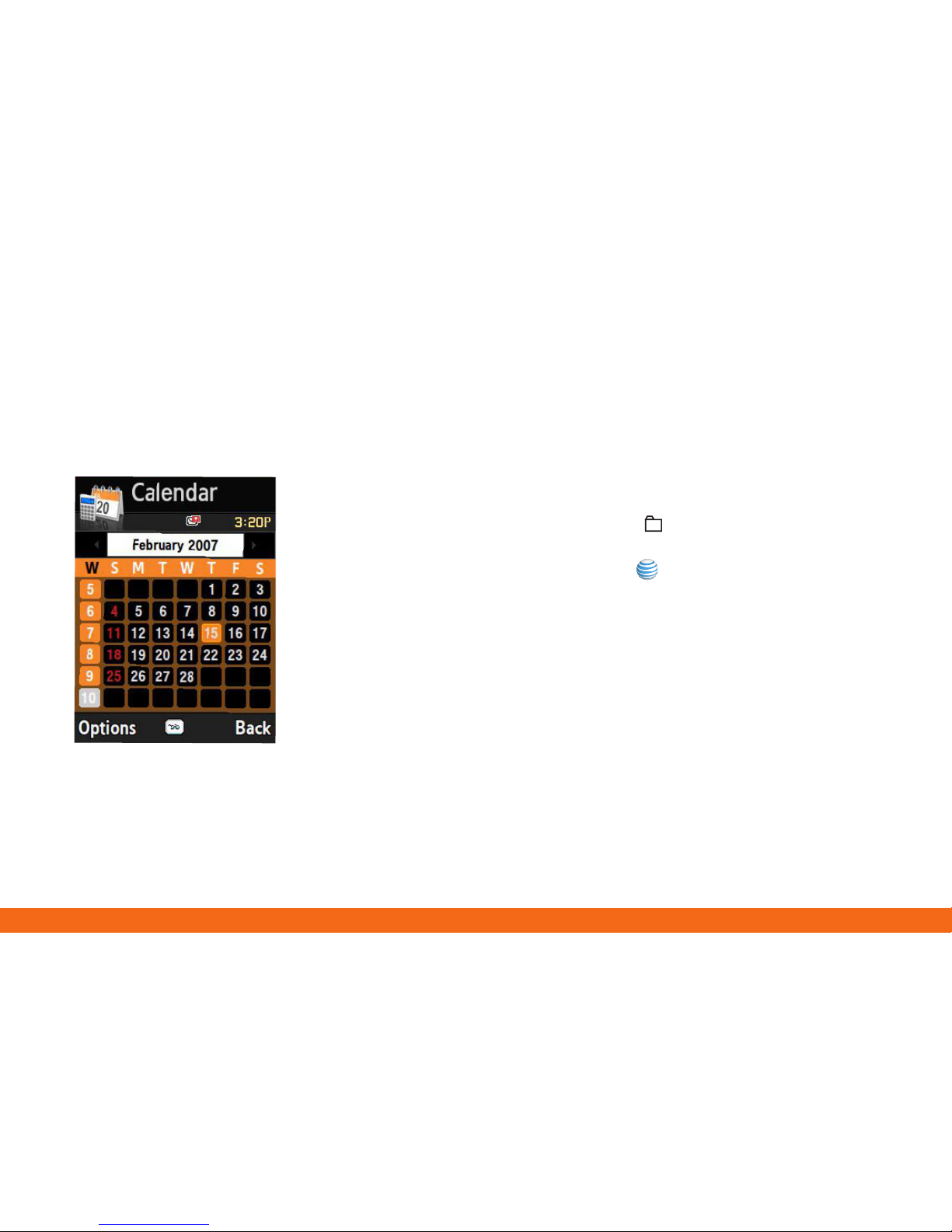
Stay Organized and on schedule with time-saving tools
including a calendar, alarm clock and tasks. All of these
great tools are just a few clicks away.
Organize Me
1. From the idle screen, press the located on the
navigation key
2. Select Applications and press
- Select 5 for Alarms
- Select 6 for Calendar
- Select 7 for Tasks
Page 14
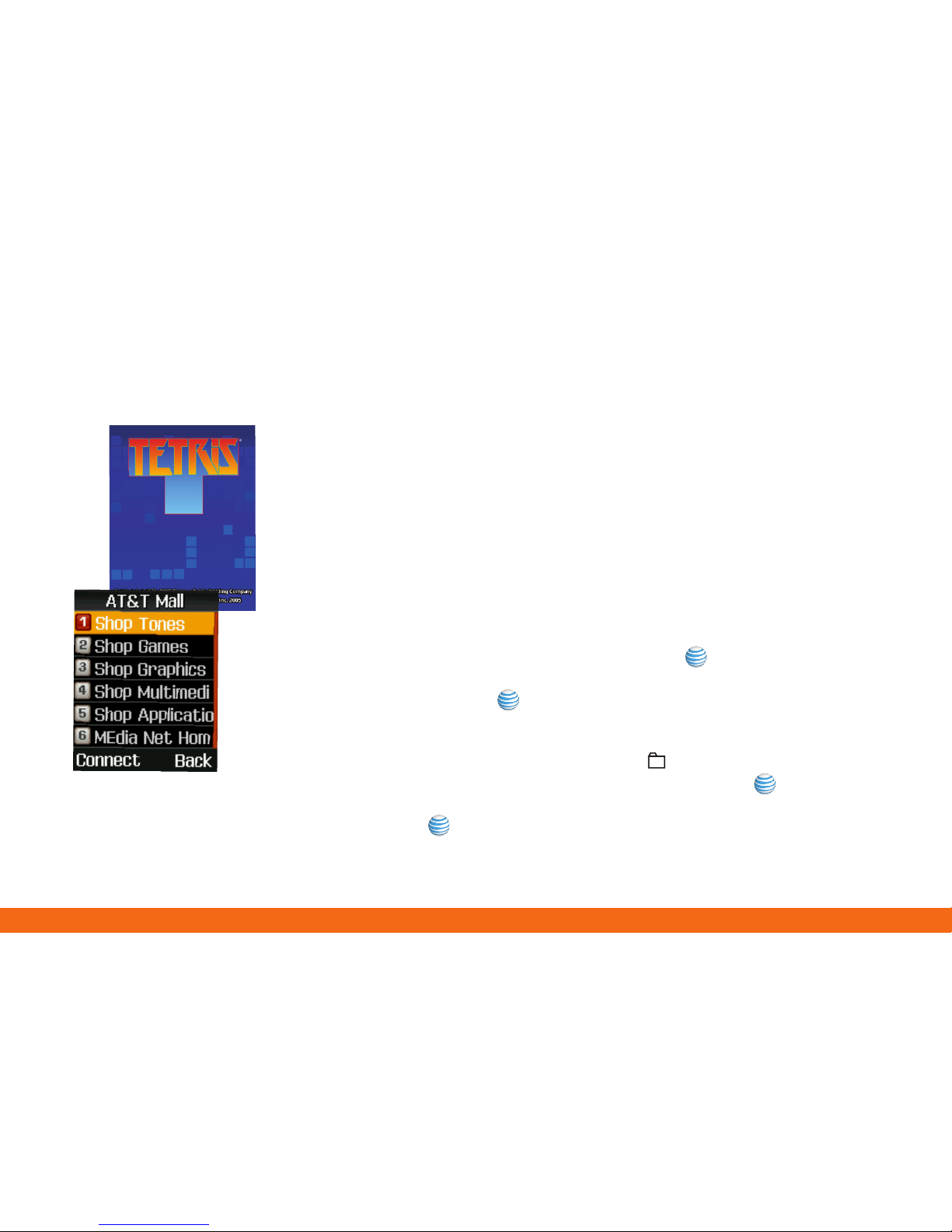
Downloadable Fun
Whether you are into the latest hits or the classics, let
your phone reflect your style with downloadable ringtones and Answer Tones™. Or entertain yourself with
cool tools and games.
To access the AT&T Mall
1. From the idle screen, press the Menu soft key
2. Press 5 for AT&T Mall
3. Select Shop Tones (1), Shop Games (2) Shop Graphics (3) or
Shop Applications (5) and press the key
4. When your web connection is established, choose a category,
and press the key
To access cool tools and games on your device
1. From the idle screen, press the on the navigation key
2. Scroll to Games and Applications and press
3. Select the game or application you would like to launch and
press
4. Follow the step by step instructions
Page 15
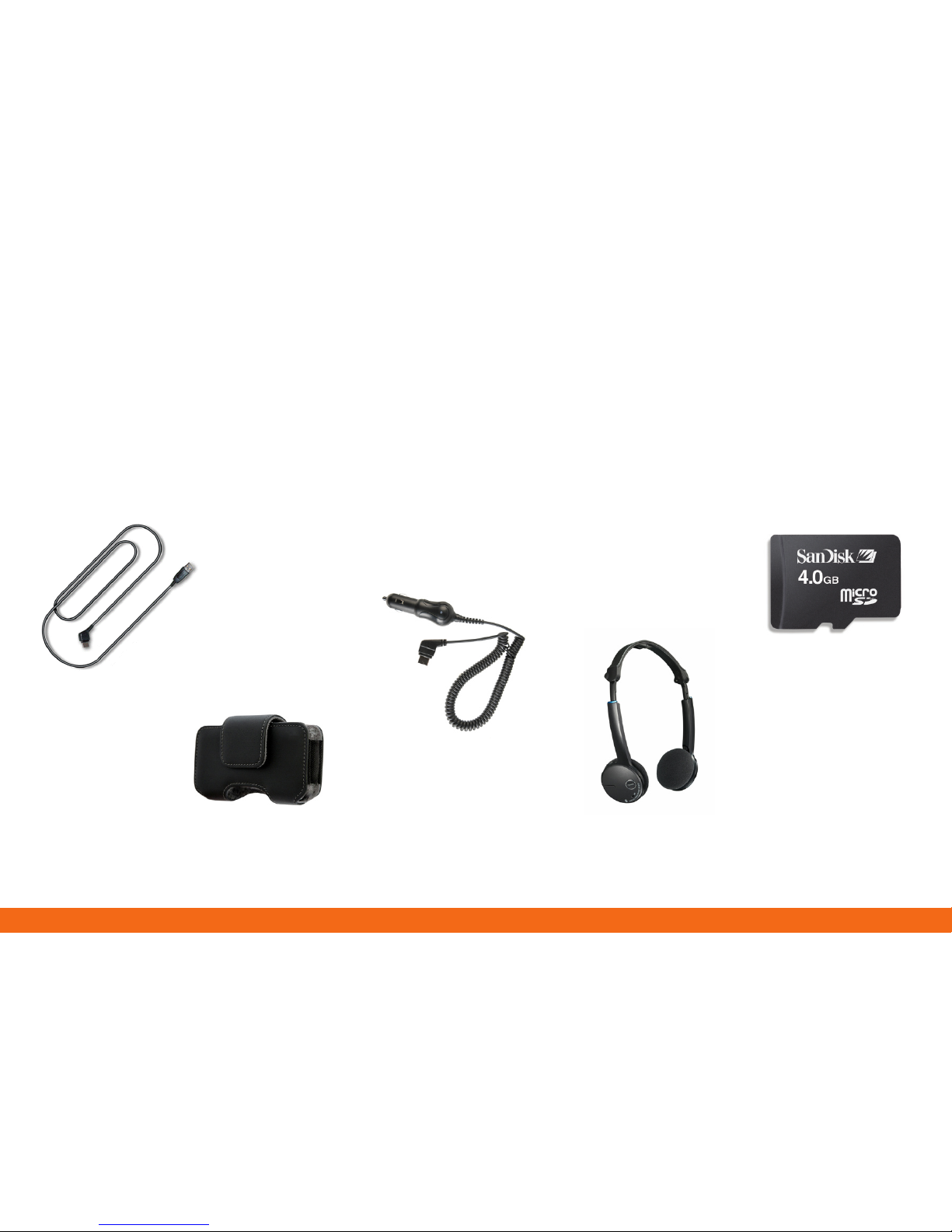
Leather Case
Bluetooth Headset
Optional Accessories
AT&T has accessories for productivity, convenience and
fashion. You can also shop accessories at
www.att.com/wirelessaccessories
Car Power Charger
USB Cable
microSD™ Memory Card*
*Note: Supports up to a 4GB microSD™ Card
Page 16

GH68-16241A Rev1.0
 Loading...