

Page 1

* Depending on the software installed or your service provider
or region, some of the descriptions in this guide may not
match your phone exactly.
* Depending on your region, your phone and accessories may
appear different from the illustrations in this guide.
www.armanisamsungmobile.com
Code No.:GH68-20883A
English (EU) . 1
Printed in Korea
1/2008. Rev. 1.0
Page 2
Samsung
M7500
Page 3

Page 4

Copyright information
•Bluetooth® is a registered trademark of
the Bluetooth SIG, Inc. worldwide.
Bluetooth QD ID: B014429
TM
•Java
• Windows Media
is a trademark or registered
trademark of Sun Microsystems, Inc.
trademark of Microsoft Corporation.
Player® is a registered
Page 5

Important safety precautions
Failure to comply with the following
precautions may be dangerous or illegal.
Drive safely at all times
Do not use a hand-held phone while driving. Park your
vehicle first.
Switch off the phone when refuelling
Do not use the phone at a refuelling point (service
station) or near fuels or chemicals.
Switch off in an aircraft
Wireless phones can cause interference. Using them in
an aircraft is both illegal and dangerous.
Switch off the phone near all medical equipment
Hospitals or health care facilities may be using
equipment that could be sensitive to external radio
frequency energy. Follow any regulations or rules in
force.
Interference
All wireless phones may be subject to interference,
which could affect their performance.
Be aware of special regulations
Meet any special regulations in force in any area and
always switch off your phone whenever it is forbidden to
use it, or when it may cause interference or danger.
Water resistance
Your phone is not water-resistant. Keep it dry.
2
Page 6
Sensible use
Use only in the normal position (held to your ear). Avoid
unnecessary contact with the antenna when the phone
is switched on.
Emergency calls
Key in the emergency number for your present location,
then press .
Keep your phone away from small children
Keep the phone and all its parts, including accessories,
out of the reach of small children.
Accessories and batteries
Use only Samsung-approved batteries and accessories,
such as headsets and PC data cables. Use of any
unauthorised accessories could damage you or your
phone and may be dangerous.
• The phone could explode if the battery is replaced
with an incorrect type.
• Dispose of used batteries according to the
manufacturer’s instructions.
At very high volumes, prolonged listening
to a headset can damage your hearing.
Qualified service
Only qualified service personnel may repair your phone.
For more detailed safety information, see "Health and
safety information" on page 53.
3
Page 7
About this Guide
This User’s Guide provides you with condensed
information about how to use your phone.
In this guide, the following instruction icons appear:.
Indicates that you need to pay careful
attention to the subsequent information
regarding safety or phone features.
→
[ ] Indicates a key on the phone. For example,
< > Indicates a soft key, whose function is
Indicates that you need to press the
Navigation keys to scroll to the specified
option and then select it.
[]
displayed on the phone screen. For example,
<
Select
>
•3G
Your phone is capable of operating
in a 3G environment, allowing
much greater data transfer speed,
video streaming, and video
conferencing.
Special
• User created theme
• MobileBlog
4
features of your phone
Create your own theme using your
favourite background images and
colours.
Share your photos and videos on
photo sharing websites and blogs.
Page 8
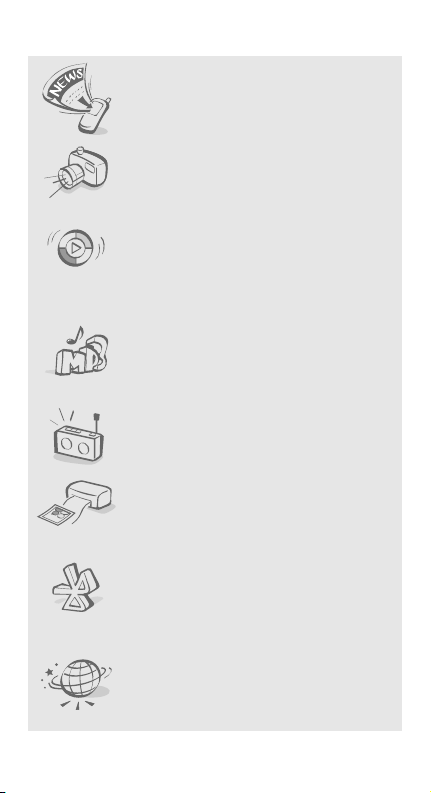
•RSS reader
Use RSS reader to get the latest
news from your favourite websites.
• Camera and camcorder
Use the camera module on your
phone to take a photo or record a
video.
• Synchronisation with Windows
Media Player
Transfer music files to your phone
directly from Windows Media
Player.
• Music player
Play music files on your phone. You
can use other phone functions
while listening to music.
•FM radio
Listen to your favourite radio
stations anytime, anywhere.
• Digital data printing
Print images, messages, and
personal data directly from your
phone.
• Bluetooth
Transfer media files and personal
data, and connect to other devices
using wireless Bluetooth
technology.
•Web browser
Access the wireless web to get upto-the-minute information and a
wide variety of media content.
5
Page 9

Contents
Unpack 8
Make sure you have each item
Get started 9
First steps to operating your phone
Assemble and charge the phone.................................... 9
Power on or off ......................................................... 10
Phone layout ............................................................ 10
Keys and icons.......................................................... 11
Access menu functions............................................... 15
Use shortcut icons..................................................... 16
Enter text ................................................................ 17
Customise your phone ............................................... 19
Use an optional memory card ..................................... 22
Step outside the phone 24
Begin with call functions, camera, music player, web
browser, and other special features
Make or answer calls ................................................. 24
Use the camera ........................................................ 26
Upload photos and videos to the web........................... 27
Play music ............................................................... 29
Listen to the FM radio ................................................ 32
Browse the web ........................................................ 34
Use Phonebook ......................................................... 34
Send messages......................................................... 35
View messages ......................................................... 37
Use Bluetooth........................................................... 38
Switch applications.................................................... 41
Menu functions 42
All menu options listed
Health and safety information 53
6
Page 10

Overview of menu functions
To access Menu mode, Press <
on your region, press [Centre] in Idle mode).
1 Call log
2 Phonebook
3 Music
1 Music player
2 Music recognition
4 Browser
1 Go to homepage
2 Enter URL
3 Bookmarks
4 Saved pages
5 History
6 Settings
5 Messages
1 Create message
2 Inbox
3 Email inbox
4 Drafts
5 Outbox
6 Sentbox
7 My folders
8 Templates
9 Delete by folders
10 Settings
11 SOS messages
12 Memory status
6 My files
Images
Videos
Sounds
Other files
Memory status
7 Organiser
1 Calendar
2 Memo
3 Task
4 World clock
5 Calculator
6 Convertor
1
2
3
Menu
> in Idle mode. (Depending
8 Camera
9 FM radio
* Applica tions
1 Image editor
2 Games and more
3 Voice recorder
4 Bluetooth
5 Synchronise
6 Timer
7 Stopwatch
8 RSS reader
9 SIM Servic es
0 Alarms
# Settings
1 Phone profiles
2 Display and light
3 Time and date
4 Phone settings
5 Application settings
6 Security
7 Network settings
8 PC connections
9 Setup wizard
10 Memory settings
11 Reset settings
1. Labelled differently
depending on your service
provider.
2. Availa ble only if suppor ted
by your region or service
provider.
3. Additional folders wi ll be
available if you insert a
memory card .
4. Availa ble only if suppor ted
by your USIM or SIM ca rd.
2
4
7
Page 11

Unpack
Make sure you hav e each item
•Phone
•Travel adapter
•Battery
•User’s Guide
You can obtain various accessories from your local
Samsung dealer.
The items supplied with your phone and the
accessories available at your Samsung dealer may
vary, depending on your region or service
provider.
8
Page 12
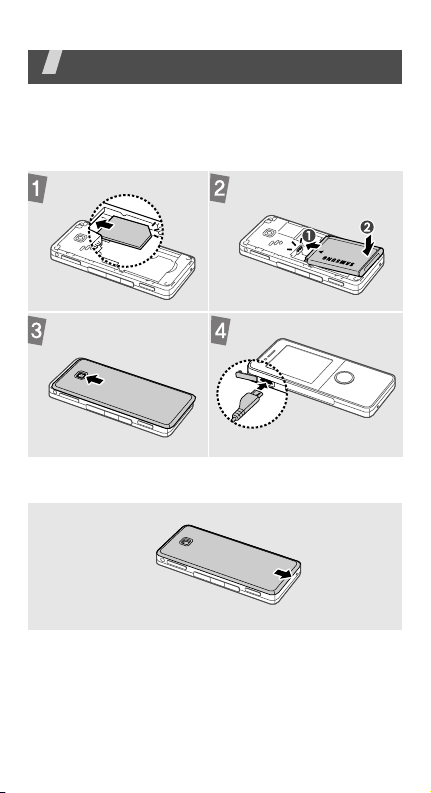
Get started
First steps to operating your phone
Assemble and charge the phone
To AC po w e r o u t l e t
Removing the battery cover
9
Page 13
Get started
Power on or off
Switch on
1. Press and hold [ ].
2. If necessary, enter the PIN and
press <
3. When the setup wizard opens,
customise your phone
according to your preferences.
Switch off
Press and hold [ ].
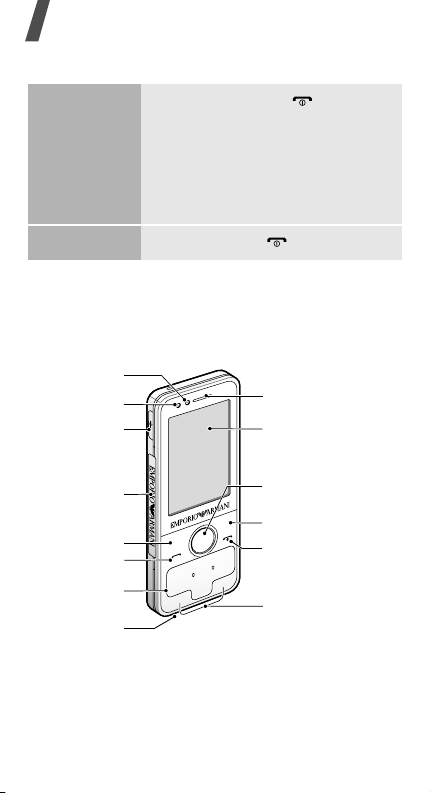
Phone layout
Front view
Front camera
lens
Light sensor
Multifunction
jack*
External
light
Left soft key
Dial key
Alphanumeric
keys
Mouthpiece
* For micro USB stereo headset
Confirm
>.
Earpiece
Display
Confirm key (Centre)/
Navigation keys
(Up/Down/Left/Right)
Right soft key
Power/
Menu exit key
Special function
keys
10
Page 14
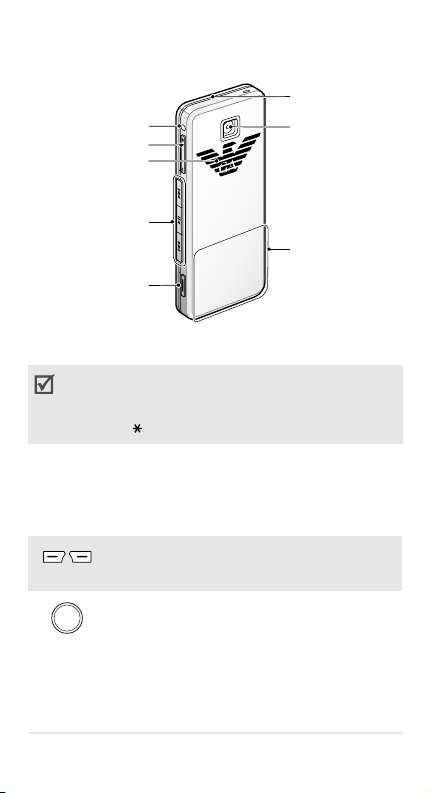
Rear view
External light
Headset jack*
Volume keys
Speaker
Music control
keys
Camera/
Application
switch key
* For 3.5 mm headset
You can lock the keypad to prevent any unwanted
phone operations, from accidentally pressing any
of the keys. To lock or unlock the keypad, press
and hold [ ].
Rear c amera
lens
Internal antenna
Keys and icons
Keys
Perform the function indicated on the
bottom line of the display.
In Idle mode, scroll through shortcut
icons.
In Menu mode, scroll through menu
options.
Select the highlighted option or
confirm input.
11
Page 15
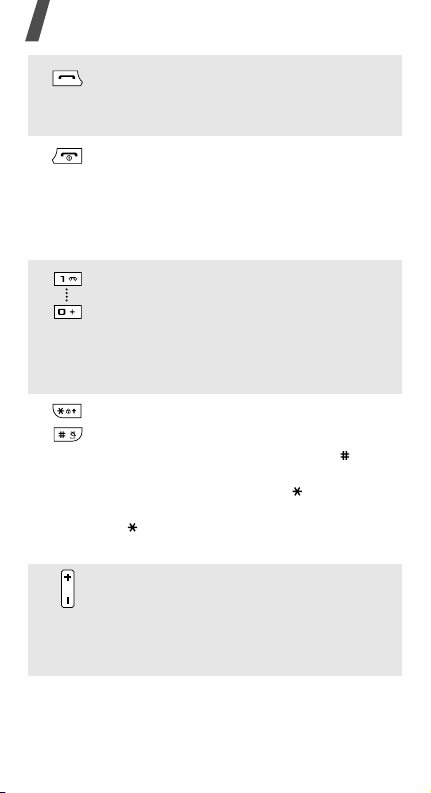
Get started
Make or answer a call.
In Idle mode, retrieve the numbers
recently dialled, missed, or received.
Press and hold to switch the phone on
or off.
End a call.
In Menu mode, cancel input and
return the phone to Idle mode.
Enter numbers, letters, and some
special characters.
1
In Idle mode, press and hold [
access your voicemail server. Press
and hold [
call prefix.
Enter special characters or perform
special functions.
In Idle mode, press and hold [ ] to
activate or deactivate the Silent
profile. Press and hold [ ] to lock or
unlock the keypad. Press and hold
[ ] to enter a pause between
numbers.
Adjust the phone volume.
In Idle mode, press and hold to turn
on the external light in red, green,
and blue for a few seconds.
0
] to enter an international
] to
12
Page 16
During playback, skip to the next file.
Press and hold to scan forward in a
file.
Press and hold to launch the music
player. Begin, pause, or resume
playback.
During playback, return to the
previous file. Press and hold to scan
backward in a file.
In Idle mode, press and hold to turn
on the camera.
In Camera mode, take a photo or
record a video.
If you change a default function for
the key, you can open the application
switch window to access other
applications without exiting the
current application.
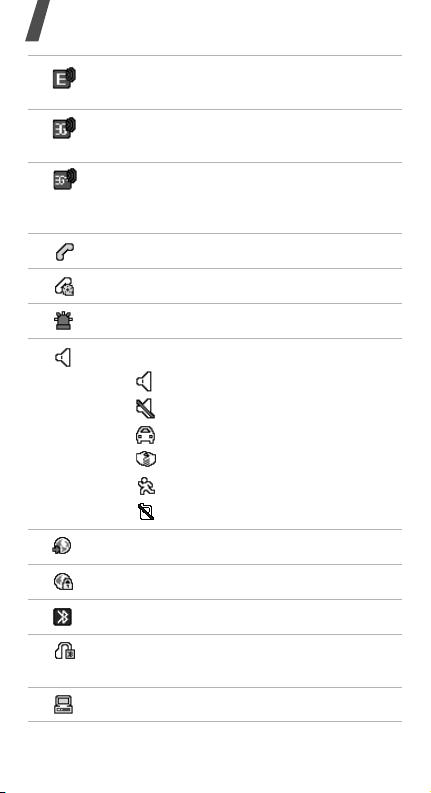
Icons
The following icons may appear on the top line of
the screen to indicate your phone’s status.
Depending on your region or service provider, the
icons shown on the display may vary.
Signal strength
Connecting to GPRS (2.5G) network or
transferring data in GPRS (2.5G)
network
13
Page 17
Get started
Connecting to EDGE network or
transferring data in EDGE network
Connecting to UMTS (3G) network or
transferring data in UMTS (3G) network
Connecting to HSDPA (3G+) network or
transferring data in HSDPA (3G+)
network
Voice call in progress
Video call in progress
SOS message feature activated
Profile setting:
•: Normal
• : Silent
•: Driving
•: Meeting
• : Outdoor
• : Offline
Browsing Internet
Connected to secured web page
Bluetooth active
Bluetooth headset or hands-free car kit
connected
Connected with PC via USB port
14
Page 18

New message:
• : Text message
• : Multimedia message
•: Email
•: Voicemail
• : Push message
• : Configuration message
Memory card inserted
Battery power level
Current time
Access menu functions
Select an
option
1. Press a desired soft key.
2. Press the Navigation keys to
move to the next or previous
option.
Select
3. Press <
[Centre] to confirm the
function displayed or option
highlighted.
4. Press <
level.
Press [ ] to return to Idle
mode.
>, <OK>, or
Back
> to move up one
15
Page 19
Get started
Use menu
numbers
Press the number key
corresponding to the option you
want.
Use shortcut icons
In Idle mode, there are icons on the display, which
give you easy access to popular menus.
Navigate
shortcut
icons
Available
shortcut
icons
• To move among the shortcut
icons, press [Left] or [Right].
• To access a highlighted menu,
press [Centre].
• : create a new message.
•: access the
Music player
menu.
• : select a profile.
• : open the calendar.
• : set a colour of the
external light.
Available shortcut icons may vary
depending on your region.
16
Page 20

Set your
favourite
shortcut
menus
Enter text
1. In Idle mode, press <
and select
settings
Settings
→
Shortcuts
Menu
→ Phone
.
2. Scroll to a menu to be
changed.
Change
3. Press <
>.
4. Select the menu you want.
5. Press <
Save
>.
>
Change the
text input
mode
ABC mode
• Press and hold [ ] to switch
between T9 mode and ABC
mode. Depending on your
region, you may be able to
access an input mode for your
specific language.
• Press [ ] to change case or
switch to Number mode.
• Press and hold [ ] to switch
to Symbol mode.
To ent e r a w o rd:
Press the appropriate key until
the character you want appears
on the display.
17
Page 21
Get started
T9 mode
Number
mode
Symbol mode
Other
operations
To ent e r a w o rd:
2
1. Press [
] to [9] to start
entering a word.
2. Enter the whole word before
editing or deleting characters.
3. When the word displays
correctly, press [ ] to insert a
space.
0
Otherwise, press [
] to
display alternate word
choices.
Press the keys corresponding to
the digits you want.
Press the keys corresponding to
the symbols you want.
• Press [1] to enter punctuation
marks or special characters.
• Press [ ] to insert a space.
• Press the Navigation keys to
move the cursor.
Clear
• Press <
> to delete
characters one by one.
Clear
• Press and hold <
> to
clear the entire display.
18
Page 22

Customise your phone
Display
language
Call ringer
melody
1. In Idle mode, press <
and select
settings
Screen text
2. Select a language.
3. Press <OK> → <
To change the profile properties:
1. In Idle mode, press <
and select
profiles
2. Scroll to the sound profile you
are using.
3. Press <
Edit
4. Select
a category
5. Select
a category
6. Press <
Save
To change the profile:
1. In Idle mode, press <
and select
profiles
2. Select the profile you want.
3. Press [Centre].
Settings
→
Language →
.
Settings
.
Options
.
Voice call ringtone
→
a ringtone.
Video call ringtone
→
a ringtone.
Options
.
Settings
.
Menu
→
Phone
Save
>.
Menu
→
Phone
> and select
> and select
Menu
→
Phone
>
>
→
→
>
19
Page 23
Get started
Key tone
volume
Idle mode
wallpaper
Themes for
the display
20
In Idle mode, press [ ] to
adjust the key tone volume.
Menu
1. In Idle mode, press <
and select
Settings
Display and light →
→
Home screen
.
2. Scroll left or right to
→
Display
Image
>
.
3. Scroll down and select
Wallpaper
.
4. Select an image category.
5. Select an image.
OK
Options
.
>.
> and select
6. Press <
7. Press <
Save
To create a theme:
Menu
1. In Idle mode, press <
and select
Settings
Display and light →
→
My theme
2. Press <
Create
Options
→
Easy
.
> and select
or
Expert
>
→
Display
.
3. Customise the theme as
desired by following the
screen.
4. When you have finished, enter
a name for the theme and
Save
press <
5. Press <
>.
Yes
> to apply the
theme.
Page 24
To apply a theme:
1. In Idle mode, press <
and select
Settings
Display and light →
→
My theme
Menu
→
Display
.
2. Select a theme.
3. Press <
To restore the default theme quickly, enter [ ],
[], [
8
], [2], [7], and [ ] in Idle mode and
press <
Yes
and uses the default theme.
>. Your phone restarts automatically
Save
>.
>
Silent profile
Phone lock
You can activate the Silent profile
to avoid disturbing other people.
In Idle mode, press and hold [ ].
Menu
1. In Idle mode, press <
and select
Settings →
Security → Phone lock
On
2. Select
3. Press <
.
Save
>.
>
.
4. Enter a new 4- to 8-digit
password and press
Confirm
<
>.
5. Enter the new password again
and press <
Confirm
>.
21
Page 25

Get started
Use an optional memory card
Important
memory card
information
• Frequent erasing and writing
will shorten a card's lifespan.
• Do not remove a card from the
phone or turn off the phone
while data is being accessed or
transferred. This could result in
loss of data and/or damage to
the card or phone.
• Do not subject cards to strong
shocks.
• Do not touch card terminals
with your fingers or metal
objects. If dirty, wipe the card
with a soft cloth.
• Keep cards away from small
children or pets.
• Do not expose cards in a place
subject to electrostatic
discharge and/or electrical
noise.
22
Page 26
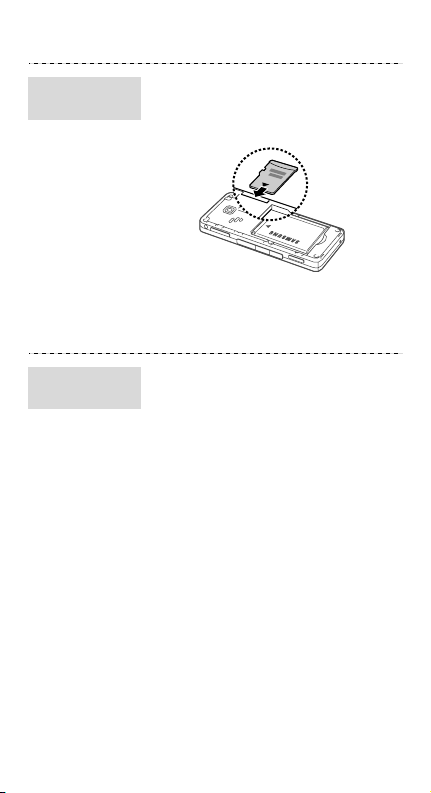
Insert a
memory card
1. Remove the battery cover.
2. Insert the card into the card
slot, with the label side face up.
3. Attach the battery cover.
Remove the
memory card
Remove the card from the slot.
23
Page 27
Step outside the phone
Begin with call functions, camera, mu sic playe r, web
browser, and other special features
Make or answer calls
Make a call
Answer a call
24
To make a voice call:
1. In Idle mode, enter an area
code and phone number.
2. Press [ ].
Press [ ] to adjust the
volume.
3. Press [ ] to end the call.
To make a video call:
1. In Idle mode, enter an area
code and phone number.
2. Press <
3. Press [ ] to end the call.
1. When the phone rings, press
2. Press [ ] to end the call.
Options
Video call
[].
If it is a video call, press
Show me
<
caller to see you via the
camera.
> and select
.
> to allow the
Page 28

Use the
speakerphone
feature
During a voice call, press [Centre]
Yes
and then <
speaker.
> to activate the
Press [Centre] again to switch
back to the earpiece.
In noisy environments, you may have difficulty
hearing the calls while using the speakerphone
feature. For better audio performance, use the
normal phone mode.
Make a multiparty call
1. During a call, call the second
participant.
The first call is put on hold.
2. Press <
Conference call
Options
> and select
.
3. Repeat step 1 and 2 to add
more participants.
4. During a multi-party call:
• Press <
Private call
Options
> and select
to have a
private conversation with
one participant.
• Press <
Options
> and select
End → Select participant
→
a participant
→
Drop
to
drop one participant.
5. Press [ ] to end the multiparty call.
25
Page 29
Step outside the phone
Use the camera
Take a photo
View a photo
Record a
video
1. In Idle mode, press and hold
[Camera].
2. Rotate the phone to the left for
landscape view.
3. Aim the lens at the subject and
make any desired
adjustments.
4. Press [Centre] or [Camera] to
take a photo. The photo is
saved automatically.
5. Press < > or [Camera] to
take another photo.
Menu
1. In Idle mode, press <
and select
→
2. Select the photo you want.
1. In Idle mode, press and hold
[Camera].
2. Press [
to Record mode.
3. Rotate the phone to the left for
landscape view.
4. Press [Centre] or [Camera] to
start recording.
My files
My photos
.
1
] repeatedly to switch
→
>
Images
26
Page 30
5. Press < > or [Camera] to
stop recording. The video is
saved automatically.
6. Press < > or [Camera] to
record another video.
View a video
1. In Idle mode, press <
and select
→
2. Select the video you want.
My files
My video clips
→
.
Menu
Videos
Upload photos and videos to the web
>
Activate
the ShoZu
account
1. In Idle mode, press <
and select
Application settings →
MobileBlog → ShoZu
activation
2. Select
3. Follow the on-screen
instructions to activate the
account.
On
.
Settings
.
Menu
→
>
27
Page 31

Step outside the phone
Set a
destination
site
Upload a file
1. In Idle mode, press <
and select
Settings
Menu
→
>
Application settings →
MobileBlog →
Destinations.
2. Press <
Options
Create new
> and select
.
3. Follow the on-screen
instructions to add a new
destination site.
1. Access an application, such as
My files
or
Camera
.
2. Select or capture a photo or
video.
3. Press <
select
Options
Upload to web
> or < > and
.
4. Select a destination.
5. Enter the title and description,
and select a tag.
Upload
6. Press <
>.
28
Page 32
Play music
Prepare
music files
Use these methods:
• Download from the wireless
web.
• Download from a PC using the
optional Samsung PC Studio.
See Samsung PC Studio User’s
Guide.
• Receive via Bluetooth.
• Copy to a memory card. See
the next section.
• Synchronise music files with
Windows Media Player. See
page 30.
• Your phone accepts microSD™ memory cards up
to 8 GB (depending on memory card manufacturer
and type).
• When inserting a memory card with a large
amount of files, your phone might work rather
slowly for a few minutes while database updates.
This may also affect some phone functions. This
problem is temporary and is not a phone defect.
Copy music
files to a
memory card
1. Insert a memory card into the
phone.
2. In Idle mode, press <
and select
connections
storage
3. Press <
Settings
.
Save
→
>.
Mass
Menu
→
>
PC
29
Page 33

Step outside the phone
4. Press [ ] to return to Idle
5. Connect your phone and PC
6. Select
7. Copy files from the PC to the
8. When you have finished,
mode.
with an optional PC data cable.
Open folder to view
when a pop-up window
files
appears on your PC.
memory card.
disconnect the phone from the
PC.
Synchronise
with
Windows
Media Player
30
You can copy music files to your
phone by synchronising with
Windows Media Player 11.
1. In Idle mode, press <
and select
connections
2. Press <
Settings
Save
→
>.
Menu
→
PC
Media player
3. Press [ ] to return to Idle
mode.
4. Connect your phone and PC
with an optional PC data cable.
5. Select
Sync digital media
files to this device
when a
pop-up window appears on
your PC.
>
.
Page 34

Play music
files
6. Enter the name of your phone
Finish
and click
.
7. Select and drag the music files
you want to the sync list.
8. Click
Start Sync
.
9. When synchronisation is
finished, disconnect the phone
from the PC.
Menu
1. In Idle mode, press <
Music
and select
.
player
→
2. Select a music category
Music
→
>
a
music file.
3. During playback, use the
following keys:
• Centre: pause or resume
playback.
• Left: return to the previous
file. Press and hold to scan
backward in a file.
• Right: skip to the next file.
Press and hold to scan
forward in a file.
• : adjust the volume.
4. Press [ ] twice to stop
playback.
31
Page 35
Step outside the phone
Create a
playlist
1. From the music player screen,
Options
press <
Open playlist
Playlists
> and select
→
→
Library
Create playlist
2. Enter the title of the playlist
Save
and press <
>.
3. Select the added playlist.
4. Select
Add
.
5. Select the files you want and
OK
press <
>.
6. Scroll to a file and press
[Centre] to play music.
Listen to the FM radio
Use a micro USB stereo headset only to listen to
the radio.
Listen to
the radio
1. Plug the connecter of a
headset into the multifunction
jack on the phone.
2. In Idle mode, press <
and select
FM radio
Menu
.
→
.
>
32
Page 36

3. When you turn on the FM radio
for the first time, press <
Yes
to start automatic tuning.
Available radio stations are
automatically saved.
4. Press [Left] or [Right] to find
available radio stations.
Alternatively, press [Up] or
[Down] to select a stored radio
station.
5. Press [Centre] to turn off the
radio.
>
Store radio
stations
By automatic tuning:
1. From the radio screen, press
Options
<
tuning
2. Press <
> and select
.
Yes
> to confirm.
Self-
Available radio stations are
automatically saved.
By manual setup:
1. From the radio screen, press
[Left] or [Right] to select the
radio station you want.
Options
2. Press <
Add to Favourites
> and select
.
33
Page 37
Step outside the phone
Browse the web
Launch the
web browser
Navigate
the web
The browser options may differ depending on your
service provider.
In Idle mode, press <
Browser
select
homepage
your service provider opens.
• To scroll through browser
• To select an item, press
• To return to the previous page,
• To access browser options,
. The homepage of
items, press [Up] or [Down].
[Centre].
Back
press <
Options
press <
→
>.
Menu
Go to
>.
Use Phonebook
Add a
contact
34
1. In Idle mode, enter a phone
number and press <
2. Select
3. For
4. Specify contact information.
5. Press [Centre], or press
Add to Phonebook
a memory location
Phone
type.
Options
<
save the contact.
, select a number
> and select
> and
Options
→
New
Save
>.
→
.
to
Page 38

Find a
contact
1. In Idle mode, press
<
2. Enter the first few letters of
the name you want.
3. Select a contact.
4. Scroll to a number and press
[ ] to dial, or press
<
edit contact information.
Send messages
Send a text
message
1. In Idle mode, press <
and select
Create message →
Message
2. Enter the message text.
3. Press [Up] to move to the
recipient field.
4. Enter destination numbers.
5. Press <
Send
Phonebook
Options
>.
> and select
Messages →
.
Options
> and select
to send the message.
Edit
Menu
to
>
35
Page 39

Step outside the phone
Send a
multimedia
message
1. In Idle mode, press <
and select
Messages →
Menu
Create message →
Message
.
2. Enter the message text.
Options
3. Press <
Add multimedia
> and select
, or
Advanced → Add
attachment
.
4. Add a media file, contact,
calendar item, task, memo, or
bookmark item.
Options
5. Press <
Advanced → Add subject
> and select
.
6. Enter the message subject.
7. Press [Up] to move to the
recipient field.
8. Enter destination numbers or
email addresses.
Options
9. Press <
Send
to send the message.
> and select
>
36
Page 40

Send an
email
1. In Idle mode, press <
2. Enter the email text.
3. Press <
4. Add a media file, contact,
5. Press [Up] to move to the
6. Enter the email subject.
7. Press [Up] to move to the
8. Enter email addresses.
9. Press <
View messages
View a text
message
1. In Idle mode, press <
2. Select a text message.
Menu
or
>
.
Attach
and select
Messages →
Create message → Email
Options
> and select
Attach multimedia
organiser
.
calendar item, task, memo, or
bookmark item.
subject field.
recipient field.
Options
Send
to send the email.
and select
Inbox
.
> and select
Menu
Messages →
>
37
Page 41

Step outside the phone
View a
multimedia
message
1. In Idle mode, press <
and select
Inbox
2. Select a multimedia message.
Messages →
.
Menu
>
View an email
1. In Idle mode, press <
and select
inbox
2. Press <
Download
3. Select an email or a header.
4. If you selected a header, press
Options
<
Retrieve
the email.
Messages →
.
Options
.
> and select
to view the body of
Menu
Email
> and select
>
Use Bluetooth
Your phone is equipped with Bluetooth technology,
enabling you to connect the phone wirelessly to
other Bluetooth devices and exchange data with
them, talk hands-free, or control the phone
remotely.
38
Page 42

Turn on
Bluetooth
1. In Idle mode, press <
and select
Bluetooth
2. Press <
Settings
3. Scroll down to
Applications →
.
Options
> and select
.
Activation
scroll left or right to
4. Scroll down to
visibility
right to
5. Press <
My phone’s
and scroll left or
On
.
Save
>.
Menu
On
>
and
.
Search for
and pair with
a Bluetooth
device
1. In Idle mode, press <
and select
Bluetooth
device
Applications
→
.
Menu
→
Search for new
2. Select a device.
3. Enter a Bluetooth PIN or the
other device’s Bluetooth PIN, if
OK
it has one, and press <
>.
When the owner of the other
device enters the same code,
pairing is complete.
>
39
Page 43

Step outside the phone
Send data
Receive data
1. Access an application, such as
Phonebook, My files
Calendar, Memo, Task
Browser
.
,
, or
2. Select an item.
Options
3. Press <
> and select
Send namecard via, Send
, or
Send URL via
via
Bluetooth
.
→
4. Search for and select a device.
5. If necessary, enter the
Bluetooth PIN and press
OK
>.
<
1. If necessary, enter the
Bluetooth PIN and press
OK
>.
<
2. Press <
Yes
> to confirm that
you are willing to receive.
40
Page 44
Switch applications
You can switch to other applications from a menu,
without closing the menu screen you are using.
Change the
camera key
function
Switch to an
application
Available
applications
Close all
running
applications
1. In Idle mode, press <
and select
settings
2. Select
3. Press <
Settings →
→ Camera key
Switch
Save
>.
Menu
Phone
.
.
1. While using a menu, press
[Application switch].
2. Select an application.
Call
: open the dialling screen.
•
•
Messages
Messages
Browser
•
: access the
menu.
: launch the web
browser.
Games and more
•
: open a list
of games.
1. Press [Application switch].
2. Scroll to
3. Press <
End all?
Yes
>.
>
41
Page 45

Menu functions
All menu options listed
This section provides brief explanations of menu
functions on your phone.
Call log
Check the most recent calls dialled, received, or
missed.
Phonebook
Search for contact information stored in Phonebook.
Music
Menu Description
Music player Access and listen to all music
Music
recognition
files sorted by criteria. You can
also make your own music
playlists.
Download information for your
music files from the online
database and browse
recognition results. You can
also get information on how to
buy the music files.
42
Page 46

Browser
Menu Description
Go to homepage Connect your phone to the
Enter URL Enter a URL address and
Bookmarks Save URL addresses in order to
Saved pages Access the list of pages you
History Access the list of pages you
Settings Clear the cache. Delete
network and load the
homepage of the wireless web
service provider.
access the associated web
page.
quickly access web pages.
have saved while online.
have accessed recently.
cookies or set whether or not
they are stored. Change the
settings for the web browser
and access version and
copyright information about it.
Select a connection profile to
be used for accessing the
wireless web.
43
Page 47

Menu functions
Messages
Menu Description
Create message Create and send text,
Inbox Access messages that you
Email inbox Access emails that you have
Drafts Access messages that you
Outbox Access messages that the
Sentbox Access messages that you
My folders Create new folders and
Templates Make and use templates of
Delete by
folders
Settings Set up various options for
multimedia, or email
messages.
have received.
received.
have saved to send at a later
time.
phone is attempting to send or
has failed to send.
have sent.
organise your messages.
frequently used messages or
passages.
Delete messages in each
message folder all at once.
using the messaging services.
44
Page 48
Menu Description
SOS messages Specify options for sending
Memory status Check information about the
and receiving an SOS
message. You can send an
SOS message by pressing
[] 4 times when the
exposed keys are locked.
This feature may not be
available depending on your
region or service provider.
memory currently in use.
My files
Menu Description
Images, Videos,
Sounds, Other
files
Memory status Check information about the
Additional folders will be available if you insert a memory
card.
Access media files and other
files stored in the phone’s
memory.
memory currently in use.
45
Page 49

Menu functions
Organiser
Menu Description
Calendar Keep track of your schedule.
Memo Make memos for things that
Task Make a list of tasks you need
World clock Set your local time zone and
Calculator Perform arithmetic functions.
Convertor Do conversions, such as length
are important and manage
them.
to complete.
find out the current time in
another part of the world.
and temperature.
Camera
Use the camera embedded in your phone to take
photos and record videos.
FM radio
Listen to music or news via the FM radio on your
phone.
46
Page 50

Applications
Menu Description
Image editor Edit your images using various
Games and
more
Voice recorder Record voice memos and any
Bluetooth Connect the phone wirelessly
Synchronise Synchronise personal data,
Timer Set a period of time for the
Stopwatch Measure elapsed time.
RSS reader Save your favourite news
editing tools.
Access the embedded Java
games and download Java
applications.
other sounds.
to other Bluetooth devices.
such as contacts, calendar
items, tasks, and memos with
the specified web server.
This feature may not be
available depending on your
region or service provider.
phone to count down.
channels or blogs to libraries
and get the latest news and
updated information from
them whenever you want.
47
Page 51

Menu functions
Menu Description
SIM Services Use a variety of additional
services offered by your
service provider. Depending on
your USIM or SIM card, this
menu may be available but
labelled differently.
Alarms
Set a wake-up alarm to wake you up in the morning
or an alarm to alert you to an event at a specific
time.
Settings
Menu Description
Phone profiles Change the sound settings of
Display and light
→
Display →
Home screen
Display and light
→
Display → My
theme
the phone for different events
or situations.
Change the background image
that is displayed in Idle mode
and select a clock type.
Select or create a theme for
the phone display.
48
Page 52

Menu Description
Display and light
→
Display →
Main menu style
Display and light
→
Display →
Dialling display
Display and light
→
Display →
Greeting
message
Display and light
→
Light → LCD
brightness
Display and light
→
Light →
Backlight time
Display and light
→
Light →
Keypad l ight
Display and light
→
External light
Time and date Change the time and date
Phone settings
→
Language
Select a display style for the
main menu screen.
Customise the settings for the
display while dialling.
Enter the greeting that is
displayed briefly when the
phone is switched on.
Adjust the brightness of the
display for varying lighting
conditions.
Select the length of time the
backlight or display stays on
when the phone is not used.
Set how the phone controls the
use of the keypad light.
Select a colour and adjust the
brightness of the external
light.
displayed on your phone.
Select a language to be used
for the display text or T9 input
mode.
49
Page 53

Menu functions
Menu Description
Phone settings
→
Shortcuts
Phone settings
→
Keypad aut olock
Phone settings
→
Camera key
Application
settings
Security
Phone lock
Security
lock
Security
lock
Security
Privacy lock
Security
dialling mode
→
→
→
→
→
Fixed
Select shortcut menus to be
displayed in Idle mode.
Set the phone to lock the
keypad automatically when the
display turns off.
Set a default function for
[Camera/Application switch].
Customise the settings for
using applications available on
the phone.
Activate your phone password
to protect your phone against
unauthorised use.
SIM
Set the phone to work only
with the current USIM or SIM
card by assigning a SIM lock
password.
PIN
Activate your PIN to protect
your USIM or SIM card against
unauthorised use.
Lock access to messages, files,
call logs, contacts, calendar,
memos, or tasks.
Set the phone to restrict calls
to a limited set of phone
numbers, if supported by your
USIM or SIM card.
50
Page 54

Menu Description
Security →
Change phone
password
Security
Change PIN
code
Security
Change PIN2
code
Security
Mobile tracker
Network
settings
Network
selection
Network
settings
Network mode
→
→
→
→
→
Change the phone password.
Change the PIN.
Change the PIN2.
Set the phone to send the
preset tracking message to
your family or friends when
someone tries to use your
phone with another USIM or
SIM card. This feature may be
unavailable due to certain
features supported by your
service provider.
Select the network to be used
while roaming outside of your
home area, or let the network
be chosen automatically.
Change to an appropriate band
when you travel abroad.
51
Page 55

Menu functions
Menu Description
Network
settings
Preferred
networks
Network
settings
Connections
PC connections Select a USB mode that will be
Setup wizard Quickly customise basic
Memory settings Check information about the
Reset settings Reset the phone’s settings you
→
→
Add a new network to your
preferred network list, if your
USIM or SIM card supports it.
Create and customise the
profiles containing the settings
for connecting your phone to
the network.
used when you connect your
phone to a PC via USB
interface.
settings of your phone. Select
the option you want for each
setting by following the onscreen instructions.
memory currently in use. You
can also clear the memory.
have changed.
52
Page 56

Health and safety information
SAR certification information
This phone meets European Union (EU) requirements
concerning exposure to radio waves.
Your mobile phone is a radio transmitter and receiver. It
is designed and manufactured to not exceed the limits
for exposure to radio-frequency (RF) energy, as
recommended by the EU Council. These limits are part
of comprehensive guidelines and establish permitted
levels of RF energy for the general population. The
guidelines were developed by independent scientific
organisations through the periodic and thorough
evaluation of scientific studies. The limits include a
substantial safety margin designed to ensure the safety
of all persons, regardless of age and health.
The exposure standard for mobile phones employs a
unit of measurement known as Specific Absorption Rate
(SAR). The SAR limit recommended by the EU Council is
2.0 W/kg.
The highest SAR value for this model phone was
0.779 W/kg.
SAR tests are conducted using standard operating
positions with the phone transmitting at its highest
certified power level in all tested frequency bands.
Although the SAR is determined at the highest certified
power level, the actual SAR level of the phone while
operating can be well below the maximum value. This is
because the phone is designed to operate at multiple
power levels so as to use only the power required to
reach the network. In general, the closer you are to a
base station, the lower the power output of the phone.
1
1. The SAR limit for mobile phones used by the public is 2.0 watts/
kilogram (W/kg) averaged over ten grams of body tissue. The limit
incorporates a substantial margin of saf ety to give additional
protection for the public and to account for any variations in
measurements. The SAR values may vary, depending on national
reporting requirements and the network band.
53
Page 57

Before a new model phone is available for sale to the
public, compliance with the European R&TTE Directive
must be shown. This directive includes as one of its
essential requirements the protection of the health and
safety of the user and any other person.
Precautions when using batteries
• Never use a charger or battery that is damaged in
any way.
• Use the battery only for its intended purpose.
• If you use the phone near the network’s base
station, it uses less power. Talk and standby time are
greatly affected by the signal strength on the cellular
network and the parameters set by the service
provider.
• Battery charging time depends on the remaining
battery charge, the type of battery, and the charger
used. The battery can be charged and discharged
hundreds of times, but it will gradually wear out.
When the operation time is noticeably shorter than
normal, it is time to buy a new battery.
• If left unused, a fully charged battery will discharge
itself over time.
• Use only Samsung-approved batteries, and recharge
your battery only with Samsung-approved chargers.
Disconnect the charger from the power source when
it is not in use. Do not leave the battery connected to
a charger for more than a week, since overcharging
may shorten its life.
• Extreme temperatures will affect the charging
capacity of your battery: it may require cooling or
warming first.
54
Page 58

• Do not leave the battery in hot or cold places
because the capacity and lifetime of the battery will
be reduced. Try to keep the battery at room
temperature. A phone with a hot or cold battery may
not work temporarily, even when the battery is fully
charged. Li-ion batteries are particularly affected by
temperatures below 0° C (32° F).
• Do not short-circuit the battery. Accidental short-
circuiting can occur when a metallic object like a
coin, clip or pen causes a direct connection between
the + and – terminals of the battery (metal strips on
the battery). For example, do not carry a spare
battery in a pocket or bag where the battery may
contact metal objects. Short-circuiting the terminals
may damage the battery or the object causing the
short-circuiting.
• Dispose of used batteries in accordance with local
regulations. Always recycle. Do not dispose of
batteries in a fire.
Road safety
Your wireless phone gives you the powerful ability to
communicate by voice, almost anywhere, anytime. But
an important responsibility accompanies the benefits of
wireless phones, one that every user must uphold.
When you are driving a car, driving is your first
responsibility. When using your wireless phone while
driving, follow local regulations in the country or region
you are in.
55
Page 59

Health and safety information
Operating environment
Remember to follow any special regulations in force in
the area you are in, and always switch off your phone
whenever it is forbidden to use it, or when it may cause
interference or danger.
When connecting the phone or any accessory to another
device, read its user’s guide for detailed safety
instructions. Do not connect incompatible products.
As with other mobile radio transmitting equipment,
users are advised that for the satisfactory operation of
the equipment and for the safety of personnel, it is
recommended that the equipment should only be used
in the normal operating position (held to your ear with
the antenna pointing over your shoulder).
Electronic devices
Most modern electronic equipment is shielded from
radio frequency (RF) signals. However, certain
electronic equipment may not be shielded against the
RF signals from your wireless phone. Consult the
manufacturer to discuss alternatives.
Pacemakers
Pacemaker manufacturers recommend that a minimum
distance of 15 cm (6 inches) be maintained between a
wireless phone and a pacemaker to avoid potential
interference with the pacemaker. These
recommendations are consistent with the independent
research and recommendations of Wireless Technology
Research. If you have any reason to suspect that
interference is taking place, switch off your phone
immediately.
56
Page 60

Hearing aids
Some digital wireless phones may interfere with some
hearing aids. In the event of such interference, you may
wish to consult your hearing aid manufacturer to
discuss alternatives.
Other medical devices
If you use any other personal medical devices, consult
the manufacturer of your device to determine if it is
adequately shielded from external RF energy.
Your physician may be able to assist you in obtaining
this information.
Switch off your phone in health care facilities when
regulations posted in these areas instruct you to do so.
Vehicles
RF signals may affect improperly installed or
inadequately shielded electronic systems in motor
vehicles. Check with the manufacturer or its
representative regarding your vehicle.
You should also consult the manufacturer of any
equipment that has been added to your vehicle.
Posted facilities
Switch off your phone in any facility where posted
notices require you to do so.
Potentially explosive environments
Switch off your phone when in any area with a
potentially explosive atmosphere, and obey all signs
and instructions. Sparks in such areas could cause an
explosion or fire resulting in bodily injury or even death.
Users are advised to switch off the phone while at a
refuelling point (service station). Users are reminded of
the need to observe restrictions on the use of radio
equipment in fuel depots (fuel storage and distribution
areas), chemical plants, or where blasting operations
are in progress.
57
Page 61

Health and safety information
Areas with a potentially explosive atmosphere are often
but not always clearly marked. They include the areas
below decks on boats, chemical transfer or storage
facilities, vehicles using liquefied petroleum gas, such
as propane or butane, areas where the air contains
chemicals or particles, such as grain, dust or metal
powders, and any other area where you would normally
be advised to turn off your vehicle engine.
Emergency calls
This phone, like any wireless phone, operates using
radio signals, wireless, and landline networks as well as
user-programmed functions, which cannot guarantee
connection in all conditions. Therefore, you should
never rely solely on any wireless phone for essential
communications like medical emergencies.
To make or receive calls, the phone must be switched
on and in a service area with adequate signal strength.
Emergency calls may not be possible on all wireless
phone networks or when certain network services and/
or phone features are in use. Check with local service
providers.
To make an emergency call:
1. Switch on the phone.
2. Key in the emergency number for your present
location. Emergency numbers vary by location.
3. Press [ ].
Certain features like Call Barring may need to be
deactivated before you can make an emergency call.
Consult this document and your local cellular service
provider.
58
Page 62

Other important safety information
• Only qualified personnel should service the phone or
install the phone in a vehicle. Faulty installation or
service may be dangerous and may invalidate any
warranty applicable to the device.
• Check regularly that all wireless phone equipment in
your vehicle is mounted and operating properly.
• Do not store or carry flammable liquids, gases, or
explosive materials in the same compartment as the
phone, its parts, or accessories.
• For vehicles equipped with an air bag, remember
that an air bag inflates with great force. Do not place
objects, including installed or portable wireless
equipment, in the area over the air bag or in the air
bag deployment area. Improperly installed wireless
equipment could result in serious injury if the air bag
inflates.
• Switch off your phone before boarding an aircraft. It
is dangerous and illegal to use wireless phones in an
aircraft because they can interfere with the operation
of the aircraft.
• Failure to observe these instructions may lead to the
suspension or denial of telephone services to the
offender, or legal action, or both.
59
Page 63

Health and safety information
Care and maintenance
Your phone is a product of superior design and
craftsmanship and should be treated with care. The
suggestions below will help you fulfill any warranty
obligations and allow you to enjoy this product for many
years.
• Keep your phone and all its parts and accessories out
of the reach of small children and pets. They may
accidentally damage these things or choke on small
parts.
• Keep the phone dry. Precipitation, humidity, and
liquids contain minerals that corrode electronic
circuits.
• Do not use the phone with a wet hand. Doing so may
cause an electric shock to you or damage to the
phone.
• Do not use or store the phone in dusty, dirty areas,
as its moving parts may be damaged.
• Do not store the phone in hot areas. High
temperatures can shorten the life of electronic
devices, damage batteries, and warp or melt certain
plastics.
• Do not store the phone in cold areas. When the
phone warms up to its normal operating
temperature, moisture can form inside the phone,
which may damage the phone’s electronic circuit
boards.
• Do not drop, knock, or shake the phone. Rough
handling can break internal circuit boards.
• Do not use harsh chemicals, cleaning solvents, or
strong detergents to clean the phone. Wipe it with a
soft cloth.
• Do not paint the phone. Paint can clog the device’s
moving parts and prevent proper operation.
• Do not put the phone in or on heating devices, such
as a microwave oven, stove, or radiator. The phone
may explode when overheated.
60
Page 64
• When the phone or battery gets wet, the label
indicating water damage inside the phone changes
colour. In this case, phone repairs are no longer
guaranteed by the manufacturer's warranty, even if
the warranty for your phone has not expired.
• If your phone has a flash or light, do not use it too
close to the eyes of people or animals. This may
cause damage to their eyes.
• Use only the supplied or an approved replacement
antenna. Unauthorised antennas or modified
accessories may damage the phone and violate
regulations governing radio devices.
• If the phone, battery, charger, or any accessory is
not working properly, take it to your nearest
qualified service facility. The personnel there will
assist you, and if necessary, arrange for service.
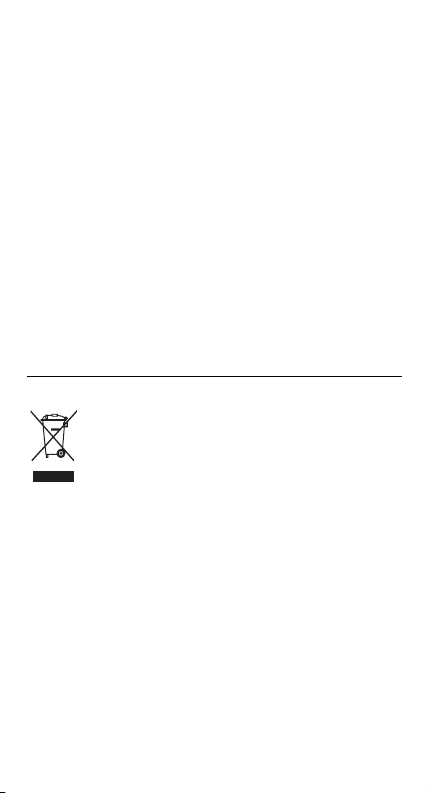
Correct disposal of this product
(Waste Electrical & Electronic Equipment)
(Applicable in the European Union and other
European countries with separate collection
systems)
This marking shown on the product or its
literature, indicates that it should not be
disposed with other household wastes at the end of its
working life. To prevent possible harm to the
environment or human health from uncontrolled waste
disposal, please separate this from other types of
wastes and recycle it responsibly to promote the
sustainable reuse of material resources.
Household users should contact either the retailer
where they purchased this product, or their local
government office, for details of where and how they
can take this item for environmentally safe recycling.
Business users should contact their supplier and check
the terms and conditions of the purchase contract. This
product should not be mixed with other commercial
wastes for disposal.
61
Page 65

Health and safety information
Correct disposal of batteries in this
product
(Applicable in the European Union and other
European countries with separate battery
return systems)
This marking on the battery, manual or
packaging indicates that the batteries in this product
should not be disposed of with other household waste at
the end of their working life. Where marked, the
chemical symbols Hg, Cd or Pb indicate that the battery
contains mercury, cadmium or lead above the reference
levels in EC Directive 2006/66. If batteries are not
properly disposed of, these substances can cause harm
to human health or the environment.
To protect natural resources and to promote material
reuse, please separate batteries from other types of
waste and recycle them through your local, free battery
return system.
62
Page 66
 Loading...