

Page 1

* Depending on the software installed or your service provider or country, some of the descriptions in this guide
may not match your phone exactly.
* Depending on your country, your phone and accessories may appear different from the illustrations in this guide.
World Wide Web
http://www.samsungmobile.com
Printed in Korea
Code No.:GH68-xxxxxA
English (AUS). 06/2007. Rev. 1.0
Page 2

D
2007.
SGH-A821
User’s Guide
t
f
ra
21
08
Page 3

Important safety
precautions
Failure to comply with the following
precautions may be dangerous or illegal.
Copyright information
•Bluetooth® is a registered trademark of
the Bluetooth SIG, Inc. worldwide.
Bluetooth QD ID: xxxxxxx
TM
•Java
is a trademark or registered
trademark of Sun Microsystems, Inc.
Drive safely at all times
Do not use a hand-held phone while driving. Park
your vehicle first.
Switch off the phone when refuelling
Do not use the phone at a refuelling point (service
station) or near fuels or chemicals.
Switch off in an aircraft
Wireless phones can cause interference. Using
them in an aircraft is both illegal and dangerous.
Switch off the phone near all medical
equipment
Hospitals or health care facilities may be using
equipment that could be sensitive to external radio
frequency energy. Follow any regulations or rules in
force.
Interference
All wireless phones may be subject to interference,
which could affect their performance.
Page 4

Be aware of special regulations
Meet any special regulations in force in any area
and always switch off your phone whenever it is
forbidden to use it, or when it may cause
interference or danger.
Water resistance
Your phone is not water-resistant. Keep it dry.
Sensible use
Use only in the normal position (held to the ear).
Avoid unnecessary contact with the antenna when
the phone is switched on.
Emergency calls
Key in the emergency number for your present
location, then press .
Keep your phone away from small children
Keep the phone and all its parts, including
accessories, out of the reach of small children.
Accessories and batteries
Use only Samsung-approved batteries and
accessories, such as headsets and PC data cables.
Use of any unauthorized accessories could damage
you and your phone and may be dangerous.
• The phone could explode if the battery is
replaced with an incorrect type.
• Dispose of used batteries according to the
manufacturer’s instructions.
At very high volumes, prolonged listening
to a headset can damage your hearing.
Qualified service
Only qualified service personnel may repair your
phone.
For more detailed safety information, see "Health
and safety information" on page 34.
1
Page 5

About this Guide
This User’s Guide provides you with condensed
information about how to use your phone.
In this guide, the following instruction icons
appear:
Indicates that you need to pay careful
attention to the subsequent information
regarding safety or phone features.
→
Indicates that you need to press the
Navigation keys to scroll to the specified
option and then select it.
[ ] Indicates a key on the phone.
< > Indicates a soft key, whose function is
2
For example, [ ]
displayed on the phone screen. For
example, <
Select
>
•3G
Special
• Camera and camcorder
• Music player
Your phone is capable of
operating in a 3G environment,
allowing much greater data
transfer speed, video streaming,
and video conferencing.
features of your phone
Use the camera module on your
phone to take a photo or record
a video.
Play music files on your phone.
Page 6

•Java
Enjoy Java-based embedded
games and download new
games.
• File viewer
Open documents in various
formats on the phone without
corruption.
• Image editor
Edit or decorate your photos.
• Digital data printing
Print images, messages, and
personal data directly from your
phone.
•Bluetooth
Transfer media files and
personal data, and connect to
other devices using wireless
Bluetooth technology.
•Web browser
Access the wireless web to get
up-to-the-minute information
and a wide variety of media
content.
•Email
Send and receive emails with
image, video, and audio
attachments.
3
Page 7

Contents
Unpack 6
Make sure you have each item
Get started 6
First steps to operating your phone
Keys and icons
Access menu functions ................................... 9
Enter text .................................................... 10
Customise your phone................................... 11
Step outside the phone 14
Begin with call functions, camera, music player, web
browser, and other special features
Make or answer calls ..................................... 14
Use the camera ............................................ 15
Play music ................................................... 16
Browse the web............................................ 18
Use Phonebook............................................. 18
4
Send messages ............................................ 19
View messages ............................................ 21
Use Bluetooth .............................................. 21
Switch applications ....................................... 23
Menu functions 25
All menu options listed
Health and safety information 34
Page 8

Overview of menu functions
To access Menu mode, press [OK] in Idle mode.
1 Call log
2 Phonebook
3 Music player
4 Browser
1 BigPond Home
2 Enter URL
3 Bookmarks
4 Saved pages
5 History
6 Advanced
7 Browser settings
5 My Place
BigPond
FOXTEL
Yellow search
BigPond Music
5 My Place
My Email
Call 1234 info
Whereis Maps
BigBlog & Photos
Downloads
My Account
6 Messages
1 Create message
2 Inbox
3 Email inbox
4 Drafts
5 Outbox
6 Sentbox
7 My folders
8 Templates
9 Delete all
10 Messages settings
11 Memory status
7 Calendar
8 Camera
9 My files
Images
Videos
Sounds
Games and more
Other files
* Applications
1 Voice recorder
2 Memo
3 Task
4 Calculator
5 Converter
6 Timer
7 Stopwatch
8 World clock
9 PocketNews
1
0 Alarms
# Settings
1 Phone profiles
2 Time & date
3 Display settings
4 Phone settings
5 Call settings
6 Security
7 Application settings
8 Connectivity
9 Memory settings
10 Master reset
1. Available only if supported
by your USIM or SIM card.
5
Page 9

Unpack
Make sure you have each item
• Phone
•Travel adapter
•Battery
•User’s Guide
You can obtain various accessories from your
local Samsung dealer.
The items supplied with your phone and the
accessories available at your Samsung dealer
may vary, depending on your country or service
provider.
6
Get started
First steps to operating your phone
Keys and icons
Keys
Soft
Perform the function indicated on the
keys
bottom line of the display.
Navi
In Idle mode, access your favourite
keys
menus directly.
In Menu mode, scroll through menu
options.
In Idle mode, access Menu mode.
In Menu mode, select the highlighted
menu option or confirm input.
Page 10

Open the application switch window
to access other applications without
exiting the current application.
In Idle mode, press and hold to
My Place
access
Send
Make or answer a call.
key
In Idle mode, retrieve the numbers
recently dialled, missed, or received.
Delete characters from the display or
items in an application.
End
Press and hold to switch the phone
key
on or off.
.
End a call.
In Menu mode, cancel input and
return the phone to Idle mode.
Enter numbers, letters, and some
special characters.
1
In Idle mode, press and hold [
access your voicemail server. Press
and hold [
0
] to enter an international
] to
call prefix.
Enter special characters or perform
special functions.
In Idle mode, press and hold [ ] to
activate or deactivate the Silent
profile. Press and hold [ ] to enter a
pause between numbers.
Adjust the phone volume.
In Idle mode, press and hold to turn
on the camera.
In Camera mode, take a photo or
record a video.
7
Page 11

Get started
Icons
The following icons may appear on the top line
of the screen to indicate your phone’s status.
Depending on your country or service provider,
the icons shown on the display may vary.
Signal strength
GPRS (2.5G) network
EDGE network
UMTS (3G) network
HSDPA (3G+) network
Voice call in progress
Out of your service area
8
Video call in progress
Out of your service area
Roaming networ k
Bluetooth active
Connected with PC via a USB port
Browsing Internet
Connected to secured web page
Memory card inserted
Page 12

New message:
•: Text message
• : Multimedia message
•: Email
•: Voicemail
• : Push message
• : Configuration message
Profile setting:
•: Normal
•: Silent
• : Driving
• : Meeting
•: Outdoor
•: Offline
Battery power level
Access menu functions
Select an
option
Use menu
numbers
1. Press a desired soft key.
2. Press the Navigation keys
to move to the next or
previous option.
3. Press <
Select
OK
] to confirm the
[
function displayed or option
highlighted.
one level.
Back
4. Press <
Press [ ] to return to Idle
mode.
Press the number key
corresponding to the option
you want.
>, <OK>, or
> to move up
9
Page 13

Get started
Enter text
Change the
text input
mode
ABC mode
10
• Press and hold [ ] to
switch between T9 mode
( ) and ABC mode
().
• Press [ ] to change case
or switch to Number mode
().
• Press and hold [ ] to
switch to Symbol mode
().
To enter a word:
Press the appropriate key until
the character you want
appears on the display.
T9 mode
Number
mode
Symbol
mode
To enter a word:
2
1. Press [
2. Enter the whole word
3. When the word displays
Press the keys corresponding
to the digits you want.
Press the corresponding
number key to select a
] to [9] to start
entering a word.
before editing or deleting
characters.
correctly, press [ ] to
insert a space.
Otherwise, press [
display alternative word
choices.
0
] to
symbol.
Page 14

Other
operations
• Press [1] to enter
punctuation marks or
special characters.
• Press [ ] to insert a space.
• Press the Navigation keys
to move the cursor.
C
• Press [
• Press and hold [
] to delete
characters one by one.
C
] to clear
the entire display.
Customise your phone
Display
language
1. In Idle mode, press [OK]
and select
Phone settings →
Language → Screen text
2. Select a language.
3. Press <
Save
Settings →
>.
.
11
Page 15

Get started
Call ringer
melody
12
To change the profile
properties:
1. In Idle mode, press [
and select
Phone profiles
Settings →
OK
.
2. Scroll to the sound profile
you are using.
Options
3. Press <
select
Edit
> and
.
4. Select
]
5. Select
6. Press <
Voice call ringtone
→
a category → a ringtone.
Video call ringtone
→
a category → a ringtone.
select
Options
Save
> and
.
To change the sound profile:
OK
1. In Idle mode, press [
and select
Phone profiles
Settings →
]
.
2. Select the profile you want.
Key tone
volume
In Idle mode, press [ / ] to
adjust the key tone volume.
Page 16

Idle mode
wallpaper
Menu
shortcuts
1. In Idle mode, press [OK]
and select
Display settings → Main
display →
Pictures → Images
Settings →
Wallpaper →
.
2. Select an image category.
3. Select an image.
Set
4. Press <
1. In Idle mode, press [
and select
Phone settings →
Shortcuts
>.
Settings →
.
OK
2. Select a key.
3. Select a menu to be
assigned to the key.
Silent profile
Phone lock
]
You can activate the Silent
profile to avoid disturbing
other people. In Idle mode,
press and hold [ ].
1. In Idle mode, press [
and select
Security → Phone lock
2. Select
3. Enter a new 4- to 8-digit
password and press
Confirm
<
4. Enter the new password
again and press
Confirm
<
Settings →
On
.
>.
>.
OK
]
.
13
Page 17

Step outside the phone
Begin with call functions, camera, music player,
web browser, and other special features
Make or answer calls
Make a call
14
To make a voice call:
1. In Idle mode, enter an area
code and phone number.
2. Press [ ].
Press [ / ] to adjust the
volume.
3. Press [ ] to end the call.
To make a video call:
1. In Idle mode, enter an area
code and phone number.
Answer a call
Use the
speakerphone
feature
2. Press [ ].
3. Press [ ] to end the call.
1. When the phone rings,
press [ ].
If it is a video call, press
Show me
<
caller to see you via the
camera.
2. Press [ ] to end the call.
During a voice call, press [
and then <
the speaker.
Press [
back to the earpiece.
> to allow the
Yes
> to activate
OK
] again to switch
OK
]
Page 18

Make a
multi-party
call
1. During a call, call the
second participant.
The first call is put on hold.
Options
2. Press <
select
Join
3. Repeat step 1 and 2 to add
more participants.
> and
.
4. During a multi-party call:
Options
•Press <
Split
select
private conversation with
> and
to have a
one participant.
Options
•Press <
End → Select
select
participant
> and
to drop one
participant.
5. Press [ ] to end the multiparty call.
Use the camera
Take a photo
View a photo
1. In Idle mode, press and
hold [ ] to turn on the
camera.
2. Aim the lens at the subject
and make any desired
adjustments.
3. Press [
photo. The photo is saved
automatically.
Pres
4.
photo.
1. In Idle mode, press [
and select
Images → My photos
2. Select the photo you want.
OK
] or [ ] to take a
s < > to take another
OK
My files →
]
.
15
Page 19

Step outside the phone
Record
a video
View a video
16
1. In Idle mode, press and
hold [ ] to turn on the
camera.
1
2. Press [
3. Press [
] to switch to
Record mode.
OK
] or [ ] to start
recording.
OK
4. Press [
recording. The video is
] or [ ] to stop
saved automatically.
Back
5. Press <
another video.
1. In Idle mode, press [
and select
Videos → My
> to record
My files →
video clips
OK
2. Select the video you want.
Play music
Prepare
music files
]
Play music
files
.
Use these methods:
• Download from the wireless
web.
• Download from a PC using
the optional Samsung PC
Studio. See Samsung PC
Studio User’s Guide.
• Receive via Bluetooth.
• Copy to a memory card and
insert the card into the
phone.
OK
1. In Idle mode, press [
and select
2. Select the file you want to
play.
Music player
]
.
Page 20

3. During playback, use the
following keys:
OK
: pause or resume
•
playback.
• Left: return to the
previous file. Press and
hold to scan backward in
a file.
• Right: skip to the next
file. Press and hold to
scan forward in a file.
• Up: open the current
playlist.
• / : adjust the volume.
4. Press [Down] to stop
playback.
Create your
playlist
1. From the music player
screen, press <
and select
All
→
Playlists
2. Press <
3. Enter the title of the playlist
Create playlist
select
and press <
Options
Open playlist →
.
Options
Save
> and
>.
>
.
4. Select the added playlist.
5. Press <
select
Options
Add →
> and
a source.
6. Select a playlist or select
the files you want and press
OK
>.
<
OK
7. Press [
] to play music.
17
Page 21
Step outside the phone
Browse the web Use Phonebook
Launch the
web browser
Navigate
the web
18
In Idle mode, press < >.
The homepage of your service
provider opens.
• To scroll through browser
items, press [Up] or [Down].
• To select an item, press
OK
].
[
• To return to the previous
page, press <
• To access browser options,
press <
Back
Options
>.
>.
Add a contact
1. In Idle mode, enter a phone
number and press
Options
<
2. Select
→
New
3. For
type.
4. Specify contact information.
5. Press [
<
Save
>.
Add to Phonebook
a memory location →
.
Phone
, select a number
OK
] or press
Options
> and select
to save the contact.
Page 22

Find a contact
1. In Idle mode, press [OK]
and select
2. Enter the first few letters of
the name you want.
3. Select a contact.
4. Scroll to a number and
press [ ] to dial, or press
[
contact information.
Send messages
Send a text
message
1. In Idle mode, press [
and select
Create message →
Message
2. Enter the message text.
OK
] and select
Phonebook
Edit
Messages →
.
.
to edit
OK
]
3. Press [Up] to move to the
recipient field.
4. Enter destination numbers.
5. Press <
select
message.
Options
Send
> and
to send the
19
Page 23

Step outside the phone
Send a
multimedia
message
20
1. In Idle mode, press [OK]
and select
Create message
Message
Messages →
→
.
2. Enter the message text.
Options
3. Press <
select
, or
item
Add item, Create
> and
Add attachment
4. Add a media file, contact,
calendar item, or bookmark
item.
5. Press <
Add subject
Options
.
> and select
6. Enter the message subject.
7. Press [Up] to move to the
recipient field.
8. Enter destination numbers
.
Send an email
or email addresses.
Options
9. Press <
Send
to send the message.
> and select
1. In Idle mode, press [
and select
Create message → Email
Messages →
OK
]
.
2. Enter the email text.
Options
3. Press <
Add attachment
.
item
> and select
or
Create
Page 24

4. Add a media file, contact,
calendar item, or bookmark
item.
5. Press [Up] to move to the
subject field.
6. Enter the email subject.
7. Press [Up] to move to the
recipient field.
8. Enter email addresses.
9. Press <
Send
View messages
View a text
message
1. In Idle mode, press [
select
2. Select a text message.
Options
to send the email.
Messages → Inbox
> and select
OK
] and
View a
multimedia
message
View an email
.
Use Bluetooth
1. In Idle mode, press [OK]
and select
Inbox
2. Select a multimedia
message.
1. In Idle mode, press [
and select
Email inbox
2. Press <
select
3. Select an email or a header.
4. If you selected a header,
press <
select
body of the email.
Messages →
.
Messages →
.
Options
Download
Options
Retrieve
OK
]
> and
.
> and
to view the
21
Page 25

Step outside the phone
Your phone is equipped with Bluetooth
technology, enabling you to connect the phone
wirelessly to other Bluetooth devices and
exchange data with them, talk hands-free, or
control the phone remotely.
Turn on
Bluetooth
22
1. In Idle mode, press [OK]
and select
Connectivity →
→ Activation → On
2. Select
visibility
other devices to locate your
phone.
Settings →
Bluetooth
My phone’s
→ On to allow
.
Search for
and pair with
a Bluetooth
device
1. In Idle mode, press [OK]
and select
Connectivity →
→ My devices → Search
new device
Settings →
Bluetooth
.
2. Select a device.
3. Enter a Bluetooth PIN or the
other device’s Bluetooth
PIN, if it has one, and press
<
OK
>.
When the owner of the other
device enters the same
code, pairing is complete.
Page 26

Send data
1. Access an application, such
Phonebook, My files
as
Calendar, Memo
, or
Task
,
2. Select an item.
Options
3. Press <
Send Business card via
Send via → Bluetooth
4. Search for and select a
device.
5. If necessary, enter the
Bluetooth PIN and press
OK
>.
<
> and select
or
.
Receive data
.
1. When a device attempts to
access your phone, press
Yes
> to permit the
<
connection.
2. If necessary, press <
to confirm that you are
willing to receive.
Switch applications
You can switch to other applications from a
menu, without closing the menu screen you are
using.
Yes
>
Switch to an
application
1. While using a menu, press
[].
2. Select an application.
23
Page 27

Step outside the phone
Available
applications
•
•
•
Call
: open the dialling
screen.
Messages
Messages
BigPond
browser.
: access the
menu.
: launch the web
Close all
running
applications
24
1. Press [ ].
2. Scroll to
3. Press <
End all?
Yes
>.
Page 28
Menu functions
All menu options listed
This section provides brief explanations of
menu functions on your phone.
Call log
Check the most recent calls dialled, received, or
missed.
Phonebook
Search for contact information stored in
Phonebook.
Music player
Access and listen to all music files sorted by
criteria. You can also make your own music
playlist.
Browser
Menu Description
BigPond Home Connect your phone to the
Enter URL Enter a URL address and
Bookmarks Save URL addresses in
network and load the
homepage of Telstra.
access the associated web
page.
order to quickly access
web pages.
25
Page 29
Menu functions
Menu Description
Saved pages Access the list of pages
History Access the list of pages
Advanced Clear the cache. Delete
Browser settings Select a connection profile
26
you have saved while
online.
you have accessed
recently.
cookies or set whether or
not they are stored.
Change the settings for the
web browser and access
version and copyright
information about it.
to be used for accessing
the wireless web.
My Place
Menu Description
BigPond Access a range of mobile
FOXTEL Access the online TV
Yellow search Access the local directory
BigPond Music Access a variety of music
My Email Access the email service
entertainment from the
BigPond homepage, only
available on Telstra’s Next
G network.
service supported by
Tel s t ra.
assistant services by
Tel s t ra.
files and buy them on the
website preset by Telstra.
supported by Telstra.
Page 30
Menu Description
Call 1234 info Access information about
call services.
Whereis Maps Access a location service
based on GPS technology.
BigBlog & Photos Access the blog community
service and download
images from the website
by Telstra.
Downloads Access the website preset
by Telstra and have
entertainment at your
fingertips to download.
My Account Manage your Telstra
Accounts. View and pay
your Telstra bills, manage
your content subscriptions
and more.
Messages
Menu Description
Create message Create and send text,
Inbox Access messages that you
Email inbox Access emails that you
Drafts Access messages that you
Outbox Access messages that the
Sentbox Access messages that you
multimedia, or email
messages.
have received.
have received.
have saved to send at a
later time.
phone is attempting to
send or has failed to send.
have sent.
27
Page 31
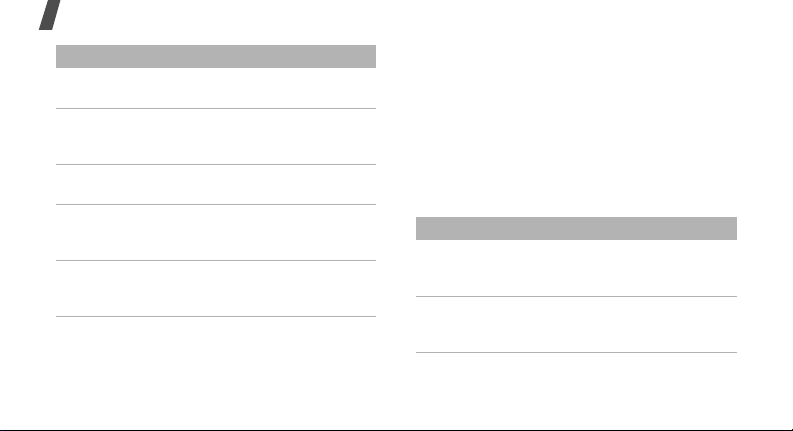
Menu functions
Menu Description
My folders Create new folders and
Templates Make and use templates of
Delete all Delete messages in each
Messages
settings
Memory status Check information about
28
organise your messages.
frequently used messages
or passages.
message folder all at once.
Set up various options for
using the messaging
services.
the memory currently in
use.
Calendar
Keep track of your schedule.
Camera
Use the camera embedded in your phone to
take photos and record videos.
My files
Menu Description
Images, Videos,
Sounds, Other
files
Games and more Access the embedded Java
Access media files and
other files stored in the
phone’s memory.
games and download Java
applications.
Page 32
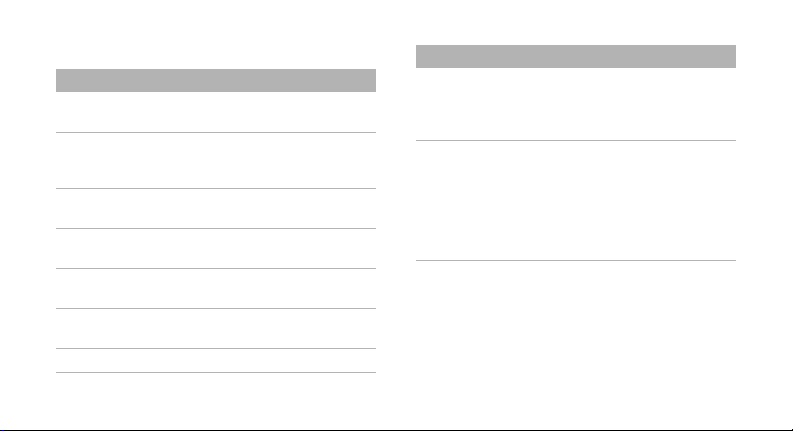
Applications
Menu Description
Voice recorder Record voice memos and
Memo Make memos for things
Task Make a list of tasks you
Calculator Perform arithmetic
Converter Do conversions, such as
Timer Set a period of time for the
Stopwatch Measure elapsed time.
any other sounds.
that are important and
manage them.
need to complete.
functions.
length and temperature.
phone to count down.
Menu Description
World clock Set your local time zone
PocketNews Use a variety of additional
and find out the current
time in another part of the
world.
services offered by your
service provider.
Depending on your USIM
or SIM card, this menu
may be available but
labelled differently.
Alarms
Set a wake-up call to wake you up in the
morning or an alarm to alert you to an event at
a specific time.
29
Page 33
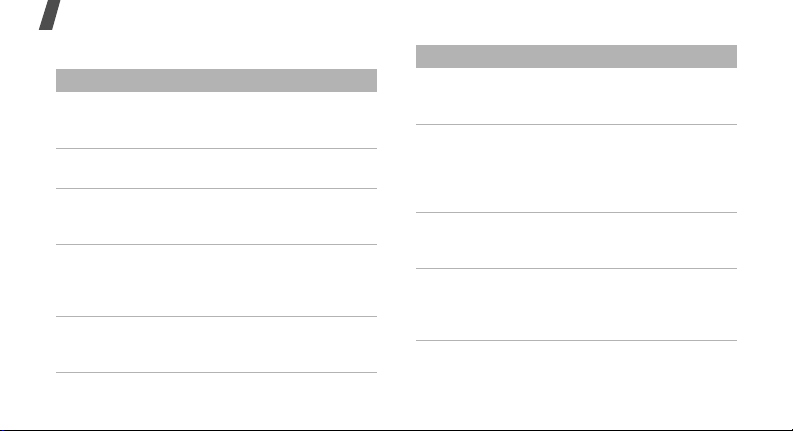
Menu functions
Settings
Menu Description
Phone profiles Change the sound settings
Time & date Change the time and date
Display settings
→
Main display →
Wallpaper
Display settings
→
Main display →
Greeting
message
Display settings
→
Main display →
Pop up list menu
30
of the phone for different
events or situations.
displayed on your phone.
Change the background
image that is displayed in
Idle mode.
Enter the greeting that is
displayed briefly on the
main display when the
phone is switched on.
Display the pop-up list that
shows the menu options.
Menu Description
Display settings
→
Main display →
Dialling display
Display settings
→
Main display →
Clock display
Display settings
→
Cover display
→
Wallpaper
Display settings
→
Cover display
→
Greeting
message
Customise the settings for
the display while dialling.
Set the dual clock, one for
your local time zone and
the other for a time zone of
your choice, to be
displayed in Idle mode.
Change the image that is
displayed on the external
display.
Enter the greeting that is
displayed on the external
display.
Page 34
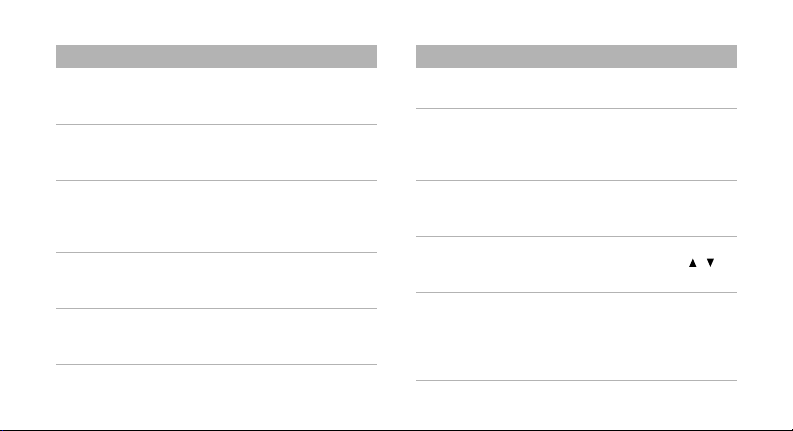
Menu Description
Display settings
→
Cover display
→
LCD contrast
Display settings
→
Light settings
→
LCD brightness
Display settings
→
Light settings
→
Backlight time
Display settings
→
Light settings
→
Keypad light
Display settings
→
Light settings
→
Touch light
Adjust the brightness of
the external display.
Adjust the brightness of
the main display for
varying lighting conditions.
Select the length of time
the backlight or display
stays on when the phone is
not used.
Set how the phone controls
the use of the keypad light.
Set the phone to use the
backlight of the music
player control keys.
Menu Description
Phone settings →
Language
Phone settings
Shortcuts
Phone settings
Own number
Phone settings
Volu me key
function
Phone settings
Cover keypad
lock
Select a language for the
display text.
→
Use the Navigation keys as
shortcuts to access specific
menus directly from Idle
mode.
→
Check your phone
numbers or assign a name
to each of the numbers.
→
Set how the phone reacts if
you press and hold [ / ]
when a call comes in.
→
Lock the exposed keys to
keep accidental presses
from affecting your
phone’s operation when
the phone is closed.
31
Page 35
Menu functions
Menu Description
Call settings Set options for call
→
Security
Phone lock
→
Security
SIM lock
→
Security
PIN lock
32
functions.
Activate your phone
password to protect your
phone against
unauthorised use.
Set the phone to work only
with the current USIM or
SIM card by assigning a
SIM lock password.
Activate your PIN to
protect your USIM or SIM
card against unauthorised
use.
Menu Description
Security →
Privacy lock
→
Security
dialling mode
→
Security
Change phone
password
→
Security
Change PIN code
→
Security
Change PIN2
code
Lock access to messages,
files, call logs, contacts,
calendar, memo, or tasks.
Fixed
Set the phone to restrict
calls to a limited set of
phone numbers, if
supported by your USIM or
SIM card.
Change the phone
password.
Change the PIN.
Change the PIN2.
Page 36

Menu Description
Security →
Mobile tracker
Set the phone to send the
preset tracking message to
your family or friends when
someone tries to use your
phone with another USIM
or SIM card. This feature
may be unavailable due to
certain features supported
by your service provider.
Application
settings
Connectivity
Bluetooth
Customise the settings for
using applications available
on the phone.
→
Connect the phone
wirelessly to other
Bluetooth devices.
Menu Description
Connectivity →
Network
selection
Connectivity
Network mode
Connectivity
Preferred
networks
Select the network to be
used while roaming outside
of your home area, or let
the network be chosen
automatically.
→
Select the network you
use.
→
Add a new network to your
preferred network list, if
your USIM or SIM card
supports it.
→
Connectivity
Connections
Create and customise the
profiles containing the
settings for connecting
your phone to the network.
33
Page 37
Menu Description
Memory settings Check information about
Master reset Reset the phone’s settings
34
the memory currently in
use. You can also clear the
memory.
you have changed.
Health and safety information
Exposure to radio frequency
(RF) signals
Certification Information (SAR)
Your wireless phone is a radio transmitter and
receiver. It is designed and manufactured not to
exceed the exposure limits for radio frequency
(RF) energy set by the Federal Communications
Commission (FCC) of the U.S. government.
These FCC exposure limits are derived from the
recommendations of two expert organizations,
the National Counsel on Radiation Protection
and Measurement (NCRP) and the Institute of
Electrical and Electronics Engineers (IEEE). In
both cases, the recommendations were
developed by scientific and engineering experts
drawn from industry, government, and
Page 38

academia after extensive reviews of the
scientific literature related to the biological
effects of RF energy.
The exposure limit set by the FCC for wireless
mobile phones employs a unit of measurement
known as the Specific Absorption Rate (SAR).
The SAR is a measure of the rate of absorption
of RF energy by the human body expressed in
units of watts per kilogram (W/kg). The FCC
requires wireless phones to comply with a
safety limit of 1.6 watts per kilogram (1.6 W/
kg). The FCC exposure limit incorporates a
substantial margin of safety to give additional
protection to the public and to account for any
variations in measurements.
SAR tests are conducted using standard
operating positions accepted by the FCC with
the phone transmitting at its highest certified
certified power level, the actual SAR level of the
phone while operating can be well below the
maximum value. This is because the phone is
designed to operate at multiple power levels so
as to use only the power required to reach the
network. In general, the closer you are to a
wireless base station antenna, the lower the
power output.
Before a new model phone is available for sale
to the public, it must be tested and certified to
the FCC that it does not exceed the exposure
limit established by the FCC. Tests for each
model phone are performed in positions and
locations (e.g. at the ear and worn on the body)
as required by the FCC.
The highest SAR values for this model phone as
reported to the FCC are : GSM1900 Mode Head:
0.244 W/Kg, Body-worn : 0.447 W/Kg.
power level in all tested frequency bands. WCDMA850 Mode Head : 0.553 W/Kg,
Although the SAR is determined at the highest Body-worn : 0.464 W/Kg.
35
Page 39

Health and safety information
For body worn operations, this model phone has
been testde and meets the FCC exposure
guidelines when used with a Samsung
accessory designated for this product or when
used with an accessroy that contains no metal
and that positons the handset a minimum 1.5
cm from the body.
Non-compliance with the above restrictions
may result in violation of FCC RF exposure
guidelines.
SAR information on this and other model
phones can be viewed on-line at www.fcc.gov/
oet/fccid. This site uses the phone FCC ID
number A3LSGHA551.
Sometimes it may be necessary to remove the
battery pack to find the number. Once you have
the FCC ID number for a particular phone,
follow the instructions on the website and it
should provide values for typical or maximum
36
SAR for a particular phone. Additional product
specific SAR information can also be obtained at
www.fcc.gov/cgb/sar.
Consumer Information on Wireless
Phones
The U.S. Food and Drug Administration (FDA)
has published a series of Questions and
Answers for consumers relating to radio
frequency (RF) exposure from wireless phones.
The FDA publication includes the following
information:
What kinds of phones are the subject of
this update?
The term wireless phone refers here to handheld wireless phones with built-in antennas,
often called “cell,” “mobile,” or “PCS” phones.
These types of wireless phones can expose the
user to measurable radio frequency energy (RF)
Page 40

because of the short distance between the
phone and the user's head. These RF exposures
are limited by Federal Communications
Commission safety guidelines that were
developed with the advice of FDA and other
federal health and safety agencies. When the
phone is located at greater distances from the
user, the exposure to RF is drastically lower
because a person's RF exposure decreases
rapidly with increasing distance from the
source. The so-called “cordless phones,” which
have a base unit connected to the telephone
wiring in a house, typically operate at far lower
power levels, and thus produce RF exposures
well within the FCC's compliance limits.
Do wireless phones pose a health hazard?
The available scientific evidence does not show
that any health problems are associated with
using wireless phones. There is no proof,
however, that wireless phones are absolutely
safe. Wireless phones emit low levels of radio
frequency energy (RF) in the microwave range
while being used. They also emit very low levels
of RF when in the stand-by mode. Whereas high
levels of RF can produce health effects (by
heating tissue), exposure to low level RF that
does not produce heating effects causes no
known adverse health effects. Many studies of
low level RF exposures have not found any
biological effects. Some studies have suggested
that some biological effects may occur, but such
findings have not been confirmed by additional
research. In some cases, other researchers
have had difficulty in reproducing those studies,
or in determining the reasons for inconsistent
results.
What is FDA's role concerning the safety of
wireless phones?
37
Page 41

Health and safety information
Under the law, FDA does not review the safety
of radiation-emitting consumer products such
as wireless phones before they can be sold, as
it does with new drugs or medical devices.
However, the agency has authority to take
action if wireless phones are shown to emit
radio frequency energy (RF) at a level that is
hazardous to the user. In such a case, FDA
could require the manufacturers of wireless
phones to notify users of the health hazard and
to repair, replace or recall the phones so that
the hazard no longer exists.
Although the existing scientific data do not
justify FDA regulatory actions, FDA has urged
the wireless phone industry to take a number of
steps, including the following:
• “Support needed research into possible
biological effects of RF of the type emitted
by wireless phones;
38
• “Design wireless phones in a way that
minimizes any RF exposure to the user that
is not necessary for device function; and
• “Cooperate in providing users of wireless
phones with the best possible information
on possible effects of wireless phone use on
human health.
FDA belongs to an interagency working group of
the federal agencies that have responsibility for
different aspects of RF safety to ensure
coordinated efforts at the federal level. The
following agencies belong to this working
group:
• “National Institute for Occupational Safety
and Health
• “Environmental Protection Agency
• ”Federal Communications Commission
• ”Occupational Safety and Health
Administration.
Page 42

• ”National Telecommunications and
Information Administration
The National Institutes of Health participates in
some interagency working group activities, as
well.
FDA shares regulatory responsibilities for
wireless phones with the Federal
Communications Commission (FCC). All phones
that are sold in the United States must comply
with FCC safety guidelines that limit RF
exposure. FCC relies on FDA and other health
agencies for safety questions about wireless
phones.
FCC also regulates the base stations that the
wireless phone networks rely upon. While these
base stations operate at higher power than do
the wireless phones themselves, the RF
exposures that people get from these base
stations are typically thousands of times lower
than those they can get from wireless phones.
Base stations are thus not the primary subject
of the safety questions discussed in this
document.
What are the results of the research done
already?
The research done thus far has produced
conflicting results, and many studies have
suffered from flaws in their research methods.
Animal experiments investigating the effects of
radio frequency energy (RF) exposures
characteristic of wireless phones have yielded
conflicting results that often cannot be repeated
in other laboratories. A few animal studies,
however, have suggested that low levels of RF
could accelerate the development of cancer in
laboratory animals. However, many of the
studies that showed increased tumor
development used animals that had been
39
Page 43

Health and safety information
genetically engineered or treated with cancercausing chemicals so as to be pre-disposed to
develop cancer in absence of RF exposure.
Other studies exposed the animals to RF for up
to 22 hours per day. These conditions are not
similar to the conditions under which people
use wireless phones, so we don't know with
certainty what the results of such studies mean
for human health.
Three large epidemiology studies have been
published since December 2000. Between
them, the studies investigated any possible
association between the use of wireless phones
and primary brain cancer, glioma, meningioma,
or acoustic neuroma, tumors of the brain or
salivary gland, leukemia, or other cancers.
None of the studies demonstrated the existence
of any harmful health effects from wireless
phones RF exposures. However, none of the
40
studies can answer questions about long-term
exposures, since the average period of phone
use in these studies was around three years.
What research is needed to decide
whether RF exposure from wireless
phones poses a health risk?
A combination of laboratory studies and
epidemiological studies of people actually using
wireless phones would provide some of the data
that are needed. Lifetime animal exposure
studies could be completed in a few years.
However, very large numbers of animals would
be needed to provide reliable proof of a cancer
promoting effect if one exists. Epidemiological
studies can provide data that is directly
applicable to human populations, but ten or
more years' follow-up may be needed to
provide answers about some health effects,
such as cancer. This is because the interval
Page 44

between the time of exposure to a cancercausing agent and the time tumors develop - if
they do - may be many, many years. The
interpretation of epidemiological studies is
hampered by difficulties in measuring actual RF
exposure during day-to-day use of wireless
phones. Many factors affect this measurement,
such as the angle at which the phone is held, or
which model of phone is used.
What is FDA doing to find out more about
the possible health effects of wireless
phone RF?
FDA is working with the U.S. National
Toxicology Program and with groups of
investigators around the world to ensure that
high priority animal studies are conducted to
address important questions about the effects
of exposure to radio frequency energy (RF).
FDA has been a leading participant in the World
Health Organization international
Electromagnetic Fields (EMF) Project since its
inception in 1996. An influential result of this
work has been the development of a detailed
agenda of research needs that has driven the
establishment of new research programs
around the world. The Project has also helped
develop a series of public information
documents on EMF issues.
FDA and Cellular Telecommunications &
Internet Association (CTIA) have a formal
Cooperative Research and Development
Agreement (CRADA) to do research on wireless
phone safety. FDA provides the scientific
oversight, obtaining input from experts in
government, industry, and academic
organizations. CTIA-funded research is
conducted through contracts to independent
41
Page 45

Health and safety information
investigators. The initial research will include
both laboratory studies and studies of wireless
phone users. The CRADA will also include a
broad assessment of additional research needs
in the context of the latest research
developments around the world.
What steps can I take to reduce my
exposure to radio frequency energy from
my wireless phone?
If there is a risk from these products - and at
this point we do not know that there is - it is
probably very small. But if you are concerned
about avoiding even potential risks, you can
take a few simple steps to minimize your
exposure to radio frequency energy (RF). Since
time is a key factor in how much exposure a
person receives, reducing the amount of time
spent using a wireless phone will reduce RF
exposure.
42
• “If you must conduct extended
conversations by wireless phone every day,
you could place more distance between
your body and the source of the RF, since
the exposure level drops off dramatically
with distance. For example, you could use a
headset and carry the wireless phone away
from your body or use a wireless phone
connected to a remote antenna.
Again, the scientific data do not demonstrate
that wireless phones are harmful. But if you are
concerned about the RF exposure from these
products, you can use measures like those
described above to reduce your RF exposure
from wireless phone use.
What about children using wireless
phones?
The scientific evidence does not show a danger
to users of wireless phones, including children
Page 46

and teenagers. If you want to take steps to
lower exposure to radio frequency energy (RF),
the measures described above would apply to
children and teenagers using wireless phones.
Reducing the time of wireless phone use and
increasing the distance between the user and
the RF source will reduce RF exposure.
Some groups sponsored by other national
governments have advised that children be
discouraged from using wireless phones at all.
For example, the government in the United
Kingdom distributed leaflets containing such a
recommendation in December 2000. They
noted that no evidence exists that using a
wireless phone causes brain tumors or other ill
effects. Their recommendation to limit wireless
phone use by children was strictly
precautionary; it was not based on scientific
evidence that any health hazard exists.
Do hands-free kits for wireless phones
reduce risks from exposure to RF
emissions?
Since there are no known risks from exposure
to RF emissions from wireless phones, there is
no reason to believe that hands-free kits reduce
risks. Hands-free kits can be used with wireless
phones for convenience and comfort. These
systems reduce the absorption of RF energy in
the head because the phone, which is the
source of the RF emissions, will not be placed
against the head. On the other hand, if the
phone is mounted against the waist or other
part of the body during use, then that part of
the body will absorb more RF energy. Wireless
phones marketed in the U.S. are required to
meet safety requirements regardless of
whether they are used against the head or
43
Page 47

Health and safety information
against the body. Either configuration should
result in compliance with the safety limit.
Do wireless phone accessories that claim
to shield the head from RF radiation work?
Since there are no known risks from exposure
to RF emissions from wireless phones, there is
no reason to believe that accessories that claim
to shield the head from those emissions reduce
risks. Some products that claim to shield the
user from RF absorption use special phone
cases, while others involve nothing more than a
metallic accessory attached to the phone.
Studies have shown that these products
generally do not work as advertised. Unlike
“hand-free” kits, these so-called “shields” may
interfere
with proper operation of the phone. The phone
may be forced to boost its power to
compensate, leading to an increase in RF
44
absorption. In February 2002, the Federal trade
Commission (FTC) charged two companies that
sold devices that claimed to protect wireless
phone users from radiation with making false
and unsubstantiated claims. According to FTC,
these defendants lacked a reasonable basis to
substantiate their claim.
What about wireless phone interference
with medical equipment?
Radio frequency energy (RF) from wireless
phones can interact with some electronic
devices. For this reason, FDA helped develop a
detailed test method to measure
electromagnetic interference (EMI) of implanted
cardiac pacemakers and defibrillators from
wireless telephones. This test method is now
part of a standard sponsored by the Association
for the Advancement of Medical instrumentation
(AAMI). The final draft, a joint effort by FDA,
Page 48

medical device manufacturers, and many other
groups, was completed in late 2000. This
standard will allow manufacturers to ensure
that cardiac pacemakers and defibrillators are
safe from wireless phone EMI. FDA has tested
wireless phones and helped develop a voluntary
standard sponsored by the Institute of Electrical
and Electronic Engineers (IEEE). This standard
specifies test methods and performance
requirements for hearing aids and wireless
phones so that no interference occurs when a
person uses a compatible phone and a
compatible hearing aid at the same time. This
standard was approved by the IEEE in 2000.
FDA continues to monitor the use of wireless
phones for possible interactions with other
medical devices. Should harmful interference
be found to occur, FDA will conduct testing to
assess the interference and work to resolve the
problem.
Additional information on the safety of RF
exposures from various sources can be
obtained from the following organizations:
• FCC RF Safety Program:
http://www.fcc.gov/oet/rfsafety/
• Environmental Protection Agency (EPA):
http://www.epa.gov/radiation/
• Occupational Safety and Health
Administration's (OSHA):
http://www.osha.gov/SLTC/
radiofrequencyradiation/index.html
• National institute for Occupational Safety
and Health (NIOSH):
http://www.cdc.gov/niosh/emfpg.html
• World health Organization (WHO):
http://www.who.int/peh-emf/
45
Page 49

Health and safety information
• International Commission on Non-Ionizing
Radiation Protection:
http://www.icnirp.de
• National Radiation Protection Board (UK):
http://www.nrpb.org.uk
• Updated 4/3/2002: US food and Drug
Administration
http://www.fda.gov/cellphones
Road Safety
Your wireless phone gives you the powerful
ability to communicate by voice, almost
anywhere, anytime. But an important
responsibility accompanies the benefits of
wireless phones, one that every user must
uphold.
When driving a car, driving is your first
responsibility. When using your wireless phone
behind the wheel of a car, practice good
46
common sense and remember the following
tips:
1. Get to know your wireless phone and its
features, such as speed dial and redial. If
available, these features help you to place
your call without taking your attention off
the road.
2. When available, use a hands-free device. If
possible, add an additional layer of
convenience and safety to your wireless
phone with one of the many hands free
accessories available today.
3. Position your wireless phone within easy
reach. Be able to access your wireless
phone without removing your eyes from the
road. If you get an incoming call at an
inconvenient time, let your voice mail
answer it for you.
4. Let the person you are speaking with know
you are driving; if necessary, suspend the
Page 50

call in heavy traffic or hazardous weather
conditions. Rain, sleet, snow, ice and even
heavy traffic can be hazardous.
5. Do not take notes or look up phone
numbers while driving. Jotting down a “to
do” list or flipping through your address
book takes attention away from your
primary responsibility, driving safely.
6. Dial sensibly and assess the traffic; if
possible, place calls when you are not
moving or before pulling into traffic. Try to
plan calls when your car will be stationary.
If you need to make a call while moving,
dial only a few numbers, check the road and
your mirrors, then continue.
7. Do not engage in stressful or emotional
conversations that may be distracting. Make
people you are talking with aware you are
driving and suspend conversations that
have the potential to divert your attention
from the road.
8. Use your wireless phone to call for help.
Dial 9-1-1 or other local emergency number
in the case of fire, traffic accident or
medical emergencies. Remember, it is a free
call on your wireless phone!
9. Use your wireless phone to help others in
emergencies. If you see an auto accident,
crime in progress or other serious
emergency where lives are in danger, call 91-1 or other local emergency number, as
you would want others to do for you.
10. Call roadside assistance or a special non-
emergency wireless assistance number
when necessary. If you see a broken-down
vehicle posing no serious hazard, a broken
traffic signal, a minor traffic accident where
no one appears injured, or a vehicle you
know to be stolen, call roadside assistance
or other special non-emergency number.
47
Page 51

Health and safety information
“The wireless industry reminds you to use
your phone safely when driving.”
For more information, please call 1-888-901SAFE, or visit our web-site www.wow-com.com
Provided by the Cellular Telecommunications &
Internet Association
Operating Environment
Remember to follow any special regulations in
force in any area and always switch your phone
off whenever it is forbidden to use it, or when it
may cause interference or danger. When
connecting the phone or any accessory to
another device, read its user's guide for
detailed safety instructions. Do not connect
incompatible products.
As with other mobile radio transmitting
equipment, users are advised that for the
48
satisfactory operation of the equipment and for
the safety of personnel, it is recommended that
the equipment should only be used in the
normal operating position (held to your ear with
the antenna pointing over your shoulder).
Using Your Phone Near Other
Electronic Devices
Most modern electronic equipment is shielded
from radio frequency (RF) signals. However,
certain electronic equipment may not be
shielded against the RF signals from your
wireless phone. Consult the manufacturer to
discuss alternatives.
Pacemakers
Pacemaker manufacturers recommend that a
minimum distance of 15 cm (6 inches) be
maintained between a wireless phone and a
Page 52

pacemaker to avoid potential interference with
the pacemaker.
These recommendations are consistent with the
independent research and recommendations of
Wireless Technology Research.
Persons with pacemakers:
• should always keep the phone more than 15
cm (6 inches) from their pacemaker when
the phone is switched on.
• should not carry the phone in a breast
pocket.
• should use the ear opposite the pacemaker
to minimize potential interference.
If you have any reason to suspect that
interference is taking place, switch your phone
off immediately.
Hearing Aids
Some digital wireless phones may interfere with
some hearing aids. In the event of such
interference, you may wish to consult your
hearing aid manufacturer to discuss
alternatives.
Other Medical Devices
If you use any other personal medical devices,
consult the manufacturer of your device to
determine if it is adequately shielded from
external RF energy. Your physician may be able
to assist you in obtaining this information.
Switch your phone off in health care facilities
when any regulations posted in these areas
instruct you to do so. Hospitals or health care
facilities may be using equipment that could be
sensitive to external RF energy.
Vehicles
49
Page 53

Health and safety information
RF signals may affect improperly installed or
inadequately shielded electronic systems in
motor vehicles. Check with the manufacturer or
its representative regarding your vehicle. You
should also consult the manufacturer of any
equipment that has been added to your vehicle.
Posted Facilities
Switch your phone off in any facility where
posted notices require you to do so.
Potentially Explosive Environments
Switch your phone off when in any area with a
potentially explosive atmosphere and obey all
signs and instructions. Sparks in such areas
could cause an explosion or fire resulting in
bodily injury or even death.
Users are advised to switch the phone off while
at a refueling point (service station). Users are
50
reminded of the need to observe restrictions on
the use of radio equipment in fuel depots (fuel
storage and distribution areas), chemical plants
or where blasting operations are in progress.
Emergency Calls
This phone, like any wireless phone, operates
using radio signals, wireless and landline
networks as well as user programmed
functions, which cannot guarantee connection
in all conditions. Therefore, you should never
rely solely on any wireless phone for essential
communications (medical emergencies, for
example).
Remember, to make or receive any calls the
phone must be switched on and in a service
area with adequate signal strength. Emergency
calls may not be possible on all wireless phone
networks or when certain network services and/
Page 54

or phone features are in use. Check with local
service providers.
To make an emergency call:
1. If the phone is not on, switch it on.
2. Key in the emergency number for your
present location (for example, 911 or other
official emergency number). Emergency
numbers vary by location.
3. Press [SEND].
If certain features are in use (call barring, for
example), you may first need to deactivate
those features before you can make an
emergency call. Consult this document and
your local cellular service provider.
When making an emergency call, remember to
give all the necessary information as accurately
as possible. Remember that your phone may be
the only means of communication at the scene
of an accident; do not cut off the call until given
permission to do so.
Restricting Children's access to your
Phone
Your phone is not a toy. Children should not be
allowed to play with it because they could
FCC Notice and Cautions
FCC Notice
This device complies with Part 15 of the FCC
Rules. Operation is subject to the following two
conditions:
(1) this device may not cause harmful
interference, and (2) this device must accept
any interference received, including
in te rfere nce th at may ca use un desir ed
operation.
51
Page 55

Health and safety information
This equipment has been tested and found to
comply with the limits for a Class B digital
device, pursuant to part 15 of the FCC Rules.
These limits are designed to provide reasonable
protection against harmful interference in a
residential installation.
This equipment generates, uses and can radiate
radio frequency energy and,f not installed and
used in accordance with the instructions, may
cause harmful interference to radio
communications.
However, there is no guarantee that
interference will not occur in a particular
installation.If this equipment does cause
harmful interference to radio or television
reception, which can be determined by turning
the equipment off and on, the user is
encouraged to try to correct theinterference by
one or more of the following measures:
52
• Reorient or relocate the receiving antenna.
• Increase the separation between the
equipment and receiver.
• Connect the equipment into an outlet on a
circuit different from that to which the
receiver is connected.
• Consult the dealer or an experienced radio/
TV technician for help.
The phone may cause TV or radio interference if
used in close proximity to receiving equipment.
The FCC can require you to stop using the
phone if such interference cannot be
eliminated.
Vehicles using liquefied petroleum gas (such as
propane or butane) must comply with the
National Fire Protection Standard (NFPA-58).
For a copy of this standard, contact the National
Fire Protection Association, One Battery march
Page 56

Park, Quincy, MA 02269, Attn: Publication Sales
Division.
Cautions
Changes or modifications made in the radio
phone, not expressly approved by Samsung,
will void the user°Øs authority to operate the
equipment.
Only use approved batteries, antennas and
chargers. The use of any unauthorized
accessories may be dangerous and void the
phone warranty if said accessories cause
damage or a defect to the phone.
Although your phone is quite sturdy, it is a
complex piece of equipment and can be broken.
Avoid dropping, hitting, bending or sitting on it.
Other Important Safety
Information.
• Only qualified personnel should service the
phone or install the phone in a vehicle.
Faulty installation or service may be
dangerous and may invalidate any warranty
applicable to the device.
• Check regularly that all wireless phone
equipment in your vehicle is mounted and
operating properly.
• Do not store or carry flammable liquids,
gases or explosive materials in the same
compartment as the phone, its parts or
accessories.
• For vehicles equipped with an air bag,
remember that an air bag inflates with
great force. Do not place objects, including
both installed or portable wireless
equipment in the area over the air bag or in
the air bag deployment area. If wireless
equipment is improperly installed and the
air bag inflates, serious injury could result.
53
Page 57

Health and safety information
• Switch your phone off before boarding an
aircraft. The use of wireless phone in
aircraft is illegal and may be dangerous to
the aircraft's operation.
• Failure to observe these instructions may
lead to the suspension or denial of
telephone services to the offender, or legal
action, or both.
Product Performance
Getting the Most Out of Your Signal
Reception
The quality of each call you make or receive
depends on the signal strength in your area.
Your phone informs you of the current signal
strength by displaying a number of bars next to
the signal strength icon. The more bars
displayed, the stronger the signal.
54
If you're inside a building, being near a window
may give you better reception.
Understanding the Power Save Feature
If your phone is unable to find a signal after 15
minutes of searching, a Power Save feature is
automatically activated. If your phone is active,
it periodically rechecks service availability or
you can check it yourself by pressing any key.
Anytime the Power Save feature is activated, a
message displays on the screen. When a signal
is found, your phone returns to standby mode.
Understanding How Your Phone Operates
Your phone is basically a radio transmitter and
receiver. When it's turned on, it receives and
transmits radio frequency (RF) signals. When
you use your phone, the system handling your
call controls the power level. This power can
Page 58

range from 0.006 watts to 0.2 watts in digital
mode.
Maintaining Your Phone's Peak
Performance
For the best care of your phone, only authorized
personnel should service your phone and
accessories. Faulty service may void the
warranty.
There are several simple guidelines to operating
your phone properly and maintaining safe,
satisfactory service.
• Hold the phone with the antenna raised,
fully-extended and over your shoulder.
• Try not to hold, bend or twist the phone's
antenna.
• Don't use the phone if the antenna is
damaged.
• Speak directly into the phone's receiver.
• Avoid exposing your phone and accessories
to rain or liquid spills. If your phone does
get wet, immediately turn the power off and
remove the battery. If it is inoperable, call
Customer Care for service.
Availability of Various Features/
Ring Tones
Many services and features are network
dependent and may require additional
subscription and/or usage charges. Not all
features are available for purchase or use in all
areas. Downloadable Ring Tones may be
available at an additional cost. Other conditions
and restrictions may apply. See your service
provider for additional information.
Battery Standby and Talk Time
55
Page 59

Health and safety information
Standby and talk times will vary depending on
phone usage patterns and conditions. Battery
power consumption depends on factors such as
network configuration, signal strength,
operating temperature, features selected,
frequency of calls, and voice, data, and other
application usage patterns.
Battery Precautions.
• Never use any charger or battery that is
damaged in any way.
• Use the battery only for its intended
purpose.
• If you use the phone near the network's
base station, it uses less power; talk and
standby time are greatly affected by the
signal strength on the cellular network and
the parameters set by the network operator.
56
• Battery charging time depends on the
remaining battery charge and the type of
battery and charger used. The battery can
be charged and discharged hundreds of
times, but it will gradually wear out. When
the operation time (talk time and standby
time) is noticeably shorter than normal, it is
time to buy a new battery.
• If left unused, a fully charged battery will
discharge itself over time.
• Use only Samsung-approved batteries and
recharge your battery only with Samsungapproved chargers. When a charger is not
in use, disconnect it from the power source.
Do not leave the battery connected to a
charger for more than a week, since
overcharging may shorten its life.
• Extreme temperatures will affect the
charging capacity of your battery: it may
require cooling or warming first.
Page 60

• Do not leave the battery in hot or cold
places, such as in a car in summer or winter
conditions, as you will reduce the capacity
and lifetime of the battery. Always try to
keep the battery at room temperature. A
phone with a hot or cold battery may
temporarily not work, even when the
battery is fully charged. Li-ion batteries are
particularly affected by temperatures below
0 °C (32 °F).
• Do not short-circuit the battery. Accidental
short- circuiting can occur when a metallic
object (coin, clip or pen) causes a direct
connection between the + and - terminals
of the battery (metal strips on the battery),
for example when you carry a spare battery
in a pocket or bag. Short-circuiting the
terminals may damage the battery or the
object causing the short-circuiting.
• Dispose of used batteries in accordance
with local regulations. In some areas, the
disposal of batteries in household or
business trash may be prohibited. For safe
disposal options for Li-Ion batteries, contact
your nearest Samsung authorized service
center. Always recycle. Do not dispose of
batteries in a fire.
Care and Maintenance
Your phone is a product of superior design and
craftsmanship and should be treated with care.
The suggestions below will help you fulfill any
warranty obligations and allow you to enjoy this
product for many years.
• Keep the phone and all its parts and
accessories out of the reach of small
children.
57
Page 61

Health and safety information
• Keep the phone dry. Precipitation, humidity
and liquids contain minerals that will
corrode electronic circuits.
• Do not use the phone with a wet hand.
Doing so may cause an electric shock to you
or damage to the phone.
• Do not use or store the phone in dusty, dirty
areas, as its moving parts may be
damaged.
• Do not store the phone in hot areas. High
temperatures can shorten the life of
electronic devices, damage batteries, and
warp or melt certain plastics.
• Do not store the phone in cold areas. When
the phone warms up to its normal operating
temperature, moisture can form inside the
phone, which may damage the phone's
electronic circuit boards.
58
• Do not drop, knock or shake the phone.
Rough handling can break internal circuit
boards.
• Do not use harsh chemicals, cleaning
solvents or strong detergents to clean the
phone. Wipe it with a soft cloth slightly
dampened in a mild soap-and-water
solution.
• Do not paint the phone. Paint can clog the
device's moving parts and prevent proper
operation.
• Do not put the phone in or on heating
devices, such as a microwave oven, a stove
or a radiator. The phone may explode when
overheated.
• When the phone or battery gets wet, the
label indicating water damage inside the
phone changes color. In this case, phone
repairs are no longer guaranteed by the
Page 62

manufacturer's warranty, even if the
warranty for your phone has not expired.
• If your phone has a flash or light, do not
use it too close to the eyes of people or
animals. This may cause damage to their
eyes.
• Use only the supplied or an approved
replacement antenna. Unauthorized
antennas or modified accessories may
damage the phone and violate regulations
governing radio devices.
• If the phone, battery, charger or any
accessory is not working properly, take it to
your nearest qualified service facility. The
personnel there will assist you, and if
necessary, arrange for service.
59
 Loading...