

Page 1
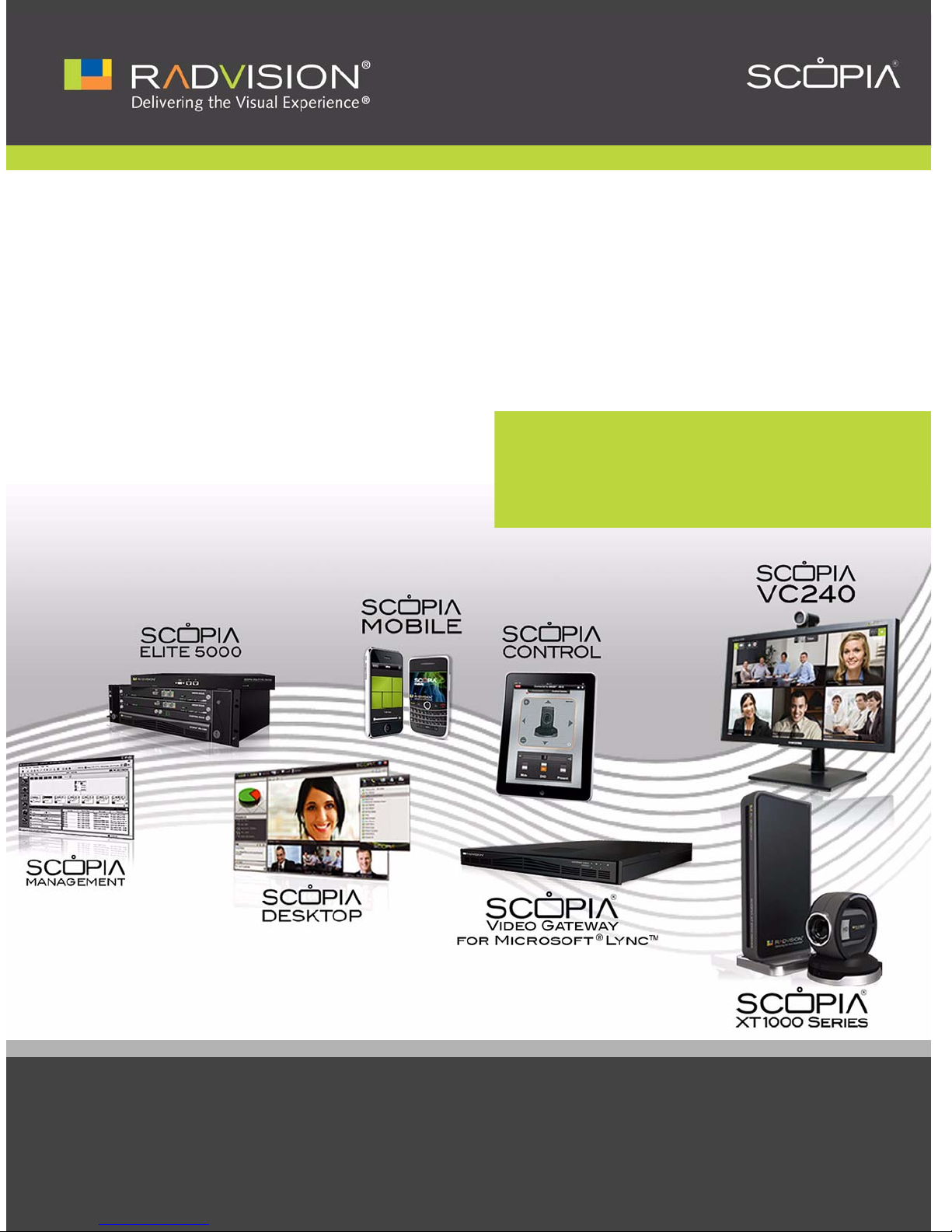
RADVISION Port Security
Reference Guide
Version 7.6
Page 2

| 2
RADVISION | Reference Guide for RADVISION Port Security Version 7.6
© 2000-2011 RADVISION Ltd. All intellectual property rights in this publication are owned by RADVISION Ltd. and are
protected by United States copyright laws, other applicable copyright laws and international treaty provisions.
RADVISION Ltd. retains all rights not expressly granted.
All product and company names herein may be trademarks of their registered owners.
This publication is RADVISION confidential. No part of this publication may be reproduced in any form whatsoever or used
to make any derivative work without prior written approval by RADVISION Ltd.
No representation of warranties for fitness for any purpose other than what is specifically mentioned in this guide is made
either by RADVISION Ltd. or its agents.
RADVISION Ltd. reserves the right to revise this publication and make changes without obligation to notify any person of
such revisions or changes. RADVISION Ltd. may make improvements or changes in the product(s) and/or the program(s)
described in this documentation at any time.
If there is any software on removable media described in this publication, it is furnished under a license agreement
included with the product as a separate document. If you are unable to locate a copy, please contact RADVISION Ltd.
and a copy will be provided to you.
Unless otherwise indicated, RADVISION registered trademarks are registered in the United States and other territories.
All registered trademarks recognized.
For further information contact RADVISION or your local distributor or reseller.
Reference Guide for RADVISION Port Security Version 7.6, March 2011
http://www.radvision.com
Page 3
1
| 3RADVISION |Reference Guide forRADVISION Port Security Versio n 7 .6
Port Security Reference Guide
This document details the use of TCP/IP/UDP ports throughout the SCOPIA Solution, organized by
product name.
Each port entry includes a description of the protocol used by the specific port, the role that the
port serves, the direction of traffic through the port (in, out or both), and the results of blocking
the port on the firewall.
The following SCOPIA Solution products are described in this document:
• SCOPIA Elite MCU ............................................................................... page 4
• SCOPIA Video Gateway for Microsoft Lync .................................................. page 8
• SCOPIA ECS Gatekeeper........................................................................ page 9
• SCOPIA iVIEW Management Suite............................................................ page 12
• SCOPIA PathFinder............................................................................. page 15
• SCOPIA Desktop ................................................................................ page 21
• SCOPIA XT Desktop Server.................................................................... page 26
• SCOPIA XT1000 ................................................................................. page 28
• SCOPIA VC240................................................................................... page 30
• SCOPIA Gateway................................................................................ page 32
• 3G Gateway..................................................................................... page 34
• SCOPIA MCU..................................................................................... page 36
This document does not include details of ports required by additional servers such as LDAP, SQL,
or Oracle servers. Always check which ports your back-end servers require and open only these
ports.
Page 4
| 4
RADVISION | RADVISION Port Security Reference Guide
SCOPIA Elite MCU
SCOPIA Elite MCU 5000 Series
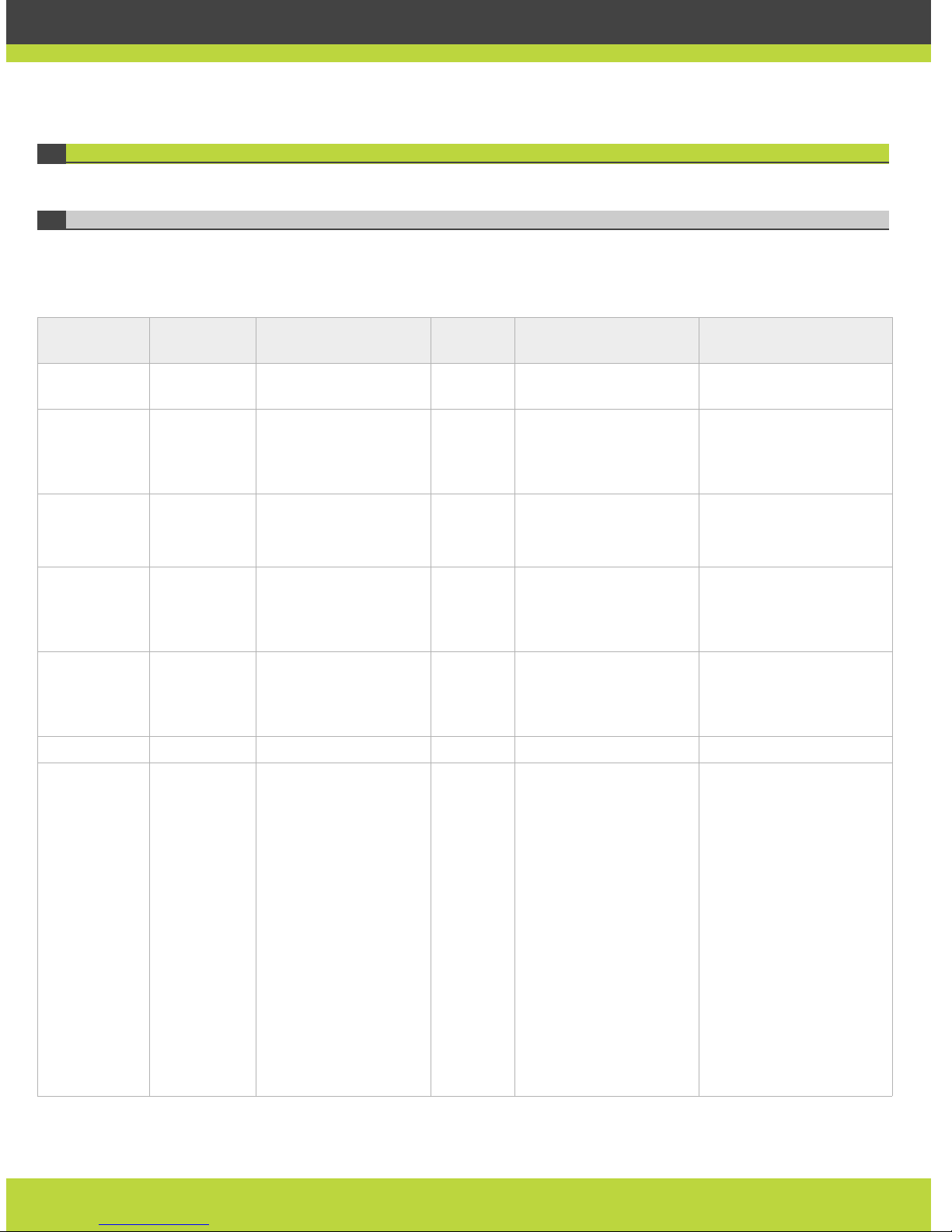
Table 1-1 lists the ports supported by all the models in the SCOPIA Elite MCU 5000 Series, including
SCOPIA Elite 5100 Series MCU and SCOPIA Elite 5200 Series MCU.
Table 1-1 Ports Supported by SCOPIA Elite MCU 5000 Series
Port Range Protocol Functionality Direction Result of Blocking Port
on Firewall
Description
21 FTP (TCP) Audio stream recording In Cannot record audio
streams
FTP Server
22 SSH (TCP) MCU In Cannot view logs in real
time (logs are collected
on the compact flash
card)
SSH Client
80
(configurable)
HTTP (TCP) MCU Administrator and
Conference Control
web user interfaces
In Cannot administer MCU Web client
Used for software
upgrade
161 SNMP (UDP) Configuration and
status
In Cannot configure or
check the status of the
MCU via SNMP
iVIEW Network Manager,
iVIEW Management Suite
or any other SNMP
manager station
162 SNMP (UDP) SNMP Trap events Out Cannot receive Traps iVIEW Network Manager,
iVIEW Management Suite
or any other SNMP
manager station
443 HTTPS (TCP) Secure web interface In Cannot administer MCU
1024-1324
(configure
within this
range)
H.245 (TCP) H.245 signaling Both Cannot connect H.323
calls
Any H.323 entity.
The SCOPIA Elite 5100
Series MCU uses 90 ports
for H.245, while the
SCOPIA Elite 5200 Series
MCU uses 180 ports.
To configure, use the
MCU Advanced
Commands section.
Enter the command
h245baseport to set the
lower port value, and
h245portrange to specify
the number of ports
above the base port to be
used.
Page 5
| 5
RADVISION | RADVISION Port Security Reference Guide
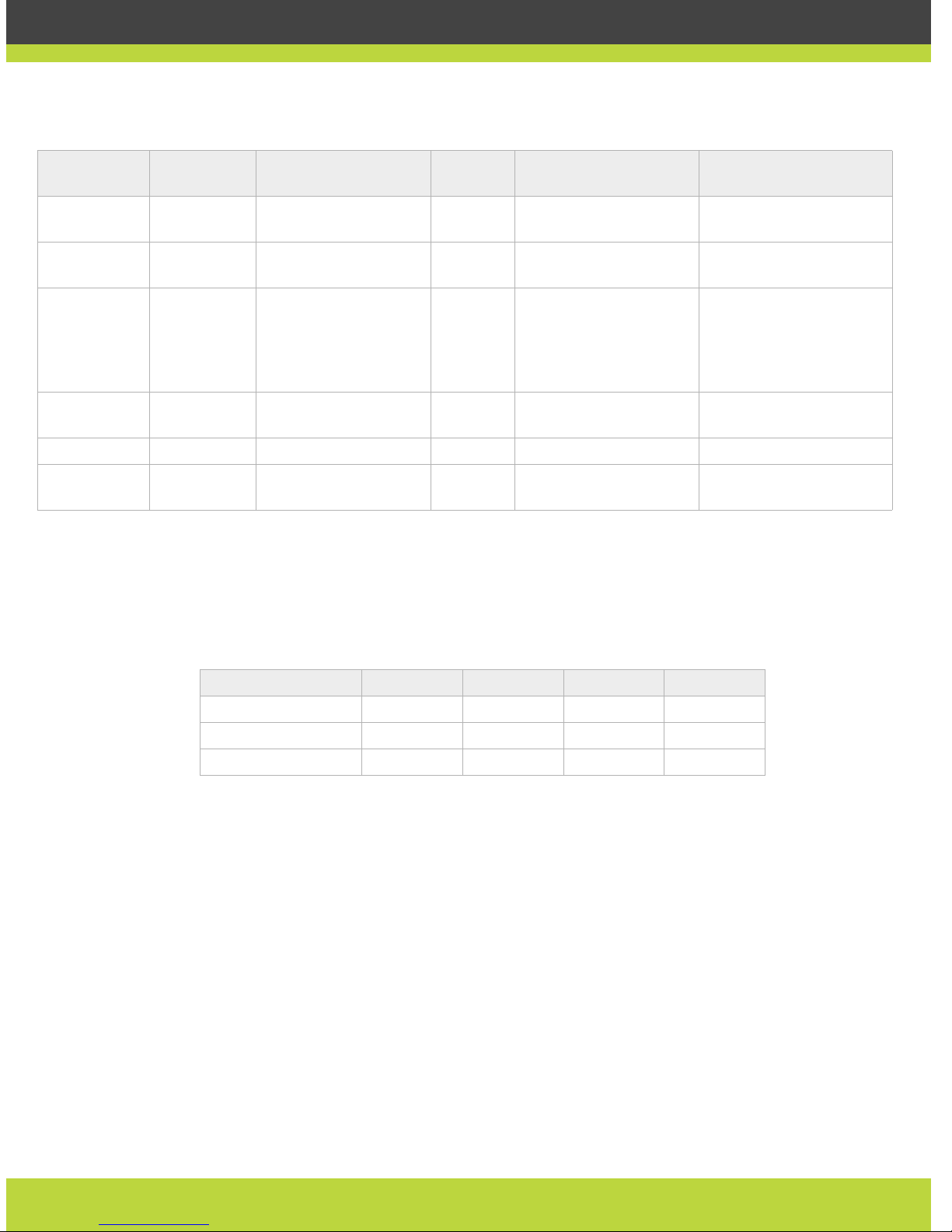
In addition to the ports listed in Table 1-1, the SCOPIA Elite MCU offers configurable security
access levels enabling and disabling Telnet, FTP, SNMP and ICMP (ping) services. The security
settings are accessed in the MCU from Configuration > Setup > Security and entering the
Security Mode. Table 1-2 details the implications of each security mode on each communication
type.
1719
(configurable)
RAS (UDP) RAS signaling Out Cannot communicate
with H.323 gatekeeper
H.323 gatekeeper
1720
(configurable)
Q.931 (TCP) Q.931 signaling Both Cannot connect H.323
calls
Any H.323 entity
3336 XML (TCP) MCU version 3 XML API Both Cannot use MCU
Conference Control web
user interface. Cannot
use version 3 XML API to
control MCU
Conference Control web
client terminal, iVIEW
Management Suite or
third-party controlling
applications
3337 XML (TCP) MCU version 3
Cascading XML API
Both Cannot cascade
between two MCUs
Other MCUs
3338 XML (TCP) Administration XML API Both Cannot be blocked
5060
(configurable)
SIP
(TCP/UDP)
SIP signaling Both Cannot connect SIP calls Any SIP entities
Table 1-1 Ports Supported by SCOPIA Elite MCU 5000 Series
Port Range Protocol Functionality Direction Result of Blocking Port
on Firewall
Description
Table 1-2 MCU Security Mode
Security Mode Telnet FTP SNMP ICMP (ping)
Standard Active Active Active Active
High Inactive Inactive Active Active
Maximum Inactive Inactive Inactive Inactive
Page 6
| 6
RADVISION | RADVISION Port Security Reference Guide
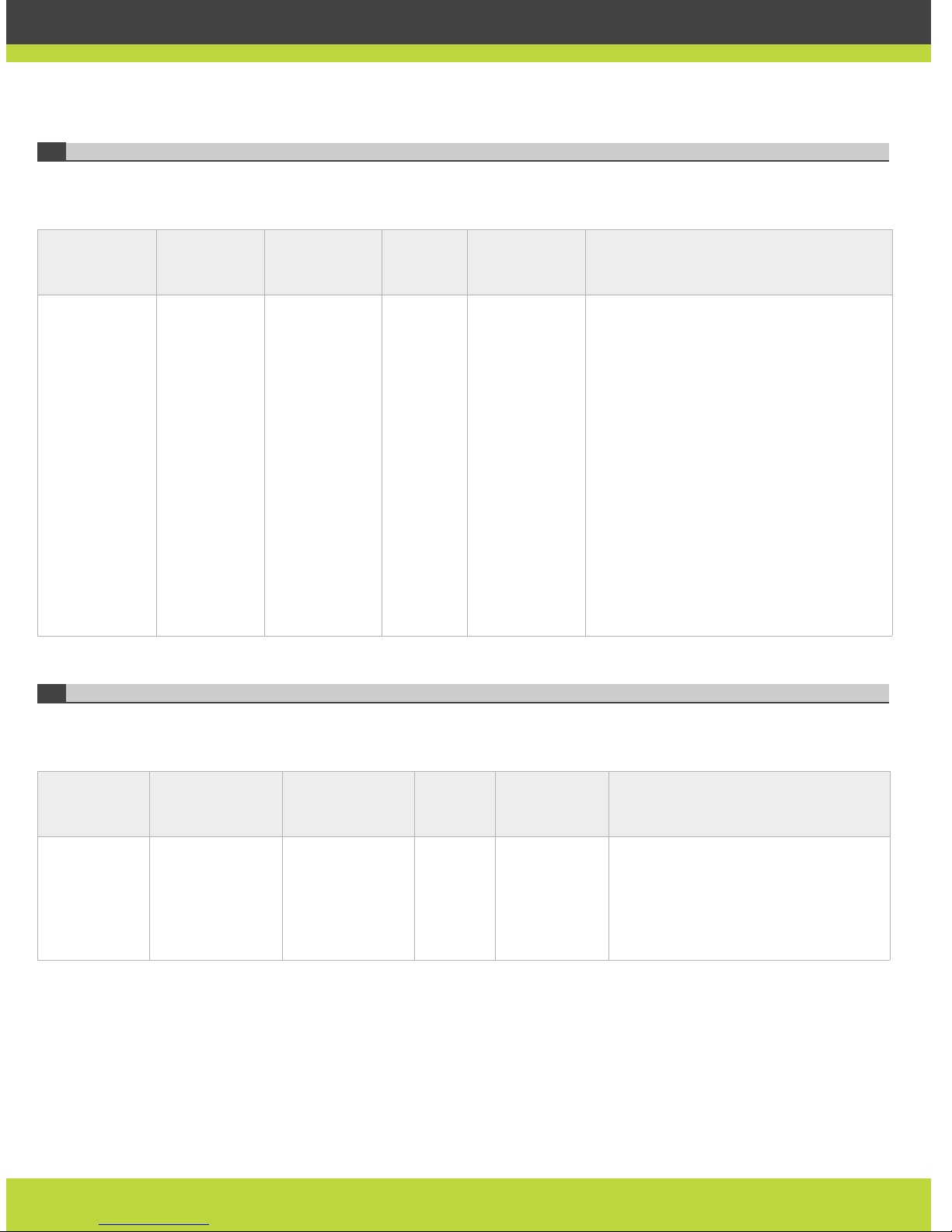
Ports specific to the SCOPIA Elite 5100 Series MCU
Table 1-3 lists the ports specific to th e SCO PIA Elite 5100 Series MCU.
Ports Specific to the SCOPIA Elite 5200 Series MCU
Table 1-4 lists the ports supported by the SCOP IA Elite 5200 Series MCU.
Table 1-3 Ports supported by SCOPIA Elite 5100 Series MCU
Port Range Protocol Functionality Direction Results of
blocking port
on firewall
Description
12000-13200
16384-16984
(configure
within these
ranges)
RTP/RTCP
(UDP)
RTP video and
audio media
Both Cannot
transmit/recei
ve video media
streams
Any H.323 or SIP media enabled entity.
Every call uses two audio ports and six
video ports. For highly utilized systems
(above 90%), we recommend multiplying
by a factor of 1.5. Using its full capacity,
the SCOPIA Elite 5100 Series MCU uses 180
ports for audio and 540 ports for video.
To configure the video base port, use the
MCU Advanced Commands section. Enter
the command advcmdmpcsetval with the
parameter mf.BasePort to set the lower
port value.
To configure the audio base port, use the
MCU Advanced Commands section. Enter
the command setmprtpbaseport to set
the lower port value.
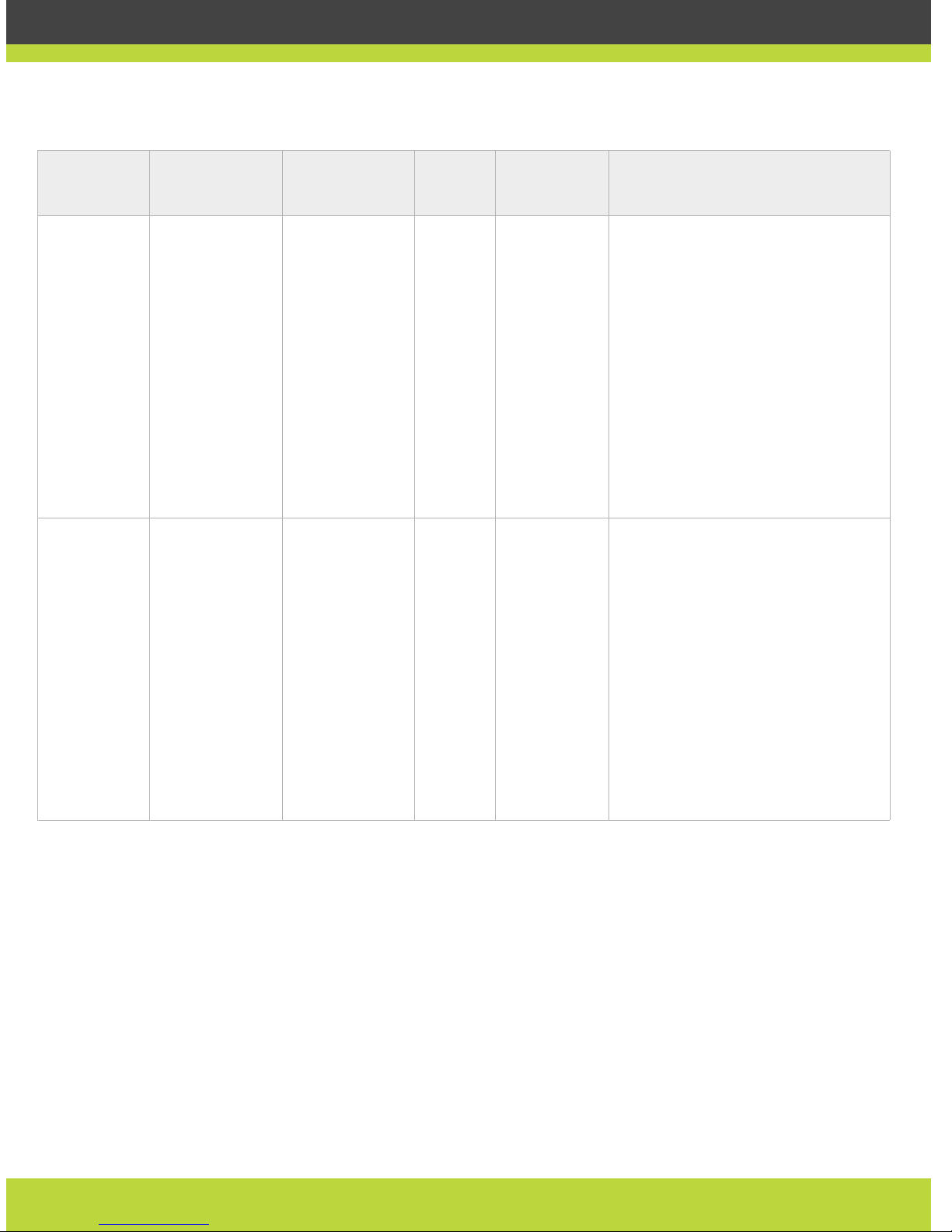
Table 1-4 Ports supported by SCOPIA Elite 5200 Series MCU
Port Range Protocol Functionality Direction Result of
Blocking Port
on Firewall
Description
22 SSH (TCP) MCU In Cannot view
logs in real
time (logs are
collected on
the compact
flash card)
SSH Client
Page 7
| 7
RADVISION | RADVISION Port Security Reference Guide
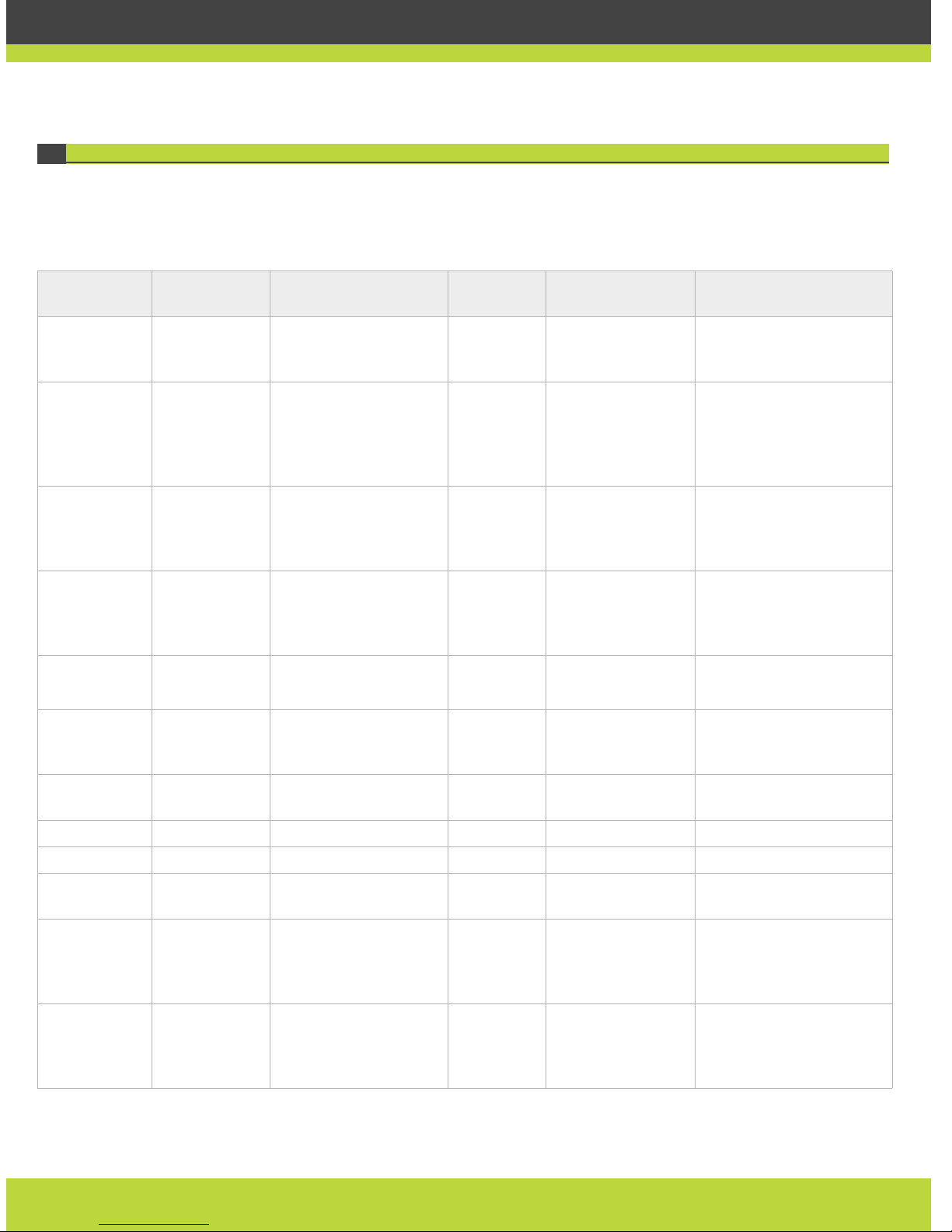
12000-13200
(configure
within this
range)
RTP/RTCP (UDP) RTP/RTCP video
media - lower
blade only
Both Cannot
transmit /
receive video
media
streams
Any RTP/RTCP media enabled entity.
Every call uses two audio ports and six
video ports. For highly utilized
systems (above 90%), we recommend
multiplying the number of ports
required by a factor of 1.5.
At full capacity , the SCOPIA Elite 5200
Series MCU uses 1180 ports for video.
To configure the video base port, use
the MCU Advanced Commands
section. Enter the command
advcmdmpcsetval with the
parameter mf.BasePort to set the
lower port value.
16384-16984
(configure
within this
range)
RTP/RTCP (UDP) RTP/RTCP audio
media - upper
blade only
Both Cannot
transmit /
receive audio
media
streams
Any H.323 or SIP media-enabled
entity.
Every call uses two audio ports and six
video ports. For highly utilized
systems (above 90%), we recommend
multiplying the number of ports
required by a factor of 1.5.
At full capacity , the SCOPIA Elite 5200
Series MCU uses 360 ports for video.
To configure the audio base port, use
the MCU Advanced Commands
section. Enter the command
setmprtpbaseport to set the lower
port value.
Table 1-4 Ports supported by SCOPIA Elite 5200 Series MCU
Port Range Protocol Functionality Direction Result of
Blocking Port
on Firewall
Description
Page 8
| 8
RADVISION | RADVISION Port Security Reference Guide
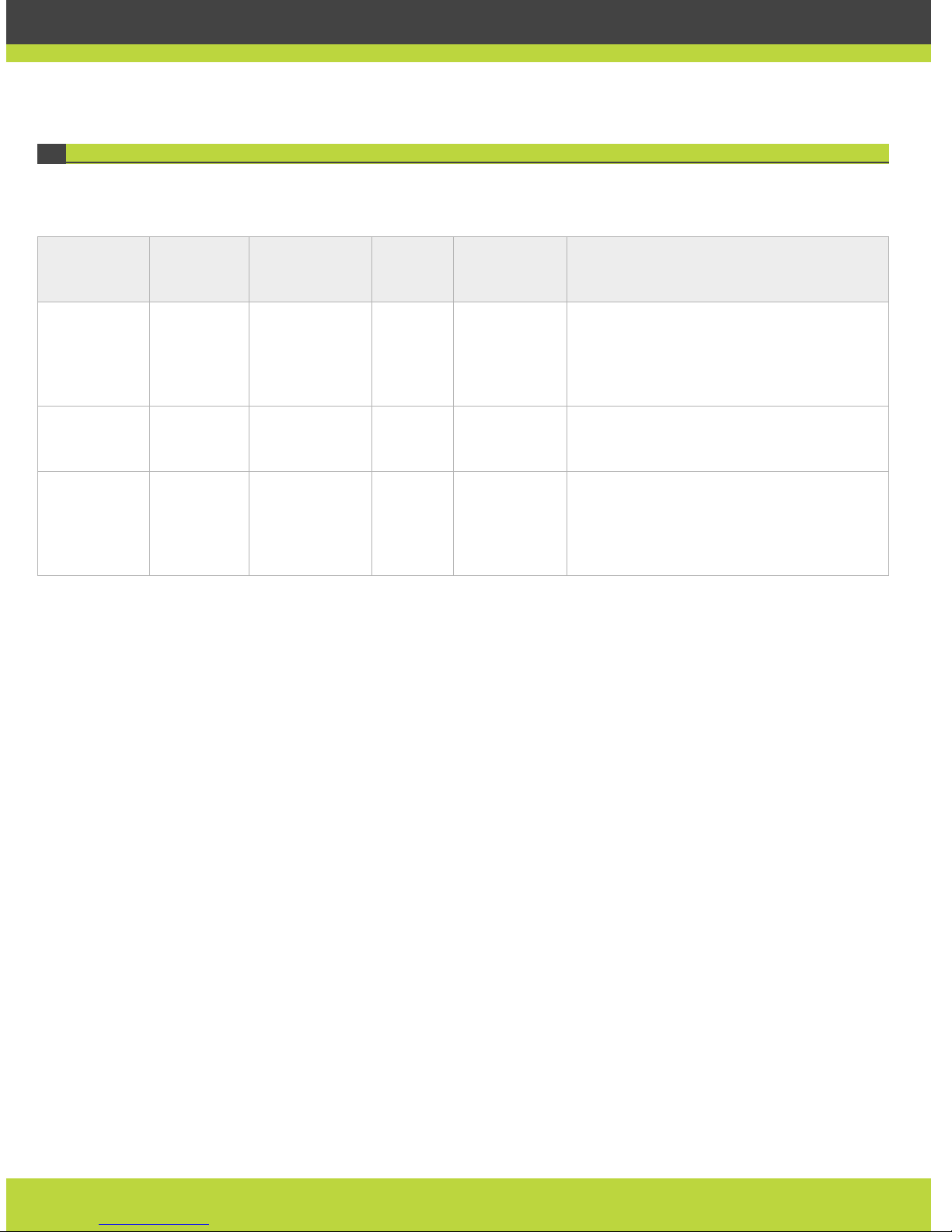
SCOPIA Video Gateway for Microsoft Lync
Table 1-5 lists the ports supported by SCOPIA Video Gateway for Microsoft Lync.
Table 1-5 Ports supported by SCOPIA Video Gateway for Microsoft Lync
Port Protocol/Use Functionality Direction Result of Blocking
Port on Firewall
Description
21 FTP (TCP) Audio stream recording In Cannot record
audio streams
FTP Server. Note that this
feature is disabled by
default.
22 SSH (TCP) Logs for the SCOPIA
Video Gateway for
Microsoft Lync
In Cannot view logs in
real time (logs are
collected on the
compact flash
card)
SSH Client
80
(configurable)
HTTP (TCP) Application upgrade
and upload customer
support information
In Cannot upgrade
the SCOPIA Video
Gateway for
Microsoft Lync
Web client
162 SNMP (UDP) SNMP Trap events Out Cannot receive
Traps
iVIEW Network Manager,
iVIEW Management Suite
or any other SNMP
manager station
1024-1174
(configurable)
H.245 (TCP) H.245 signaling Both Cannot connect
H.323 calls
Any H.323 entity
1719
(configurable)
RAS (UDP) RAS signaling Both Cannot
communicate with
H.323 gatekeeper
H.323 gatekeeper
1720
(configurable)
Q.931 (TCP) Q.931 signaling Both Cannot connect
H.323 calls
Any H.323 entity
3336 XML (TCP) Management XML API Both Cannot be blocked iVIEW Management Suite
3338 XML (TCP) Administration XML API Both Cannot be blocked
5060, 5061
(configurable)
SIP (TCP/UDP) SIP signaling Both Cannot connect SIP
calls
Any SIP entities
12000-13200
(configurable)
RTP/RTCP RTP video media Both Cannot
transmit/receive
video media
streams
Any H.323 or SIP media
enabled entity
16384-16984
(configurable)
RTP/RTCP
(UDP)
RTP audio media Both Cannot
transmit/receive
audio media
streams
Any H.323 or SIP media
enabled entity
Page 9
| 9
RADVISION | RADVISION Port Security Reference Guide
SCOPIA ECS Gatekeeper
Table 1-6 and Table 1-7 list the ports supported by the ECS.
Table 1-6 ECS incoming port connections
Port Range Protocol Functionality Direction Result of
Blocking Port
on Firewall
Description
21 FTP (TCP) File Transfer
Protocol for
offline viewing
of ECS logs and
CDRs
Both Cannot view
logs or
retrieve CDR
files
FTP client/CDR server
80 (configure
via webs.ini
file)
HTTP (TCP) Web interface Both Cannot view
ECS web user
interface
Web client terminal
161 SNMP (UDP) Configuration
and status
Both Cannot
configure or
check the
status of the
ECS
iVIEW Network Manager, or any other SNMP
manager station
Page 10
| 10
RADVISION | RADVISION Port Security Reference Guide
1024-5000
(configure
within that
range in the
Windows
registry)
H.245 (TCP) H.245 routed
calls
Both No H.245
(except in
Q.931 routed
and direct
mode)
Any H.323 entity H.245 port
The number of ports ECS needs for this
purpose is the maximum calls allowed by
your license multiplied by four.
To limit ECS’s use of ports within the range
of 1024-5000:
1. Close ECS.
2. Open the registry.
3. Navigate to HKEY_LOCAL_MACHINE\
SOFTWARE\RADVISION\
Enhanced Communication Server\
Storage\Config\Stack
4. Create a new key of type REG_SZ called
PortMin. Give it the value of the
minimum port number ECS should use.
5. Create a new key of type REG_SZ called
PortMax. Give it the value of the
highest port number ECS should use.
6. Restart ECS.
There may be other applications on the
same computer which altered the global
maximum port for all processes running on
that Windows PC. Verify this global
maximum is unchanged in the
HKEY_LOCAL_MACHINE\
SYSTEM\CurrentControlSet\Services\
Tcpip\Parameters\MaxUserPort registry
key. If this key is not defined, its default
value is 5000.
1719 RAS (UDP) RAS Both No RAS
capabilities
Any H.323 entity using RAS sign aling
1720 Q.931 (TCP) Q.931 routed
calls
Both No signaling
capabilities
(except in
direct mode)
Any H.323 entity using Q.931 signaling
3271 ECS XML Incoming XML
connection
Both No incoming
XML
connection
XML server
Table 1-6 ECS incoming port connections
Port Range Protocol Functionality Direction Result of
Blocking Port
on Firewall
Description
Page 11
| 11
RADVISION | RADVISION Port Security Reference Guide
12378
(configurable)
Alternate
Gatekeeper
protocol
Synchronizatio
n and
negotiation
between
Alternate
Gatekeepers
Both No Alternate
Gatekeeper
functionality
Alternate Gatekeeper
Table 1-6 ECS incoming port connections
Port Range Protocol Functionality Direction Result of
Blocking Port
on Firewall
Description
Table 1-7 ECS outgoing ports connections
Port Range Protocol Functionality Direction Result of Blocking
Port on Firewall
Description
23 Telnet (TCP) Control of Sony
endpoints
Out No control over
endpoints
Sony endpoint
53 DNS (TCP) Query DNS for domains
per call
Out DNS disabled DNS server
162
(configurable)
SNMP (UDP) SNMP T rap events Out No traps are sent To iVIEW Network Manager,
or to any other SNMP
manager station
1719 RAS (UDP) Sending LRQ messages to
Neighbor Gatekeepers
Both No RAS Neighbor Gatekeepers
Page 12
| 12
RADVISION | RADVISION Port Security Reference Guide
SCOPIA iVIEW Management Suite
Table 1-8 lists the ports su pported by iVIEW Managemen t Suite.
Table 1-8 Ports supported by iVIEW Management Suite
Port Range Protocol Functionality Direction Result of Blocking Port on Firewall
7 TCP Detects online status of video
network devices. Mandatory.
Out
21 TCP Downloading logs from ECS or
from other devices which
allow logs to be downloaded
via FTP
Importing and Exporting
TANDBERG Local Address Book
Upgrading software
Out
22 TCP Detecting LifeSize endpoints
Downloading PathFinder
Server logs
Detecting and managing
SCOPIA VC240
Out
23 Telnet (TCP) Sony PCS address book,
element logs, MCM control and
endpoint control.
Both iVIEW Management Suite cannot use Sony
PCS address book feature. Cannot retrieve
logs from some devices such as MCM.
24 Telnet (TCP) P olycom endpoint control.
Optional.
Out Disables Polycom endpoint control.
25 TCP Connect SMTP server for
sending email notifications
Out iVIEW Management Suite cannot send
email notifications.
53 UDP DNS query Out Cannot parse domain name
80
(configurable)
HTTP (TCP) In: iVIEW Management Suite
web interface. When installing
the Bundle version with the
gatekeeper, this port defaults
to 8080.
Out: iVIEW Management Suite
web interface and T ANDBERG
MXP management (XML API via
HTTP)
Both Cannot view iVIEW Management Suite web
interface.
161 SNMP SNMP configuration to any
managed element
Both iVIEW Management Suite cannot operate
the SNMP service with devices, and
forward trap events do not function.
162 SNMP SNMP Trap events: from any
managed element to any
third-party SNMP manager
Both iVIEW Management Suite cannot operate
the SNMP service with devices, and
forward trap events do not function.
Page 13
| 13
RADVISION | RADVISION Port Security Reference Guide
389 TCP LDAP servers communication Both iVIEW Management Suite cannot work with
DLAP Servers
443 TCP Tomcat/JBoss SSL In iVIEW Management Suite cannot view
iVIEW Management Suite web interface via
HTTPS
445 TCP/UDP Connection to Active Directory
Server
Out NTLM SSO does not work
636 LDAP over
SSL
Connection to Directory Server Out iVIEW Management Suite cannot connect
to the Directory Server.
3089 TCP Endpoint detection via SCOPIA
PathFinder
Out
3336 TCP Communication to the MCU
and XMPP server
Both Cannot commu n icate wi th th e MC U and
cannot authenticate users from
XMPP/SCOPIA Desktop Contact List
3336 XML (TCP) MCU XML API port for
connecting to MCU v4.0 and
later. Optional.
Out
3338 TCP Communication to SCOPIA
Video Gateway for Microsoft
Lync
Out Cannot remotely manage the SCOPIA Video
Gateway for Microsoft Lync configuration.
3339 TCP iVIEW Management Suite XML
API
Out iVIEW Management Suite XML cannot
communicate with the B2BUA component
3340 TCP/TLS Connection to SCOPIA Desktop Out SCOPIA Desktop cannot use iVIEW
Management Suite to place or manage calls
3341 TCP This port is used only when
iVIEW Management Suite
needs to integrate with the
IBM Sametime.
IBM Sametime application uses
this port to connect to iVIEW
Management Suite.
In iVIEW Management Suite cannot work with
IBM Sametime.
3344 TCP/UDP Synchronization of object data
between multiple iVIEW
Management Suite
installations. Only used in
distributed environments.
Both iVIEW Management Suite cannot operate in
a distributed deployment.
4444, 4445 TCP Required by the JBoss
application server for correct
JBoss operation.
Both iVIEW Management Suite’s underlying
application server will not function
properly.
5060 SIP
(TCP/UDP)
SIP signaling In Cannot connect SIP calls
5061 TLS SIP signaling Both No TLS connection will be available.
Table 1-8 Ports supported by iVIEW Management Suite (continued)
Port Range Protocol Functionality Direction Result of Blocking Port on Firewall
Page 14
| 14
RADVISION | RADVISION Port Security Reference Guide
7800-7802
Configurable
TCP Used for iVIEW Management
Suite redundant deployments,
for master/slave data
synchronization
Both R edundancy functionality is not available.
8011 TCP Provides web interface for
internal ECS
Both iVIEW Management Suite client cannot
access internal ECS web.
8080 HTTP (TCP) SCOPIA P athFinder Server web
interface. Optional.
Out Cannot remotely access the SCOPIA
PathFinder Server web interface from
iVIEW Management Suite.
8080 HTTP (TCP) iVIEW Management Suite web
user interface.
When installing the standalone
version, this port defaults to
80.
In
8089 XML (TCP) SCOPIA PathFinder Server XML
API port for connecting to
SCOPIA PathFinder Server v7.0
and later. Optional.
Out
11098/11099 TCP R e quired by the JBoss
application server for correct
JBoss operation.
Both The port is not connected from a remote
host; it is used by iVIEW Management Suite
locally.
iVIEW Management Suite cannot function if
the port is occupied by another
application.
50000 Telnet (TCP) Sony endpoint control.
Optional.
Out
55003 TCP SCOPIA XT1000 Out
63148 DIIOP Only used when iVIEW
Management Suite works with
Domino Server
Out The Domino Server may not be connected
with iVIEW Management Suite successfully.
Table 1-8 Ports supported by iVIEW Management Suite (continued)
Port Range Protocol Functionality Direction Result of Blocking Port on Firewall
Page 15
| 15
RADVISION | RADVISION Port Security Reference Guide
SCOPIA PathFinder
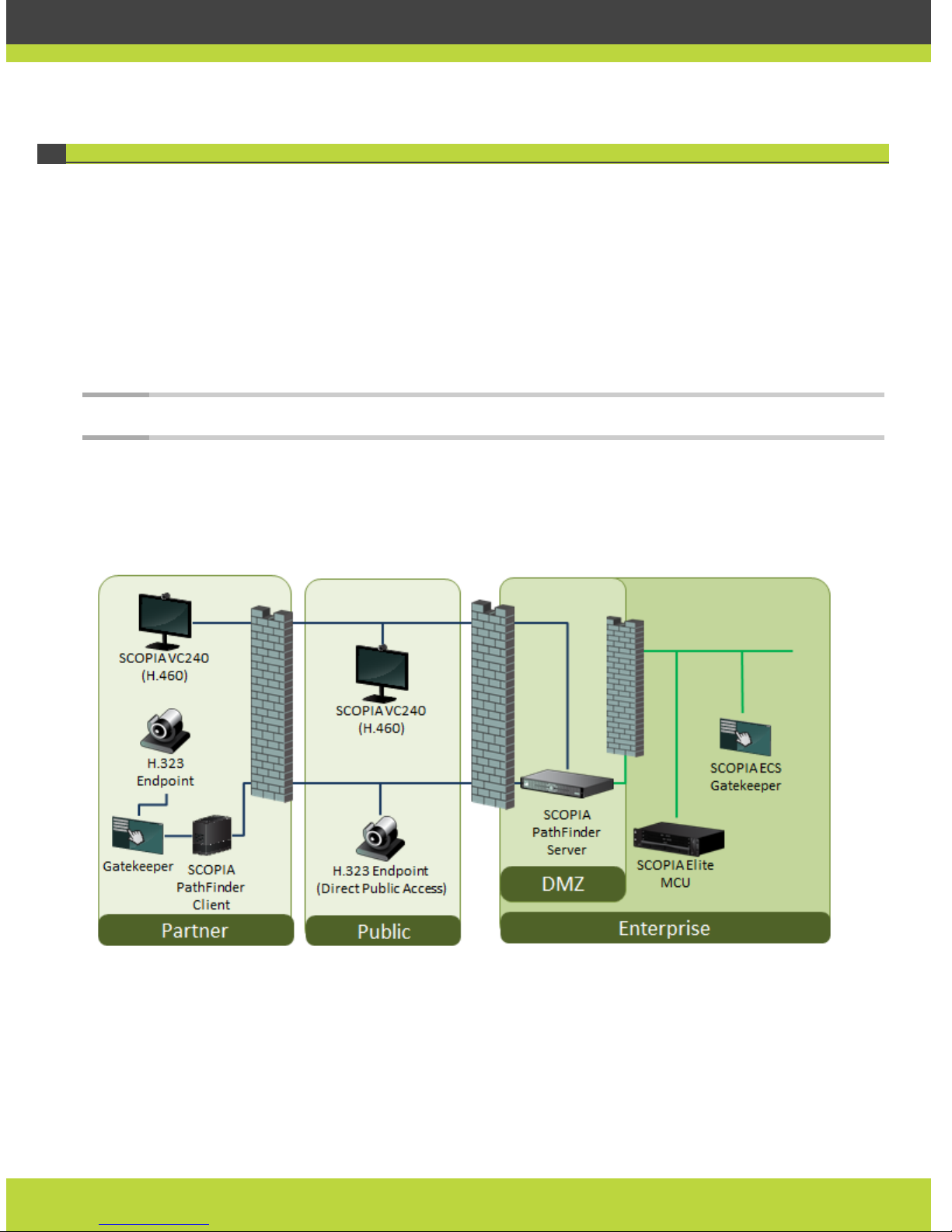
SCOPIA PathFinder is SCOPIA Solution’s answer to firewall traversal. The SCOPIA PathFinder
Server is an H.460 server, usually located in the DMZ, while the SCOPIA PathFinder Client is an
H.460 client, typically located outside the enterprise firewall with the H.323 endpoint (Figure 1-1
on page 15).
Many recent H.323 endpoints have built-in H.460 functionality, thereby avoiding the need for a
SCOPIA PathFi nder Client.
If an H.323 endpoint located in a partner company does not have H.460 capabilities, it must
communicate via the SCOPIA PathFinder Client to access the SCOPIA PathFinder Server in the DMZ
(Figure 1-1 on page 15).
Note: There must be no firewall between the H.323 endpoint (entity) and the SCOPIA PathFinder Client.
An H.323 endpoint in the public domain can also directly dial the SCOPIA PathFinder Server using
direct port access (ports 4000-5000 in the tables below).
Figure 1-1 H.323 connections to SCOPIA PathFinder Server
Page 16
| 16
RADVISION | RADVISION Port Security Reference Guide
SCOPIA PathFinder Server
Table 1-9 lists the inbound ports supp orted by SCOPIA PathFinder Server.
Table 1-9 Inbound ports supported by SCOPIA Pa thFinder Server
Port Range Protocol Functionality Direction Result of Blocking Port on
Firewall
Recipient Client or
Server Type
22 SSH/SFTP
(TCP)
Initial
configuration, log
download and
upgrade
Client to
SCOPIA
PathFinder
Server
Cannot initialize the server,
download log and upgrade
the server.
SSH client terminal
1719 UDP H.460.18 RAS Client to
SCOPIA
PathFinder
Server
H.460.18 endpoints cannot
register through Pathfinder
server, firewall traversal
function based on H.460.18
and H.460.19 cannot
function.
H.460.18 endpoint/
H.460.18 client
gatekeeper
2776 TCP H.460.18 Call
Signaling
Client to
SCOPIA
PathFinder
Server
H.460.18 endpoints cannot
register through Pathfinder
server.
H.460.18 endpoint/
H.460.18 client
gatekeeper
2776 UDP H.460.19 Multiplex
Media Channel
Client to
SCOPIA
PathFinder
Server
H.460.18 endpoints cannot
set up logical channels,
media exchange of calls
which traverse the firewall
using H.460.18 and H.460.19
cannot function when using
multiplexing.
H.460.18 endpoint/
H.460.18 client
gatekeeper
2777 TCP H.460.18 and
H.460.19 Call
Control
Client to
SCOPIA
PathFinder
Server
H.460.18 endpoints cannot
set up Call Control channel,
firewall traversal function
based on H.460.18 and
H.460.19 cannot function.
H.460.18 endpoint/
H.460.18 client
gatekeeper
2777 UDP H.460.19 Multiplex
Media Control
Channel
Client to
SCOPIA
PathFinder
Server
H.460.18 endpoints cannot
set up logical channels,
media exchange of calls
which traverse the firewall
using H.460.18 and H.460.19
cannot function when using
multiplexing.
H.460.18 endpoint/
H.460.18 client
gatekeeper
3089 TCP Signaling and
media traversal
Client to
SCOPIA
PathFinder
Server
SCOPIA PathFinder Client
cannot connect to SCOPIA
PathFinder Server. Legacy
H.323 endpoints behind the
SCOPIA PathFinder Client
cannot call external
endpoints.
SCOPIA PathFinder
Client
Page 17
| 17
RADVISION | RADVISION Port Security Reference Guide
3089 UDP Media traversal Client to
SCOPIA
PathFinder
Server
Cannot use UDP to traverse
media; can only use TCP to
traverse media.
SCOPIA PathFinder
Client
8080 HTTP
(TCP)
Web interface Client to
SCOPIA
PathFinder
Server
Cannot configure SCOPIA
PathFinder Server.
Web client/browser
8089 XML (TCP) PathFinder version
7.0 XML API service
Client to
SCOPIA
PathFinder
Server
The External Management
System cannot get SCOPIA
PathFinder Server status or
receive traps from SCOPIA
PathFinder Server.
XML API Client
1720 TCP, DPA IP call signaling External H.323
endpoint to
SCOPIA
PathFinder
Server
No signaling capabilities:
guest users cannot dial into
internal endpoints
Any H.323 entity using a
Q.931 signaling in DPA
mode
4000-5000
(configure
within this
range)
TCP, UDP Direct Public
Access (DPA) for
H.323 call
signaling, control
and media
traversal
External H.323
gatekeeper or
endpoint to
SCOPIA
PathFinder
Server
Cannot setup/connect DPA
mode calls.
The approximate number of
ports required is the number
of simultaneous DPA calls
multipled by 10. The
multiplication factor is
lower for audio-only calls,
higher for calls with dual
video. We recommend us ing
10 as an approximation.
To configure the port range
on the SCOPIA Path Finder
Server:
1. Select Settings >
General.
2. Enable H.323 Direct
Access.
3. Enter the Port Range
numbers.
Any H.323 gatekeeper or
entity using a Q.931
signaling in DPA mode.
Table 1-9 Inbound ports supported by SCOPIA Pa thFinder Server
Port Range Protocol Functionality Direction Result of Blocking Port on
Firewall
Recipient Client or
Server Type
Page 18
| 18
RADVISION | RADVISION Port Security Reference Guide
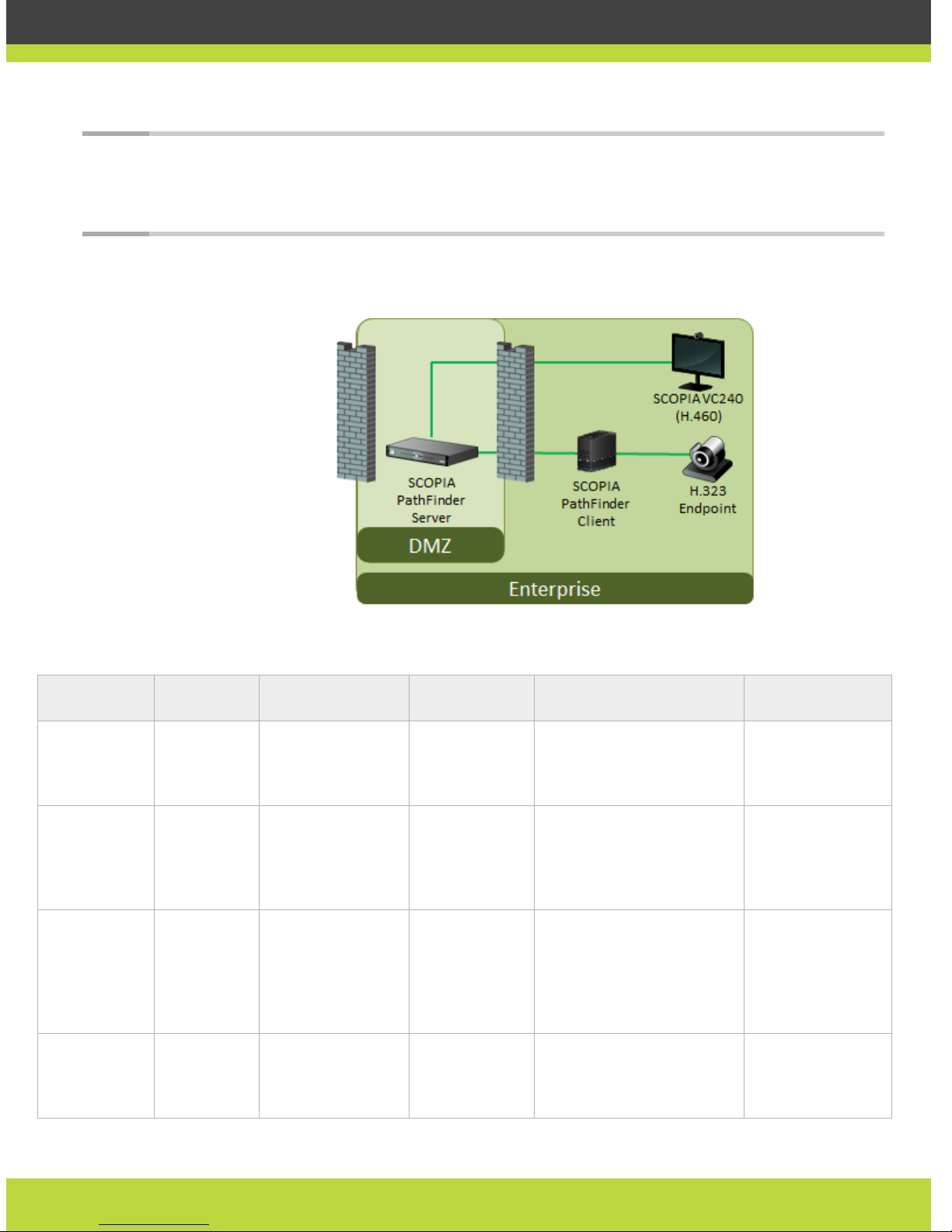
Note: When an H.323 endpoint (or other H.323 entity) within the enterprise connects to the SCOPIA
PathFinder Server in the DMZ via the internal firewall (Figure 1-2 on page 18), you need to install
a SCOPIA PathFinder Client within the enterprise, or use H.460-enabled endpoints. Otherwise you
must open the internal firewall to the SCOPIA PathFinder Server (1024-65535).
Figure 1-2 Contacting SCOPIA PathFinder Server from within the enterprise
Table 1-10 lists the outbound ports supported by SCOPIA PathFinder Server.
Table 1-10 Outbound ports supported by SCOPIA PathFinder Server
Port Range Protocol Functionality Direction Result of Blocking Port on
Firewall
Recipient Client
or Server Type
53 DNS (UDP) Query DNS for
domain per call
SCOPIA
PathFinder
Server to
another server
Cannot support domain
name calls and dialing by
URI.
DNS server
1719
(configurable)
RAS (UDP) Communication
with gatekeeper
SCOPIA
PathFinder
Server to the
main
gatekeeper
Cannot relay H.323
communication.
Gatekeeper
1720 TCP H.323 IP call
signaling
SCOPIA
PathFinder
Server to
external SCOPIA
PathFinder
Server
No signaling capabilities:
guest users cannot dial into
internal endpoints
Any H.323 entity
using a Q.931
signaling in DPA
mode
3089 TCP Neighbor server
signaling and media
connection
SCOPIA
PathFinder
Server to
another Server
Cannot connect to neighbor
server.
PathFinder Server
Page 19
| 19
RADVISION | RADVISION Port Security Reference Guide
Pathfinder Client
Note: Y ou cannot have a firewall between the H.323 endpoint (or other H.323 entity) and the SCOPIA
PathFinder Client (see Figure 1-1 on page 15). If there is a firewall, you must open all the high
ports in both directions (1025-65535).
Table 1-11 lists the outbound ports supported by SCOPIA PathFinder Client, when the client
connects to the SCOPIA PathFinder Server.
3089 UDP Neighbor server
media connection
SCOPIA
PathFinder
Server to
SCOPIA
PathFinder
Client
Cannot traverse media to
neighbor server using UDP.
PathFinder Server
4000-5000
(configure
within this
range)
TCP, UDP Direct Public
Access for H.323
call media,
signaling and call
control
SCOPIA
PathFinder
Server to H.323
entity
Cannot setup/connect DPA
mode calls with external
SCOPIA PathFinder Server.
The approximate number of
ports required is the
number of simultaneous
DPA calls multipled by 10.
The multiplication factor is
lower for audio-only calls,
higher for calls with dual
video. We recommend us ing
10 as an approximation.
To configure the port range
on the SCOPIA PathFinder
Server:
1. Select Settings >
General.
2. Enable H.323 Direct
Access.
Enter the Port Range
numbers.
Any H.323 entity
using a Q.931
signaling in DPA
mode.
The recipient
H.323 entity
probably works
with ports outside
this range. Your
firewall rule should
therefore specify
From 4000-5000 To
Any.
Table 1-10 Outbound ports supported by SCOPIA PathFinder Server
Port Range Protocol Functionality Direction Result of Blocking Port on
Firewall
Recipient Client
or Server Type
Page 20
| 20
RADVISION | RADVISION Port Security Reference Guide
Note: As mentioned above, if there is a firewall between the H.323 client and the SCOPIA PathFinder
Client, all ports must be opened in both directions (1024-65535). We therefore recommend no
firewall between the endpoint and the SCOPIA PathFinder Client.
Table 1-11 Outbound ports supported by SCOPIA PathFinder Client
Port Range Protocol Functionality Direction Result of Blocking Port on
Firewall
Recipient Client
or Server T ype
3089 TCP and UDP PathFinder
tunneling service
SCOPIA PathFinder
Client to Server
SCOPIA PathFinder Client
cannot connect to the
SCOPIA PathFinder Server.
Legacy H.323 endpoints
behind the SCOPIA
PathFind er Client cannot call
external endpoints.
PathFinder Server
3478 STUN (UDP) STUN Binding
Request
SCOPIA PathFinder
Client to Server
SCOPIA PathFinder Client
cannot determine its public
IP address. Smart Direct
Media Connect cannot
function.
STUN server
Page 21
| 21
RADVISION | RADVISION Port Security Reference Guide
SCOPIA Desktop
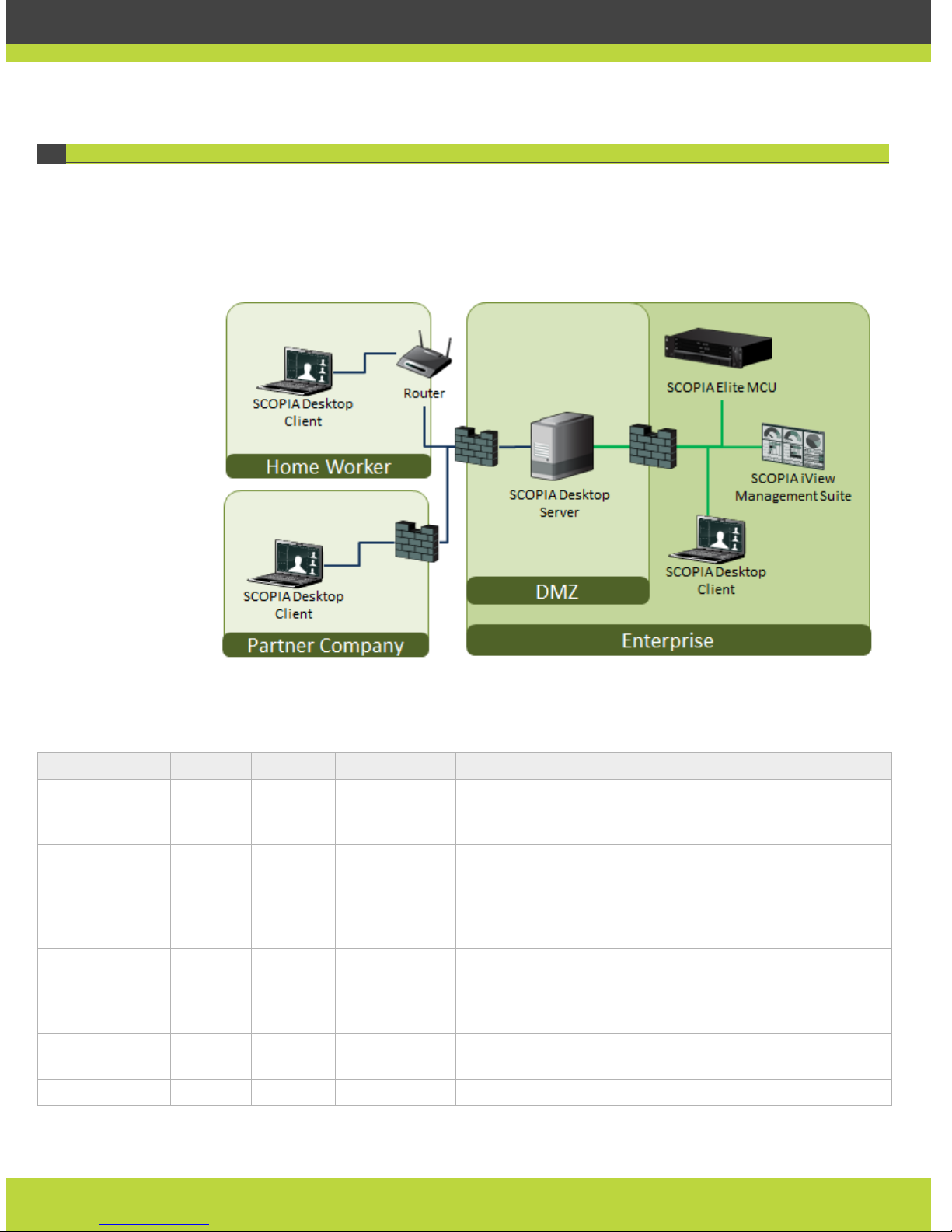
The SCOPIA Desktop Server is typically located in the DMZ (Figure 1-3 on page 21). It therefore
has two sides to its connections, one towards the internal enterprise network while the other is
towards the public.
Figure 1-3 Locating the SCOPIA Desktop Server in the DMZ
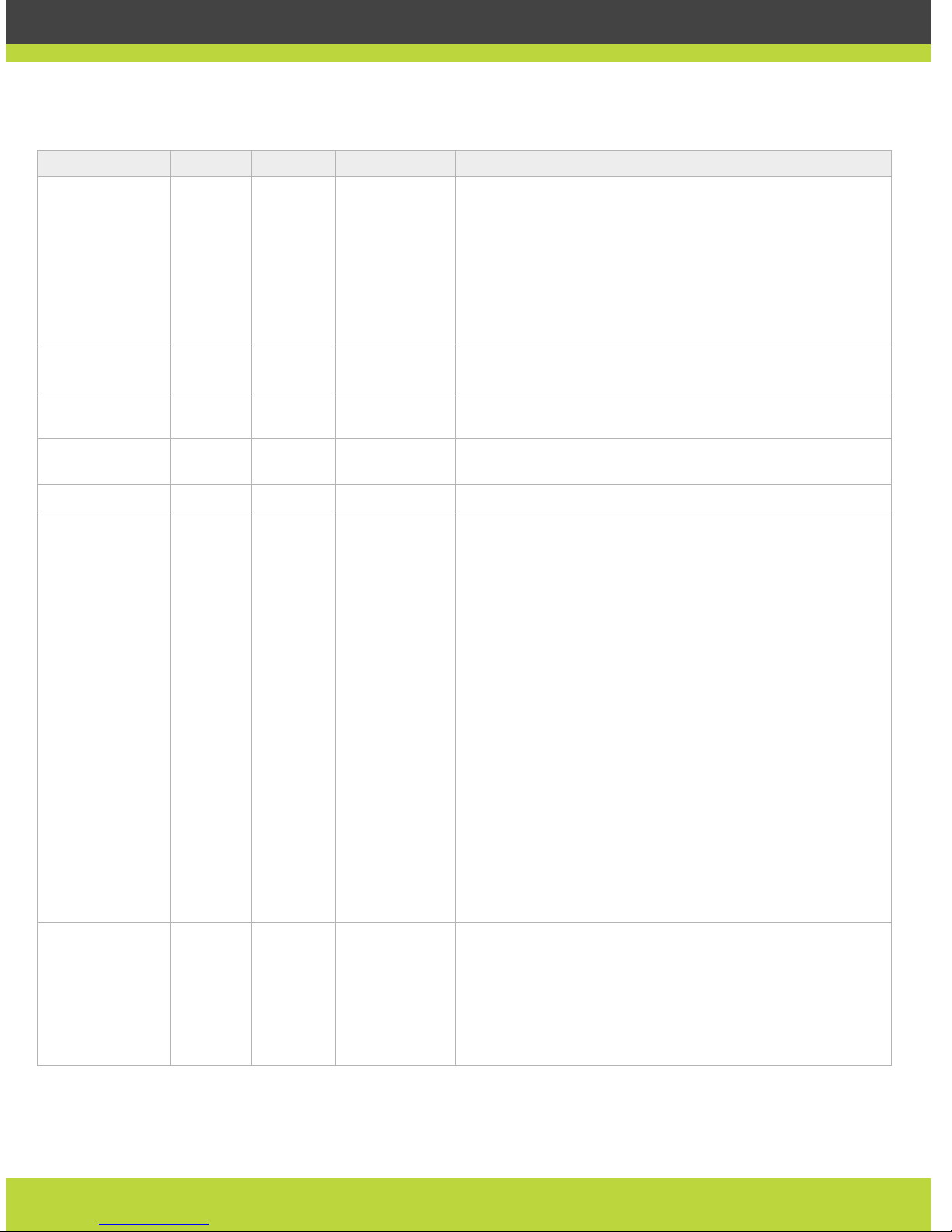
Table 1-12 lists the ports that need to be opened on the SCOPIA Desktop Server’s connection to
the internal network.
Table 1-12 Ports to and from the SCOPIA Desktop Server connected to the internal network
Port Range Protocol Direction Severity Functionality
80 TCP Incoming Optio nal Used to access the SCOPIA Desktop Server web portal via a
web browser. The alternative is to configure the GUI to run
on port 443.
137/138 UDP Outgoing Recommended
for performing
Active
Directory
authentication
From SCOPIA Desktop to Active Directory in order to do auto
discovery and authentication.
139/445 TCP Outgoing Recommended
for Active
Directory
authentication
From SCOPIA Desktop to Active Directory in order to do auto
discovery and authentication.
443 TCP Incoming Mandatory Control connection between the
SCOPIA Desktop Client and
the
SCOPIA Desktop Server.
1719 UDP Outgoing Mandatory SCOPIA ECS Gatekeeper
Page 22
| 22
RADVISION | RADVISION Port Security Reference Guide
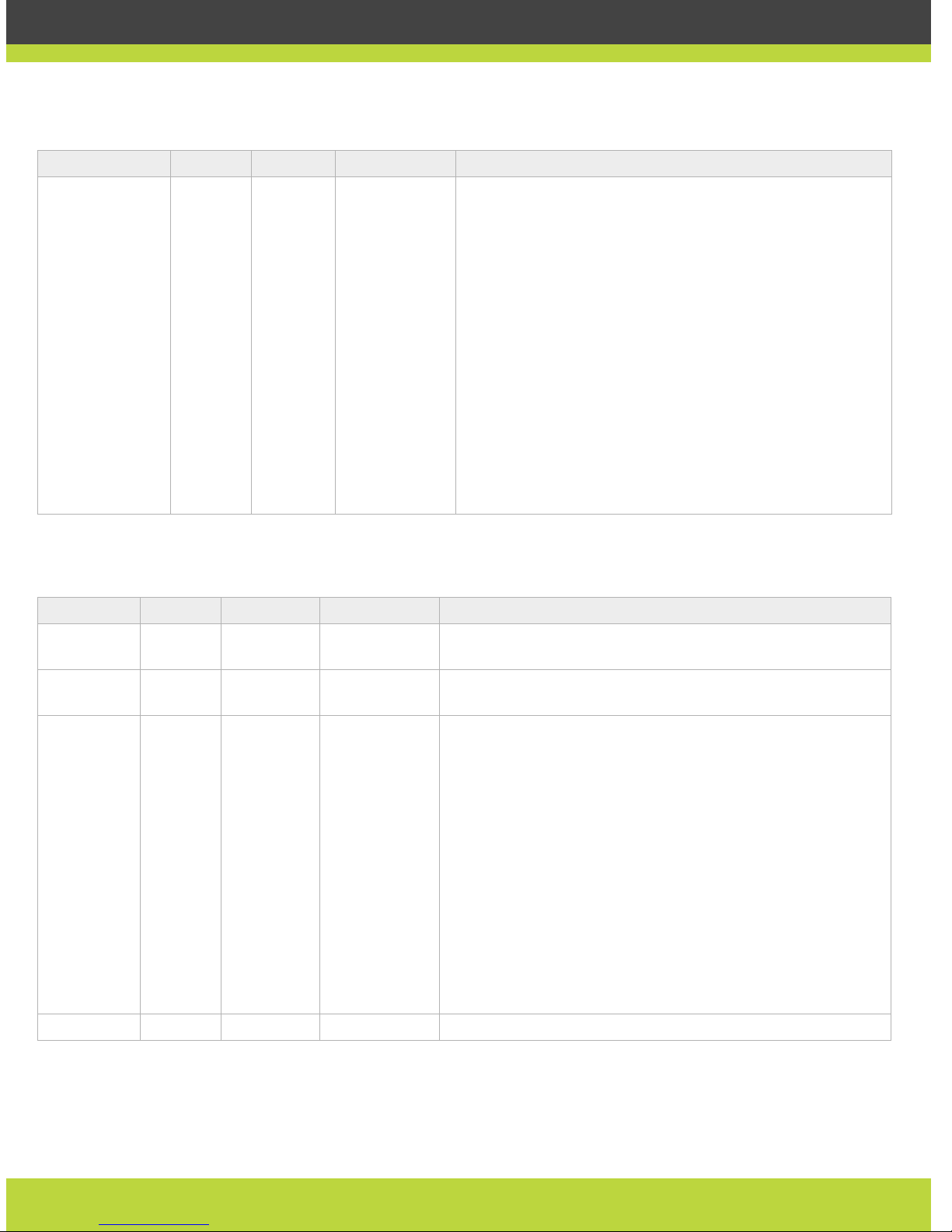
1720 TCP Outgoing Mandatory In deployments where the SCOPIA Desktop Server works in
conjunction with the MCU only, this port range is used for
establishing connection from the SCOPIA Desktop Server to
MCU.
In deployments where the SCOPIA Desktop Server works in
conjunction with the iVIEW Management Suite, this port
range is used for establishing connection from the SCOPIA
Desktop Server to SCOPIA ECS Gatekeeper.
3337 TCP Outgoing Mandatory Meeting cascading connection between the
SCOPIA Desktop
Server
and the SCOPIA MCU.
3340 TCP Incoming Mandatory Meeting control connection between iVIEW Management
Suite and the
SCOPIA Desktop Server.
5269 UDP Outgoing Optional SCOPIA Desktop Server to XMPP Server for performing proxy
XMPP Client connections.
7070 TCP Incoming Optional The streaming server listens on this port for tunneled RTSP.
1024-65535
(Configure in the
config.val file)
TCP Both Mandatory In deployments where the SCOPIA Desktop Server works in
conjunction with the MCU only, this port range is used for
establishing connection from the SCOPIA Desktop Server to
MCU.
In deployments where the SCOPIA Desktop Server works in
conjunction with the iVIEW Management Suite, this port
range is used for establishing connection from the SCOPIA
Desktop Server to ECS.
To edit this range:
1. Navigate to C:\Program Files\Radvision\SCOPIA
Desktop\ConfSrv.
2. Edit the file config.val.
3. Locate the [1 system] section.
4. At the bottom of that section, add two lines:
2 portFrom = <lowest range limt> and
2 portTo = <highest range limit>.
5. Navigate to the computer’s services and restar t the
SCOPIA Desktop - Conference Server service.
6972-65535
(if streaming
server and
SCOPIA Desktop
Server are
separated by
firewall)
UDP Outgoing Mandatory Media connection between the
SCOPIA Desktop Server and
the SCOPIA Desktop streaming server, if separated.
To avoid opening these ports, place the SCOPIA Desktop
Server in the same zone as the streaming server.
Table 1-12 Ports to and from the SCOPIA Desktop Server connected to the internal network
Port Range Protocol Direction Severity Functionality
Page 23
| 23
RADVISION | RADVISION Port Security Reference Guide
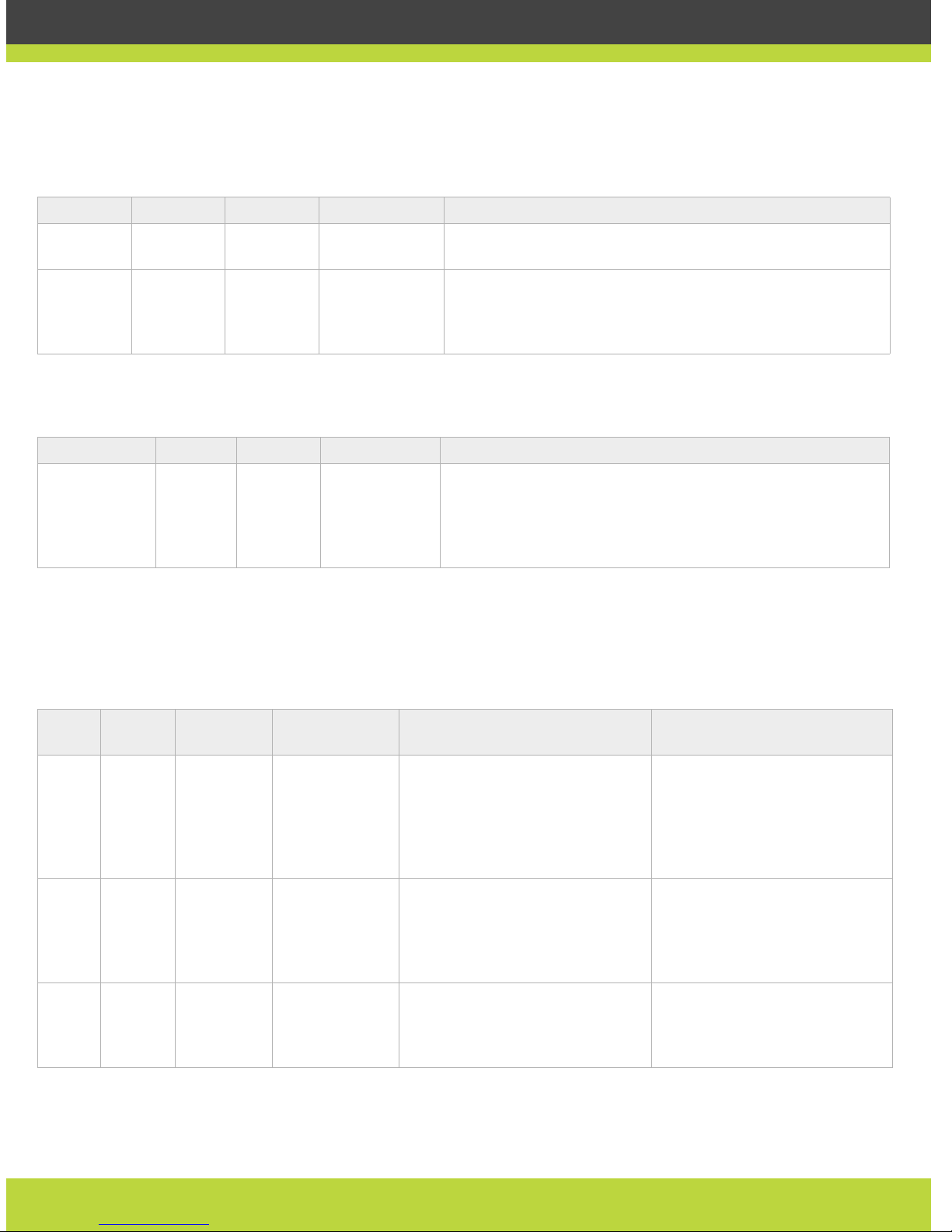
Table 1-13 lists the ports on the SCOPIA Desktop Server when connected to the public internet.
10000-65535
(Configure
within this
range)
UDP Both Mandatory Media connection (RTP protocol) between the SCOPIA
Desktop Server and the SCOPIA MCU or MVP, and between
the SCOPIA Desktop Server and the SCOPIA Desktop Client.
If not open, the connection will be tunneled via TCP port 443
and performance will not be optimal.
Limit the range of the of the multimedia ports in the SCOPIA
Desktop Server Administrator web interface by naviagting to
Client > Settings > Multimedia Ports.
T o calculate the ports req uired in your deployment, multiply
the number of license connections by 14, which amounts to
reserving 14 ports per client.
In addtion, add extra ports if your deployment includes:
• Add 6 ports per recording in your deployment.
• Add an extra 6 ports per conference which activates
streaming.
Table 1-12 Ports to and from the SCOPIA Desktop Server connected to the internal network
Port Range Protocol Direction Severity Functionality
Table 1-13 Ports to and from the SCOPIA Desktop Server connected to the public internet
Port Range Protocol Direction Severity Functionality
80 TCP Incoming Optional GUI access. The alternative is to configure the GUI to run on
port 443.
443 TCP Incoming Mandatory Control connection between the
SCOPIA Desktop Client and
SCOPIA Desktop Server.
10000-65535
(configure
ports within
this range)
UDP Both Recommended Media connection between the SCOPIA Desktop Server and
Client. If not open, the connection will be tunneled via TCP
port 443 and performance will not b e op timal.
Limit the range of the of the multimedia ports in the SCOPIA
Desktop Server Administrator web interface by naviagting to
Client > Settings tab > Multimedia Ports.
To calculate the ports required in your deployment, multiply
the number of license connections by 14, which amounts to
reserving 14 ports per client.
In addtion, add extra ports if your deployment includes:
• Add 6 ports per recording in your deployment.
• Add an extra 6 ports per conference which activates
streaming.
7070 TCP Incoming Optional The streaming server listens on this port for tunneled RTSP.
Page 24
| 24
RADVISION | RADVISION Port Security Reference Guide
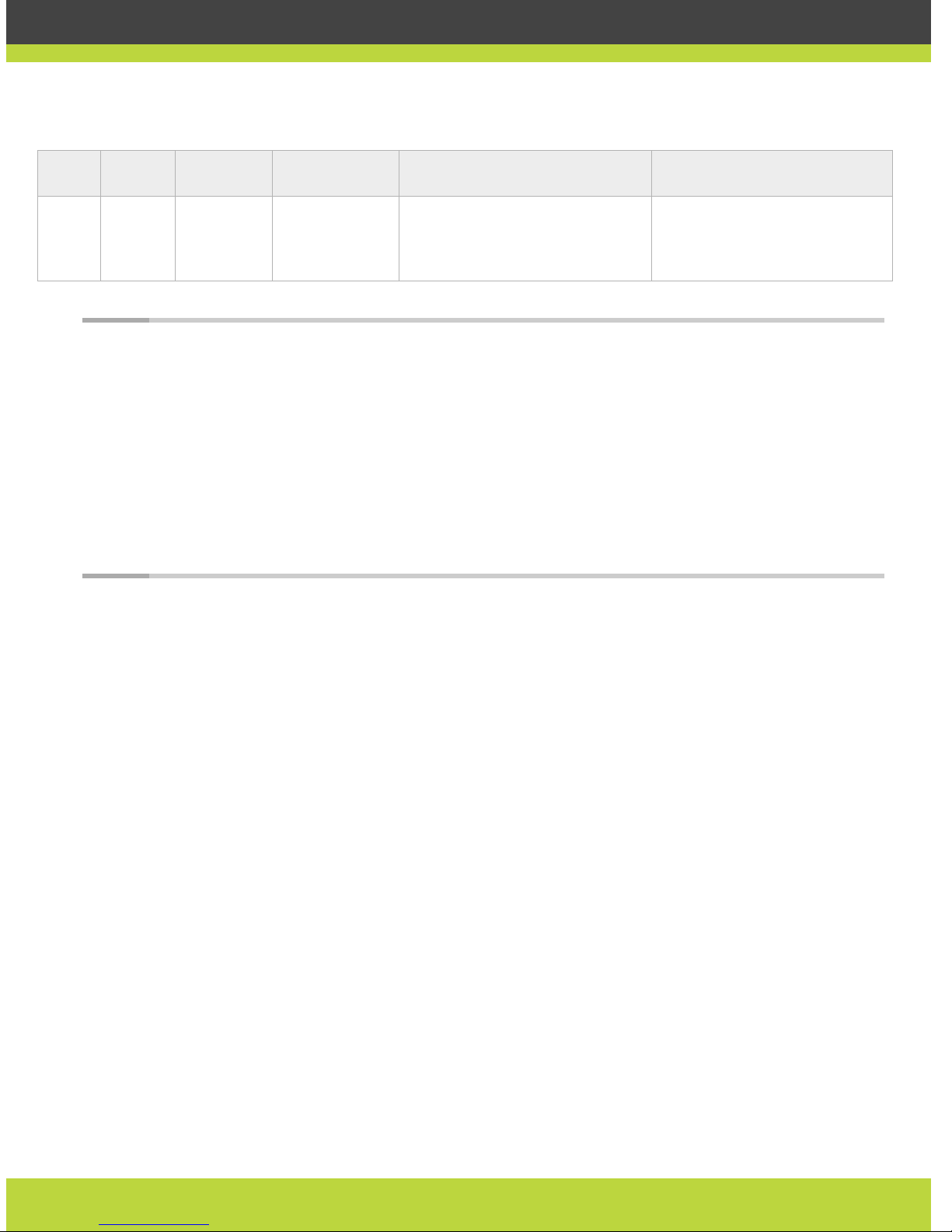
For point-to-point functionality that works directly between two SCOPIA Desktop Clients, open
the ports in table Table 1-14.
Table 1-15 lists the ports the STUN server uses when communicating with SCOPIA Desktop Clients.
Table 1-16 lists the ports that need to be opened on the XMPP presence server for conn ect ing
with the SCOPIA Desktop Server in cases where these two servers reside on different machines.
Most deployments install these two servers on the same physical computer, but when they are on
different computers separated by a firewall, the ports listed in this table must be opened.
Table 1-14 Port Security for Point-to-Point functionality between SCOPIA Desktop Clients
Port Range Protocol Direction Severity Functionality
5060 SIP UDP Both Recommended Only required for establishing direct SIP point-to-point
connections between two SCOPIA Desktop Clients.
1025-65535 UDP Both Recommended Only required for establishing direct SIP point-to-point
connections between two SCOPIA Desktop Clients. If this is
blocked, calls will be routed through the SCOPIA Desktop
Server.
Table 1-15 STUN Server port required for access by SCOPIA Desktop Client
Port Range Protocol Direction Severity Functionality
3478 UDP Incoming Optional The STUN access is for the SCOPIA Desktop Client to
communicate with the STUN Server. To acquire the true SIP
PTP, open the UDP ports (10000-65535, 6972-65535, 3478). If
the UDP ports are not open, the SCOPIA Desktop Client will
use the SCOPIA Desktop Server as a relay agent.
Table 1-16 Ports supported on the XMPP server for connecting with the SCOPIA Desktop Server
Port
Range
Protocol Direction Severity Functionality Result of Blocking in
Application
389 TCP Outgoing Mandatory for
LDAP
authentication
If XMPP Server is configured for
LDAP server (either Active
Directory or Domino), XMPP
Server uses this port for LDAP
communication for user
authentication.
Users would not be able to log
into XMPP Server.
3336 TCP Outgoing Mandatory for
iVIEW
Management
Suite
authentication
If the XMPP Server is configured
for iVIEW Management Suite
authentication, it uses this port
for XML communications.
Users would not be able to log
into XMPP Server.
5222 TCP Incoming Recommended Direct SCOPIA Desktop Client to
XMPP connection.
The SCOPIA Desktop Client tries
to use port 443 for tunnelled
connection to the SCOPIA
Desktop Server.
Page 25
| 25
RADVISION | RADVISION Port Security Reference Guide
Note: Some firewalls are configured to block packets from the streaming server . You can either
configure the firewall to allow streaming packets, or reconfigure the streaming server and client
to use different network protocols that cross the firewall boundary.
The Streaming Server uses the IETF RTSP/R TP protocols. RTSP runs on top of TCP, while RTP runs
over UDP. Many firewalls are configured to restrict TCP packets by port number and are very
restrictive on the UDP. The streaming server can tunnel RTSP/RTP traffic through standard HTTP.
Some firewalls may inspect traffic on port 80 and not allow the tunneled RTSP/R TP on that port.
We therefore recommend using the QuickTime standard port 7070 as the alternate TCP port for
HTTP tunneling. This is configured in the streaming server by default as long as you specify the
port as part of the streaming server virtual address in the Streaming section of the SCOPIA
Desktop Server Administration section.
5269 TCP Incoming XMPP Server for supporting proxy
XMPP connections from SCOPIA
Desktop Server for SCOPIA
Desktop Clients.
From SCOPIA Desktop Server
Table 1-16 Ports supported on the XMPP server for connecting with the SCOPIA Desktop Server
Port
Range
Protocol Direction Severity Functionality Result of Blocking in
Application
Page 26
| 26
RADVISION | RADVISION Port Security Reference Guide
SCOPIA XT Desktop Server
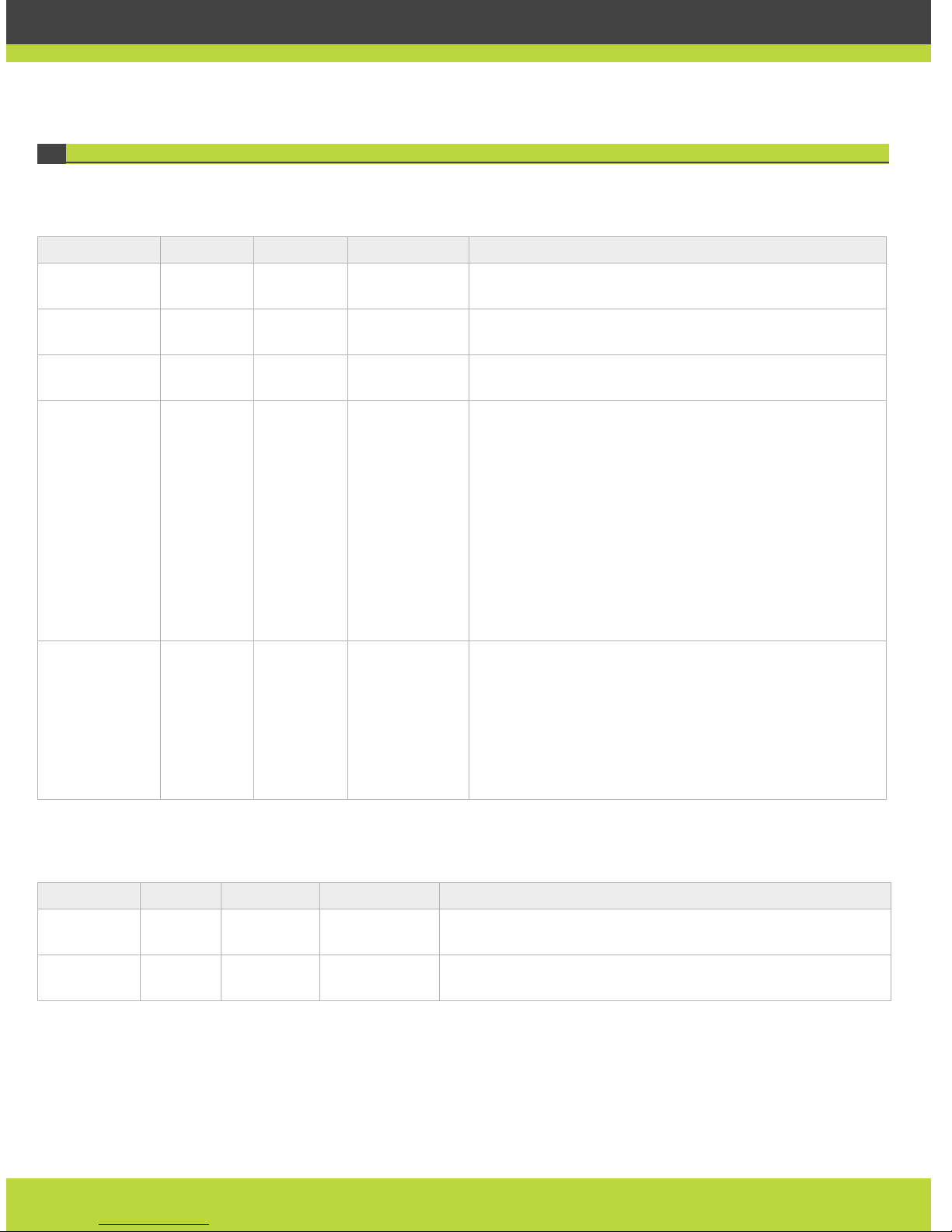
Table 1-17 lists ports that need to be open on SCOPIA XT Desktop Server.
Table 1-18 lists the ports on the SCOPIA Desktop XT Server when connected to the public internet.
Table 1-17 Ports supported by SCOPIA Desktop XT Server and Internal Network
Port Range Protocol Direction Severity Functionality
80 TCP Incoming Optional GUI—The alternative is to configure the GUI to run on port
443.
443 TCP Incoming Mandatory Control connection between the
SCOPIA XT Desktop Client
and the
SCOPIA XT Desktop Server.
3336, 3337 TCP Outgoing Mandatory Cascade/XML control connections between SCOPIA
Desktop Server and SCOPIA XT1000.
1025-65535
(configure
within this
range)
TCP Both Mandatory H.323 traffic between the
SCOPIA Desktop Server and the
SCOPIA XT1000 Series.
To edit this range:
1. Navigate to C:\Program Files\Radvision\SCOPIA
Desktop\ConfSrv.
2. Edit the file config.val.
3. Locate the [1 system] section.
At the bottom of that section, add two lines:
2 portFrom = <lowest range limt> and
2 portTo = <highest range limit>.
10000-65535
(configure
within this
range)
UDP Both Recommended Media connection between the SCOPIA Desktop XT Server
and Client. If not open, the connection will be tunneled
via TCP port 443 and performance will not be optimal.
At full capacity, the SCOPIA XT1009 requires 76 ports.
Limit the range of the of the multimedia ports in the
SCOPIA Desktop XT Server Administrator web interface by
naviagting to Client > Settings tab > Multimedia Ports.
Table 1-18 Ports to and from the SCOPIA Desktop XT Server connected to the public internet
Port Range Protocol Direction Severity Functionality
80 TCP Incoming Mandatory GUI access. The alternative is to configure the GUI to run on
port 443.
443 TCP Incoming Mandatory Control connection between the
SCOPIA Desktop Client and
SCOPIA Desktop XT Server.
Page 27
| 27
RADVISION | RADVISION Port Security Reference Guide
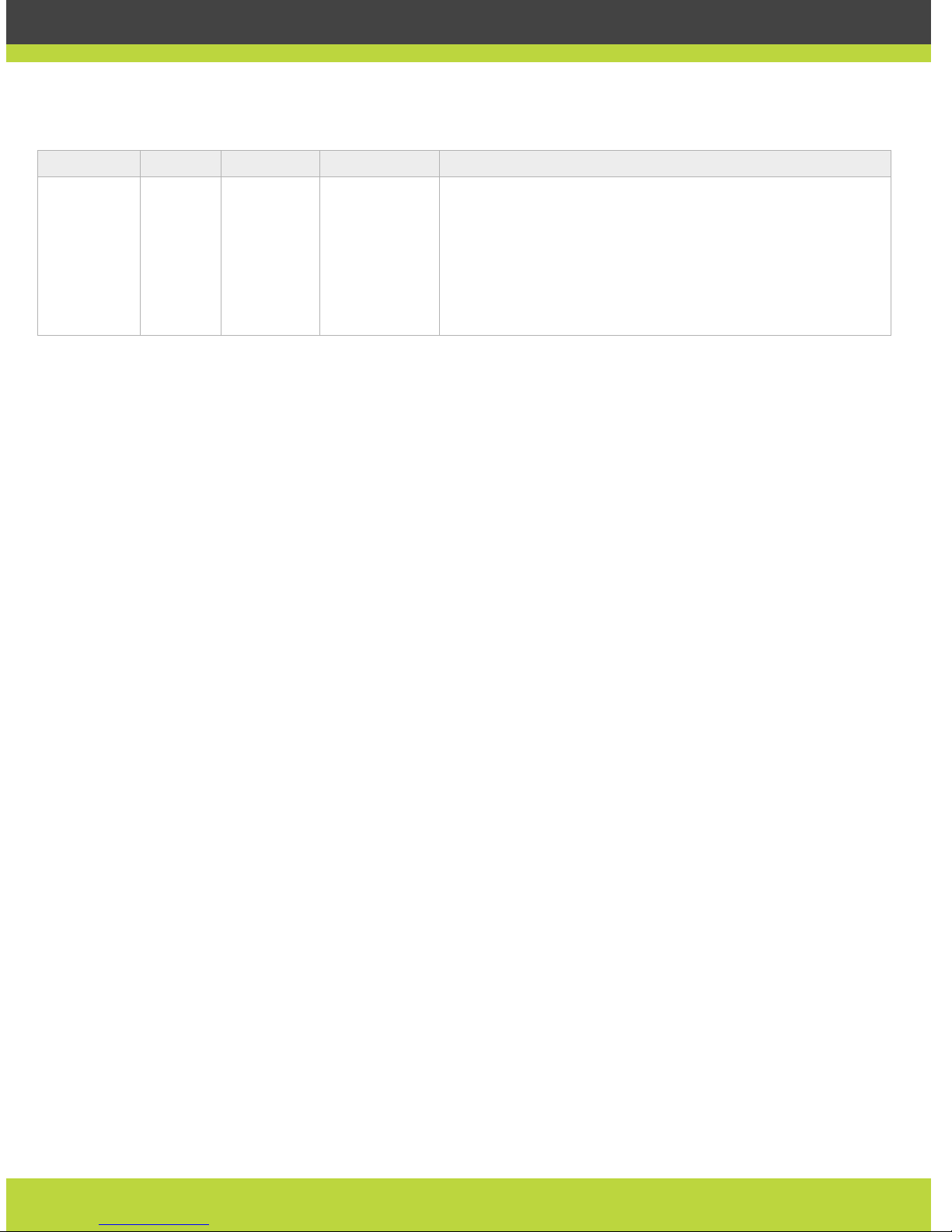
10000-65535
(configure
ports within
this range)
UDP Both Recommended Media connection between the SCOPIA Desktop XT Server and
Client. If not open, the connection will be tunneled via TCP
port 443 and performance will not b e op timal.
At full capacity, the SCOPIA XT1009 requires 76 ports.
Limit the range of the of the multimedia ports in the SCOPIA
Desktop XT Server Administrator web interface by naviagting
to Client > Settings tab > Multimedia Ports.
Table 1-18 Ports to and from the SCOPIA Desktop XT Server connected to the public internet
Port Range Protocol Direction Severity Functionality
Page 28
| 28
RADVISION | RADVISION Port Security Reference Guide
SCOPIA XT1000
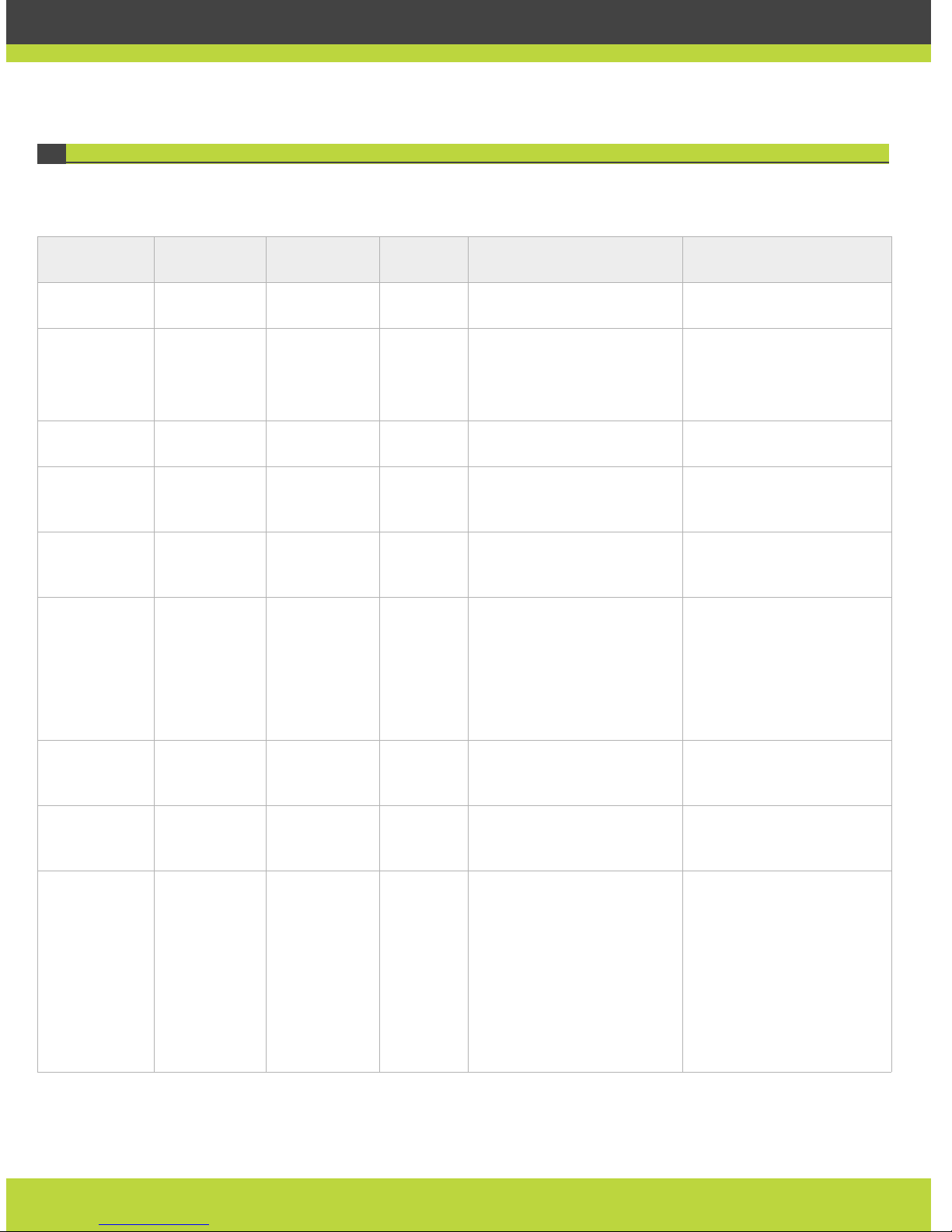
Table 1-19 lists ports that need to be open on SCOPIA XT1000.
Table 1-19 Ports Supported by SCOPIA XT1000 Series
Port number Protocol/
Use
Functionality Direction Result of Blocking Port on
Firewall
Description/External
Client
69 TFTP (UDP) TFTP c lient or
server
Both Cannot send or receive files
via TFTP
Send or receive files via
TFTP
80 HTTP (TCP) Web server Both In: No web server.
Out: Also NAT
auto-discovery using HTTP
does not function.
WEB remote management
or use, NAT autodiscovery
using HTTP.
123 SNTP (UDP) SNTP client Both Cannot get the Internet UTC
time
Get the Internet UTC time
161 SNMP (UDP) SNTP
Configuration
and Status
Both Cannot configure or check
the status of the terminal via
SNMP
Interface to iVIEW Network
Manager or any other SNMP
manager station
162 SNMP(UDP) SNTP Trap
Events
Out The terminal cannot send
SNMP events
Interface to iVIEW Network
Manager or any other SNMP
manager station
1718 H.225.0/
RAS (UDP)
H.323 call
signaling to a
GK for
"Gatekeeper
Automatic
Discovery"
procedure
Out to the
multicast
IP address
224.0.0.41
(all GK)
The H.323 endpoint cannot
automatically discover a
gatekeeper (only manual
configuration available).
The H.323 endpoint can
automatically discover a
gatekeeper.
1719 H.225.0/
RAS (UDP)
H.323 call
signaling to a
GK
Both The H.323 endpoint cannot
use the services of a
gatekeeper.
The H.323 endpoint uses
the services of a
gatekeeper
1720 H.225.0/
Q.931 (TCP)
H.323 call
signaling
(Q.931)
Both Cannot connect H.323 calls. Common H.323 service
port.
3230-3248
(configurable)
H.225.0/
Q.931 and
H.245 and SIP
(TCP)
For H.323 call
control
signaling
(Q.931),
media control
signaling
(H.245), SIP
(TCP) call
signaling, and
BFCP signaling
Both Cannot connect H.323 calls.
Cannot connect SIP calls on
TCP transport.
Ephemeral TCP ports used
to connect simultaneous
H.323 and SIP calls.
The range can be modified
by selecting Administrator
Settings > Network >
Preferences >Dynamic
Ports
Page 29
| 29
RADVISION | RADVISION Port Security Reference Guide
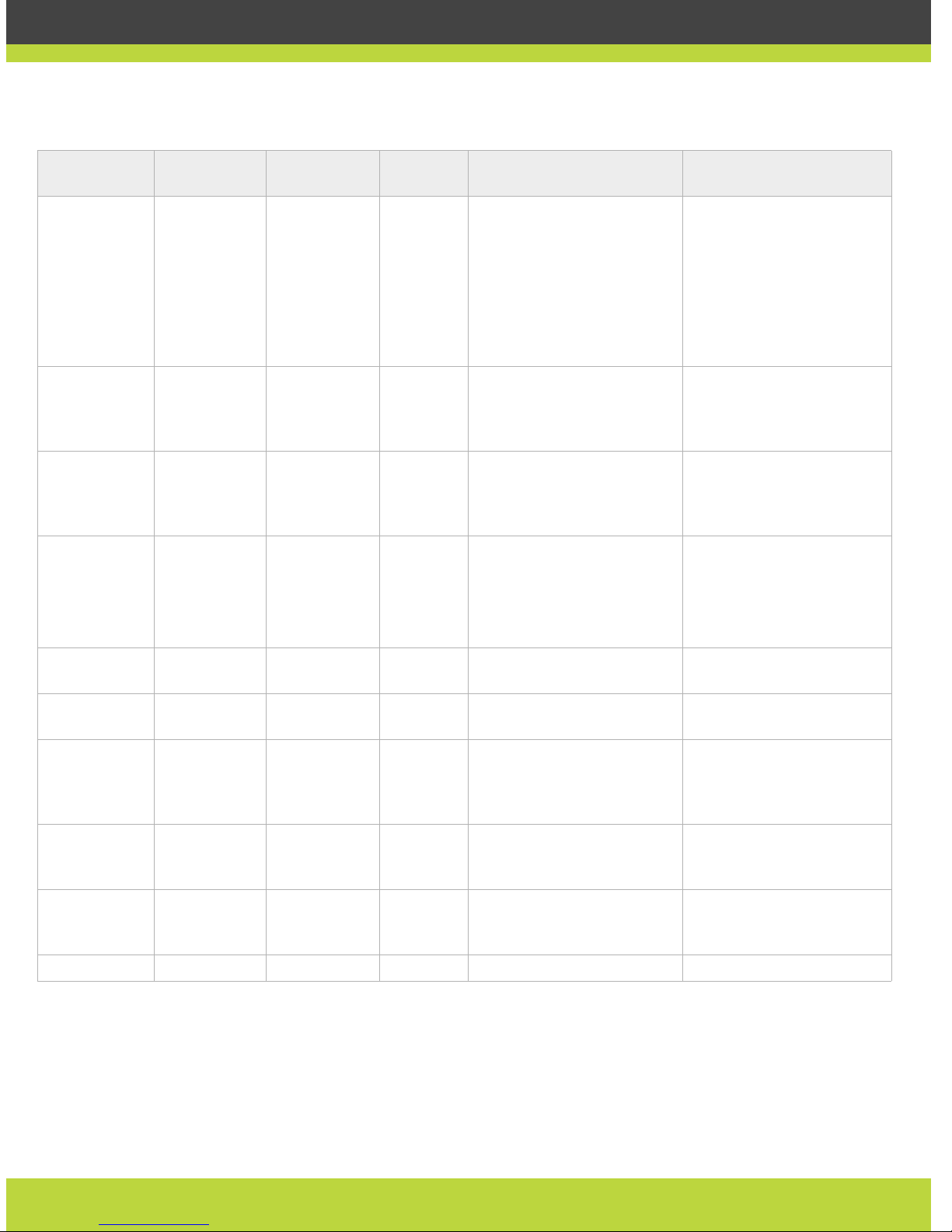
3230-3287
(configurable)
RTP and RTCP
(UDP)
H.323 and SIP
media (audio,
video,
H.224/data
RTP) and
media control
(RTCP)
Both No media exchanged in the
H.323 or SIP call.
Ephemeral UDP ports used
to connect simultaneous
H.323 and SIP calls media.
The range can be modified
by selecting Administrator
Settings > Network >
Preferences >Dynamic
Ports
3338 XML
Commands
(TCP)
Remote
Control
Both Cannot send/receive
commands. SCOPIA Control
and SCOPIA XT Desktop
Server are not operational.
SCOPIA Control
SCOPIA Desktop XT Server
3339;
3340
XML HINTS
(TCP)
Remote
Control
Out Cannot send hints. SCOPIA
Control and SCOPIA XT
Desktop Server are not
operational.
SCOPIA Control;
SCOPIA Desktop XT Server
3478- 3479 STUN (UDP) STUN client Both Cannot discover the
presence of a firewall or NA T
(only manual configuration
available).
Discover the presence of a
firewall or NAT and the
public IP address.
The range can be modified
by the user interface.
5060 SIP (TCP) SIP call
signaling
Both Cannot connect SIP calls
over TCP.
Common SIP service port.
5060 SIP (UDP) SIP call
signaling
Both Cannot connect SIP calls
over UDP.
Common SIP service port.
5070 BFCP (TCP) SIP content
(presentation)
video
signaling
Both No SIP content video
available.
Common BFCP service port
(used by SIP).
55003 A T Commands
(TCP)
API for
Remote
Management
Both Cannot send/receive
commands
iVIEW Network Manager
55099 Software
Upgrade
(TCP)
Software
Upgrade
Both Cannot upgrade software iVIEW Network
Manager/Landownload
60123 Telnet (TCP) Telnet server Both No Telnet access Remote management
Table 1-19 Ports Supported by SCOPIA XT1000 Series
Port number Protocol/
Use
Functionality Direction Result of Blocking Port on
Firewall
Description/External
Client
Page 30
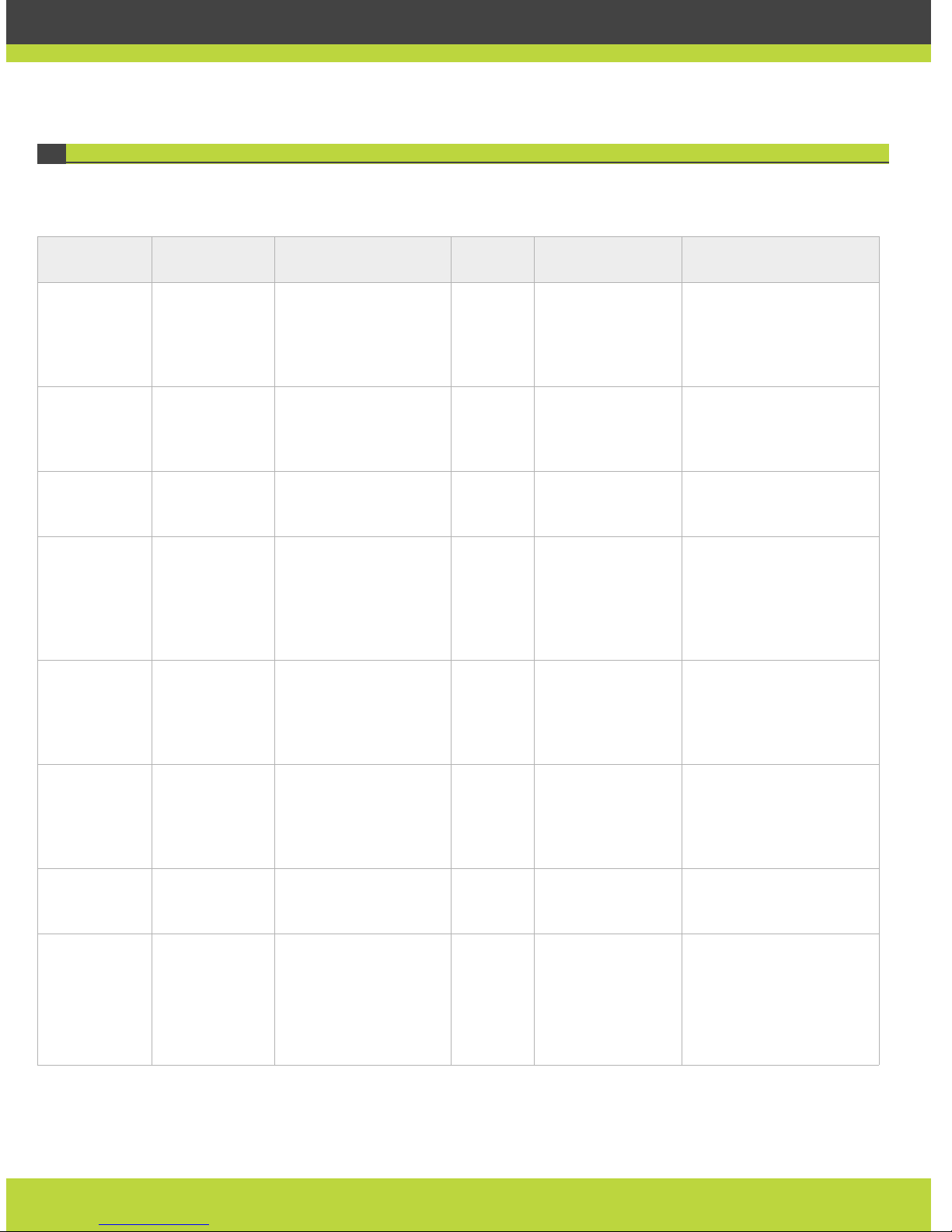
| 30
RADVISION | RADVISION Port Security Reference Guide
SCOPIA VC240
Table 1-20 lists ports that need to be opened between SCOPIA VC240 and network devices.
Table 1-20 Ports supported by SCOPIA VC240
Port Protocol/Use Functionality Direction Result of Blocking
on Firewall
Description
22 TCP (SSH) iVIEW Management
Suite and for remote
software upgrades
from iVIEW
Management Suite
Both iVIEW Management
Suite does not
communicate with
the unit
SSH Server
23 TCP (Telnet) iVIEW Management
Suite and
administration
Both iVIEW Management
Suite does not
communicate with
the unit
69 TFTP Software uprgade
through the device’s
menus
Both Software upgrade
through TFTP does
not function.
TFTP Server
80 HTTP (TCP) Open APIs and remote
software uprades
either via the web
interface or via iVIEW
Management Suite
Both Web server and
open APIs do not
function.
Web-based
software upgrades
will not function
Web application or open
API-based application
161 UDP (SNMP) Configuration and
status
In Cannot configure
or check the status
of the terminal via
SNMP
SCOPIA iVIEW Network
Manager, iVIEW
Management Suite or any
other SNMP manager
station
162 UDP (SNMP) SNMP trap events Out Cannot receive
traps
SCOPIA iVIEW Network
Manager, iVIEW
Management Suite or any
other SNMP manager
station
443 HTTPS (TCP) Open APIs In Web server and
open APIs do not
function
Web application or open
API-based application
3230-3241
(configurable)
TCP (H.245) H.245 signaling Both Cannot connect
H.323 calls
Any H.323 entity.
Configure these ports on
the SCOPIA VC240 by
navigating to Setup >
Network > Port
Configuration.
Page 31
| 31
RADVISION | RADVISION Port Security Reference Guide
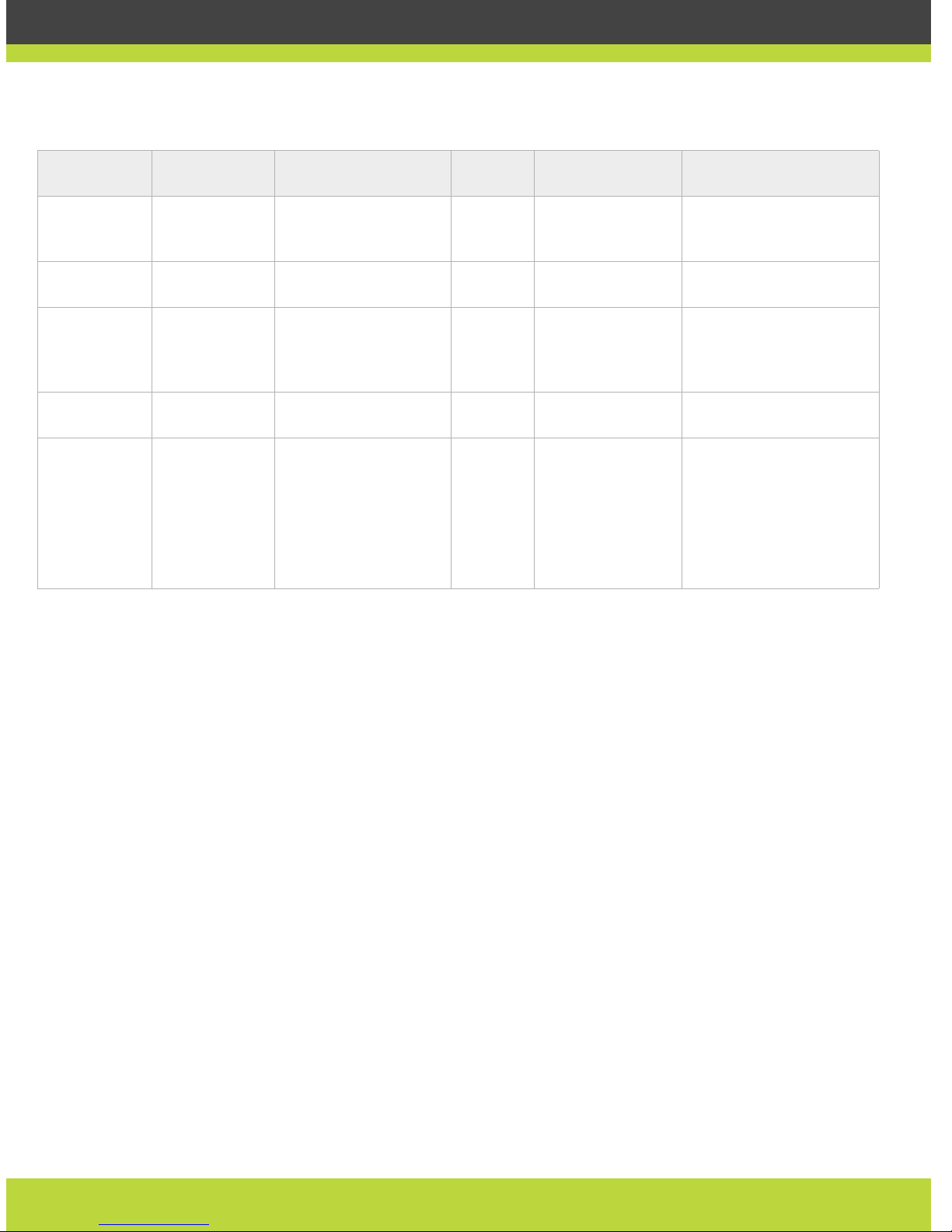
1719 UDP (RAS) RAS signaling Both Cannot
communicate with
H.323 gatekeeper
H.323 gatekeeper
1720 TCP (Q.931) Q.931 signaling Both Cannot connect
H.323 calls
Any H.323 entity
4000 RV sh ell c md Internal use Both iVIEW Management
Suite does not
communicate with
the unit
Internal use
5060 TCP/UDP (SIP) SIP signaling Both Cannot connect SIP
calls
Any SIP entity
3230-3251
(configurable)
UDP
(RTP/R TCP)
RTP media Both Cannot
transmit/receive
media streams
Any H.323 or SIP media
enabled entity.
Configure these ports on
the SCOPIA VC240 by
navigating to Setup >
Network > Port
Configuration.
Table 1-20 Ports supported by SCOPIA VC240 (continued)
Port Protocol/Use Functionality Direction Result of Blocking
on Firewall
Description
Page 32
| 32
RADVISION | RADVISION Port Security Reference Guide
SCOPIA Gateway
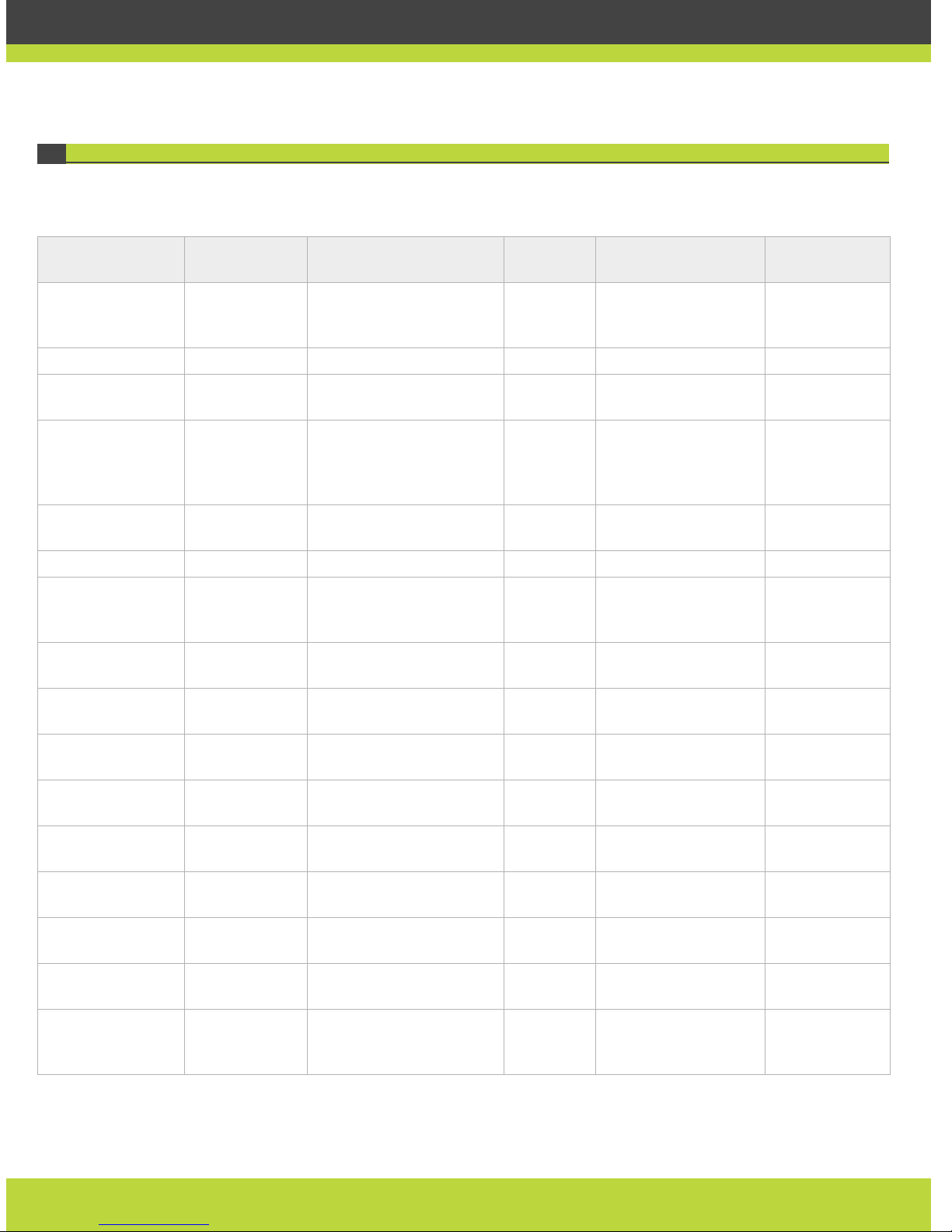
Table 1-21 and Table 1-22 list the ports supported by the SCOPIA Gateway.
Table 1-21 SCOPIA Gateway-supported ports—Incoming connections
Port Range Protocol Functionality Direction Result of Blocking
Port on Firewall
Description
21 FTP (TCP) File Transfer Protocol Both Cannot upgrade
version or extract
recordings
Upgrade Utility
23 Telnet (TCP) Log Both Cannot view logs Telnet client
80 (configurable
via SNMP)
HTTP (TCP) Web interface Both Cannot view Gateway
web user interface
Web client
161 SNMP (UDP) Configuration and status Both Cannot configure or
check the status of
the Gateway via SNMP
iVIEW Network
Manager or any
other SNMP
manager station
443 HTTPS (TCP) Secure web interface Both Cannot administer the
Gateway
1024-4999 H.245 (TCP) H.245 Both No H.245 H.323 entity
1503 TCP T.120 data collaboration Both Cannot establish a
T.120 connection
to/from the Gateway
Any T.120
endpoint
1619 RAS (UDP)—IVR RAS (receiving
Gatekeeper notifications)
Both No RAS capabilities Gatekeeper
1620 Q.931
(TCP)—IVR
Q.931 Both No signaling
capabilities
H.323 entity
1719 RAS (UDP) RAS (receiving
Gatekeeper notifications)
Both No RAS capabilities Gatekeeper
1820 (configurable
via SNMP/web)
Q.931 (TCP) Q.931 (receiving Setup) Both No signaling
capabilities
H.323 entity
7222-7422 (even
numbers only)
RTP (UDP) RTP IVR (audio) Both Cannot open audio H.323 entity
7223-7421 (odd
numbers only)
RTCP (UDP) RTCP IVR (audio) Both Cannot open audio H.323 entity
7622-7822 (even
numbers only)
RTP (UDP) RTP IVR (video) Both Cannot open video H.323 entity
7623-7821 (odd
numbers only)
RTCP (UDP) RTCP IVR (video) Both Cannot open video H.323 entity
12002-12952 (even
numbers only)
RTP (UDP) For terminals connected
to the Gateway and not to
the IVR.
Both Cannot open media H.323 entity
Page 33
| 33
RADVISION | RADVISION Port Security Reference Guide
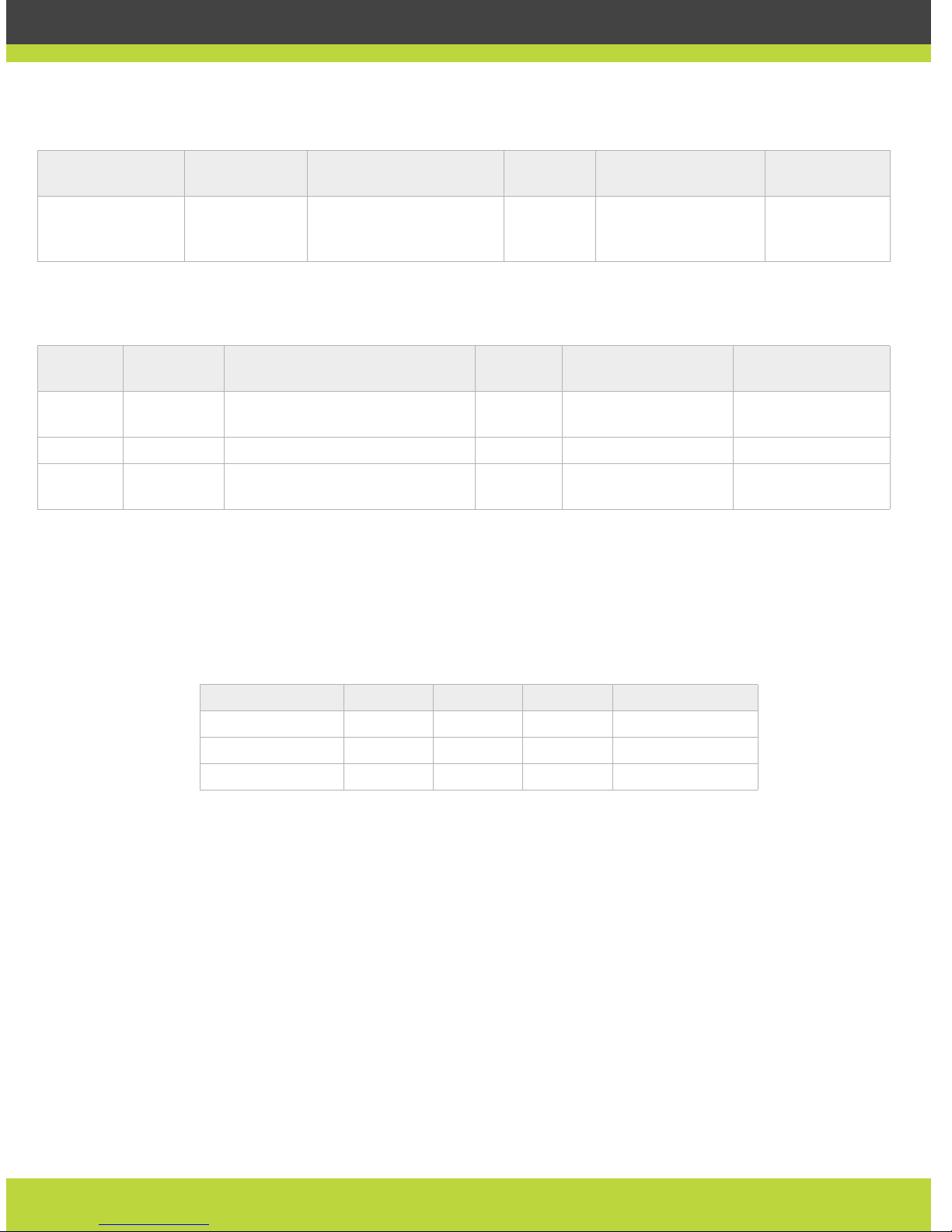
In addition to the ports listed in Table 1-21 and Table 1-22, SCOPIA Gateways offer the following
features:
• The ability to conceal a caller ID for both IP-to-ISDN and ISDN-to-IP calls.
• Configurable security access levels enabling and disa bling Telnet, FTP, SNMP and ICMP (ping)
services, as shown in Table 1-23.
12003-12951 (odd
numbers only)
RTCP (UDP) For terminals connected
to the Gateway and not to
the IVR.
Both Cannot open media H.323 entity
Table 1-21 SCOPIA Gateway-supported ports—Incoming connections (continued)
Port Range Protocol Functionality Direction Result of Blocking
Port on Firewall
Description
Table 1-22 SCOPIA Gateway-supported ports—Outgoing Connections
Port
Range
Protocol Functionality Direction Result of Blocking
Port on Firewall
Description
162 SNMP traps
(UDP)
Sending traps to server Outgoing Cannot send traps Gateway
1719 RAS (UDP) RAS (sending RRQ/ARQ messages) Both No RAS capabilities H.323 entity
1720 Q.931 (TCP) Q.931 (sending Setup/Connect
messages)
Both No Q.931 capabilities H.323 entity
Table 1-23 SCOPIA Gateway Security Modes
Security Mode Telnet FTP SNMP ICMP (ping)
Low Active Active Active Active
Medium Inactive Inactive Active Active
High Inactive Inactive Inactive Inactive
Page 34
| 34
RADVISION | RADVISION Port Security Reference Guide
3G Gateway
Table 1-24 lists the ports supported by the 3G Gateway.
Table 1-24 Ports Supported by the 3G Gateway
Port Range Protocol Functionality Direction Result of Blocking
Port on Firewall
Description
21 FTP (TCP);
in use
File Transfer Protocol Both Cannot upgrade
version
Upgrade Utility
23 T elnet (TCP); in
use
Gateway logs and
initial configuration
Both Cannot view logs T e lnet client
80
(configurable)
HTTP (TCP) Gateway Administrator
and Call Control web
user interfaces
Both Cannot administer
MCU
Web client
161 SNMP (UDP); in
use
Configuration and
status
Both Cannot configure or
check the status of
the Gateway via SNMP
iVIEW Network Manager,
iVIEW Management Suite
or any other SNMP
manager station
162 SNMP (UDP); in
use
SNMP Trap events Out Cannot receive Traps iVIEW Network Manager,
iVIEW Management Suite
or any other SNMP
manager station
443 HTTPS (TCP); in
use
Secure web interface Both Cannot administer the
Gateway
1024-4999 H.245 (TCP); in
use
H.245 signaling. TCP
connection to the
SIU.
Both Cannot connect H.323
calls; no connection
to SIU.
Any H.323 entity
1719
(configurable)
RAS (UDP) RAS signaling Both Cannot communicate
with H.323
gatekeeper
H.323 gatekeeper
1820
(configurable)
Q.931 (TCP) Q.931 signaling Both Cannot connect H.323
calls
Any H.323 entity
2944 MVP control
(TCP); in use
MVP control protocol Both Cannot use external
MVP
MVP
2945 MVP control
(TCP); in use
MVP control protocol Both Cannot use external
MVP
MVP
3336 TCP; in use Conference control Both Cannot use Gateway
Conference Control
web user interface.
Conference Control web
client terminal, iVIEW
Management Suite or
third-party controlling
applications
5060
(configurable)
SIP (TCP/UDP);
in use
SIP signaling Both Cannot connect SIP
calls
Any SIP entities
Page 35
| 35
RADVISION | RADVISION Port Security Reference Guide
MVP/M II SP (Media Video Processor)
Table 1-25 lists the ports supported by the MVP/M II SP.
6000-7000
(configurable)
RTP/RTCP
(UDP); in use
RTP media Both Cannot
transmit/receive
media streams
Any H.323 or SIP media
enabled entity
12000-13000
(non-
configurable)
RTP/RTCP RTP media Both Cannot
transmit/receive
media streams
Any H.323 or SIP media
enabled entity
123 NTP (UDP) Network time protocol Incoming The Gateway will not
have the most
accurate time
settings.
NTP server
Table 1-24 Ports Supported by the 3G Gateway (continued)
Port Range Protocol Functionality Direction Result of Blocking
Port on Firewall
Description
Table 1-25 MVP/M II-supported Ports
Port Range Protocol Functionality Direction Result of Blocking P ort
on Firewall
Description
21 FTP (TCP) Software upgrade and
video stream recording
Both Cannot upgrade versio n Upgrade Utility
23 Telnet (TCP) MVP/M II online log Both Cannot view logs Telnet client
161 SNMP (UDP) Configuration and
status
Both Cannot configure or
check the status of the
Gateway via SNMP
iVIEW Network Manager,
iVIEW Management Suite
or any other SNMP
manager station
3340 Font file
client (TCP)
For receiving extended
font files from the MCU
Both Cannot work with
different fonts
Font client software
10000-10240
(configurable
from version
2.5)
RTP/RTCP
(UDP)
RTP/RTCP media Both Cannot
transmit/receive media
streams
Any RTP/RTCP media
enabled entity
21 FTP (TCP) Software upgrade and
video stream recording
Both Cannot upgrade versio n Upgrade Utility
Page 36
| 36
RADVISION | RADVISION Port Security Reference Guide
SCOPIA MCU
SCOPIA MCU Blade
Table 1-26 lists the ports supported by the SCOPIA MCU.
Table 1-26 Ports Supported by SCOPIA MCU
Port Pro tocol/Use Functionality Direction Result of Blocking
Port on Firewall
Description
21 FTP (TCP) Audio stream recording Out Cannot record audio
stream
Upgrade Utility or FTP
Server
23 Telnet (TCP) MCU logs and initial
configuration
Both Cannot view logs Telnet client
80
(configurable)
HTTP (TCP) MCU Administrator and
Conference Control
web user interfaces
Both Cannot administer MCU Web client
161 SNMP (UDP) Configuration and
status
Both Cannot configure or
check the status of the
MCU via SNMP
iVIEW Network Manager,
iVIEW Management Suite
or any other SNMP
manager station
162 SNMP (UDP) SNMP Trap events Out Cannot receive T raps iVIEW Network Manager,
iVIEW Management Suite
or any other SNMP
manager station
443 HTTPS (TCP) Secure web interface Both Cannot administer MCU
1024-4999 H.245 (TCP) H.245 signaling Both Cannot connect H.323
calls
Any H.323 entity
1719
(configurable)
RAS (UDP) RAS signaling Both Cannot communicate
with H.323 gatekeeper
H.323 gatekeeper
1720
(configurable)
Q.931 (TCP) Q.931 signaling Both Cannot connect H.323
calls
Any H.323 entity
1809 RPC Both Cannot
transmit/receive audio
stream
2010 MPI (TCP) MP control protocol Both Cannot use external MP Any standalone MP units
(MCUs configured to be
MPs in clustering mode)
2946 MVP control
(TCP)
MVP control protocol Both Cannot use external
MVP
MVP
3333 DTI (TCP) DCS control protocol Both Cannot use external
DCS
DCS
Page 37
| 37
RADVISION | RADVISION Port Security Reference Guide
In addition to the ports listed in Table 1-27, RADVISION MCUs offer configurable security access
levels enabling and disabling Telnet, FTP, SNMP and ICMP (ping) services, as shown in Table 1-27.
Media Video Processor for SCOPIA MCU
Table 1-28 lists the ports supported by the MVP.
3336 XML (TCP) MCU version 3 XML API Both Cannot use MCU
Conference Control
web user interface.
Cannot use version 3
XML API to control MCU
Conference Control web
client terminal, iVIEW
Management Suite or
third-party controlling
applications
3337 XML (TCP) MCU version 3
Cascading XML API
Both Cannot cascade
between two MCUs
Other MCUs
5060
(configurable)
SIP (TCP/UDP) SIP signaling Both Cannot connect SIP
calls
Any SIP entities
6000-6999
(configurable)
RTP/RTCP
(UDP)
RTP/RTCP audio Both Cannot
transmit/receive audio
stream
Any RTP/RTCP media
enabled entity
10000-11000
(configurable)
RTP/RTCP
(UDP)
RTP media Both Cannot
transmit/receive
media stream
Any H.323 or SIP media
enabled entity
Table 1-26 Ports Supported by SCOPIA MCU
Port Pro tocol/Use Functionality Direction Result of Blocking
Port on Firewall
Description
Table 1-27 SCOPIA MCU Security Modes
Security Mode Telnet FTP SNMP ICMP (ping)
Standard Active Active Active Active
High Inactive Inactive Active Active
Maximum Inactive Inactive Inactive Inactive
Table 1-28 MVP-supported Ports
Port Protocol/Use Functionality Direction Result of Blocking
Port on Firewall
Description
21 FTP (TCP) Software upgrade and
video stream recording
Both Cannot upgrade
version
Upgrade Utility
23 Telnet (TCP) MVP online log Both Cannot view logs T e lnet client
161 (for
future use)
SNMP (UDP) Configuration and
status
Both Cannot configure
or check the status
of the MCU via
SNMP
iVIEW Network Manager,
iVIEW Management Suite
or any other SNMP
manager station
2946 MEGACO (TCP) Control protocol
between MCU and MVP
Both MVP cannot
connect to MCU
MEGACO (H.248) Protocol
Page 38
| 38
RADVISION | RADVISION Port Security Reference Guide
3340 Font file client
(TCP)
For receiving extended
font files from the
MCU.
Both Cannot work with
different fonts
Font client software
10000-10575
(configurable
from version
2.5)
RTP/RTCP
(UDP)
RTP/RTCP media Both Cannot
transmit/receive
media stream
Any RTP/RTCP media
enabled entity
Table 1-28 MVP-supported Ports (continued)
Port Protocol/Use Functionality Direction Result of Blocking
Port on Firewall
Description
Page 39
www.radvision.com
About RADVISION
RADVISION (NASDAQ: RVSN) is the industry’s leading provider of market-proven products and technologies for
unified visual communications over IP and 3G networks. With its comp le te set of sta ndar ds ba sed vide o networking
infrastructure and developer toolkits for voice, video, data and wireless communications, RADVISION is driving the
unified communications evolution by combining the power of video, voice, data and wireless – for high definition
video conferencing systems, innovative converged mobile services, and highly scalable video-enabled de s ktop
platforms on IP, 3G and emerging next generation networks. For more information about RADVISION, visit
www.radvision.com
This document is not part of a contract of license as may be expressly agreed RADVISION is registered
trademarks of RADVISION, Ltd. All trademarks recognized. All rights reserved © 2010 RADVISION, Ltd.
USA/Americas
T +1 201 689 6300
F +1 201 689 6301
EMEA
T +44 20 3178 8685
F +44 20 3178 5717
APAC
T +852 3472 4388
F +852 2801 4071
 Loading...