

Page 1

* Some of the contents of this manual may differ from your phone,
depending on the software installed or your service provider.
SAMSUNG
ELECTRONICS
PORTABLE CELLULAR
TELEPHONE
SCH-A130
User’s Manual
(Draft version)
World Wide Web
http://www.samsungmobile.com
Printed in Korea
Code No.: GH68-XXXXX
English. 08/2005. Rev.1.0
Please read this manual before operating your phone,
and keep it for future reference.
Page 2

Table of contents
Important safety precautions .......................7
Unpacking.....................................................9
Your phone .............................................. ...10
Phone layout...................................................... 10
Display.............................................................. 10
Backlight........................................................... 12
Getting started......................................... ...13
Using the battery................................................ 13
Switching on or off the phone............................... 15
Using the soft keys............................................. 16
Your phone’s modes............................................ 16
Call functions ..............................................19
Making a call...................................................... 19
Ending a call...................................................... 20
Emergency dialing .............................................. 20
Using the recent call logs..................................... 21
Making a call from Contacts ................................. 21
Prepend dialing .................................................. 22
Speed dialing................. .................................... 22
Four-digit dialing................................................ 22
Pause dialing ..................................................... 23
Adjusting the volume during a call........................ 25
Answering a call................................................. 26
Silencing a call ringer.......................................... 26
Viewing missed calls ........................................... 27
Options during a call........................................... 27
Using caller ID ................................................... 28
Call forwarding................................................... 28
Call waiting........................................................ 29
Three-way calling ............................................... 29
3
Page 3

Table of contents
Table of contents
Entering text......................................... ......30
Changing the text input mode .............................. 31
Using T9 (English) mode...................................... 31
Using Alphabet mode .......................................... 31
Using Symbol mode............................................ 32
Using Number mode ........................................... 32
Using the menus .........................................33
Accessing a menu function by scrolling.................. 33
Using shortcuts .................................................. 34
List of menu functions......................................... 35
Calls............................................................38
Outgoing
Incoming
Missed
Erase History
Air Time
(Menu 1-1)
(Menu 1-2)
(Menu 1-3)
(Menu 1-4)
(Menu 1-5)
........................................... 38
........................................... 38
............................................... 38
..................................... 39
............................................ 39
Torpedos SMS .............................................40
New Msg
Voice
Inbox
Sent
Draft
Saved
Erase Msg
Msg Setting
(Menu 2-1)
(Menu 2-2)
(Menu 2-3)
(Menu 2-4)
(Menu 2-5)
(Menu 2-6)
(Menu 2-7)
(Menu 2-8)
........................................... 40
................................................ 40
................................................ 40
................................................. 41
................................................. 41
............................................... 41
.......................................... 41
....................................... 41
Planner .......................................................45
Today
Scheduler
Task List
Memo Pad
Alarm
Calculator
World Time
Count Down
Set Time
(Menu 4-1)
(Menu 4-2)
(Menu 4-3)
(Menu 4-4)
(Menu 4-5)
(Menu 4-6)
(Menu 4-7)
(Menu 4-8)
(Menu 4-9)
............................................... 45
........................................... 45
............................................. 46
.......................................... 46
................................................ 46
.......................................... 46
........................................ 46
....................................... 47
........................................... 47
Voice Portal ................................................48
Voice Mail ...................................................49
Tones & Images........................ ... ... ............50
Display
Sounds
(Menu 7-1)
(Menu 7-2)
.............................................. 50
.............................................. 52
Setup ..........................................................55
Auto CSP (Carrier Selection C o d e)
Auto Answer
Call Answer
Auto Retry
Language
System
Help
(Menu 8-7)
Security
(Menu 8-2)
(Menu 8-3)
(Menu 8-4)
(Menu 8-5)
(Menu 8-6)
.................................................. 58
(Menu 8-8)
...................................... 55
........................................ 55
......................................... 56
.......................................... 56
............................................ 56
............................................. 58
(Menu 8-1)
......... 55
Contacts......................................................43
Find
(Menu 3-1)
Add New Entry
Group Edit
My Phone #
Memory Info
4
.................................................. 43
(Menu 3-2)
(Menu 3-3)
(Menu 3-4)
(Menu 3-5)
................................... 44
.......................................... 44
....................................... 44
...................................... 44
5
Page 4

Table of contents
Health and safety information.....................61
Exposure to radio frequency (RF) signals ............... 61
Road safety ....................................................... 65
Operating environment ....................................... 66
Electronic devices........... .................................... 66
Potentially explosive environment......................... 68
Emergency calls ................................................. 69
Other important safety information....................... 70
Care and maintenance ........................................ 71
Acknowledging special precautions and the FCC and in-
dustry canada notice........................................... 72
6
Page 5

Important safety
precautions
Read these guidelines before using your wireless
phone. Failure to comply with them may be
dangerous or illegal.
Road safety at all times
Do not use a hand-held phone while driving; park
the vehicle first.
Switching off when refueling
Do not use the phone at a refueling point (service
station) or near fuels or chemicals.
Switching off in an aircraft
Wireless phones can cause interference. Using
them in an aircr a ft is bo th il le g a l and dangerous.
Switching off in hospitals
Switch off your phone near medical equipment.
Follow any regulations or rules in force.
Interference
All wireless phones may be subject to
interference, which could affect their performance.
Special regulations
Meet any special regulations in force in any area
and always with off your phone whenever it is
forbidden to use it, or when it may cause
interference or danger (in a hospital for example).
7
Page 6

Important safety precautions
Sensible use
Use only in the normal position (held to the ear).
Avoid unnecessary contact with the antenna when
the phone is switched on.
Emergency call
Ensure the phone is switched on and in service.
Key in the emergency number for your present
location, then press the SEND key. You must
deactivate any unnecessary features in use before
you can make an emergency call. Give all
necessary information as accurately as possible.
Do not cut off the call until given permission to do
so.
Water resistance
Your phone is not water-resistant. Keep it dry.
Accessories and batteries
Use only Samsung-approved accessories and
batteries. Use of any unauthorized accessories
could damage your phone and may be dangerous.
Unpacking
Your package contains the following items.
•Handset
• Standard Battery
•Travel Adapter
• User Manual
•Service Network Card
Qualified service
Only qualified service personnel may repair your
phone.
For more detailed safety information, see “Health
and safety information” on page 61.
CAUTION
RISK OF EXPLOSION IF A BATTERY IS
REPLACED BY AN INCORRECT TYPE.
DISPOSE OF USED BATTERIES ACCORDING TO
THE INSTRUCTIONS.
8
9
Page 7
Your phone
Icon Description
Your phone
(continued)
Phone layout
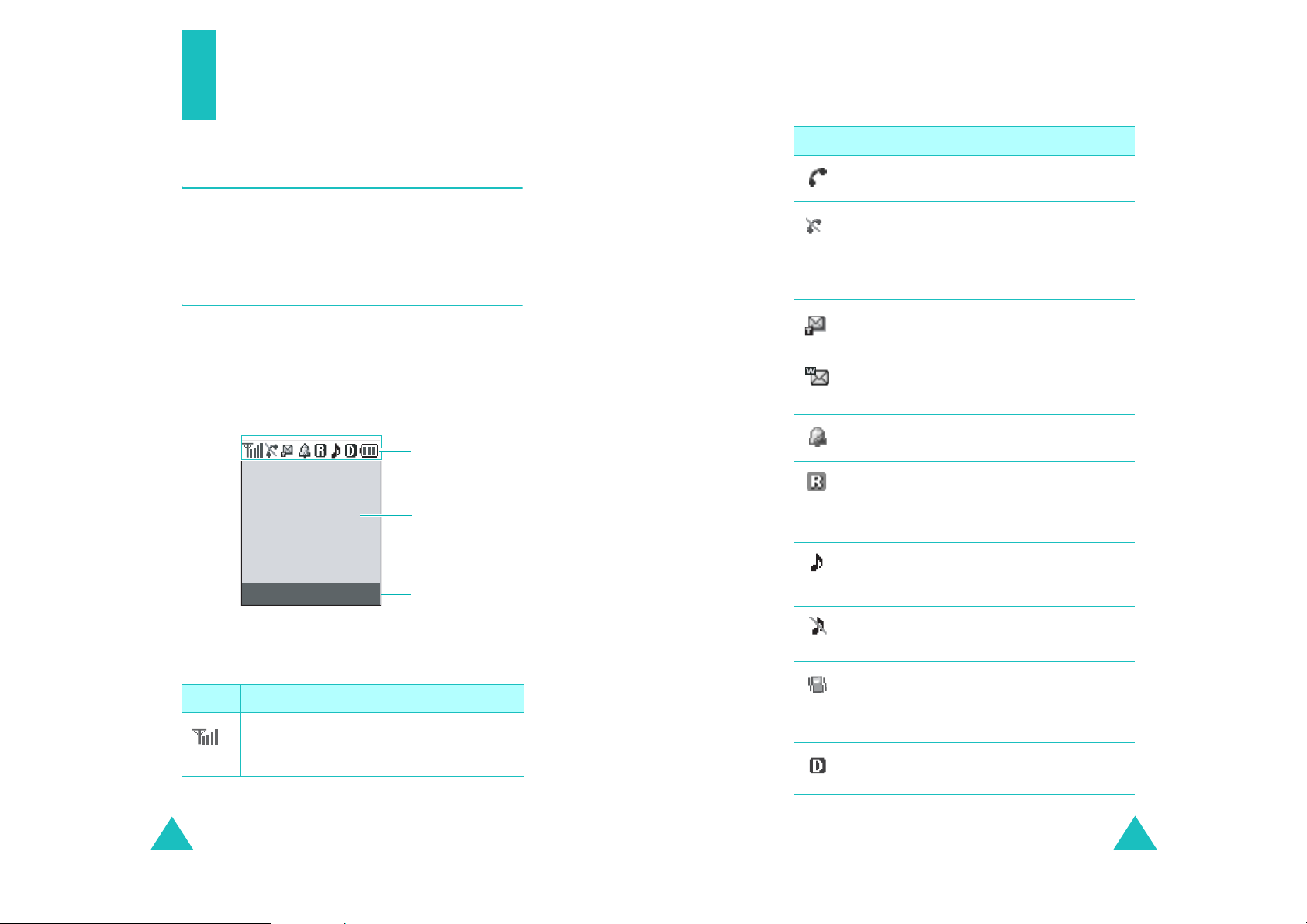
The following illustrations shows the main
elements of your phone.
Display
Layout
The display has three areas; the top line of icons,
the text and graphic area, and the bottom line of
soft key indicators.
Icons
Text and
graphics area
Menu Contacts
Soft key function
indicators
Service
progress.
No service
outside a service area. When it displays,
you cannot make or receive calls. Wa it a
little while for a better signal or move
into an open area to regain service.
New text message
new text message is received.
New WAP push message
when a new WAP push message is
received.
Alarm mode
alarm to ring at a specified time.
Roaming
your home area and have logged onto a
different network; for example, when
traveling in other countries.
Ringer on
ringer volume for calls to one from
1
Ringer off
volume is turned off.
: Appears when a call is in
: Appears when you are
: Appears when you set an
: Appears when you are out of
: Appears when you set the
to
Level 8
or to
1-Beep
: Appears when the ringer
: Appears when a
: Appears
Level
.
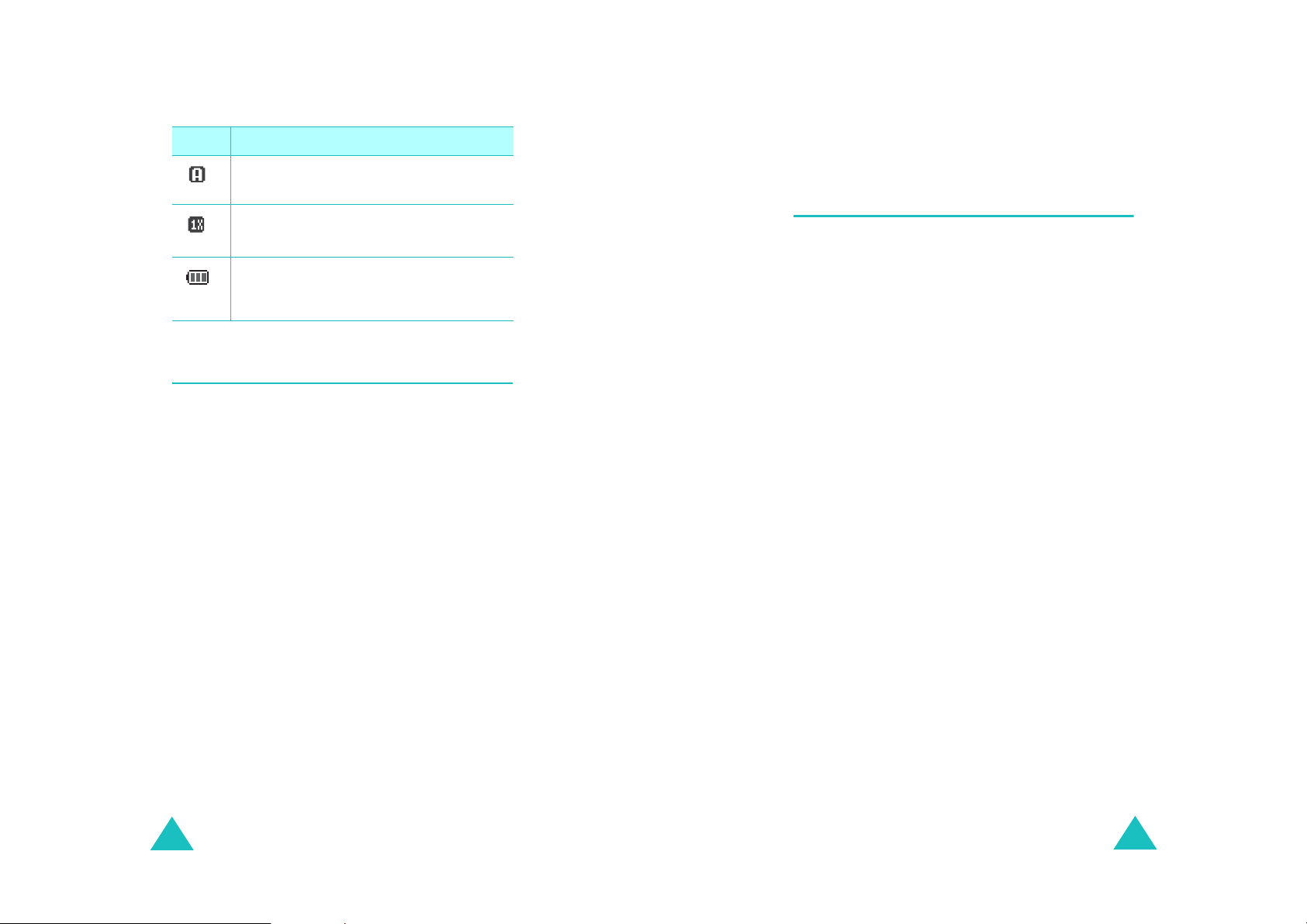
Icons
Icon Description
Signal strength
signal strength. The greater the number
of bars, the better the signal.
10
: Shows the received
Vibration mode
ringer volume for calls is set to
High+Vib
or
Silent mode.
Digital mode
phone is logged onto a digital network.
: Appears when the
Vibrate
, or when your p hone is in
: Indicates when the
11
Page 8
Your phone
Getting started
Icon Description
Analog mode
phone is logged onto an analog network.
1x mode
in 1x mode.
Battery status
battery. The more bars you see, the
more power you have remaining.
(continued)
: Indicates when the
: Indicates when the phone is
: Shows the level of your
Backlight
The display is illuminated by a backlight. When
you press any key , the backlight comes on. It goes
off if no keys are pressed within a give n period of
time, depending on the setting in the
menu.
To specify the length of time for which the
backlight is active, set the
page 72 for further details.
Backlight
Backlight
menu; see
Getting started
Using the battery
Your phone is powered by a rec hargeable Li-ion
battery. Use only approved batteries and
chargers. Ask your local Samsung dealer for
further details.
Note
: You must fully charge the battery before using
your phone for the first time. A discharged
battery is fully recharged in approximately
180 minutes for a standard battery.
Installing the battery
1. Place the battery so that the tabs on the end
align with the slots at the bottom of the phone.
2. Press the battery until it clicks into place. Make
sure that the battery is properly installed
before switching the phone on.
Removing the battery
12
1. If necessary, switch off the phone by pressing
and holding the END key until the closing
image displays.
2. Slide the battery lock towards the top of the
phone and lift away the battery, as shown.
13
Page 9

Charging the battery
Getting started
A travel adapter is provided for charging your
batteries. The travel adapter allows you to use the
phone while the battery is charging, but this will
cause the battery to charge more slowly.
1. With the battery in position on th e phone, plug
the connector of the travel adapter into the
jack at the bottom of the phone.
Make sure that the arrow on th e co nn ecto r is
facing toward the front of the phone.
2. Plug the adapter into a standard AC wall outlet.
The battery strength icon on the display shows
that the battery is charging.
3. When charging is finished, unplug the adapter
from both the power outlet and the phone by
pressing the buttons on both sides of the
connector and pulling the connector out.
Note
: Do not remove the battery from the phone
without unplugging the adapter while it is
charging. Otherwise, the phone may be
damaged.
Low battery indicator
When the battery is weak and o nly a few minutes
of talk time remain, a warning tone sounds and a
message repeats at regular intervals on the
display. When this happens, your phone turns off
the backlight to conserve the remaining battery
power.
If the battery level becomes too low, the phone
automatically turns off.
Switching on or off the phone
1. Open the phone.
2. Press and hold the END key until the power-on
image displays to switch on the phone.
The service light on the phone flashes and an
alert sounds. When the system locates
services, the greeting message displays along
with the time and date. You can now place and
receive calls.
If the phone is out of service, the No Service
icon ( ) ap pears on the display. In this case,
you cannot place and receive calls. You can try
again later when service is available.
Note
: You can change the display language in
Language
the
see page 56.
3. When you wish to switch off the phone, press
and hold the END key for more than two
seconds until the power off image displays.
WARNING!
Do not switch on the phone when mobile phone
use is prohibited or when it may cause
interference or danger.
Note
: As with any other radio-transmitting device,
do not touch the antenna unnecessarily when
the phone is switched on. Contact with the
antenna affects the call quality and may cause
the phone to operate at a higher power level
than otherwise needed.
menu. For further details,
14
15
Page 10

Getting started
Getting started
Using the soft keys
Your phone offers a set of functions that allows
you to customize it. These functions are arranged
in menus and submenus, accessed using the two
soft keys. Each menu and submenu allows you to
view and alter the settings of a particular function.
The roles of the soft keys vary depending on the
current function you are using; the labels on the
bottom line of the display just above each key
indicate their current role.
Your phone’s modes
Standby mode
Standby is the most basic state of your phone.
The phone goes into Standby mode after you turn
it on or whenever you briefly press the END key.
When your phone is in Standby mode, you will
typically see the greeting message and the current
time and date. If you enter a phone number, you
can press the SEND key to dial it or press the
Save
soft key to save it in Contacts.
Press the END key at any time to return to
Standby mode. Be careful; if you are o n a call
when you press the END key, the call disconnects
and the phone returns to Standby mode.
Talk mode
You can place and answer calls only when your
phone is turned on. During a call, the phone is in
Talk mode. While you are in Talk mode, pressing
Menu
the
page 27 for details.
soft key gives you a list of options. See
Power save mode
Yo ur ph one com es w ith a P o wer S a v e fea ture th at
is automatically activated if your phone is unable
to find a signal after 15 minutes of searching.
While this feature is active, the phone’s battery
charge is conserved. The phone automatically
rechecks for a signal periodically. To manually
force the phone to recheck for a signal, press any
key.
Lock mode
When you lock your phone using the
menu in the
phone. In Lock mode, you can receive messages
and calls, but you cannot place an outgoing call
until you unlock the phone.
To unlock the phone, you need to enter the lock
code.
For details about locking and unlocking your
phone, see page 58.
Security
menu, you cannot use the
Lock Phone
16
17
Page 11

Getting started
Silent mode
Silent mode disables all sounds on the phone
except for the camera shutter sound. This feature
is best used in situations where the phone might
disturb others, such as in a meeting, in a library,
or in a theater. Your phone can be set to Silent
mode with a press of a key in Standby mode.
In Standby mode, press and hold the Sharp k ey
until “Enter! Silent mode” and the Vibration icon
() display.
T o ex it and reactiv ate the p revious soun d settings,
press and hold the Sharp key until “Exit! Silent
mode” appears. The Vibration icon no longer
displays.
Call functions
Making a call
In Standby mode, enter the area code and phone
number and press the SEND key.
While entering a number, press the
or OK key to save the number in Contacts. Press
Menu
the
4-digit Dial
dialing feature. This option is only available when
you enter four digits. For details about four-digit
dialing, see page 22.
Speed Dial
feature. This option is only available when you
enter a number corresponding to a Contacts
location. For details about speed dialing, see
page 22.
Talk
Save
Find
soft key to access the following op tions:
: allows you to use the four-digit
: allows you to use the speed dialing
: place a call to the number.
: saves the number in Contacts.
: finds a number from Contacts.
Save
soft key
18
Hard Pause
2sec Pause
: enters a hard pages.
: enters a 2-second pause.
19
Page 12
Call functions
Call functions
Correcting the number
To clear the Press
last digit displayed the CLR key.
whole display the CLR key and hold it for
more than one second.
Ending a call
When you want to end your call, press the END key .
The call time, the length of the call, displays along
with the phone number of the called person. If the
number is stored in your Contacts, the name
displays. If there is no match, you can press the
Save
soft key and store the number in Contacts.
Alternatively, simply close the phone to end a call.
Emergency dialing
You can place calls to standard e mergency
numbers, such as 190, 192, 193, and three
specified numbers on the Emergency # list, even if
your phone is locked or all of the outgoing calls are
restricted.
Using the recent call logs
The phone stores up to 30 of the calls you dialed,
received, or missed chronologically . The last call is
saved in the first position.
To recall any of these numbers:
1. If there are any characters on th e display,
return to Standby mode by pressing the END
key.
2. Press the SEND key. The list of recent calls
displays.
3. Press the Navigation k ey s, o r th e Volume keys
on the left side of the phone until you find the
number you want.
4. Press the SEND key to dial the highlighted
number.
Making a call from Contacts
You can store the phone numbers you called
regularly in the phone’s memory, which is called
“Contacts”. You then simply recall the number to
dial.
20
21
Page 13

Call functions
Prepend dialing
The prepend option lets you add digits, su ch as
area codes and network feature activation codes,
to a phone number that is in your call l ogs or
Contacts.
Speed dialing
Once you have stored phone numbers in the
Contacts memory , you can dial them easily with a
few presses of the keys.
Note
: When several numbers are saved in one name
entry, the first number you entered is
automatically specified as a speed dial
number.
Four-digit dialing
You can quickly dial a phone number in Contacts
by entering its last four consecutive digits. This
feature is convenient if you have the number
memorized, but you have forgotte n where the
number is stored in your Contacts.
Call functions
Pause dialing
When you call an automated system, like a
banking service, you are often required to enter a
password or account number. Instead of manually
entering the numbers each time, you can store
the numbers in your Contacts, separated by
pauses.
There are two kinds of pauses that can be entered
on your phone:
Hard pause
•
sequence until you press the SEND key.
2sec pause
•
dialing sequence for two seconds and then
automatically sends the remaining digits.
Storing pauses in a Contacts entry
To store a number in your Contacts that contains
pauses:
1. Enter the phone number you want to store,
such as the bank’s teleservice phone number.
: A hard pause stops the dialing
: A two second pause stops the
1. Enter the last four digits of the phone number
you want to dial.
Menu
2. Press the
option. The phone displays the phone
dial
number matching the four digits.
3. Press the SEND key to dial the number.
22
soft key and select the
4-digit
Menu
2. Press the
3. Select the required pause type and press the
OK key.
• Press the 4 key for
“P” displays, meaning that a hard pause will
occur at that point in the dialing sequence.
• Press the 6 key for
“T” displays, meaning that a “Timed” pause
will occur at that point in the dialing
sequence.
soft key to access the options.
Hard Pause
2sec Pause
. The letter
. The letter
23
Page 14

Call functions
4. Enter the digits that need to follow the pause,
such as your account number.
5. Repeat steps 2 through 4 to add more pauses
and numbers, if necessary.
6. Store the number in your Contacts as you
normally would by pressing the OK key or the
Save
soft key.
Call functions
1. Enter the phone number of the service you
want to call, such as a bank’s teleservice phone
number.
Menu
2. Press the
3. Select the required pause type and press the
OK key.
• Press the 4 key for
“P” displays, meaning that a hard pause will
occur at that point in the dialing sequence.
soft key to access the options.
Hard Pause
. The letter
Pause dialing from a stored Contacts
entry
1. Dial the number of the service from Contacts.
2. If you stored the number using a hard
pause(s), wait for the appropriate prompt from
the number you are calling. When prompted,
press the SEND key to send the DT MF (Du al
tone multi-frequency) number that follows the
pause.
If you stored the number using a two second
pause(s), your phone transmits the number
that follows the “T” pause two seconds after
the connection.
3. “Sending DTMF” flashes on the display and the
transmitted tone sounds.
4. Repeat from step 2, if necessary.
Manual pause dialing
You can enter pauses manually during the dialing
process.
• Press the 6 key for
“T” displays, meaning that a “Timed” pause
will occur at that point in the dialing
sequence.
4. Enter the number to be sent after the pause
and then press the SEND key to dial the first
number.
5. For a hard pause, press the SEND key again at
the prompt to send the additional number after
connecting.
If you enter the number using a 2-second
pause(s), the phone sends the number that
follows the pause two seconds after the
connection.
2sec Pause
. The letter
Adjusting the volume during a call
During a call, if you want to adjust the voice
volume, use the Volume keys on the left side of
the phone.
Press to increase the volume level and to
decrease the level. In Standby mode, you can also
adjust the keypad tone volume using these keys.
24
25
Page 15
Call functions
Call functions
Answering a call
When somebody calls you, the phone alerts you
by ringing and blinking the service light.
If the caller can be identified, the caller’s phone
number, or name if stored in your Contacts,
displays.
There are three ways to answer a call depending
on your setting in the
If you select To answer the call,
Any Key open the phone or press
Send Key press the SEND key.
Folder Open open the phone or press
To end the call, close the phone or press the END
key .
Note
: You can answer a call while using Contacts or
menu functions. The current operation stops.
Call Answer
any key, except the END
key and the Volume keys.
the SEND key.
menu:
Viewing missed calls
If you fail to answer a call for any reason, the
phone indicates the missed call by displaying a
text notification on the screen. Additionally, if
caller informat ion is available, a Missed entry is
created and the screen displays the phone number
of the last missed call.
When the display informs you of the missed call,
press the SEND key to access the Call logs list, or
the END key to clear the message and return to
Standby mode.
Options during a call
Your phone provides a number of functions that
you can use during a call. As many of these
options are network services, you may not be able
to use all of them at all times.
Menu
Press the
the following options:
Contacts
menu.
soft key during a call to access
: allows you to access the
Contacts
Silencing a call ringer
You can silence the ringer when a call comes in by
pressing one of the Volume keys on the left side of
the phone when the phone is closed. If the phone
is open, press the END key .
The “Ringer Silenced” message appears and the
phone does not ring.
26
Mute/Quit
microphone off, so that the other person cannot
hear you.
Example
person in the room, but do not want the other
person to hear you.
Silent/Quit
allows you to press keys without hearing annoying
key tones during a call.
Send Tel#
other person.
: allows you to switch your phone’s
: You wish to say something to another
: does not sound the key tones. It
: send your telephone number to the
27
Page 16

Call functions
Calls
: allows you to access the
Messages
menu.
Planner
: allows you to use the
: allows you to access the
Calls
menu.
Torpedo SMS
Planner
menu.
Call functions
Call waiting
Call waiting lets you receive a second call during a
conversation. Your phone notifies you of a waiting
call by beeping and displaying “Call waiting.”
Voice Privacy
privacy
: allows you to access the
menu.
Voice
Using caller ID
This feature tells you who is calling you by
displaying the caller’s number when the phone
rings. If the name and number are stored in your
Contacts, the corresponding name is also
displayed. If you call someone who has this
feature, your phone number displays on her/his
phone.
Note
: Contact your service provider to set up the
Caller line identification service.
Call forwarding
This network feature allows you to forward
incoming calls to another phone number, even
while your phone is turned off. Activating Call
forwarding does not affect outgoing calls made
from your phone.
Your network provides you with the option of
turning the Call waiting feature on and off, if you
have subscribed to the service. Call waiting is on
by default in the phone. If you choose to have a
undisturbed conversation, simply turn off the
feature for the current call.
Note
: Contact your service provider to activate the
Call waiting service.
Note
: If you do not respond to a Call waiting
notification, the phone will forward the call to
voice mail server or another number that you
have set up. Contact your service provider for
more information.
Three-way calling
This feature enables you to conduct conference
calls with two separate people at the same time.
The phone records both of them into the Outgoing
calls log and you are billed air time for each of
outgoing calls separately. Contact your service
provider to activate Three-way calling.
Note
: Contact your service provider to activate Call
forwarding.
28
29
Page 17

Entering text
At many times when using your phone, you will
need to enter text, such as when storing a name
in Contacts, creating your personal greeting, or
scheduling events on your calendar. You can enter
alphanumeric characters into your phone using
your phone’s keypad.
Entering text
Changing the text input mode
When you are in a field that allows characters to
be entered, you will notice the text input m od e
indicator on the display.
Your phone has the following text input modes:
T9(English) mode
•
enter words with only one keystroke per letter .
Each key on the keypad has more than one
letter. However , T9 mode automatically
compares the series of keystrokes you make
with an internal lingu is ti c d ic tio n a ry to
determine the most likely word, thus requiring
far fewer keystrok es than th e traditional
Alphabet
•
Alphabet mode
letters by pressing the key labeled with the
letter you want. Press the key once, twice, three
or four times until it displays.
Symbol mode
•
various symbols and special characters.
Number mode
•
numbers.
Note
mode.
: The T9 mode supplies an appropriate
language database as your language setting
menu.
: This mode allows you to
: This mode allows you to enter
: This mode allows you to enter
: This mode allows you to enter
Using T9 (English) mode
T9 is a predictive text input mode that allow s y ou
to key in any character using single keystrokes.
This text input mode is based on a built-in
dictionary.
Note
: T o type words not found in T9 mode, you need
to change the text input mode to Alphabet
mode.
Using Alphabet mode
When typing in Alphabet mode, you need to press
the keys labeled with the required letter:
- once for the first letter
- twice for the second letter
- and so on
This method is ca ll ed m u lt i- ta p t y pi n g .
The cursor moves to the right when you press a
different key . W hen entering the same letter twice
or a different letter on the same key, just wait for
a few seconds for the cursor to move to the right
automatically, and then enter the next letter.
30
31
Page 18

Entering text
Using Symbol mode
Symbol mode enables you to enter symbols into
your text.
Press the keys corresponding to the mark you
want, then the phone automatically switches back
to the text entry mode used just prior t o selecting
Symbol mode.
Using Number mode
Number mode enables you to enter numbers.
Press the keys corresponding to the digits you
want to enter and manually switch back to the
text entry mode of choice.
32
Page 19

Using the menus
This phone offers a range of functions that allow
you to tailor the phone to your needs. These
functions are arranged in menus and submenus.
The menus and submenus can be accessed by
scrolling or by using the shortcuts.
Accessing a menu function by
scrolling
1. In Standby mode, press the
access the main mode.
2. Scroll using the Navigation keys to reach the
main menu; for example,
key to enter the menu.
3. If the menu contains any submenus; for
example,
scrolling using the Navigation keys. Press the 5
key to enter the submenu.
If the menu you have selected contains
submenus, repeat this step.
4. Scroll using the NANI key to find the setting of
your choice.
5. Press the OK key to confirm the chosen
setting.
Notes
• You can return to the previous menu level by
pressing
• You can exit the menu without changing the menu
settings by pressing
Language
:
the CLR key
, find the one you want by
.
the END key
Menu
Setup
.
soft key to
. Press the 8
33
Page 20

Using the menus
Using the menus
Using shortcuts
The menu items, such as menus, submenus, and
setting options, are numbered and can be
accessed quickly by using their shortcut numbers.
Note
: The numbers assigned to each menu function
are indicated on the list. See below.
1. In Standby mode, press the
access Menu mode.
2. Enter the first digit of the sho rtcut number.
Repeat this for each digit of the shortcut
number.
3. Scroll using the Navigation keys to select the
setting of your choice.
4. Press the OK key to confirm the chosen
setting.
Menu
soft key to
List of menu functions
The following list shows the menu structure and
indicates the number assigned to each option.
1. Calls
1.1 Outgoing
1.2 Incoming
1.3 Missed
1.4 Erase History
1.5 Air Time
2. Torpedos SMS
3.1 New Msg
3.2 Voice
3.3 Inbox
3.4 Sent
3.5 Draft
3.6 Saved
3.7 Erase Msg
3.8 Msg Setting
3. Contacts
3.1 Find
3.2 Add New Entry
3.3 Group Edit
3.4 My Phone#
3.5 Memory Info
34
35
Page 21

Using the menus
Using the menus
8. Setup
4. Planner
4.1 Today
4.2 Scheduler
4.3 Task List
4.4 Memo Pad
4.5 Alarm
4.6 Calculator
4.7 World Time
4.8 Count Down
4.9 Set Time
5. Voice Portal
6. Voice Mail
7. Tones & Images
6.1 Display
6.1.1 Menu Style
6.1.2 Wallpaper
6.1.3 Backlight
6.1.4 Banner
6.1.5 Launch Pad
6.1.6 Dual Clock
6.1.7 Contrast
6.2 Sounds
6.2.1 Ringer Volume
6.2.2 Ringer Type
6.2.3 Keytone
6.2.4 Alerts
6.2.5 Roam Ringer
6.2.6 Tone Length
6.2.7 Power On/Off
8.1 Auto CSP
8.2 Auto Key Lock
8.3 Auto Answer
8.4 Call Answer
8.5 Auto Retry
8.6 Language
8.7 System
8.7.1 Select NAM
8.7.2 Set System
8.7.3 Enable PRL
8.8 Help
8.8.1 Call Center
8.8.2 Phone Info
8.9 Security
8.9.1 Lock Phone
8.9.2 Change Lock
8.9.3 Restriction
8.9.4 Emergency #
8.9.5 Erase Contacts
8.9.6 Reset Phone
36
37
Page 22

Calls
Calls
You can use the
• view and dial the last outgoing, incoming, or
missed numbers.
• erase the numbers in the call log memory.
• view the duration of calls.
Outgoing
The phone stores up to 1 0 of the most recent
numbers you have dialed. When you access this
menu, a list of the outgoing calls displays.
Incoming
This menu lets you view up to 10 of the most
recent calls you have received if you are a
subscribe to the Caller Line Identification service.
Contact your service provider for further details
about this service. When you access this menu, a
list of the incoming calls displays.
Calls
menu to:
(Menu 1-1)
(Menu 1-2)
Erase History
In this menu, you can erase the entries stored in
each of the three call logs; outgoing, incoming,
and missed calls. You can also eras e all of your call
log entries at one time by selecting
When a confirmation message displays, select
to erase the logs. If you want to cancel the
selection, select
Air Time
Your phone records the amount of air time, or talk
time, used. Usin g th is o pti o n , you can view the
number of the calls to or from your phone, and the
air time for all of the calls. You can easily erase
the air time record at any time, except
This menu is convenient for estimating your
usage.
Note
: This feature is not intended to be used for
billing purposes.
(Menu 1-4)
No
.
(Menu 1-5)
All Calls
Life Time
.
Yes
.
Missed
If Caller Line Identification is available, your
phone keeps a list of the most recent 10 incoming
calls that you have failed to answer. Contact your
service provider for the availability.
38
(Menu 1-3)
39
Page 23
Torpedos SMS
Torpedos SMS
New Msg
You can create a short text message and send it to
other mobile phones.
Note
: Message transmission is available only when
your phone is operating in a digital network
and if service is supported by your service
provider.
Voice
When you access this menu, the display shows the
latest voice mail no t ification. Scroll to the
notification you want by pressing the Navigation
keys.
Press the
server to listen to the message.
Inbox
Your phone can store SMS messages and their
corresponding Caller ID in the phone’s memory.
(Menu 2-1)
(Menu 2-2)
Call
soft key to access the voice mail
(Menu 2-3)
Sent
Your phone can store your outgoing messages.
When you access this menu, the list of the
messages you have sent appears. The icon on the
left tell you the status of messages:
Draft
After creating a text message, you can store it in
this message box to be sent at a later tim e .
Saved
In this menu, you can view the message you have
sent from the Inbox to this message box.
Erase Msg
Using this menu, you can erase all of the
messages in each message box. You can also
erase all of the messages at one time by selecting
All Messages
(Menu 2-4)
(Menu 2-5)
(Menu 2-6)
(Menu 2-7)
.
When the phone receives a text message, the New
Message icon and a text notification with the call
back number appear.
40
Msg Setting
In this menu, you can preset several options for
receiving or sending messages.
(Menu 2-8)
41
Page 24

Torpedos SMS
Scroll Timer
If an incoming message is too long for the display,
the phone displays it by scrolling the screen
automatically. You can set the time interva l the
phone scrolls to the next screen from 1 to 5
seconds.
Off
When you select
to the next screen using the Navigation keys.
Msg Reminder
When a message is received, the phone alerts you
by sounding the selected ringer. You can set how
often this will happen.
Auto Erase
You can set whether or not the phone will
automatically erase the oldest message when the
phone’s memory is full and a new message is
received.
New Msg
You can set up the following options as default
settings when creating a new message. The
following options are available:
, you need to manually scroll
Contacts
Contacts allows you to store frequently used
phone numbers and the associated names in your
personal directory to make it easy for you to make
a call without having to remember or enter the
phone number. You can store up to 500 entries
including E-mail and URL addresses.
Find
This menu allows you to find an entry using a
person’s name, entry number, or group name in
your Contacts.
Finding an entry by name
When you select this method, all of the Contacts
entries appear in alphabetical order.
Finding an entry by entry number
When you sele ct t h is m e th o d , th e w ho le li st o f all
of the Contacts entries appears in numeric order.
Finding an entry by group
(Menu 3-1)
Canned Msg
This menu allows you to edit 10 canned messages
and make up to 20 new canned messages. You
can use the messages when writing a message.
42
When you selec t th is m e th o d , a li st of the
Contacts entries in a group appears.
Each time you select a group, a list of the
associated entries displays.
43
Page 25

Contacts
Add New Entry
This menu allows you to add a new entry to your
Contacts.
A name can contain up to 6 numbers in different
categories; Home, Work, Mobile, Pager, Fax and
No label. You can save only one number with a
name in the phone’s memory.
Group Edit
This menu allows you to change the settings for
the caller groups.
My Phone #
This menu shows your phone number.
Memory Info
This menu shows you how many Contacts
locations are used or empty.
(Menu 3-2)
(Menu 3-3)
(Menu 3-4)
(Menu 3-5)
Planner
The Planner feature enables you to:
• record voice memos.
• keep track of important dates and events.
• create a list of things to do and memos.
• set an alarm to ring at a specific time.
• use the phone as a calculator.
• check the current time in another part of the
world.
• count down to a specific day.
• set the current time and date.
Today
You can schedule up to 9 events for the current
day, indicating each event’s start and end time.
You can ev en have your phone's calendar alert
you before an event commences. Events
scheduled for future dates automatically appear
on your Today events schedule on that day.
Scheduler
(Menu 4-1)
(Menu 4-2)
44
This menu allows you to view the current month,
as well as past o r future months in calendar
format.
On the calendar, the current day is indicated by a
colored box and the selected day is underlined.
Days with scheduled events are indicated by a box
inside the calendar day.
45
Page 26

Planner
Planner
Task List
This feature allows you to enter a list of tasks y ou
need to be done and assign both a priority and a
deadline to them. You can store up to 9 tasks.
Memo Pad
This feature allows you to make memos of
important things you need to remember.
Alarm
This menu allows you to set the alarm to ring at a
specific time.
Calculator
Using this feature, you can use the phone as a
calculator. The calculator provides you with the
basic arithmetic functions; addition, subtraction,
multiplication , and division.
(Menu 4-3)
(Menu 4-4)
(Menu 4-5)
(Menu 4-6)
Count Down
This menu helps you know how much time it takes
for you to do something, or how many months,
days, hours, and minutes until a specific day
arrives. You can create up to 9 counters using this
menu.
Set Time
To display the correct time and date on the idle
screen or to use the Planner features, such as
Today, Scheduler, Task List, Count Down
Alarm
, and
current time and date using this menu.
Enter the time and date using the numeric keys.
The minute, hour, month, and day each must be
entered using 2 digits and the year requires all 4
digits. You need to enter the hour in 12-hour
format. To select AM or PM, press the
(AM) or the
(Menu 4-8)
(Menu 4-9)
World Time
7
key for P (PM).
, you need to set the
,
2
key for A
World Time
You can use this menu to find out what time it is in
another part of the world.
Select the city corresponding to your time zone by
pressing the Navigation keys once or repeatedly.
The local time and date display.
46
(Menu 4-7)
47
Page 27

Voice Portal
Voice Mail
Voice Portal is a service that enables you to get
Voice contents over your mobile phone.
Note
: Voice Portal is a network feature. Please
contact your service provider for further
details.
This menu allows you to access your service
provider’s voice-activated service. You can get
headline news, get information on movies, the
weather, finance, traffic, or restaurants in many
cities, plus other features; it's similar to the kind
of content that's available on a Web portal.
This menu allows you to access your voice
mailbox, if your network suppo rt s this service.
Accessing this menu places a call to the voice mail
server to allow you to access your voice mailbox.
48
49
Page 28

Tones & Images
Tones & Images
In this menu, you can change the settings for the
display and the sounds.
Display
In this menu, you can customize various settings
for the display, the lights, and menu shortcuts.
Menu Style
This menu allows you to select the menu display
style. You can choose either
Wallpaper
You can change the background image (wall
paper) to be displayed in Standby mode.
Backlight
In this menu, you can select the length of time the
backlight is on. The backlight turns on when you
press a key, when you open the phone, or when
you receive a call or message, and remains on for
the specified length of time.
The following options are available:
Main Display
backlight of the main display turns on.
(Menu 7-1)
(Menu 7-1-1)
Icon
or
Nature
(Menu 7-1-2)
(Menu 7-1-3)
: you can spe cific th e len gth of t ime
.
Pwr Save Mode
the phone use backlight.
Banner
This menu allows you to set a banner message to
be displayed at the bottom of the displa y in
Standby mode.
Launch Pad
The Navigation keys can b e used as shortcut keys.
In Standby mode, they allow you to access
specific menu directly. Using this menu, you can
change the shortcut assignments of the keys.
Note
: This
pressing the Navigation keys during a call.
Dual Clock
You can choose two time zones to be displayed
when you select
image (
Menu 6-1-2
Contrast
This option allows you to see the LCD scree n
better in different lighting conditions. Scroll
through the contrast settings to make the screen
darker or brighter.
: you can select whether or not
(Menu 7-1-4)
(Menu 7-1-5)
Launch Pad
(Menu 7-1-6)
Dual Clock
(Menu 7-1-7)
menu can’t be used by
for the wallpaper
); for details, see page 50.
Keypad
backlight of keypad turns on.
50
: you can specify the length of tim e the
51
Page 29

Tones & Images
Tones & Images
Sounds
You can use the
various sound settings, such as the:
• ringer volume and type.
• key tone and alert sounds.
• tones that sound while using the phone’s
functions.
Ringer Volume
This menu allows you to adjust the ringer volume
for the following the items:
Calls
incoming calls.
Messages
for incoming messages.
Alarm/Schedule
volume for alarm settings and scheduler alarm.
Press the Navigation keys to adjust the volume
level or select a ringer type. The following options
are available:
Silent
Vibrate
incoming call vibrates the phone.
1-Beep: the phone sounds a beep.
Level 1 ~ 8
shows the volume level; more bars, the louder the
volume.
(Menu 7-2)
Sounds
: allows you to adjust the ringer volume for
: allows you to adjust the ringer volume
: the phone does not sound a ringer.
: the phone switches to Vibration mode. An
: adjust the volume level. The graphic
menu to customize
(Menu 7-2-1)
: allows you to adjust the ringer
High+Vib: the phone rings in the highest volume
level and then vibrates.
Notes
:
• The options available may vary, depending on the
selected ringer item.
• When “Emergency call only” appears after you end
an emergency call, the ringer volume for calls and
messages is automatically set to Level 4.
Ringer Type
This menu allows you to set the unique ringer
melodies for incoming calls, messages, and
schedule settings.
Keytone
Using this menu, you can set up the keypad tone
that the phone sounds when you press a key.
The following options are available:
Type
: allows you to select a tone that the phone
sounds when you press a key. Choose one of
DTMF, Harmony, Chord
Volume
keypad tone using the Navigation keys or the
Volum e ke ys o n the le ft side of the pho ne.
Alerts
Your phone gives audible alerts (beeps) at a
specified time to inform you that certain things
have happened. The alerts only occur in your
earpiece so that the other person does not hear
them.
: allows you to adjust the volu m e o f the
(Menu 7-2-4)
(Menu 7-2-2)
(Menu 7-2-3)
and
Piano
.
52
53
Page 30

Tones & Images
Roam Ringer
(Menu 7-2-5)
You can set the p h one to sound a distinctive ring
when your phone start roaming.
Choose
Normal
Tone Length
This menu enables you to select
Distinctive
to use a distinctive ringer or
to use a normal ringer.
(Menu 7-2-6)
Short
or
Long
DTMF (dual-tone multi-frequency) tones. DTMF
tones are sent by your phone to access
teleservices, such as a bank account. The system
used by the bank or other service determines if
you need short or long DTMF tones. If the service
is digital, as most are, short DTMF tones will
almost always work.
Power On/Off
(Menu 7-2-7)
You can turn on or off the tone that the phone
sounds when it is switched on or off.
Choose
On
to use the power on/off sound or
Off
not to use it.
54
Page 31

Setup
Auto CSP
This menu allows the ph o n e t o au t om a ti ca ll y add
the CSP (Carrier Selection Code) of your longdistance call service to the entered number when
making a call.
Auto Answer
This feature works only when the phone is
connected to the headset or an optional hand-free
car kit. With this menu activated, the phone
automatically answers calls after a specified time.
This feature is use fu l wh il e dri v in g , fo r ins tan ce.
To activate this feature, set how long the phone
waits before answering an incoming call. Select
one from
.
sec
To deactivate this feature, select
Call Answer
(Carrier Selection Code)
(Menu 8-2)
After 1 sec, After 3 sec
Off
(Menu 8-3)
(Menu 8-1)
, or
After 5
.
This menu allows you to select how to answer an
incoming call.
The following options are available:
55
Page 32

Setup
Setup
Auto Retry
When this menu is activated, your phone
automatically redials the number up to 10 times
when a connection fails.
To activate this feature, select how often the
phone will automatically retry the call;
seconds
available.
To deactivate this feature, select
Depending on your location, the number of times
your phone automatically redials the number may
vary.
,
Language
This menu allows you to change the language of
voice prompts, menu display, and key input.
You can choose either
Portuguese
System
(Menu 8-4)
30 seconds
(Menu 8-5)
.
(Menu 8-6)
, and
60 seconds
Off
.
English, Spanish
10
are
, or
If you change the NAM, the phone turns off by
itself and back on and acquires service using the
new NAM setting.
Set System
The system selection feature which is only
relevant in areas where there are at least two
cellular service providers having valid roaming
agreements. Roaming allows you to register your
phone on one of the networks, but use the
facilities of the other if your own network is not
available. This system priority feature allows you
to program your pho n e fo r op tim um operation
within or outside your home service area.
You should always check your phone’s display
because it will let you know when you’re outside
the service provider network and whether your
phone is operating in anothe r ne tw ork ; the
roaming icon appears.
You hav e the following options which allows you to
control the phone’s roaming ability:
Home Only
system is not available, your call is not be
connected and the No Service icon displays. In
some service areas, an operator may come on line
asking you how you would like to pay for the call.
(Menu 8-6-2)
: You cannot roam. When your home
Select NAM
NAM stands for nu m e r ic a l as signment module,
essentially your phone number. Your phone can
have two NAMs. This means that you can have
two phone numbers for using your phone and can
quickly and easily switch your service back and
forth between the two numbers.
56
(Menu 8-6-1)
Standard
the best system automatically.
Enable PRL
Your phone can find a cellular service provider's
network on the Preferred Roaming List (PRL), a
graded list of bands and channels which the
: This option allows you to be provided
(Menu 8-6-3)
57
Page 33

Setup
Setup
phone uses when it attempts to locate and co
nect to a network while roaming. In this menu,
you can activate or deactivate the use of the
PRL.
Help
Call Center
(Menu 8-7)
(Menu 8-7-1)
This menu allows you to dial your call center.
Phone Info
(Menu 8-7-2)
This menu allows you to view the software and
hardware versions of your phone. This feature is
helpful if you need to the call customer care.
Security
(Menu 8-8)
Your phone provides you with various security
options, including a user -prog r am mab le lock co de
and special number features.
To access the
Security
menu, you must enter the
4-digit lock code. It is preset to “0000” at the
factory.
Change Lock
(Menu 8-8-2)
This feature allows you to change your current
lock code to a new one. The lock code is preset to
“0000” at the factory.
Restriction
(Menu 8-8-3)
This feature allow s you to restrict all of th e
outgoing calls.
Select
On
to restrict the calls, or
Off
to deactivate
the restriction.
Emergency #
(Menu 8-8-4)
Your phone provides you with the option of storing
three emergency numbers. All of these numbers
can be manually dialed at any time even if your
phone is locked or all of the outgoing calls are
restricted.
IMPORTANT NOTICE!
Emergency calling may not be available on all
wireless networks at all times. A connection
cannot always be guaranteed, due to various
transmission methods, netw or k p arameters and
user settings used to complete a call from y o ur
wireless phone.
DO NOT depend on this phone as a primary
method of dialing 190 or for any other essential or
emergency communications.
Lock Phone
(Menu 8-8-1)
When the phone is locked, you cannot dial
numbers, except for making an emergency call, or
access menu options. The phone can receive
incoming calls and messages, even though the
phone is in Lock mode.
58
Remember to always turn your phone on and
check for the adequate signal strength before
placing a call.
Erase Contacts
(Menu 8-8-5)
This feature allows you to clear all of the entr ies
in your Contacts.
59
Page 34

Setup
Reset Phone
Resetting the phone cancels all of your selection in
the user-selectable setting options and returns
them to the factory default settings ex cept for the
Contacts entries and SMS messages.
(Menu 8-8-6)
Health and safety
information
Exposure to radio frequency (RF)
signals
Your wireless phone is a radio transmitter and
receiver. It is designed and manufactured not to
exceed the emission limits for exposure to radio
frequency (RF) energy set by the Federal
Communications Commission (FCC) of the U .S.
Government. These limits are part of
comprehensive guidelines and establish permitted
levels of RF energy for the general population. The
guidelines are based on the safety standards that
were developed by independent scientific
organizations through periodic and through
evaluation of scientific studies.
The standards include a substantial safety margin
designed to assure the safety of al l persons,
regardless of age and health.
60
The exposure standard for wireless phones
employs a unit of measurement known as Specific
Absorption Rate (SAR ). The SAR limit set by the
FCC is 1.6W/kg.
* In the U.S. and Canada, the SAR limit for mobile
phones used by the public is 1.6 watts/kg (W/kg)
averaged over one gram of tissue. The standard
incorporates a substanti al margin of safet y to give
additional protection for the publi c and to account
for any variations in measurements.
*
61
Page 35
Health and safety information
Health and safety information
SAR tests are conducted using standard operating
positions specified by the FCC with the phone
transmitting at its highest certified power level in
all tested frequency bands. Although the SAR is
determined at the highest certified power level,
the actual SAR level of the phone while operating
can be well below the maximum value. This is
because the phone is designed to operate at
multiple power levels so as to use only the power
required to reach the network. In general, the
closer you are to a wireless base station antenna,
the lower the power o utput of the phone.
Before a new model phone is available for sale to
the public, it must be tested and certified to the
FCC that it does not exceed the limit established
by the government-adopted require m ent fo r saf e
exposure. The tests are performed in positions
and locations (e.g., at the ear and worn on the
body) as required by the FCC for each model.
While there may be differences between the SAR
levels of various phones and at various positions,
they all meet the government requirement.
The FCC has granted an Equipmen t Au tho r izat io n
for this model phone with all reported SAR levels
evaluated as in compliance with the FCC RF
exposure guide lin e s . SAR informatio n on th i s
model phone is on file with the FCC and can be
found under the Display Grant section of http://
www.fcc.gov/oet/fccid after searching on FCC ID
printed in the label on the phone.
For body operation
For body worn operation, this model phone has
been tested and meets the FCC RF exposure
guidelines when used with a Samsung-supplied or
approved accessory designated for this product or
when used with and accessory that contains no
metal and that positions the handset a minimum
from the body.
The minimum distance for this model phone is
written in the FCC certification information from
the body.
None compliance with the above conditions may
violate FCC RF exposure guidelines.
For more Information concerning exposure to
radio frequency signals, see the following
websites:
Federal Communications Commission (FCC)
http://www.fcc.gov/rfsafety
Cellular Telecommunications Industry Association
(CTIA): http://www.wow-com.com
U.S.Food and Drug Administration (FDA)
http://www.fda.gov/cdrh/consumer
World Health Organization (WHO)
http://www.who.int/peh-emf/en
FCC certification in fo r m at io n f or th i s model phone
is attached separation paper.
62
63
Page 36

Health and safety information
Health and safety information
Precautions when using batteries
• Never use any charger or battery that is
damaged in any way.
• Use the battery only for its intended purpose.
• If you use the phone near the network’ s base
station, it uses less power; talk and standby
time are greatly affected by the signal strength
on the cellular network and the par a m et ers set
by the network operator.
• Battery charging time depends on the r emaining
battery charge and the type of battery and
charger used. The battery can be charged and
discharged hundreds of times, but it will
gradually wear out. When the operation time
(talk time and standby time) is noticeably
shorter than normal, it is tim e to buy a new
battery.
• If left unused, a fully charged battery will
discharge itself over time.
• Use only Samsung-approved batteries and
recharge your battery only with Samsungapproved chargers. When a charger is not in
use, disconnect it from the power source. Do
not leave the battery conne cted to a charger for
more than a week, since overcharging may
shorten its life.
• Extreme temperatures will affect the charging
capacity of your battery: it may require cooling
or warming first.
• Do not leave the battery in hot or cold plac es,
such as in a car in summer or winter conditions,
as you will reduce the capacity and lifetime of
the battery. Always try to keep the battery at
room temperature. A phone w ith a hot or cold
battery may tempor ar ily no t wo rk , ev en wh en
the battery is fully charged. Li-ion batteries ar e
particularly affected by temperature s below 0
°C (32 °F).
• Do not short-circuit the battery. Accidental
short- circuiting can occur when a metallic
object (coin, clip or pen) causes a direct
connection between the + and – terminals of
the battery (metal strips on the battery), for
example when you carry a spare battery in a
pocket or bag. Short-circuiting the terminals
may damage the ba ttery or the object causing
the short-circuiting.
• Dispose of used batteries in accordance with
local regulations. Always recycle. Do not dispose
of batteries in a fire.
Road safety
Your wireless phone gives yo u the powerful ability
to communicate by voice, almost anywhere,
anytime. But an important responsibility
accompanies the benefits of wireless phones, one
that every user must uphold.
When driving a car, driving is your first
responsibility. When using your wireless phone
behind the wheel of a car , make sure that you are
64
65
Page 37

Health and safety information
following the special regulations in a given area or
country.
Operating environment
Remember to follow any special regulations in
force in any area and a lways switch y our phone off
whenever it is forbidden to use it, or when it may
cause interference or danger.
When connecting the phone or any accessory to
another device, read its user’s guide for detailed
safety instructions. Do not connect incompatible
products.
As with other mobile radio transmitting
equipment, users are advised that for the
satisfactory operation of the equipment and for
the safety of personnel, it is recommended that
the equipment should only be used in the normal
operating position (held to your ear wi th the
antenna pointing over your shoulder).
Health and safety information
consistent with the independent research and
recommendations of Wireless Technology
Research.
Persons with pacemakers:
• Should always keep the p hone more than 15 cm
(6 inches) from their pacemaker when the
phone is switched on
• Should not carry the phone in a breast pocket
• Should use the ear opposite the pacemaker to
minimize potential interference
If you have any reason to suspect that
interference is taking place, switch your phone off
immediately.
Hearing aids
Some digital wireless phones may interfere with
some hearing aids. In the event of such
interference, you may wish to consult your
hearing aid manufacturer to discuss alternatives.
Electronic devices
Most modern electronic equipment is shielded
from radio frequency (RF) signals. However,
certain electronic equipment may not be shielded
against the RF signals from your wireless phone.
Consult the manufacturer to discuss alternatives.
Pacemakers
Pacemaker manufacturers recommend that a
minimum distance of 15 cm (6 inches) be
maintained between a wireless phone and a
pacemaker to avoid pot ential interference with the
pacemaker. These recommendations are
66
Other medical devices
If you use any other personal medical devices,
consult the manufacturer of your device to
determine if it is adequately shielded from
external RF energy. Y our physician may be able to
assist you in obtaining th is information. Switch
your phone off in health care fa cilit ies whe n any
regulations posted in these areas instruct you to
do so. Hospitals or health care facilities may be
using equipment that could be sensitive to
external RF energy.
67
Page 38

Health and safety information
Health and safety information
Vehicles
RF signals may affect improperly installed or
inadequately shielded electronic systems in motor
vehicles. Check with the manufacturer or its
representative regarding your vehicle.
You should also consult the manufacturer of any
equipment that has been added to your vehicle.
Posted facilities
Switch your phone off in any facility where posted
notices require you to do so.
Potentially explosive environment
Switch your phone off w h en in any area with a
potentially explosive atmosphere and obey all
signs and instructions. Sparks in such areas could
cause an explosion or fire resulting in bodily injury
or even death.
Users are advised to switch the phone off while at
a refueling point (service station). Users are
reminded of the need to observe restrictions on
the use of radio equipment in fuel depots (fuel
storage and distribution are as), chemical plants or
where blasting operations are in progress.
Areas with a potent ially expl osiv e atm osp here are
often but not always clearly marked. They include
below deck on boats, chemical transfer or storage
facilities, vehicles using liquefied petroleum gas
(such as propane or butane), areas where the air
contains chemicals or particles, such as grain,
dust or metal powders, and any other area where
you would normally be advised to turn off your
vehicle engine.
68
Emergency calls
This phone, like any wireless ph one , op erates
using radio signals, wireless and landline networks
as well as user-programmed functions, which
cannot guarantee connection in all conditions.
Therefore, you should never rely solely on any
wireless phone for essential communications
(medical emergencies, for example).
Remember, to make or receive any calls the phone
must be switched on and in a service area with
adequate signal strength. Emergency calls may
not be possible on all wireless phone networks or
when certain network services and/or phone
features are in use. Check with local service
providers.
To make an emergency call:
1. If the phone is not on, switch it on.
2. Key in the em ergency nu mber for your pres ent
location. Emergency numbers vary by location.
3. Press .
If certain features are in use (call barring, for
example), you may first need to deact ivate those
features before you can make an emergency call.
Consult this document and your local cellular
service provider.
When making an emergency call, remember to
give all the necessary information as accurately as
possible. Remember that your phone may be the
only means of communication at the scene of an
accident; do not cut off the call until given
permission to do so.
69
Page 39

Health and safety information
Health and safety information
Other important safety information
• Only qualified personnel should service the
phone or install the phone in a vehicle. Faulty
installation or service may be dangerous and
may invalidate any warranty applicable to the
device.
• Check regularly that all wireless phone
equipment in your vehicle is mounted and
operating properly.
• Do not store or carry flammable liquids, gases
or explosive materials in the same compartment
as the phone, its parts or accessories.
• For vehicles equipped with an air bag,
remember that an air bag inflates with great
force. Do not place objects, including both
installed or portable wireless equipment in the
area over the air bag or in the air bag
deployment area. If wireless equipment is
improperly installed and the air bag inflates,
serious injury could result.
• Switch your phone off before boarding an
aircraft. The use of wireless phones in aircraft
may be dangerous to the operation of the
aircraft, and is il legal.
• Failure to observe these instructions may lead
to the suspension or denial of telephone
services to the offender, or legal action, or both .
Care and maintenance
Your phone is a product of superior design and
craftsmanship and should be treated with care.
The suggestions below will help you fulfill any
warranty obligations and allow you to enjoy this
product for many years.
• Keep the phone and all its parts and accessories
out of the reach of small children’s.
• Keep the phone dry. Precipitation, humidity and
liquids contain minerals that will corrode
electronic circuits.
• Do not use the phone with a wet hand. Doing so
may cause an electric shock to you or damage
to the phone.
• Do not use or store the phone in dusty, dirty
areas, as its moving parts may be damaged .
• Do not store the phone in hot areas. High
temperatures can shorten the life of electronic
devices, damage batteries, and warp or melt
certain plastics.
• Do not store the phone in cold areas. When the
phone warms up to its normal operating
temperature, moisture can form inside the
phone, which may damage the phone’s
electronic circuit boards.
• Do not drop, knock or shake the phone. Rough
handling can break internal circuit boards.
• Do not use harsh chemicals, cleaning solvents
or strong detergents to clean the phone. Wipe it
with a soft cloth slightly dampened in a mild
soap-and-water solution.
70
71
Page 40

Health and safety information
Health and safety information
• Do not paint the phone. Paint can clog the
device’s moving parts and prevent proper
operation.
• Do not put the phone in or on heating devices,
such as a microwave oven, a stove or a r adiator.
The phone may explode when overheated.
• Use only the suppl ied or an approved
replacement antenna. Unauthorized antennas or
modified accessories may damage the phone
and violate regulations governing radio devices.
• If the phone, battery, charger or any accessory
is not working prop er ly, take it to your nea r e st
qualified service facility . The personnel there will
assist you, and if necessary, arrange for service.
Acknowledging special precautions
and the FCC and industry canada
notice
Cautions
Modifications not expressly approved by the party
responsible for compliance could void the user's
authority to operate the equipment.
FCC compliance information
This device complies with Part 15 of FCC Ru les.
Operation is subject to the following two
conditions:
(2) This device must accept any interference
received. Including interference that may
cause undesired operation.
Information to use r
This equipment has been tested and found to
comply with the limits for a Class B digital device,
pursuant to part 15 of the FCC R ules. T hese limits
are designed to provide reasonable protection
against harmful interference in a residential
installation.
This equipment generates, uses and can radiate
radio frequency energy and, if not installed and
used in accordance with the instructions, may
cause harmful interference to radio
communications. However, there is no guarantee
that interference will not occur in a particular
installation. If th is equipment does cause harmful
interference to radio or television reception, which
can be determined by turning the equipment off
and on, the user is encouraged to try to correct
the interference by one or more of the following
measures:
• Reorient or relocate the receiving antenna.
• Increase the separation between the equipm ent
and receiver.
• Connect the equipment into an outlet on a
circuit different from that to which the receiver
is connected.
• Consult the dealer or an experienced radio/ TV
technician for help.
(1) This device may not cause harmful
interference.
72
73
Page 41

Health and safety information
Health and safety information
Appendix A:CERTIFICATION
INFORMATION (SAR)
THIS MODEL PHONE MEETS THE GOVERNMENT ’S
REQUIREMENTS FOR EXPOSURE TO RADIO
WAVE S. Your wireless phone is a radio transmitter
and receiver. It is designed and manufactured not
to exceed the emission limits for exposure to radio
frequency (RF) energy set by the Feder al
Communications Commission of the U.S.
Government. These limits are part of
comprehensive guidelines and establish permitted
levels of RF energy for the general population. The
guidelines are based on safety standards that
were developed by independent scientific
organizations through periodic and thorough
evaluation of scientific studies. The standards
include a substantial safety margin designed to
assure the safety of all persons, regardless of age
and health.
The exposure standard for wireless mobile phones
employs a unit of measurement known as the
Specific Absorption R a te (S A R ). Th e S A R limi t set
by the FCC is 1.6 W/kg.SAR Tests are conducted
using standard operating positions accepted by
the FCC with the phone transmitting at its highest
certified power level in all tested frequency bands.
Although the SAR is determined at the highest
certified power level, the actual SAR level of the
phone while operating can be well below the
maximum value. This is because the phone is
designed to operate at multiple power levels so as
to use only the power required to reach the
network. In general, the closer you are to a
wireless base station antenna, the lower the
power output.
FCC that it does not exceed the limit established
by the government-adopted requirement for safe
exposure. The tests are performed in positions
and locations (e.g.,at the ear and worn on the
body) as required by the FCC for each model.
The highest SAR values for this model phone as
reported to the FCC are Head:1.33W/Kg, Bod yworn:
1.29W/Kg. Body-worn operations are
restricted to Samsung-supplied, approved or none
Samsung designated accessories that have no
metal and must provide at least 1.5cm separation
between the device, including its antenna whether
extended or retracted, and the user’s body. None
compliance to the above restrictions may violate
FCC RF exposure guidelines.
The FCC has granted an Equipmen t Au tho r iz atio n
for this model phone with all reported SAR levels
evaluated as in compliance with the FCC RF
exposure guidelines. SAR information on this
model phone is on file with the FCC and can be
found under the Display Grant section of http://
www.fcc.gov/oet/fccid after searching on FCC ID
A3LSCHA130.
Before a new model phone is available for sale to
the public, it must be tested and certified to the
74
75
Page 42

Health and safety information
Health and safety information
Appendix B: Guide to Safe and
Responsible Wireless Phone Use
Cellular Telecommunications & Internet
Association
“Safety is the most important call you will ever
make.”
A Guide to Safe and Responsible Wireless
Phone Use
TENS OF MILLIONS OF PEOPLE IN THE U.S.
TODAY TAKE ADVANTAGE OF THE UNIQUE
COMBINATION OF CONVENIENCE, SAFETY AND
VALUE DELIVERED BY THE WIRELESS
TELEPHONE. QUITE SIMPLY, THE WIRELESS
PHONE GIVES PEOPLE THE POWERFUL ABILITY T O
COMMUNICATE BY VOICE-ALMOST ANYWHERE,
ANYTIME-WITH THE BOSS, WITH A CLIENT, WITH
THE KIDS, WITH EMERGENCY PERSONNEL OR
EVEN WITH THE POLICE. EACH YEAR, AMERICANS
MAKE BILLIONS OF CALLS FROM THEIR
WIRELESS PHONES, AND THE NUMBERS ARE
RAPIDL Y GROW ING.
But an important responsibility accompanies those
benefits, one that ev ery wirele ss phone user mu st
uphold. When driving a car, driving is your first
responsibility. A wireless phone can be an
invaluable tool, but good judgment must be
exercised at all times while driving a motor vehicle
whether on the phone or not.
The basic lessons are ones we all learned as
teenagers. Driving requires alertness, caution and
76
courtesy. It requires a heavy dose of basic
common sense-keep your head up, keep your
eyes on the road, check your mirrors frequently
and watch out for other drivers. It requires
obeying all traffic signs and signals and staying
within the speed limit. It means using seat belts
and requiring other passengers to do the same.
But with wirele ss p hone use , dr ivin g safe ly m ea ns
a little more. This brochure is a call to wireless
phone users everywhere to make safety their first
priority when behind the wheel of a car. Wireless
telecommunications is keeping us in touch,
simplifying our lives, protecting us in emergencies
and providing opportunities to help others in need.
When it comes to the use of wireless phones,
safety is your most impor ta nt cal l.
Wireless Phone “Safety Tips”
Below are safe ty tips to follow while driving and
using a wireless phone which should be easy to
remember:
1. Get to know your wireless phone and its
features such as speed dial and redial.
Carefully read your instruction manual and
learn to take advant age of valuable features
most phones offer, including automatic redial
and memory . Also, work to memorize the
phone keypad so you can use the speed dial
function without taking your attention off the
road.
2. When available, use a hands free device. A
number of hands free wireless phone
accessories are readily available today.
Whether you choose an installed mounted
device for your wireless phone or a speaker
phone accessory, take advantage of these
devices if available to you.
77
Page 43

Health and safety information
Health and safety information
3. Position your wireless phone within easy reach.
Make sure you place your wireless phone
within easy reach and where you can grab it
without removing your eyes from the road. If
you get an incoming call at an inconvenient
time, if possible, let your voice mail answer it
for you.
4. Suspend conversations during hazardous
driving conditio ns or sit uat ion s. L et th e p er son
you are speaking with know you are driving; if
necessary, suspend the call in heavy traffic or
hazardous weather conditions. Rain, sleet,
snow and ice can be hazardous, but so is
heavy traffic. As a driver, your first
responsibility is to pay attention to the road.
5. Do not take notes or look up phone numbers
while driving. If you are reading an address
book or business card, or writing a “to do” list
while driving a car , you are not watching where
you are going. It’s common sense. Don’t get
caught in a dangerous situation because you
are reading or writing and not paying attention
to the road or nearby vehicles.
6. Dial sensibly and assess the traffic; if possible,
place calls when you are not moving or before
pulling into traffic. Try to plan your calls before
you begin your trip or attempt to coincide your
calls with times you may be stopped at a stop
sign, red light or otherwise stationary. But if
you need to dial while driving, follow this
simple tip-dial only a few numbers, check the
road and your mirrors, then continue.
7. Do not engage in stressful or emotional
conversations that may be distracting.
Stressful or emotional conversations and
driving do not mix-they are distracting and
even dangerous when you are behind the
wheel of a car. Make people you are talking
with aware you are driving and if necessary,
suspend conversations which have the
potential to divert your attention from the
road.
8. Use your wireless phone to call for help. Your
wireless phone is one of the greatest tools you
can own to protect yourself and your family in
dangerous situations-with your phone at your
side, help is only three numbers away. Dial 91-1 or other local emergency number in the
case of fire, traffic accident, road hazard or
medical emergency. Remember, it is a free call
on your wireless phone!
9. Use your wireless phone to help others in
emergencies. Your w ireless phone provides you
a perfect opportunity to be a “Good Samaritan”
in your community. If you see an auto
accident, crime in progress or other serious
emergency where lives are in danger, call 9-11 or other local emergency number, as you
would want others to do for you.
10.Call roadside assistance or a special wireless
non emergency assistance number when
necessary. Certain situations you encounter
while driving may require attention, but are
not urgent enough to merit a call for
emergency services. But you still can use your
wireless phone to lend a hand. If you see a
broken-down vehicle posing no serious hazard,
a broken traffic signal, a minor traffic accident
where no one appears injured or a vehicle you
know to be stolen, call roadside assistance or
other special non-emergency wireless number.
78
79
Page 44

Health and safety information
Health and safety information
Careless, distracted individuals and people driving
irresponsibly represent a hazard to everyone on
the road. Since 1984, the Cellular
Telecommunications Industry Association and the
wireless industry have conducted educational
outreach to inform wireless phone users of their
responsibilities as safe drivers and good citizens.
As we approach a new century , more and more of
us will take advantage of the benefits of wireless
telephones. And, as we take to the roads, we all
have a responsibility to drive safely.
“The wireless industry reminds you to use your
phone safely when driving.”
Cellular Telecommunications & Internet
Association For more information, please call 1888-901-SAFE.
For updates: http://www.wow-com.com/
consumer/issues/driving/articles.cfm?ID =85
Appendix C: Consumer Update on
Wireless Phones
U.S. Food and Drug Administration
1. What kinds of phones are the subject of this
update?
The term wireless phone refers here to hand-held
wireless phones with built - in ant en na s, of ten
called cell, mobile, or PCS phones. These types of
wireless phones can expose the user to
measurable radio frequency energy (RF) because
of the short distance between the phone and the
user s head. These RF exposures are limited by
Federal Communications Commission safety
guidelines that were developed with the advice of
FDA and other feder al health and safe ty age ncies .
When the phone is located at greater distances
from the user, the exposure to RF is drastically
lower because a person’s RF exposure decreases
rapidly with increasing distance from the source.
The so-called “cordless phones,” which have a
base unit connected to the telephone wiring in a
house, typically operate at far lower power levels,
and thus produce RF exposures well within the
FCC’s compliance limits.
80
2. Do wireless phones pose a health hazard?
The available scientific evidence does not show
that any health problems are associated with
using wireless phones. There is no proof, however,
that wireless phones are absolutely safe. Wireless
phones emit low levels of radio frequency energy
(RF) in the microwave range while being used.
They also emit very low levels of RF when in the
stand-by mode. Whereas high levels of RF can
produce health effects (by heating tissue),
exposure to low level RF that does not produce
81
Page 45

Health and safety information
Health and safety information
heating effects causes no known adverse health
effects. Many studies of low level RF exposures
have not found any biological effects. Some
studies have suggested that some biological
effects may occur, but such findings have not been
confirmed by additional research. In some cases,
other researchers have had difficulty in
reproducing those studies, or in determining the
reasons for inconsistent results.
3. What is FDA’s role concerning the safety of
wireless phones?
Under the law , FDA doe s not rev iew th e saf et y of
radiation emitting consumer products such as
wireless phones before they can be sold, as it does
with new drugs or medical devices. However, the
agency has authority to take action if wi reless
phones are shown to emit radio frequency energy
(RF) at a level that is hazardous to the user. In
such a case, FDA could require the manufacturers
of wireless phones to notify users of the health
hazard and to repair, replace or recall the phones
so that the hazard no longer exists.
Although the existing scientific data do not justify
FDA regulatory actions, FDA has urged the
wireless phone industry to take a number of steps,
including the following:
l Support needed research into possible
biological effects of RF of the type emitted by
wireless phones;
l Design wireless phones in a way that minimizes
any RF exposure to the user that is not
necessary for device function; and
l Cooperate in providing users of wireless phones
with the best poss ib le inf o rmation on possibl e
effects of wireless phone use on human health
82
FDA belongs to an interagency working group of
the federal agencies that have responsibility for
different aspects of RF safety to ensure
coordinated efforts at the federal level. The
following agencies belong to this working group:
l National Institute for Occupa ti ona l Sa fe t y and
Health
l Environmental Protection Agency Federal
Communications Commission
l Occupational Safety an d Health Administration
l National Telecommunications and Information
Administration
l The National Institutes of Health participates in
some interagency working group activities, as
well.
FDA shares regulatory responsibilities for wireless
phones with the Federal Communications
Commission (FCC). All phones that are sold in the
United States must comply with FCC safety
guidelines that limit RF exposure. FCC relies on
FDA and other health agencies for safety
questions about wireless phones.
FCC also regulates the base stations that the
wireless phone networks rely upon. While these
base stations operate at higher power than do the
wireless phones themselves, the RF exposures
that people get from these base stations are
typically thousands of times lower tha n those they
can get from wireless phones. Base stations are
thus not the primary subject of the safety
questions discussed in this document.
4. What is FDA doing to find out more about the
possible health effects of wireless phone RF?
FDA is working with the U.S. Nationa l Toxicology
Program and with groups of investigators around
the world to ensure that high priority animal
83
Page 46

Health and safety information
studies are conducted to address important
questions about the effects of exposure to radio
frequency energy (RF).
FDA has been a leading participant in the World
Health Organization International Electrom agnetic
Fields (EMF) Project since its inception in 1996. An
influential result of this work has been the
development of a detailed agenda of research
needs that has driven the establishment of new
research programs around th e wo rld. The P roje ct
has also helped develop a series of public
information documents on EMF issues.
FDA and the Cellular Telecommunications &
Internet Association (CTIA) have a formal
Cooperative Research and Development
Agreement (CRADA) to do re sea rch on w ireless
phone safety. FDA provides the scientific
oversight, obtaining inpu t fro m expe rts in
government, industry , and academic
organizations. CTIA-funded research is conducted
through contracts to independent investigators.
The initial research will include both laboratory
studies and studies of wireless phone users. The
CRADA will also include a broad assessment of
additional research needs in the context of the
latest research developments around the world.
5. What steps can I take to reduce my exposure
to radio frequency energy from my wireless
phone?
If there is a risk from these products—and at this
point we do not know that there is—it is probably
very small. But if you are concerned about
avoiding even potential risks, you can take a few
simple steps to minimize your exposure to radio
frequency energy (RF). Since time is a key factor
in how much exposure a person receives, reducing
the amount of time spent using a wireless phon e
will reduce RF exposure.
84
Health and safety information
If you must conduct extended conversations by
wireless phone every day, you could place more
distance between your body and the source of the
RF, since the exposure level drops off dramatically
with distance. For example, you could use a
headset and carry the wireless phone away from
your body or use a wireless phone connected to a
remote antenna
Again, the scientific data do not demonstrate that
wireless phones are harmful. But if you are
concerned about the RF exposure from these
products, you can use measures like those
described above to reduce your RF exposure from
wireless phone use.
6. What about children using wireless phones?
The scientific evidence does not show a danger to
users of wireless phones, including children and
teenagers. If you want to take steps to lower
exposure to radio frequency energy (RF), the
measures described above would apply to children
and teenagers using wireless phones. Reducing
the time of wireless phone use and increasing the
distance between the user and the RF source will
reduce RF exposure.
Some groups sponsored by other national
governments have advised that children be
discouraged from using wireless phones at all. For
example, the government in the United Kingdom
distributed leaflets containing such a
recommendation in December 2000. They noted
that no evidence exists that using a wireless
phone causes brain tumors or other ill effects.
Their recommendation to limit wireless phone use
by children was strictly precautionary; it was not
based on scientific evidence that any health
hazard exists.
85
Page 47

Health and safety information
Health and safety information
7. Do hands-free kits for wireless phones reduce
risks from exposure to RF emissions?
Since there are no known risks from exposure to
RF emissions from wireless phones, there is no
reason to believe that hands-free kits reduce
risks. Hands-free kits can be used with wireless
phones for convenience and comfort. These
systems reduce the absorption of RF energy in the
head because the phone, which is the source of
the RF emissions, will not be placed against the
head. On the other hand, if the phone is mounted
against the waist or other part of the bo dy durin g
use, then that part of the body will absorb more
RF energy. Wireless phones marketed in the U.S.
are required to meet safety requirements
regardless of whether they are used against the
head or against the body. Either configuration
should result in compliance with the safety limit.
8. Do wireless phone accessories that claim to
shield the head from RF radiation work?
Since there are no known risks from exposure to
RF emissions from wireless phones, there is no
reason to believe that accessories that claim to
shield the head from those emissions reduce risks.
Some products that claim to shield the user from
RF absorption use special phone cases, while
others involve nothing more than a metallic
accessory attached to the phone. Studies have
shown that these products generally do not work
as advertised. Unlike “hand-free” kits, these socalled “shields” may interfere with proper
operation of the phone. The phone may be forced
to boost its power to compensate, le ad ing to an
increase in RF absorption. In February 2002, the
Federal trade Commission (FTC ) charged two
companies that sold devices that claimed to
protect wireless phone users from radiation with
making false and unsubstantiated claims.
86
According to FTC, these defendants lacked a
reasonable basis to substantiate their claim.
9. What about wireless phone interference with
medical equipment?
Radio frequency energy (RF) from wire less phones
can interact with some ele ctronic devices. F o r this
reason, FDA helped develop a detailed test
method to measure electromagnetic interference
(EMI) of implanted cardiac pacemakers and
defibrillators from wireless telephones. This test
method is now part of a standard sponsored by
the Association for the Advancement of M ed ical
instrumentation (AAMI). The final draft, a joint
effort by FDA, me dical device manufacturers, and
many other groups, was completed in late 2000.
This standard will allow manu f actu re rs to ensur e
that cardiac pacemakers and defibrillators are safe
from wireless phone EMI.
FDA has tested hearing aids for interference from
handheld wireless phones and helped develop a
voluntary standard sponsored by the Institute of
Electrical and Electronic Engineers (IEEE). This
standard specifies test methods and performance
requirements for hearing aids and wireless phones
so that no interference occurs when a person use s
a compatible phone and a compatible hearing aid
at the same time. This standard was approved by
the IEEE in 2000.
FDA continues to monitor the use of wireless
phones for possible interactions with other
medical devices. Should harmful interference be
found to occur, FDA will conduc t testing to assess
the interference and work to resolve the problem.
10.What are the results of the research done
already?
87
Page 48

Health and safety information
Health and safety information
The research done thus far has produced
conflicting results, and many studies have
suffered from flaws in their research methods.
Animal experiments investigating the effects of
radio frequency energy (RF) exposures
characteristic of wireless phones have yielded
conflicting results that often cannot be repeated in
other laboratories. A few animal studies, however,
have suggested that low levels of RF could
accelerate the development of canc er in
laboratory animals. However, many of the studies
that showed increased tumor development used
animals that had been genetically engineered or
treated with cancer causing chemicals so as to be
pre-disposed to develop cancer in the absence of
RF exposure. Other studies exposed the animals
to RF for up to 22 hours per day. These conditions
are not similar to the conditions under which
people use wireless phones, so we don t know
with certainty what the results of such studies
mean for human health.
Three large epidemiology studies have been
published since December 2000. Between them,
the studies investigated any possible association
between the use of wireless phones and primary
brain cancer, gioma, meningioma, or acoustic
neuroma, tumors of the brain or salivary gland,
leukemia, or other cancers. None of the studies
demonstrated the existence of any harmful health
effects from wireless phone RF exposures.
However, none of the studies can answer
questions about long-term exposures, since the
average period of phone use in these studies was
around three years.
11.What research is needed to decide whether RF
exposure from wireless phones poses a health
risk?
A combination of laboratory studies and
epidemiological studies of people actually using
wireless phones would provide some of the data
that are needed. Lifetime animal exposure studies
could be completed in a few years. However, very
large numbers of animals would be needed to
provide reliable proof of a cancer promoting effect
if one exists. Epidemiological studies can provid e
data that is directly applicable to human
populations, but 10 or more years follow-up may
be needed to provide answers about some health
effects, such as cancer. This is because the
interval between the time o f exposure to a can cercausing agent and the time tumors dev elop - if
they do - may be many , many years. The
interpretation of epidemiological studies is
hampered by difficulties in measuring actual RF
exposure during day-to-day use of wireless
phones. Many factors affect this measurement,
such as the angle at which the phone is held, or
which model of phone is used.
12.Which other federal agencies have
responsibilities related to potential RF health
effects?
Additional information on the safety of RF
exposures from various sources can be obtained
from the following organizations.
FCC RF Safety Program:
http://www.fcc.gov/oet/rfsafety/
Environmental Protection Agency (EPA):
http://www.epa.gov/radiation/
Occupational Safety and Health Administration’s
(OSHA):
http://www.osha-slc.gov/SLTC/
radiofrequencyradiation/index.html
88
89
Page 49

Health and safety information
National Institute for Occupational Safe t y and
Health (NIOSH):
http://www.cdc.gov/niosh/emfpg.html
World health Organization (WHO):
http://www.who.int/peh-emf/
International Commission on Non-Ionizing
Radiation Protection:
http://www .icn irp.de
National Radiation Protection Board (UK):
http://www.nrpb.org.uk
Updated 4/3/2002: US Food and Drug Administration http://www.fda.gov/cellphones
90
 Loading...