

Page 1

POWERbot
user manual
SR20H9050U Series
SR20H9030U Series
Before operating this unit, please read the instructions carefully.
For indoor use only.
imagine the possibilities
Thank you for purchasing a Samsung product.
English
Page 2

Contents
Safety information
03
Installation
08
Accessories / Installation note
Charging
10
Automatic charging / Recharging / Low
battery (Lo)
Installing the Virtual guard
12
Part name of the Virtual guard /
Inserting batteries
Using POWERbot
14
Turning the power on/off / Using Auto
clean mode / Using the cleaning modes /
Recharging
Using the remote control
16
Power/Recharging / Cleaning mode /
Additional function / Direction control /
Point cleaning
Name of each part
18
Top / Bottom / Display panel
Setting time/schedule
19
Setting the time / Setting the schedule
Cleaning and maintaining
20
Cleaning the dustbin / Cleaning the sensors
and the camera / Cleaning the Power brush /
Cleaning the Driving wheel
Notes and cautions
22
Charging / In use / Cleaning and maintenance /
About battery / About the IrDA sensor
Error codes
24
Troubleshooting
25
Open Source Announcement
26
Specifications
27
ENGLISH-02
Page 3
Safety information
SAFETY INFORMATION
• Before operating the appliance, please read this manual thoroughly and retain it
WARNING
WARNING
CAUTION/WARNING SYMBOLS USED
for your reference.
• Because these following operating instructions cover various models, the
characteristics of your vacuum cleaner may differ slightly from those described in
this manual.
WARNING
CAUTION
OTHER SYMBOLS USED
NOTE
Indicates that a danger of death or serious injury exists.
Indicates that a risk of personal injury or material damage exists.
Indicates that a risk of personal injury or material damage exists.
ENGLISH-03
Page 4

Safety information
IMPORTANT SAFETY INSTRUCTIONS
When using an electrical appliance, basic precautions should be observed, including the
following:
READ ALL INSTRUCTIONS BEFORE USING YOUR POWERbot.
Unplug from outlet when not in use and before conducting maintenance.
WARNING: to reduce the risk of fire, electric shock, or injury:
GENERAL
•Use only as described in this manual.
•Do not operate POWERbot or charger (station) if it has been damaged in any way.
•If the vacuum cleaner is not working as it should, has been dropped, damaged, left
outdoors, or dropped in water, return it to a customer care center.
•Do not handle the charger (station) or POWERbot with wet hands.
•Use only on dry, indoor surfaces.
•This appliance can be used by children aged from 8 years and above and persons with
reduced physical, sensory or mental capabilities or lack of experience and knowledge
if they have been given supervision or instruction concerning use of the appliance in a
safe way and understand the hazards involved.
•Children shall not play with the appliance. Cleaning and user maintenance shall not be
made by children without supervision.
BATTERY Charger (station)
•Do not modify the polarized plug to fit a non-polarized outlet or extension cord.
•Do not use outdoors or on wet surfaces.
•Unplug the charger (station) from the outlet when not in use and before servicing.
•Use only the charger (station) supplied by the manufacturer to recharge.
•Do not use with a damaged cord or plug or a loose power outlet.
•Do not pull or carry by the cord, use the cord as a handle, close the door on the cord,
or pull the cord around sharp edges or corners. Keep the cord away from heated
surfaces.
•Do not use extension cords or outlets with inadequate current carrying capacity.
•Do not unplug by pulling on the cord. To unplug, grasp the plug, not the cord.
•Do not mutilate or incinerate batteries as they will explode at high temperatures.
•Do not attempt to open the charger (station). Repairs should only be carried out by a
qualified customer care center.
•Do not expose the charger (station) to high temperatures or allow moisture or humidity
of any kind to come into contact with the charger (station).
ENGLISH-04
Page 5

POWERbot
•Do not pick up hard or sharp objects such as glass, nails, screws, coins, and etc.
•Do not use without a filter in place. When servicing the unit, never put fingers or other
objects into the fan chamber in case the unit accidentally turns on.
•Do not put any objects into openings. Do not use with any openings blocked; keep
openings free of dust, lint, hair, and anything that may reduce air flow.
•Do not pick up toxic materials (chlorine bleach, ammonia, drain cleaner, etc.).
•Do not pick up anything that is burning or smoke, such as cigarettes, matches, or hot
ashes.
•Do not use to pick up flammable or combustible liquids such as gasoline, nor use on
areas where they may be present.
•Locations with candles or desk lamps on the floor.
•Locations with unattended fires (fire or embers).
•Locations with distilled alcohol, thinner, ashtrays with burning cigarettes, etc.
•Do not use POWERbot in an enclosed space filled with vapours given off by oil based
paint, paint thinner, moth proofing substances, flammable dust, or other explosive or
toxic vapours.
•Leaks from battery cells can occur under extreme usage or temperature conditions.
If the liquid gets on skin, wash quickly with water. If the liquid gets into the eyes,
flush them immediately with clean water for a minimum of 10 minutes. Seek medical
attention.
ENGLISH-05
Page 6

Safety information
WARNING
▶ Please prevent any risk of electric shock or
fire.
– Do not damage the power cord.
– Do not pull the power cord too hard or touch
the power plug with wet hands.
– Do not use a power source other than 100-
240 V~ and also do not use a multi outlet to
supply power to number of devices at the same
time. (Do not leave the cord carelessly on the
floor.)
– Do not use a damaged power plug, power cord
or loose power outlet.
▶ Clean dust or any foreign matters on the pin
and contact part of the power plug.
– There is a risk of electric shock or malfunction.
WARNING
▶ Do not use POWERbot near combustible
materials.
– Place near candle, desktop lamps, fireplace or
near combustible materials such as gasoline,
alcohol, thinners etc.
▶ The POWERbot is intended for household
use therefore do not use it in an attic,
basement, storage, industrial building, out of
indoor space, places with moisture (such as
bathroom, laundry), on the table or shelves.
– The POWERbot can be damaged or
malfunction.
▶ Install the Virtual guard in front of dangerous
areas (such as stairs or railings) to prevent
damaging the product or getting injured.
– For your safety, always keep the cliff sensor
clean.
▶ Be sure POWERbot does not pass through or
touch any kind of liquids.
– The POWERbot can be severely damaged and
it may contaminate other areas if the wheels
pass through liquid.
Power related
Before use
▶ Do not spill any liquids on the charger.
– There is a risk of fire or electric shock.
▶ Do not use the charger for anything other
than its intended purpose.
– There is a risk of fire or severe damage to the
charger.
▶ Always keep the cliff sensor clean for your
safety.
WARNING
▶ If any abnormal sounds, smells or smoke
come from POWERbot, immediately shut
off the emergency switch at the bottom of
POWERbot and contact a service center.
WARNING
In use
Cleaning and
maintenance
▶ When power cord is damaged, contact a
service center to get it replaced by certified
repairman.
– There is a risk of fire or electric shock.
▶ Please check with a Samsung Electronics
service center when exchanging batteries.
– Using batteries from other products can cause
malfunction.
ENGLISH-06
Page 7
CAUTION
Before use
CAUTION
In use
▶ Insert the dustbin before using POWERbot.
▶ Open room doors before cleaning in order
to have all rooms cleaned and install a
Virtual guard in front of entryway, balconies,
bathrooms, or other areas where POWERbot
may fall.
▶ Be careful with the followings for proper
automatic recharging.
– Always turn on the power of the charger.
– Install the charger where POWERbot can easily
find.
– Do not leave any object in front of the charger.
▶ When installing the charger, do not leave the
cord carelessly on the floor since POWERbot
may get tangled by it.
▶ Do not use POWERbot on black colored
floors.
– The POWERbot may not be able to operate
normally.
▶ Do not pick up POWERbot by the dustbin
holder.
▶ Do not place any objects within 0.5 m to both
sides and 1 m to the front of the charger.
▶ Make sure the charger's charging contact is
not damaged or have any foreign matters on
it.
▶ Do not install the charger in an area with a
dark floor.
– If the floor around the charger is dark,
recharging is hindered.
▶ Move any obstacles that may disturb
POWERbot's movement (such as children's
indoor swing or slides) before cleaning.
▶ Using POWERbot on thick carpet may
damage both POWERbot and the carpet.
– The POWERbot cannot pass over carpet that is
thicker than 1 cm.
▶ Do not use POWERbot on tables or other
high surfaces.
– There is a risk of damage if it falls.
▶ The POWERbot may bump into chair, desk
legs therefore move them away for faster and
efficient cleaning.
▶ When POWERbot is operating, do not lift it up
or carry it to another area.
▶ Do not hold by driving wheels of POWERbot
when carrying it to another area.
▶ Do not put any objects on top of POWERbot
since it may cause malfunction.
▶ Remove any large papers or plastic bags
immediately when using POWERbot since
they may block the intake.
▶ Do not aim the red pointer directly at people
or animals.
CAUTION
Cleaning and
maintenance
▶ Prevent any damage to POWERbot by
complying the followings.
– Do not clean POWERbot by spraying water
directly onto it or use benzene, thinner, acetone
or alcohol to clean it.
▶ Do not disassemble or repair POWERbot.
This should only be done by a certified
repairman.
▶ Always keep the obstacle sensor and cliff
sensor clean.
– If foreign matter accumulates, sensors may
malfunction.
ENGLISH-07
Page 8

Installation
Power of the charger must be on at all times.
Power lamp (Red)
About 1 m
About 0.5 m
DC-IN
About 0.5 m
Install it in a place without obstacles
and danger of falling.
DC-IN
Connect the
adapter jack to
1
the charger
Connect the
power cord to
2
the adapter
When using the adapter,
the side with the sticker
attached must face down.
ENGLISH-08
Connect the
power plug to
3
the outlet
Power lamp (Red) will turn
on.
Page 9
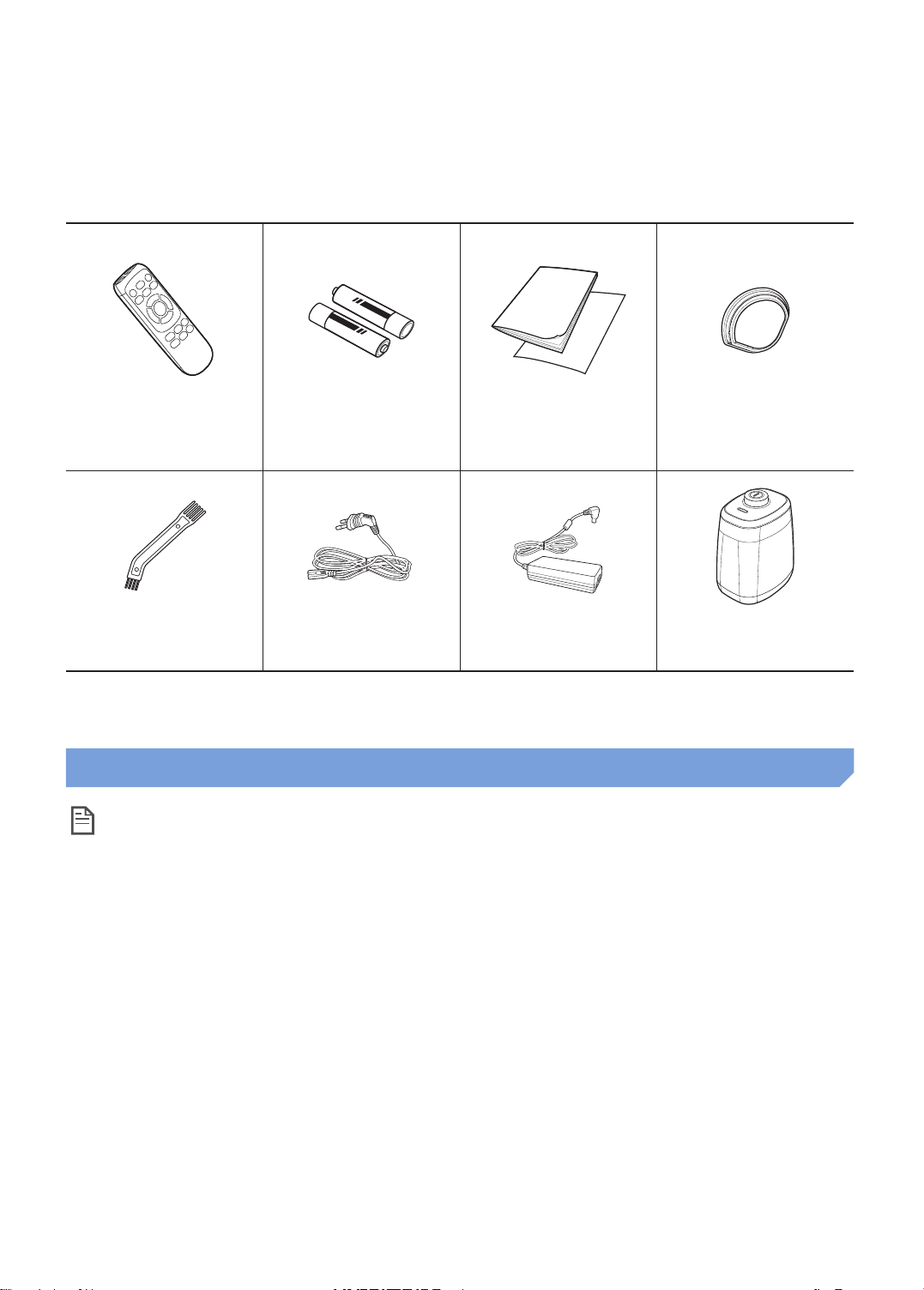
Accessories
Remote control Batteries (AAA type) User manual/Quick
guide
Cleaning brush Power cord Adapter Virtual guard
Spare filter
Installation note
Note
▶ Install charger in a place where the floor and wall are level.
▶ It is best to install the charger along the grain of wooden floors.
▶ If the emergency switch is off, POWERbot will not charge even if it is docked on the charger.
▶ Always turn on the power of the charger.
– If power is not supplied to the charger, POWERbot cannot find it and cannot automatically recharge.
– If POWERbot is left detached from the charger, the battery will drain naturally.
▶ If POWERbot is in energy-saving mode, power will not come on even if the emergency switch is
turned off and then on. Press and hold the [Start/Stop] button on POWERbot.
ENGLISH-09
Page 10
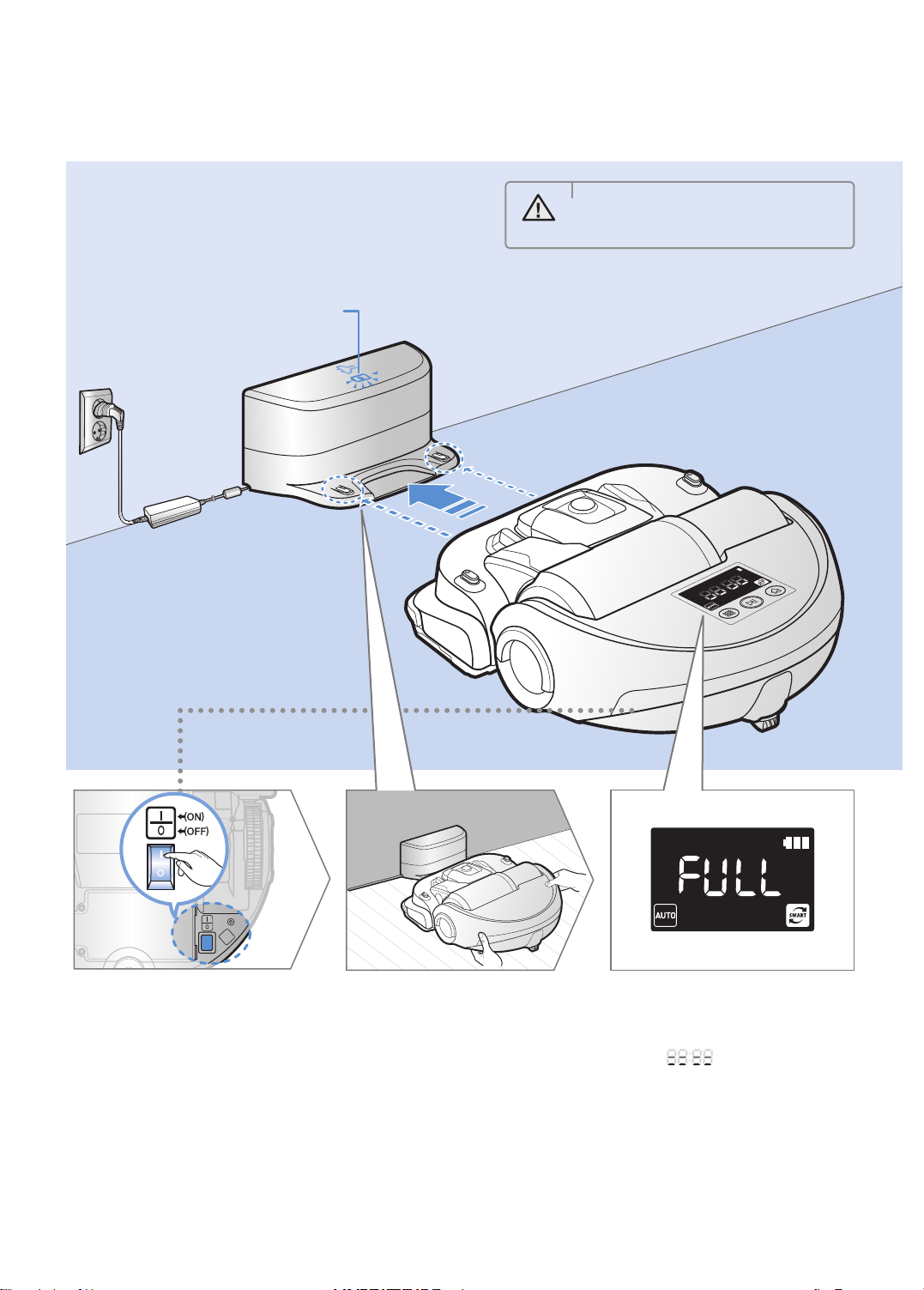
Charging
It takes approximately 160 minutes to
completely charge when charging for the
first time after purchase and can be used for
approximately 60 minutes.
Charging lamp during charging (green)
WARNING
• Rated input voltage of this product
is 100-240 V~.
Turn on the
emergency switch
1
on the bottom
You must turn on the
emergency switch to turn on
POWERbot.
Manually charge
POWERbot by
2
placing it on the
charger
Make sure charge pins of
POWERbot and the charger is
aligned.
ENGLISH-10
Check the
charging status
3
“ ” will turn on
according to charging
progress and "FULL" will
turn on when charging is
complete.
Page 11
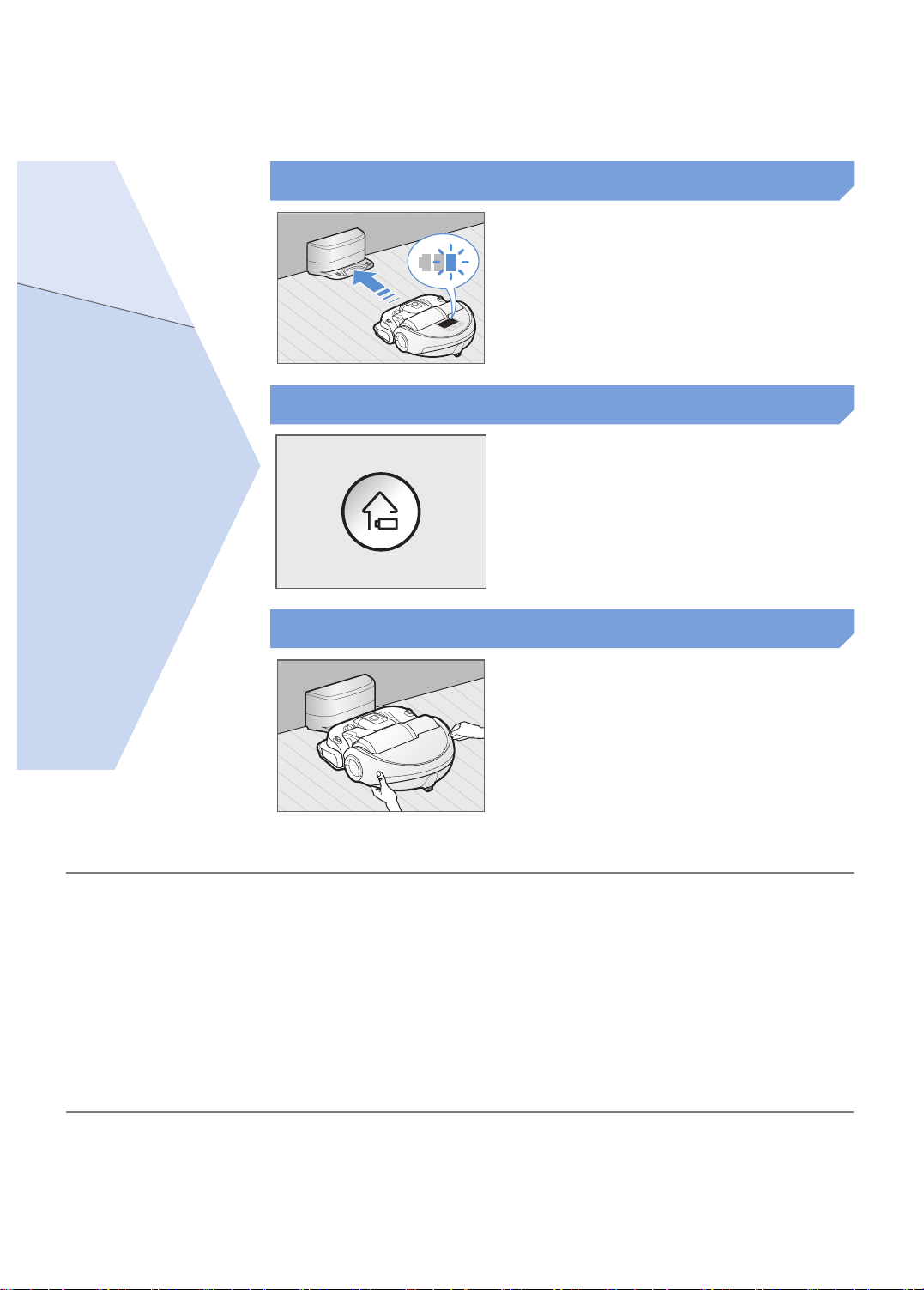
Automatic charging
When the battery indicator blinks
during cleaning, POWERbot will
return to the charger to charge itself
automatically.
Recharging
You may command POWERbot to
recharge at the charger while it is in
cleaning process.
Low battery (Lo)
Manually charge POWERbot by
placing it on the charger.
Steps to take if recharging is not being executed
Check the installation status of the
charger when:
▶charger is located in a place where POWERbot
cannot easily access
▶distance of the charger and POWERbot is over 5 m
apart
- It may take a long time for POWERbot to return to
the charger for recharging
ENGLISH-11
Manually charge POWERbot when:
▶charger is located in a corner
▶battery is fully exhausted
▶POWERbot is stuck by obstacles (furniture etc.)
▶POWERbot can't climb threshold near charger
(Height of the threshold that POWERbot can climb:
about 1.5 cm and below)
▶when battery indicator blinks and "Lo" is displayed
▶when POWERbot is set on Spot clean or Manual
clean mode
Page 12
Installing the Virtual guard
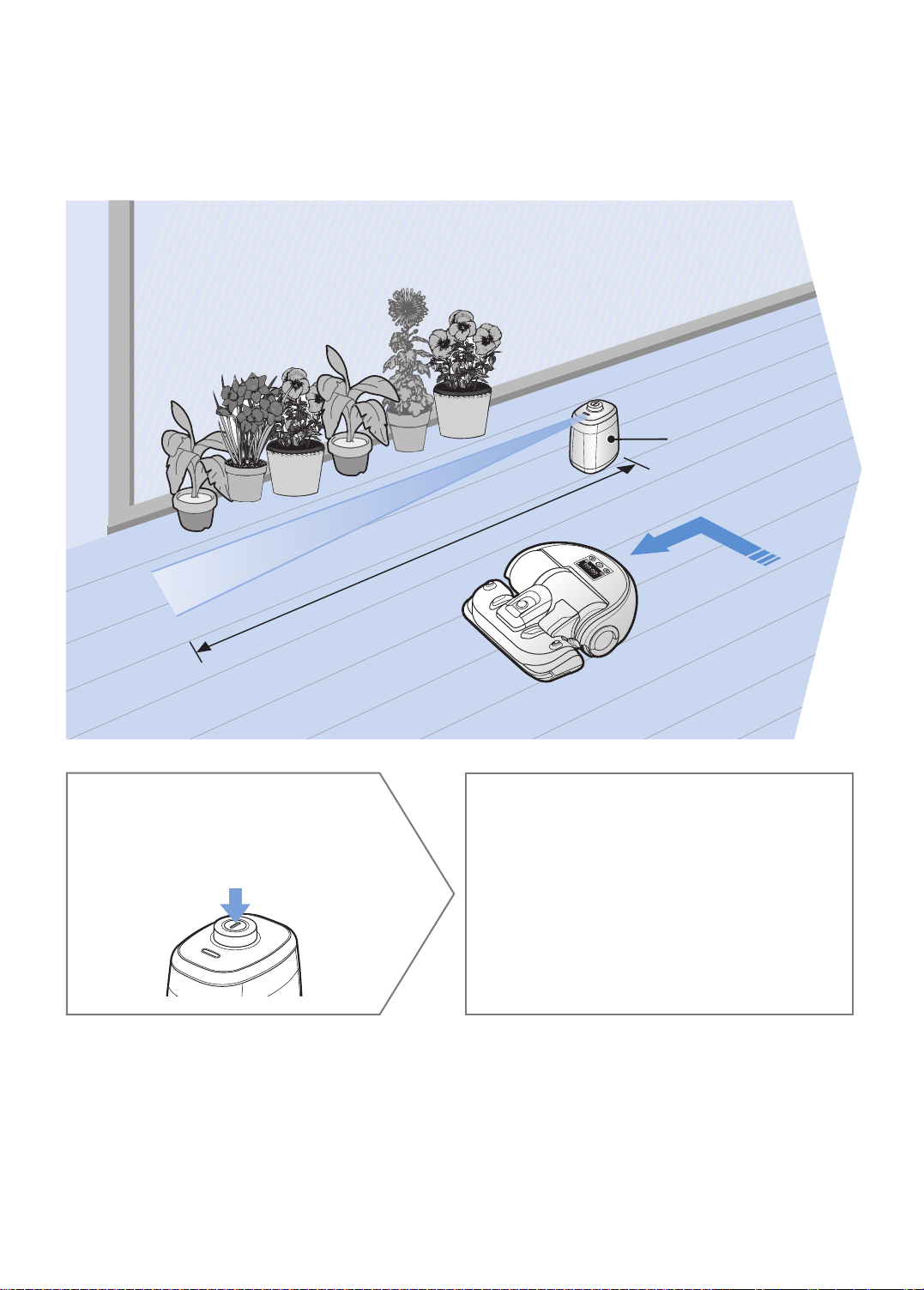
Infrared ray from the Virtual guard will restrict POWERbot from approaching certain
area.
The distance of virtual wall is 2.5 m at minimum and may differ
depending on surroundings and movement status of POWERbot.
Virtual guard
Press the Power
button to turn it on
1
Power lamp (Red) will blink.
Minimum 2.5 m
Install the Virtual guard
2
where you want to restrict
POWERbot's entrance
Make sure that distance sensor is facing
at the desired direction you want to
create a invisible barrier (which will restrict
POWERbot's approach).
ENGLISH-12
Page 13
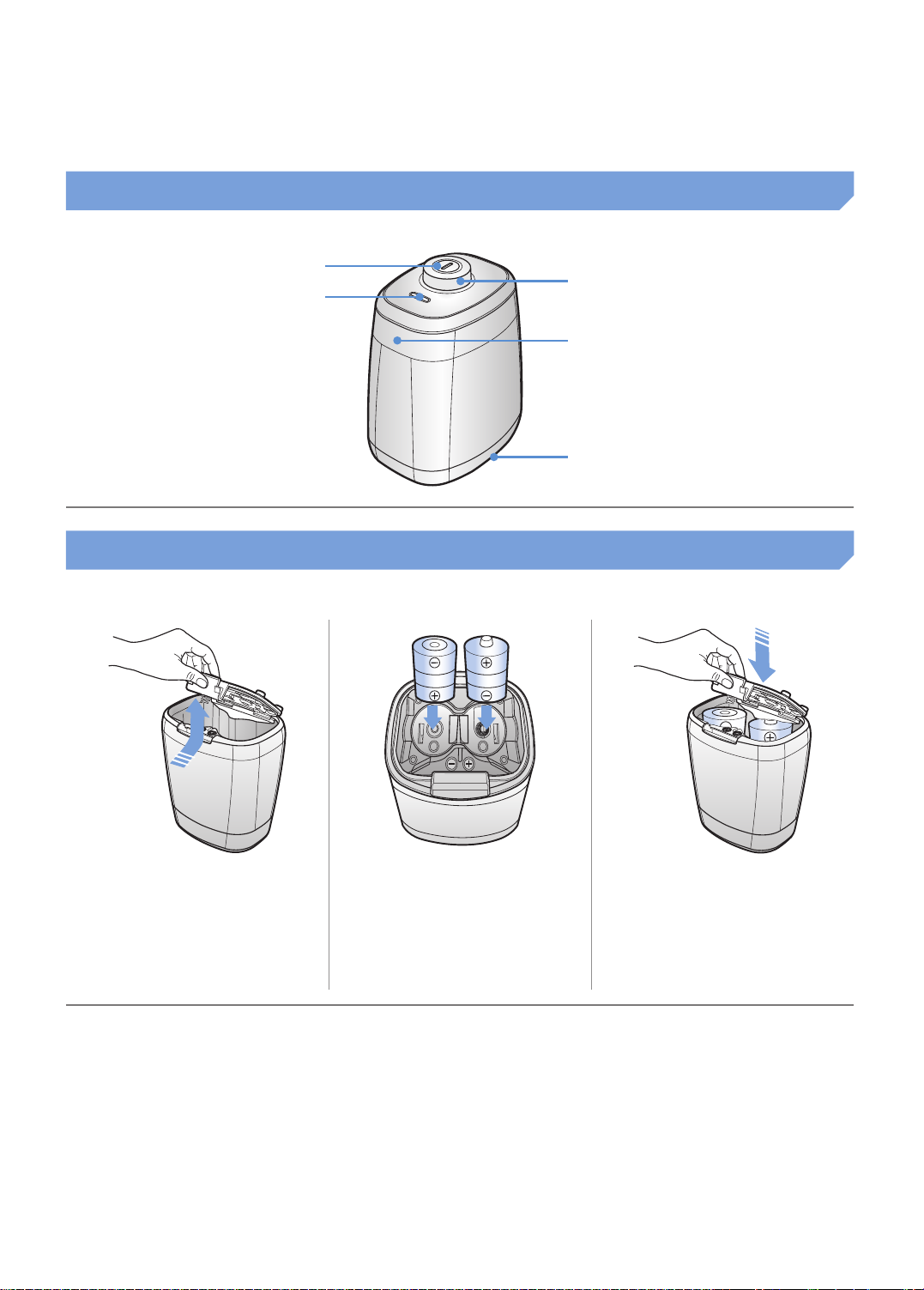
Part name of the Virtual guard
Power button
Power lamp
Power on: Red lamp blinks
Power off: Lamp is off
Inserting batteries
Batteries for Virtual guard must be purchased separately.
POWERbot detection sensor
Distance detection sensor
(Infrared ray sensor)
Battery cover
Open the battery cover
1
of the Virtual guard by
pressing the locking
tab and lift it up.
Specification: type D (LR20) batteries
2
Insert the alkaline
batteries (D type)
as shown in the
illustration (check the
+, - polarity).
ENGLISH-13
Insert the tip of the
3
cover into the slot and
push the other end to
close the battery cover.
Page 14
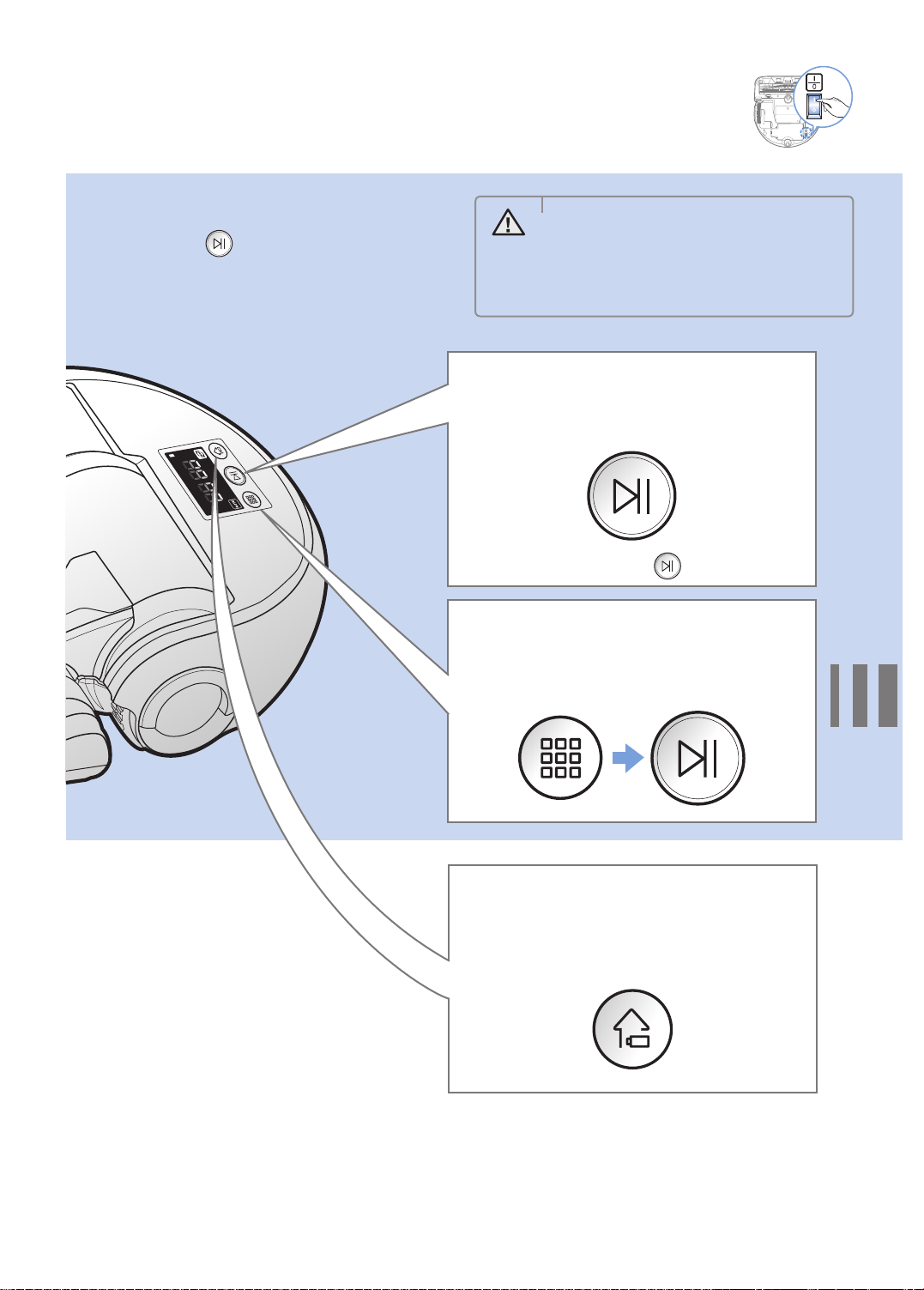
Using POWERbot
You must turn on the emergency switch before using POWERbot.
Turning the power on/off
Press the button for more than
3 seconds
• When POWERbot is not used for
WARNING
30 minutes, power will turn off
automatically.
- You can turn on the power only by
using the buttons on POWERbot.
Using Auto clean mode
The POWERbot moves and cleans
automatically until it cleans entire space once.
Stop cleaning: Press the button shortly
Using the cleaning
modes
You can select the desired cleaning mode.
Recharging
You may command POWERbot to recharge at
the charger automatically while it is in cleaning
process.
ENGLISH-14
Page 15
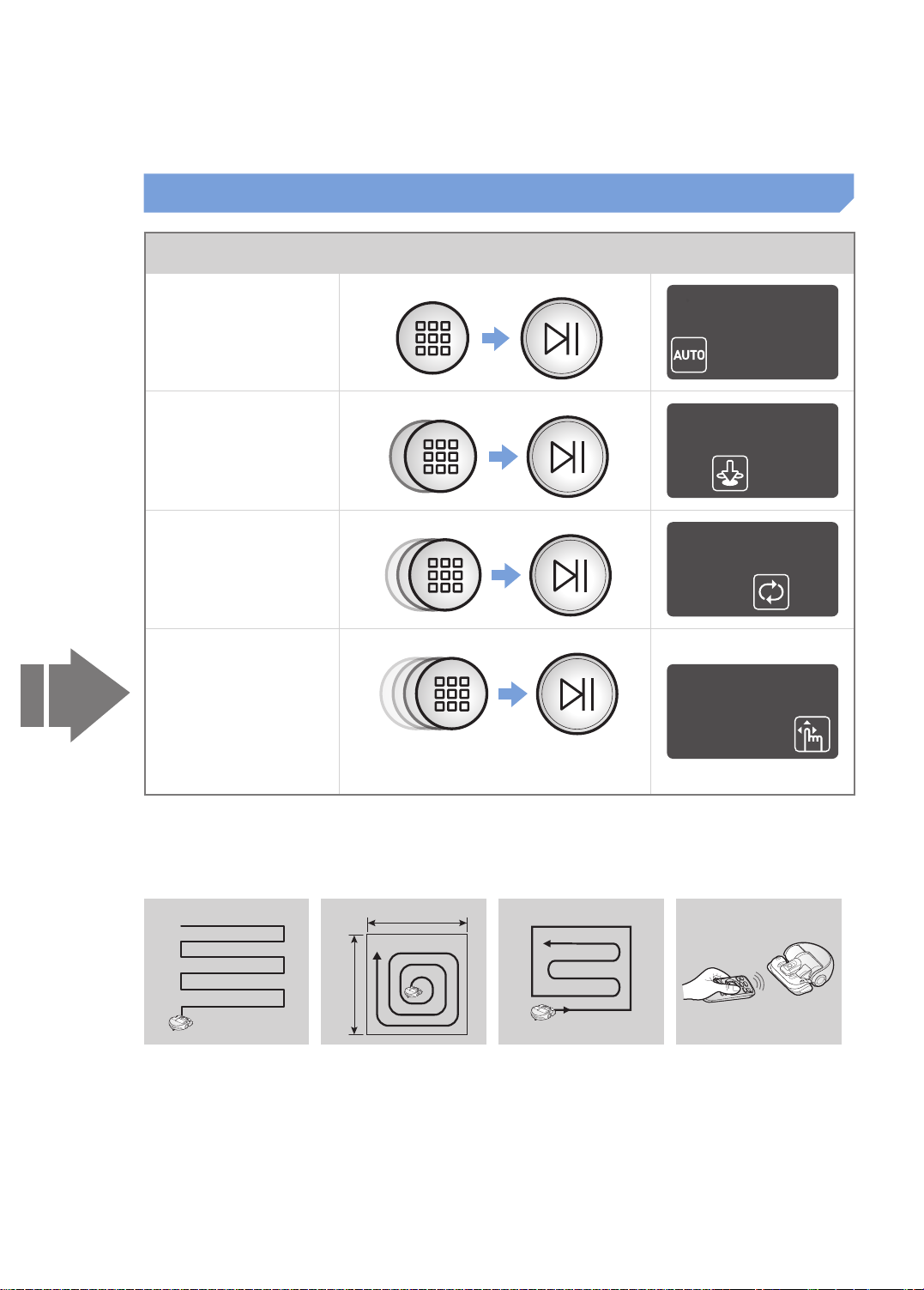
Selecting cleaning mode
Cleaning mode How to select Displayed icon
Press once
Auto clean
Press twice
Spot clean
Press 3 times
Max clean
Press 4 times
Manual clean
Direction control can be done only
by the remote control.
When POWERbot is being charged, you can only select the Auto clean or Max clean mode.
Cleaning method for each modes
About 1.5 m
About 1.5 m
Auto clean
Cleans automatically
until entire space is
cleaned once.
Spot clean
Cleans a localized area
intensely. It can be
used to clean bread or
cookie crumbs.
Max clean
Cleans until the battery
is depleted.
Manual clean
You can move
POWERbot with the
remote control to clean
the desired spot.
ENGLISH-15
Page 16
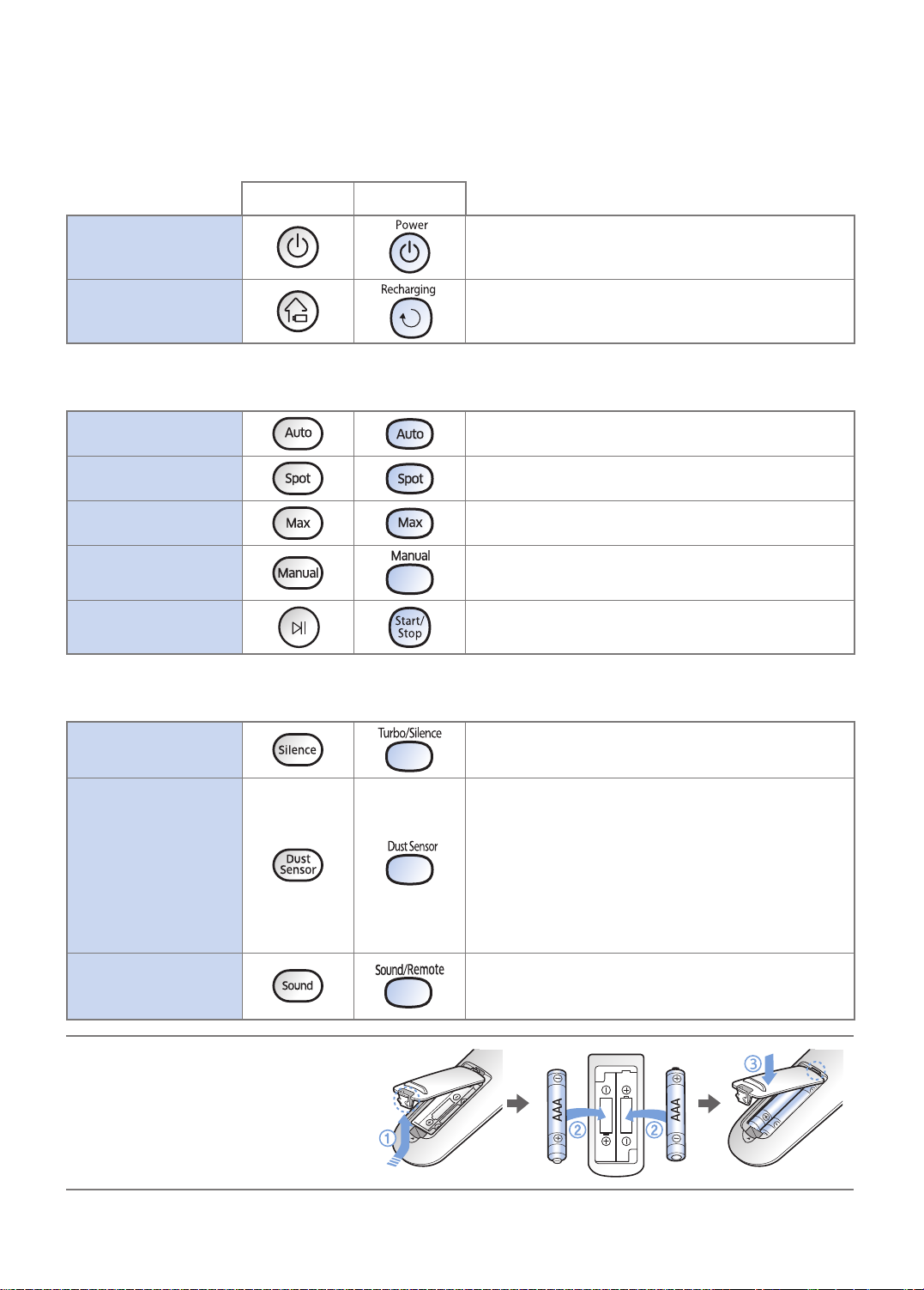
Using the remote control
1 Power/Recharging
[A Type] [B Type]
Power
Recharging
2 Cleaning mode
Auto clean
Spot clean
Max clean
Manual clean
Start/Stop
3 Additional function
Silence mode
Dust sensor
mode
Sound
Turn POWERbot's power on/off
Select to recharge POWERbot at the charger while it
is in cleaning process
Select to automatically clean the entire space once
Select to clean a localized area intensely
Select to make POWERbot to clean until battery
indicator flashes after reaching down to one level
Select to manually control and clean by using the
remote control
Select to start or stop cleaning process
Select to clean with lower operation noise
Turbo mode is not available
In Auto clean mode
▶When dust intake is detected, suction of
POWERbot will become stronger and it will move
around that area to focuses on cleaning the
surrounding area.
In Spot/Max/Manual clean
▶When dust intake is detected, suction of
POWERbot will become stronger.
Each time you press this button, Sound Effects
Mute is selected in this sequence.
Remote control function NOT supported.
Inserting batteries
Open the battery cover by lifting it up
while pressing the locking tab and
insert the batteries as shown in the
illustration. Then, close the cover until
it clicks into place.
ENGLISH-16
Page 17
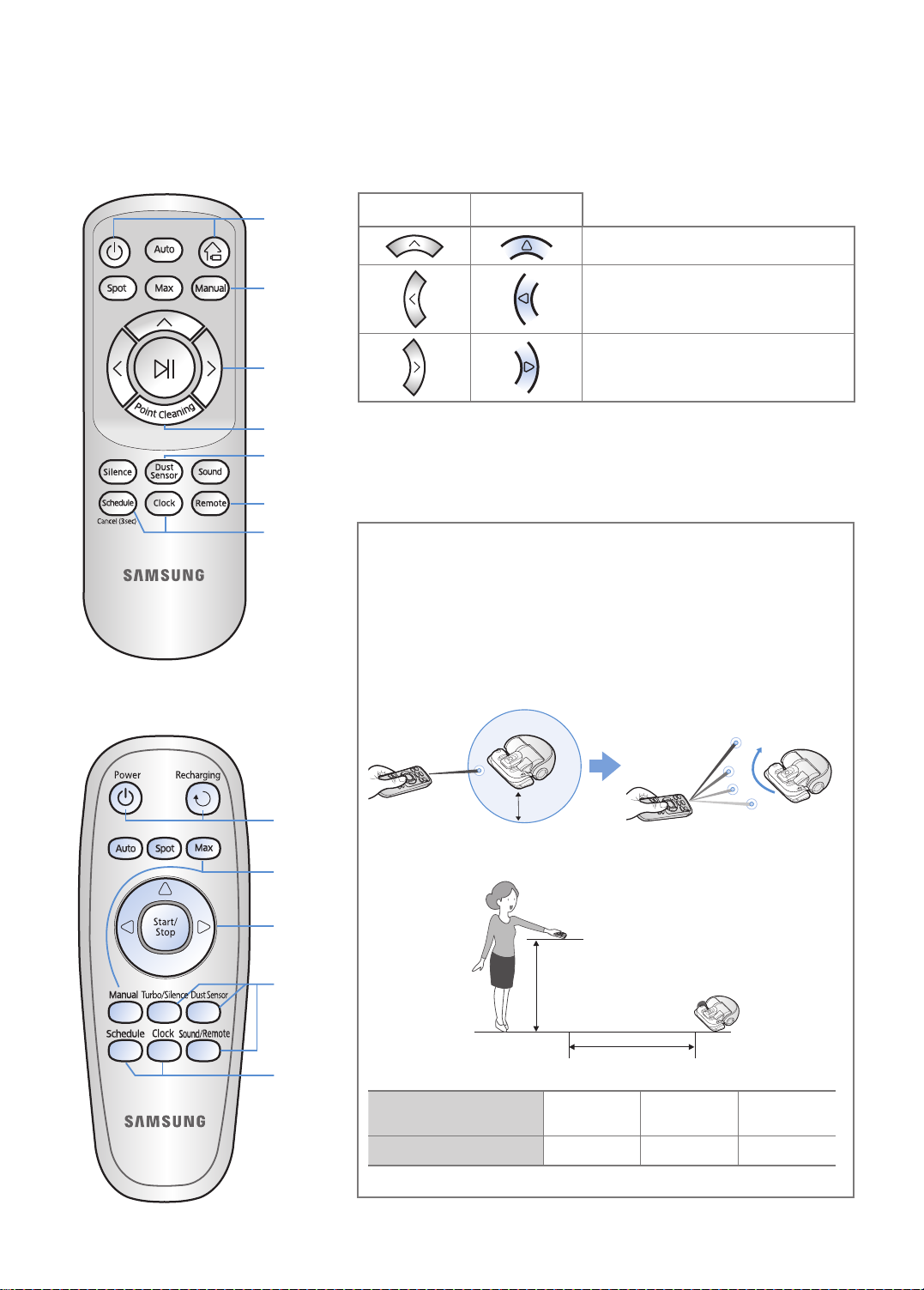
[A Type]
4 Direction control
[B Type]
1
2
4
5
3
N/A
Refer to
page 19
[A Type] [B Type]
Select to move forward
Select to turn left
Select to turn right
Moving backward is not available
5 Point cleaning
- Only available in A type remote controll
You can use the remote control to point and clean
the desired spot while POWERbot is in cleaning
process.
Point the red light on the floor within 50 cm around
POWERbot's location.
Press and hold the Point cleaning button to move the red light to
the desired spot. The POWERbot will follow the light while cleaning.
1
2
4
3
Refer to
page 19
50 cm
Operating distance of the remote control
Height of the remote
control
Operating distance About 1.5 m About 2 m About 3 m
Height of the remote
control
Operating distance
0.5 m 1 m 1.5 m
ENGLISH-17
Page 18
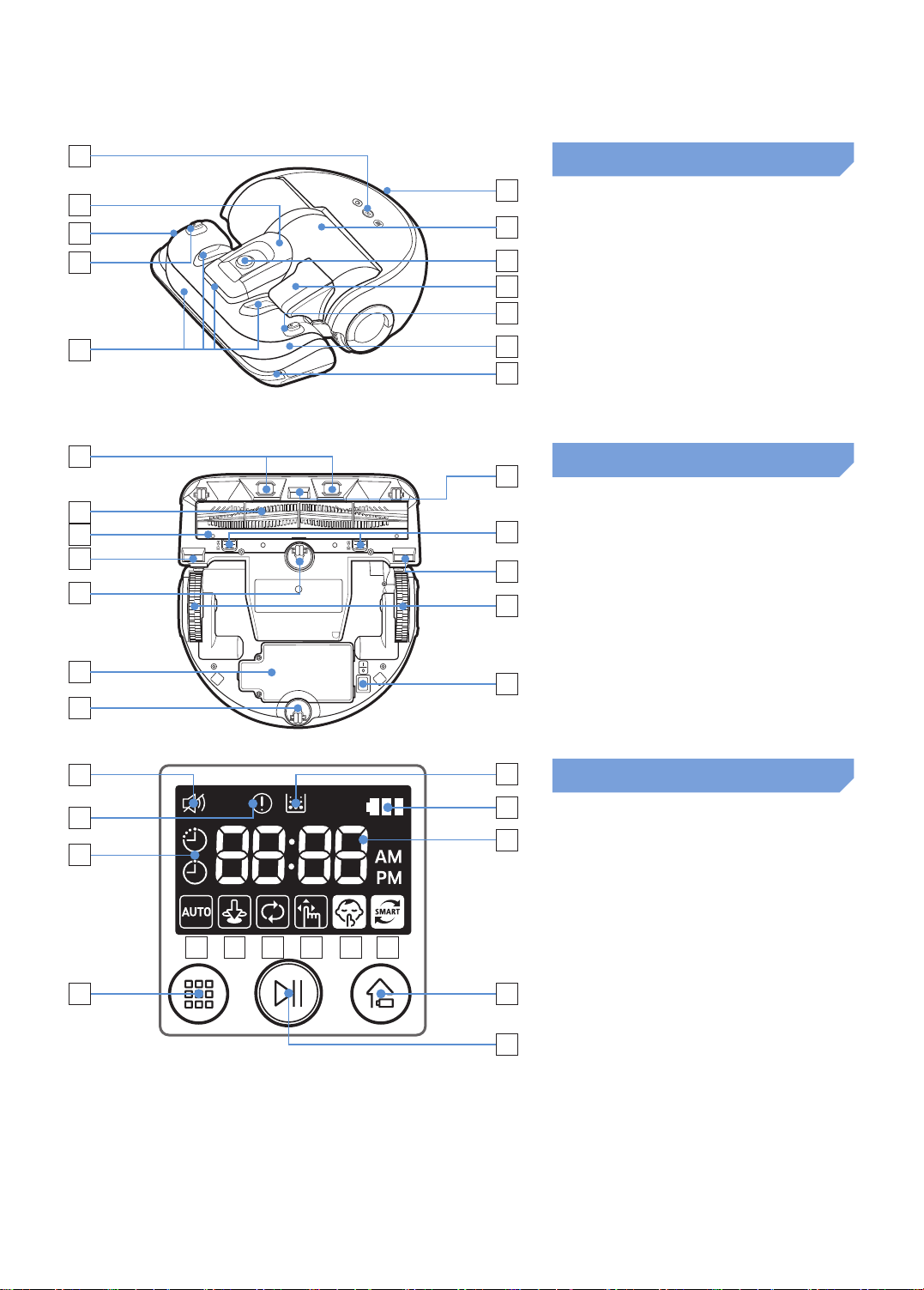
Name of each part
1
2
3
4
5
1
2
3
4
5
3
6
7
8
4
3
9
4
7
4
8
Top
1. Display panel
2. Dustbin holder
3. Remote control signal receiver
4. Virtual guard sensor
5. Obstacle sensor
6. Dustbin
7. Camera
8. Dustbin handle
9. Bumper sensor
Bottom
1. Charge pins
2. Power brush
3. Power brush cover
4. Cliff sensor
5. Roller
6. Battery cover
7. Power brush cover button
6
5
8. Driving wheel
9
9. Emergency switch
13
1
2
3
4
5
6
Display panel
1. Mute
2. Error indicator (Refer to page 24)
3. One-time/Daily schedule
4. Filter inspection
5. Battery indicator
6. Number display
11 127 1098
7. Auto clean
8. Spot clean
14
9. Max clean
10. Manual clean
15
11. Silence mode
12. Dust sensor mode
13. Cleaning mode button
14. Recharging button
15. Start/Stop button
ENGLISH-18
Page 19
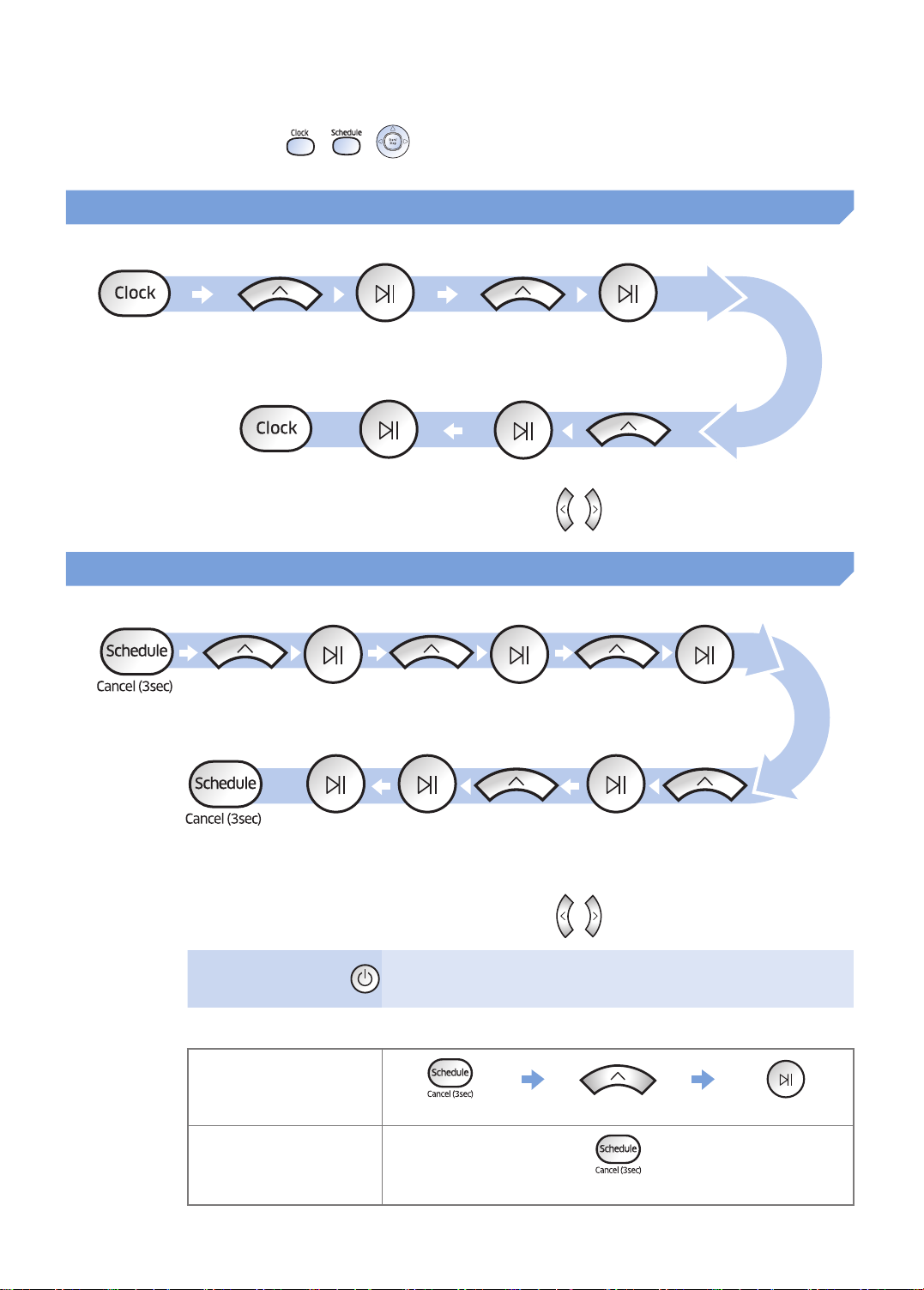
Setting time/schedule
B type remote control's , , buttons works in same manner as A type remote
control.
Setting the time
You must set the current time before using the One-time/daily schedule.
Start setting Select "Hour" Select "Minute"
or
Select "AM/PM"Setting complete
Skip to previous, next setting
Setting the schedule
Setting/cancelling the schedule can only be done while POWERbot is docked on the charger.
Start setting Select "One-time" or
"Daily" schedule
or
Setting complete
Only Auto clean/Max clean
Cancelling
during setup
Select "Hour" Select "Minute"
Select "AM/PM"Select cleaning mode
can be selected
Skip to previous, next setting
▶Setting will be canceled automatically when there's no input
for 1 minute.
Cancelling One-time/Daily schedule
When both One-time/
Daily schedule is set
Press for 3 sec. Select the schedule Cancel complete
When either one of
One-time or Daily
schedule is set
Press for 3 sec.
ENGLISH-19
Page 20
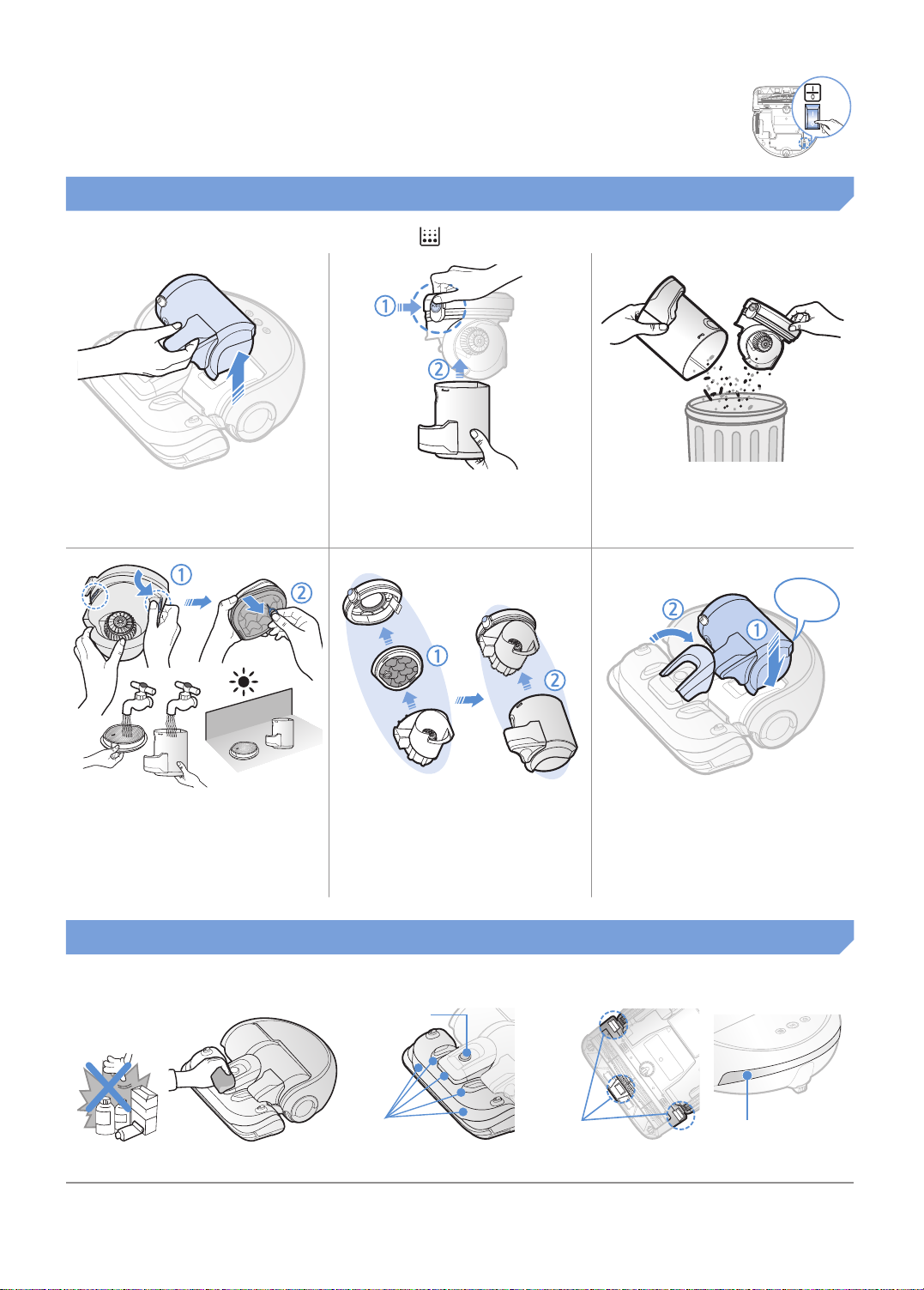
Cleaning and maintaining
You must turn off the emergency switch before cleaning POWERbot.
Cleaning the dustbin
Clean the dustbin when filter inspection indicator ( ) turns on or if there's too much dust in the dustbin.
Remove the dustbin
1
Detach the cyclone unit
4
from the dustbin cover
then wash the dustbin
and the filter
Remove the dustbin
2
cover
Reassemble the
5
dustbin
Cleaning the sensors and the camera
Remove dust in the
3
dustbin and cyclone
unit
"Click"
Reinsert the dustbin
6
into the main body until
it clicks
Lightly wipe with soft cloth.
Camera
Front sensor
window
ENGLISH-20
Cliff sensors
Rear sensor
window
Page 21
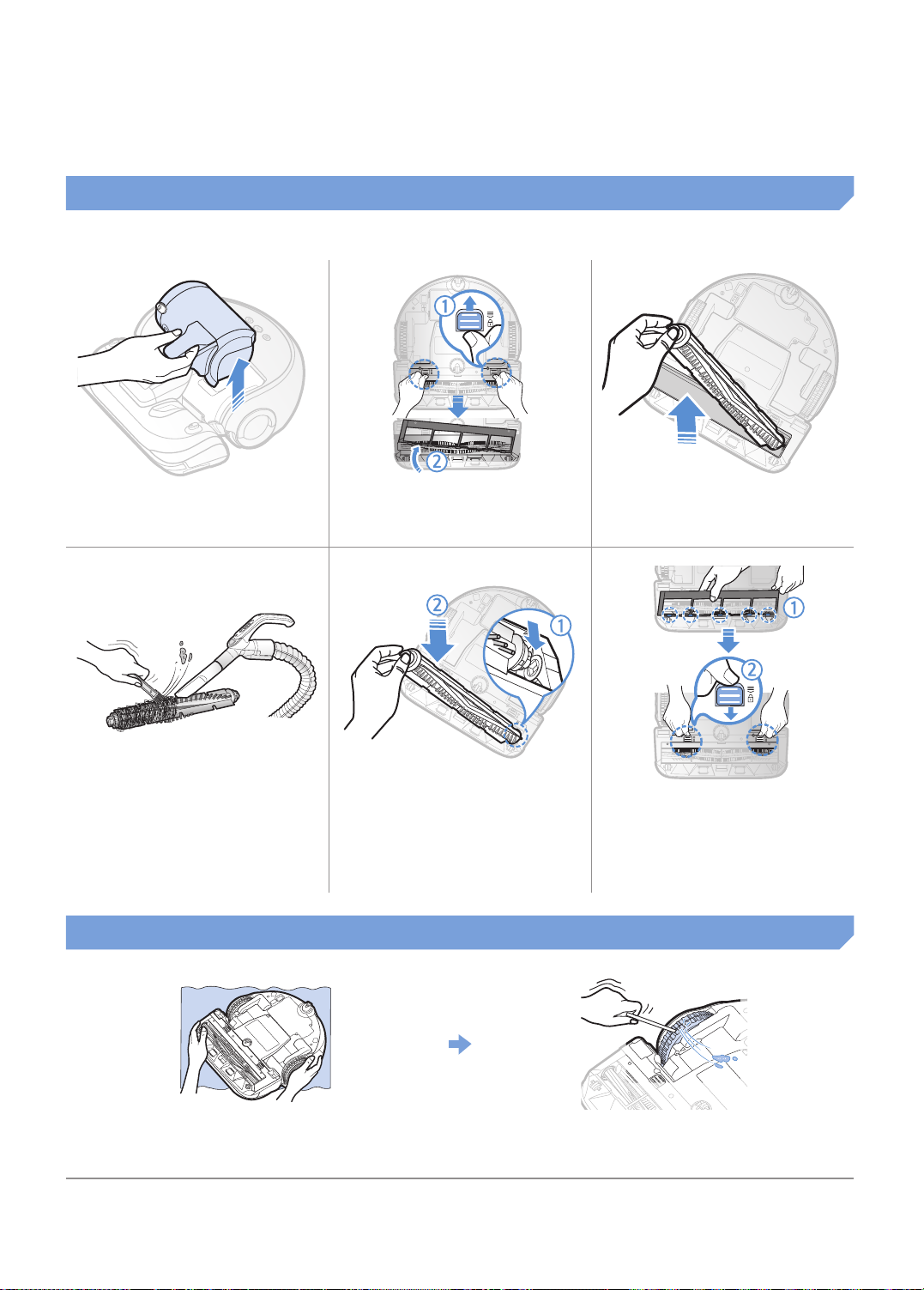
Cleaning the Power brush
ON
OFF
Remove the dustbin
1
Clean the Power brush
4
Remove the Power
2
brush cover
Reassemble the Power
5
brush
Cleaning the Driving wheel
Remove the Power
3
brush
OFF
ON
Reassemble the Power
6
brush cover
Put a soft cloth on the floor and place
1
POWERbot upside-down.
ENGLISH-21
Use a blunt rod or tweezers to remove the
2
foreign matters.
Page 22
Notes and cautions
Charging
Note
▶ If the battery overheats during charging, it
may take longer to charge.
▶ When automatic charging is not working,
please check the followings.
– Turn the emergency switch (on the bottom of
POWERbot) off and on again.
– Unplug the charger's power plug and then plug
it back on.
– Check whether there is any foreign matter in
the charge pins and clean POWERbot and the
charge pins of the charger with a dry cloth or
rag.
– Check for any obstacles such as reflective
objects, chairs, etc. near the charger.
▶ If POWERbot is left detached from the
charger, the battery will drain naturally.
– Try to keep POWERbot being charged on the
charger. (Turn off the emergency switch and
leave the charger unplugged when planning
to leave the house for long periods of time by
going on a business trip or vacation, etc., )
▶ The POWERbot cannot vacuum clumps of
dirt, so some may remain on the floor after
cleaning.
– Please use another cleaning tool to clean them
regularly.
▶ If POWERbot is turned off, power cannot be
turned on by the [Power] button of the remote
control. Press and hold the [Start/Stop]
button on POWERbot.
▶ If the battery becomes low during Auto/
Max clean mode, POWERbot will recharge
and finish cleaning the remaining area after
recharging. (Repeat cleaning frequency:
1 time)
▶ You cannot select and execute Max/Manual
clean mode while charging.
▶ Do not unnecessarily move POWERbot or
press buttons while it is in Auto/Max clean
mode. It assumes that cleaning is complete
and starts cleaning again from the beginning.
Cleaning and maintenance
In use
Note
▶ The POWERbot may get caught on
thresholds, etc. during cleaning.
– To restart operation, shut off the emergency
switch, move POWERbot to an area where it
can move easily and then turn on the power
again.
▶ The POWERbot cannot completely clean
areas it cannot enter, such as corners,
between the wall and sofa, etc.
– Please use another cleaning tool to clean them
regularly.
Note
▶ If you washed the dustbin and filter with water
– Dustbin: Completely wipe out the water.
– Filter: Completely dry it in a shade before use.
Caution
▶ Watch your finger when attaching or
detaching the filter, since they may get stuck
in the dustbin's intake.
▶ To avoid blockages by foreign matter, do not
let toothpicks, cotton swabs etc. from being
vacuumed by POWERbot.
▶ If it is difficult to remove foreign matters from
the Power brush, contact a service center.
ENGLISH-22
Page 23

▶ Since the power brush removes dirt from the
floor during cleaning, foreign matters such as
thread, long hair, etc. may get caught in it.
Therefore check and clean it regularly.
▶ When controlling POWERbot with the remote
control, POWERbot may cross the invisible
barrier set by the Virtual guard and enter the
area you don't want it to enter, since remote
control's signal has a higher priority.
About battery
Note
▶ Purchase batteries at service centers and
check the genuine part symbol ( ) and
model name before purchasing.
▶ This battery is exclusive for Samsung
Electronics POWERbot; do not use it for any
other product.
▶ Do not disassemble or modify it.
▶ Do not throw the battery out in fire or heat it
up.
▶ Do not connect any metallic object to the
charging contacts (+, -).
▶ Store it in indoor (at 0 °C~40 °C).
▶ If the battery malfunctions, do not
disassemble it yourself; contact your nearest
service center.
▶ Different infrared signals may interfere with
one another and cause malfunction to the
devices if they are used together in a small
space or in a close distance.
▶ Install the Virtual guard away from the charger
as auto charging may be interrupted if the
Virtual guard is near the charger.
▶ If more than one POWERbots are used
simultaneously, they may malfunction due to
interference of the infrared signals.
▶ Battery charging time and usage time may
decrease the more the battery is used. If the
battery’s lifespan has been exceeded, have it
replaced at a service center.
About the IrDA sensor
Caution
▶ The infrared signal transmission may not
be smooth in locations exposed to halogen
lamps or in outdoor locations.
▶ The POWERbot uses 3 types of infrared
devices and a device may not work in front of
another device with a higher priority.
– Infrared signal Priority: Remote control > Virtual
guard > Charger
ENGLISH-23
Page 24
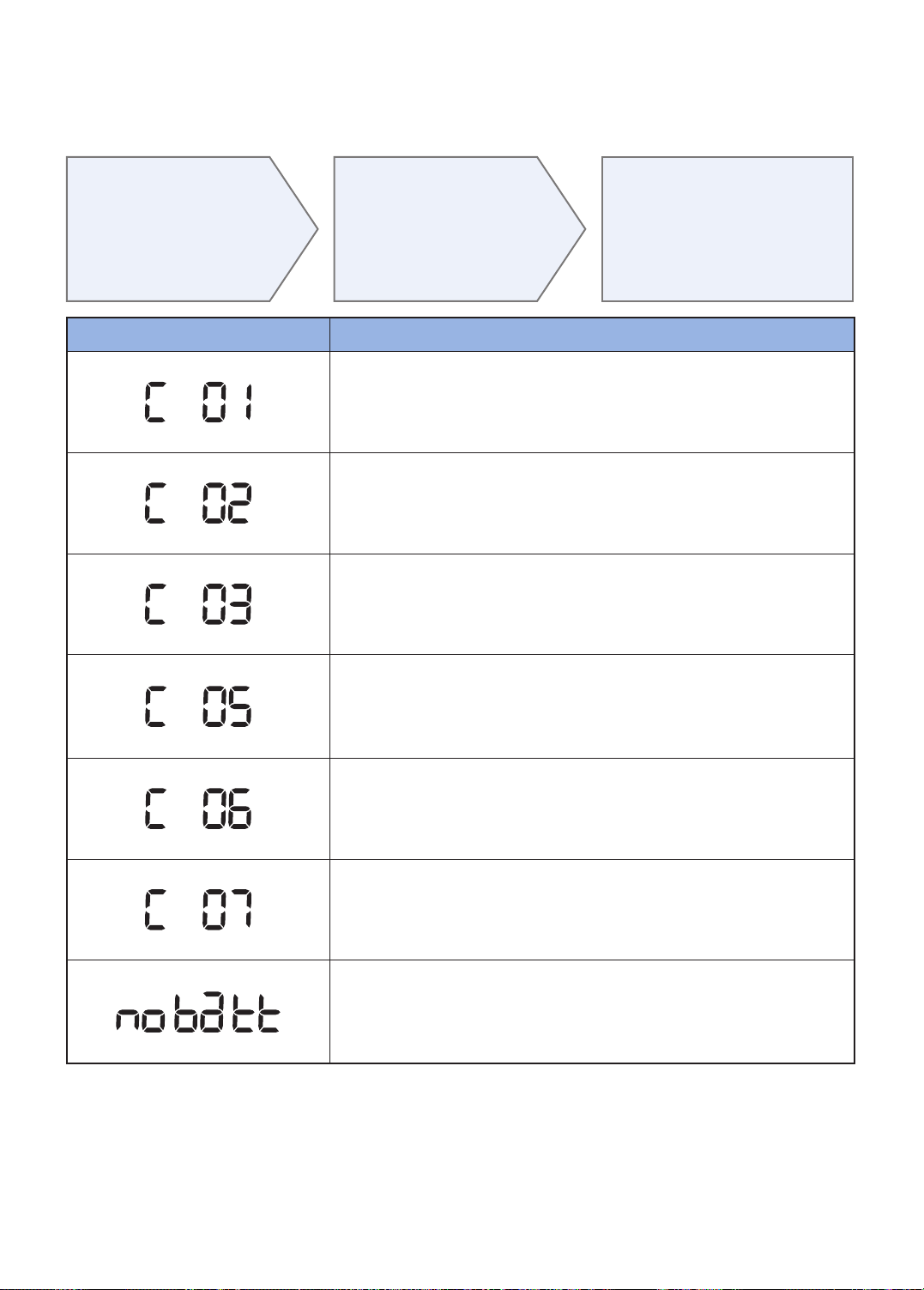
Error codes
Below error codes
1
appear on the
display panel
Error codes Checklist
Turn off the
2
emergency switch
and check the below
instructions and take
appropriate action
Foreign matter caught in the Power brush.
▶Turn off the emergency switch and remove the foreign matter from the
Power brush.
Foreign matter caught in the left Driving wheel.
▶Turn off the emergency switch and remove the foreign matter from the
Driving wheel.
Foreign matter caught in the right Driving wheel.
▶Turn off the emergency switch and remove the foreign matter from the
Driving wheel.
Error code will
3
disappear when
you turn on the
emergency switch
Bumper sensor needs to be checked.
▶Turn off the emergency switch and turn it back on.
▶Contact a service center if error code does not disappear.
Foreign matter accumulated on the obstacle sensor.
▶Turn off the emergency switch and clean the front and rear sensor
with a soft cloth.
Foreign matter accumulated on the cliff sensor.
▶Turn off the emergency switch and clean the cliff sensor with a soft
cloth.
Battery malfunction or wire disconnected.
▶Turn off the emergency switch and turn it back on.
▶Contact a service center if error code does not disappear.
ENGLISH-24
Page 25

Troubleshooting
Symptom Checklist
▶Check if the emergency switch is on.
The POWERbot is not
working at all.
The POWERbot
is stopped during
cleaning process.
Suction power is weak.
▶Check if all the icons are displayed on display panel.
▶Check if the battery of POWERbot is depleted.
- When "Lo" is displayed, carry POWERbot to the charger to charge it.
▶Replace the batteries (AAA type) when the remote controller is not working.
▶When "Lo" is displayed on the display panel, carry POWERbot to the charger to
charge it.
▶When POWERbot is stuck by the obstacles such as cord, threshold etc, pick it
up to remove it from the obstacle.
- If any fabrics or strings are caught in the drive wheel, turn off the emergency
switch and remove the fabrics or strings before using it again.
▶If the "Filter inspection indicator" is on, turn off the emergency switch and clean
the dustbin.
▶When there's too much dust in the dustbin, suction power may get weakened.
Turn off the emergency switch and empty the dustbin.
▶If the intake (on bottom of POWERbot) is blocked by foreign matters, turn off
the emergency switch and remove foreign matter from the intake.
▶When noise suddenly increase, turn off the emergency switch and empty the
dustbin.
The POWERbot cannot
find the charger.
The POWERbot
suddenly cleans
diagonally.
Point cleaning is not
working.
"Filter inspection
indicator" is on even
after the dustbin has
been emptied.
The POWERbot passes
through the Virtual
guard.
The battery usage time
of the Virtual guard is
too short.
▶Check if there's power failure or whether the power plug is unplugged.
▶Remove any obstacles around the charger that may disturb POWERbot from
returning to the charger.
▶When there's foreign matters on the charge pins that affects charging, clean the
foreign matter.
▶Check if the charger is installed along the grain of wooden floors or tiles.
▶It may clean in diagonal direction for moving to another area in shortest route,
or it made contact with any obstacles in that angle, or if it was charged at the
charged at an angle, or grain of the wooden/tile floor is in that direction.
▶If you point the red light directly on POWERbot, it may not move to desired
direction.
- Point the red light on the floor within 50 cm around POWERbot.
Do not use the point cleaning under direct sunlight, bright light or on dark floors.
▶Use POWERbot after turning off the emergency switch and then turning it back
on.
▶Empty the dustbin again and re-clean the filter thoroughly.
▶If the batteries are depleted, replace them. (2 type D (LR20) batteries)
▶If the lamp is off, check if the Virtual guard is turned off and turn it on.
▶Check if you're using manganese drycell batteries and replace the batteries with
new ones. (2 type D (LR20) batteries)
ENGLISH-25
Page 26
Open Source Announcement
The software included in this product contains open source software. You may obtain the complete
corresponding source code for a period of three years after the last shipment of this product by sending an email
to mailto:[email protected].
It is also possible to obtain the complete corresponding source code in a physical medium such as a CD-ROM;
a minimal charge will be required.
The following URL http://opensource.samsung.com/opensource/VR9000H/seq/0 leads to the download page
of the source code made available and open source license information as related to this product. This offer is
valid to anyone in receipt of this information.
ENGLISH-26
Page 27
Specifications
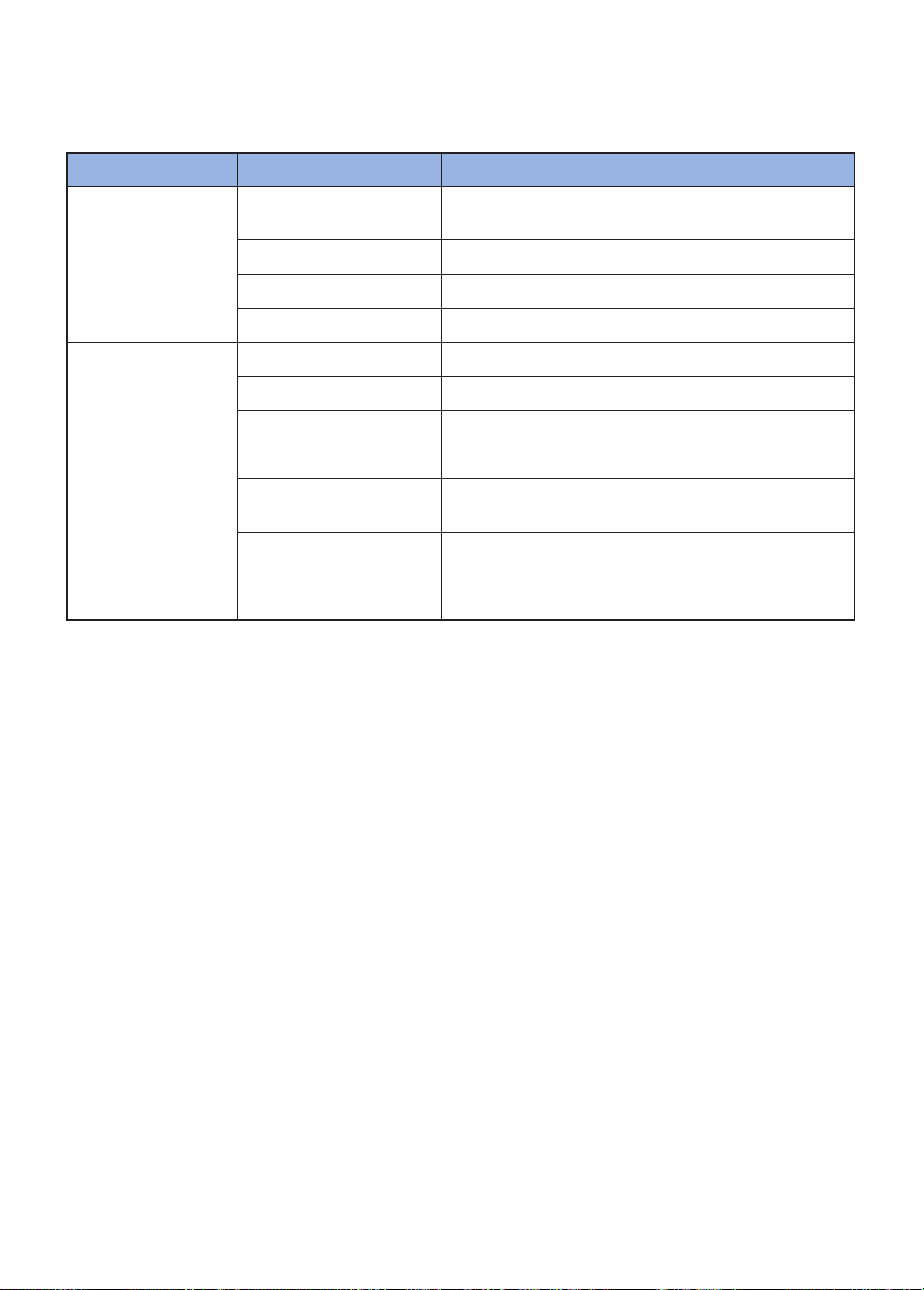
Classification Item Detail information
Size
(Width x Height x Depth)
Mechanical
specifications
(POWERbot)
Button type of POWERbot Touch type
Power
specifications
Cleaning
Charging and cleaning times may differ according to conditions of use.
This Vacuum cleaner is approved the following.
- Electromagnetic Compatibility Directive : 2004/108/EEC
- Low Voltage Directive : 2006/95/EC
Weight 4.8 kg
Sensor Ceiling shape recognition (Visionary mapping plus TM)
Power voltage 100-240 V~, 50 Hz/60 Hz
Power consumption 70 W
Battery specifications Lithium ion 21.6 V/ 84 Wh
Charging type Automatic charging/Manual charging
Cleaning mode
Charging time Approximately 160 minutes
Cleaning time
Auto, Spot, Max, Manual, One-time schedule, Daily
378 mm x 135 mm x 362 mm
Approximately 60 minutes
(Normal mode/ On the basis of hard floor)
schedule
ENGLISH-27
Page 28
DJ68-00716E-00
 Loading...