

Page 1

User Guide
www.sprint.com
©2009 Sprint. SPRINT and the logo are trademarks of Sprint. Other
marks are the property of their respective owners.
10/6/09
I350.book Page a Tuesday, October 6, 2009 6:42 PM
Page 2
I350_UG_CI02_PS_100609_F4
Consejo
Para encontrar esta guía para usuarios en español, por favor
visita
www.sprint.com y haz clic en Support > Phones &
Devices
.
To find this user guide in Spanish, please visit www.sprint.com
and click
Support > Phones & Devices.
Important
Important Privacy Message – Sprint’s policies often do not
apply to third-party applications. Third-party applications may
access your personal information or require Sprint to disclose
your customer information to the third-party application
provider. To find out how a third-party application will collect,
access, use, or disclose your personal information, check the
application provider’s policies, which can usually be found on
their website. If you aren’t comfortable with the third-party
application’s policies, don’t use the application.
I350.book Page b Tuesday, October 6, 2009 6:42 PM
Page 3
Table of Contents
Introduction . . . . . . . . . . . . . . . . . . . . . . . . . . . . . . . i
Your Device’s Menu . . . . . . . . . . . . . . . . . . . . . . . . i
Section 1: Getting Started . . . . . . . . . . . . . . . . . 1
1A. Setting Up Service . . . . . . . . . . . . . . . . . . . . 2
Setting Up Your Device . . . . . . . . . . . . . . . . . . . . . . 2
Activating Your Device . . . . . . . . . . . . . . . . . . . . . . 6
Setting Up Your Voicemail . . . . . . . . . . . . . . . . . . . 7
Sprint Account Passwords . . . . . . . . . . . . . . . . . . . 8
Getting Help . . . . . . . . . . . . . . . . . . . . . . . . . . . . . . . 9
Section 2: Your Device . . . . . . . . . . . . . . . . . . . 11
2A. Device Basics . . . . . . . . . . . . . . . . . . . . . . . 12
Your Device . . . . . . . . . . . . . . . . . . . . . . . . . . . . . . . 12
Viewing the Display Screen . . . . . . . . . . . . . . . . . 17
Turning Your Device On and Off . . . . . . . . . . . . . 19
Battery and Charger . . . . . . . . . . . . . . . . . . . . . . . 20
Navigating Through the Menus . . . . . . . . . . . . . . 23
Displaying Your Phone Number . . . . . . . . . . . . . 25
Making and Answering Calls . . . . . . . . . . . . . . . 26
Entering Text . . . . . . . . . . . . . . . . . . . . . . . . . . . . . . 35
2B. Settings . . . . . . . . . . . . . . . . . . . . . . . . . . . . . 39
Personalizing Your Device . . . . . . . . . . . . . . . . . . 39
Sound Settings . . . . . . . . . . . . . . . . . . . . . . . . . . . 41
Display Settings . . . . . . . . . . . . . . . . . . . . . . . . . . . 46
Location Settings . . . . . . . . . . . . . . . . . . . . . . . . . . 48
Messaging Settings . . . . . . . . . . . . . . . . . . . . . . . 49
Airplane Mode . . . . . . . . . . . . . . . . . . . . . . . . . . . . 51
TTY Use With Sprint Service . . . . . . . . . . . . . . . . 52
Device Setup Options . . . . . . . . . . . . . . . . . . . . . 53
Security Settings . . . . . . . . . . . . . . . . . . . . . . . . . . 56
2C. History . . . . . . . . . . . . . . . . . . . . . . . . . . . . . . 62
Viewing History . . . . . . . . . . . . . . . . . . . . . . . . . . . 62
History Options . . . . . . . . . . . . . . . . . . . . . . . . . . . 63
Making a Call From History . . . . . . . . . . . . . . . . . 64
Saving a Number From History . . . . . . . . . . . . . 65
Erasing History . . . . . . . . . . . . . . . . . . . . . . . . . . . . 65
2D. Contacts . . . . . . . . . . . . . . . . . . . . . . . . . . . . 66
Adding a New Contacts Entry . . . . . . . . . . . . . . 66
Saving a Phone Number . . . . . . . . . . . . . . . . . . . 67
Contacts Entry Options . . . . . . . . . . . . . . . . . . . . 67
Tip
Looking for something? If you don’t see it in the
headings listed here, try the Index on page 217.
I350.book Page c Tuesday, October 6, 2009 6:42 PM
Page 4

Editing a Contacts Entry . . . . . . . . . . . . . . . . . . . . 69
Adding a Number to a Contacts Entry . . . . . . . 69
Editing a Contacts Entry’s Numbers . . . . . . . . . . 69
Deleting a Contact . . . . . . . . . . . . . . . . . . . . . . . . . 70
Assigning Speed Dial Numbers . . . . . . . . . . . . . 70
Adding a New Group . . . . . . . . . . . . . . . . . . . . . . 71
Selecting a Ringer Type for an Entry . . . . . . . . . 71
Assigning a Picture to an Entry . . . . . . . . . . . . . . 72
Finding Contacts Entries . . . . . . . . . . . . . . . . . . . 72
Dialing Sprint Services . . . . . . . . . . . . . . . . . . . . . 74
2E. Calendar and Tools . . . . . . . . . . . . . . . . . . 76
Calendar . . . . . . . . . . . . . . . . . . . . . . . . . . . . . . . . . 76
Alarm Clock . . . . . . . . . . . . . . . . . . . . . . . . . . . . . . 80
Wake-up Alarm . . . . . . . . . . . . . . . . . . . . . . . . . . . 81
Notepad . . . . . . . . . . . . . . . . . . . . . . . . . . . . . . . . . . 81
Using Tasks . . . . . . . . . . . . . . . . . . . . . . . . . . . . . . . 83
Office Mobile . . . . . . . . . . . . . . . . . . . . . . . . . . . . . . 87
Calculator . . . . . . . . . . . . . . . . . . . . . . . . . . . . . . . . 90
Tip Calculator . . . . . . . . . . . . . . . . . . . . . . . . . . . . . 91
Using the Smart Converter . . . . . . . . . . . . . . . . . . 91
Using the Stop Watch . . . . . . . . . . . . . . . . . . . . . . 91
World Clock . . . . . . . . . . . . . . . . . . . . . . . . . . . . . . 92
Updating Your Device . . . . . . . . . . . . . . . . . . . . . . 93
Updating the PRL . . . . . . . . . . . . . . . . . . . . . . . . . 93
2F. microSD Card . . . . . . . . . . . . . . . . . . . . . . . 94
Using a microSD Card . . . . . . . . . . . . . . . . . . . . . 94
microSD Card Memory . . . . . . . . . . . . . . . . . . . . 96
microSD Folders . . . . . . . . . . . . . . . . . . . . . . . . . . 97
Transferring Files Between Your Computer
and Your microSD Card . . . . . . . . . . . . . . . . . . . 98
2G. Synchronizing With Your Computer . . 101
Installing the Sync Program . . . . . . . . . . . . . . . 101
Running the Sync Program . . . . . . . . . . . . . . . . 102
Synchronization Overview . . . . . . . . . . . . . . . . . 102
ActiveSync Connection and Setup . . . . . . . . . 103
Setting Up Windows Media Player Sync . . . . 104
Syncing Music via Windows Media Player . . . 106
Creating a Custom Ring Tone . . . . . . . . . . . . . 107
2H. Camera . . . . . . . . . . . . . . . . . . . . . . . . . . . 108
Taking Pictures . . . . . . . . . . . . . . . . . . . . . . . . . . 108
Recording Videos . . . . . . . . . . . . . . . . . . . . . . . . 115
Storing Pictures and Videos . . . . . . . . . . . . . . . 118
Working With Pictures and Videos . . . . . . . . . . 119
Sending Pictures and Videos by Email . . . . . . 120
Printing Pictures via Bluetooth . . . . . . . . . . . . . 121
I350.book Page d Tuesday, October 6, 2009 6:42 PM
Page 5

2I. Bluetooth . . . . . . . . . . . . . . . . . . . . . . . . . . 123
Turning Bluetooth On and Off . . . . . . . . . . . . . . 123
Using the Bluetooth Settings Menu . . . . . . . . . 124
Pairing Bluetooth Devices . . . . . . . . . . . . . . . . . 125
Sending Data via Bluetooth . . . . . . . . . . . . . . . . 127
Section 3: Sprint Service. . . . . . . . . . . . . . . . . 129
3A. Sprint Service: The Basics . . . . . . . . . . 130
Voicemail . . . . . . . . . . . . . . . . . . . . . . . . . . . . . . . . 130
Text Messaging (SMS) . . . . . . . . . . . . . . . . . . . . 133
Caller ID . . . . . . . . . . . . . . . . . . . . . . . . . . . . . . . . . 135
Call Waiting . . . . . . . . . . . . . . . . . . . . . . . . . . . . . . 136
Making a Three-Way Call . . . . . . . . . . . . . . . . . . 136
Call Forwarding . . . . . . . . . . . . . . . . . . . . . . . . . . 137
Roaming . . . . . . . . . . . . . . . . . . . . . . . . . . . . . . . . 137
3B. Web and Data Services . . . . . . . . . . . . . 141
Getting Started With Data Services . . . . . . . . . 141
Navigating the Web . . . . . . . . . . . . . . . . . . . . . . . 143
Email . . . . . . . . . . . . . . . . . . . . . . . . . . . . . . . . . . . 147
Instant Messaging . . . . . . . . . . . . . . . . . . . . . . . . 159
Sprint Software Store . . . . . . . . . . . . . . . . . . . . . . 160
Tellme . . . . . . . . . . . . . . . . . . . . . . . . . . . . . . . . . . . 161
Wi-Fi . . . . . . . . . . . . . . . . . . . . . . . . . . . . . . . . . . . . 164
Data Services FAQs . . . . . . . . . . . . . . . . . . . . . . 166
3C. Entertainment: TV and Music . . . . . . . 168
TV . . . . . . . . . . . . . . . . . . . . . . . . . . . . . . . . . . . . . . 168
Music – Sprint Music Store . . . . . . . . . . . . . . . . 171
Games . . . . . . . . . . . . . . . . . . . . . . . . . . . . . . . . . 173
NASCAR . . . . . . . . . . . . . . . . . . . . . . . . . . . . . . . . 174
NFL Mobile Live . . . . . . . . . . . . . . . . . . . . . . . . . . 175
YouTube . . . . . . . . . . . . . . . . . . . . . . . . . . . . . . . . 176
3D. GPS Navigation . . . . . . . . . . . . . . . . . . . . 178
GPS Services . . . . . . . . . . . . . . . . . . . . . . . . . . . . 178
Sprint Navigation . . . . . . . . . . . . . . . . . . . . . . . . . 178
3E. Sprint Worldwide Wireless Service . . 187
Your SIM Card . . . . . . . . . . . . . . . . . . . . . . . . . . . 187
Using Your Device While Traveling . . . . . . . . . 189
Retrieving Voicemail Messages . . . . . . . . . . . . 192
International Data Roaming . . . . . . . . . . . . . . . 193
Using Your SIM Card’s PhoneBook . . . . . . . . . 194
Setting GSM Services Options . . . . . . . . . . . . . 196
Contacting Sprint . . . . . . . . . . . . . . . . . . . . . . . . 198
I350.book Page e Tuesday, October 6, 2009 6:42 PM
Page 6

Section 4: Safety and Warranty
Information . . . . . . . . . . . . . . . . . . . . . . . . . . . . . 199
4A. Important Safety Information . . . . . . . . 200
General Precautions . . . . . . . . . . . . . . . . . . . . . . 200
Maintaining Safe Use of and Access to
Your Device . . . . . . . . . . . . . . . . . . . . . . . . . . . . . 201
Using Your Device With a Hearing
Aid Device . . . . . . . . . . . . . . . . . . . . . . . . . . . . . . 202
Caring for the Battery . . . . . . . . . . . . . . . . . . . . 204
Radio Frequency (RF) Energy . . . . . . . . . . . . . 205
Owner’s Record . . . . . . . . . . . . . . . . . . . . . . . . . 207
User Guide Proprietary Notice . . . . . . . . . . . . . 207
4B. Manufacturer’s Warranty . . . . . . . . . . . . 208
Manufacturer’s Warranty . . . . . . . . . . . . . . . . . . 209
Index. . . . . . . . . . . . . . . . . . . . . . . . . . . . . . . . . . . 217
I350.book Page f Tuesday, October 6, 2009 6:42 PM
Page 7
i
Introduction
This User Guide introduces you to Sprint® service and all
the features of your new device. It’s divided into four
sections:
⽧ Section 1: Getting Started
⽧ Section 2: Your Device
⽧ Section 3: Sprint Service
⽧ Section 4: Safety and Warranty Information
Your Device’s Menu
The list below summarizes the Main Menu options
available on your device. For more information about
using your device’s menus and the carousel main
screen, see “Navigating Through the Menus” on
page 23.
Press
from any screen to display the main Start
menu contaning your device’s Main Functions menus.
Menu options include:
䡲 Today, Phone, E-mail, Contacts, Internet Explorer,
Calendar, Settings, Getting Started, Pictures &
Videos, Windows Media, Marketplace, Messenger,
Microsoft My Phone, MSN Weather, Windows Live,
MSN Money, Calculator, Games, Notes, Tasks,
Office Mobile, File Explorer, ActiveSync, Internet
Sharing, Task Manager, Search Phone, Help,
Adobe Reader, Alarms, Anniversary, Audio Notes,
Camera, Google, Instant Messaging, NASCAR
Sprint Cup Mobile, NFL Mobile Live, Remote
Desktop Mobile, RSS Reader, Search Widget,
Smart Converter, SmartReader, Software Store,
Sprint Titan Manager, Sprint TV, SprintMusic
User
Guide
Note
Because of updates in device software, this
printed guide may not be the most current
version for your device. Visit
www.sprint.com
and log on to
My Sprint Wireless to access
the most recent version of the user guide.
WARNING
Please refer to the Important Safety
Information
section on page 200 to learn
about information that will help you safely use
your device. Failure to read and follow the
Important Safety Information in this User
Guide may result in serious bodily injury,
death, or property damage.
I350.book Page i Tuesday, October 6, 2009 6:42 PM
Page 8

ii
Store, SprintNav, Stop Watch, Tellme Tip
Calculator, Worls Clock, and YouTube.
During an active call, the following functions are
available:
In Use Menu
1: Speaker On/Off 2: Note
3: Talk 4: Mute/Unmute
5: Phone book 6: End
Press Menu (right softkey) to display the following
options:
1: Mute/Unmute 2: Turn Speakerphone On/Off
3: Turns Hands-free On/Off
4: Paste
5: Save to Contacts/View Contact
6: Create Note 7: Call History
8: Speed Dial 9: Options...
I350.book Page ii Tuesday, October 6, 2009 6:42 PM
Page 9

Section 1
Getting Started
I350.book Page 1 Tuesday, October 6, 2009 6:42 PM
Page 10
2 1A. Setting Up Service
⽧ Setting Up Your Device (page 2)
⽧ Activating Your Device (page 6)
⽧ Setting Up Your Voicemail (page 7)
⽧ Sprint Account Passwords (page 8)
⽧ Getting Help (page 9)
Setting Up Your Device
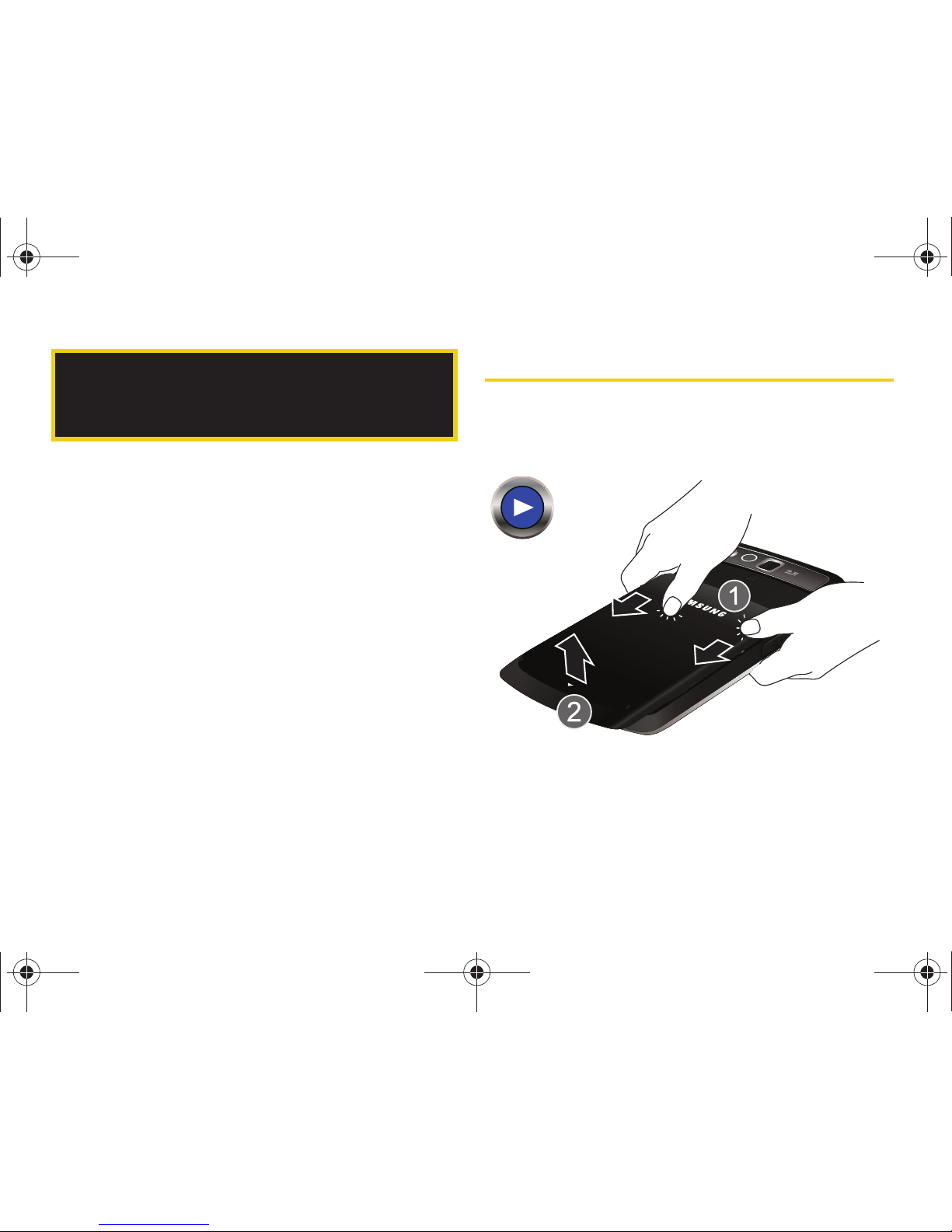
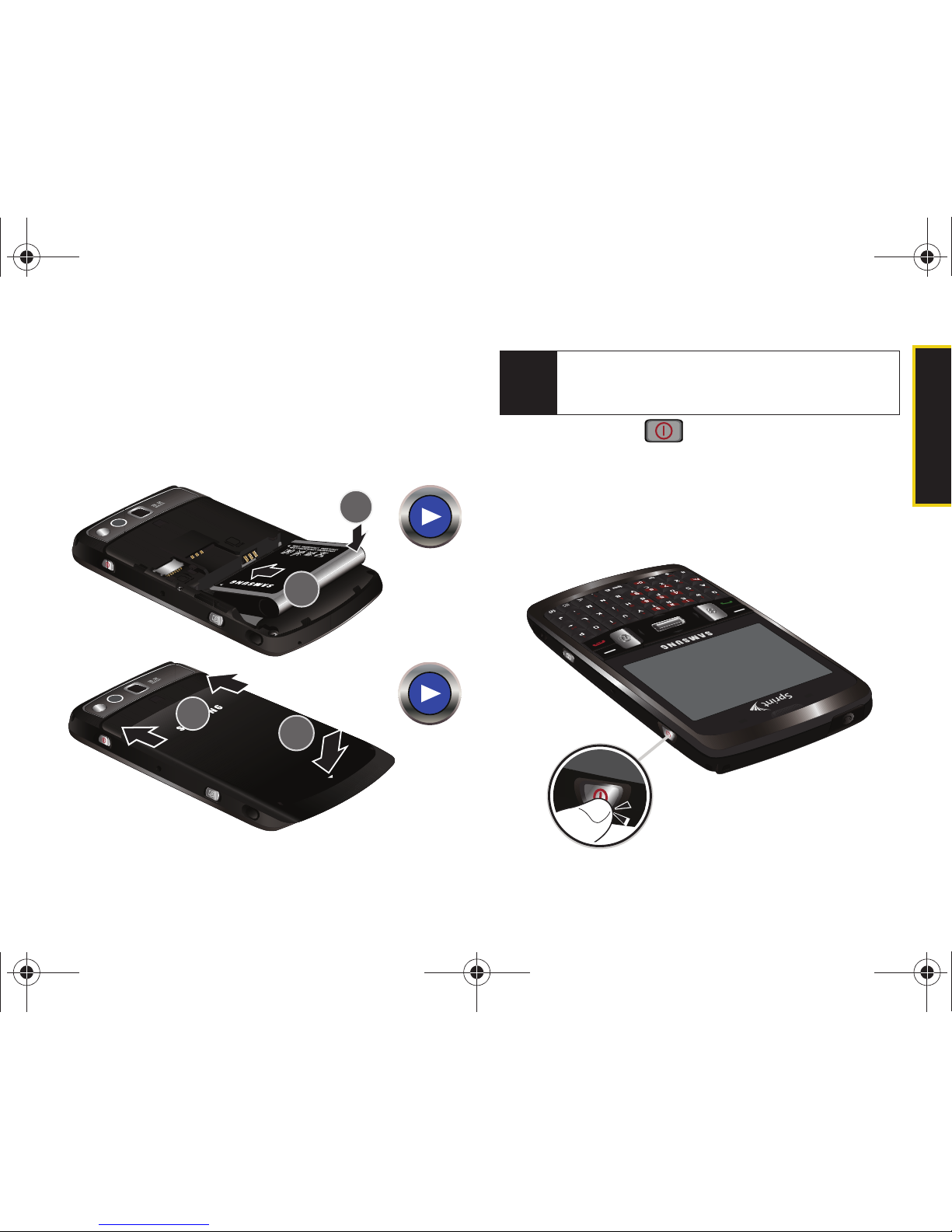
1. Remove the battery cover.
䡲 Press down on the battery cover (1) and slide the
cover away from the camera lens (2).
1A. Setting Up Service
I350.book Page 2 Tuesday, October 6, 2009 6:42 PM
Page 11
Setting Up Service
1A. Setting Up Service 3
2. Install the battery.
䡲 Insert the battery into the opening on the back of
the device, making sure the connectors align (3).
Gently press down to secure the battery (4).
䡲 Position the battery cover (5) and firmly slide it in
until you hear a click (6).
3. Press and hold to turn the device on.
䡲 Your device will turn on, search for Sprint service,
and then show the Today screen.
䡲 If your device is not yet activated, or if it is locked,
see “Activating Your Device” on page 6 for more
information.
Note
If you have purchased an optional microSD memory
card, insert it into the slot on the left side above the
battery, and then insert the battery.
I350.book Page 3 Tuesday, October 6, 2009 6:42 PM
Page 12
4 1A. Setting Up Service
Initial Setup
If your device was not already configured and set up,
these procedures are required to set up the device
once it is powered on for the first time.
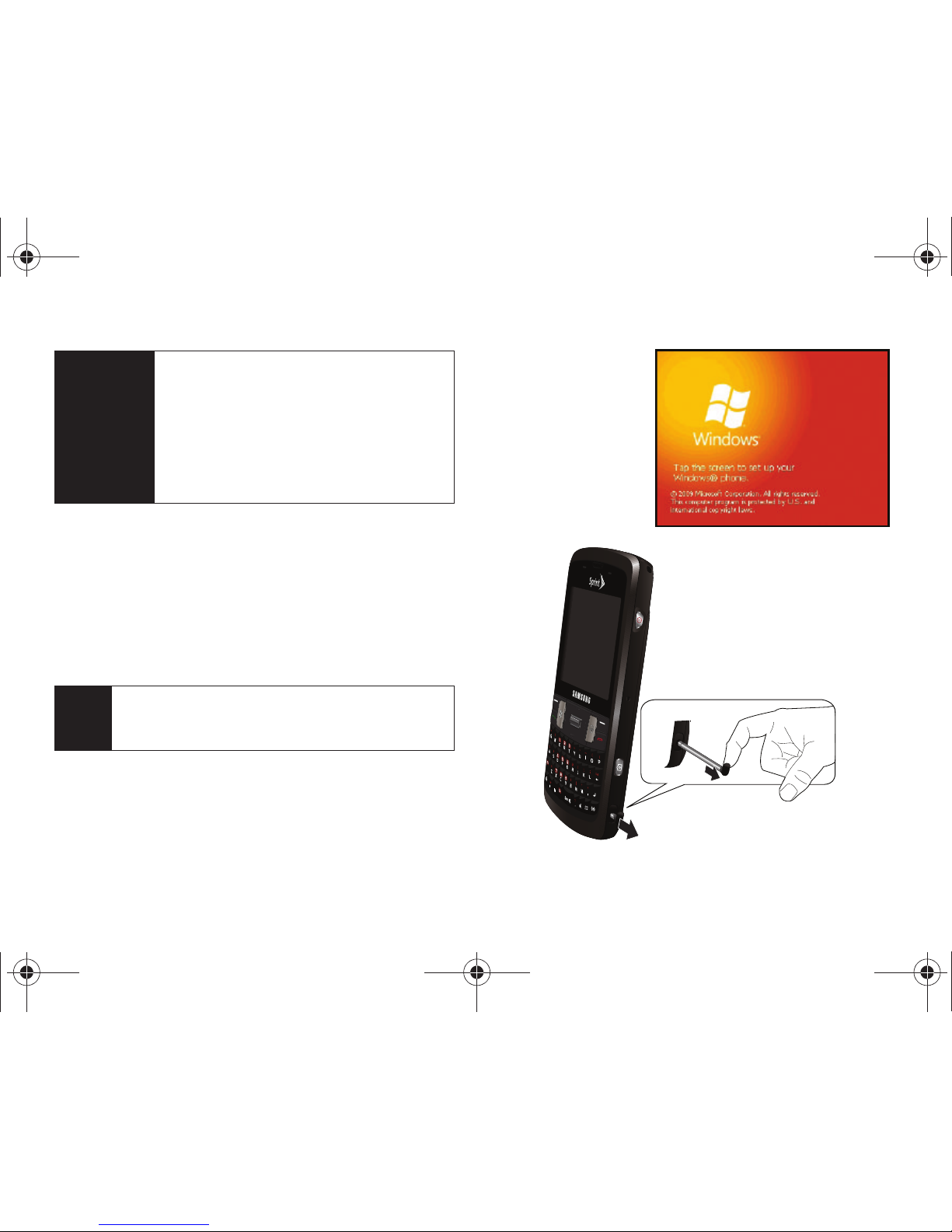
The first time you power on your device, it displays the
Windows Mobile
®
screen which guides you through a
series of setup procedures.
1. From the initial
startup screen
tap the screen
using the stylus.
(To remove the
stylus, see the
illustration
below.)
WARNING
If your handset has a touchscreen display,
please note that a touchscreen responds best
to a light touch from the pad of your finger or
a non-metallic stylus. Using excessive force or
a metallic object when pressing on the
touchscreen may damage the tempered
glass surface and void the warranty. See
“Manufacturer’s Warranty” on page 209.
Note
If you ever have to perform a hard reset of your
device (back to factory default settings), you will
need to repeat this initial setup process.
I350.book Page 4 Tuesday, October 6, 2009 6:42 PM
Page 13
Setting Up Service
1A. Setting Up Service 5
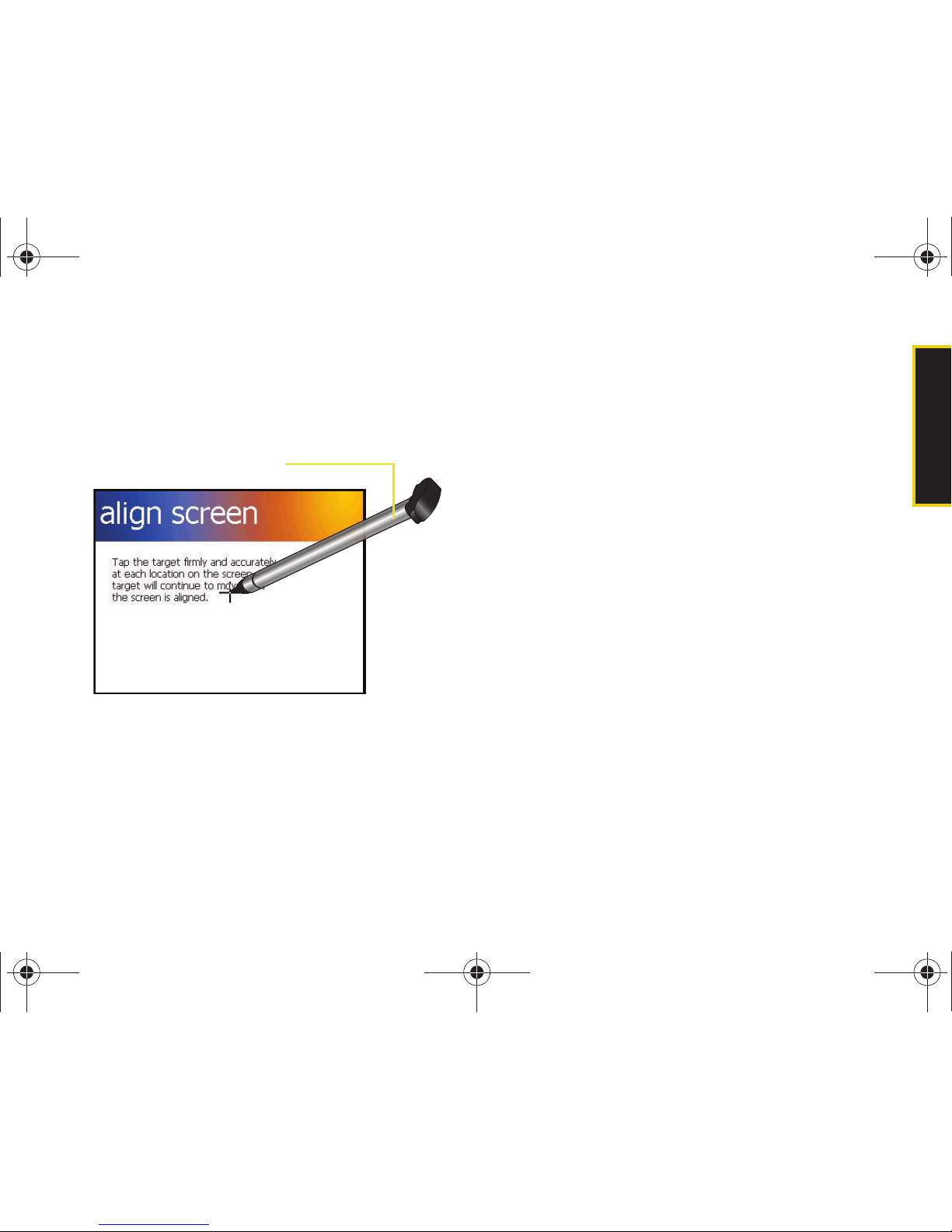
2. From the align screen, use your stylus to calibrate
the touch accuracy of the screen by both
accurately and firmly tapping the center of each
target (crosshair). Repeat this process for every
target that appears until completed.
3. Review the onscreen tutorial screens by touching
Next to continue onto the next page.
– or –
Touch
Skip to move onto the password setup
portion of your initial setup where you can create a
password which must be used to access your
device’s features and data.
4. Touch Next to continue with the password setup.
– or –
Touch
Skip to set up a password at a later time and
continue onto step 10.
5. Touch the Prompt if device unused for checkbox to
enable the feature. (Enabling this option activates
the remaining fields.)
6. Select each field and enter the desired information:
䡲 Minutes: to select the amount of unused time (idle)
required before you are prompted for a password.
䡲 Password type: to choose from one of the following
PIN types:
● Simple PIN: must be at least four characters in
length and cannot contain a simple sequence
such as 0000, 1111, or 1234.
● Strong alphanumeric: must be at least seven
characters in length and must contain at least
one character from each of the following
categories: uppercase/lowercase letters,
numerals, and symbols. Examples of strong
alphanumeric passwords are
sb?8A!3 and
%$VH5hW.
Stylus
I350.book Page 5 Tuesday, October 6, 2009 6:42 PM
Page 14
6 1A. Setting Up Service
䡲 Password: use the keypad to enter the desired
password.
䡲 Confirm: use the keypad to re-enter the same
password.
7. To uch the Hint tab to enter a password reminder.
8. Touch to store the new password and
continue with the setup process.
9. Touch the complete screen to end the process and
proceed to the Today screen.
Activating Your Device
䢇 If you purchased your device at a Sprint Store, it should be
activated and ready to use.
䢇 If you received your device in the mail and it is for a new Sprint
account or a new line of service, it is designed to activate
automatically. To confirm your activation, make a
phone call or connect to the Internet.
䢇 If you received your device in the mail and you are activating a
new device for an existing number on your account, you will
need to go online to activate your new device.
䡲 From your computer’s Web browser, go to
www.sprint.com/activate and complete the onscreen
instructions to activate your device.
When you have finished, make a phone call to confirm
your activation. If your phone is still not activated, or you
do not have access to the Internet, contact Sprint
Customer Service at
1-888-211-4727 for assistance.
Important
Do not enter your password into this field.
Doing so can allow anyone using the device
to easily access it if it is locked.
Note
Although your device’s battery should have enough
charge to power on the device, find a signal, set up
your voicemail, and make a call, we recommend that
you fully charge your battery prior to its initial use.
See “Charging the Battery” on page 22.
OK
Tip
Do not press while the phone is being activated.
Pressing during activation cancels the activation
process.
I350.book Page 6 Tuesday, October 6, 2009 6:42 PM
Page 15
Setting Up Service
1A. Setting Up Service 7
To enable Data Services:
1. Press and touch Settings > System > EVDO Data.
(There is no charge to use this service during
phone activation.)
2. Touch Menu (right softkey) > Enable EVDO Data. (If the
option appears as
Disable EVDO Data, your data
services are already enabled.)
3. Touch Menu (right softkey) > Update Data Profile.
When finished, the device will display your status
as "EVDO Data Enabled" and your user name will
appear.
Locking Your Device
1. Press and hold to power on the device and
reveal the Today screen.
2. Press from the Today screen.
3. Touch Lock (left softkey).
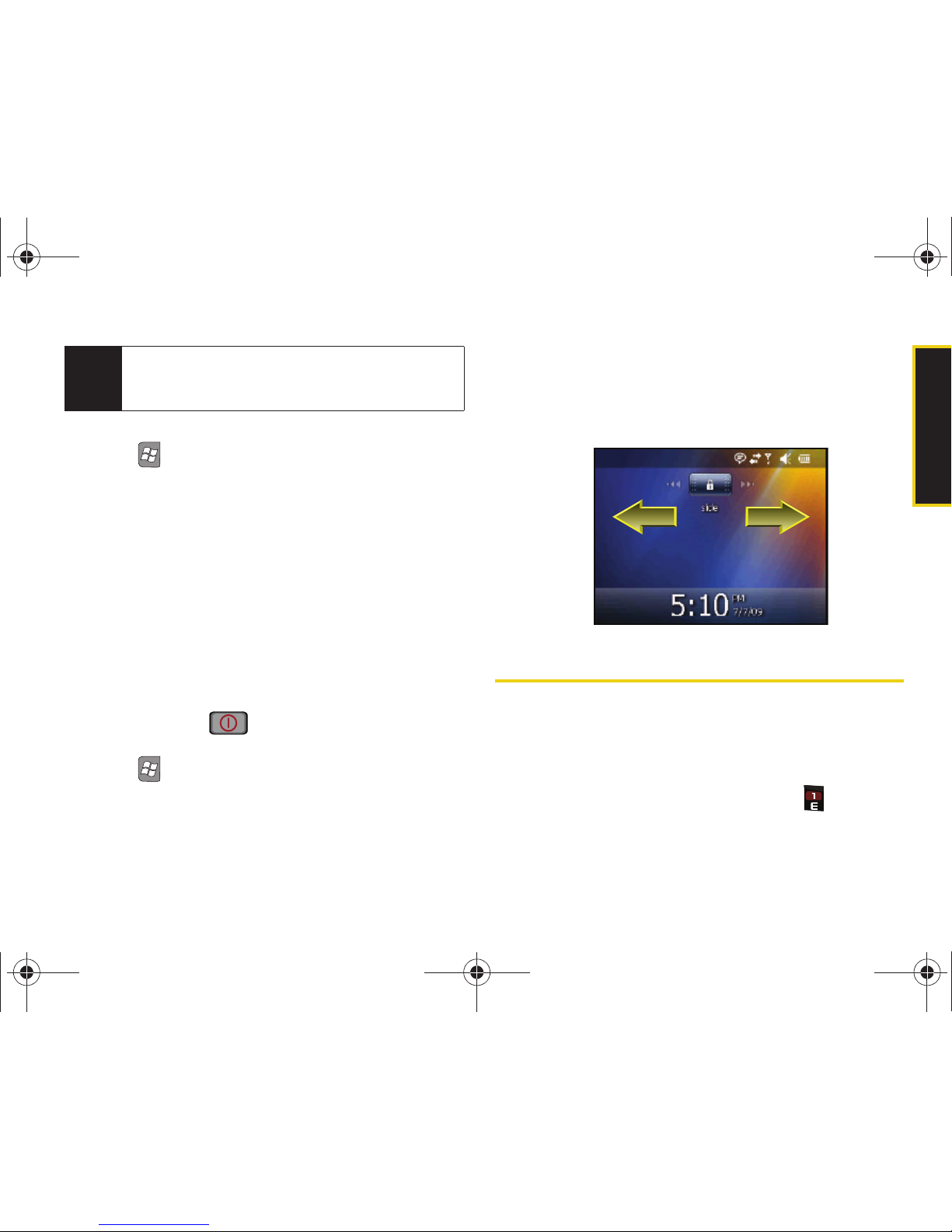
Unlocking Your Device
䊳 Touch and drag the onscreen Lock button to either
the left or right of the screen to reveal the Today
screen.
Setting Up Your Voicemail
Your phone automatically transfers all unanswered
calls to your voicemail, even if your phone is in use or
turned off. You should set up your Sprint Voicemail and
personal greeting as soon as your phone is activated.
1. From standby mode, press and hold .
Note
If you are having difficulty with activation, contact
Sprint Customer Service by dialing
1-888-211-4727
from any other phone.
I350.book Page 7 Tuesday, October 6, 2009 6:42 PM
Page 16
8 1A. Setting Up Service
2.
Follow the system prompts to:
䡲 Create your passcode.
䡲 Record your name announcement.
䡲 Record your greeting.
For more information about using your voicemail, see
“Voicemail” on page 130.
Sprint Account Passwords
As a Sprint customer, you enjoy unlimited access to
your personal account information, your voicemail
account, and your data services account. To ensure
that no one else has access to your information, you
will need to create passwords to protect your privacy.
Account Username and Password
If you are the account owner, you will create an account
username and password when you sign on to
www.sprint.com. (Click Need to register for access? to get
started.) If you are not the account owner (if someone
else receives the bill for your Sprint service), you can
get a sub-account password at
www.sprint.com.
Voicemail Password
You’ll create your voicemail password (or passcode)
when you set up your voicemail. See “Setting Up Your
Voicemail” on page 7 for more information on your
voicemail password.
Data Services Password
With your Sprint device, you may elect to set up an
optional data services password to control access and
authorize Premium Service purchases.
For more information, or to change your passwords,
sign on to
www.sprint.com or call Sprint Customer
Service at
1-888-211-4727.
Note
Voicemail Passcode
Sprint strongly recommends that you create a
passcode when setting up your voicemail to protect
against unauthorized access. Without a passcode,
anyone who has access to your device can access
your messages and place outbound calls through
your wireless account.
I350.book Page 8 Tuesday, October 6, 2009 6:42 PM
Page 17

Setting Up Service
1A. Setting Up Service 9
Getting Help
Managing Your Account
Online: www.sprint.com
䢇 Access your account information.
䢇 Check your minutes used (depending on your Sprint
service plan).
䢇 View and pay your bill.
䢇 Enroll in Sprint online billing and automatic payment.
䢇 Purchase accessories.
䢇 Shop for the latest Sprint phones.
䢇 View available Sprint service plans and options.
䢇 Learn more about data services and other products
like Sprint Picture Mail, games, ringers, screen
savers, and more.
From Your Sprint Phone
䢇 Press to check minute usage and
account balance.
䢇 Press to make a payment.
䢇 Press to access a summary of your
Sprint service plan or get answers to other questions.
From Any Other Phone
䢇 Sprint Customer Service: 1-888-211-4727.
䢇 Business Customer Service: 1-800-927-2199.
I350.book Page 9 Tuesday, October 6, 2009 6:42 PM
Page 18

10 1A. Setting Up Service
Sprint 411
Sprint 411 gives you access to a variety of services
and information, including residential, business, and
government listings; movie listings or showtimes;
driving directions, restaurant reservations, and major
local event information. You can get up to three pieces
of information per call, and the operator can
automatically connect your call at no additional charge.
There is a per-call charge to use Sprint 411, and you
will be billed for airtime.
䊳 Press .
Sprint Operator Services
Sprint Operator Services provides assistance when you
place collect calls or when you place calls billed to a
local telephone calling card or third party.
䊳 Press .
For more information or to see the latest in products
and services, visit us online at
www.sprint.com.
I350.book Page 10 Tuesday, October 6, 2009 6:42 PM
Page 19

Section 2
Your Device
I350.book Page 11 Tuesday, October 6, 2009 6:42 PM
Page 20

12 2A. Device Basics
⽧ Your Device (page 12)
⽧ Viewing the Display Screen (page 17)
⽧ Turning Your Device On and Off (page 19)
⽧ Battery and Charger (page 20)
⽧ Navigating Through the Menus (page 23)
⽧ Displaying Your Phone Number (page 25)
⽧ Making and Answering Calls (page 26)
⽧ Entering Text (page 35)
Your Device
2A. Device Basics
Tip
Device Software Upgrades – Updates to your
device’s software may become available from time
to time. Sprint will automatically upload critical
updates to your device. You can also use the menu
to check for and download updates. Press
>
Settings > System > Update Firmware to search for
and download available updates.
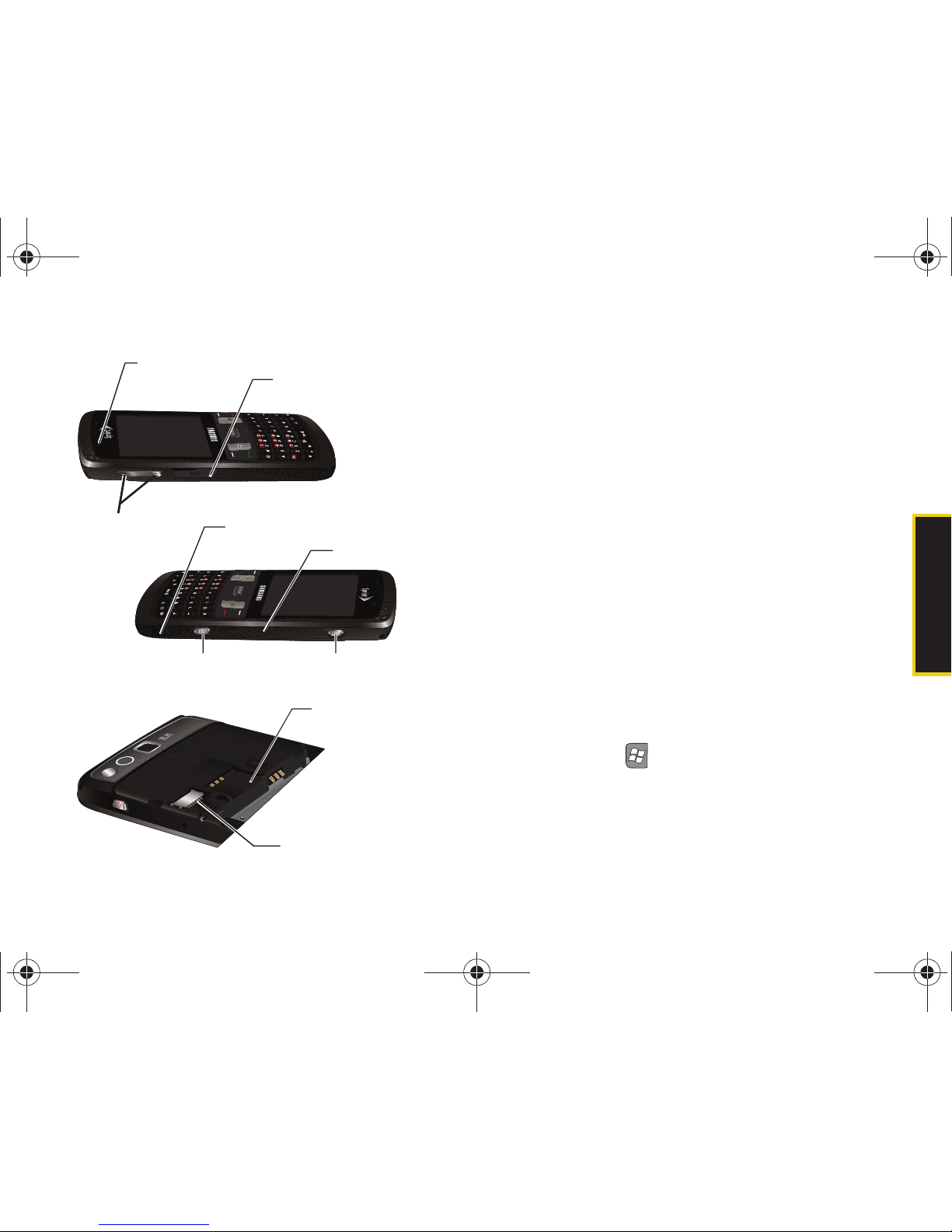
5. Softkey (right)
2. Earpiece
1. Headset Jack
14. Delete Key
13. Keyboard
9. Mirror
17. Enter/Settings
Key
16. OK Key
15. END Key
12. Microphone
11. Camera Lens
10. External Speaker
7. TALK Key
8. Speaker Key
6. Windows Key
5. Softkey (left)
4. Navigation Key
3. Display Screen
18. Status Bar Icons
19. Indicator LED
I350.book Page 12 Tuesday, October 6, 2009 6:42 PM
Page 21
Device Basics
2A. Device Basics 13
Key Functions
1. Headset Jack allows you to plug in either a stereo
headset (included) or other compatible headset,
for convenient, hands-free conversations.
CAUTION! Inserting an accessory into the incorrect
jack may damage the device.
2. Earpiece lets you hear the caller and automated
prompts.
3. Display Screen displays phone and device
information, including call status, the Contacts list,
the date and time, Windows Mobile menus, and
the signal and battery strength.
4. Navigation Key scrolls through the device’s menu
options.
5. Softkeys let you select softkey actions or menu
items corresponding to the bottom left and bottom
right lines on the display screen.
6. Windows Key ( ) provides access to the Windows
Mobile menu settings, applications, and other
configuration pages.
22. Volume
Button
23. Stylus
24. Reset Slot
25. Camera Button
26. Power Button
21. Charger/Accessory
Jack
20. Light Sensor
27. SIM Card Slot
28. microSD Card Slot
I350.book Page 13 Tuesday, October 6, 2009 6:42 PM
Page 22

14 2A. Device Basics
7.
TAL K Ke y ( ) allows you to place or receive calls,
answer Call Waiting, use Three-Way Calling, or
activate Voice Dial.
䡲 In standby mode, press once to access the dialer.
䡲 In standby mode, press twice to call the most
recent phone number from the call history list.
8. Speaker Key lets you place or receive calls in
speakerphone mode.
9. Mirror displays your reflection while taking pictures
or shooting videos.
10. External Speaker allows you to hear the other caller
(while Speakerphone is on) and the different ring
tones or sounds offered by your device.
11. Camera Lens, as part of the built-in camera, lets you
take pictures and videos.
12. Microphone allows other callers to hear you clearly
when you are speaking to them.
13. Keyboard lets you enter letters, numbers, and
punctuation using the familiar QWERTY layout.
14. Delete Key deletes characters from the display in
text entry mode.
15. END Key ( ) lets you turn the device’s phone
radio on or off, end a call, or return to standby
mode. While in the main menu, it returns the
device to standby mode and cancels your input.
When you receive an incoming call, press to
ignore the call.
16. OK Key ( ) stores the current menu page options
(acts the same as touching at the upper-right
of a menu page or tab). When in a menu, pressing
this key stores the current page’s settings and
returns you to the Today screen.
17. Enter/Settings Key, when on the Today screen,
pressing accesses the Settings page from
where you can adjust the time and alarm settings.
From other pages, pressing this key acts as an
Enter key to then select the highlighted choice
when navigating through a menu.
18. Status Bar Icons provide information about your
device’s status and options, such as signal
strength, roaming, ringer setting, messaging, and
battery charge.
19. Indicator LED shows your device’s connection status
at a glance.
OK
I350.book Page 14 Tuesday, October 6, 2009 6:42 PM
Page 23

Device Basics
2A. Device Basics 15
20. Light Sensor lets you use the ambient light level to
adjust both screen brightness/contrast and
keyboard access.
䡲 In a bright light condition (outdoors), the sensor
causes the device to increase the brightness and
contrast for better viewing.
䡲 In a dark light condition (while talking on the
device) the sensor causes the device to adjust the
brightness and contrast for better viewing.
21. Charger/Accessory Jack allows you to connect the
device charger or an optional USB cable
(included). CAUTION! Inserting an accessory into
the incorrect jack may damage the device.
22. Volume Button allows you to adjust the ringer
volume in standby mode or adjust the voice
volume during a call. The volume button can also
be used to scroll up or down to navigate through
the different menu options. press and hold the
volume down key to activate the vibration mode.
23. Stylus storage location of included stylus touch
pen. It is recommended that you use this pen
when making your onscreen selections. Using
your fingers can be less accurate, possibly scratch
the screen, and leave residue.
24. Reset Slot lets you reset your device and ends all
currently running applications. To reset your
device, insert your stylus firmly into the slot and
then quickly remove it.
25. Camera Button lets you activate the camera and
camcorder and take pictures and videos.
26. Power Button, located at the side of the device, lets
you either turn the device on or off (press and
hold) or help conserve power by toggling the
display screen on or off (single press).
䡲 This single press conserves power by temporarily
turning off the screen without shutting down the
device. To turn the screen back on, simply press
the button again.
䡲 Press and hold to turn the device on or off.
27. SIM Card Slot houses the pre-installed SIM card,
which allows global roaming on compatible GSM
and UMTS networks (service activation required).
See “3E. Sprint Worldwide Wireless Service” on
page 187 for details.
I350.book Page 15 Tuesday, October 6, 2009 6:42 PM
Page 24
16 2A. Device Basics
28.
microSD Card Slot lets you use an optional microSD
card (sold separately) to expand the memory of
your device. See page 94.
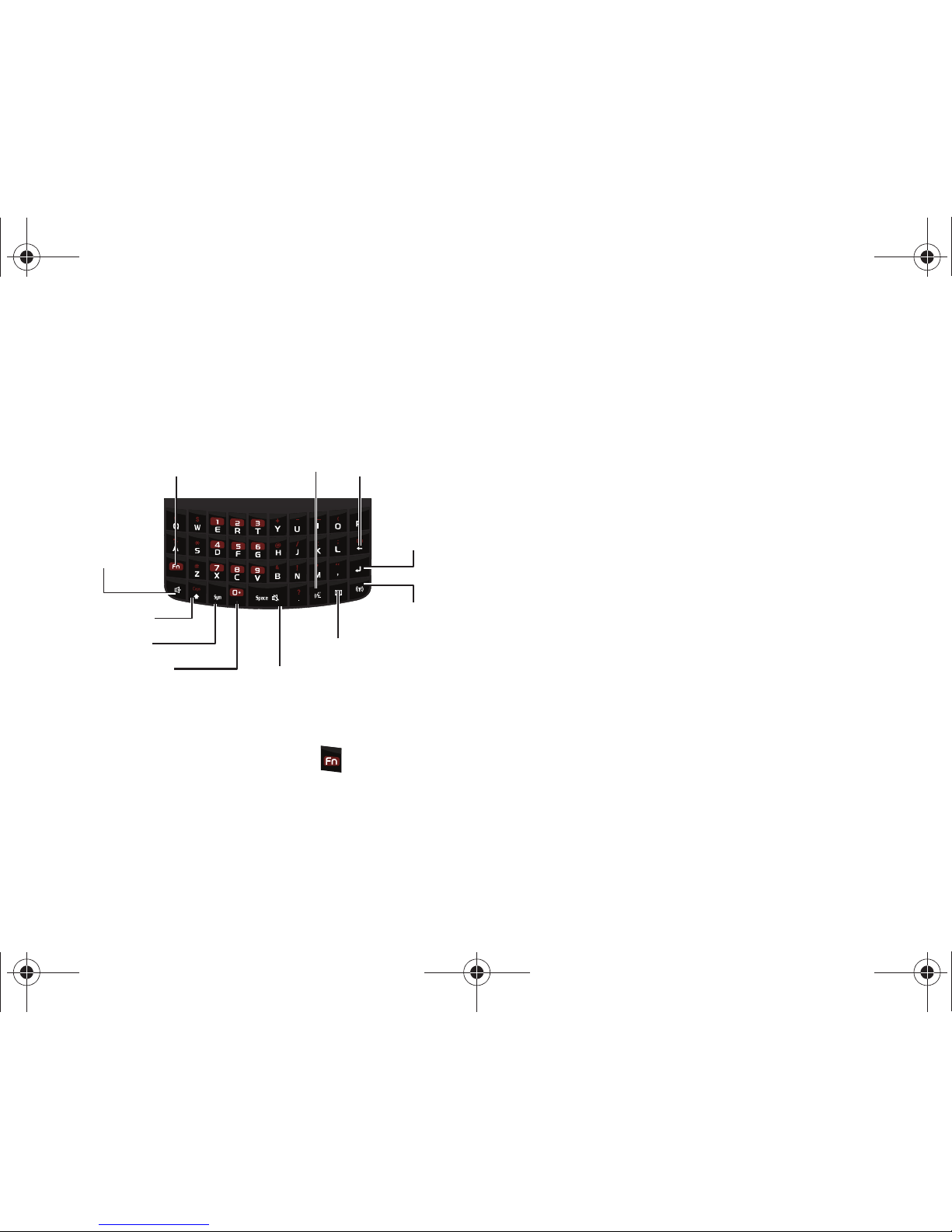
Keyboard Features
29. Fn Key (Function) lets you access the numbers or
symbols atop each key on the QWERTY keyboard.
Activate the feature by pressing and then
pressing the desired key.
30. Speaker Key lets you place or receive calls in
speakerphone mode.
31. Caps Key lets you enter capital letters (like the Shift
key on a standard keyboard). See “Entering Text”
on page 35.
32. Symbol Key lets you access symbol characters.
33. Plus Code Dialing Key automatically dials the
international access code for the country in which
you are located (for instance, 011 for international
calls placed from the United States).
34. Space/Silent Mode Key lets you either add spaces
between words and characters or activates the
device’s silent mode.
䡲 Press to insert a space while typing.
䡲 Press and hold to put your device in silent mode.
35. Message Key lets you create a new text message
and access your configured email account and
initiate a new email message.
36. Wireless Manager Key provides access to the
Wireless Manager page from where you can
configure the Wi-Fi, Bluetooth, and Phone settings.
37. Enter Key lets you enter additional lines of text.
34. Space/
Silent Mode Key
38. Delete Key
35. Message Key
36. Wireless
Manager Key
37. Enter Key
30. Speaker Key
29. Fn Key
39. Tellme/Speak Key
31. Caps Key
32. Symbol Key
33. Plus Code
Dialing Key
I350.book Page 16 Tuesday, October 6, 2009 6:42 PM
Page 25
Device Basics
2A. Device Basics 17
38. Delete Key deletes characters from the display in
text entry mode (like the Backspace key on a
standard keyboard).
39. Tellme/Speak Key activates the Tellme feature that
allows you to simply state a request (for
information, business locations, etc.) and get it
quickly. See “Tellme” on page 161.
Viewing the Display Screen
Your device’s display screen provides information
about your device’s status and options. This list
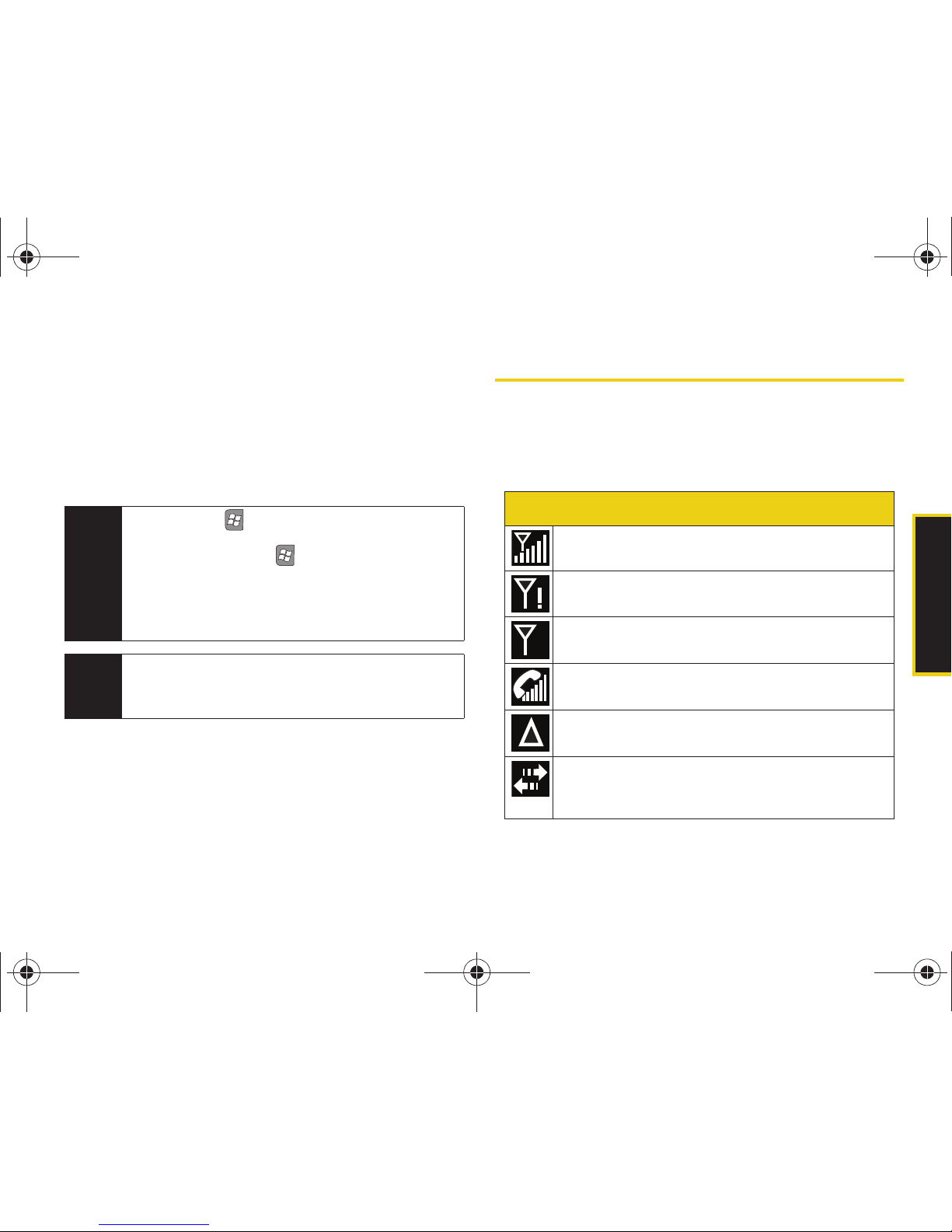
identifies the symbols you’ll see on your device’s
display screen:
Tip
The Windows (), Speaker, Symbol, Message,
and
Tellme/Speak key functions can be reassigned
to different tasks. Press
> Settings > Personal >
Buttons > Program Buttons tab and select a key and
an action. The actions for the Windows, Speaker, and
Symbol keys are activated by pressing and holding
the key.
Note
Standard voice, text and data rates apply according
to your wireless plan. This feature is only available on
GPS-enabled devices.
Status Bar – Service Icons
Signal Strength – Shows your current signal
strength. (More bars = stronger signal.)
No Service – Your device cannot find a usable
signal.
Phone Antenna Disabled – Your device’s internal
phone antenna has been turned off.
Call in Progress – Your device is currently is an
active call.
Roaming – Your device is “roaming” off the
Nationwide Sprint Network.
Sync Connected – Device is connected and
communicating with your computer via
ActiveSync or Windows Mobile Device Center.
X
I350.book Page 17 Tuesday, October 6, 2009 6:42 PM
Page 26
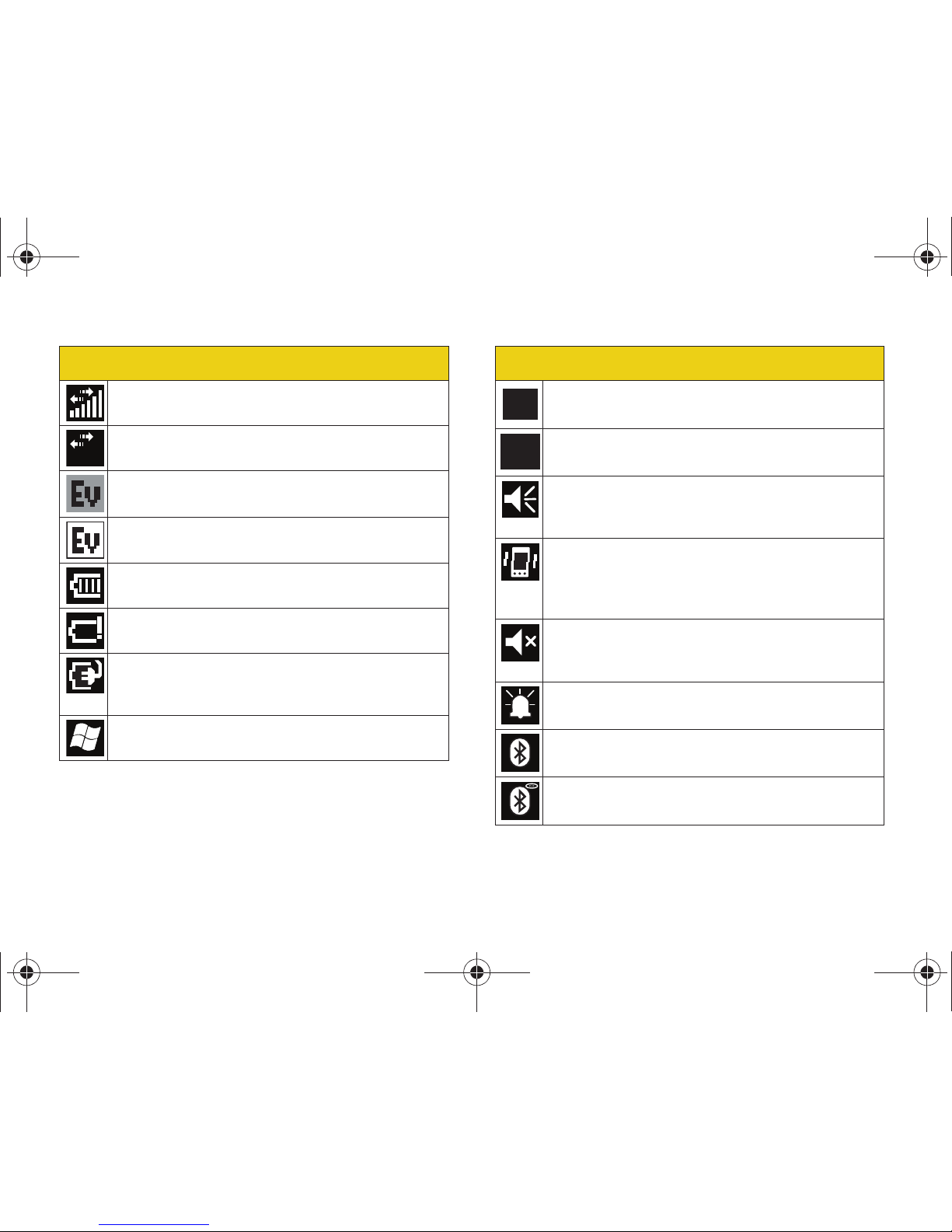
18 2A. Device Basics
1X Data Sending/Receiving – Sprint 1xRTT data
service is transmitting and receiving data.
1X Data Unavailable – Sprint 1xRTT data service is
unavailable.
EVDO Data Dormant – Sprint mobile broadband
data service (EVDO) is dormant.
EVDO Data Active – Sprint mobile broadband
data service (EVDO) is active.
Battery Charge Level – Shows your current battery
charge level. (Icon shown is fully charged.)
Low battery – Shows your current battery charge
level is low.
Battery Charging – Shows the device is
connected to a power cable and is currently
being charged.
Windows Start – Provides access to the Windows
Menu page.
Status Bar – Service Icons
X
Status Bar – Status Icons
OK – Tap to accept and save the current page
settings, and then exit.
Cancel/Exit – Tap to leave the current page
without storing any changes.
Speaker On – Your device’s speaker is active. Tap
this icon to access the onscreen Volume slider
and adjust the volume level.
Vibrate – Your device’s the speaker is set to
vibrate only. Tap this icon to access the
onscreen Volume slider and adjust the volume
level.
Silence All – Your device has the ringer
deactivated and the vibrate option unchecked
(disabled). No sound is made by the device.
Alarm – An alarm has been set on your phone.
Bluetooth Enabled – The Bluetooth technology is
active and enabled.
Bluetooth Visible– The Bluetooth technology is
active and the device is visible.
OK
X
I350.book Page 18 Tuesday, October 6, 2009 6:42 PM
Page 27
Device Basics
2A. Device Basics 19
Turning Your Device On and Off
Turning Your Device On
䊳 Press and hold for two seconds.
Once your device is on, it will look for a signal. When
your device finds a signal, it enters standby mode – the
device’s idle state. At this point, you are ready to begin
making and receiving calls.
If your device is unable to find a signal after 15 minutes
of searching, a Power Save feature (page 48) is
automatically activated. When a signal is found, your
device automatically returns to standby mode.
In Power Save mode, your device searches for a signal
periodically without your intervention. You can also
initiate a search for Sprint service by pressing any key
(when your device is turned on).
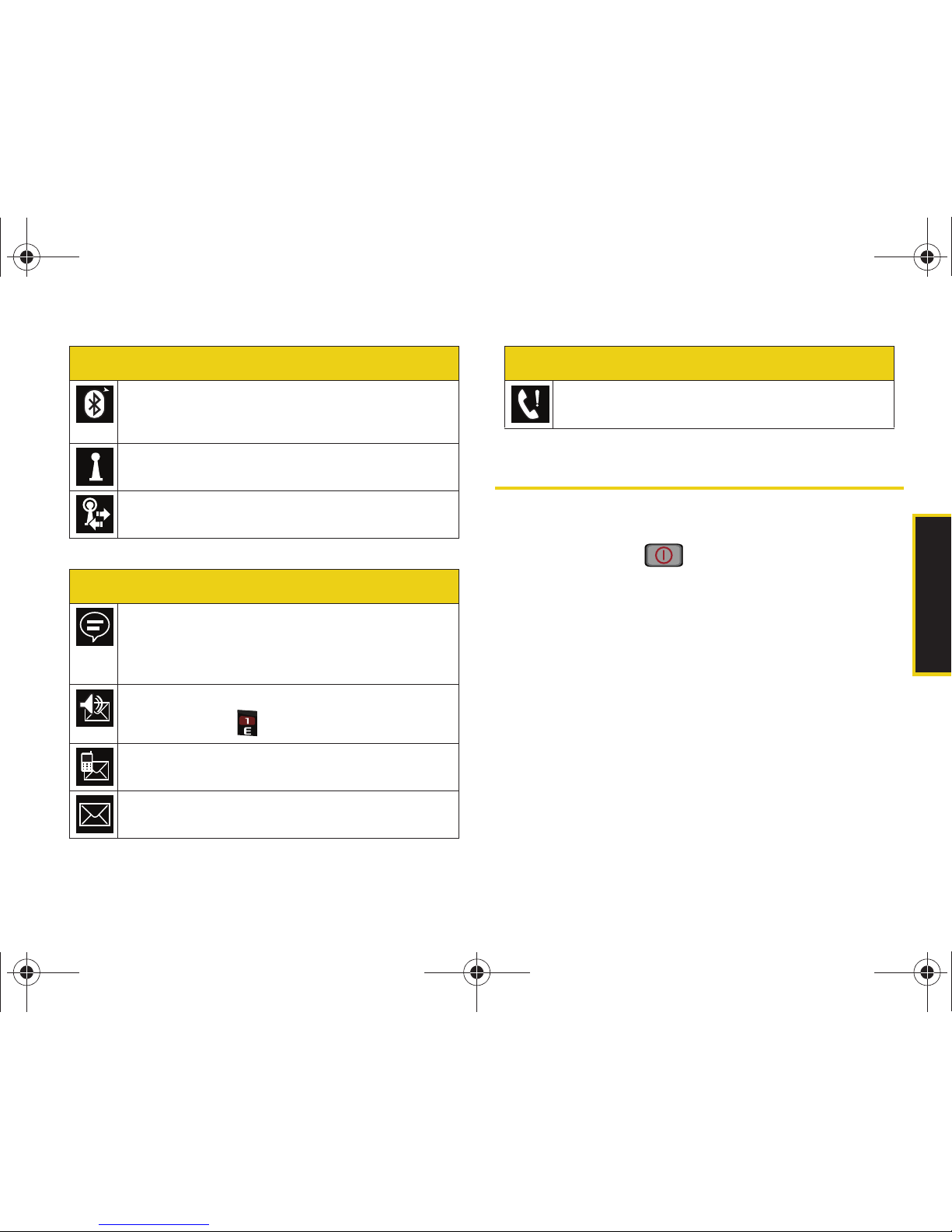
Bluetooth Connected– The Bluetooth technology
is active and communicating (paired) with a
target Bluetooth device.
Wi-Fi Inactive – Your Wi-Fi connection is inactive.
Wi-Fi Active – Your Wi-Fi connection is active and
communicating.
Status Bar – Messaging Icons
Notification – Shows there is a device
notification that needs your attention, such
as hidden icons, messages, missed calls,
Bluetooth activity, etc.
Voicemail – You have a new voicemail message.
Press and hold to call your voicemail box.
Text Message – You have new text messages.
Email – You have new unread email messages.
Status Bar – Status Icons
Missed Call – You have missed an incoming call.
Status Bar – Messaging Icons
I350.book Page 19 Tuesday, October 6, 2009 6:42 PM
Page 28
20 2A. Device Basics
Turning Your Device Off
䊳 Press and hold for two seconds then touch
OK from the onscreen shutdown popup.
Your screen remains blank while your phone is off
(unless the battery is charging).
Battery and Charger
Sprint-approved or Samsung-approved batteries and
accessories can be found at Sprint Stores or through
Samsung; or call 1-866-866-7509 to order. They’re
also available at
www.sprint.com.
Battery Capacity
Your device is equipped with a Lithium Ion (Li-Ion)
battery. It allows you to recharge your battery before it is
fully drained. The battery provides up to 6.0 hours of
continuous digital talk time.
When the battery reaches 5% of its capacity, an
onscreen alert bubble appears. When there are
approximately two minutes of talk time left, the device
sounds an audible alert and then turns off.
Tip
The Power Save feature conserves your battery
power when you are in an area where there is no
signal.
WARNING
Use only Sprint-approved or Samsung-
approved batteries and chargers with your
device. The failure to use a Sprint-approved or
Samsung-approved battery and charger may
increase the risk that your device will overheat,
catch fire, or explode, resulting in serious
bodily injury, death, or property damage.
Note
Long backlight settings, searching for service, vibrate
mode, browser use, and other variables may reduce
the battery’s talk and standby times.
Tip
Watch your device’s battery level indicator and
charge the battery before it runs out of power.
I350.book Page 20 Tuesday, October 6, 2009 6:42 PM
Page 29
Device Basics
2A. Device Basics 21
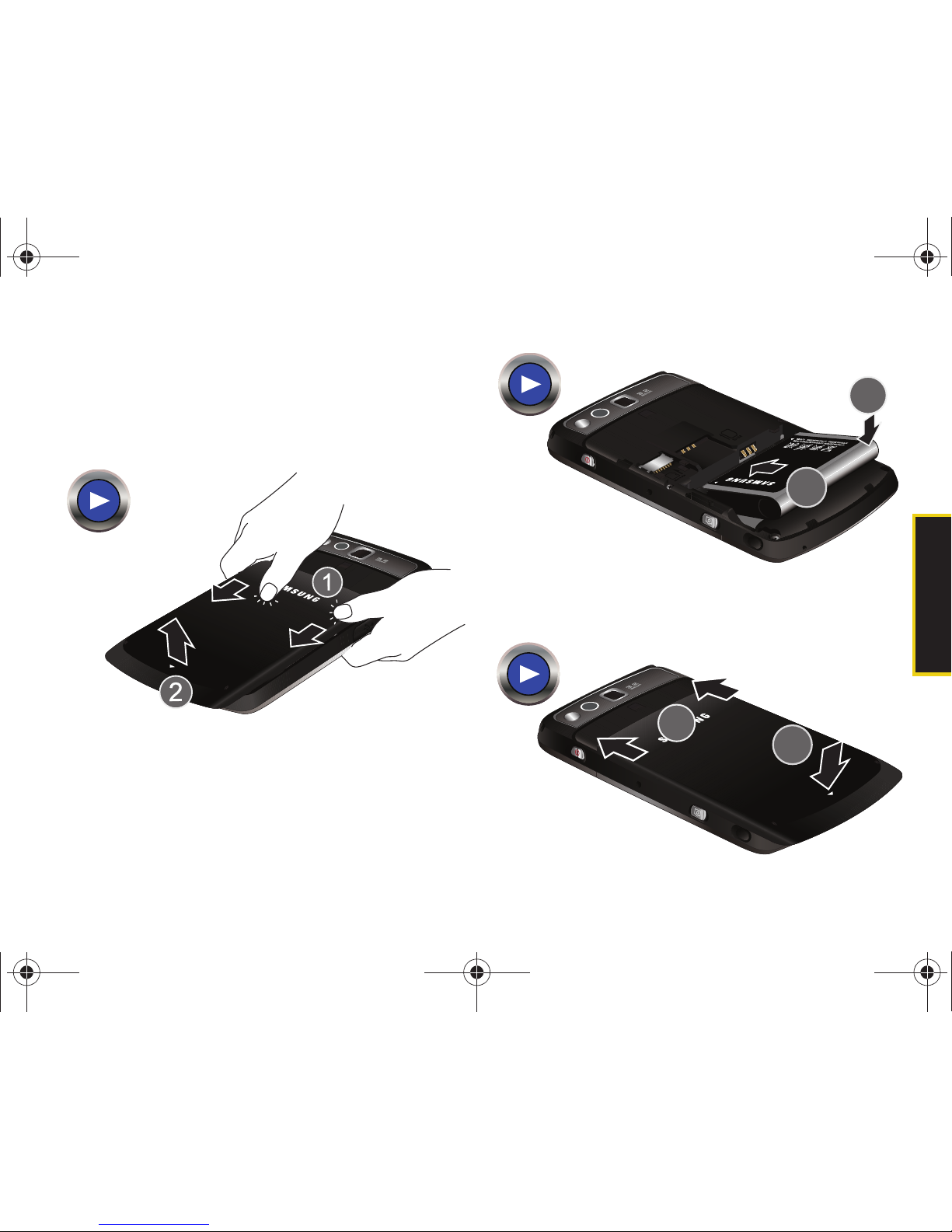
Installing the Battery
1. In a single motion, press down on the cover and
slide it away from the camera lens (1) and then
carefully lift the battery cover away from the
device (2).
2. Insert the battery into the opening, making sure to
line up the gold contacts (3). Gently press down to
secure the battery (4).
3. Replace the cover by lining up the tabs (5)
and then firmly slide it back on until you hear a
click (6).
I350.book Page 21 Tuesday, October 6, 2009 6:42 PM
Page 30
22 2A. Device Basics
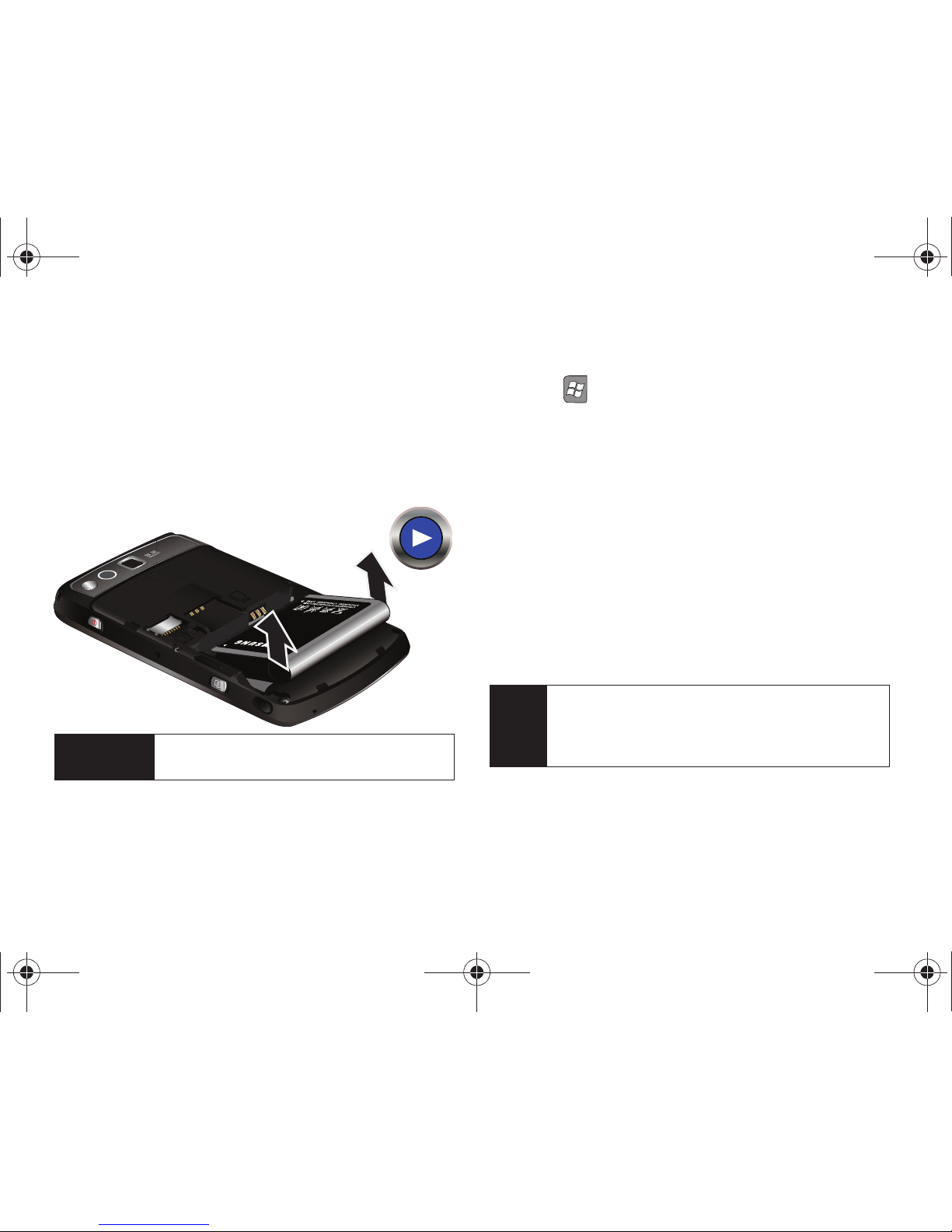
Removing the Battery
1. Make sure the power is off so that you don’t lose
any stored numbers or messages.
2. Remove the battery cover.
3. Grasp the bottom left and right sides of the battery
and lift it out of the compartment.
Reviewing the Battery Charge Level
1. Press > Settings > Power.
2. Touch the Battery tab.
䡲 This tab indicates the current charge state of the
internal battery.
Charging the Battery
Keeping track of your battery’s charge is important. If
your battery level becomes too low, your device
automatically turns off, and you will lose any
information you were just working on.
Always use a Sprint-approved or Samsung-approved
desktop charger, travel charger, or vehicle power
adapter to charge your battery.
䊳 Plug the flat end of the charger into the device’s
charger/accessory jack and the other end into an
electrical outlet.
WARNING
Do not handle a damaged or leaking Li-Ion
battery as you can be burned.
Tip
It is recommended that you completely charge your
battery first before using your device. This guarantees
you begin using your device with a fully charged
battery.
I350.book Page 22 Tuesday, October 6, 2009 6:42 PM
Page 31

Device Basics
2A. Device Basics 23
䡲 A red indicator LED means the battery is charging.
䡲 A green indicator LED means the battery is at least
90 percent charged.
䡲 A battery icon ( ) indicates the current charge
level.
With the Sprint-approved Li-Ion battery, you can
recharge the battery before it becomes completely run
down.
Conserving Additional Battery Power
Each unused background application both increases
the drain on your battery and decreases your device’s
performance. Close any unused applications via the
Task Mana ger.
1. Press and hold .
2. Select an application from the list and press End
Ta sk (left softkey). See “Using the Task Manager”
on page 54.
Navigating Through the Menus
The navigation key on your device lets you scroll
through onscreen items. Many menus feature a scroll
bar on the right to help you keep track of your position
in the menu.
To navigate through a menu, press the navigation key
up or down or right or left (depending on the menu).
For a reference of your device’s menu, please see
“Your Device’s Menu” on page i.
Incorrect
Correct
Charge Indicator LED
Note
A quick press of this button launches the Wireless
Manager. See “Shortcuts” on page 54.
I350.book Page 23 Tuesday, October 6, 2009 6:42 PM
Page 32

24 2A. Device Basics
Using Softkeys
Softkeys are special keys whose functions are
determined by the currently active dialog, menu, or
page. The current function for these keys is displayed
above them on the screen. Your device has a left ( )
and a right softkey ( ).
Selection via the Stylus
For selection of most onscreen items, especially those
within the Status Bar area, it is recommended you use
the included stylus to tap the desired option. The stylus
is much more accurate than a finger.
Selecting Menu Items
As you navigate through the menu using the navigation
key, menu options are highlighted. Select any option by
highlighting it and pressing or by tapping it with
the stylus.
For example, to adjust the device’s sound setting:
1. From the Today screen, press .
2. Select Settings by either highlighting it and
pressing or by tapping the icon.
3. Select Sounds & Notifications by highlighting it and
pressing or by tapping the icon.
4. Select the options by tapping a corresponding field
or box.
For the purposes of this guide, these steps condense
into:
䊳 Press > Settings > Sounds & Notifications.
I350.book Page 24 Tuesday, October 6, 2009 6:42 PM
Page 33

Device Basics
2A. Device Basics 25
Zooming a Page
For those users who find it harder to see an onscreen
menu or page, the device comes equipped with a
page magnification feature.
䊳 Press the and hold the Up Volume button until a
the page magnifier icon ( ) appears onscreen.
䡲 Press the Up Volume button to zoom in.
䡲 Press the Down Volume button to zoom out.
To exit page magnification mode:
䡲 Press .
Backing Up Within a Menu
To go to the previous menu:
䊳 If provided as an onscreen softkey, press Back
(left softkey). If you do not see the softkey option,
press to return to the Today screen.
To return to standby mode (the Today screen):
䊳 Press .
To exit an active menu and return to the previous page:
䊳 Either pressing or touching (on the screen)
allows you to accept and save the settings for the
current page and return to a Today screen
(standby mode).
䊳 Touching exits from the current menu page
without saving any changes.
Displaying Your Phone Number
䊳 Press > Settings > Personal > Phone. (Your phone
number is displayed at the top of the
Phone tab
along with your voicemail number and other
information.)
Note
The onscreen keyboard responds best when used
with the included stylus. Using your fingers can result
in less accurate selections.
OK
X
I350.book Page 25 Tuesday, October 6, 2009 6:42 PM
Page 34

26 2A. Device Basics
Making and Answering Calls
Making Calls
1. From the Today screen, enter a phone number
using the numbered keys on your keyboard. (If you
make a mistake while dialing, press to erase
the numbers.)
2. Press . (To make an outgoing call when you
are roaming and Call Guard is enabled, press
and from the call guard popup, press or
the left softkey. See “Call Guard” on page 139.)
3. Press when you are finished.
You can also place calls from your device by speed
dialing numbers from your Contacts (page 34) and
using your History listings (page 62).
Dialing Options
When you enter numbers in standby mode, you will
see a variety of dialing options displayed as softkeys on
the device’s screen.
To initiate an option, press the corresponding softkey.
䢇 Keypad/Hide Keypad (left softkey): Displays an
onscreen keypad containing the following buttons:
dialing keys, Contacts, Call History, Talk, and End.
䢇 Menu (right softkey): Accesses the dialer’s menu
options and provides you the following selections:
䡲 Contacts...: Displays the Contacts entry page where
you can choose to either save the current phone
number as a new entry or look up an existing
entry.
䡲 Open Contact: (once highlighted) displays the
details for a Contact if the entered number
matches a previously created entry.
Tip
To redial your last outgoing call, press twice.
To redial other recent numbers, press , highlight
a number, and press again.
When making calls off the Nationwide Sprint
Network, always dial using 11 digits (1 + area code +
phone number).
I350.book Page 26 Tuesday, October 6, 2009 6:42 PM
Page 35

Device Basics
2A. Device Basics 27
䡲 Open Call: (once highlighted) displays the time of
the last call and options such as
Call and Send text
message.
䡲 Save to Contacts: Enter a seven-digit or ten-digit
number (phone number and area code) and
begin the process of saving the information as a
new entry. See “Adding a New Contacts Entry” on
page 66.
䡲 Send Text Message: Send a text message to the
currently entered (or selected) number.
䡲 Company Directory: Displays your current company
phone numbers, contacts, and email information
(Microsoft Exchange accounts only).
䡲 Paste: Insert copied text or data.
䡲 Speed Dial: Assign the current number to an
available Speed Dial location (2–99). See
“Assigning Speed Dial Numbers” on page 70.
䡲 Options...: Provides access to the device’s Settings
page.
䡲 View: Provides a filter of the onscreen display by
showing entries based on three criteria:
Calls and
Contacts, All Calls, or Speed Dial.
X
Answering Calls
䊳 Press to
answer an
incoming call.
– or –
Press
Answer
(left softkey).
(Depending on
your settings,
your device can
Note
Speed Dial location #1 is reserved for your voicemail.
Tip
To speed dial a phone number from standby mode,
press and hold the speed dial number. If the speed
dial number is two digits, enter the first digit, and then
press and hold the second digit. (For information on
setting up speed dial numbers, see “Assigning
Speed Dial Numbers” on page 70.) (This feature will
not work when you are roaming off the Nationwide
Sprint Network; when roaming you must dial using
eleven digits [1 + the area code + the seven-digit
phone number].)
I350.book Page 27 Tuesday, October 6, 2009 6:42 PM
Page 36

28 2A. Device Basics
also be set to automatically answer any incoming
call. See “Auto Answer Mode” on page 55.)
Your device notifies you of incoming calls in the
following ways:
䢇 The device rings or vibrates.
䢇 The indicator LED flashes.
䢇 The backlight illuminates.
䢇 The screen displays an incoming call message.
Answering a Roam Call With Call Guard Enabled
Call Guard is an option that helps you manage your
roaming charges when making or receiving calls while
outside the Nationwide Sprint Network. Please see
“Roaming” on page 137 for more information about
roaming.
䊳 Press Answer (left softkey) to answer the call. (See
“Call Guard” on page 139 for additional
information.)
Ending a Call
䊳 Press .
Missed Call Notification
When you do not answer an incoming call, your screen
displays the Missed Call log.
To display a Missed Call entry from standby mode:
䊳 From the Today
screen, scroll
through the
onscreen options
and touch the
phone field.
– or –
Press
Notification
(left softkey)
>
View.
Note
If the incoming call is from a number stored in your
Contacts, the entry’s name and number are
displayed. You may also see the caller’s image, if
available.
Tip
To silence an incoming call, press Ignore (right
softkey).
Note
When your device is off, calls go directly to voicemail
I350.book Page 28 Tuesday, October 6, 2009 6:42 PM
Page 37

Device Basics
2A. Device Basics 29
To display the Missed Call entry from the notification screen:
䊳 From the Status Bar icons area, touch > .
䡲 When an incoming call is not answered, the
missed call icon ( ) is displayed at the top of
your screen.
Calling Emergency Numbers
You can place calls to 911 (dial ), even
if your device is locked or your account is restricted.
During an emergency call, press
Menu (right softkey) to
display your options. Highlight an option and
press .
䢇 Turn Speakerphone On to activate speakerphone mode.
(If you are in speakerphone mode, the option is
displayed as
Turn Speakerphone Off to deactivate.)
To exit Emergency mode:
1. Press to end a 911 call.
2. Touch Exit (from the “Emergency Call Only” area
above the dialer.
Enhanced 911 (E911) Information
This device features an embedded Global Positioning
System (GPS) chip necessary for utilizing E911
emergency location services where available.
When you place an emergency 911 call, the GPS
feature of your device seeks information to calculate
your approximate location. Depending on several
variables, including availability and access to satellite
signals, it may take up to 30 seconds or more to
determine and report your approximate location.
Note
When you place an emergency call, your device
automatically enters Emergency mode.
Note
When in an emergency call, you can not use the
Mute feature.
Important
Always report your location to the 911
operator when placing an emergency call.
Some designated emergency call takers,
known as Public Safety Answering Points
(PSAPs) may not be equipped to receive GPS
location information from your device.
I350.book Page 29 Tuesday, October 6, 2009 6:42 PM
Page 38

30 2A. Device Basics
In-Call Options
Pressing Menu
(right softkey) during
a call displays the
active call page with
several onscreen
function buttons and
both softkey options.
To select an in-call
option, touch the
corresponding button. The following options may be
available:
䢇 Speaker On or Speaker Off to route the device’s audio
through the speaker or through the earpiece.
䡲 Select Speaker On to route the device’s audio
through the speaker. (You can adjust the speaker
volume using the volume keys on the side of the
device.)
䡲 Select Speaker Off to use the device’s earpiece.
䢇 Note to display and use the device’s electronic
notepad.
䢇 Tal k to initiate a three-way call.
䢇 Mute or Unmute to deactivate or activate the
microphone.
䢇 Phone book to display your Contacts list.
䢇 End to terminate the current call.
䢇 Keypad (left softkey) to display the onscreen keypad
containing the standard dialer keys, Phone book, Call
history, Talk and End buttons.
䢇 Menu (right softkey) to display the in-call options
menu.
䡲 Mute/Unmute to toggle the onboard microphone’s
mute state (on/off).
䡲 Turn Speakerphone On/Off to route the device’s
audio through the speaker or through the
earpiece.
䡲 Turn Hands-free On/Off to toggle the state of the
device’s Bluetooth hands free feature (on/off).
䡲 Paste to paste previously copied text.
䡲 Save to Contact to store the current number as a
new entry within your Contacts list.
WARNING
Because of higher volume levels, do not
place the device near your ear during
speakerphone use.
I350.book Page 30 Tuesday, October 6, 2009 6:42 PM
Page 39

Device Basics
2A. Device Basics 31
䡲 View Contact to view details (if caller has already
been saved to Contacts).
䡲 Create Note to access and use the device’s
electronic notepad.
䡲 Call History to access the Call History where you
can check your call log for Recent calls. You can
also erase the logs from this menu.
䡲 Speed Dial to access the Speed Dial listing.
䡲 Options... to access the device’s Settings page
where you can configuration tabs such as:
Phone,
GSM Services, Network, Services, and Security.
End-of-Call Options
After you receive a
call from or make a
call to a phone
number that is not in
your Contacts, the
device displays the
phone number and
the duration of the
call.
Touch
Save to add the new number to your Contacts.
(See “Saving a Phone Number” on page 31.)
After you receive a call from or make a call to a phone
number that is already in your Contacts, the device
displays the Contacts entry name, phone number, and
the duration of the call. The onscreen
Save button is
greyed out when the caller is already stored.
Saving a Phone Number
The number of Contacts entries you can store in your
device is limited only by available memory space. Each
entry can contain up to nine phone numbers, three
email addresses, and one Web address. Contacts
names may contain up to 70 characters. (For more
information, see “2D. Contacts” on page 66.)
To save a number from standby mode:
1. Enter a phone number and press Menu (right
softkey)
> Save to Contacts.
– or –
Press
> Contacts > New (left softkey).
2. Highlight < New Contact> and press .
I350.book Page 31 Tuesday, October 6, 2009 6:42 PM
Page 40

32 2A. Device Basics
3.
Type in the ne w First name and Last name.
– or –
Highlight an existing Contacts entry and
press .
4. Touch the Number type drop-down list and select
one of the following labels:
Mobile, Work, Home,
Work2, Home2, Company, Pager, Car, Assistant, or
Radio.
5. Press Save (left softkey) or to save the new
entry to your Contacts list and exit.
After you have saved the number, your device displays
the new Contacts entry. (For more information, see
“Adding a New Contacts Entry” on page 66.)
Saving Phone Numbers With Pauses
You can save phone numbers with pauses for use with
automated systems, such as voicemail or credit card
billing numbers.
There are two types of pauses available on your device:
䢇 Insert Pause automatically sends the next set of
numbers after two seconds. (This is indicated with a
p within the number sequence.)
䢇 Insert Wait sends the next set of numbers after you
press . (This is indicated with a
w within the
number sequence.)
Note
With the SIM card inserted, the Outlook Contact and
SIM Contact menus also appear.
Note
You cannot save phone numbers identified within
the Call History list as
Blocked ID or Restricted.
Note
Pauses and waits can not be used when dialing a
number, and only be used with a Contacts entry.
Note
You can have multiple pauses in a phone number
and combine pauses with waits.
I350.book Page 32 Tuesday, October 6, 2009 6:42 PM
Page 41

Device Basics
2A. Device Basics 33
To save phone numbers with pauses:
1. Follow steps 1-3
from “Saving a
Phone Number”
on page 31.
2. Use your
navigation key to
place the cursor
at the desired
position within the
new phone
number.
3. Press Menu (right softkey), highlight Insert Pause or
Insert Wait, and press .
4. Enter additional numbers.
5. Press Save (left softkey) or to save the new
entry to your Contacts list and exit.
Finding a Phone Number
You can search Contacts for entries by name.
1. Press > Contacts and enter the first letter or
letters of an entry. (The more letters you enter, the
more specific the search.)
2. To display the details for an entry, highlight it and
press . To dial a number, highlight it and
press .
Plus (+) Code Dialing
When placing international calls, you can use Plus
Code Dialing to automatically enter the international
access code for your location (for example, 011 for
international calls placed from the United States).
To make a call using Plus Code Dialing:
1. Press and hold until a “+” appears on your
device display.
2. Dial the country code and phone number you’re
calling and press . (The access code for
international dialing will automatically be dialed,
followed by the country code and phone number.)
Note
When dialing a number with a wait, press to
send the next set of numbers.
I350.book Page 33 Tuesday, October 6, 2009 6:42 PM
Page 42

34 2A. Device Basics
Dialing From the Contacts List
1. Press > Contacts.
2. Highlight an entry and press to dial the
entry’s default phone number.
– or –
To dial another number from the entry, highlight
the name and press , and then highlight a
number and press .
Speed Dialing
You can store up to 98 numbers in your device’s speed
dial memory. Dial speed dial entries using one
keypress for locations 2–9 or two keypresses for
locations 10–99. See “Assigning Speed Dial Numbers”
on page 70.
To use One-Touch Dialing for speed dial locations 2–9:
䊳 Press and hold the appropriate key for
approximately two seconds. The display confirms
that you have dialed the number when it shows
“Dialing...”.
To use Two-Touch Dialing for speed dial locations 10–99:
1. Press the first digit.
2. Press and hold the second digit for approximately
two seconds. The display confirms that you have
dialed the number when it shows “Dialing...”.
Note
For more information about international dialing and
services, see “3E. Sprint Worldwide Wireless Service”
on page 187.
Shortcut
From standby mode, press Contacts (left
softkey) to list entries (when available).
Note
This option may not appear onscreen if you have
pending Notifications, please clear those to again
view
Contacts (left softkey).
Note
Speed dialing is not available when you are roaming;
when you are roaming off the Nationwide Sprint
Network, you must always dial using eleven digits
(1 + area code + number).
I350.book Page 34 Tuesday, October 6, 2009 6:42 PM
Page 43

Device Basics
2A. Device Basics 35
Entering Text
Text Entry Overview
Your device’s keyboard provides a convenient way to
enter letters, numbers, and symbols whenever you are
prompted to enter text. Using your device's keyboard is
just like using any standard computer keyboard, except
that here each key has a primary character in white on
the bottom (usually letters) and a secondary character
in red on the top (numbers and punctuation).
Secondary characters are accessed by first pressing
the Function key ( ).
The following keys perform special functions when
entering text:
Space Key
Delete Key
Enter Key
Fn Key Caps/Shift Key
Symbol Key
FN: Allows you to enter the numbers or
characters displayed at the top of the
QWERTY keys. Examples: $, @, #, !.
(Press twice to turn Fn lock on.)
Caps: Changes the text input mode
among Upper/Lower/Mixed case modes,
like the Shift key on a computer keyboard.
(Press twice to turn Caps lock on.)
Sym: Launches an onscreen Symbols
page. Choose from an extensive list of
symbols and other character sets.
Space: Inserts a space.
Enter: Moves the insertion point to the next
line in a message, like the Enter key on a
computer keyboard.
Delete: Deletes the previous character,
similar to the backspace key on a
computer keyboard.
I350.book Page 35 Tuesday, October 6, 2009 6:42 PM
Page 44

36 2A. Device Basics
Using the Keyboard
Entering Letters
䊳 Press the desired letter keys to enter words.
䡲 Press once to capitalize the next letter.
䡲 Press twice to turn on Caps lock.
䡲 Press to erase the previous letter. Press and
hold to erase all previous text.
Example: To enter the name "Bill," press the following
keys:
Entering Numbers and Punctuation
䊳 Press and then press the key with the desired
character displayed on top.
䡲 For example, to enter 9, press and then press
; to enter
&, press and then press .
To enter only the top row of characters, double press
to fix all consecutive characters.
Example: To enter “9:30,” you would use the keyboard
sequence shown below.
Note
During text entry, a list of possible word choices is
displayed. If your desired word is listed, touch the
entry from the list to insert the selected word into
your message.
B i l l
Tip
In some applications, certain fields may default to
entering numbers (such as the phone number fields
in Contacts). In others, you will need to use to
enter numbers.
9:30
I350.book Page 36 Tuesday, October 6, 2009 6:42 PM
Page 45

Device Basics
2A. Device Basics 37
Example: Here's an example showing how to enter a
combination of letters and numbers.
Entering Symbols, Emoticons and My
Messages
Symbols, emoticons, and preset messages are entered
by accessing onscreen menus and touching the
desired item.
To enter symbols:
䊳 With the cursor in the desired location, press
and touch the onscreen key of the desired symbol
to insert it. (To display additional symbols, touch
the page number navigation at the bottom right of
the symbols list.)
Bill is #1
Note
You can exit from the Symbols page by pressing any
keyboard key.
Symbols page
Navigation
I350.book Page 37 Tuesday, October 6, 2009 6:42 PM
Page 46

38 2A. Device Basics
To enter emoticons:
1. With the cursor in the desired location, press Menu
(right softkey)
> Insert > Emoticons.
2. From the Emoticon page, touch an icon to insert it
into your message. Touch the up and down arrows
on the right side to display additional emoticons.
3. To uch Done (left softkey) to insert your selected
icons.
To enter preset messages:
1. With the cursor in the desired location, press Menu
(right softkey)
> Insert > My Messages. (See
“Managing Preset Messages” on page 50.)
2. Touch an existing entry from the available list and
touch
Select (left softkey).
Note
My Messages (preset messages) make composing
text messages easier by allowing you to enter quick
messages, such as “Where are you?” “Call me,” or a
customized message of your own.
I350.book Page 38 Tuesday, October 6, 2009 6:42 PM
Page 47

Settings
2B. Settings 39
⽧ Personalizing Your Device (page 39)
⽧ Sound Settings (page 41)
⽧ Display Settings (page 46)
⽧ Location Settings (page 48)
⽧ Messaging Settings (page 49)
⽧ Airplane Mode (page 51)
⽧ TTY Use With Sprint Service (page 52)
⽧ Device Setup Options (page 53)
⽧ Security Settings (page 56)
Personalizing Your Device
Assigning the Device Theme:
1. Press > Settings > Today.
2. Touch an available theme from the list and touch
or press .
Assigning a Background image:
1. Press > Settings > Today.
2. Touch the Use this picture as the background box to
place a checkmark on the option and enable the
option.
3. Touch Browse to begin the search of your new
image.
4. From the Open page, touch the drop down arrow
to the right of the
Folder field and select a folder
location from the list of available areas such as:
My Pictures.
2B. Settings
Note
A current list of available image at the current
location are displayed in the listed area at the bottom
of the screen.
OK
I350.book Page 39 Tuesday, October 6, 2009 6:42 PM
Page 48

40 2B. Settings
5.
Touch the Ty p e field (to filter the list of image types)
and select
Picture Files.
6. From the populated list of available images (at the
bottom of the screen), touch an entry to assign that
picture as the new background image.
7. To uch to store the new image as part of the
background.
Configuring the Time and Date
The Date and Time settings enable you to either
manually set the date, time, and time zone or to allow
the device to automatically update the information over
the Sprint network.
To configure your device to automatically receive time and
date information:
1. Press > Settings > Personal > Phone.
2. To uch the Services tab.
3. Scroll down the list, touch Time and tap the Change
Setting button.
4. Select an option and press .
䡲 Manual requires the information to be updated by
the user.
䡲 Auto obtains the time and date information from
the network.
To configure your time and date information manually:
1. From the Today
screen, touch the
time and date field.
– or –
Press
>
Settings > Clock &
Alarms.
2. Touch the Time
tab.
3. Use the drop-down lists to configure the following
time and date settings:
䡲 Time Zone
䡲 Time (AM/PM)
䡲 Date
OK
I350.book Page 40 Tuesday, October 6, 2009 6:42 PM
Page 49

Settings
2B. Settings 41
4. Press to store the new information and return
to the Today screen.
Configuring the Regional Settings
This menu allows you to change the way some data is
formatted and displayed on the device such as
language, locale, date styles, and currency and time
formats appropriate to your current location.
1. Press > Settings > System > Regional Settings.
2. Select the fields for any categories you wish to
change and then press the navigation key left or
right to change settings.
3. Press to store the new settings.
Sound Settings
Ringer Types
Ringer types help you identify incoming calls and
messages. You can assign ringer types to individual
Contacts entries, types of calls, and types of messages.
䢇 Ring Tone: assigns ring tones for incoming calls.
䢇 Notifications: assigns ring tones for categories such as
new email, new text messages, and new voice
messages.
䢇 System Sound: assigns ring tones for system
categories such as Exclamations, Questions, and
Warnings.
䢇 Keypad Tone: assigns a tone for use with keypad
presses.
䢇 Call Alert: assigns ring tones for call-specific activities
such as minute warning, connection, and signal
fade.
To set your device ringer type:
1. Press > Settings > Personal > Phone.
2. Touch the Ring Type drop-down field.
3. Select a ring type by using either your navigation
key or touching the selection onscreen.
䡲 Choose from: Ring, Increasing ring, Ring once, Vibrate,
Vibrate and ring, Vibrate then ring, or None.
4. Press to assign the new setting.
I350.book Page 41 Tuesday, October 6, 2009 6:42 PM
Page 50

42 2B. Settings
To change the ring tone:
1. Press >
Settings > Personal
> Phone.
2. From the Phone
tab, touch the
Ring tone field’s
drop-down arrow.
3. Touch a selection
from the available list.
䡲 Touch to hear the selection
4. Press to store the new ring tone.
To assign a custom sound file as your ringer, see
“Creating a Custom Ring Tone” on page 107.
Selecting Ringer Types for Voice Calls
Your device provides a variety of ringer options that
allow you to customize your ring and volume settings.
These options allow you to identify incoming calls by
the ring.
1. Press > Settings > Sounds & Notifications.
2. Touch the Notifications tab and touch the Event field.
3. Select Phone: Incoming call, Phone: Missed Call, or
Phone: Voice mail.
4. Select a Ring type category, and then use your
navigation key to scroll through the available ring
tones.
䡲 Touch to hear the selection.
䡲 Touch to silence the playback.
5. Press to assign the new ringer.
Selecting Ringer Types for Message Notifications
1. Press > Settings > Sounds & Notifications.
2. Touch the Notifications tab and touch the Event field.
3. Select Messaging: New e-mail message, Messaging:
New MMS message or Messaging: New text message.
4. Touch the Play sound box and then use your
navigation key to scroll through the available ring
tones.
䡲 Touch to hear the selection.
䡲 Touch to silence the playback.
I350.book Page 42 Tuesday, October 6, 2009 6:42 PM
Page 51

Settings
2B. Settings 43
5. Select from the other available options such as:
Display message on screen, Flash light for, and Vibrate.
6. Press to assign the new notification sound.
Selecting Ringer Types for System Notifications
1. Press > Settings > Sounds & Notifications.
2. Touch the Notifications tab and touch the Event field.
3. Select ActiveSync: Begin sync, ActiveSync: End sync,
Connection disconnected, Connection established or
Wireless network detected.
4. Touch the Play sound box and then use your
navigation key to scroll through the available ring
tones.
䡲 Touch to hear the selection.
䡲 Touch to silence the playback.
5. Select from the other available options such as:
Display message on screen, Flash light for, and Vibrate.
6. Press to assign the new notification sound.
Selecting Ringer Types for Event Reminders
1. Press > Settings > Sounds & Notifications.
2. Touch the Notifications tab and touch the Event field.
3. Select Reminders.
4. Touch the Play sound box and then use your
navigation key to scroll through the available ring
tones.
䡲 Touch to hear the selection.
䡲 Touch to silence the playback.
5. Select from the other available options such as:
Display message on screen, Flash light for, and Vibrate.
6. Press to assign the new reminder sound.
Note
To use a sound file found on your computer, see
“Creating a Custom Ring Tone” on page 107.
I350.book Page 43 Tuesday, October 6, 2009 6:42 PM
Page 52

44 2B. Settings
Enabling Sounds
Allow sounds to be used for certain device features
such as Events, Programs, Screen taps, and Hardware
buttons.
1. Press > Settings > Sounds & Notifications.
2. To uch the Sounds tab.
3. Activate any of the following notification actions by
tapping the field adjacent to each option:
䡲 Choose from: Events, Programs (Notifications),
Screen taps, and Hardware buttons.
4. Press to assign the new sound settings.
Selecting a Keyboard Tone
Your device offers a number of options for selecting the
audible tones accompanying a keypress.
1. Press > Settings > Personal > Phone.
2. To uch the Keypad drop-down field.
3. Use your navigation key to scroll through the
available tones (default is
Short tones).
䡲 Choose from: Long tones, Short tones, or Off.
4. Press to assign the new setting.
Vibrate
To set your device to vibrate instead of making any sounds:
䊳 Press the volume button down in standby mode
until
Vibrate is selected and is displayed at the
top of the screen.
To configure your device ringer to use vibration:
1. Press > Settings > Personal > Phone.
2. Touch the Ring type drop-down field.
3. Select a vibrate ring type by using either your
navigation key or touching the selection onscreen.
䡲 Choose from: Vibrate, Vibrate and ring, or Vibrate then
ring.
4. Press to assign the new setting.
I350.book Page 44 Tuesday, October 6, 2009 6:42 PM
Page 53

Settings
2B. Settings 45
Silence All
The Silence All (sound off) option allows you to mute
all sounds without turning your device off.
To activate Silence All:
1. From the status bar, touch the volume icon.
2. Touch Off and is displayed at the top of the
screen.
To deactivate Silence All:
䊳 Press the volume button up repeatedly to select a
volume level.
Alert Notification
Set your device to alert you with an audible tone when
you change service areas, once a minute during a
voice call, or when a call has been connected.
1. Press > Settings > Personal > Phone.
2. Touch the Services tab.
3. Scroll down the list, touch Alerts and tap the Change
Setting button.
4. Touch On or Off for any of the following Alert
options:
䡲 Choose from: Minute beep, Connect tone, or
Disconnect tone.
5. Press to assign the new setting.
DNSe
DNSe™ significantly enhances the quality of mono and
stereo audio by simulating stereo sound through a
connected headset, thereby creating improved
dynamics and bass performance.
DNSe provides panoramic three-dimensional audio
that extends the sound beyond the headphones
themselves. These enriching effects are especially
noticeable on digitally compressed audio formats such
as MP3 and WMA. To use this feature, your device
needs to be connected to a headset via the
Charger/Accessory jack, rather than the headset jack.
1. Press > Settings > System > DNSe.
I350.book Page 45 Tuesday, October 6, 2009 6:42 PM
Page 54

46 2B. Settings
2.
Touch an option and then select a setting.
䡲 Choose from: None, Audio Effect (Normal, Concert
Hall, Music Clarity), or
Equalizer (Normal, Rock,
Jazz, Live, Classic, or Full Bass).
䡲 When a headphone is connected to and detected
by the device, additional audio effects are also
available: Wide, Bass Enhancement,
Externalization, and m-Theater Movie.
3. Press to assign the new setting.
Display Settings
Changing the Screen Backlight
Select how long the display screen remains backlit
after a period of inactivity.
1. Press > Settings > System > Backlight.
2. To uch the Battery Power tab.
3. Touch a box to activate a feature and then alter its
corresponding field.
䡲 Turn off backlight if device is not used for lets you
conserve battery power by selecting an idle
interval after which the backlight dims.
䡲 Turn on backlight when a button is pressed or the screen
is tapped turns the backlight brighter after it dims,
once activity is detected.
4. Press to assign the new setting.
Changing the Keyboard Backlight
Select how long the keyboard remains backlit after you
press any key.
1. Press > Settings > System > Backlight.
2. Touch the Keyboard tab.
3. Select a time setting and touch .
䡲 Select Backlight is turned off, Not used for 5 sec, or Not
used for 10 sec.
Note
Long backlight settings reduce the battery’s talk and
standby times.
OK
I350.book Page 46 Tuesday, October 6, 2009 6:42 PM
Page 55

Settings
2B. Settings 47
Restricting the Keyboard Backlight
Time-Out
By default, the keyboard backlight time-out is enabled.
With this setting you can restrict the time of day that the
keyboard backlight time-out will be enabled. For
example, if you were planning a day at the beach
(when you would not need the keyboard backlight),
you could disable the backlight time-out during that
period.
1. Press > Settings > System > Backlight.
2. Touch the Keyboard tab.
3. Touch the Turn off keyboard backlight in the daytime
field to enable an additional power saving feature.
䡲 Having the keyboard backlit during the day is a
waste of energy. This new feature allows you to
conserve even more battery power during that
time of the day when there is sufficient light to
clearly see the keyboard.
4. Use the drop-down fields to configure the from
(start time) and
to (end time) for this power save
period.
䡲 The backlight will be disabled only between the
start and end time that you have set.
5. Press to assign the new setting.
Changing the Brightness
Adjust your screen’s brightness to suit your
surroundings.
1. Press > Settings > System > Backlight.
2. Touch the Brightness tab.
3. Touch along the slider to adjust the screen
brightness.
䡲 Selecting Auto Adjustment by Surrounding illuminance
adjusts the brightness to match your current
surrounding.
4. Press to assign the new setting.
I350.book Page 47 Tuesday, October 6, 2009 6:42 PM
Page 56

48 2B. Settings
Activating the Power Save Mode
The Power Save setting lets you choose to turn Power
Save on automatically after a call has been connected
for a selected period of time.
1. Press > Settings > Power.
2. To uch the Power Save tab.
3. Touch the box to enable the feature and then
select a time duration.
䡲 Choose from: 5sec, 10sec, 30sec, or 60sec.
4. Press to assign the new setting.
Location Settings
Your device is equipped with a Location feature for use
in connection with location-based services.
The Location feature allows the network to detect your
position. Turning Location off will hide your location
from everyone except 911.
To enable your device’s Location feature:
1. Press > Settings > Personal > Phone.
2. Touch the Services tab.
3. Scroll down the list, touch Location and tap the
Change Setting button.
4. Select Location on or 911 Only.
䡲 Location on allows the network to detect your
position using GPS technology. This makes some
Sprint applications and services easier to use.
䡲 911 Only turns off all GPS functionality except that
used by 911 services. Only general location can
then be obtained.
5. Press to assign the new setting.
Note
Turning Location on will allow the network to detect
your position using GPS technology, making some
Sprint applications and services easier to use.
Turning Location off will disable the GPS location
function for all purposes except 911, but will not hide
your general location based on the cell site serving
your call. No application or service may use your
location without your request or permission.
GPS-enhanced 911 is not available in all areas.
I350.book Page 48 Tuesday, October 6, 2009 6:42 PM
Page 57

Settings
2B. Settings 49
Messaging Settings
Messaging settings allow you to decide how you would
like to be notified of new messages, create a signature
with each sent message, and create your own preset
messages. (For more information, see “Text Messaging
(SMS)” on page 133.)
New Message Settings
1. Press > Text
> Menu (right
softkey)
> New.
– or –
Press from
the
Today screen,
touch the
text
field, and then
press
Compose
(right softkey).
2. Press Menu (right softkey) > Options.
3. Scroll through the Text message options page and
select from the following:
䡲 Use Callback Number (On/Off) allows you to set the
callback number for the recipient to view when
receiving a text message.
䡲 Priority allows you to assign a default urgency
status to outgoing text messages.
● Touch Priority and select from either Normal or
Urgent.
4. Press to assign the new setting.
SMS and MMS Message Settings
1. Press > Text. Navigate to the Inbox screen.
2. Press Menu (right softkey) > MMS Options to display
the list of messaging settings you can select.
䡲 Sending: lets you set outgoing options, including
message priority, message size, whether to hide
your address information, or keep a copy of the
outgoing message. Press
Save (left softkey) to
store the new settings.
I350.book Page 49 Tuesday, October 6, 2009 6:42 PM
Page 58

50 2B. Settings
䡲 Receiving: lets you set incoming options, including
home network, roaming network, whether to reject
unknown senders, allow advertisement
messages, or allow you information to be shared.
Press
Save (left softkey) to store the new settings.
䡲 Profile: lets you set your active connection profiles.
䡲 Compose: lets you set your MMS message class,
from basic text messaging to picture and video
messaging. Press
Save (left softkey) to store the
new settings.
● If you are using it for simple text messaging,
the Text setting should be sufficient.
● Choose from: Te xt , Image basic, Image rich, Video
basic, or Video rich.
䡲 Style: lets you set such style options as font size
and color, background color, and message
display time. Press
Save (left softkey) to store the
new settings.
● Choose from Font Color, Font Size, Font Style,
Background Color, and Page Duration.
䡲 About: displays Samsung as the manufacturer.
Press
Done (left softkey) to return to the previous
page.
3. Press to assign the new setting.
Managing Preset Messages
Your device is loaded with 20 preset messages to help
make sending text messages easier. Use existing
messages, such as “Where are you?,” “Can you talk,”
and “Thanks!” to suit your needs, delete existing
messages, or add your own messages to the list.
To delete a preset message:
1. Press > Text > Menu (right softkey) > New.
– or –
Press from the
Today screen and touch the text
field
> Compose (right softkey).
2. From the Compose New message page, touch the
body of the text message.
Note
Although you cannot edit an existing message, you
can delete it from the list then re-enter it as a new
entry.
Note
By default, the Tap to add recipients button is
selected. To access the preset messages, you must
have the text field activated (touched).
I350.book Page 50 Tuesday, October 6, 2009 6:42 PM
Page 59

Settings
2B. Settings 51
3. Press Menu (right softkey) > Insert > My Messages.
(You will see the list of preset messages. You can
store up to 20 messages.)
4. Highlight the message and press Menu (right
softkey)
> Delete.
5. Touch a specific message from the list.
– or –
Select
Delete My Message (from the top of the page)
to delete all current preset messages.
6. Press Done (left softkey) to complete the deletion.
To add a new preset message:
1. Press > Text.
2. From the Compose New message page, touch the
body of the text message.
3. Press Menu (right softkey) > Insert > My Messages.
(You will see the list of preset messages. You can
store up to 20 messages.)
4. Press Menu (right softkey) > New.
5. Enter your message (see “Entering Text” on page
35) and press
Done (left softkey). (Your new
message will be added to the end of the list.)
Airplane Mode
Airplane Mode (deactivation of the device’s phone
antenna) allows you to use many of your device’s
features, such as Games, Notepad, and Voice Memos,
when you are in an airplane or in any other area where
making or receiving calls or data is prohibited. When
you set your device to Airplane Mode, it cannot send or
receive any calls or access online information.
1. Press and hold for approximately 3 seconds.
2. Confirm and appear at the top-right of
the screen.
䡲 Press and hold to reactivate the device’s
phone antenna.
While in Airplane Mode, your device’s Wireless
Manager screen will display “Phone off.”
䡲 To launch the Wireless Manager, press .
X
X
I350.book Page 51 Tuesday, October 6, 2009 6:42 PM
Page 60

52 2B. Settings
TTY Use With Sprint Service
A TTY (also known as a TDD or Text Telephone) is a
telecommunications device that allows people who are
deaf, hard of hearing, or who have speech or language
disabilities, to communicate by telephone.
Your device is compatible with select TTY devices.
Please check with the manufacturer of your TTY device
to ensure that it is compatible with digital wireless
phones. Your device and TTY device will connect via a
special cable that plugs into your device’s headset
jack. If this cable was not provided with your TTY
device, contact your TTY device manufacturer to
purchase the connector cable.
When establishing your Sprint service, please call
Sprint Customer Service via the state
Telecommunications Relay Service (TRS) by first
dialing
.
For additional technical support you may call
1-888-987-4357, or access the following website:
http://www.samsung.com/us/consumer/learningresources/
mobile/accessibility/pop_accessibility.html.
To turn TTY Mode on or off:
1. Press > Settings > Personal > Phone.
2. Touch the Services tab.
3. Scroll down the list, touch TTY and tap the Change
Setting button. (An informational message will be
displayed.)
4. Read the informational message and touch Ye s.
Select
TTY Full, TTY + Talk (VCO), TTY+ Hear (HCO), or
TTY Off and press .
Note
Pressing and holding this button launches the Task
Manager application. See “Shortcuts” on page 54.
I350.book Page 52 Tuesday, October 6, 2009 6:42 PM
Page 61

Settings
2B. Settings 53
Device Setup Options
Ending Running Programs
Applications are primarily closed (no
longer active) when they are exited via
the application’s own Menu options.
Simply touching or will only minimize the
current application and keep it running actively in the
background. As more and more applications are left
running, they can monopolize your device resources,
slowing down your device and draining your battery
faster.
The
Xbuttonsetting feature allows you to completely
close down any current application by touching
(if available).
1. Press > Settings > System> XbuttonSetting.
2. Enable the feature by touching the empty Enable
to end running programs by tapping “x” box and
pressing .
WARNING
911 Emergency Calling
Sprint recommends that TTY users make
emergency calls by other means, including
Telecommunications Relay Services (TRS),
analog cellular, and landline communications.
Wireless TTY calls to 911 may be corrupted
when received by public safety answering
points (PSAPs), rendering some
communications unintelligible. The problem
encountered appears related to software used
by PSAPs. This matter has been brought to
the attention of the FCC, and the wireless
industry and the PSAP community are
currently working to resolve this.
Note
In TTY Mode, your device will display the TTY access
icon when an earjack is inserted.
When enabled, TTY mode may impair the audio
quality of non-TTY devices connected to the headset
jack.
OK
X
X
I350.book Page 53 Tuesday, October 6, 2009 6:42 PM
Page 62

54 2B. Settings
Using the Task Manager
Free up memory by closing applications
that you are not using.
1. Press > Task Manager.
2. Use the navigation key to highlight an application
from the list. (The Task Manager screen lists the
amount of memory in MBs and processor usage
as a percentage.)
3. Press End Task (left softkey) to end the application.
(This frees up both the available memory and
processing capability.)
Shortcuts
Your device lets you assign shortcuts to favorite or
often-used functions. Pressing these buttons in their
indicated manner activates either a primary or
secondary function, depending on their assignments
within the Button Settings page.
To view which buttons activate which additional features:
1. Press > Settings > Personal > Buttons.
2. Scroll through the list of buttons to view the
functions assigned to each
䡲 Choose Hold Speak, Hold Symbol, Hold Menu or
Message.
Note
This feature now provides an additional way to
completely close down your application.
Touching will still only minimize your application
and send it to the background.
Note
The more applications running on your device, the
faster your battery power is depleted.
OK
I350.book Page 54 Tuesday, October 6, 2009 6:42 PM
Page 63

Settings
2B. Settings 55
To assign new functions to these buttons:
1. Press > Settings > Personal > Buttons.
2. Touch a button from the left column of section 1.
(For example
Hold Symbol activates Windows Media
Player if is pressed and held for a few
seconds.)
3. Touch the Assign a program field to reveal a
drop-down list of available programs and functions
that can be used for assignment.
4. Select a shortcut application or function and press
.
5. Press to assign the new setting.
Auto Answer Mode
Set your device to automatically pick up incoming calls
when connected to a headset or an optional handsfree carkit. The device will automatically answer an
incoming call after an assigning amount of time.
1. Press > Settings > Personal > Phone.
2. Touch the Services tab.
3. Scroll down the list, touch Auto Answer and tap the
Change Setting button.
4. Touch an option and touch or press to
assign the new setting.
䡲 Choose from: Off (to disable Auto-Answer),
3 seconds, 5 seconds, or 10 seconds (to answer calls
automatically when the device is connected to a
hands-free car kit or a headset [sold separately].)
䡲 Remember, your device will answer calls in
Auto-Answer mode even if you are not present.
5. Press to assign the new setting.
OK
I350.book Page 55 Tuesday, October 6, 2009 6:42 PM
Page 64

56 2B. Settings
Setting Smart Dialing
1. Press > Settings > Personal > Phone.
2. To uch the Services tab.
3. Scroll down the list, touch Smart Dialing and tap the
Change Setting button.
䡲 Smart Dialing is similar to prepend dialing in that,
if activated, the device will automatically add the
country code as a prefix to your dialed number.
4. Select On and touch the Country Code field.
5. Enter a new number. See “Entering Text” on
page 35.
6. Press to assign the country code.
Plus Code Dialing
1. Press > Settings > Personal > Phone.
2. To uch the Services tab.
3. Scroll down the list, touch Plus Code Dialing and tap
the
Change Setting button.
4. To uch On to activate the Plus Code Dialing feature.
䡲 Plus Code Dialing: assigns the International dialing
prefix entered when you press and hold and
the + sign is displayed onscreen while dialing a
number.
5. Touch the International Dialing Prefix field and enter a
new number. See “Entering Text” on page 35.
6. Press to assign the new dialing prefix.
Security Settings
Voice Privacy
This feature allows you to use encryption technology
when making or receiving phone calls.
1. Press > Settings > Personal > Phone.
2. Touch the Services tab.
Note
This secured communication feature can result in
network delays as the communication is encrypted
in real-time.
I350.book Page 56 Tuesday, October 6, 2009 6:42 PM
Page 65

Settings
2B. Settings 57
3. Scroll down the list, touch Voice Privacy and tap the
Change Setting button.
4. Touch On and press to enable the encryption.
䡲 Touch Off to deactivate the feature.
Creating a Password
1. Press > Settings > Lock.
2. Touch the Prompt if phone unused for checkbox to
enable the password feature. (Enabling this option
activates the remaining fields.)
3. Select each field and enter the desired information:
䡲 Minutes: to select the amount of unused time (idle)
required before you are prompted for a password.
䡲 Password type: to choose from one of the following
PIN types:
● Simple PIN: must be at least four characters in
length and cannot contain a simple sequence
such as 0000, 1111, or 1234.
● Strong alphanumeric: must be at least seven
characters in length and must contain at least
one character from each of the following
categories: uppercase/lowercase letters,
numerals, and symbols. Examples of strong
alphanumeric passwords are
sb?8A!3 and
%$VH5hW.
䡲 Password: enter the desired password.
䡲 Confirm: re-enter the same password.
4. Touch the Hint tab to then enter a password
reminder.
5. Touch the Display tab to set how your device will
request your password.
䡲 Choose from: Windows Default (default) or Windows
Classic.
6. Press and touch Ye s to store the new
password.
Important
Do not enter your password into this field.
Doing so can allow anyone using the device
to easily access if it is locked.
I350.book Page 57 Tuesday, October 6, 2009 6:42 PM
Page 66

58 2B. Settings
Accessing the Security Menu
The Security tab allows you to delete data and settings
from your device, register Emergency Numbers
(Special Numbers), and lock your internal SIM card.
1. Press > Settings > Personal > Phone.
2. To uch the Security tab.
Your Device’s Lock Feature
Locking Your Device
When your device
is locked, you can
only receive
incoming calls or
make calls to 911
or special numbers.
(See “Using Special
Numbers” on
page 59.)
1. Press from the Today screen.
2. Press Lock (left softkey).
Unlocking Your Device
䊳 Touch and drag the onscreen Lock button to either
the left or right of the screen to reveal the Today
screen.
䡲 If your device is locked and you have set and
enabled a password (see “Creating a Password”
on page 57), enter your password and touch the
unlock icon after sliding the Lock button.
Unlock icon
I350.book Page 58 Tuesday, October 6, 2009 6:42 PM
Page 67

Settings
2B. Settings 59
Calling in Lock Mode
You can place calls to 911 and to your special
numbers when in lock mode. (For information on
special numbers, see “Using Special Numbers” on
page 59.)
䊳 To call an emergency number or special number,
enter the phone number and press .
Using Special Numbers
Special numbers are important numbers that you have
designated as being “always available.” You can call
and receive calls from special numbers even if your
device is locked. You can save up to three special
numbers in addition to your Contacts entries (the same
number may be in both directories).
1. Press > Settings > Personal > Phone.
2. Touch the Security tab.
3. Touch Emergency Call.
4. Touch one of the available locations from the
onscreen list:
Tap here to register.
5. Enter the new number.
6. Touch OK to complete the process and return to
the previous page where you will now see your
newly added phone number.
7. Press to assign the new numbers.
8. From the Confirm Reset popup, enter “yes” and
touch
OK to reset the device.
Using Encryption
The encryption feature is used with files stored on the
optional microSD™ card to make them readable only
on your device.
1. Press > Settings > System > Encryption.
2. Touch the onscreen encryption option to place a
checkmark and enable the feature.
3. Press to save the setting.
I350.book Page 59 Tuesday, October 6, 2009 6:42 PM
Page 68

60 2B. Settings
Managing Certificates
You can add and delete public key certificates. Three
types of certificates can be created.
To access information about different certificate types:
1. Press > Settings > System > Certificates.
2. Touch a tab to manage the certificate type.
䡲 Personal: Used to identify yourself to others.
䡲 Intermediate: Used to identify intermediate
certification authorities. (Intermediate certificates
are issued by the trusted root certificate authority,
and any SSL [secure sockets layer] certificates
then issued by the intermediate certificate will
inherit the trust of the trusted root.)
䡲 Root: Used to identify root certification authorities.
(A root certificate is the top-most certificate of the
certificate tree. All certificates below the root
certificate inherit the trustworthiness of the root
certificate.)
3. Touch an entry to see the certificate information.
Resetting Your Device
Resetting the device restores all the factory defaults,
including the ringer types and display settings.
1. Press > Settings > Personal > Phone.
2. Touch the Security tab.
3. Touch Clear All Data.
4. Enter your password (lock code) using your
keyboard. See “Creating a Password” on page 57.
5. Touch OK to complete the process. (If prompted
with a confirmation message, touch
Yes to confirm
the clearing process).
WARNING
Resetting your device deletes all files that you
have previously downloaded.
I350.book Page 60 Tuesday, October 6, 2009 6:42 PM
Page 69

Settings
2B. Settings 61
Security Features for Data Services
Enabling and Disabling Data Services
You can disable data services without turning off your
device; however, you will not have access to all data
services, including Web and messaging. Disabling
data services will avoid any charges associated with
these services. While signed out, you can still place or
receive phone calls, check voicemail, and use other
voice services. You may enable data services again at
any time.
To disable data services:
1. Press > Settings > System > EVDO Data.
2. Press Menu (right softkey) > Disable EVDO Data.
3. Read the onscreen message and press Disable
(right softkey) to confirm that you want to sign out
and deactivate data.
To enable data services:
1. Press > Settings > System > EVDO Data.
2. Press Menu (right softkey) > Enable EVDO Data.
Net Guard
When you first connect to the Web, the Net Guard will
be displayed to confirm that you want to connect. This
feature helps you avoid accidental connections. You
can disable the Net Guard in the future by selecting
Always Auto-Connect when the Net Guard is displayed.
1. Press > Settings > System > EVDO Data.
2. Press Menu (right softkey) > Net Guard.
䡲 Select On to activate the Net Guard feature.
䡲 Select Off to disable the Net Guard feature.
I350.book Page 61 Tuesday, October 6, 2009 6:42 PM
Page 70

62 2C. History
⽧ Viewing History (page 62)
⽧ History Options (page 63)
⽧ Making a Call From History (page 64)
⽧ Saving a Number From History (page 65)
⽧ Erasing History (page 65)
Viewing History
History is a list of the last 300 phone numbers (or
Contacts entries) for calls you placed (10 per entry),
accepted, or missed. History makes redialing a number
fast and easy. It is continually updated as your device
automatically adds new numbers to the beginning of
the list and removes the oldest entries from the bottom
of the list.
Each entry contains
the phone number (if
it is available) and
Contacts entry name
(if the number is in
your Contacts). As
new numbers are
added to the
beginning of the list
and the oldest entries
are removed from the bottom of the list. When you view
the numbers in this list, an icon to the left of the
number indicates the call type:
2C. History
Dialed: Indicates all outgoing calls
made from your device.
Received: Indicates any received
calls that were answered.
Missed: Indicates any missed calls.
These are routed to your voicemail.
I350.book Page 62 Tuesday, October 6, 2009 6:42 PM
Page 71

History
2C. History 63
To view History:
1. Press and then touch History ().
– or –
From the Today
screen, scroll
through the
onscreen options,
touch the
phone
field and tap .
– or –
If you have
missed a call,
press
Notification (left softkey) > View (left softkey) or
press
View (right softkey). This reveals the Call
History list.
– or –
From the Status Bar icons area, touch
> .
● When an incoming call is not answered, the
missed call icon ( ) is displayed at the top
of your screen.
● Press Notification (left softkey) > View (left
softkey).
2. Highlight an entry and press .
History Options
Each entry within History displays the time of the call,
the phone number, and the caller’s name (if the
number is already in your Contacts).
1. Press and then touch History ( ), highlight
an entry from the Recent History screen.
– or –
From the Today screen, press
Notification (left
softkey)
> View (left softkey). This reveals your
recently missed calls within the History screen.
2. Press Menu (right softkey) to display the following
options:
Note
History records only calls that occur while the device
is turned on. If a call is received while your device is
turned off, it will not be included in history.
If you return a call from the voicemail menu, it will be
included in your device’s history.
I350.book Page 63 Tuesday, October 6, 2009 6:42 PM
Page 72

64 2C. History
䡲 Save to Contacts
to save the
number if it is
not already in
your Contacts.
(See “Saving a
Number From
History” on
page 65.)
䡲 View Note to view an attached note.
䡲 Delete to delete the single entry.
䡲 Send Text Message... to send a text message to the
currently selected number.
䡲 Filter to filter the onscreen call log list by showing
entries based on four criteria:
All Calls, Missed,
Outgoing, or Incoming.
䡲 Delete All Calls to delete all entries from the History
list.
Filtering Calls in History
1. Press > Phone > History () > Menu
(right softkey) > Filter. (seen in adjacent image) This
option filters the list to display only those calls
meeting your selected criteria.
2. Touch an option.
䡲 All Calls: all calls are displayed.
䡲 Missed: only calls that were not answered are
displayed.
䡲 Outgoing: only calls that were placed are
displayed.
䡲 Incoming: only calls that were answered are
displayed.
Making a Call From History
1. Press and then touch History ().
2. Highlight an entry and press .
– or –
1. Press > Phone > History ().
Tip
Scroll up or down to view additional history entries.
I350.book Page 64 Tuesday, October 6, 2009 6:42 PM
Page 73

History
2C. History 65
2. Highlight an entry and press .
Saving a Number From History
1. Press > History ().
2. Highlight an entry and press Menu (right softkey) >
Save to Contacts.
3. Typ e in th e n ew First name and Last name.
4. Touch the Number type drop-down list and select
a label:
Mobile, Work, Home, Work2, Home2, Company,
Pager, Car, Assistant, or Radio.
5. Press Save (left softkey) or to save the new
entry to your Contacts list and exit.
After you have saved the number, your device displays
the new Contacts entry. (See “Contacts Entry Options”
on page 67.)
Erasing History
To erase individual History entries, see “History
Options” on page 63.
To erase all current History entries:
1. Press > Phone > History ().
2. From the History
page, use your
navigation key to
highlight an entry.
3. Press Menu (right
softkey)
> Delete
All Calls.
4. If you are certain
you want to erase all History entries, touch
Ye s .
– or –
Touch
No to return to the previous menu.
Note
You cannot make calls from History to entries
identified as
Blocked ID, Unknown, Restricted or
Private.
Note
You can also select from Outlook Contact, and SIM
Contact (when available).
Note
You cannot save phone numbers already in your
Contacts or from calls identified as
Blocked ID,
Restricted or Private.
I350.book Page 65 Tuesday, October 6, 2009 6:42 PM
Page 74

66 2D. Contacts
⽧ Adding a New Contacts Entry (page 66)
⽧ Saving a Phone Number (page 67)
⽧ Contacts Entry Options (page 67)
⽧ Editing a Contacts Entry (page 69)
⽧ Adding a Number to a Contacts Entry (page 69)
⽧ Editing a Contacts Entry’s Numbers (page 69)
⽧ Deleting a Contact (page 70)
⽧ Assigning Speed Dial Numbers (page 70)
⽧ Adding a New Group (page 71)
⽧ Selecting a Ringer Type for an Entry (page 71)
⽧ Assigning a Picture to an Entry (page 72)
⽧ Finding Contacts Entries (page 72)
⽧ Dialing Sprint Services (page 74)
Adding a New Contacts Entry
The number of Contacts entries you can store in your
device is limited only by available memory space. Each
entry can contain up to nine phone numbers, three
email addresses, and one Web address. Contacts
names may contain up to 70 characters.
1. Press > Contacts > New (left softkey) > Outlook
Contact.
2. Enter a name for the new entry and press the
navigation key down. See “Entering Text” on
page 35.
3. Enter the phone number(s) for the entry.
4. Press to store the new Contacts entry.
After saving the number, your device displays the new
entry. (See “Contacts Entry Options” on page 67.)
2D. Contacts
Shortcut
Enter the phone number in standby mode
and press
Menu (right softkey) > Save to
Contacts. Proceed with “Saving a Phone
Number” on page 67.
I350.book Page 66 Tuesday, October 6, 2009 6:42 PM
Page 75

Contacts
2D. Contacts 67
Saving a Phone Number
To save a new number from standby mode:
1. Enter a phone number and press Menu (right
softkey)
> Save to Contacts.
2. Highlight < New Contact> and press .
3. Typ e in th e n ew First name and Last name.
4. Touch the Number type drop-down list and select
a label:
Mobile, Work, Home, Work2, Home2, Company,
Pager, Car, Assistant, or Radio.
5. Press Save (left softkey) or to save the new
entry to your Contacts list and exit.
Contacts Entry Options
To display a Contacts entry:
1. Press > Contacts.
2. Highlight an entry and press .
To access a Contacts entry’s options:
1. Highlight an entry and press Menu (right softkey) >
Edit.
2. Touch or highlight a category to add or edit the
information.
䡲 Name to edit the contact entry name.
䡲 Picture to edit the image associated with the
contact entry.
● Touch the My Pictures drop-down list and select
images from a different location such as: My
Device, My Documents, My Pictures, or
Storage Card.
Tip
ICE – In Case of Emergency
To make it easier for emergency personnel to identify
important contacts, you can list your local
emergency contacts under “ICE” in your device’s
Contacts list. For example, if your mother is your
primary emergency contact, list her as “ICE–Mom” in
your Contacts. To list more than one emergency
contact, use “ICE1–___,” “ICE2–___,” etc.
Note
You can also select from Outlook Contact, SIM
Contact (when available), and Windows Live.
I350.book Page 67 Tuesday, October 6, 2009 6:42 PM
Page 76

68 2D. Contacts
● Touch an image from the desired location to
then apply it to the current entry.
䡲 Company to add company information.
䡲 Department to add department information.
䡲 Job Title to add a job title description.
䡲 File as to edit how the Contacts entry is displayed
within the phonebook.
䡲 Work Tel/Work Fax to add a phone number to the
entry’s list of available numbers for Work. (See
“Adding a Number to a Contacts Entry” on
page 69.)
䡲 Work Address to add a physical work address.
䡲 IM to add an Instant Messenger address to the
entry.
䡲 E-mail to add an email address to the entry.
䡲 Mobile tel to add a cellular phone number to the
entry.
䡲 Ring tone to assign a preprogrammed or
downloaded ringer.
䡲 Web page to associate a Web page to the entry.
䡲 Office loc to add an office location to the entry.
䡲 Home tel to add a phone number to the entry’s list
of available numbers for Home. (See “Adding a
Number to a Contacts Entry” on page 69.)
䡲 Home Address to add a physical home address.
䡲 Categories to assign the entry to either a list of pre-
created entries (Business, Holiday, Personal, or
Seasonal) or create your own new category.
䡲 Other addr to add an additional physical address.
䡲 Birthday to add a Birthday calendar date.
䡲 Notes tab to add a note, street address, or other
information.
3. Press to save the changes.
Note
Additional fields may also be available and may be
added to or edited in the same manner.
Note
If your old phone has Bluetooth capability, you can
transfer Contacts from it to your Samsung Intrepid.
See “Sending Data via Bluetooth” on page 127.
I350.book Page 68 Tuesday, October 6, 2009 6:42 PM
Page 77

Contacts
2D. Contacts 69
Editing a Contacts Entry
1. Press > Contacts, highlight an entry, and press
Menu (right softkey) > Edit.
2. Select the
information you
wish to edit
(
Name, Number,
Ringer, etc.)
3. Add or edit the
information.
䡲 Press to
clear one digit at
a time, or press and hold to erase the entire
number.
4. Press to store the updates.
Adding a Number to a Contacts
Entry
1. Press > Contacts and highlight an entry.
2. Press Menu (right softkey) > Edit.
3. Select a phone number field from the list and enter
the new phone number.
4. Press to store the updates.
Editing a Contacts Entry’s Numbers
1. Press > Contacts, highlight an entry, and press
Menu (right softkey) > Edit.
2. Highlight a number to edit.
3. Press to clear one digit at a time, or press
and hold to erase the entire number.
4. Re-enter or edit the number.
5. Press to store the updates.
I350.book Page 69 Tuesday, October 6, 2009 6:42 PM
Page 78

70 2D. Contacts
Deleting a Contact
1. Press > Contacts.
2. Highlight an entry and press Menu (right softkey) >
Delete.
3. To uch Ye s to confirm the deletion.
Assigning Speed Dial Numbers
Your device can store up to 98 phone numbers in
speed dial locations (2-99). (For details on how to
make calls using speed dial numbers, see “Speed
Dialing” on page 34.)
To assign a speed dial number to an existing phone
number:
1. Press > Contacts, highlight an entry, and then
press .
2. Highlight a
number and
press
Menu
(right softkey)
>
Add to Speed Dial...
3. Touch the Location
field and use the
up/down arrows
to select an
available speed dial location (
<Available>).
4. Press to save the new location.
To view your current speed dial assignments:
䊳 Press and then touch Menu (right softkey) >
Speed Dial.
Your current Speed Dial list displays the used locations
(2-99) and the currently assigned phone number or
Contacts entry.
Note
You can not store a currently added number to a
speed dial location without choosing it from the
Contacts entry display page (shown here).
I350.book Page 70 Tuesday, October 6, 2009 6:42 PM
Page 79

Contacts
2D. Contacts 71
Adding a New Group
Groups allow you to communicate simultaneously by
sending out a broadcast text message to every
member of a current group.
1. Press > Contacts.
– or –
From the Today screen, press
Contacts (left softkey).
2. Press New (left softkey).
3. Touch a contact type to choose the group
category:
䡲 E-mail Group creates the new group as a
component of the E-mail contacts.
䡲 Messaging Group creates the new group as a
component of your text messaging contacts.
4. Enter a name for the new Group.
5. Touch Add Member (left softkey) to add multiple
entries (two or more) to your new group by
highlighting a name from the list and pressing
. This action highlights the entry in blue.
6. Touch Done (left softkey) to store the entries to the
newly created group.
Selecting a Ringer Type for an Entry
Assign a ringer type to a Contacts entry so you can
identify the caller by the ringer type. (See “Ringer
Types” on page 41.)
1. Display a Contacts entry and press Menu (right
softkey)
> Edit.
2. Touch the Ring tone field to display a list of available
ring tones.
3. Touch a ringer from the list to assign it.
4. Press to save the new ringer type.
Note
If several numbers are saved within a single Contacts
entry, you can select from these additional numbers
by using the left or right navigation keys.
I350.book Page 71 Tuesday, October 6, 2009 6:42 PM
Page 80

72 2D. Contacts
Assigning a Picture to an Entry
Assign a picture to
display each time a
certain contact calls
you.
1. Display a
Contacts entry
and press
Menu
(right softkey)
>
Edit.
2. To uch the Picture field to assign a photo to the
Contact.
3. To uch the My Pictures drop-down list and select
images from a different location such as:
My Device,
My Pictures, My Documents, or Storage Card.
4. Touch an image from the desired location to then
apply it to the current entry.
5. Press to save the new image to the current
Contact entry.
Finding Contacts Entries
Finding Contacts by Name
1. Press > Contacts.
– or –
From the Today screen, press
Contacts (left softkey).
2. Scroll through all the entries.
– or –
Enter the first letter or letters of a name (such as
“dav” for “Dave”). (The more letters you enter, the
more your search narrows.)
3. To display an entry, highlight it and press .
4. To dial a member’s default phone number,
press .
– or –
To display additional Contacts entries, press the
navigation key ( ) up or down.
I350.book Page 72 Tuesday, October 6, 2009 6:42 PM
Page 81

Contacts
2D. Contacts 73
Finding Group Entries
1. Press >
Contacts.
2. Scroll through the
group titles.
These group
entries are listed
alphabetically
and are
associated to a
different onscreen icon than individual Contacts.
3. To display which Contacts belong to a select
group, highlight the group entry and press .
4. To dial a group member’s phone number, select
the entry and press .
Finding Entries by Category
To make the search process easier and quicker,
Contacts entries can be assigned to categories such
as Company.
1. Press > Contacts.
– or –
From the Today screen, press
Contacts (left softkey).
2. Press Menu (right softkey) > View By
.
Select one of
the available category types and press to
filter the current list of Contacts.
䡲 Name displays the Contact entries by alphabetical
name.
䡲 Company sorts entries based on Company
information.
3. To change the filter, press Menu (right softkey) >
View By and touch the other filter.
I350.book Page 73 Tuesday, October 6, 2009 6:42 PM
Page 82

74 2D. Contacts
Finding Entries by Filter
1. Press > Contacts.
– or –
From the Today screen, press
Contacts (left softkey).
2. Press Menu (right softkey) > Filter
.
Select one of the
available category types and press to filter
the current list of Contacts.
䡲 All Contacts no filtering is done.
䡲 Recently Viewed displays only those entries that
have recently been accessed
.
䡲 No Categories displays those entries that are not
currently assigned to a category
.
3. To use another filter, press Menu (right softkey) >
Filter and touch the other filter.
Dialing Sprint Services
Your Contacts list is preprogrammed with contact
numbers for various Sprint services.
To dial a service from your Contacts:
1. Press > Contacts.
– or –
From the Today screen, press
Contacts (left softkey).
2. Enter the first few characters of the Sprint service
you wish to call, which will display matching
entries such as
Sprint Wireless Account Information,
Sprint Customer Service, Sprint Directory Assistance
(Sprint 411),
Sprint Operator, Pay Bill, Voicemail,
Community Information, Non-Emergency Services, Traffic
Information, Carrier Repair Service, TTY Relay Service, or
Call Before You Dig.
䡲 For example, to dial Sprint Customer Service,
press . Scroll down the list and touch the
matching entry.
I350.book Page 74 Tuesday, October 6, 2009 6:42 PM
Page 83

Contacts
2D. Contacts 75
To dial a service from standby mode using your keyboard:
䊳 Dial the appropriate service number and
press :
䡲 Account Info. –
䡲 Customer Service –
䡲 Call Before You Dig –
䡲 Carrier Repair Service –
䡲 Community Information –
䡲 Non-Emergency Services –
䡲 Pay Bill –
䡲 Sprint 411 –
䡲 Sprint Operator –
䡲 Traffic Information –
䡲 TTY Relay Service –
䡲 Voicemail –
I350.book Page 75 Tuesday, October 6, 2009 6:42 PM
Page 84

76 2E. Calendar and Tools
⽧ Calendar (page 76)
⽧ Alarm Clock (page 80)
⽧ Wake-up Alarm (page 81)
⽧ Notepad (page 81)
⽧ Using Tasks (page 83)
⽧ Office Mobile (page 87)
⽧ Calculator (page 90)
⽧ Tip Calculator (page 91)
⽧ Using the Smart Converter (page 91)
⽧ Using the Stop Watch (page 91)
⽧ World Clock (page 92)
⽧ Updating Your Device (page 93)
⽧ Updating the PRL (page 93)
Calendar
Adding an Event to the Calendar
Your Calendar helps you organize your time and
reminds you of important events.
1. Press > Calendar.
2. Touch the day to which you would like to add an
event and press
Menu (right softkey) > New
Appointment.
䡲 Press the left
softkey to cycle
between
Week,
Month, Ye ar,
Agenda, and Day
(full-screen table
calendar view).
– or –
From
the Today
screen, touch the
calendar field, scroll left or right,
and touch
New Appointment.
2E. Calendar and Tools
I350.book Page 76 Tuesday, October 6, 2009 6:42 PM
Page 85

Calendar/Tools
2E. Calendar and Tools 77
3. Enter a title for the event in the Subject field. (See
“Entering Text” on page 35.)
4. Select a Start/End time and date for the event by
touching the corresponding fields, and assigning
information from either the onscreen calendar or
drop-down lists.
5. Touch the All Day field to choose either No or Yes
(assigning this as an All Day event).
6. Select a recurrence cycle for the event by touching
the
Occurs field:
䡲 Select Once, Every [Day], Day [Number] of every
month, or Every [Month Number], or <Edit pattern...>.
7. Select an alarm time by touching the Reminder field
and selecting either
None or Remind me.
䡲 If you select Remind me, you can also touch the
time fields below this option to configure the
reminder time for this event.
8. Select a category for the event by touching the
Categories field:
䡲 Select Business, Holiday, Personal, or Seasonal.
䡲 Press New (left softkey) to create a new category.
9. Select the number of Attendees for the event by
touching the
Attendees field (default is No
attendees...)
.
䡲 Touch to add either a Required Attendee or an
Optional Attendee and press or Done
(left softkey).
䡲 Press Menu > Add Required Attendee (See “Adding a
New Contacts Entry” on page 66.)
10. Select a status category for the event by touching
the
Status field.
䡲 Select Free, Tentative, Busy, or Out of office.
11. Select a sensitivity for the event by touching the
Sensitivity field.
䡲 Select Normal, Personal, Private, or Confidential.
12. Touch the Notes tab and enter an optional note.
13. Press to save the event and return to the
calendar page.
I350.book Page 77 Tuesday, October 6, 2009 6:42 PM
Page 86

78 2E. Calendar and Tools
Event Alert Menu
When your device is turned on and you have an event
alarm scheduled, your device alerts you and displays
the event summary. There are several ways your device
alerts you to scheduled events:
䢇 By playing the assigned ringer type.
䢇 By illuminating the backlight.
䢇 By flashing the red LED (adjacent to the earpiece).
To silence the alarm and reset/edit the schedule,
press .
To view additional
options, press the
appropriate softkey:
䢇 Dismiss (left softkey)
ignores the event.
䢇 Menu (right softkey)
provides additional
alert options.
䡲 Choose from: Dismiss All, Remind 5 mins before,
Snooze 5 minutes, Snooze 10 minutes, Snooze 15
minutes, Snooze 1 hour, Snooze 1 day, or View Item.
Viewing Events
To view events from the Today screen:
1. Scroll through the onscreen options and touch the
calendar field.
2. Scroll left or right to scroll through upcoming
events. (Events are listed in chronological order
from left to right.)
3. To display the details of an event, touch its listing.
To view events from the Calendar view:
1. Press > Calendar.
2. Scroll left or right to display a day with an event.
䡲 You can display your calendar in Agenda, Day,
Week, Month, and Ye ar views. Press the left softkey
to cycle through the options.
I350.book Page 78 Tuesday, October 6, 2009 6:42 PM
Page 87

Calendar/Tools
2E. Calendar and Tools 79
䡲 In Agenda and Day views, days with events
scheduled are outlined at the top. In Month view,
days with events scheduled show a triangle in the
lower right corner.
3. To display the details of an event, touch its listing.
Going to the Current Day’s Calendar Menu
䊳 From the Today screen, press Tod ay (right softkey).
Editing an Event
1. Display an events details (see “Viewing Events” on
page 78) and press
Menu (right softkey) > Edit.
䡲 If you're editing a recurring event, touch All to edit
all occurrences, or touch
One to edit only the
selected occurrence.
2. Edit the appropriate fields. (See “Adding an Event
to the Calendar” on page 76 for details.)
Erasing Events
1. Press >
Calendar.
2. Highlight an event
in Agenda, Day, or
Week view and
press
Menu (right
softkey)
> Delete
Appointment.
䡲 You can also
display an event's details and press
Menu
(right softkey)
> Delete.
䡲 If you’re deleting a recurring event, read the
“delete all occurrences” confirmation screen and
touch
All to delete all instances of the event or One
to delete only this single instance.
I350.book Page 79 Tuesday, October 6, 2009 6:42 PM
Page 88

80 2E. Calendar and Tools
Alarm Clock
Your device comes with a built-in alarm clock that has
multiple alarm capabilities.
1. From the Today screen, scroll to the time and date
field and press
Set (right softkey).
– or –
Press
> Settings > Clocks & Alarms.
2. To uch the Alarms tab. There are three available
alarms to choose from on this page.
3. Turn an alarm On or Off by touching the checkbox
next to the alarms. An active alarm is indicated by
a checkmark.
4. To uch the <Description> field to edit the alarm title.
(See “Entering Text” on page 35.)
5. Select those days for which this alarm is active.
Selected days appear with a grey box.
6. Select a time for the alarm by touching the time
field. This field is indicated with an alarm icon.
䡲 Touch the hour or minutes field and then make
adjustments to the time entry by using the arrows
or touching the onscreen clock.
䡲 Save this new time by pressing .
7. Press to save and exit.
To set additional alarm options:
1. Press > Settings > Clocks & Alarms.
2. Touch the More tab.
3. Place a chekmark alongside either of the two
available alarm settings to activate the feature.
4. Press to save and exit.
Note
The Alarm Clock and Wake-up Alarm are two
separate applications.
I350.book Page 80 Tuesday, October 6, 2009 6:42 PM
Page 89

Calendar/Tools
2E. Calendar and Tools 81
Wake-up Alarm
Setting a custom Wake-up Alarm:
1. Press > Alarms
.
2. Touch the On button, to enable these Wake-up
alarms.
3. Tap the onscreen entries and choose from Alarm 1
-
Alarm 3.
4. Turn the alarm on
or off by touching
the checkbox
alongside the
Alarm # field
5. Select a time for
the alarm by
touching the
adjacent time
field.
䡲 Touch the +/- fields atop each onscreen entry to
adjust the time.
䡲 Toggle the AM/PM button to adjust that value.
䡲 Press Done (left softkey) to complete the time
assignment.
6. Select a repeating status for the alarm by touching
each day of the week you wish to use.
7. Press or Done (left softkey) to store the new
wake-up alarm.
Notepad
Your device comes with a notepad that you can use to
compose and store reminders and notes to help keep
you organized.
To compose a text note:
1. Press > Notes.
2. Press New (left softkey).
3. Type your note and press to save and exit.
(See “Entering Text” on page 35.)
I350.book Page 81 Tuesday, October 6, 2009 6:42 PM
Page 90

82 2E. Calendar and Tools
To compose a voice note:
1. Press > Notes.
2. Press New (left softkey) > Menu (right softkey) > View
Recording Toolbar. You will see a voice recorder bar
at the bottom of the screen.
3. Touch the red record icon and wait for the beep to
begin recording your short voice note.
䡲 Review your recorded voice note by pressing the
play icon.
䡲 Each voice note is indicated within the note as a
speaker icon.
4. Press to save and exit. (See “Entering Text” on
page 35.)
To draw within a note:
1. Press > Notes.
2. Press New (left
softkey)
> Menu
(right softkey) >
Draw.
3. Use the stylus or your finger to draw or write
freehand on the screen.
4. Press to save and exit. (See “Entering Text” on
page 35.)
To rea d a saved note:
1. Press > Notes.
2. Touch a note from the list.
To edit a note:
1. Press > Notes.
2. Touch a note from the onscreen list. This action
opens the note.
3. Press Menu (left softkey) > Edit.
– or –
Touch anywhere within the onscreen note to place
the cursor at that position and use your keyboard
to edit the text. (See “Entering Text” on page 35.)
4. Press to save and exit.
I350.book Page 82 Tuesday, October 6, 2009 6:42 PM
Page 91

Calendar/Tools
2E. Calendar and Tools 83
To delete all saved notes:
1. Press > Notes.
2. Press Menu (right softkey) > Select All > Menu
(right softkey) > Delete. (An alert will be displayed
notifying you that selected items will be deleted.)
3. Touch Ye s. To cancel the operation, touch No.
To delete an individual saved note:
1. Press > Notes.
2. Use the navigation key to highlight an onscreen
note.
3. Press Menu (right softkey) > Delete. (An alert will be
displayed notifying you that selected items will be
deleted.)
4. Touch Ye s. To cancel the operation, touch No.
Using Tasks
Your device can keep track of your to-do list items
(tasks).
To create a new task:
1. Press > Tasks > Menu (right softkey) > New Task
.
2. Enter a title for the event in the Subject field. (See
“Entering Text” on page 35.)
3. Assign a priority to the task by touching the Priority
field (
High, Normal or Low).
4. Assign a completion status to the task by touching
the
Status field (Not Completed or Completed).
5. Assign a Starts date and Due date for the task by
touching the appropriate field and using the
onscreen calendar to enter the new dates.
6. Select a recurrence cycle for the task by touching
the
Occurs field:
䡲 Select Once, Every [Day], Day [Number] of every
month, or Every [Month Number], or <Edit pattern...>.
I350.book Page 83 Tuesday, October 6, 2009 6:42 PM
Page 92

84 2E. Calendar and Tools
7.
Select an alarm time by touching the Reminder field
and selecting either
None or Remind me.
䡲 If you select Remind me, you can touch the date
and time fields below this option to configure the
reminder time for this task.
8. Select a category for the event by touching the
Categories field:
䡲 Select Business, Holiday, Personal, or Seasonal.
䡲 Press New (left softkey) to create a new category.
9. Select a sensitivity for the task by touching the
Sensitivity field.
䡲 Select Normal, Personal, Private, or Confidential.
10. Tou ch t he Notes tab and enter an optional note.
11. Press to save the task and return to the
previous page.
All new tasks are saved to the task list. You can
organize your tasks based on priority level, subject,
start date, due date, status, or other related criteria.
Marking a task as complete:
You can place a check mark beside a task to show that
it has been completed.
1. Press > Tasks
.
2. Highlight a task from the list and press Complete
(left softkey).
Task Options
To display a task's options, select a task from the list
and press
Menu (right softkey). Touch one of the
following options:
䢇 New Task to create a new task. (See “To create a new
task:” on page 83.)
䢇 Beam Task ...to send and receive task information
between your device and other Bluetooth-enabled
devices. (See “Beaming a Task via Bluetooth” on
page 86.)
䢇 Delete Task to permanently delete the selected task.
䢇 Edit to edit the current task (Cut, Copy, and Paste).
I350.book Page 84 Tuesday, October 6, 2009 6:42 PM
Page 93

Calendar/Tools
2E. Calendar and Tools 85
䢇 Options... to select other task settings.
䡲 Set reminders for new items automatically creates an
alert when a new task is created.
䡲 Show start and due dates causes the start and due
date for each task to be displayed in the task list.
䡲 Show Tasks entry bar displays a Tap here to add new
task entry field within the Task window. It allows
you to quickly begin the creation of a new “blank”
task that can later be edited.
䢇 Sort By to organize how tasks are sorted within the list,
using sort keys such as Status, Priority, Subject, Start
Date, and Due Date.
䢇 Filter to display only those entries which match a
selected sort key. (See “To filter a task list:” on
page 85.)
Sorting and Filtering Tasks
To sort a task list:
1. Press > Tasks
> Menu
(right softkey)
> Sort By.
2. Touch one of the available options:.
䡲 Status sorts tasks based on their status.
䡲 Priority sorts tasks based on their priority.
䡲 Subject sorts tasks alphabetically based on their
subject title.
䡲 Start Date sorts tasks based on their beginning
date.
䡲 Due Date sorts tasks based on their date due.
To filter a task list:
1. Press > Tasks
> Menu
(right softkey) > F
ilter.
2. Touch a category type to filter the current list.
䡲 All Tasks displays the complete task list.
䡲 Recently Viewed displays only the most recently
added tasks.
䡲 No Categories displays only those tasks that
currently have no category assignment.
䡲 Active Tasks displays only those tasks that are
currently active (not checked off as completed).
䡲 Completed Tasks displays only those tasks that
have been checked off as completed. (See
“Marking a task as complete:” on page 84.)
Note
Each task can be assigned to as many as four
categories.
I350.book Page 85 Tuesday, October 6, 2009 6:42 PM
Page 94

86 2E. Calendar and Tools
If there are tasks that have been assigned categories
such as, Business, Holiday, Personal, or Seasonal,
these will also be listed as filter options.
Editing a Task
1. Press > Tasks
.
2. Touch a task from the onscreen list to reveal the
task’s details page.
3. Press Edit (left softkey).
4. Touch desired fields and edit the information you
wish to change (
Subject, Priority, Status, etc.)
5. Press to save the changes and return to the
previous page.
Deleting a Task
1. Press > Tasks
.
2. Highlight a task from the onscreen list and press
Menu (right softkey) > Delete Task.
3. To uch Ye s. To cancel the operation, touch No.
Beaming a Task via Bluetooth
Your device allows you to send and receive information
wirelessly between up to two Bluetooth-enabled
devices at a time. (For more information, see “Sending
Data via Bluetooth” on page 127.)
To beam a task:
1. Press > Tasks
.
2. Highlight a task from the onscreen list.
3. Press Menu (right softkey) > Beam Task.... (The
device begins to search for compatible devices in
range.)
4. Select a target Bluetooth device from the list by
touching either the name of the device or
Tap to
send.
䡲 The recipient’s phone will display a confirmation
screen where they’ll have to agree to save the
incoming file.
I350.book Page 86 Tuesday, October 6, 2009 6:42 PM
Page 95

Calendar/Tools
2E. Calendar and Tools 87
Office Mobile
Intrepid is loaded with familiar Microsoft® Office Mobile
applications such as Excel Mobile, OneNote mobile,
PowerPoint Mobile, and Word Mobile. This section will
describe the usage of the three main applications
(Excel, OneNote, and Word.)
Excel Mobile
Excel Mobile works with Microsoft Excel on your
computer to give you easy access to copies of your
workbooks. You can create new workbooks or copy
workbooks from your computer to your device.
Synchronize workbooks between your computer and
your device (via ActiveSync or Windows Mobile Device
Center) to ensure that you have the most up-to-date
content in both locations. Excel Mobile also provides
fundamental spreadsheet tools, such as formulas,
functions, sorting, and filtering.
To create a new Excel workbook:
1. Press > Office Mobile > Excel Mobile
.
2. Touch New (left softkey) to create a new Workbook.
䡲 If there are existing workbooks on this device, the
Excel Mobile file access screen displays any
previously created workbooks.
3. Use your keyboard to enter data into the desired
fields.
䡲 To enter numbers or punctuation, remember to
use the key. See “Entering Numbers and
Punctuation” on page 36.
䡲 To access additional features such as symbols,
format options, and other tools, touch
Menu (right
softkey).
4. Once you are finished, touch Menu (right softkey) >
File > Save As...
Note
If this is your first workbook, a blank workbook is
displayed where you can begin entering your new
information.
I350.book Page 87 Tuesday, October 6, 2009 6:42 PM
Page 96

88 2E. Calendar and Tools
5.
Enter a file Name, Folder location, file Type, and file
Location.
䡲 Touch Save to store the new file.
6. Touch to return to the Excel Mobile file access
screen.
To delete an existing Excel workbook:
1. Press > Office Mobile > Excel Mobile
.
2. Use your navigation key to highlight a previous file
from the Excel Mobile file access screen.
3. To uch Menu (right softkey) > Delete.
4. Confirm the deletion by touching Ye s. Touch No to
cancel the deletion.
To beam an existing Excel workbook:
1. Press > Office Mobile > Excel Mobile
.
2. Use your navigation key to highlight a file from the
Excel Mobile file access screen.
3. To uch Menu (right softkey) > Beam File....
4. Select a target Bluetooth device from the list by
touching either the name of the device or
Tap to
send.
䡲 The recipient’s phone will display a confirmation
screen where they’ll have to agree to save the
incoming file.
OneNote Mobile
OneNote Mobile is a digital notebook that allows you to
gather, store, and manage information in a single
location.
To create a new note:
1. Press > Office Mobile > OneNote Mobile
.
2. Touch New (left softkey) to begin creating the new
note.
3. Use your keyboard to enter and create your new
note. See “Entering Text” on page 35.
Note
Workbook files can be beamed directly to another
Bluetooth-compatible device as long as that
recipient is visible and accepting incoming data.
I350.book Page 88 Tuesday, October 6, 2009 6:42 PM
Page 97

Calendar/Tools
2E. Calendar and Tools 89
Word Mobile
Word Mobile works with the Microsoft Word already on
your computer to give you easy access to copies of
your documents while on the go. You can create new
documents or copy existing ones from your computer
to your device. Synchronize the documents between
your computer and your device (via ActiveSync or
Windows Mobile Device Center) to ensure you have
the most up-to-date content in both locations. Use
Word Mobile to create documents, such as letters,
meeting minutes, and trip reports.
To create a new Word document:
1. Press > Office Mobile > Word Mobile
.
2. Touch New (left softkey) to create a new document.
䡲 If there are existing documents on this device, the
Word Mobile file access screen displays any
previously created docs.
3. Use your keyboard to enter text into your new
document. See “Entering Numbers and
Punctuation” on page 36.
䡲 For access to additional features such as format
options and other tools, touch
Menu (right softkey).
4. Once you are finished, touch Menu (right softkey) >
File > Save As...
5. Enter a file Name, Folder location, file Type, and file
Location.
䡲 Touch Save to store the new file.
6. Touch to return to the Word Mobile file access
screen.
To access the options for Word:
1. Press > Office Mobile > Word Mobile
.
2. From the Word Mobile access screen, touch Menu
(right softkey) > Options... Choose from any of the
following options:
䡲 Default template - Allows you to select a document
format such as Meeting Notes, Memo, Phone
Memo, To Do, Word 97–2003 document, and
Note
If there are no documents on this device, a new
document automatically displays.
I350.book Page 89 Tuesday, October 6, 2009 6:42 PM
Page 98

90 2E. Calendar and Tools
Word Document (.docx) as the default document
for any consecutive new documents.
䡲 Save to - Allows you to select the default storage
location of new word documents. Choose from:
Main memory or Storage Card.
䡲 Display in list view - Allows you to display Word files,
Rich Text Files, Plain Text Files, and All Known File
Type s.
3. Touch to return to the Word Mobile file access
screen.
To delete an existing Word document:
1. Press > Office Mobile > Word Mobile
.
2. Use your navigation key to highlight a previous file
from the Word Mobile file access screen.
3. To uch Menu (right softkey) > Delete.
4. Confirm the deletion by touching Ye s. Touch No to
cancel the deletion.
To beam an existing Word document:
1. Press > Office Mobile > Word Mobile
.
2. Use your navigation key to highlight a previous file
from the Word Mobile file access screen.
3. Touch Menu (right softkey) > Beam File....
4. Select a target Bluetooth device from the list by
touching either the name of the device or
Tap to
send.
䡲 The recipient’s phone will display a confirmation
screen where they’ll have to agree to save the
incoming file.
Calculator
Your device comes with a built-in calculator.
1. Press > Calculator.
2. Enter numbers using your keyboard or touching
an onscreen key.
䡲 Press to enter decimal points.
3. Press for the total.
Note
Word Documents can be beamed directly to another
Bluetooth-compatible device as long as that
recipient is visible and accepting incoming data.
I350.book Page 90 Tuesday, October 6, 2009 6:42 PM
Page 99

Calendar/Tools
2E. Calendar and Tools 91
Tip Calculator
1. Press > Tip Calculator.
2. Use your keyboard and navigation key to enter the
bill amount and tip percentage. (The application
instantly calculates the correct tip.)
3. If you’re splitting the check, touch Split and enter
the number of people in your party. (The
application calculates and displays an equal split.)
Using the Smart Converter
Your device comes with a built-in conversion
application.
1. Press > Smart Converter.
2. Touch a conversion type:
䡲 Select Length, Weight, Area, Volume, Temperature, or
Currency.
3. Select a unit to convert from and then enter a value
for the unit.
䡲 Press to add a decimal point. Your device can
display up to six digits after an inserted decimal
point.
䡲 For temperature conversions, press to
change the temperature to below zero (negative).
䡲 Press Clear (left softkey) to delete all numbers.
Using the Stop Watch
Your device comes with a built-in stop watch.
1. Press > Stop Watch.
2. Press Start (left softkey) to turn on the timer.
䡲 Additional options then appear: Lap (left softkey)
and
Stop (right softkey).
3. Press Reset (right softkey) to set the timer back to
zero.
4. Touch to exit the application and return to the
Today screen.
X
I350.book Page 91 Tuesday, October 6, 2009 6:42 PM
Page 100

92 2E. Calendar and Tools
World Clock
To create a new entry:
1. Press > World Clock.
2. Press New (left softkey).
3. Set the time zone or location for the new entry by
touching either the
Time Zone field’s Map View or
List View icons.
䡲 Map View displays the world map along with major
cities per time zone.
● Scroll across map and touch a major city to
highlight its time zone.
● Touch a map location to select the new time
zone.
● If the selected time zone contains multiple
cities, touch a specific city or press to
select an available city to return to the
previous screen.
䡲 List View displays a list view of the major time
zones and locations. Touch an entry from the list
to assign it as the time zone.
Note
The current time zone information is displayed as the
first entry in the World Clock list.
List View
Map View
I350.book Page 92 Tuesday, October 6, 2009 6:42 PM
 Loading...